Review of Elgato's high-performance microphone 'Wave:3 MK.2': It prevents distortion in real time and makes professional-quality audio recording easy via USB connection.
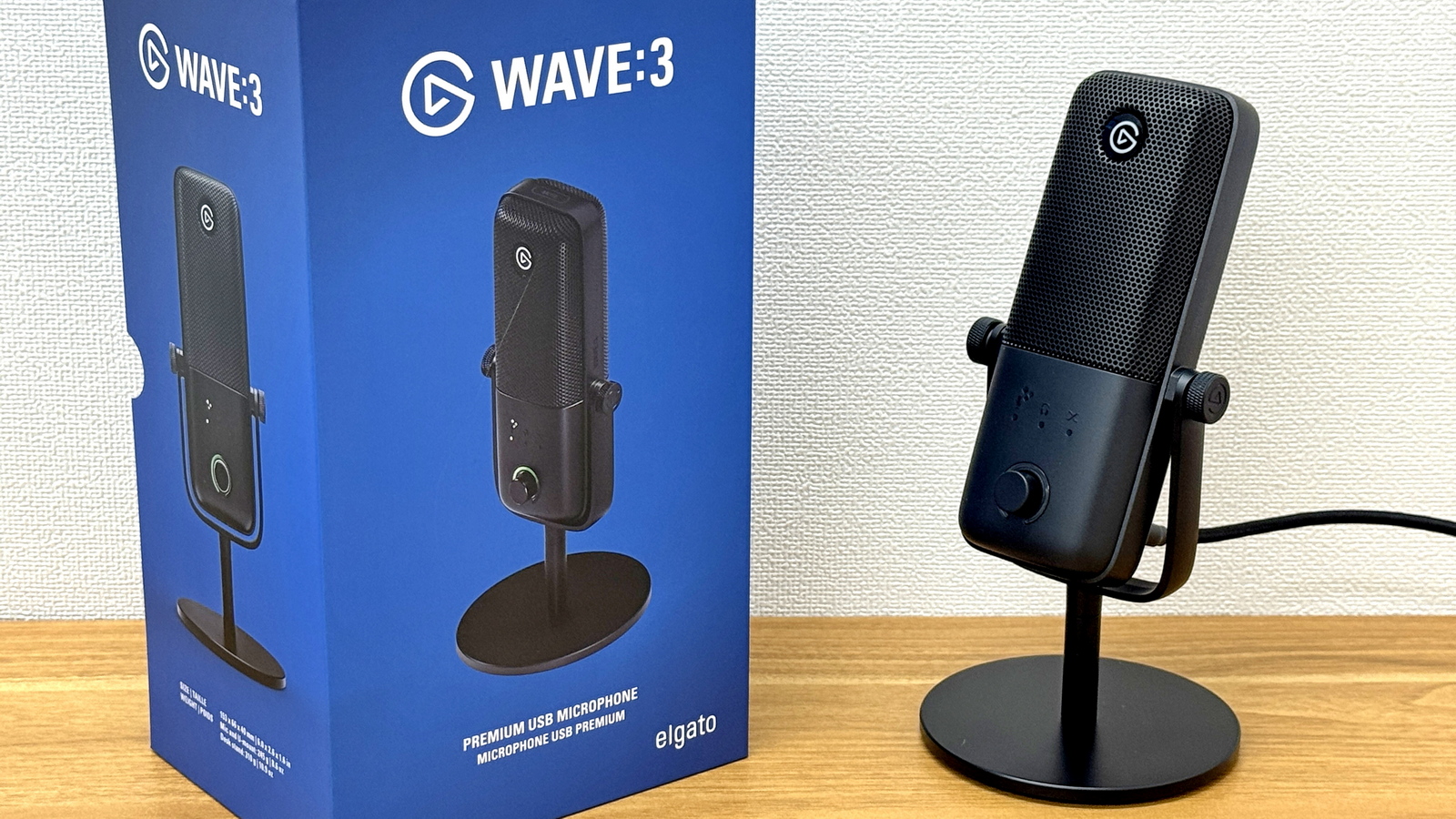
Elgato's high-performance USB microphone, the Wave:3 MK.2 , was released on March 27, 2026. Designed for streamers and podcast creators seeking professional-quality audio with minimal setup, it features 'Clipguard 2.0,' which prevents distortion through hardware-level 32-bit floating-point processing. I was able to borrow the Wave:3 MK.2 from Elgato, so I put it to the test to see what kind of microphone it is.
Wave:3 MK.2 | Elgato
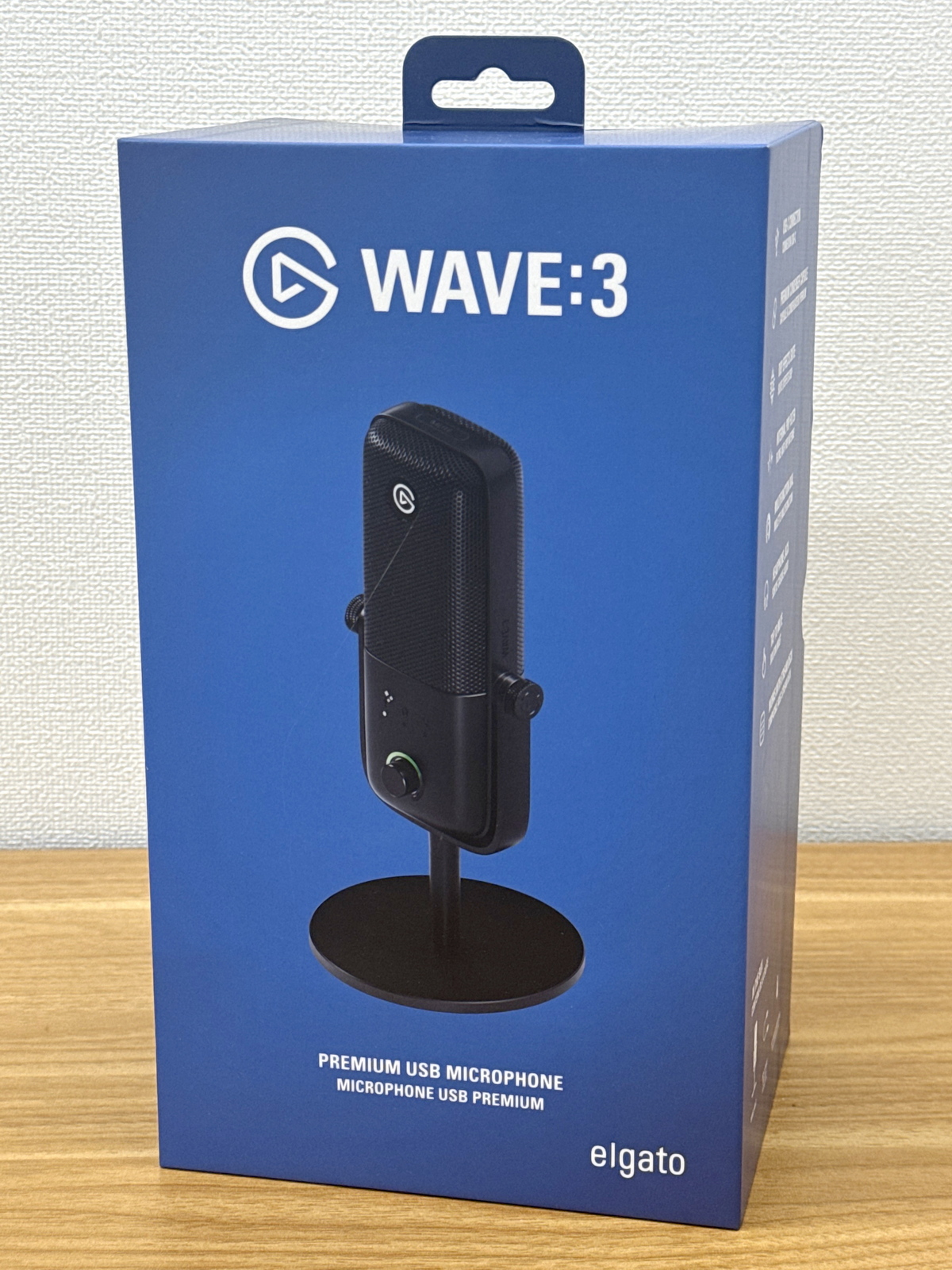
This is what the Wave:3 MK.2 packaging looks like.
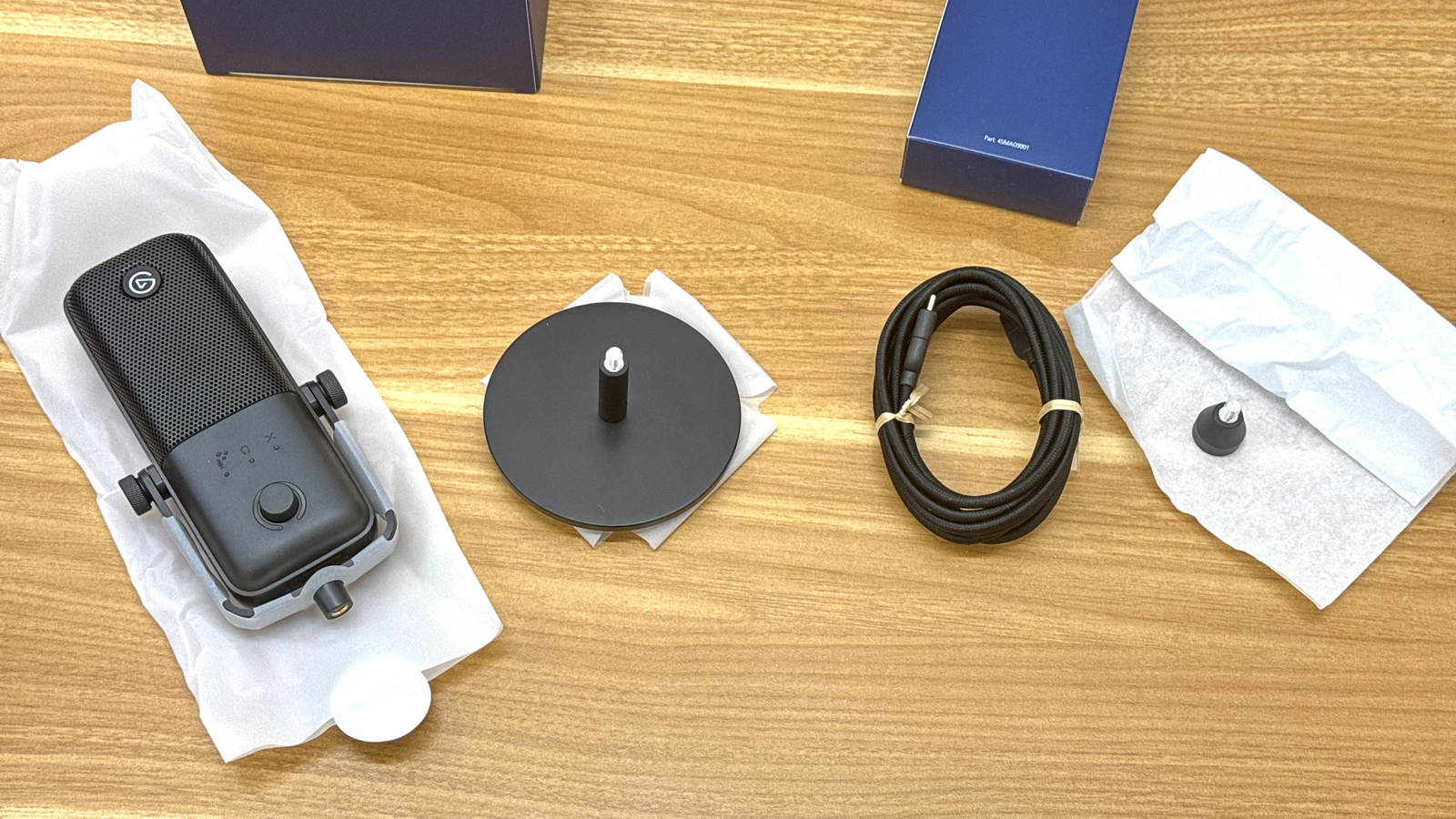
The package includes the Wave:3 MK.2 unit, a desk stand, a 250cm USB-C cable, and a 5/8” to 3/8” adapter for mounting the Wave:3 MK.2 to a microphone stand with a 5.8-inch screw.
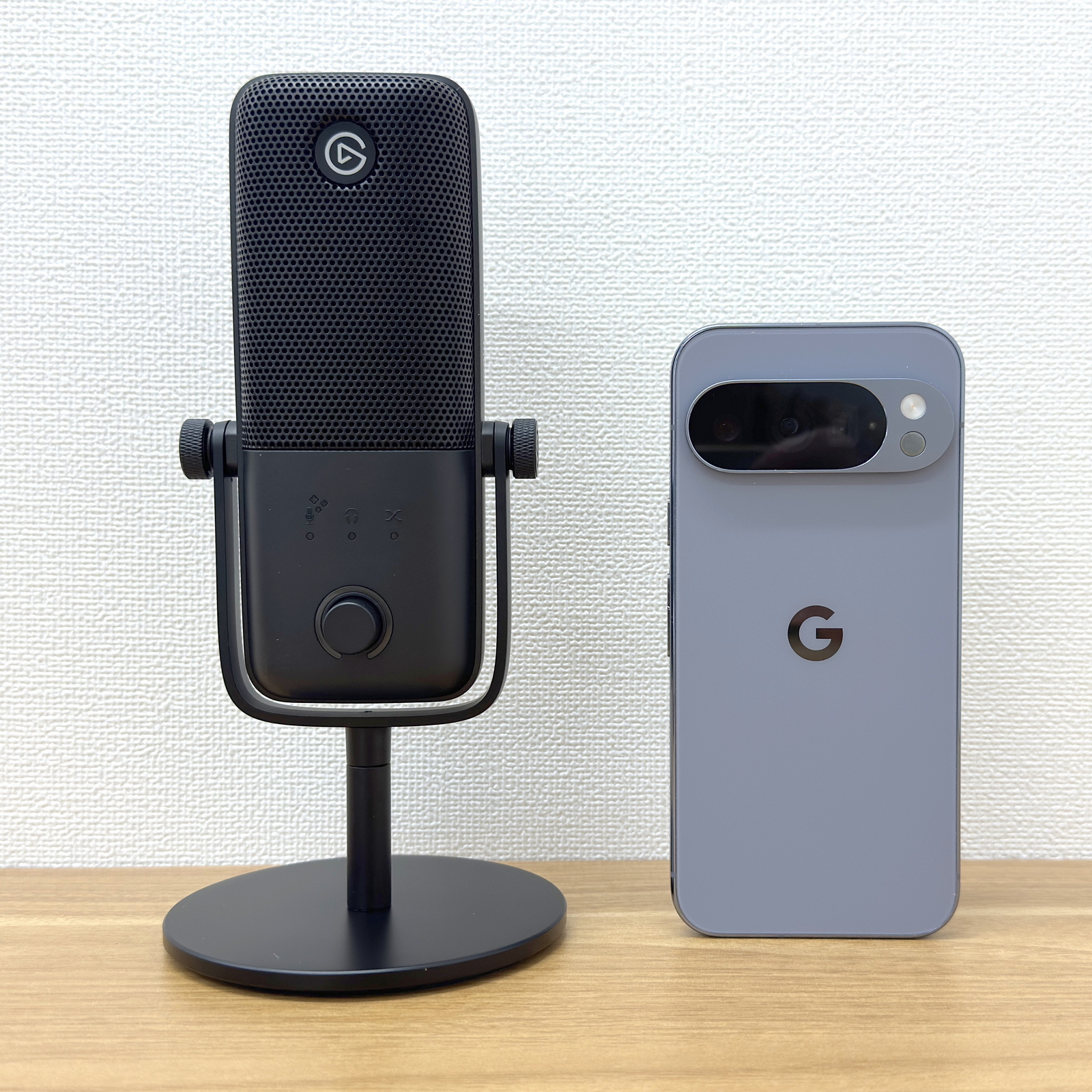
I attached the Wave:3 MK.2 to the included desk stand and placed it next to
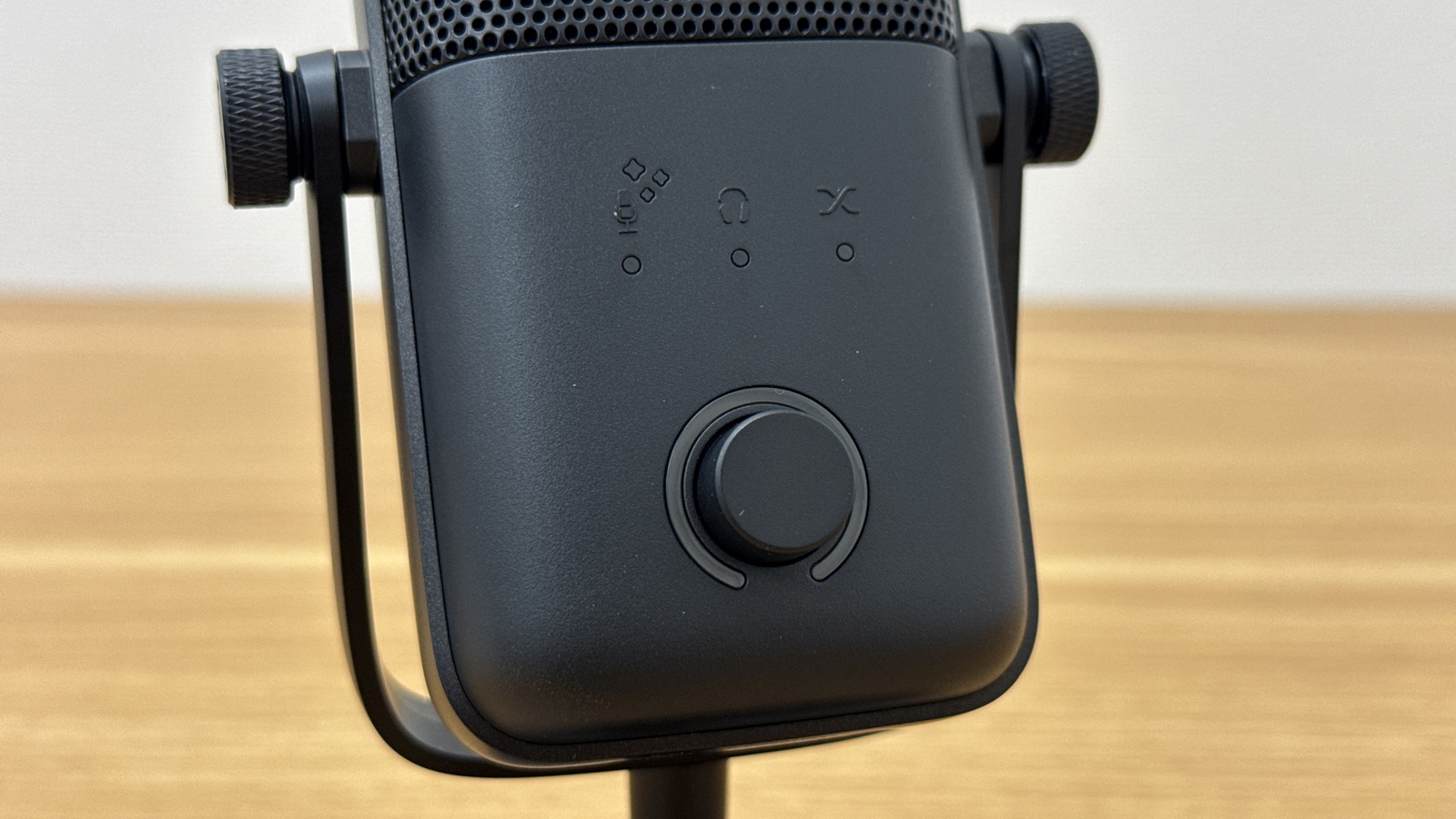
The microphone head has the Elgato logo on the front, along with three LED indicators and a multi-function dial for adjustment.
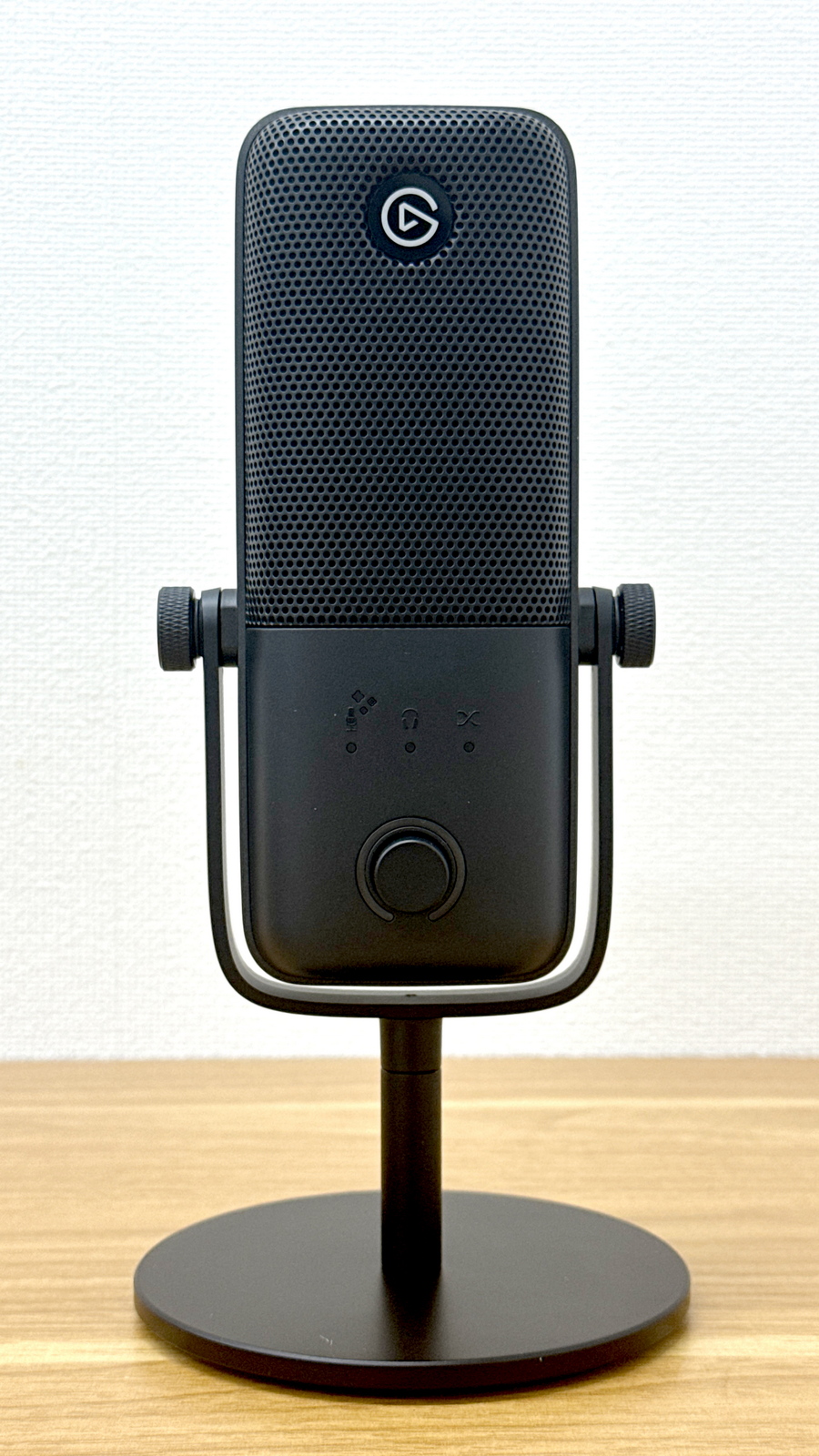
The LED indicators, from left to right, show Voice Tune, headphone volume, and monitor mix. You can physically adjust each of these items by turning the multi-function dial below. There's also a ring-shaped LED indicator around the multi-function dial.
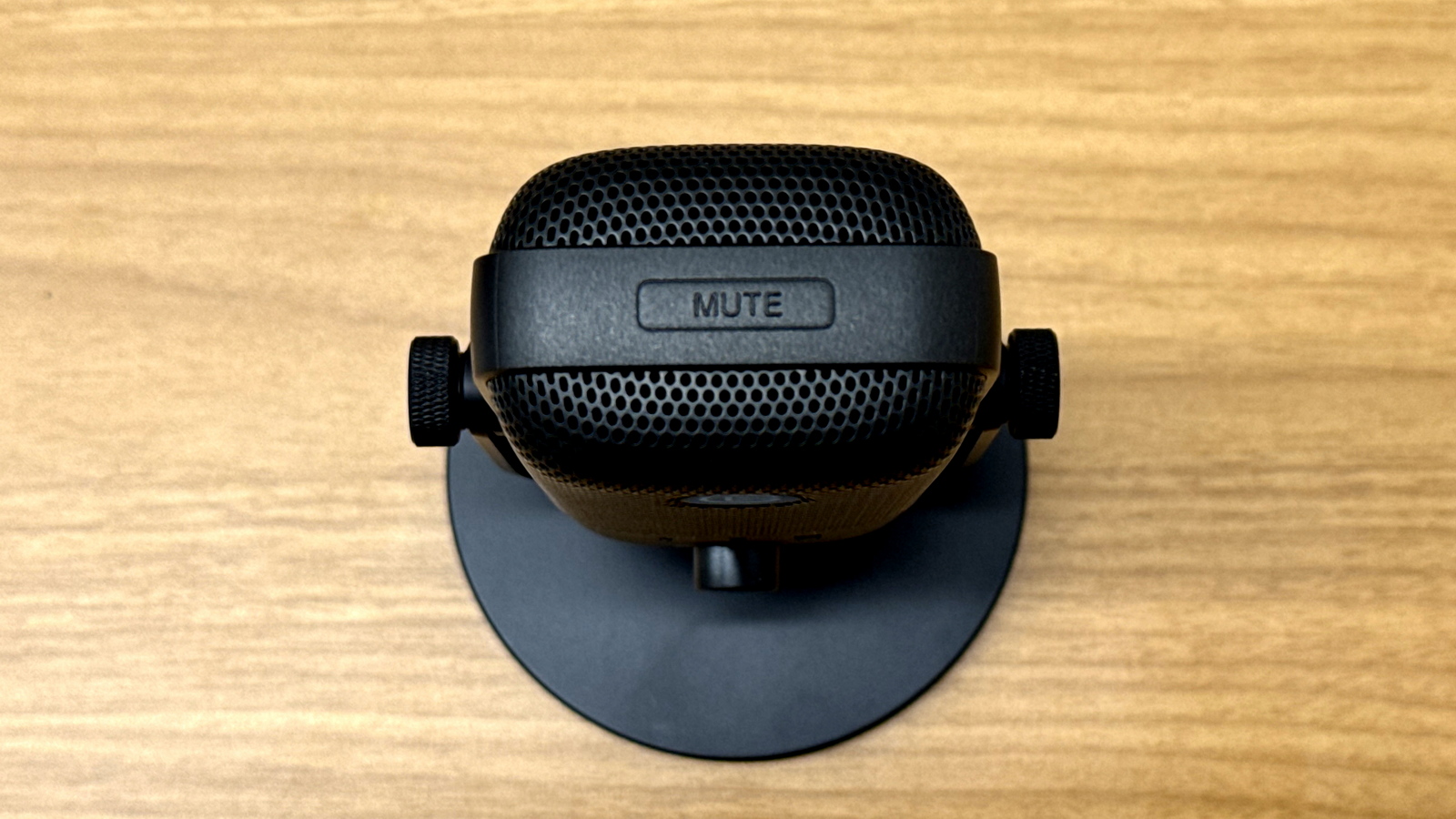
The top surface has a touch-sensitive mute button.
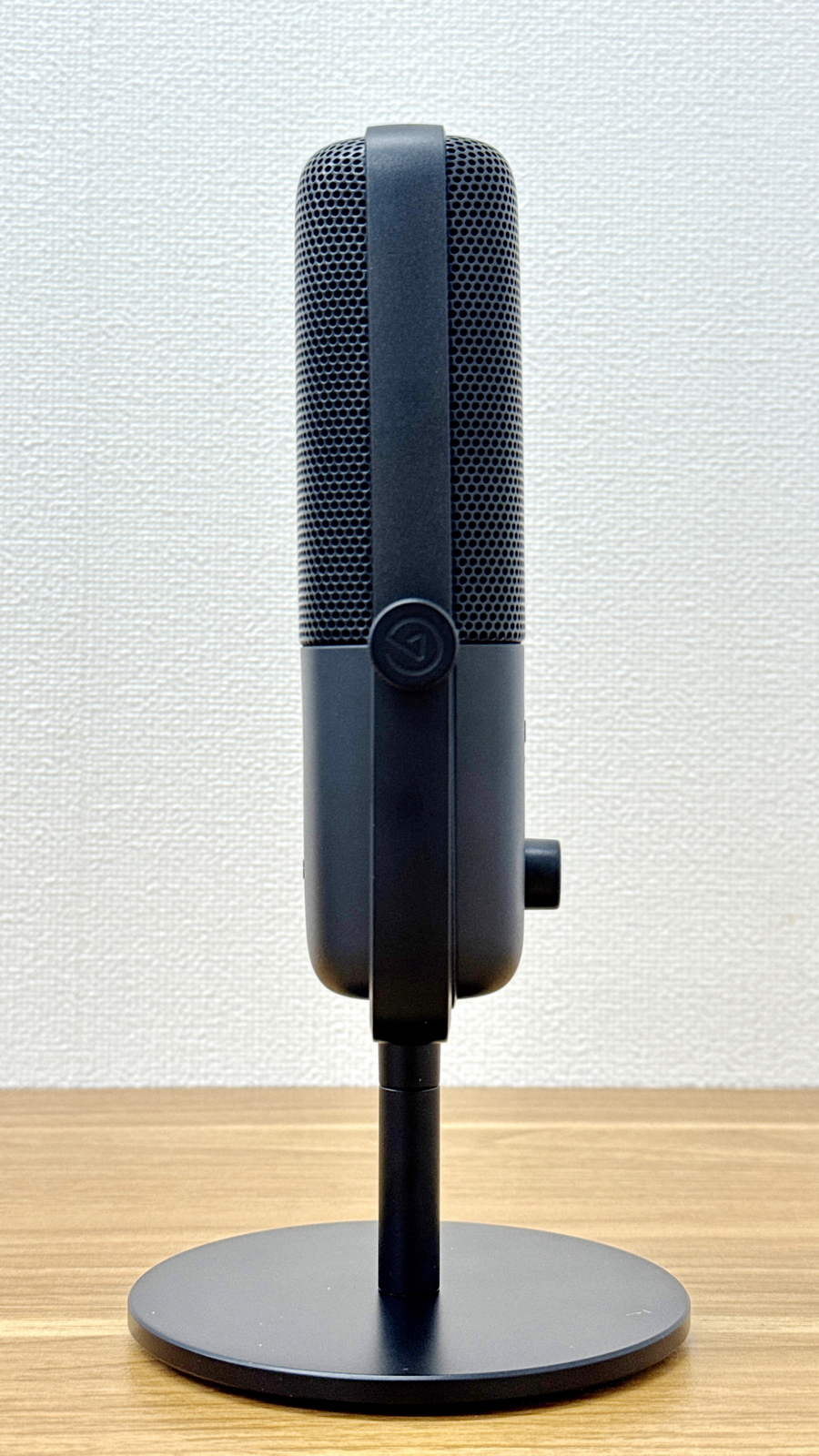
right side
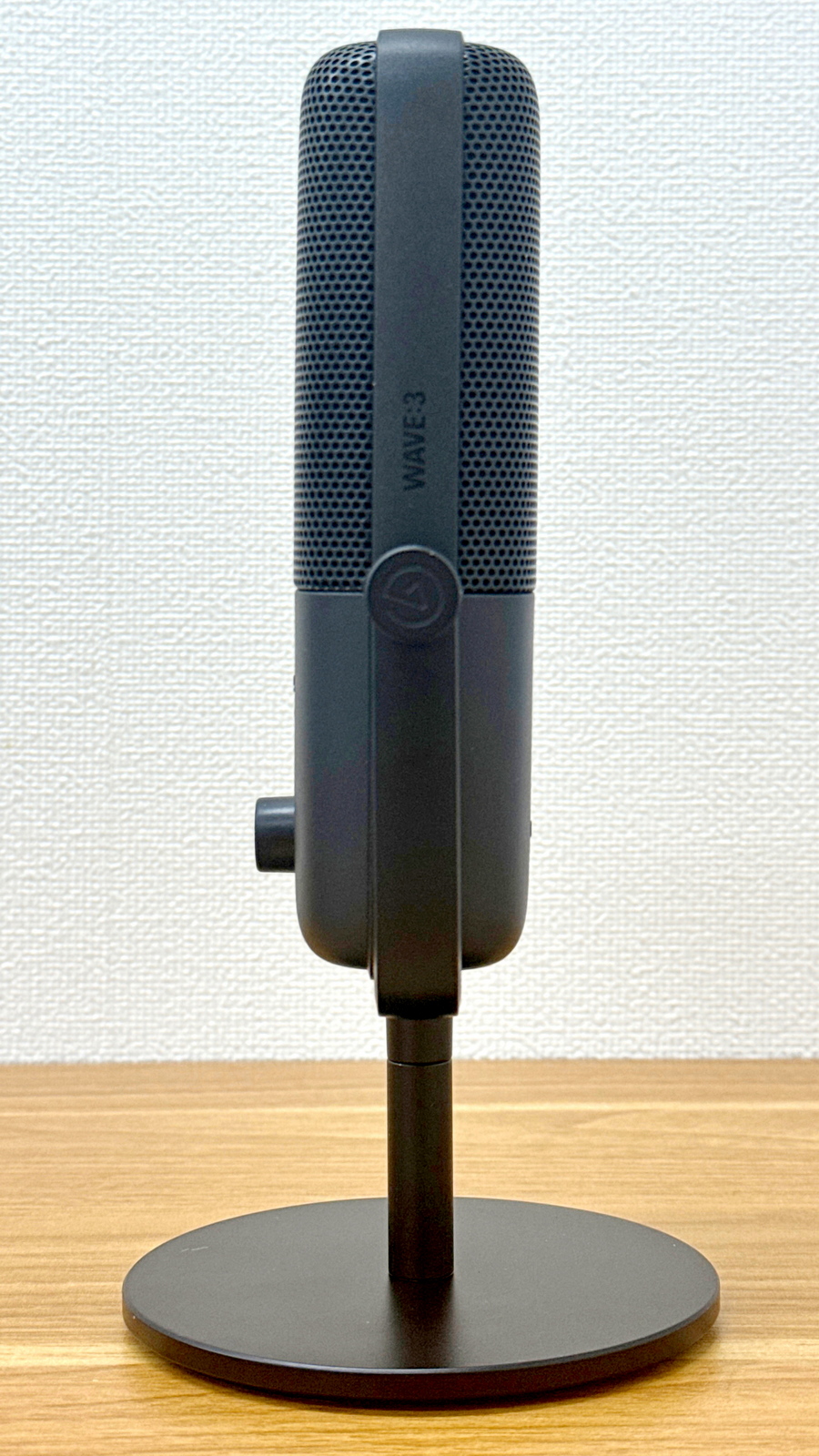
Left side
Back
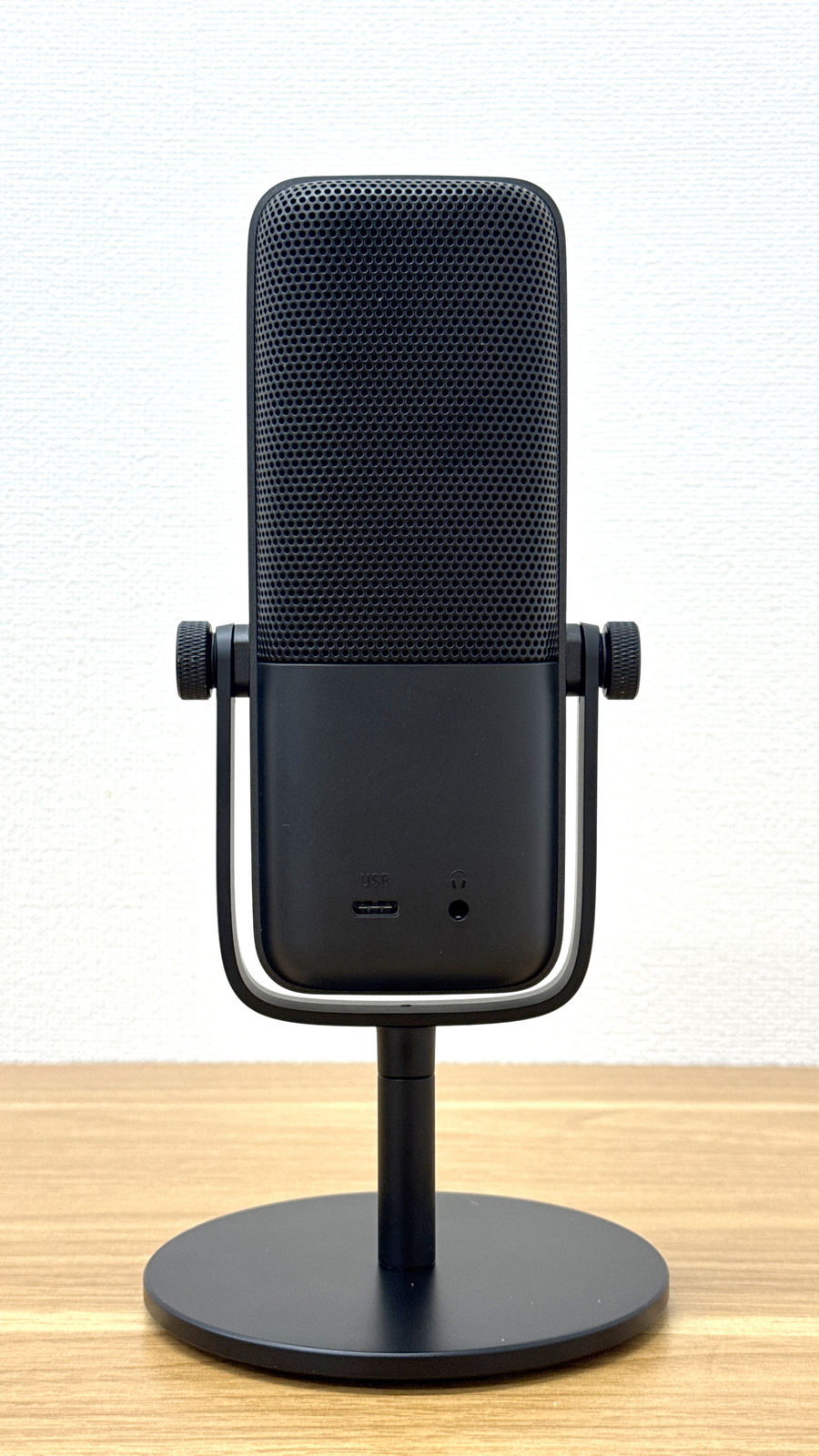
On the lower back, there is a USB-C port for connectivity and a 3.5mm audio output port for monitoring.
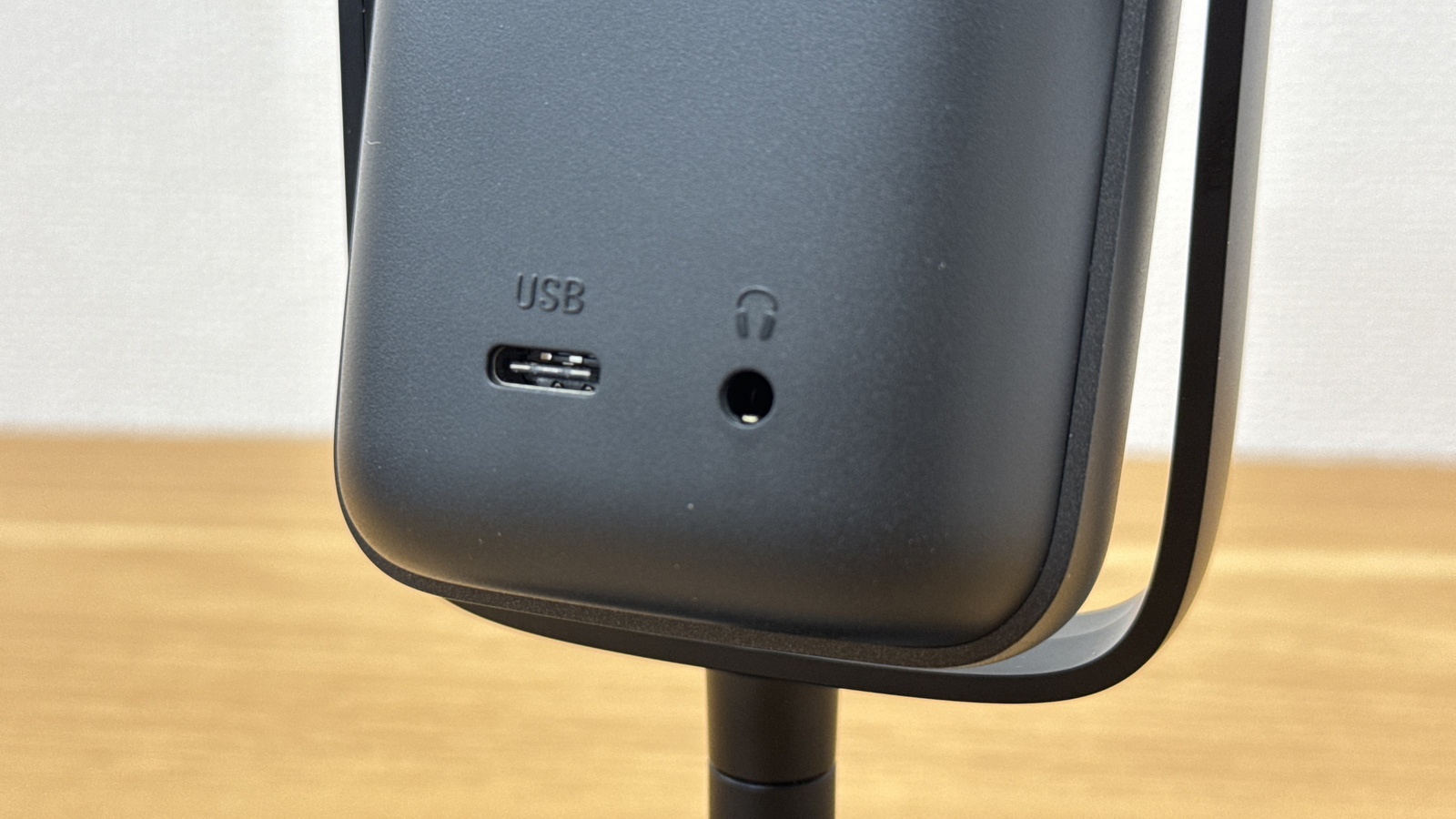
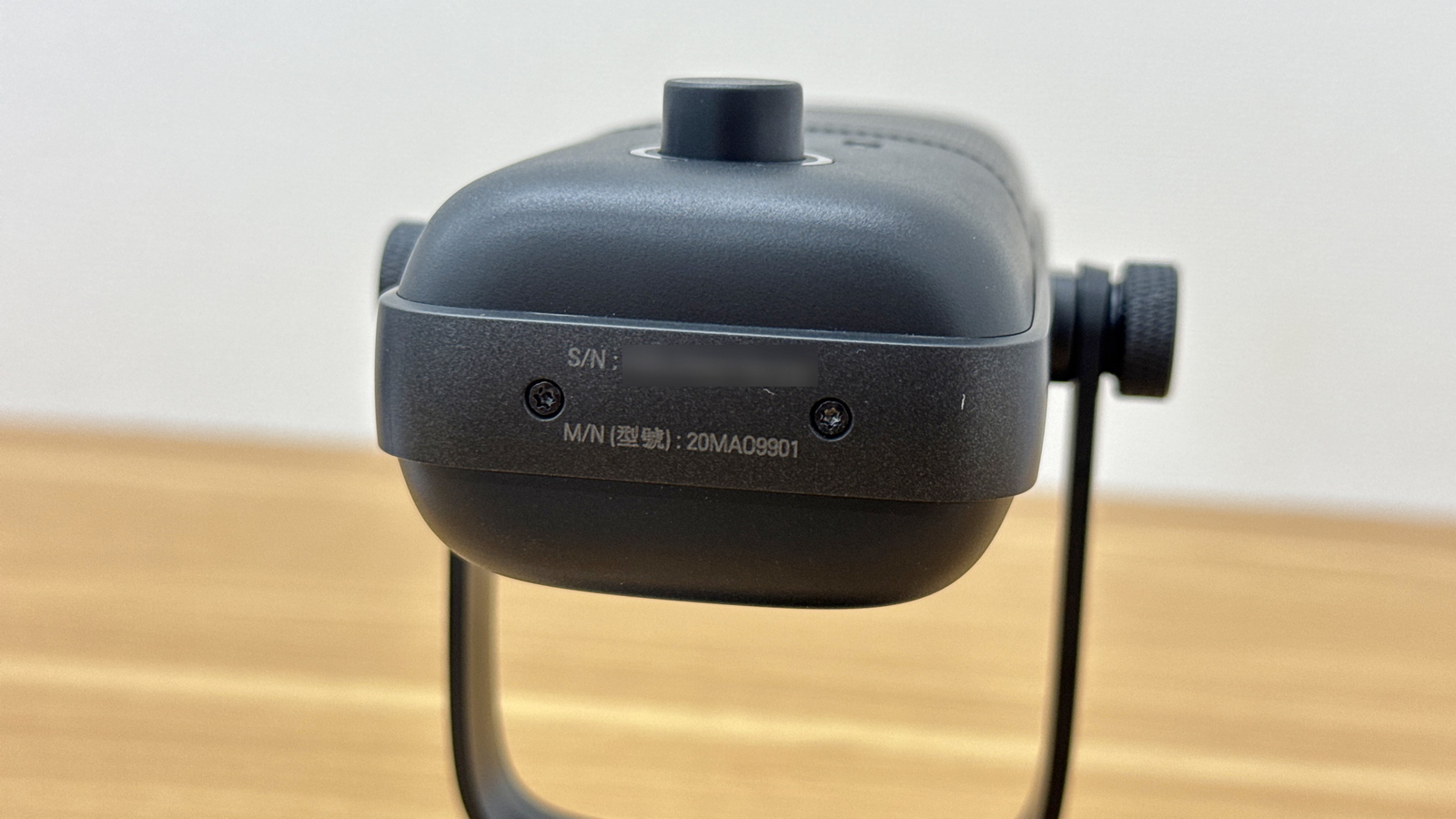
The serial code and model number were printed on the bottom.
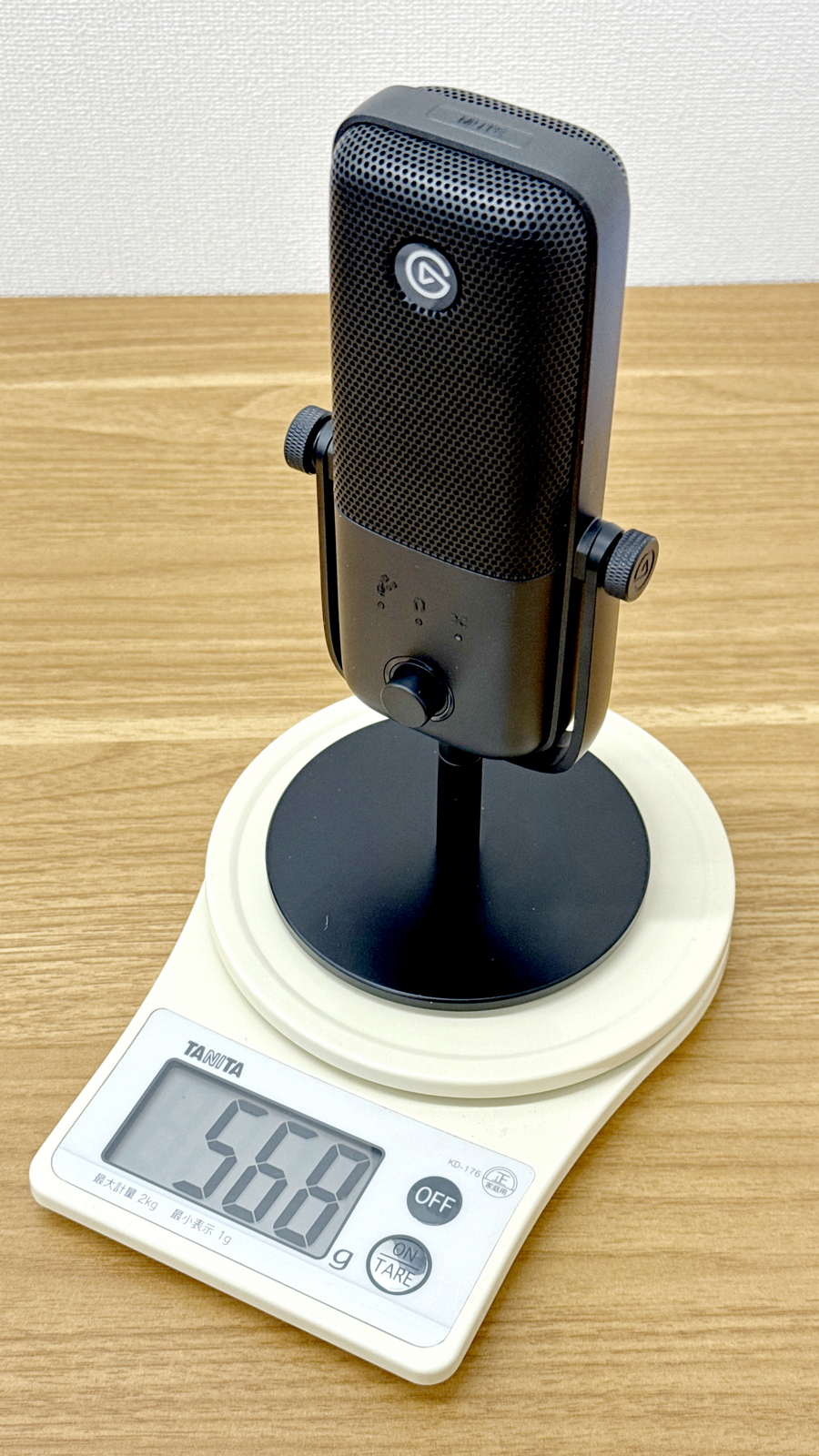
The weight, including the desk stand, is 568g. The desk stand is sturdily built, providing good stability.
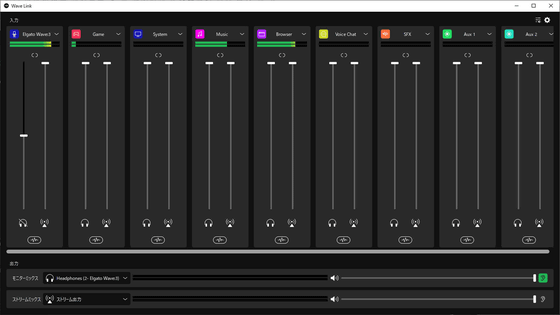
While Wave:3 MK.2 can be used as is, you can easily make detailed settings by using Elgato's virtual audio mixer software, 'Wave Link.' The Wave Link installer can be downloaded from the link below.
Wave Link | Elgato
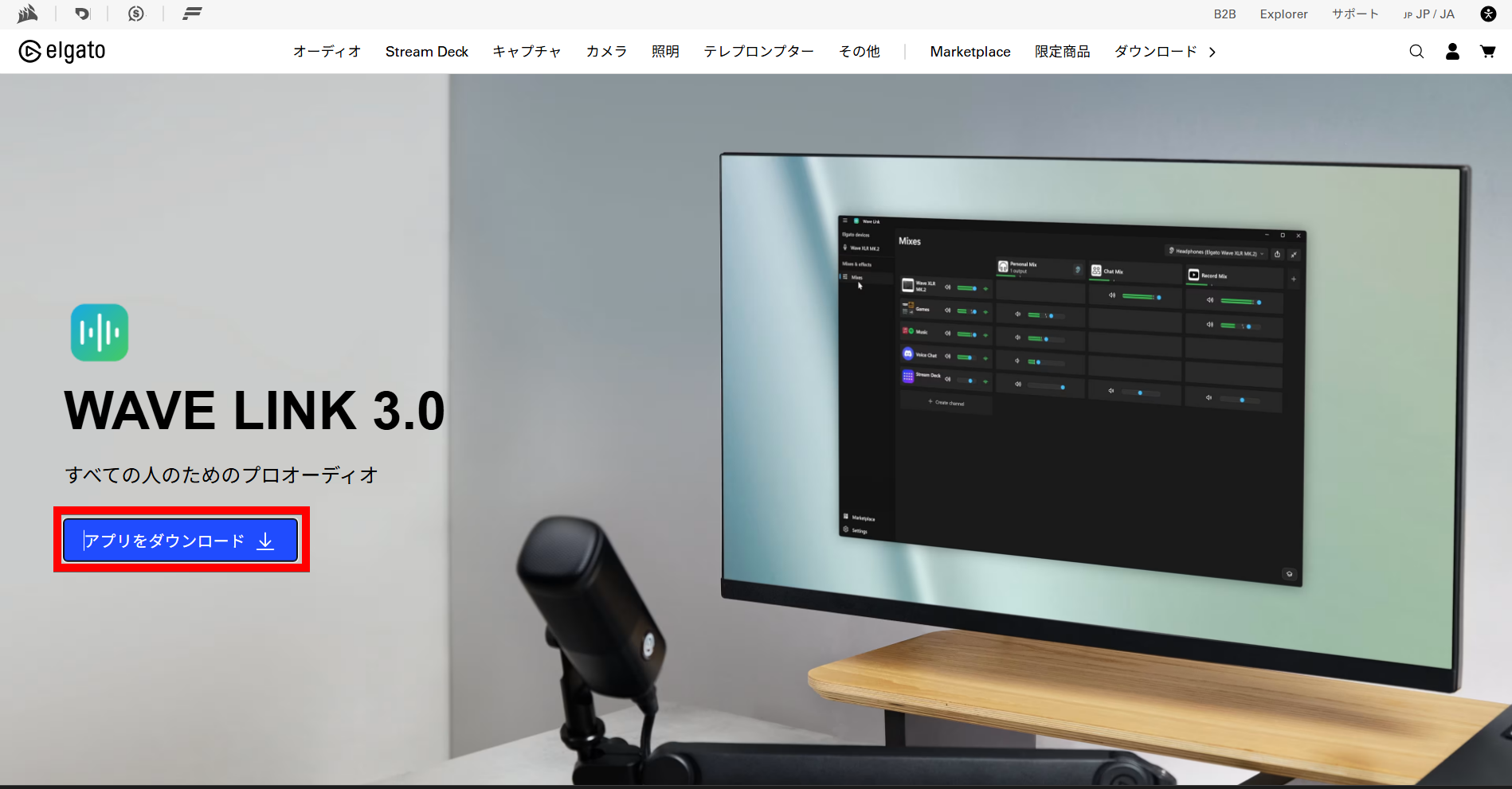
Clicking 'Download App' will download an installer in MSIX format. The file size is 182MB, and it is compatible with Windows 11 and later.
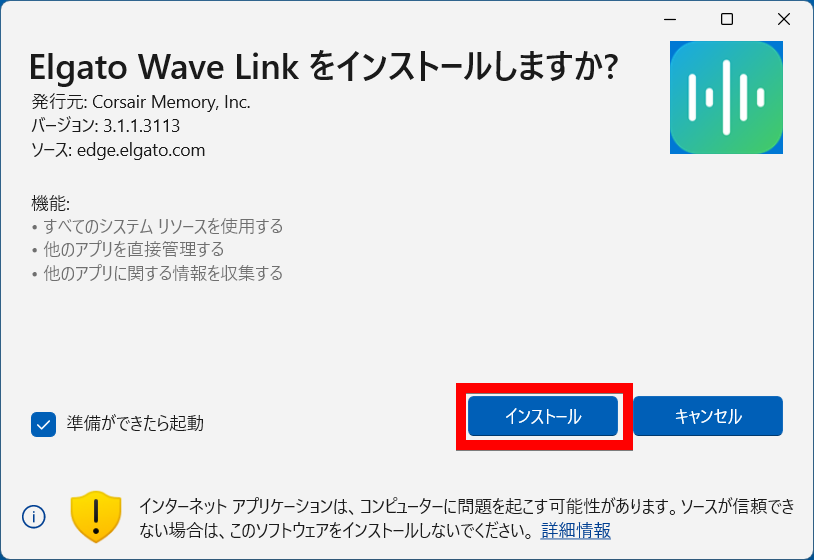
Launch the downloaded installer. Click 'Install'.
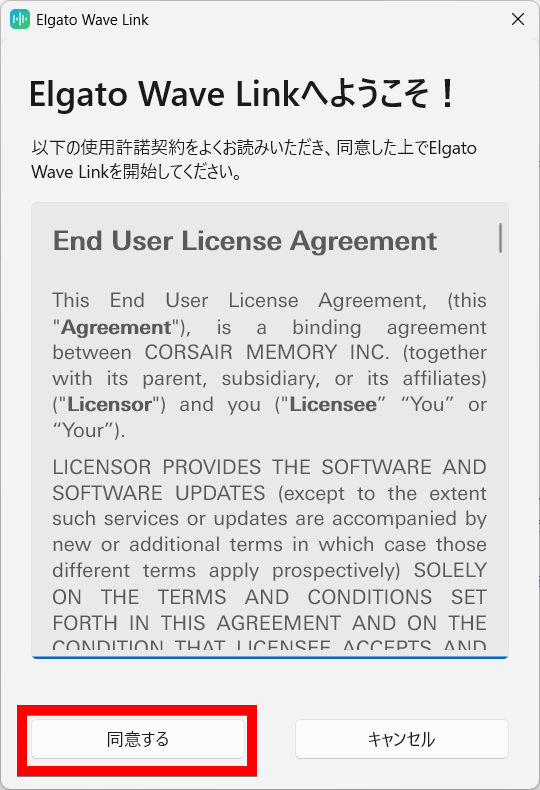
When the installer starts, you will be prompted to agree to the end-user license, so click 'Agree'.
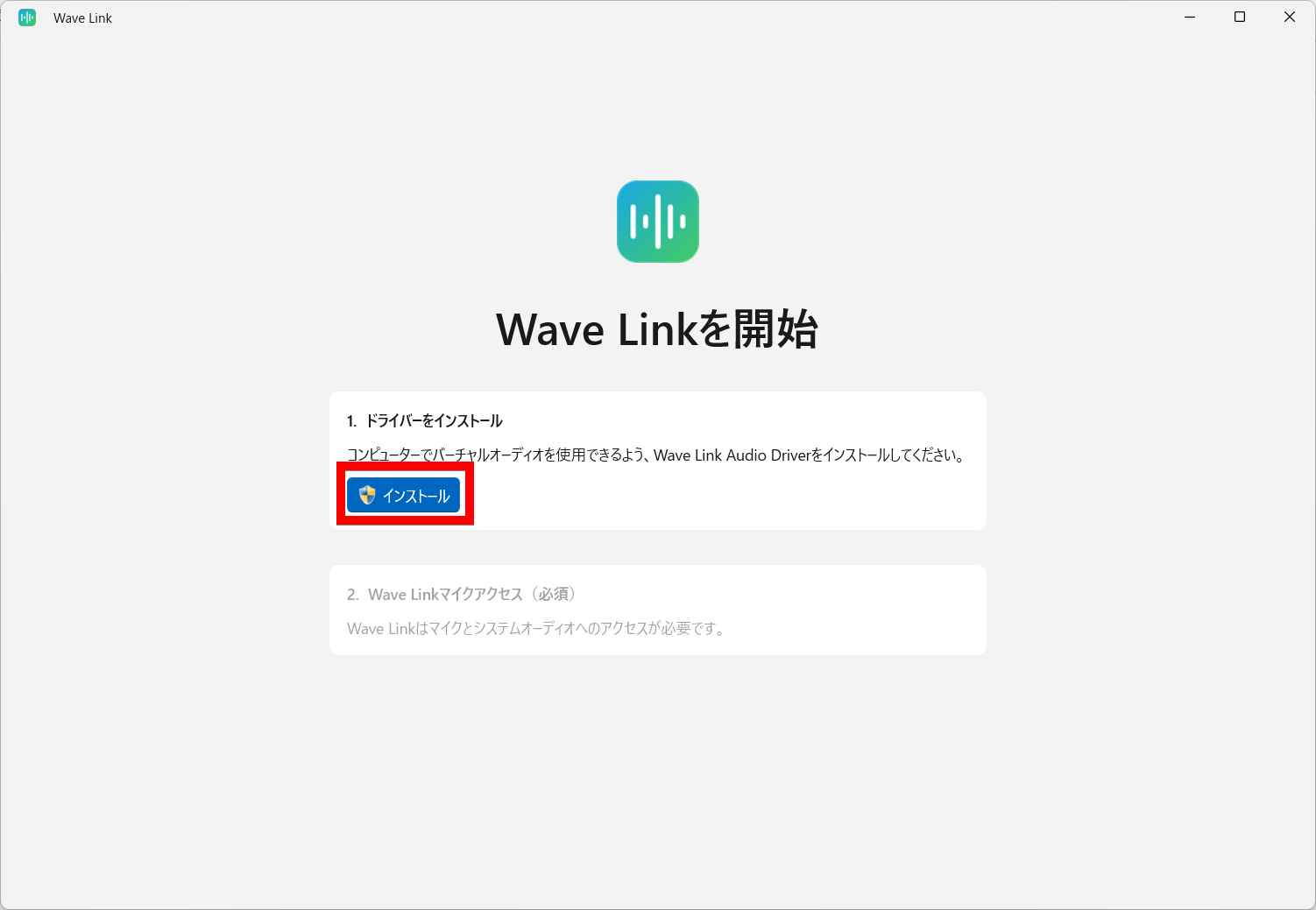
Click 'Install'.
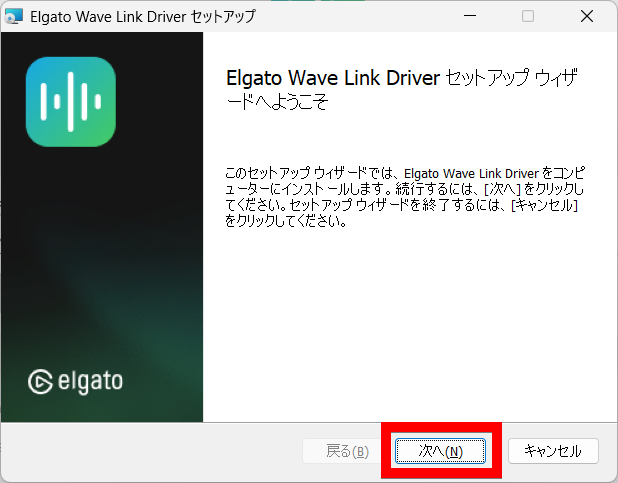
Click 'Next'.
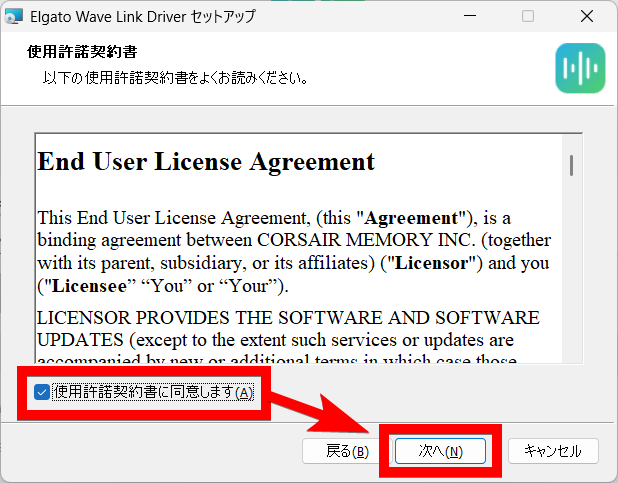
Check the box that says 'I agree to the license agreement' and click 'Next'.
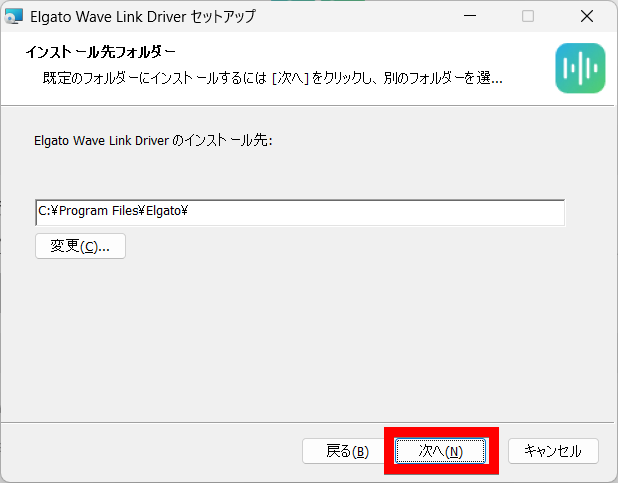
You will be taken to a screen where you can specify the installation folder, so click 'Next'.
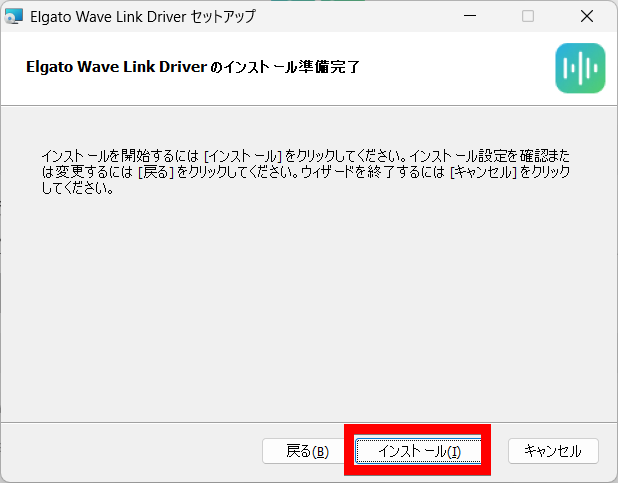
Click 'Install'.
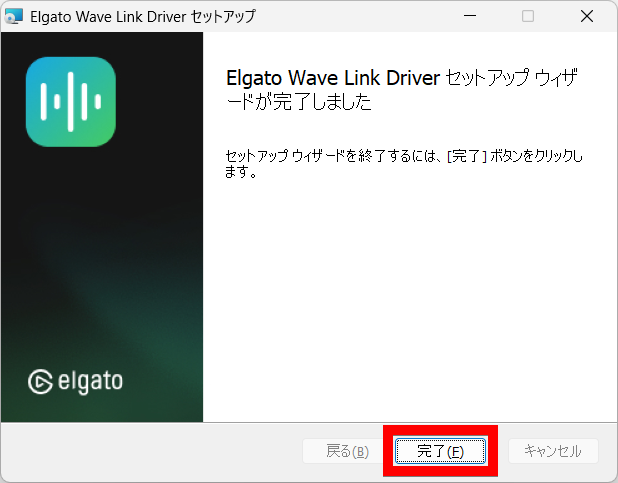
Once the installation is complete, click 'Finish'.
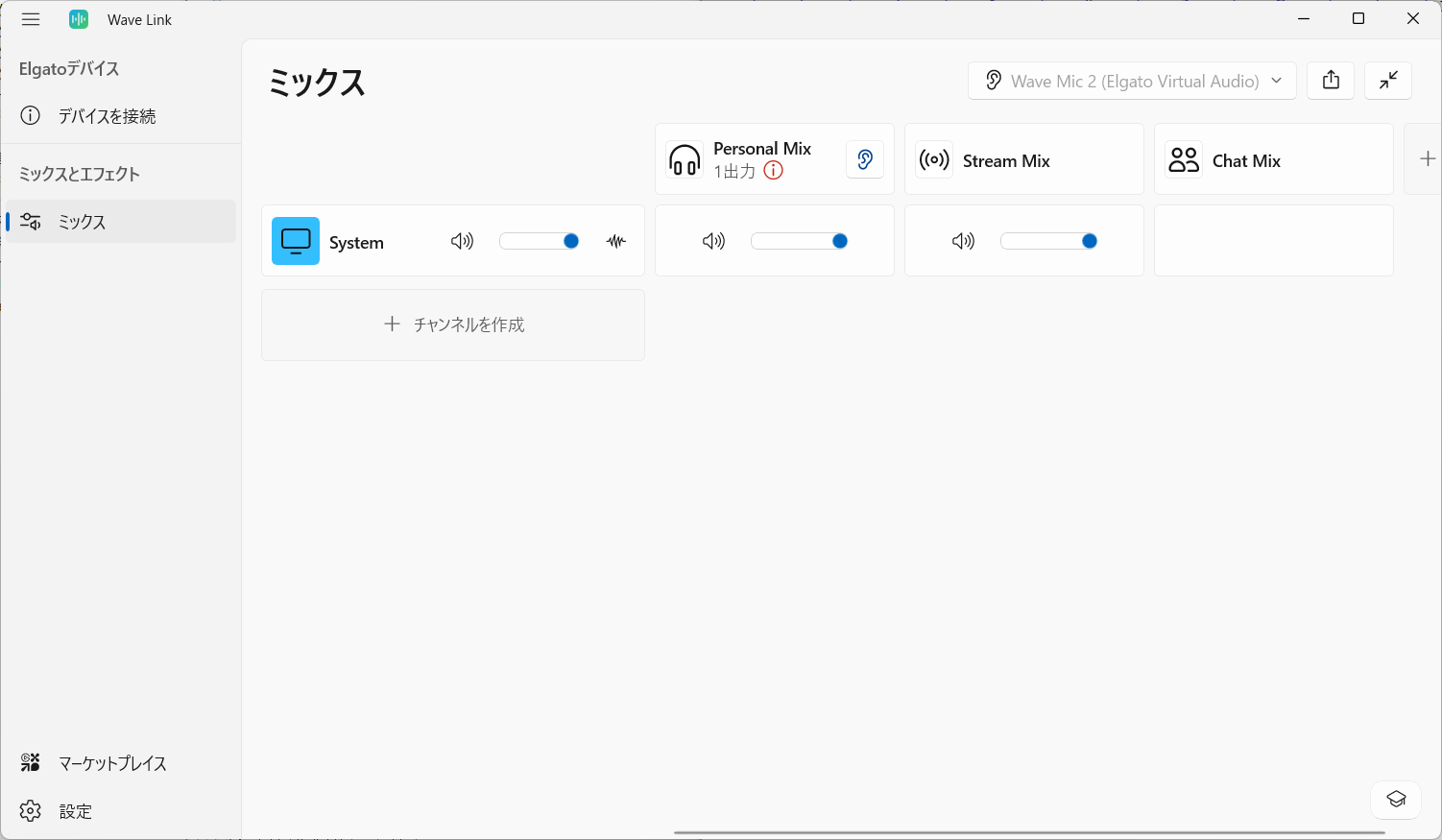
This is what it looks like when you launch Wave Link.
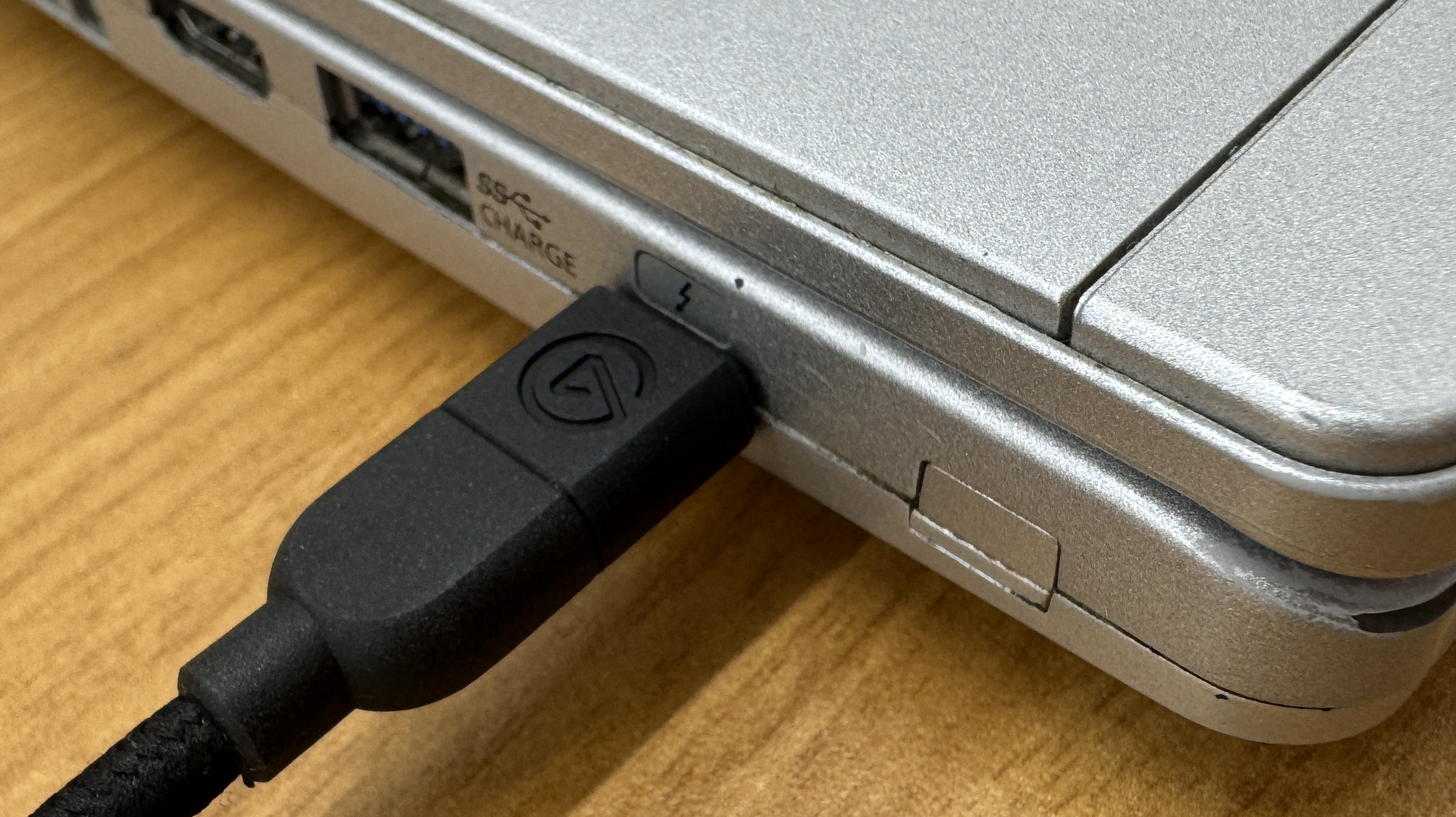
Connect the Wave:3 MK.2 to your PC using the included USB cable.
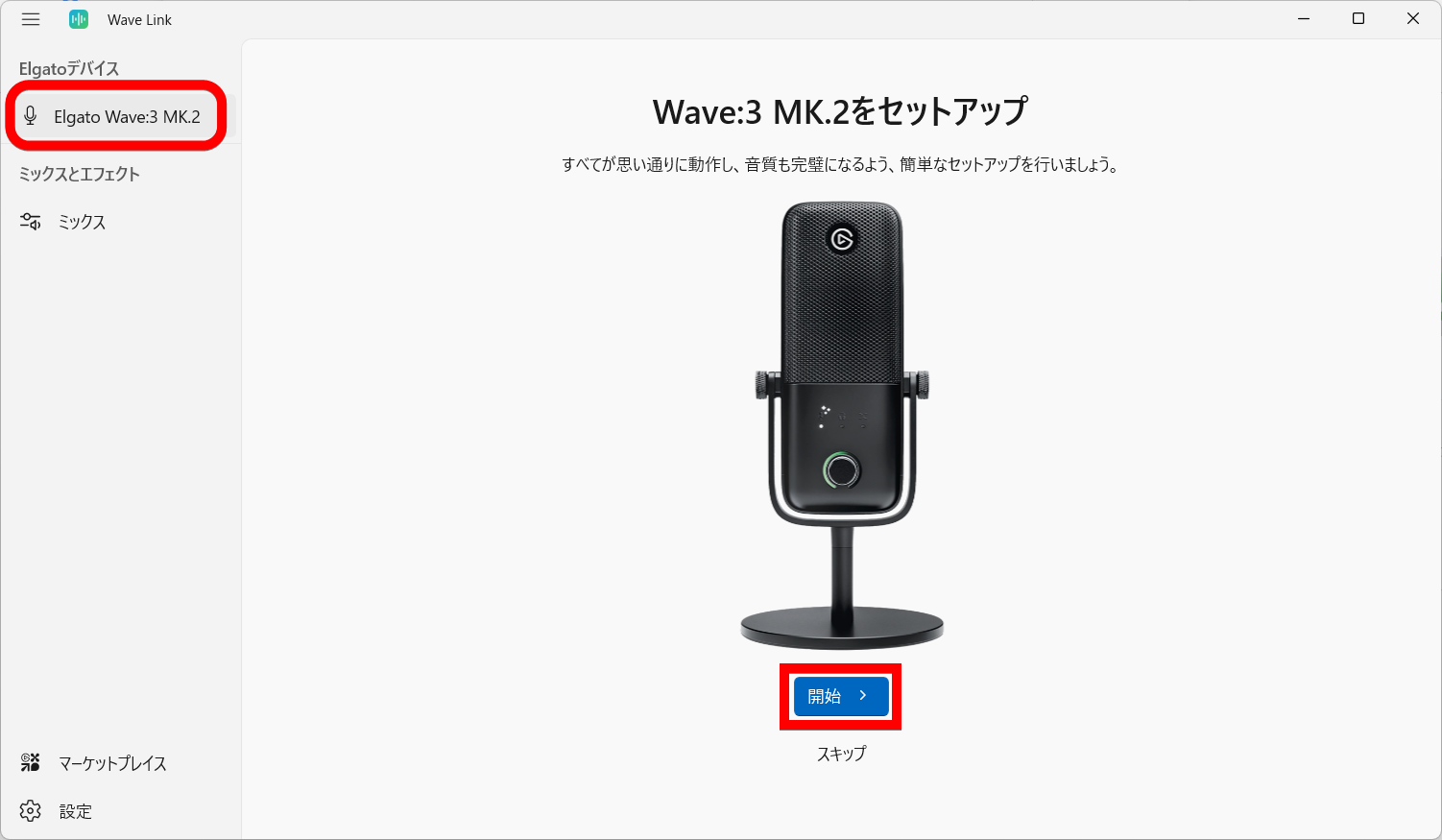
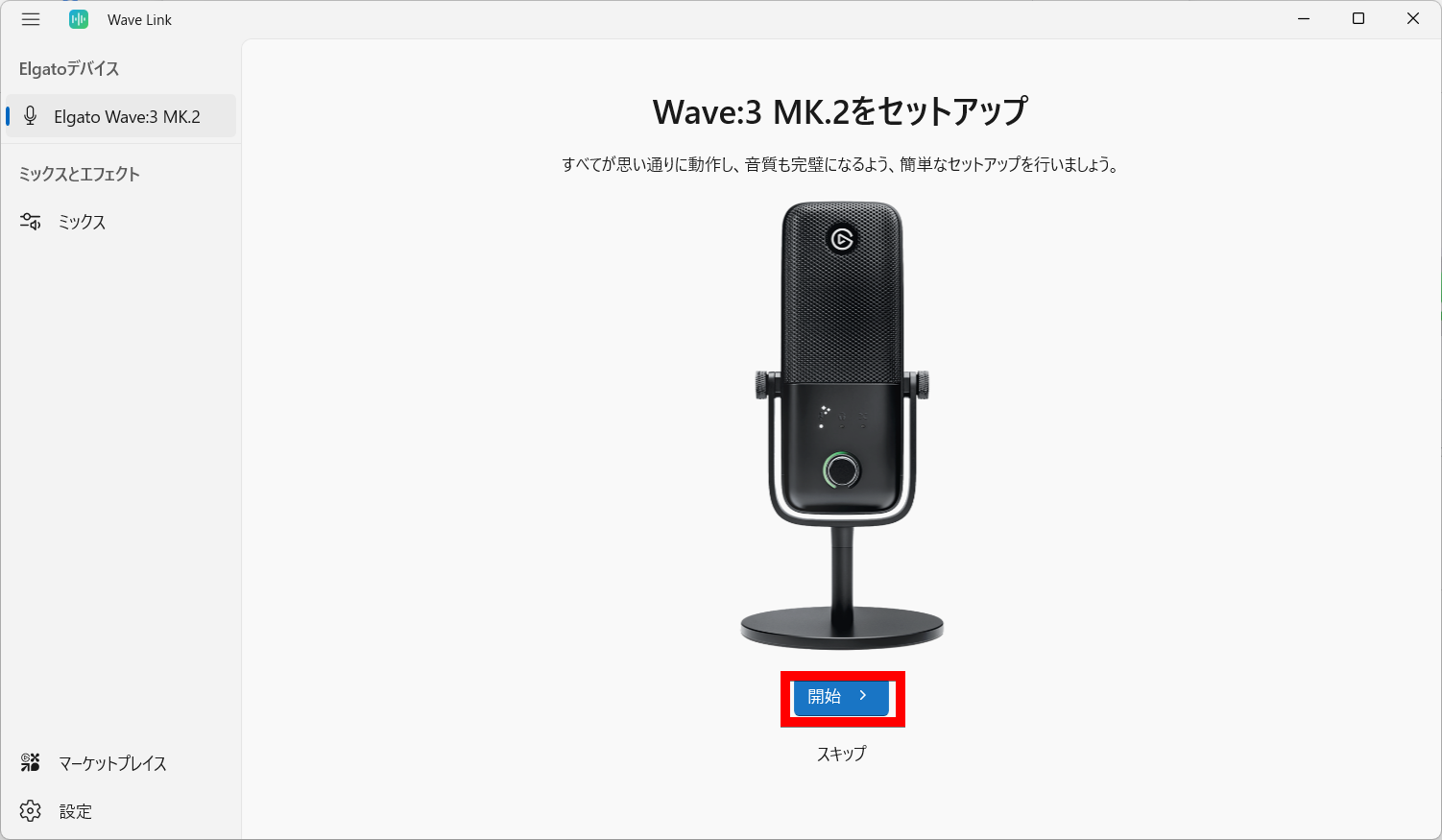
When I connected the Wave:3 MK.2, 'Elgato Wave:3 MK.2' appeared under 'Elgato Devices' on the left. To proceed with the setup, I clicked 'Start' below the picture of the Wave:3 MK.2.
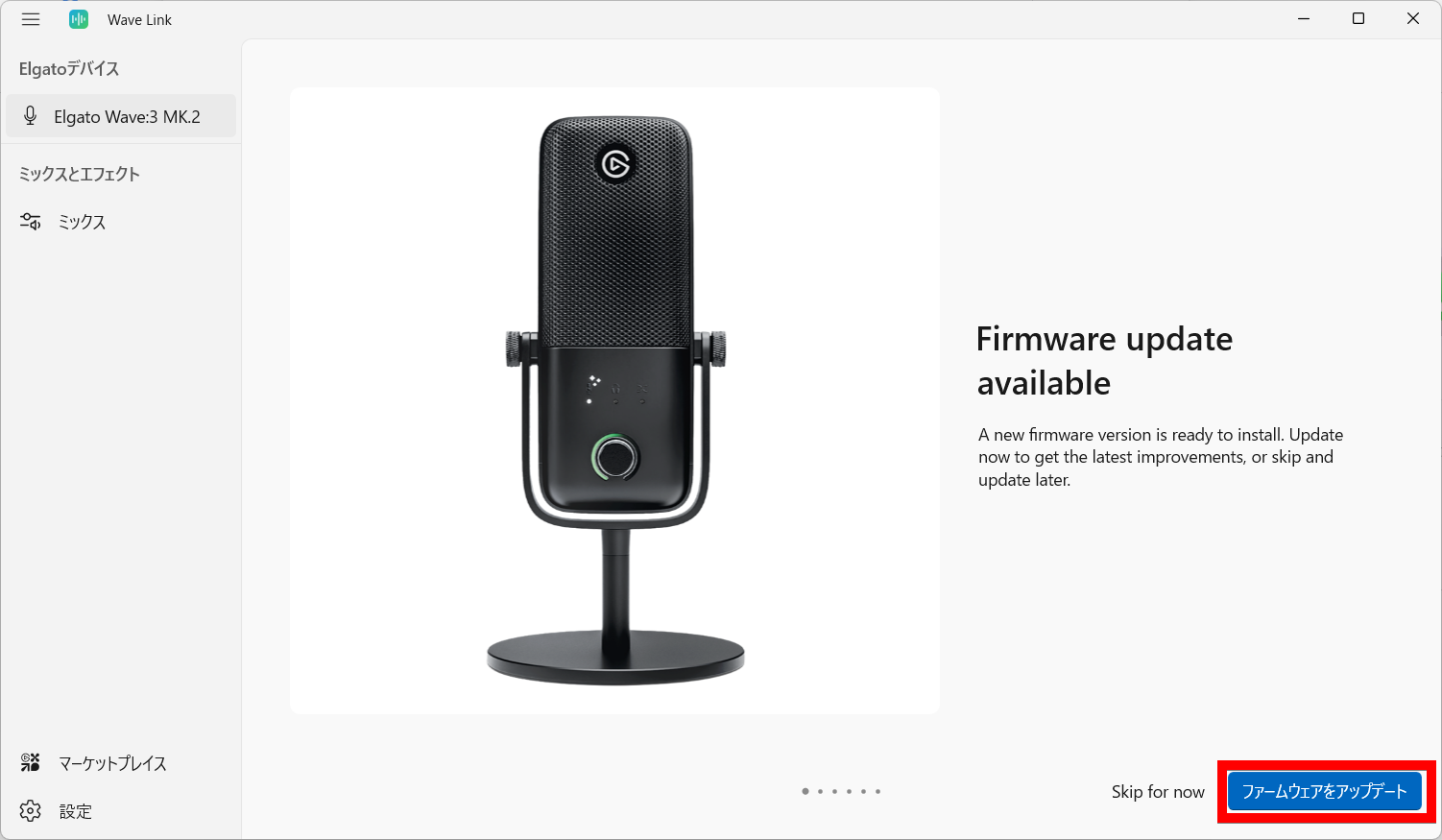
The first time you use it, you'll need to update the firmware. Just click 'Update Firmware'.
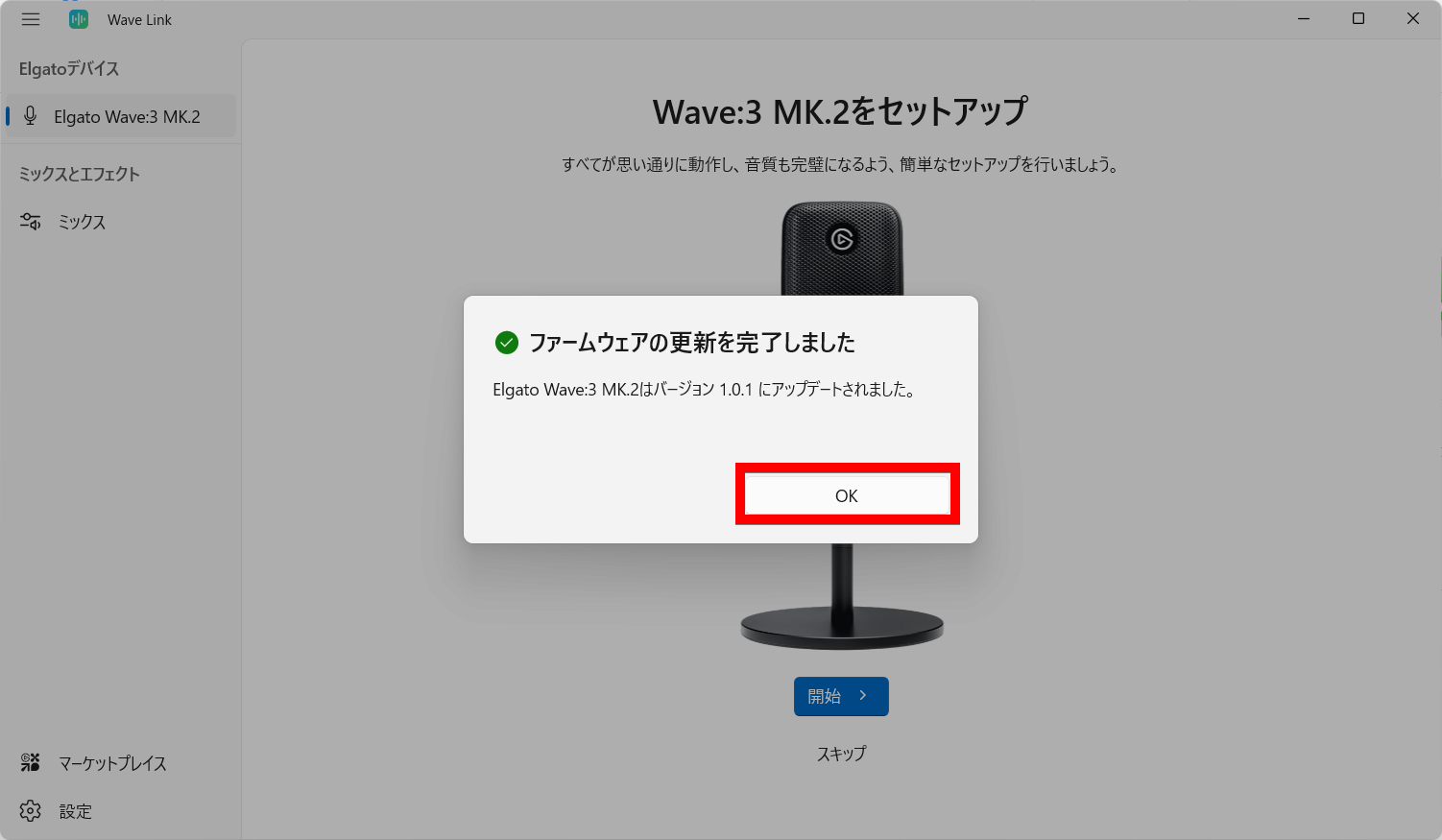
Click 'OK' once the firmware update is complete.
Click 'Start' below the Wave:3 MK.2 photo.
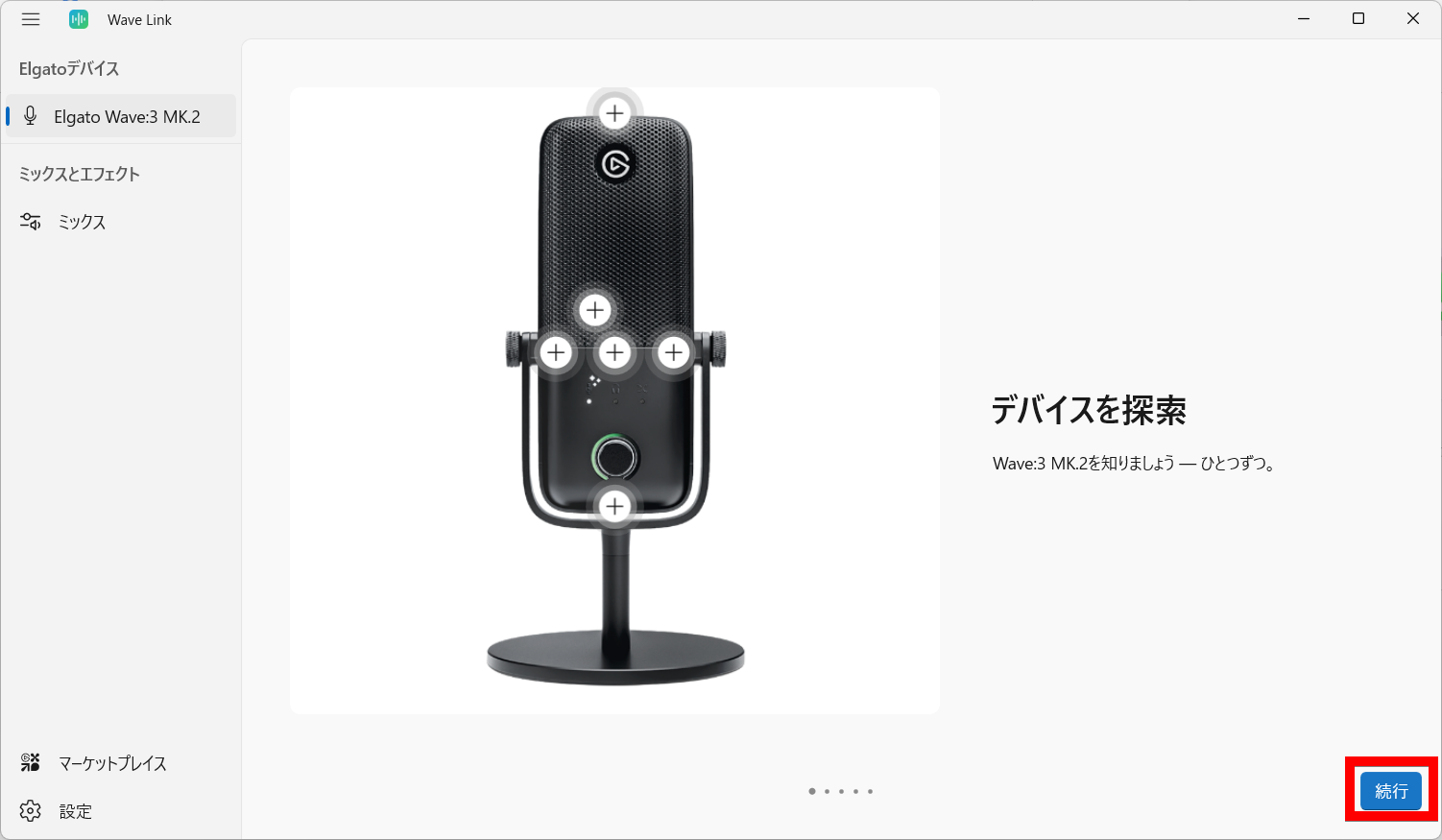
Click 'Continue'.
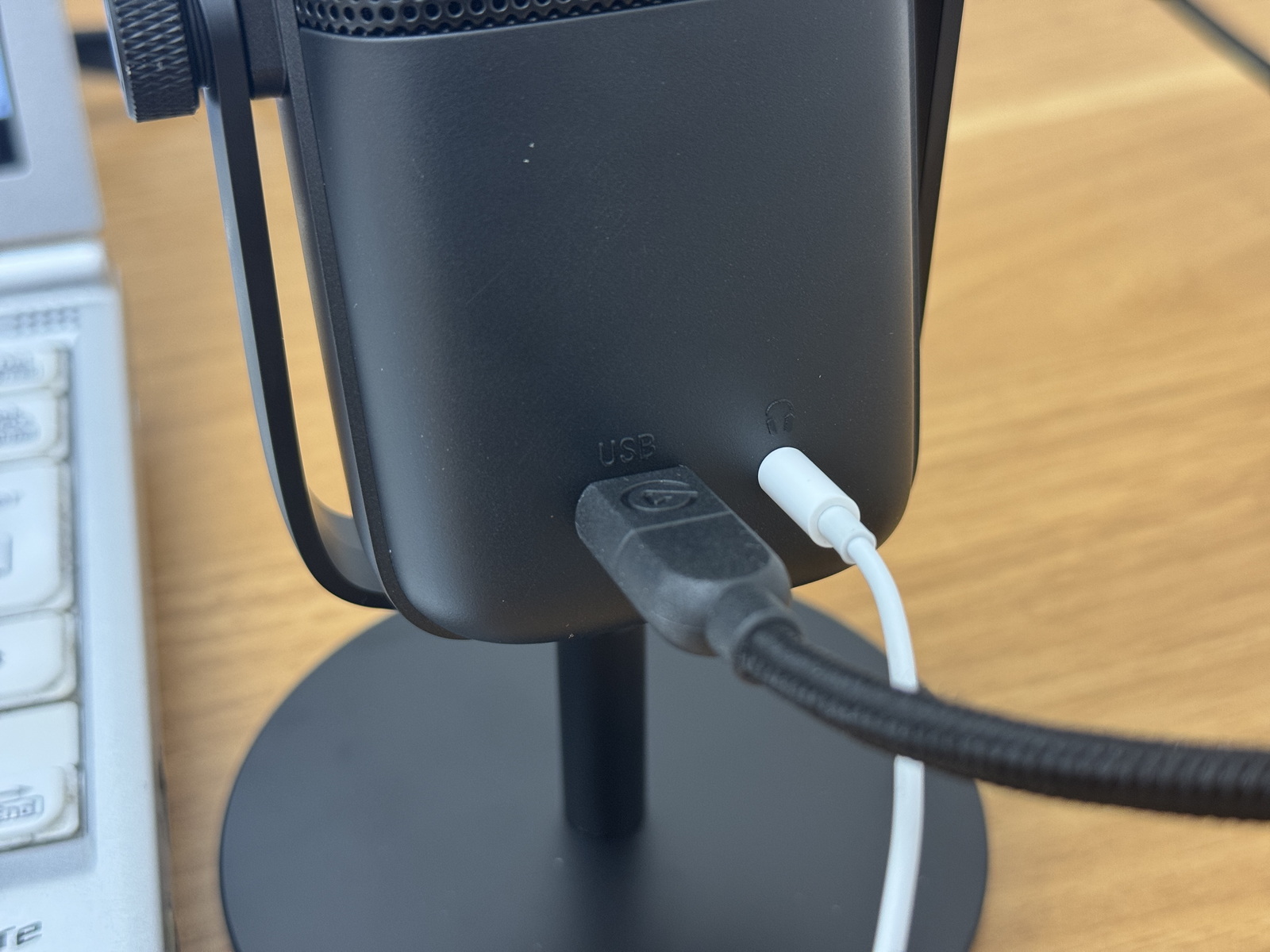
Connect headphones to the 3.5mm port on the back of the Wave:3 MK.2. These headphones are for monitoring the mixed sound, including the microphone input. Click 'Continue'.
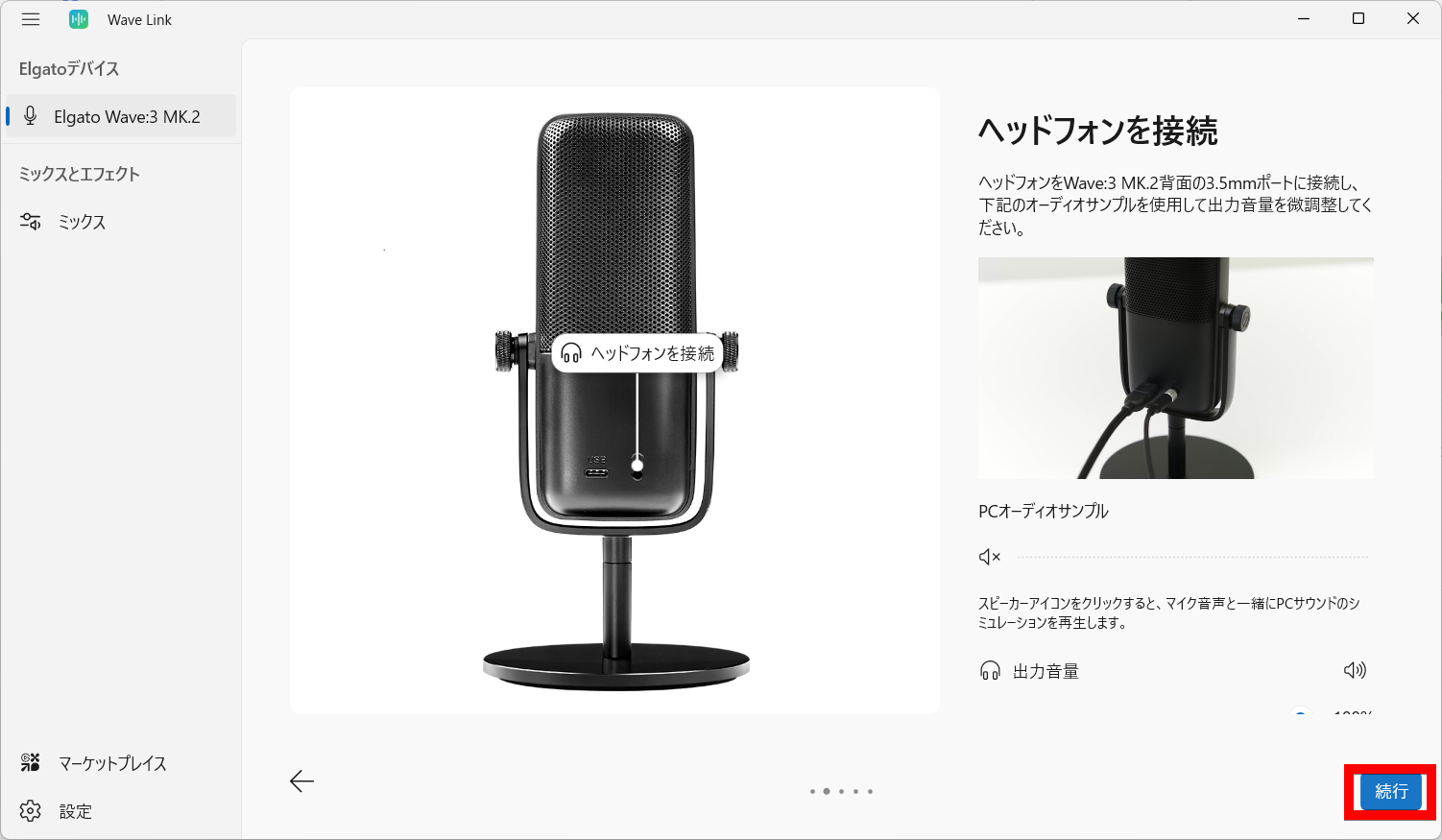
This is what it looks like with headphones connected to the 3.5mm port.
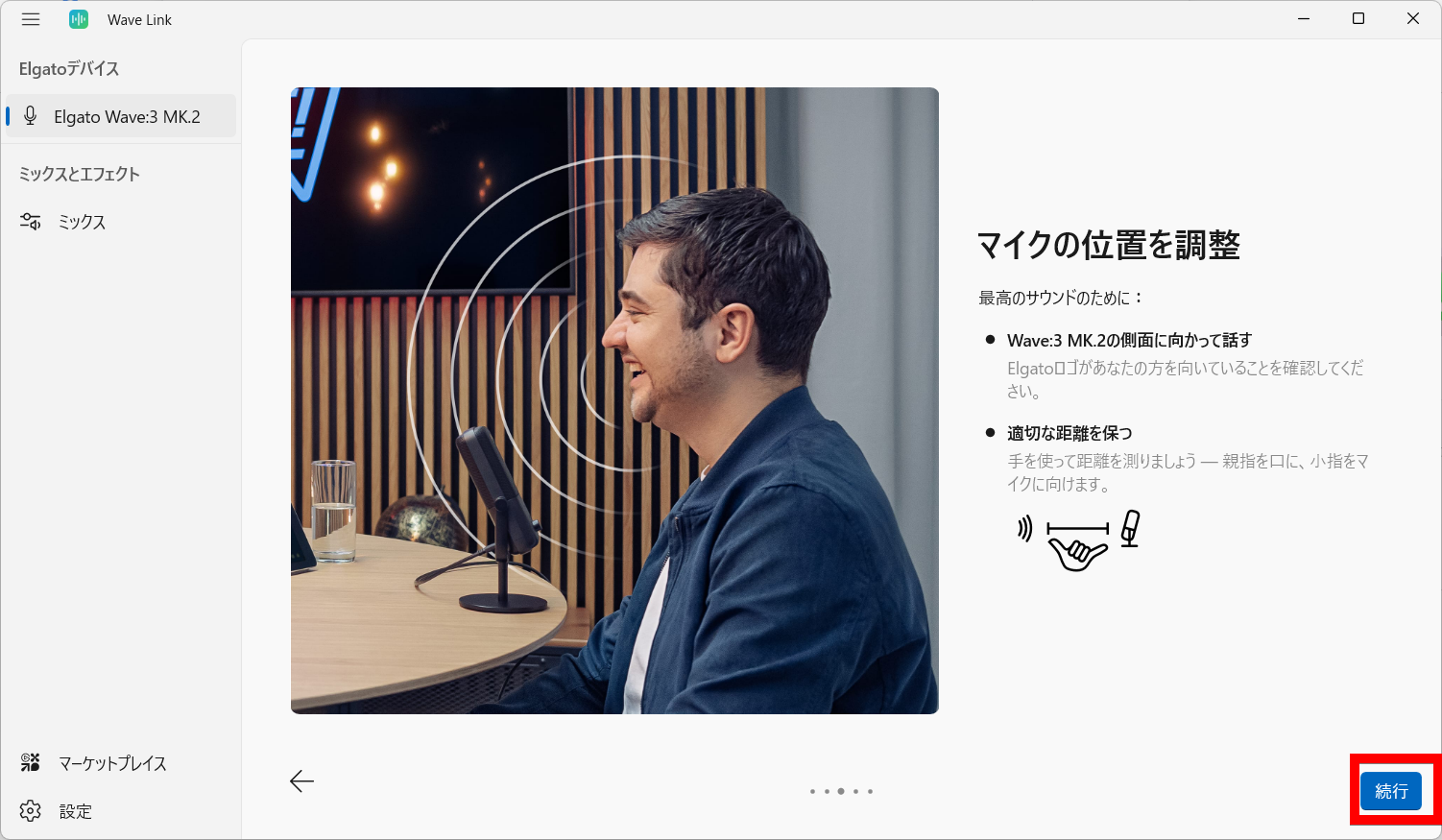
The Wave:3 MK.2 microphone is unidirectional, accurately picking up sound from the front and cutting out ambient noise from the back and sides. Use it by speaking towards the front where the Elgato logo is located. The appropriate distance is 'from thumb to pinky finger,' which is about 20cm. Click 'Continue.'
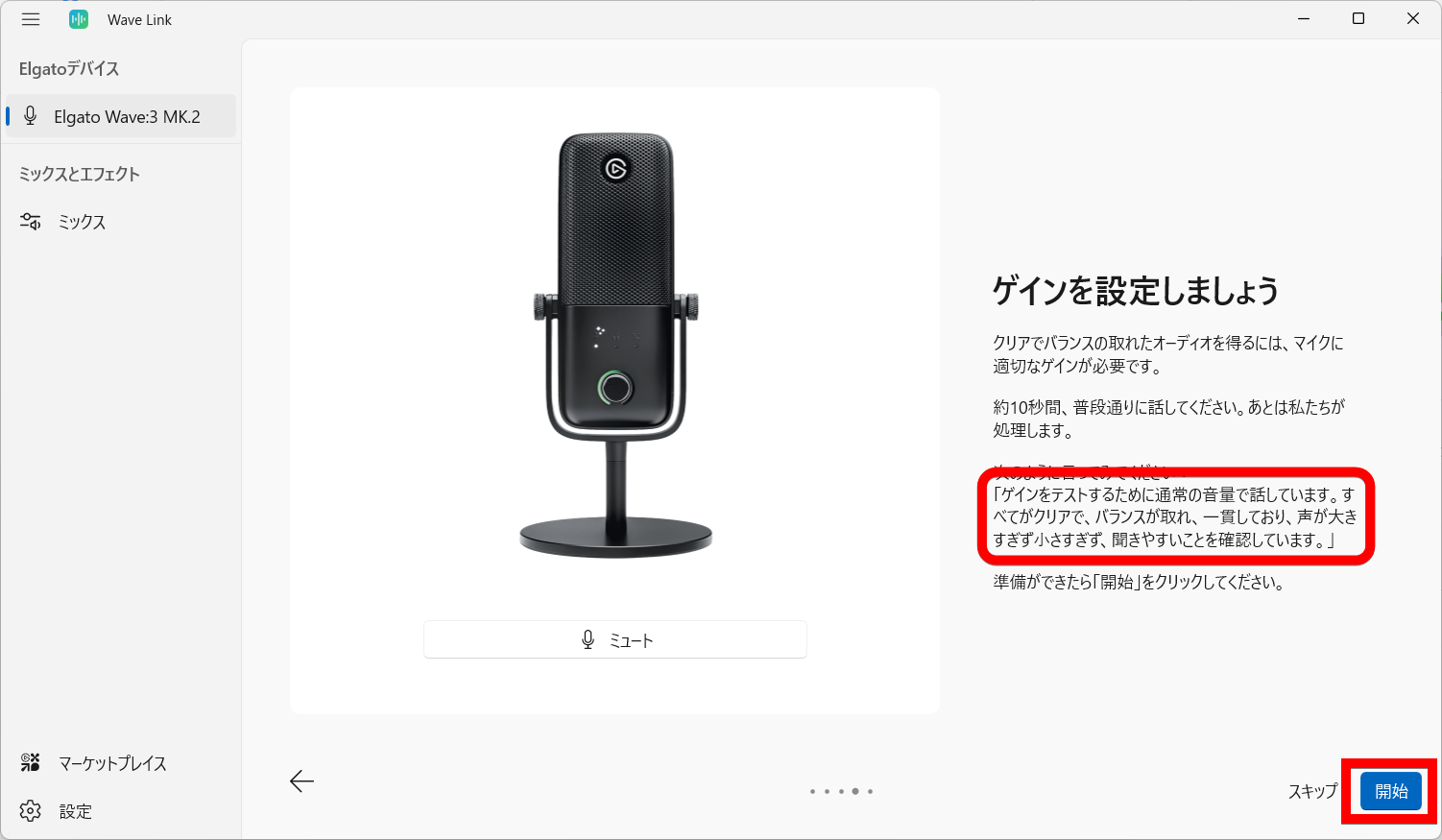
Click 'Start,' and the gain will be automatically adjusted as you read the displayed text aloud.
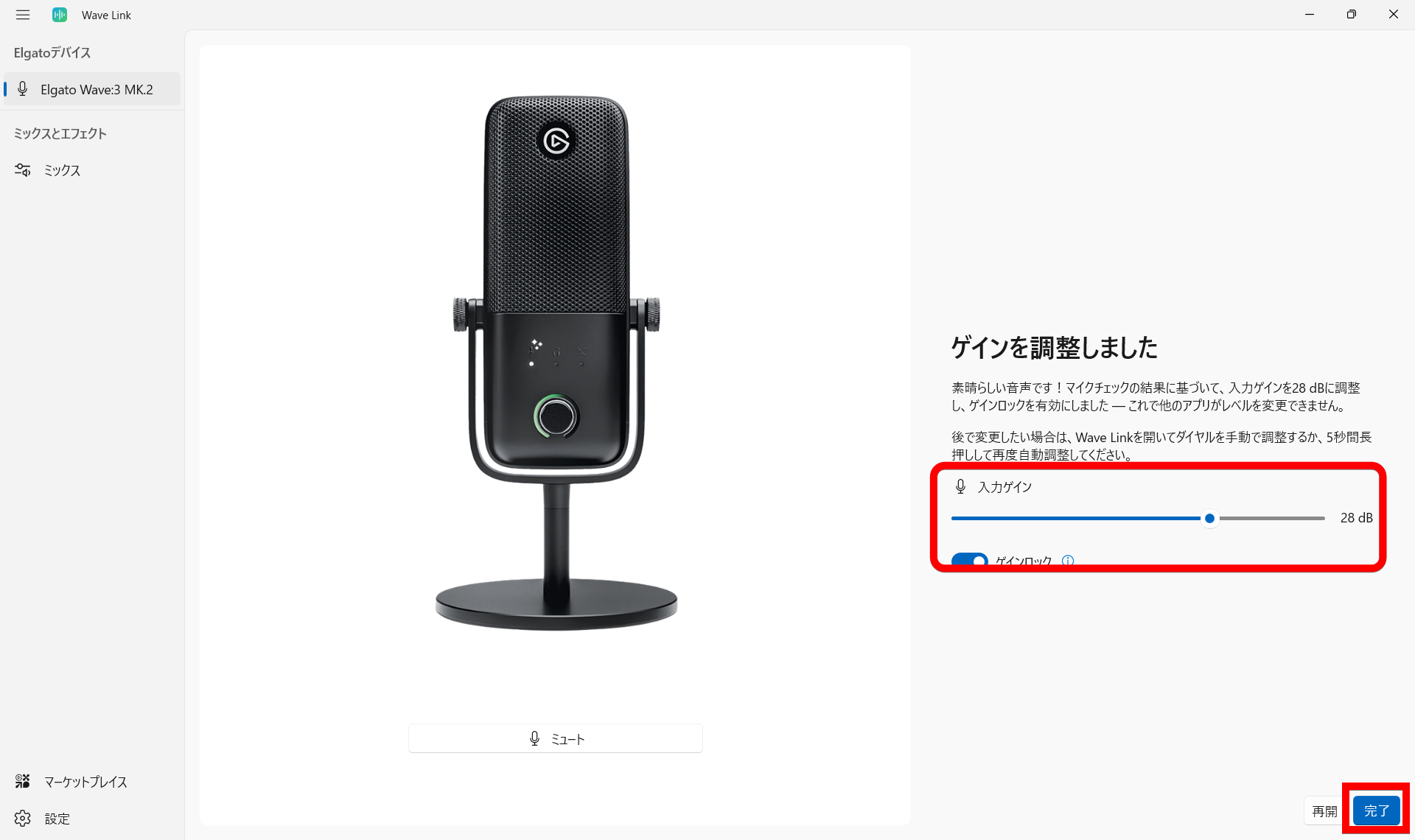
This is how the gain was set to the perfect level for my voice and environment. Click 'Done'.
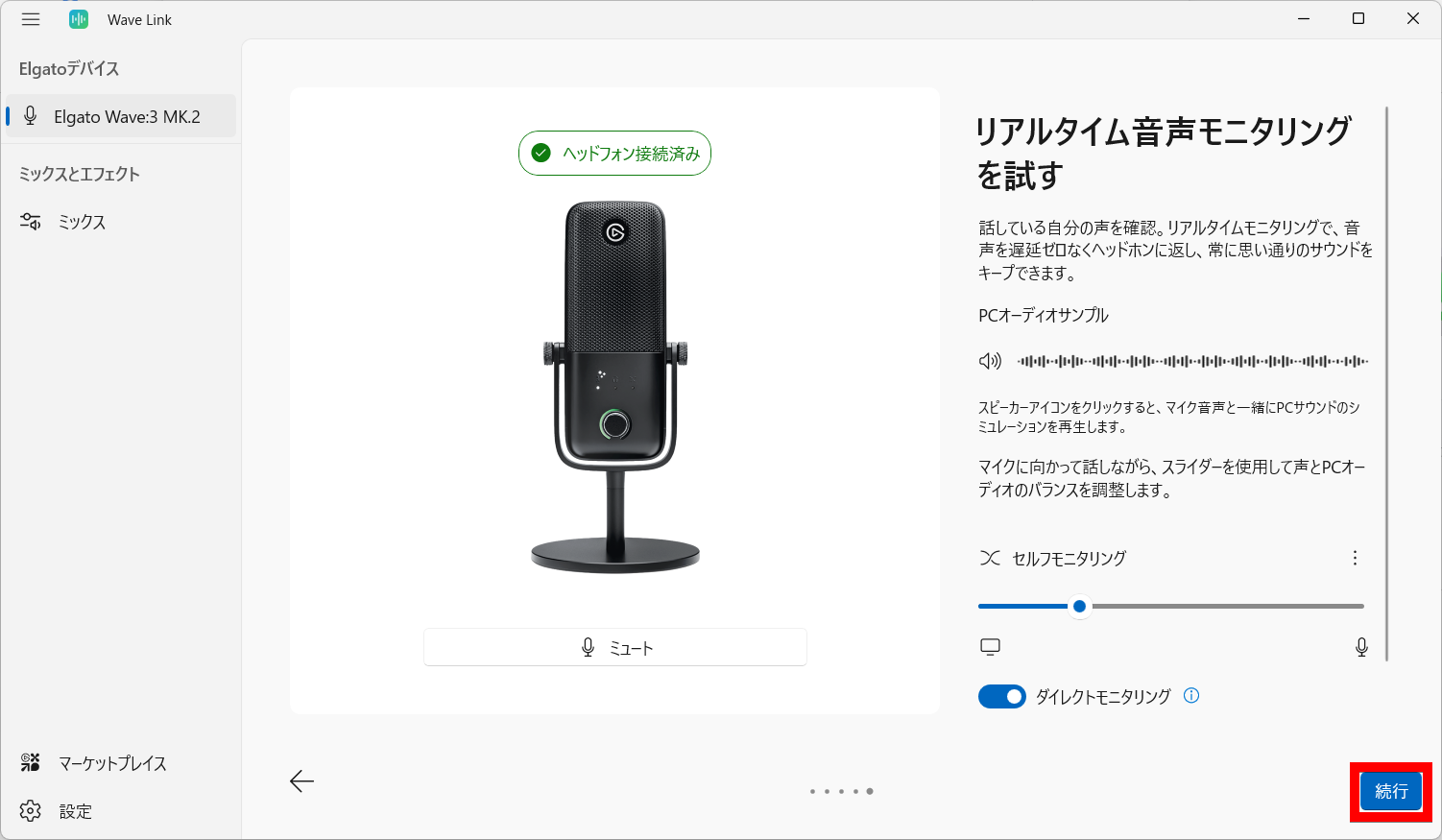
A message will appear saying 'Try real-time audio monitoring,' so check if your voice or PC sounds are coming through the connected headphones. Note that the audio heard through the headphones is for monitoring purposes, and only mono audio was heard in one ear. Once you have finished checking the monitoring, click 'Continue.'
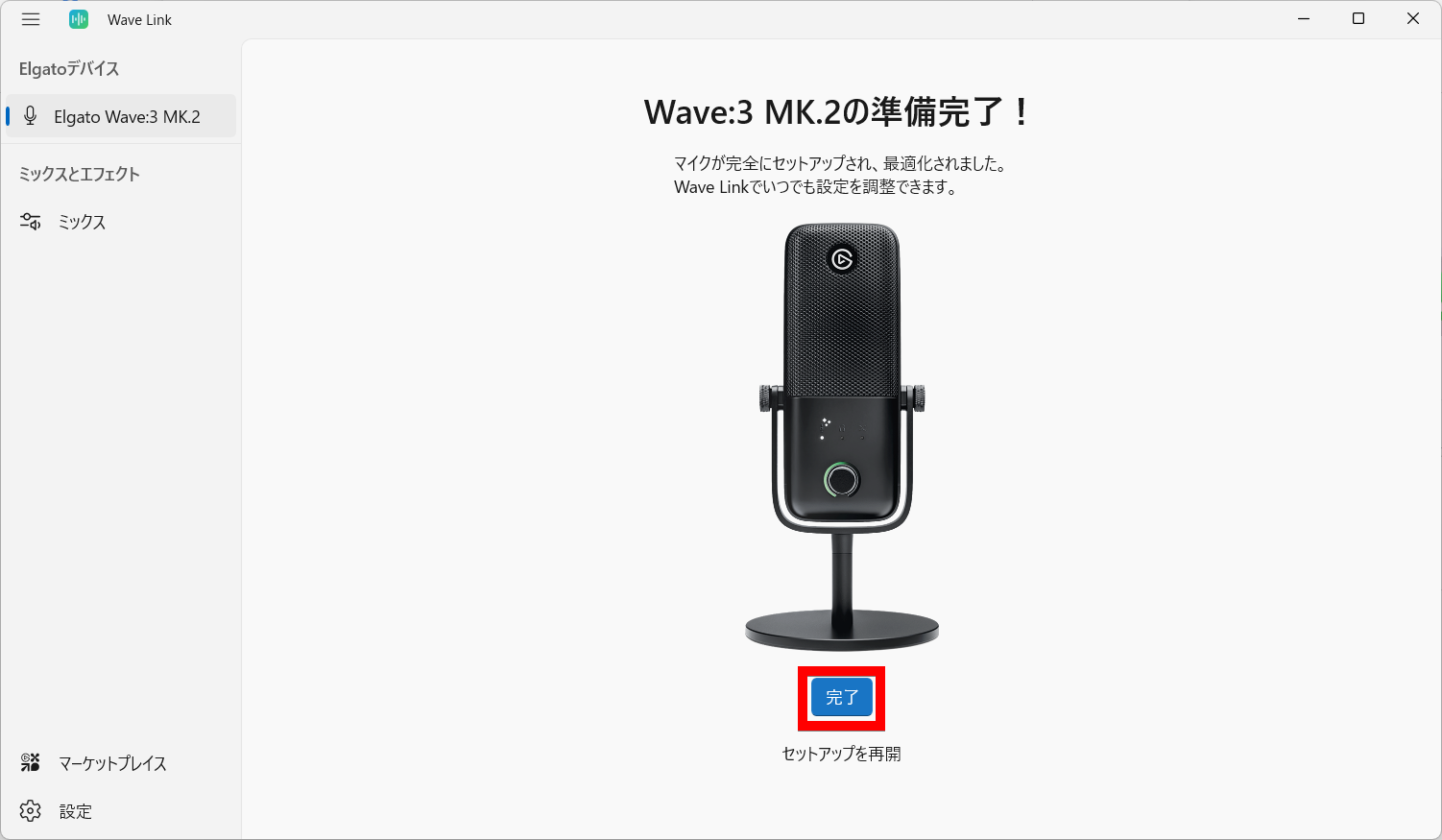
Clicking 'Finish' completes the device setup.
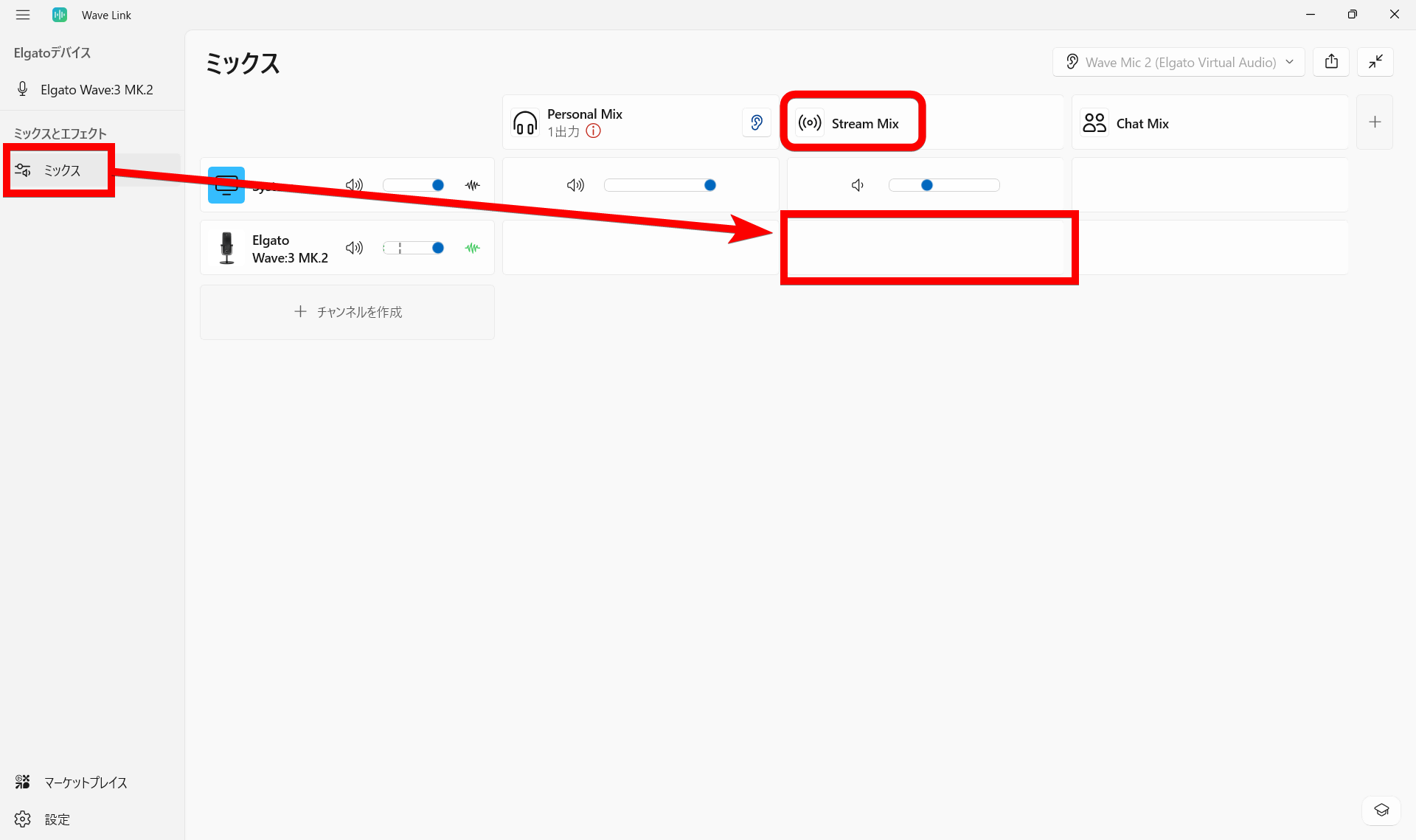
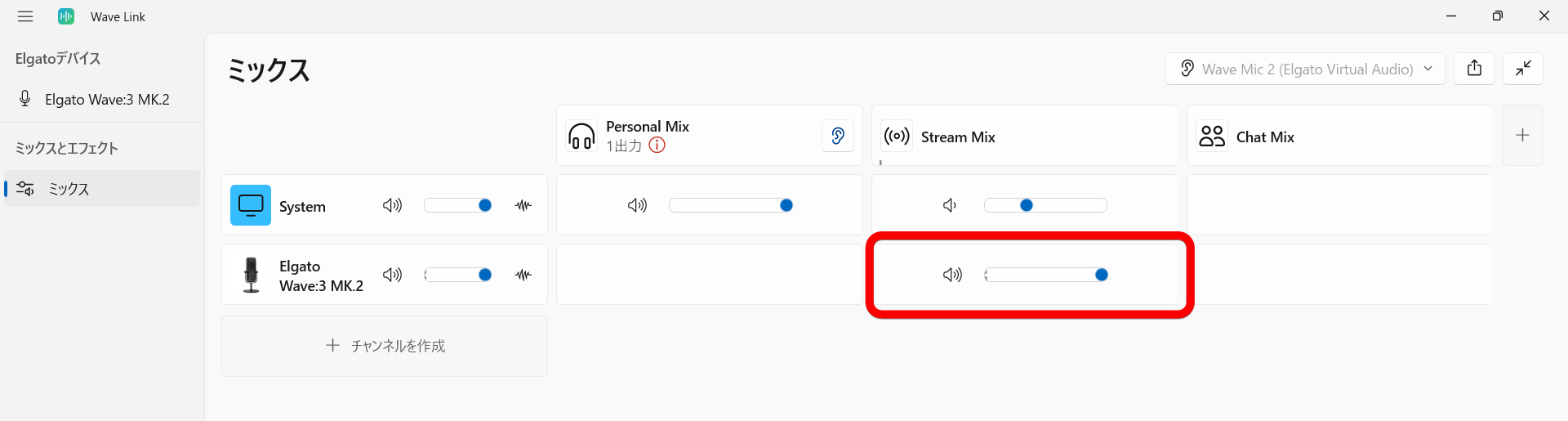
Next, let's configure the mix. Selecting 'Mix' from the left column of Wave Link will display the audio mix. This time, we will add the input of Wave:3 MK.2 to the default 'Stream Mix,' so click on the cell in the row for 'Wave:3 MK.2' in the 'Stream Mix' column.
Then the gain adjustment bar for Wave:3 MK.2 appeared. Now the input audio from Wave:3 MK.2 will be mixed into the 'Stream Mix' output of Wave Link.
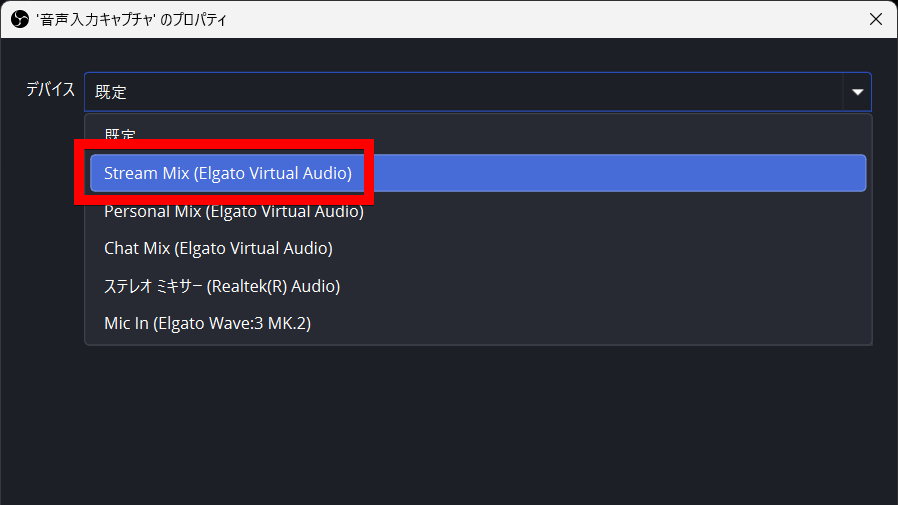
For example, if you want to add your voice to a video you're recording with OBS Studio, simply select 'Stream Mix (Elgato Virtual Audio)' in the properties of the 'Audio Input Capture' source in OBS Studio. This allows you to mix the audio from games or videos on your PC with your own voice into a single input for recording.
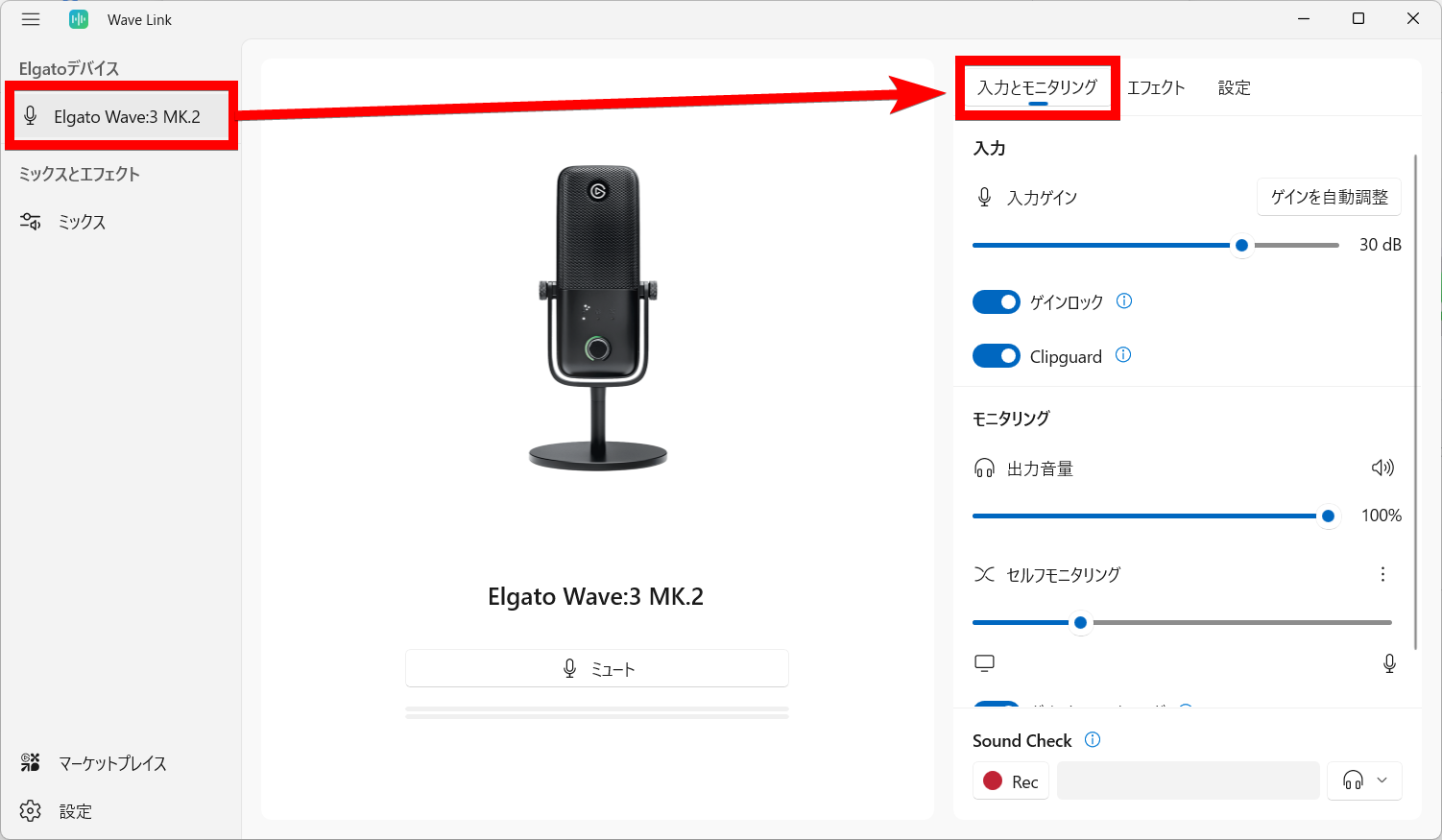
Select 'Elgato Wave:3 MK.2' from 'Elgato Devices' on the left. In the 'Input and Monitoring' tab in the right column, you can adjust the input gain, gain lock, and turn 'Clipguard' on or off to prevent distortion at the hardware level. The Wave:3 MK.2 supports Clipguard 2.0, which prevents distortion at the hardware level, using a built-in dedicated chip and 32-bit floating-point processing.
The following video shows recordings of someone reading aloud, with the volume of their voice suddenly changing, with Clipguard turned off and with Clipguard on. In both cases, the gain meter is maxed out to red, but you can clearly hear that the sound is distorted in the first half, while it sounds much clearer in the second half. It helps prevent distortion in real time even if you suddenly raise your voice or make a loud noise during a conversation, making it suitable for creators who do live commentary.
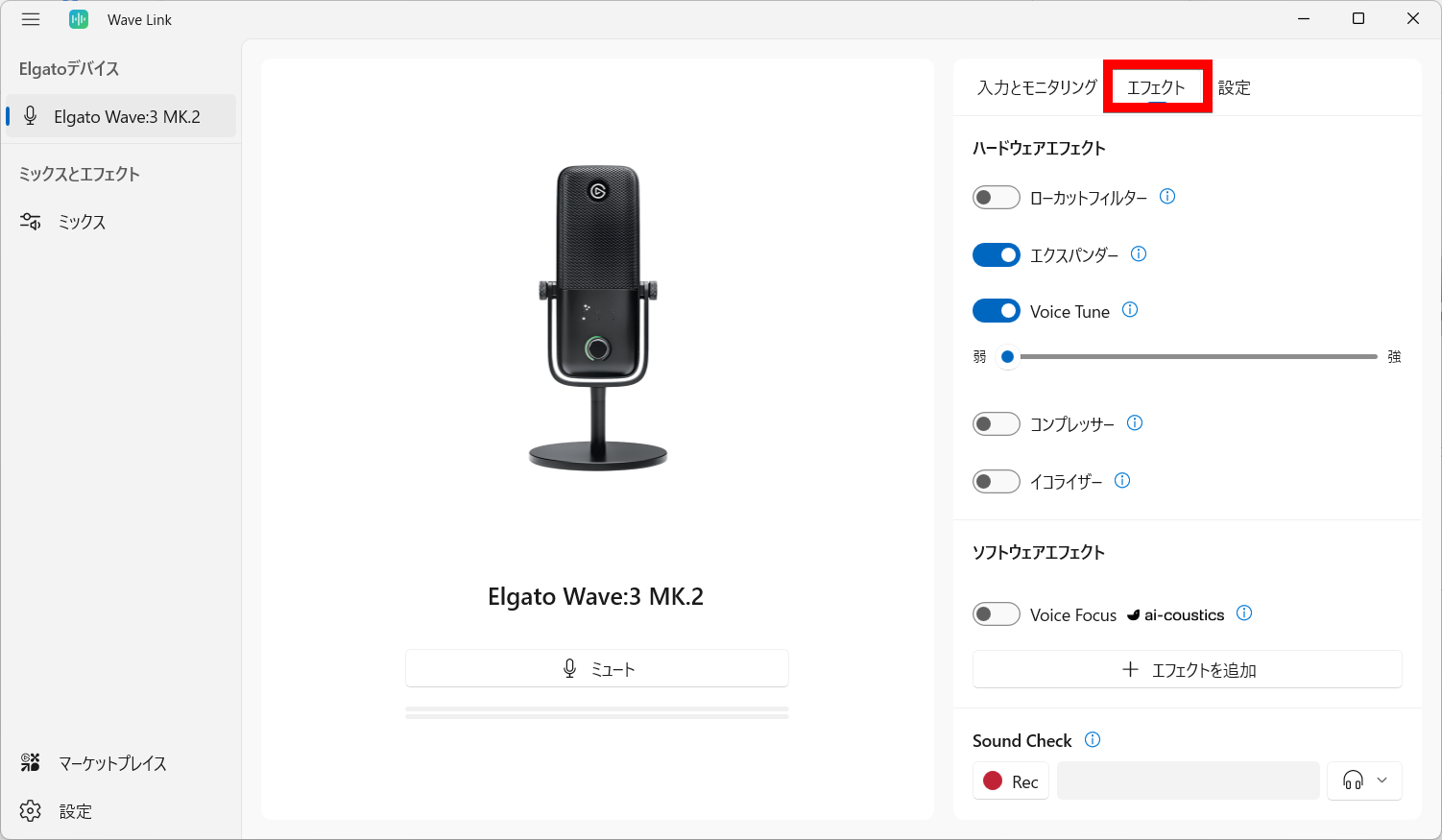
The 'Effects' tab allows you to adjust hardware effects such as a 'Low-Cut Filter' to cut low-frequency noise, an 'Expander' to reduce ambient noise, 'Voice Tune' to add warmth to your voice with analog-style compression and soft harmonics, a 'Compressor' to smooth out highs and lows, and an 'Equalizer' to enhance lows and highs for cleaner audio. Additionally, the software effect 'Voice Focus' is an AI-powered noise reduction system.
Additionally, pressing the multifunction dial on the front of the Wave:3 MK.2 allows you to switch between settings such as Voice Tune, gain, and headphone volume. Turning the dial adjusts the settings, and the LED ring displays the current status and audio level. Furthermore, you can instantly mute the microphone by long-pressing the multifunction dial or tapping the mute button on the top. The following video shows the operation of the Wave:3 MK.2's multifunction dial and mute button.
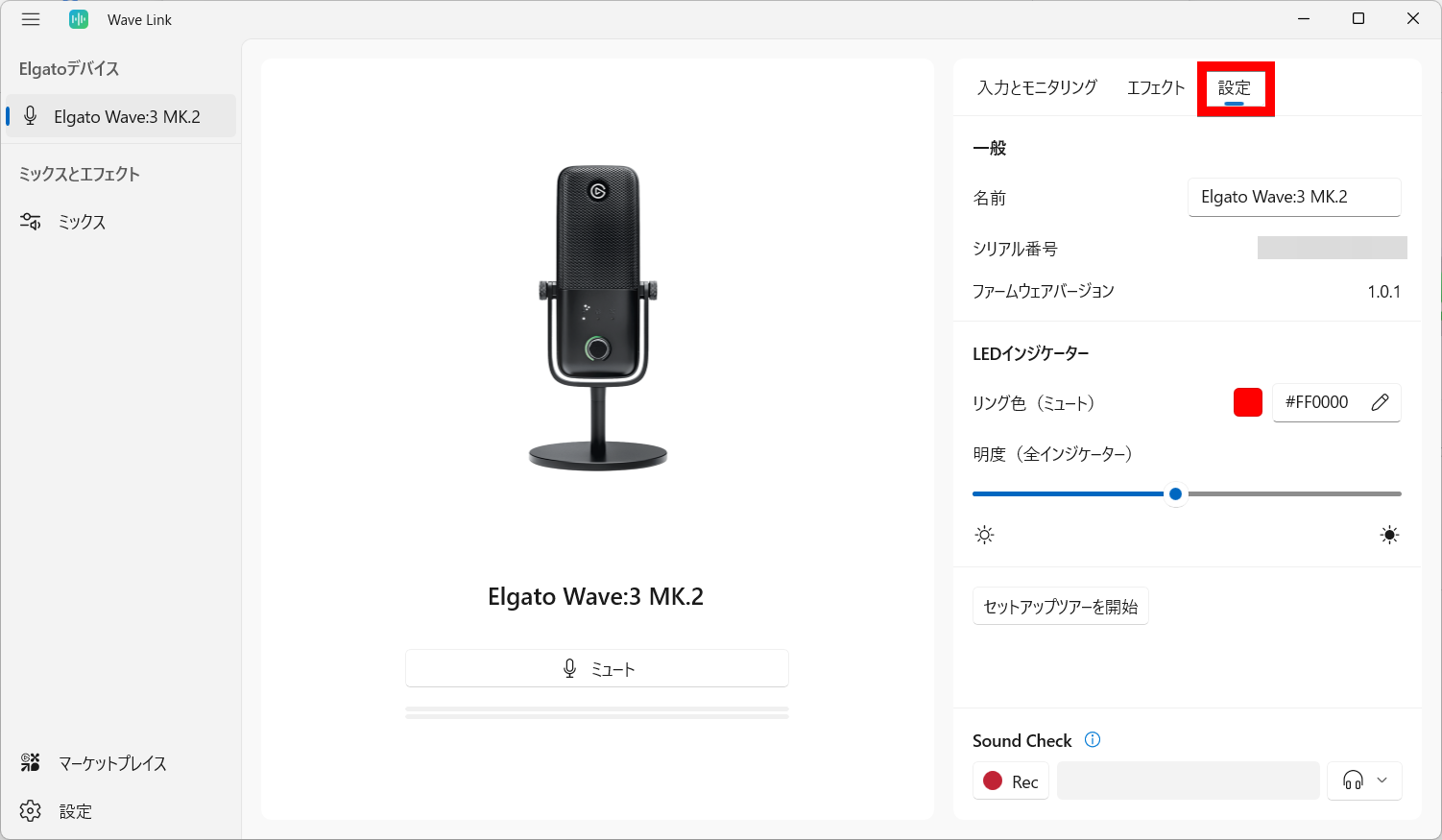
In Wave Link's 'Settings' tab, you can check the microphone's name, serial number, and firmware version, as well as change the color and brightness of the ring-shaped LED indicator surrounding the knob on the Wave:3 MK.2.
The Wave:3 MK.2's main advantage is that it's a microphone that connects with just one USB cable. Using the official virtual audio mixer software, Wave Link, you can stream and voice chat without having to buy an audio interface. It also features noise reduction, resulting in very clear sound quality. The Clipguard is highly effective, and the mute button and multi-function dial are responsive and easy to use. For anyone who wants to record audio at home, this is a microphone that can be used right away. Additionally, using a separately sold microphone arm instead of a desk stand will increase the microphone's range of motion and make adjustments even easier.
The Wave:3 MK.2 has an open price, but at the time of writing, it was available on Amazon.co.jp for 28,980 yen (tax included).
Amazon.co.jp: Elgato Wave:3 – Premium USB Condenser Microphone with Wave FX Processor, Onboard DSP, Clipguard 2.0, and VST Inserts (for Streaming & Podcasts) – PC & Mac Compatible: Musical Instruments & Audio Equipment
Related Posts: