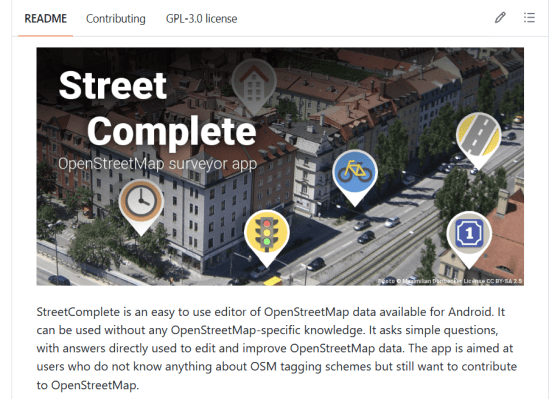
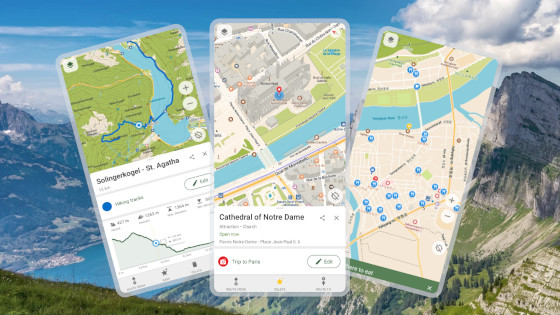
StreetComplete is an app that updates OpenStreetMap by completing 'quests' that are incomplete map data in your vicinity.
StreetComplete
https://streetcomplete.app/
streetcomplete/StreetComplete: Easy to use OpenStreetMap editor for Android
◆Installation
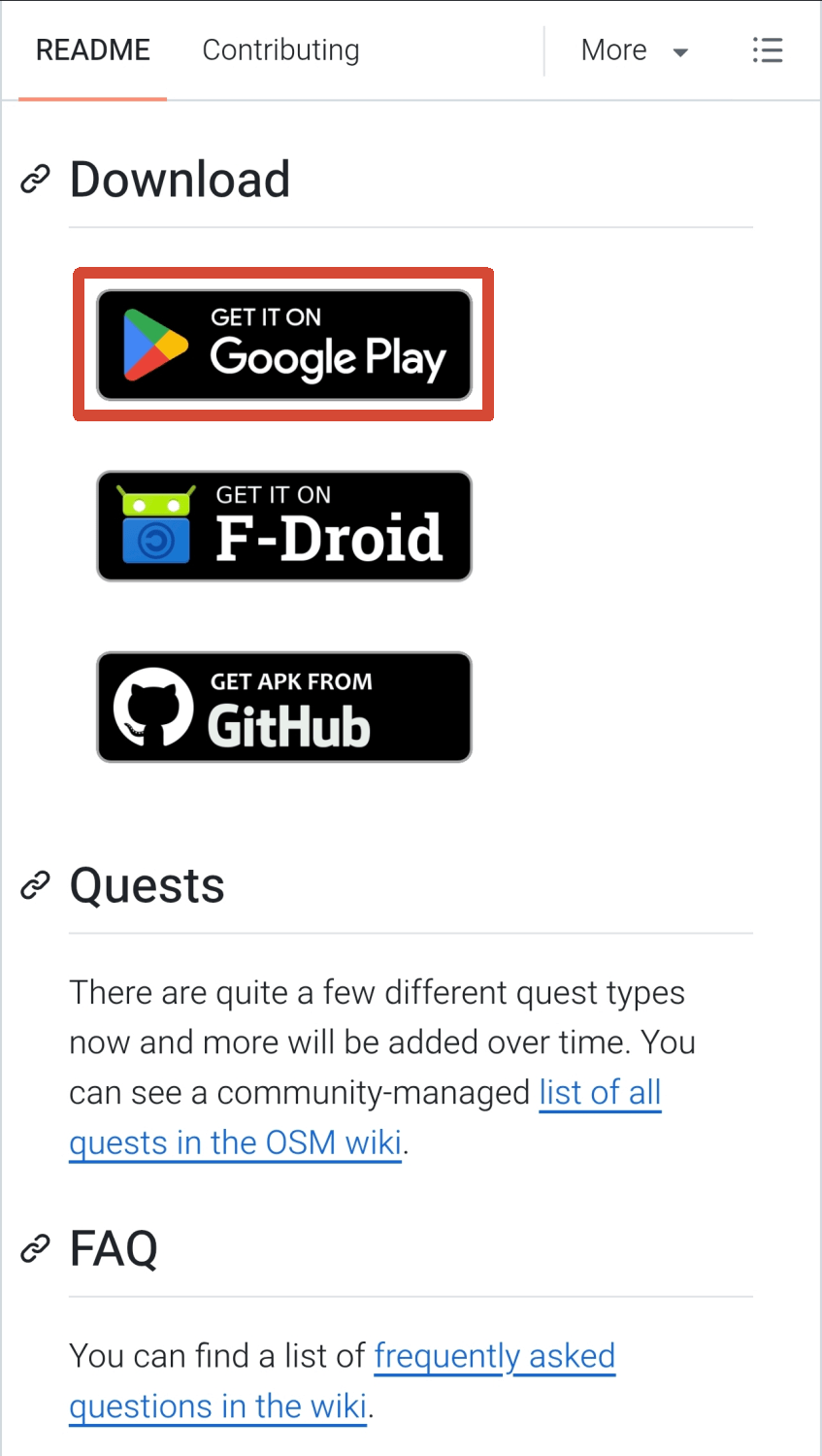
The official GitHub repository provides the following instructions for installation:
Google Play
F-Droid
- Obtain the apk file from GitHub Releases.
This time, we will install from Google Play. Click the Google Play banner on the official GitHub repository.
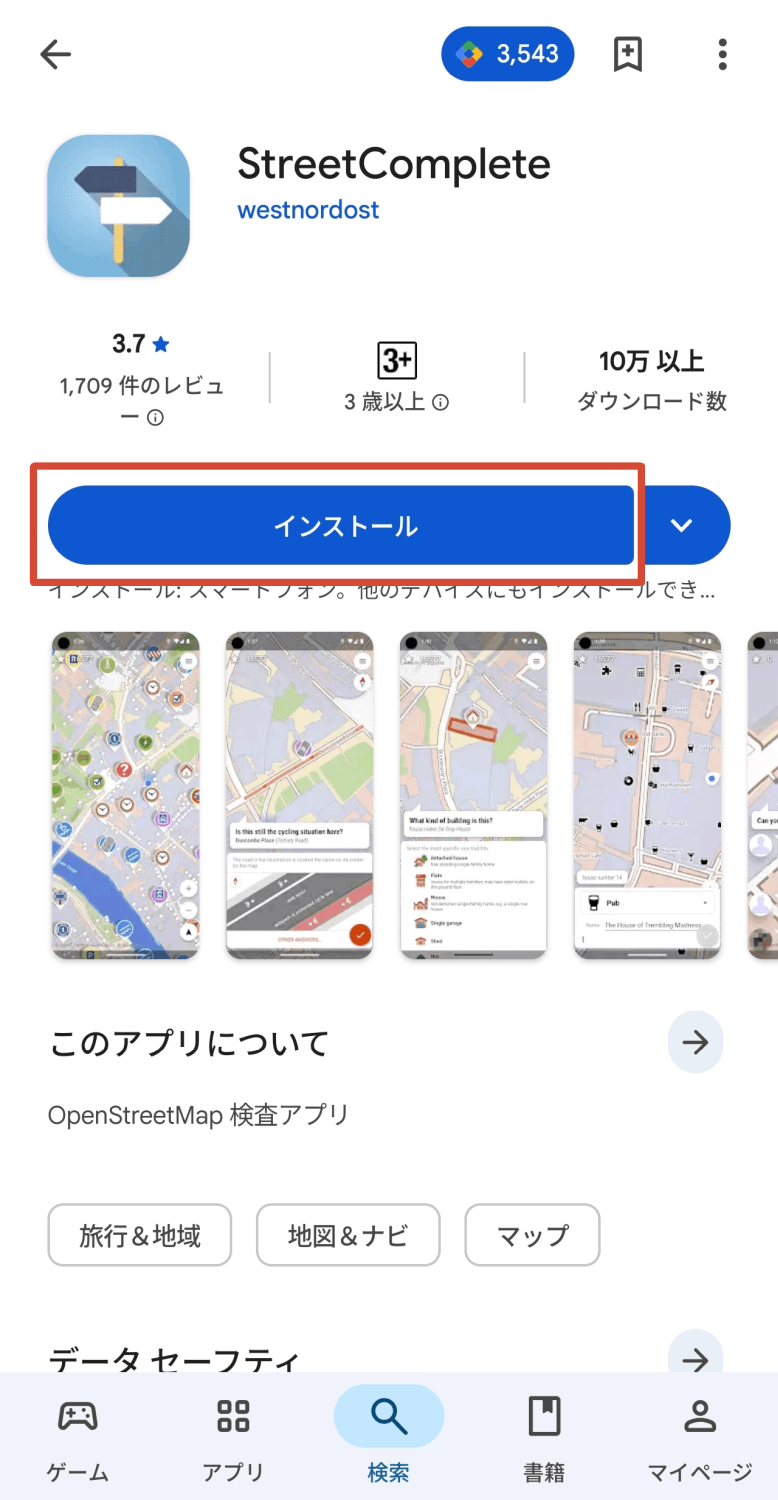
The StreetComplete page on Google Play will open, so tap the 'Install' button to begin the installation.
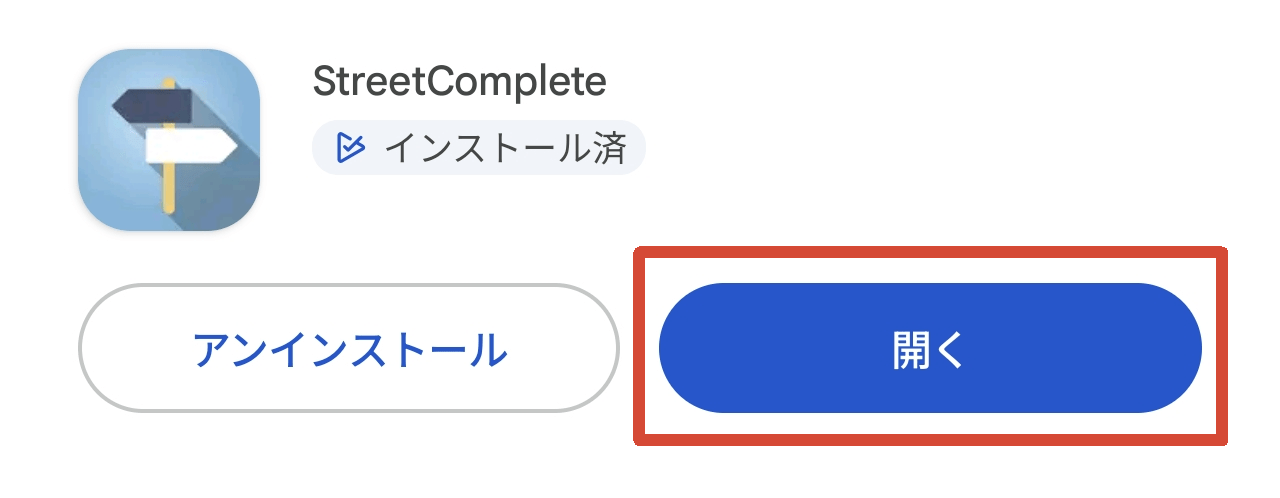
Once the installation is complete, an 'Open' button will appear. Tap it to launch StreetComplete.
◆ Activation
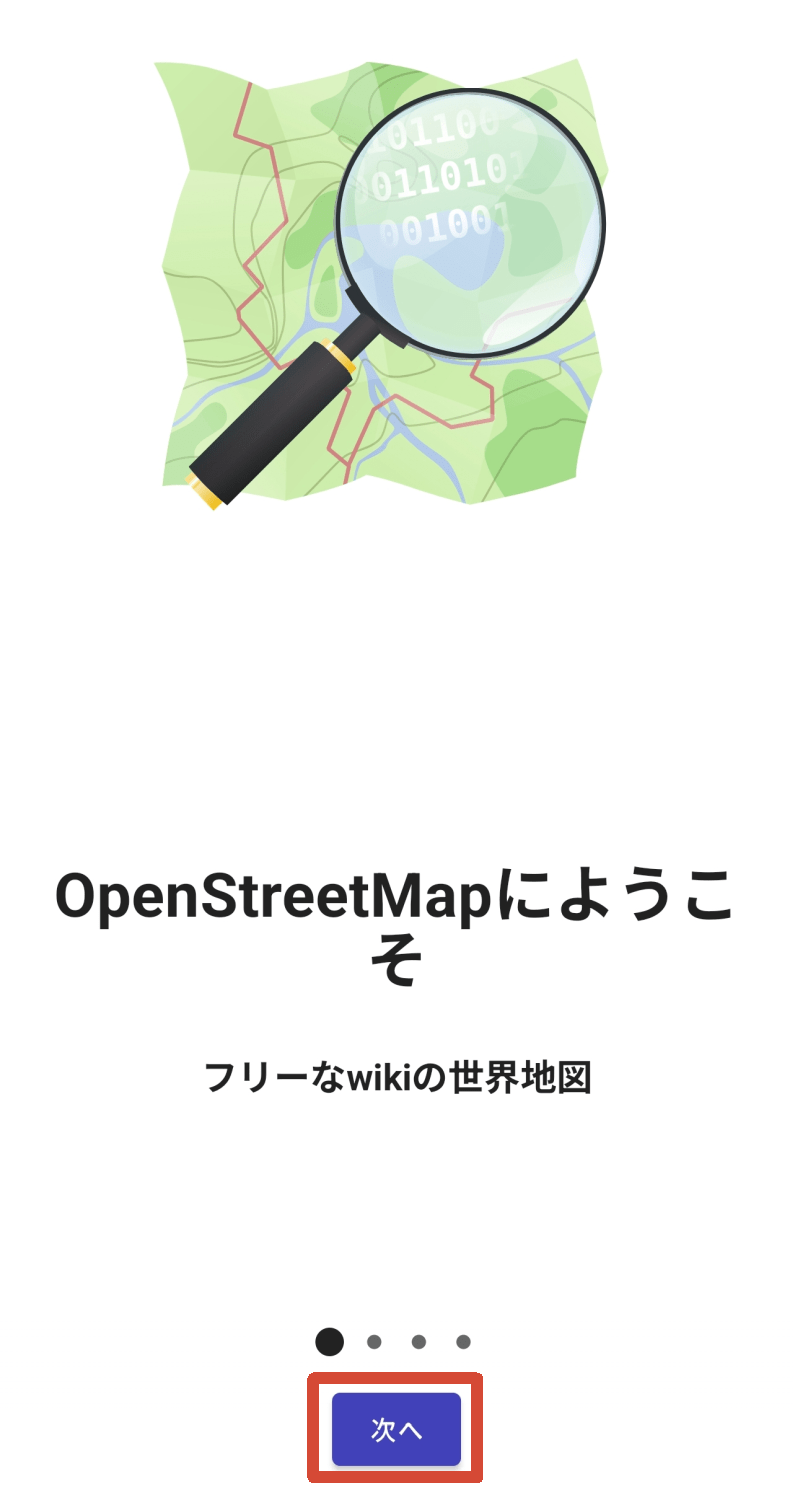
Immediately after launching StreetComplete, it will be presented in a wizard format, so tap the 'Next' button.
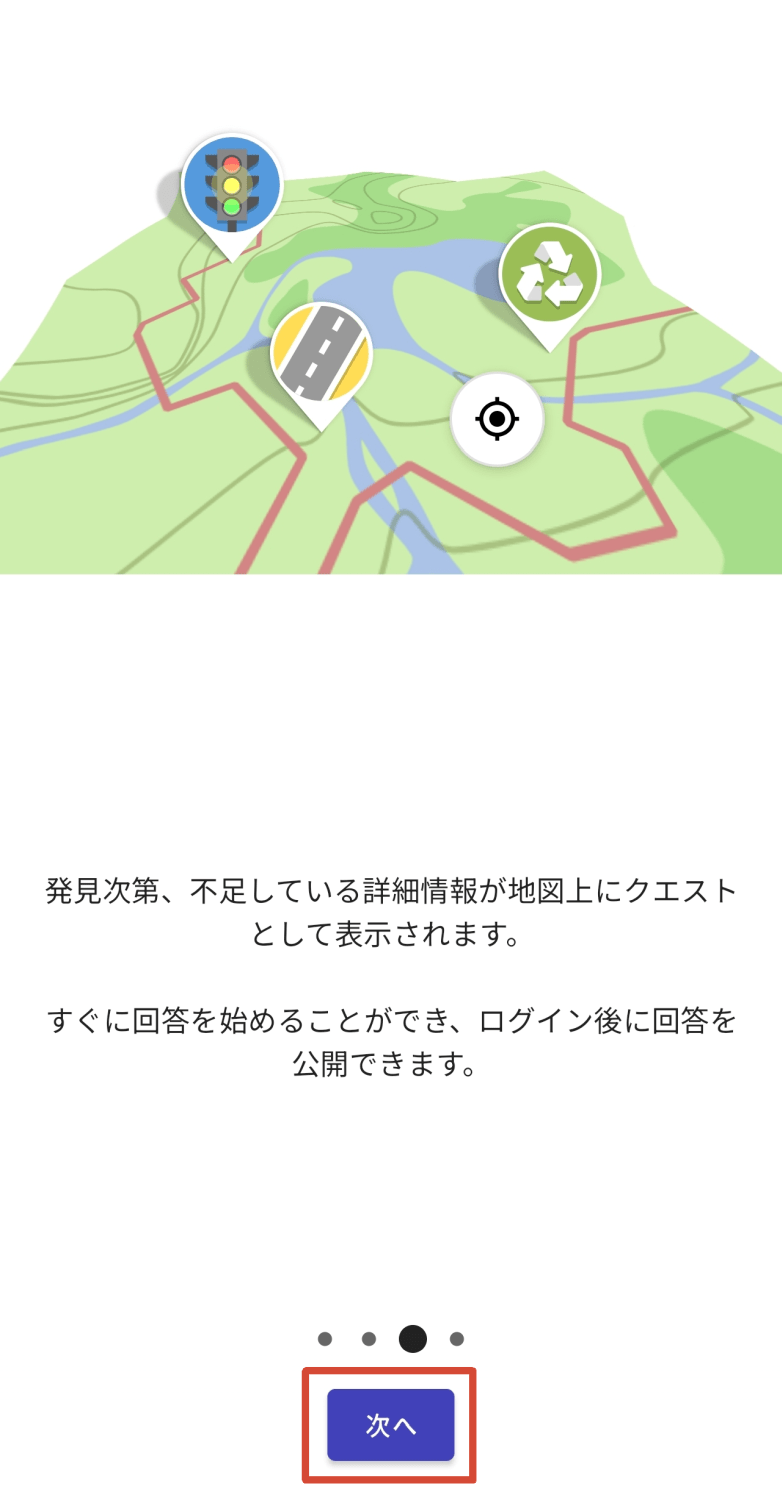
This explains what the StreetComplete app is. Please read the content and then tap the 'Next' button.
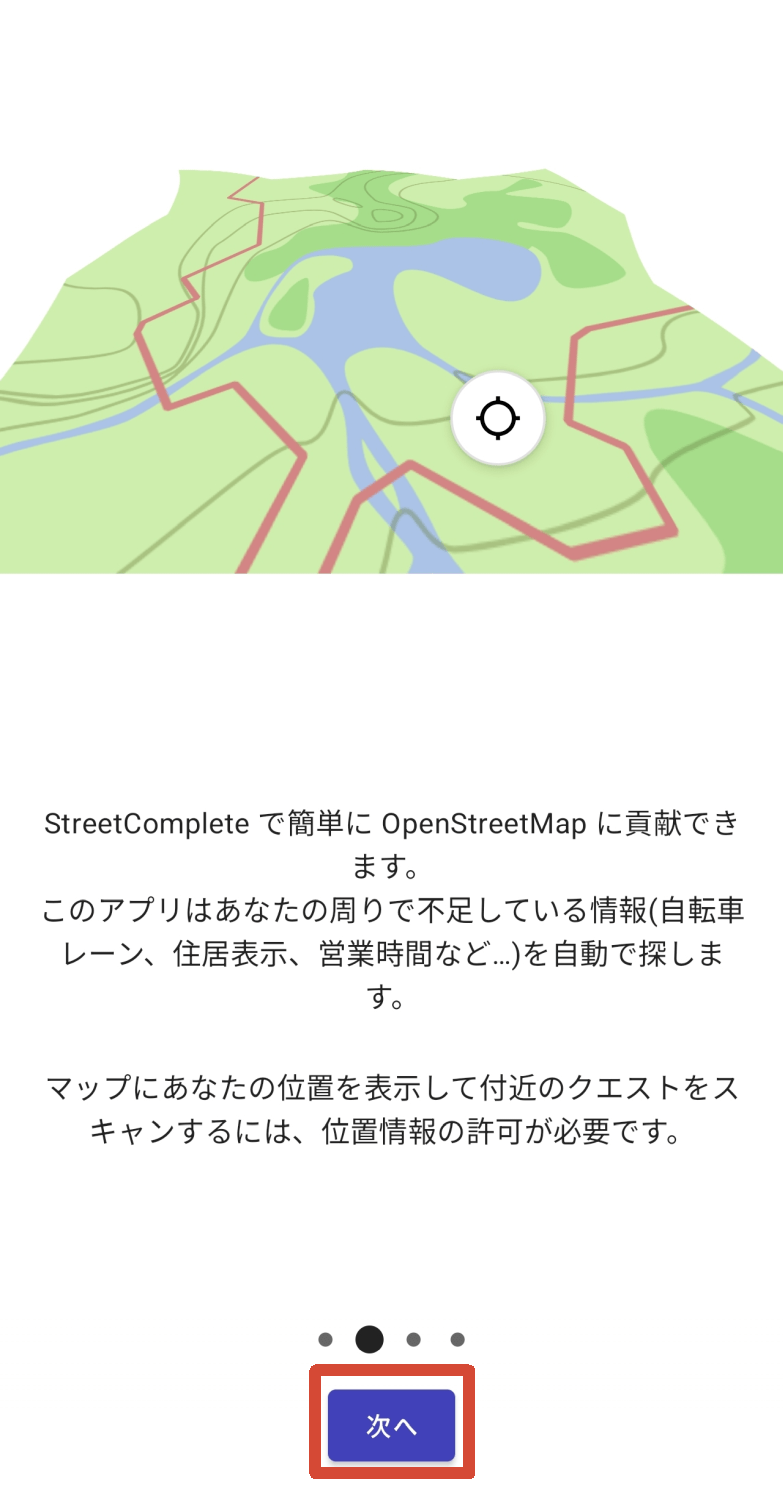
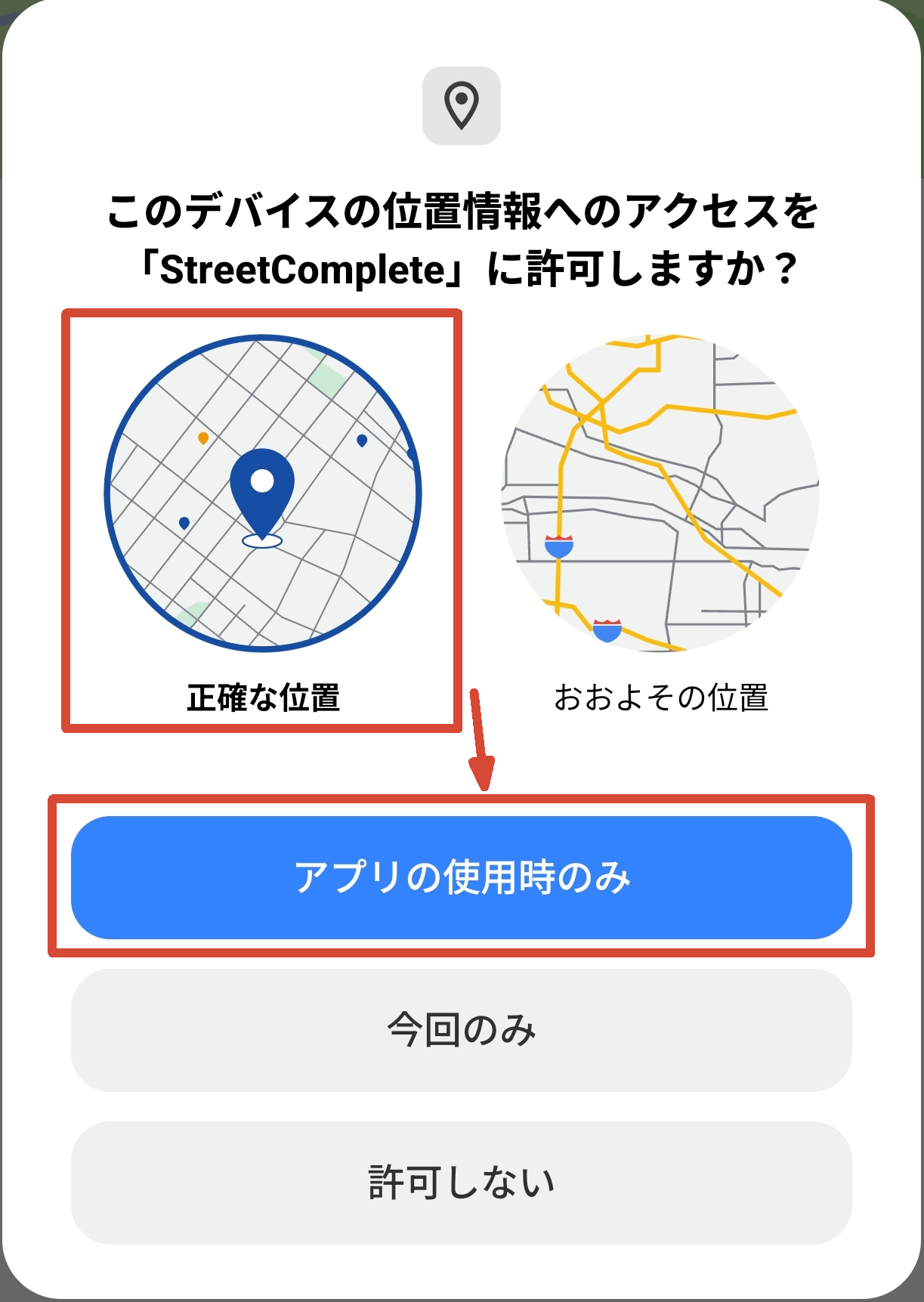
At this point, you'll be asked, 'Do you want to allow StreetComplete to access this device's location information?' Select 'Precise location' and tap the 'Only when using the app' button.
The explanation will continue to be displayed, so tap the 'Next' button.
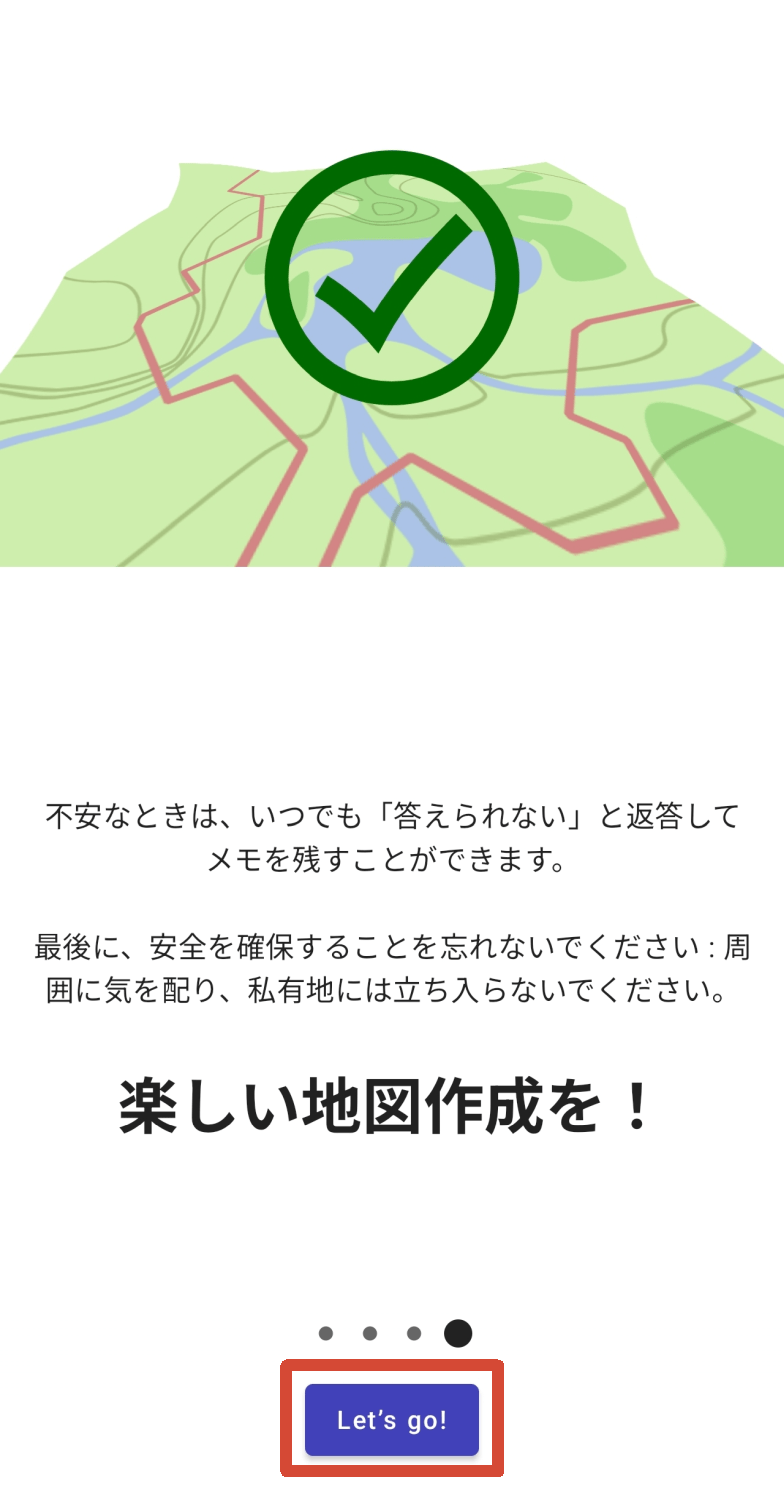
The message 'Have fun creating maps!' will appear, so tap the 'Let's go!' button and StreetComplete will begin in earnest.
◆Quest
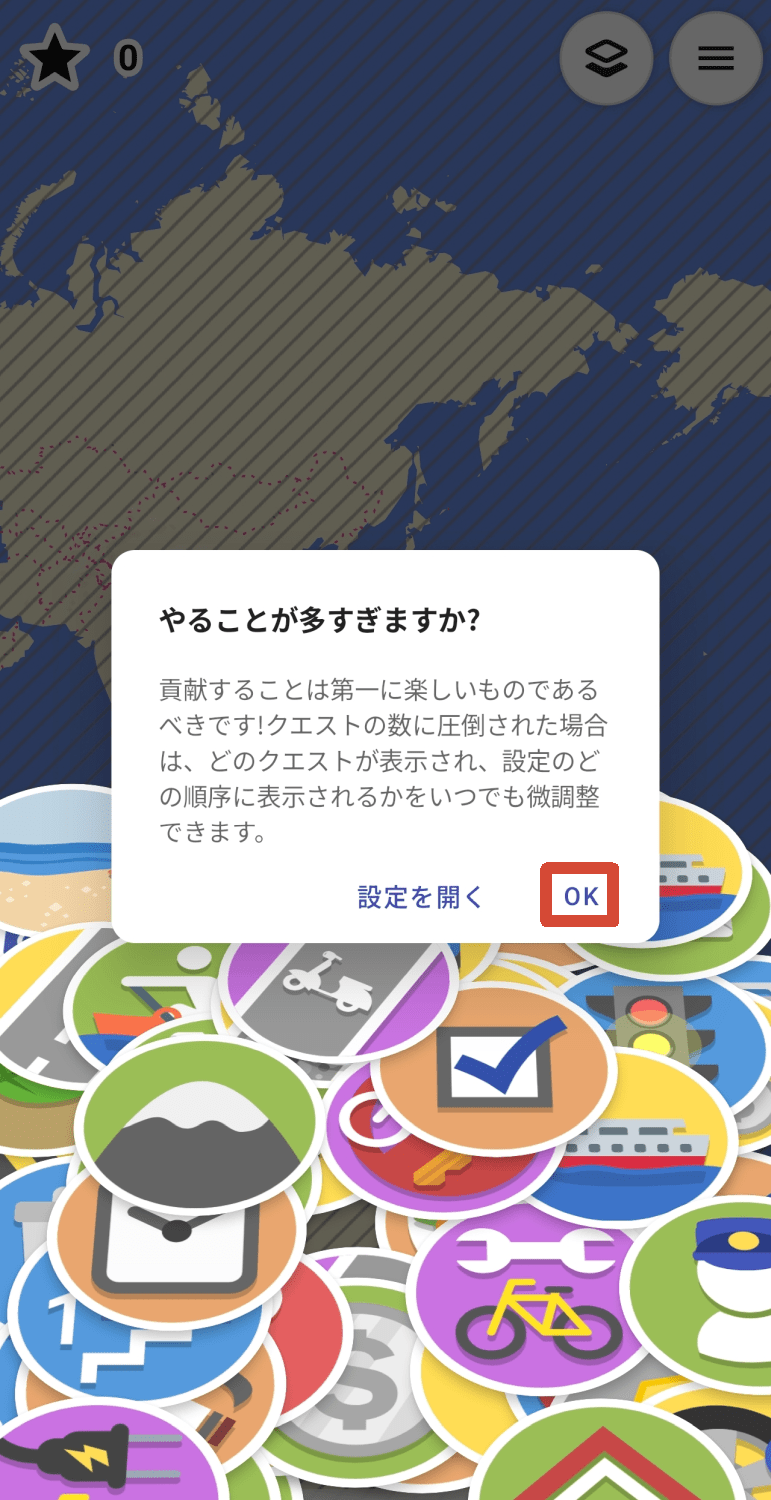
The initial map is displayed on a global scale. There's a mark on the email icon at the top of the screen, so tap it to open it.
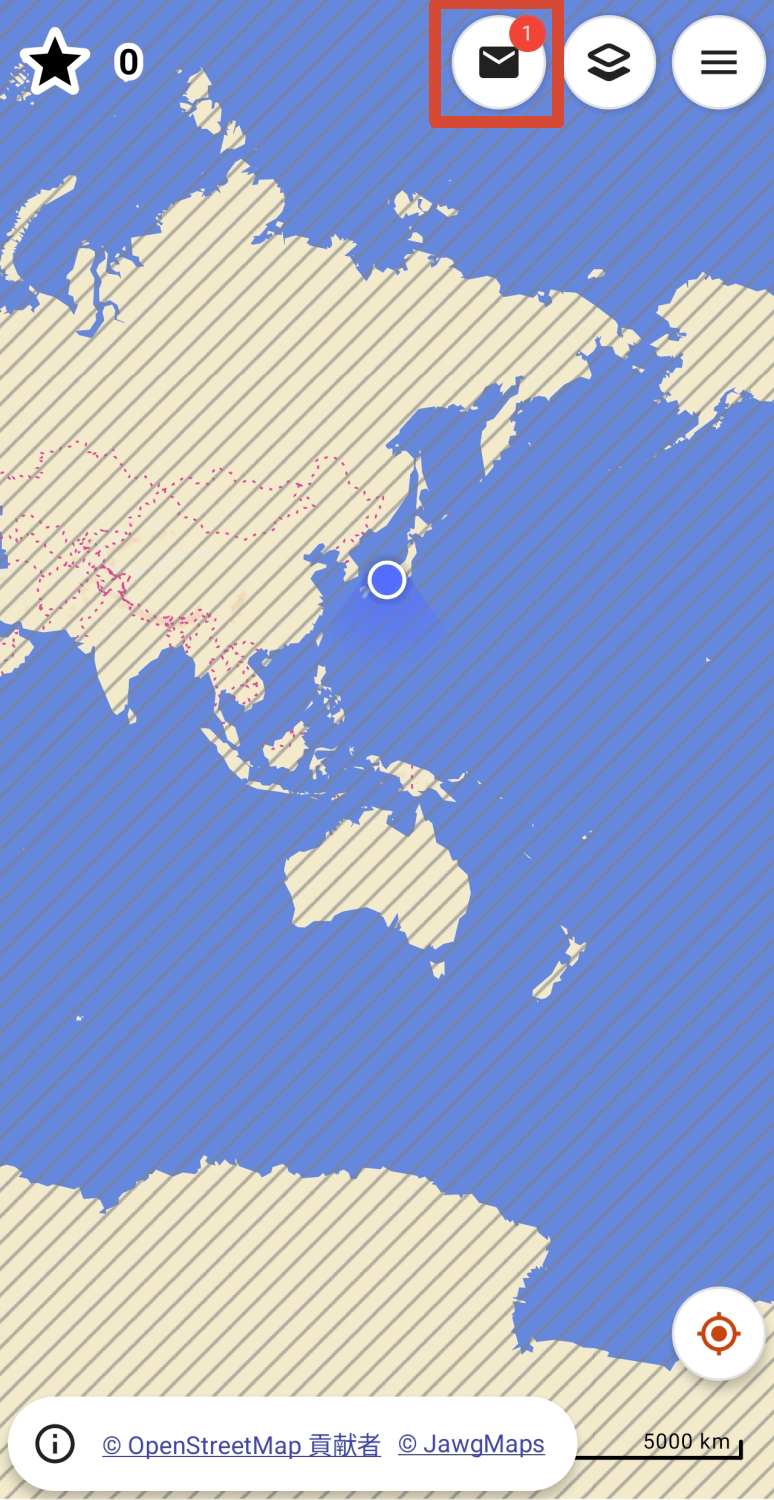
I was asked, 'Is there too much to do?' It said I could adjust the number of quests displayed, but I can do that later, so for now I just tapped 'OK'.
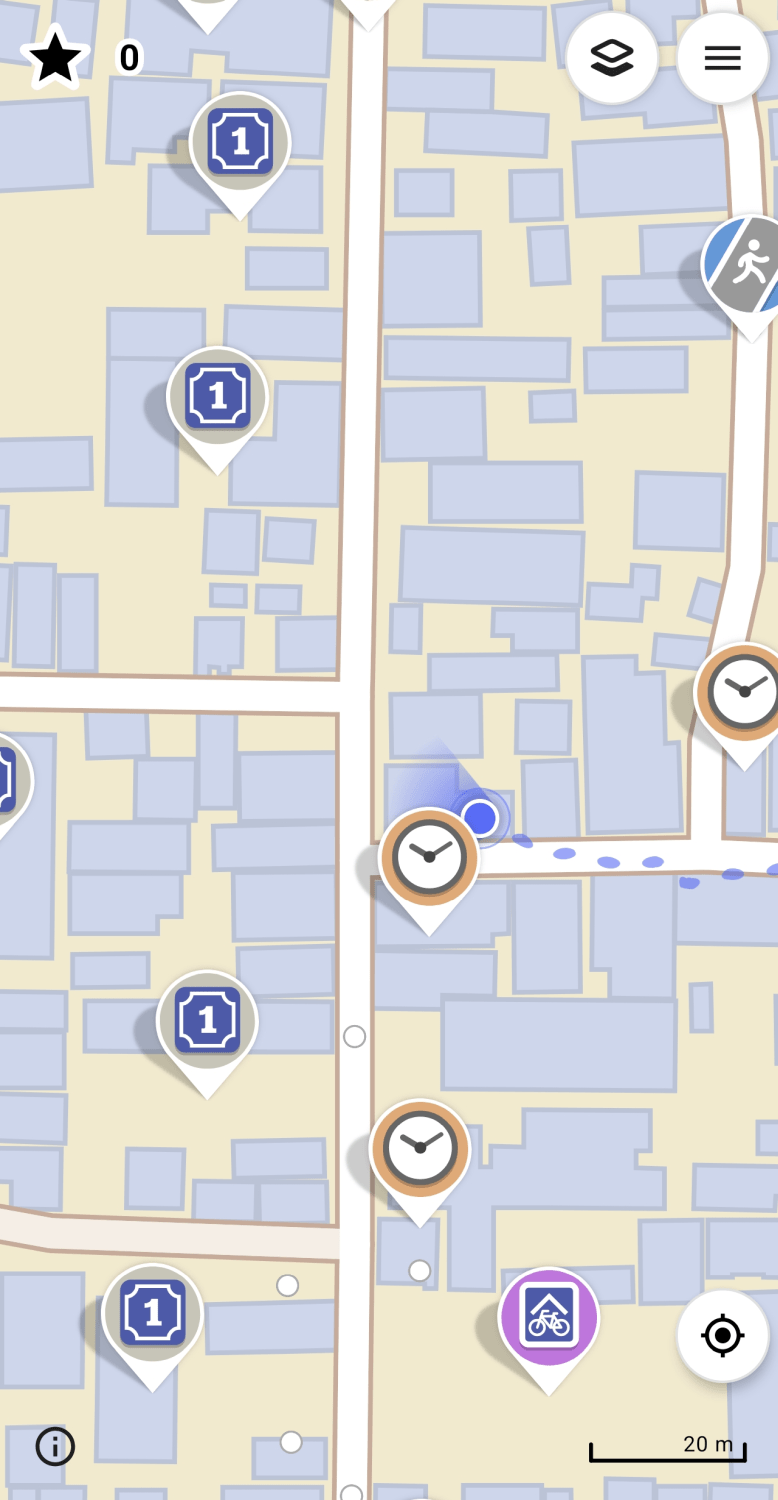
I pinched the map to show my current location. The various icons on the map represent quests, and there are quite a few of them, so it seems unlikely I'll have trouble finding a quest, at least in urban areas. First, I'll tap the nearest icon to try a quest.
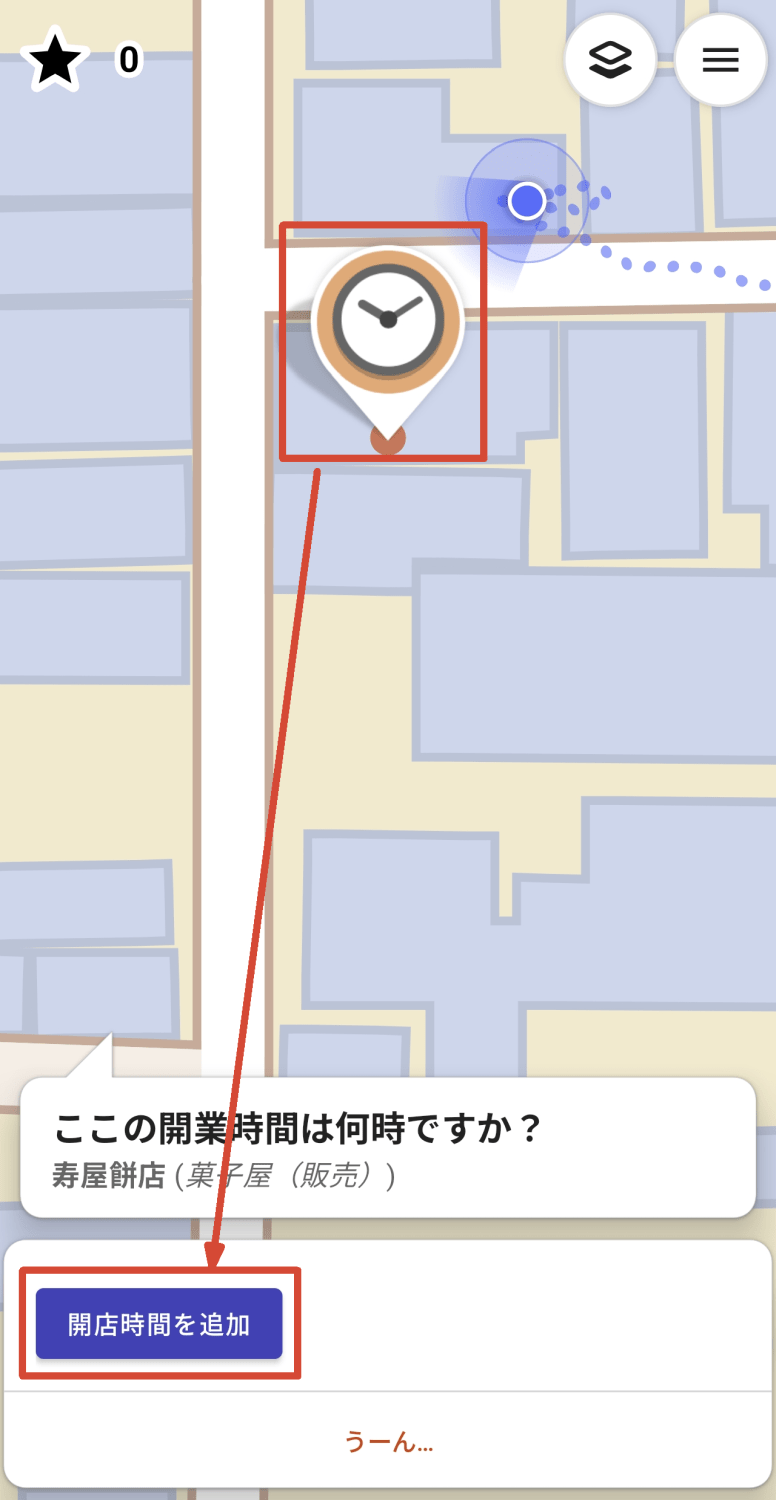
When I tapped the clock icon in front of me, I was asked, 'What time is this place open?', so I tapped the 'Add opening hours' button.
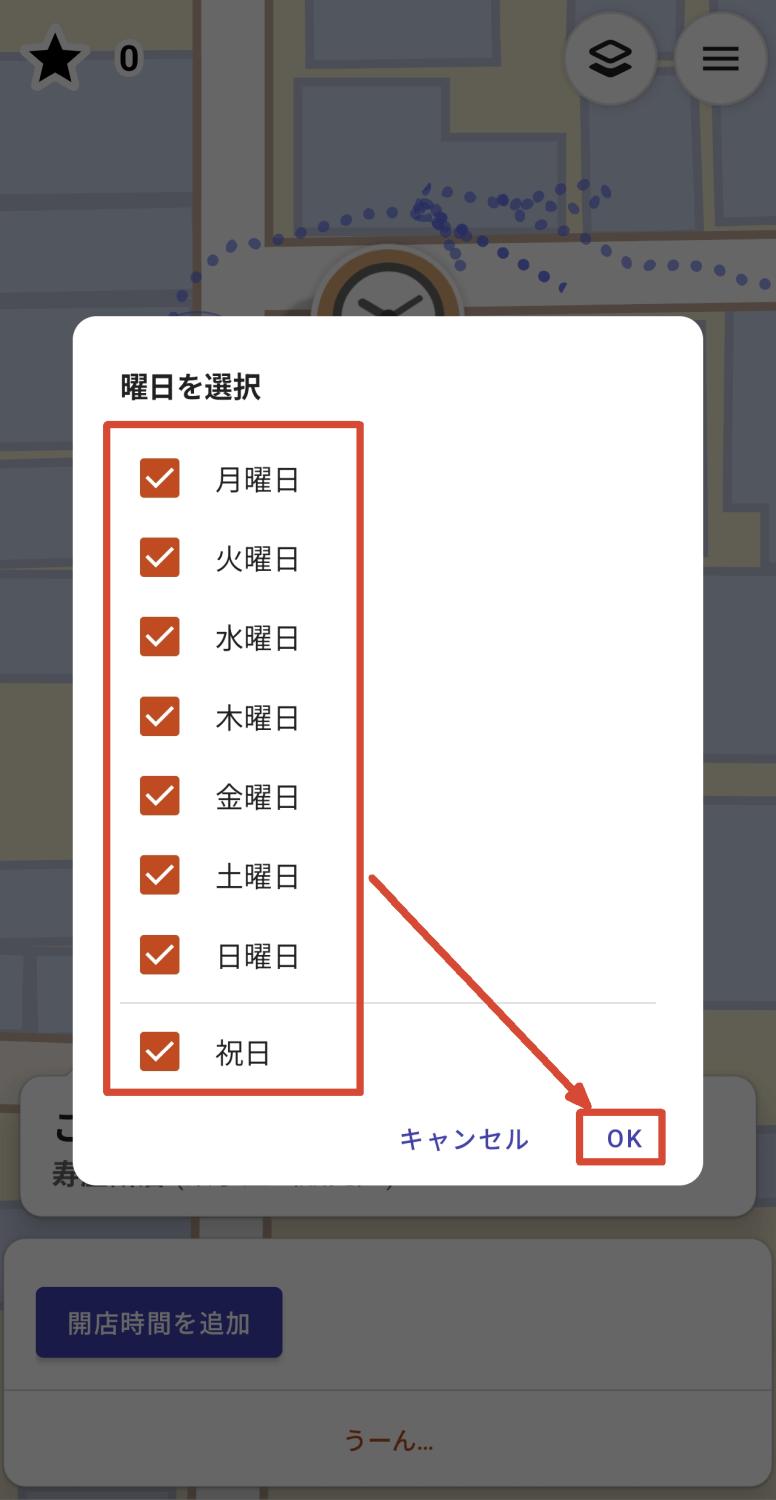
First, select the day of the week and tap the 'OK' button.
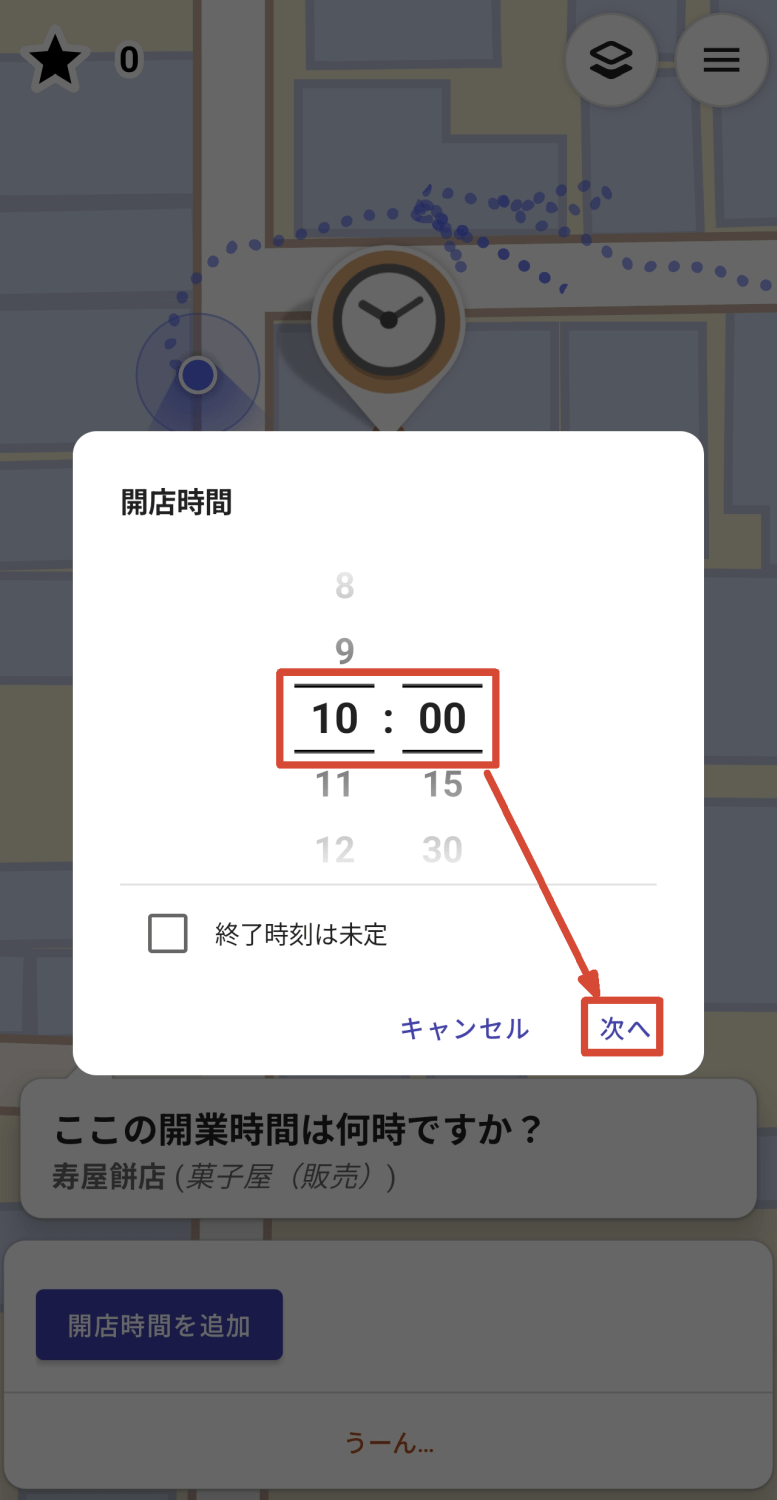
Next, enter the opening time and tap 'Next'.
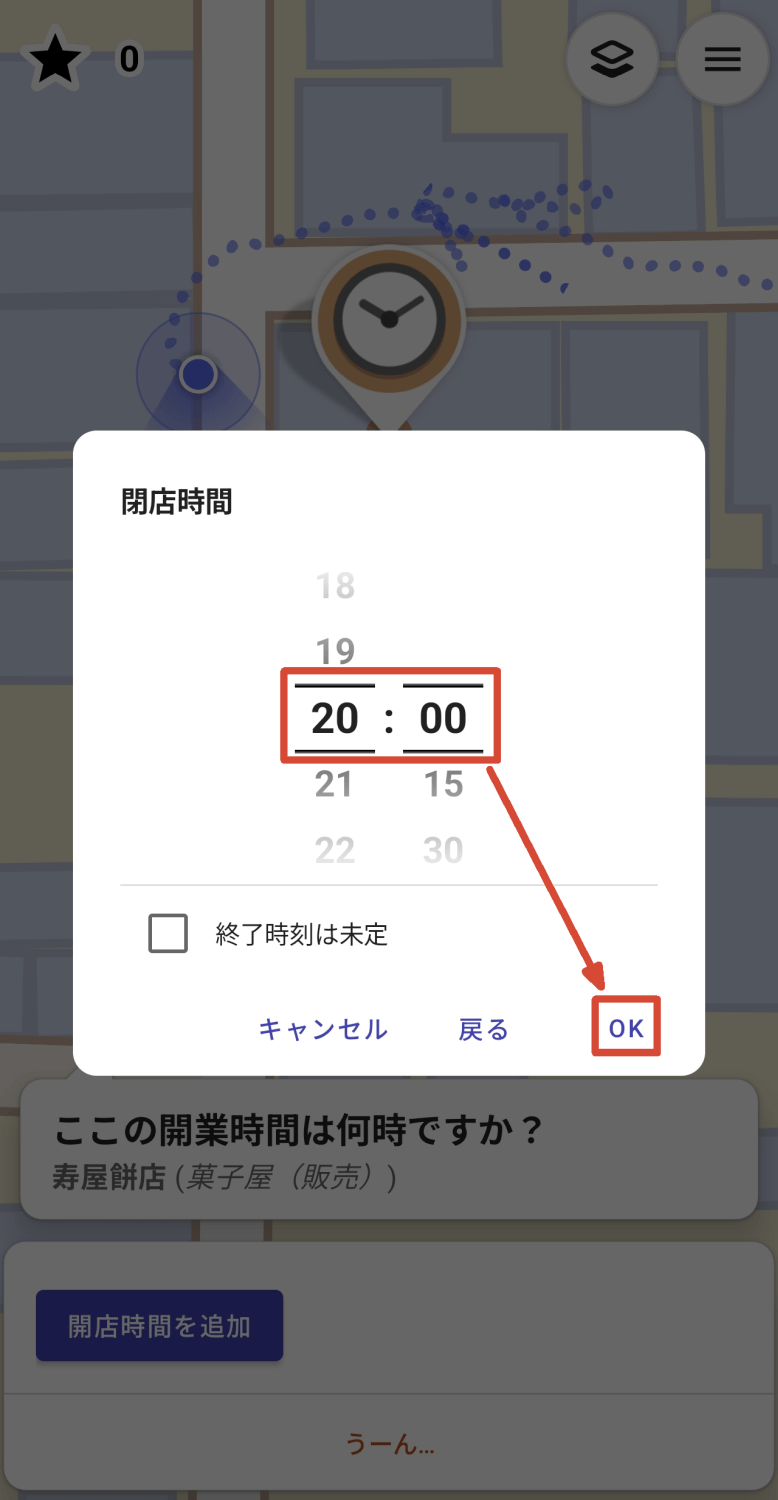
Next, enter the closing time and tap 'OK'.
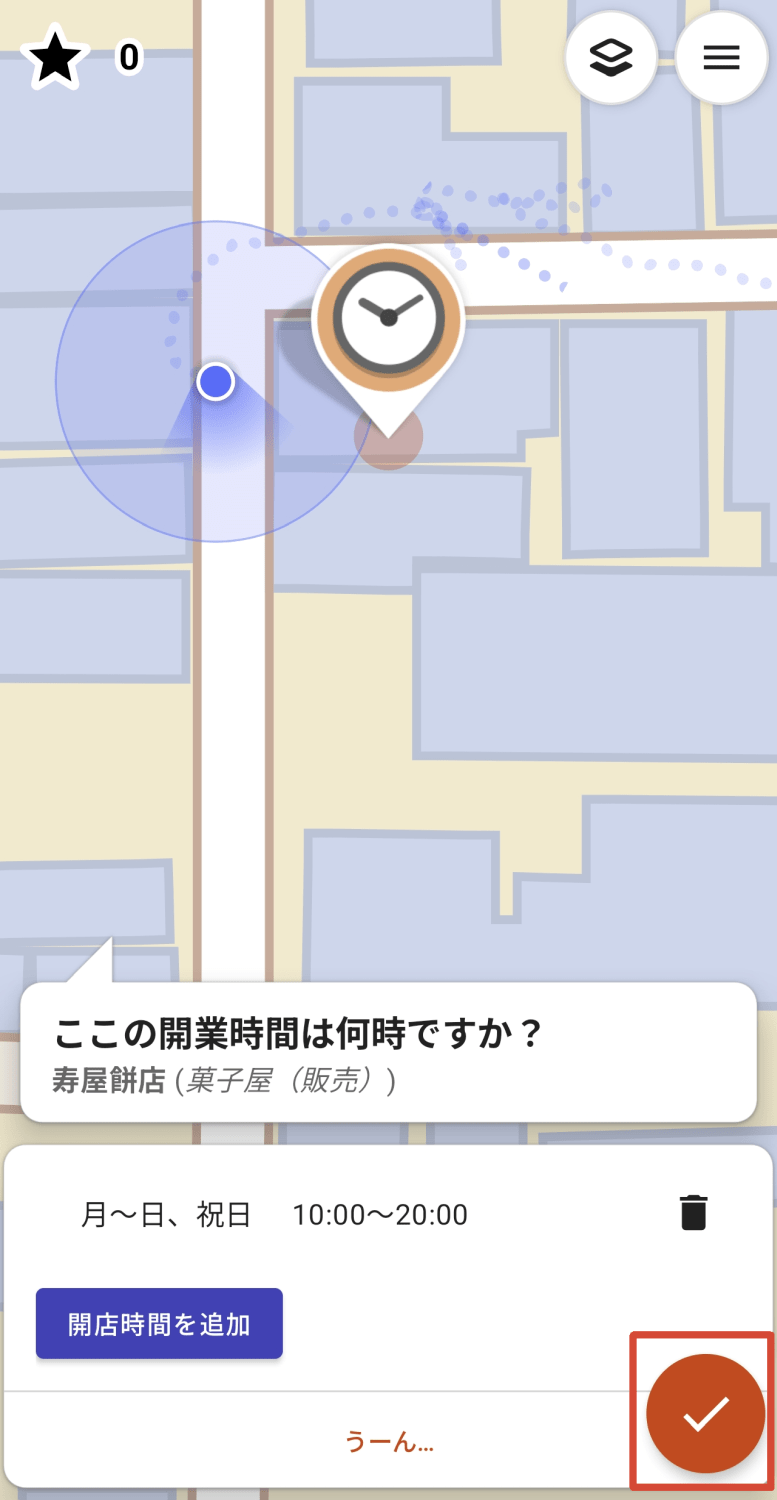
Finally, tap the checkmark icon in the bottom right corner of the screen to complete the quest.
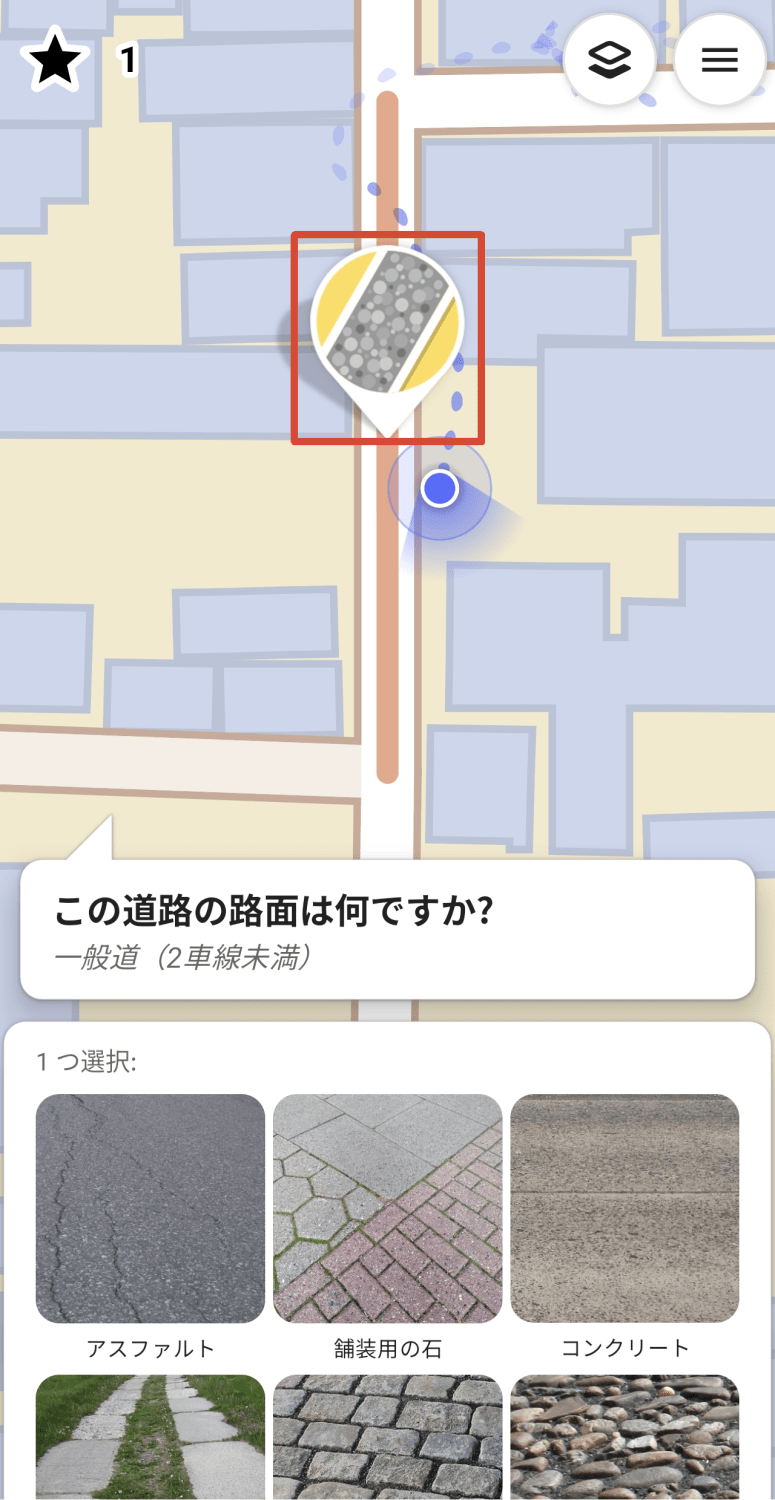
I found the next quest on the road. When I tapped on it, the message 'What kind of surface is this road made of?' appeared.
For reference, the actual road surface is as shown in the image below.
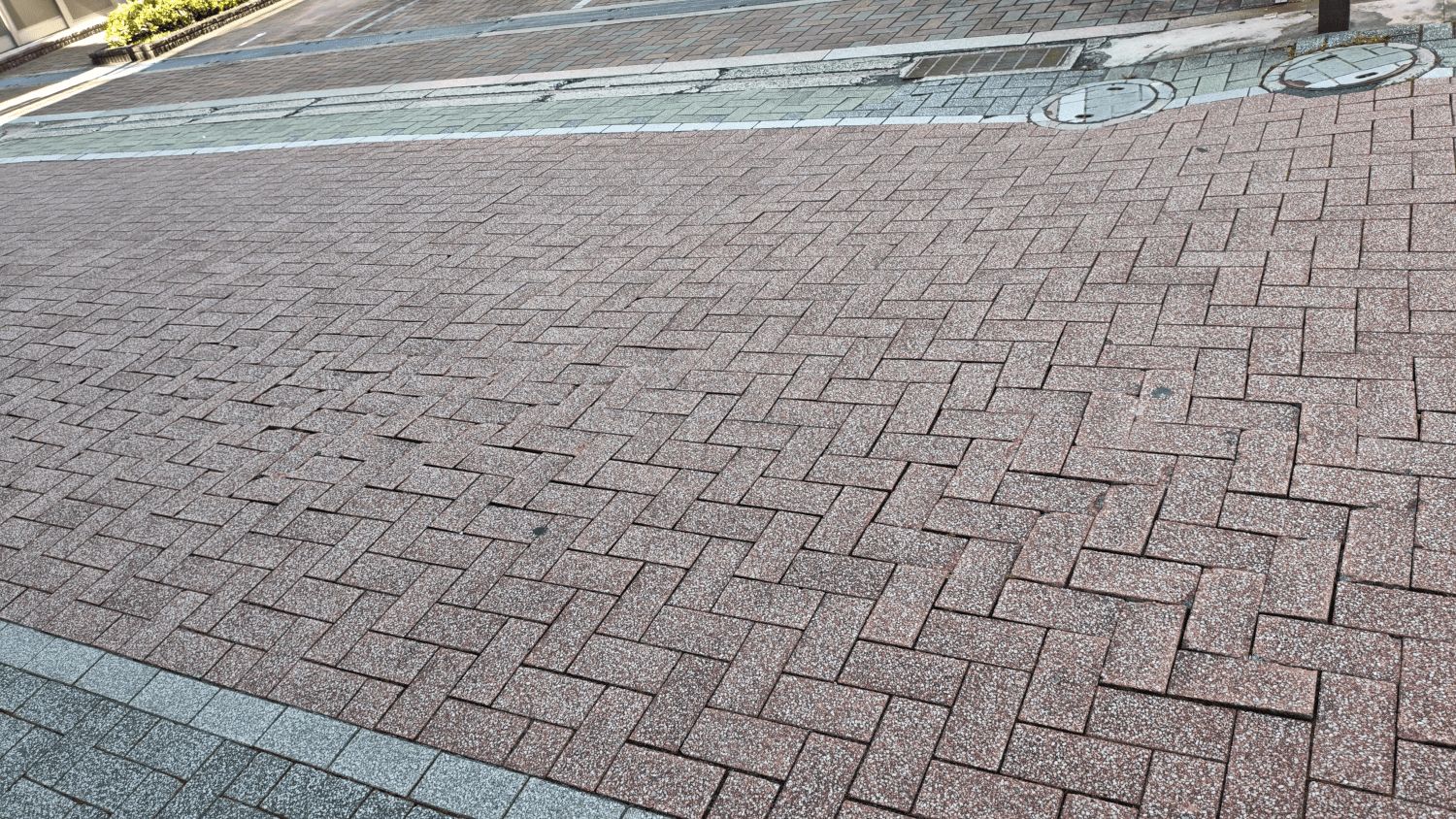
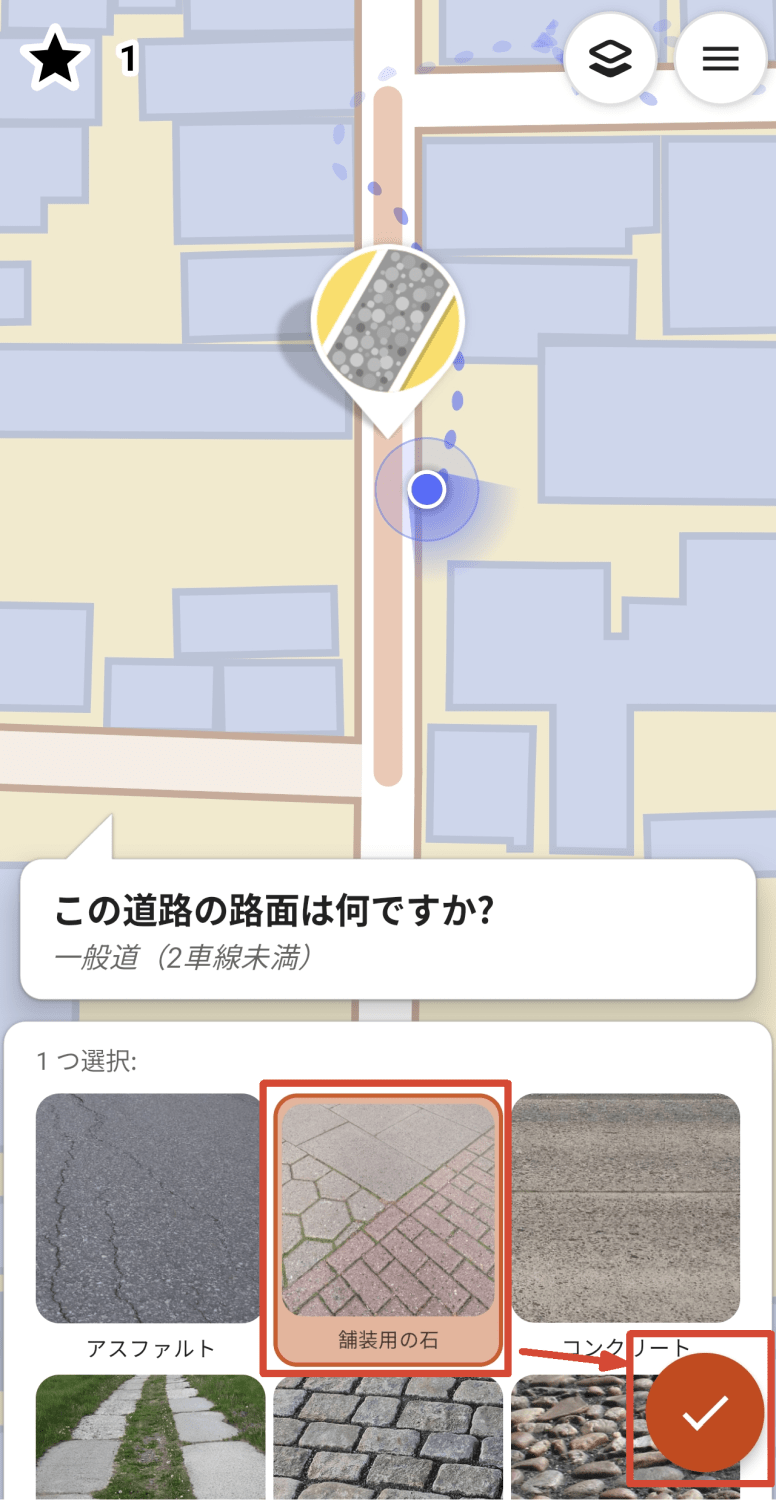
Select 'paving stones' from the options and tap the check icon in the lower right corner of the screen to complete the quest. This time, there was less input and it was over in no time.
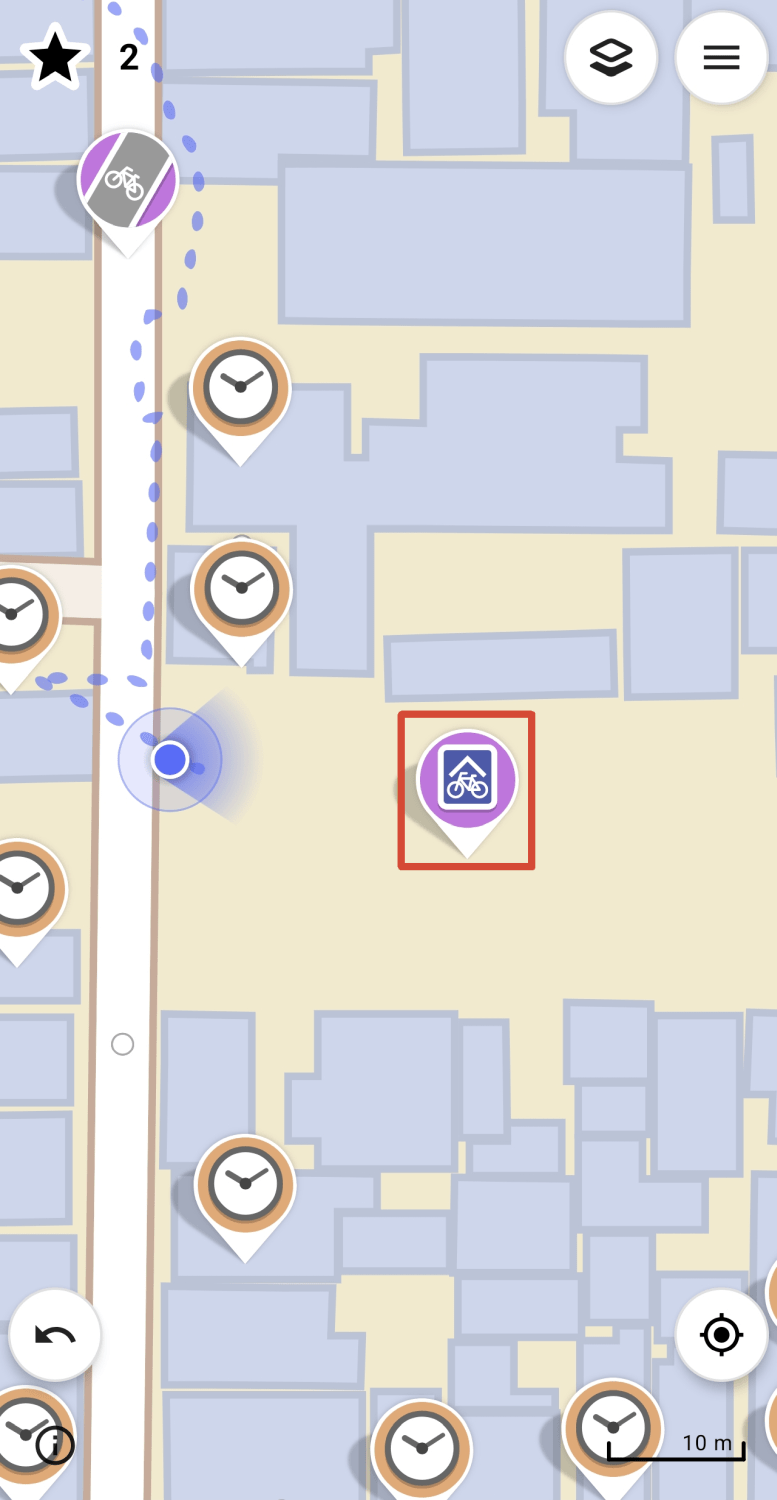
I came across a bicycle parking area and found a quest with a very typical icon, so I tapped on it.
An actual bicycle parking area.
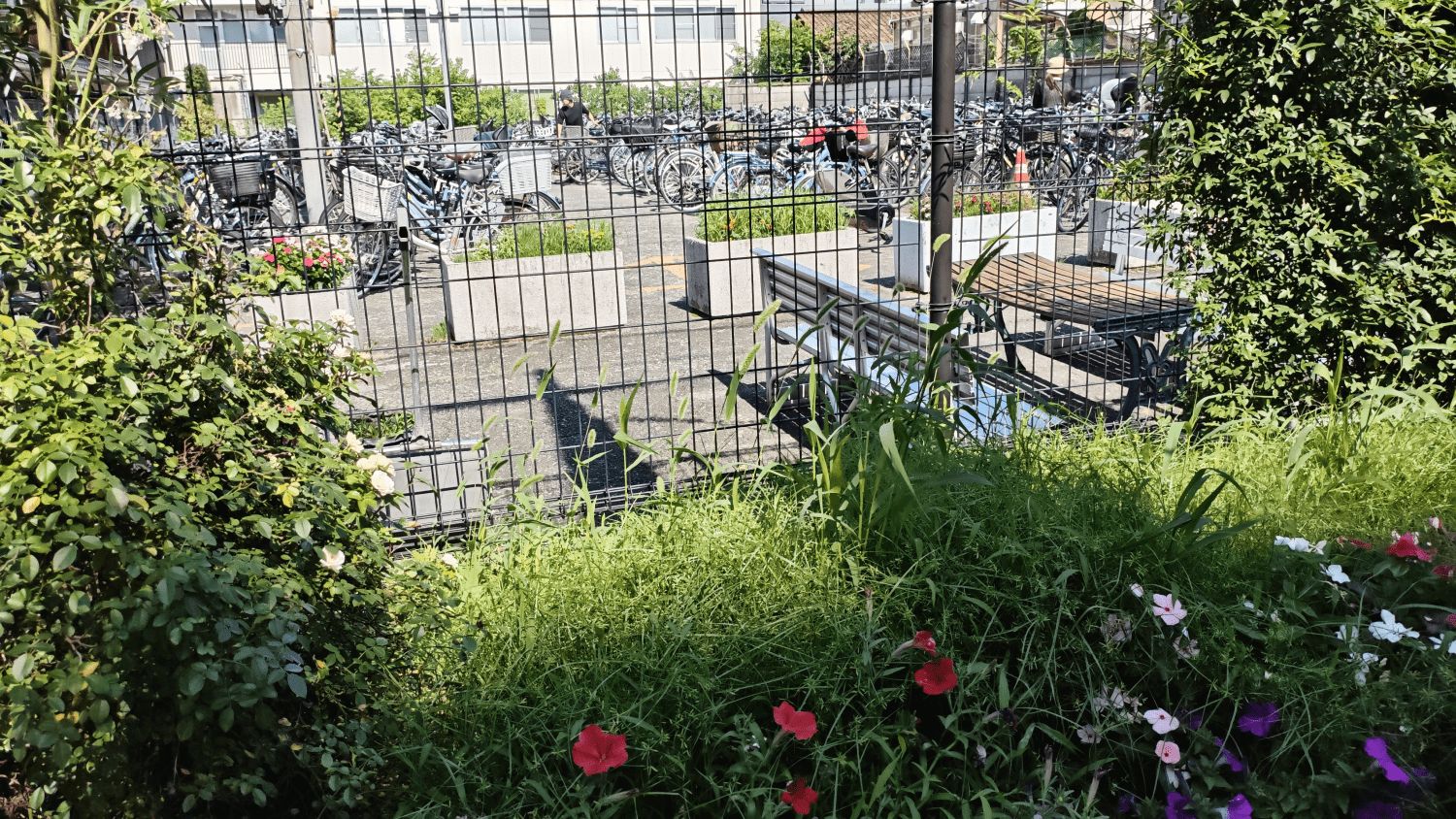
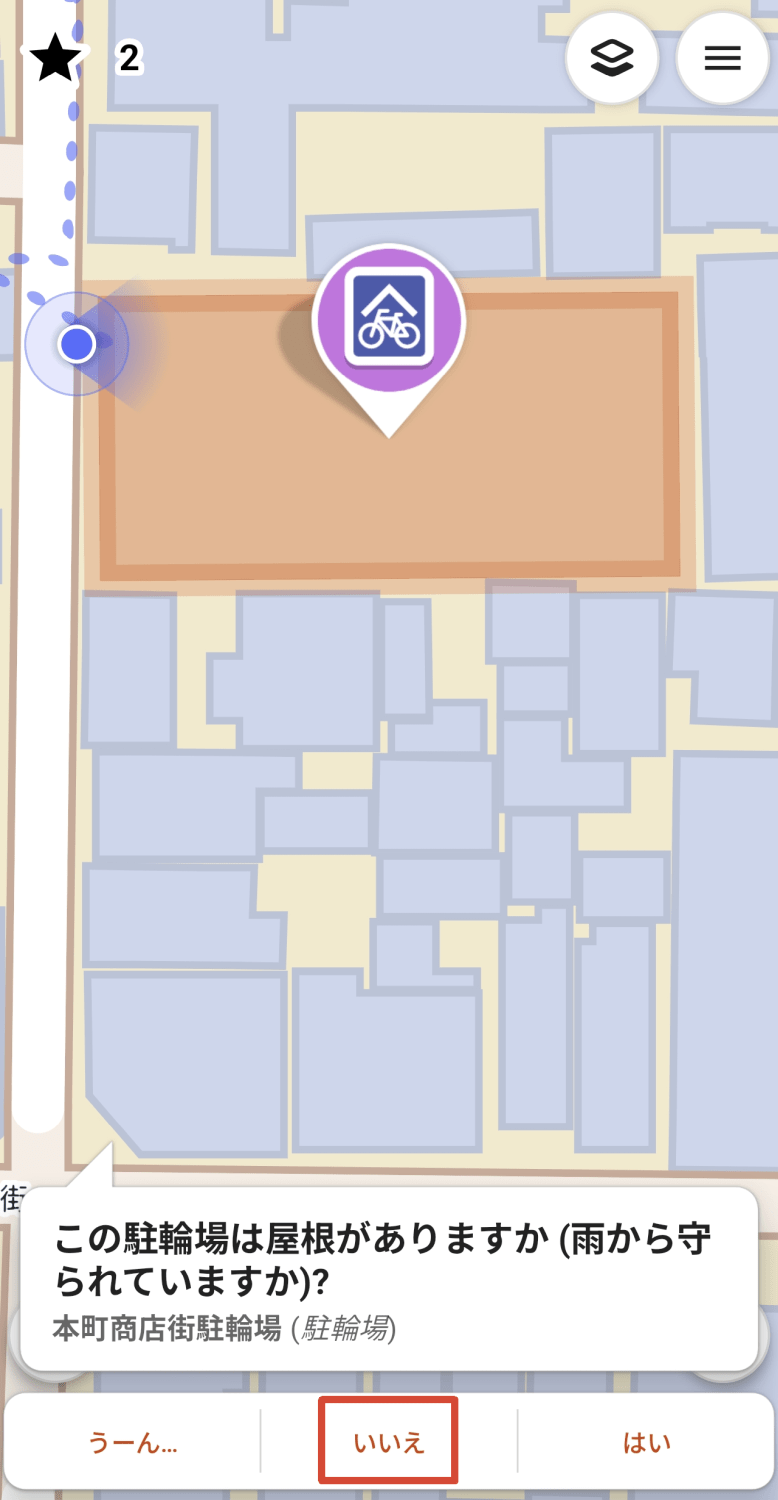
The quest question is, 'Does this parking lot have a roof (is it protected from the rain)?' Since it's open-air, tap 'No.'
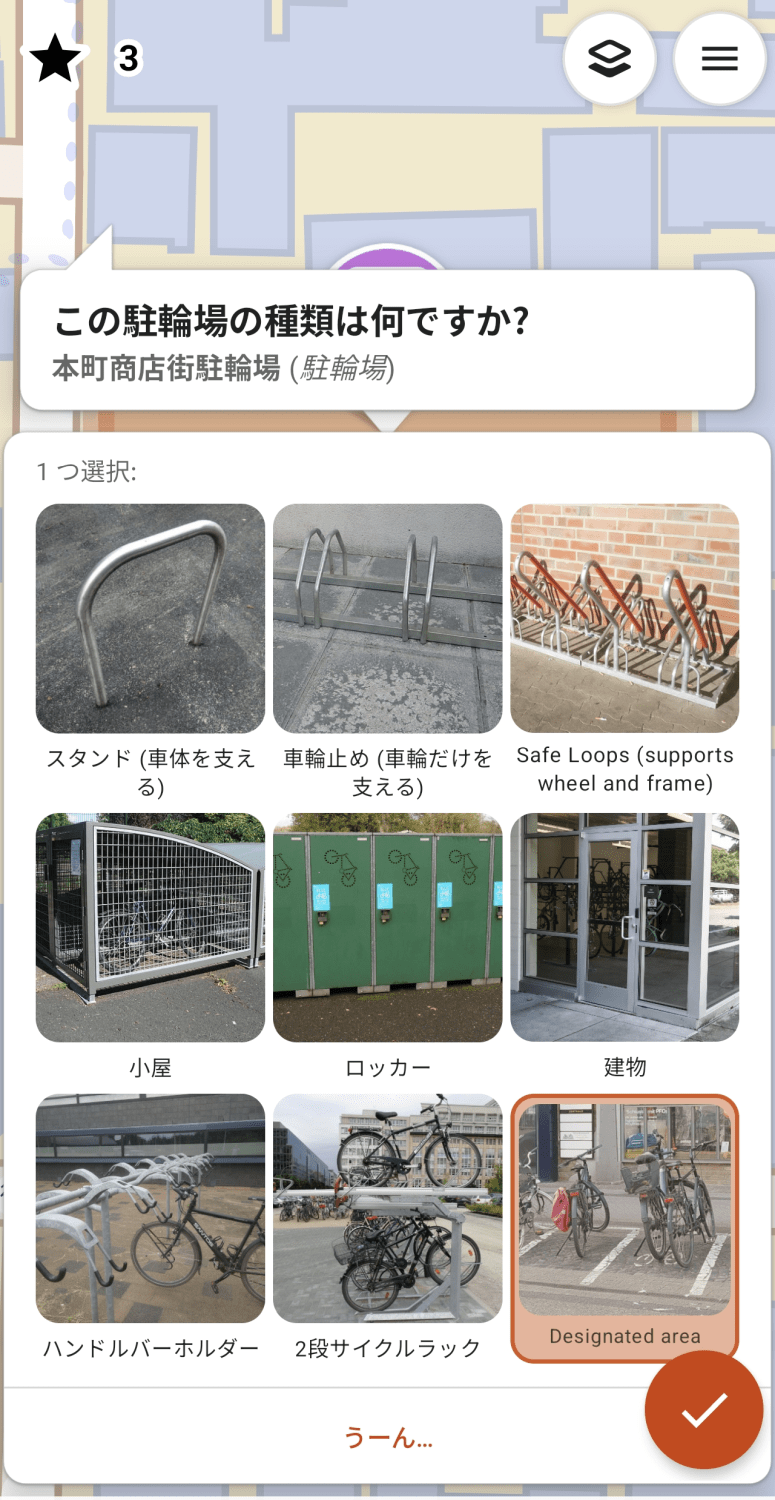
The bicycle parking quest continues. I was asked, 'What type of bicycle parking area is this?' so I answered, 'Designated area.'
A little further on, I found a quest that asked, 'Is this still here?' It mentioned a 'tourist information bulletin board,' so I checked to see if there was a bulletin board nearby.
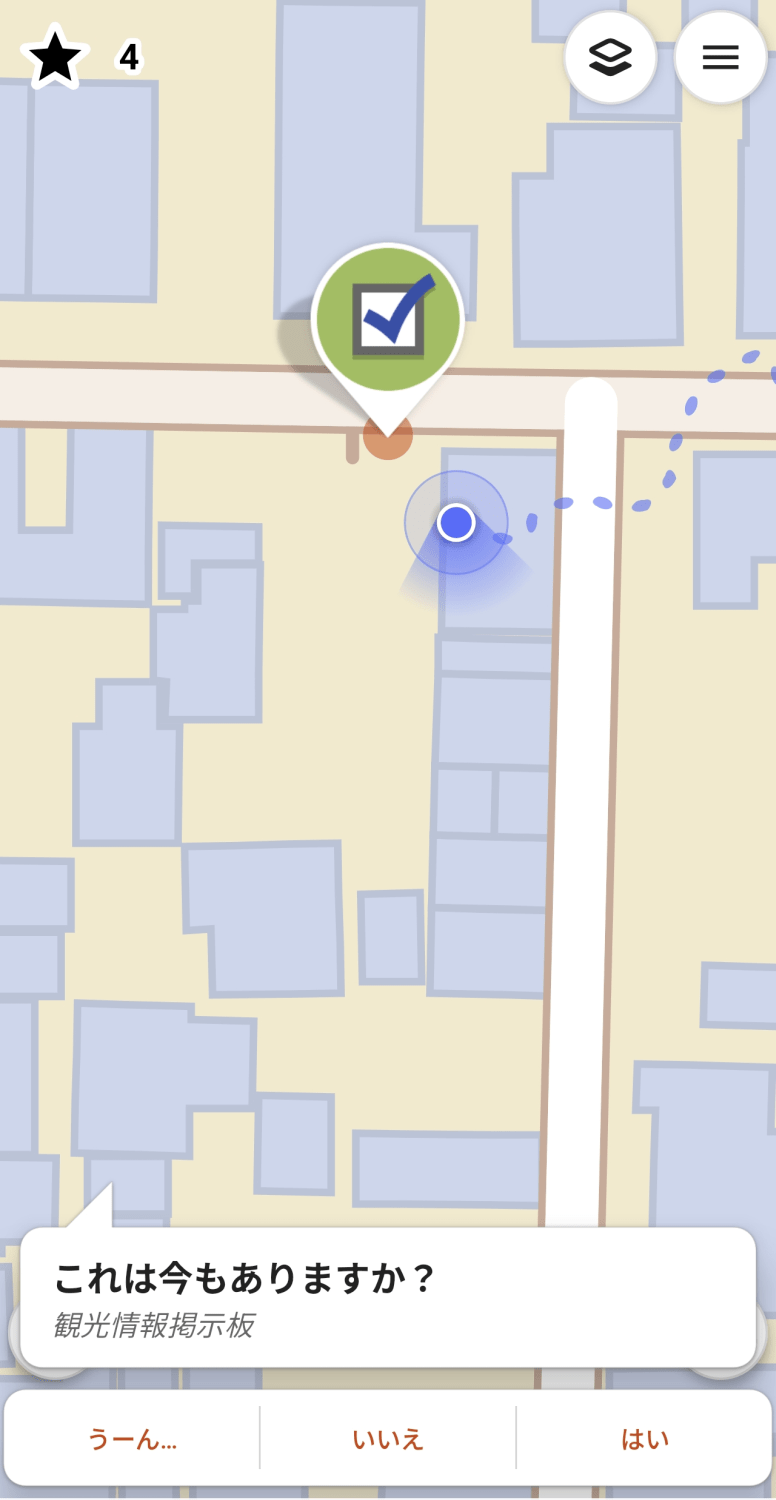
I confirmed that it still exists, so I answered 'yes'.

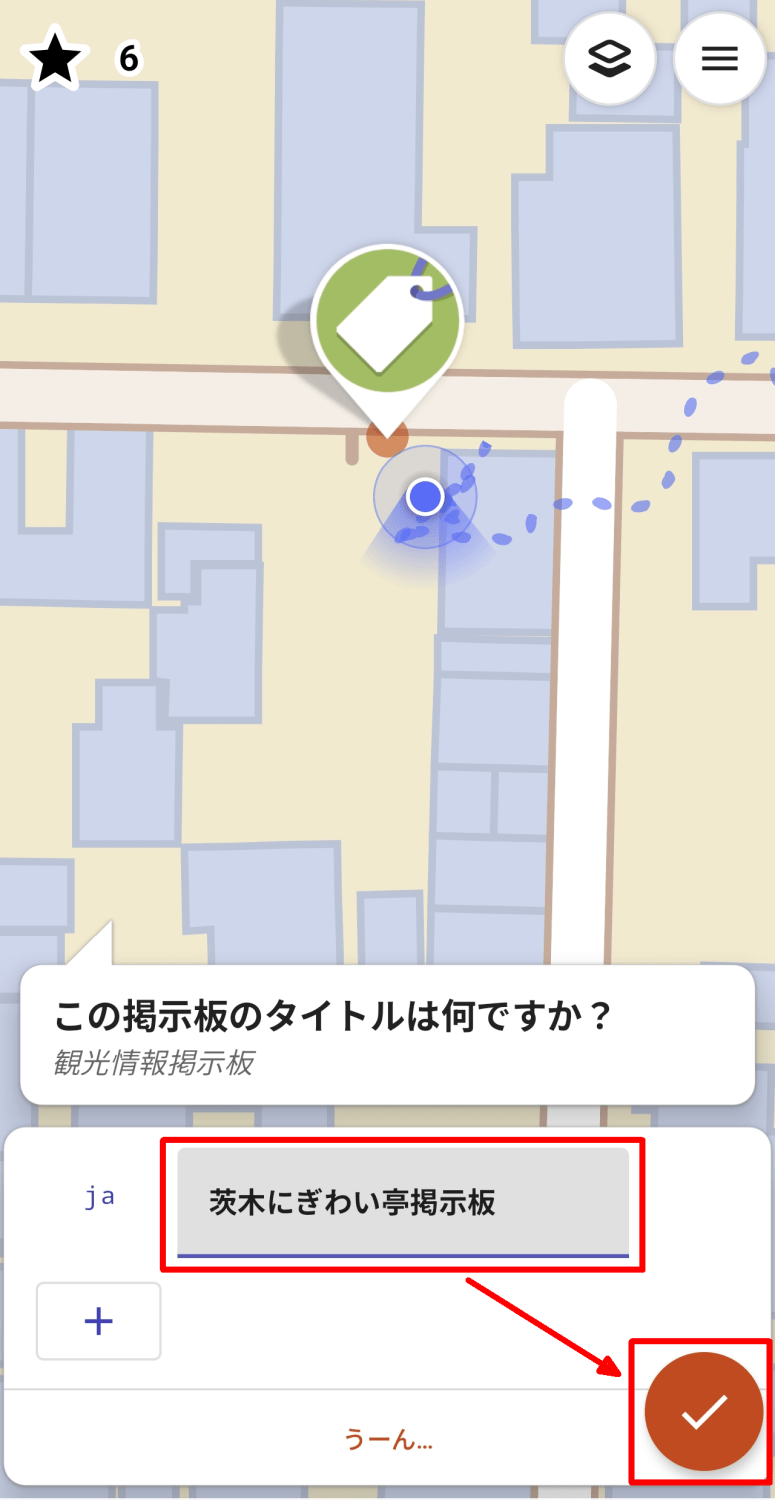
Next, I was asked, 'What is the title of this bulletin board?', so I entered the name that was written on the bulletin board and tapped the check icon in the lower right corner of the screen to answer.
The next quest was set on a road and asked, 'Is there a sidewalk on this street?'
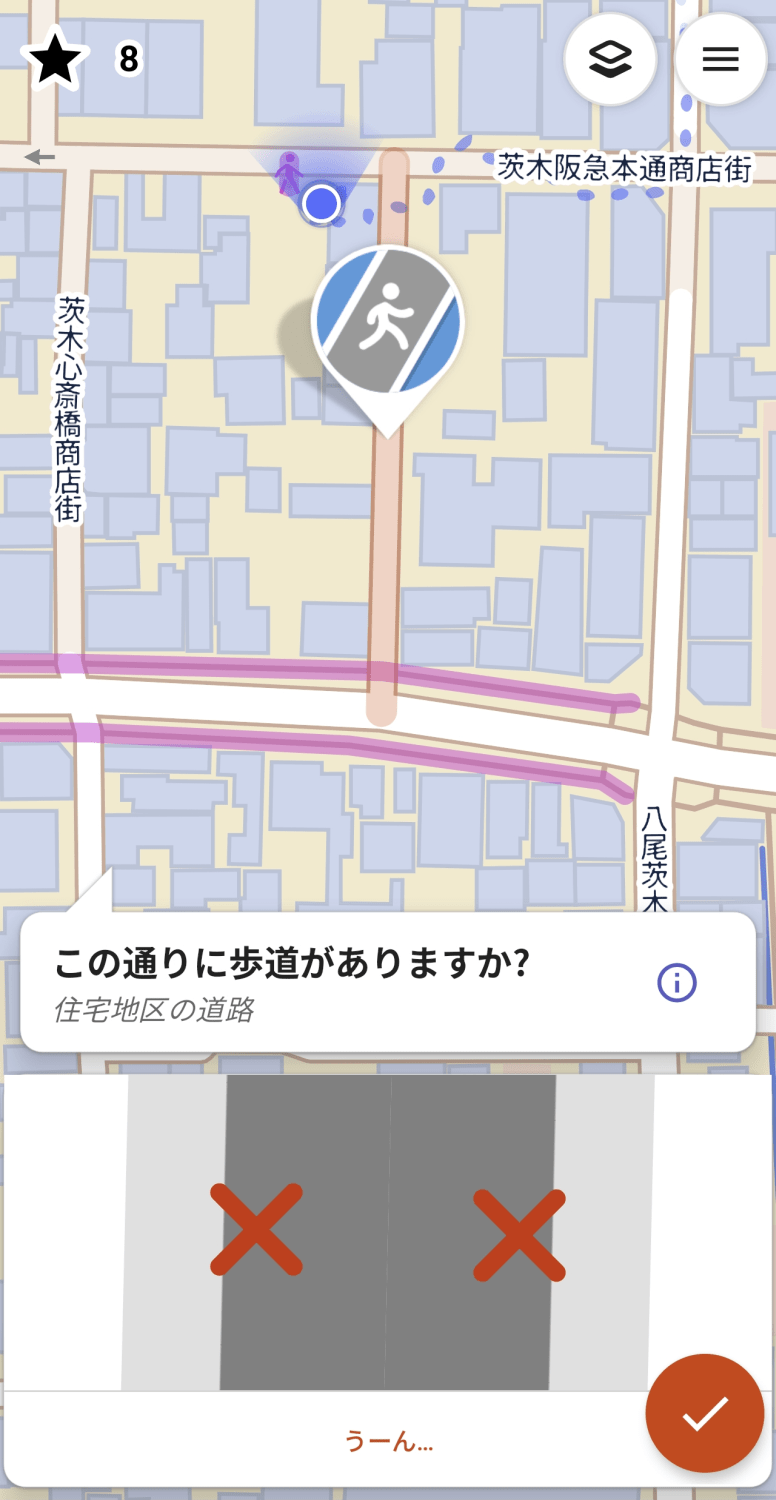
Looking at the actual street, there were no sidewalks on either side.
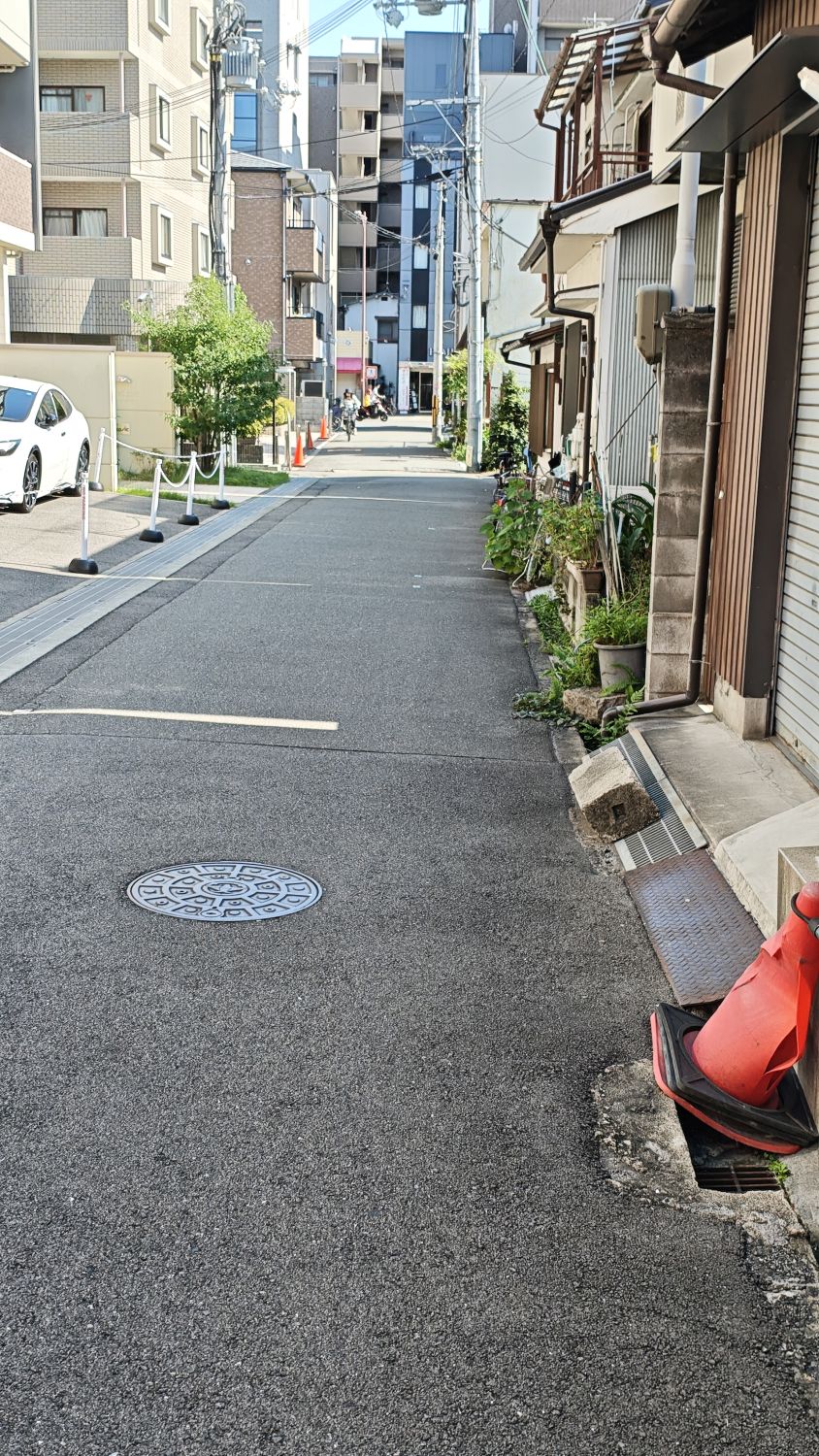
Since sidewalks may exist on both sides of the road, you need to select whether or not there are sidewalks on each side.
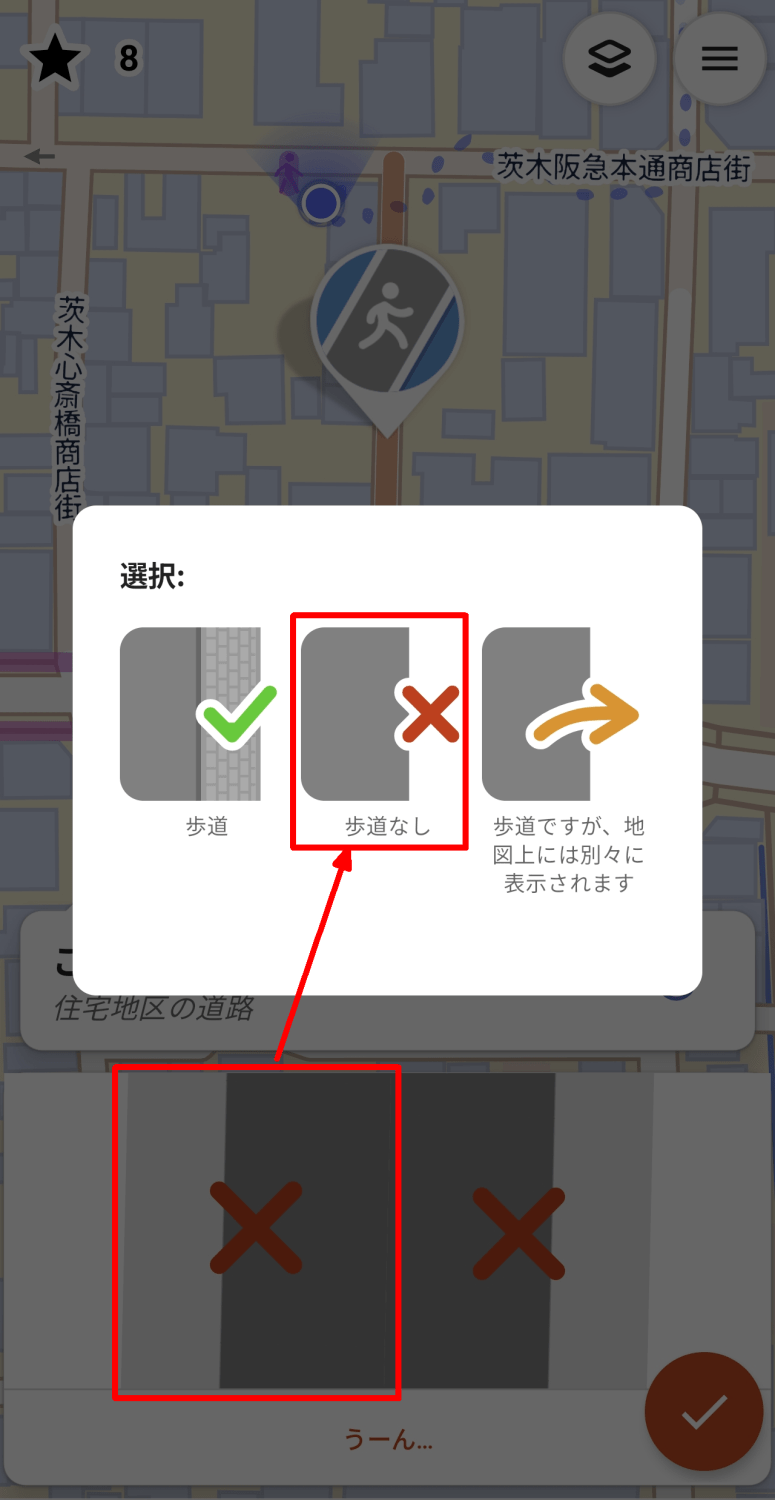
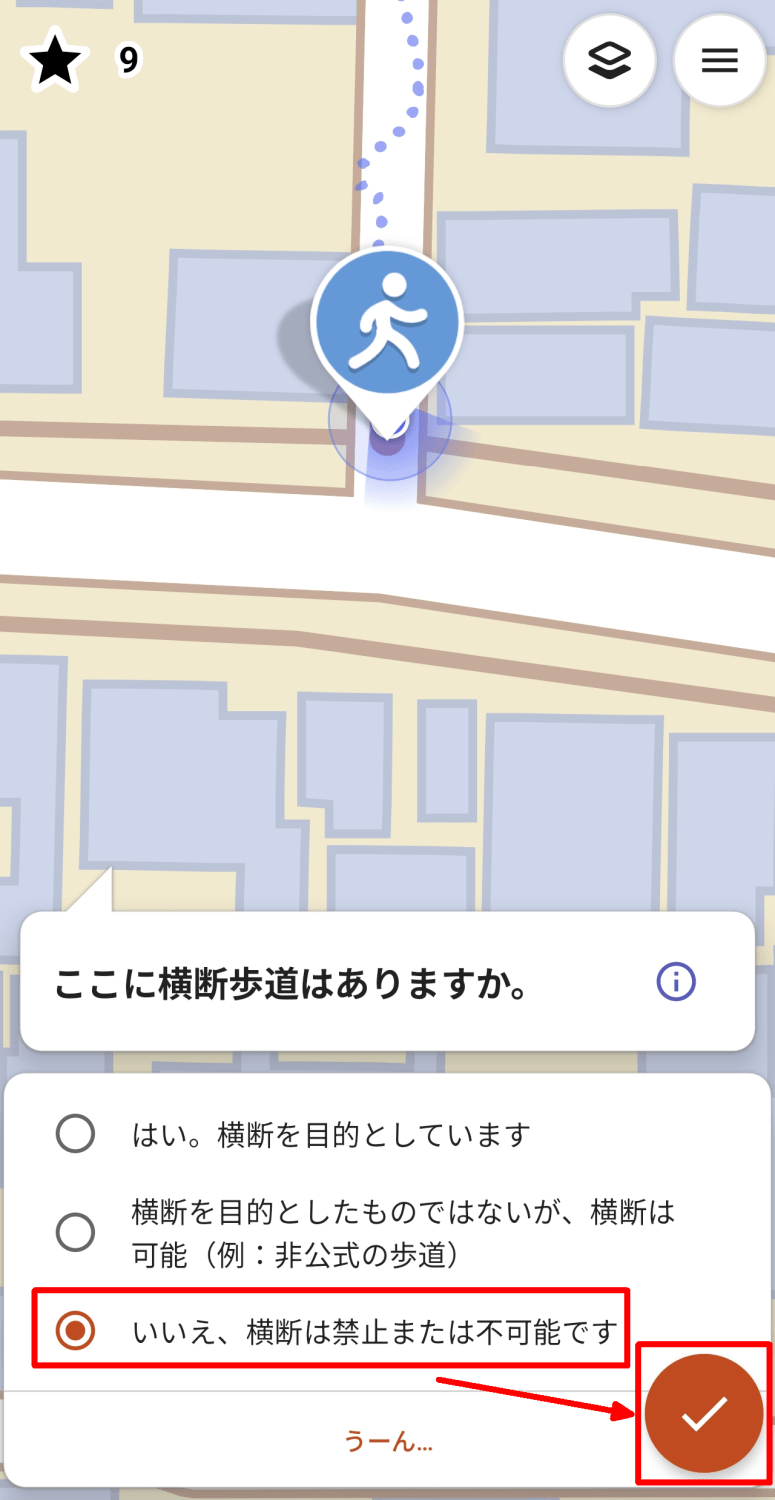
The next quest I encountered is set at a T-junction where a main road meets a local road. I can see a 'No Crossing' traffic sign on the other side of the road.
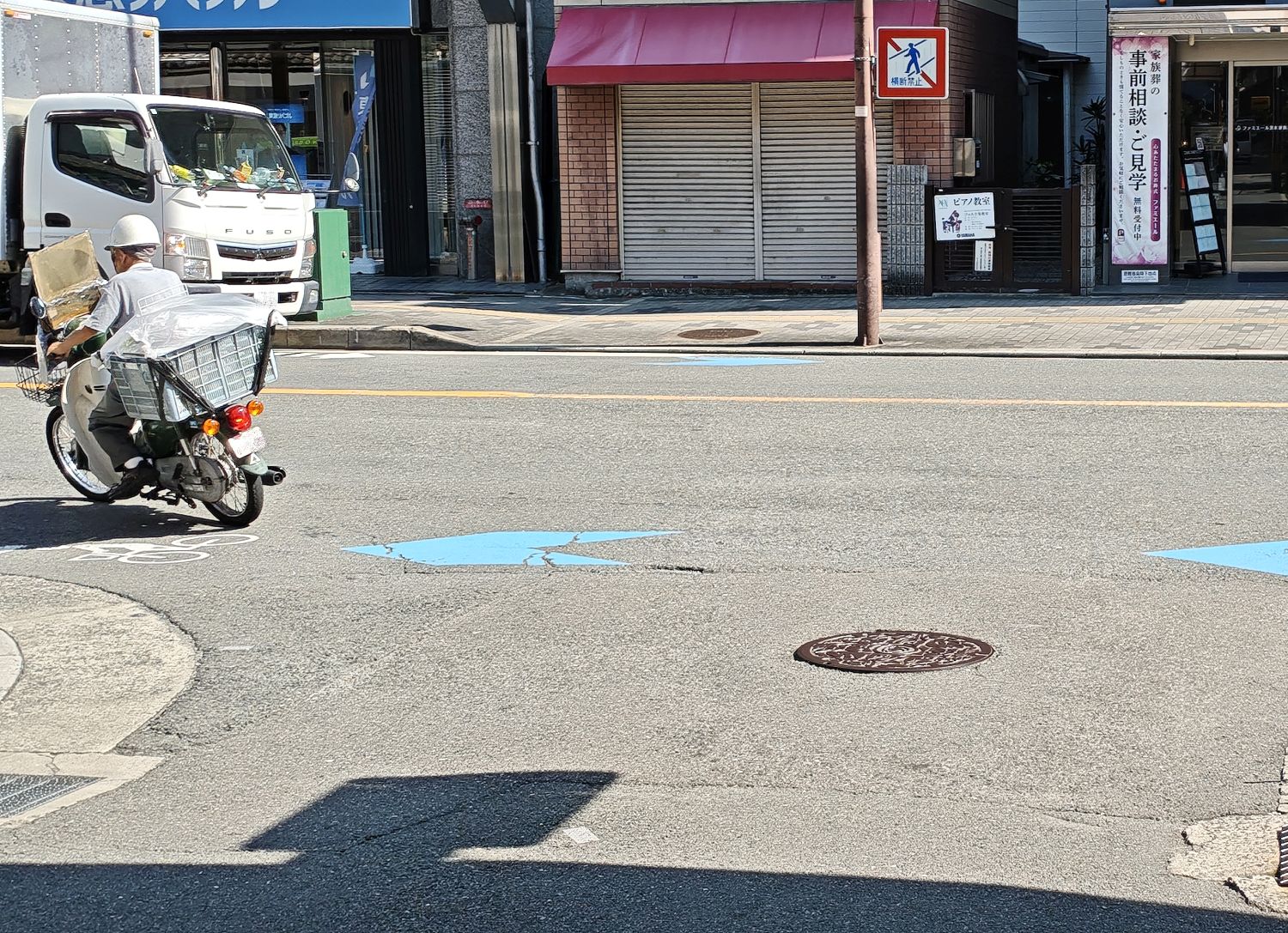
The quest is 'Is there a crosswalk here?' Select 'No, crossing is prohibited or impossible' and tap the check icon.
Near the intersection, there was a quest that asked, 'Is there
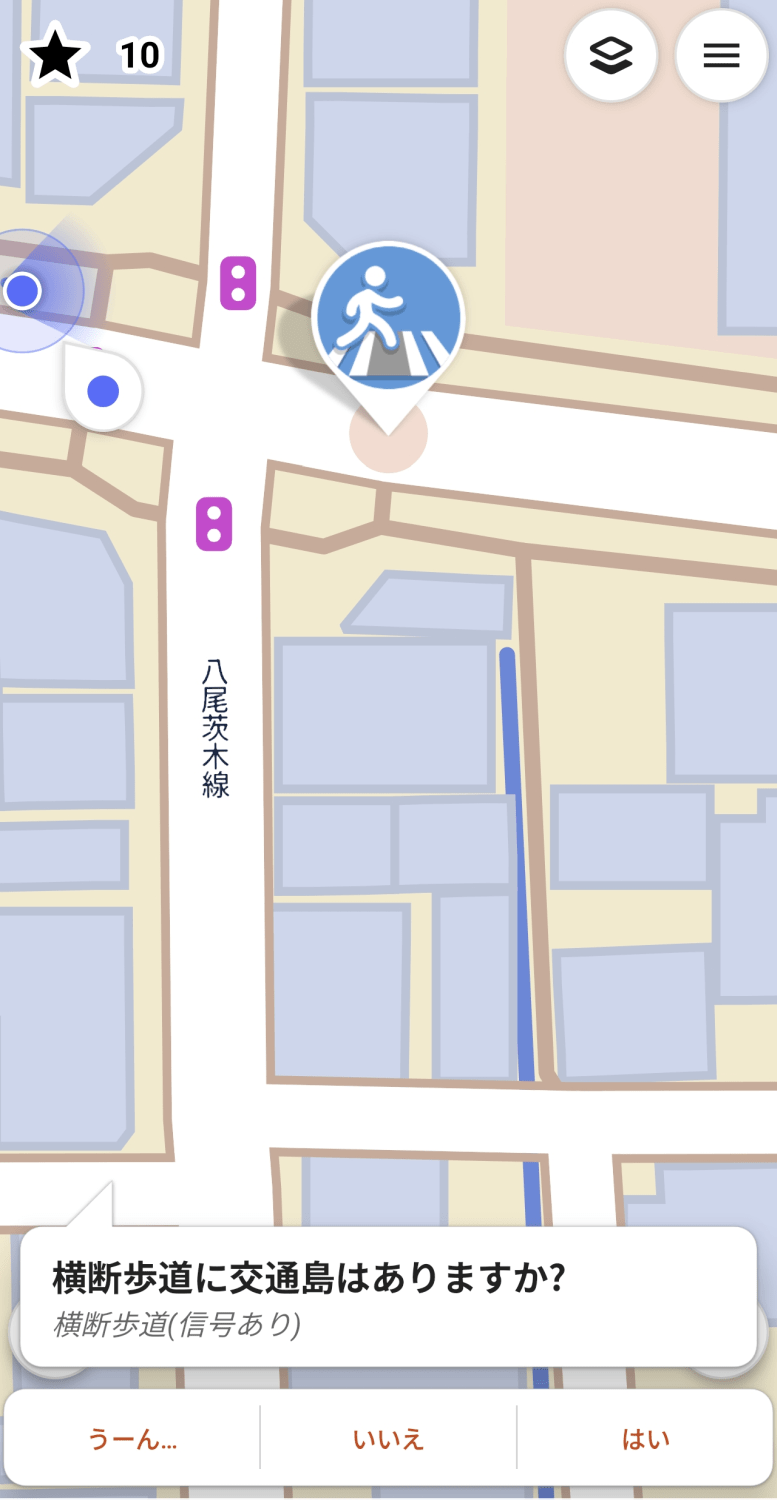
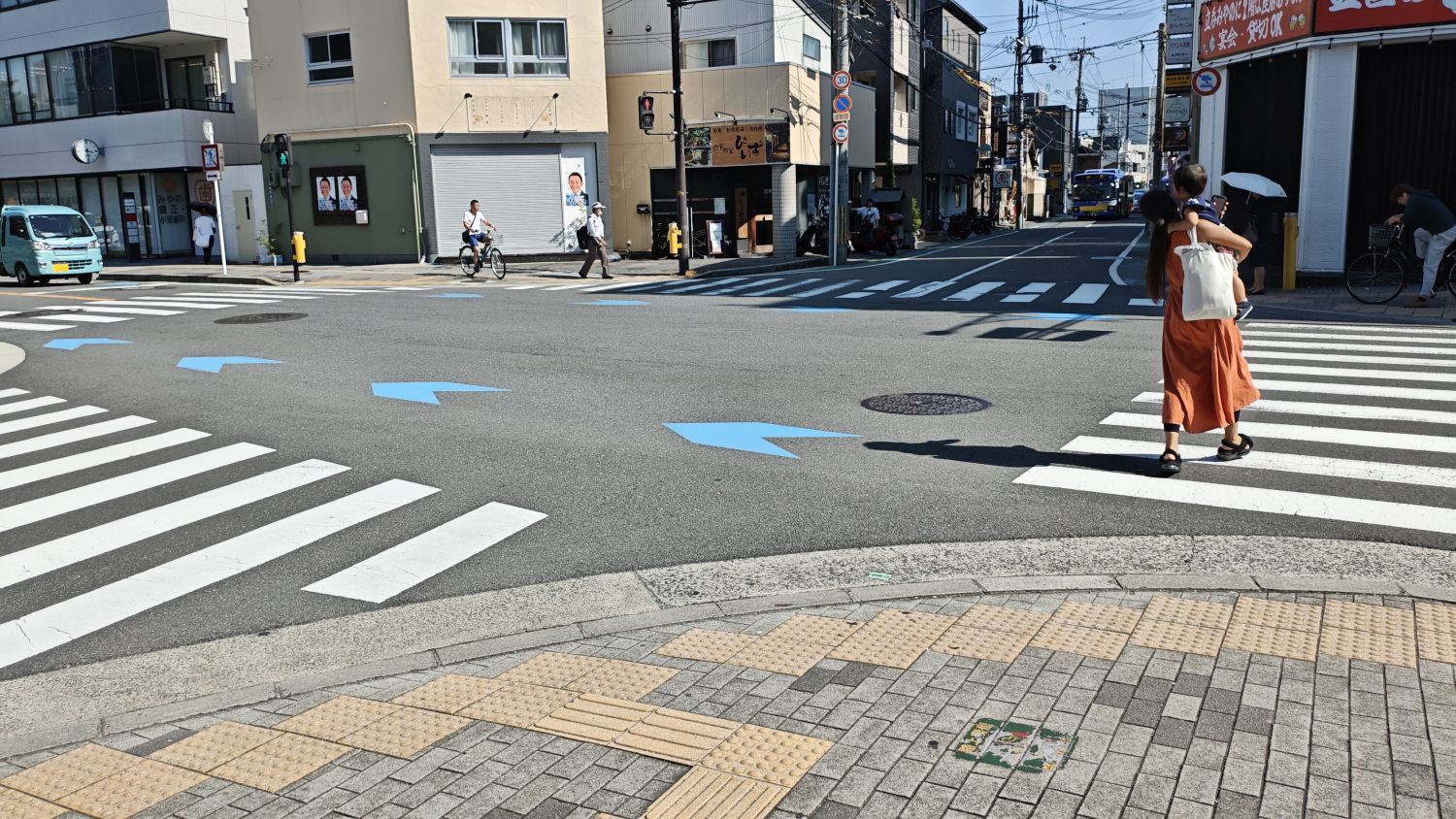
I looked at the pedestrian crossing and there was no traffic island, so I answered 'No.'
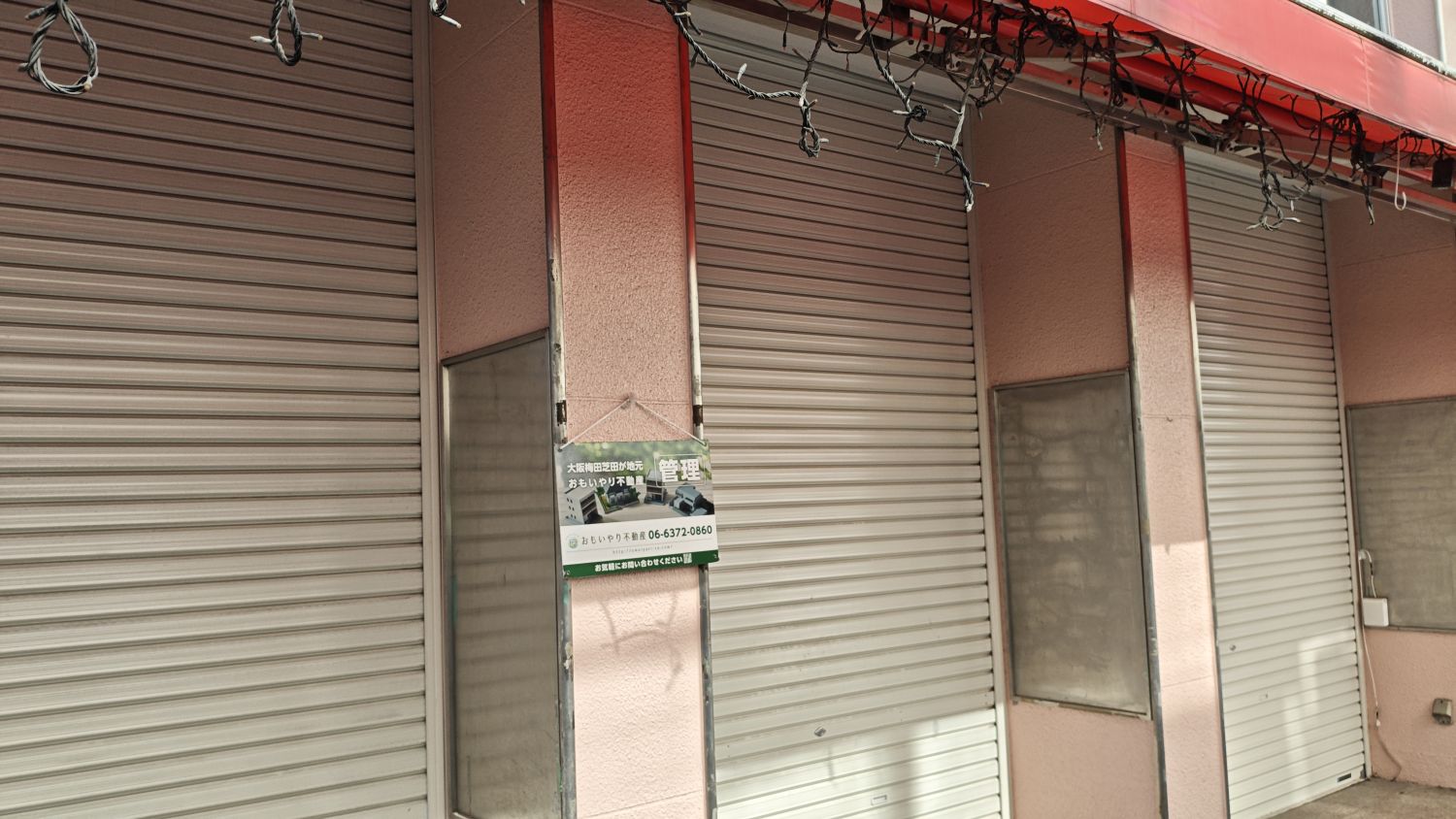
I found a quest that asked, 'What time does this place open?', but to be honest, I was at a loss as to how to answer it.
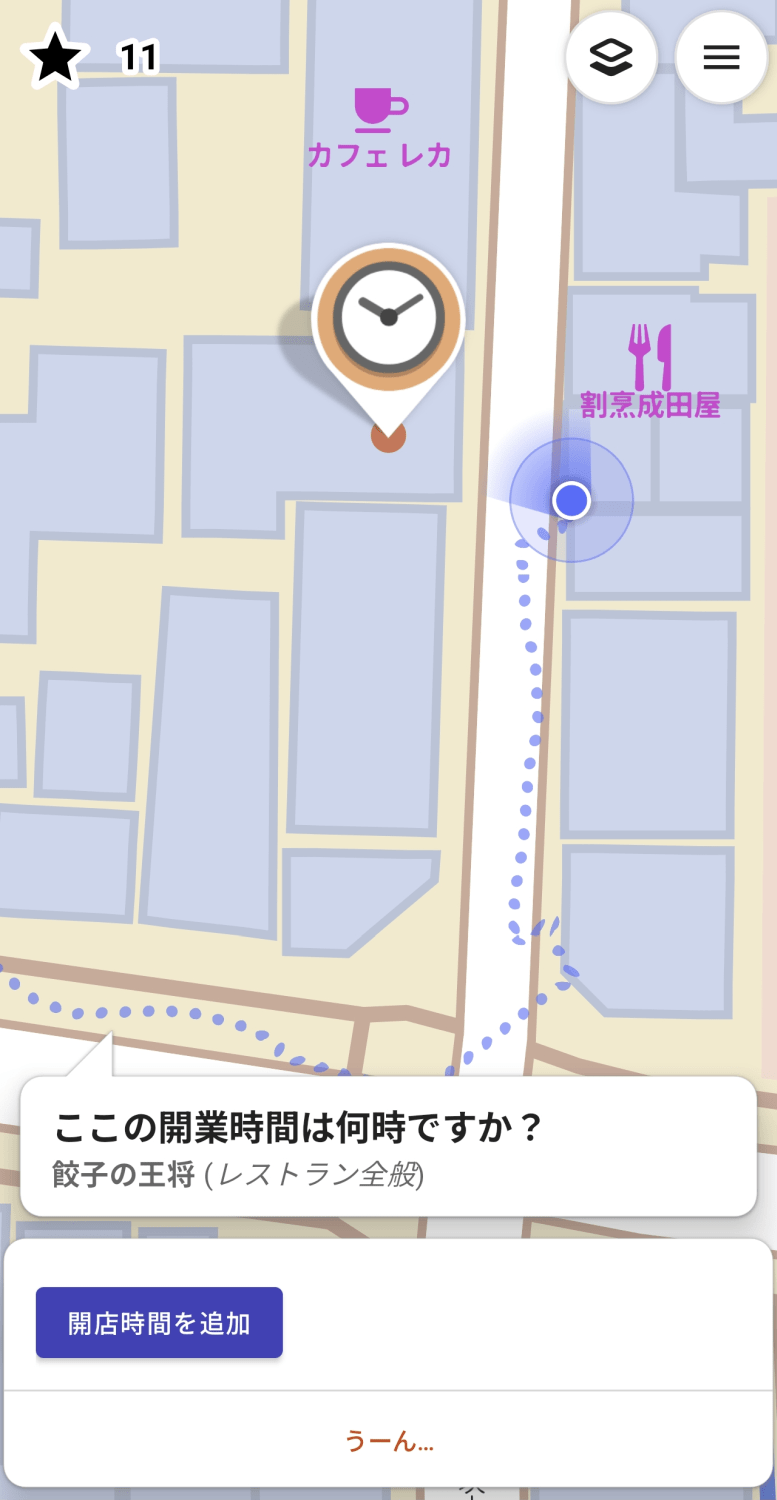
This was because the store where the quest was set had already closed down.
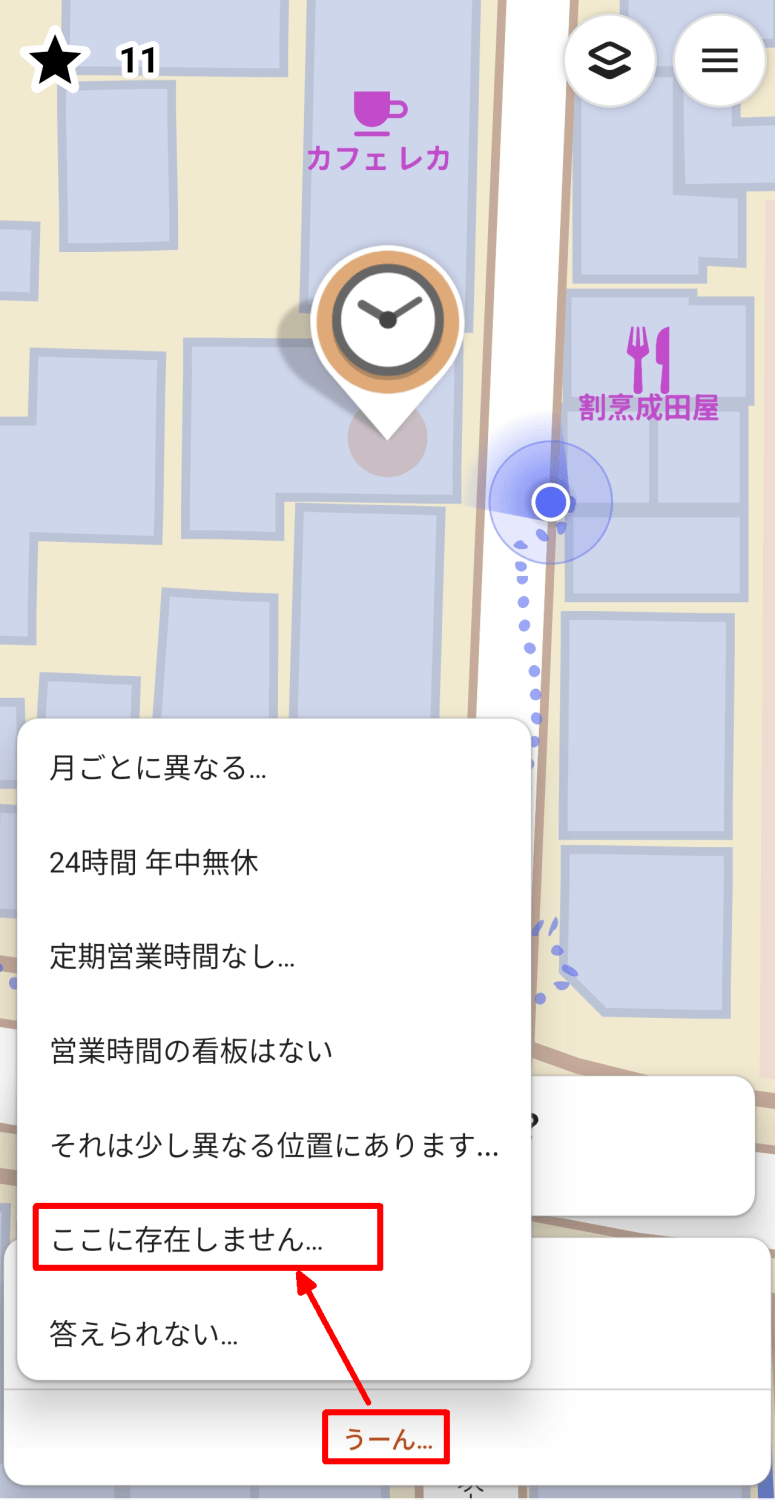
I tapped on 'Hmm...' which I hadn't paid attention to before, and the following pop-up menu appeared, so I selected 'Does not exist here...' which was the closest to the current situation.
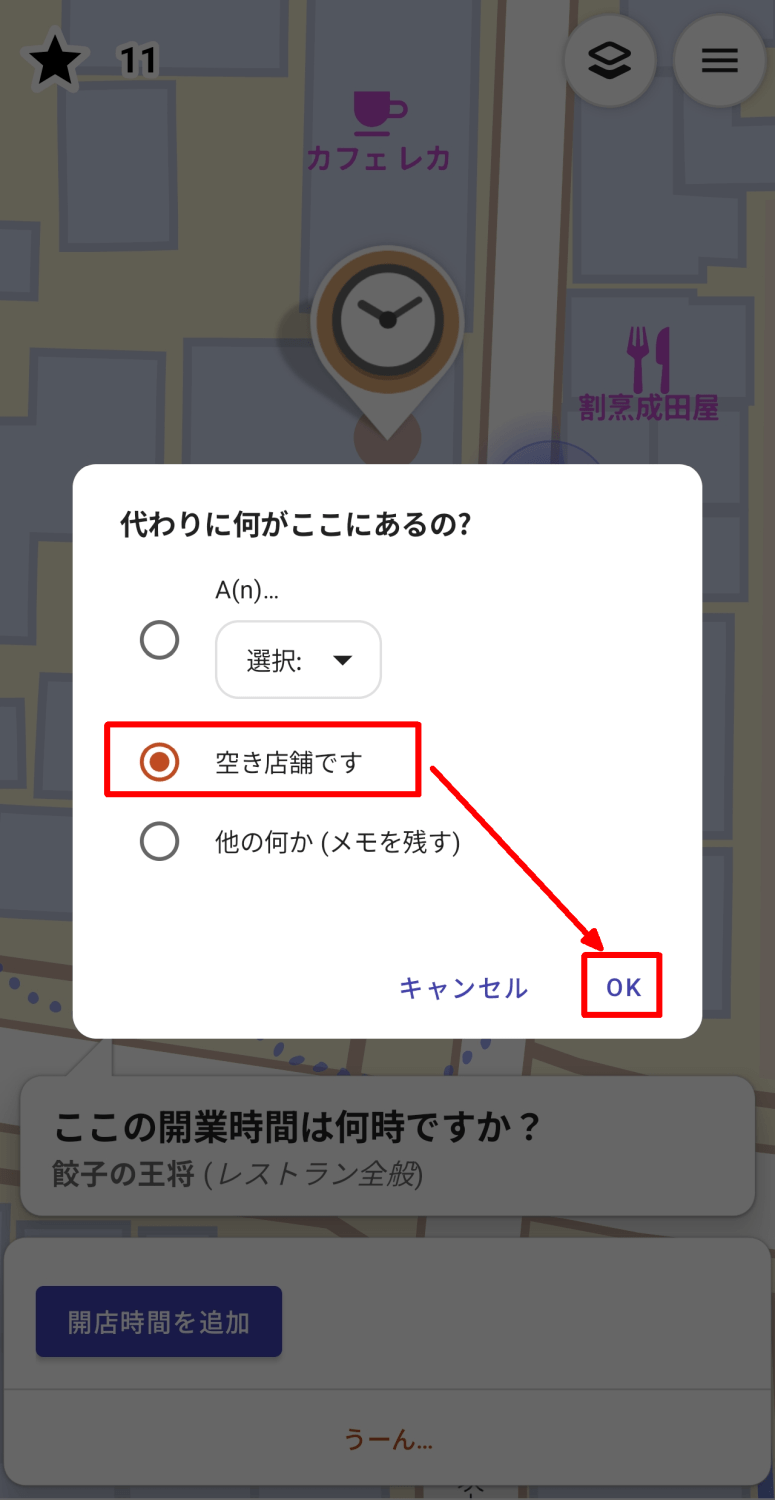
When asked, 'What's here instead?', I replied, 'It's an empty storefront.'
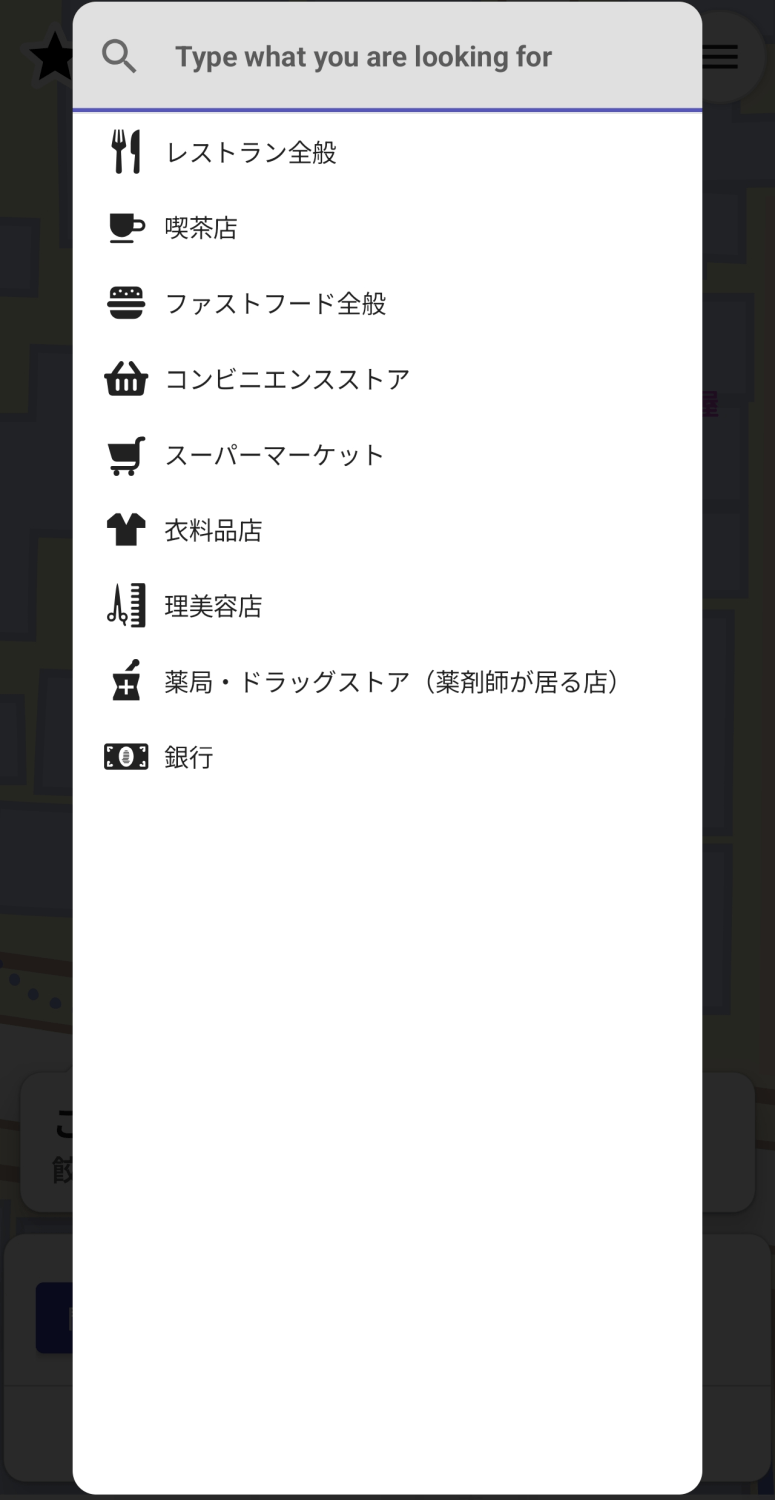
Incidentally, when I tried pulling down the dropdown list next to the 'A(n)...' option, which I didn't quite understand, it turned out that I could specify what kind of stores were available instead.
◆Account
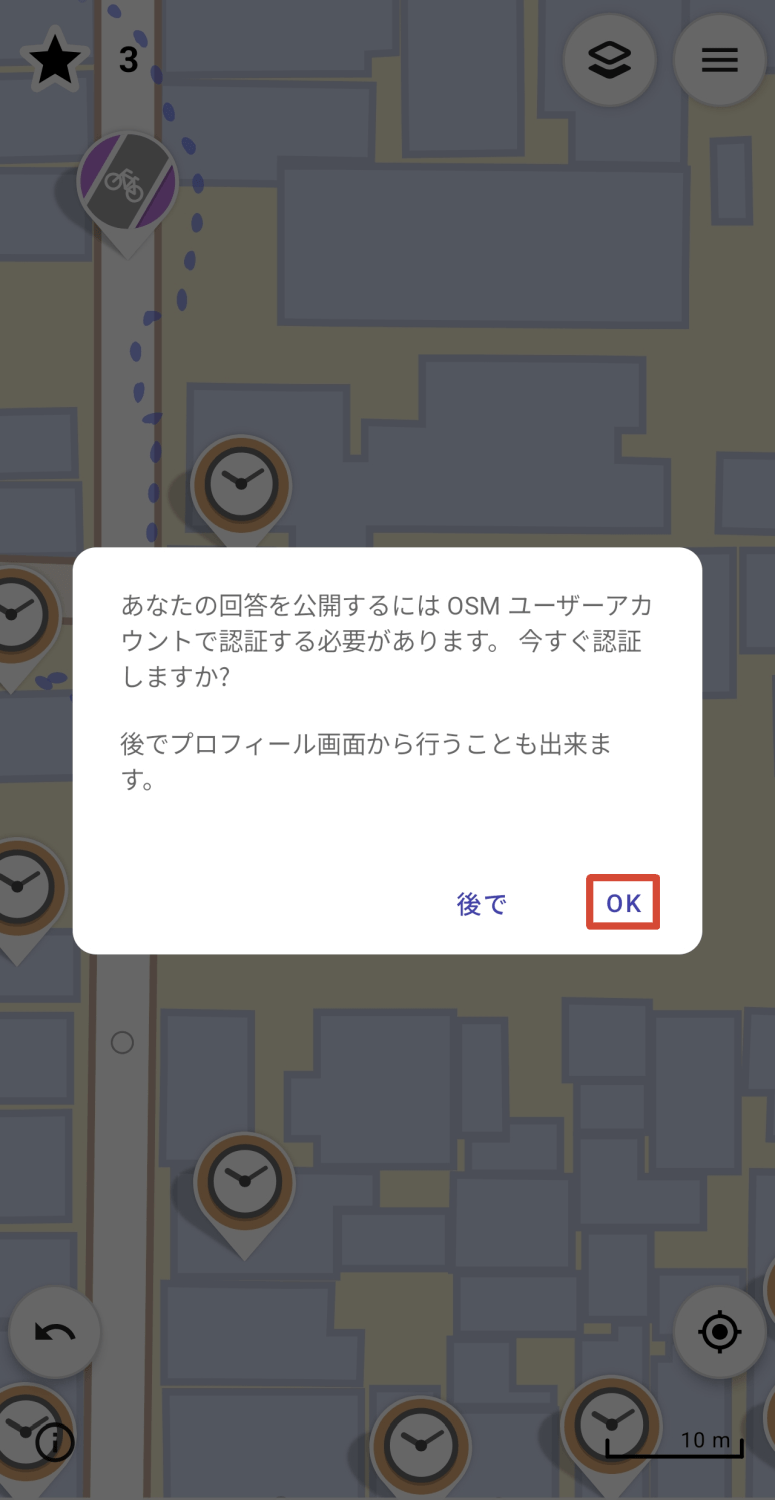
As I progressed through the quests, I was wondering, 'I should register an account with OpenStreetMap, but when do I do that?' Then, after completing a few quests, I was asked to authenticate with my OpenStreetMap user account. There was an option to do it later, but I tapped 'OK'.
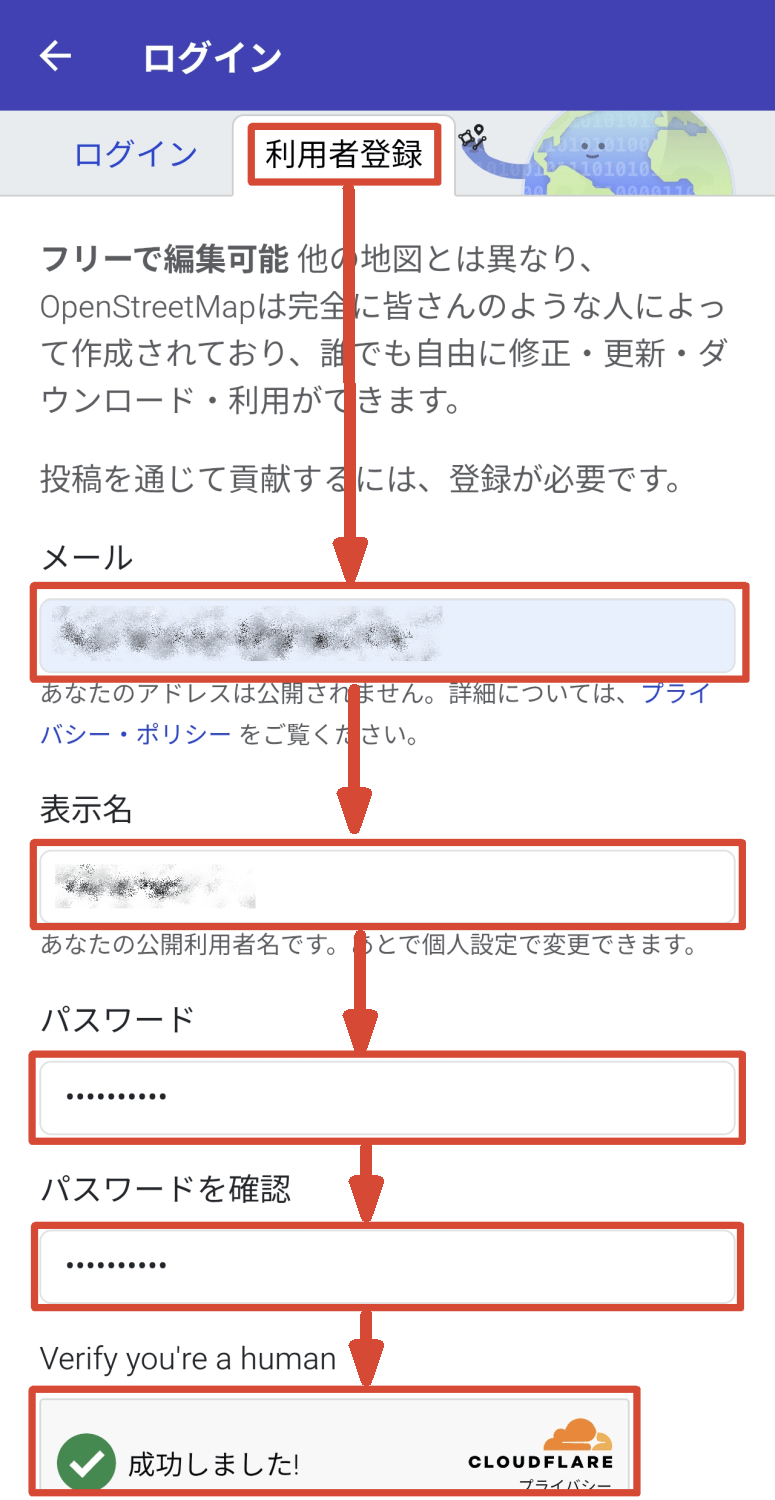
The OpenStreetMap login screen will appear. Select the 'User Registration' tab, enter your email address, display name, password, and confirm password, and check the Cloudflare human verification option.
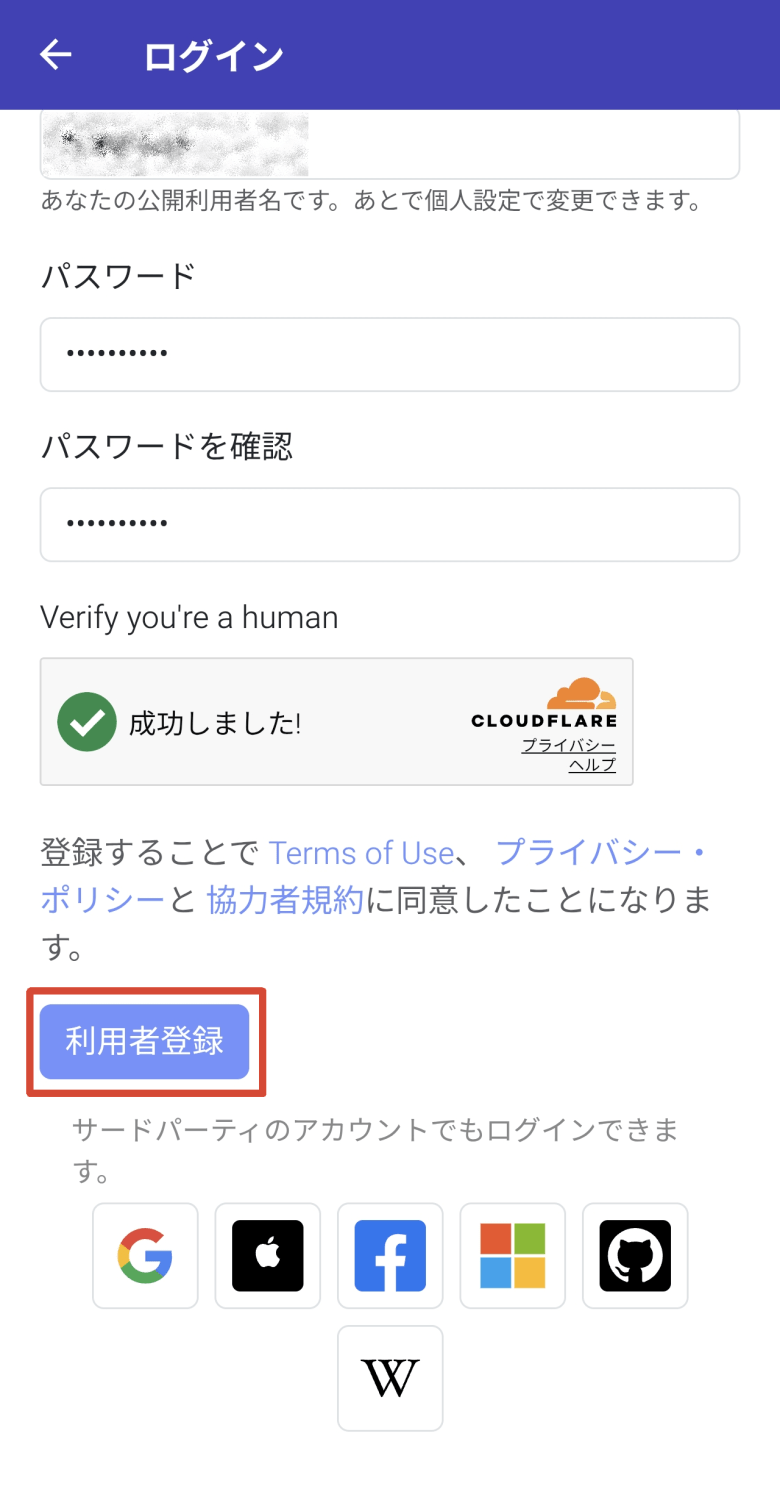
Finally, tap the 'Register User' button.
Then a screen will appear saying, 'Please check your email.'
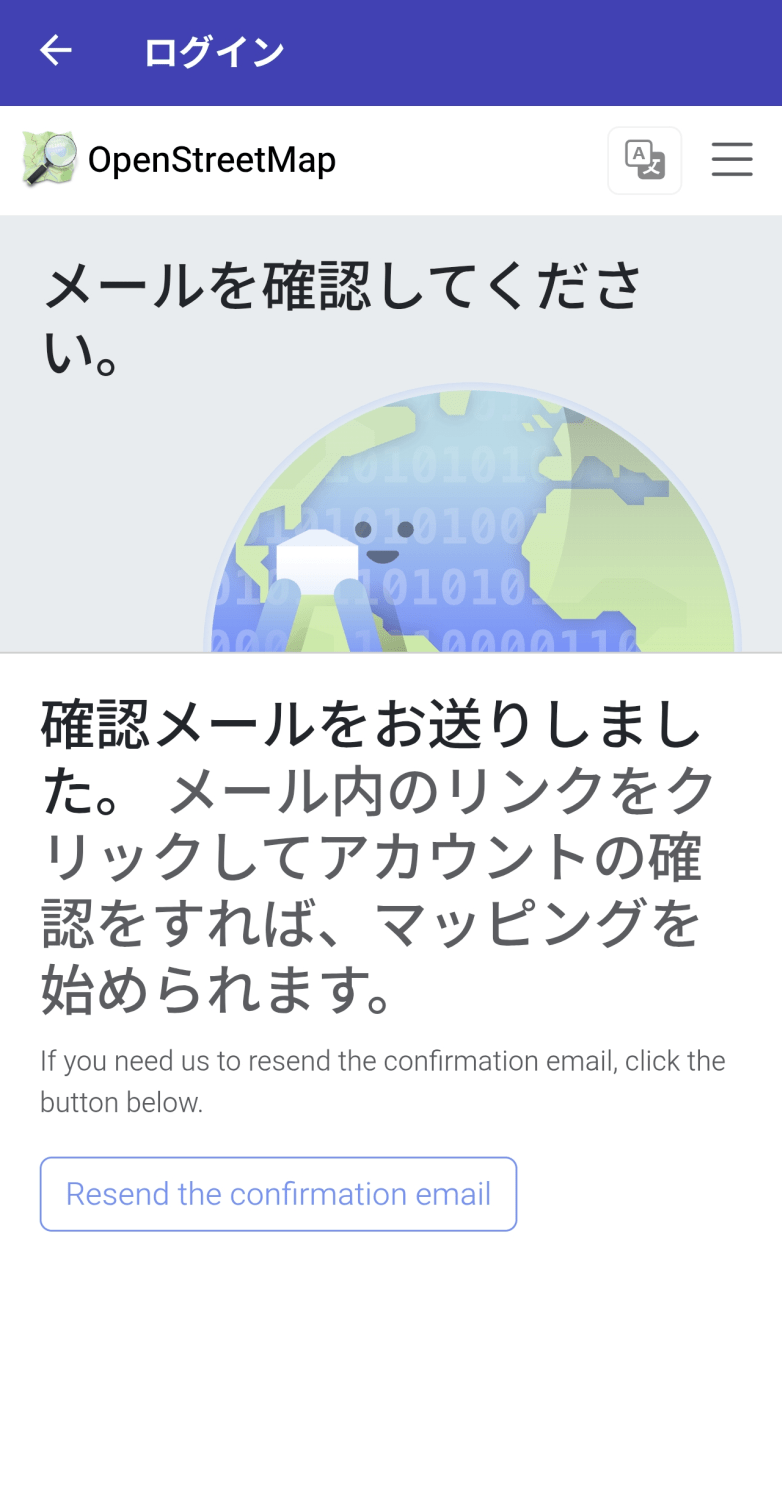
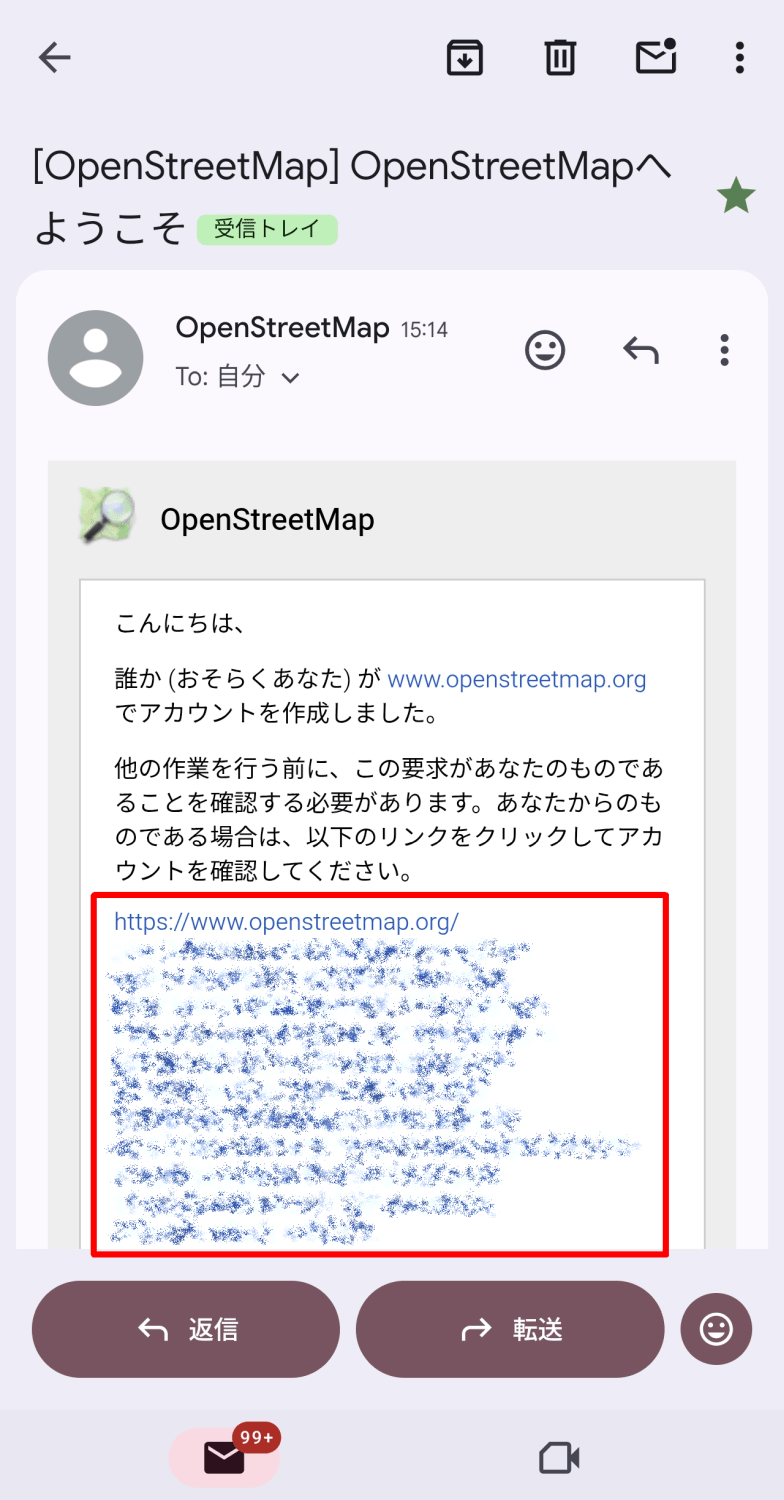
Checking the email inbox of the address used for user registration, I found an email from OpenStreetMap. Clicking the link in the email completed account verification, and I was able to use my registered account.
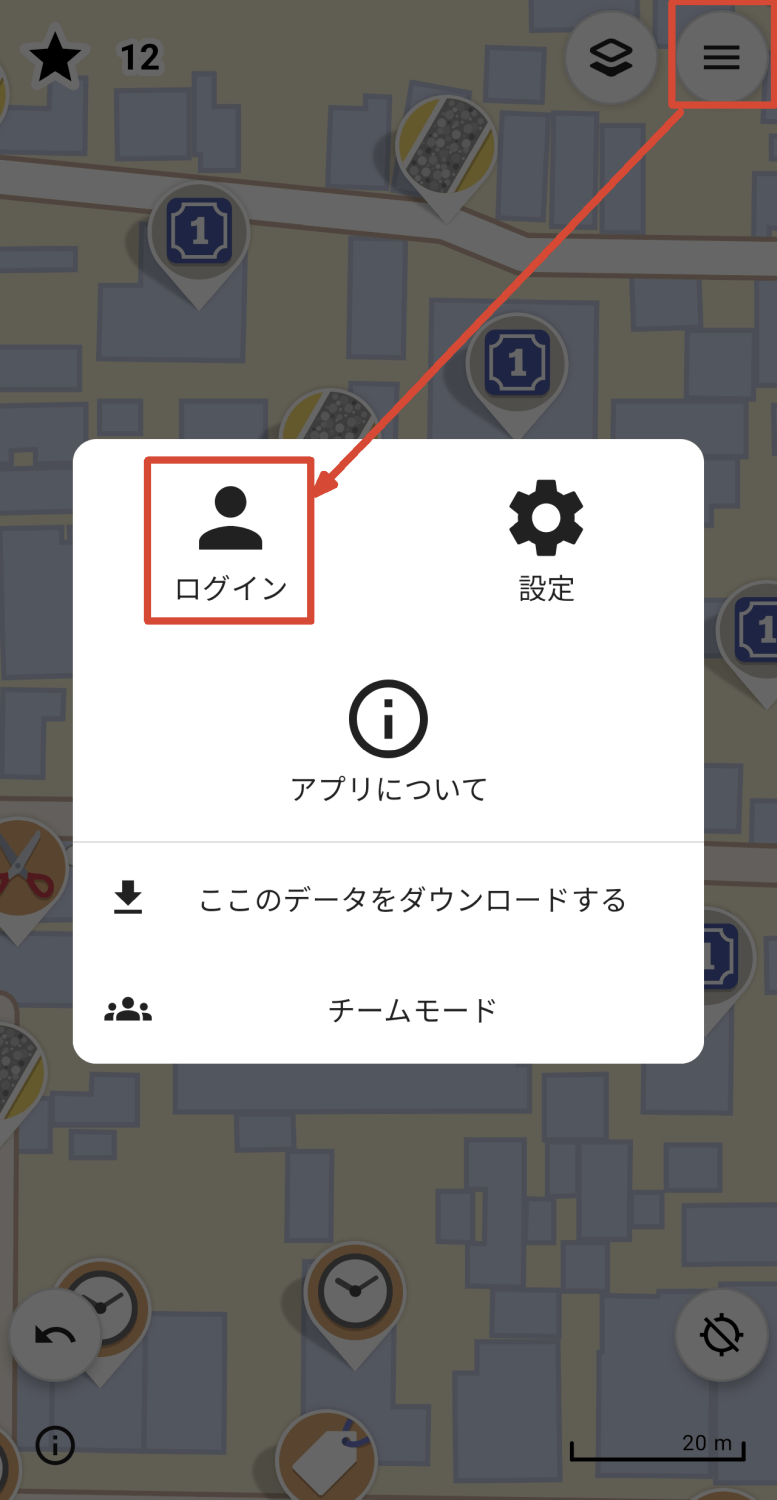
Let's try logging into StreetComplete with the account you registered. Tap the hamburger icon in the upper right corner of the screen to display a pop-up window, then tap 'Login' in the upper left corner.
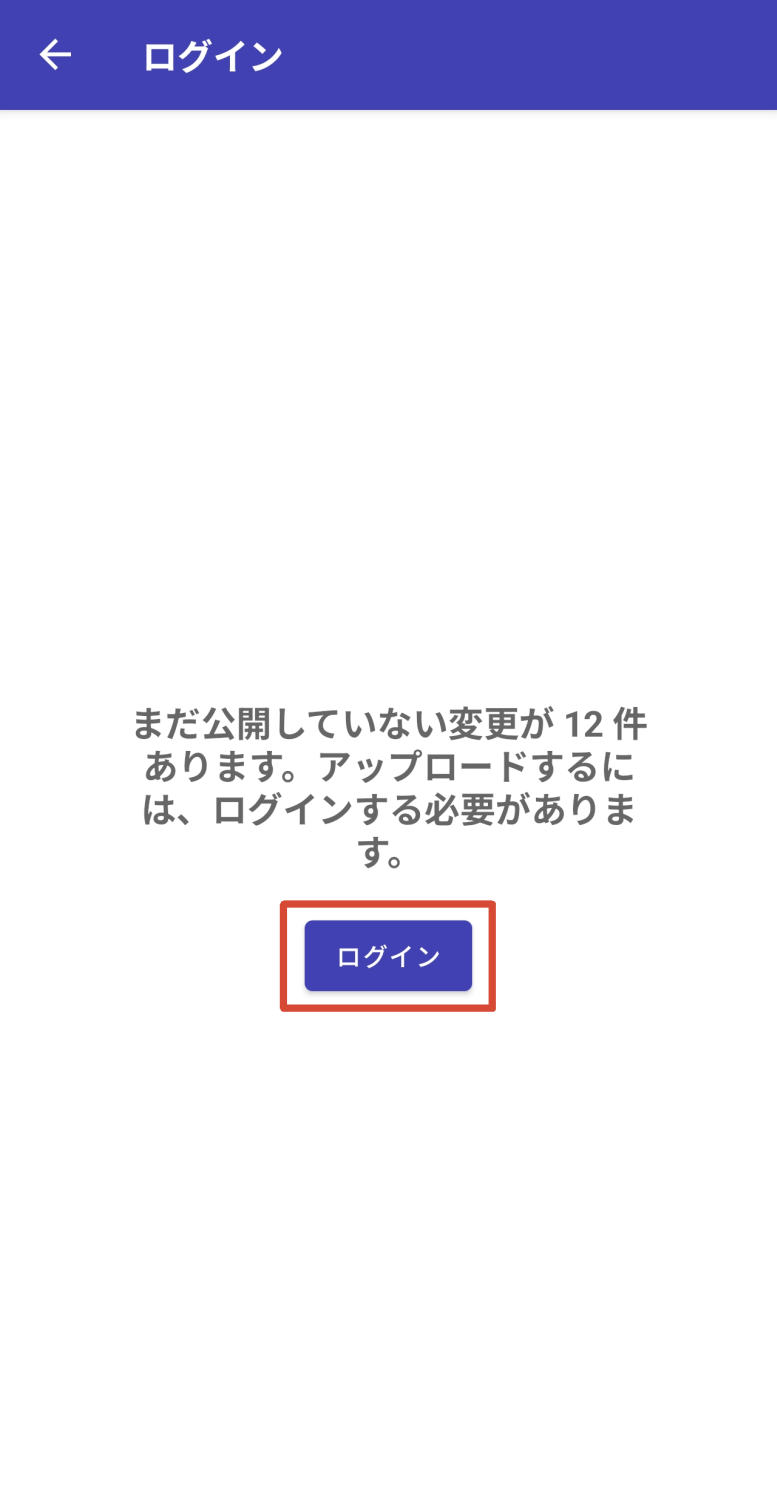
The message 'You have XX changes that haven't been published yet. You need to log in to upload them' appeared. It seems that the quest results up to this point are still only recorded locally. I tapped the 'Login' button to log in.
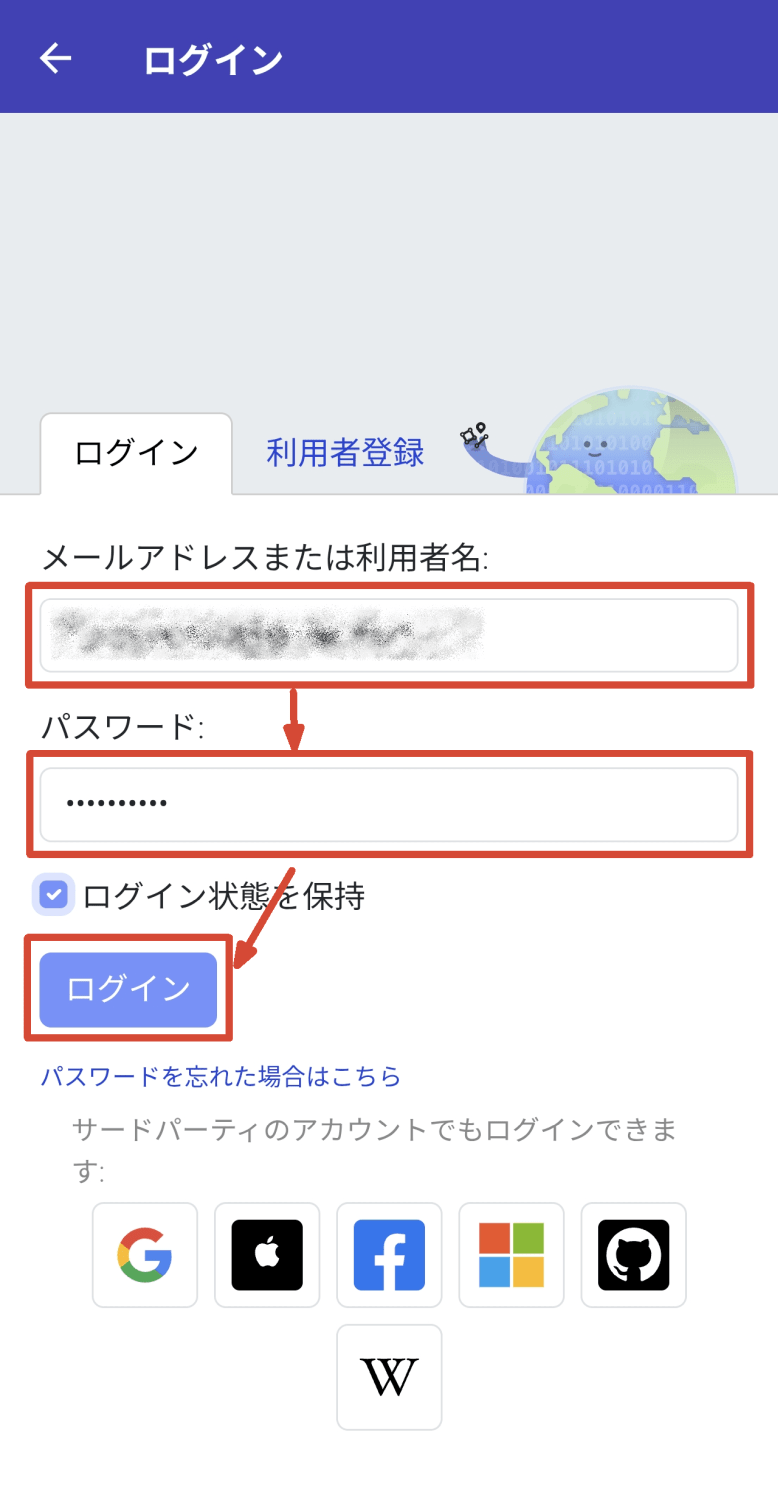
Enter the email address or username and password you used for registration, then tap the 'Login' button to log in.
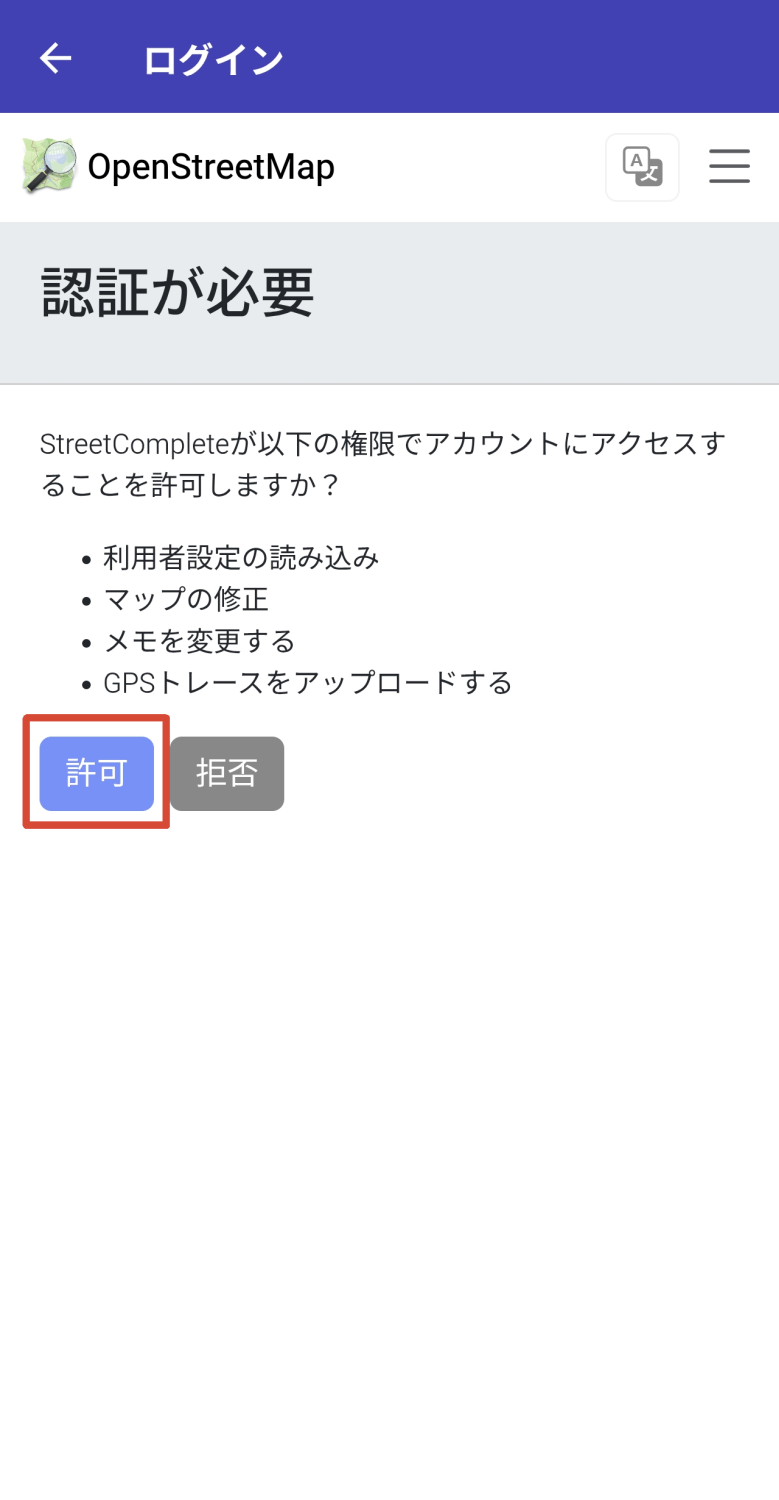
Upon your first login, you will see a message saying 'Authentication Required.' If the permissions are acceptable, tap the 'Allow' button to grant the necessary permissions to the StreetComplete app.
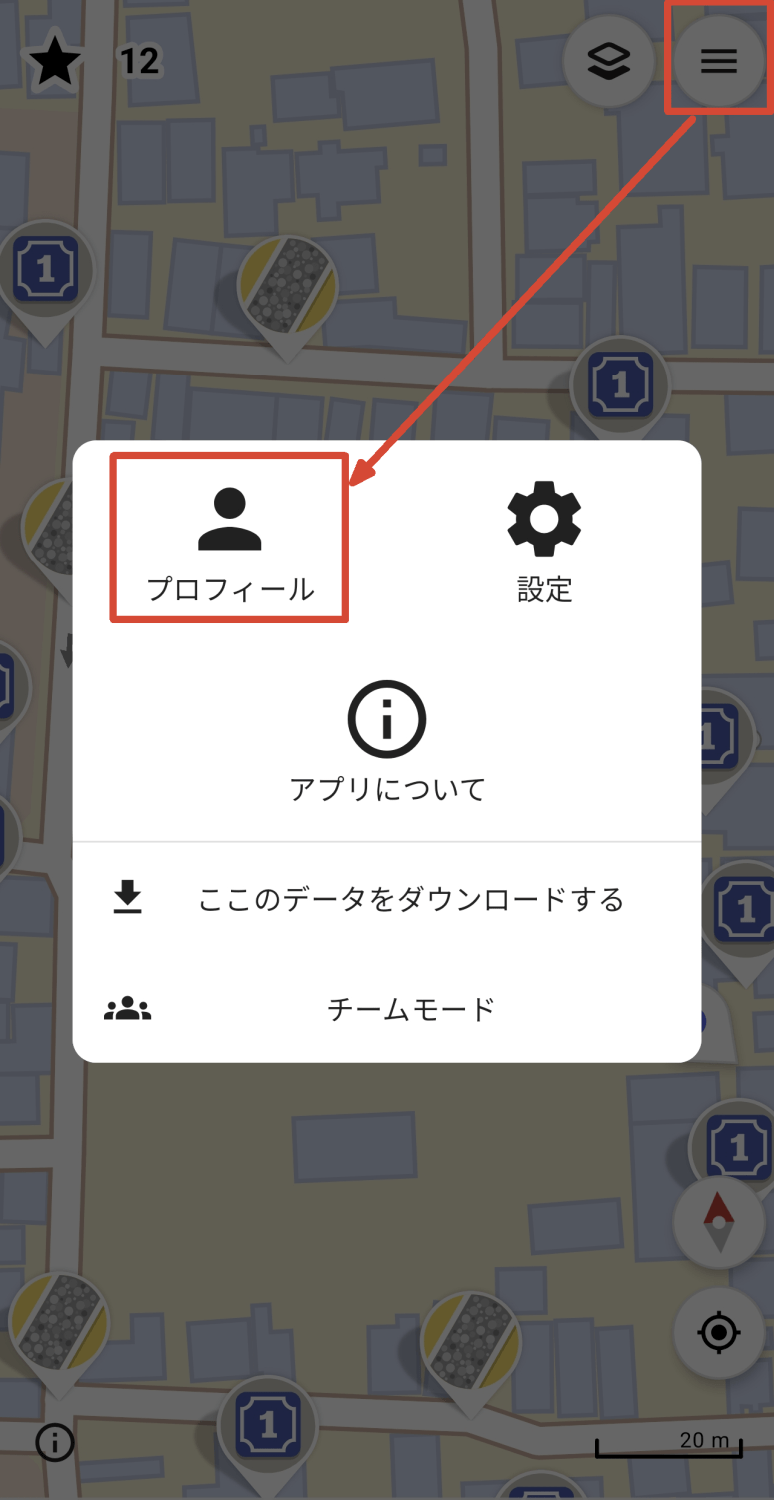
To view your account profile, while logged in, tap the hamburger icon in the upper right corner of the screen, then tap 'Profile' in the upper left corner of the pop-up screen that appears.
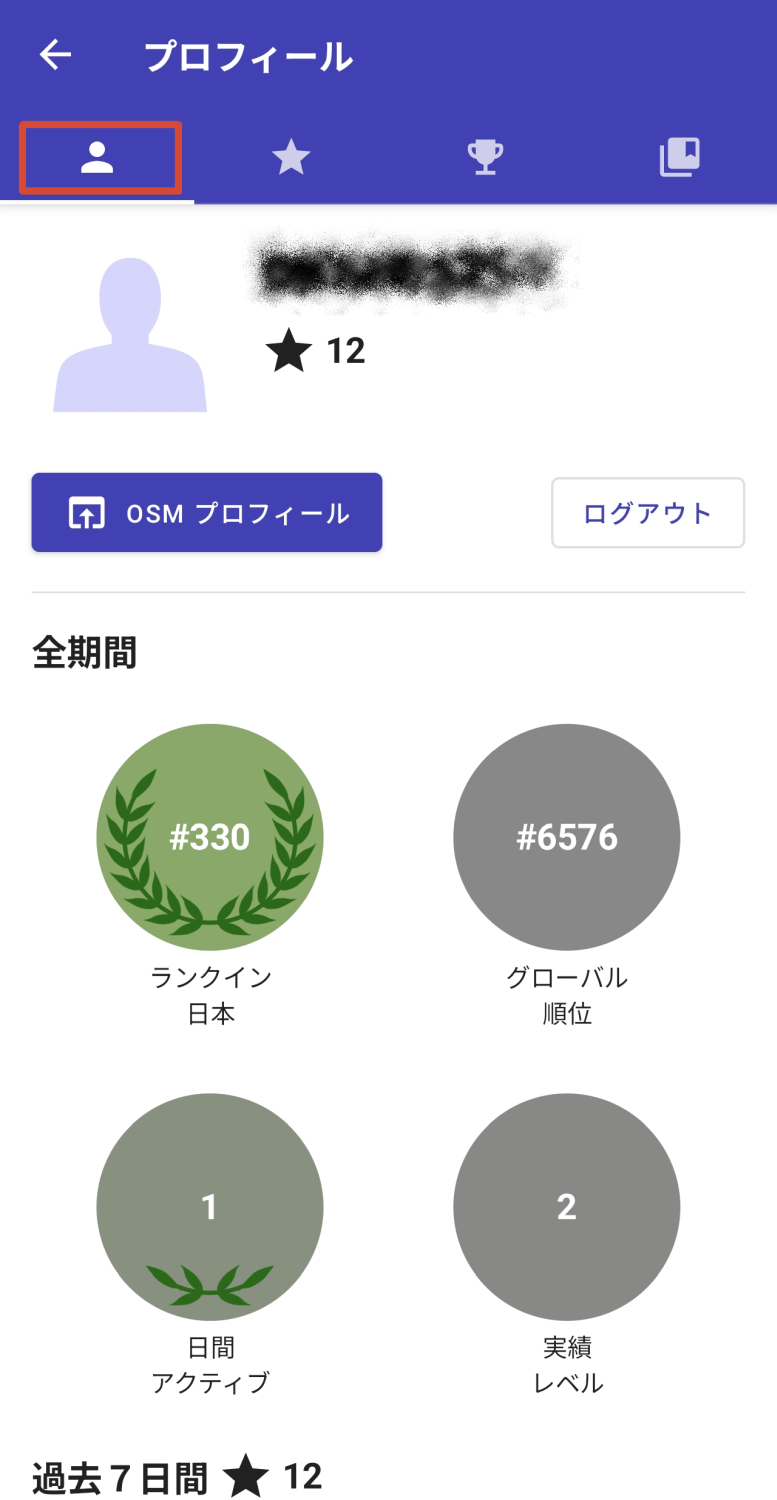
The 'Profile' screen consists of four tabs. Selecting the leftmost tab, which displays an 'upper body silhouette icon,' will show your profile name, the number of quests you have completed, and your achievements for each period.
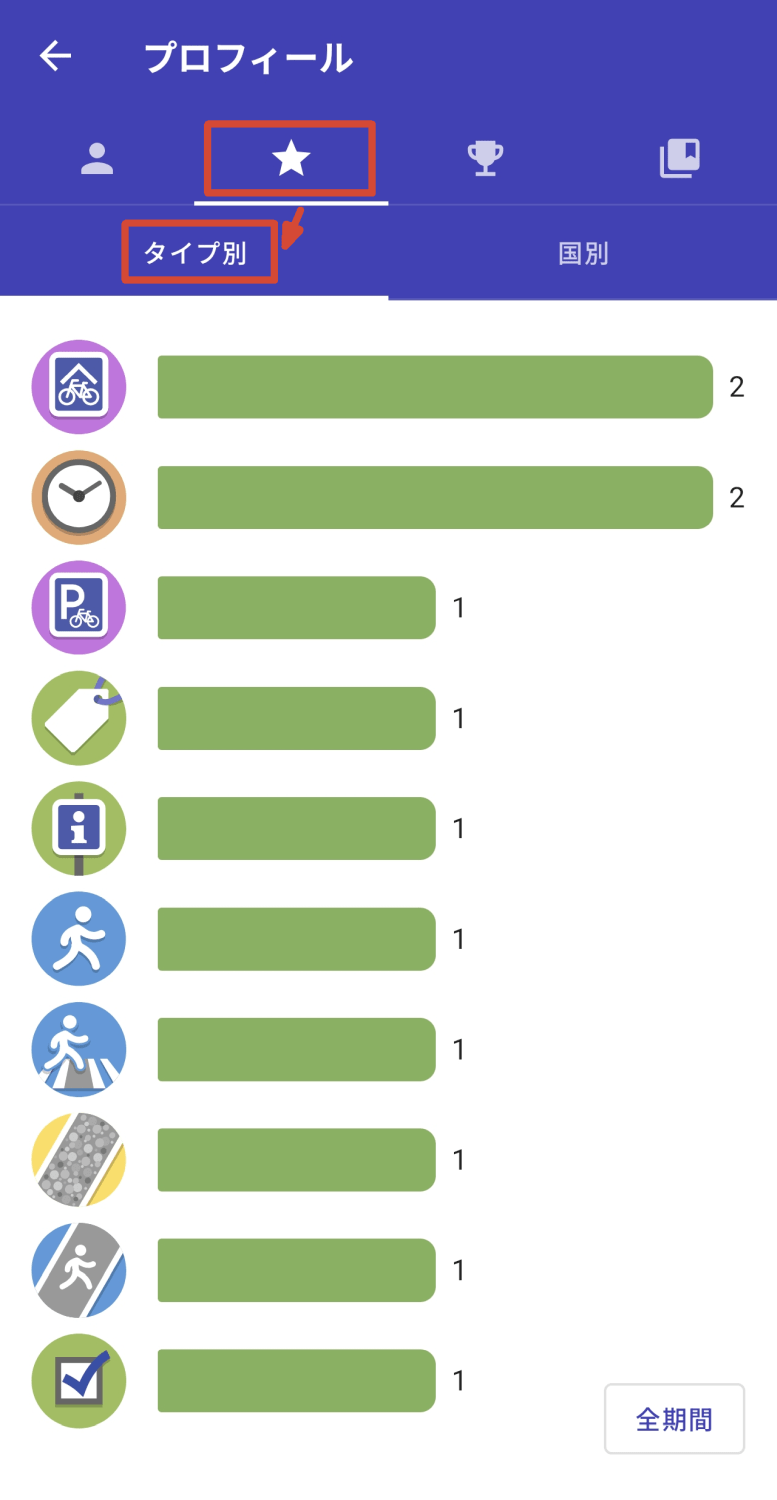
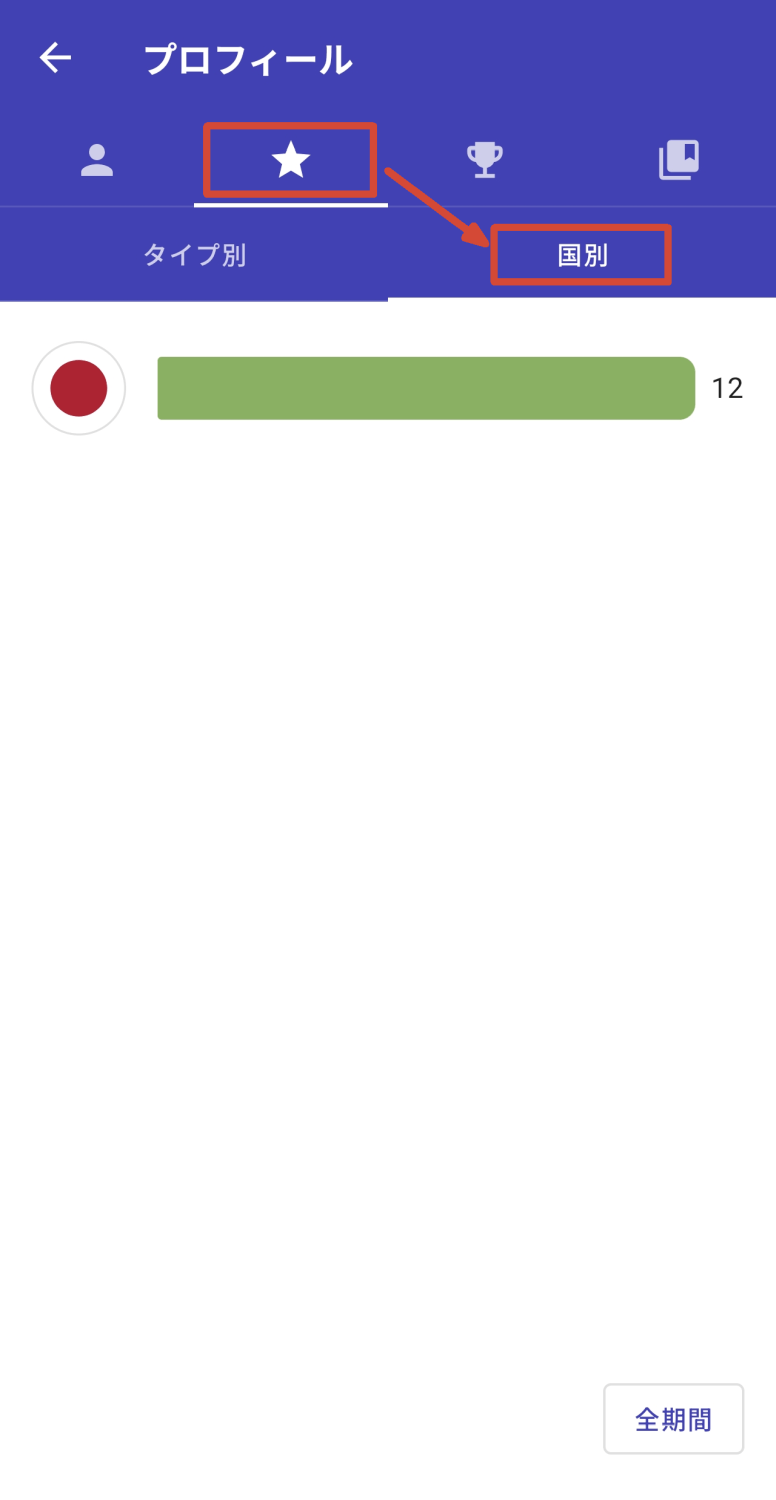
Selecting the tab with the second 'star icon' from the left will display two more tabs. Selecting 'By Type' will show the number of completed quests for each quest type.
Selecting 'By Country' will display the number of completed quests for each country where they were originally located.
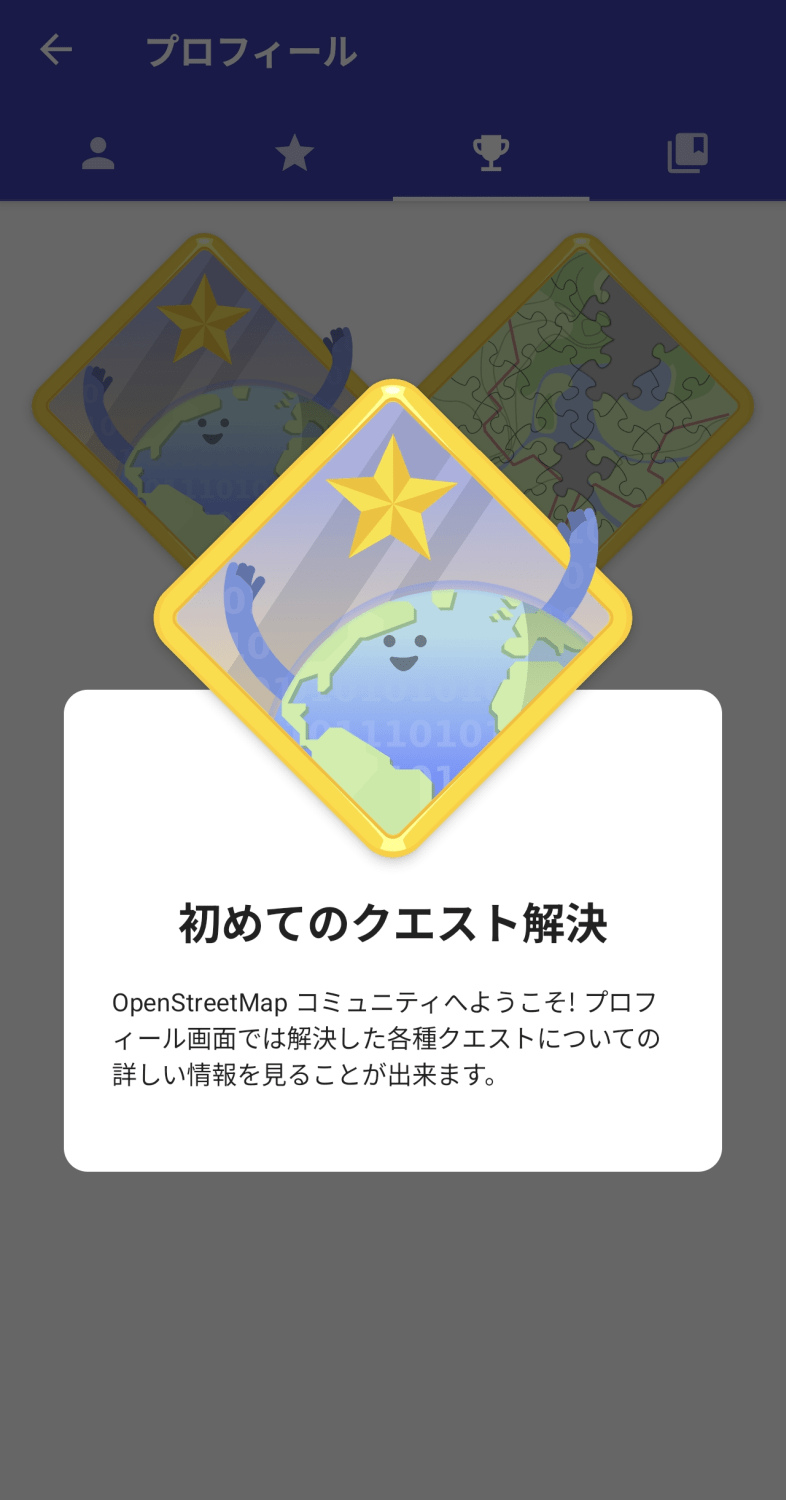
Selecting the tab with the third 'Trophy Icon' from the left will display a list of trophy icons you can earn based on your achievements.

The details of the trophy will pop up when you tap the icon. The first trophy was 'Complete your first quest.'
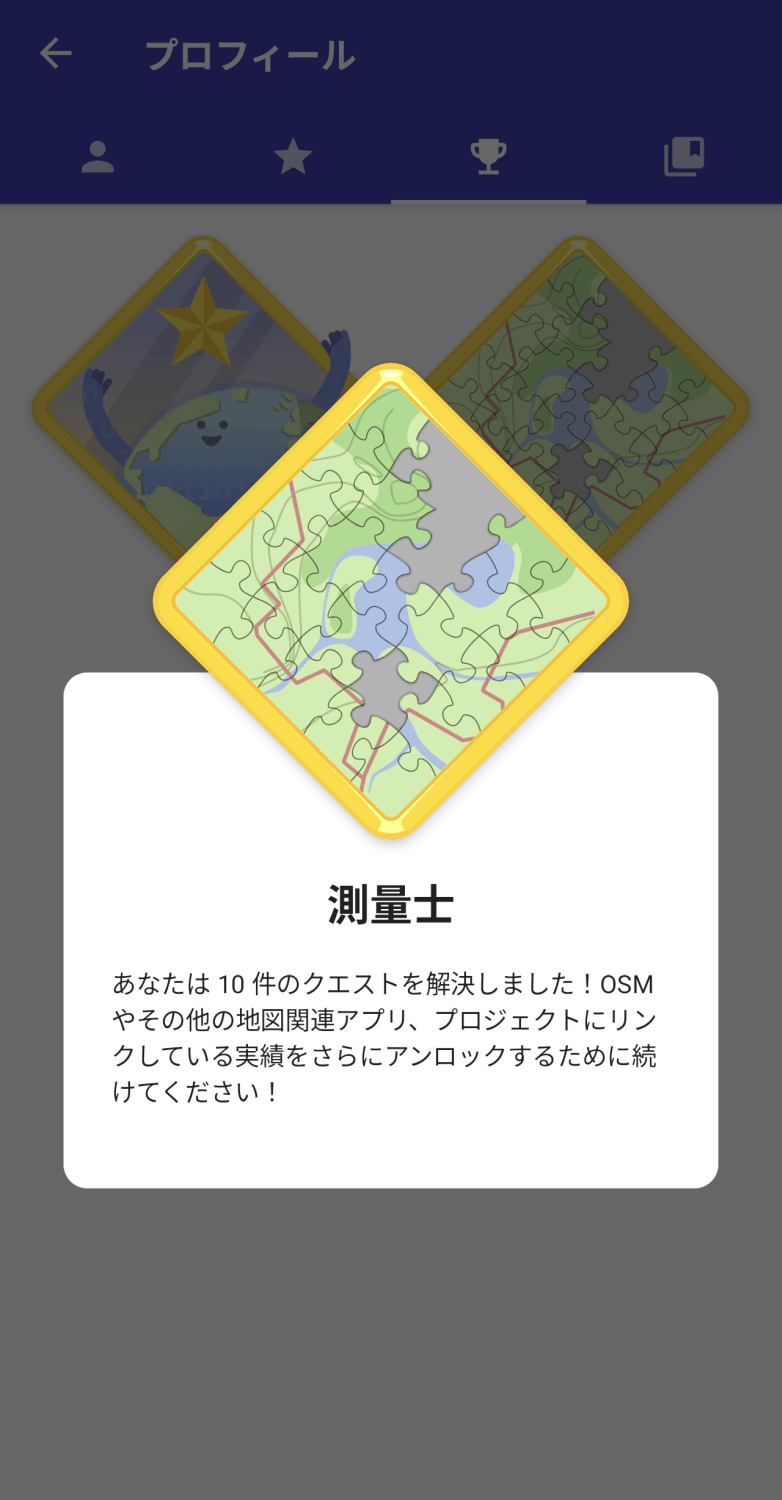
The other trophy was 'Surveyor.' This trophy was awarded for completing 10 quests.
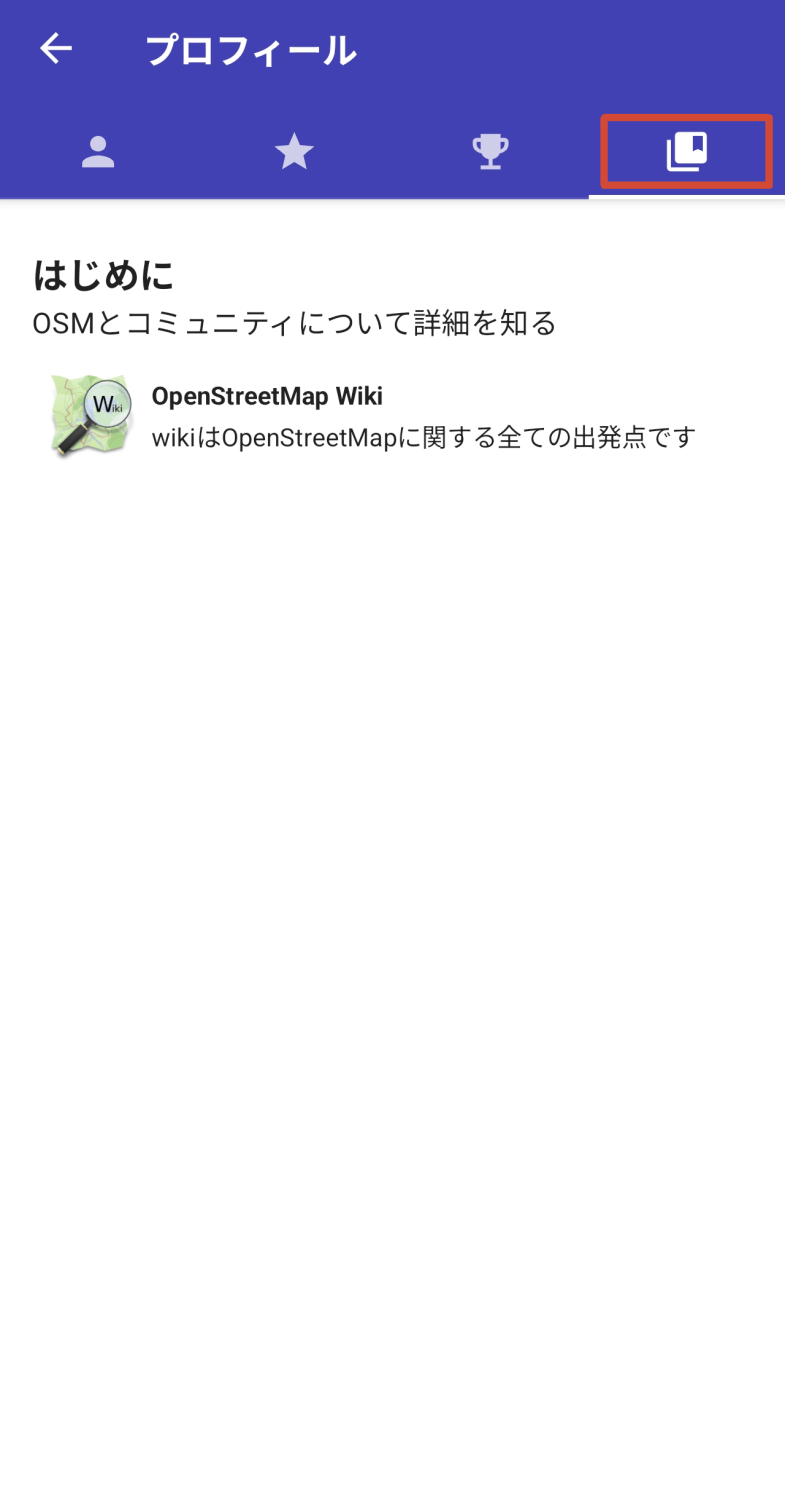
When I selected the rightmost tab, at the time of writing this article, only a link to
◆Settings
To access the settings screen, tap the hamburger icon in the upper right corner of the screen, then tap 'Settings' in the pop-up window that appears.
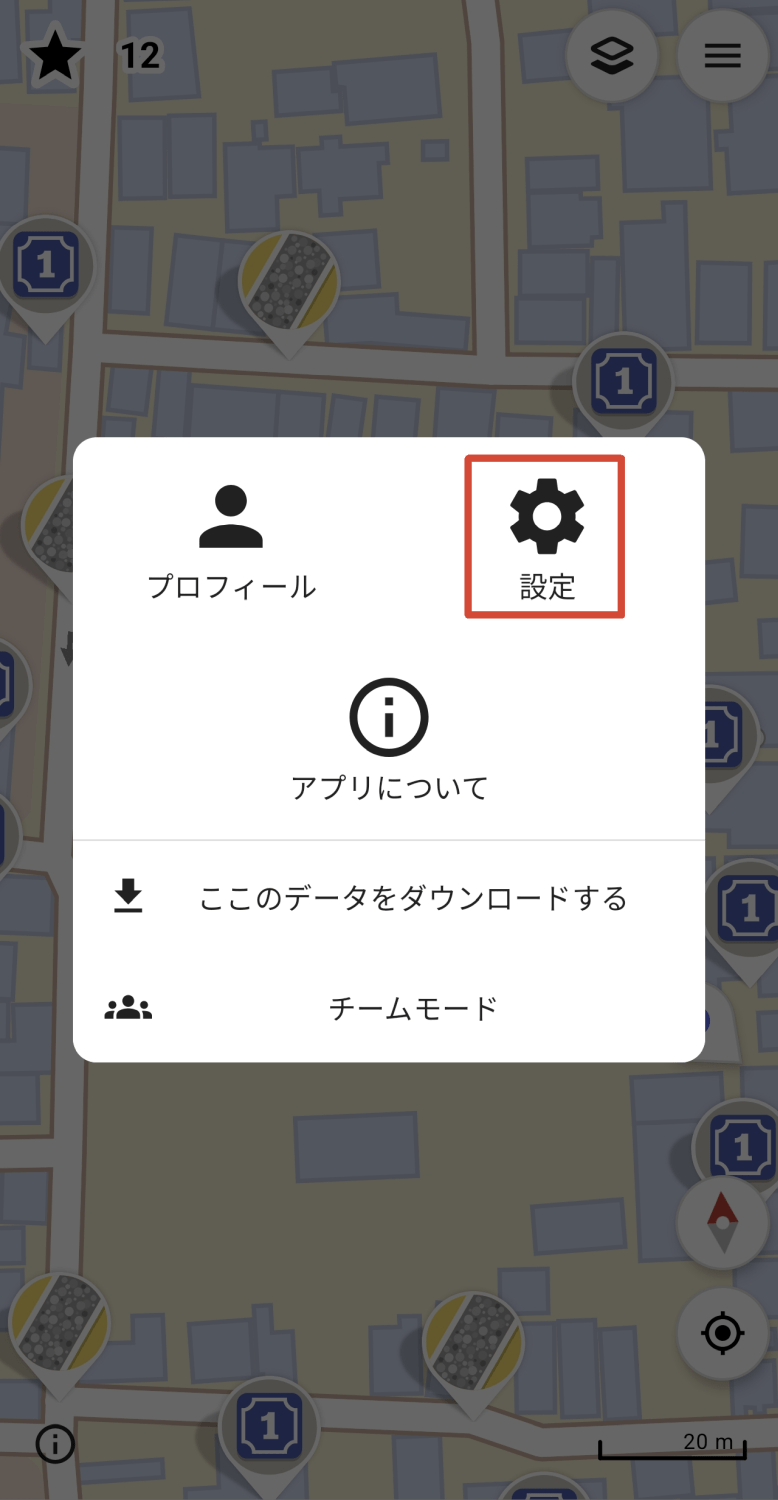
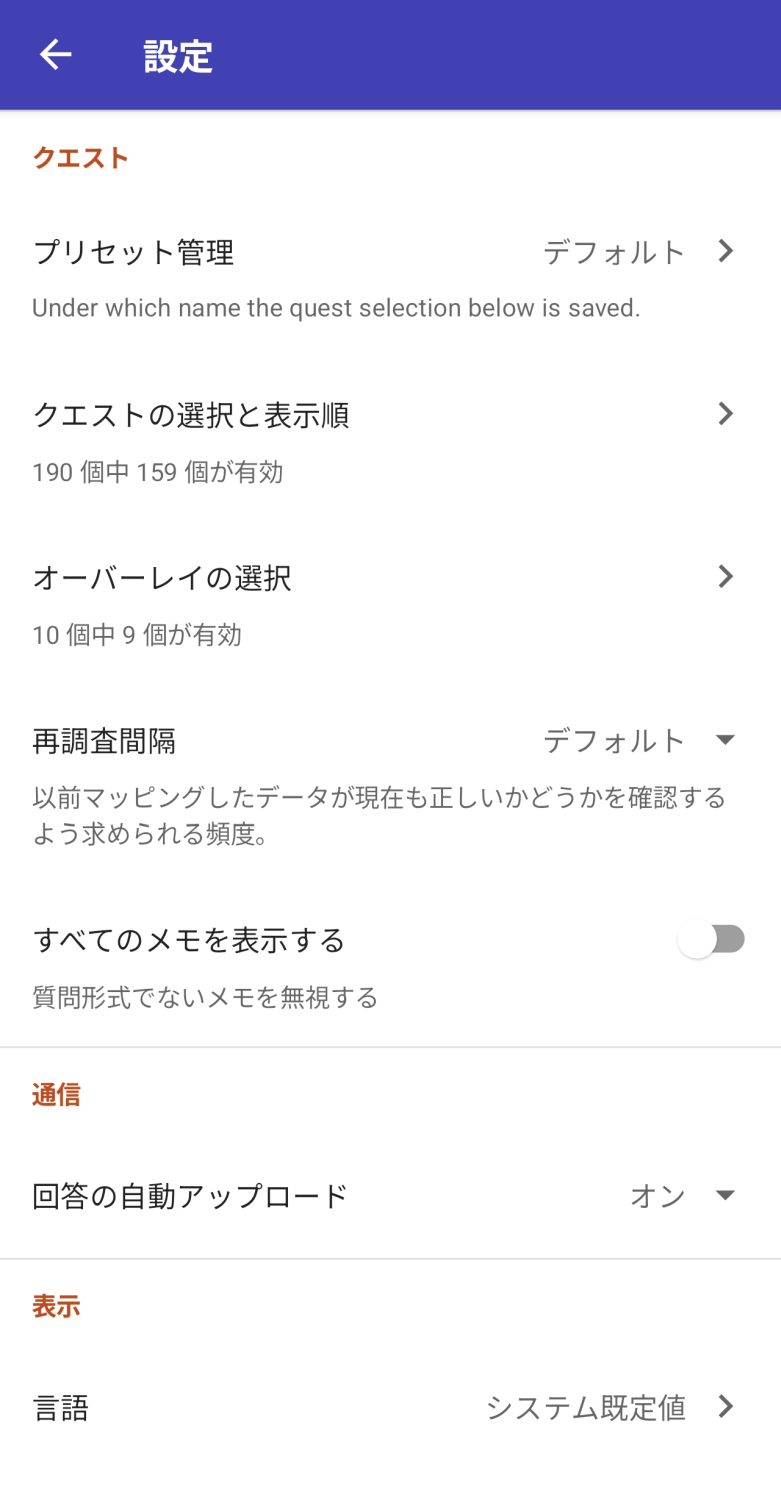
The settings are as follows:
Quest
- Preset Management: Save the settings for 'Quest Selection and Display Order' and 'Overlay Selection' with a name.
- Quest selection and display order: Set the display/hide status and display order for each quest type.
- Overlay Selection: Toggle overlays on or off for each quest icon.
• Re-examination interval: The interval at which mapped data is re-examined.
- Show all notes: Toggles whether to show notes unrelated to the quest.
·communication
Automatic upload of answers
·display
·language
Select a theme
- In-app messages
- Display zoom buttons on the map
- Keep the screen on: Switches whether the screen remains on even when inactive.
Advanced settings
- Delete cache
- Restore hidden quests
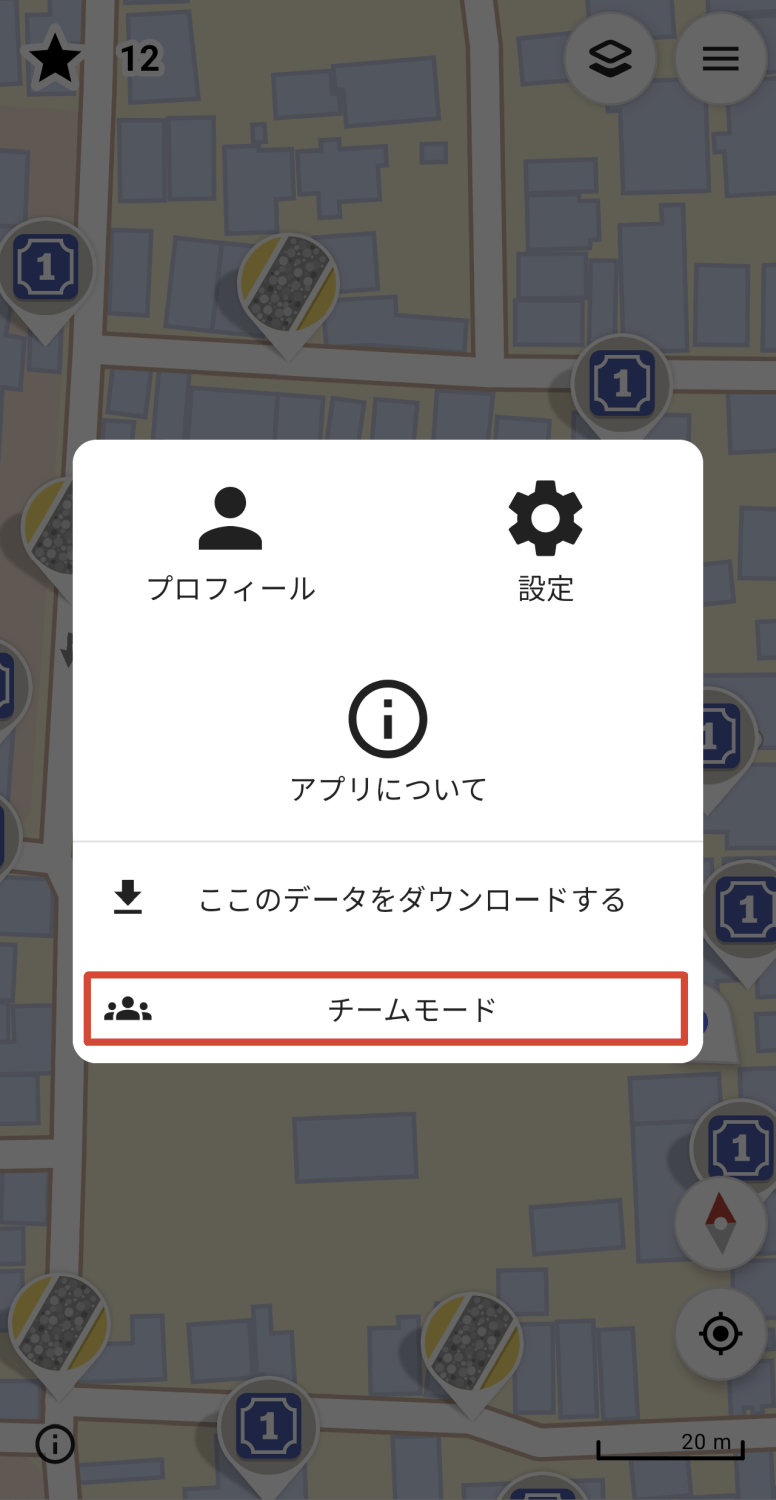
◆Team Mode
'Team Mode' is a
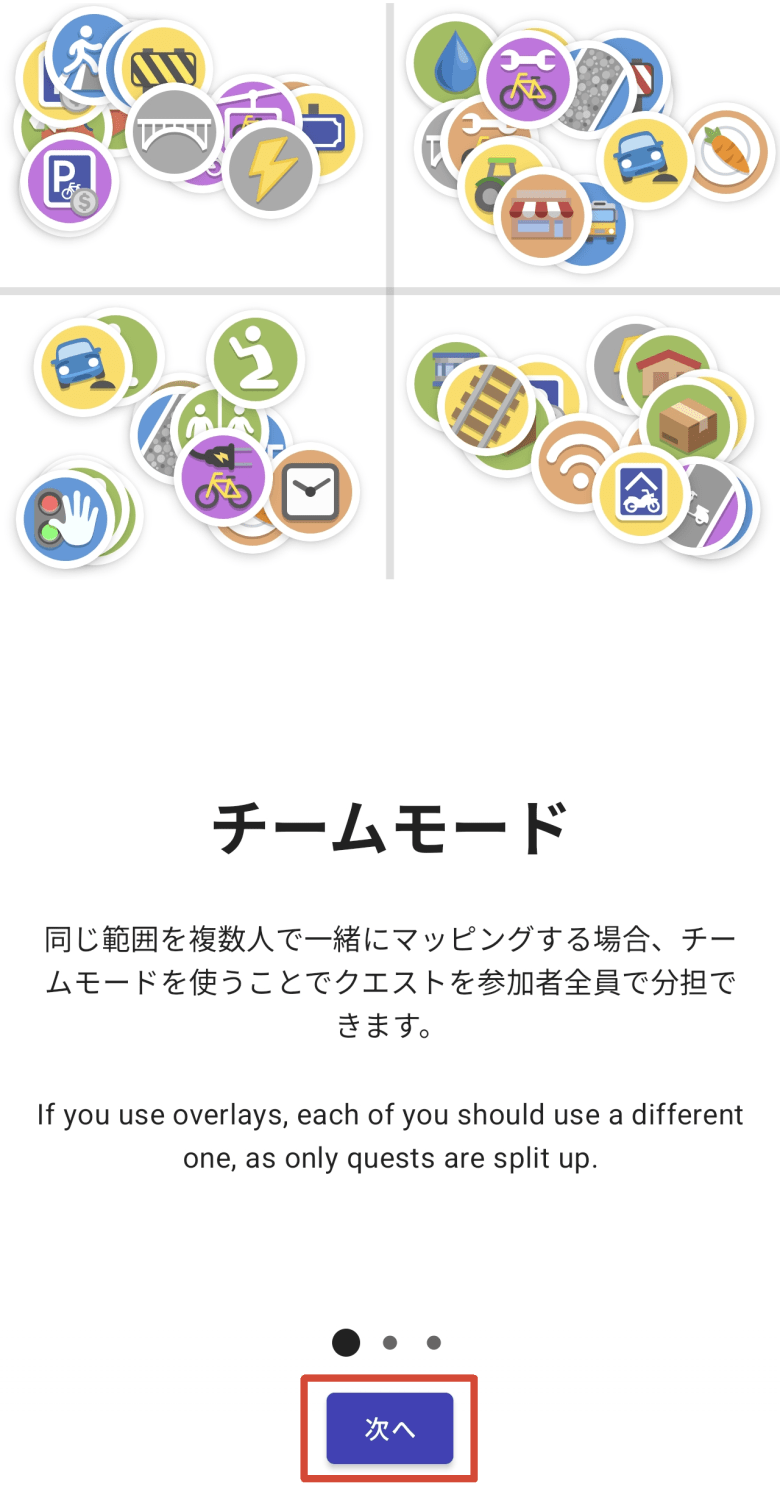
A screen explaining team mode will appear, so tap the 'Next' button.
Enter the number of players (2-12) to participate in team mode and tap the 'Next' button.

Select a color to represent yourself among the participants and tap the 'Let's go!' button to start team mode.

◆Summary
StreetComplete is an app that allows anyone with an Android smartphone to easily update OpenStreetMap data. It's especially easy to get started if you have experience playing location-based games like Ingress , Pokémon GO , or Dragon Quest Walk , so if you're interested, please consider contributing to updating OpenStreetMap data.
Related Posts:




in Software, Smartphone, Review, Posted by log1c_sh