'Parabolic' is a free and easy way to download and save videos from YouTube and other sources, and it also integrates with browser extensions.
Parabolic is a video downloader that is freely available as a front-end for
NickvisionApps/Parabolic: Download web video and audio
https://github.com/nickvisionapps/parabolic
◆Features
The following are the features of Parabolic as described on the official GitHub repository:
• Supports numerous websites
- Videos can be downloaded in multiple file formats (mp4, webm, mp3, opus, flac, wav).
• Multiple downloads can be performed simultaneously.
- Supports metadata and video subtitle downloads
◆ Install the app
As of the time of writing this article, Parabolic can be installed on the following environments.
Linux
Windows
macOS
• Browser extensions (Firefox, Chrome)
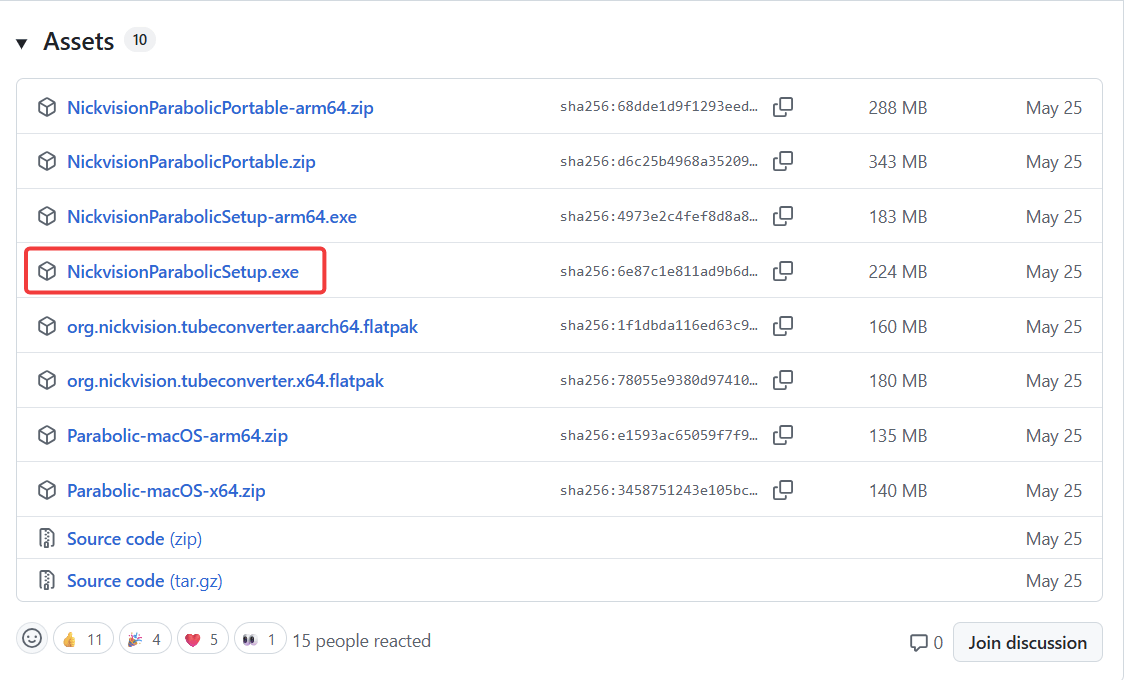
This time, we'll install the Windows version. Download the latest installer from the official GitHub release page .
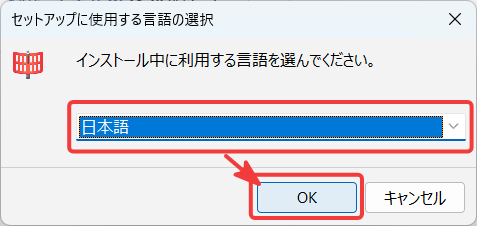
When you run the downloaded installer, a 'Select the language to use for setup' pop-up will appear. Select Japanese and click the OK button.
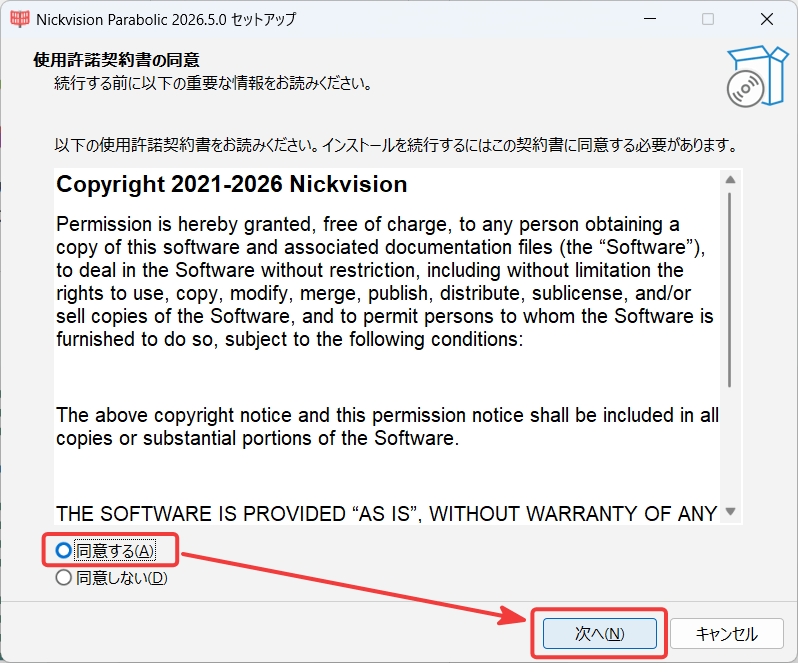
The 'License Agreement' will be displayed, so select 'I agree' and click the 'Next' button.
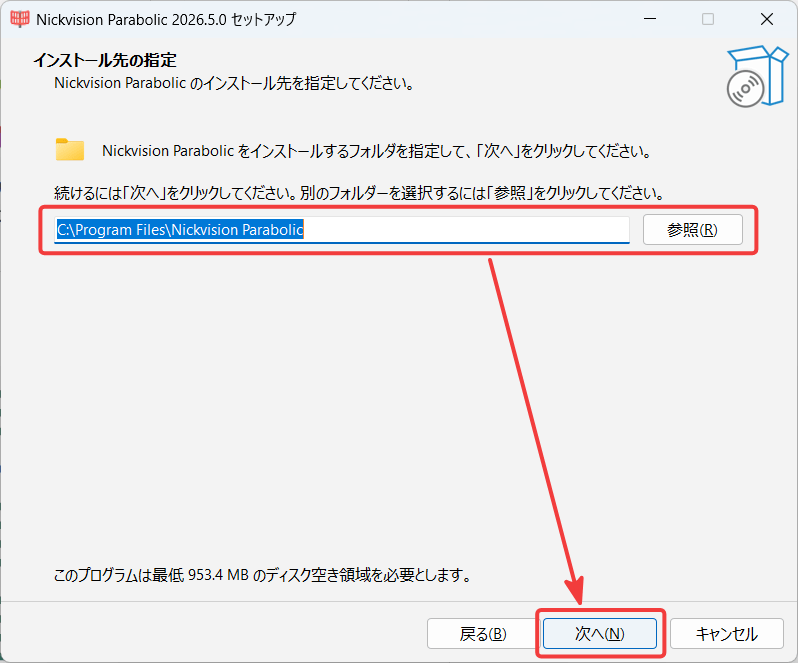
The 'Specify installation location' screen will appear. If there are no issues, click the 'Next' button and leave the default settings.
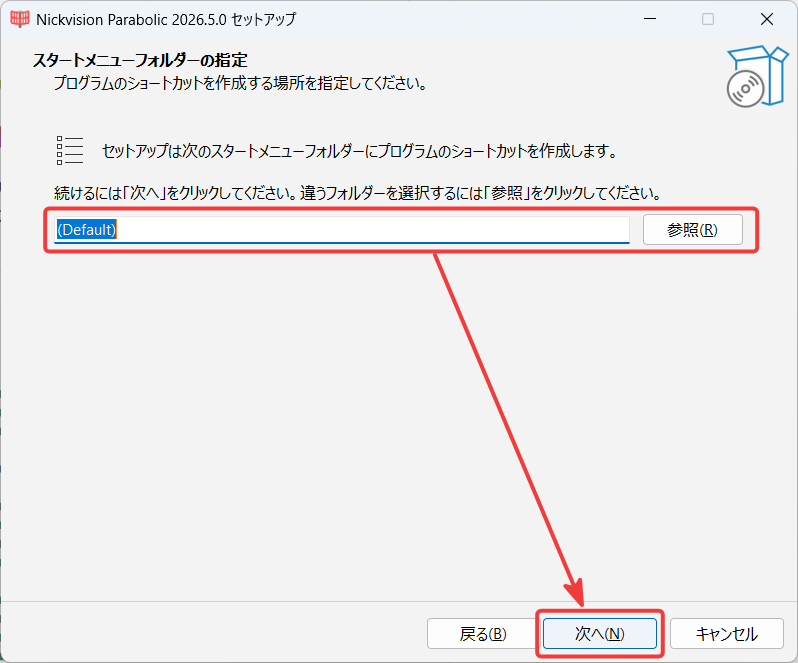
The 'Specify Start Menu Folder' screen will appear. If there are no issues, click the 'Next' button and leave the default settings.
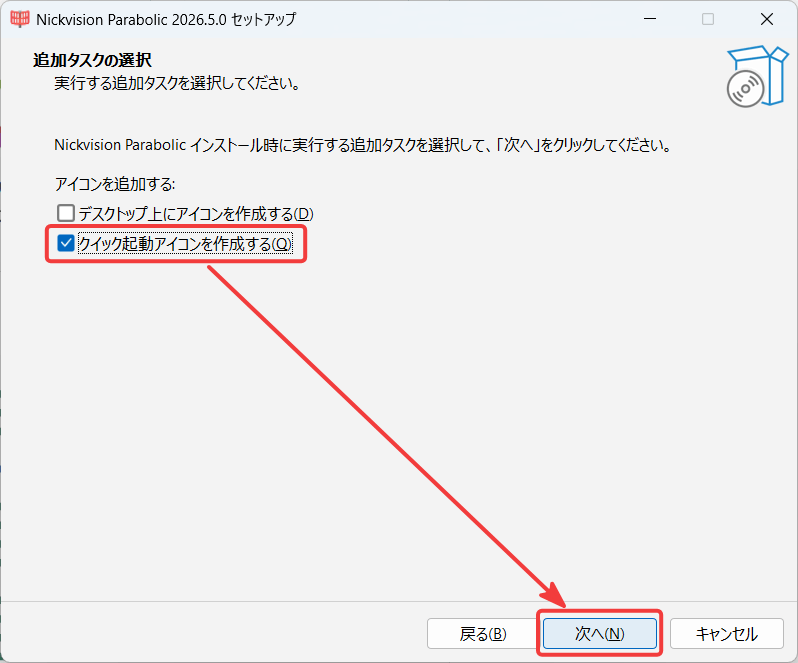
The 'Select Additional Tasks' screen will appear. If there are no issues, click the 'Next' button with the default settings. Note that if you uncheck 'Create a Quick Launch icon' and proceed, an issue has been observed where the icon is not added to the Start Menu. Therefore, unless there is a specific reason, it is recommended to install with the default setting checked.
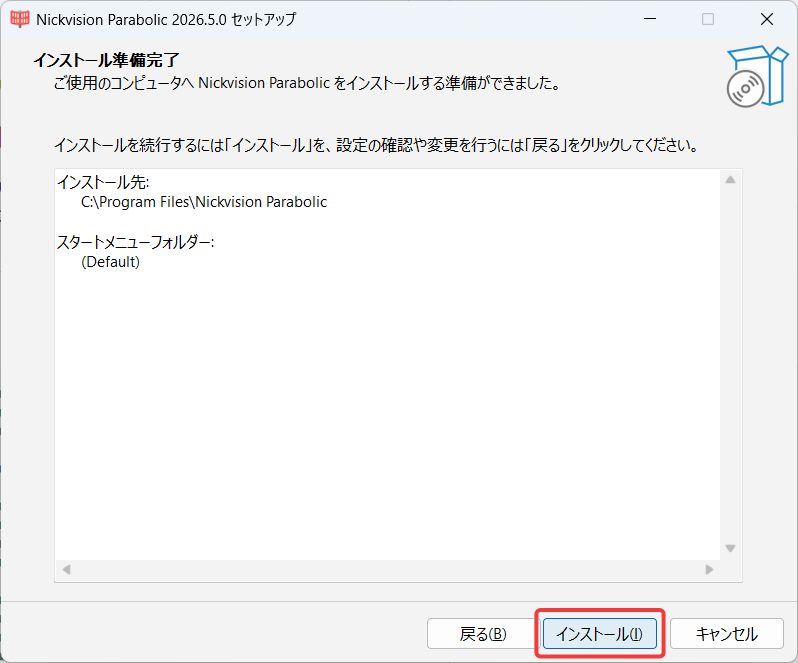
The message 'Ready to install' will appear, so click the 'Install' button.
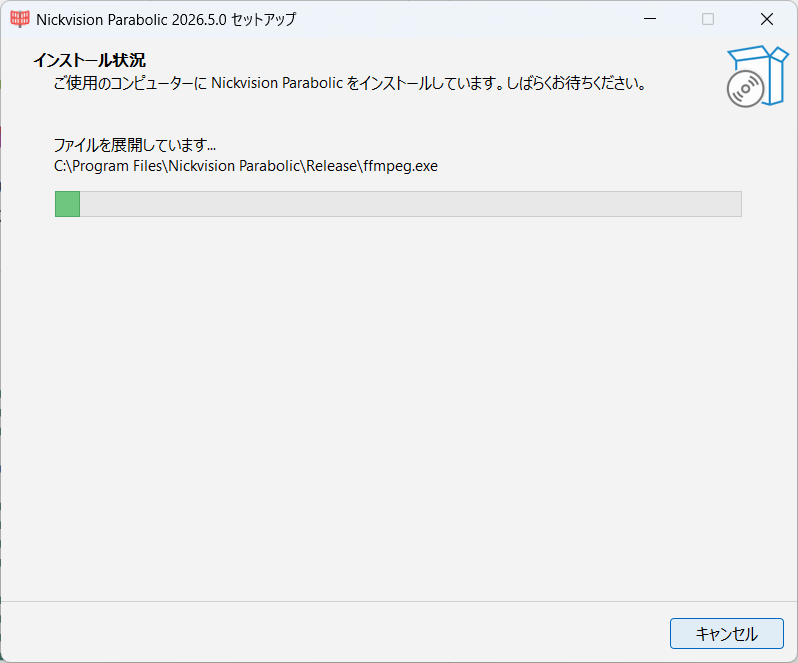
The 'Installation Status' is shown in a progress bar.
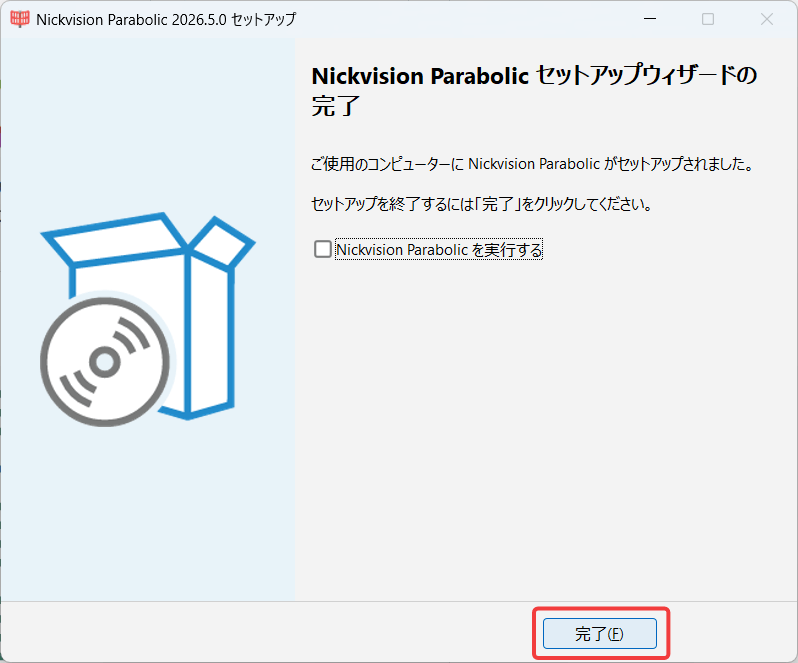
Once the installation is complete, the 'Nickvision Parabolic Setup Wizard Complete' message will appear, so click the 'Finish' button.
◆Using the app
When you launch Parabolic, a 'Legal Disclaimer Regarding Copyright' pop-up will appear, so click the 'I understand' button.
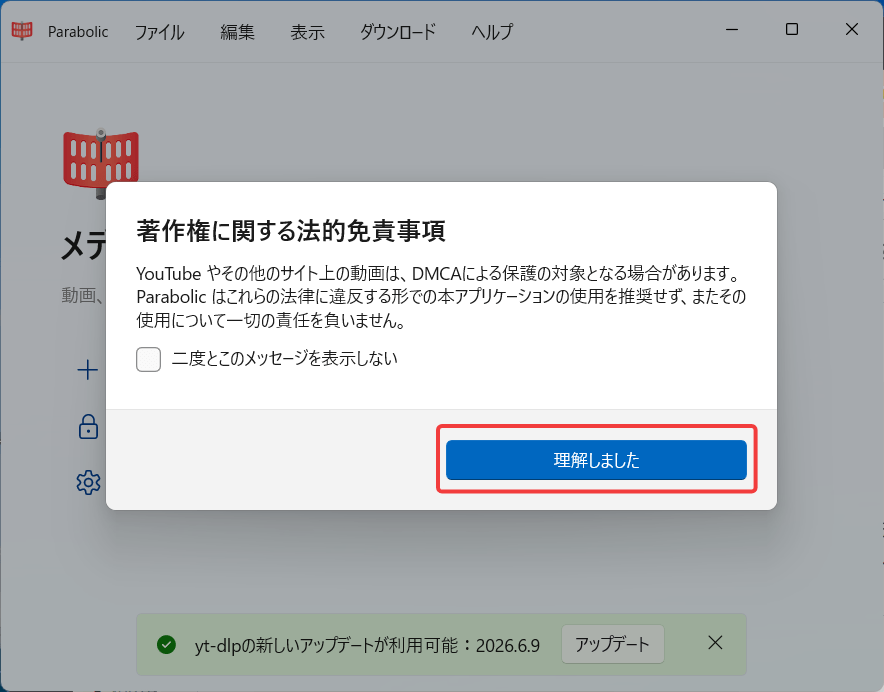
This is what it looks like immediately after startup. A new update for yt-dlp is available, so I'll press 'Update'.
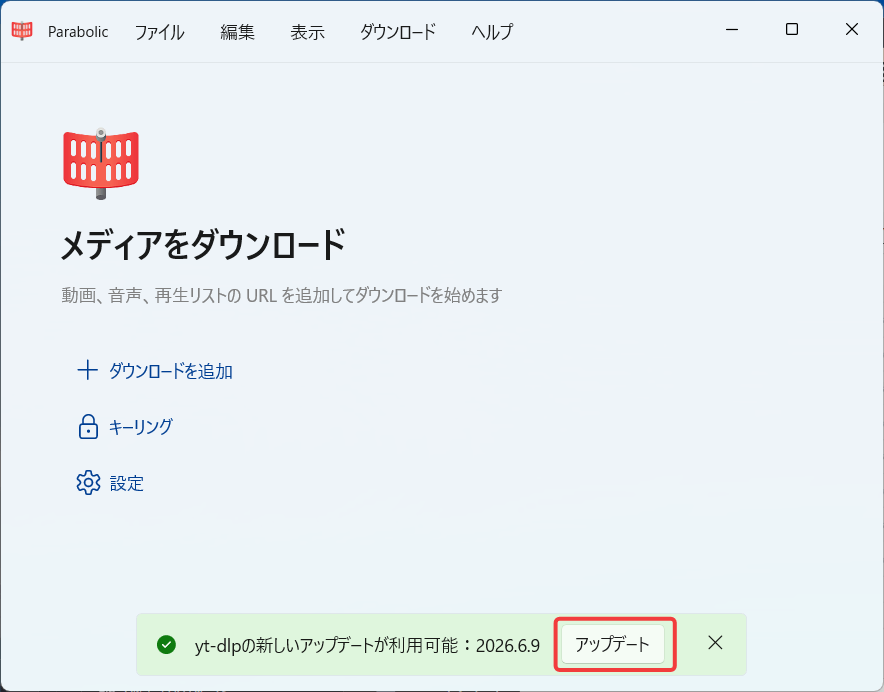
The update has been applied. First, click 'Add Download'.
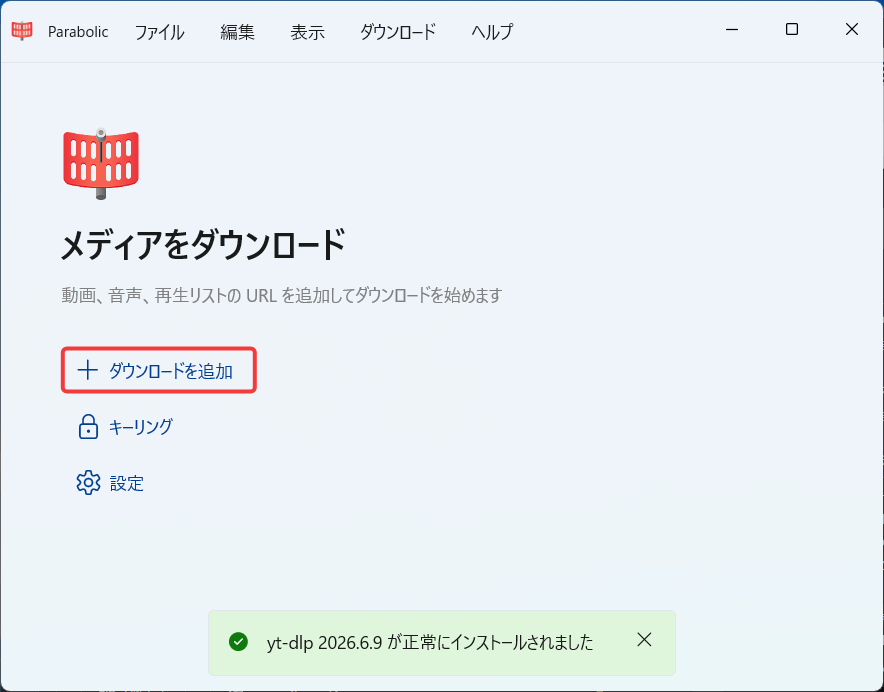
To perform the same operation from the menu, select 'File' → 'Add Download'.
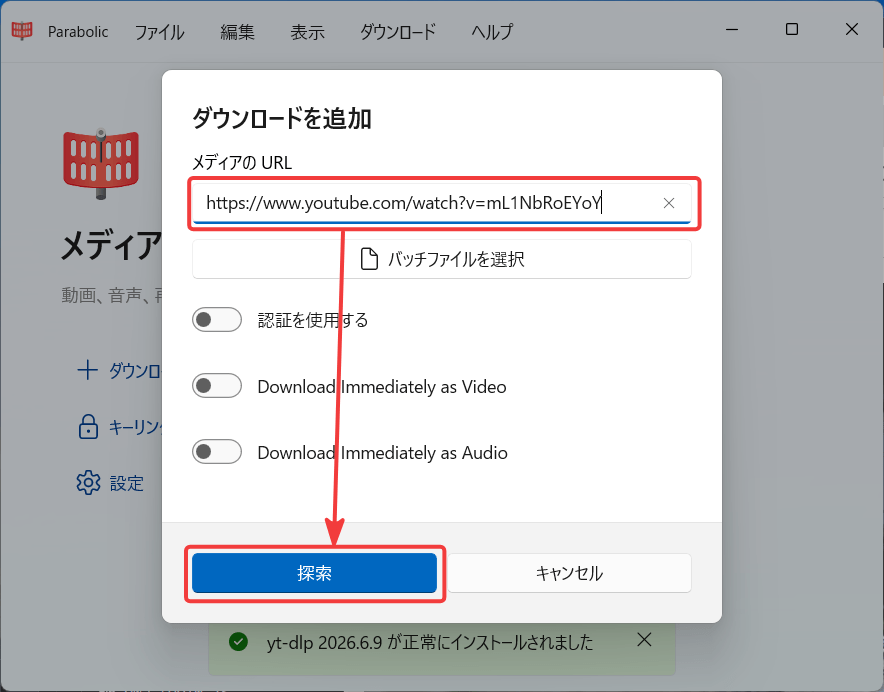
A 'Add Download' pop-up will appear. Enter the video's URL in the 'Media URL' field and click the 'Explore' button.
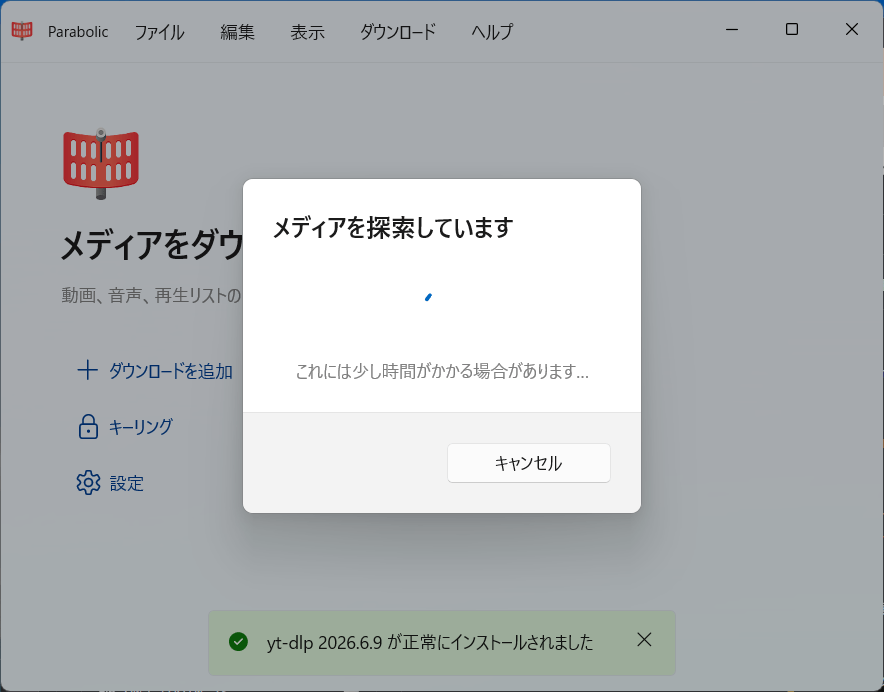
A 'Searching for media' pop-up will appear while the search is in progress.
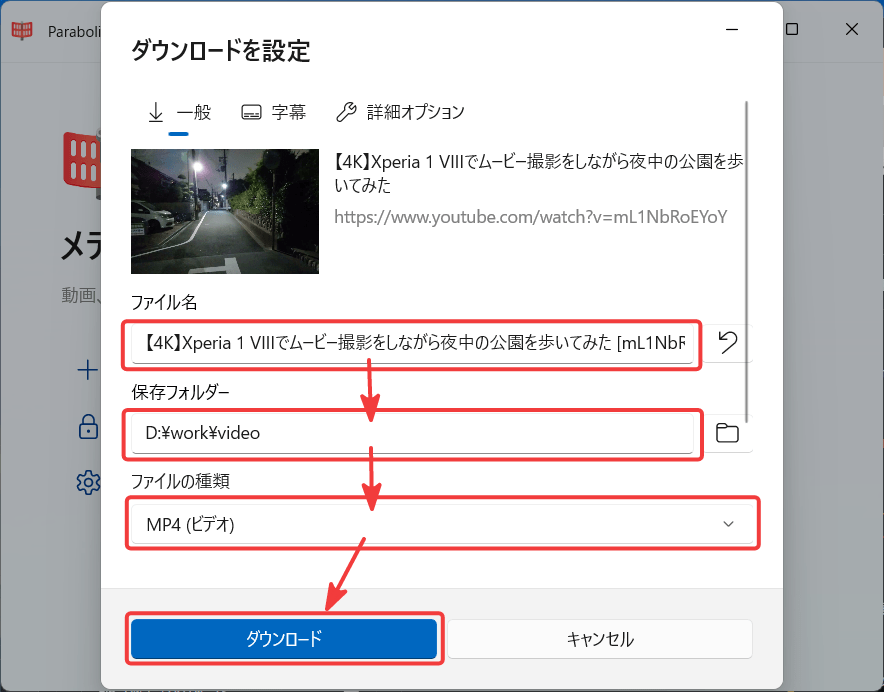
Once the search is complete, the video thumbnail and title will appear on the 'Download Settings' screen. You can then change the file name, save folder, and select the file type as needed, and then click 'Download' to begin the download.
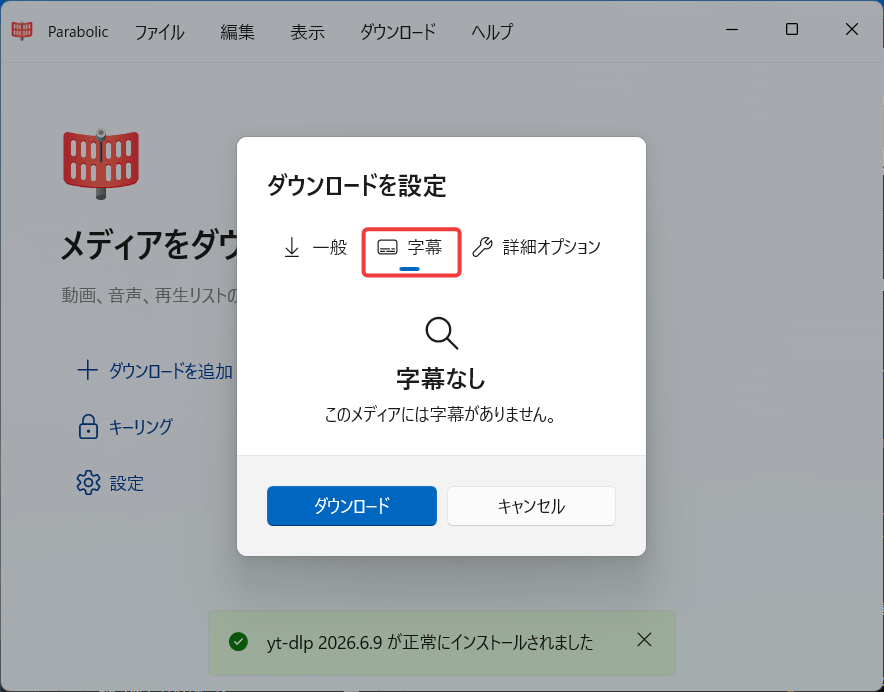
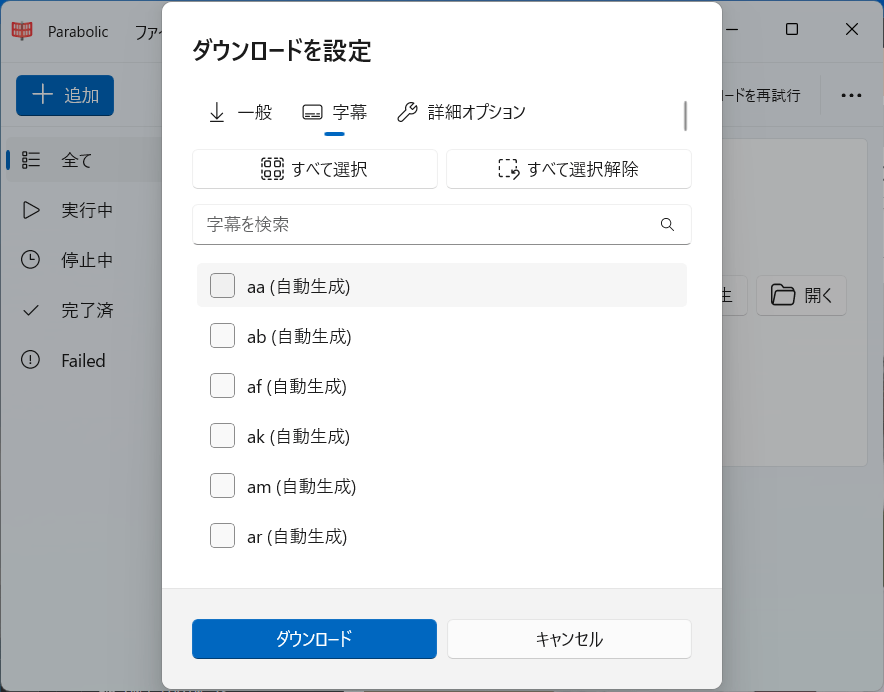
Please note that if you select the 'Subtitles' tab on the 'Download Settings' screen, only 'No Subtitles' will be displayed if no subtitles are available.
If the video has subtitles, you can select the language of the subtitles you want to download from the list.
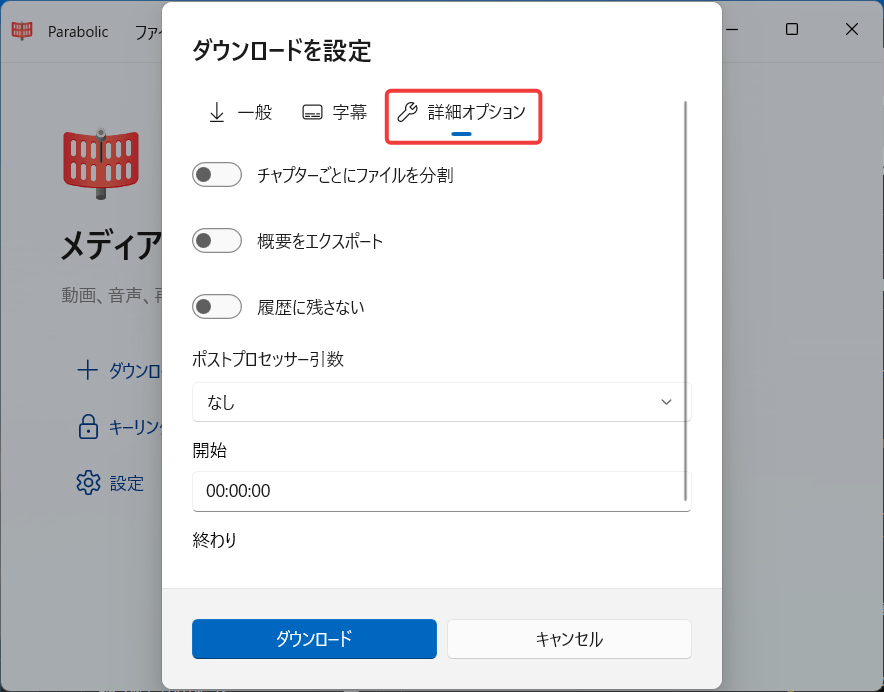
Additionally, by selecting the 'Advanced Options' tab on the 'Download Settings' screen, you can configure advanced download settings.
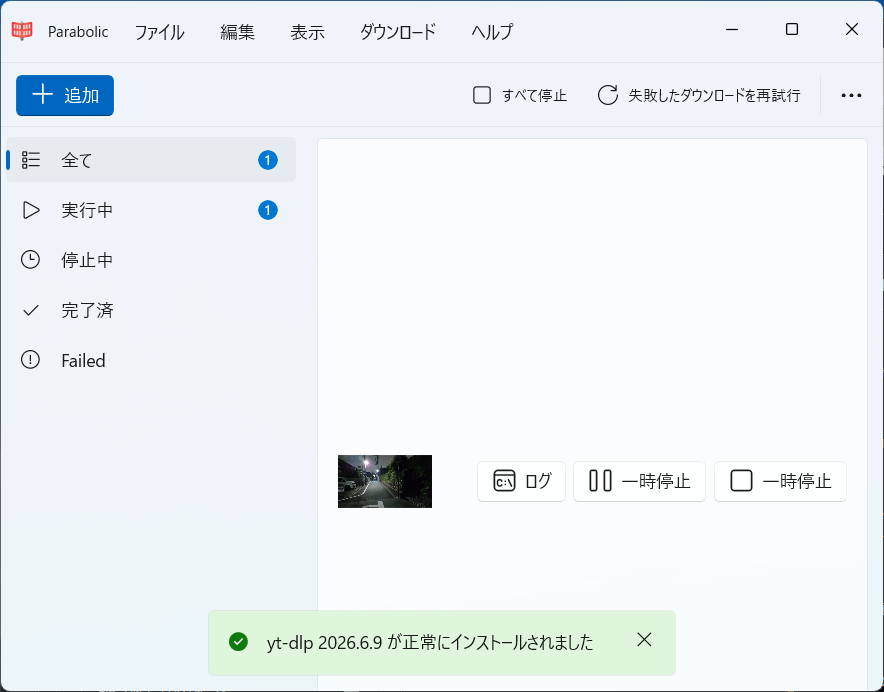
The download is in progress. The video is displayed as 'Running'. You can also add new downloads while one is downloading.
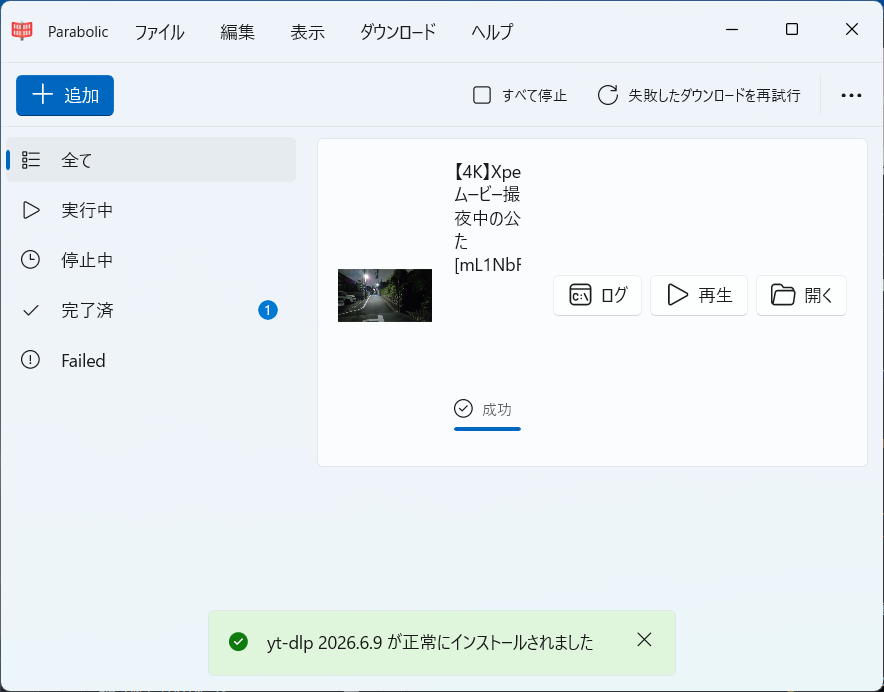
Once the download is complete, the video will move to the 'Completed' section.
◆ App settings
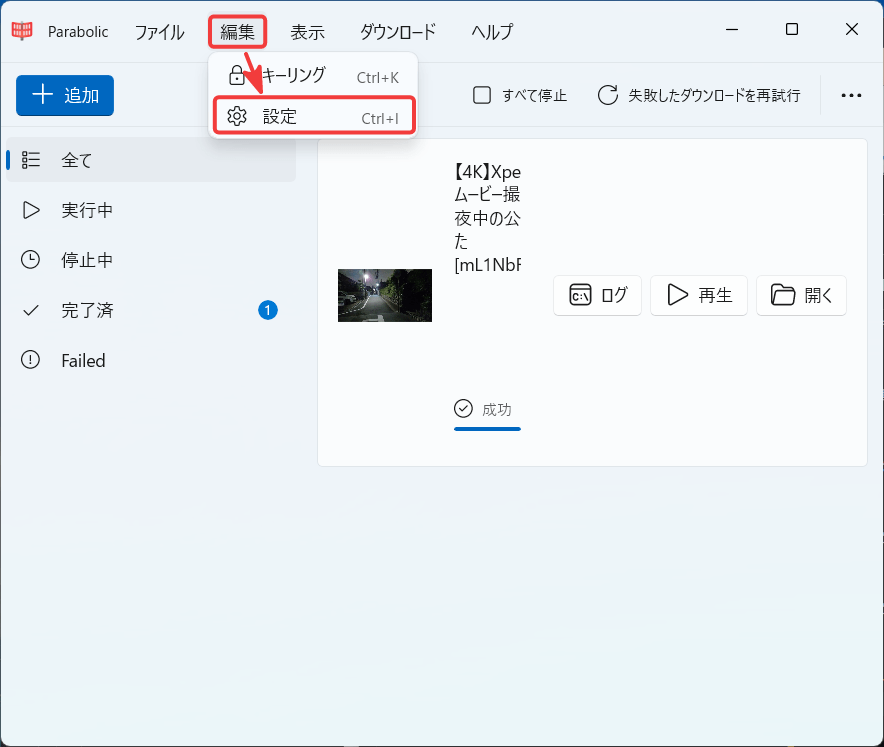
You can access the 'Settings' screen by clicking 'Settings' on the screen immediately after startup, or by selecting 'Edit' → 'Settings' from the menu.
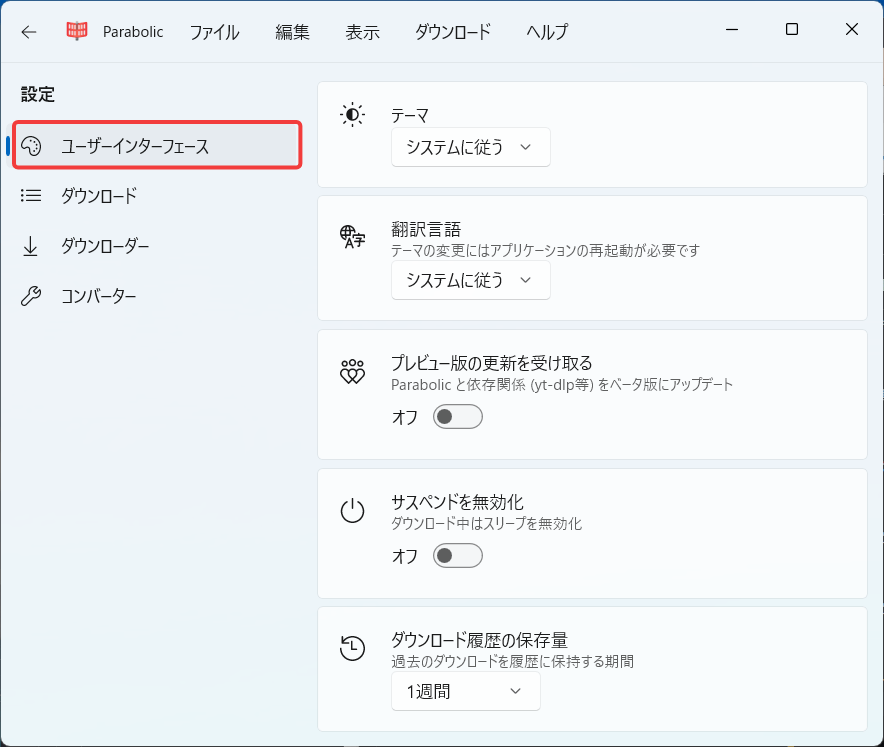
The following items can be configured in the 'User Interface' tab:
·theme
Translation language
・Receive updates for the preview version
- Disable suspend
- Download history storage capacity (the period for which history is stored)
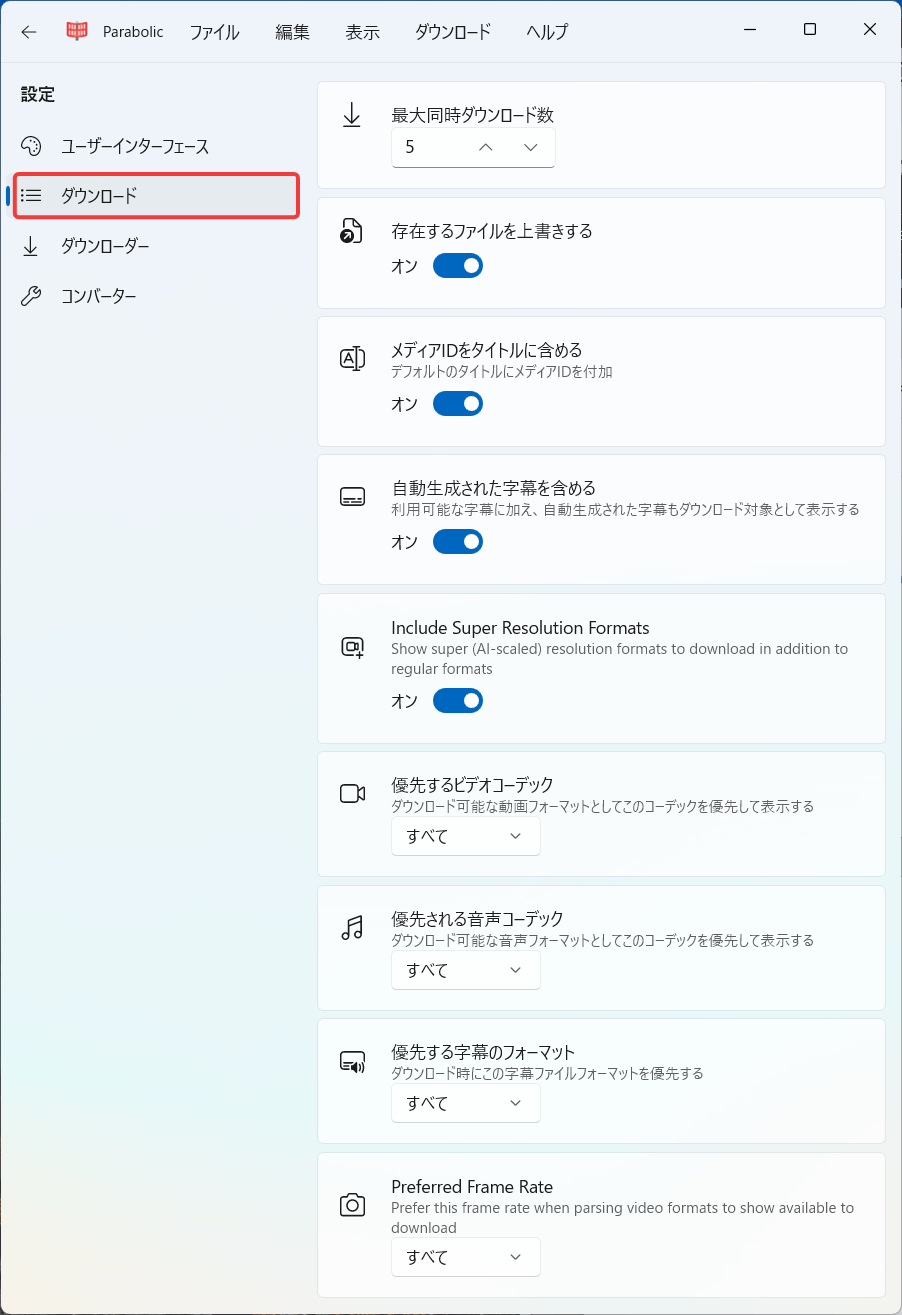
The following items can be configured in the 'Download' tab:
• Maximum number of simultaneous downloads
- Overwrite existing files
Include the media ID in the title.
- Include automatically generated subtitles
・Include Super Resolution Formats (Whether or not to download AI-enlarged super-resolution versions in addition to the standard format)
• Preferred video codec
• Preferred audio codec
• Preferred subtitle format
• Preferred Frame Rate
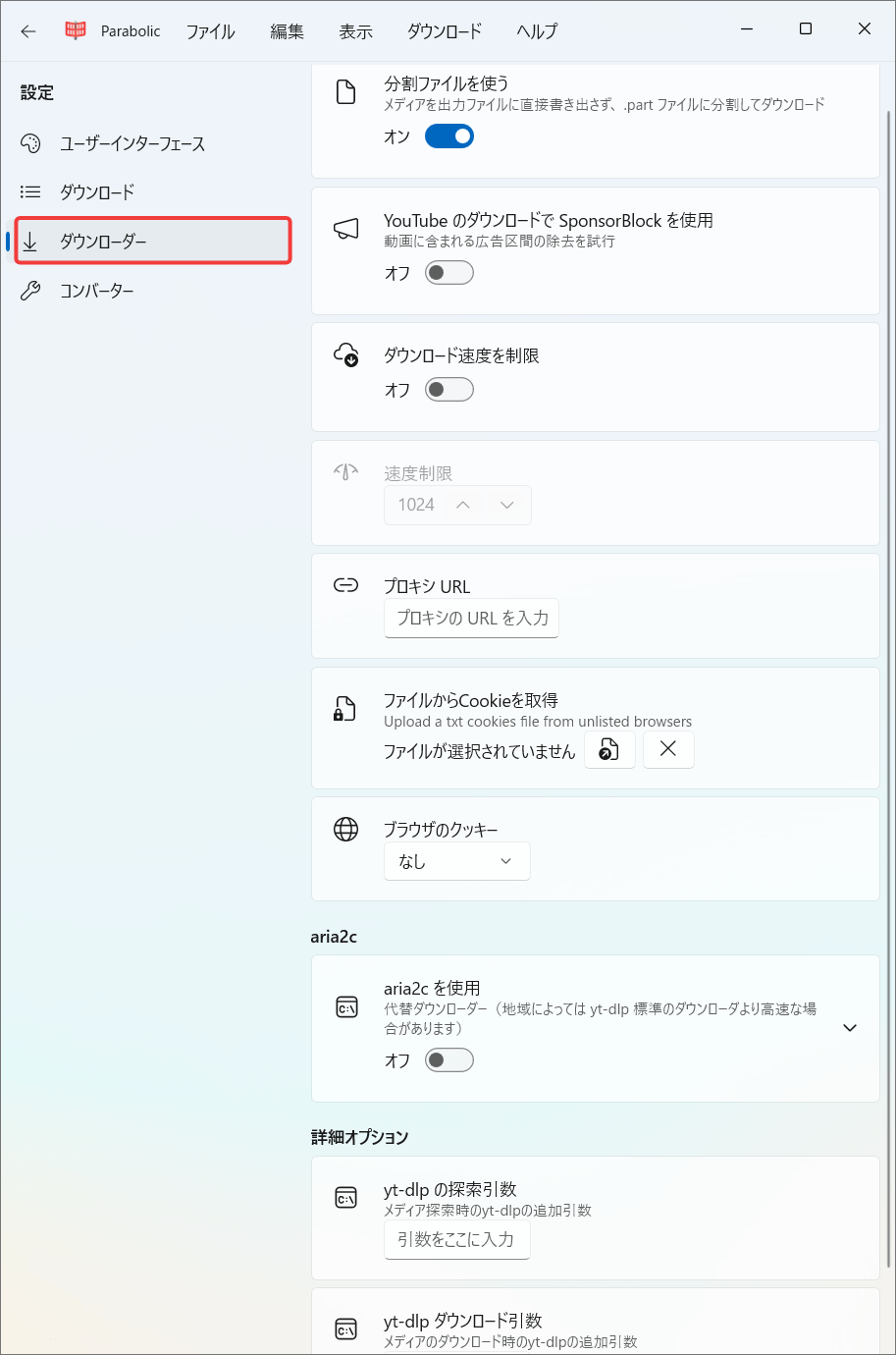
The following items can be configured in the 'Downloader' tab:
Use split files
- Use SponsorBlock when downloading from YouTube
- Limit download speed
Proxy URL
- Retrieve cookies from a file
Browser cookies
- Use aria2c
- Search arguments for yt-dlp
yt-dlp download arguments
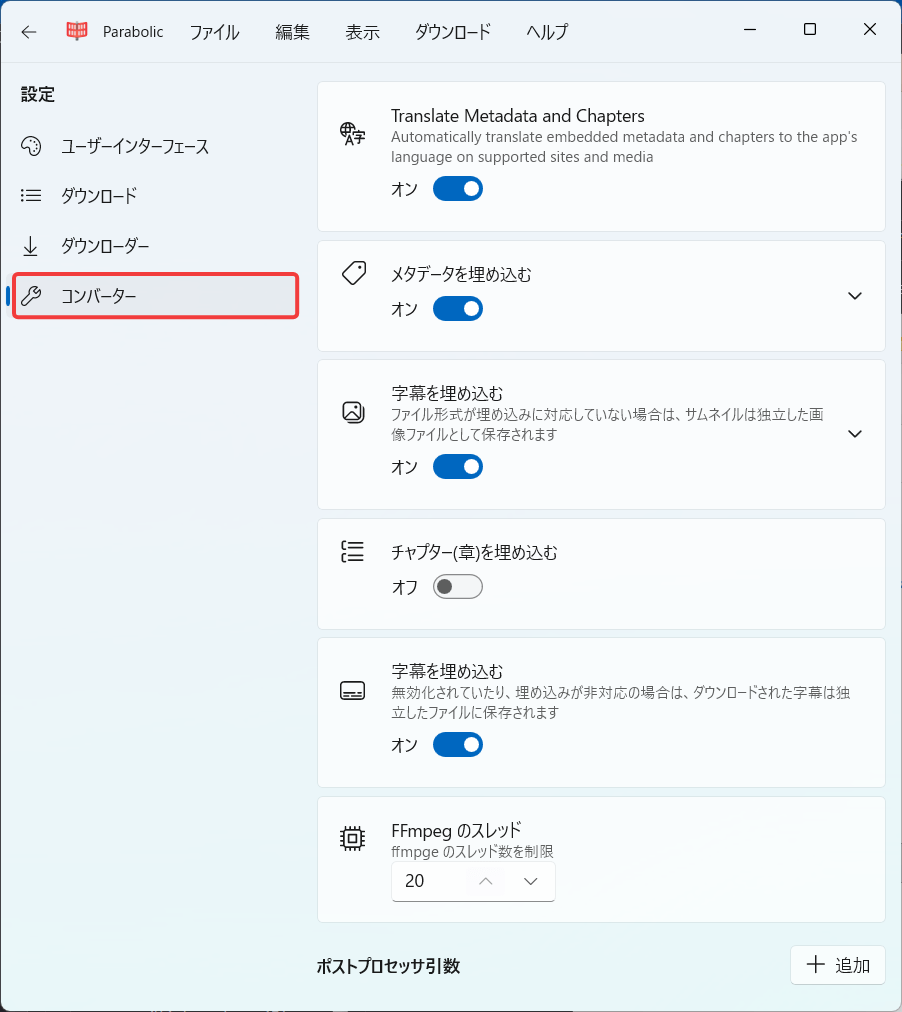
The following items can be configured in the 'Converter' tab:
- Translate Metadata and Chapters (Automatic translation of metadata and chapters)
- Embed metadata
- Embed thumbnails
- Embed chapters
- Embed subtitles
FFmpeg threads
- Add post-processor arguments
◆ Integration with browser extensions
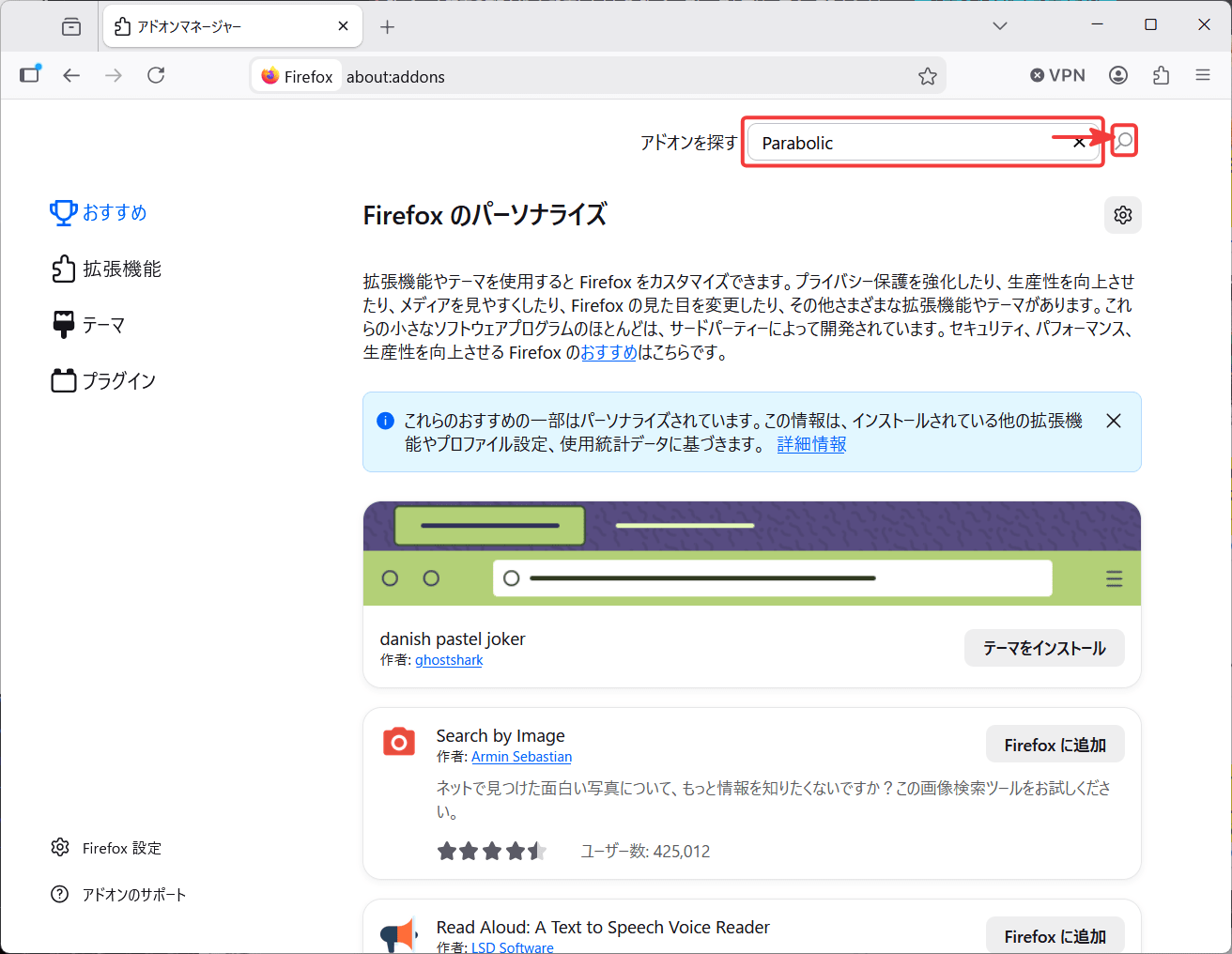
Let's try installing the browser extension on Firefox. Open the 'Add-ons Manager' and search for 'Parabolic'.
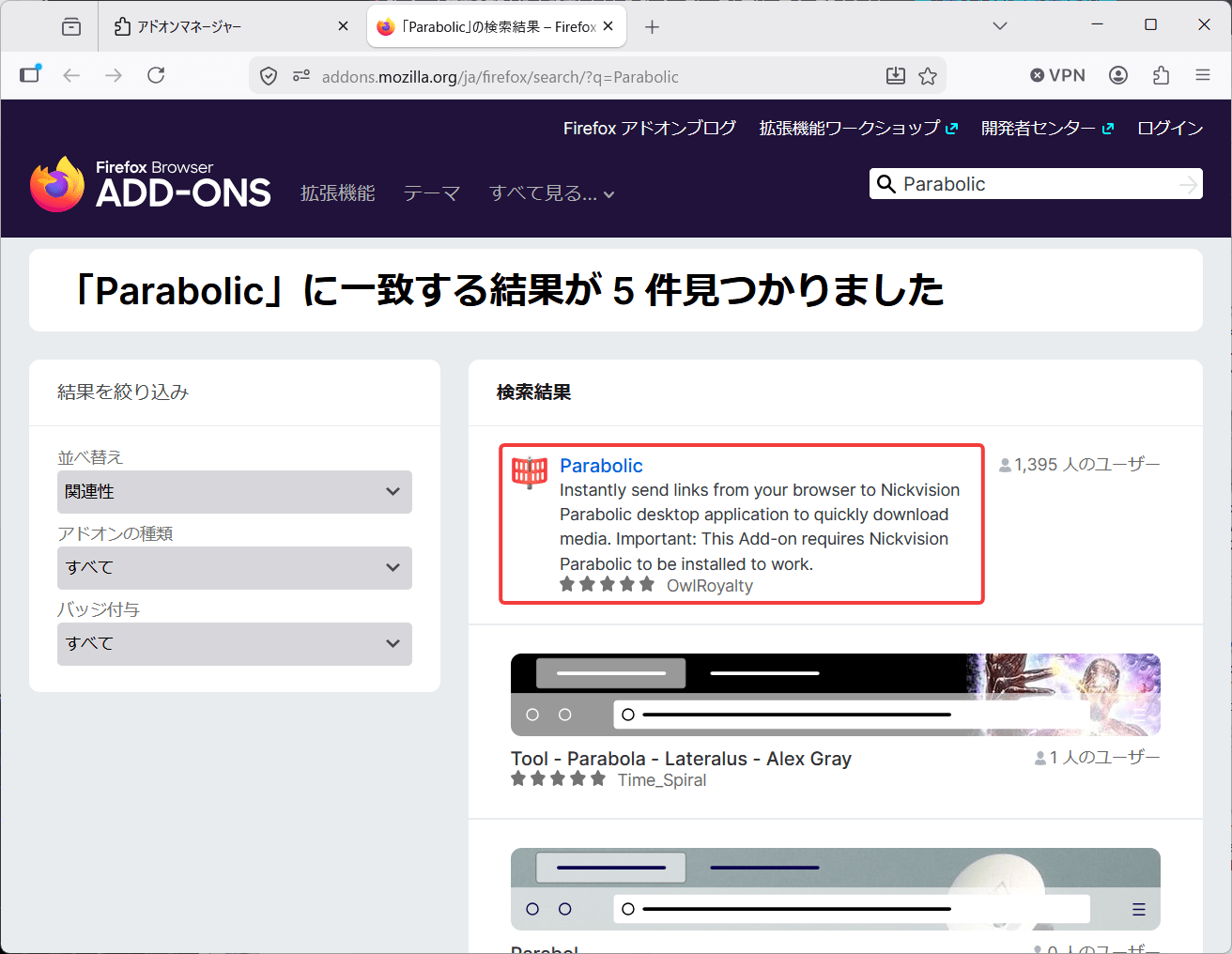
'Parabolic' will appear at the top of the list of options, so click the link.
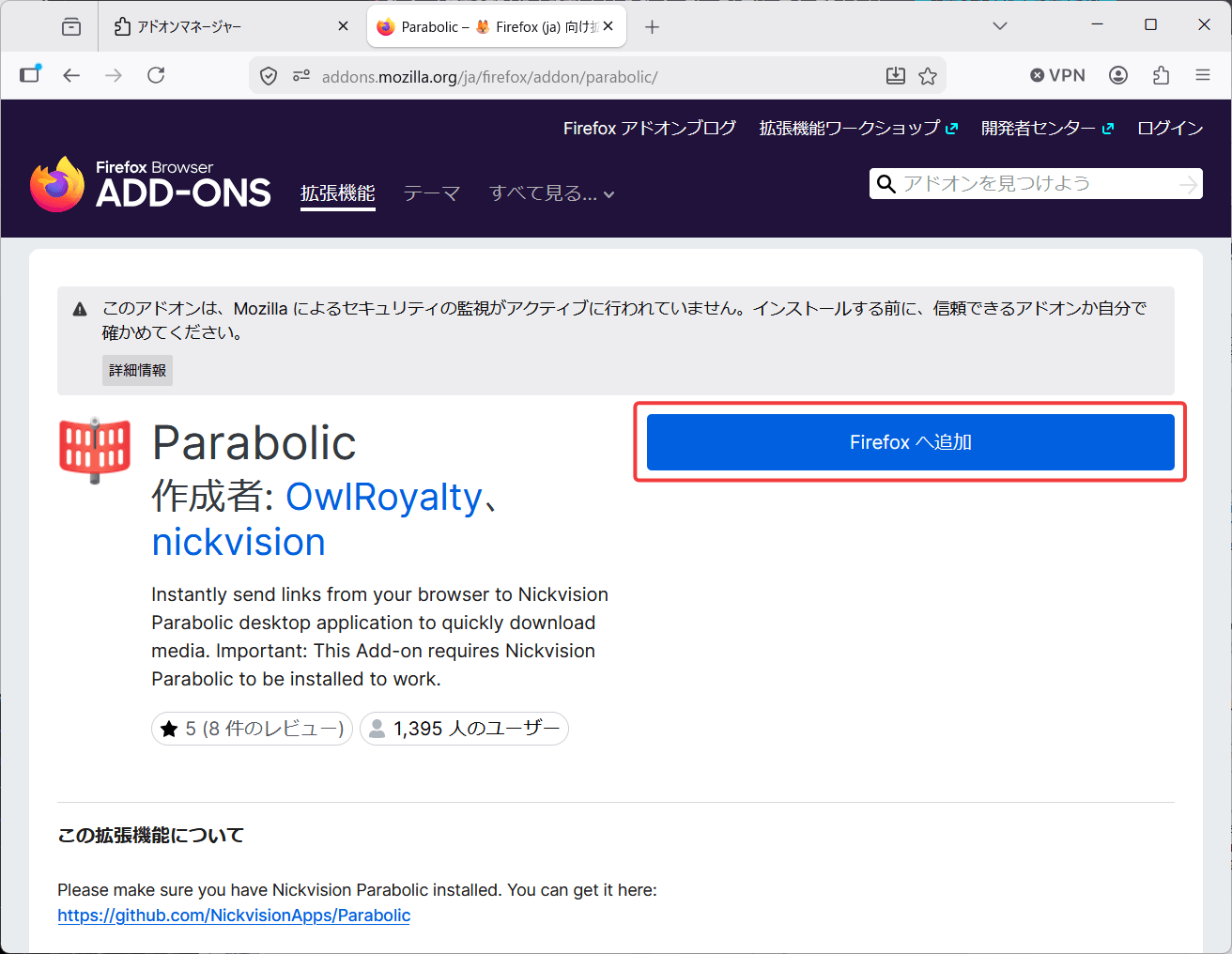
You will be redirected to the Parabolic page, so click the 'Add to Firefox' button.
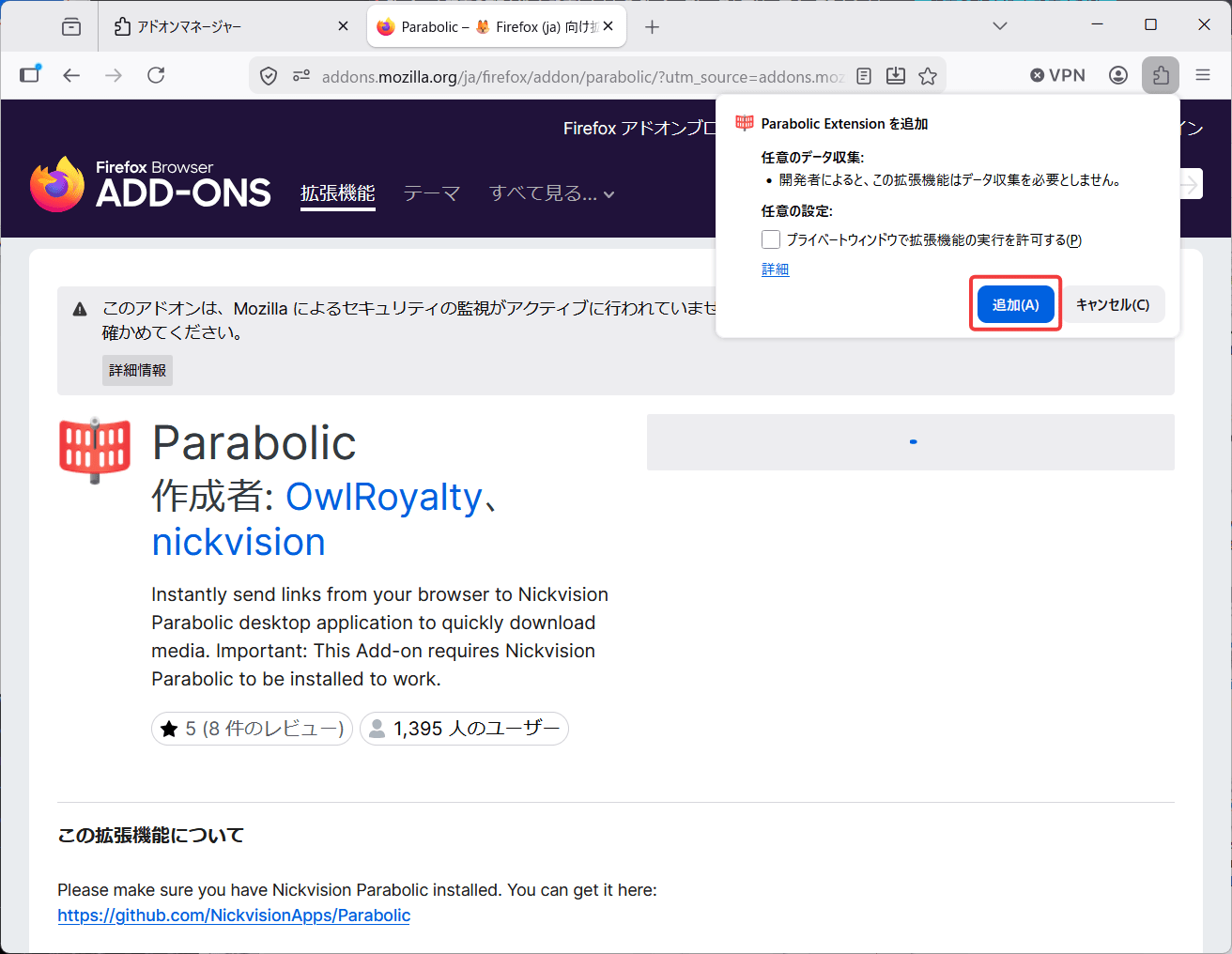
A pop-up window will appear saying 'Add Parabolic Extension,' so click the 'Add' button.
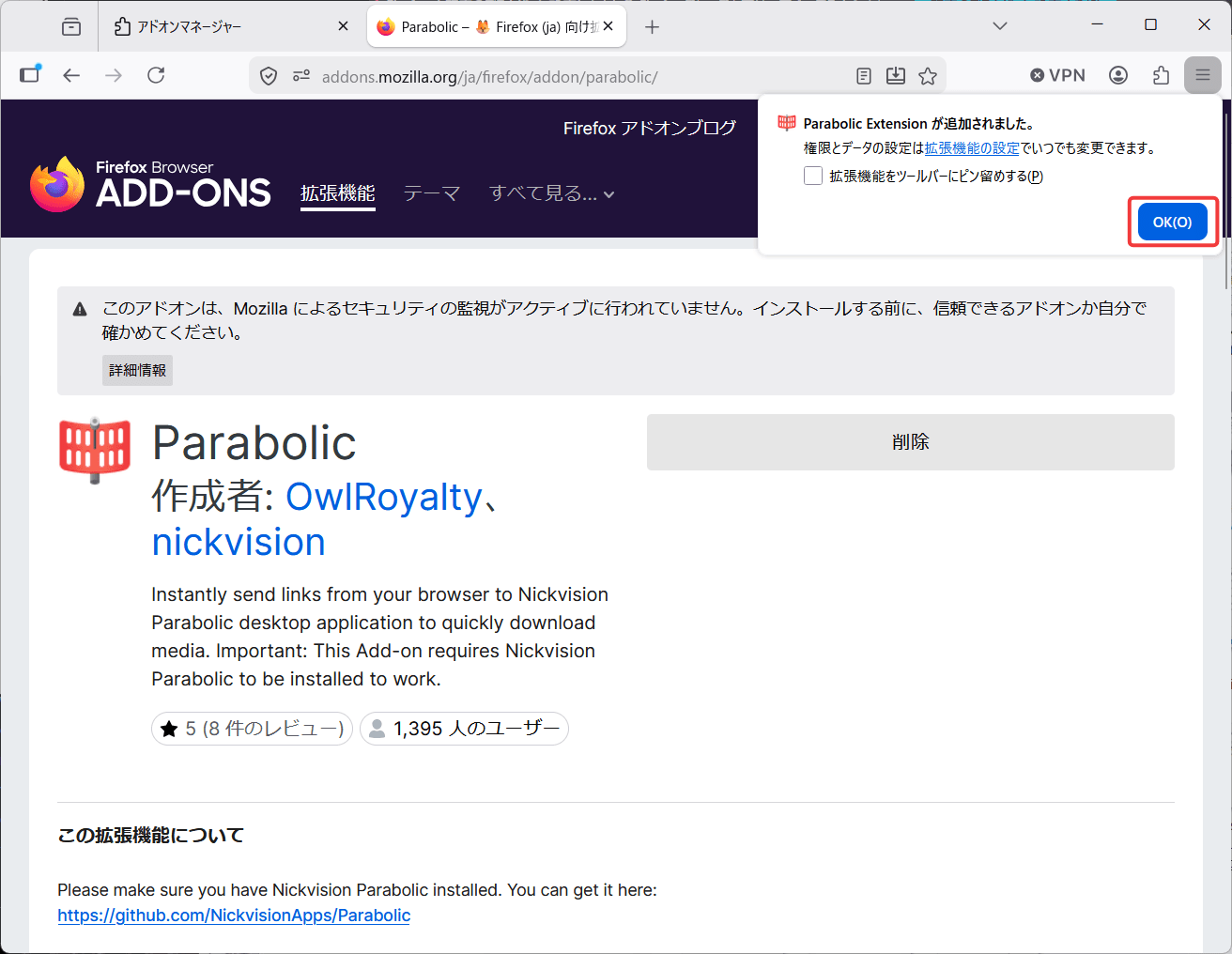
A pop-up message will appear saying 'Parabolic Extension has been added.' Click the 'OK' button.
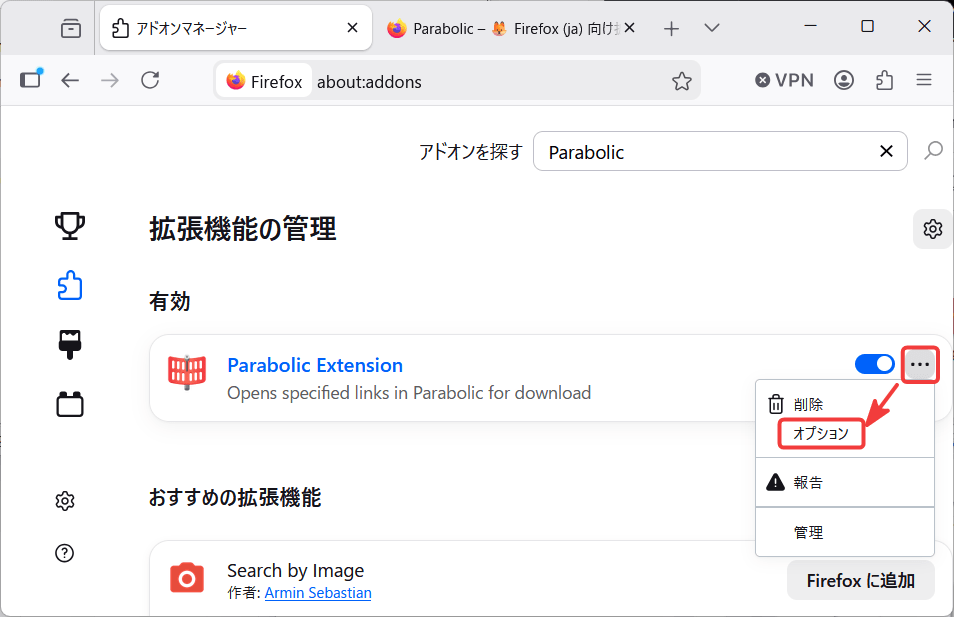
Returning to the 'Add-ons Manager,' you will see that Parabolic has been added. Click the '...' icon for Parabolic and select 'Options' from the pop-up menu that appears.
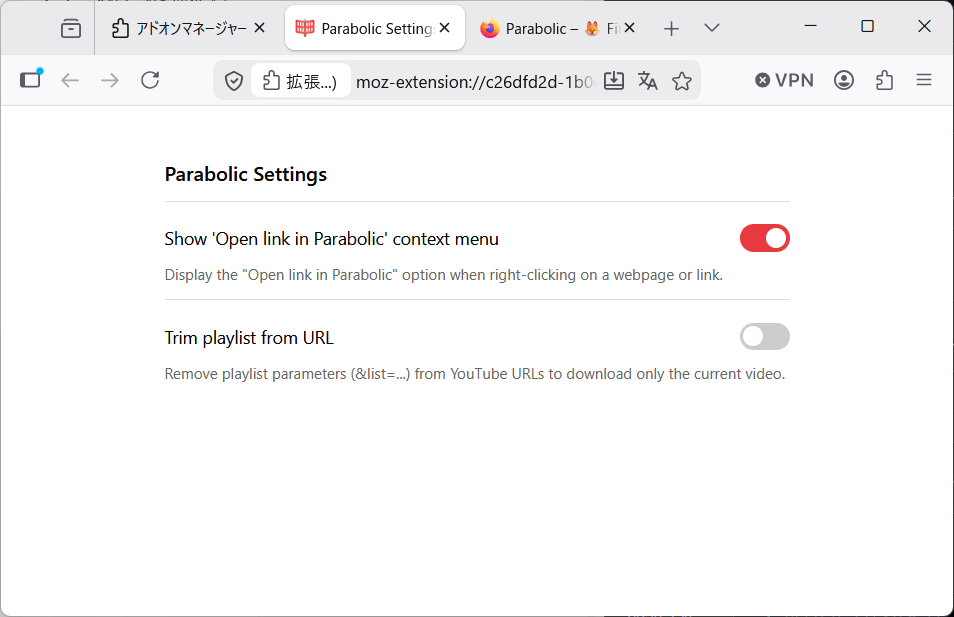
The options are as follows. It will revert to the default settings.
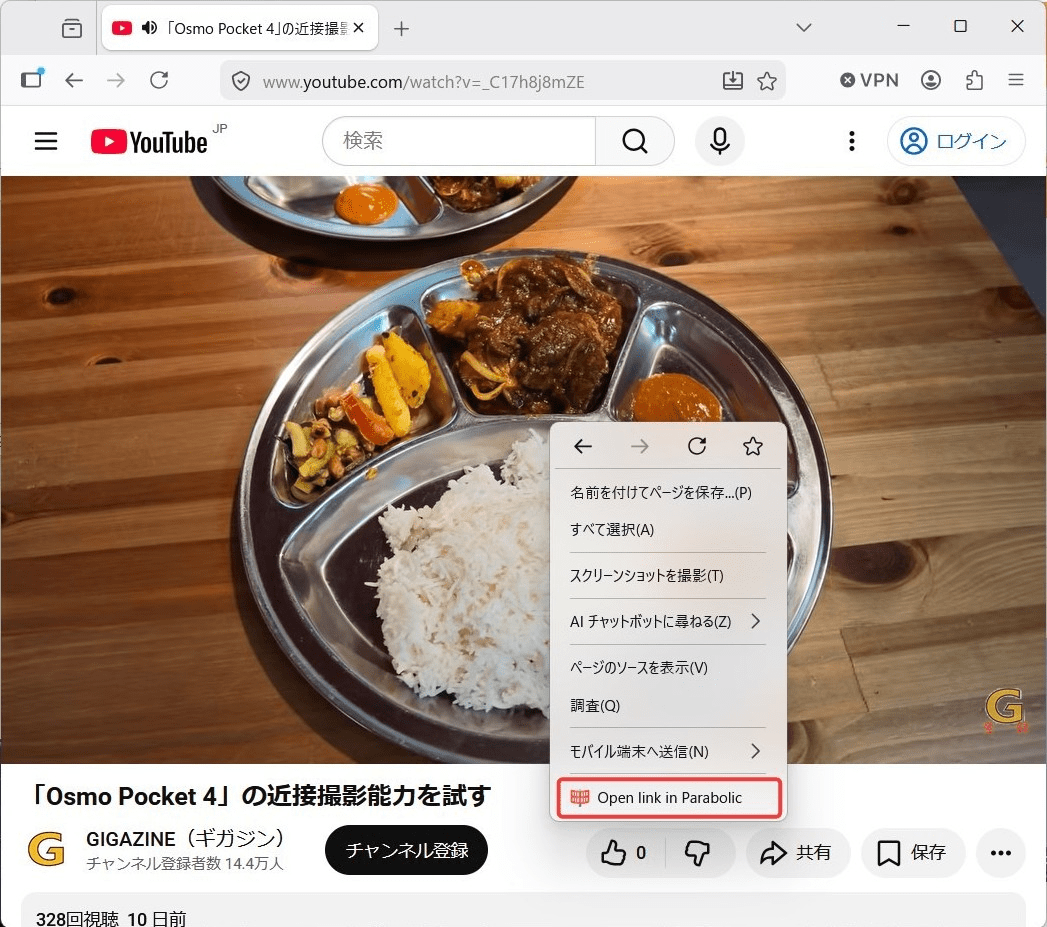
To use the extension, right-click on the video site to display the pop-up menu and select 'Open link in Parabolic'. If you have 'pinned' the extension to the toolbar, you can also use it by clicking the icon displayed on the toolbar, so it's convenient to pin it if you use it frequently.
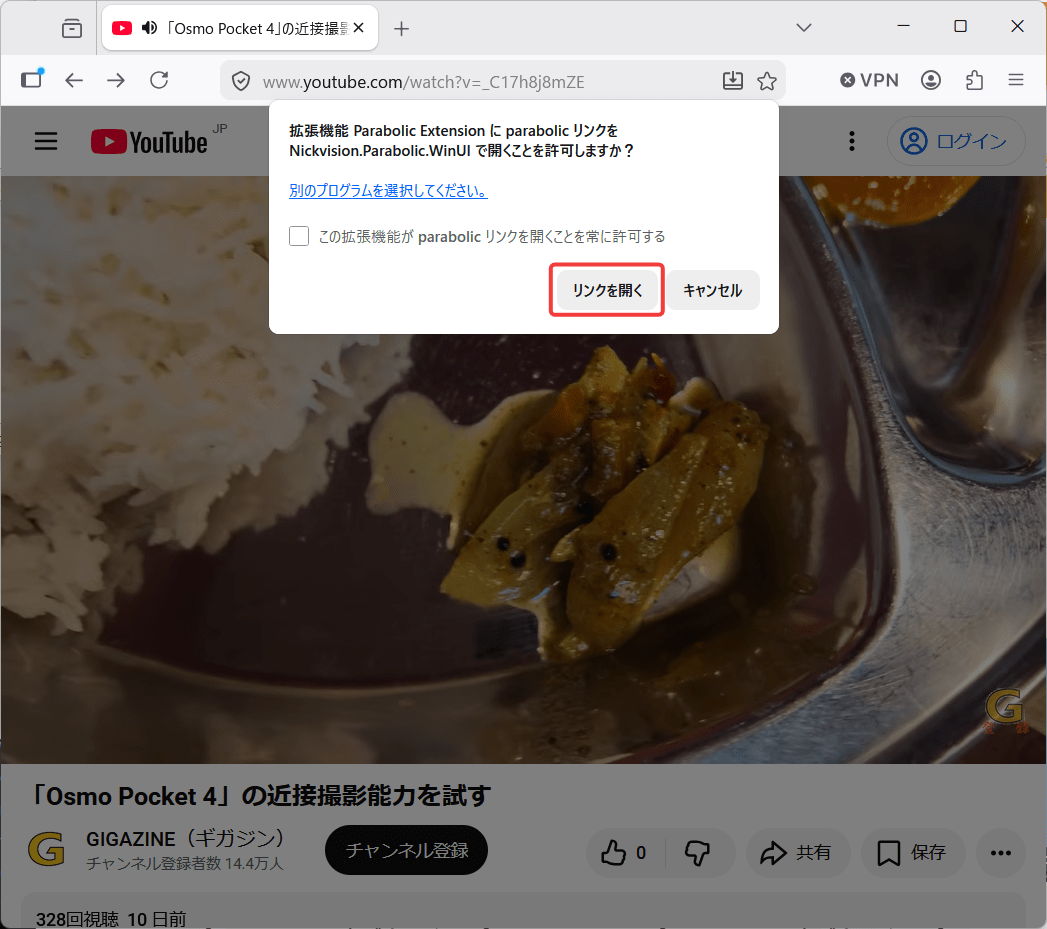
A pop-up will appear asking, 'Do you want to allow the Parabolic Extension to open parabolic links with Nickvision.Parabolic.WinUI?' Click the 'Open Link' button.
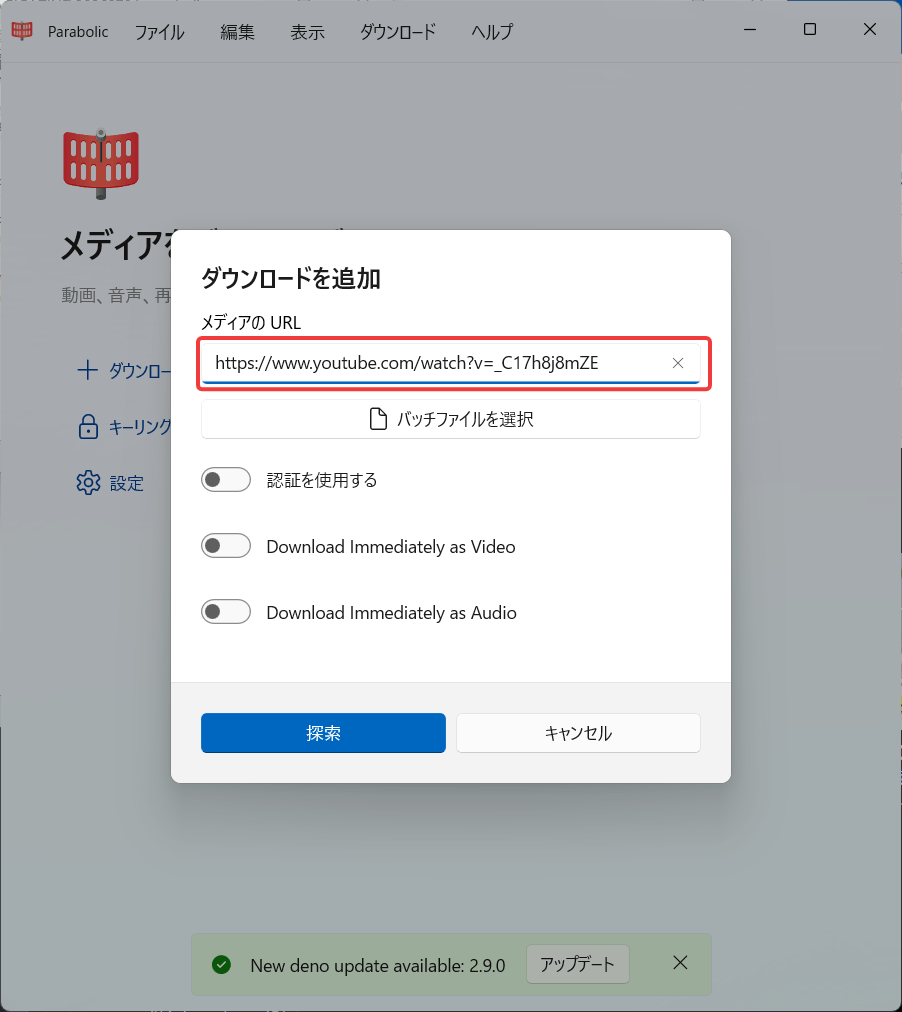
The Parabolic app will launch and the video URL will be set. From here on, you can use the app to search for and download the video.
It's important to note that, at least at the time of writing, the Parabolic app could not be used in conjunction with the extension while it was running; the extension had to be closed before it could be used. It appears that the extension is not performing inter-process communication with the app, but rather is sending a URL as a parameter to launch the app.
◆Summary
I confirmed that Parabolic makes it easy for anyone to download videos from YouTube and other sources, while still offering all the necessary and sufficient features. Its convenience is further enhanced by using the browser extension, so I encourage anyone interested to give it a try.
Related Posts: