A summary of the steps to install 'SideStore,' which allows you to install unofficial apps on your iPhone without jailbreaking or using a Mac.
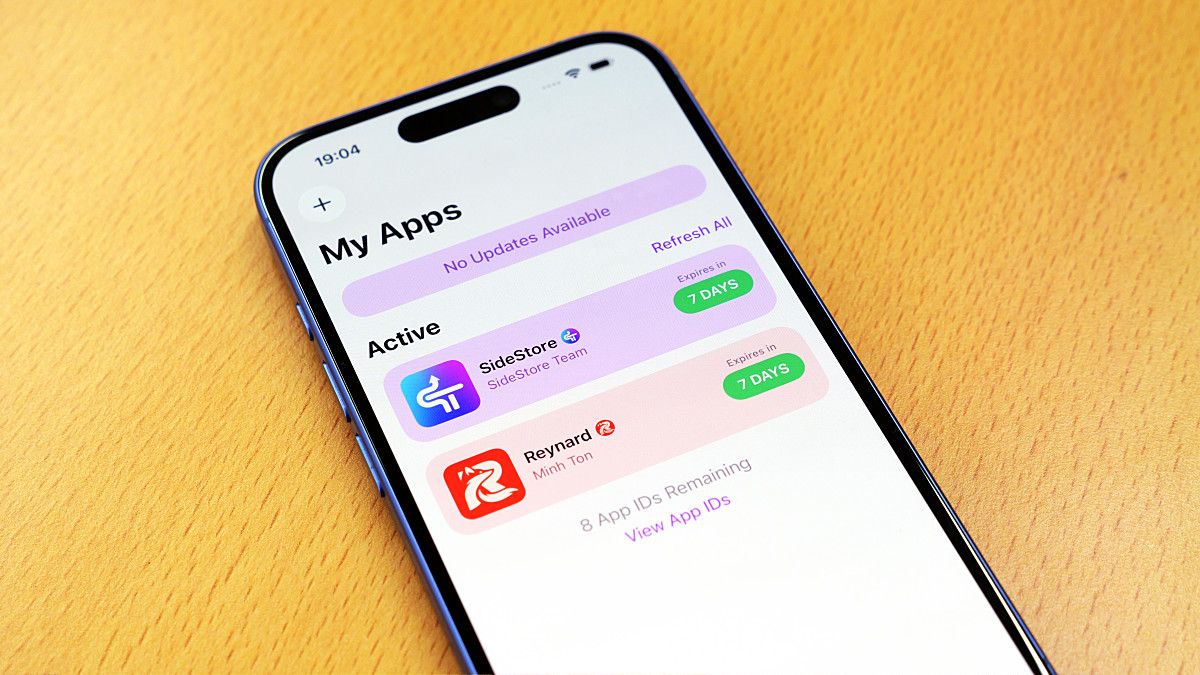
iPhones can generally only install apps distributed through the App Store. While developer features allow you to install your own apps and open-source apps, they often require a Mac connection and reinstallation every seven days. With ' SideStore ,' you can install unofficial apps not distributed through the App Store without needing a Mac, and you can bypass the seven-day restriction using only your iPhone. The SideStore installation process is a bit complicated, so I've put together an easy-to-understand guide.
SideStore
SideStore Docs
https://docs.sidestore.io/docs/intro
·table of contents
◆1: SideStore Features and General Installation Procedure
◆2: Install LocalDevVPN on your iPhone
◆3: Install iTunes on your PC
◆4: Install iloader on your PC
◆5: Install SideStore on your iPhone and complete the initial setup.
◆1: SideStore Features and General Installation Procedure
Another way to install apps not distributed on the App Store is to use the third-party app distribution platform AltStore PAL . However, AltStore PAL can only install apps that are not distributed on the App Store but have received Apple's notarization. SideStore, on the other hand, can install apps that have not received Apple's notarization.
The general installation procedure for SideStore is as follows:
1: Install LocalDevVPN on your iPhone
2: Install iTunes on your PC
3: Install iloader on your PC
4. Install SideStore on your iPhone using iloader
5. Change your iPhone settings to enable SideStore.
Your iPhone needs to be running iOS 15.0 or later, and you'll need to have a passcode set. Installing SideStore requires a PC, and the operating system must be Windows 8 or later, macOS High Sierra or later, or a recent Linux distribution. A Chromebook that isn't enrolled is also acceptable. Furthermore, connecting to the internet via Wi-Fi rather than a mobile data connection is recommended. This guide will use an iPhone 16 with iOS 26.5 installed and a PC with Windows 11 installed to verify the procedure.
◆2: Install LocalDevVPN on your iPhone
First, install LocalDevVPN, which is available on the App Store, onto your iPhone. Tap the link below to open the download page.
LocalDevVPN - App Store
https://apps.apple.com/jp/app/localdevvpn/id6755608044
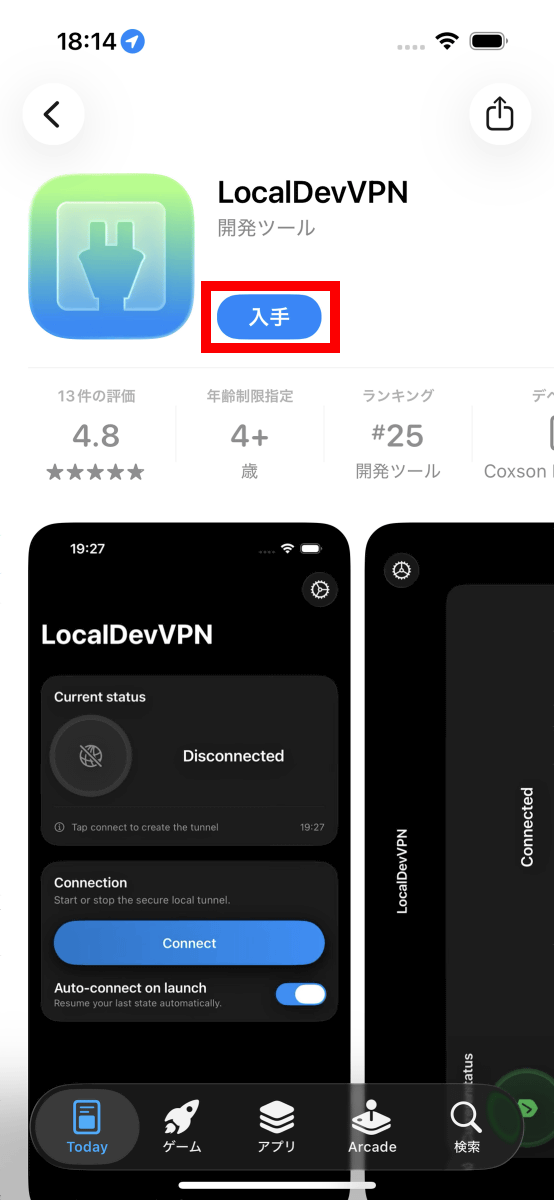
Tap 'Get' to proceed with installation and launch the app.
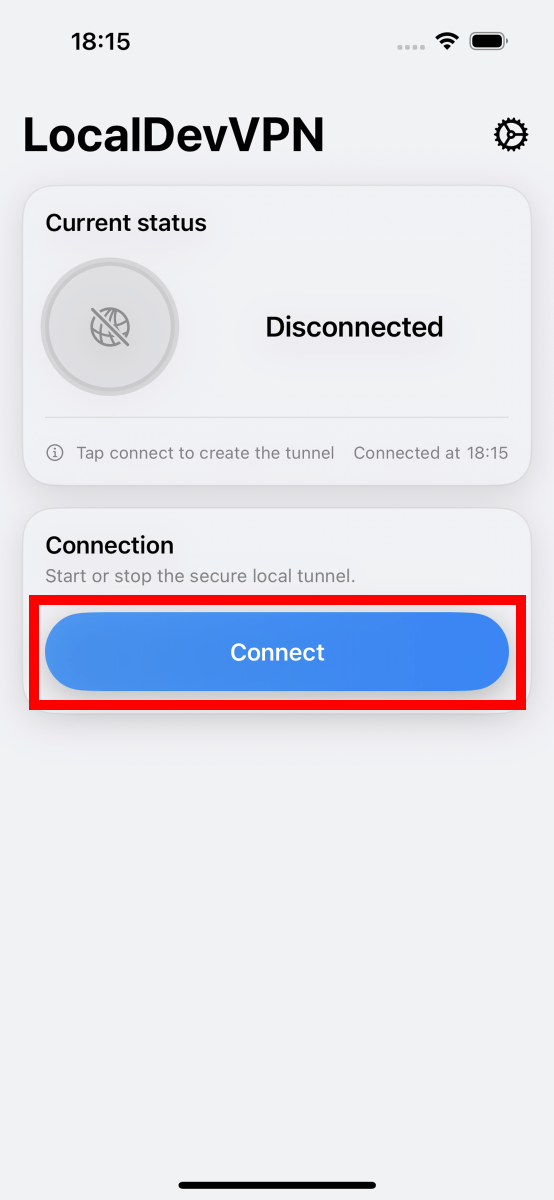
Once you launch LocalDevVPN, tap 'Connect'.
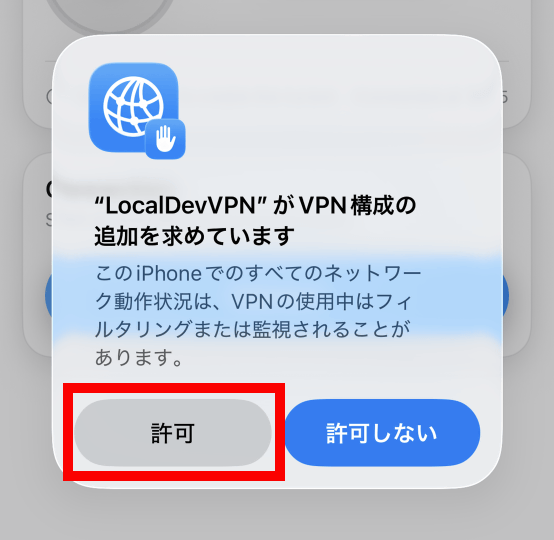
If prompted to allow additional VPN configuration, tap 'Allow'.
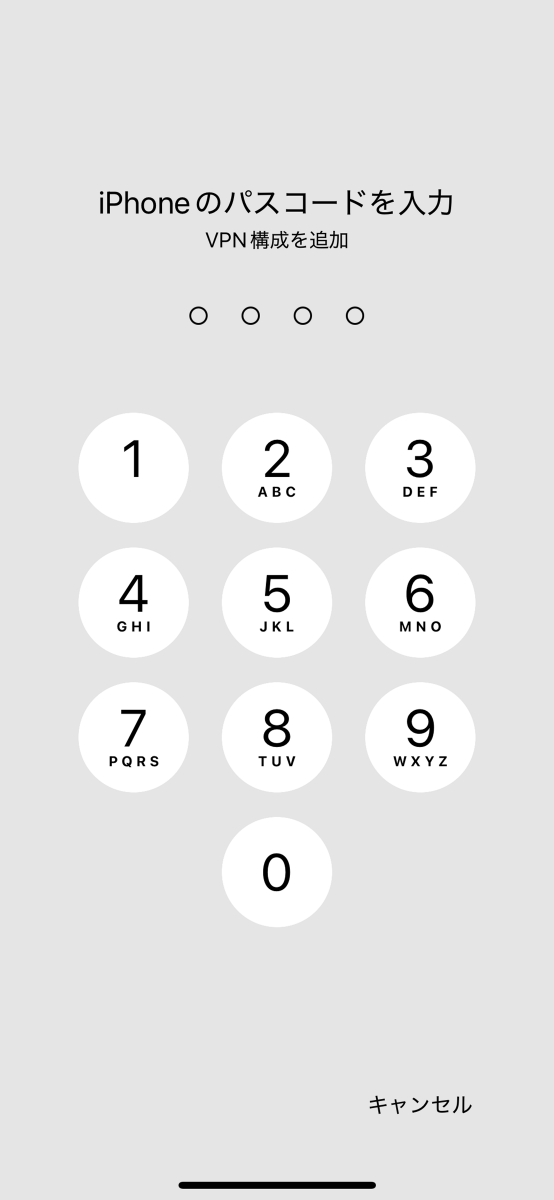
Enter your iPhone passcode.
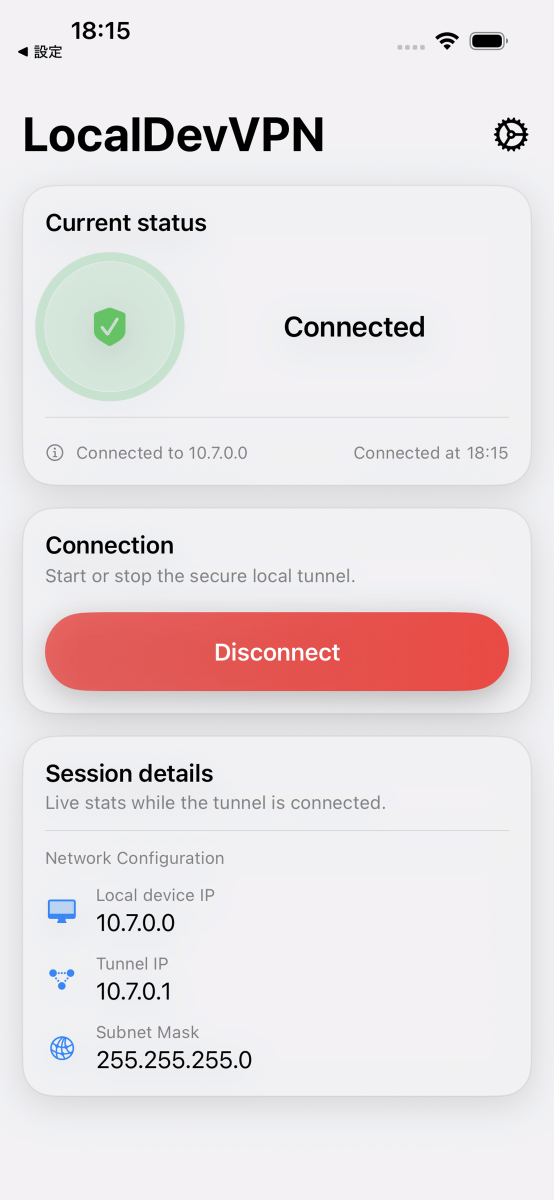
If the session details are displayed at the bottom of the screen as shown below, then it's OK.
◆3: Install iTunes on your PC
Next, install iTunes on your PC. You need to install 'iTunes,' not 'Apple Music.'
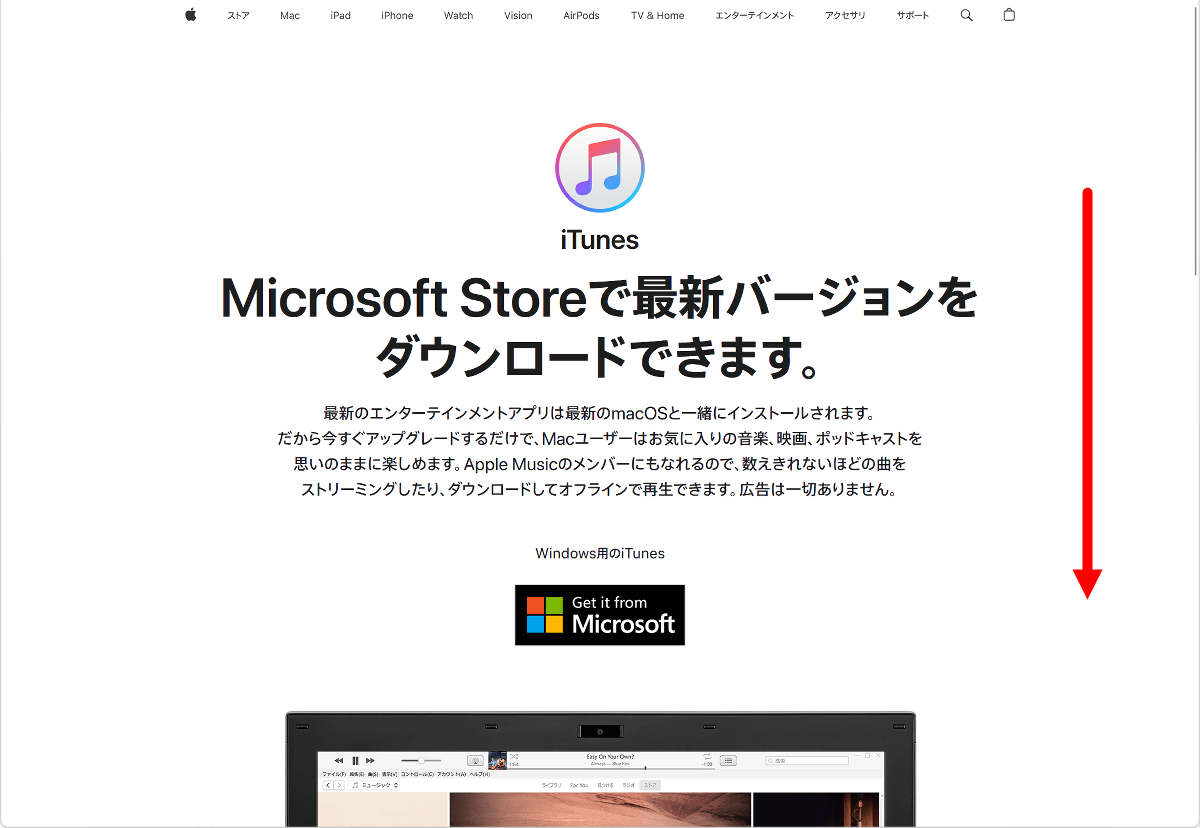
iTunes can be installed from the Microsoft Store or by downloading the installer from Apple's official website. This time, I failed to install it from the Microsoft Store, so I downloaded the installer from Apple's official website. First, click the following link to open Apple's official website.
iTunes - Apple (Japan)
Scroll down.
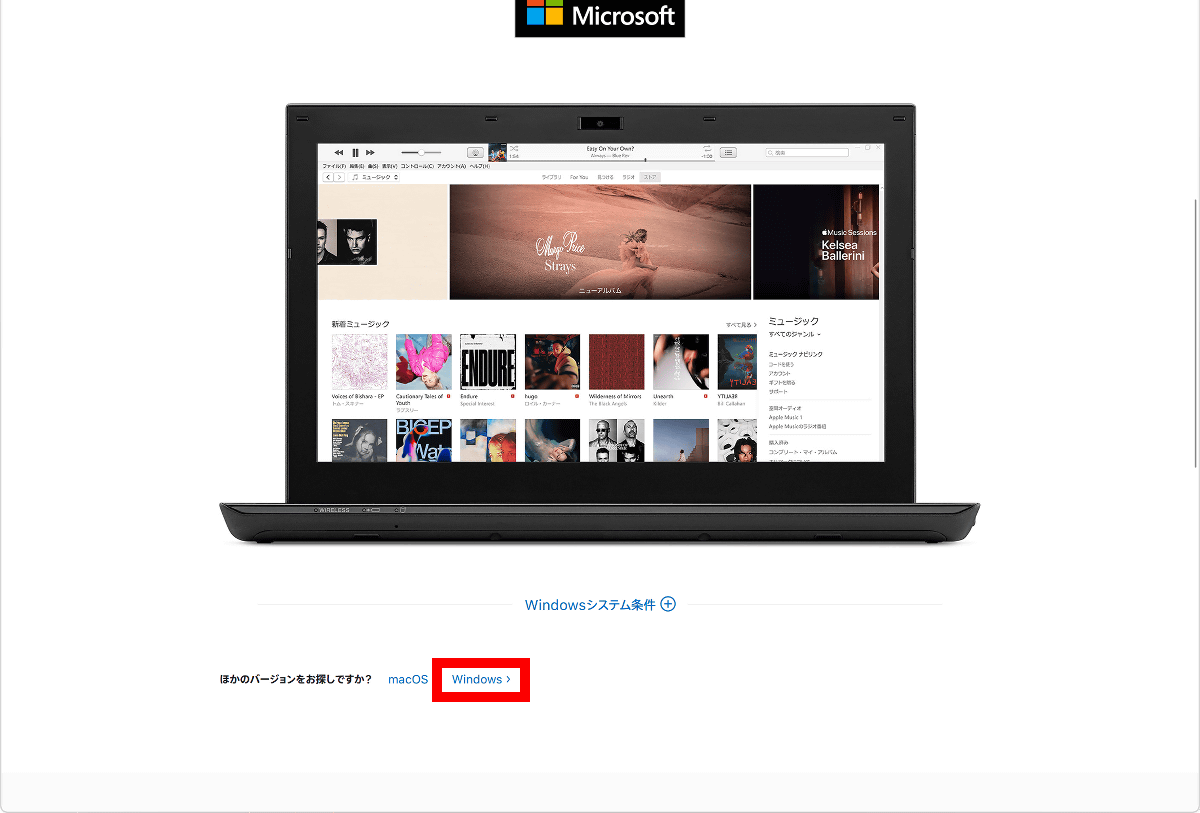
Click 'Windows'.
Click 'Download iTunes for Windows now (64-bit version)'.
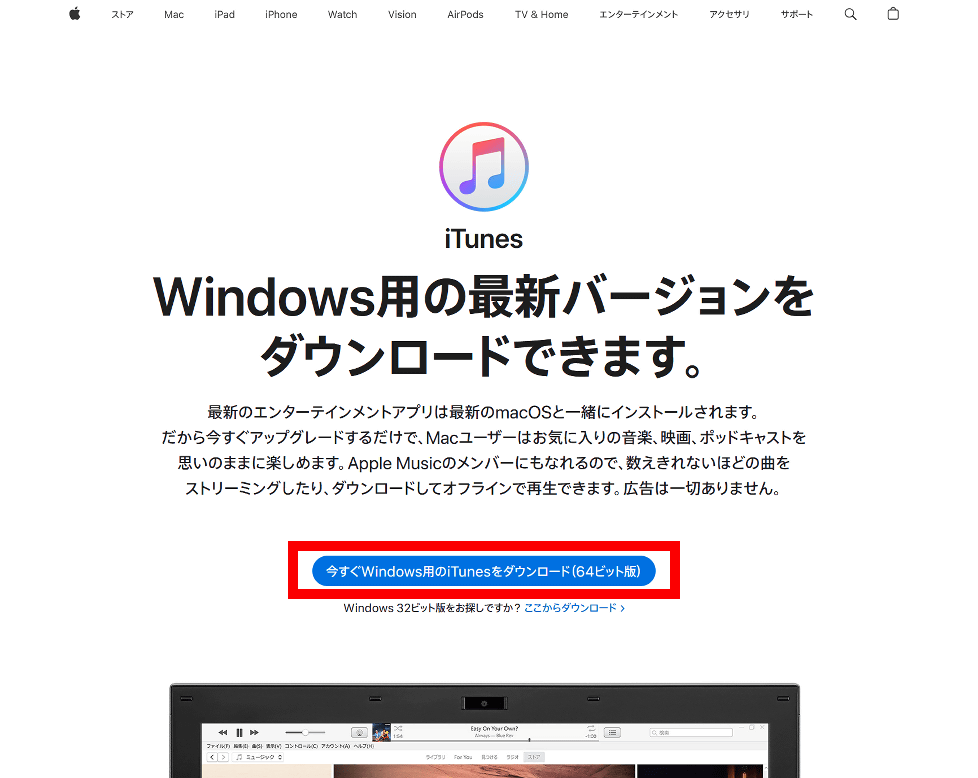
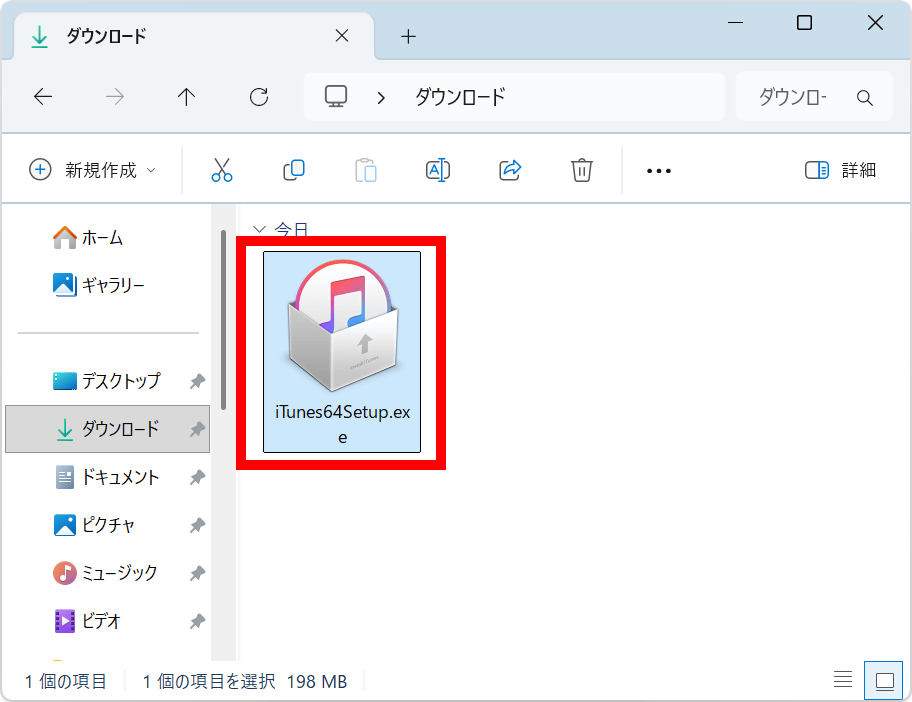
After downloading the installer, run it to proceed with the installation.
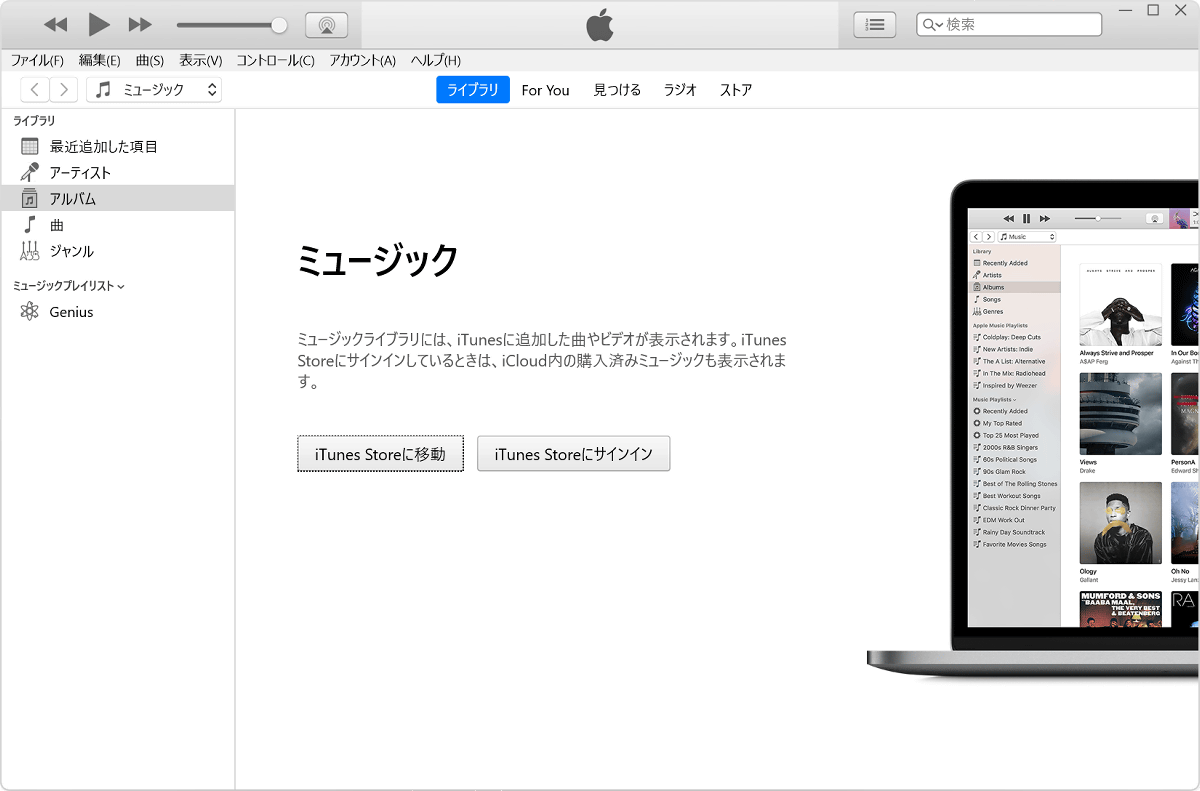
Once you've launched iTunes, you're ready to go.
◆4: Install iloader on your PC
Next, install the iloader sideloading tool on your PC. First, click the following link to open the iloader distribution page.
Releases · nab138/iloader · GitHub
Once you open the distribution page, download the latest iloader installer. At the time of writing this article, the latest version was 2.2.6. The Windows installer is at the bottom, so scroll down.
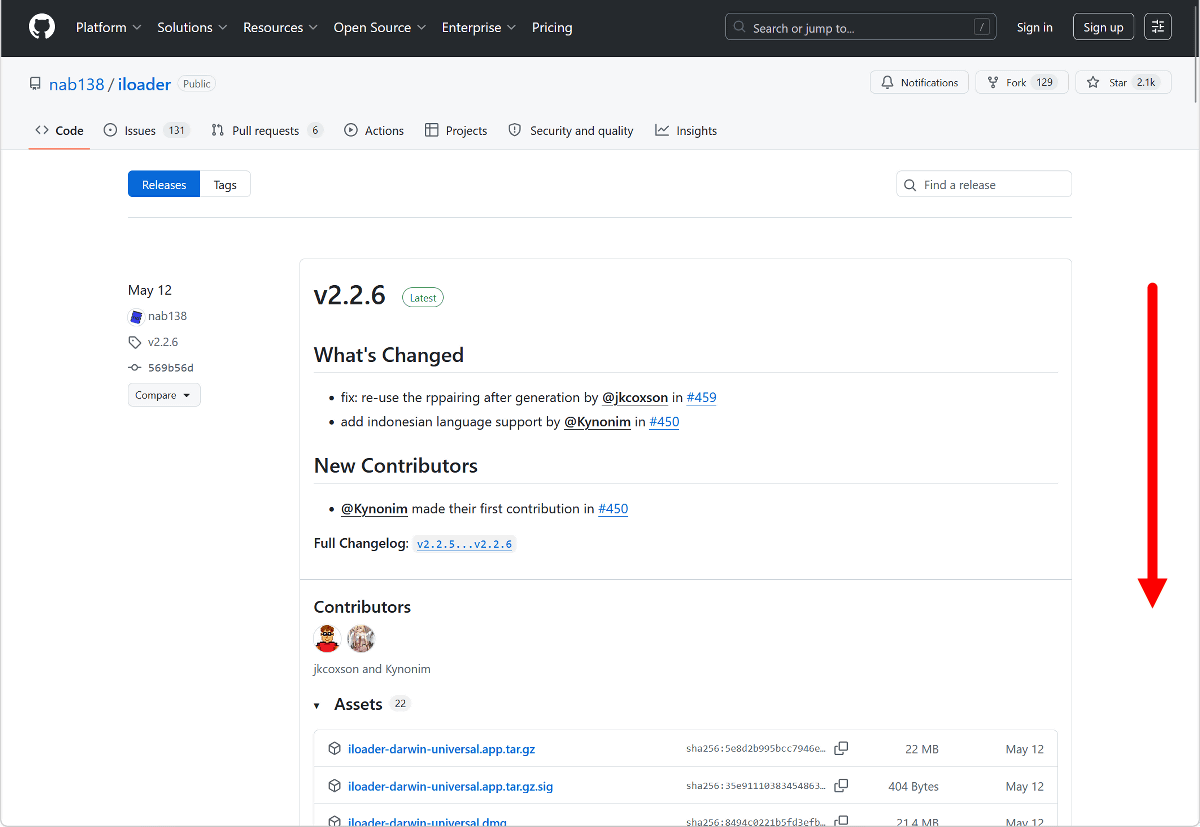
Click 'Show all 22 assets'.
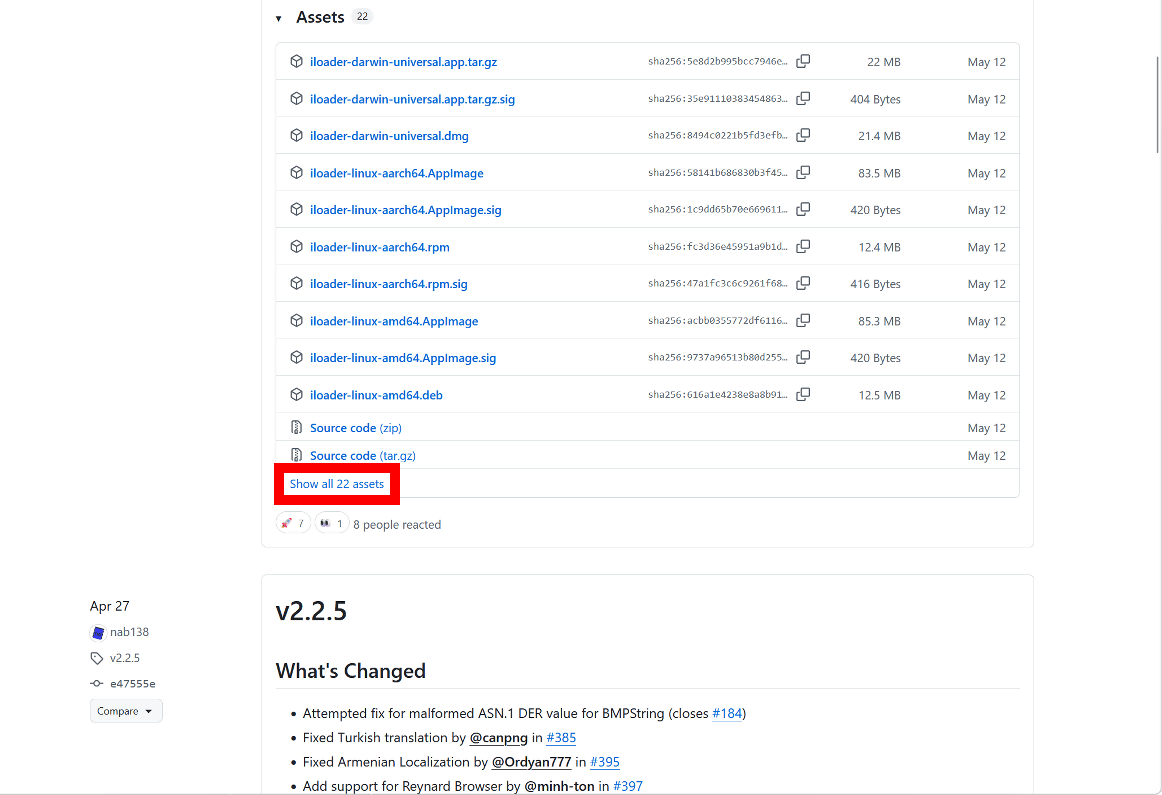
Click 'iloader-windows-x64.msi' to download the installer.
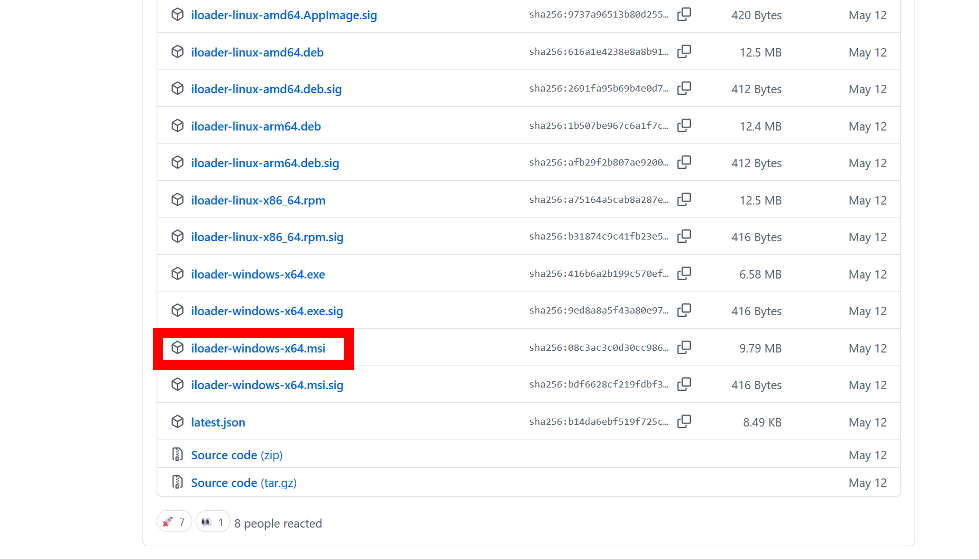
Double-click the downloaded installer to run it.
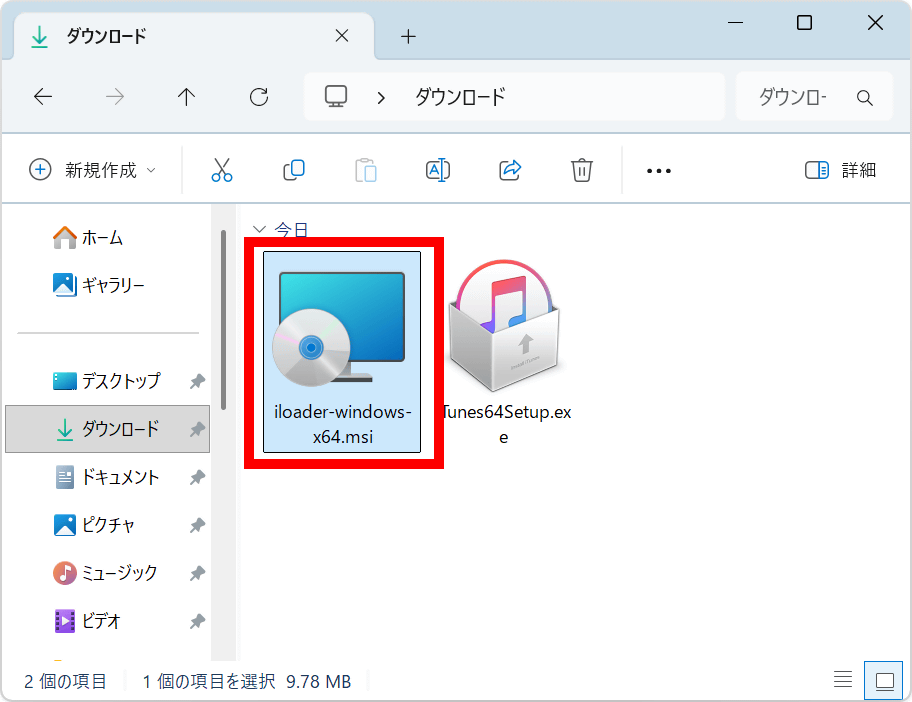
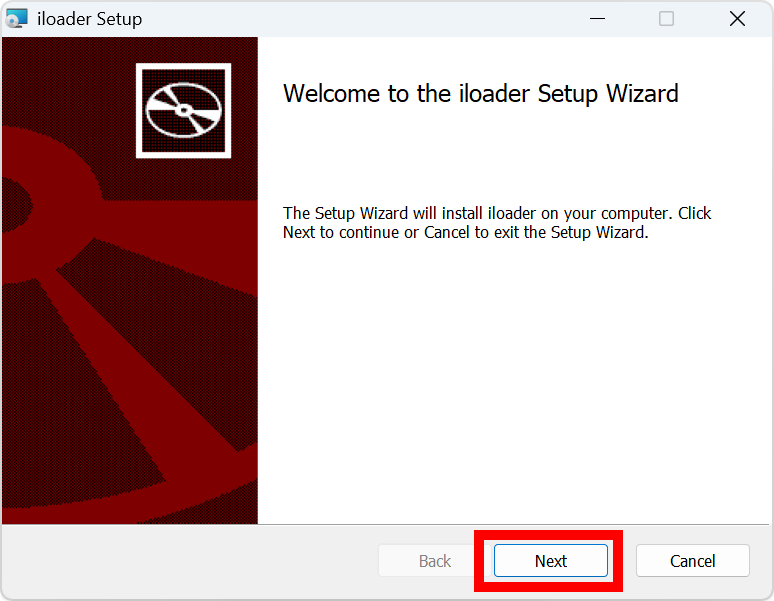
You can install it by continuously clicking 'Next'.
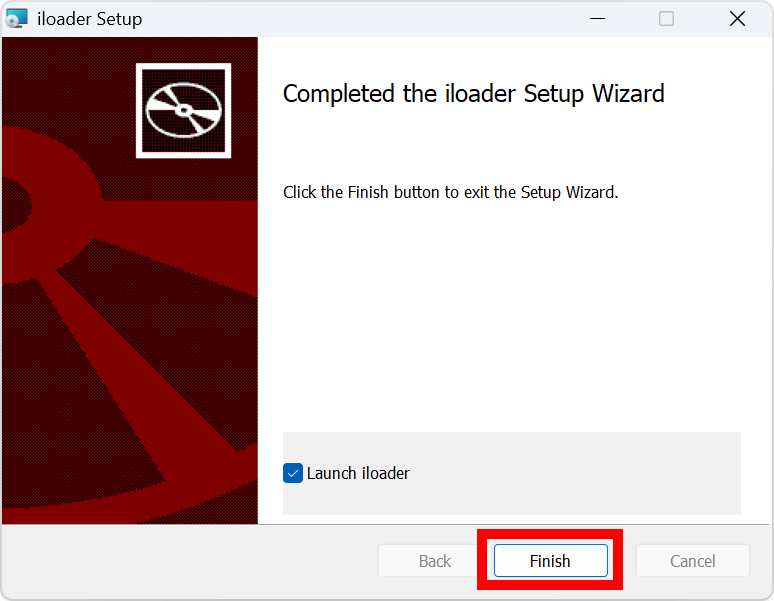
Once the installation is complete, leave 'Launch iloader' checked and click 'Finish'.
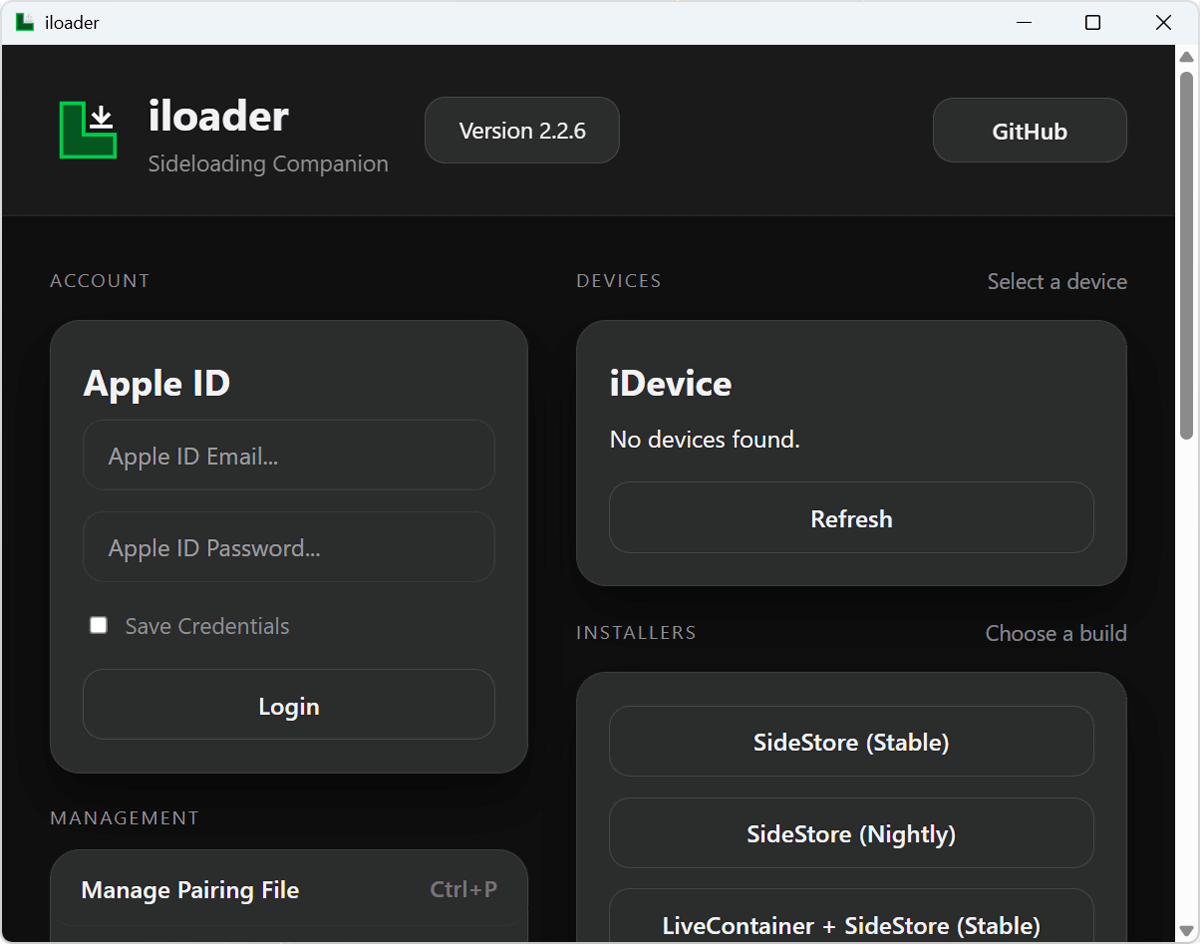
If iloader launches, the installation was successful.
◆5: Install SideStore on your iPhone and complete the initial setup.
With iloader running, connect your iPhone to your PC using a wired connection.
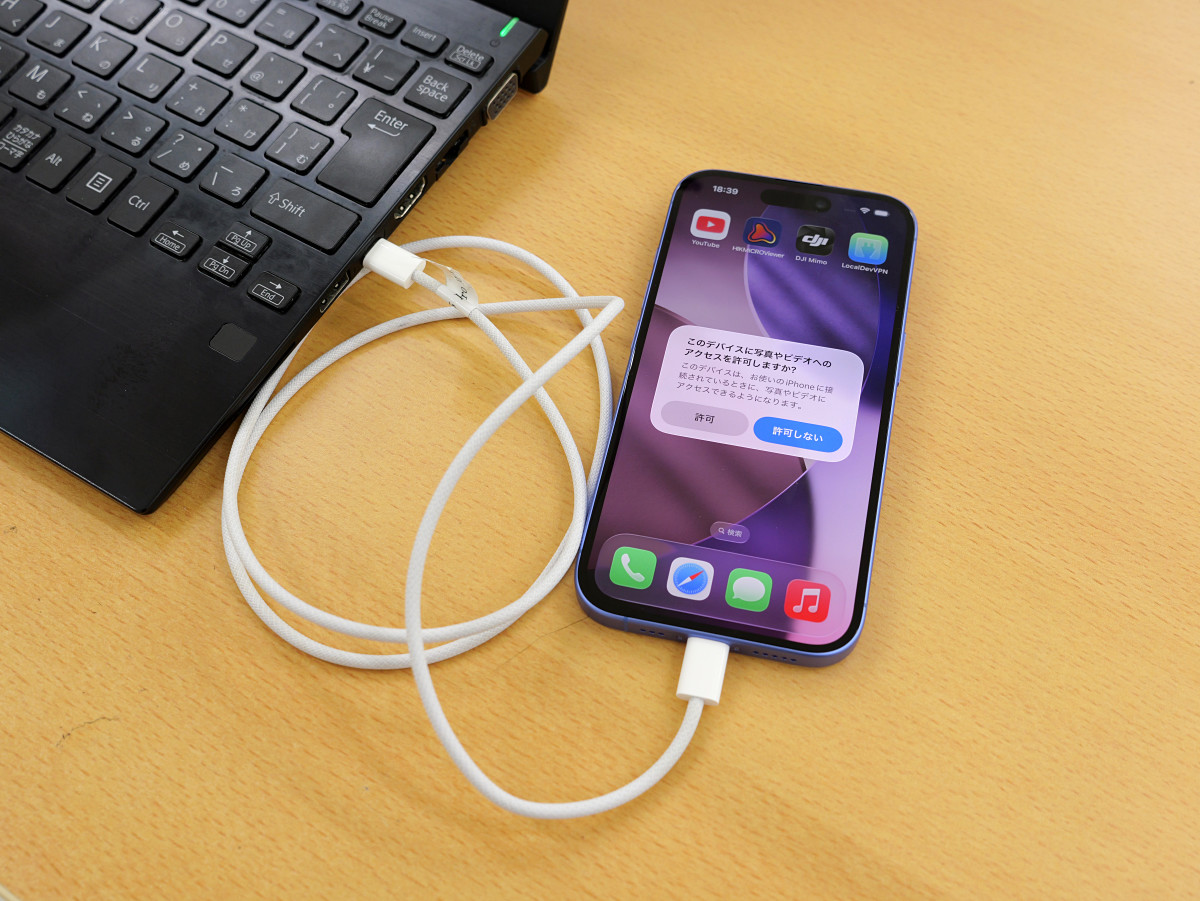
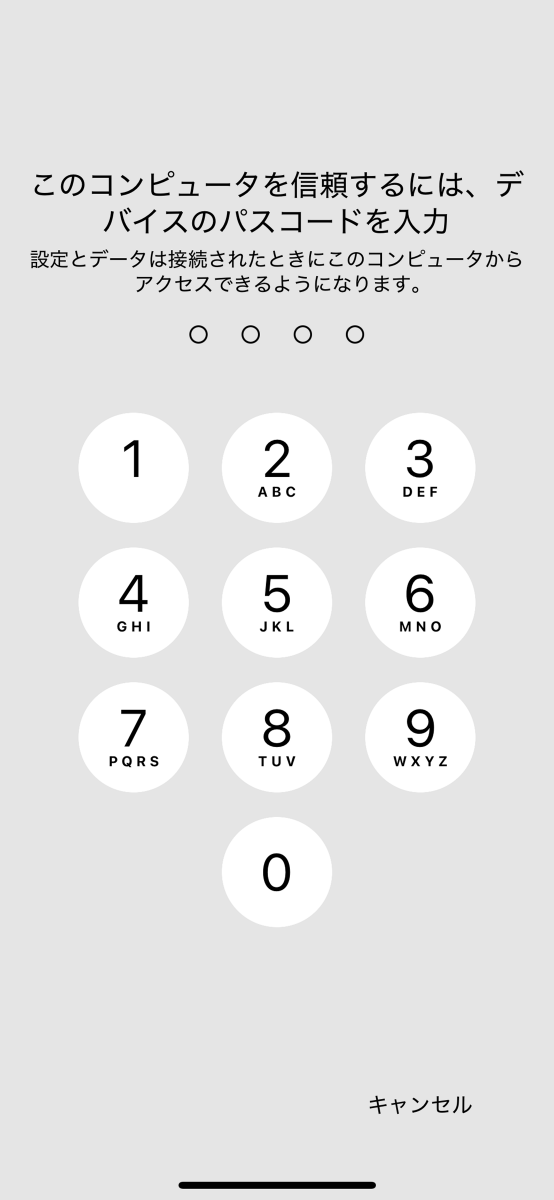
When the Computer Trust dialog box appears on your iPhone, tap 'Trust'.
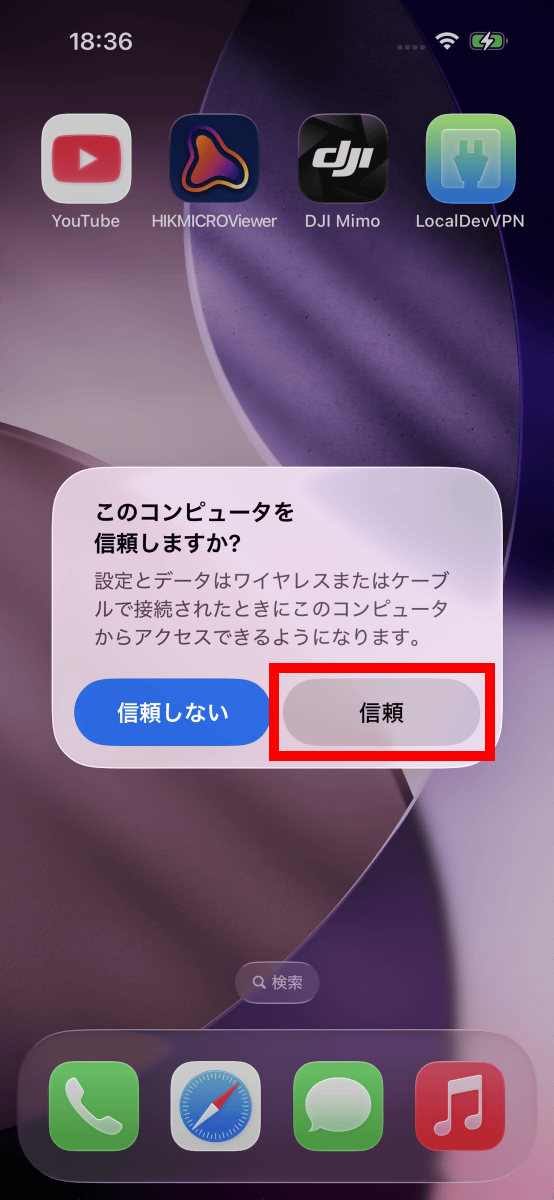
Enter your passcode.
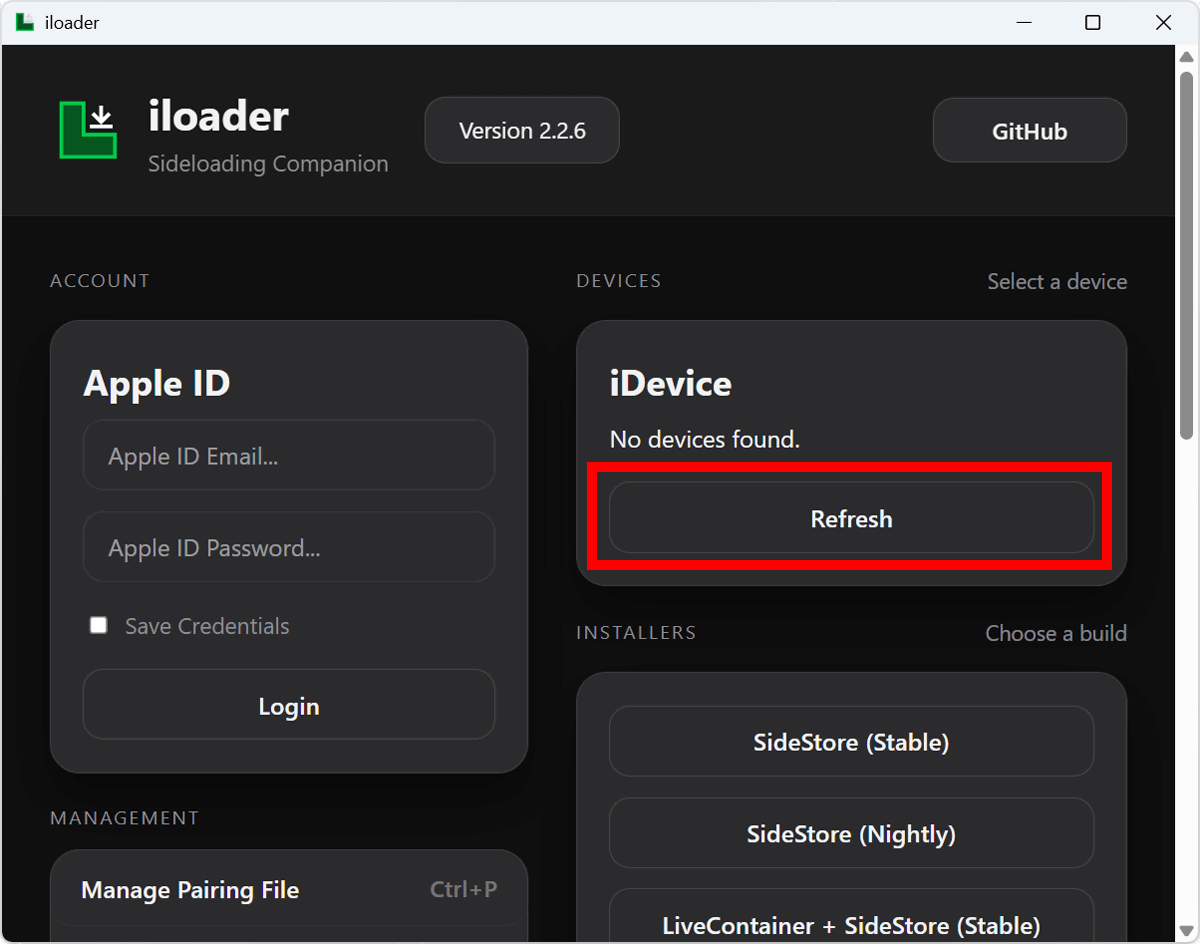
Click 'Refresh' in the device list located in the upper right corner of the iloader screen.
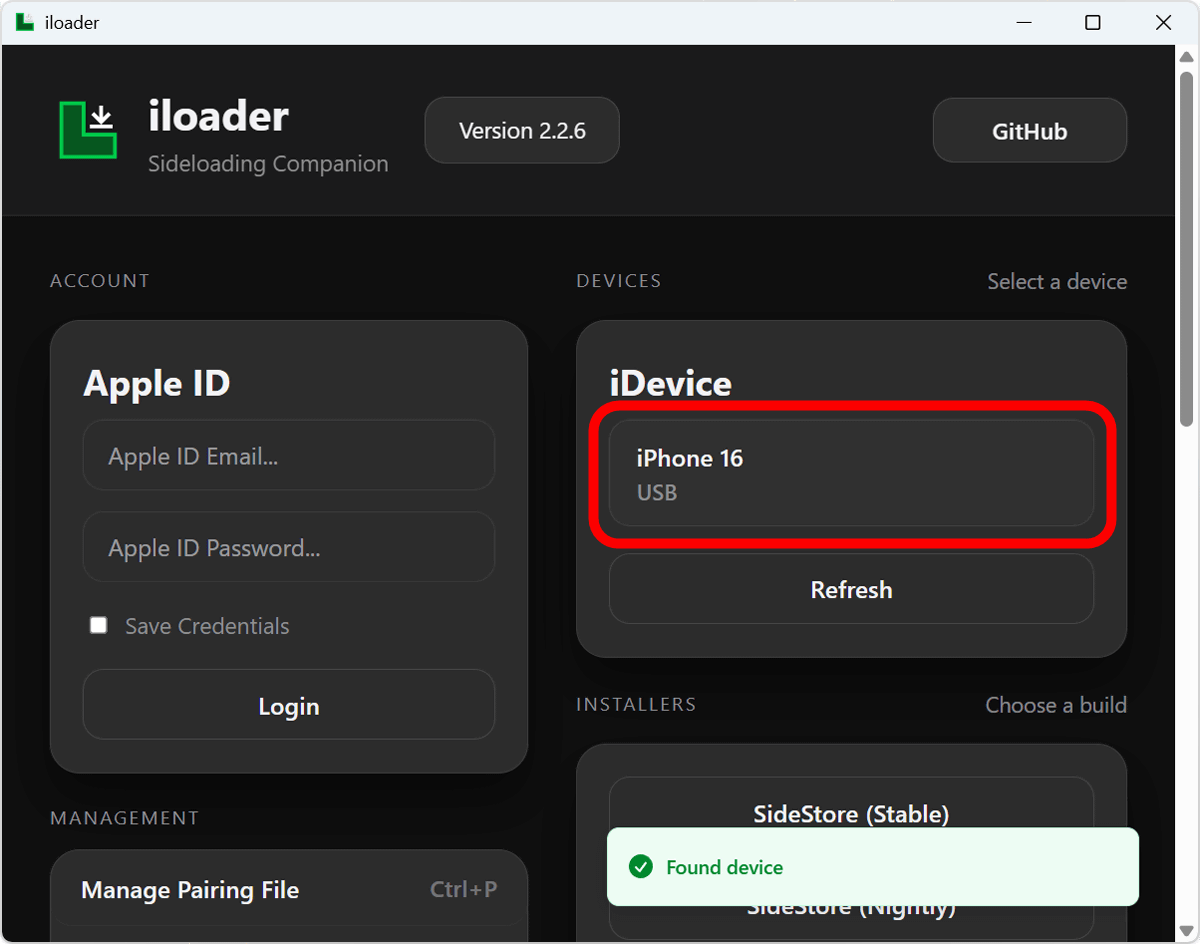
If your iPhone's device name appears in the device list, then it's OK.
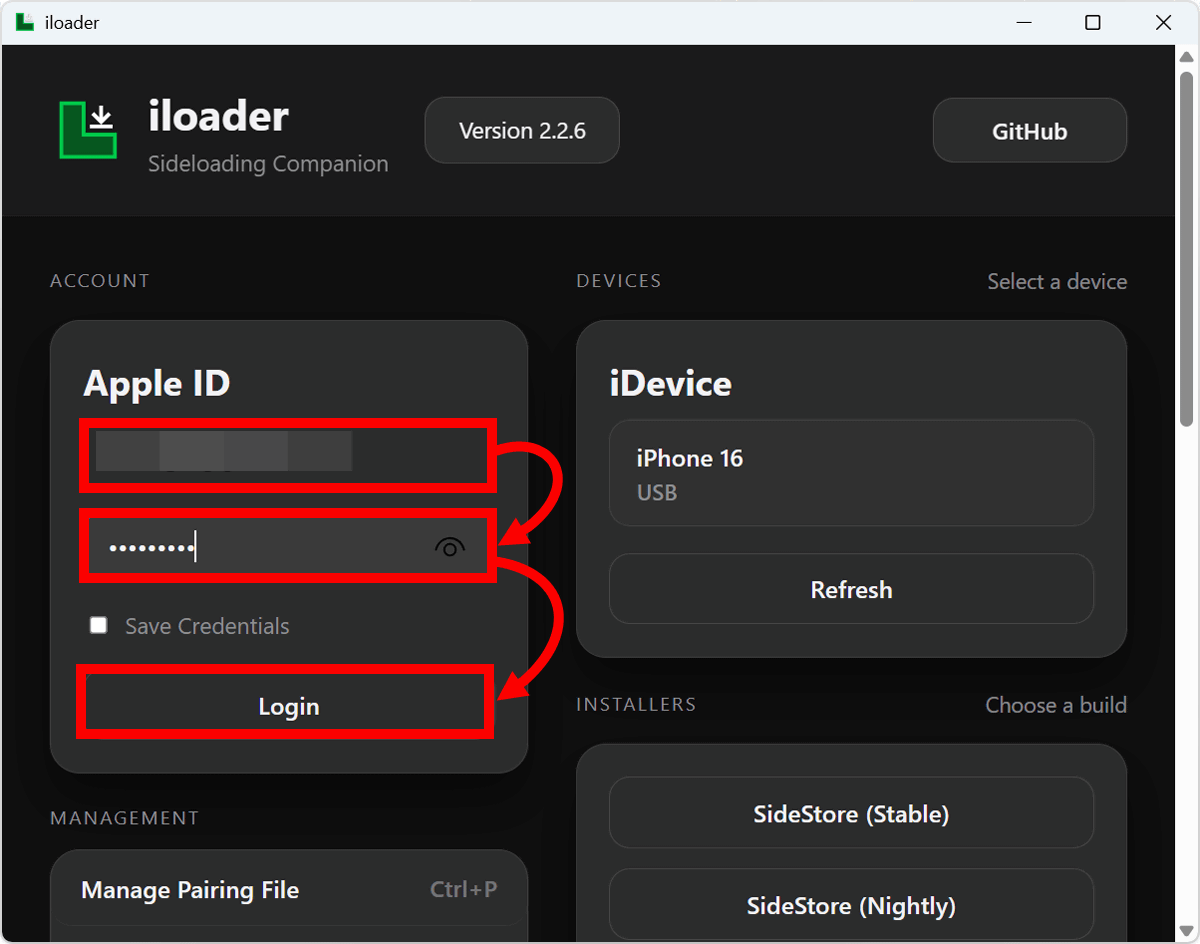
Next, enter your Apple ID email address and password in the upper left corner of the screen and click 'Login'.
A sign-in request dialog will appear on your iPhone, so tap 'Allow'. The dialog will say 'This is being used to sign in on your MacBook Pro', but this is because iloader is emulating a MacBook Pro, so there is no problem.
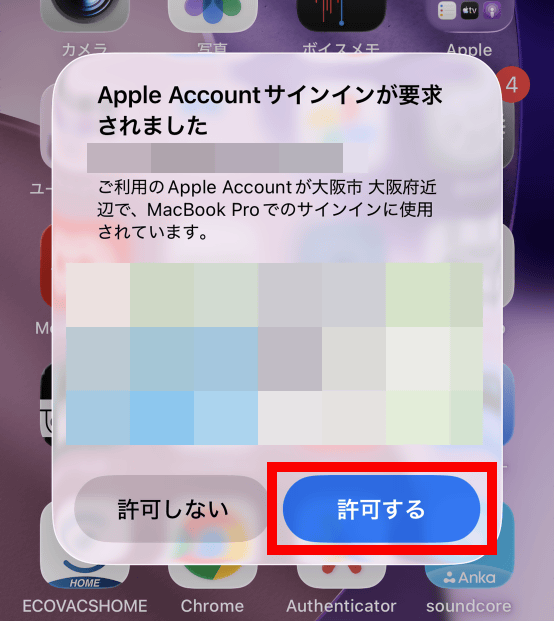
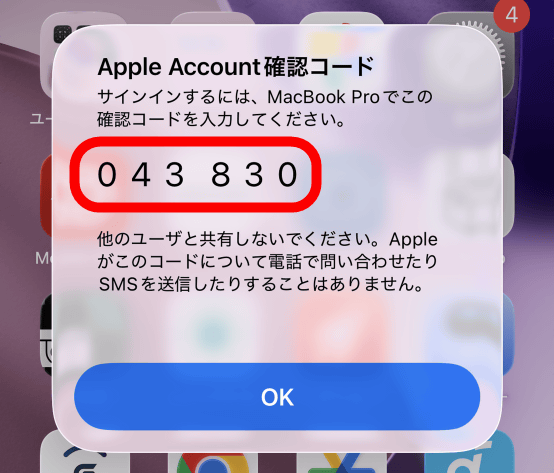
A verification code will be displayed.
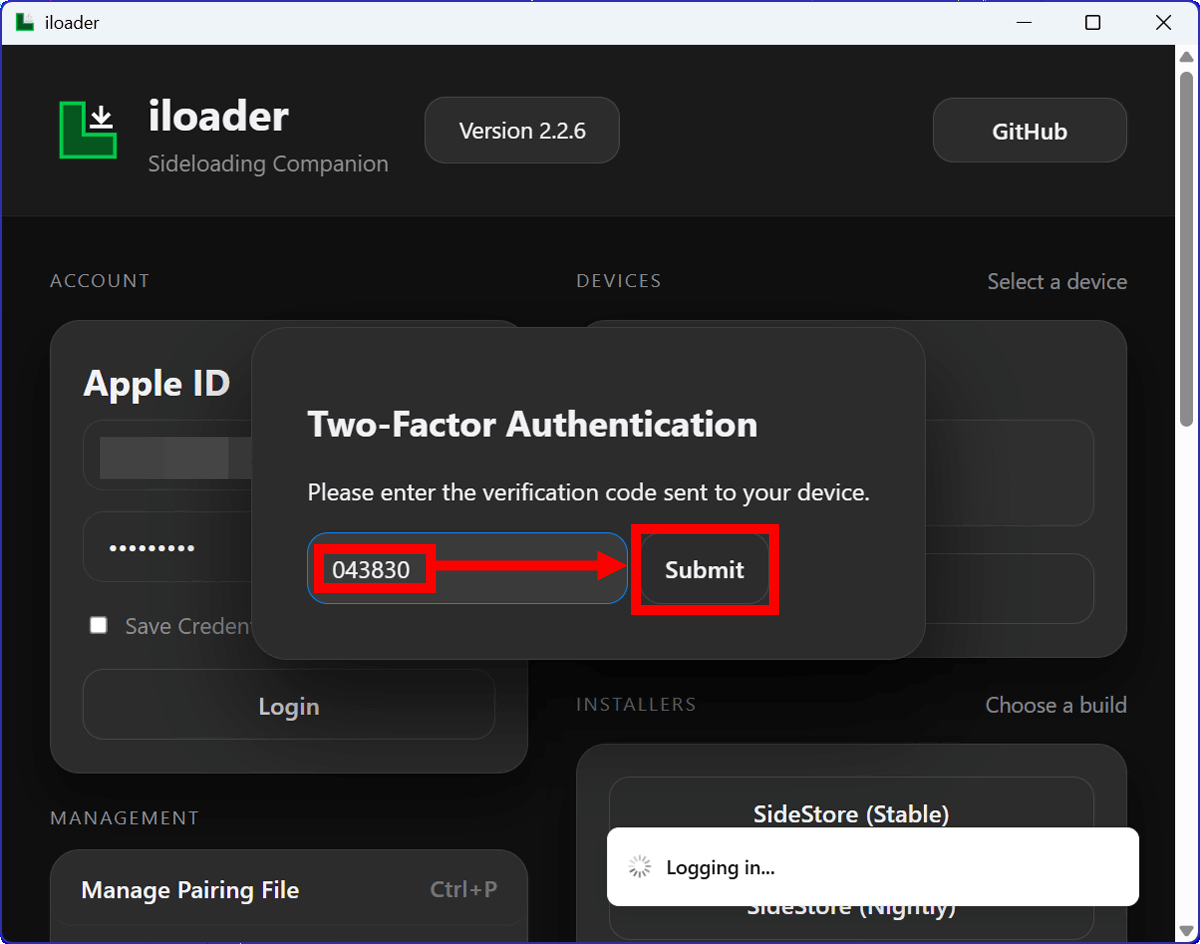
Enter the verification code on the iloader screen and click 'Submit'.
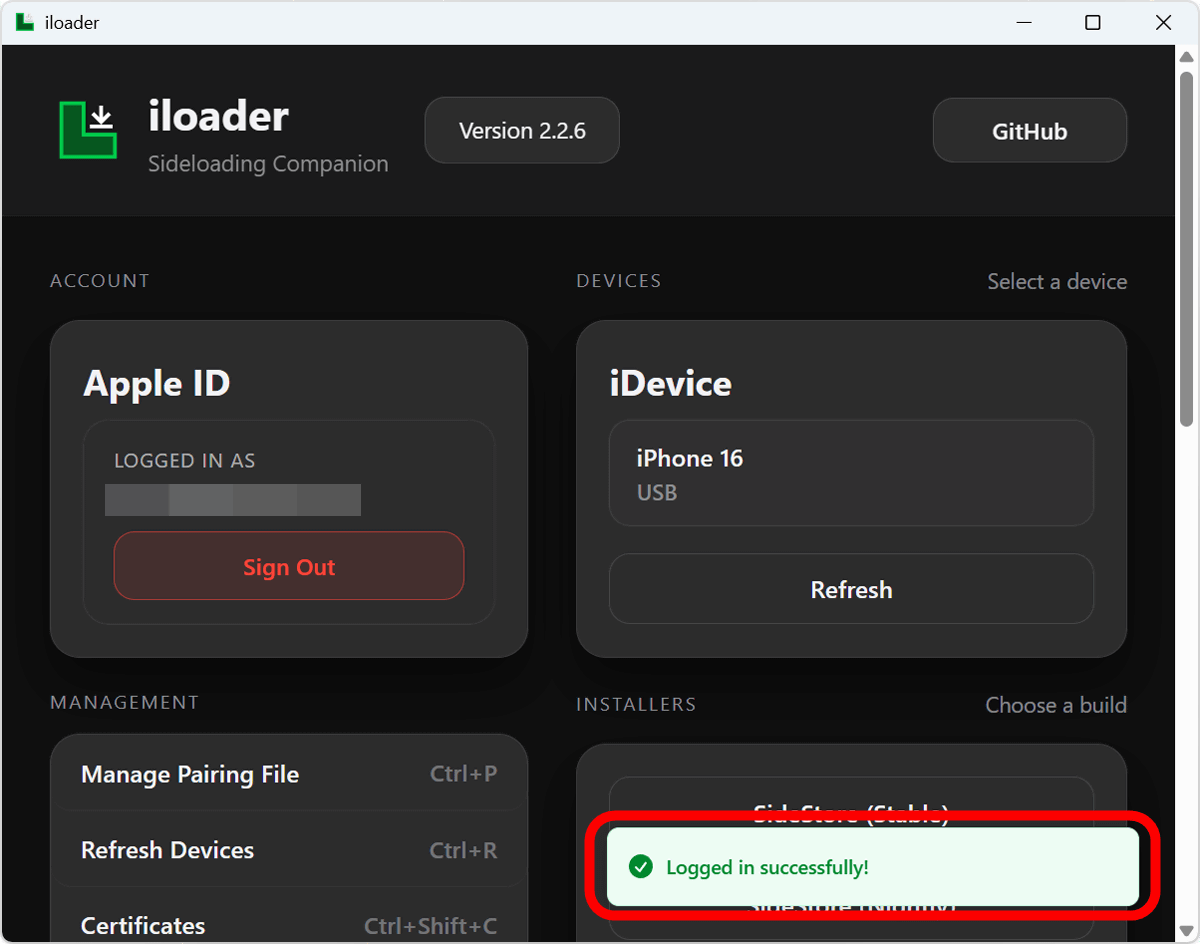
If you see 'Logged in successfully!' in the bottom right corner, you have successfully signed in.
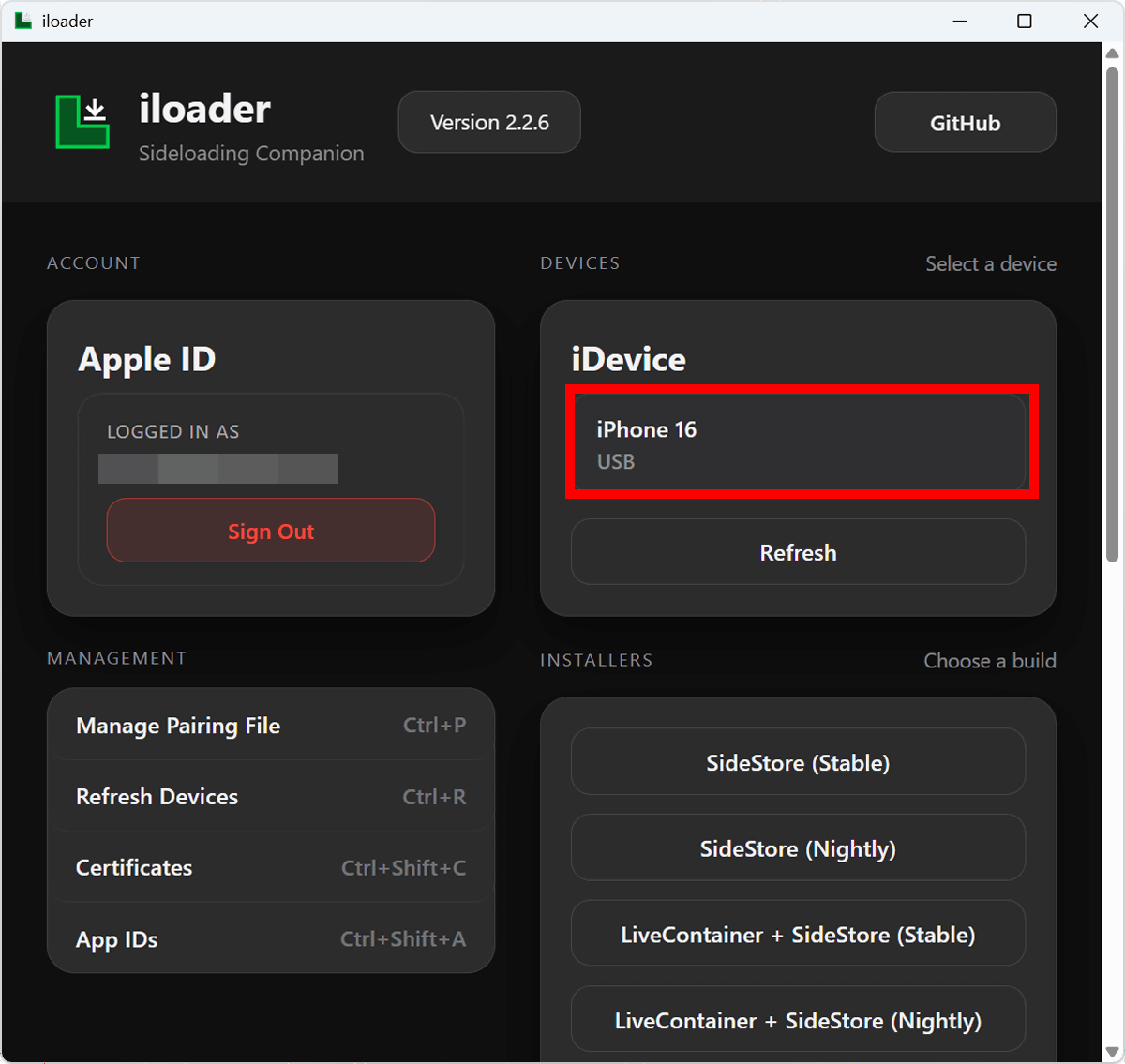
Click on the iPhone device name in the upper right corner of the screen.
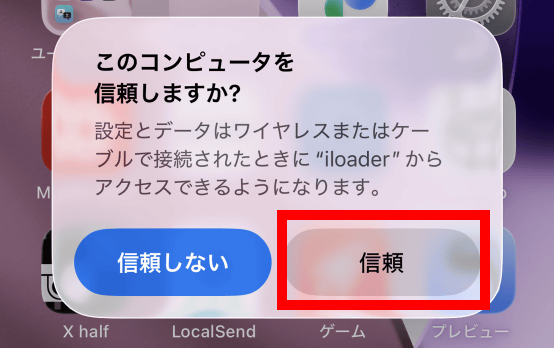
When the confirmation dialog appears on your iPhone, tap 'Trust'.
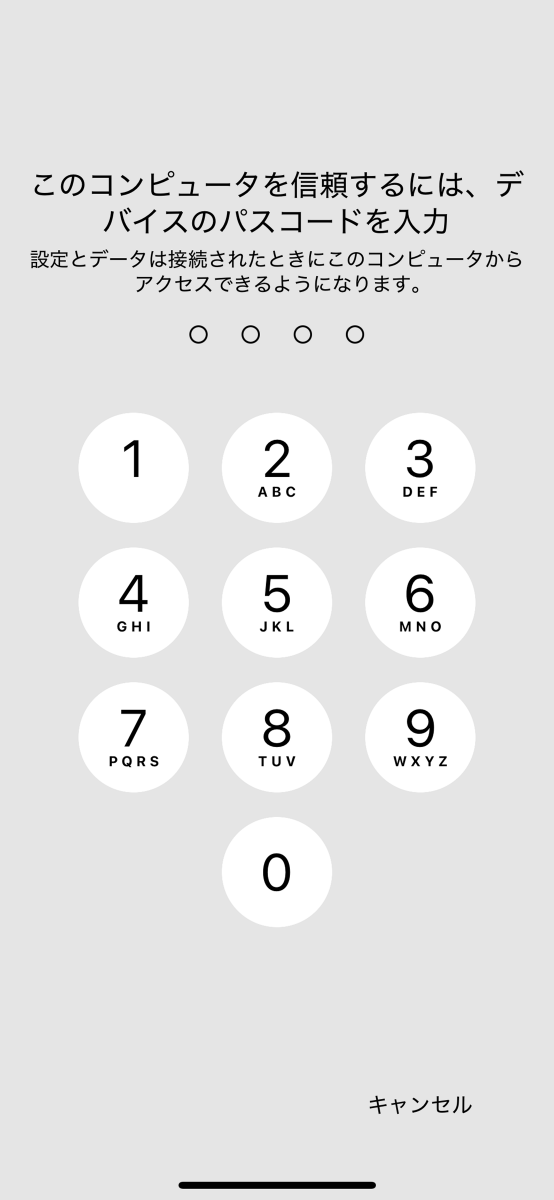
Enter your passcode.
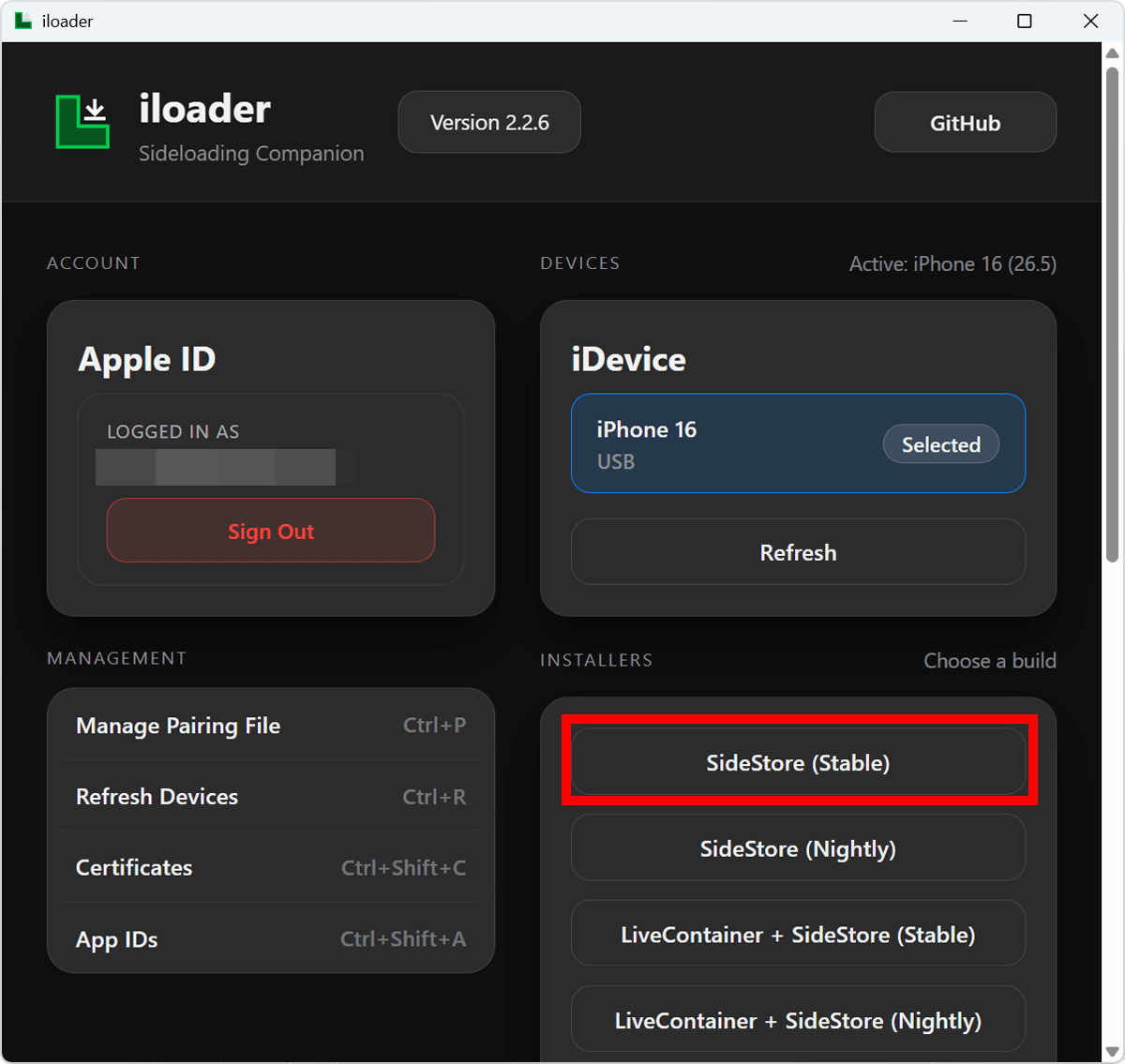
Once the device name turns blue, click 'SideStore (Stable)' in the bottom right corner.
Please wait while the SideStore installation on your iPhone progresses.
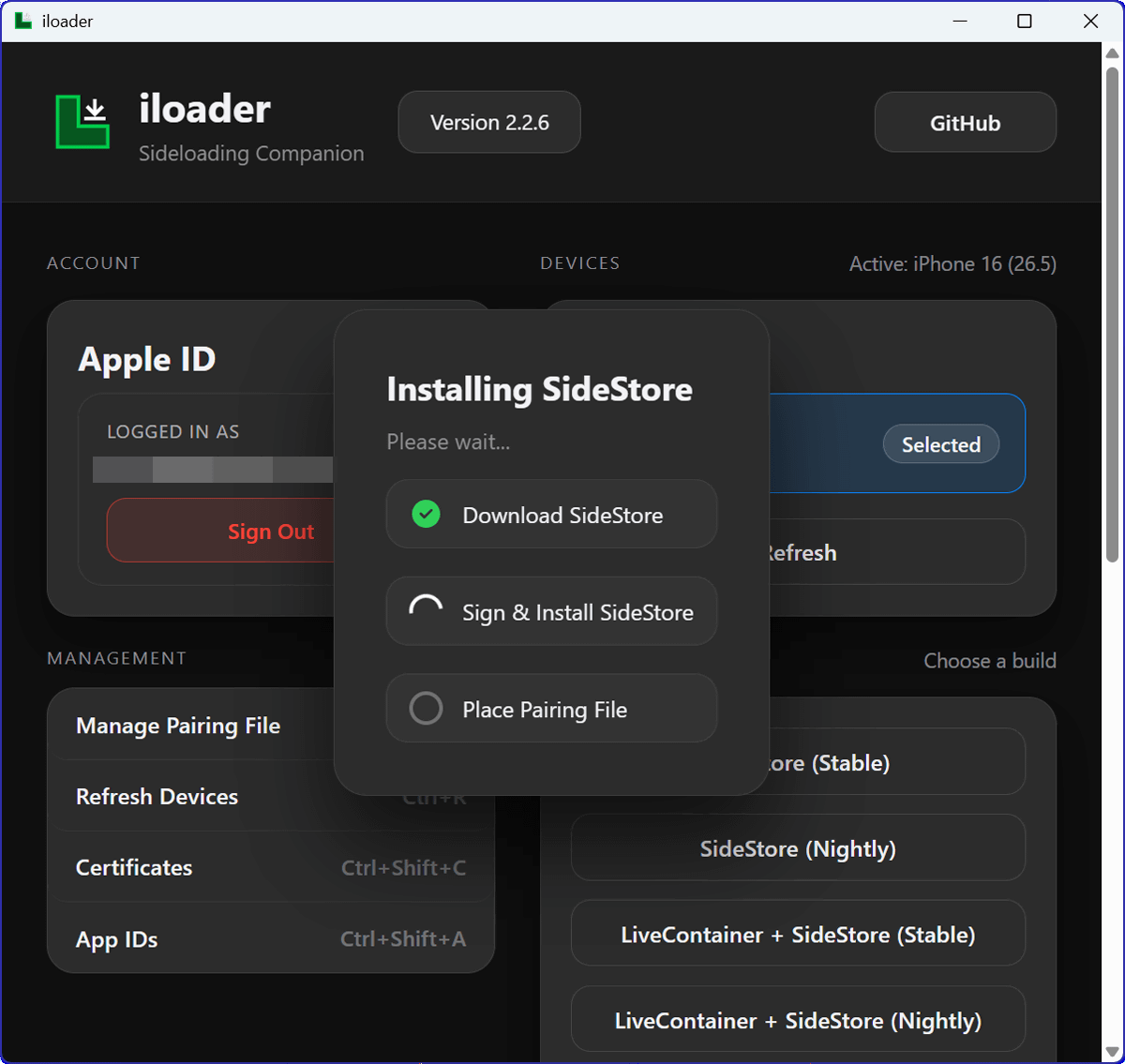
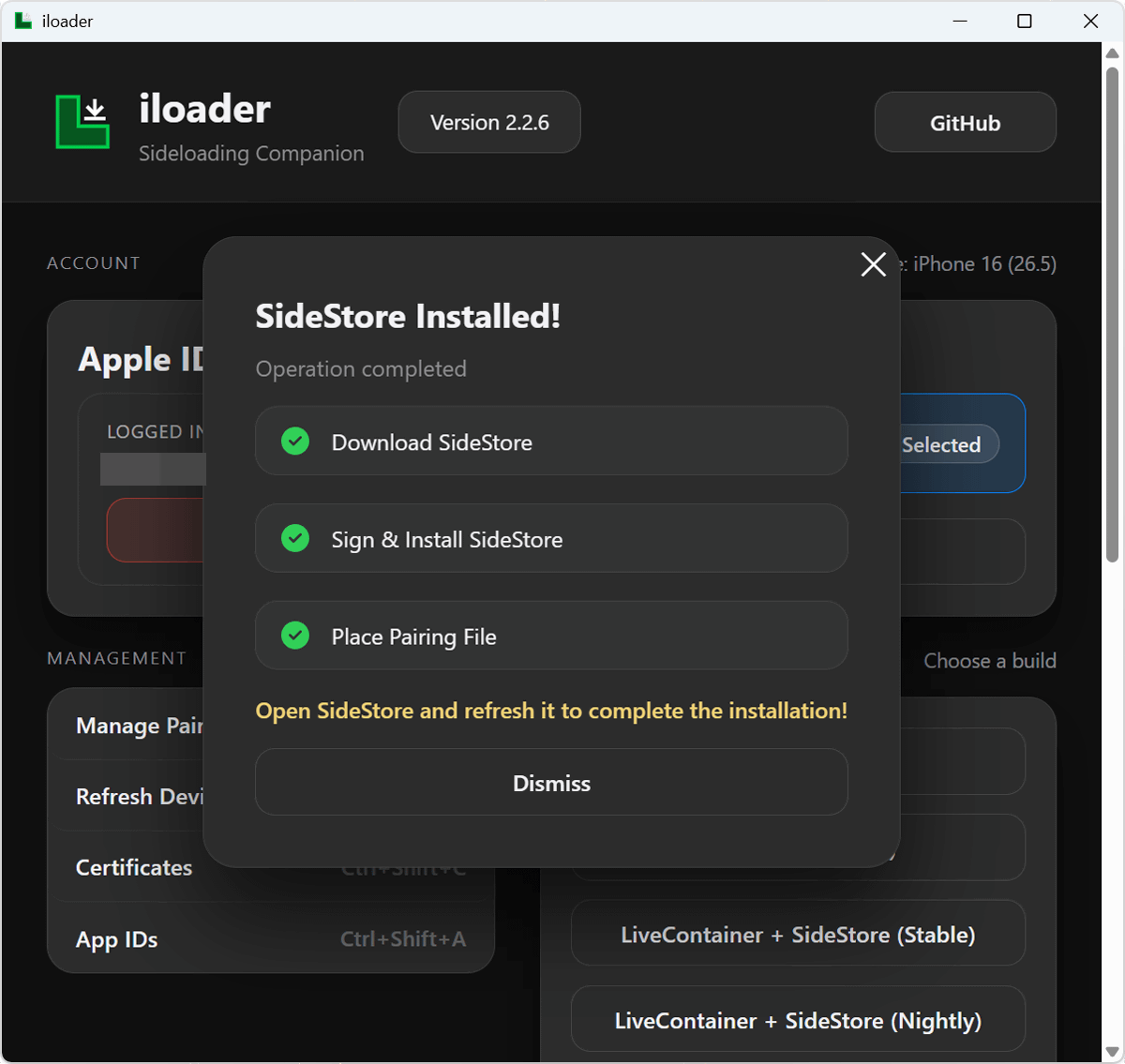
Installation is complete when you see 'SideStore Installed!'.
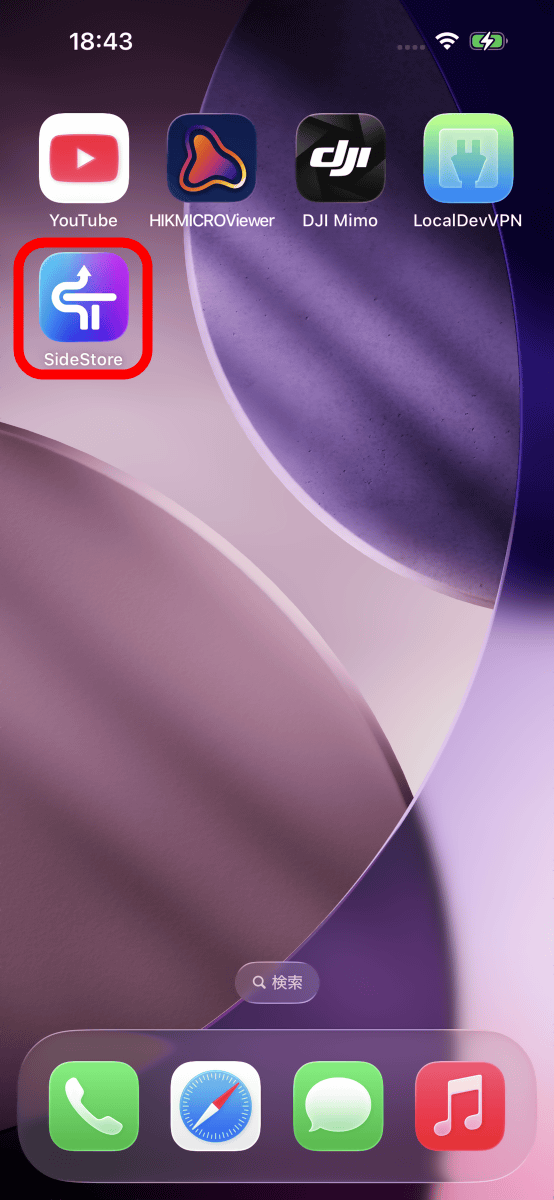
The SideStore app icon has been added to iPhones.
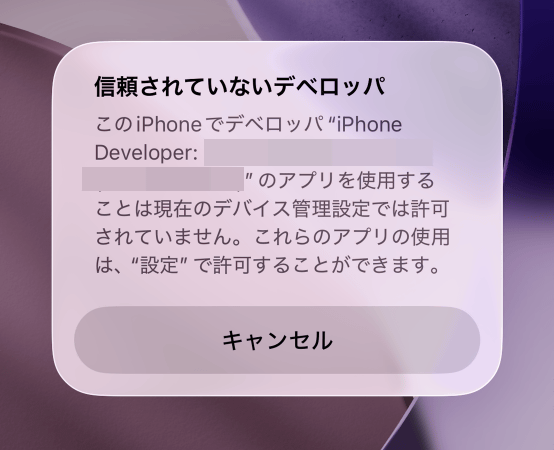
If you try to launch SideStore at this point, the following dialog will appear and the launch will fail. You need to change your iPhone settings to launch it correctly.
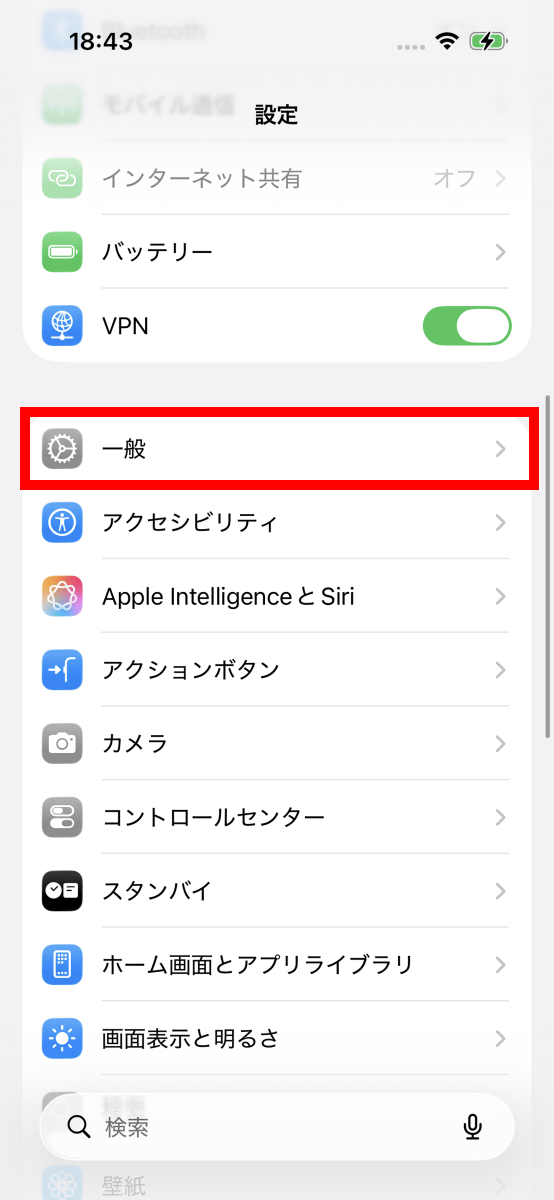
Open the Settings app and tap 'General'.
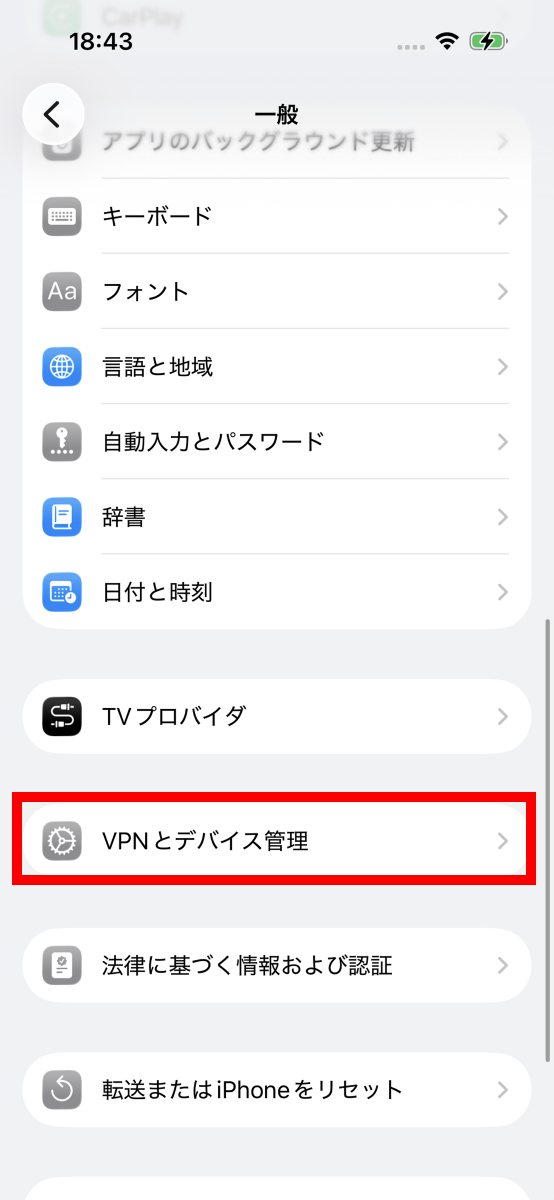
Tap 'VPN and device management'.
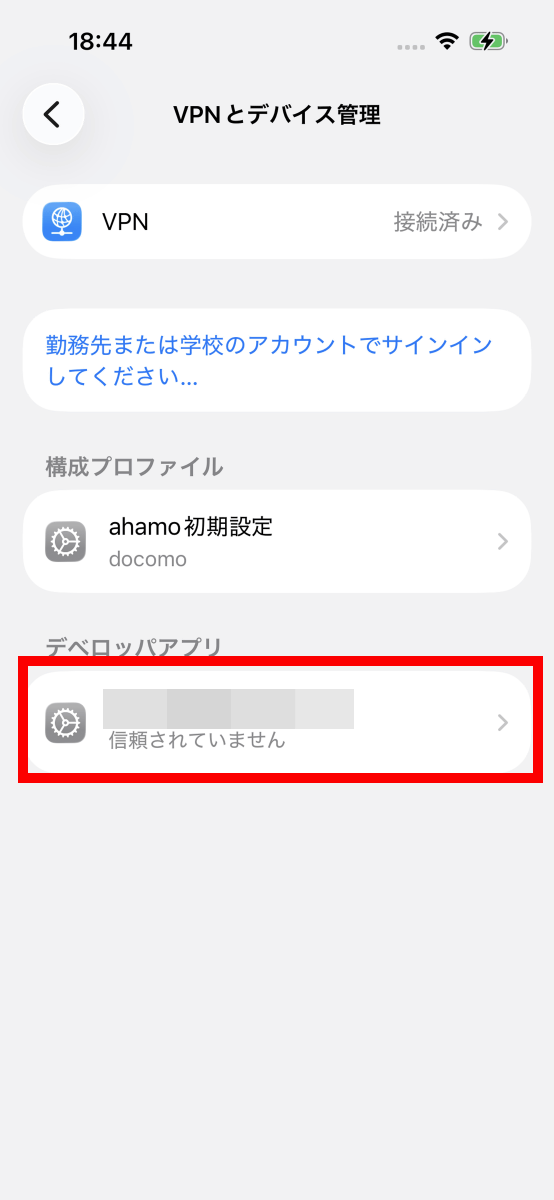
Tap the item that has been added to the 'Developer Apps' section.
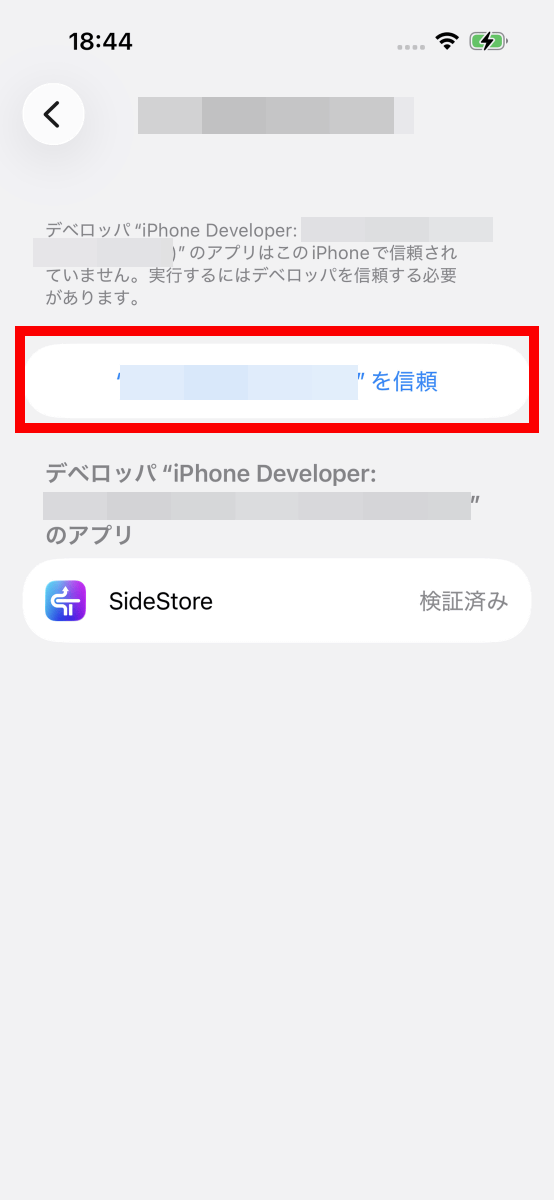
Tap the Trust button enclosed in the red frame.
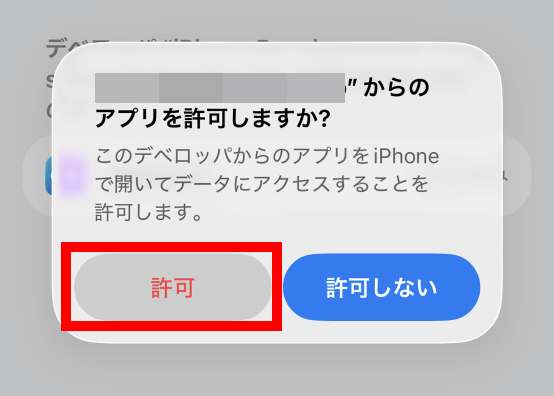
Tap 'Allow'.
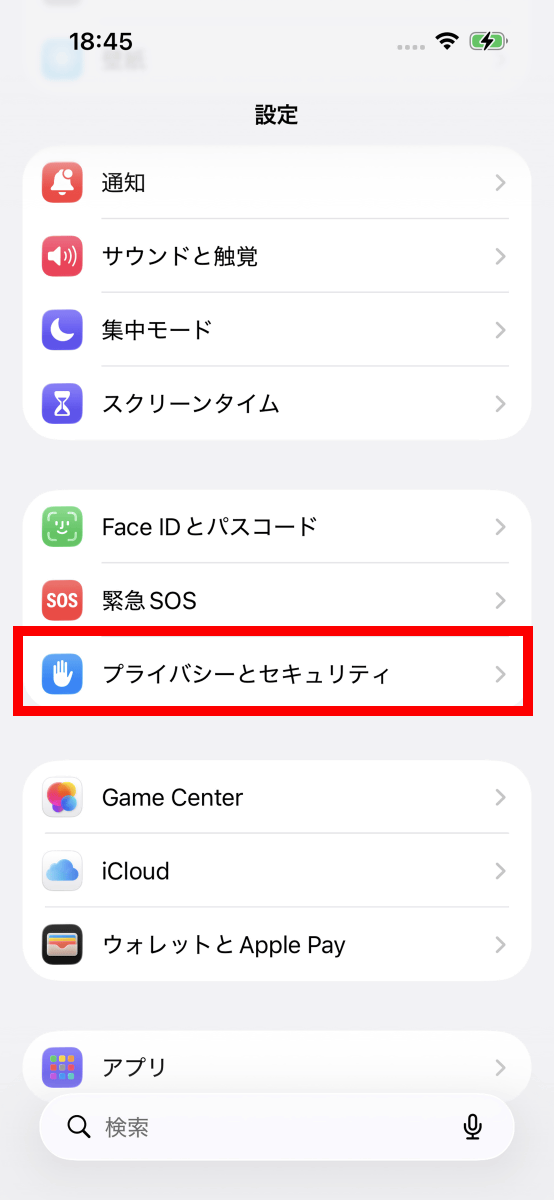
Go back to the Settings app's home screen and tap 'Privacy & Security'.
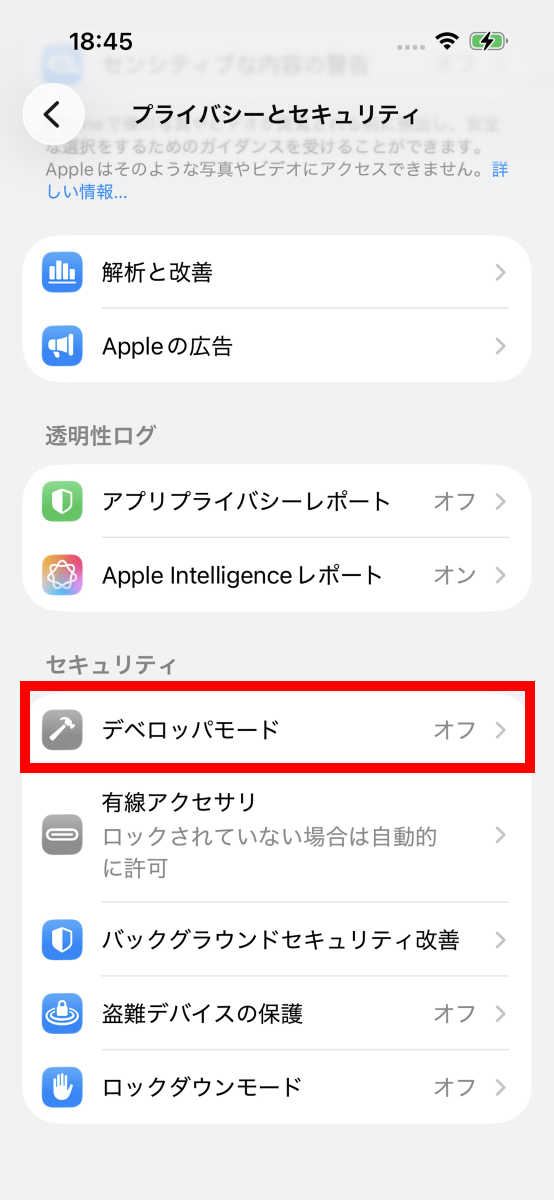
Tap 'Developer Mode'.
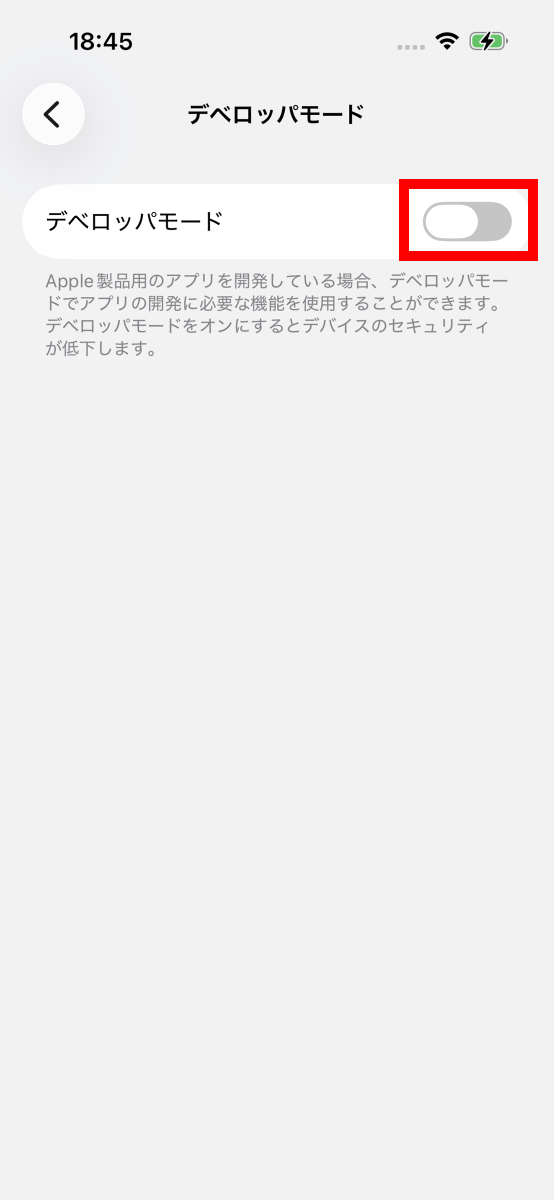
Tap the toggle switch.
Tap 'Restart' to restart your iPhone.
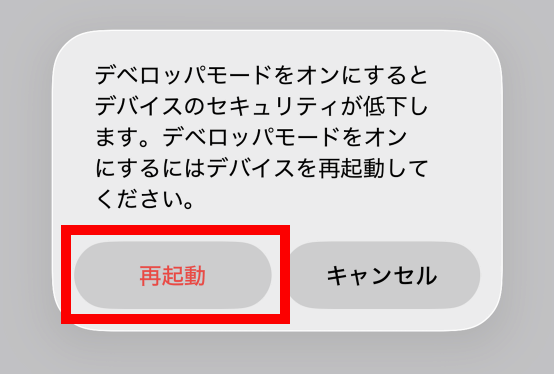
After restarting, swipe the screen upwards.
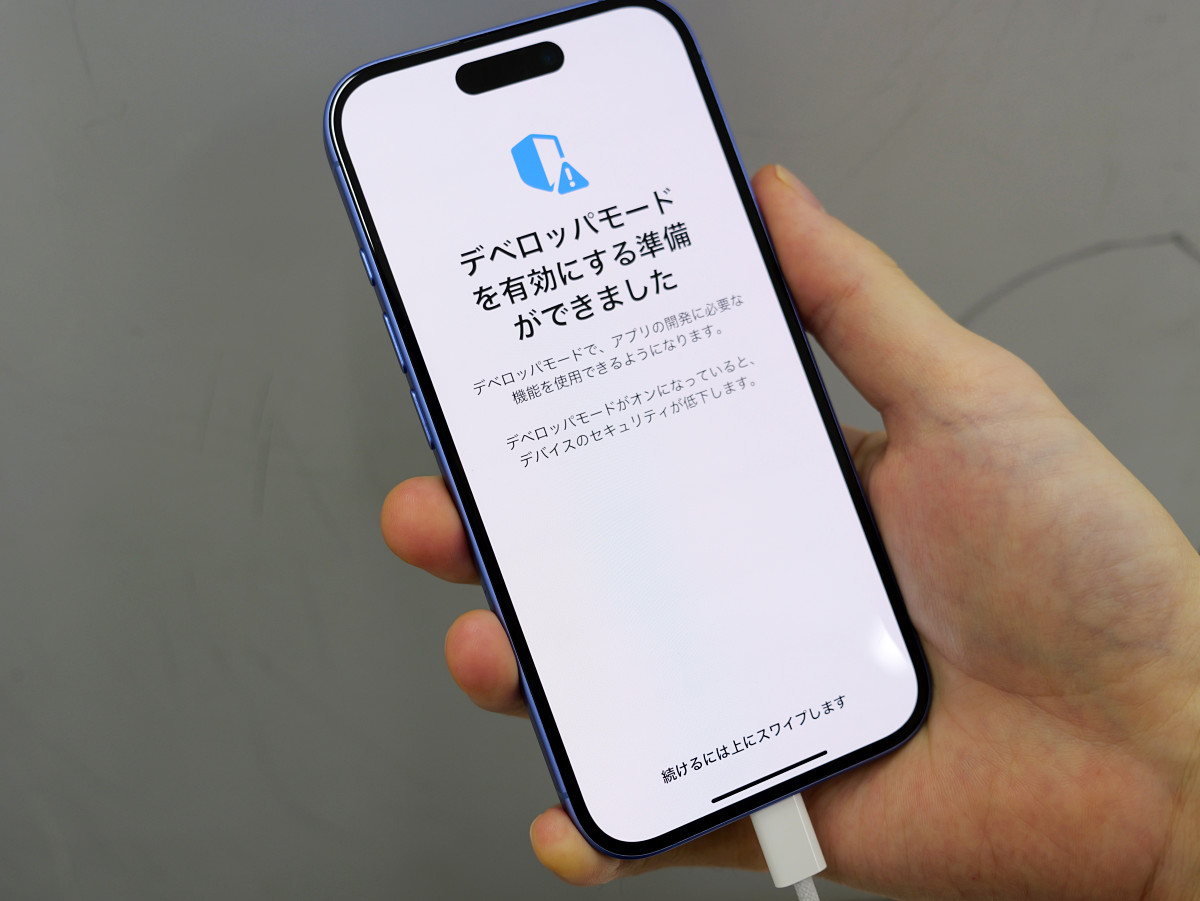
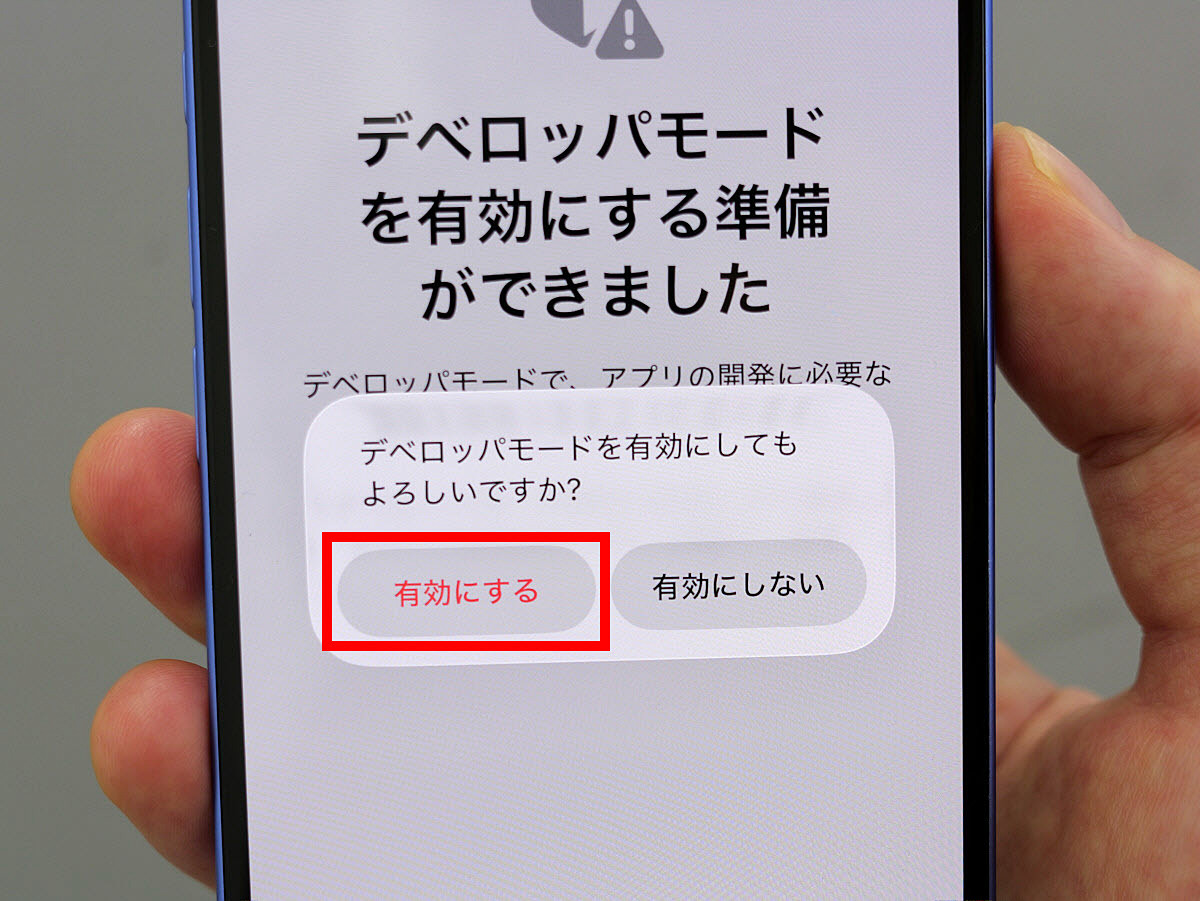
Tap 'Enable'.
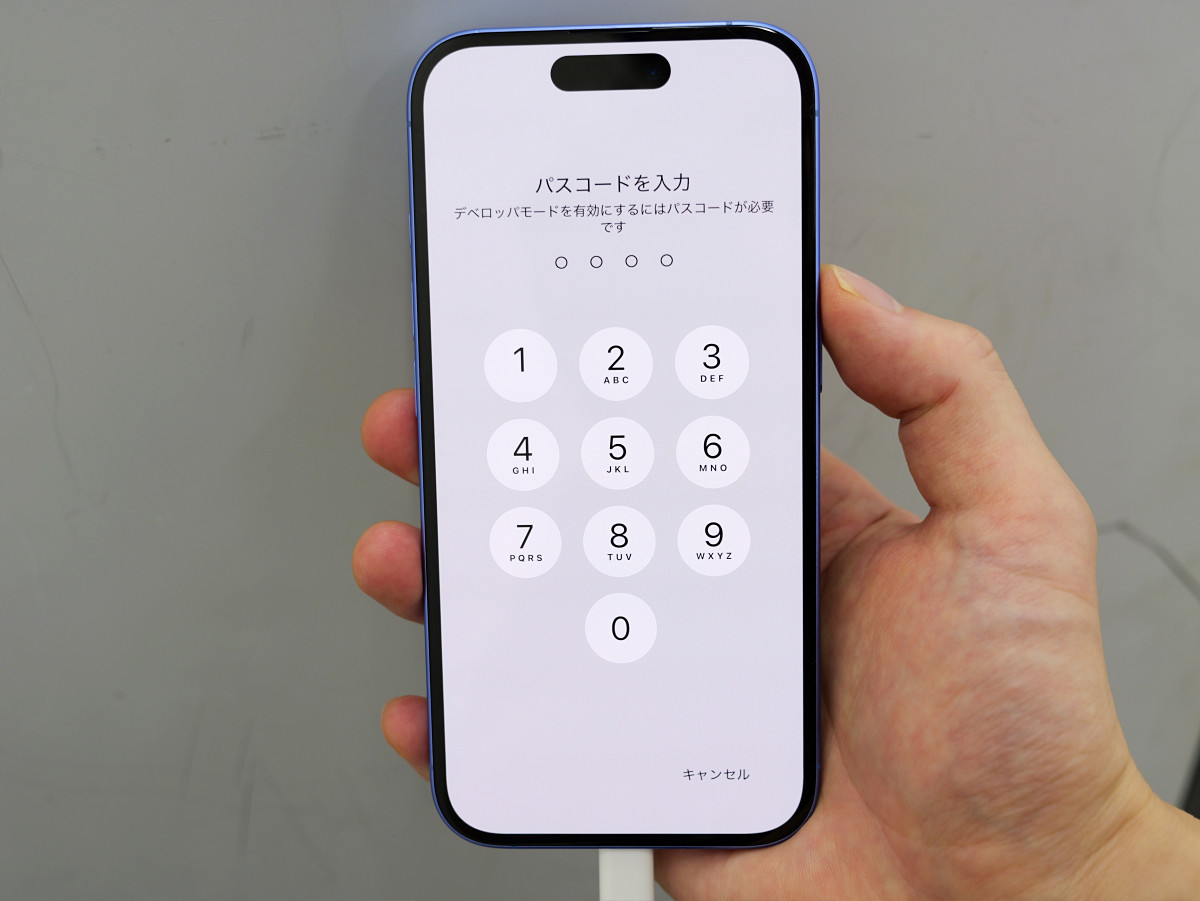
Enter your passcode.
Once the home screen appears, launch LocalDevVPN.
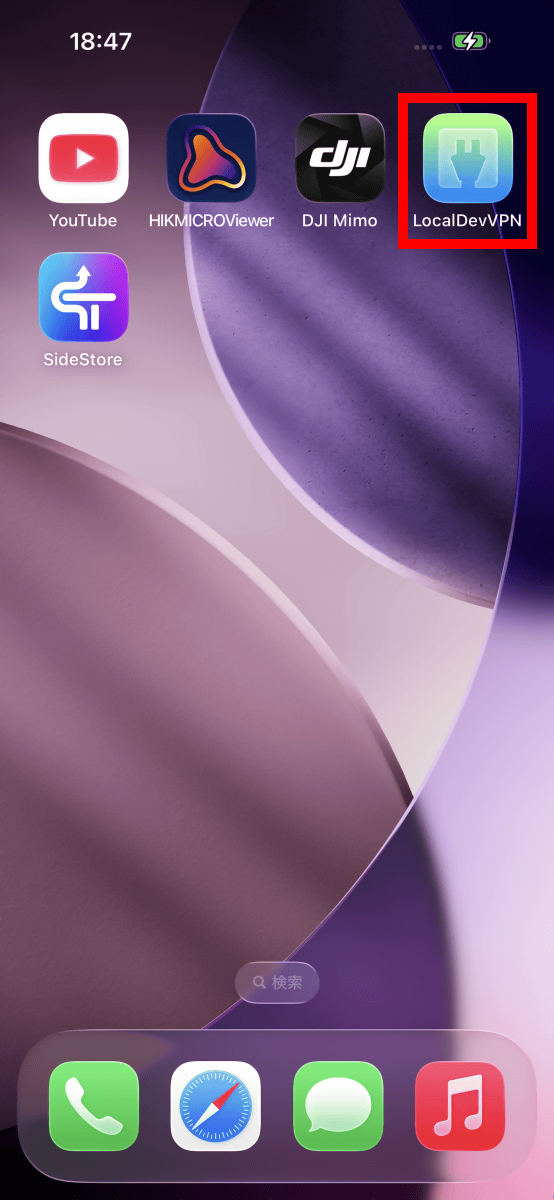
Tap 'Connect'.
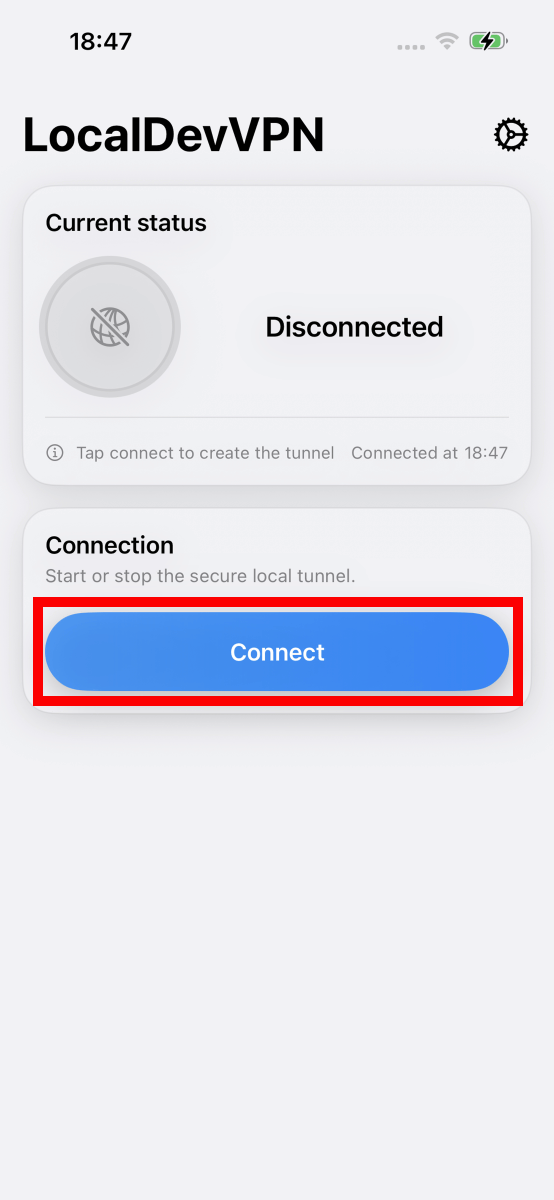
If the connection is successful, then it's OK.
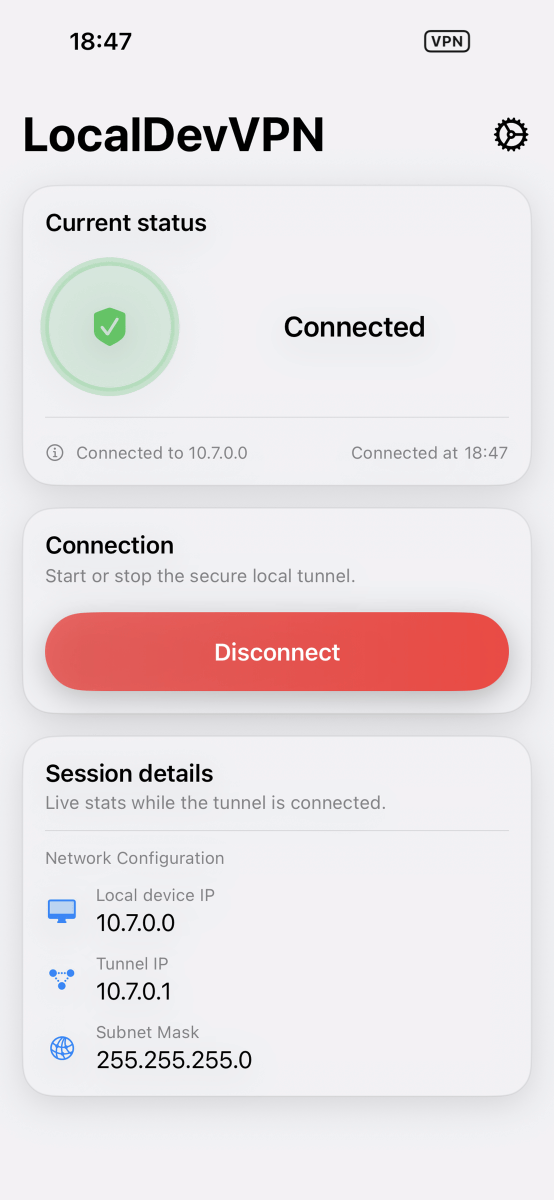
Return to the home screen and launch SideStore.
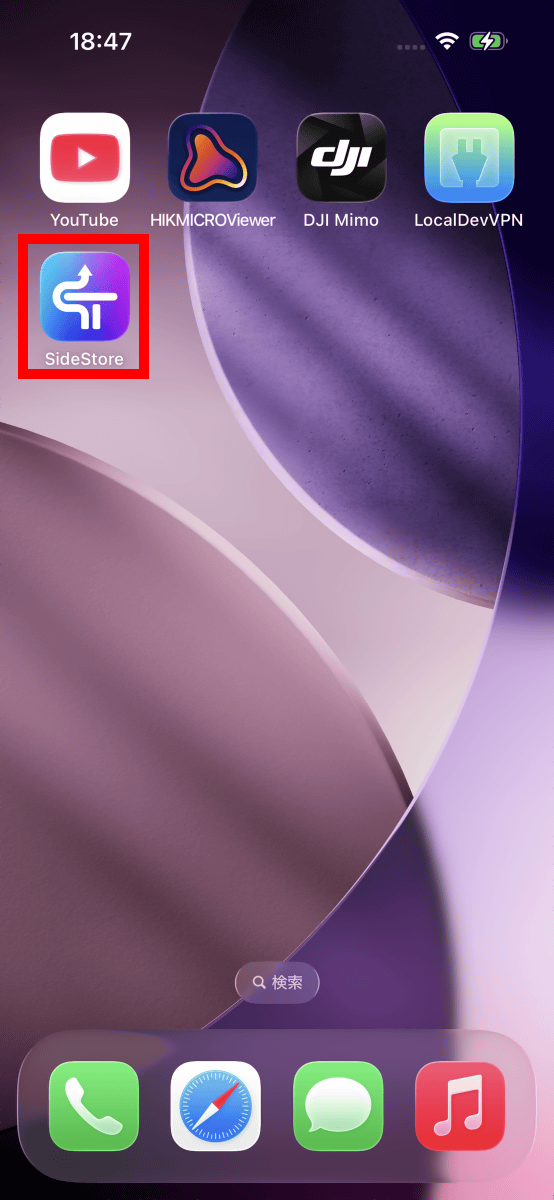
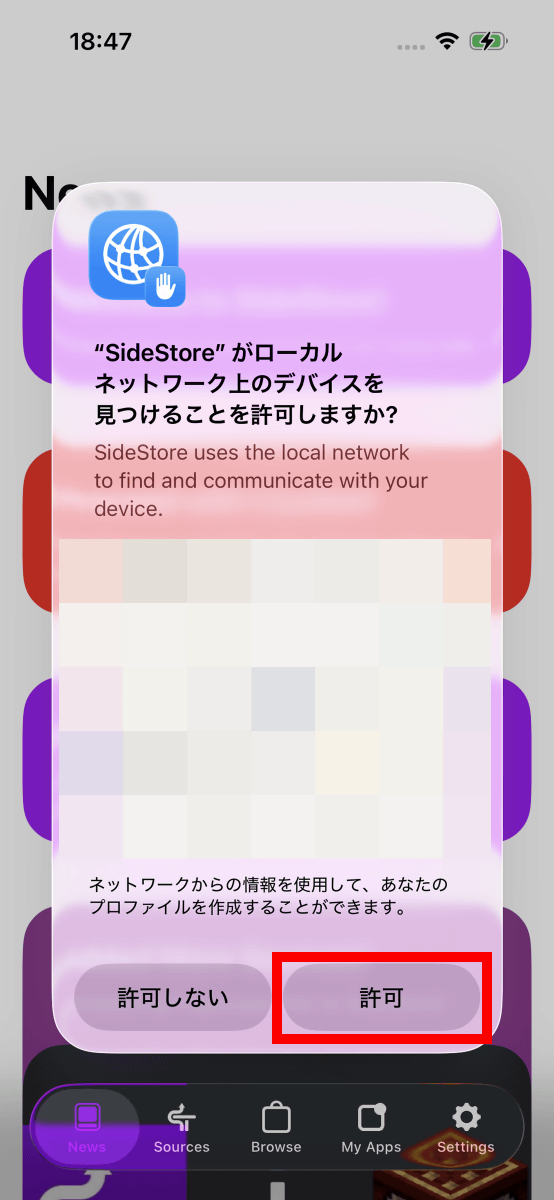
When prompted for permission to search for local devices, tap 'Allow'.
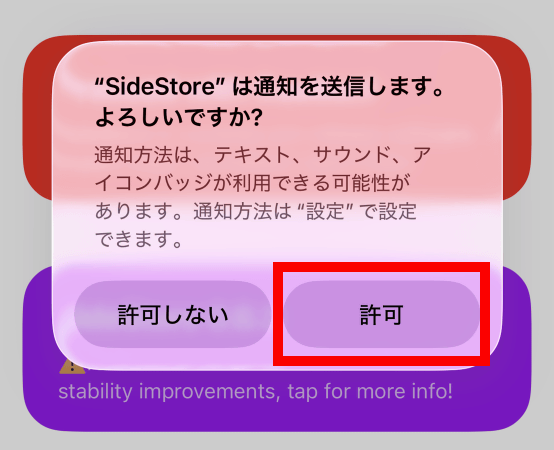
When prompted to allow notifications, tap 'Allow'.
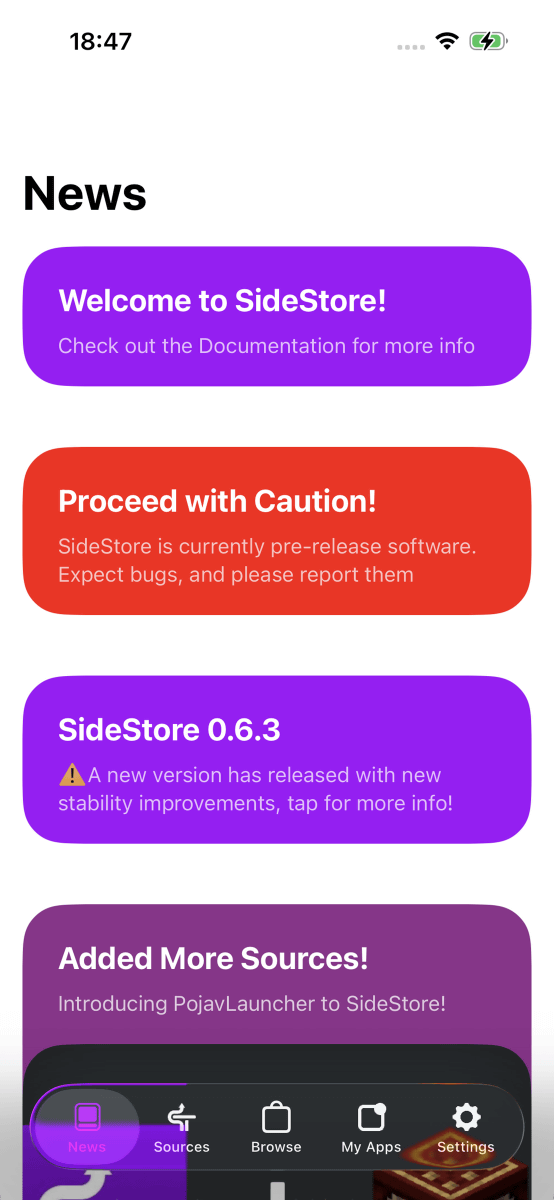
SideStore has launched. All that's left is to sign in.
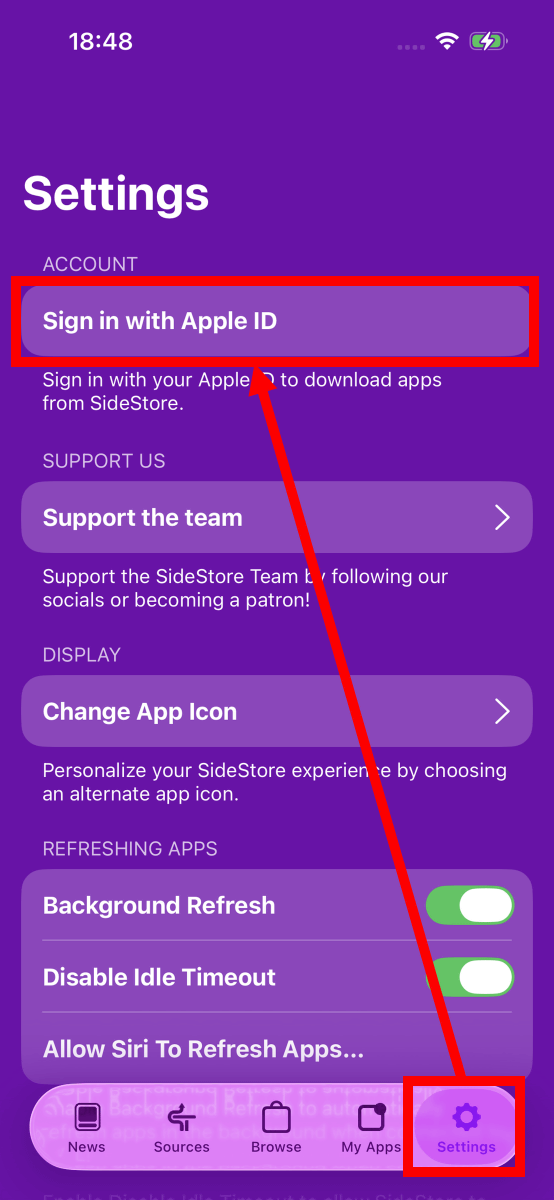
Tap 'Settings' at the bottom of the screen, then tap 'Sign in with Apple ID'.
Enter your Apple ID email address and password and tap 'Sign in'.
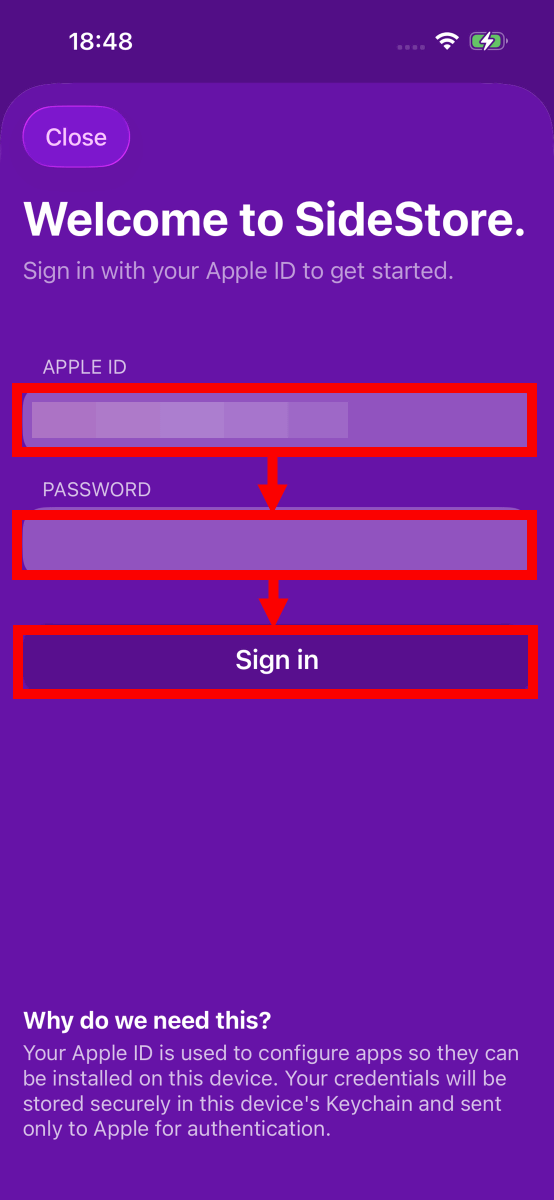
Tap 'Allow'.
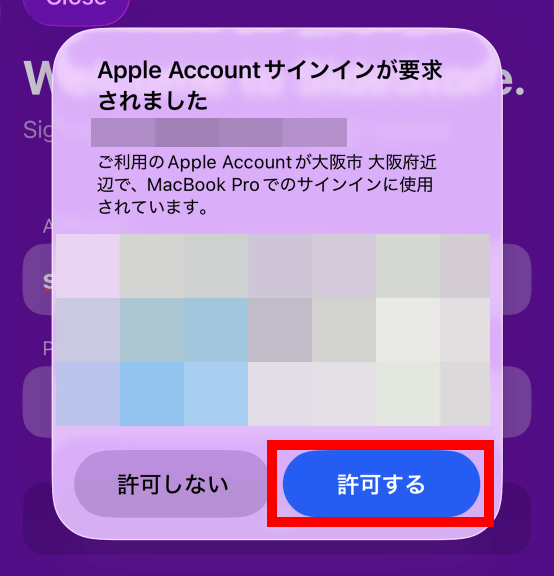
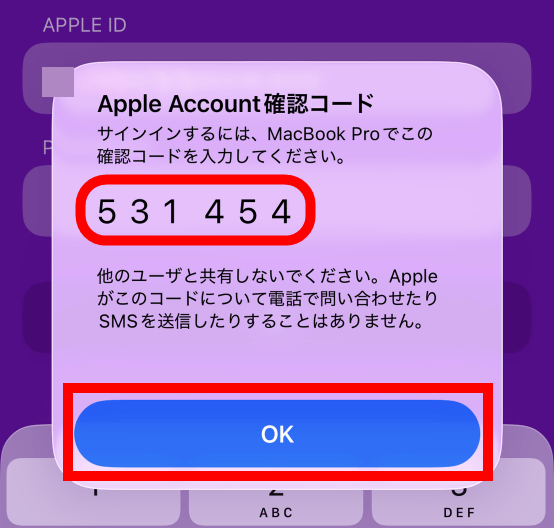
Remember the verification code and tap 'OK'.
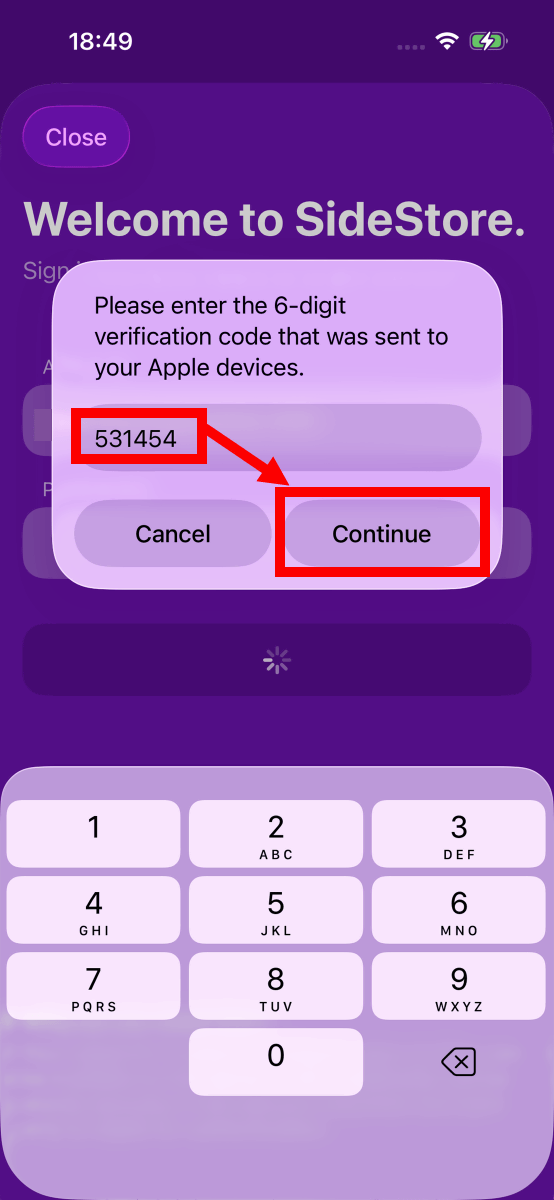
Enter the verification code and tap 'Continue'.
Once the SideStore explanation is displayed, read it carefully and tap 'Got it'.
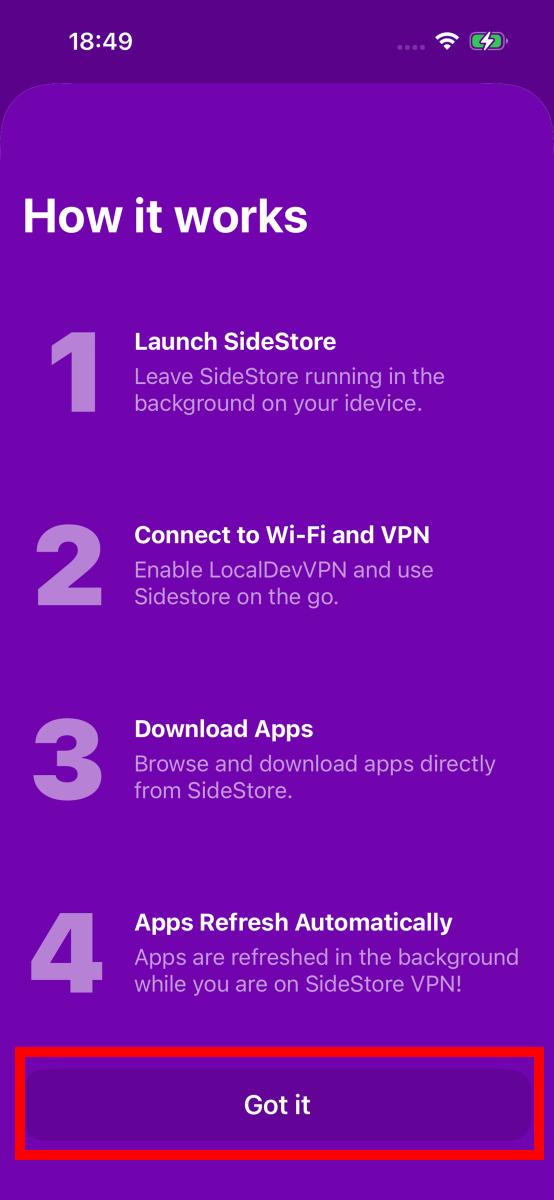
This completes the SideStore installation.
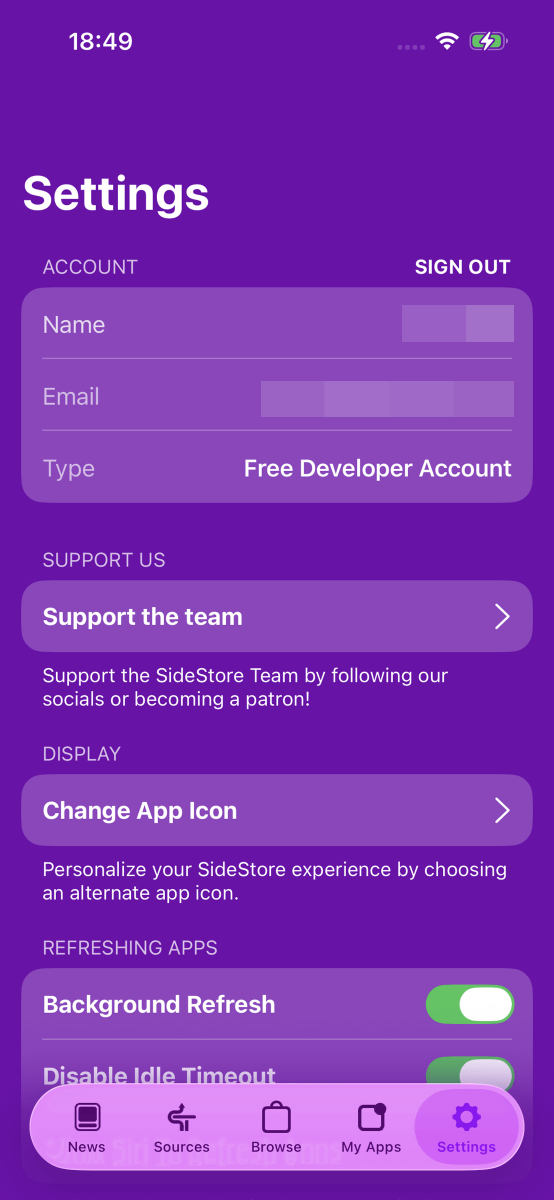
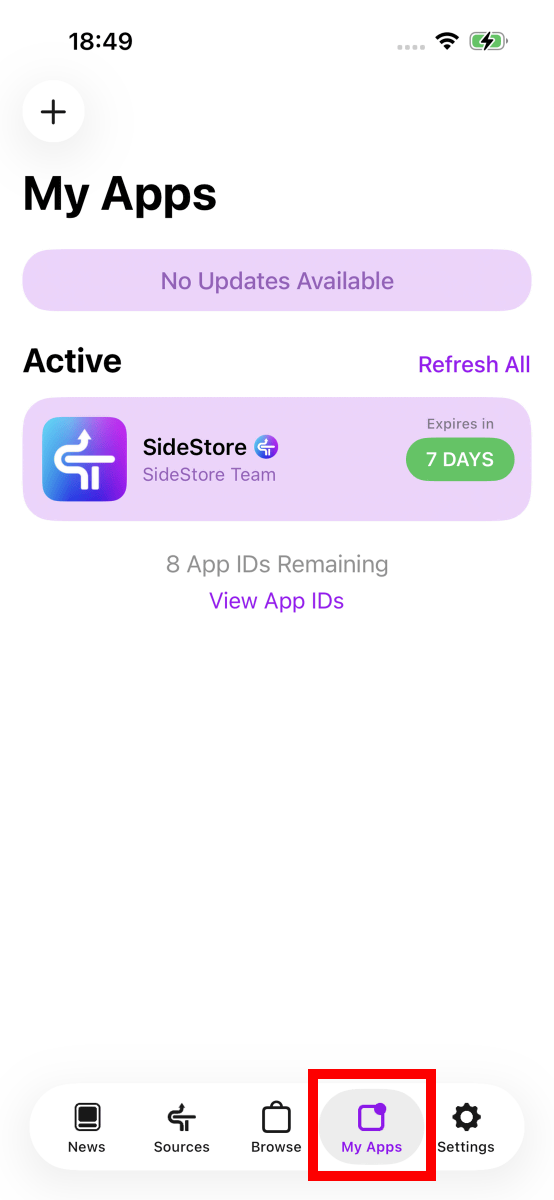
Tapping 'My Apps' will show you a list of apps you've installed via SideStore. If you're using a regular Apple account, you can install up to three apps, including SideStore itself. Even if you delete and replace apps, the number of apps you can install per week is limited to a maximum of 10. Users who have registered as Apple developers have no limit on the number of apps they can install. Also, a 7-day countdown is displayed to the right of installed apps, and the countdown will refresh in the background before the 7-day period ends. Note that SideStore allows you to install apps that have not received Apple's notarization, but this also carries security risks, so please exercise caution.
We'll be publishing a review article soon that will show you how to actually install apps using SideStore, so stay tuned!
- Continued
Installation instructions for 'Reynard,' a web browser that allows you to use Firefox extensions on your iPhone; it's an unofficial app that uses Gecko instead of WebKit - GIGAZINE
Related Posts:

in Software, Smartphone, Review, Posted by log1o_hf