Installation instructions for 'Reynard,' a web browser that allows you to use Firefox extensions on your iPhone, and a third-party app that uses Gecko instead of WebKit.
While you can install third-party web browsers like Firefox and Chrome on your iPhone, all browsers distributed through the App Store are WebKit-based, and you cannot install Firefox extensions on the iPhone version of Firefox. Reynard is an iOS browser developed using the same Gecko platform as Firefox, and it can install and run Firefox extensions. Reynard is not distributed through the App Store and has a unique installation procedure, so we have put together a detailed guide.
GitHub - minh-ton/reynard-browser: An experimental Gecko-based web browser for iOS 13+. · GitHub
To install Reynard on your iPhone, you will need to have 'SideStore,' which allows sideloading of unofficial apps, installed beforehand. The installation procedure for SideStore is explained in detail in the following article. Please note that neither SideStore nor Reynard are notarized apps by Apple, so exercise caution regarding security.
A summary of the steps to install 'SideStore,' which allows you to install unofficial apps on your iPhone without jailbreaking or using a Mac - GIGAZINE
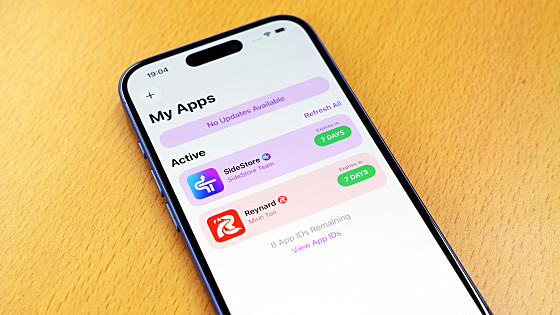
Once SideStore has been installed, tap the following link to open your Reynard project page.
GitHub - minh-ton/reynard-browser: An experimental Gecko-based web browser for iOS 13+. · GitHub
https://github.com/minh-ton/reynard-browser
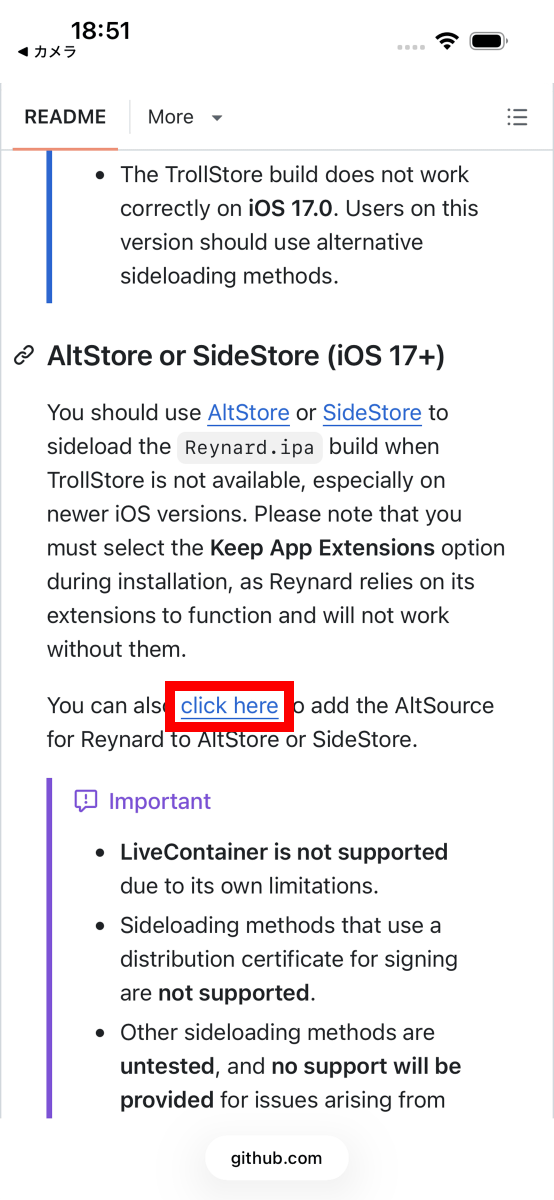
Tap 'click here' in the 'AltStore or SideStore (iOS 17+)' section.
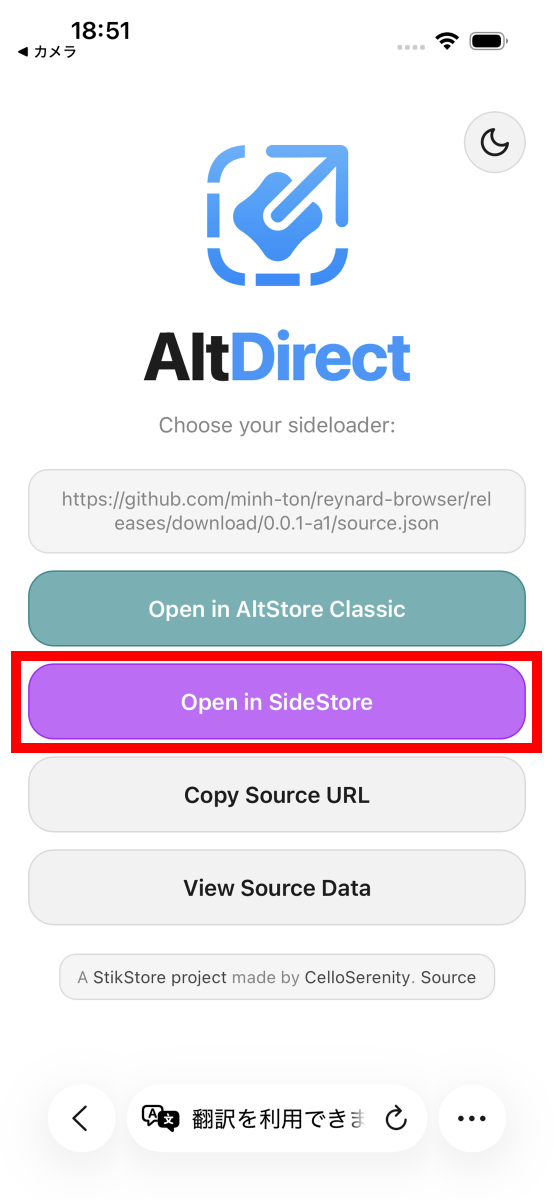
Tap 'Open in SideStore'.
Tap 'Open'.
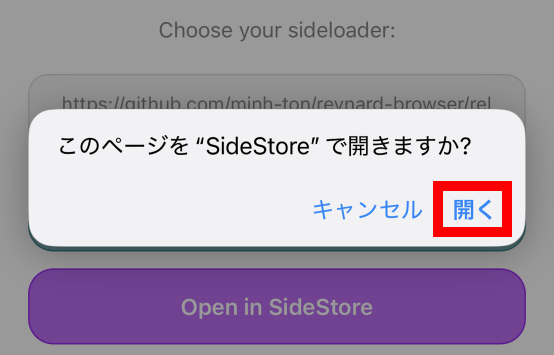
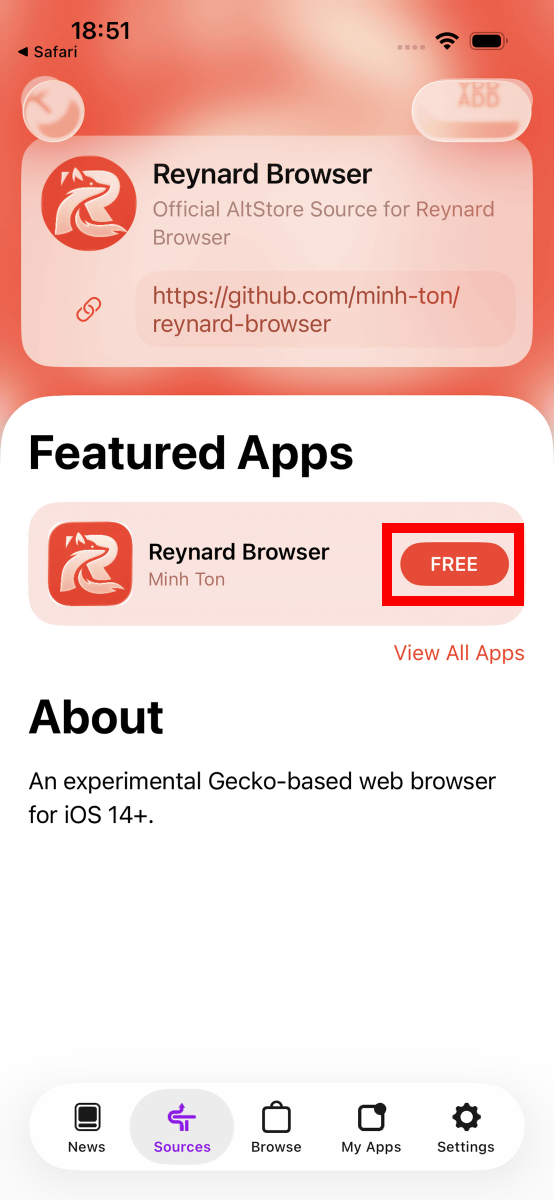
Once SideStore opens, tap 'FREE'.
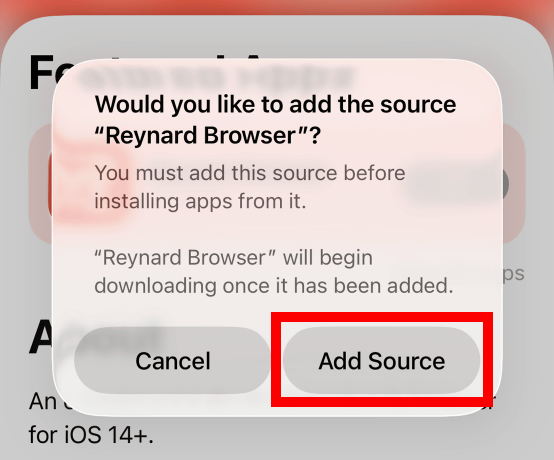
Tap 'Add Source'.
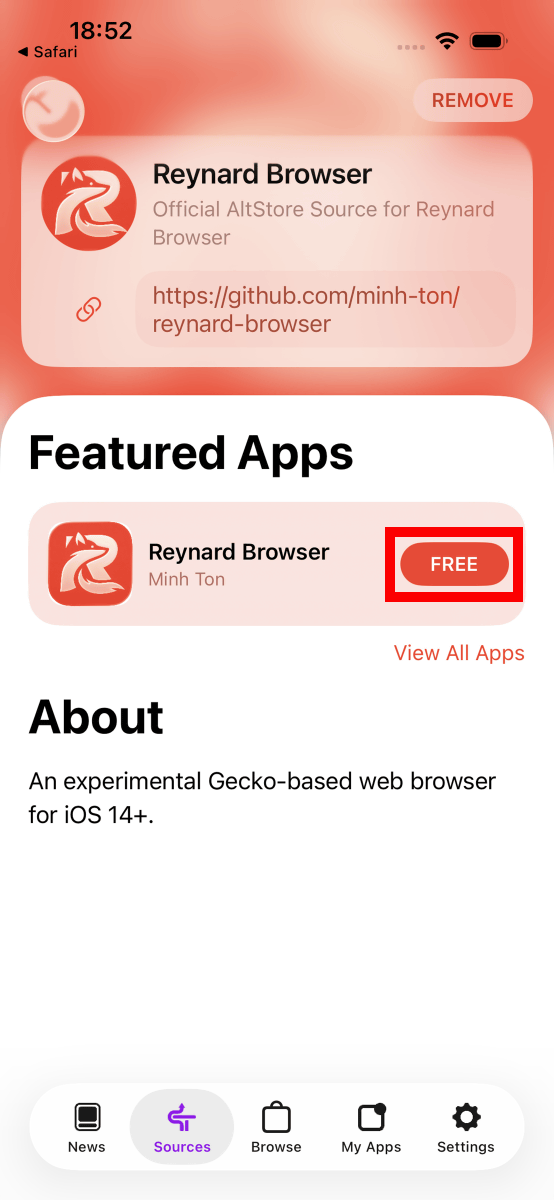
Tap 'FREE' again.
A notification will appear stating, 'You can only install a maximum of 10 apps per week on SideStore.' Simply tap 'Keep App Extensions (Use Main Profile)' to resolve the issue.
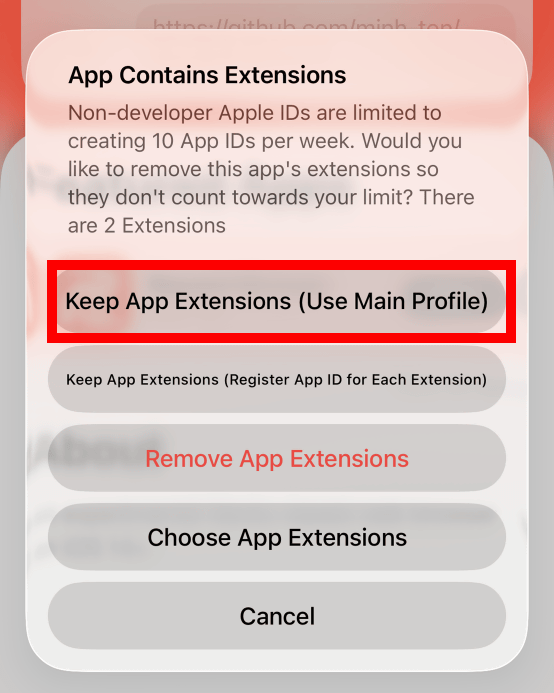
Please wait until the installation is complete.
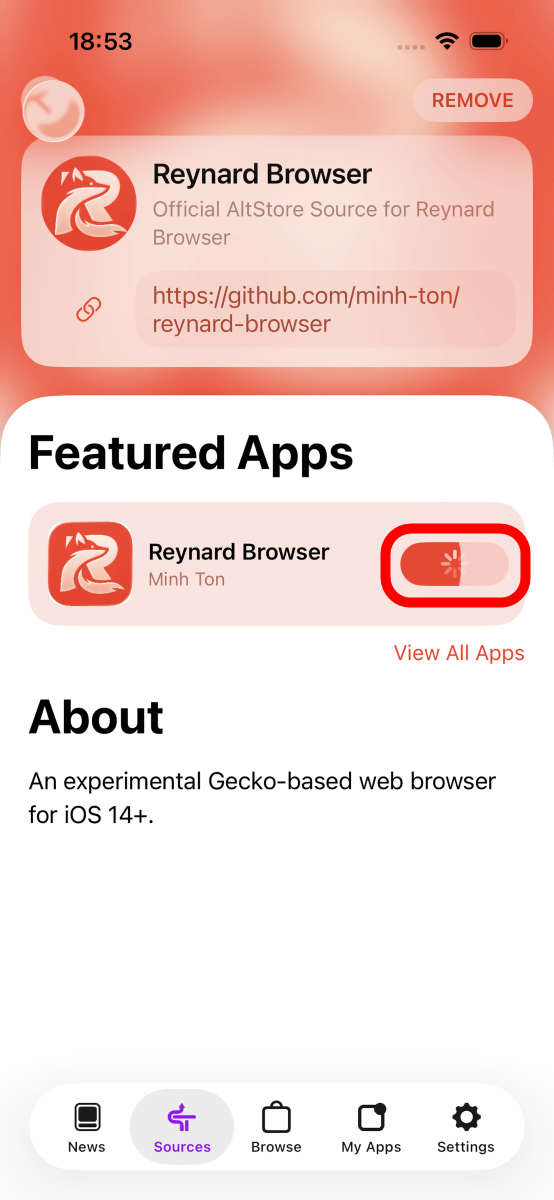
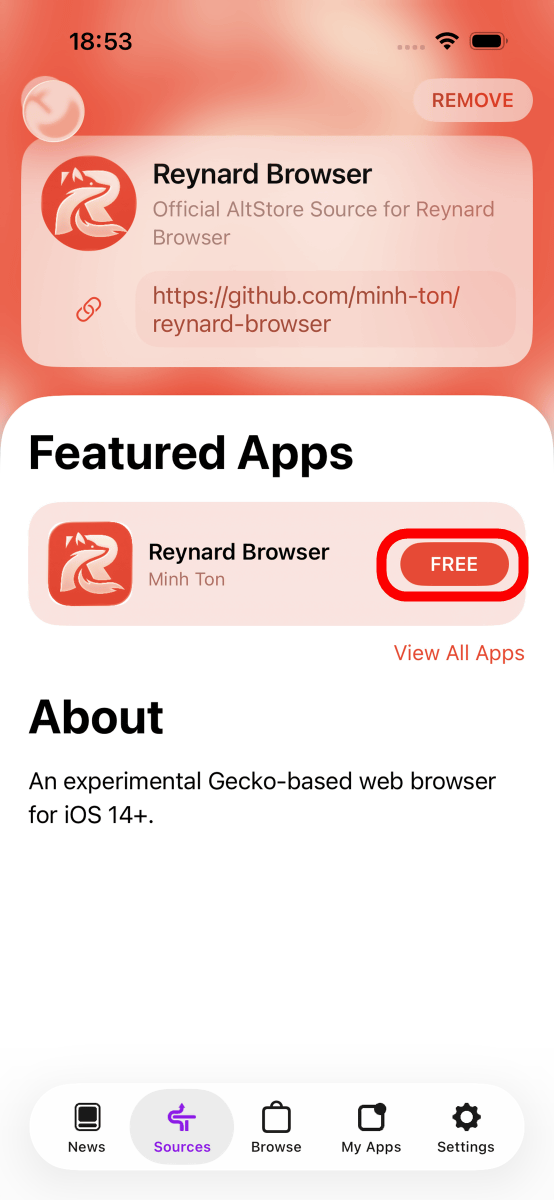
The installation is complete when the progress bar disappears and 'FREE' is displayed.
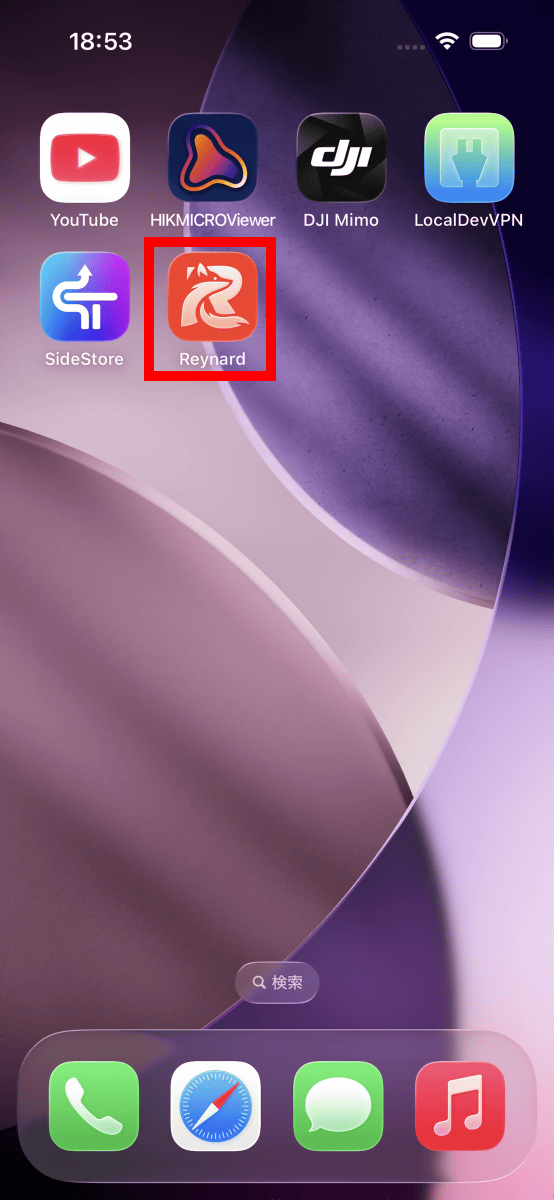
The Reynard app icon has been added to your home screen, so tap it to launch the app.
This is the initial screen of Reynard. It's a simple screen with a blank home screen, an address bar, and various menu buttons.
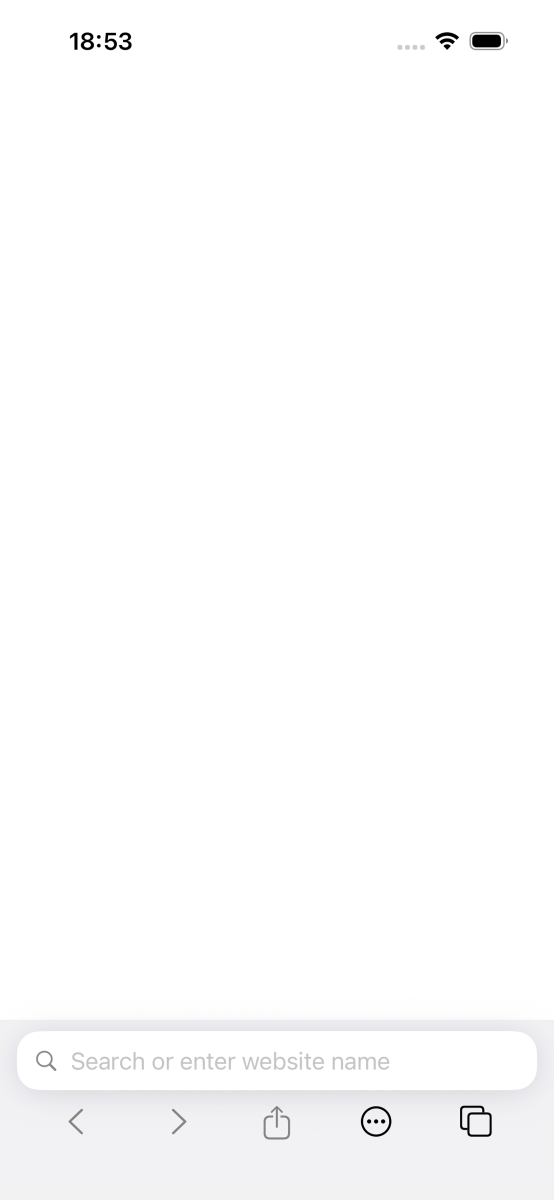
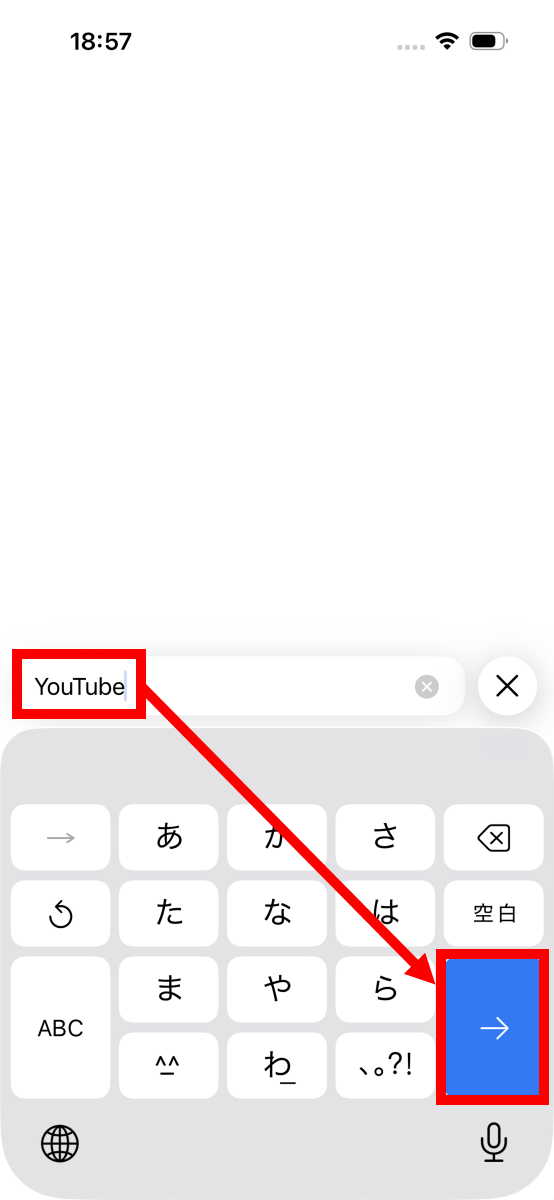
You can perform a Google search by entering words other than a URL in the address bar. Try typing 'YouTube' and tapping the Return key.
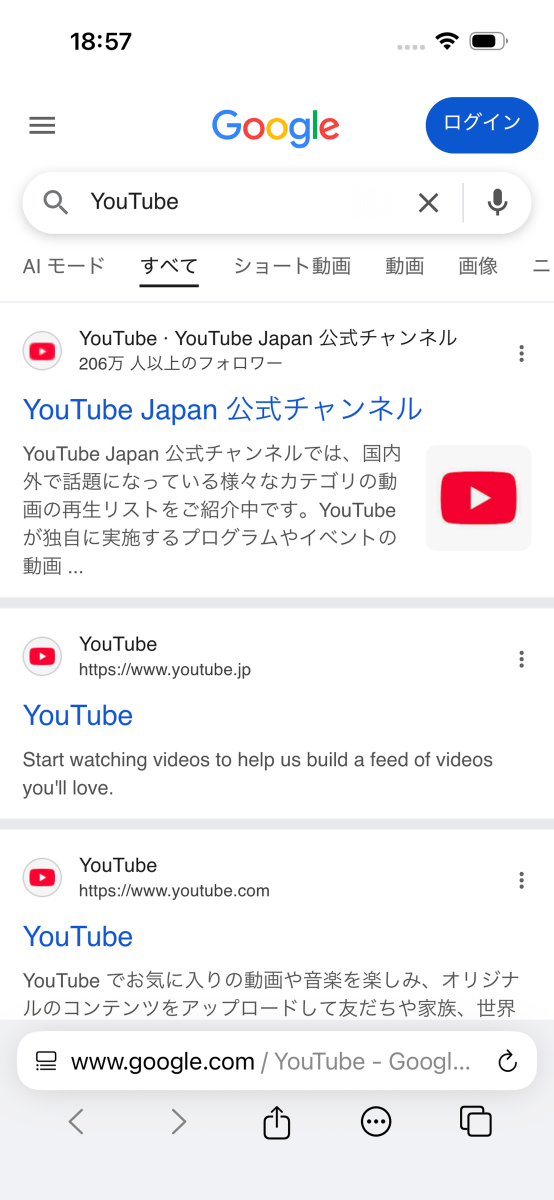
The search results for 'YouTube' are displayed.
I can play videos on YouTube without any problems.

When I accessed
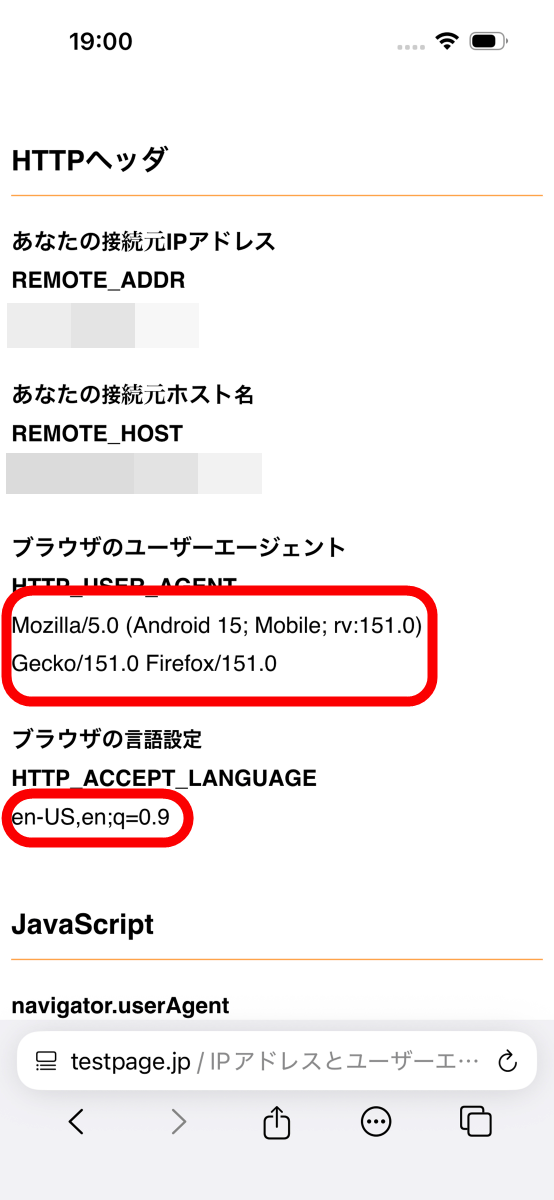
Since your language settings are set to English, websites that have an English version, such as YouTube, will display in English. For YouTube, you can switch to Japanese display by changing the settings within the YouTube app.

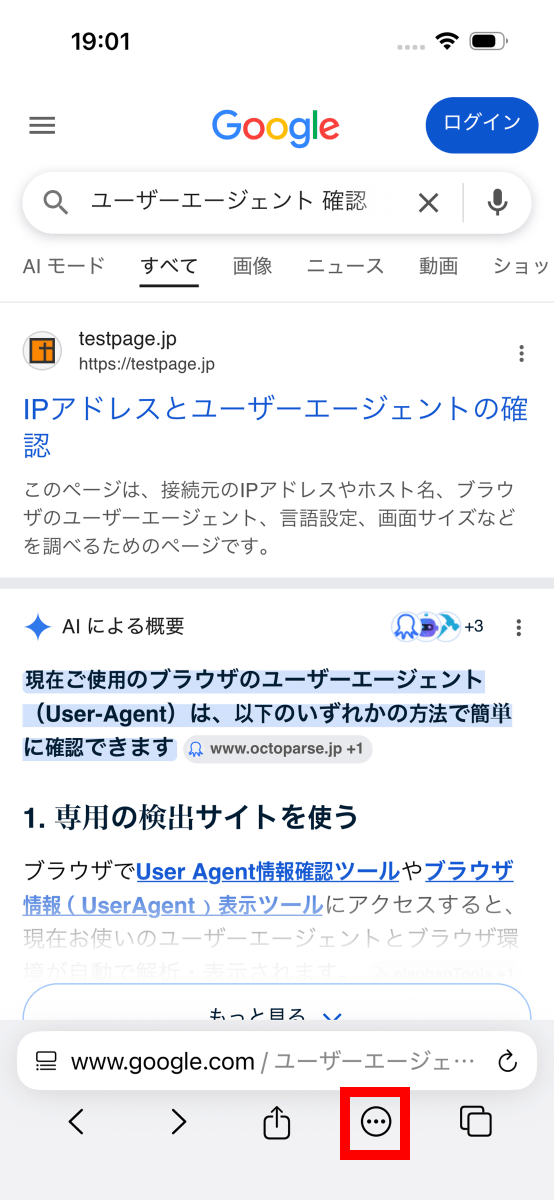
A major feature of Reynard is that it allows you to install extensions for Firefox on Android. To install an extension, tap the button enclosed in the red box at the bottom of the screen.
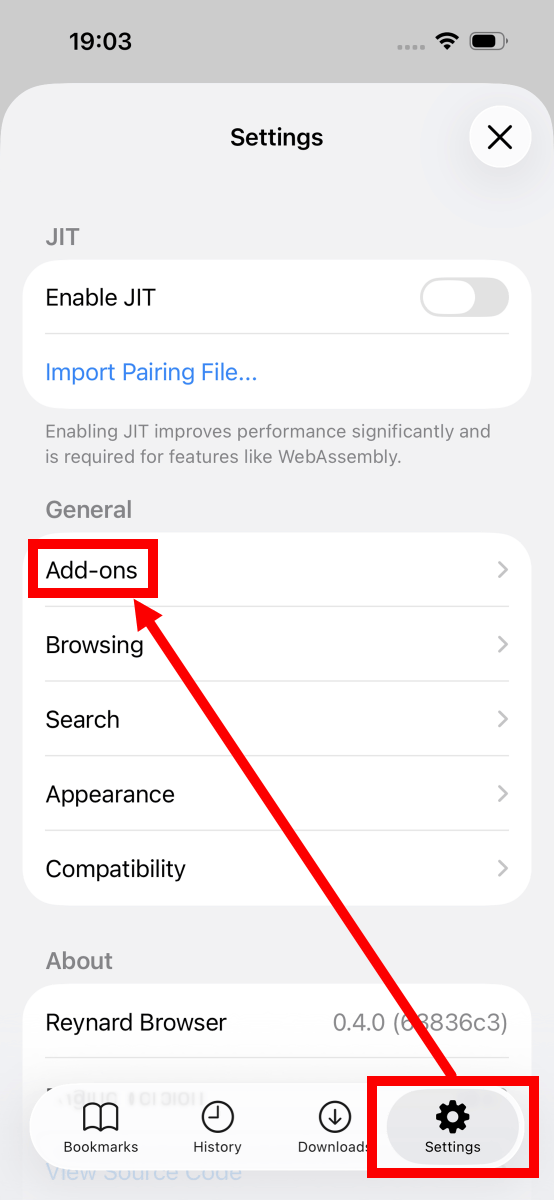
Tap 'Settings,' then tap 'Add-ons.'
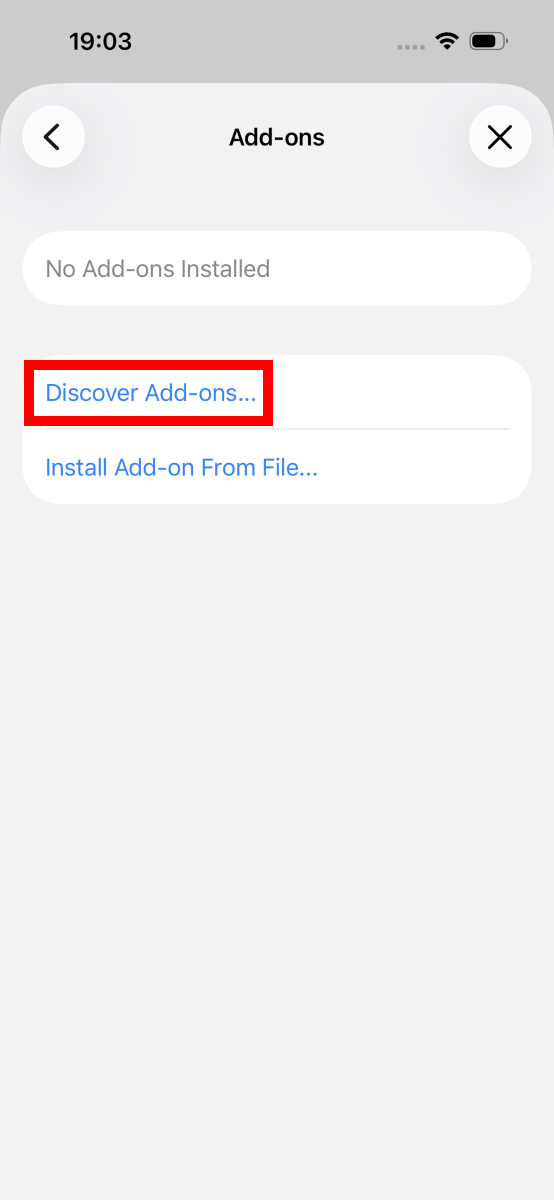
Tap 'Discover Add-ons'.
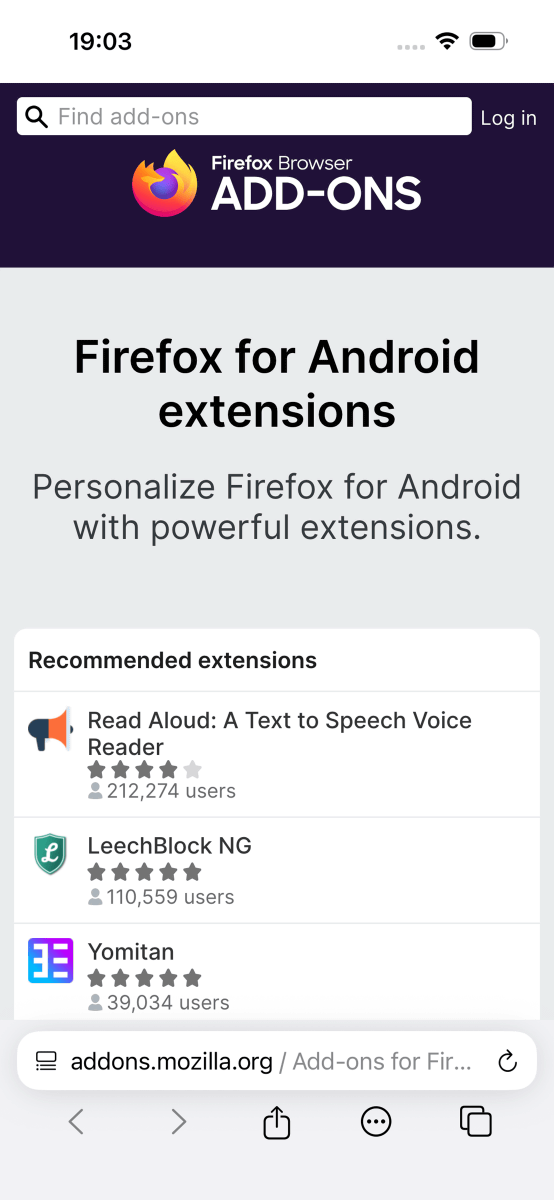
The Firefox add-on store page has been displayed.
Let's try installing
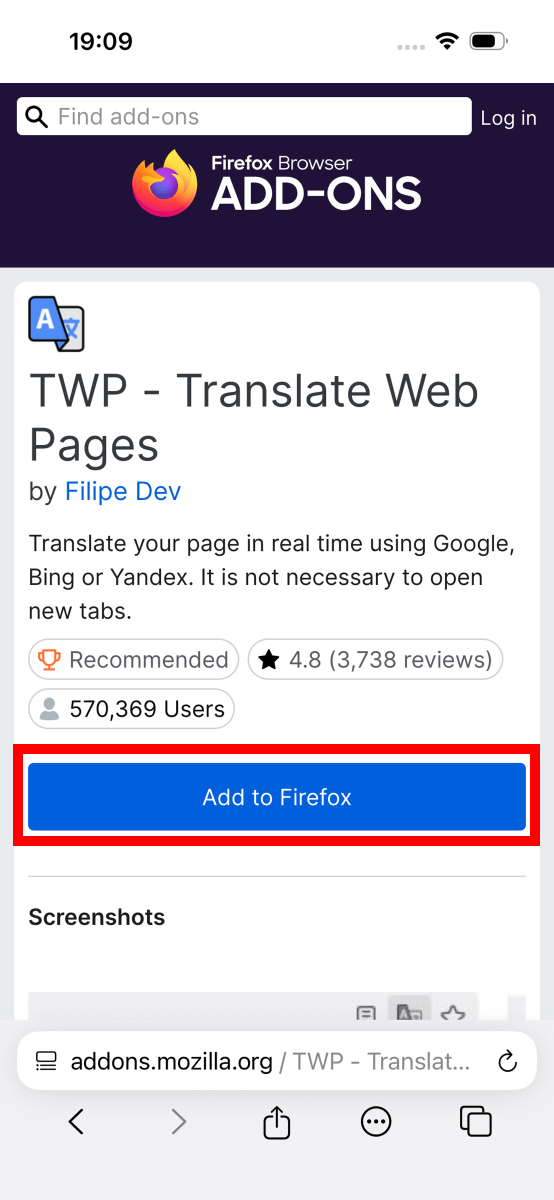
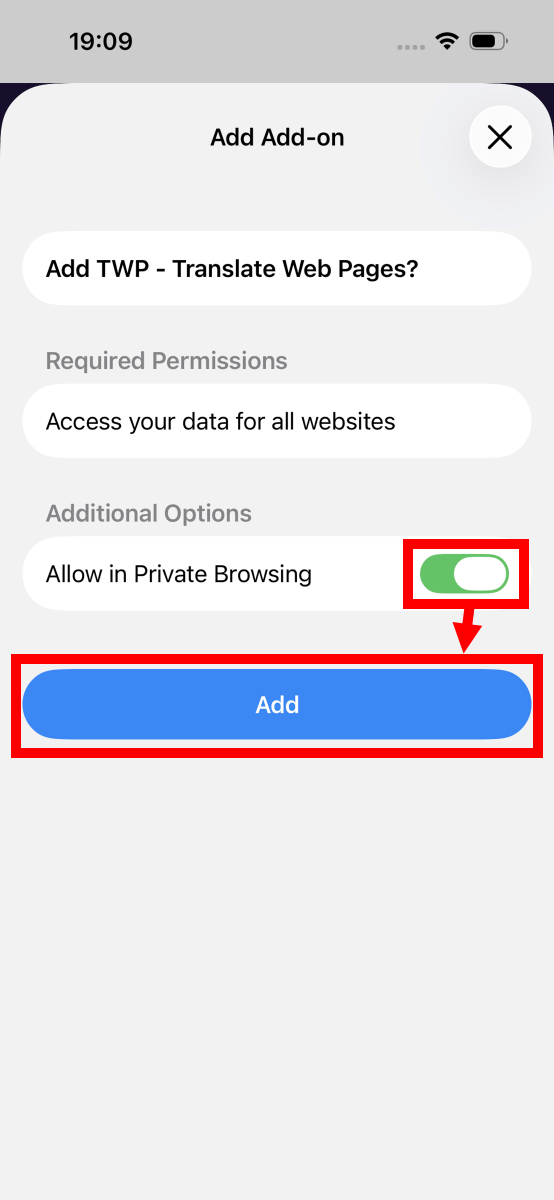
You can install it by tapping the blue 'Add' button. This time, I enabled 'Allow in Private Browsing' so that it could be used even while browsing privately, and then tapped 'Add'.
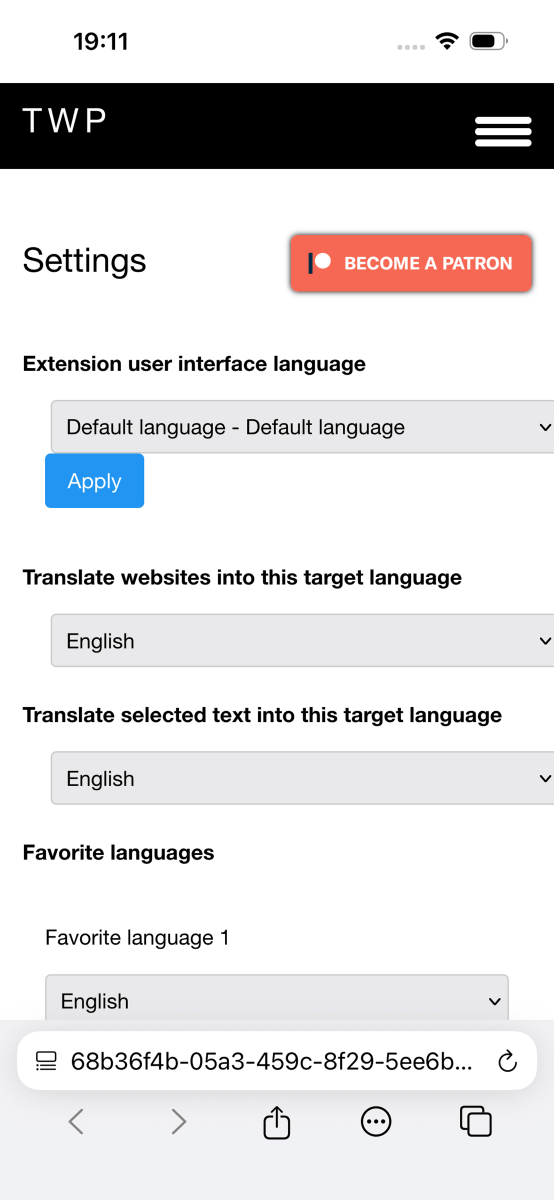
Upon successful installation, the TWP settings screen will appear.
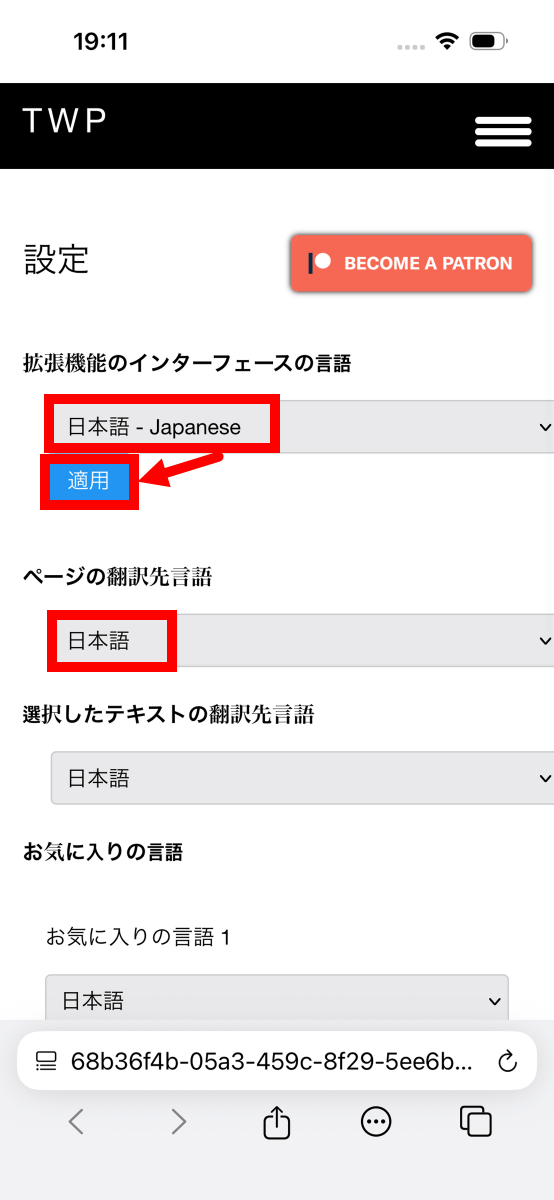
Switch the extension's interface language to Japanese and tap 'Apply'. Also, set the page translation language to Japanese.
When I opened the English page, the TWP translation button appeared at the top of the screen. I tapped 'Translate'.
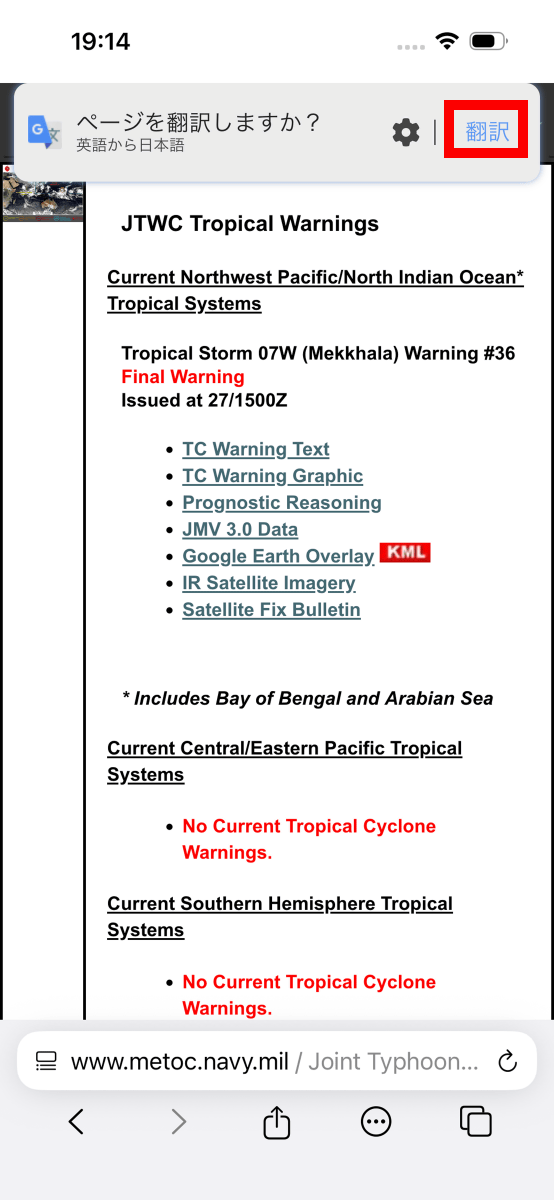
I was able to translate it into Japanese perfectly.
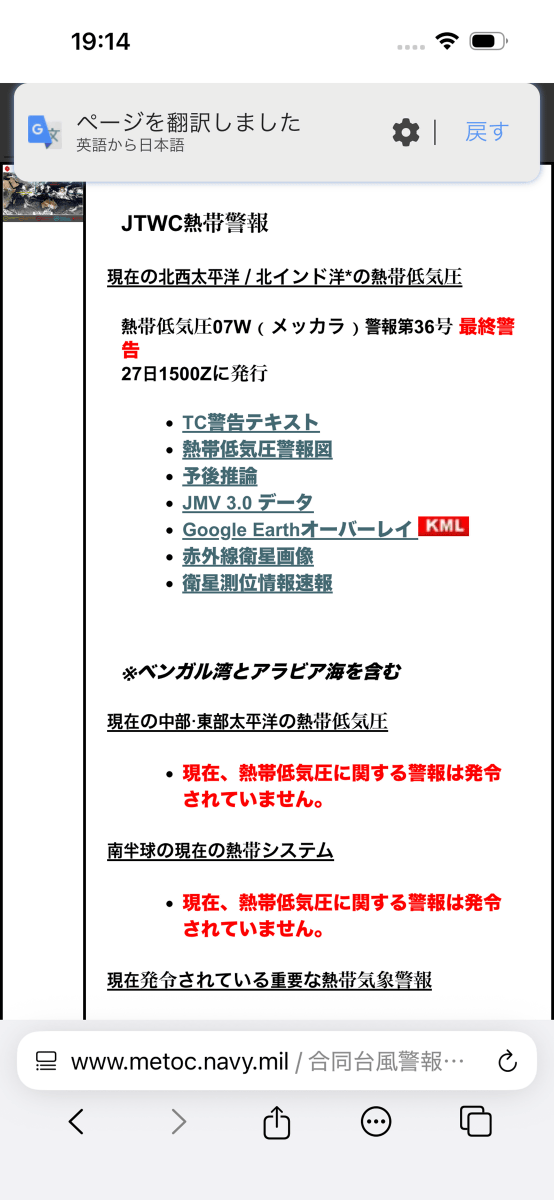
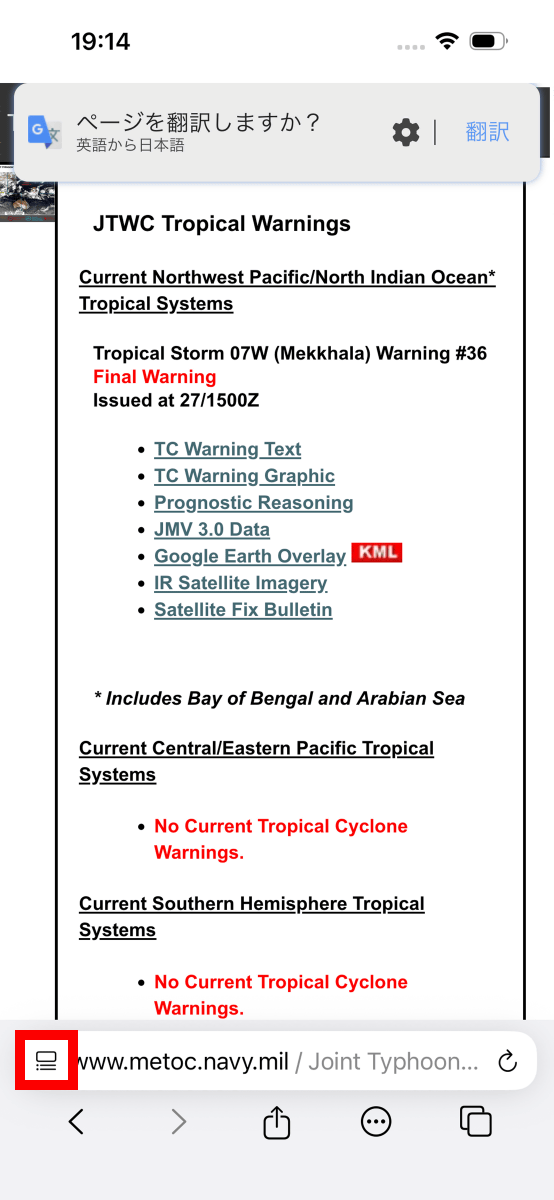
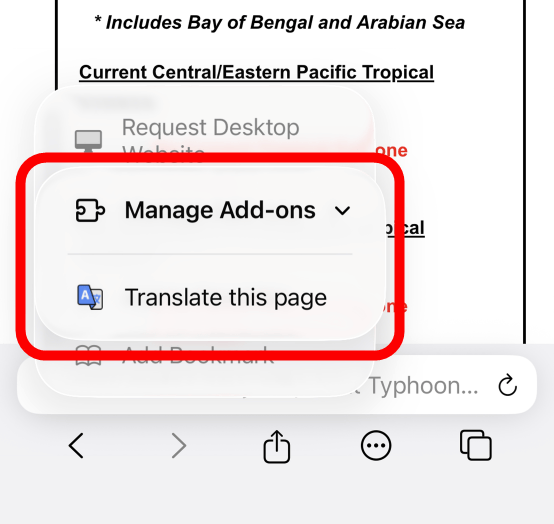
To manually display the extensions menu, tap the button on the far left of the address bar.
Tap 'Manage Add-ons'.
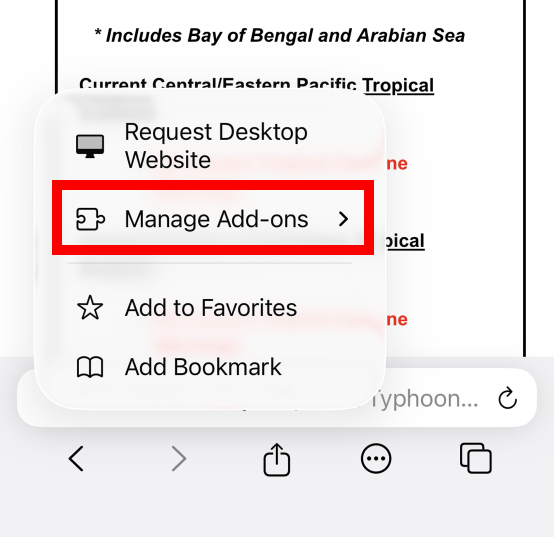
You can run various extensions from this screen.
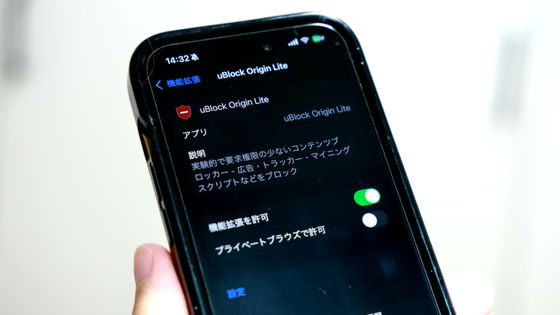
Reynard also allows you to install other extensions such as
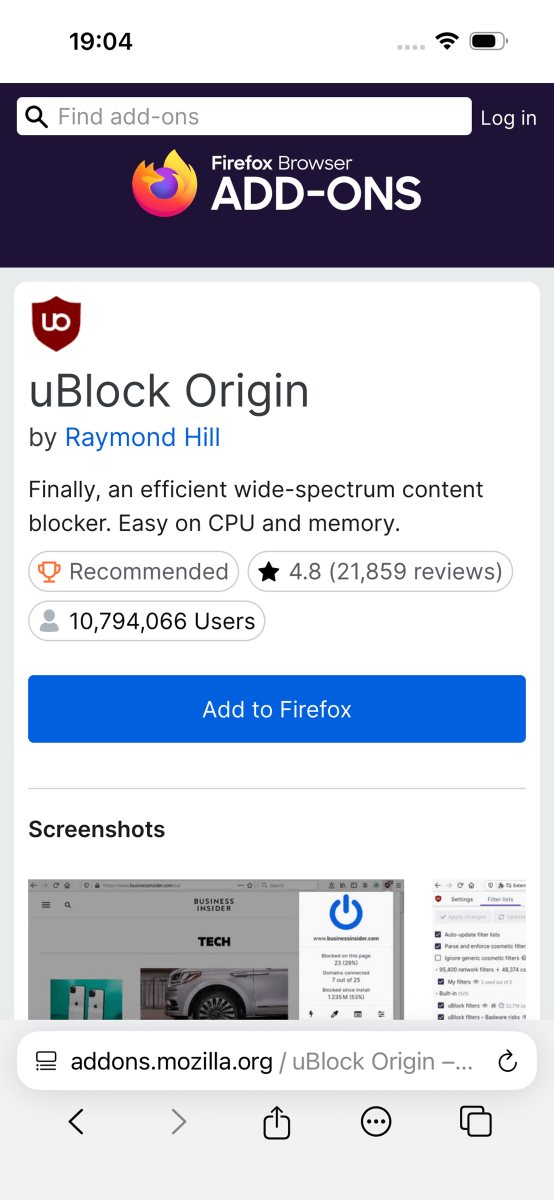
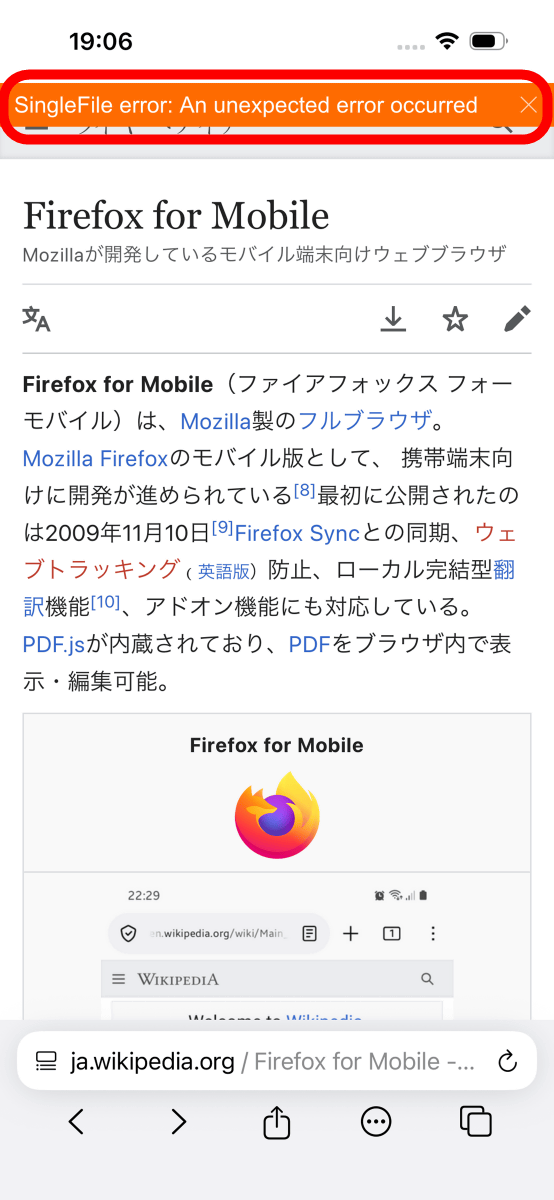
However, some extensions can be installed but may not work. In this test,
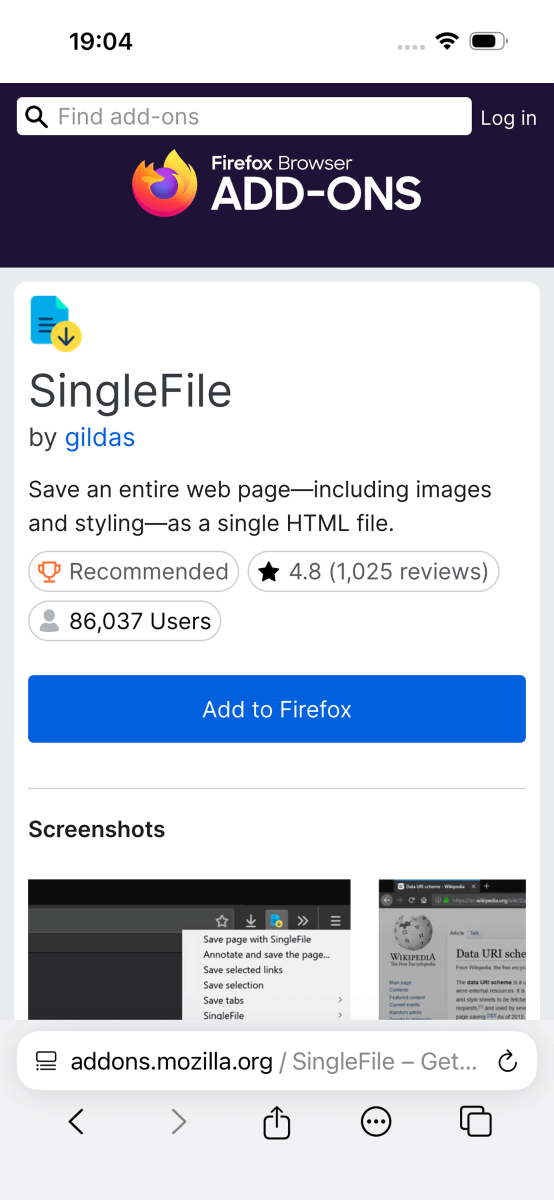
I was able to install it, but when I tried to save the page, it failed.
Related Posts:


in Software, Smartphone, Review, Posted by log1o_hf