Super Productivity is a free, advanced to-do list app that offers timeboxing and time tracking, is self-hostable, and allows you to import tasks from Calendar, Jira, GitHub, and more.
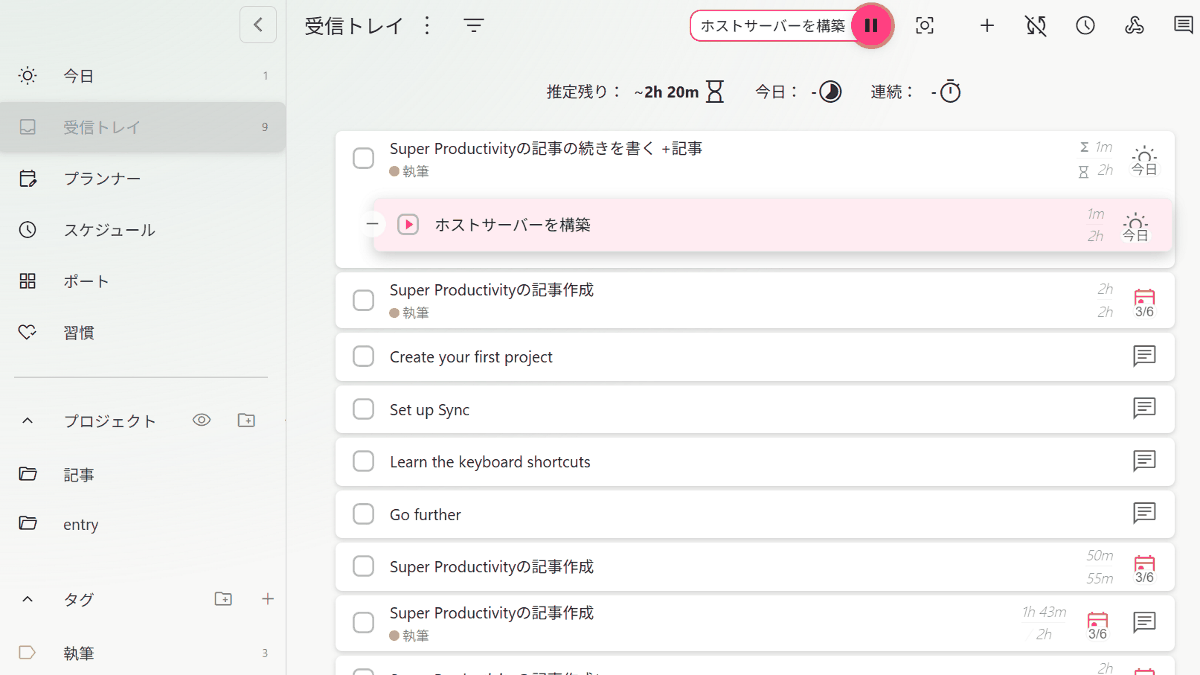
While to-do lists are useful for organizing work tasks, including recording work time and managing issues can lead to tasks being scattered across multiple tools, making it difficult to grasp the overall picture of available time and outstanding tasks, and adding unnecessary cost to prioritization. Therefore, ' Super Productivity ,' a free and open-source to-do list app, has been released that comes standard with timeboxing and time tracking, and allows direct import of tasks from
Super Productivity – Open-Source Deep Work Task Manager
https://super-productivity.com/
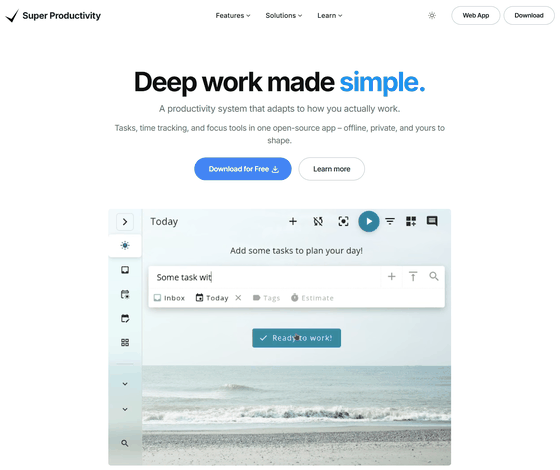
super-productivity/super-productivity: Super Productivity is an advanced todo list app with integrated Timeboxing and time tracking capabilities. It also comes with integrations for Jira, GitLab, GitHub and Open Project.
◆Basic operation of the web version of SuperProductivity
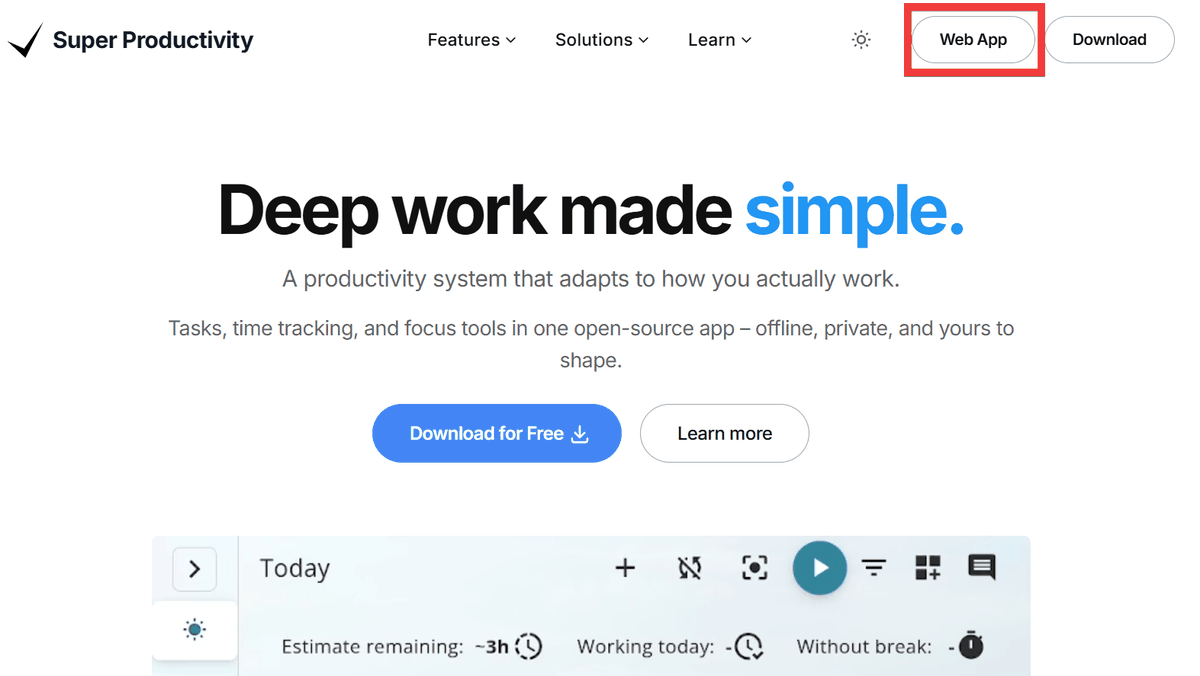
Click 'Web App' in the upper right corner of the official website .
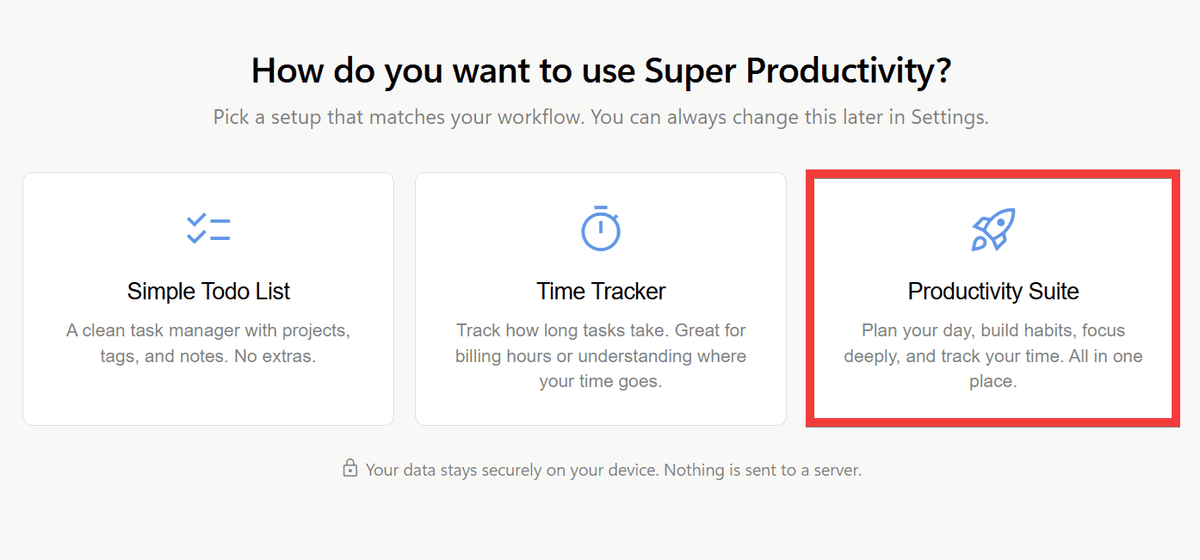
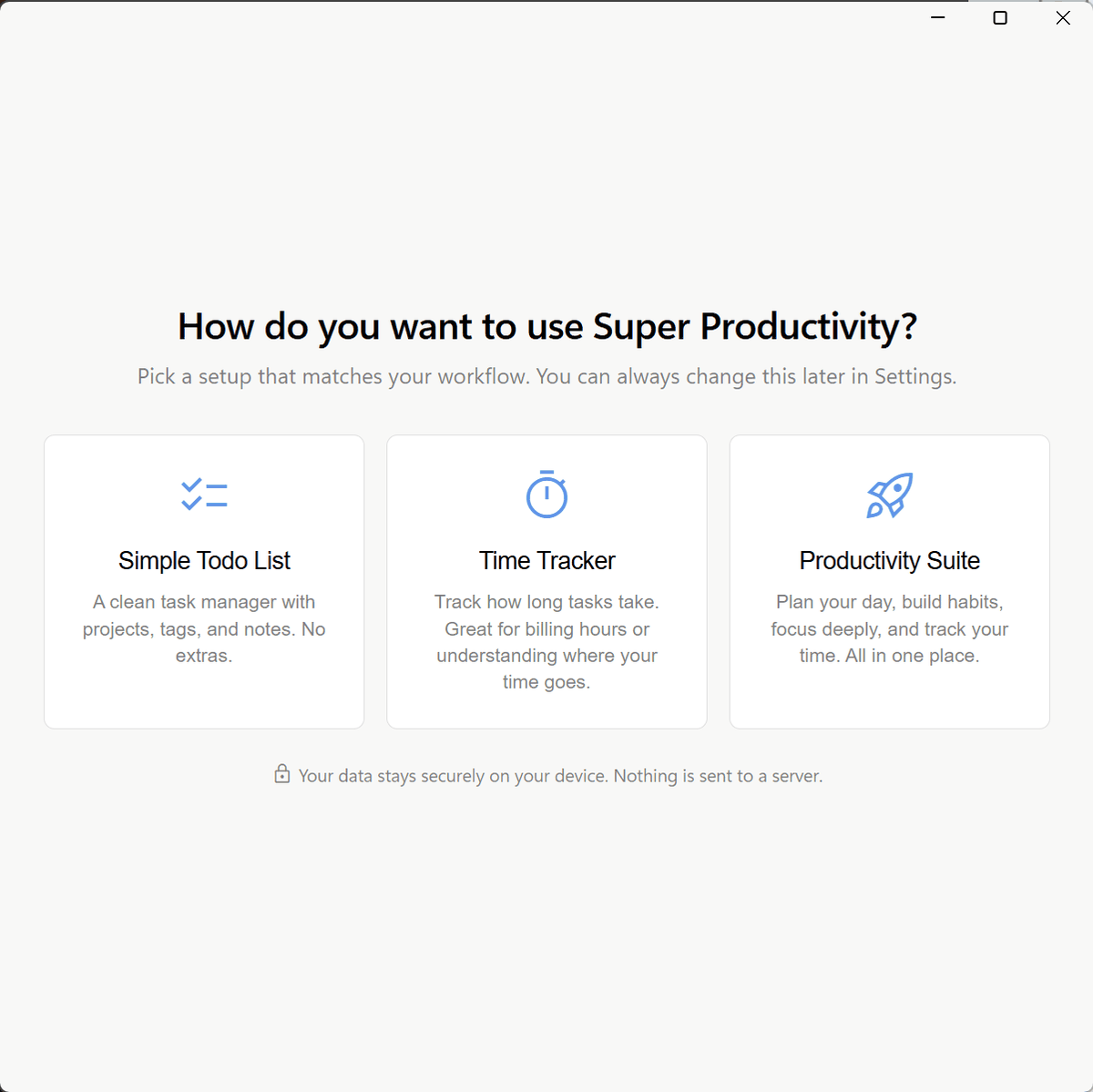
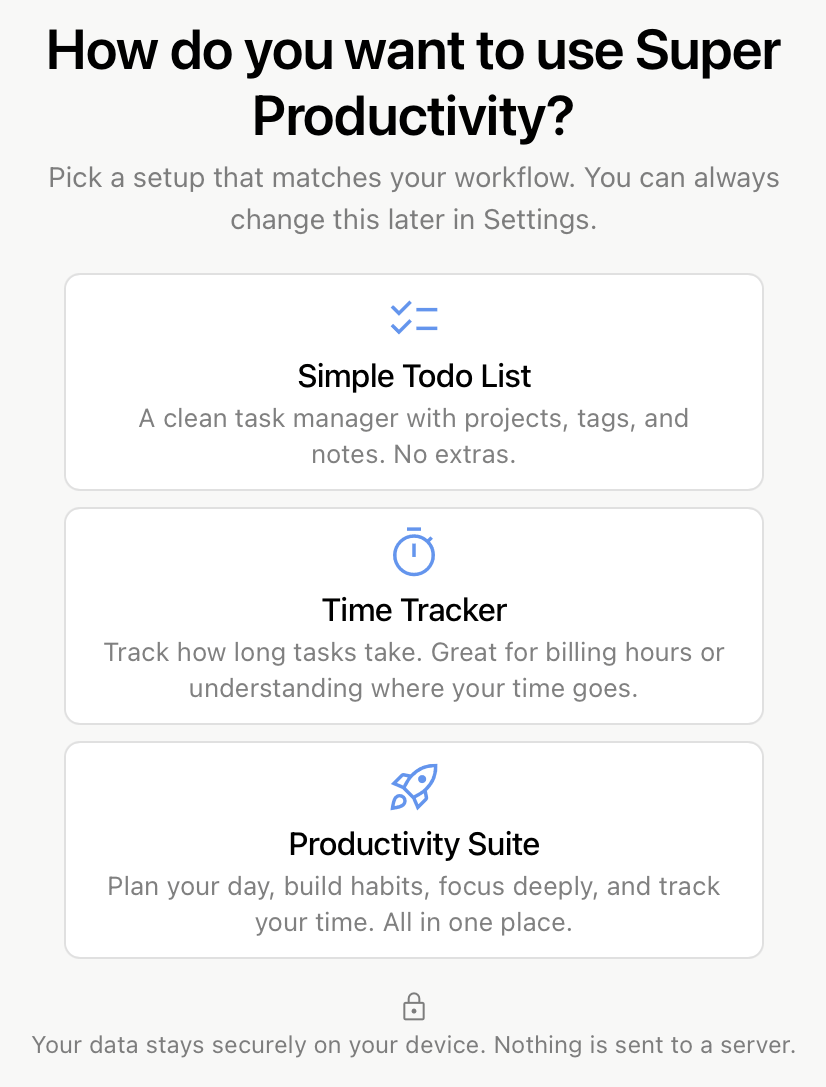
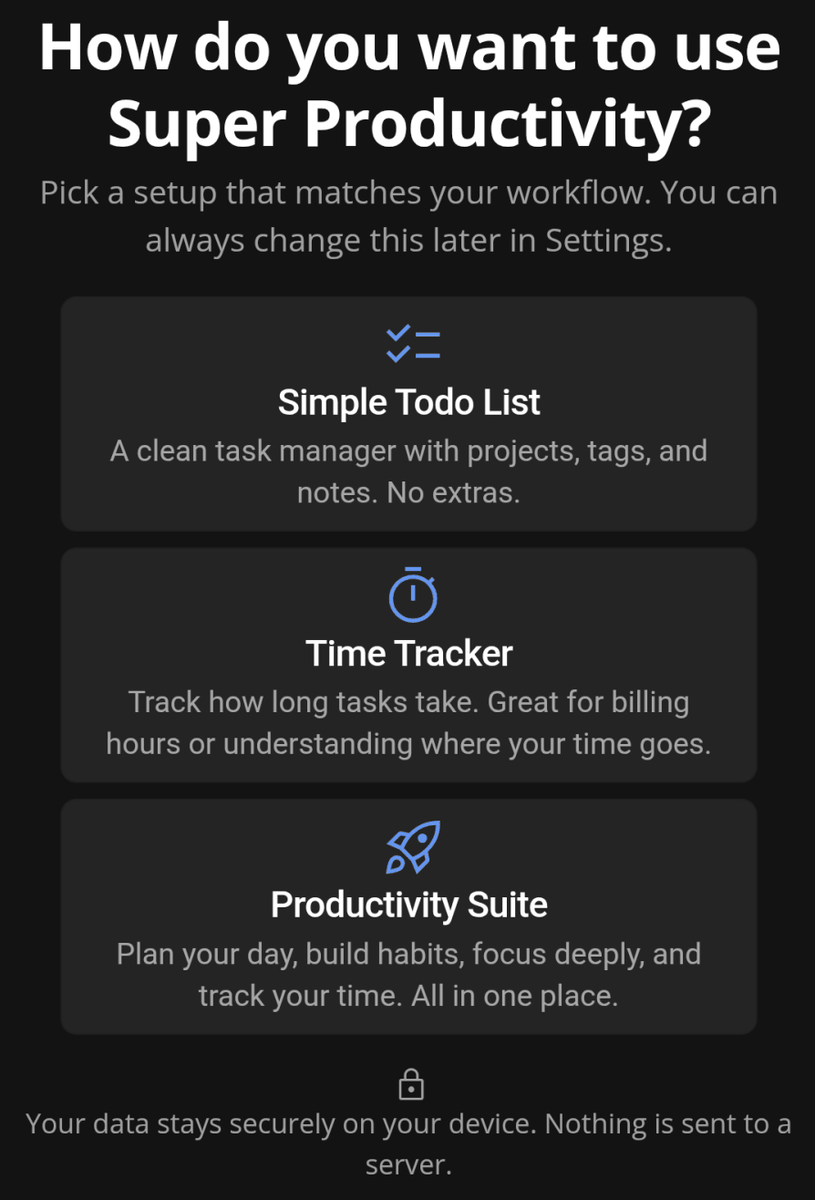
A screen for selecting your purpose of use will appear. You can choose from three options: 'Simple Todo List' for use as a simple to-do list, 'Time Tracker' primarily for recording work time, and 'Productivity Suite' for a combined task management, time tracking, and focus work support. This time, to check the main features such as timeboxing and time tracking, click 'Productivity Suite'.
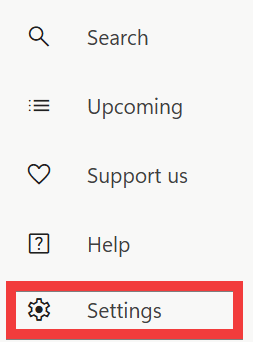
To change the UI to Japanese, click 'Settings' in the menu at the bottom left of the screen.
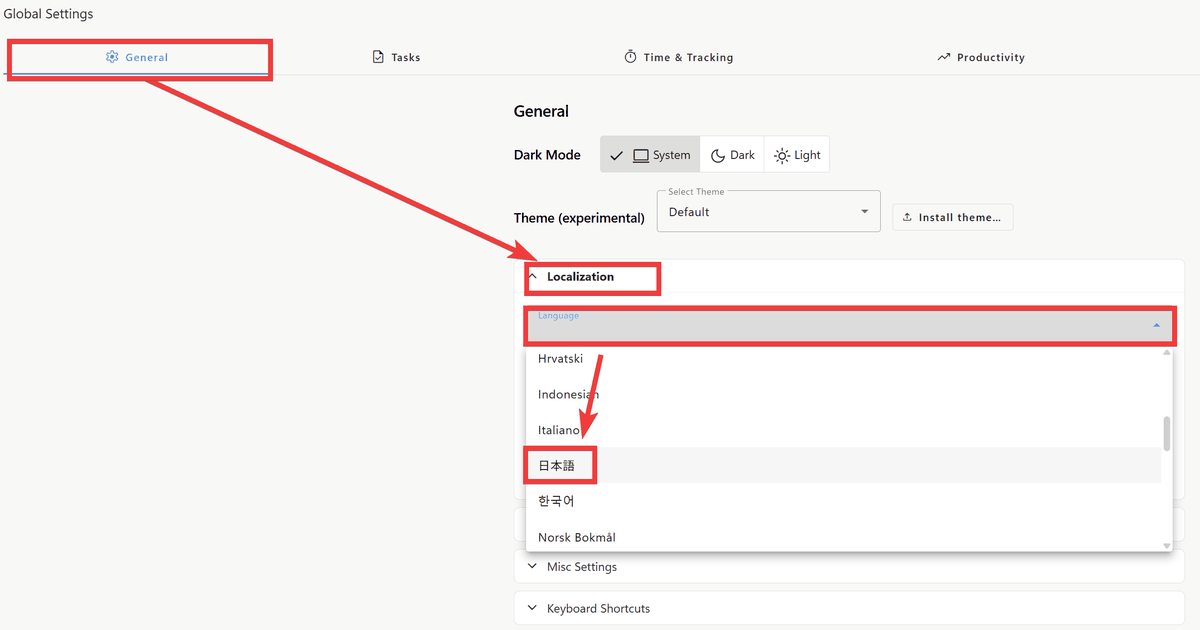
Click 'Localization' in the 'General' tab, then click 'Language' and select 'Japanese' from the list of languages.
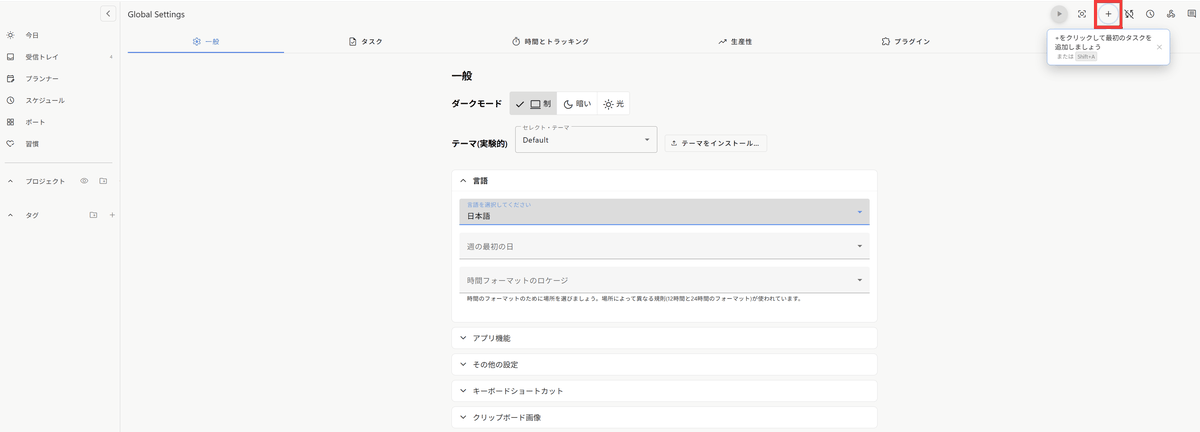
The UI is displayed in Japanese. To add a new task, click the '+' button in the upper right corner of the screen.
A form will appear where you can enter the task title. Enter the task title in 'Task Title,' the date you will perform the task in 'Schedule,' and an estimate of the time required for the task in 'Estimate.' Then press the Enter key to register the task.

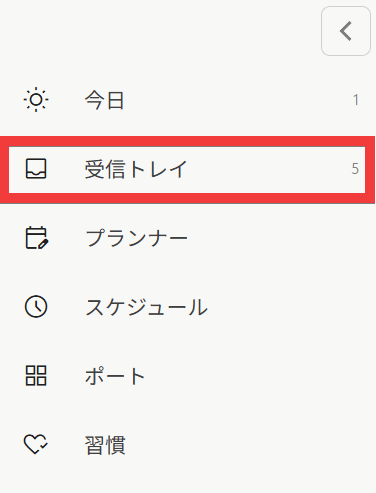
To view a list of registered tasks, click 'Inbox' in the menu on the left side of the screen.
A list of tasks will be displayed.
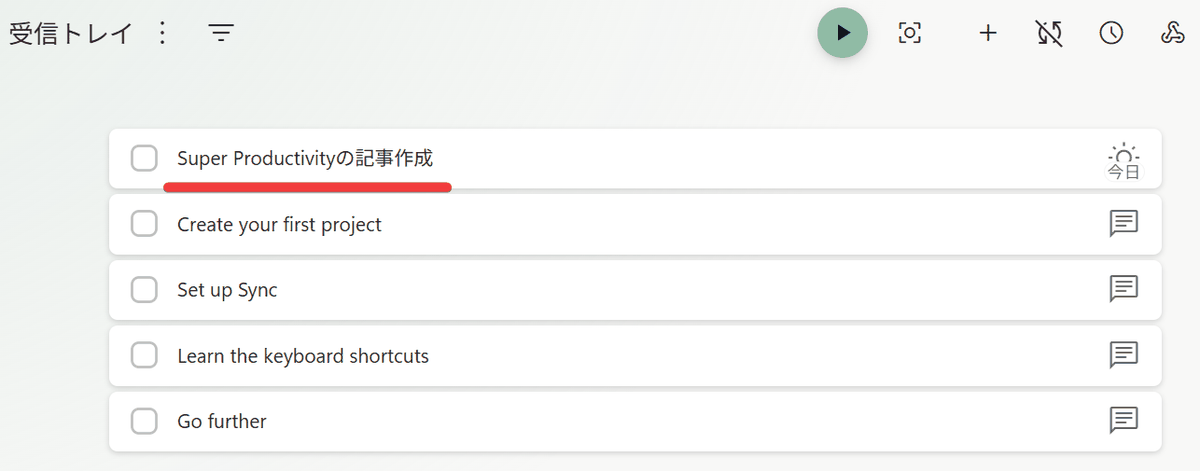
Clicking the 'Show/Hide Additional Information' button will...
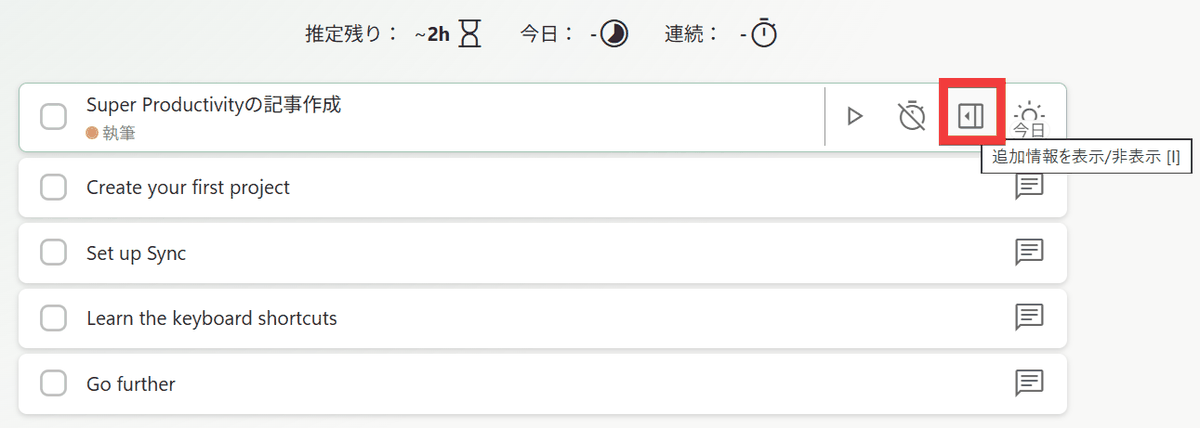
You can view task details and add additional settings such as deadlines. Details can be entered in
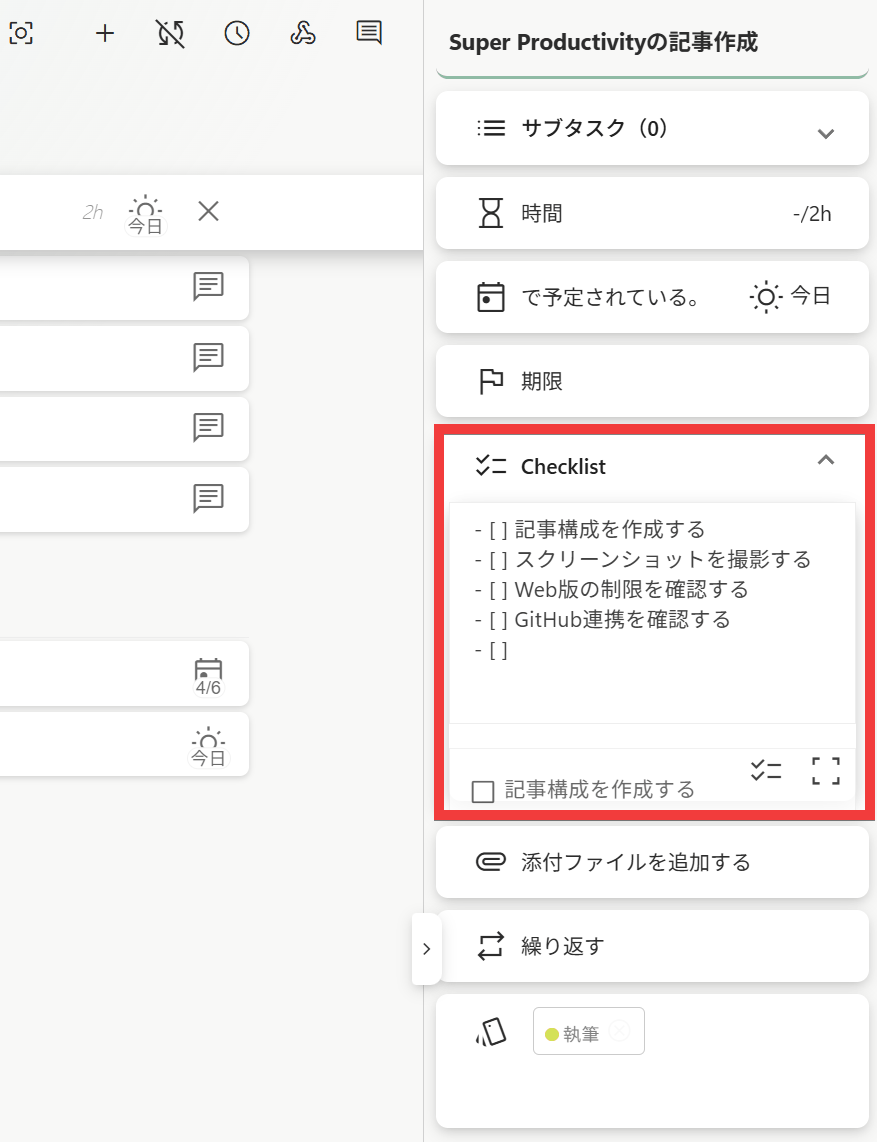
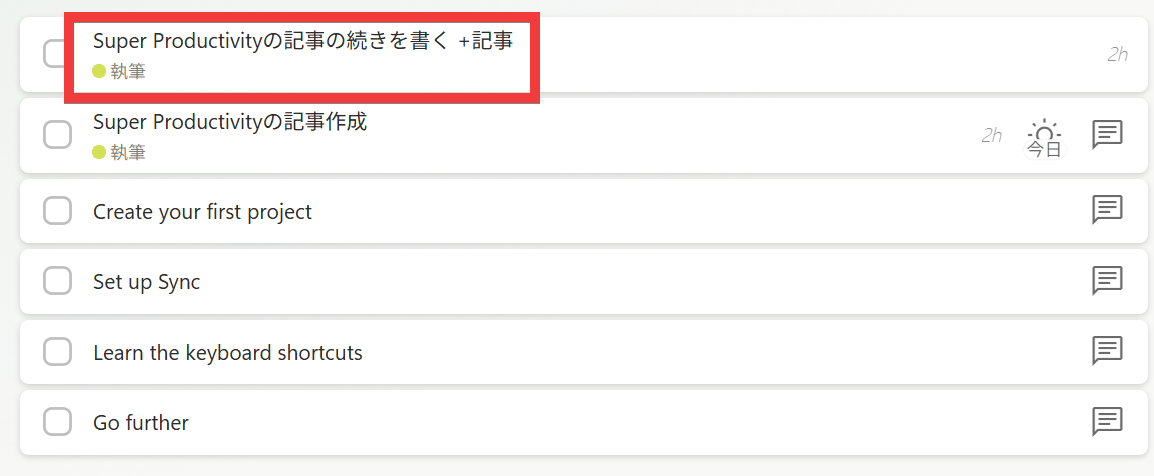
By including

Tags were applied automatically this time, but they could not be automatically assigned to the project.
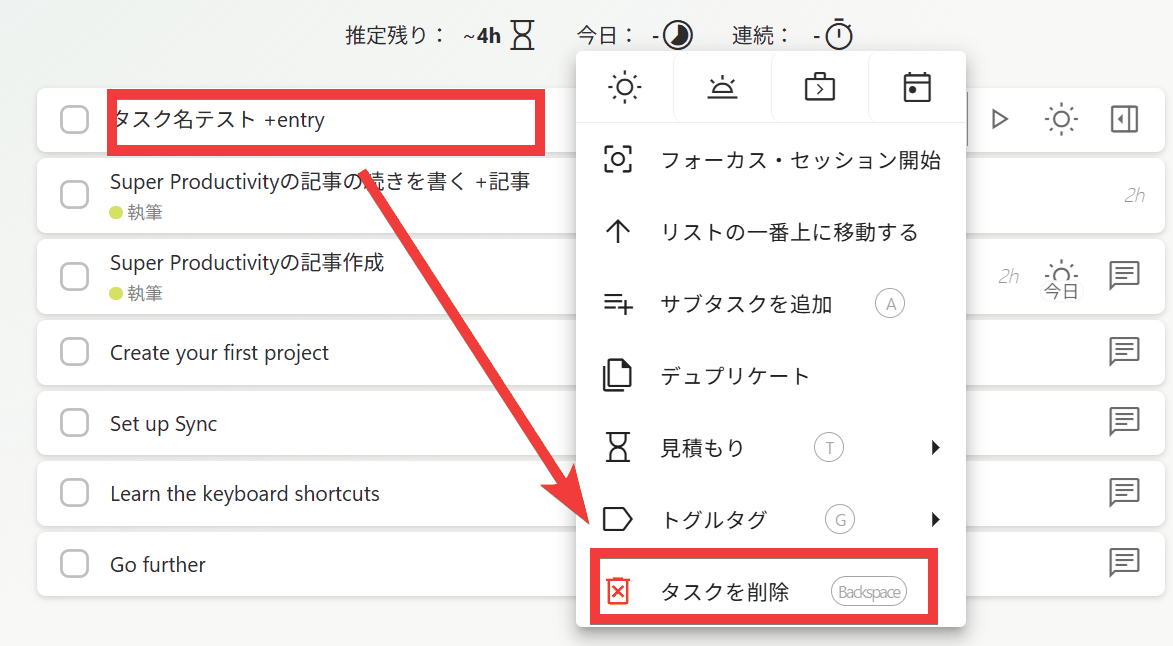
To delete a task, right-click the task and select 'Delete Task' from the menu that appears.
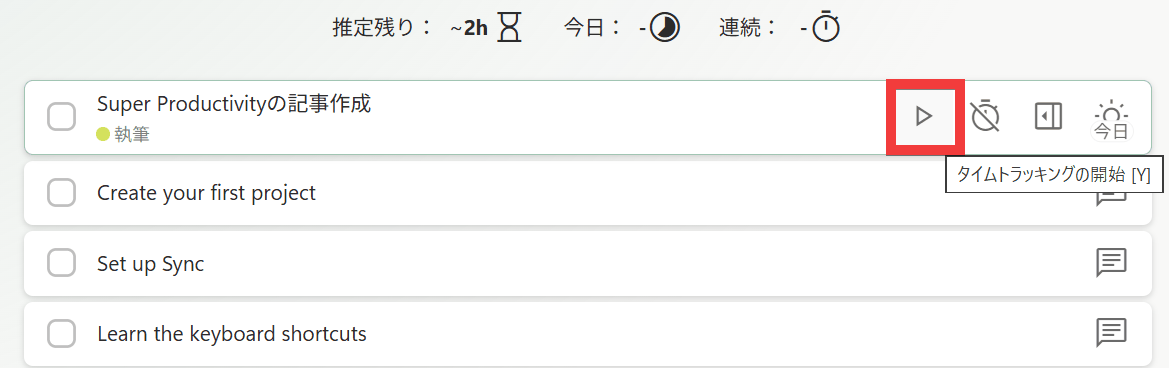
You can measure your work time by clicking the 'Start Tracking' button at the start of a task.
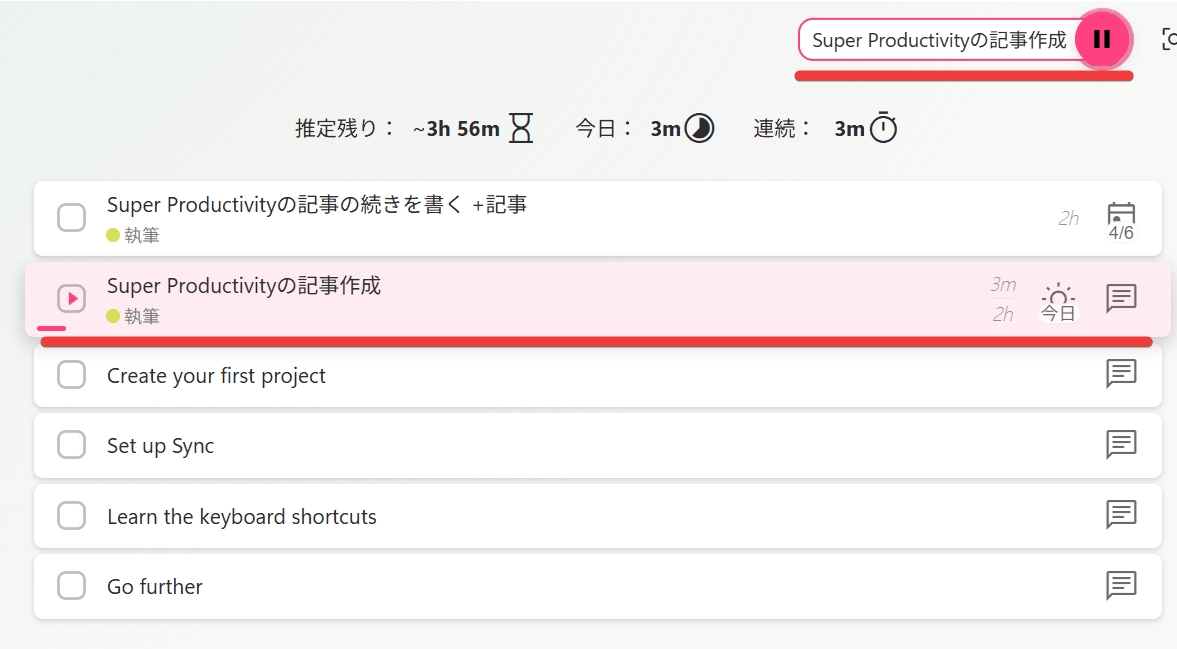
Ongoing tasks are clearly displayed.
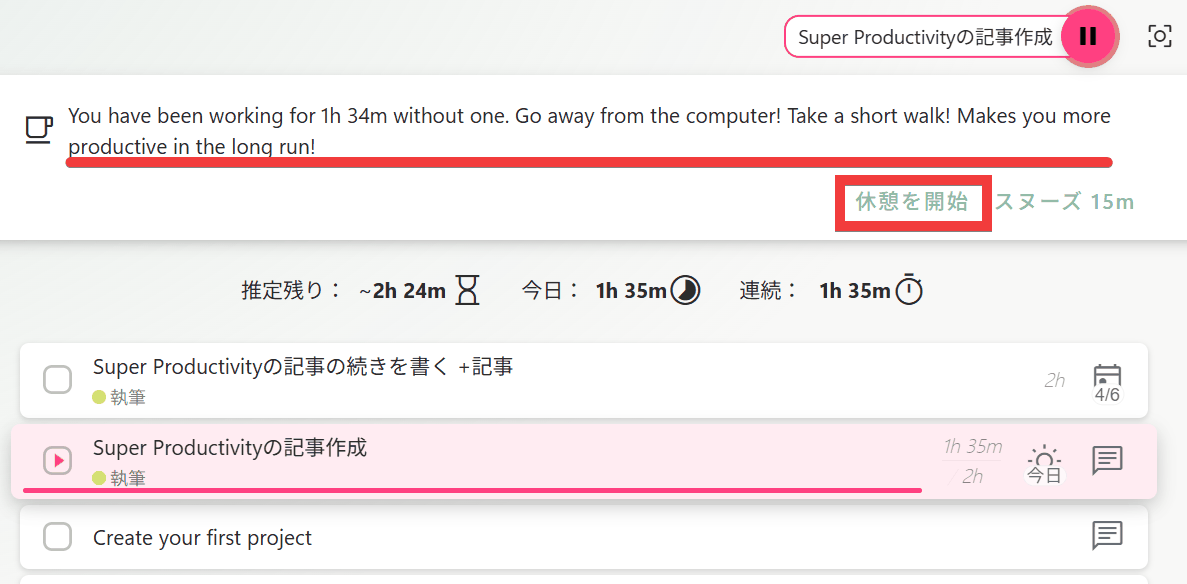
A banner prompting me to take a break appeared after working for a long time. Clicking 'Start Break'...
The timer has stopped and the system has returned to a state where no work is being done.
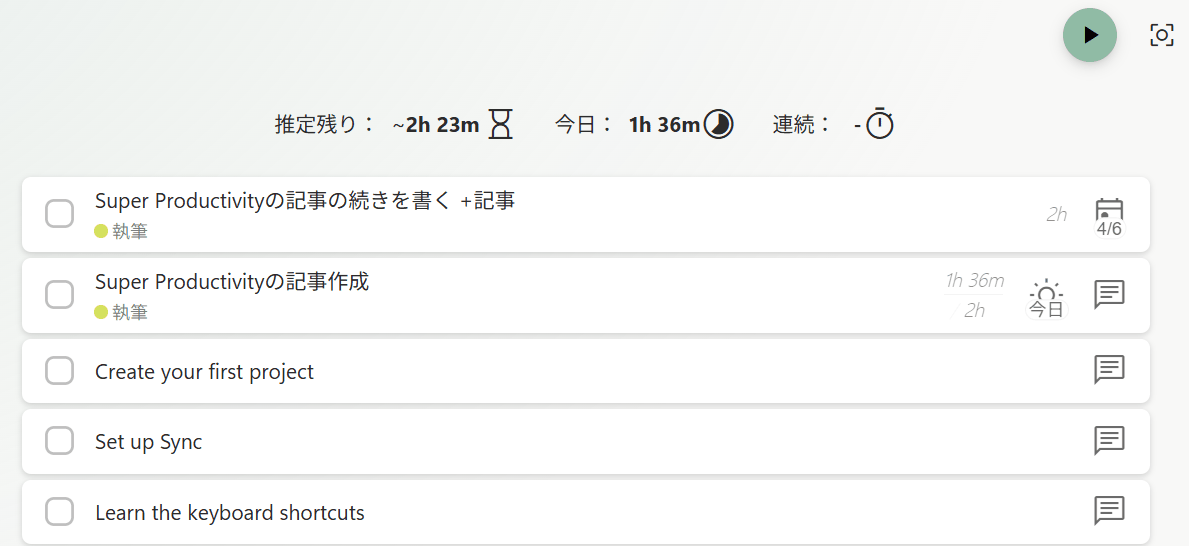
Clicking the task again will resume the time tracking.
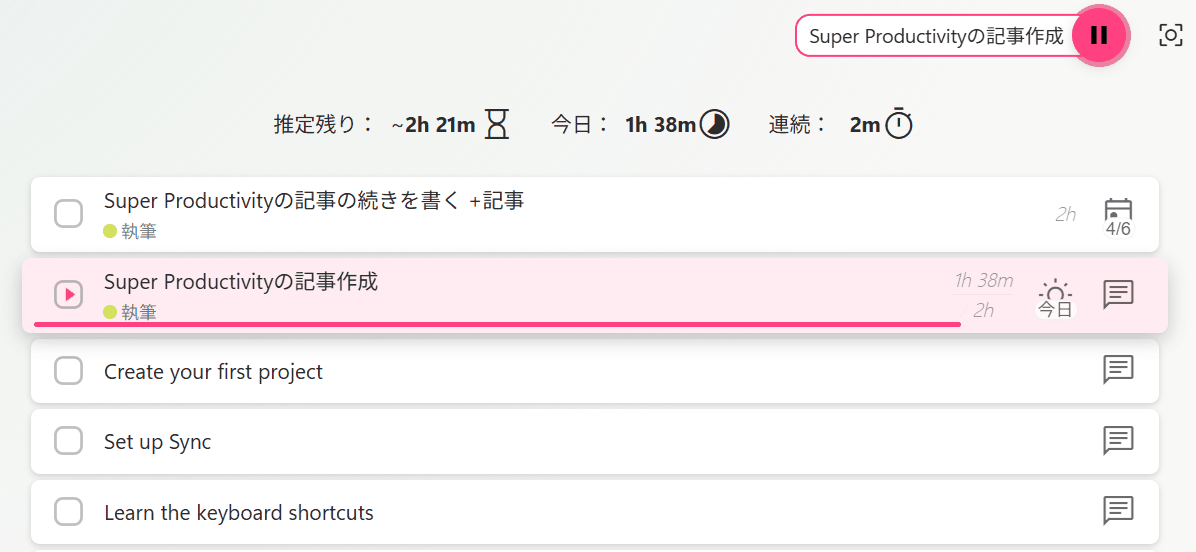
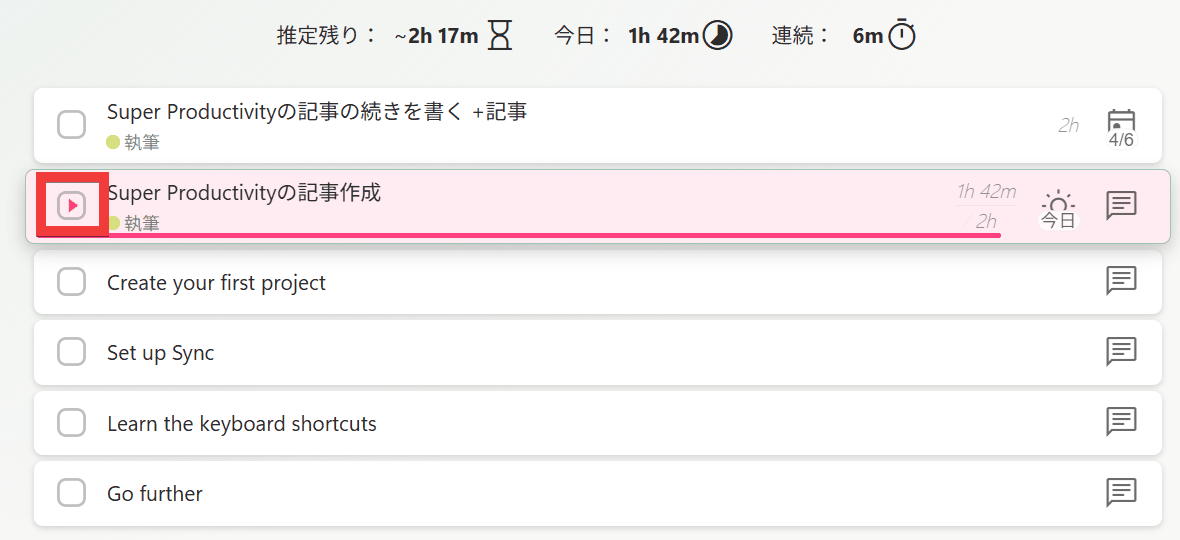
Once the task is complete, click the checkbox at the beginning of the task title.
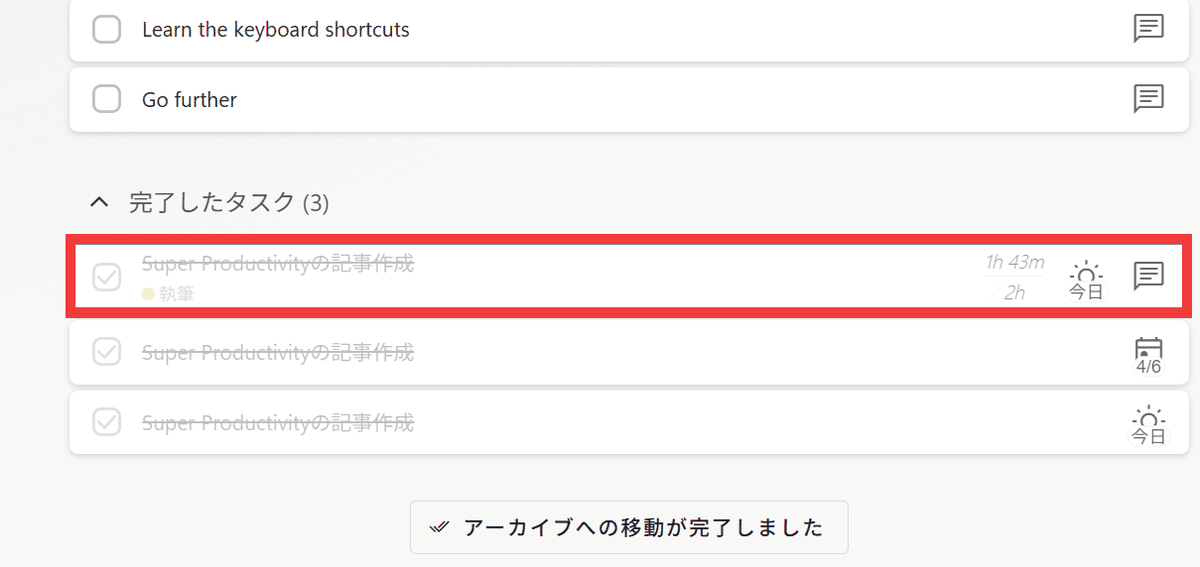
The task will be moved to the 'Completed Tasks' list.
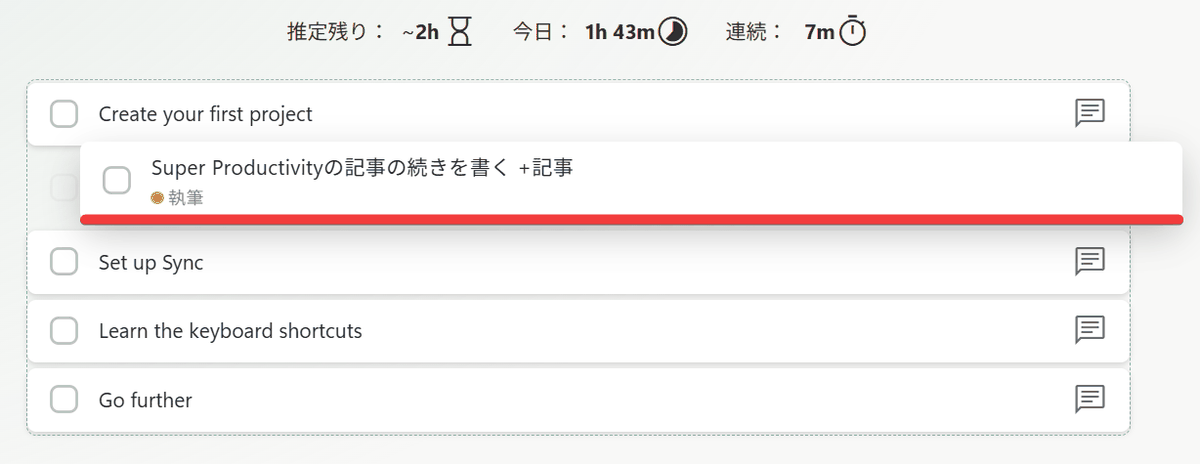
If you want to change the priority of a task in the task list, you can move it by dragging it.
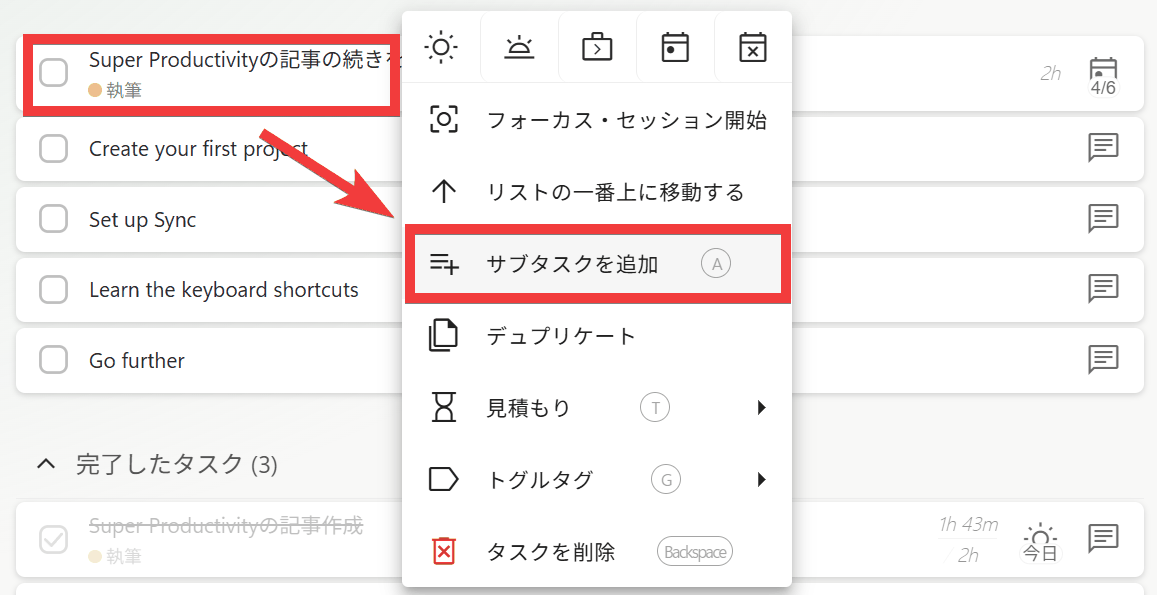
If you want to add subtasks to a larger task, right-click the task and select 'Add Subtask' from the menu.
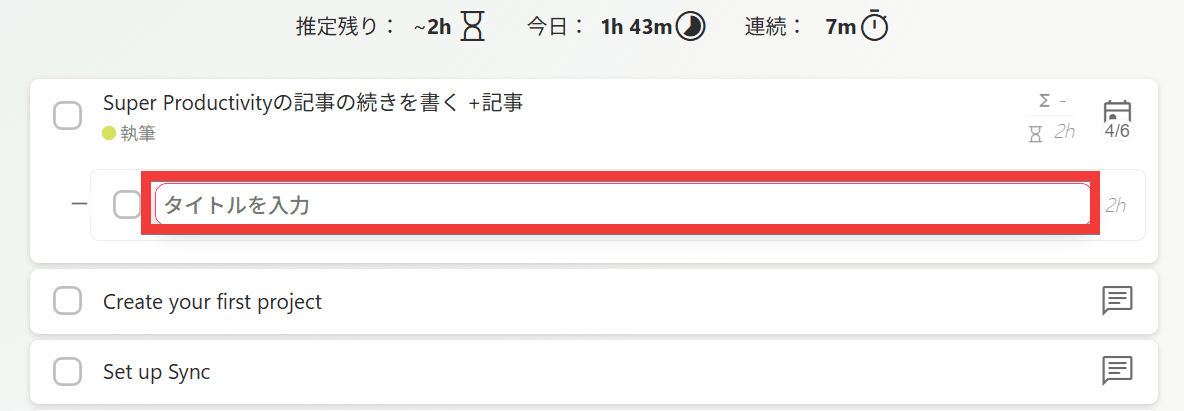
Enter the title of the subtask in the 'Enter Title' form.
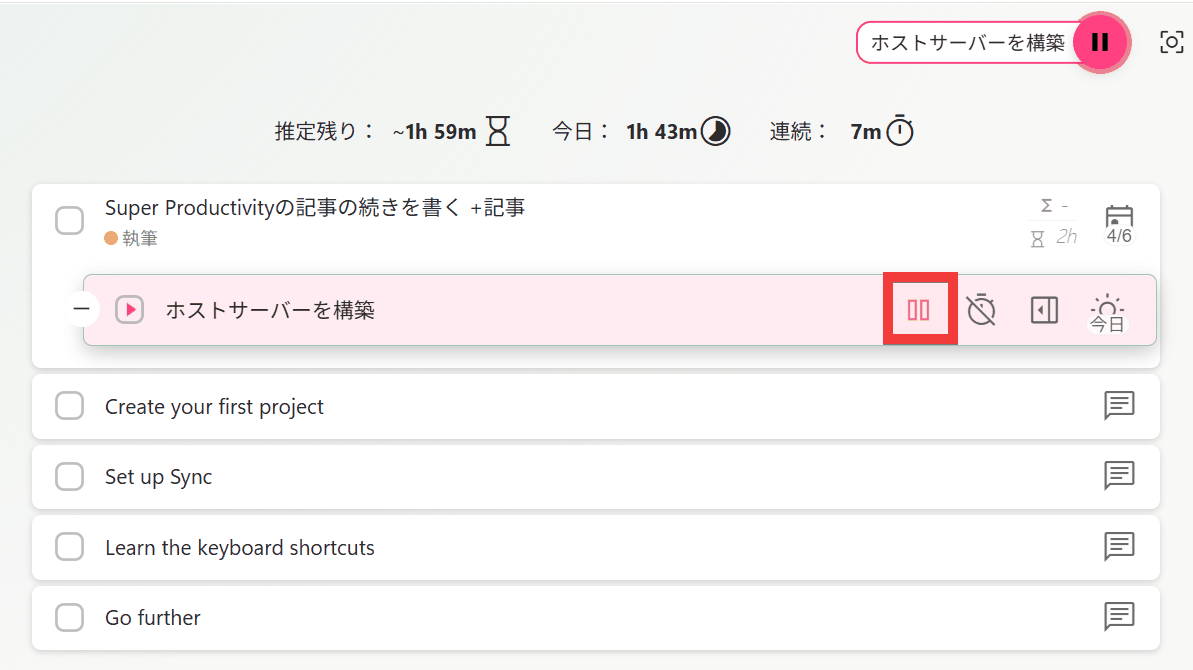
If there are subtasks, a 'Start Tracking' button will appear on the subtask. You can measure the time spent on each subtask.
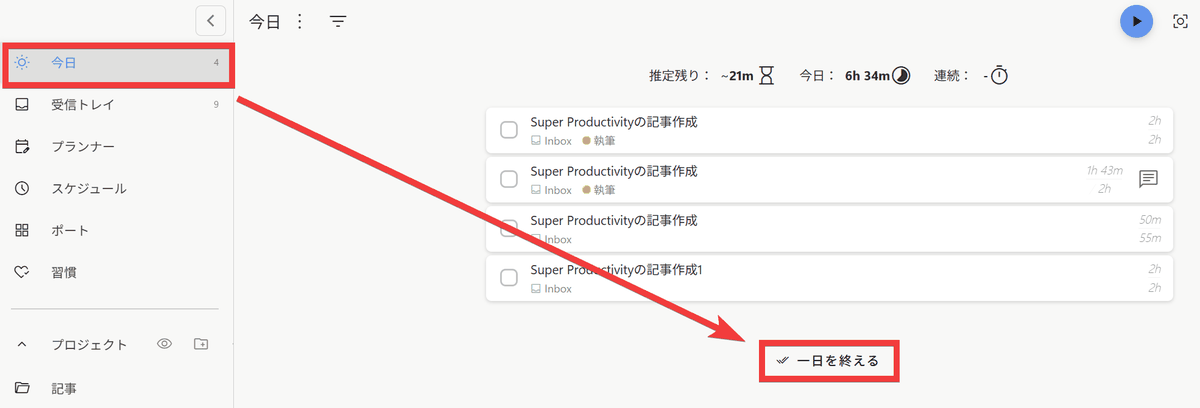
When you're finished with your work for the day, click 'Today' in the menu on the left, and then click the 'End Day' button.
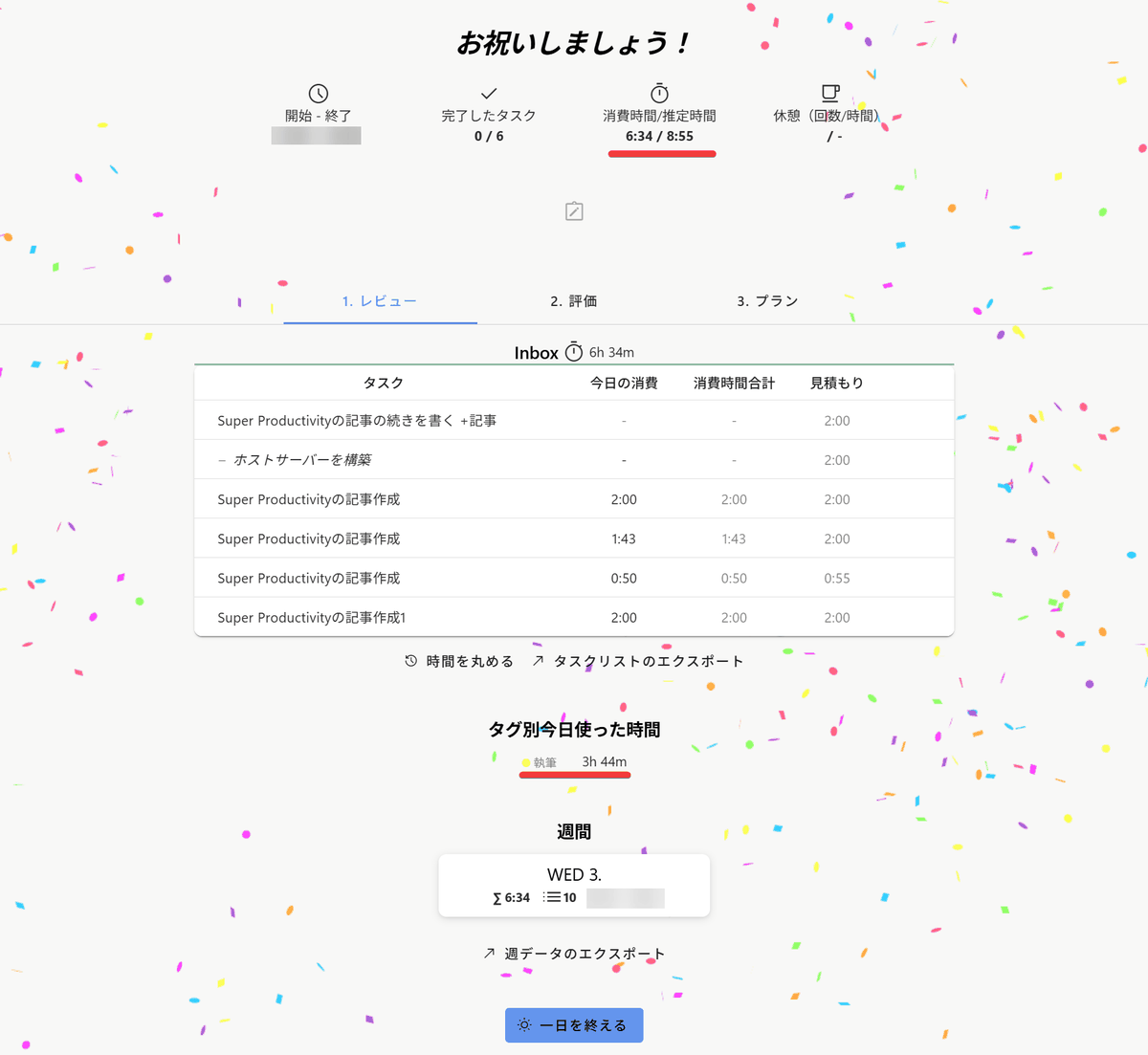
The day's work statistics are displayed along with a confetti effect.
◆ Integration with external services
Super Productivity can import issues and tasks from development and project management services such as Jira, GitHub,
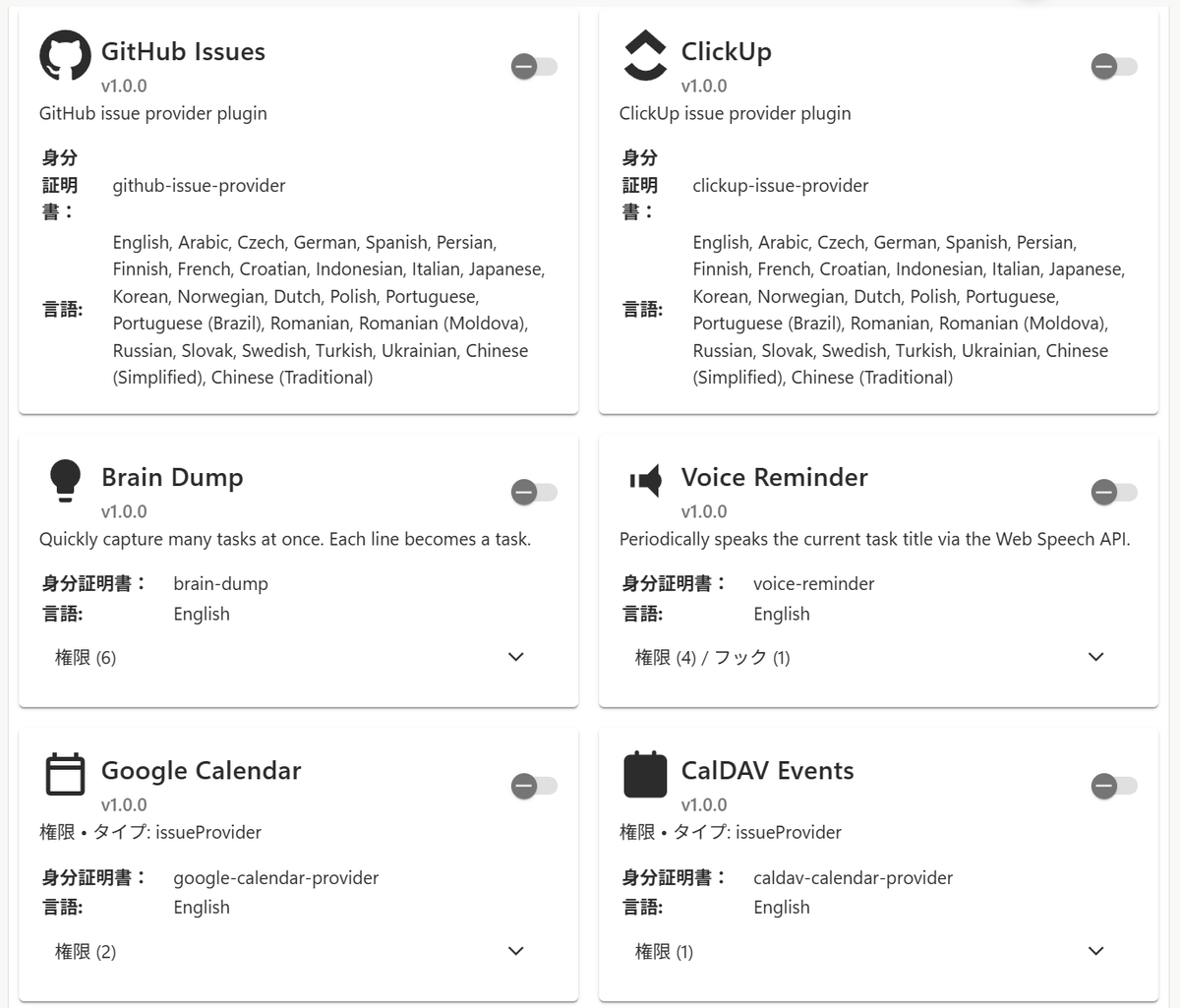
The extent to which data can be reflected in external services after import varies depending on the service. Jira and OpenProject are relatively feature-rich, but GitHub is mainly focused on importing issues and pull requests and tracking comments, and does not allow status changes or worklog submissions on GitHub.
◆ Differences between the web version and the desktop version
Because the web version runs in a browser, some features are limited compared to the desktop version.
| item | Web version | Desktop version |
|---|---|---|
| introduction | Just access it through your browser. | Installable on Windows, macOS, and Linux. |
| Data storage | Save to browser storage | Saved as local data on the app side. |
| Background operation | Under browser control | Runs as an application on the OS. |
| Local notifications | Reliance on web notifications | OS native notifications are available. |
| Global Shortcuts | Unavailable or limited | available |
| Local file linking | Restrictions apply | available |
| Local file synchronization | Basically not possible | available |
| WebDAV synchronization | CORS restrictions may apply. | Less susceptible to browser CORS restrictions |
| Long-term tracking | Browser background control may have an effect. | Stable |
◆ Installing the desktop version
The desktop version can be obtained from the Downloads and Install section of the official Wiki. For Windows, installation from the Microsoft Store is recommended.
Super Productivity - Download and install for free on Windows | Microsoft Store
https://apps.microsoft.com/detail/9nhfvg8361tw?hl=ja-JP&gl=JP
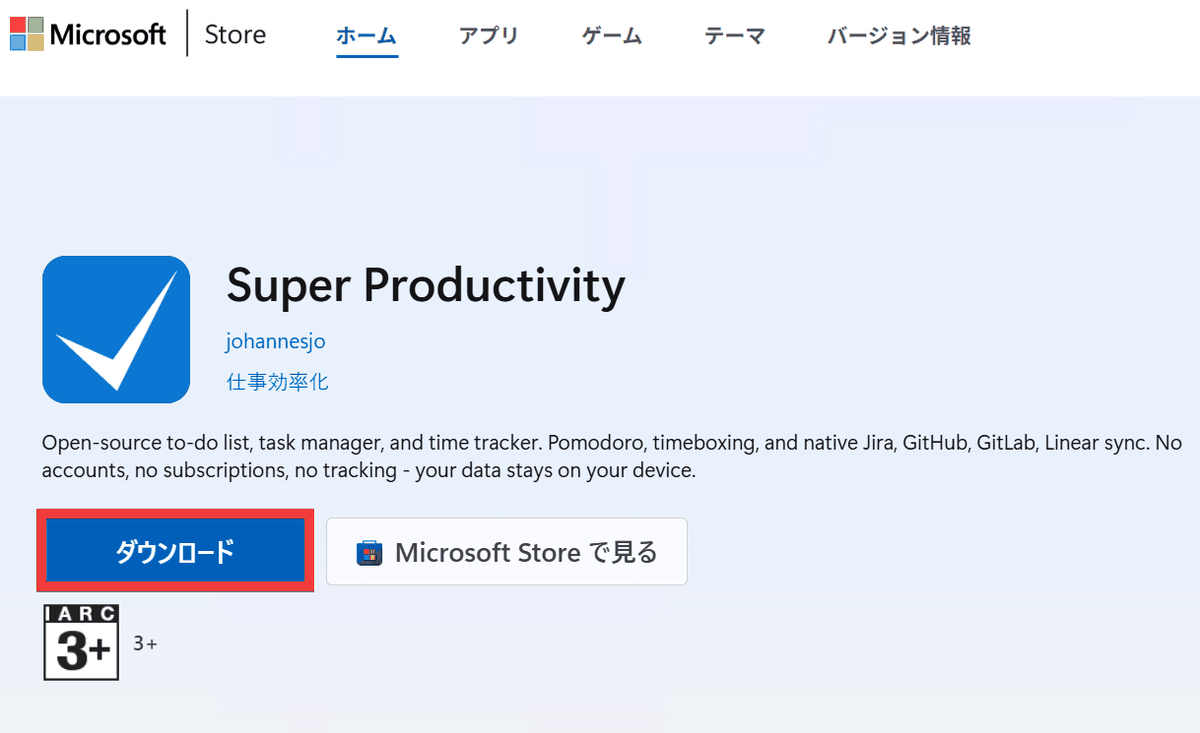
Go to the Microsoft Store distribution page and click 'Download'.
Specify the destination folder and click 'Save'.
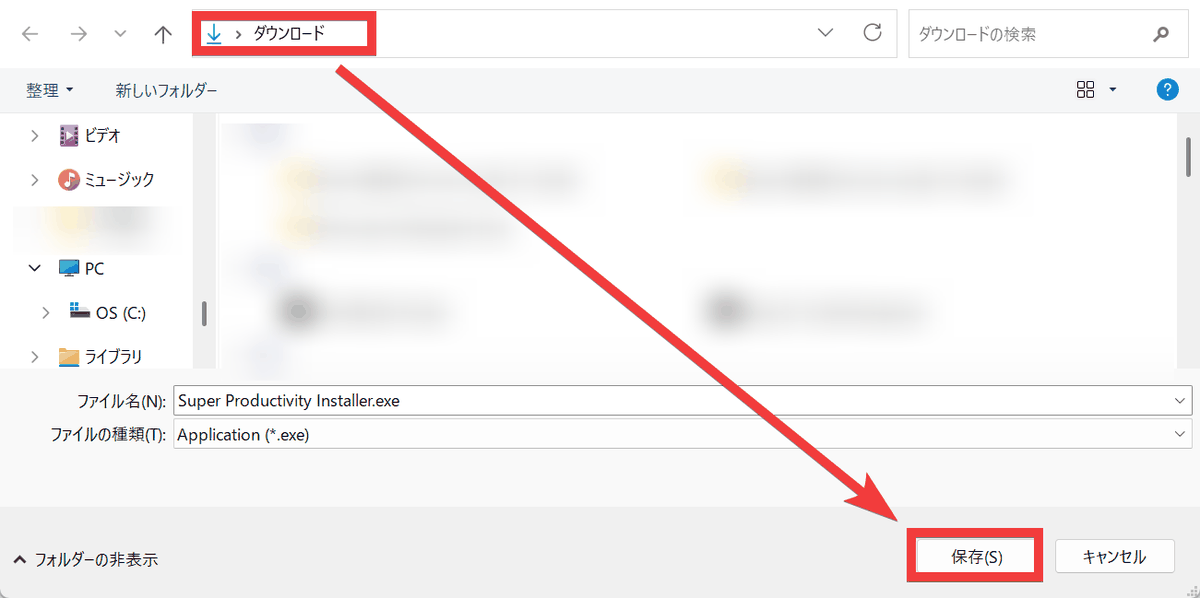
After the download is complete, open the save location and double-click the downloaded file.
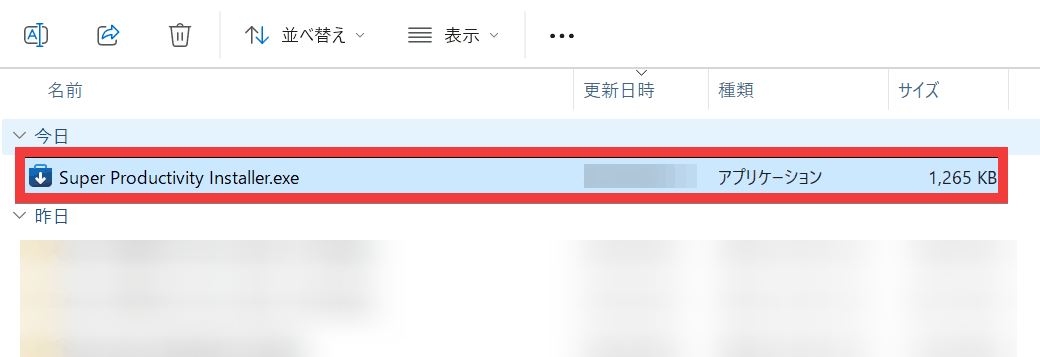
The installation will proceed automatically.
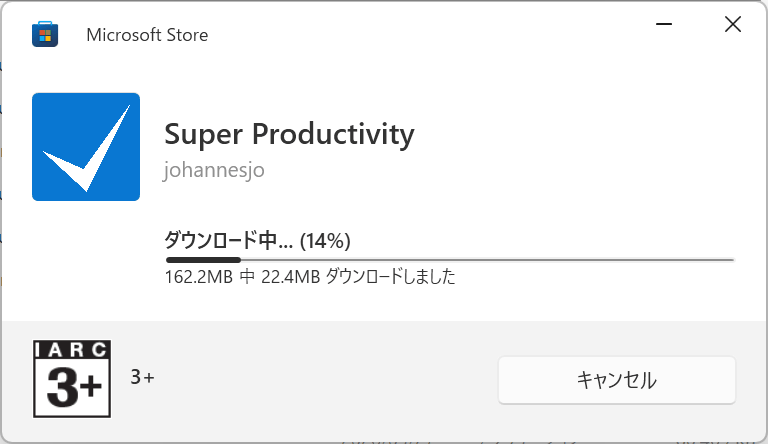
The installation is complete when the initial screen appears.
| Shortcut | operation |
|---|---|
| Shift+A | Open the task addition bar. |
| Enter | Edit the name of the selected task |
| Arrow keys | Move within the task list |
| D | Complete the selected task. |
| A | Add a subtask to the selected task. |
| Y | Start/Stop time tracking for the selected task |
| S | Open the schedule screen for the selected task. |
| Backspace | Delete the selected task |
| ArrowRight | Open the details panel for the selected task. |
| Ctrl+Shift+ArrowUp | Move the selected task to the top. |
| Ctrl+Shift+ArrowDown | Move the selected task down. |
◆Installing the iOS app
Super Productivity App - App Store
https://apps.apple.com/jp/app/super-productivity/id1482572463
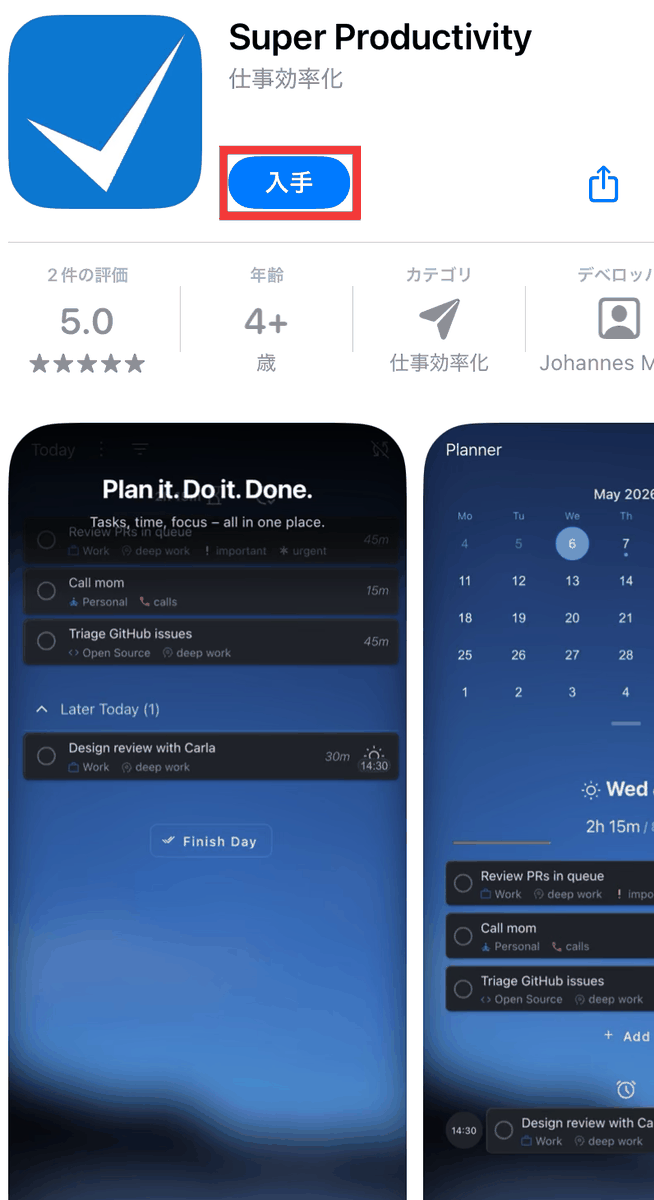
Access the App Store distribution page and tap 'Get'.
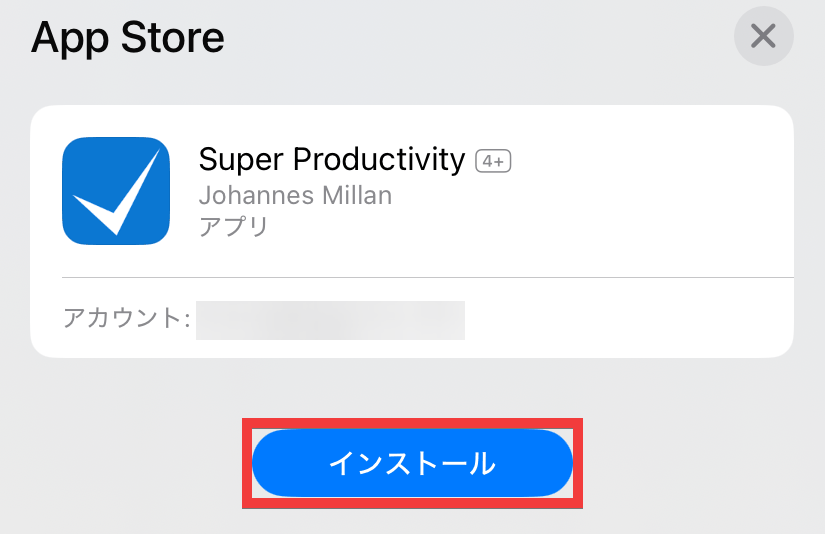
A confirmation screen will appear, so tap 'Install'.
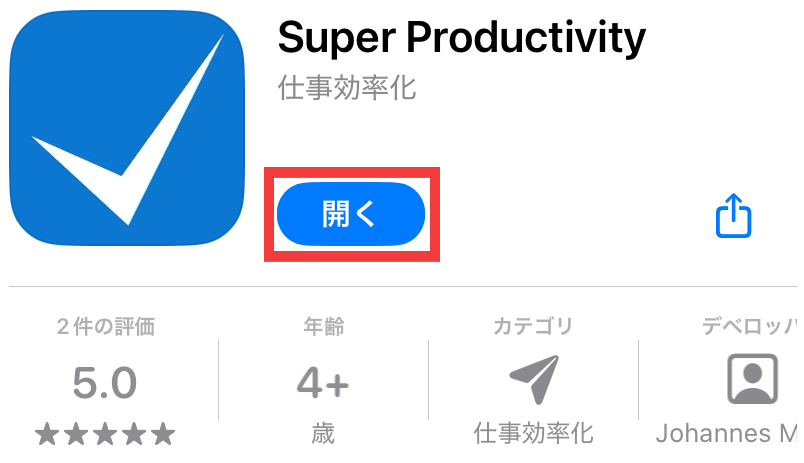
Once the installation is complete, tap 'Open'.
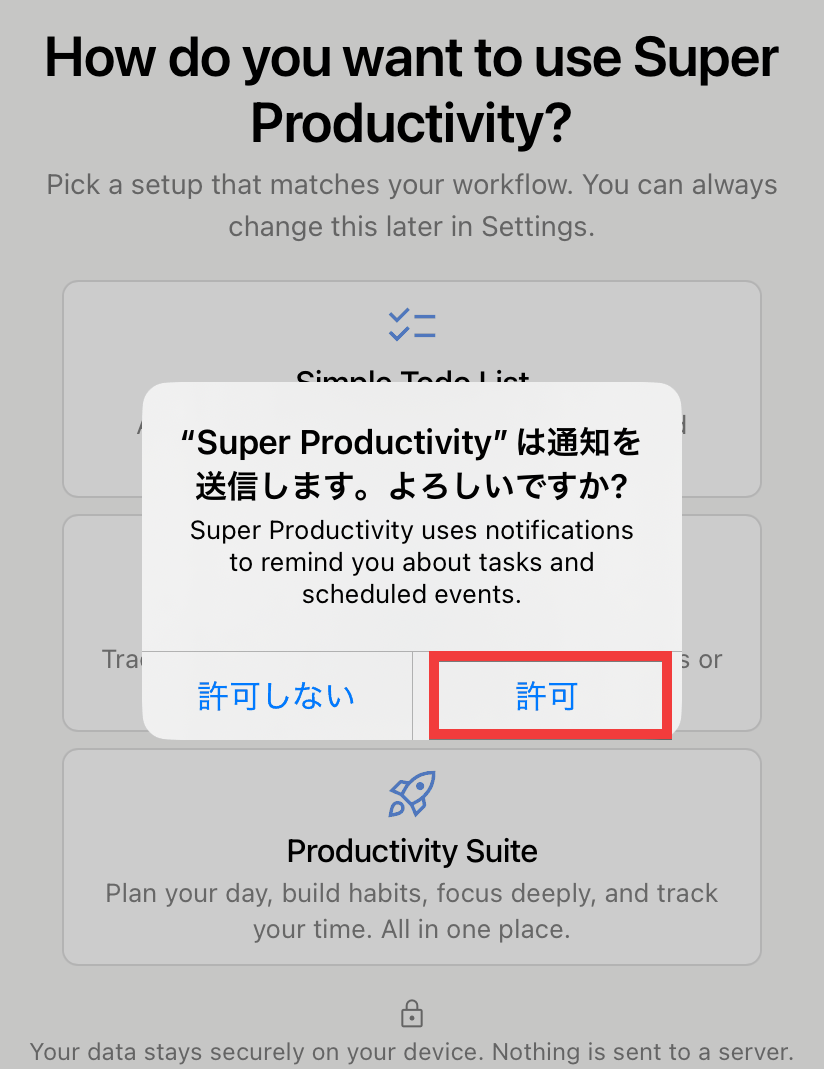
You will be asked to allow notifications, so tap 'Allow'.
The installation is complete when the initial screen appears.
◆Installing the Android app
Hyper Productivity: To-Do List - Google Play App
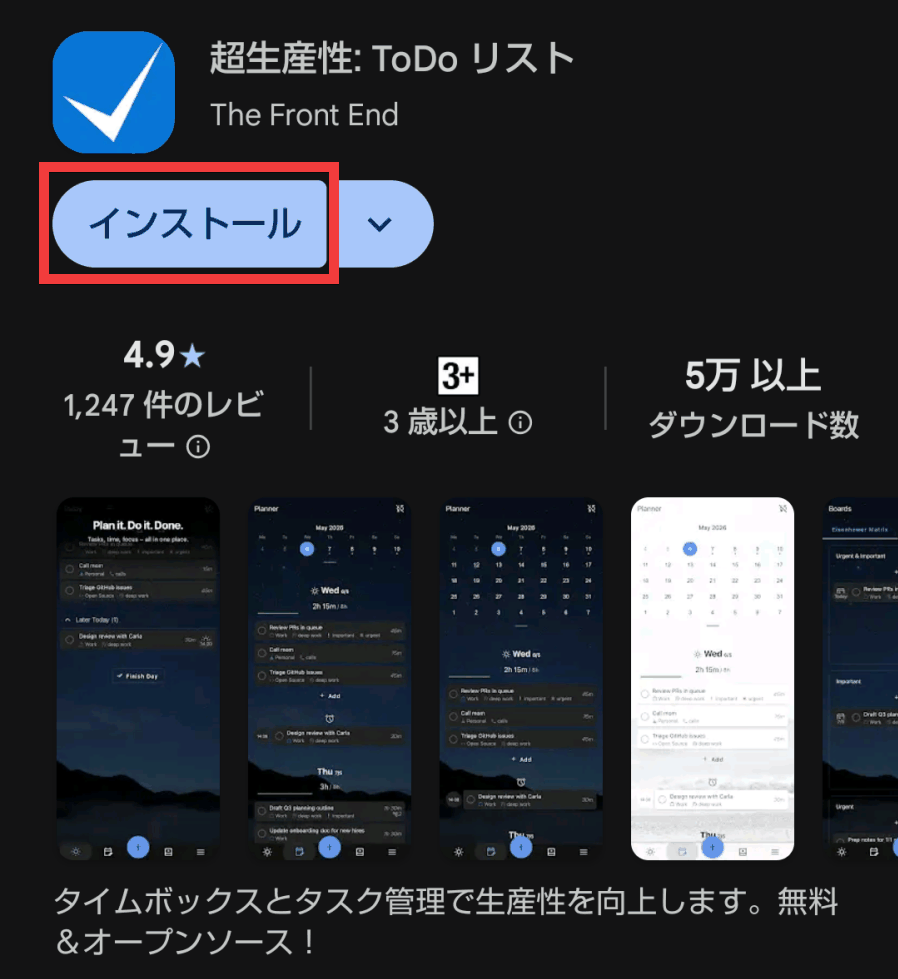
Go to the Google Play distribution page and tap 'Install'.
Once the installation is complete, tap 'Open'.
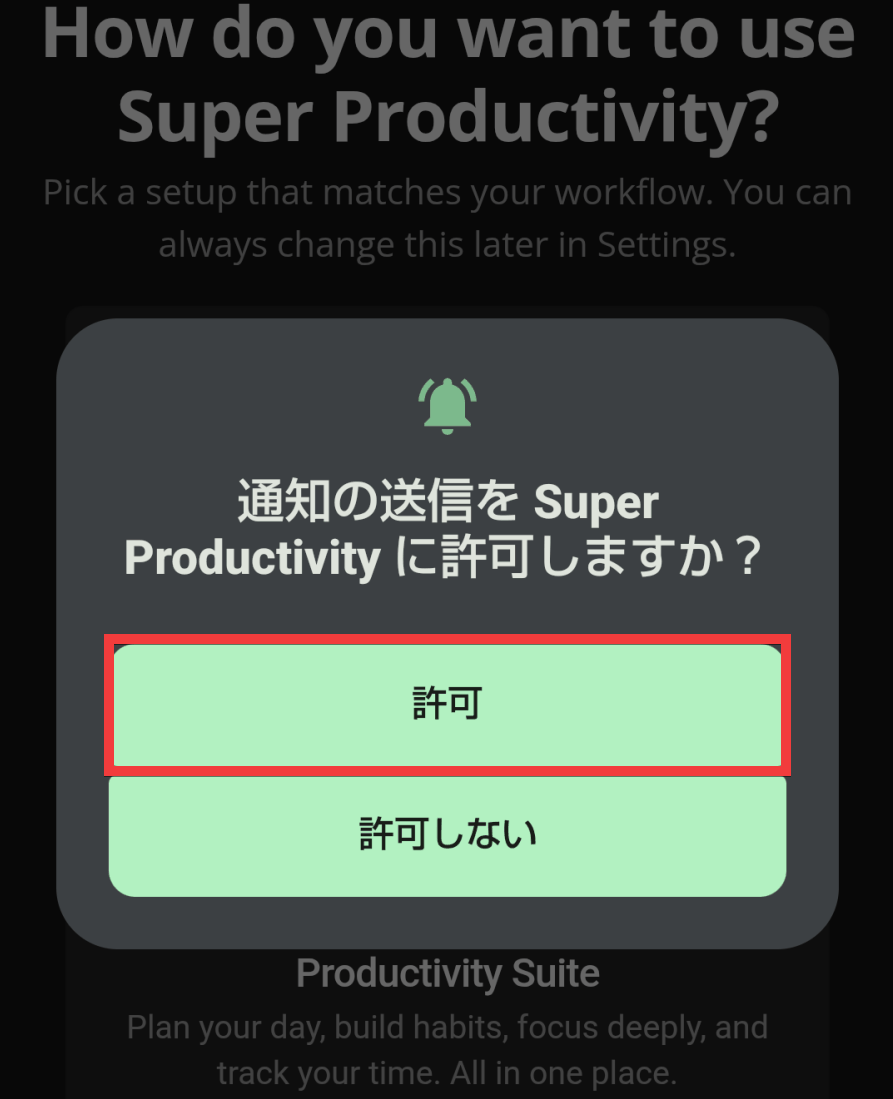
You will be asked to allow notifications, so tap 'Allow'.
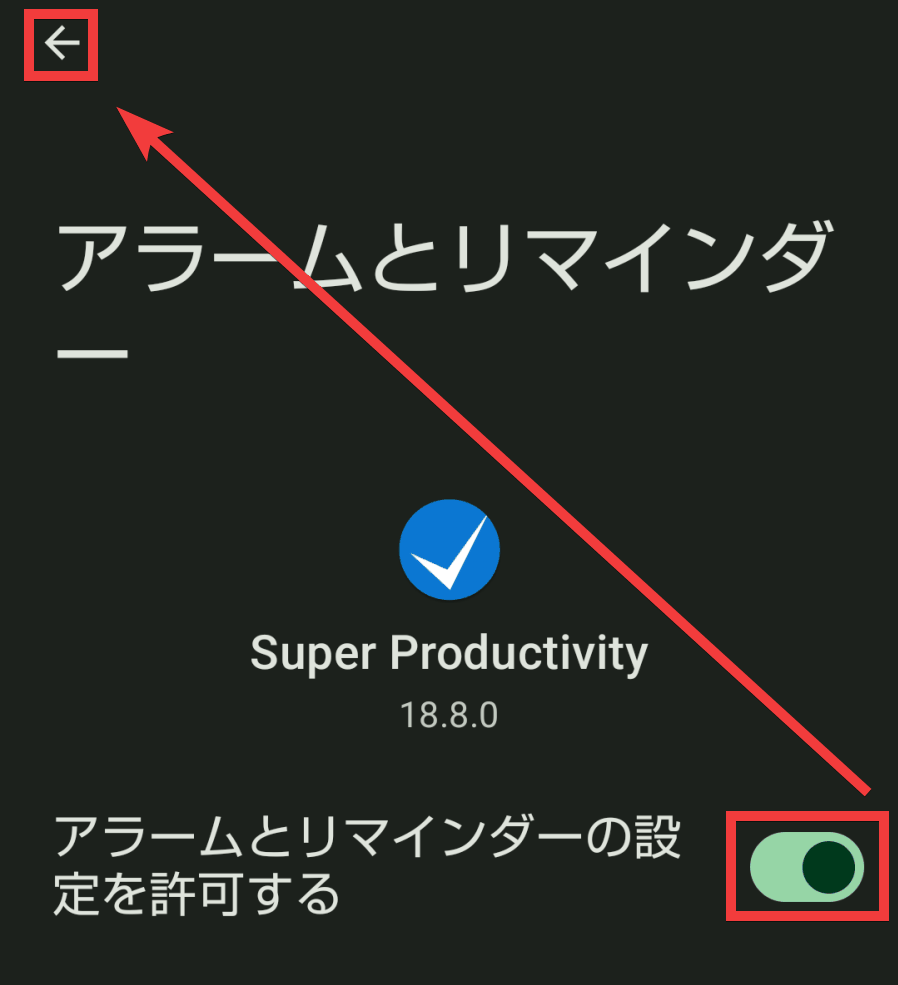
You will be asked to allow 'Alarms and Reminders,' so tap the toggle to turn it on, then tap 'Back.'
The installation is complete when the initial screen appears.
◆Synchronization of each device
To share the same task across the web, desktop, and mobile versions, synchronization settings are required.
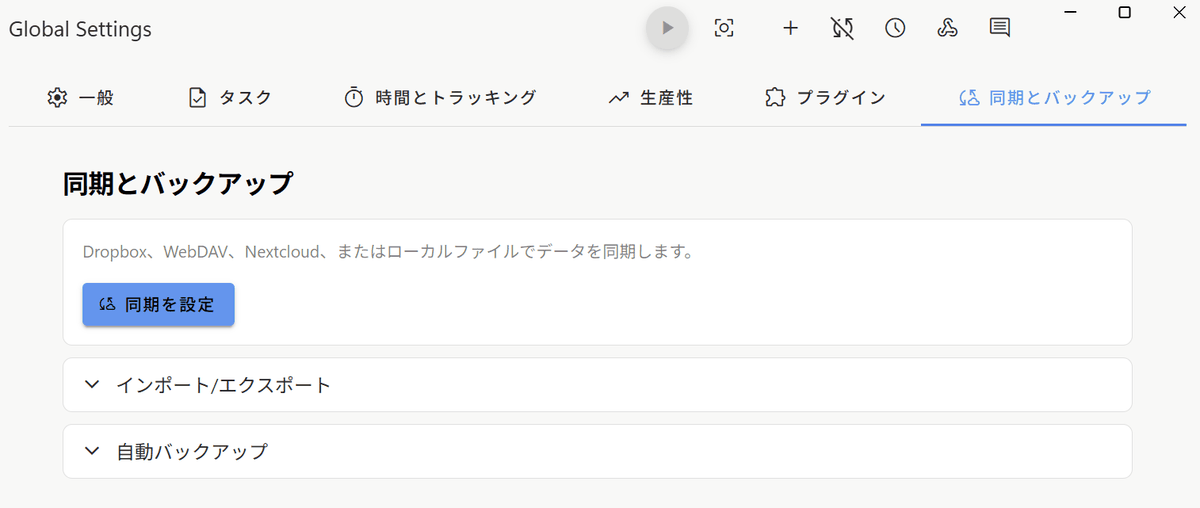
Synchronization can be performed using the following services.
| Synchronization method | Supported Environments | Main uses |
|---|---|---|
| Nextcloud | whole environment | Nextcloud synchronization using WebDAV |
| WebDAV | whole environment | Synchronization with WebDAV-enabled servers such as ownCloud |
| Dropbox | whole environment | Cloud-based backup and synchronization |
| OneDrive | Desktop and smartphone | Cloud-based backup and synchronization |
| SuperSync | whole environment | Dedicated synchronization server for Super Productivity |
| Local files | Desktop and Android | Backup to local folders or NAS |
SuperSync is offered as a dedicated sync server for Super Productivity, but as of June 2026, it is still in beta and has not yet been able to be used reliably, with issues such as ' reports of synchronization failures between PCs and mobile devices ' remaining unresolved.
Super Productivity is not a project management service for teams sharing the same workspace; it's primarily an app for individuals to manage their own to-dos, work hours, timeboxes, and external issues. For team-wide issue management, use tools like Linear, Jira, or GitHub Issues, while Super Productivity is best suited for organizing your own work plans and time records.
Related Posts: