'LLM Checker' is a free tool that helps you identify local AI models that can run on your own PC.
' LLM Checker ' is a CLI tool that scans your PC's hardware and recommends locally executable LLMs, and is characterized by its full integration with
Pavelevich/llm-checker: Advanced CLI tool that scans your hardware and tells you exactly which LLM or sLLM models you can run locally, with full Ollama integration.
https://github.com/Pavelevich/llm-checker
◆Features
According to the official GitHub repository, the features of LLM Checker are as follows:
• Includes over 200 pre-synchronized Ollama SQLite catalogs, which can be updated from Ollama as needed.
• The 4D scoring engine allows for appropriate weighting of quality, speed, suitability, and context depending on the use case.
Hardware detection: GPU (Apple Silicon, NVIDIA CUDA, AMD ROCm, Intel Arc) and CPU, RAM, and acceleration backend.
- Predict memory usage by comparing the byte count calculation formula per parameter with the actual Ollama size.
- Pure JavaScript that can run on Node.js 16 or later
- Live display of AI execution speed in tokens/second along with model output.
There is also a similar tool called llmfit , but the two differ in their approach.
| tool | Main focus | Typical output |
|---|---|---|
| LLM Checker | Hardware-enabled model selection for local inference | Recommended rankings, compatibility scores, and Ollama pull/run commands. |
| llmfit | LLM workflow support and model fitment evaluation | Various optimization workflows and selection heuristics |
According to the official GitHub statement, if your goal is 'what should I run on this machine right now,' it's recommended to start with LLM Checker, but if you want to experiment more broadly, you can expect synergistic effects by using both tools.
◆ Introduction
This time, we will run LLM Checker on WSL (Ubuntu) on a Windows PC. Since LLM Checker depends on Node.js, Node.js (v16 or later) and npm must be installed beforehand. To check the installed versions of Node.js and npm, run the following command in the terminal.
[code]
# Check the Node.js version:
node -v
# Check npm version:
npm -v
[code]
If the above command does not display the version and results in an error, you will need to install it. The curl command is required for installation, so install it first.
[code]
sudo apt update
sudo apt install -y curl
[code]
Next, run the following command to install the latest versions of Node.js and npm available at the time of writing this article.
[code]
# Download and install nvm
curl -o- https://raw.githubusercontent.com/nvm-sh/nvm/v0.40.4/install.sh | bash
\. '$HOME/.nvm/nvm.sh'
# Download and install Node.js
nvm install 24
[code]
To install LLM Checker, run the following command:
[code]
npm install -g llm-checker
[code]
◆Try it out
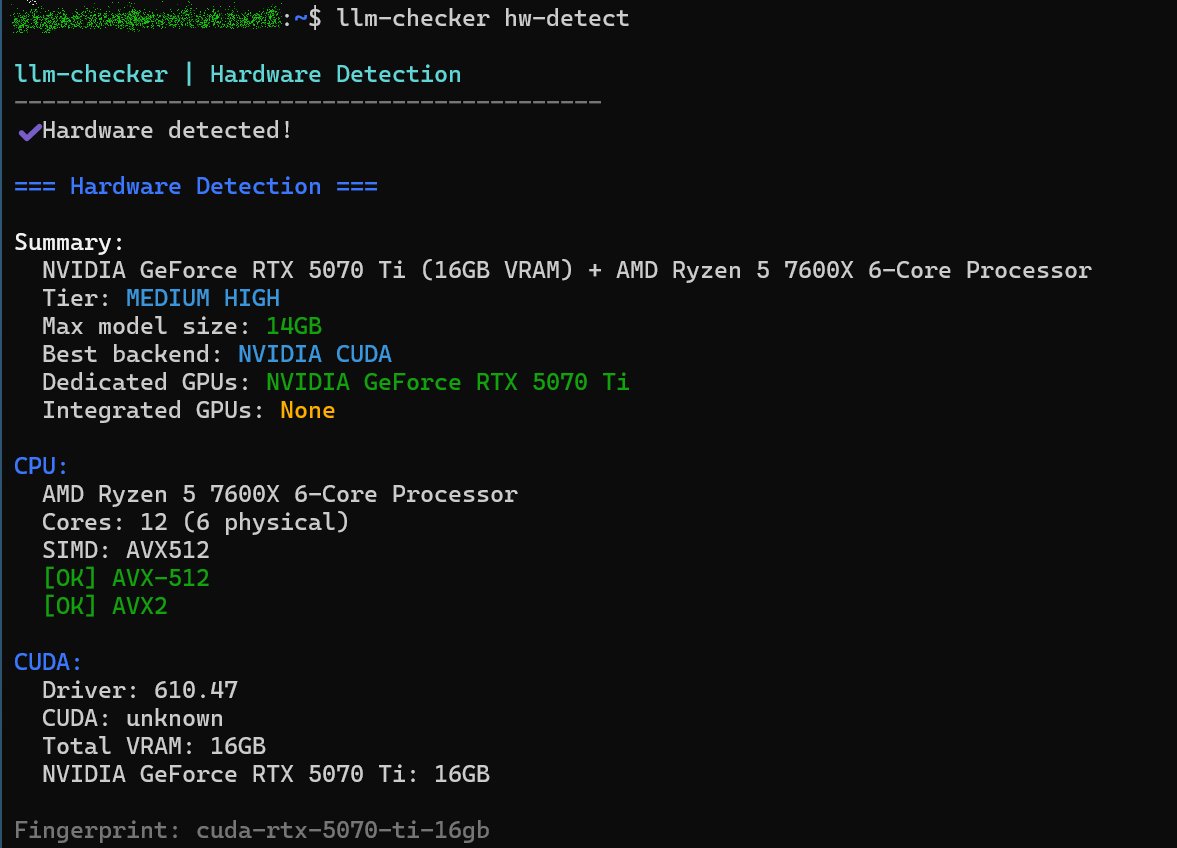
The first time you run the program after installation, you will need to perform adjustments specific to your PC. First, run the following command to detect your PC's hardware (CPU, GPU, RAM, and acceleration backend).
[code]
llm-checker hw-detect
[code]
The execution results are as follows:
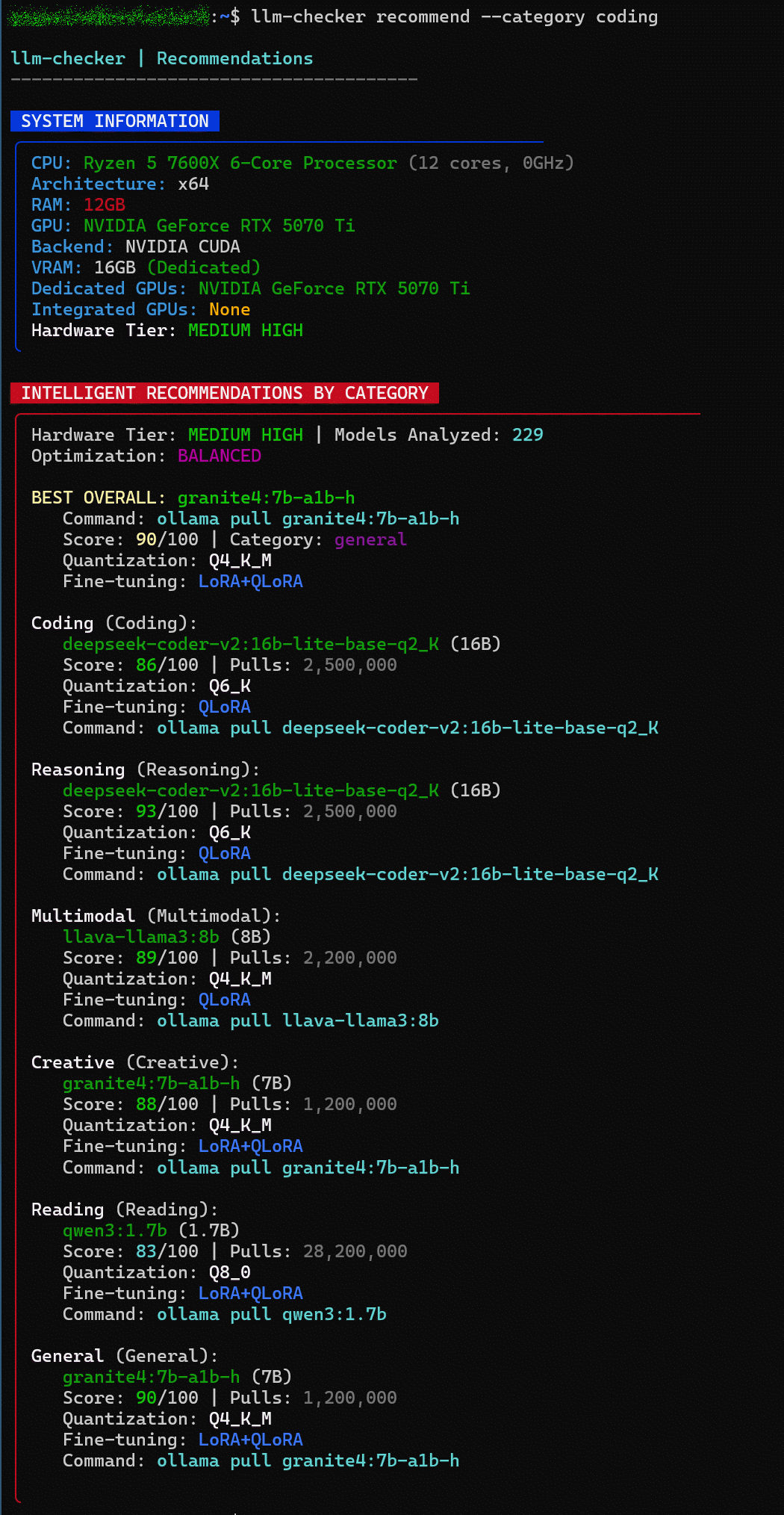
Next, run the following command to check recommended models by category (coding, inference, multimodal, etc.).
[code]
llm-checker recommend --category coding
[code]
A list of recommended models and the necessary
Next, run the following command to update your local SQLite model catalog with the latest Ollama reference.
[code]
llm-checker sync
[code]
Update completed.
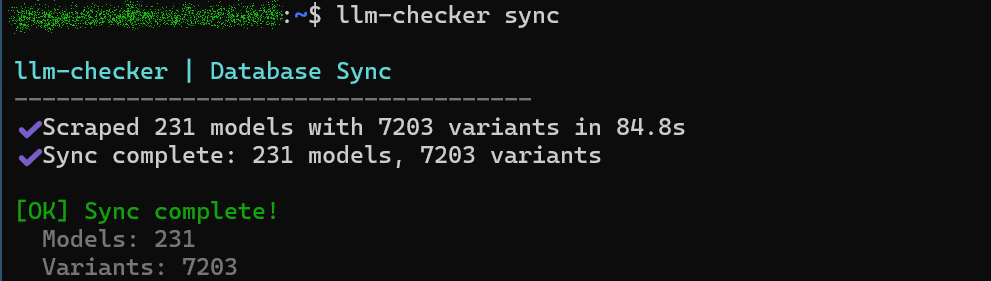
Now that all the adjustments are complete, we will use the automatically selected model and metrics to give instructions to the AI.
[code]
llm-checker ai-run --category coding --prompt 'Write a hello world in Python'
[code]
The execution result was as follows, and I received a warning that 'ollama is not installed.'
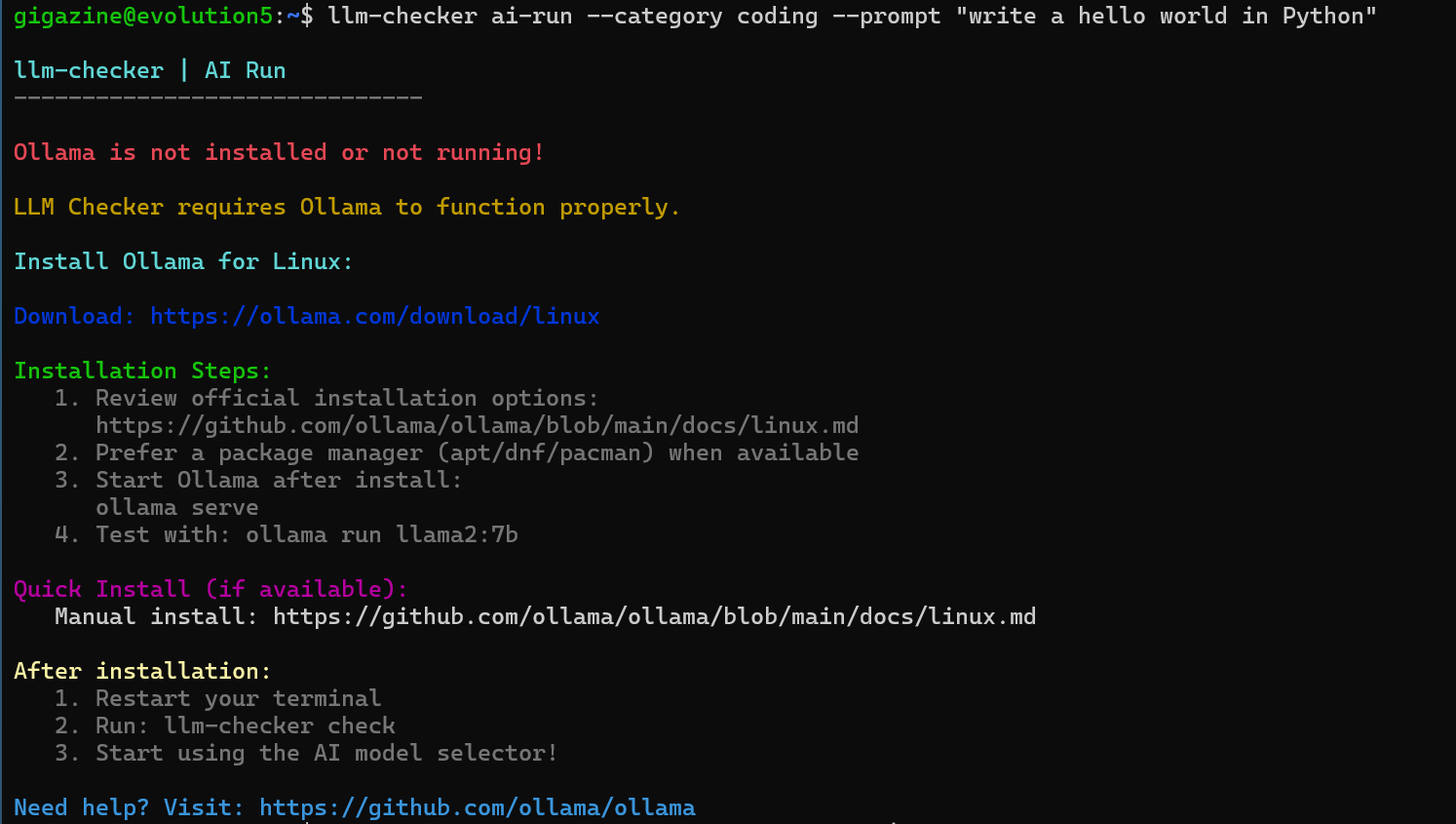
Since zstd is required when installing ollama, we will install both together.
[code]
sudo apt install -y zstd
curl -fsSL https://ollama.com/install.sh | sh
[code]
After installing and giving instructions to the AI again, I received a warning that 'the model does not exist.'

From the several models you're instructed to install first, we'll install '
[code]
ollama pull llama2:7b
[code]
When I gave instructions to the AI again, it produced some strange output. Reading the output, it said, ' Codellama is not installed.'
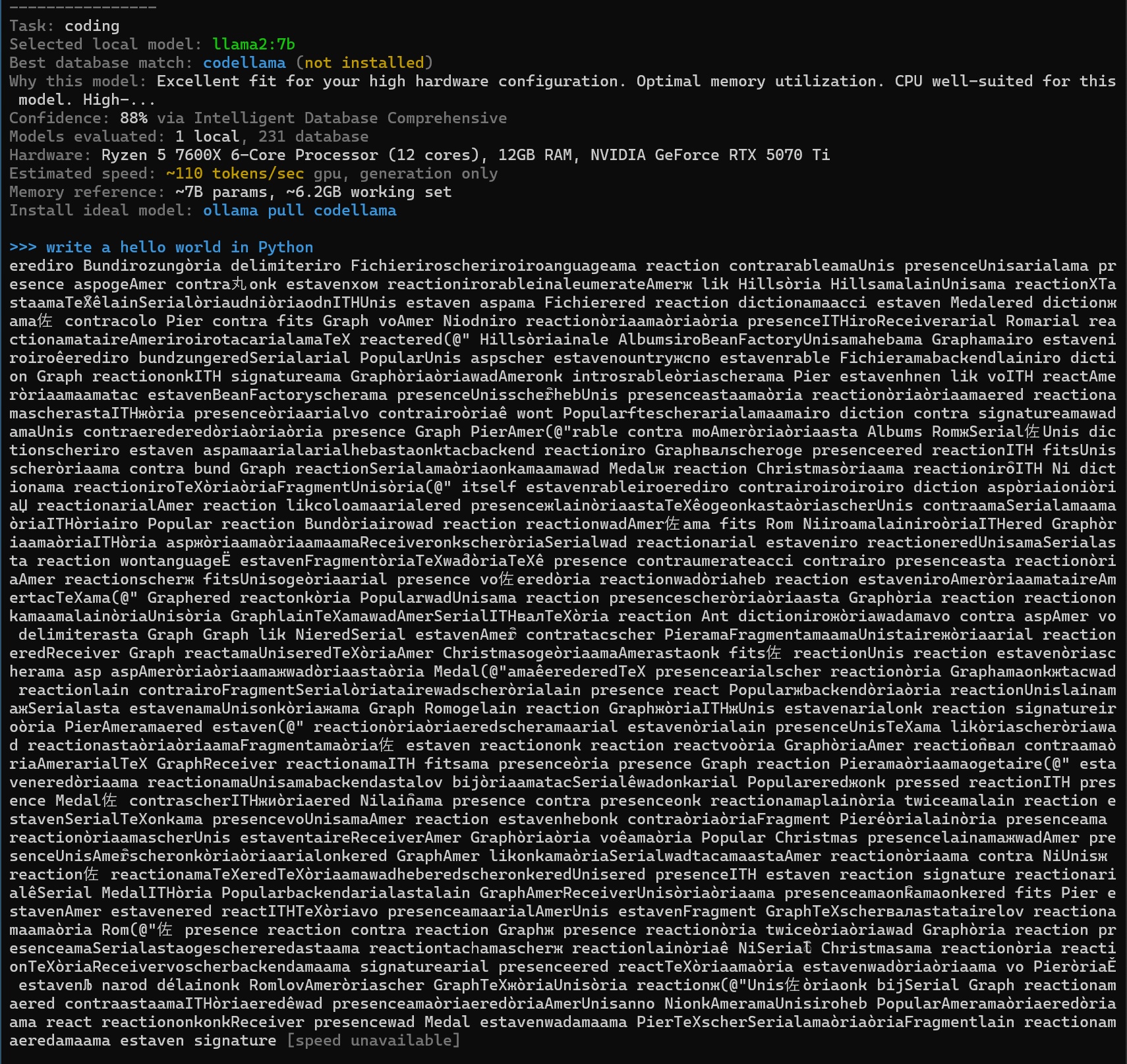
Execute the pull command as shown in the output to install codellama.
[code]
ollama pull codellama
[code]
When I gave the AI instructions again, it finally produced Python code that outputs 'hello world'. The 'Confidence' value in the output was 88% in llama2:7b, but it was 100% in codellama.
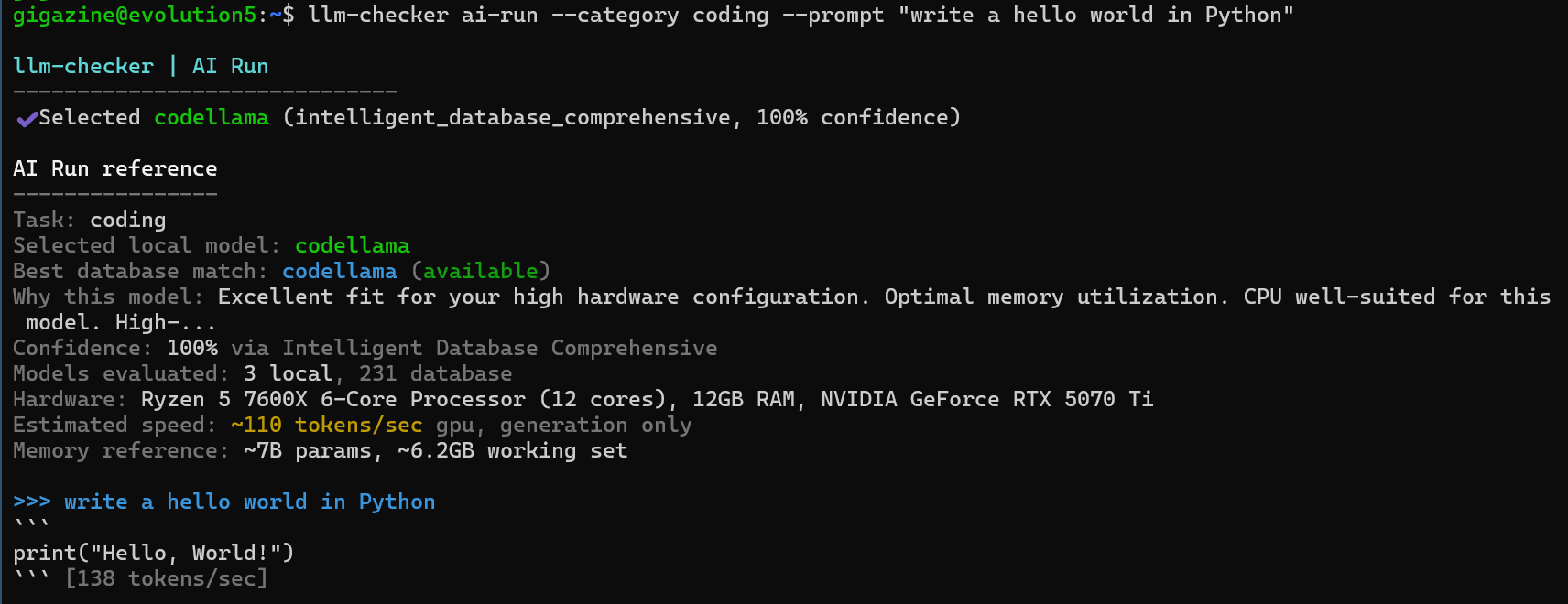
For subsequent runs of 'ai-run,' the system has already been calibrated, so there is no need to perform further adjustments. Simply add the option '--calibrated' to the command line.
[code]
llm-checker ai-run --calibrated --category coding --prompt 'Refactor this function'
[code]
◆Summary
If you're going to use Ollama, LLM Checker is an incredibly helpful tool that specifies the appropriate pull command depending on the situation and allows you to actually verify its operation. If you're interested in running local AI on your own PC, I highly recommend trying LLM Checker.
Related Posts: