I tried out various functions on the Beryl 7 mobile router, including running AdGuard to block ads in various apps and using USB tethering by connecting my smartphone. Here's my review.
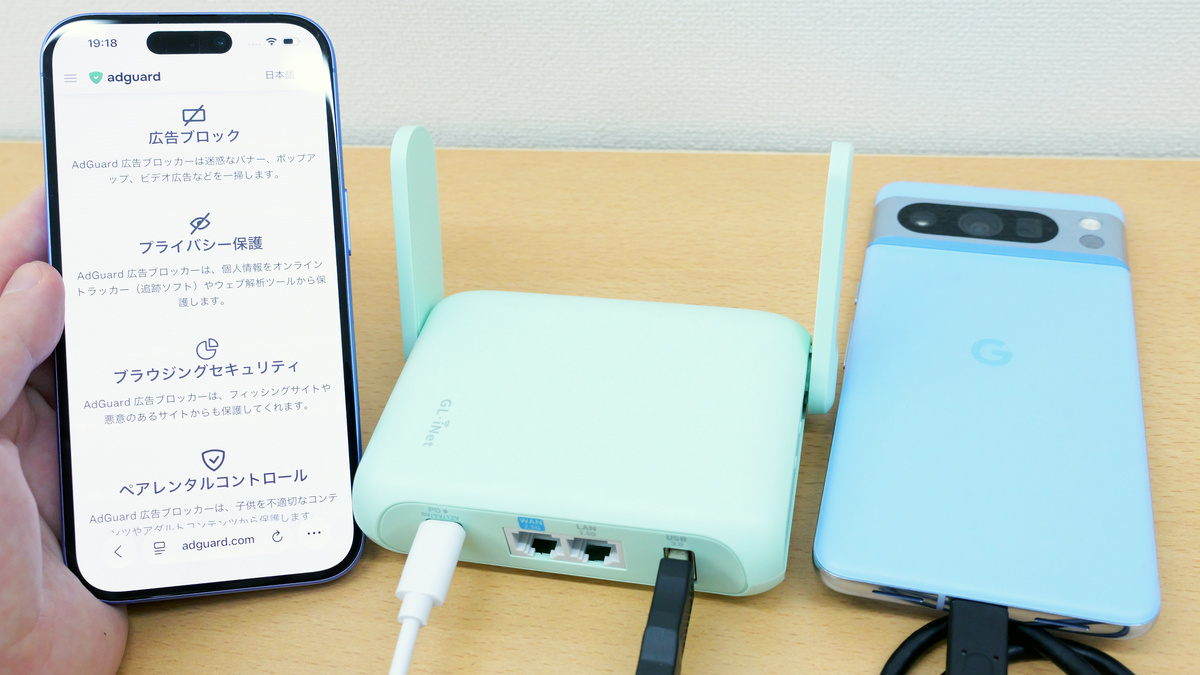
GL-MT3600BE / Beryl 7 - GL.iNet
https://www.gl-inet.com/products/gl-mt3600be/
You can find a good overview of the Beryl 7's appearance and basic setup procedures in the following article.
I tried out the 'Beryl 7,' a mobile router that's easy to carry and set up, making it safer to use public Wi-Fi - GIGAZINE
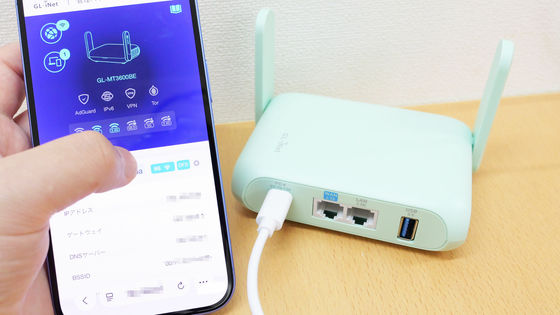
The following four functions will be used this time.
- AdGuard Home blocks ads without requiring any device settings.
- Connect your smartphone with a USB cable for USB tethering.
- Setting up guest Wi-Fi for when others will be using it.
Parental controls
- AdGuard Home blocks ads without requiring any device settings.
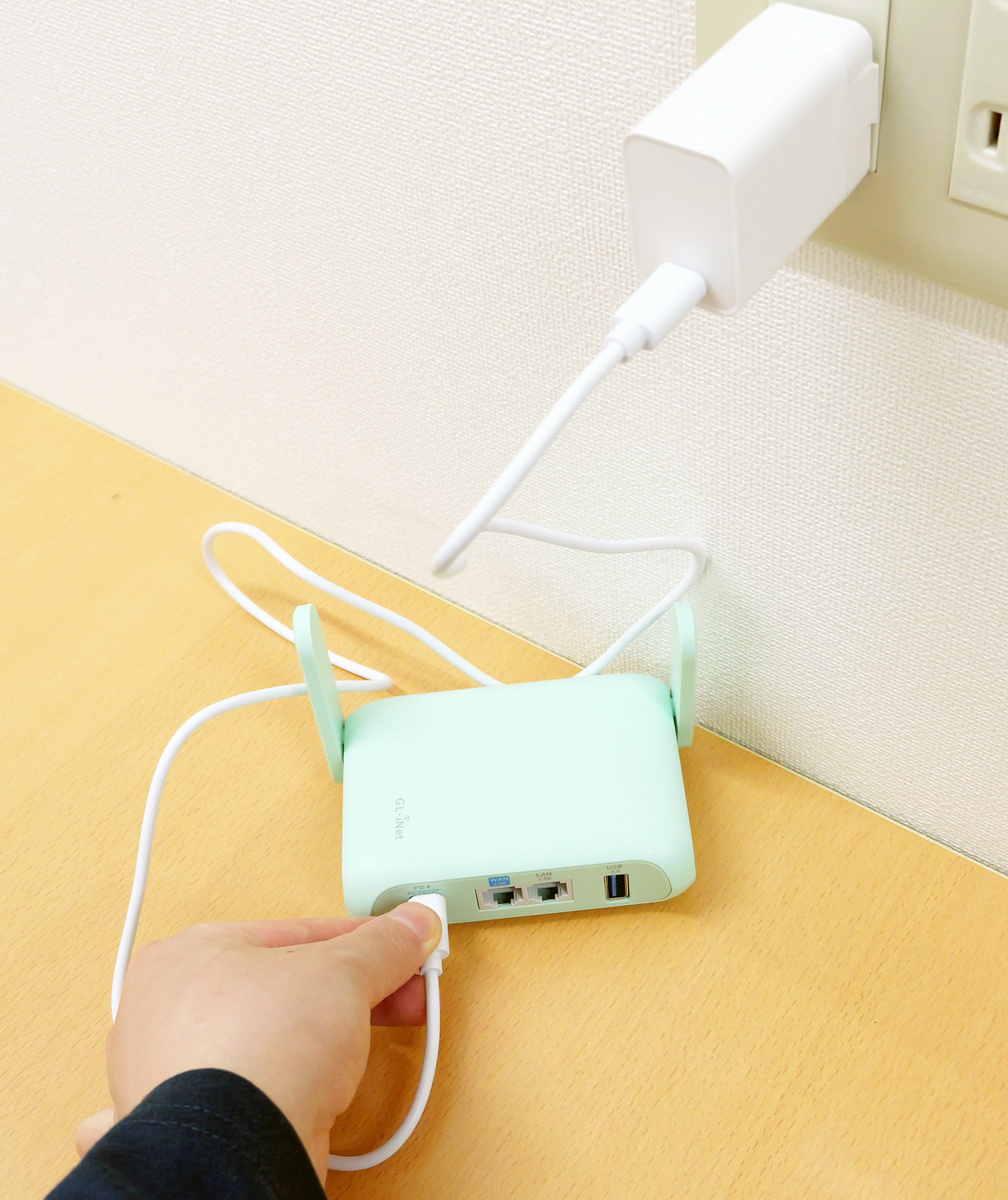
Normally, to remove ads displayed while browsing or using apps, you would need to install browser ad-blocking extensions or dedicated ad-blocking apps on each device. However, with Beryl 7, by configuring the ad blocker on the router side, 'ads are blocked when you connect to the Beryl 7 network,' allowing you to use the internet while minimizing concerns about data usage and spam. To configure this, first connect the Beryl 7 to a power source and power it on.
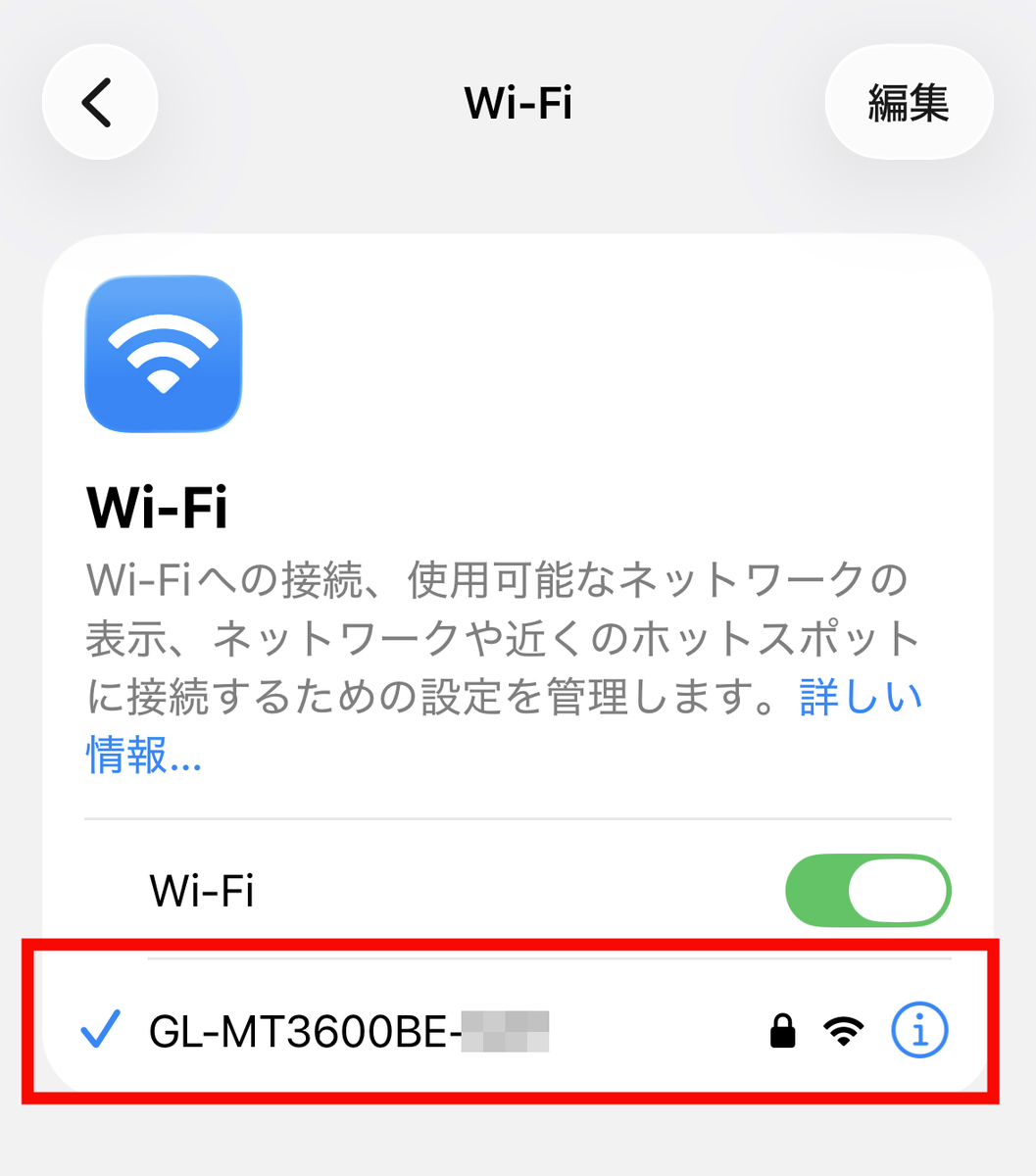
From your smartphone's Wi-Fi settings, select the SSID that includes the Beryl 7 model number 'GL-MT3600BE' and connect to the Beryl 7.
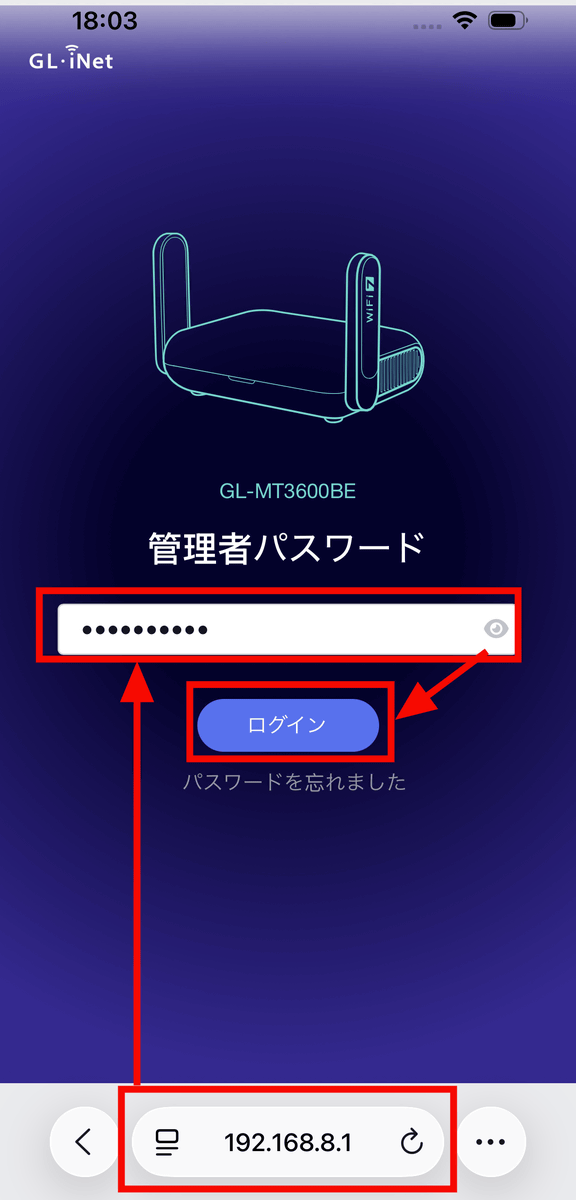
Enter '192.168.8.1' into your browser to access the management panel, then enter the password you set during the initial setup and tap 'Login'.
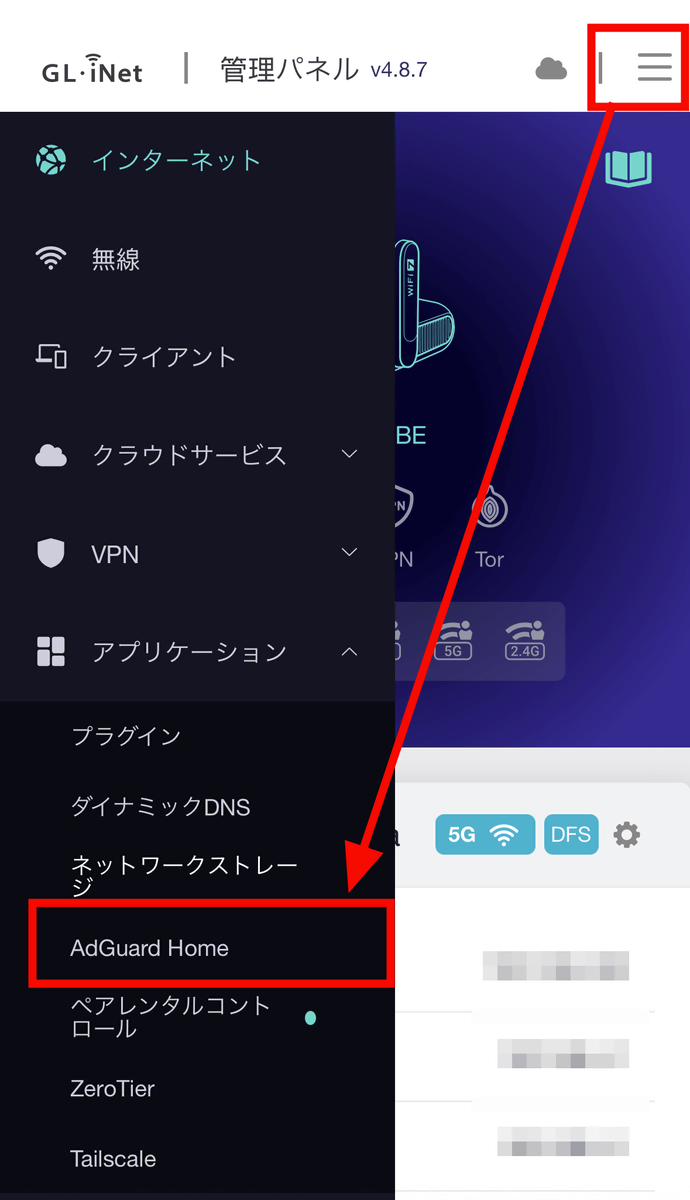
Tap the menu in the upper right corner to open it, then tap 'AdGuard Home' under 'Applications'.
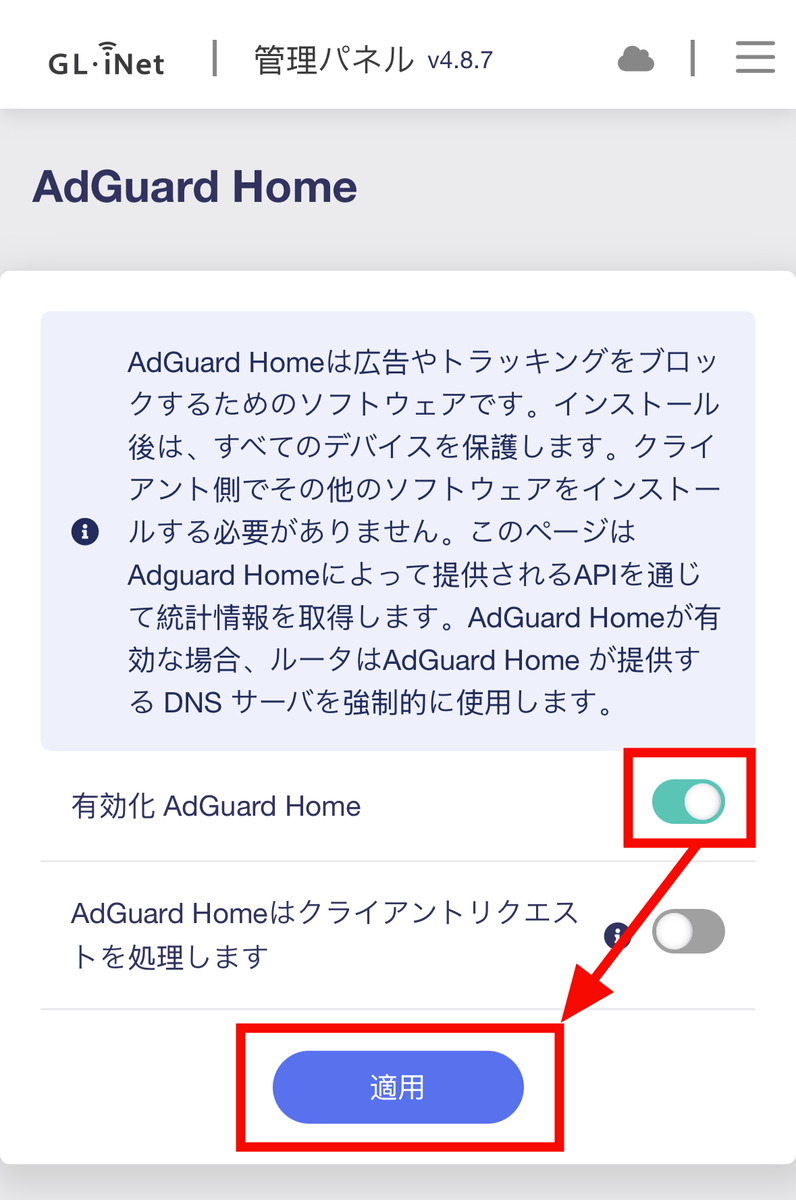
Turn on the toggle switch for 'Enable AdGuard Home' and tap 'Apply'. The setup is now complete.
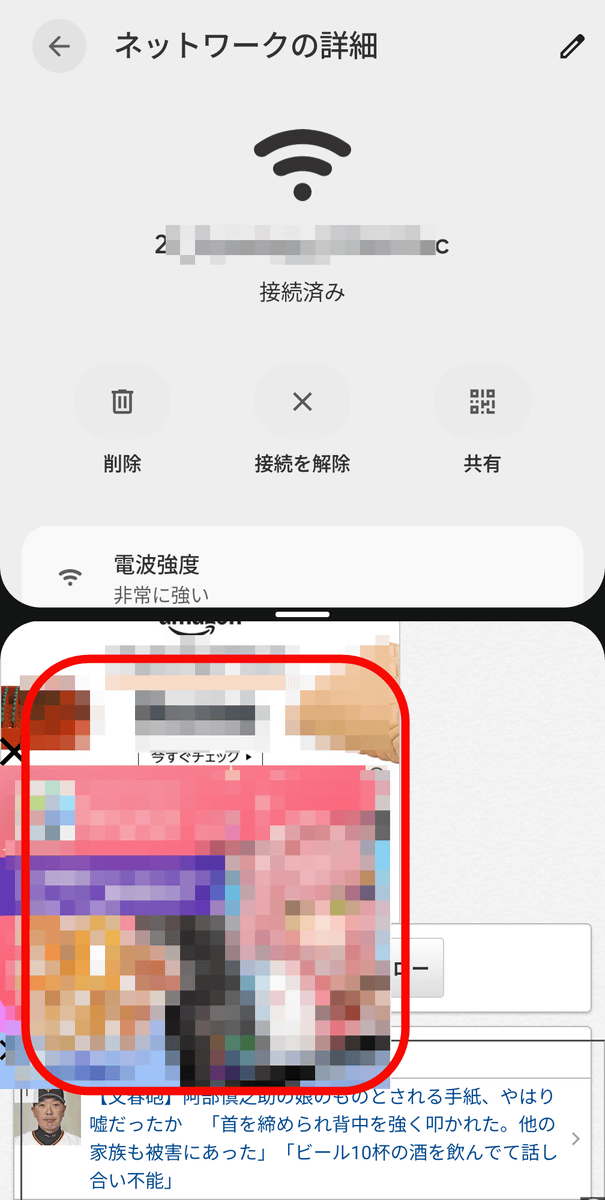
I actually tried accessing a certain summary blog from a browser on another smartphone that doesn't have an ad blocker installed. The following is what it looked like when accessed using my usual Wi-Fi, with multiple banner ads overlapping the screen.
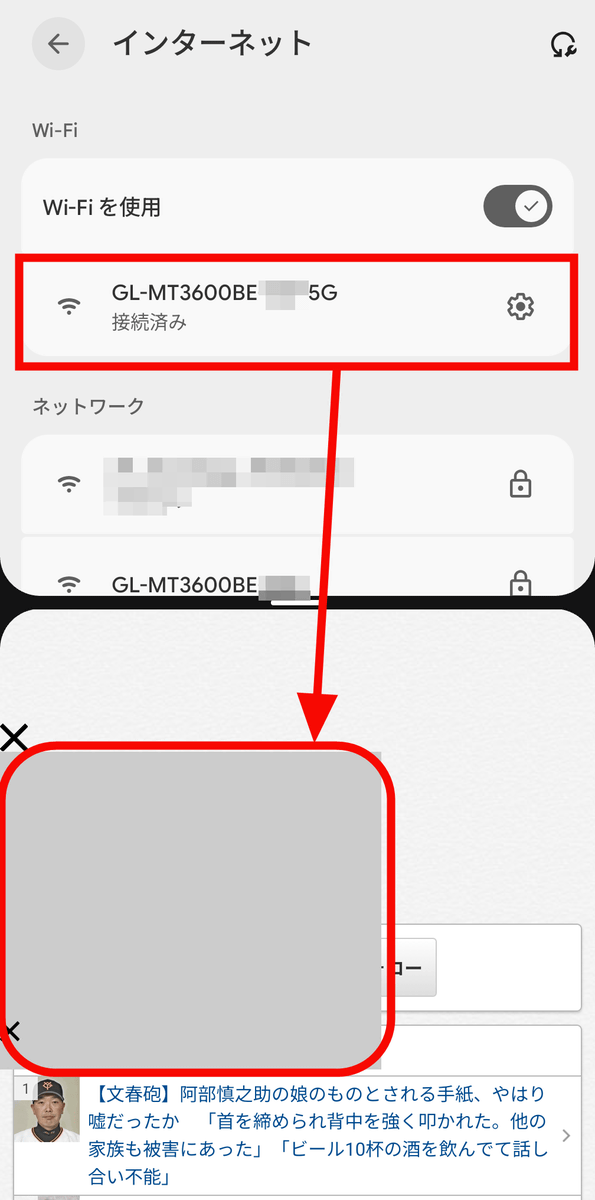
Next, I connected to a Wi-Fi SSID with the Beryl 7 model number 'GL-MT3600BE' and '5G' at the end, and accessed the same website. Some of the advertisements were removed, and the large advertisements were grayed out.
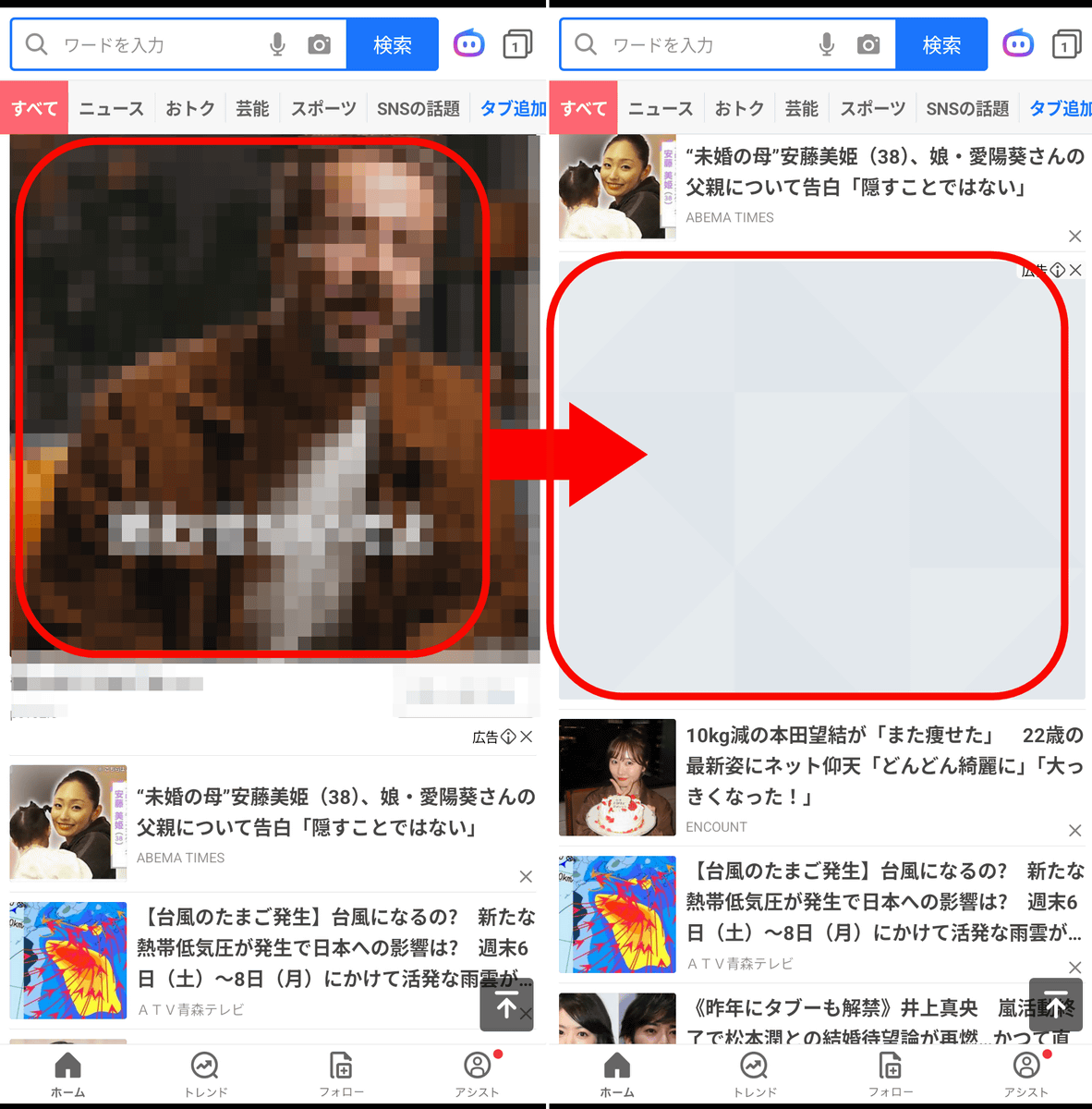
The following images show a news app running, with the left side showing normal communication and the right side showing communication using Beryl 7's wireless connection. The extent to which ads are removed depends on the app store's terms and app settings, so not all ads are completely removed. However, the ability to configure Beryl 7 to automatically activate an ad blocker on all devices connected to the Beryl 7 network is extremely convenient.
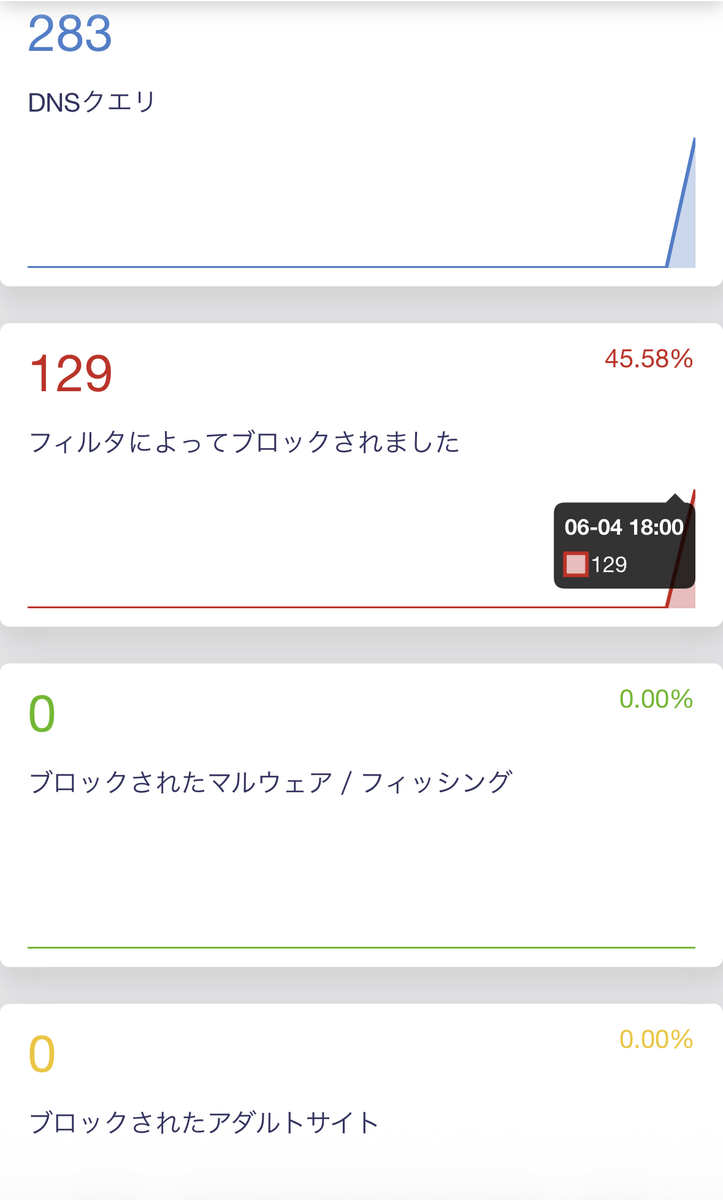
Additionally, the management panel allows you to view a report showing how much blocking was performed by AdGuard Home.
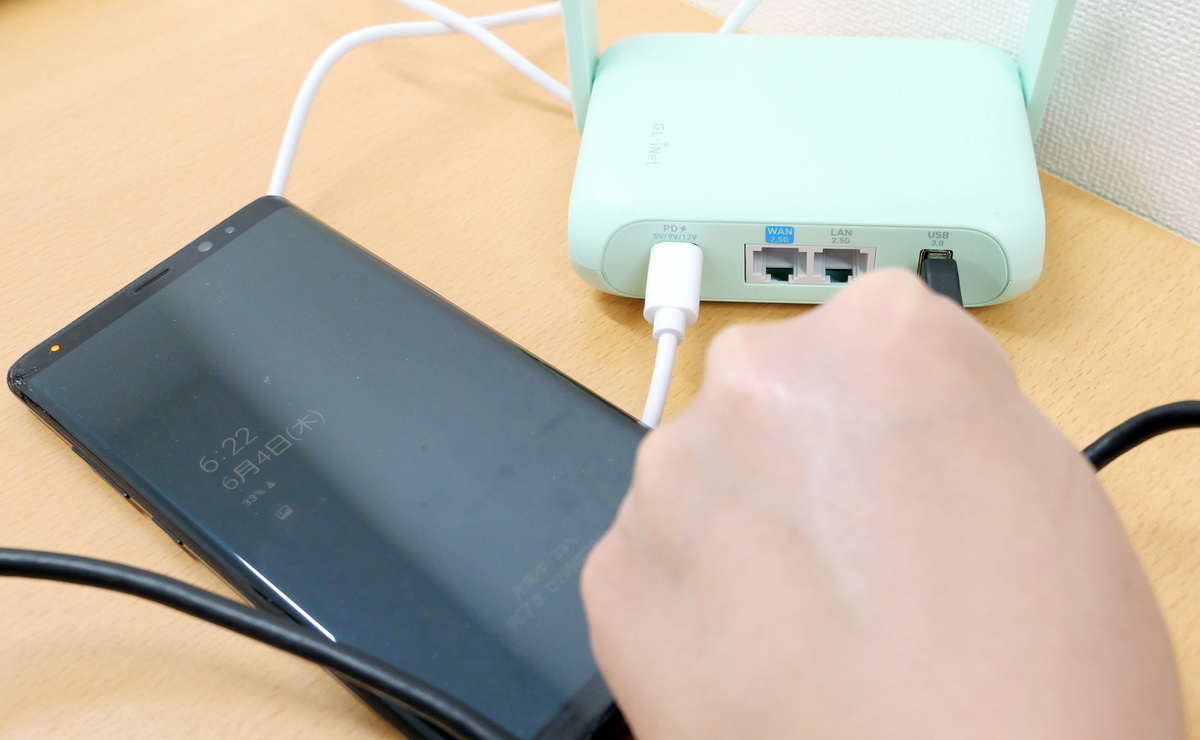
- Connect your smartphone with a USB cable for USB tethering.
There are three ways to use the internet with Beryl 7: Wi-Fi, wired connection, and smartphone USB tethering. Since the procedures for Wi-Fi and wired connections have been explained in
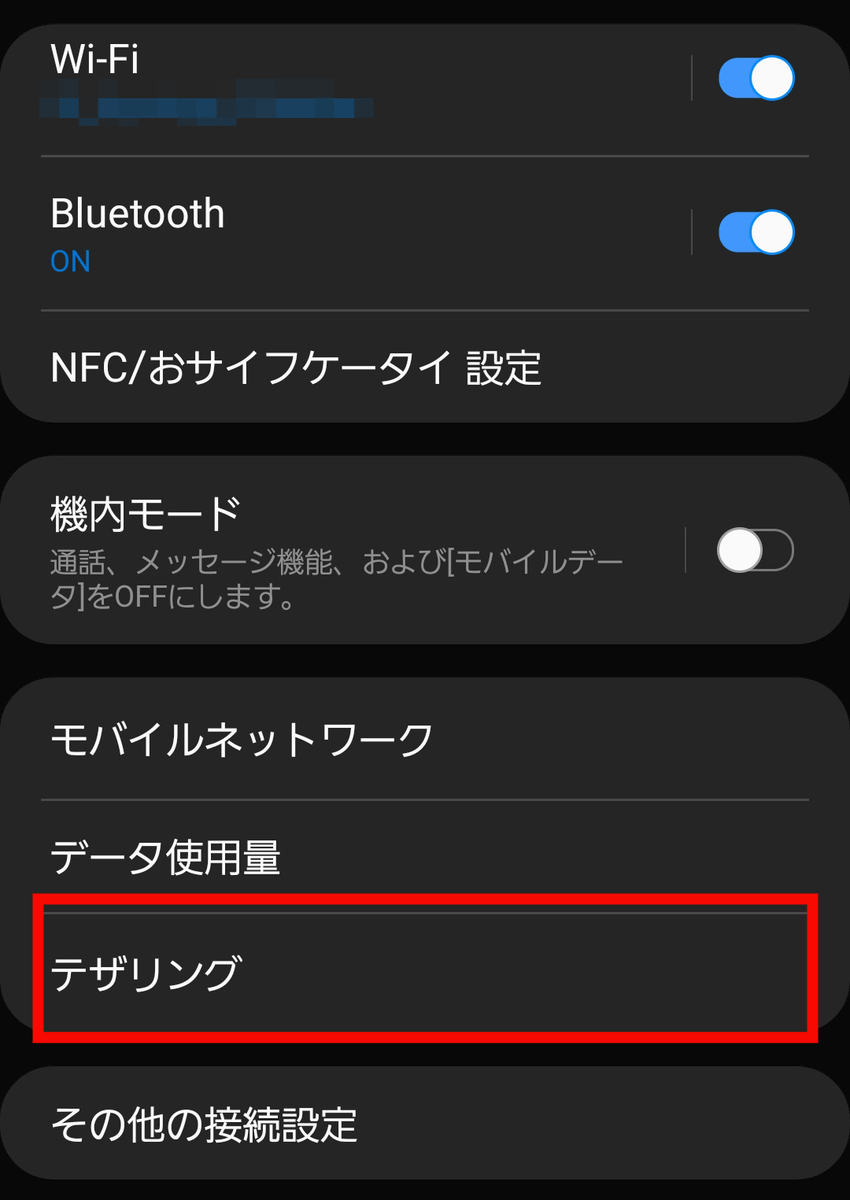
Next, open 'Tethering' in the settings of your connected smartphone.
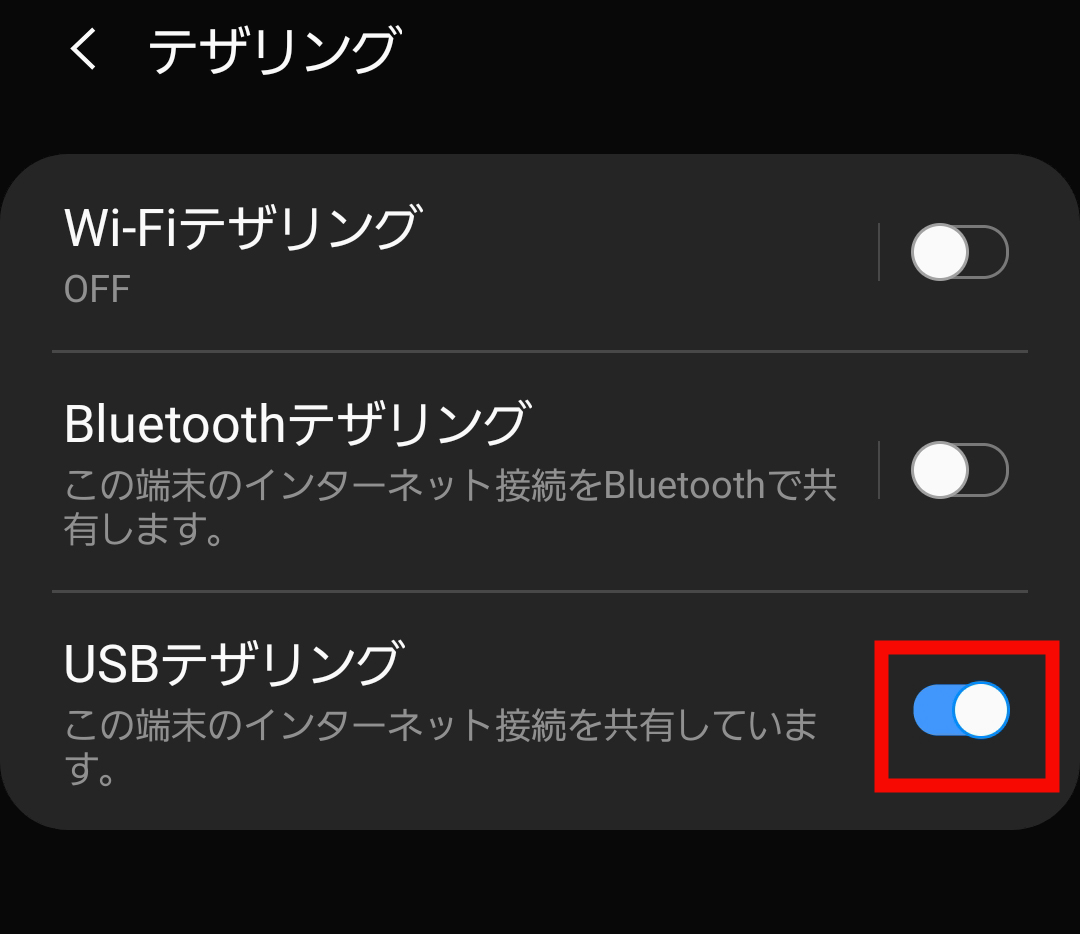
Once you turn on the 'USB tethering' toggle switch, your smartphone for tethering is ready.
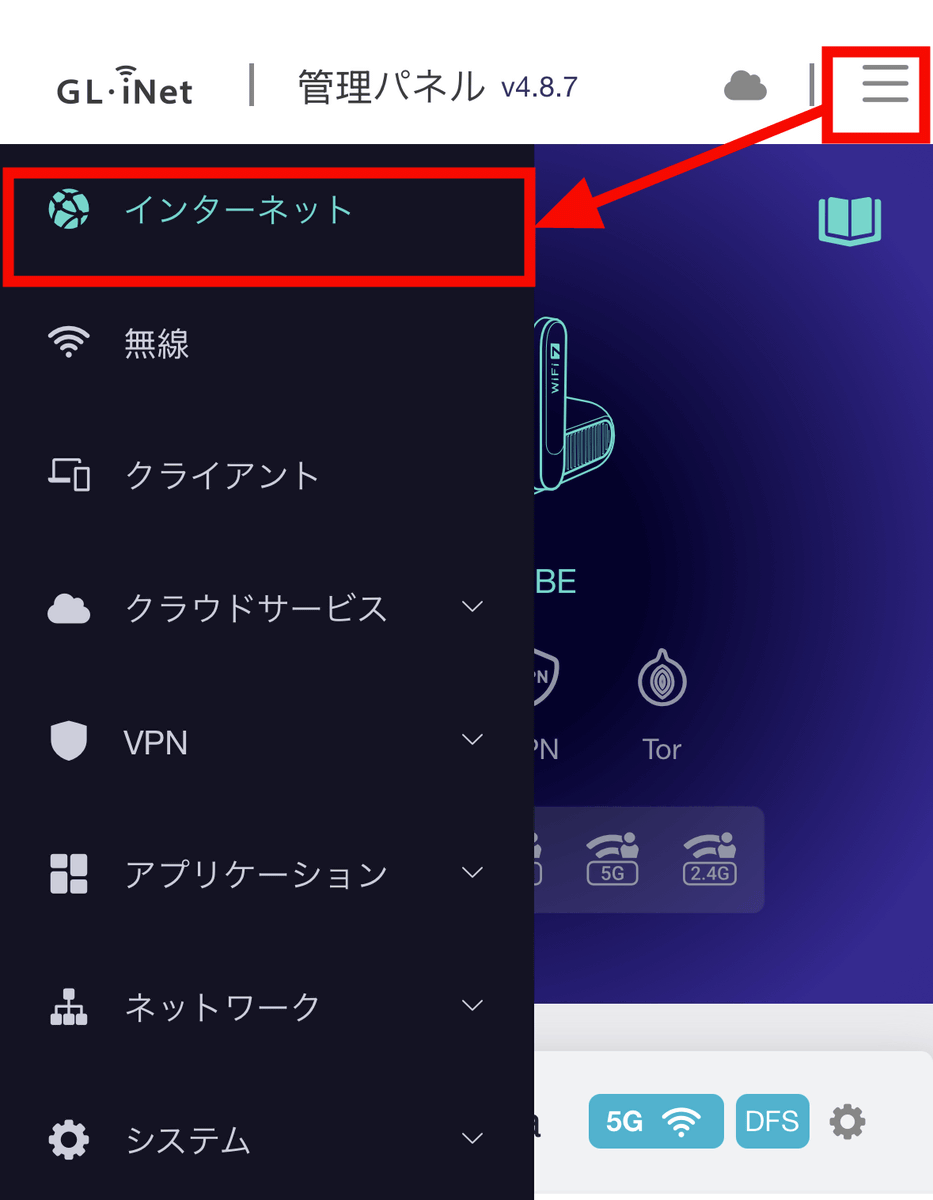
Next, open the menu on the smartphone connected to the control panel and tap 'Internet'.
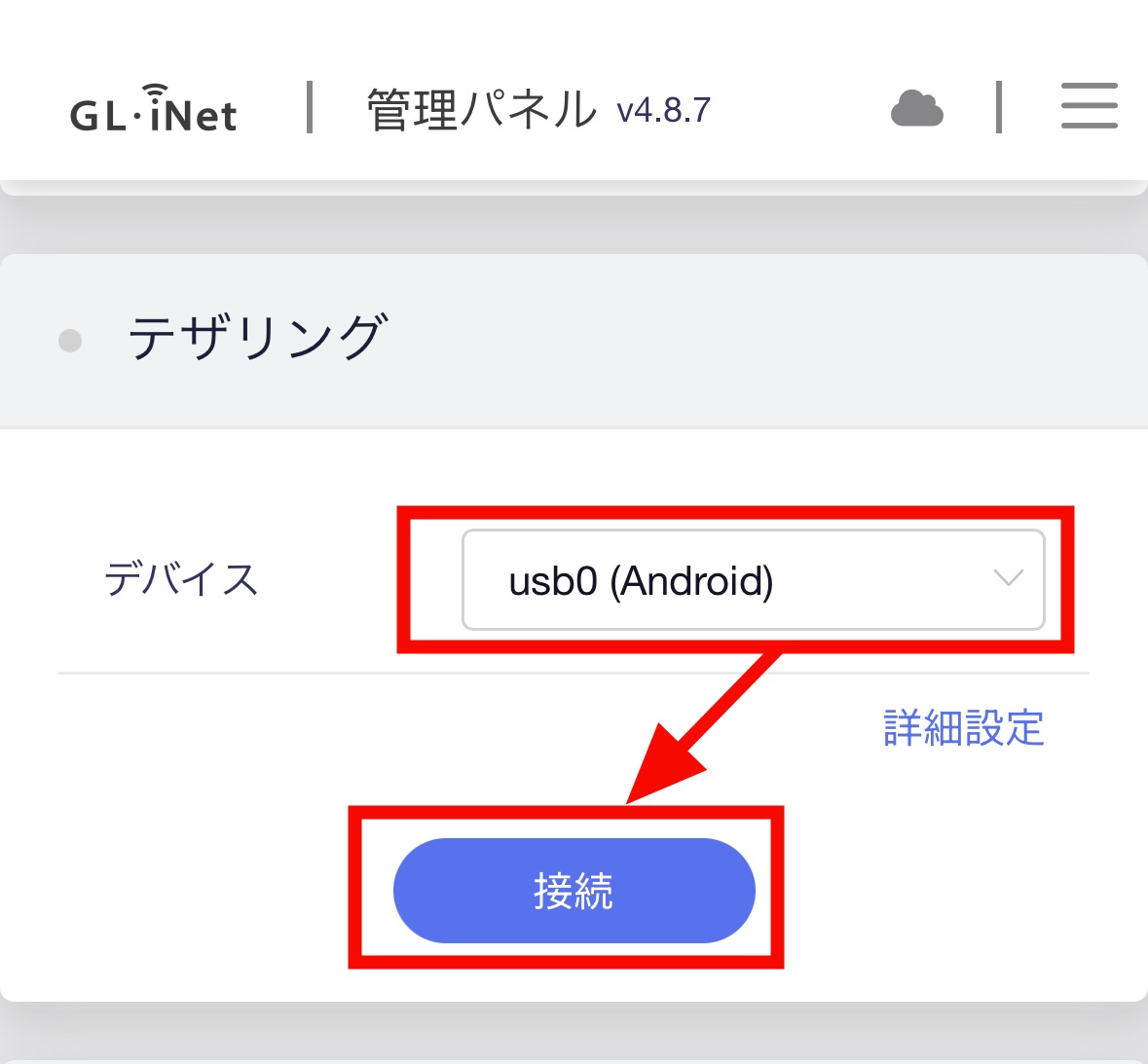
Scrolling through the list of internet connections to use, I found the 'Tethering' option. The connected smartphone was displayed as 'usb0 (Android)' under Devices. I tapped 'Connect'.
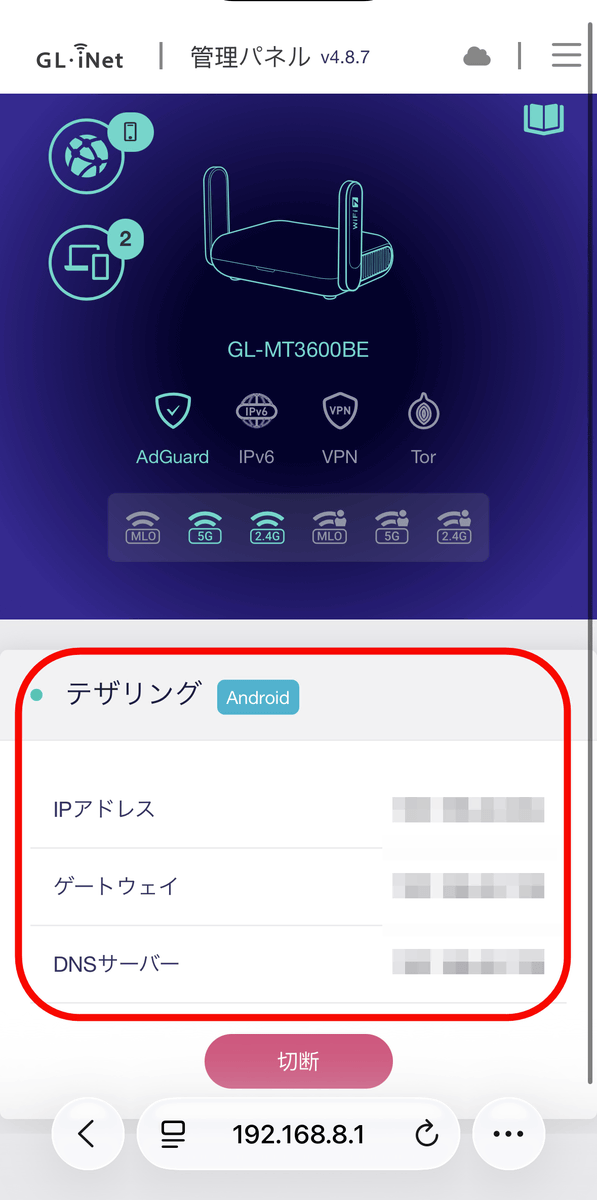
I can now use Wi-Fi from my Beryl 7 via tethering. While iPhones typically allow up to 5 simultaneous connections and Android devices up to 10-15 depending on the manufacturer and model, using the Beryl 7 allows each smartphone to count as '1 device,' enabling simultaneous connections even with more devices than the limit.
- Setting up guest Wi-Fi for when others will be using it.
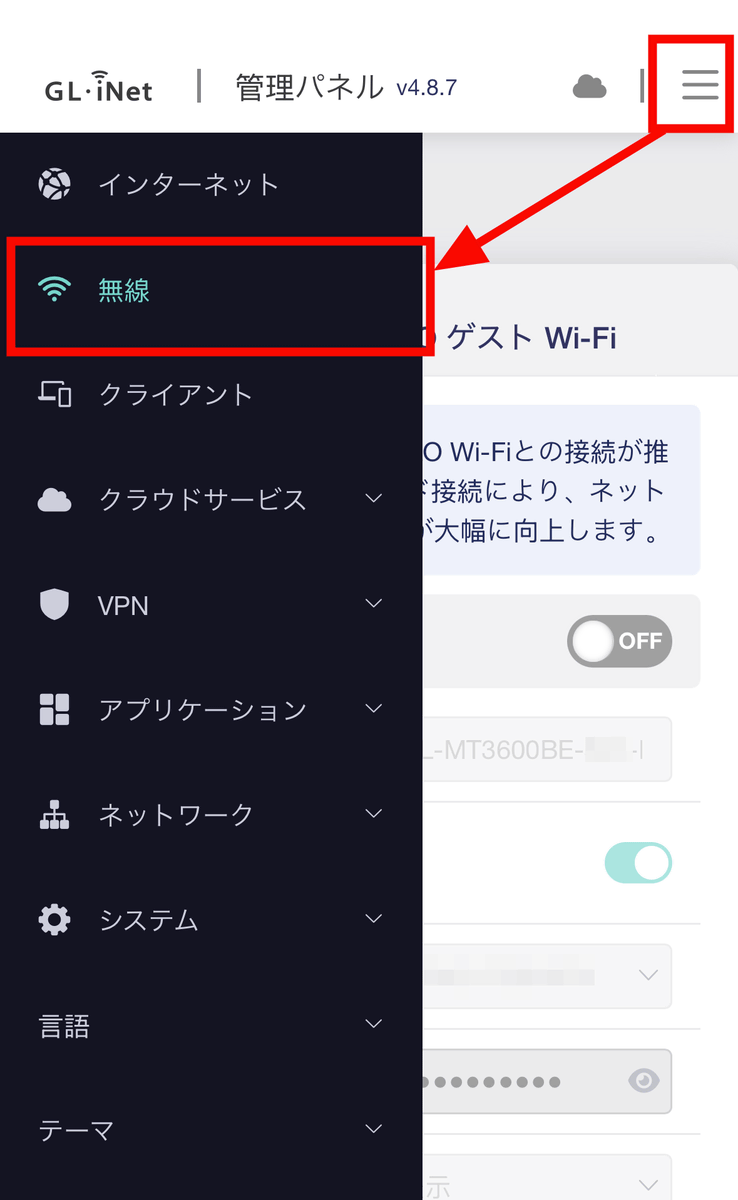
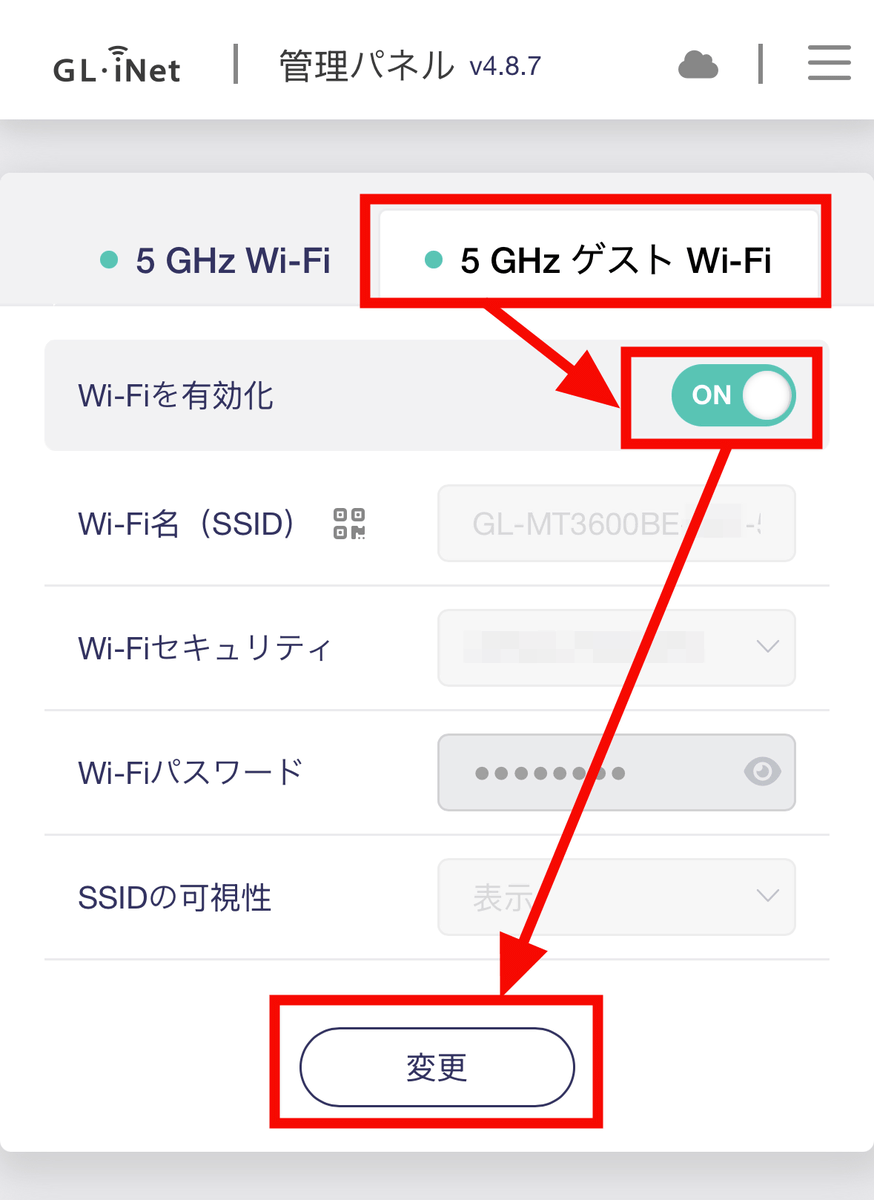
Next, we will set up the guest Wi-Fi. If you allow others to use the Beryl 7's Wi-Fi, they may be able to access your home servers connected to the Wi-Fi in some cases. Also, by setting IoT devices to the guest network, you can protect them even if they are attacked on the internet while using the main network. To use the guest Wi-Fi, open the management panel menu and tap 'Wireless'.
In the 5GHz Wi-Fi section, select the tab labeled '5GHz Guest Wi-Fi'. Turn on 'Enable Wi-Fi' and then tap 'Change'.
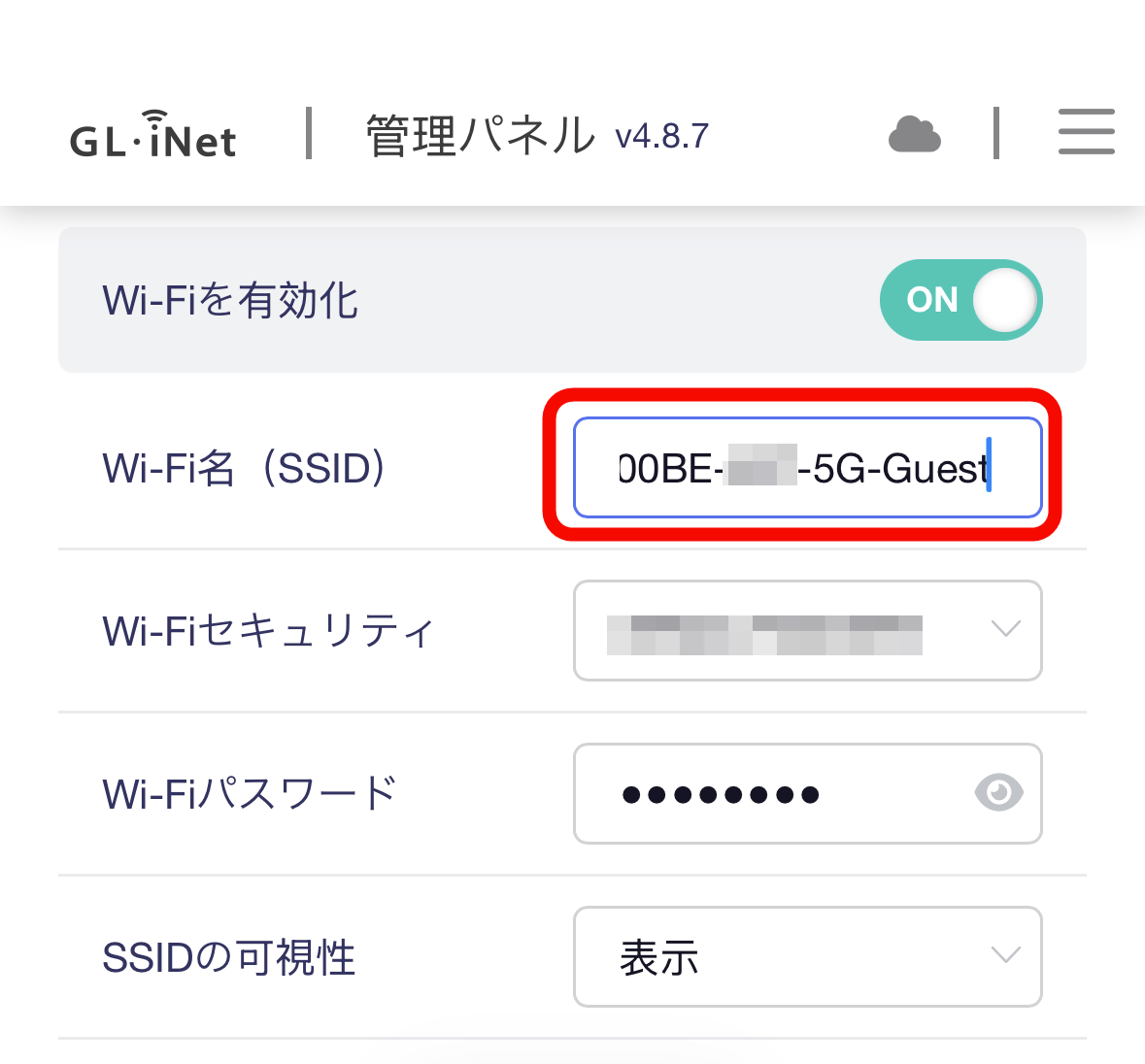
The guest Wi-Fi SSID has 'Guest' at the end. The SSID can be changed.
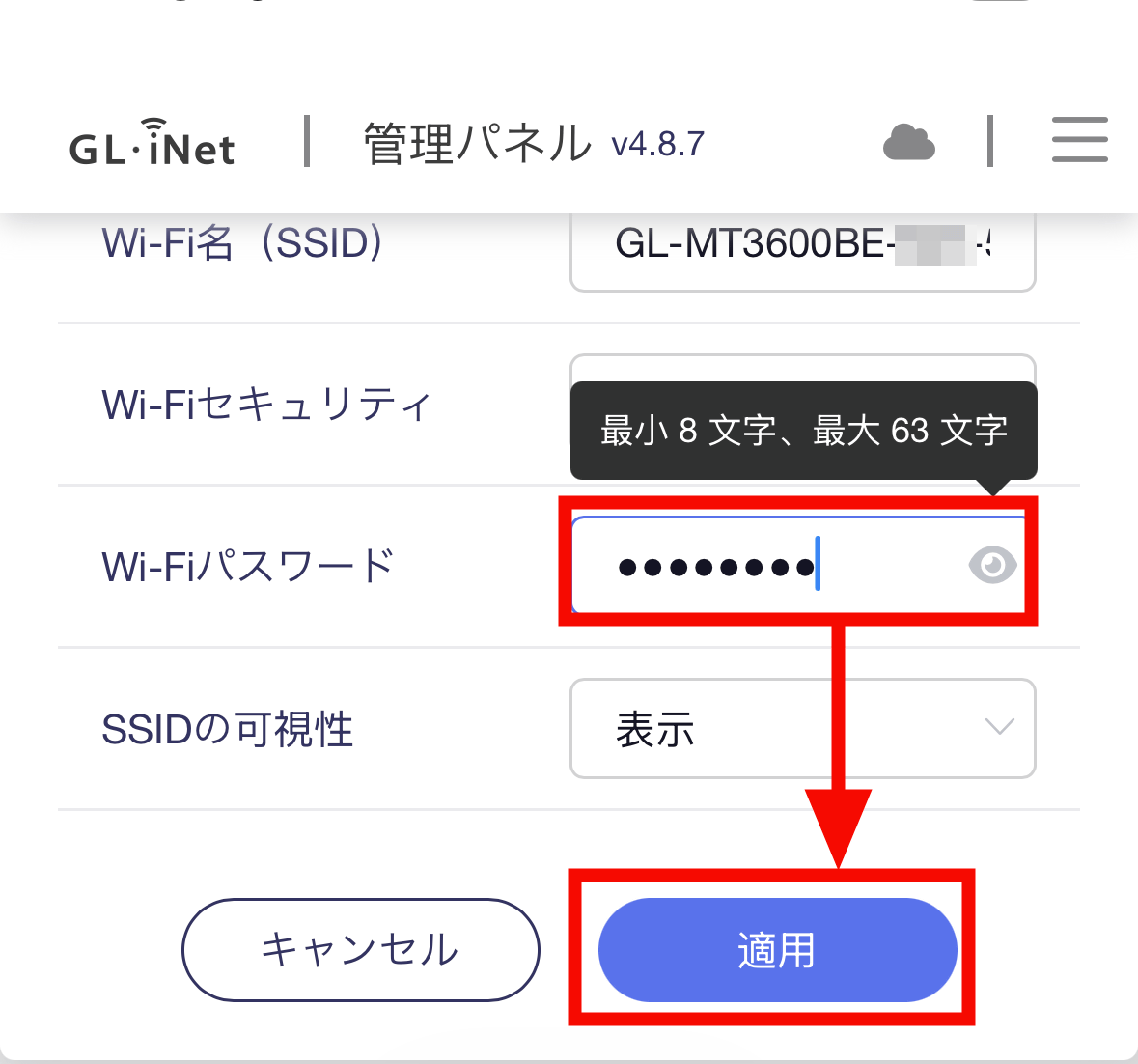
You can also change your password here. Once you've set it, tap 'Apply'.
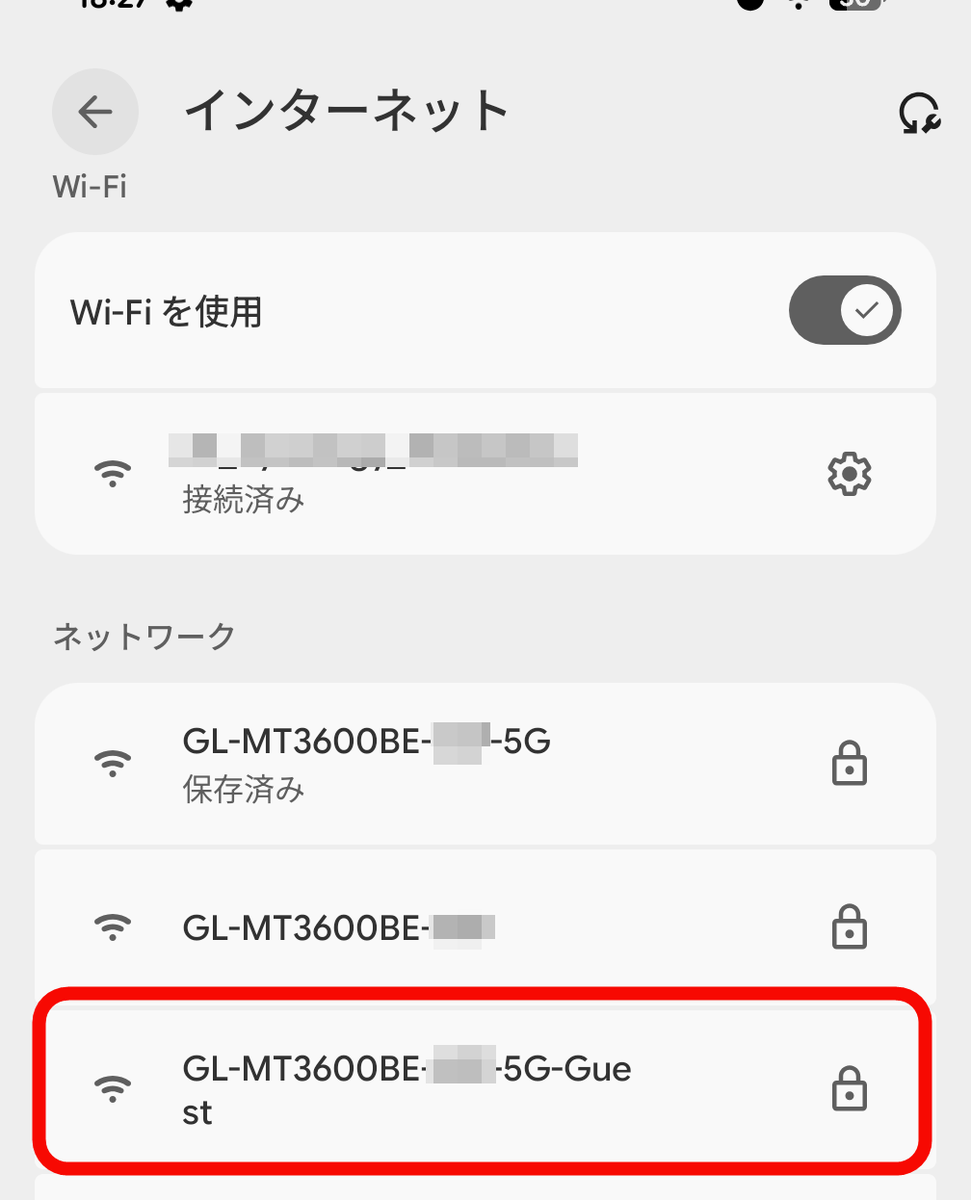
When I actually checked the network using another smartphone, I found that the main network with '5G' at the end, the network for connecting to the management panel, and a guest network with 'Guest' at the end were all displayed.
Parental controls
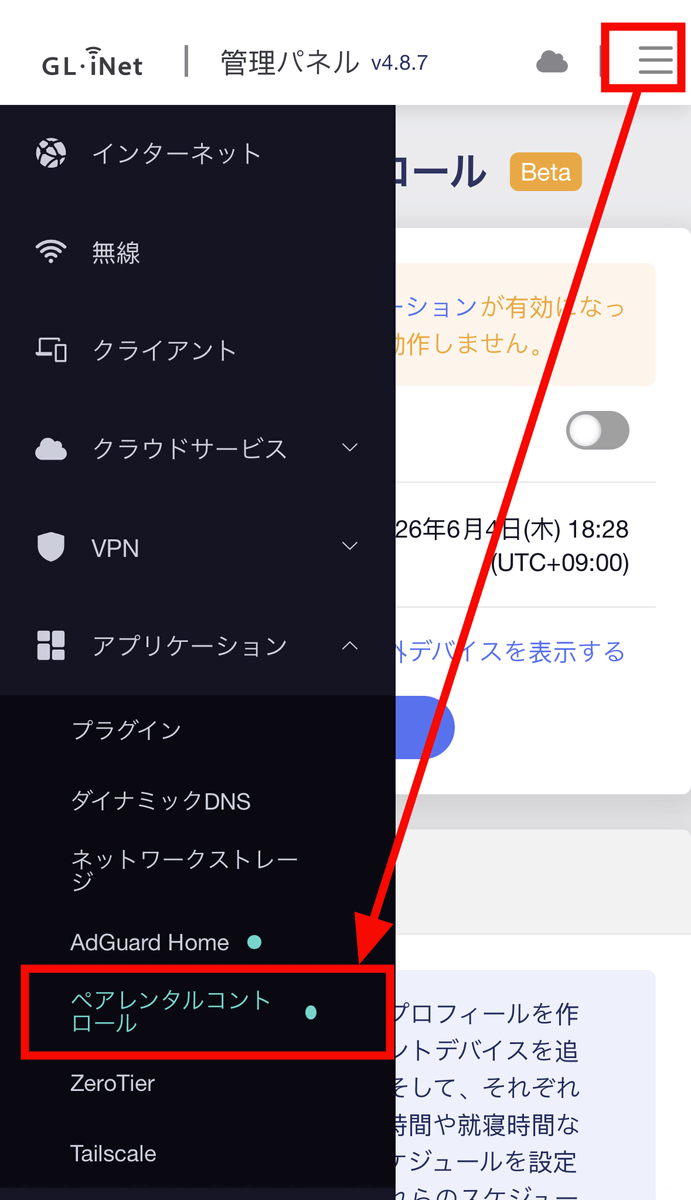
Additionally, you can set up parental controls for individual devices connected to the Beryl 7's Wi-Fi, allowing you to restrict access to specific websites or disable internet access at certain times. Tap 'Parental Controls' from the management panel menu.
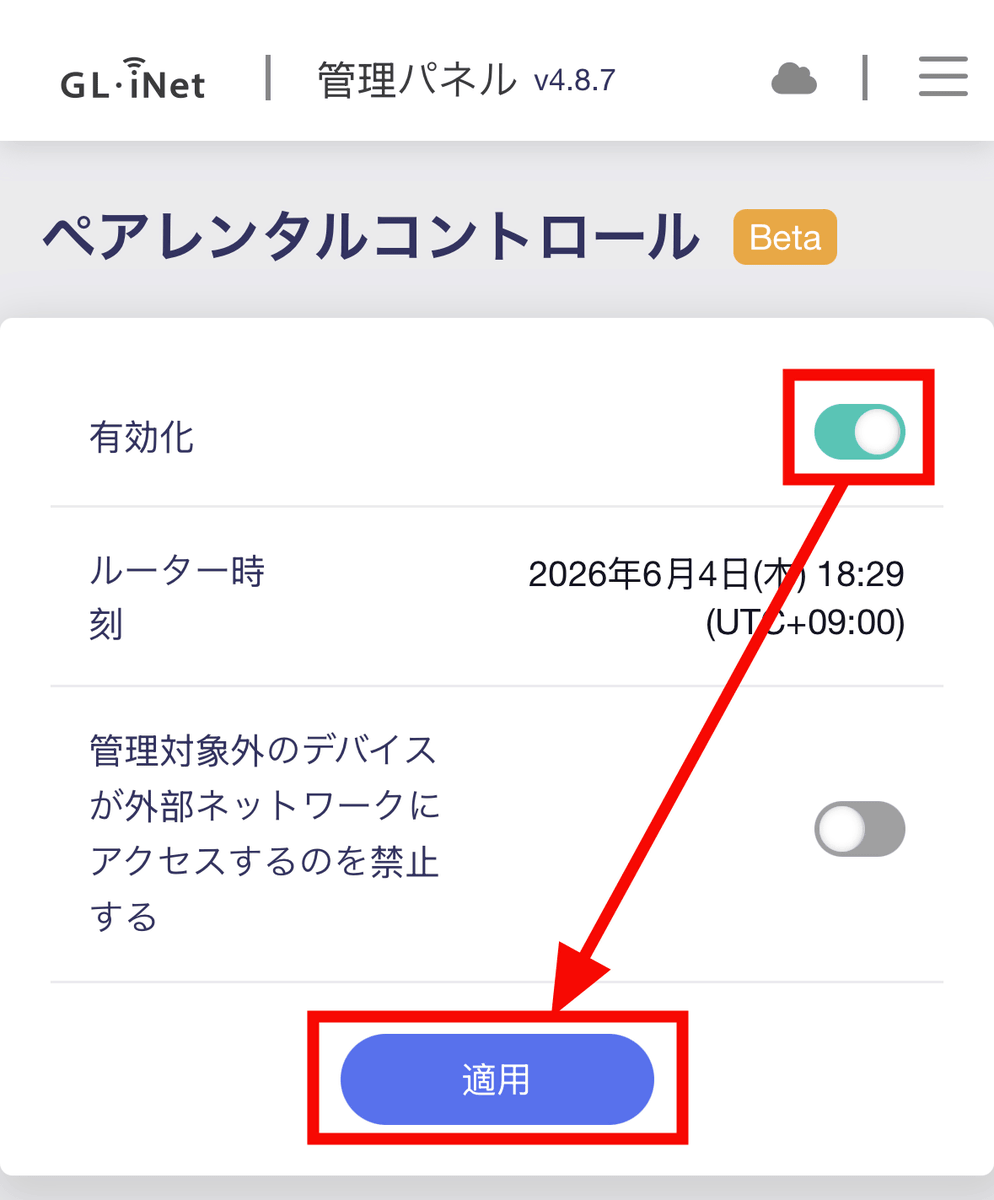
Turn on the enable toggle switch and tap 'Apply'.
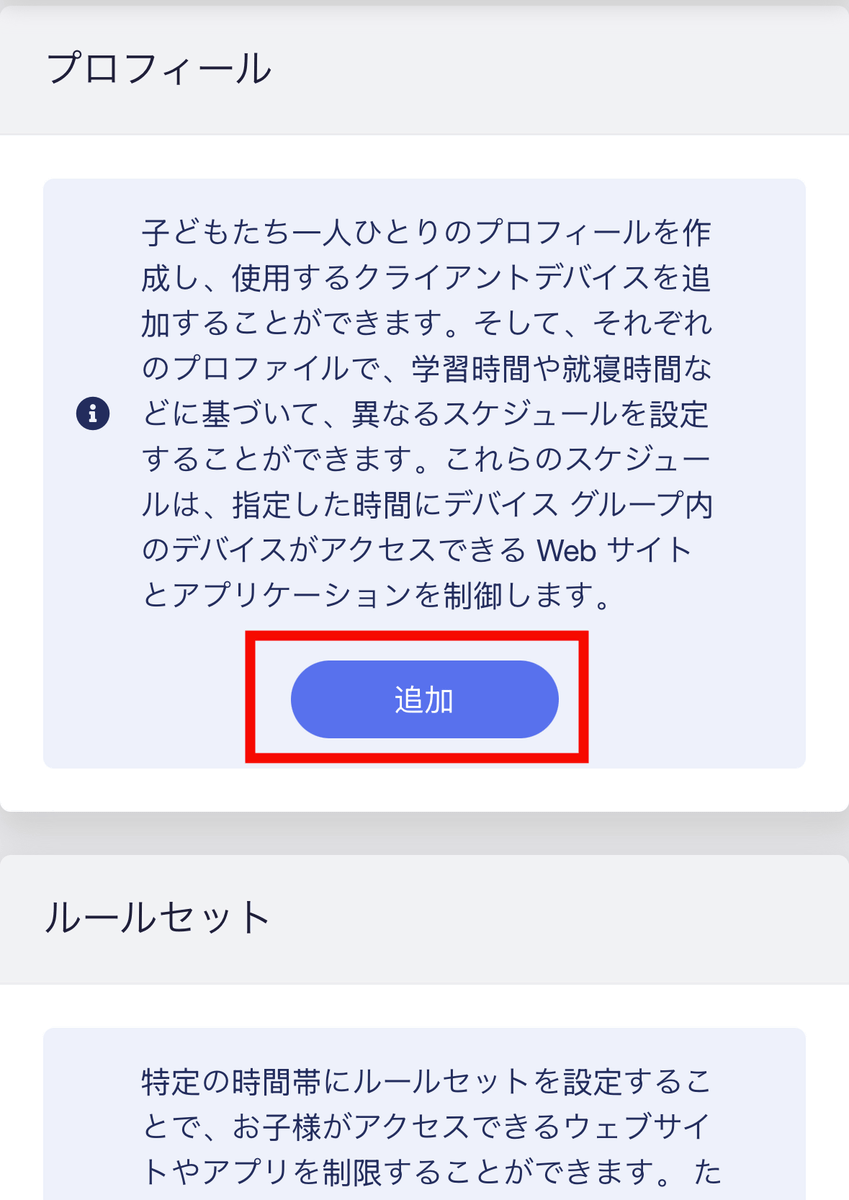
Set up the profile for the device you want to control. Tap 'Add'.
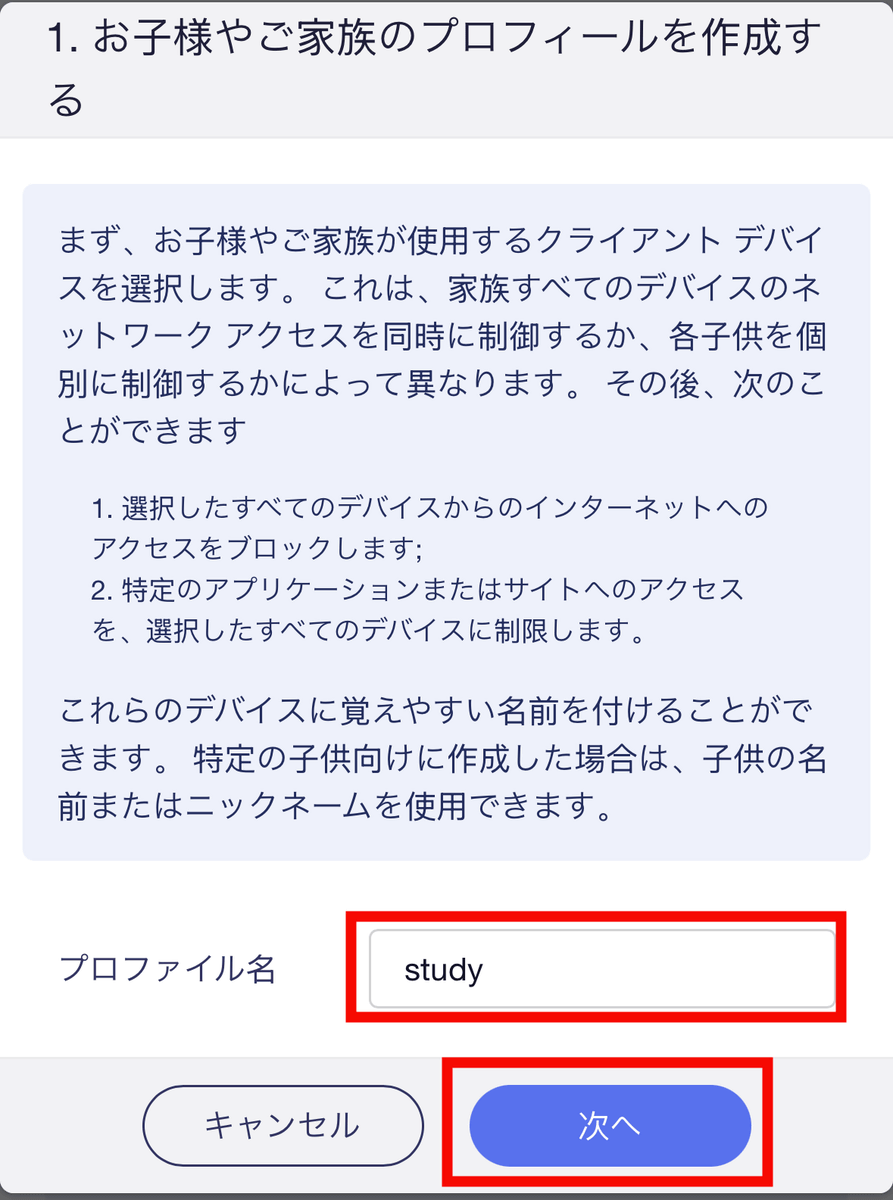
This time, we'll set up the system assuming a scenario where 'YouTube cannot be accessed during study time.' After naming the profile 'study,' tap 'Next.'
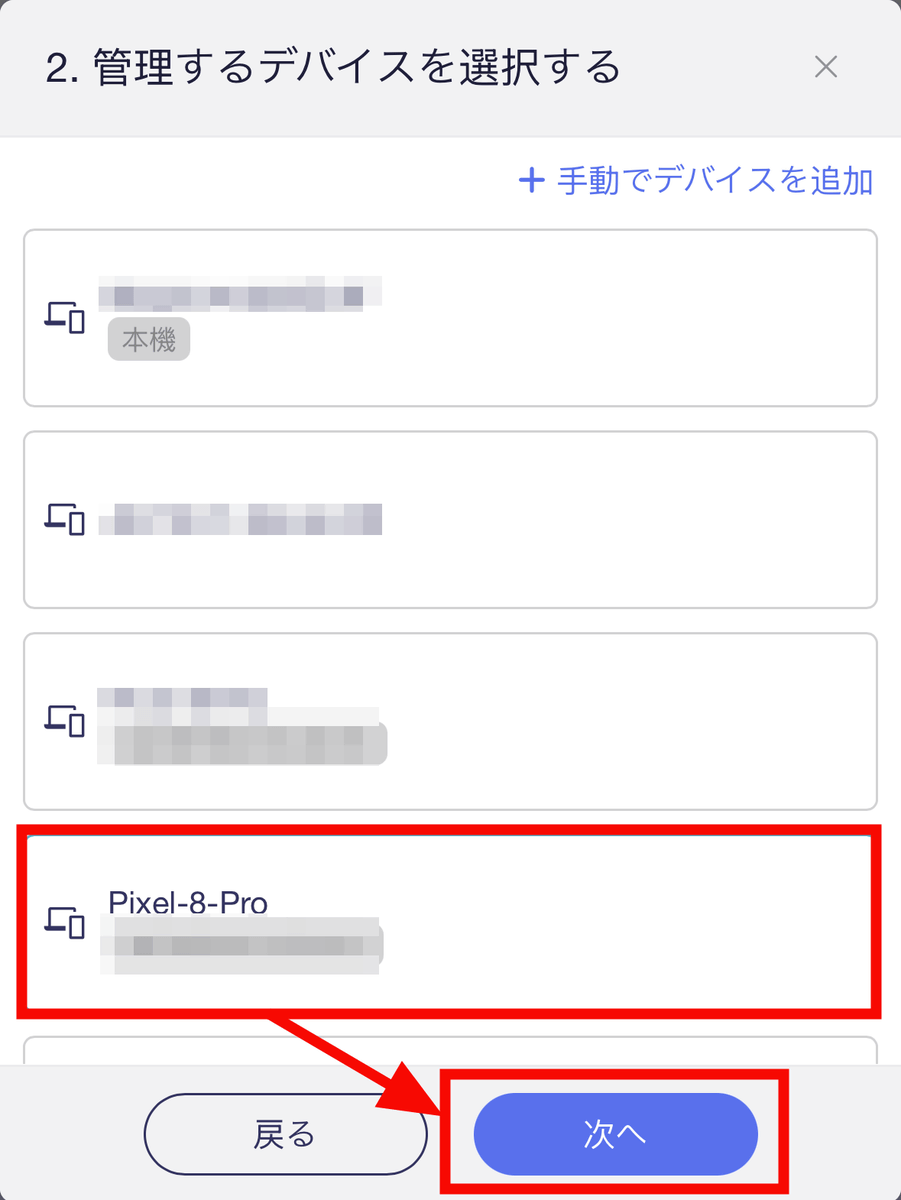
A list of devices that have previously been connected to your Beryl 7 will be displayed. Select the device you want to control and click 'Next'.
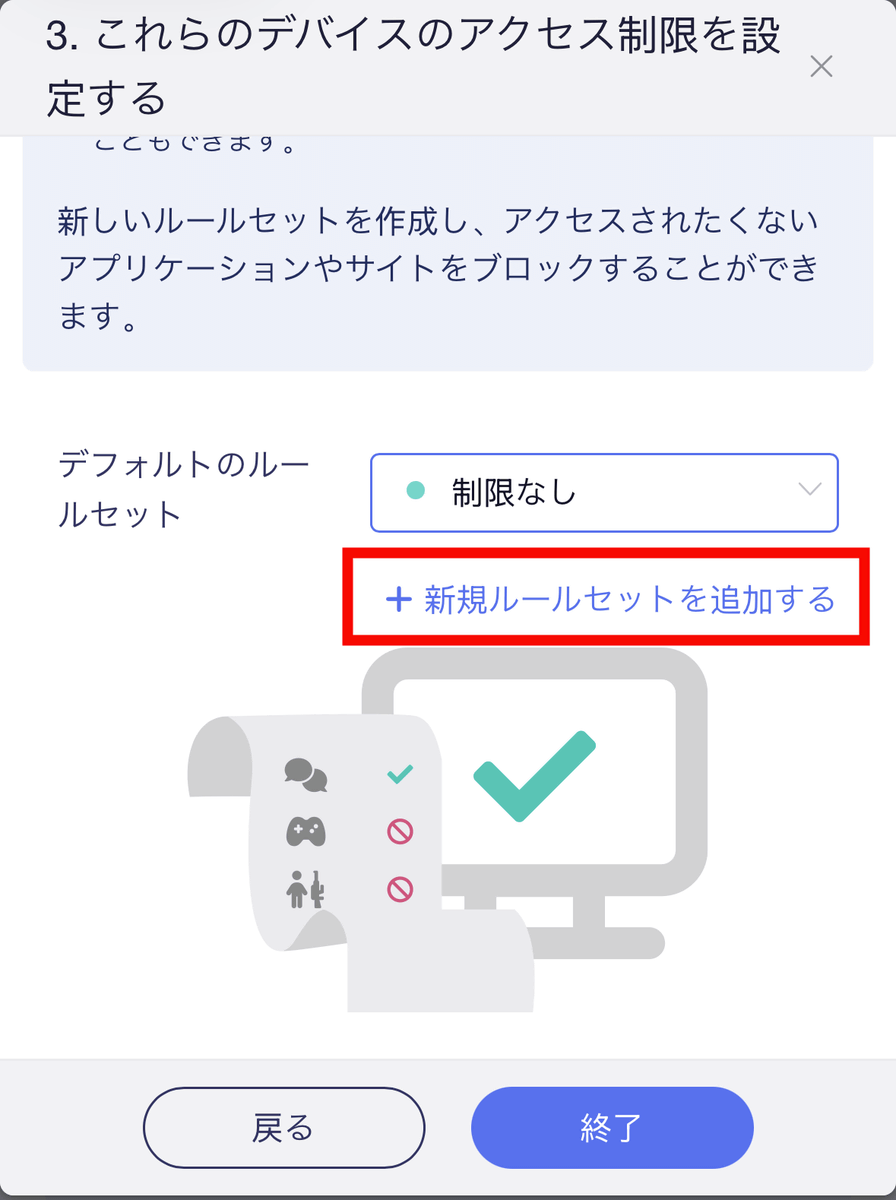
Tap 'Add a new rule set' to configure specific access rules.
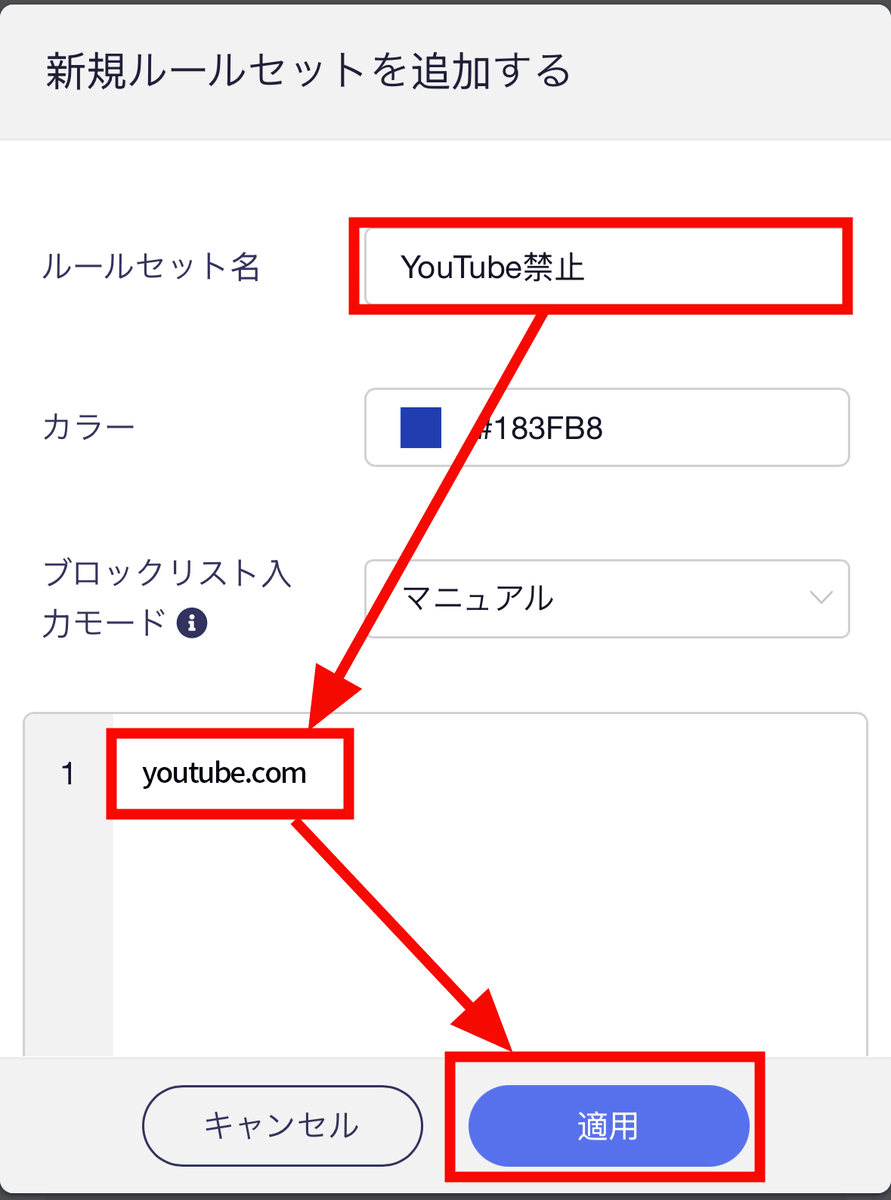
After entering the rule set name, enter the domain name of the site you want to block access from and tap 'Apply'.
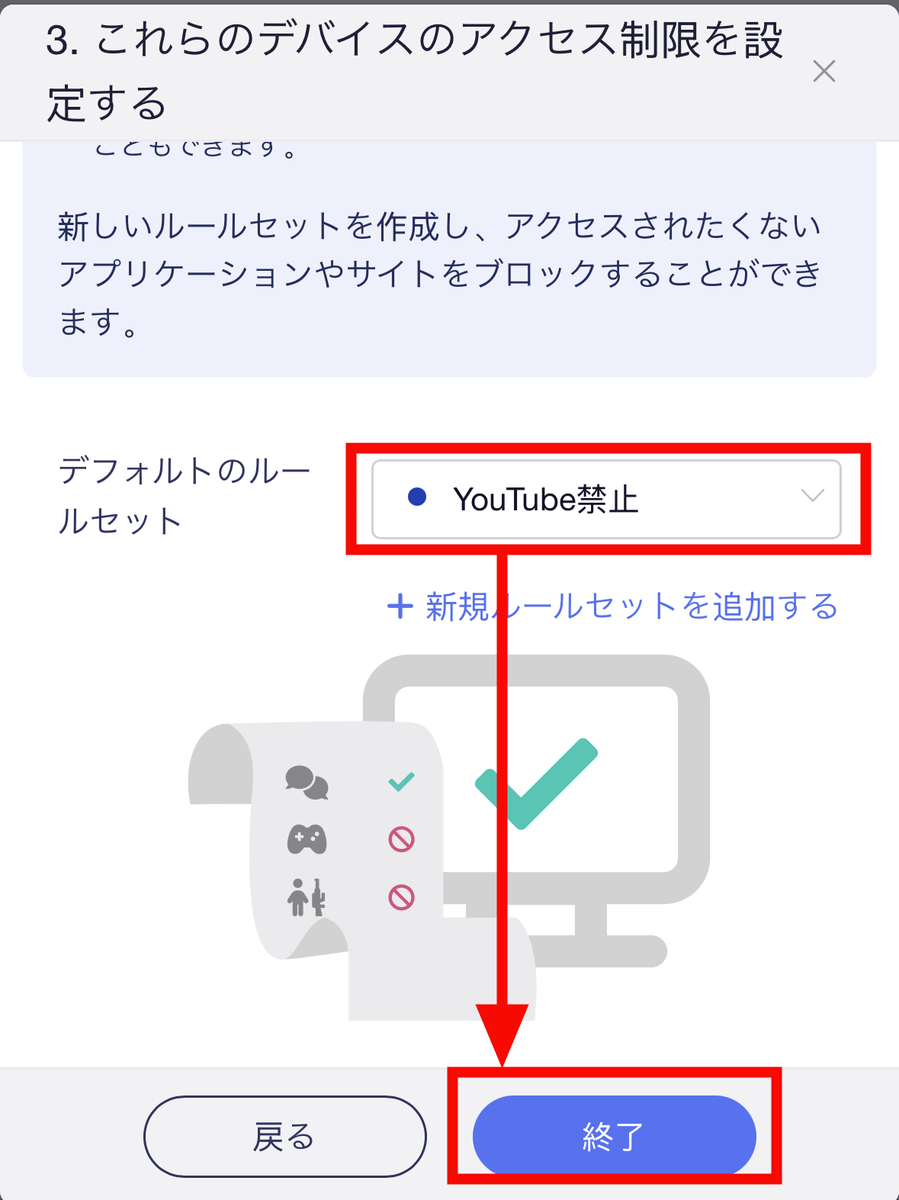
Once you have selected the rule set, tap 'Finish'.
Tap 'Move to Set'.
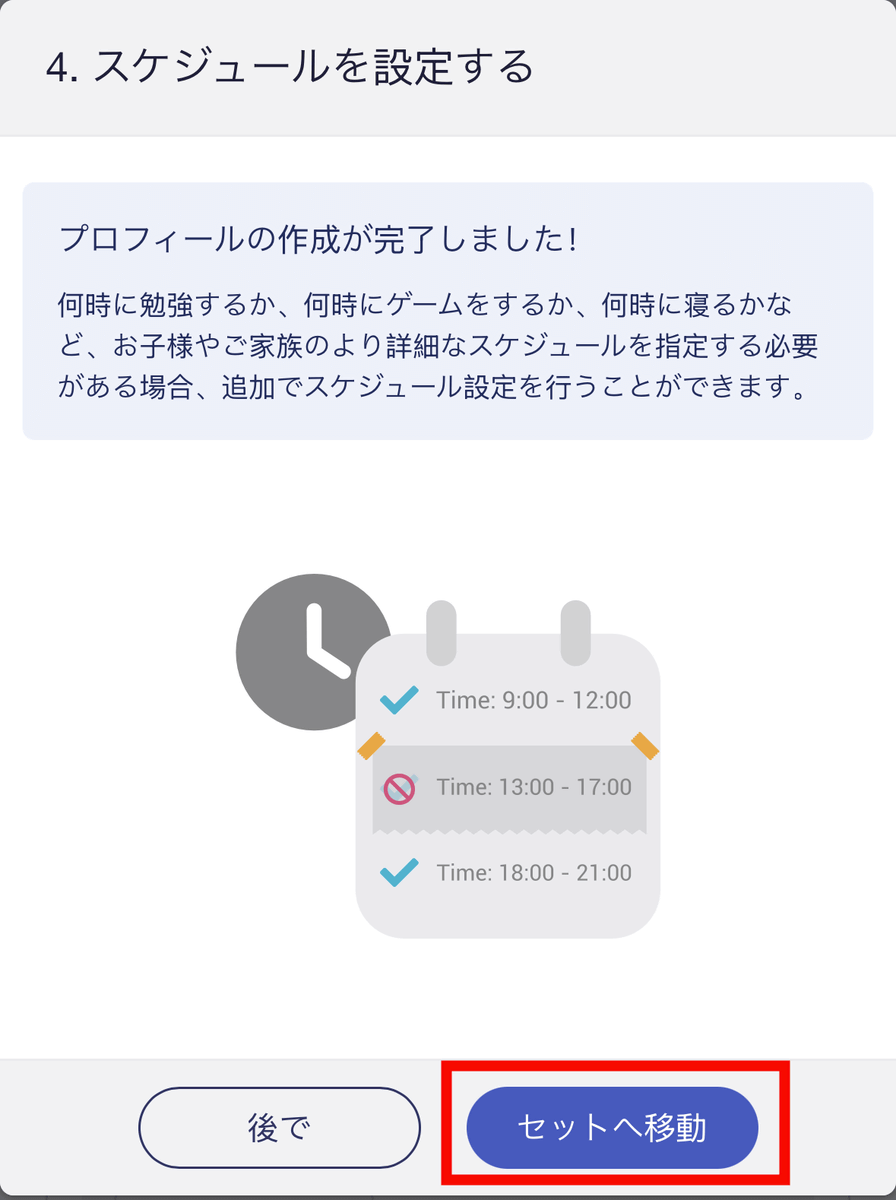
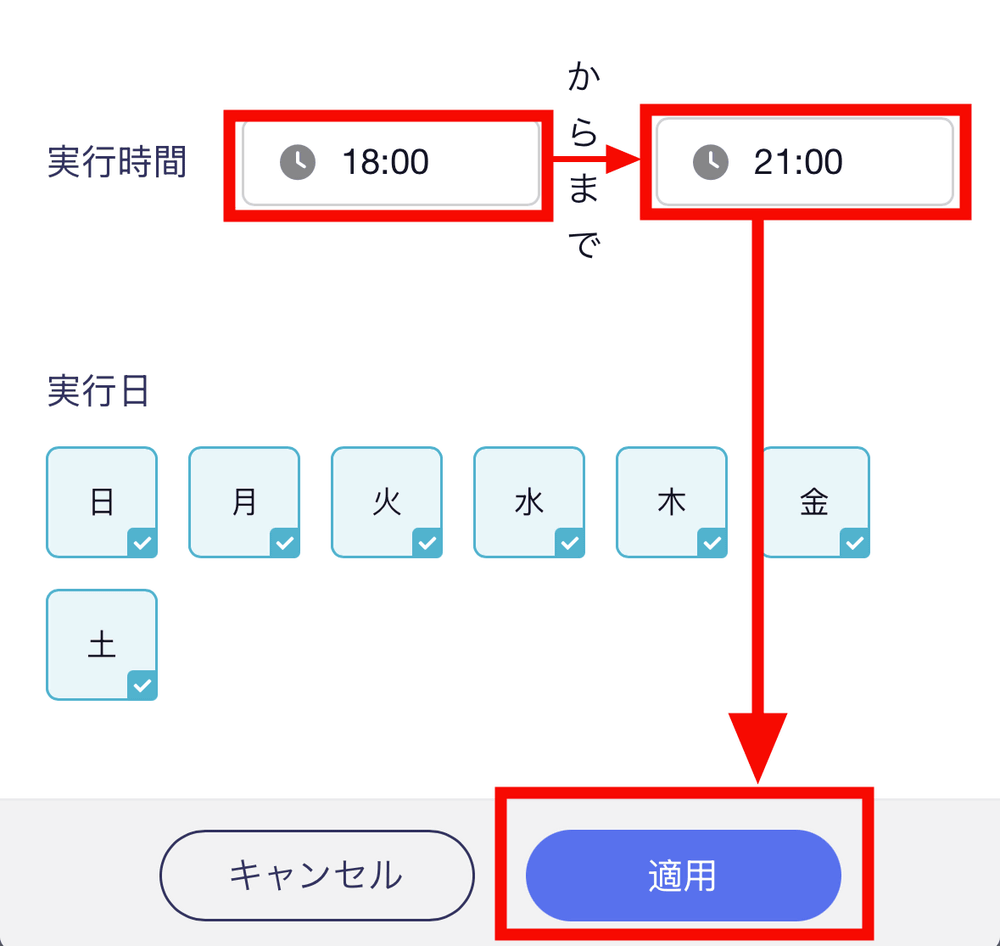
You can select the time and day of the week to set detailed restrictions for when they should be applied.
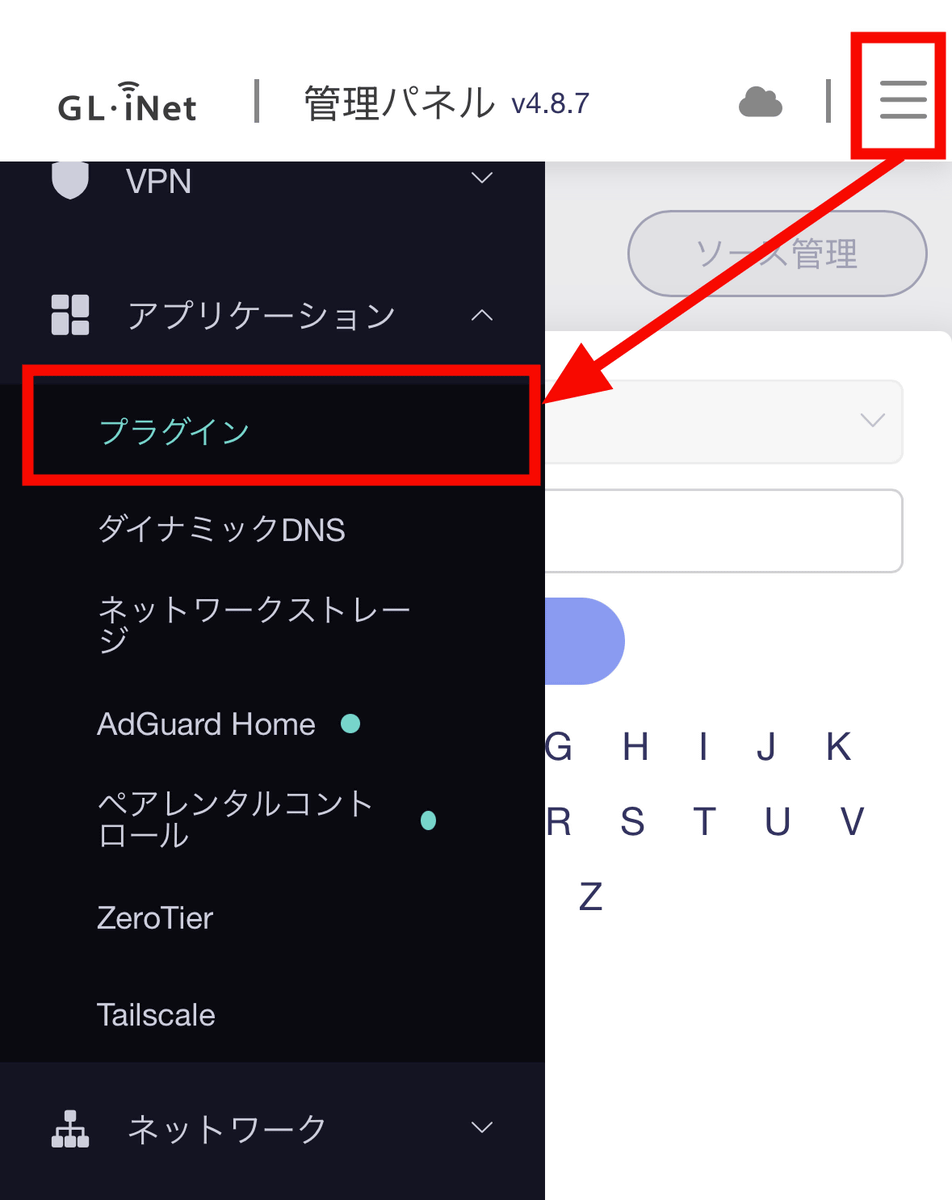
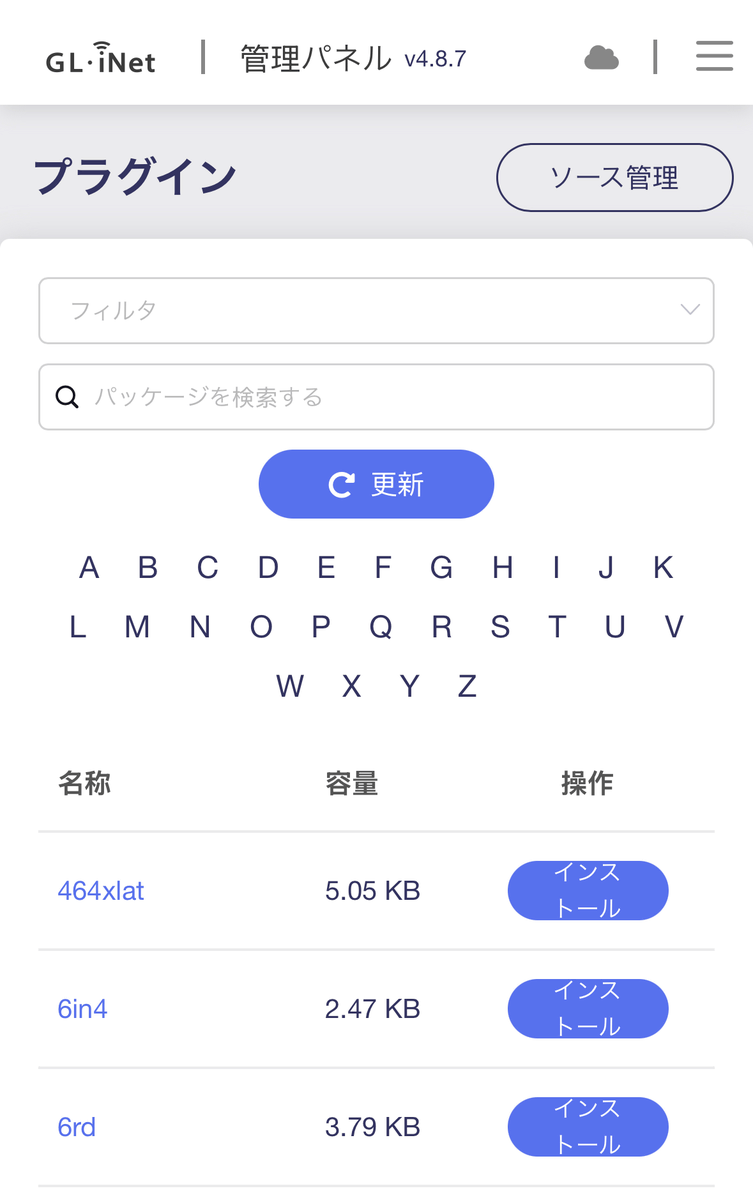
Additionally, you can install or remove
The plugins are listed, so you can install the plugins you want to use. However, you should be aware of security risks when using third-party plugins.
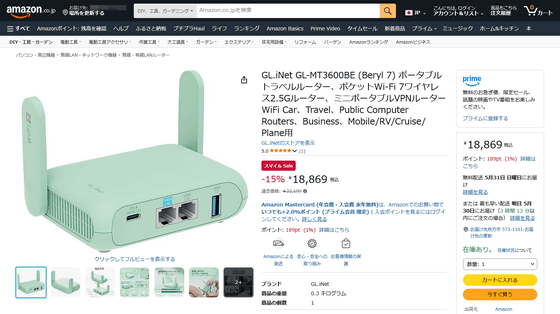
The Beryl 7 (GL-MT3600BE) can be purchased from the GL.iNet official store on Amazon, and at the time of writing, the price was 18,869 yen including tax.
Amazon.co.jp: GL.iNet GL-MT3600BE (Beryl 7) Portable Travel Router, Pocket Wi-Fi 7 Wireless 2.5G Router, Mini Portable VPN Router WiFi for Car, Travel, Public Computer Routers, Business, Mobile/RV/Cruise/Plane: Computers & Peripherals
Related Posts: