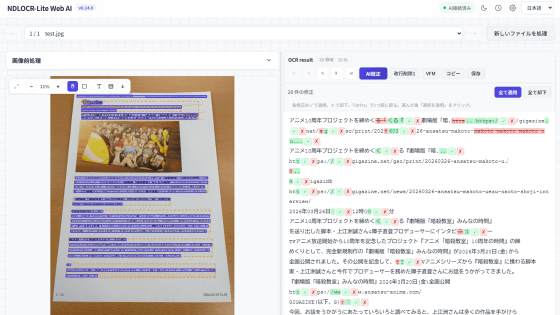
NDLOCR-Lite, the National Diet Library's free OCR app for Windows, Mac, and Linux, converts Japanese, handwritten, and vertically written text into text.
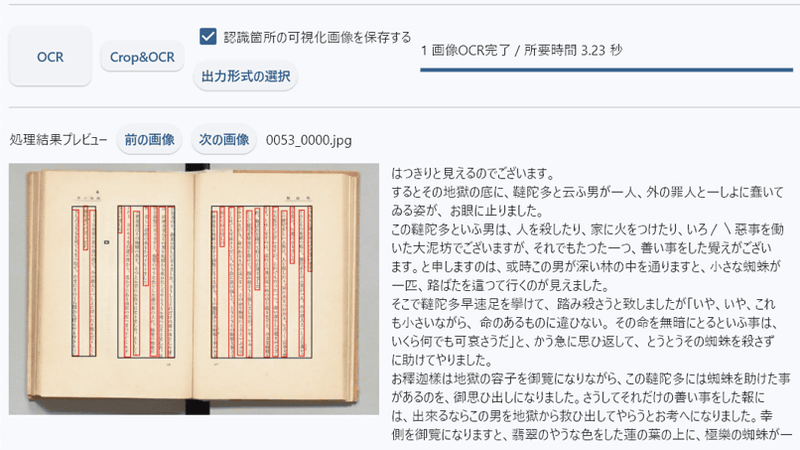
The National Diet Library's
Release of NDLOCR-Lite | NDL Labs
https://lab.ndl.go.jp/news/2025/2026-02-24/
GitHub - ndl-lab/ndlocr-lite: NDLOCR‑Lite application repository (including source code)
https://github.com/ndl-lab/ndlocr-lite
To use NDLOCR-Lite, go to the distribution page , select the latest version that suits your environment, and download it. This time, we will use the Windows version.
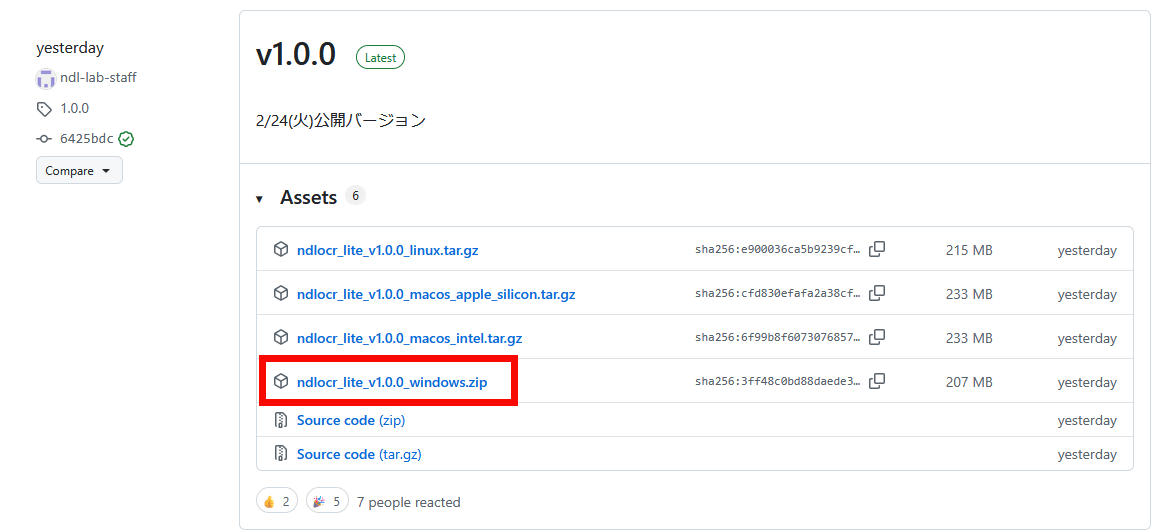
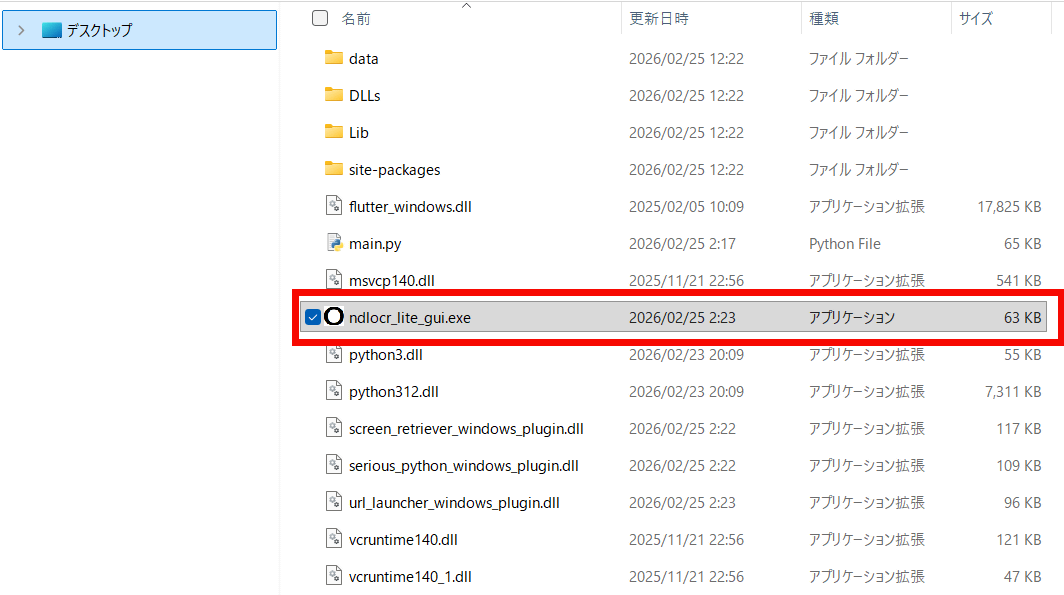
After extracting the downloaded ZIP file, launch 'ndlocr_lite_gui.exe'.
NDLOCR-Lite has started.
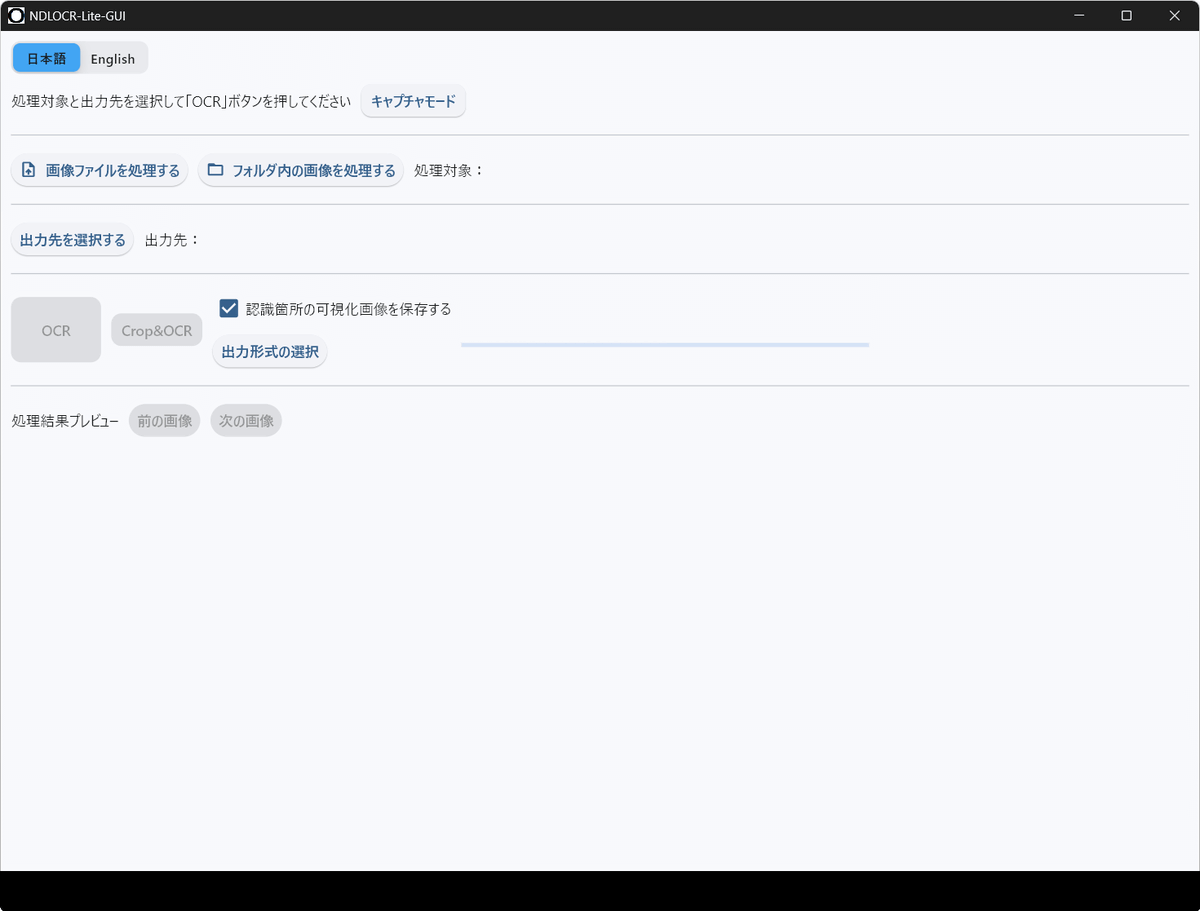
Click 'Process Image File' and select the image you want to extract text from. This time, we will extract text from a captured image of the e-book '
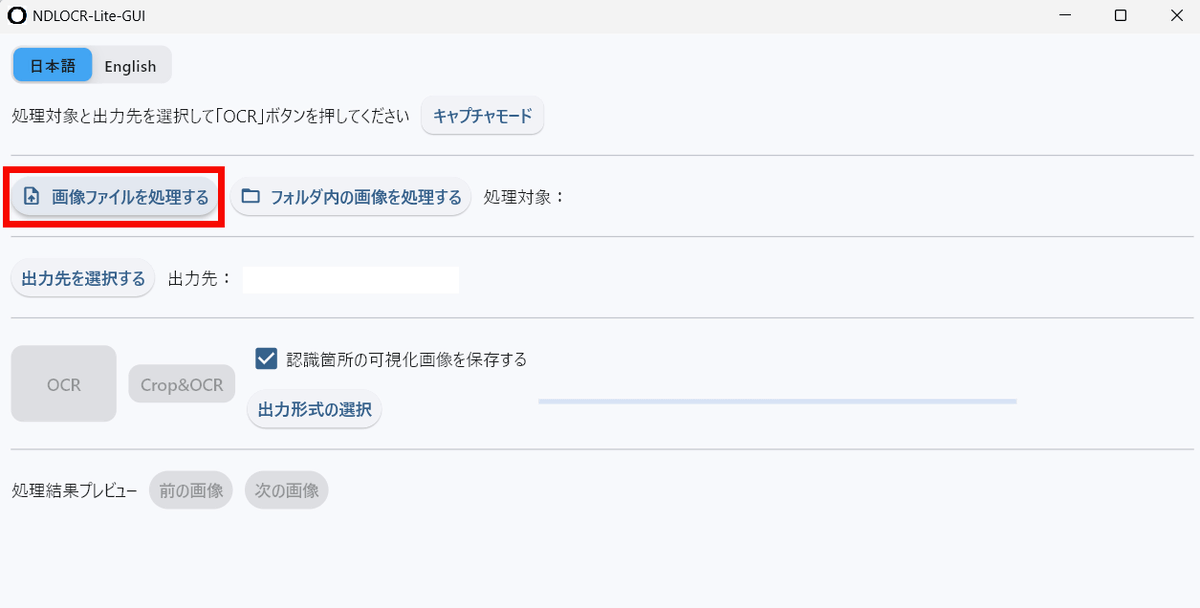
Select the image file and click 'Open.'
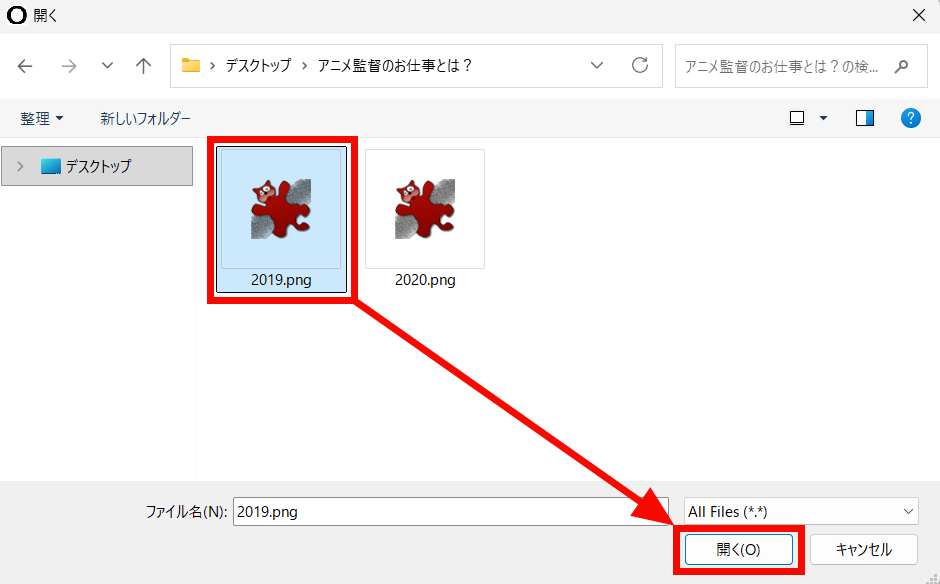
Once you have confirmed that the file path is selected, click 'Select output destination'.
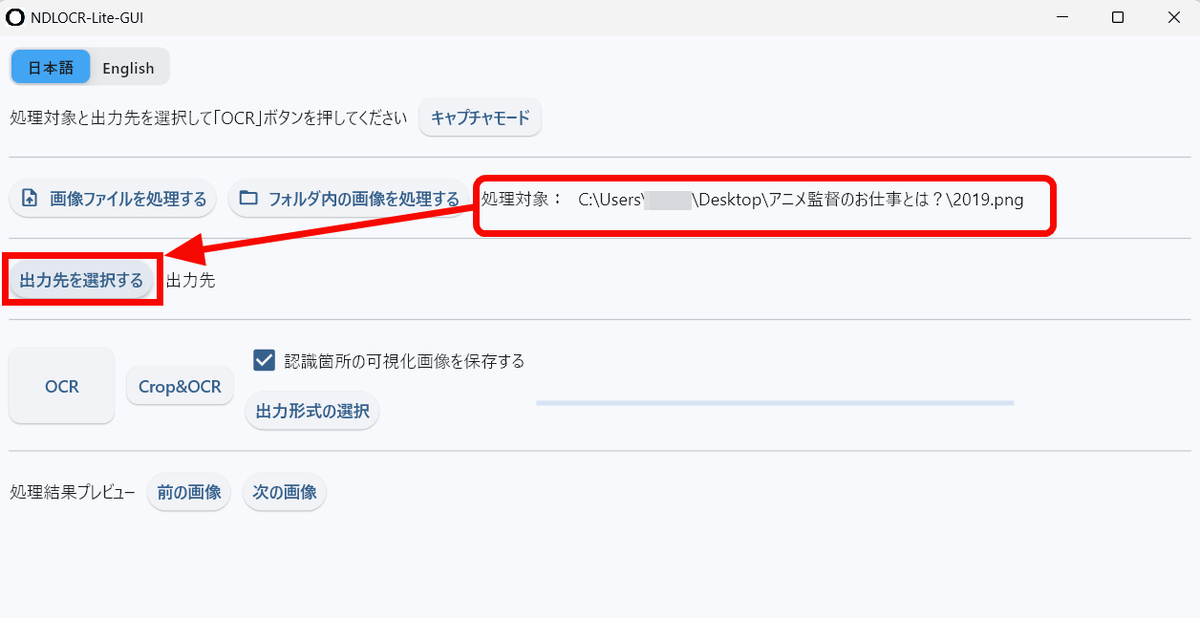
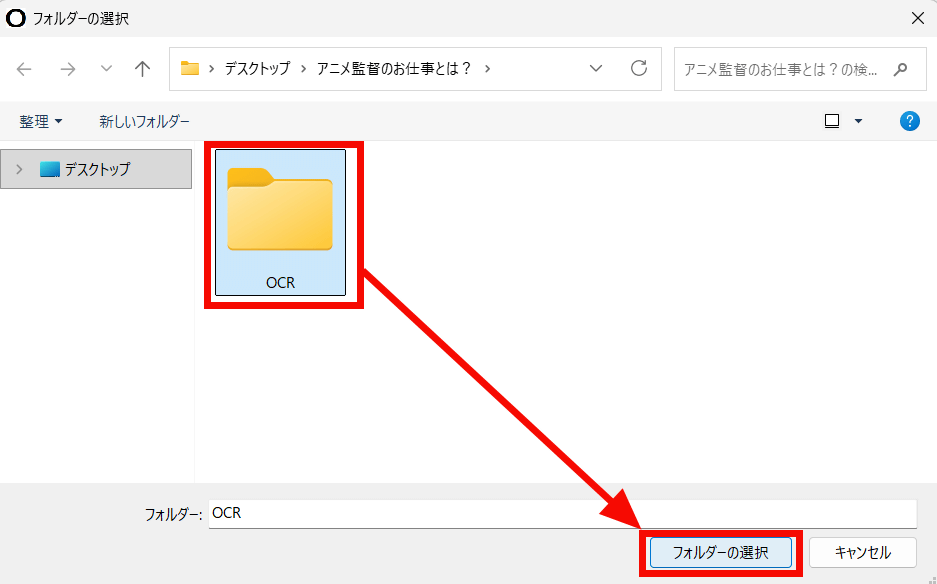
After creating the output folder to save the extracted text files, etc., click 'Select Folder'.
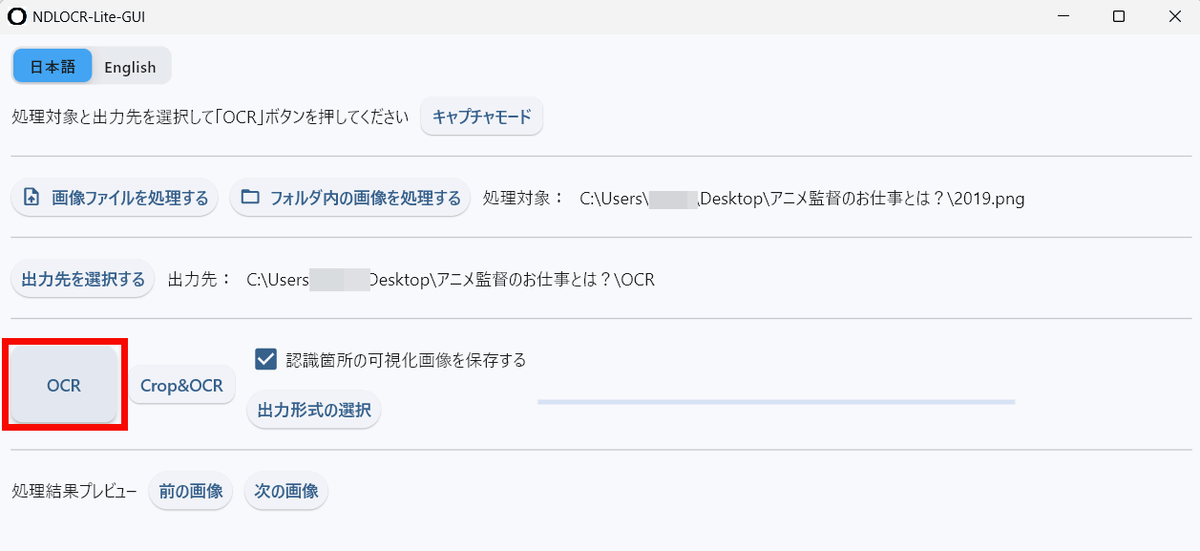
After selecting the image and output destination, click 'OCR' to start text extraction.
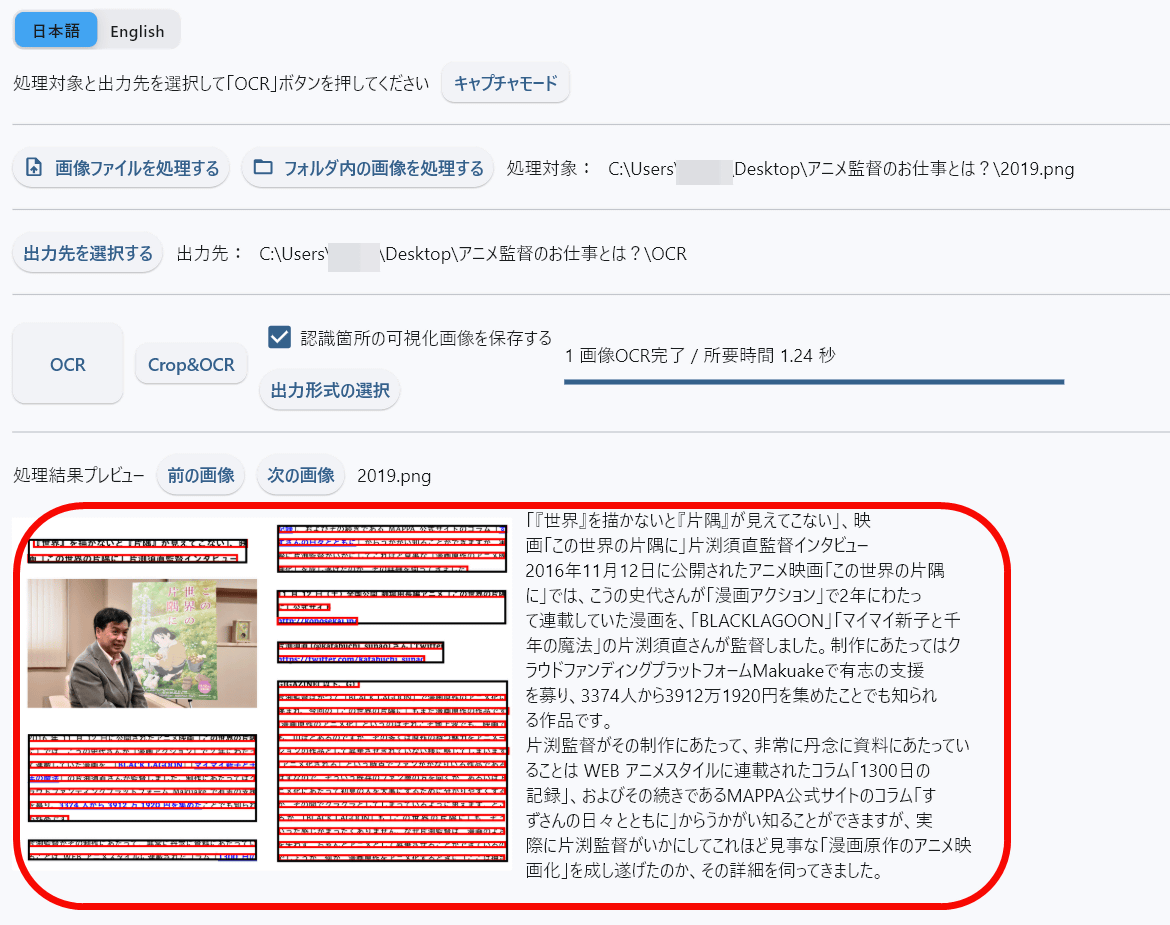
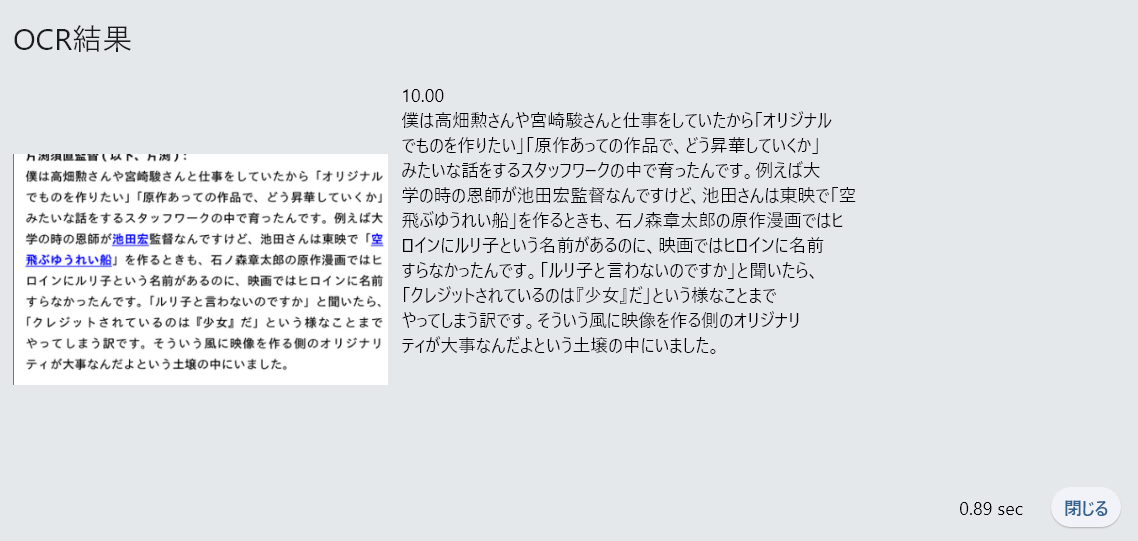
The image OCR was completed in 1.24 seconds. A preview is displayed at the bottom of the screen.
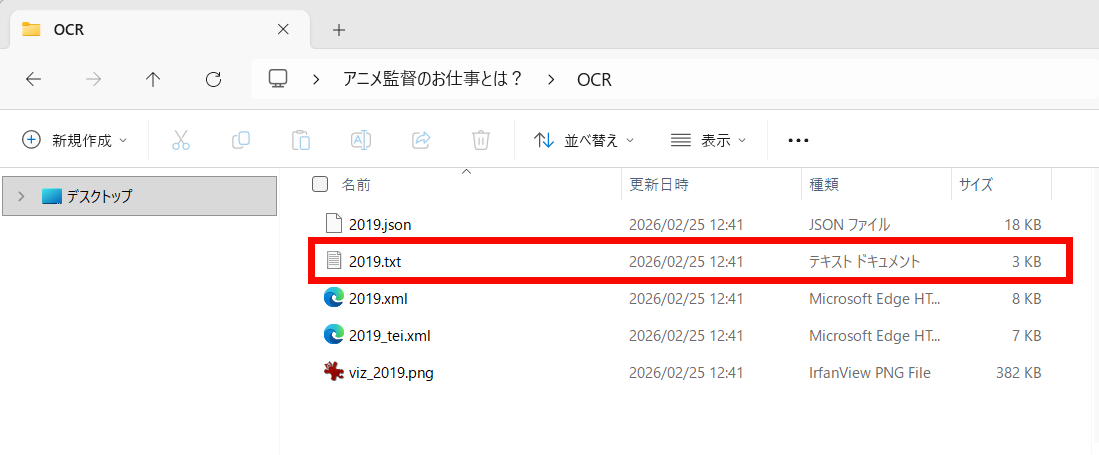
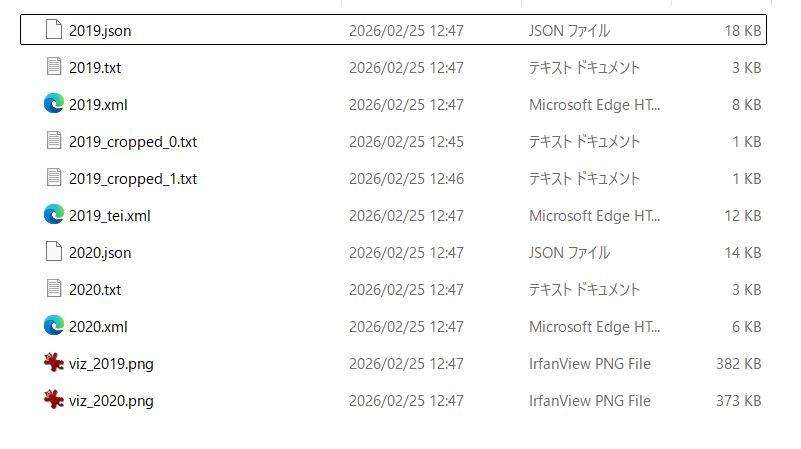
The output folder contained files in JSON, TXT, XML, TEI, and a preview image. Let's open the TXT file.
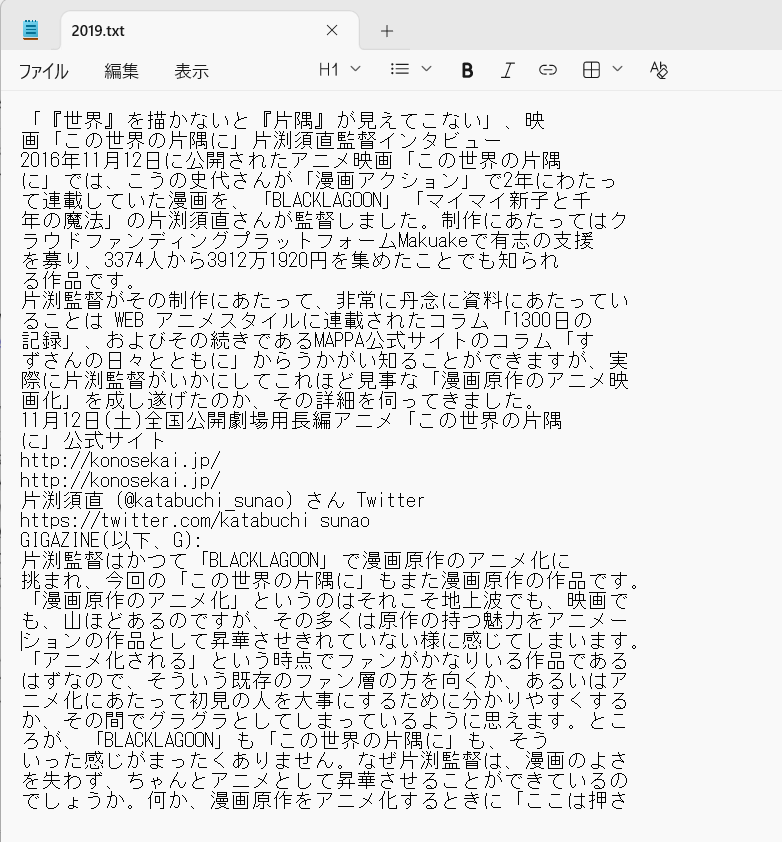
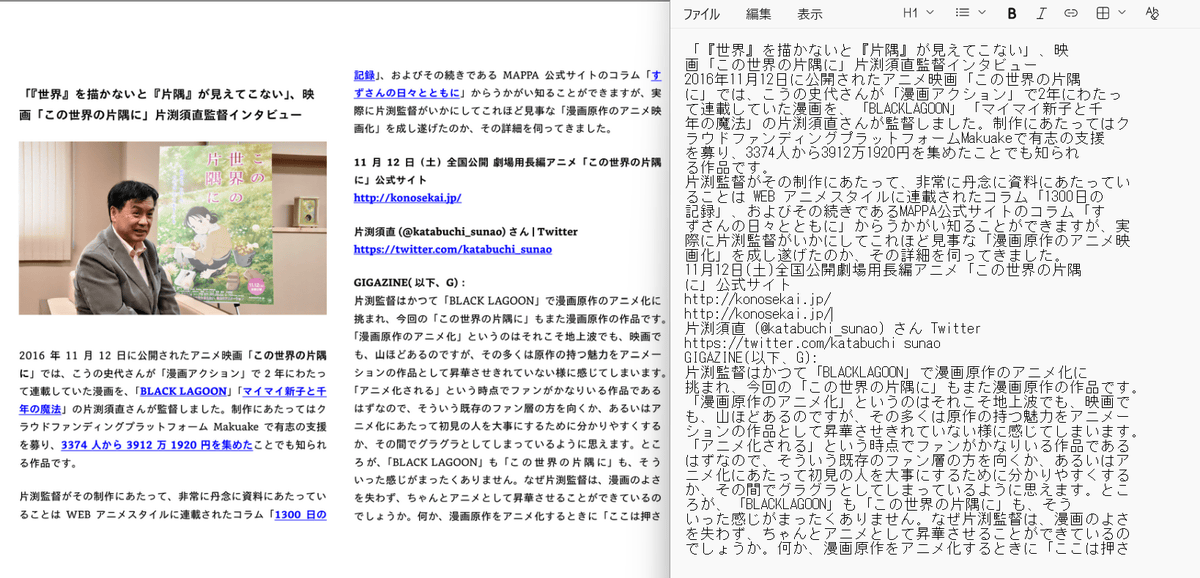
The following text was transcribed from the image. Note that the line breaks are in the same places as in the image.
Comparing the original image (left) and the extracted text (right) looks like this:
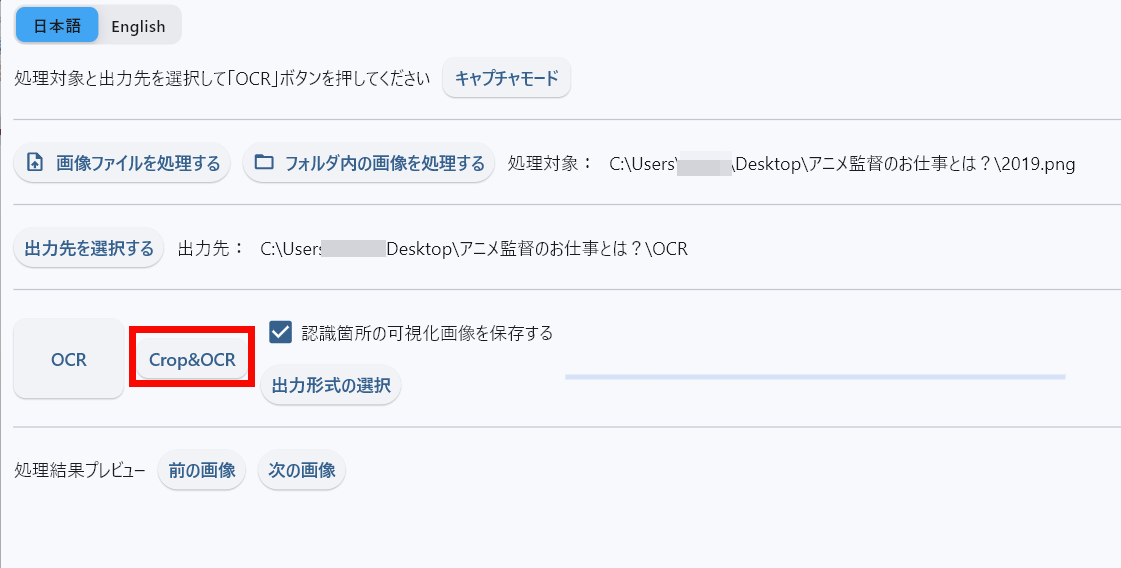
Next, select the image and click 'Crop & OCR'.
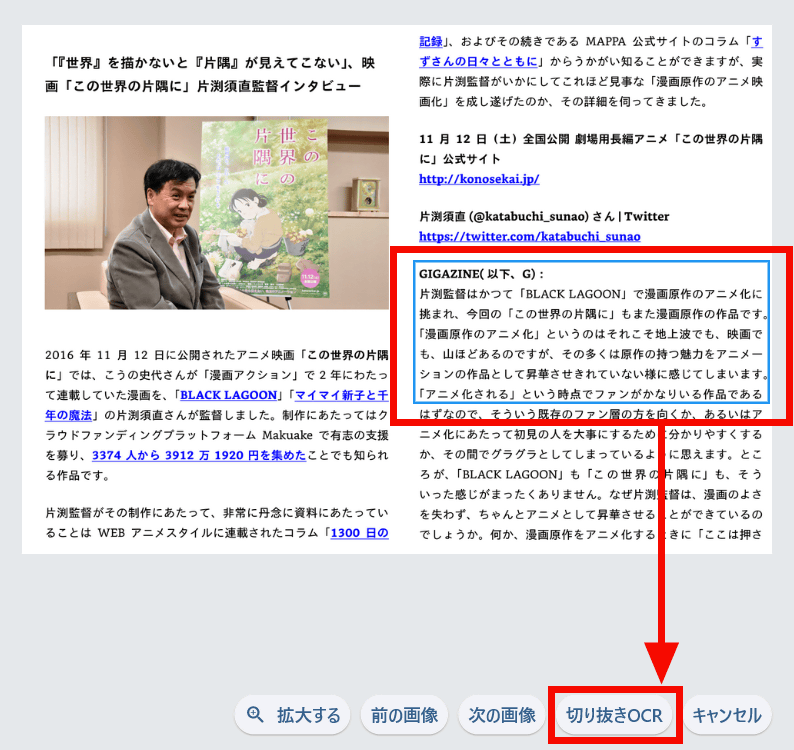
The imported image will be displayed, so drag the blue rectangle over the image to select the area you want to extract the text from. Once selected, click 'Crop OCR.'
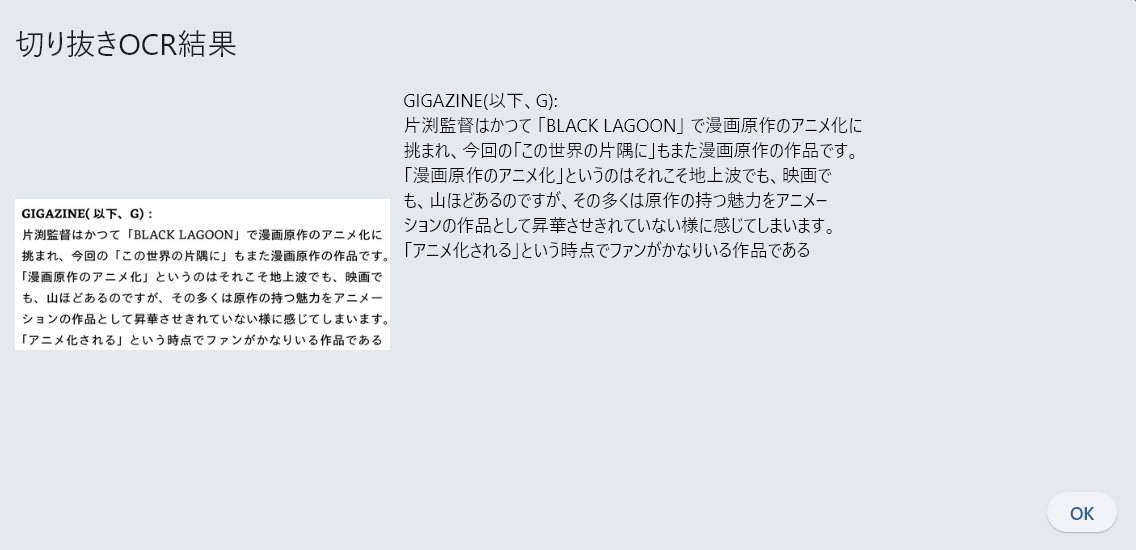
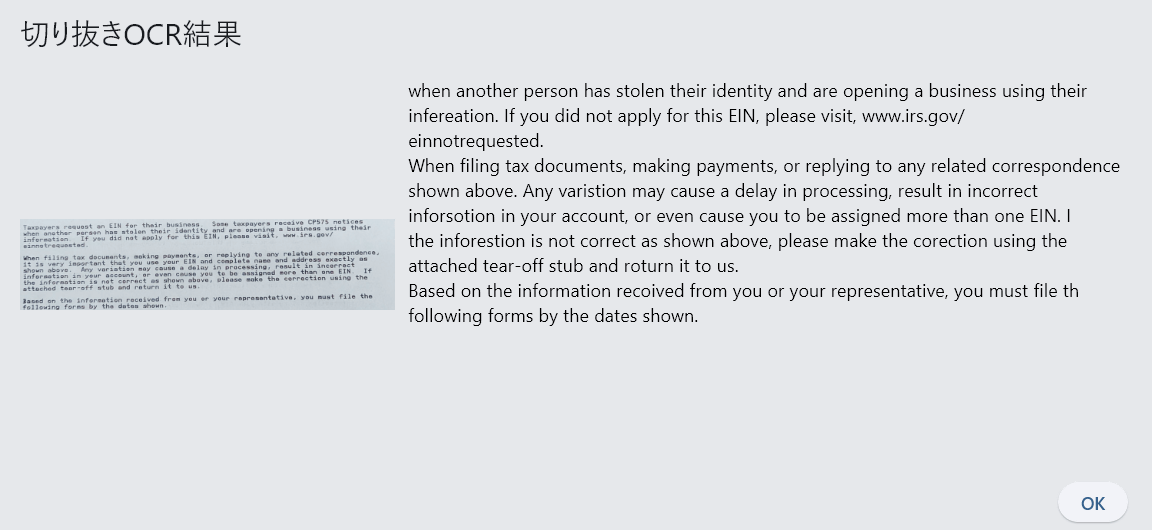
The text in the selected area has been extracted. Note that the OCR data is not saved as a text file.
You can also process all the images in a folder at once by clicking 'Process images in a folder.'
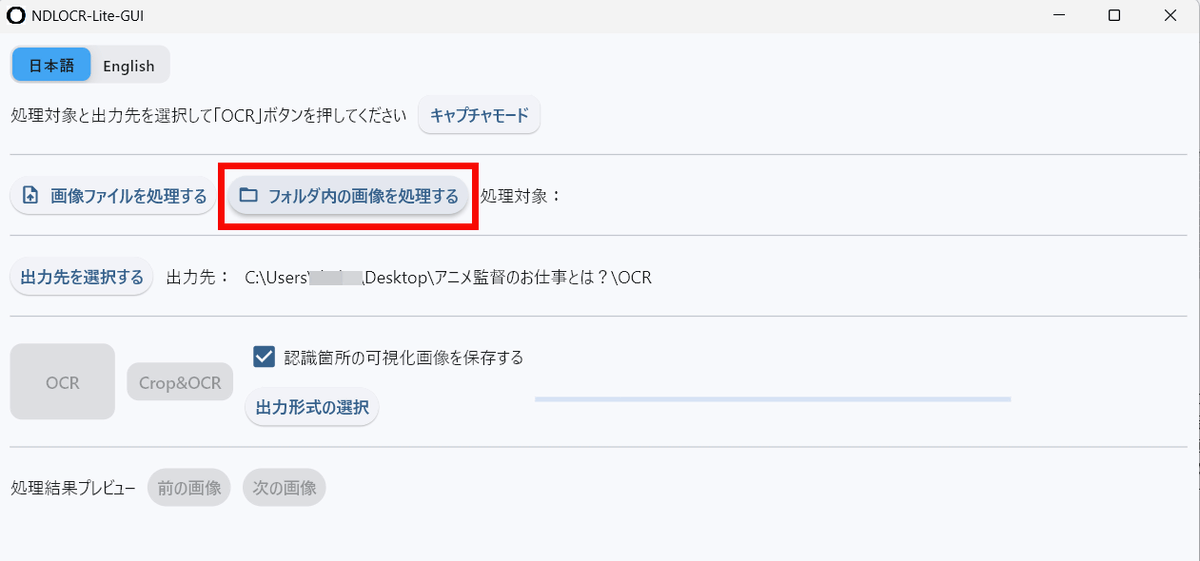
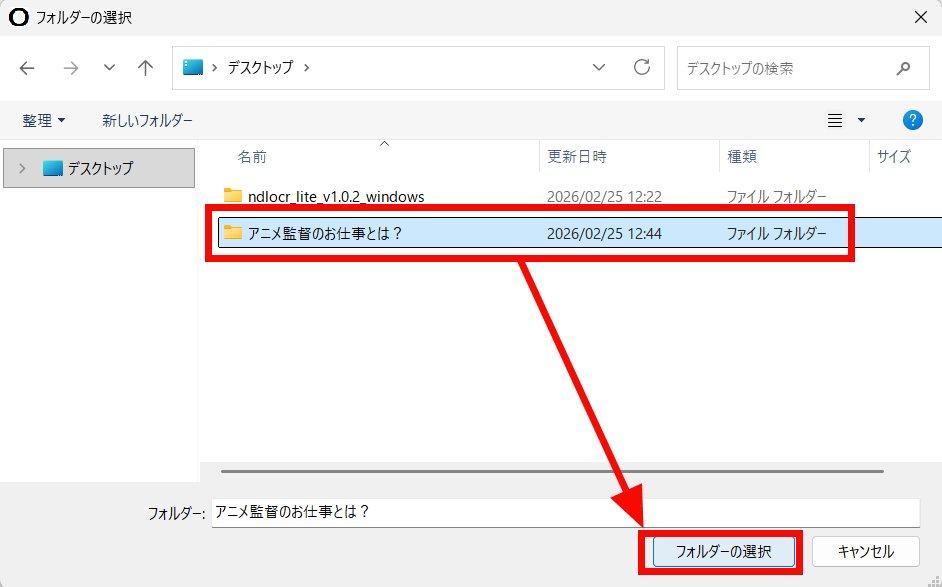
Select the folder you want to process and click Select Folder.
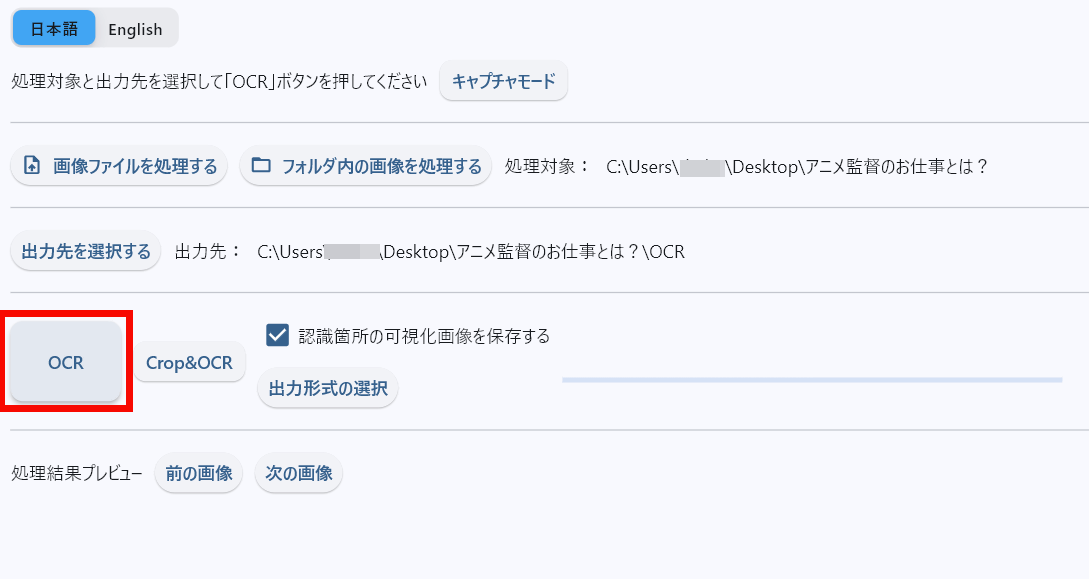
Click 'OCR'.
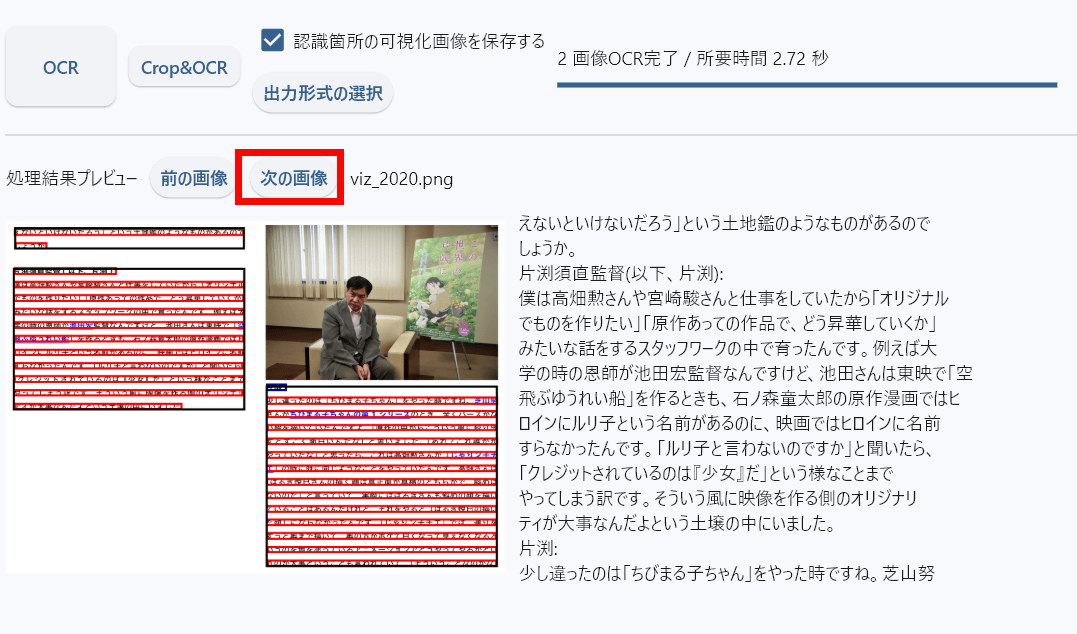
Multiple images have been processed. You can cycle through the previews by clicking 'Next Image'.
Multiple images were written to the output folder in their respective formats.
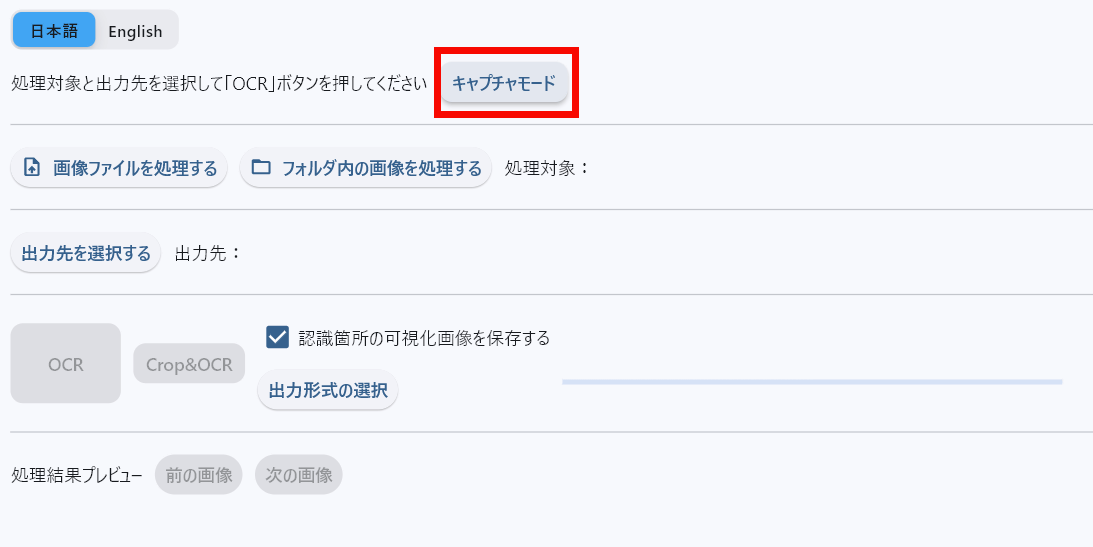
In addition to images, you can also capture what's on the screen directly and turn it into text. Click 'Capture Mode.'
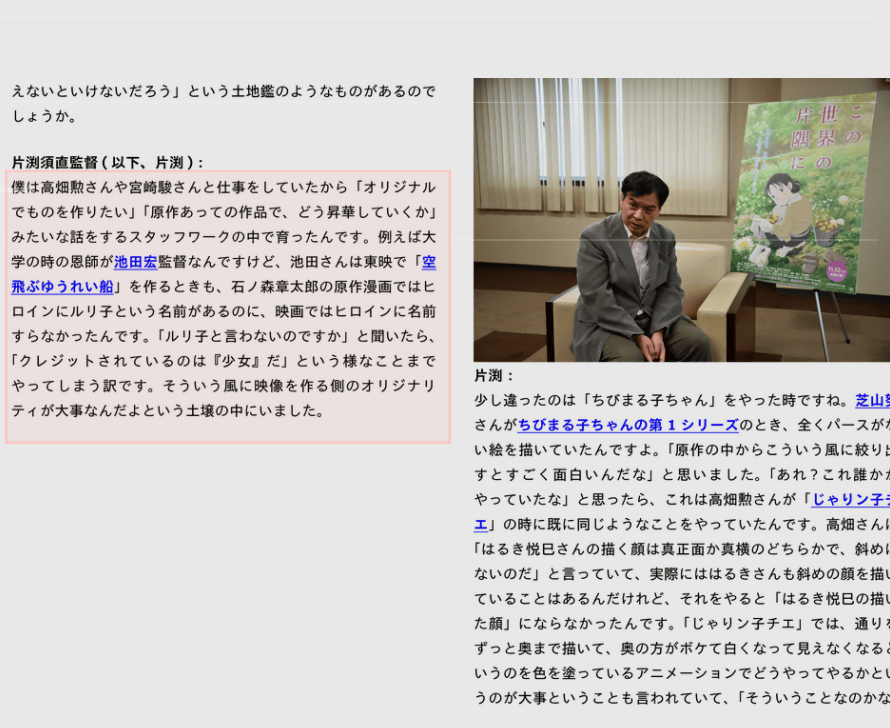
Drag and enclose the part of the image on the screen that you want to convert into text.
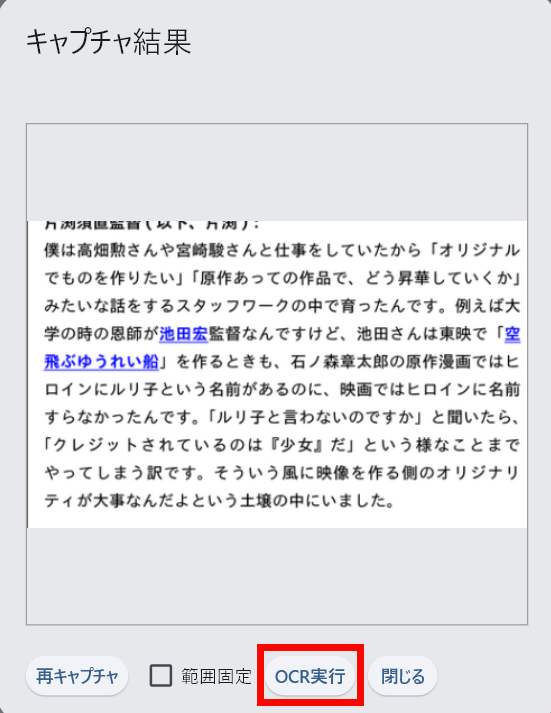
Once you have captured the image, click 'Run OCR.'
The captured part was successfully converted to text. However, please note that if any part is cut off or the orientation is incorrect, the text will not be converted correctly.
NDLOCR-Lite's features include being lightweight and not requiring a GPU, and experimentally supporting English and handwritten characters, which NDLOCR struggles with. In a test run, we extracted text from a photo
NDLOCR-Lite is published by the National Diet Library under the CC BY 4.0 license , and NDLOCR , which requires a GPU, is still available.
GitHub - ndl-lab/ndlocr-lite: NDLOCR‑Lite application repository (including source code)
https://github.com/ndl-lab/ndlocr-lite
Related Posts: