'about:translations' is a handy tool that lets you use Firefox's local translation function in a way similar to Google Translate.

While translation websites like Google Translate and DeepL are very convenient, I'd rather not use them for translating confidential documents or texts that directly relate to privacy. On the other hand, local translation systems have problems such as requiring LLM execution and being resource-intensive, or being resource-efficient but of low quality. I was looking for a local translation system that was easy to install, low-intensive, and of sufficient quality, and I discovered that the built-in translation function in Firefox is quite excellent, so I've put together a summary of how to use it.
Firefox: The fast, private browser that keeps you safe — Firefox.com
Firefox comes with a built-in translation function that allows you to translate web pages written in foreign languages such as English into Japanese. The translation process runs locally, so it can be used even offline.

The feature we'll be using today is the 'local translation function' added in

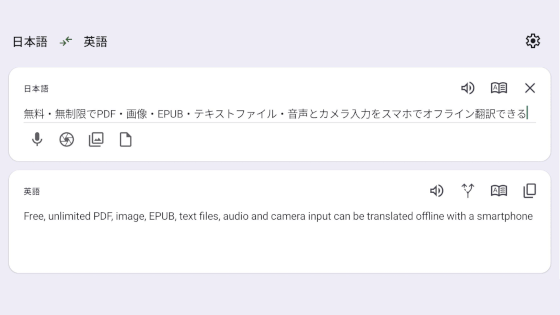
The translation screen appeared. The input field is on the left, and the translation result display area is on the right, similar in layout to translation services like Google Translate and DeepL.

Enter the text you want to translate. The input language will be detected automatically.

Click 'Select Language,' then click the target language for translation. In this case, I clicked English.

The translation results were displayed instantly. The translation quality is quite high. The load on the PC is very low, so it can be run on a laptop. There are no problems even when performing demanding tasks.

If you bookmark ' about:translations ', you can use the translation function immediately. The source language and target language are managed by parameters, and if you bookmark ' about:translations#src=ja&trg=en ', you can open the translation screen with 'Japanese as the source language and English as the target language'.
Furthermore, by creating a Windows shortcut, you can open the translation screen directly from your desktop. To create a shortcut, right-click on any folder to display the menu, and then click 'Shortcut' under 'New'.

Enter 'C:\Program Files\Mozilla Firefox\firefox.exe' 'about:translations#src=ja&trg=en' into the input field and click 'Next'. If you have Firefox installed in a different location, adjust accordingly.

Enter a name for the shortcut and click 'Done'.

The shortcut is now complete. Let's try double-clicking the shortcut.

A new tab opened in the already running Firefox browser, and the translation screen was displayed with the source language set to Japanese and the target language to English.

Clicking 'Pin to Start' in the right-click menu of the shortcut will register the translation function shortcut to the Start menu.

Adding it to the Start Menu makes it convenient to use the translation function anytime.

Furthermore, when creating a shortcut, entering 'C:\Program Files\Mozilla Firefox\firefox.exe' --new-window 'about:translations#src=ja&trg=en' will open the translation screen in a new Firefox window. Command-line parameters such as '--new-window' for opening in a new window and '--private-window' for opening in a private window are summarized at the following link.
Firefox Source Tree Documentation — Firefox Source Docs documentation
https://firefox-source-docs.mozilla.org/
Related Posts: