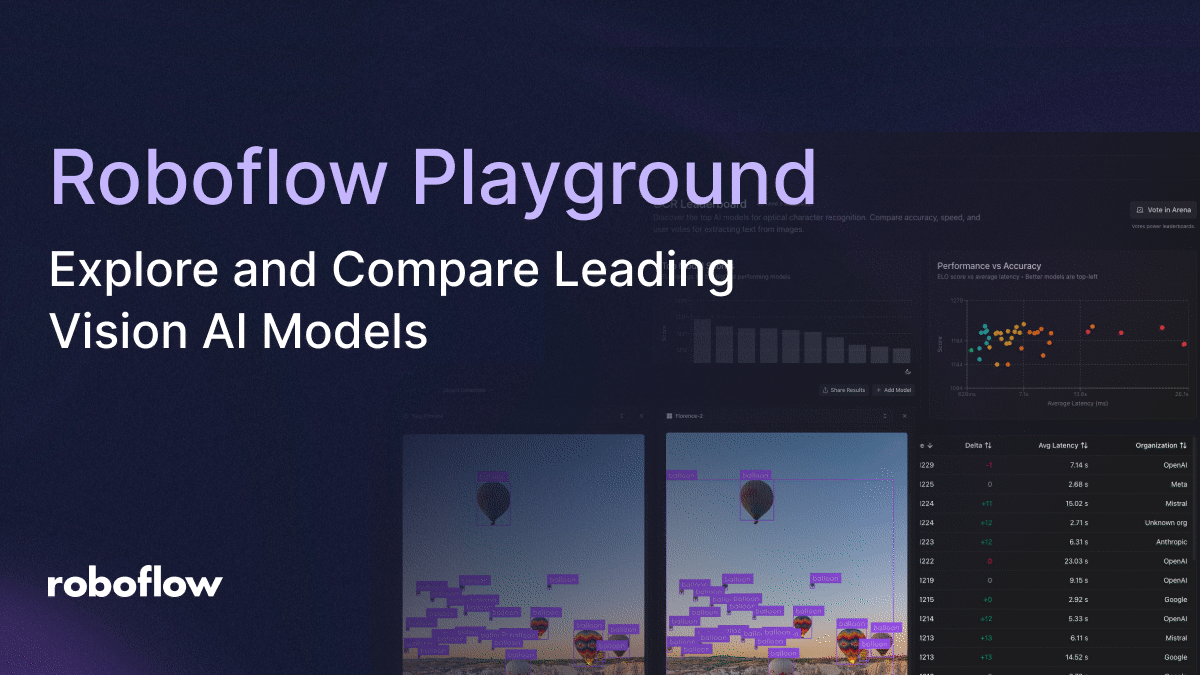
'Roboflow Playground' allows you to try, compare, and evaluate a wide variety of vision AI models for free.
A zero-shot computer vision model is an AI model that can
Roboflow Playground: Test & Compare Vision AI Models Free
https://playground.roboflow.com/
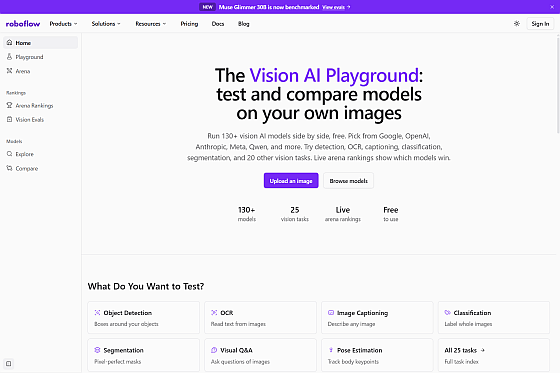
Roboflow Playground allows you to run the same image and prompts on multiple models simultaneously. It supports a wide range of models, from the latest VLMs such as Anthropic, Meta, OpenAI, and Google, to open-source models like Qwen3.8 27B and Muse Glimmer 30B. To use Roboflow Playground, first visit the website and select the vision task you want to run. Next, select up to five models to compare, and finally, set the image and prompt to process. Note that some models may not be available for certain tasks.
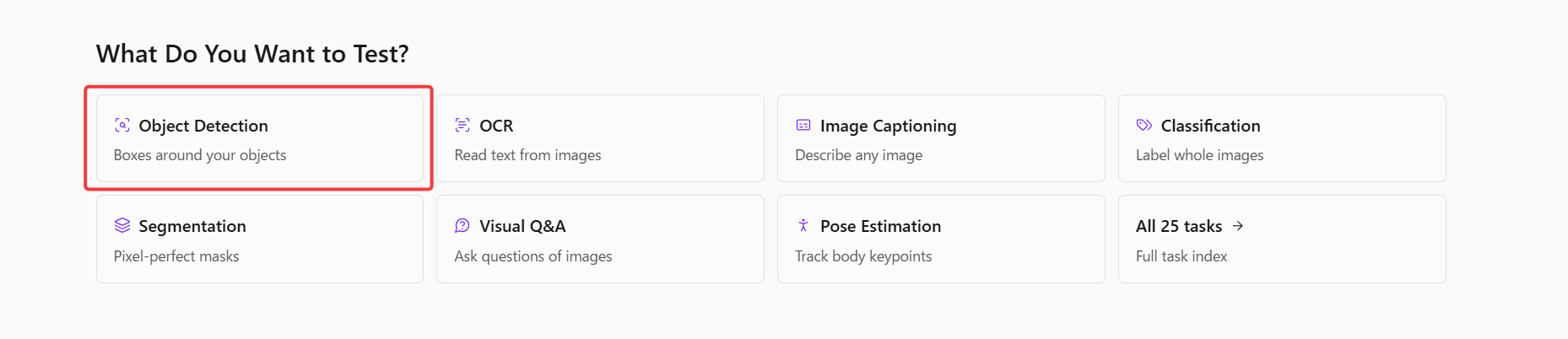
To actually compare models, for example, if you want to try the 'object detection' task, click 'Object Detection' from 'What Do You Want to Test?' on the top page of Roboflow Playground.
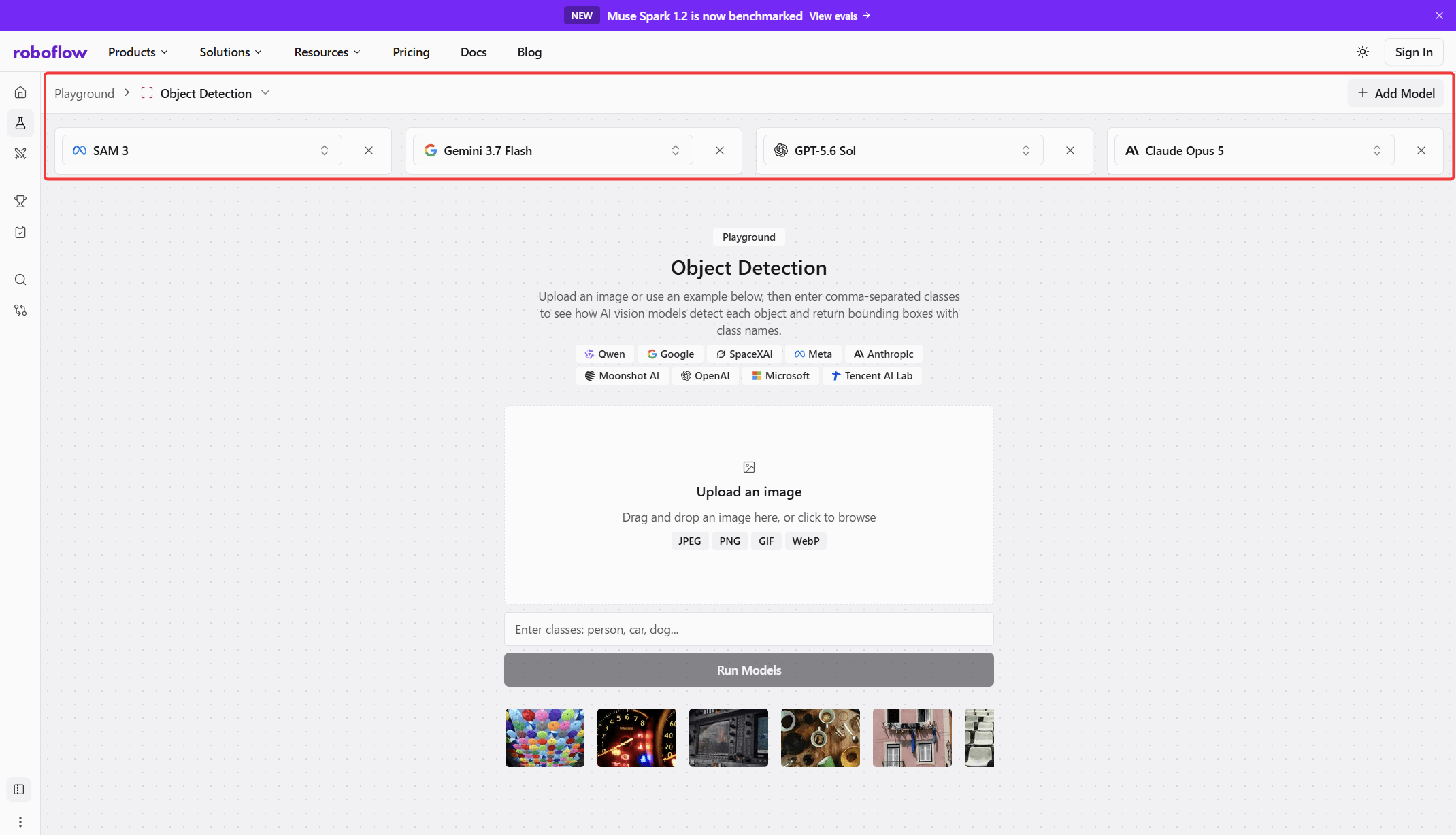
You will be taken to the 'Object Detection' screen. From there, you can either change the model displayed at the top of the screen, delete a model by clicking the 'x' to the right of its name, or add a model by clicking the 'Add Model' button.
Next, select the image you want to process from the list of thumbnails at the bottom of the screen, and the image and a corresponding prompt example will appear in the center of the screen.
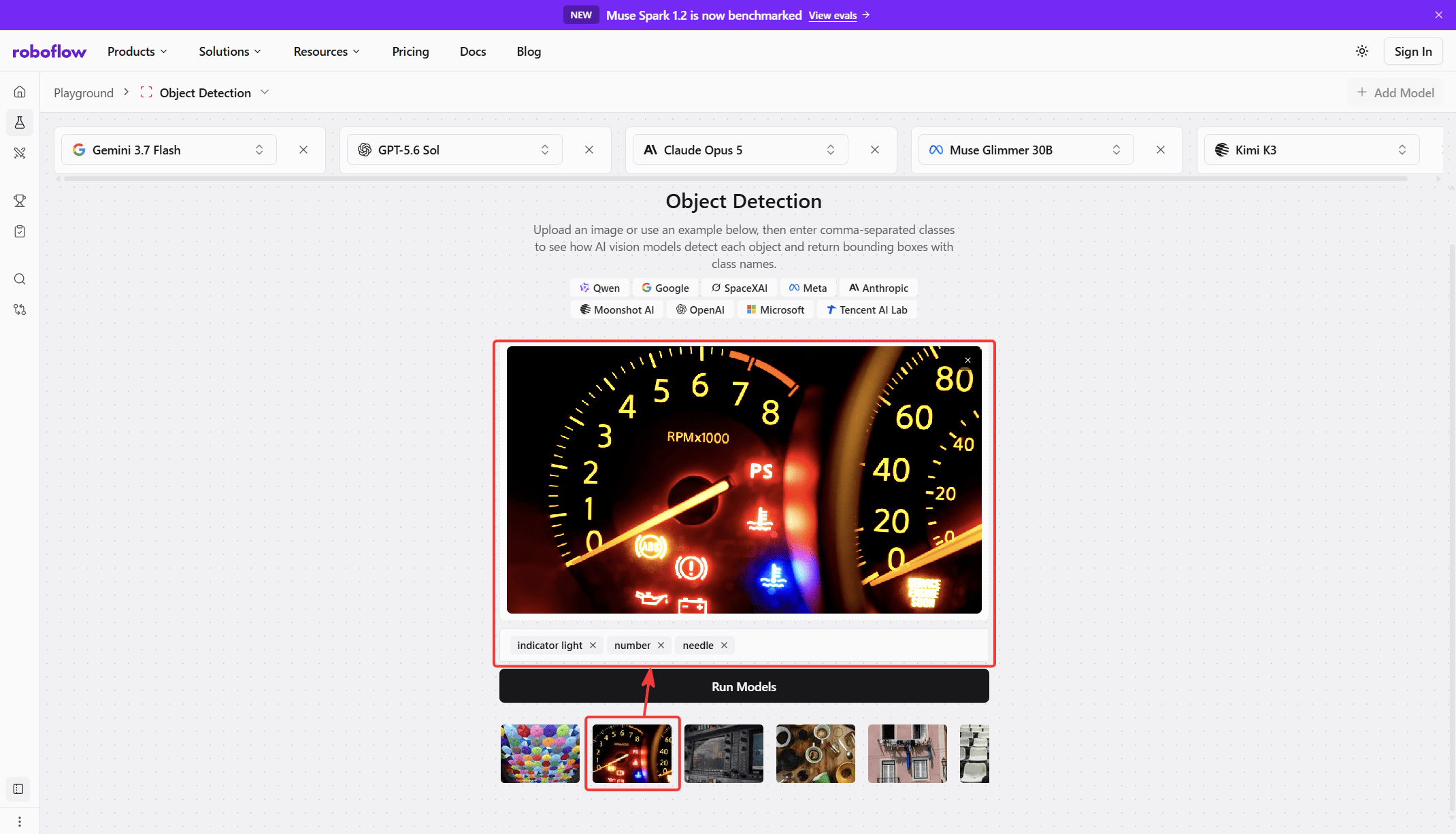
Prompts can be deleted and added manually.
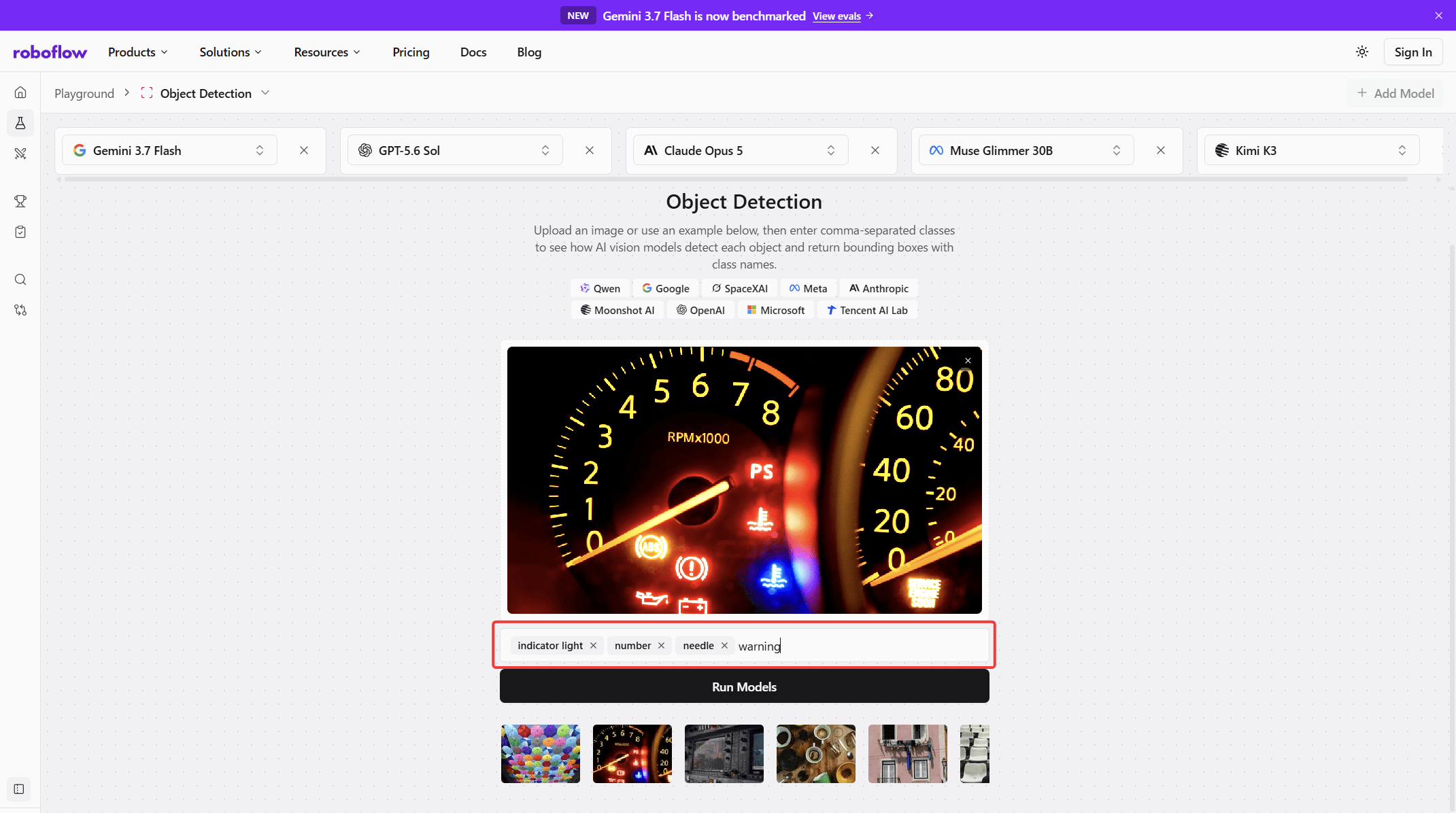
Once the setup is complete, click the 'Run Models' button to run each model.
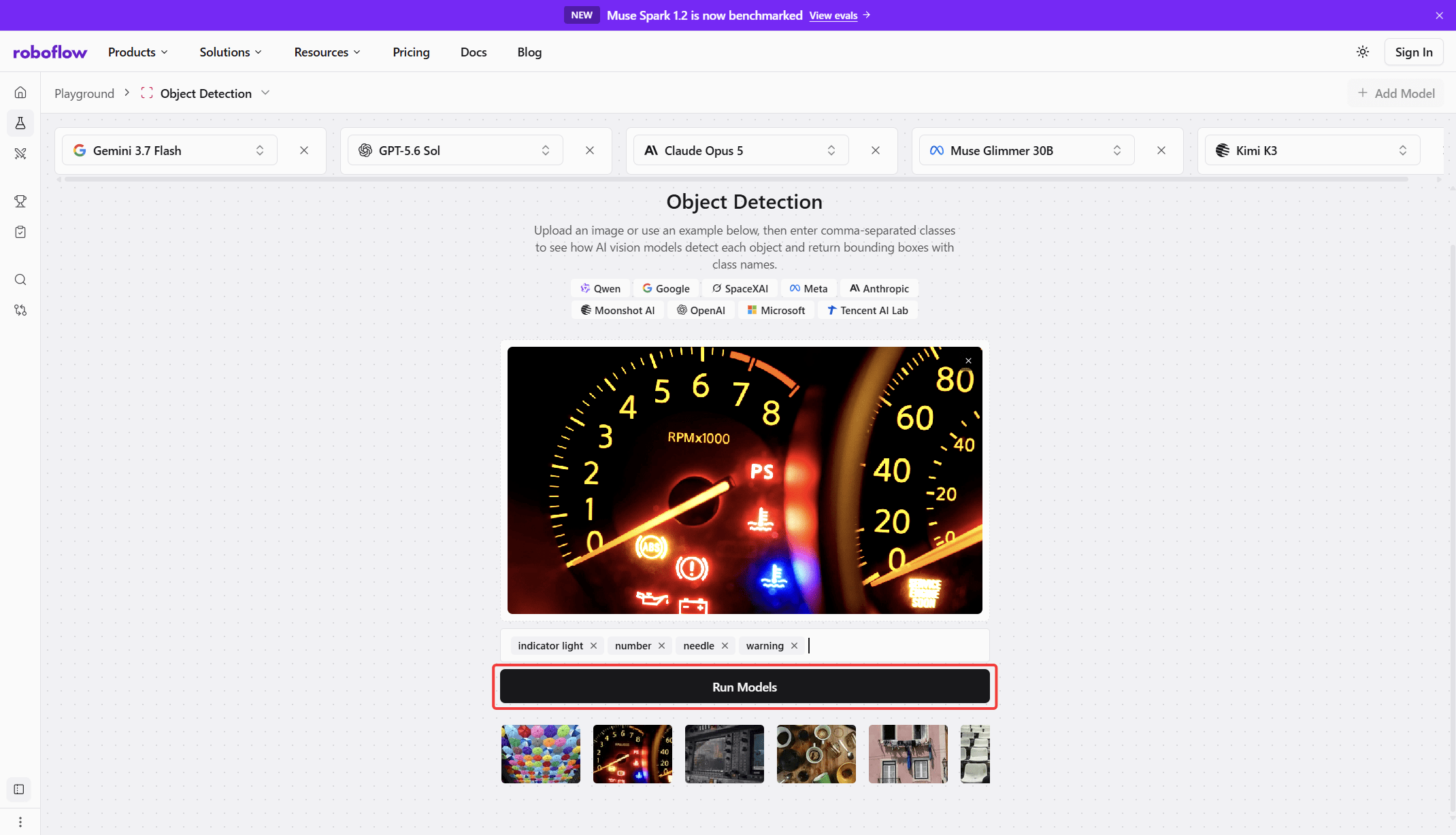
Once execution begins, each model will process data concurrently.
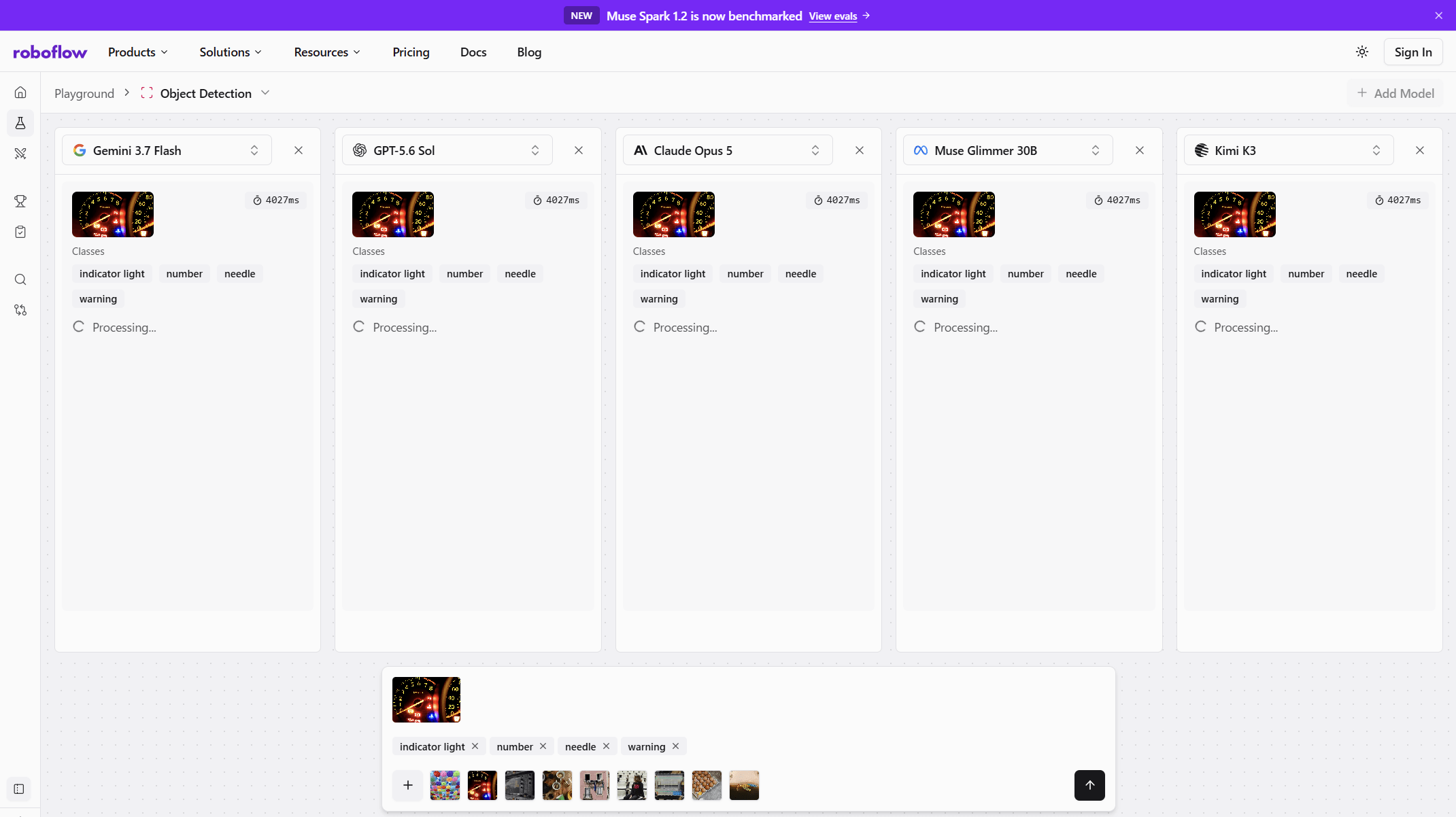
The processing results will be displayed for each model once processing is complete.
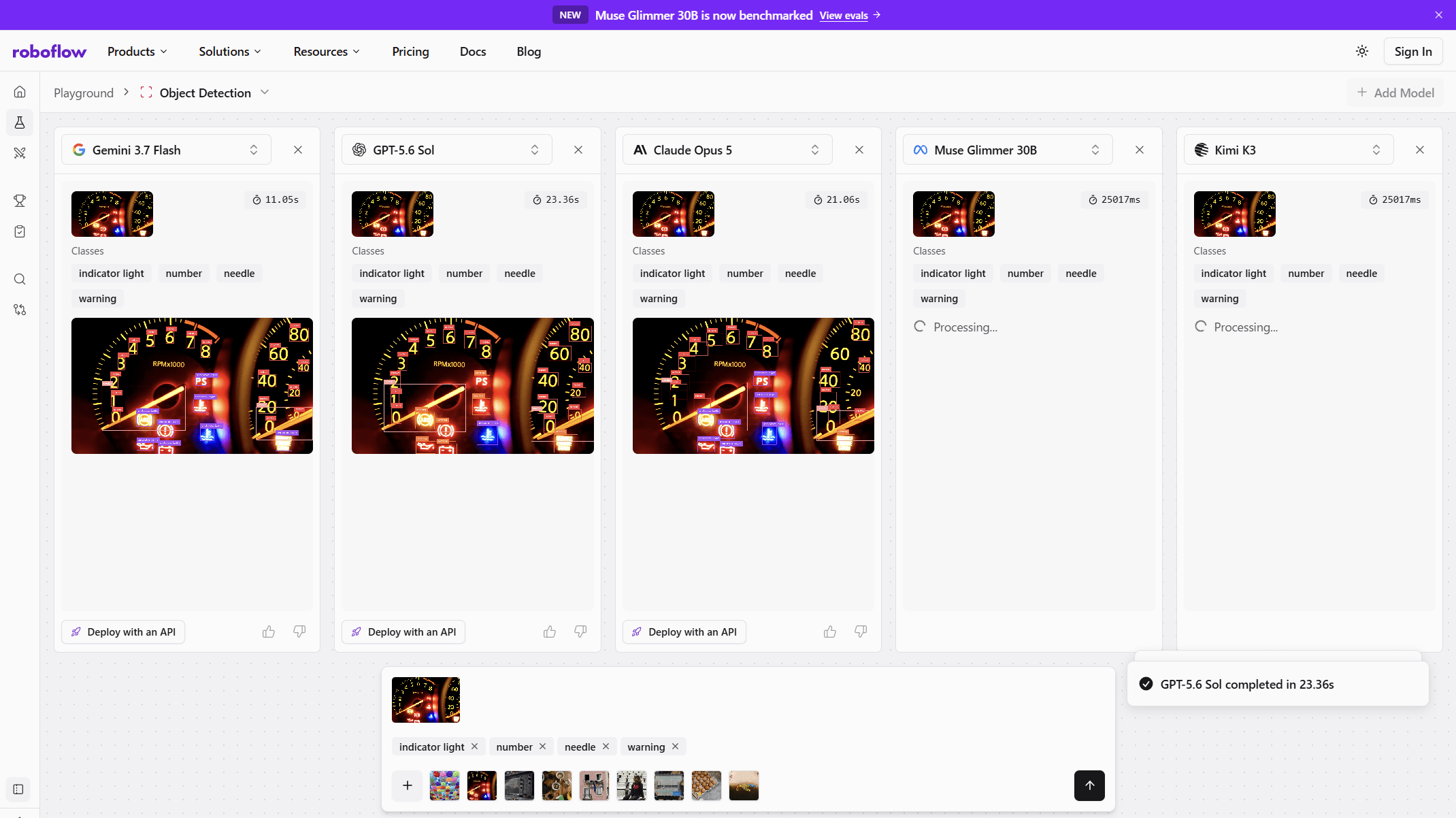
All models have been processed.
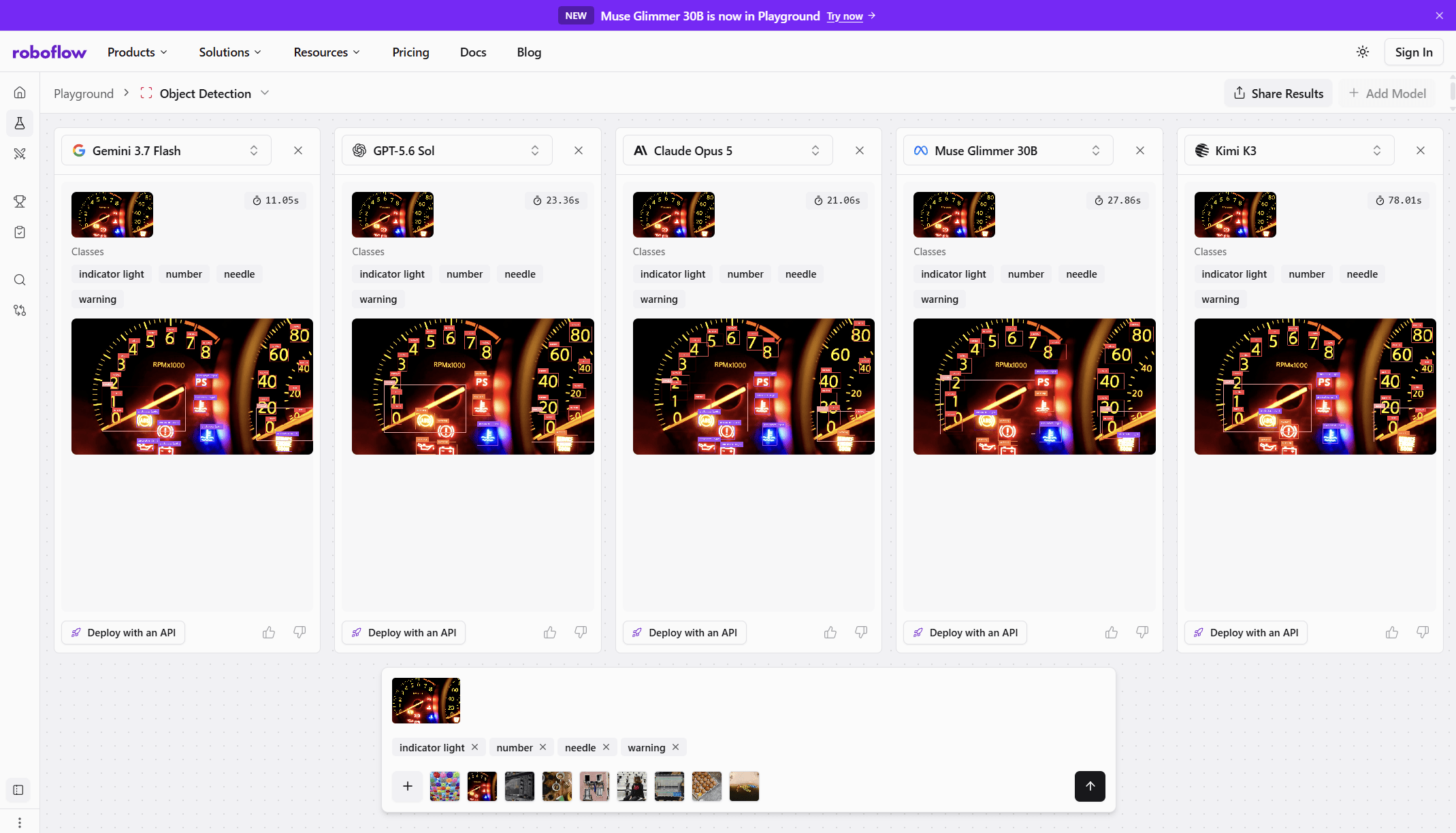
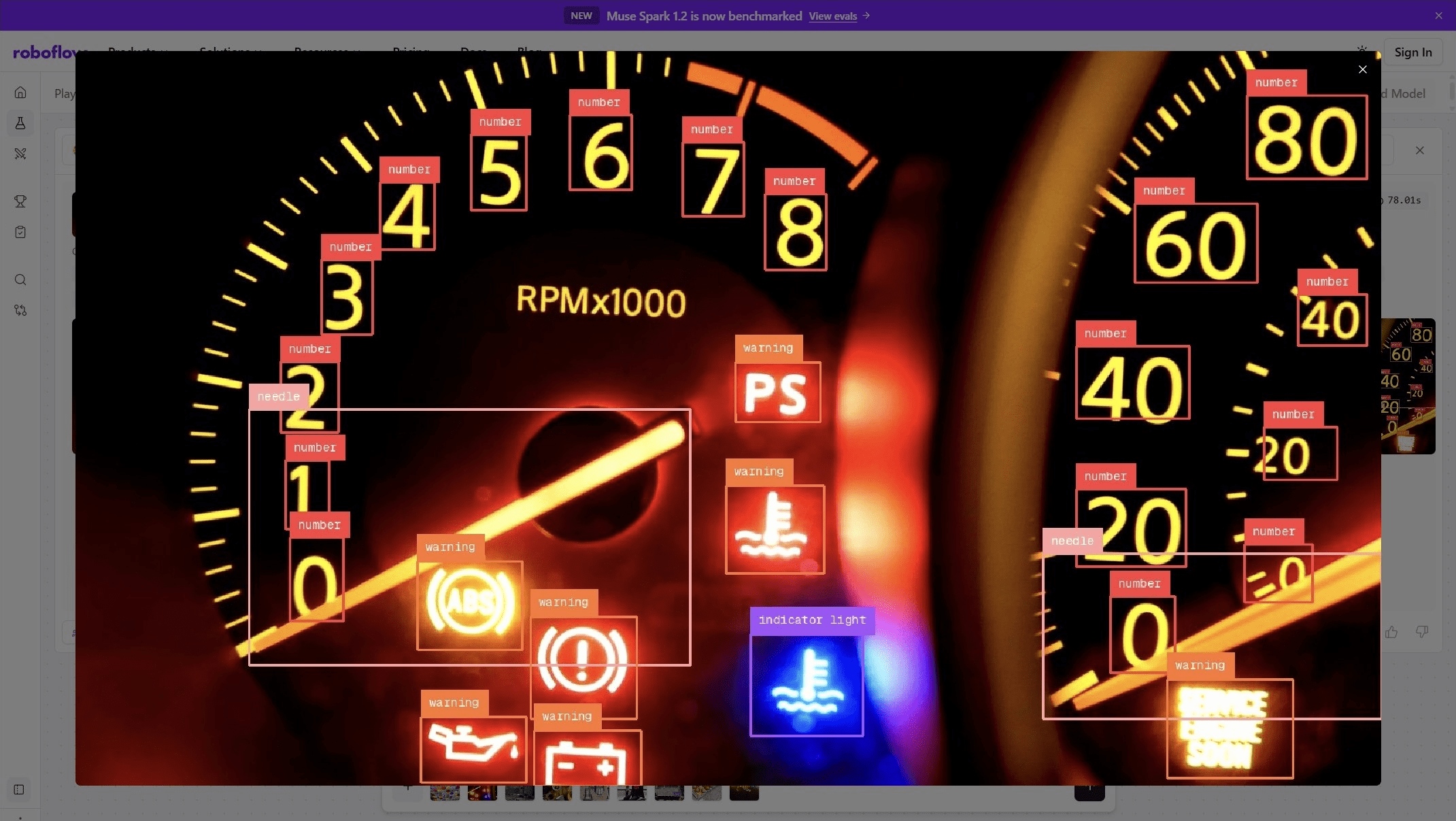
Clicking on the processed image will enlarge it, allowing you to see at a glance what the model detected in the image. Different models may produce different detection results, leading to interesting findings.
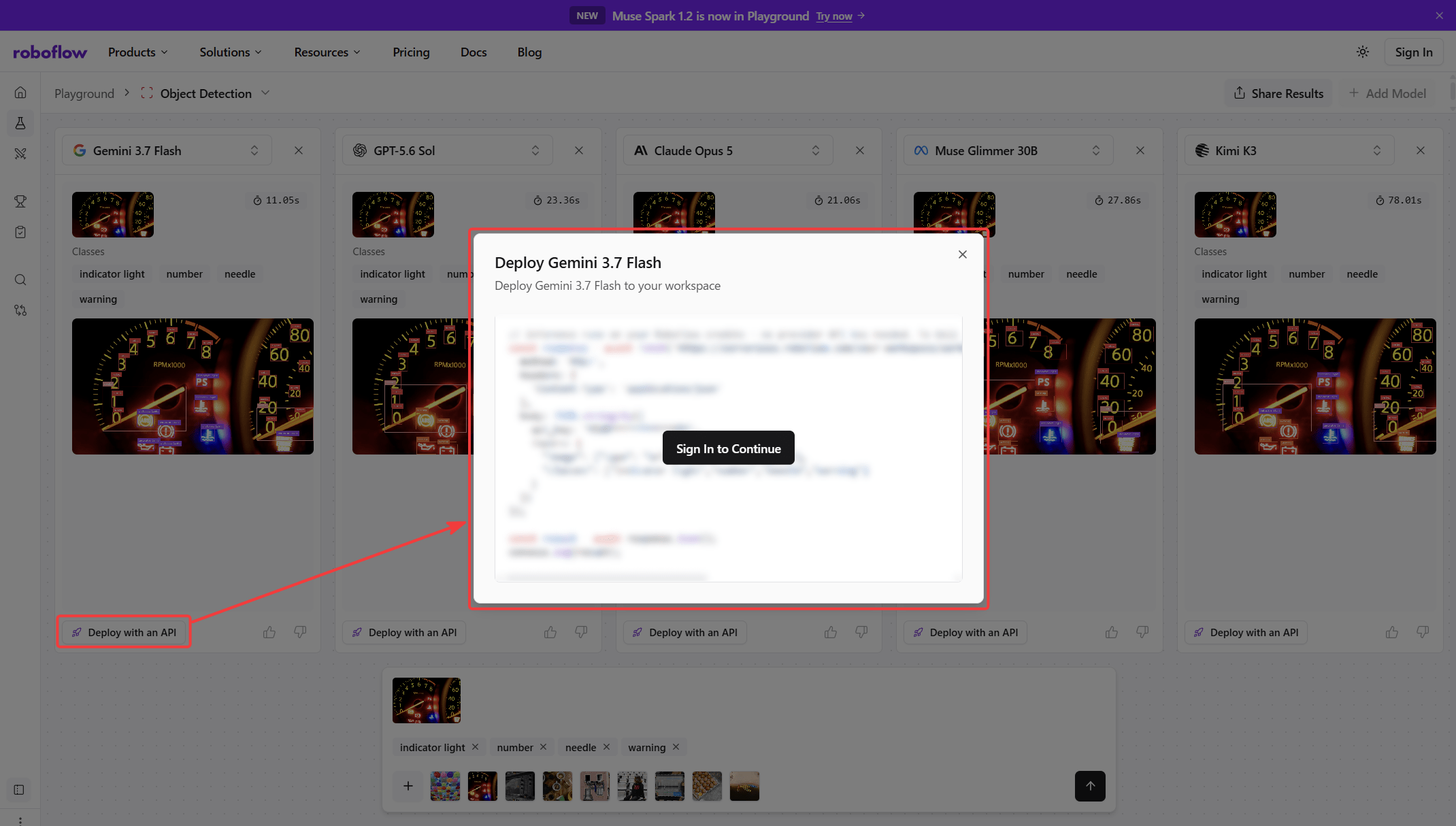
Note that each model has a 'Deploy with an API' button, and clicking it will display the deployment code, but you will need to sign in to actually view it.
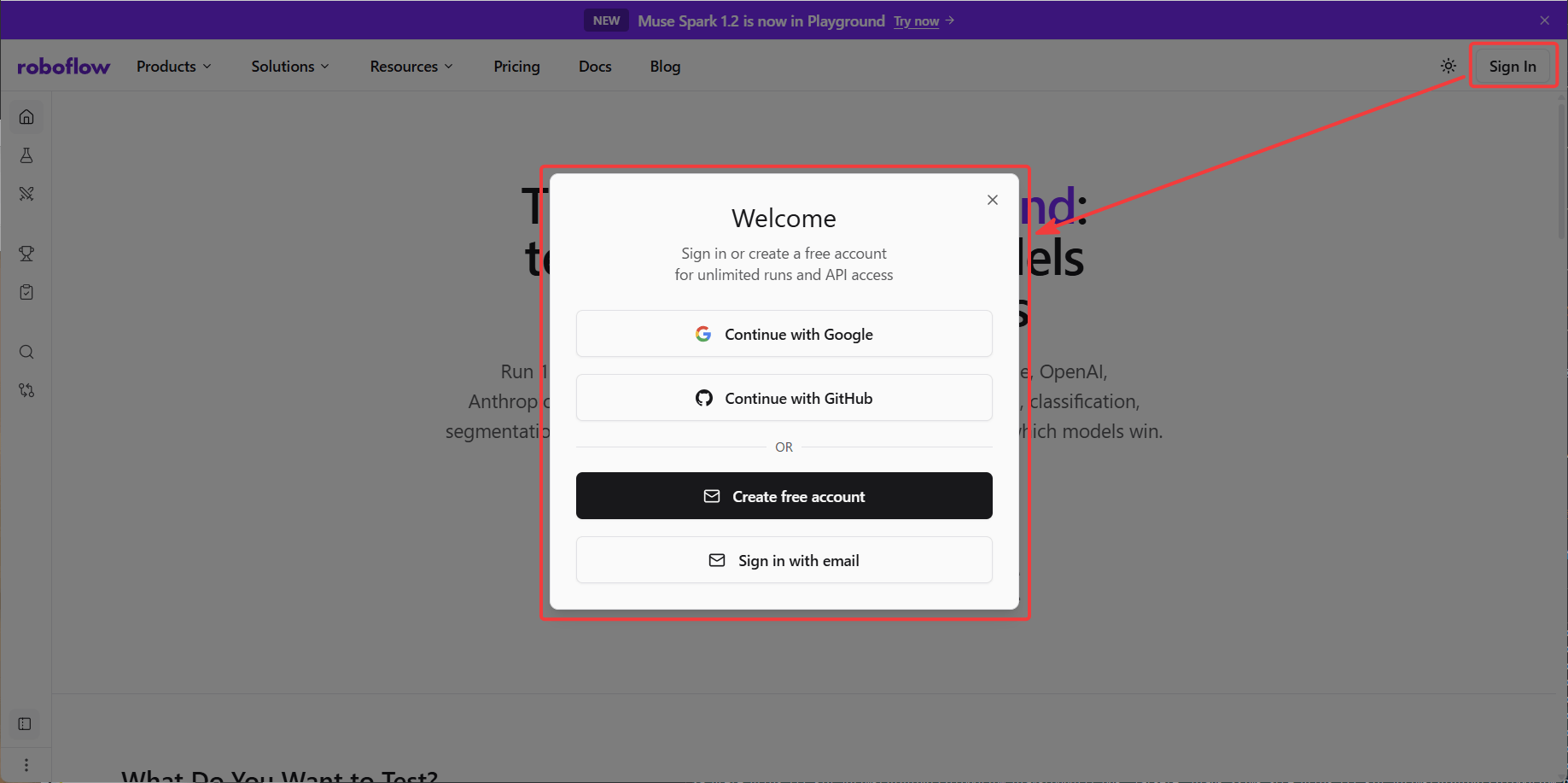
Sign in by clicking the 'Sign In' button in the upper right corner of the screen, which will bring up a pop-up window. You can use OAuth authentication with your Google or GitHub account, or you can create an account using your email address.
Roboflow Playground allowed me to test various vision AI models without any complicated operations. If you are considering implementing a zero-shot computer vision model, why not try it out before selecting a model?
Related Posts: