I tried out 'Hermes Agent,' an AI agent that grows the more you use it, on Windows, from installation to web searching and browser operation.
Developed by Nous Research, 'Hermes Agent' is an open-source AI agent designed with the perspective of what specific functions are required of an AI agent when actually creating an AI model. It is based on 'terminal operations' rather than simple chat, and can perform tasks by combining multiple tools such as web searches, browser operations, and file operations. Furthermore, it has a mechanism that automatically learns how to perform tasks the more it is used, such as saving the procedures learned from complex tasks as 'skills' to be reused in the future. This time, we will install Hermes Agent on a Windows 11 PC and try out web searches and browser operations.
Hermes Agent — Open-Source AI Agent That Grows With You | Nous Research
Learning Path | Hermes Agent
https://hermes-agent.nousresearch.com/docs/getting-started/learning-path
◆Install Hermes Agent
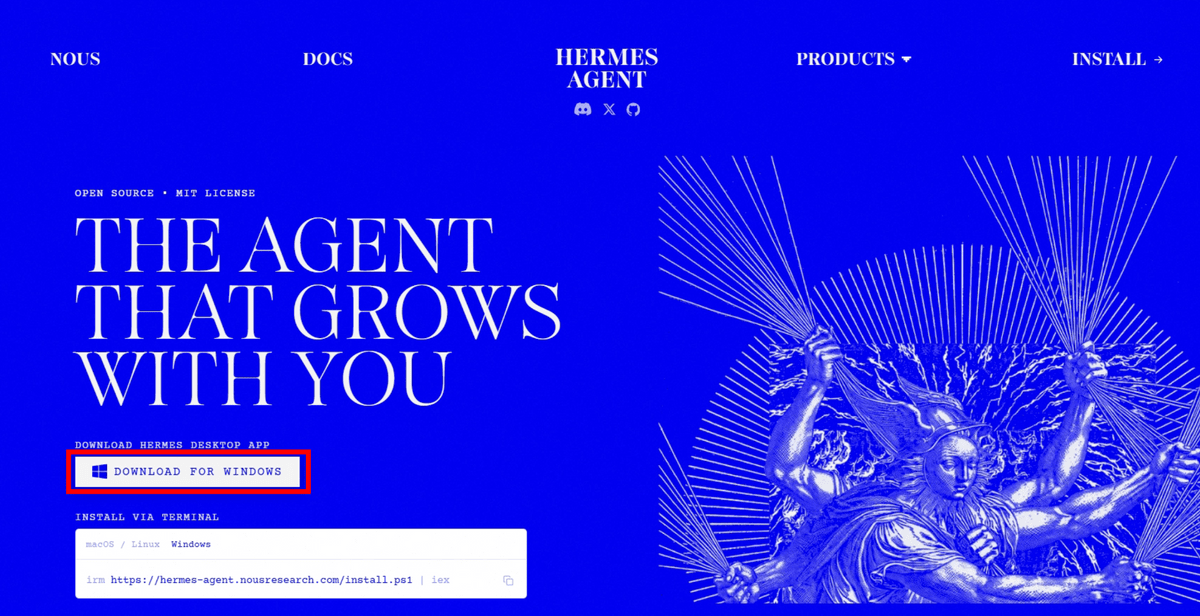
This time we will be using a PC with Windows 11 installed. Go to the official website and click 'DOWNLOAD FOR WINDOWS'.
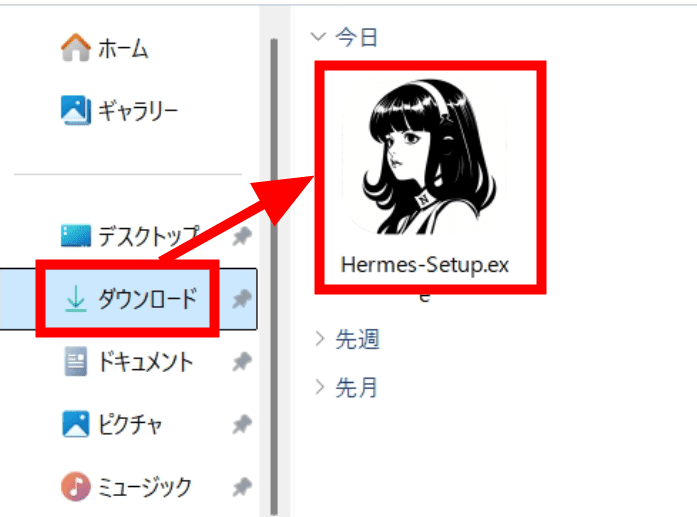
Double-click the downloaded 'Hermes-Setup.exe' to run it.
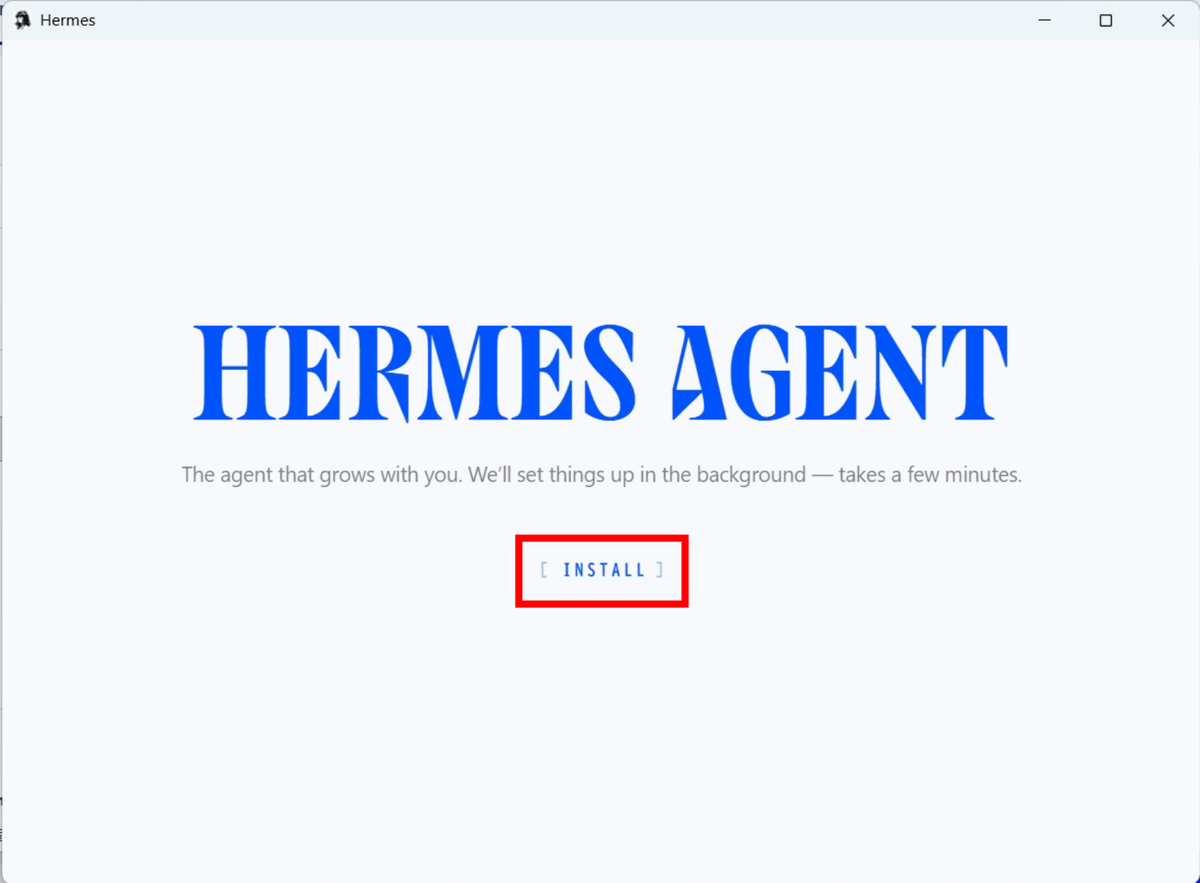
No special settings are required. Just click 'INSTALL'.
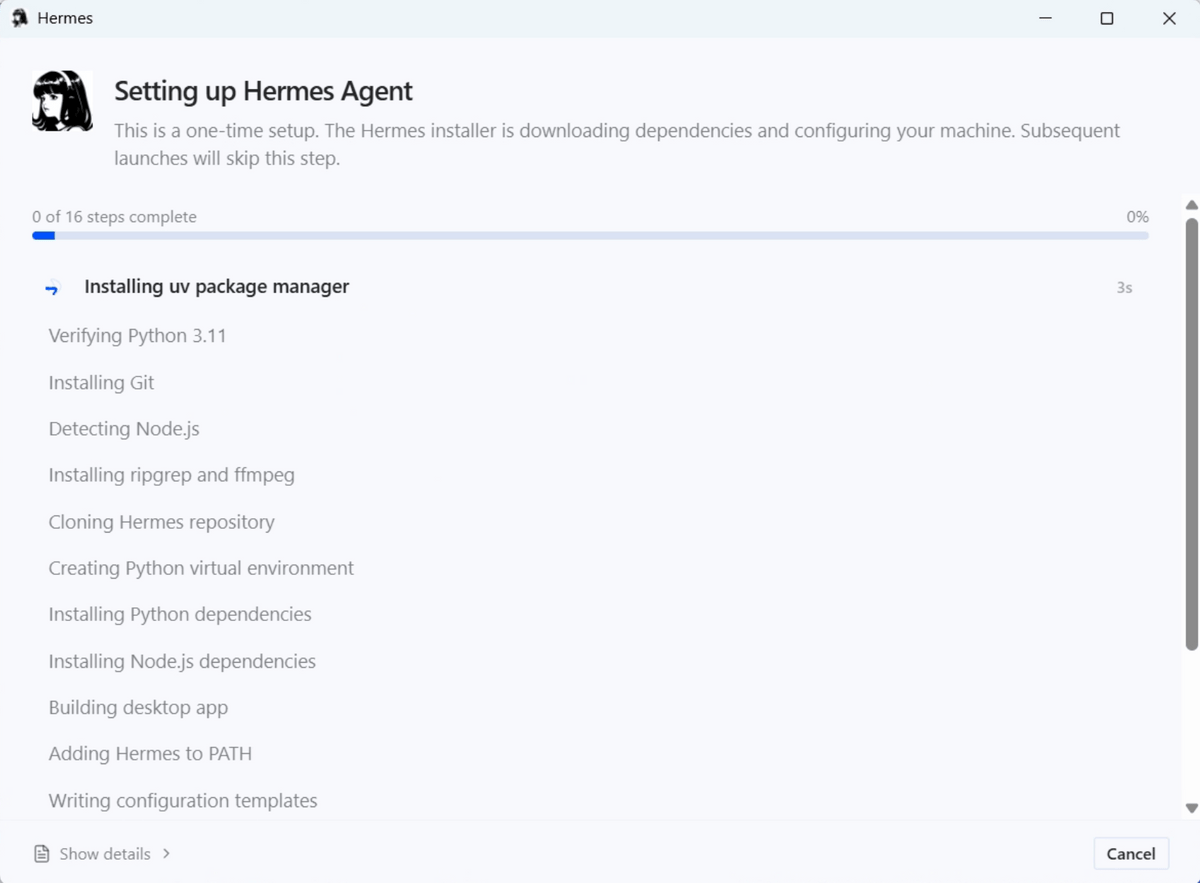
The installation has begun. The necessary components will be installed in order, so please wait until it is complete.
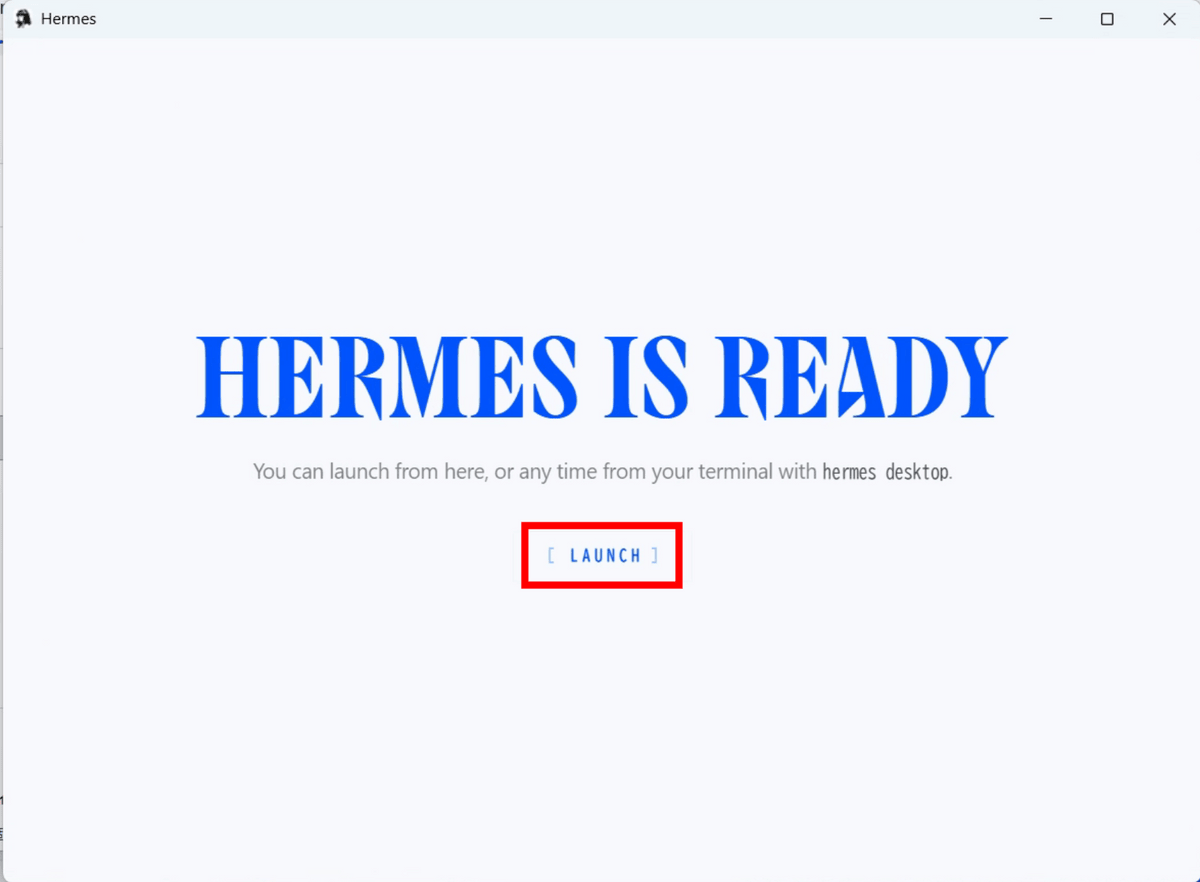
Once the installation is complete, the following screen will appear, so launch the application by clicking 'LAUNCH'.
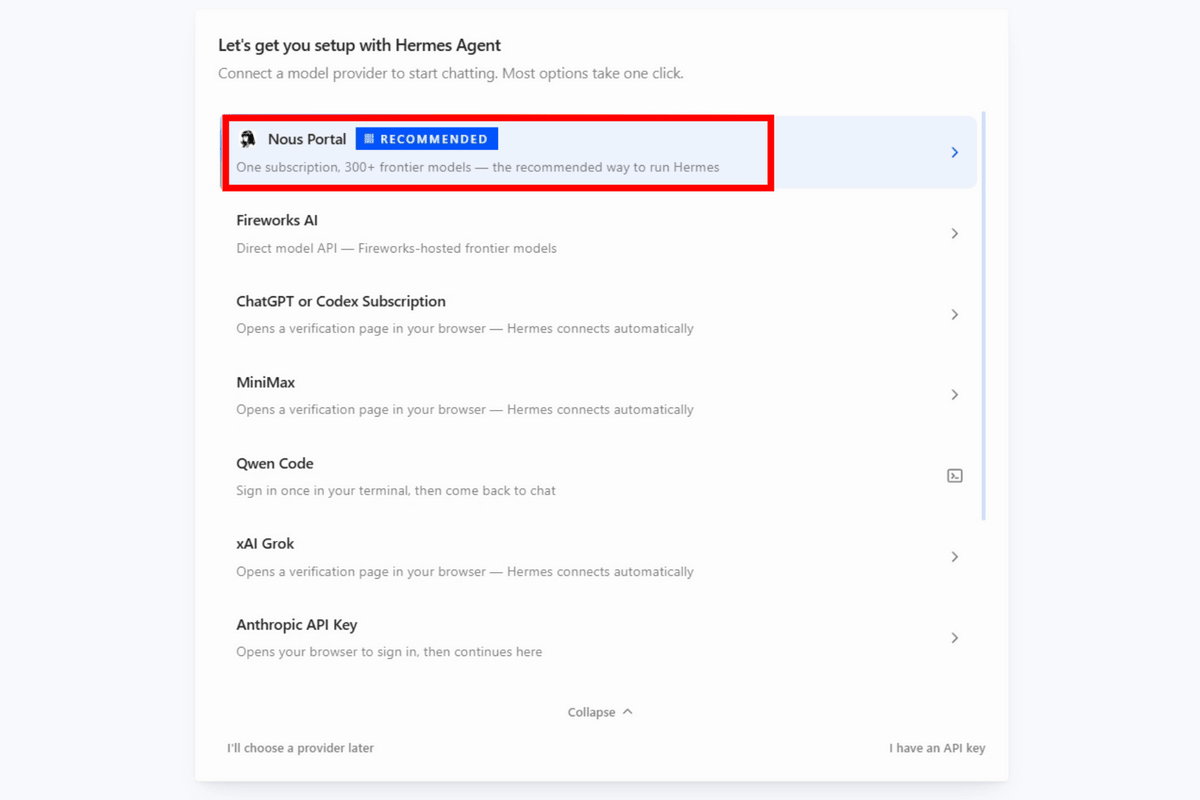
Select the AI provider to use with Hermes Agent. There are many options, but this time we'll click on the default 'Nous Portal,' which is free and ready to use.
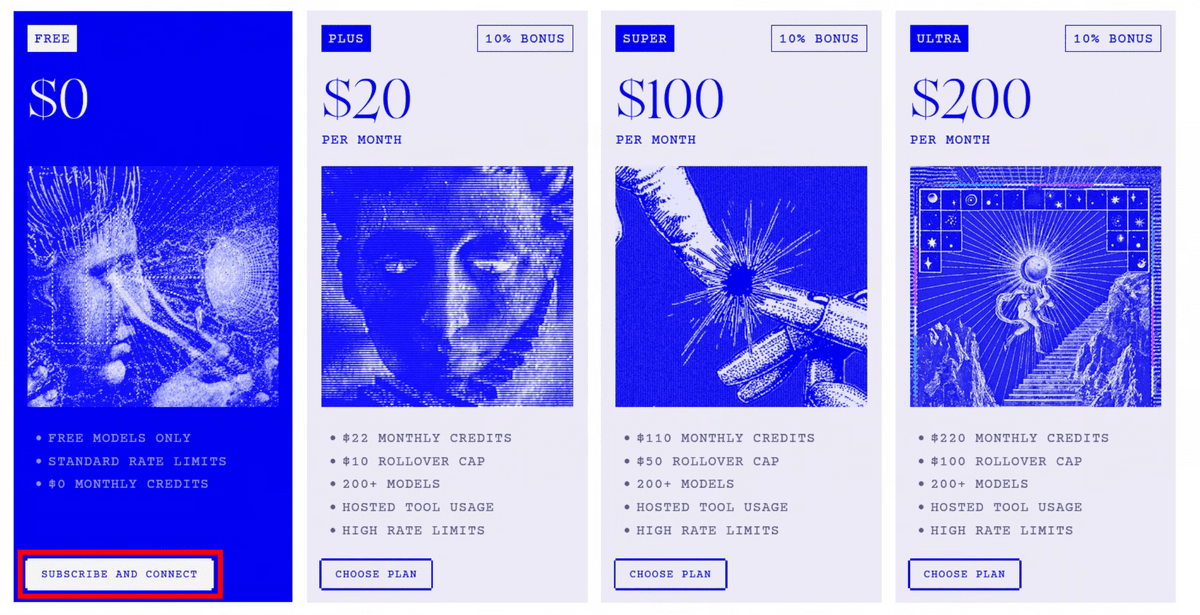
The browser launched and the plan selection screen appeared.
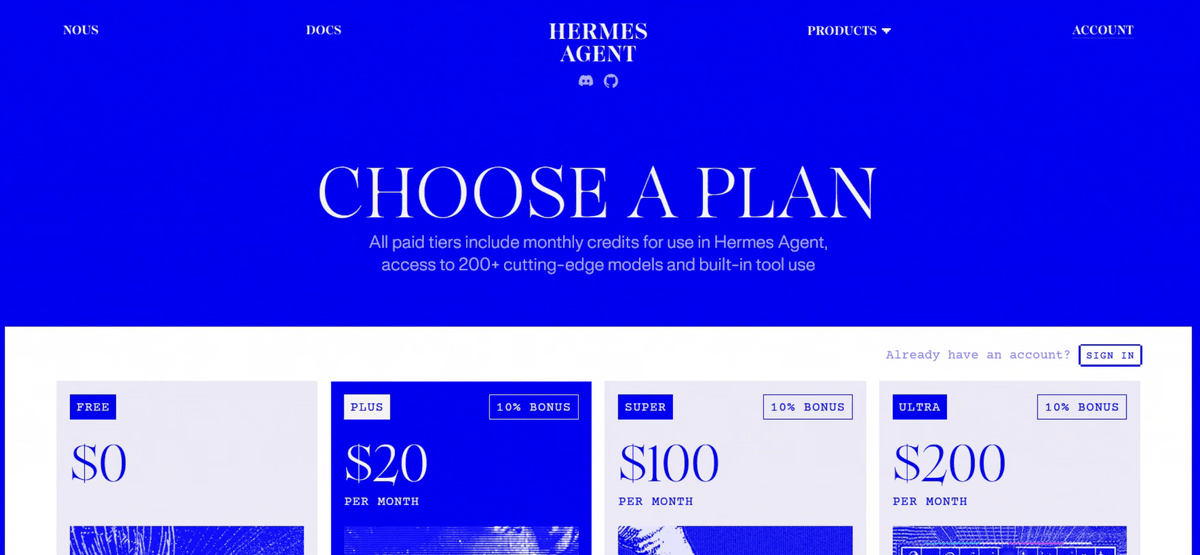
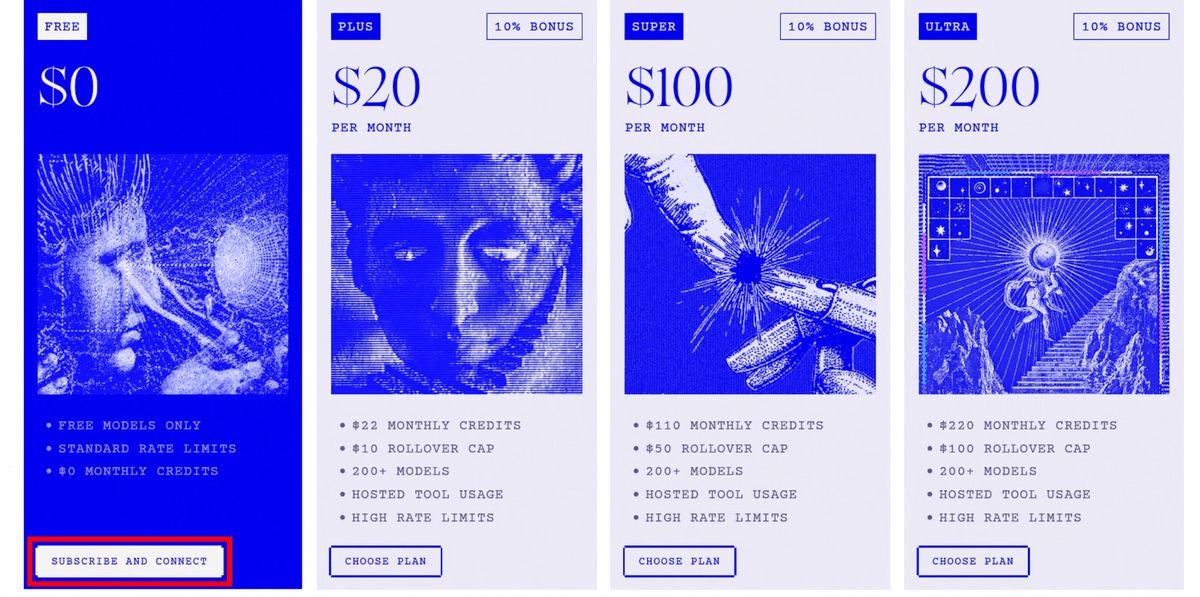
A free plan is available, so click 'SUBSCRIBE AND CONNECT'.
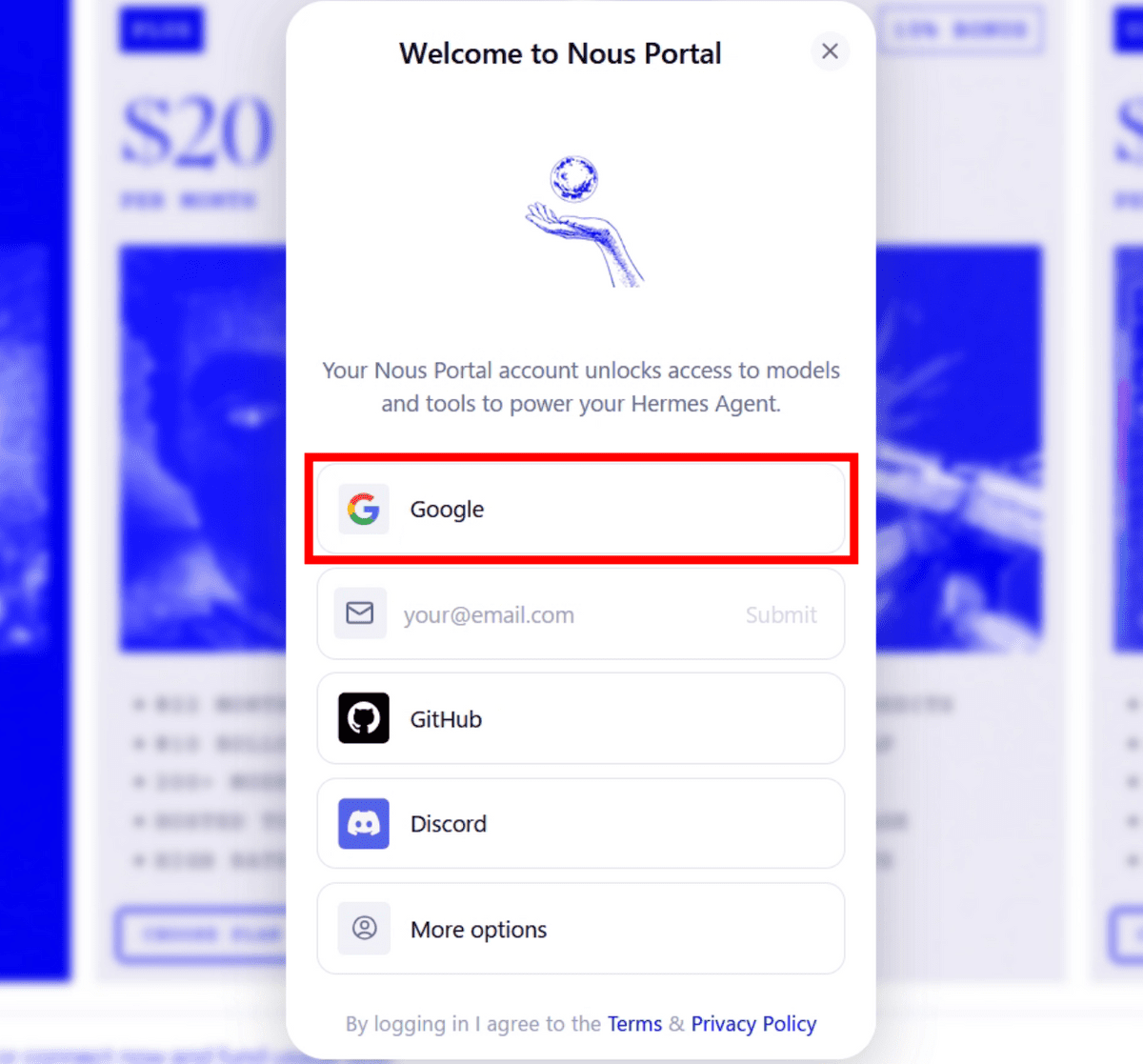
It appears that logging into Nous Portal is required. This time, we will log in using a Google account.
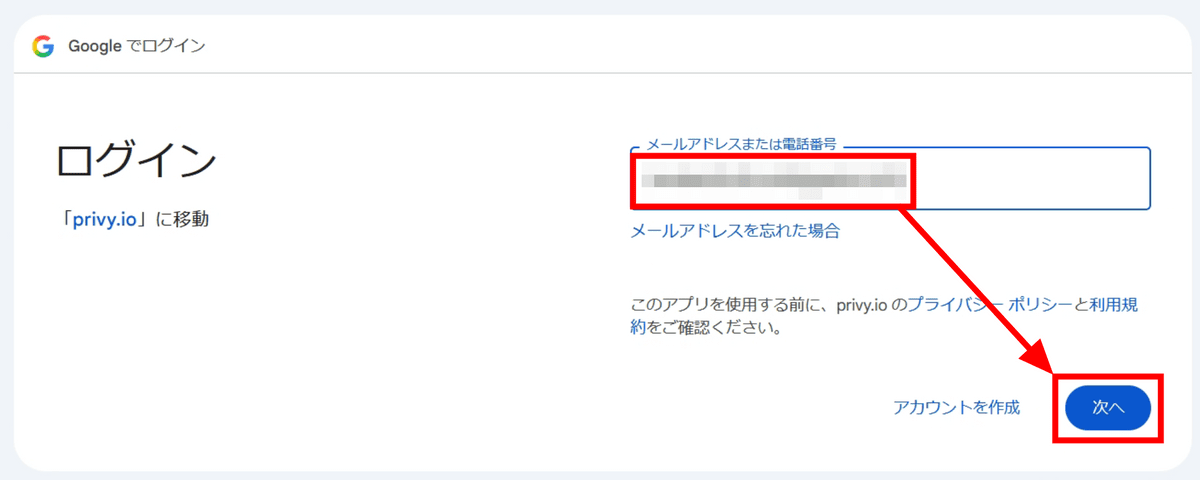
Enter your email address and click 'Next'.
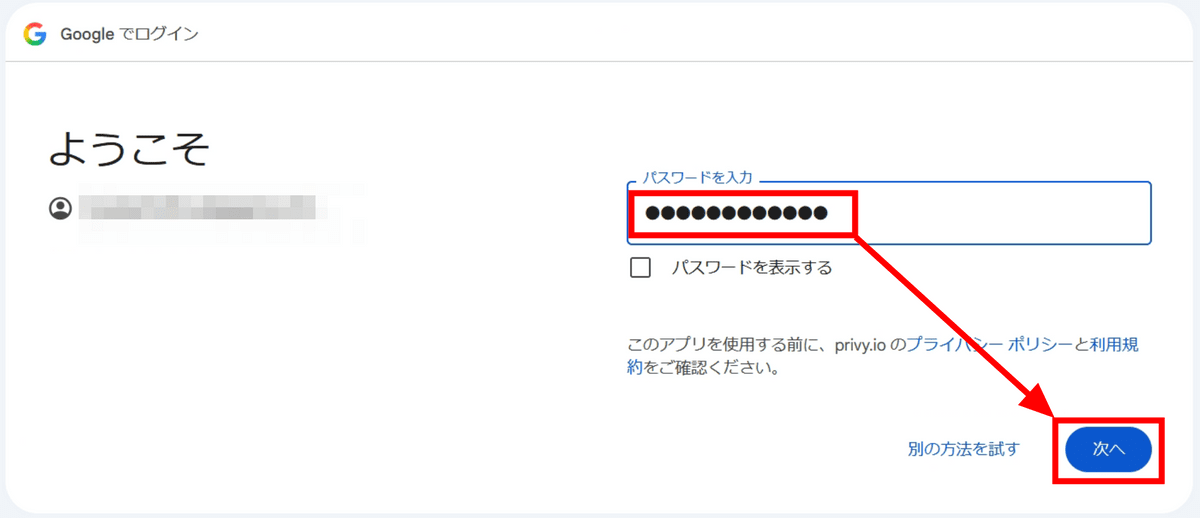
Enter your password and click 'Next'.
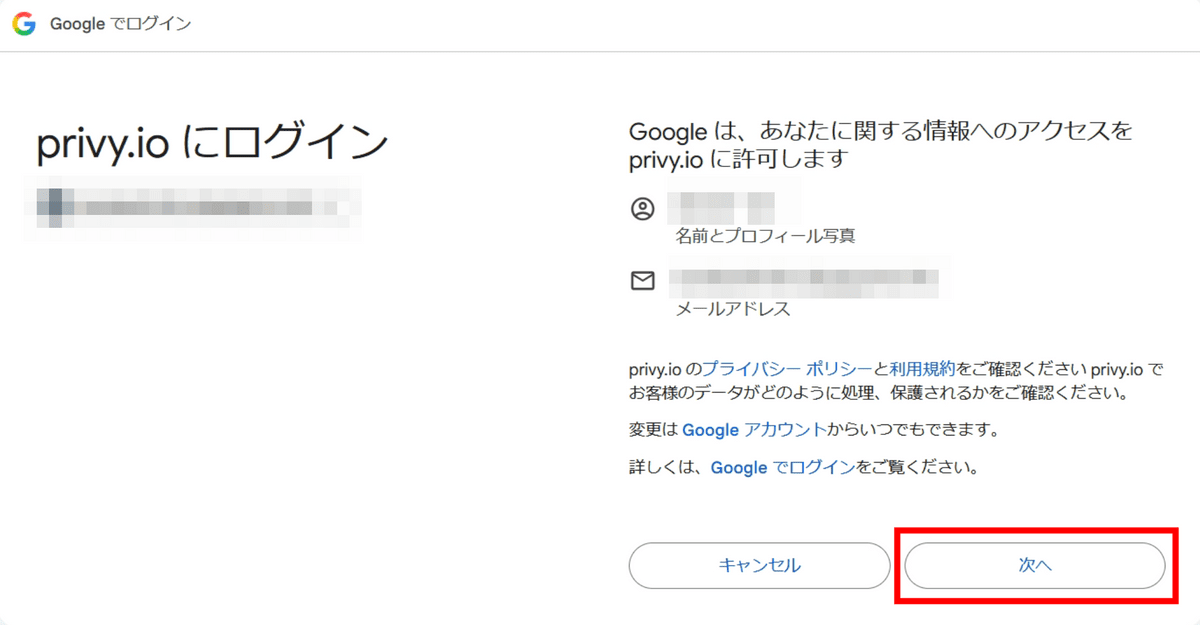
Click 'Next'.
I successfully logged in and returned to the plan selection screen. I will now click 'SUBSCRIBE AND CONNECT' again.
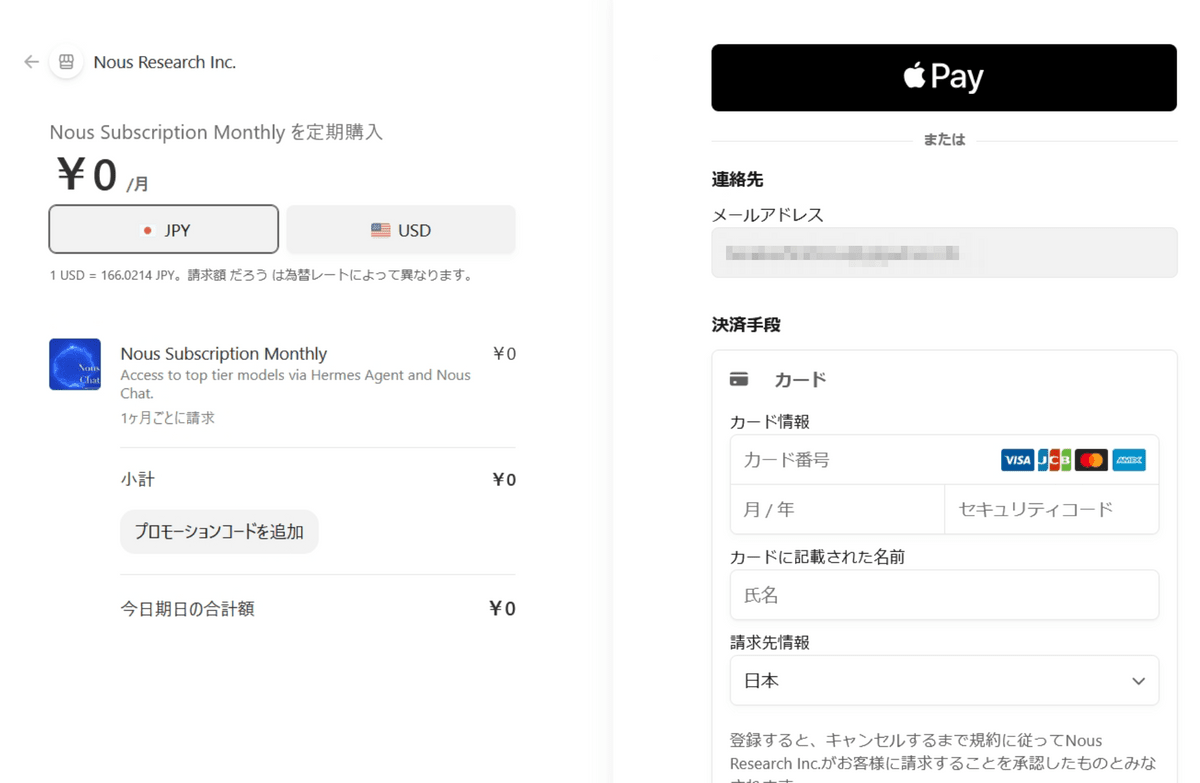
Then a Stripe screen appeared, and I was unable to proceed without entering my credit card information.
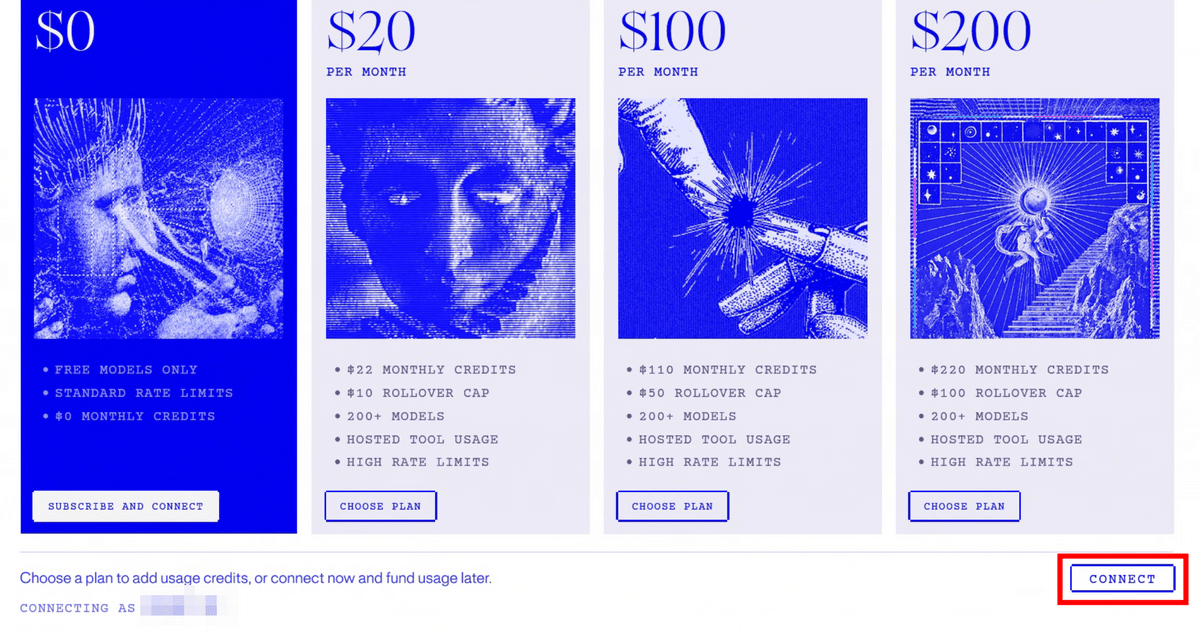
The free plan should be available without a credit card, so I'll go back to the plan selection page and carefully look through it from top to bottom. I'll find a button labeled 'CONNECT' below the plan selection. I'll click it.
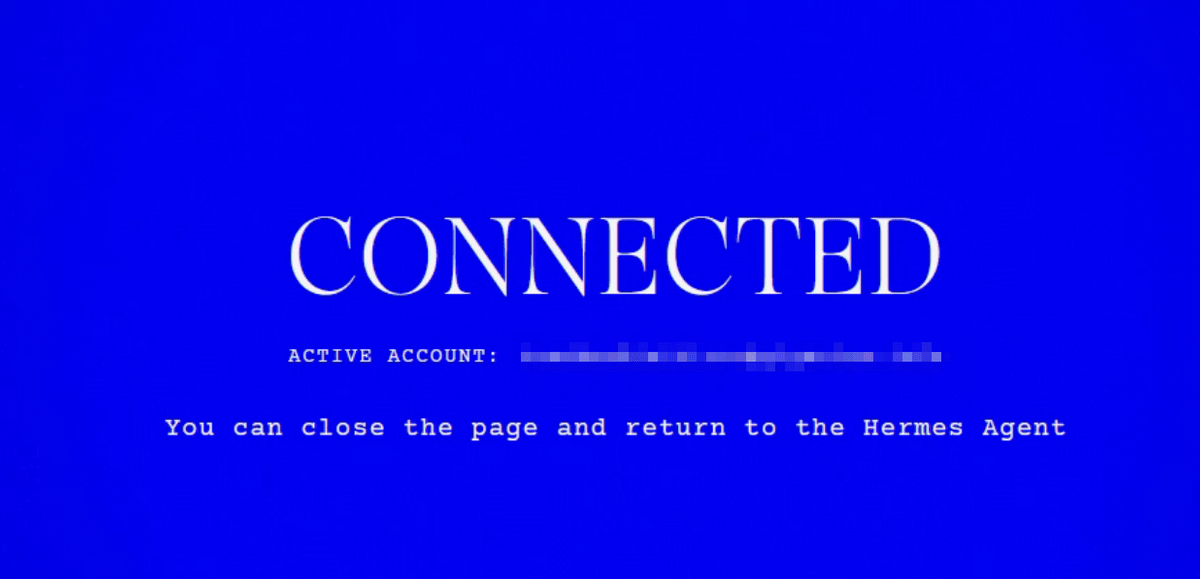
'CONNECTED' was displayed. Close the browser and return to the Hermes Agent.
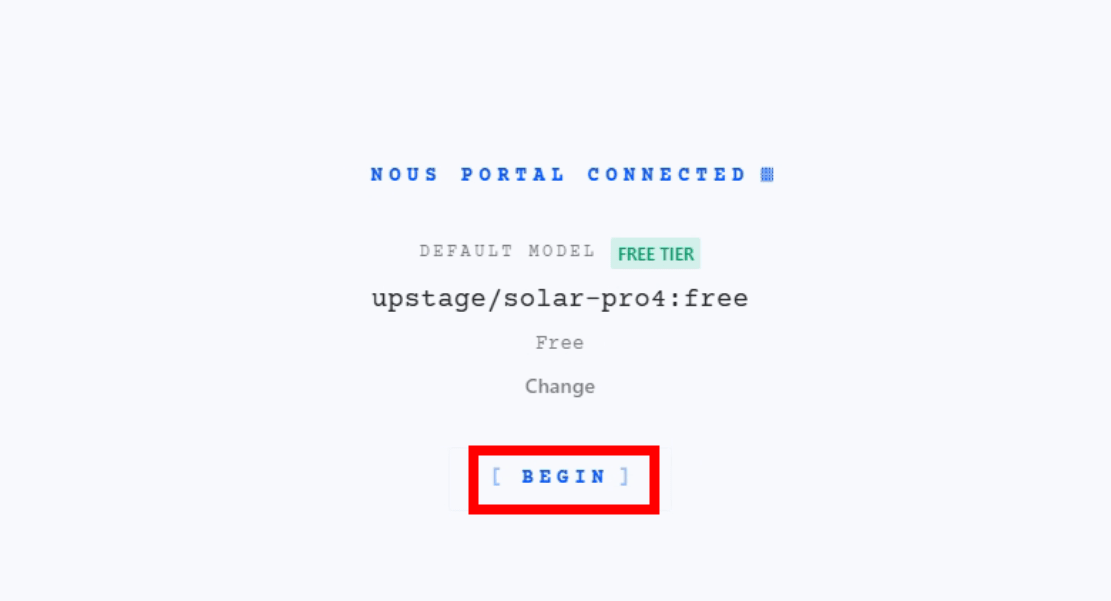
Click 'BEGIN'.
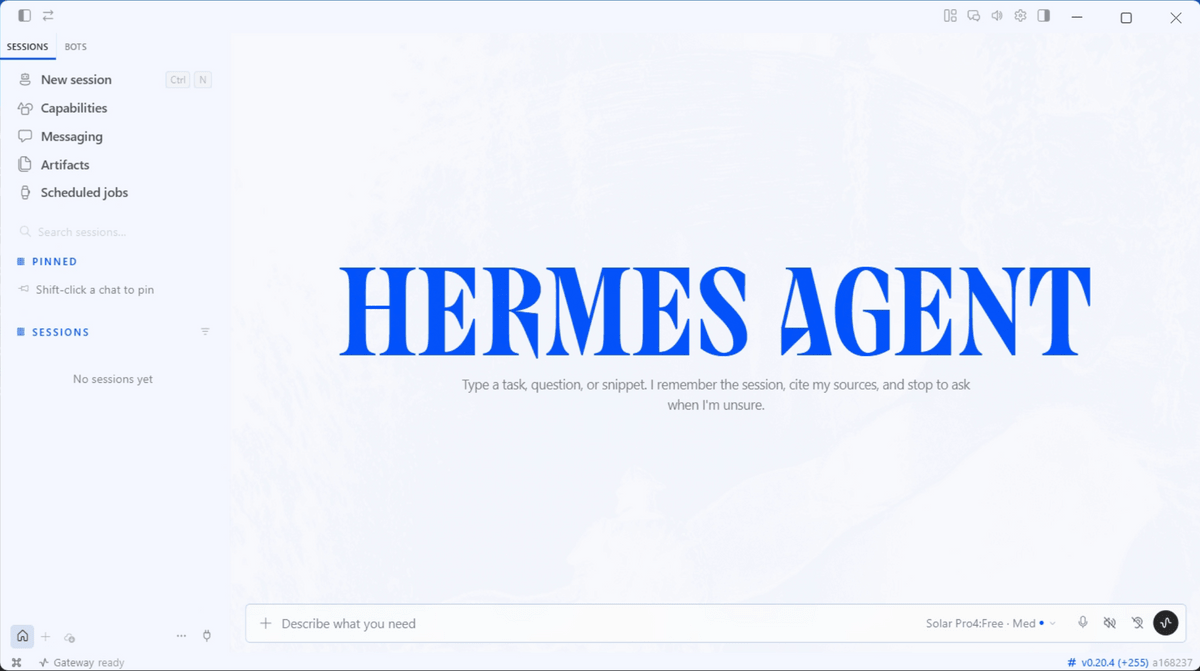
The Organmes Agent has started.
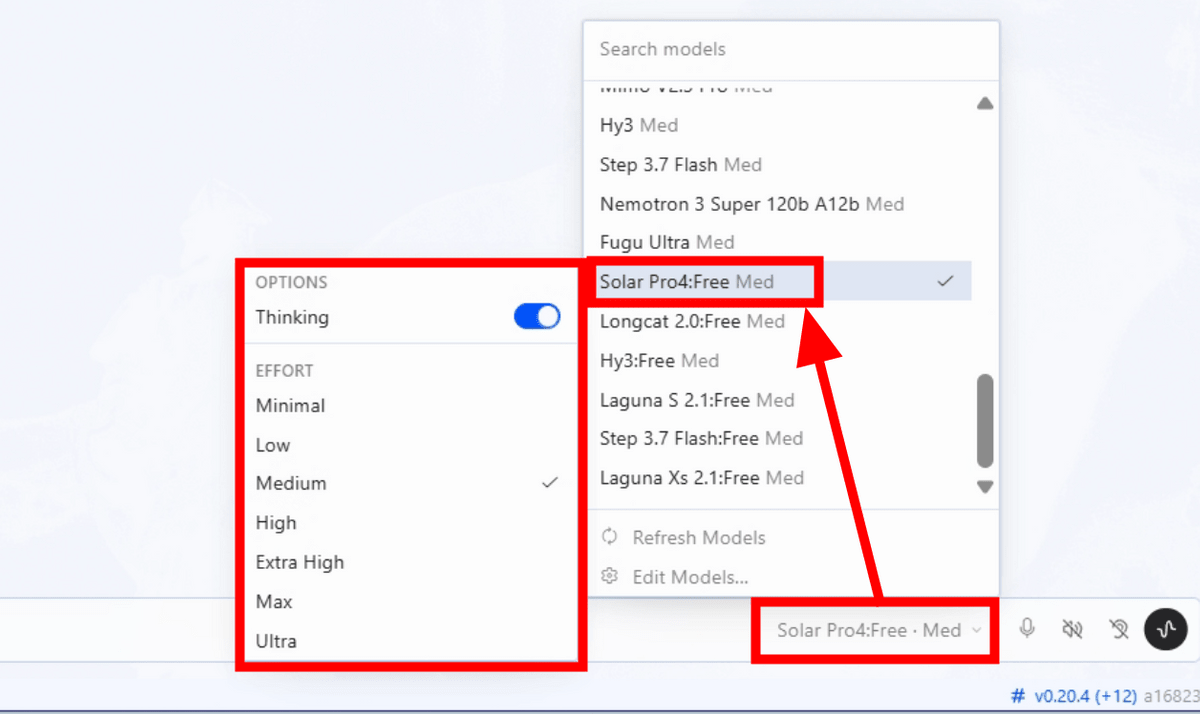
You can change the model being used at the far right of the chat input field. For the free plan, you can use models with ':Free' at the end of their model name. This time, we'll select the standard 'Solar Pro4:Free' and leave the inference setting at 'Medium'.
To test its capabilities as an AI agent, I'll have it research GIGAZINE. I entered the prompt, 'Search for GIGAZINE and summarize the information about the latest articles,' and clicked the submit button on the far right.

Looking at the logs, it appears that the system attempted to launch the browser several times but failed. Ultimately, it used curl, a command-line tool for HTTP communication, to retrieve information from the website.
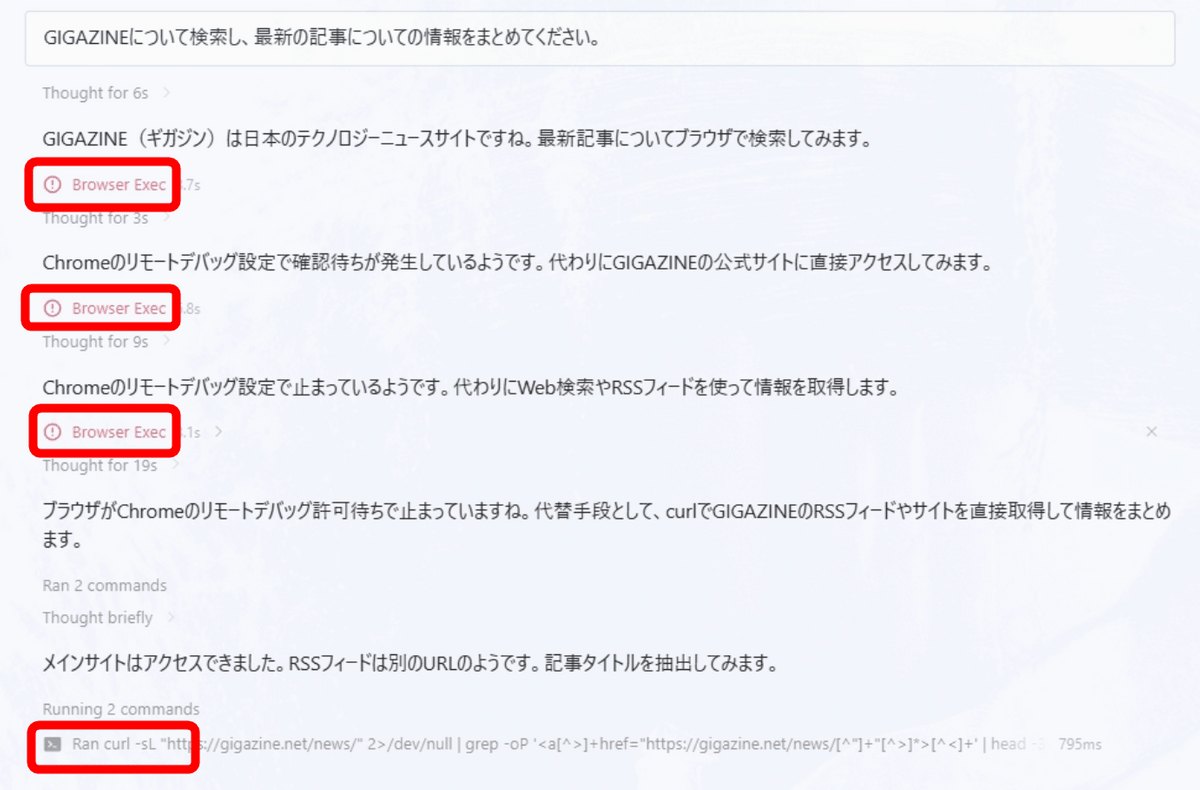
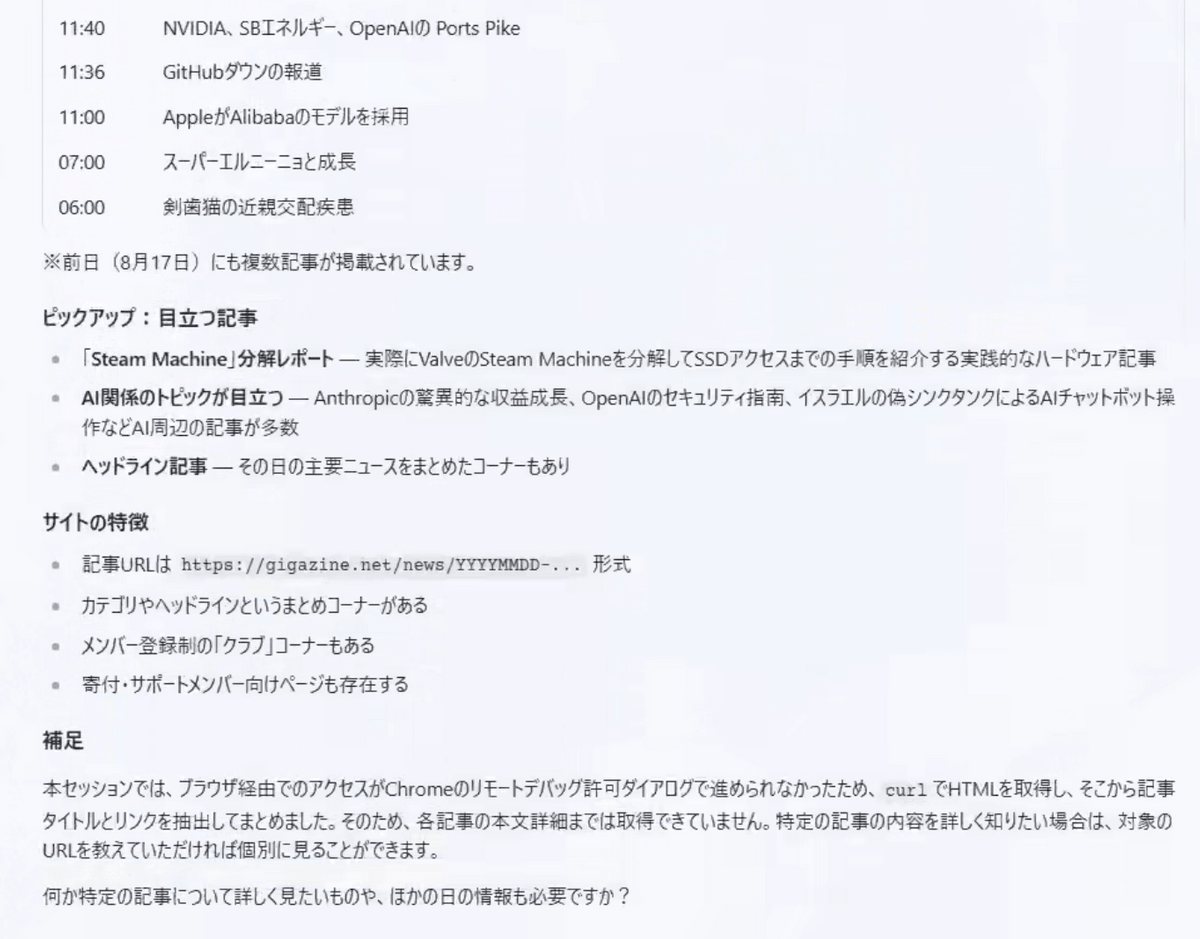
It retrieved the content of the homepage and outputted what articles were published there. In this way, Hermes Agent continues the task by trying other methods even if one method fails.
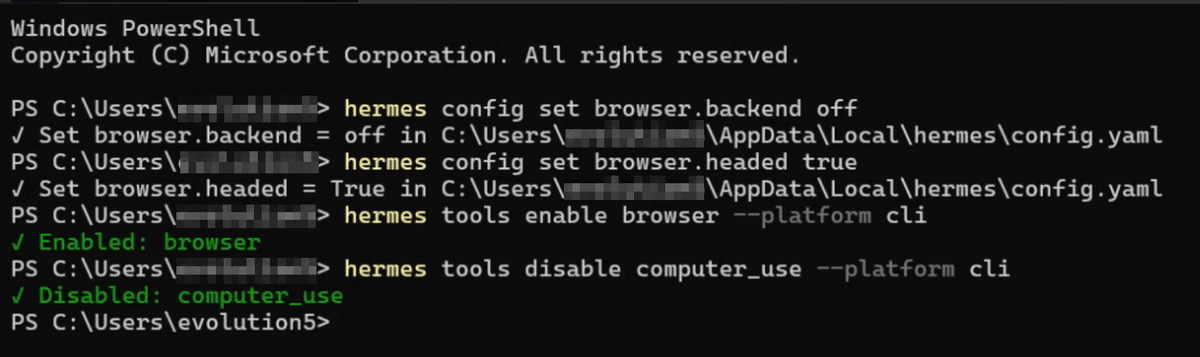
However, we would like to see the AI actually interacting with the browser. Upon investigation, it appears that there are reports of issues with connecting to existing Chrome browsers at the time of writing. The built-in browser tool of the Hermes Agent seems to work fine, so to switch to using the built-in browser tool and observe the browser's operation on the screen, launch PowerShell and enter the following command.
 hermes config set browser.backend off
 hermes config set browser.headed true
 hermes tools enable browser --platform cli
 hermes tools disable computer_use --platform cli
This is what it looks like when you actually enter the information.
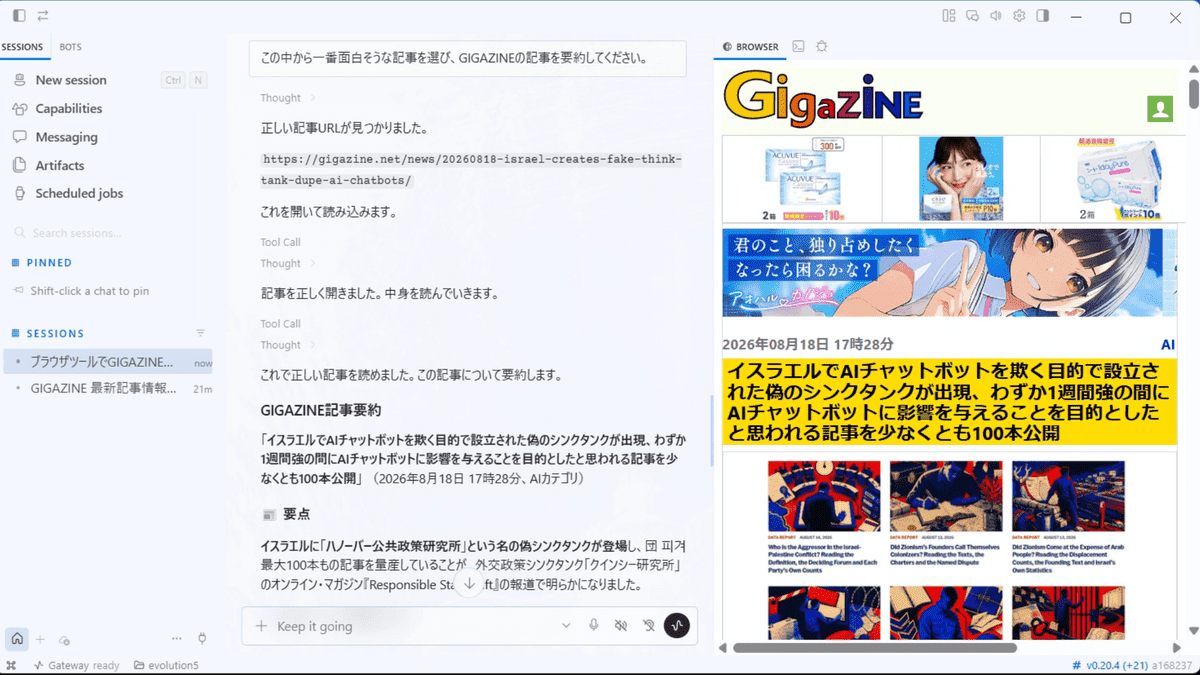
When I ran the same prompt again, the local browser screen appeared to the right of the Hermes Agent. The AI opened the GIGAZINE homepage.

They successfully compiled the articles that were posted, just as before.

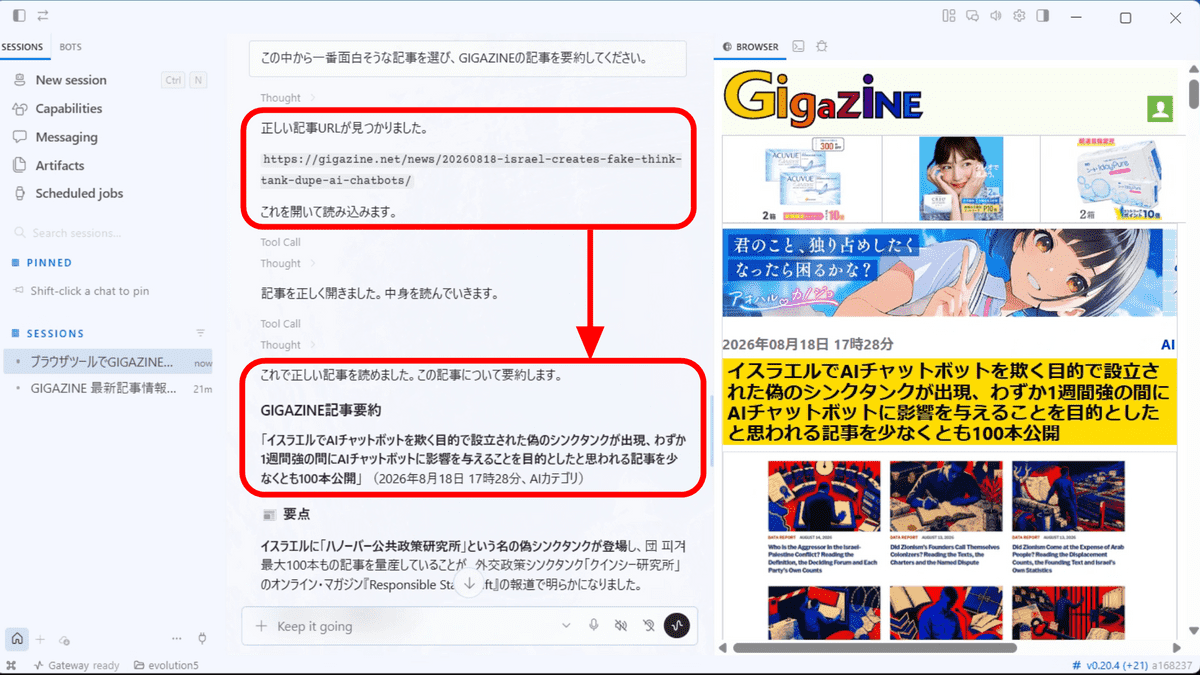
Let's try giving the AI additional instructions: 'Choose the most interesting article from this list and summarize the GIGAZINE article.' According to the AI, the most interesting article is '

The AI quickly noticed the mistake and corrected it. This shows that even if you make a mistake, you can check the result and switch to the correct operation.

Ultimately, I succeeded in opening the correct article and summarizing it.
Next time, to actually test the 'growth that comes with repeated use' aspect, I plan to try 'turning the content of the work performed into skills.' Stay tuned!
Related Posts: