dayGLANCE is a free app that allows you to visually organize your daily schedule and routines using block layouts, synchronize with NextCloud, WebDAV, and Obsidian, integrate with AI, track steps, and offers complete bidirectional integration with a dedicated Android app and StreamDeck. No account registration is required, and self-hosting is also possible.
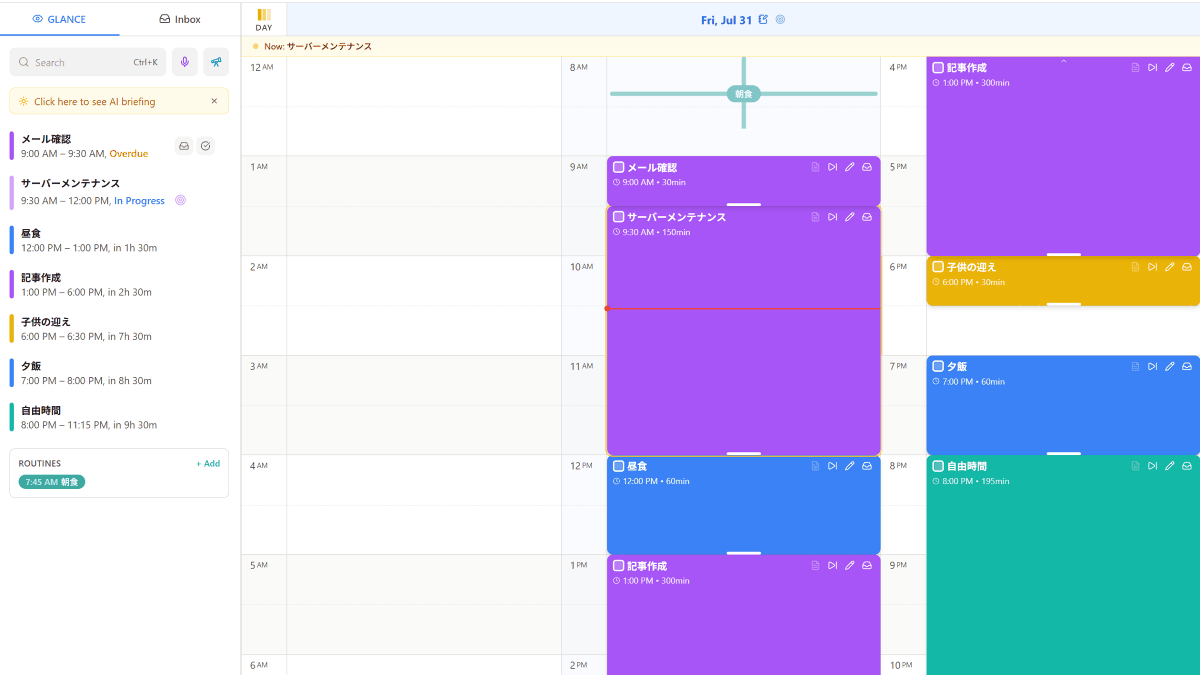
When managing your daily schedule as a to-do list, it's easier to understand if you arrange the time allocation as visual blocks rather than simply listing items. ' dayGLANCE ,' an intuitively designed app that syncs with
krelltunez/dayGLANCE: Your day, at a glance
https://github.com/krelltunez/dayGLANCE
◆Official Web App
dayGLANCE
https://dayglanceapp/
◆ How to register a task
When you access the web app version of dayGLANCE in your browser, the initial wizard will appear, so click 'Skip'.
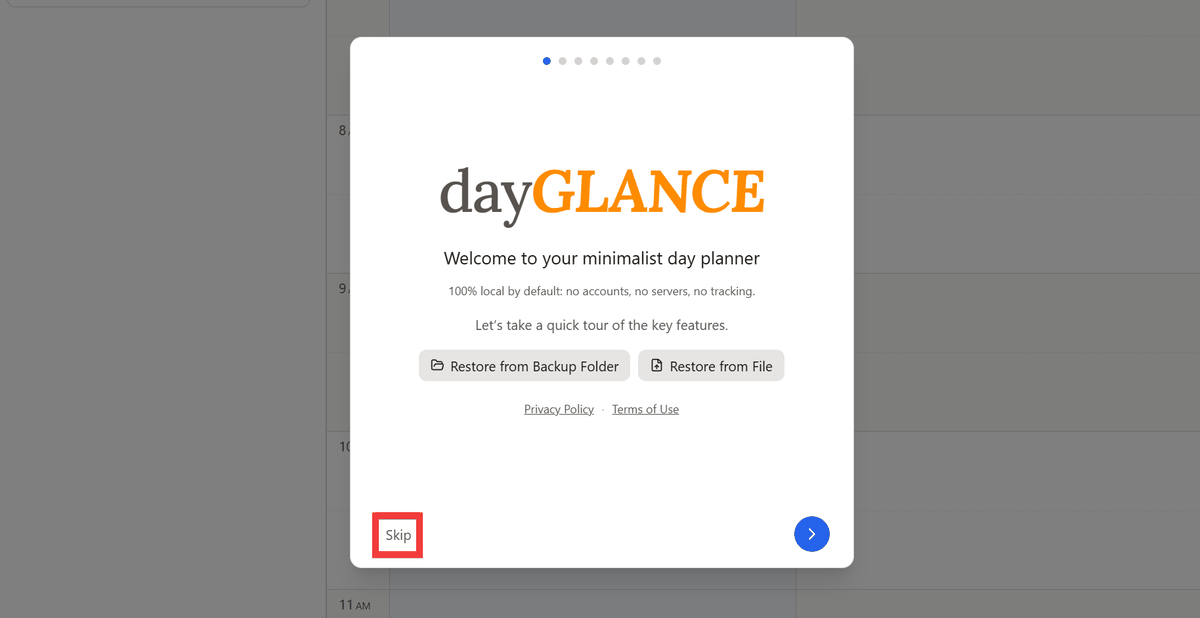
It's available immediately without account registration, and data is stored in your browser and not sent to the server.
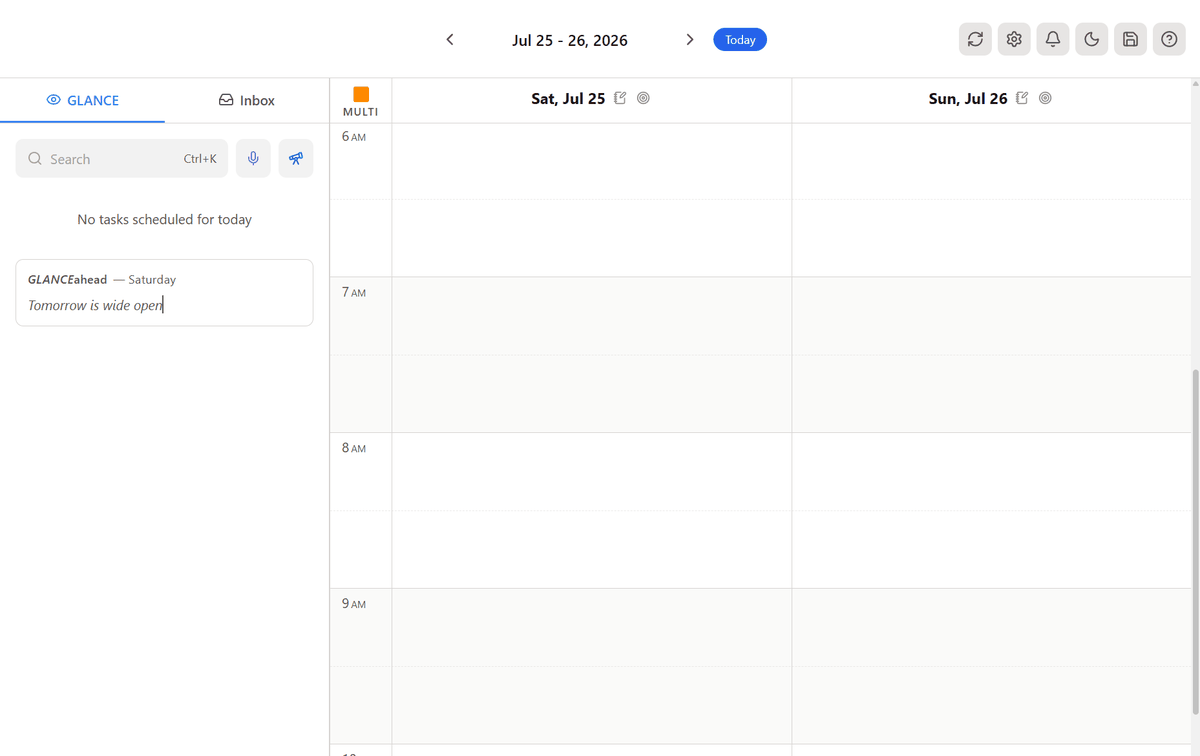
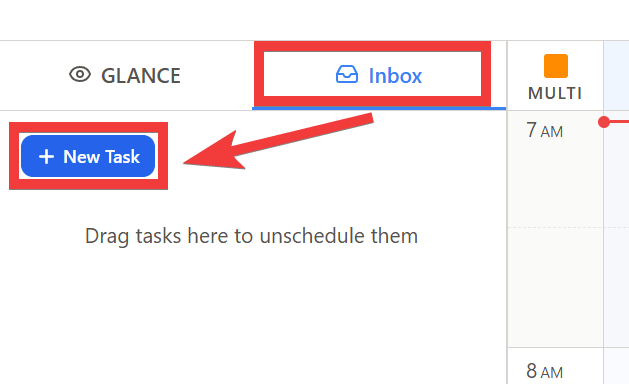
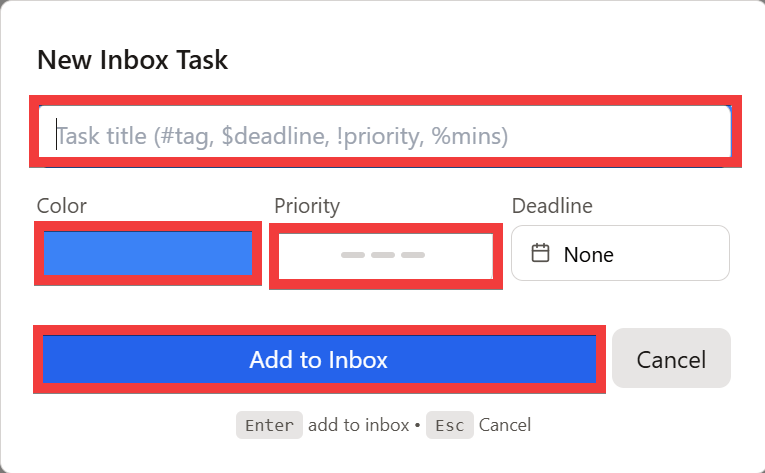
First, to register your general daily tasks, click 'Inbox' to switch to it, then click 'New Task'.
Enter the task name in 'Task title,' specify the background color for the task when it is displayed in the list in 'Color,' select the task priority using the four-level bar in 'Priority,' and click 'Add to Inbox' to register the task.
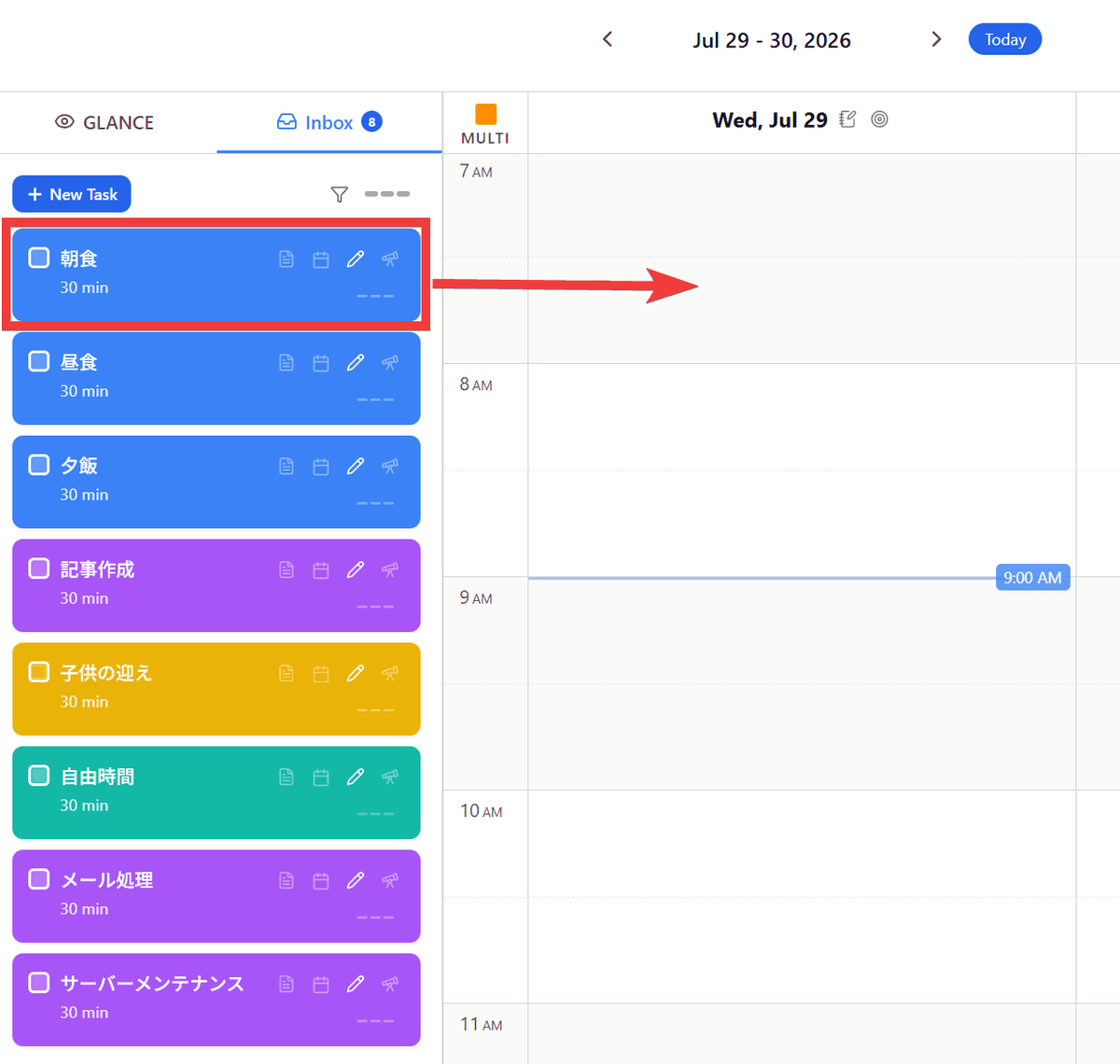
Once you've registered your daily tasks, select them from the list and drag them to the timeline.
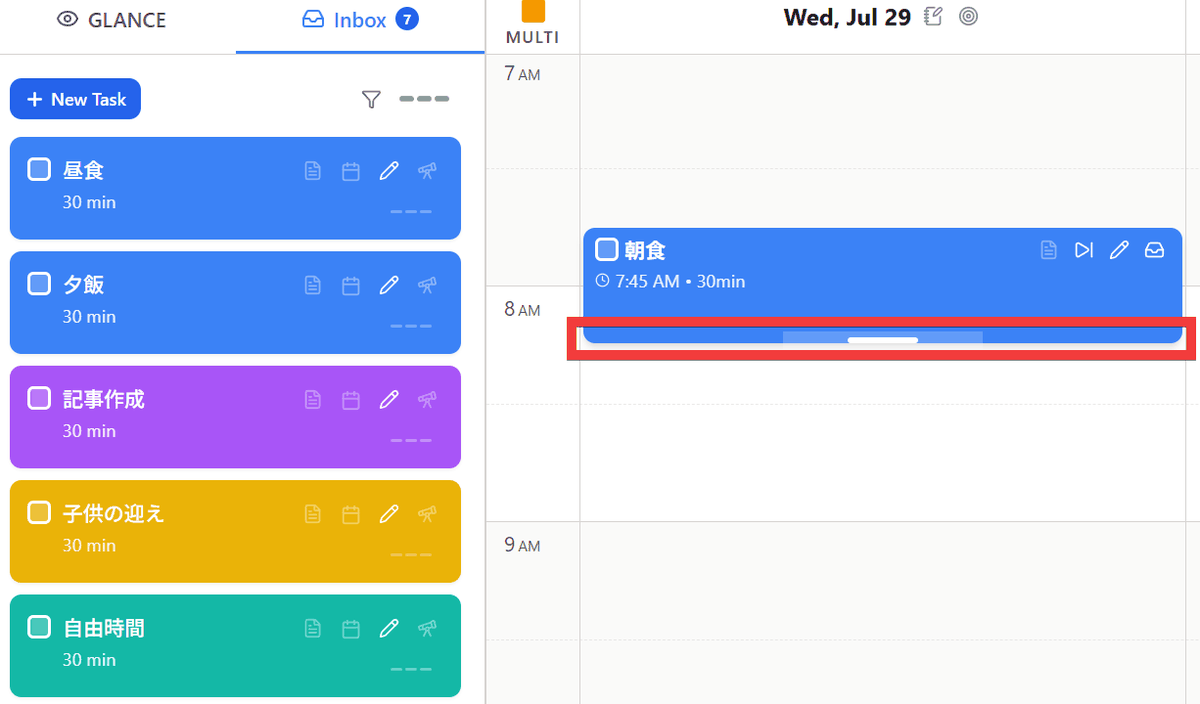
The task has been moved to the timeline. To adjust the time, drag the bottom of the task box.
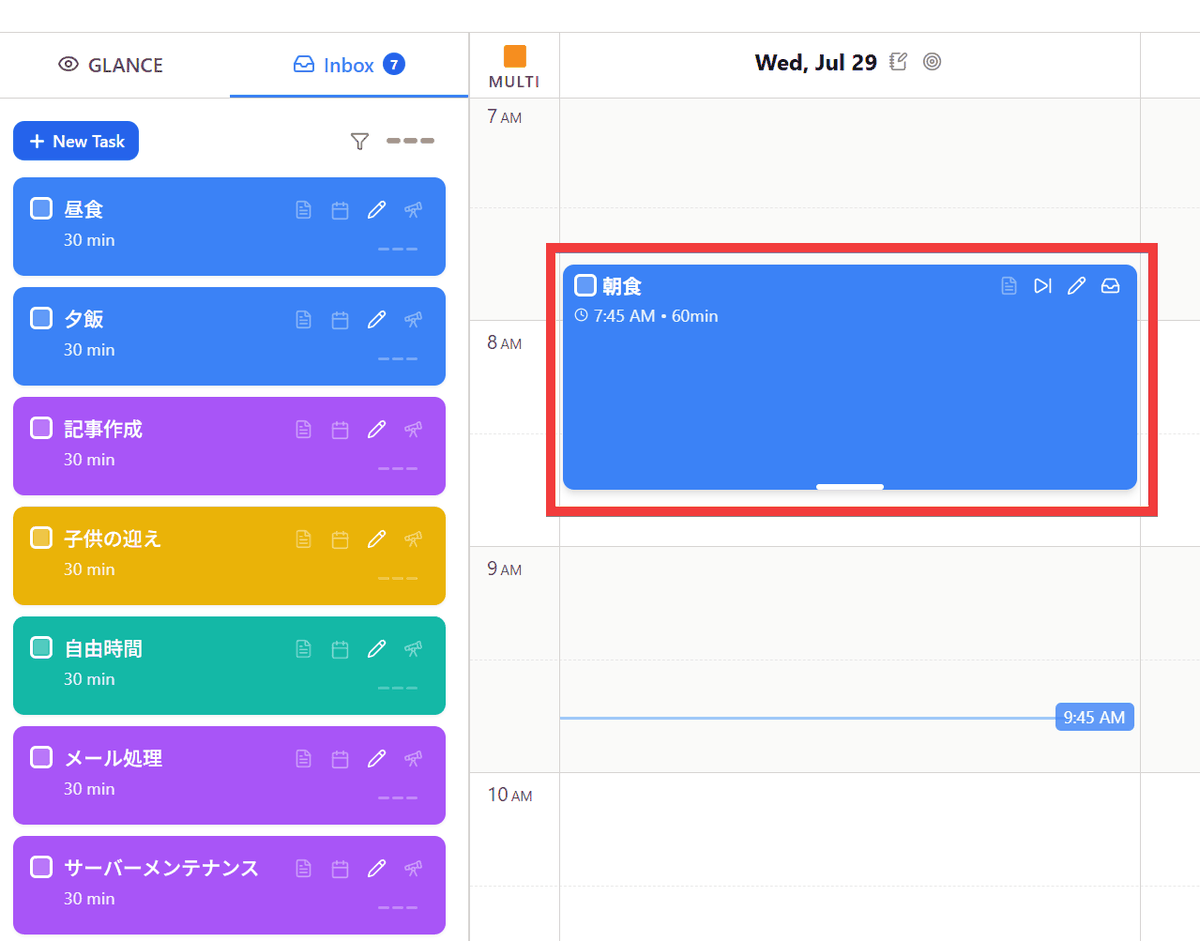
Adjust the height of the blocks for the required amount of time.
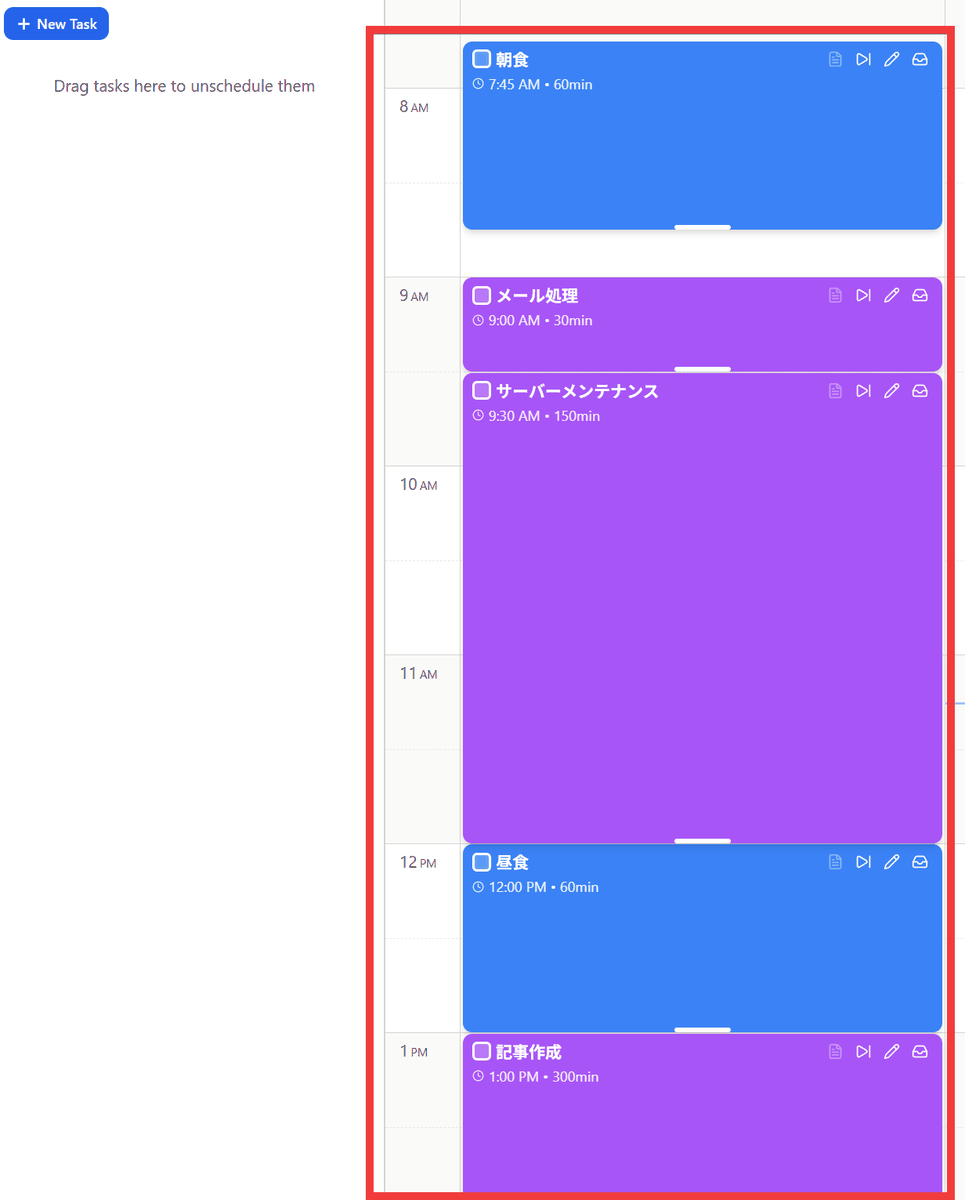
Once all tasks are placed, they can be visually recognized as blocks, such as 'from what time to what time' each task should be performed, as shown in the image below.
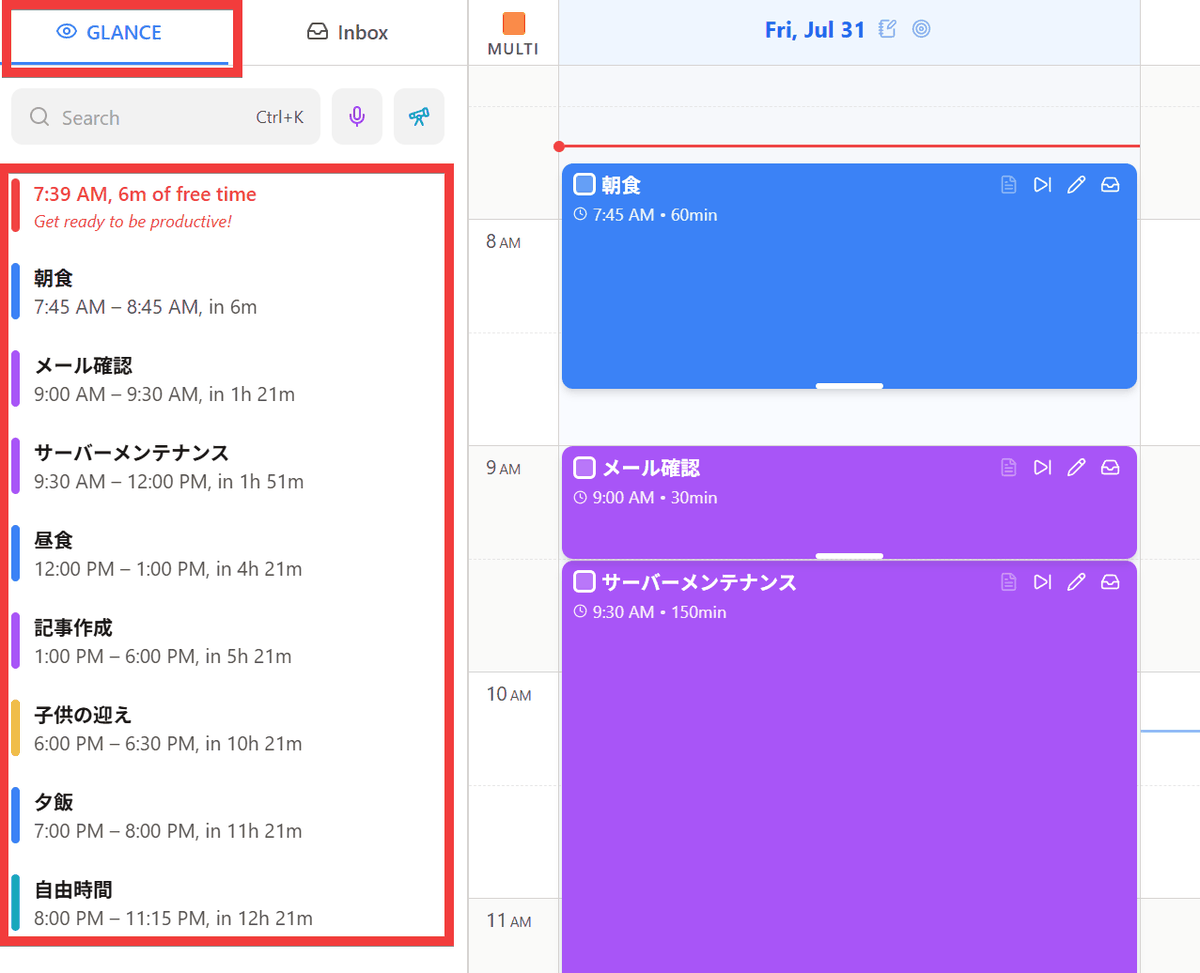
Clicking 'GLANCE' switches to the GLANCE panel, where you can check the task status according to the current time.
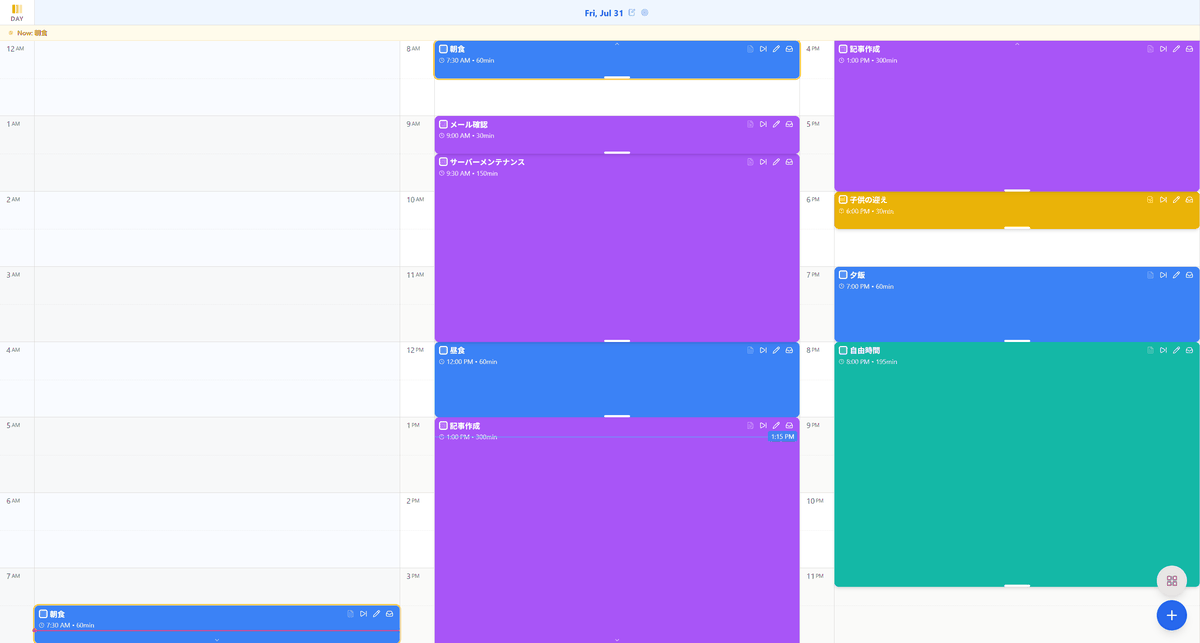
The 'Day' mode allows you to see the overall flow of the day.
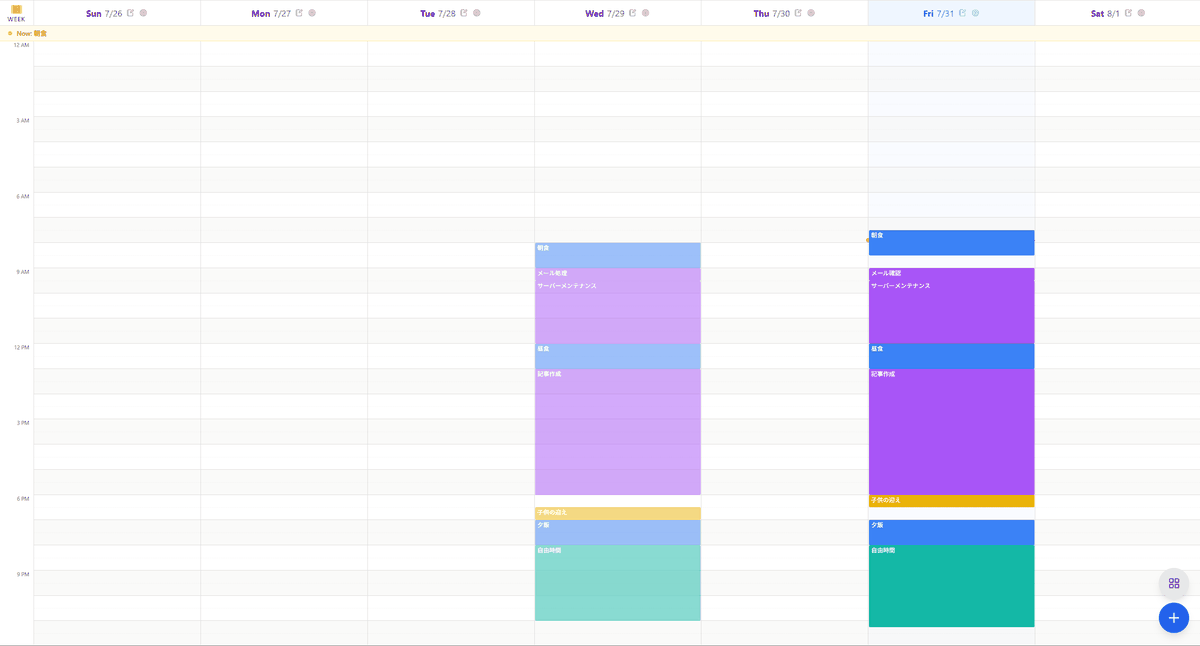
There is a 'Week' mode that allows you to see your tasks for the entire week.
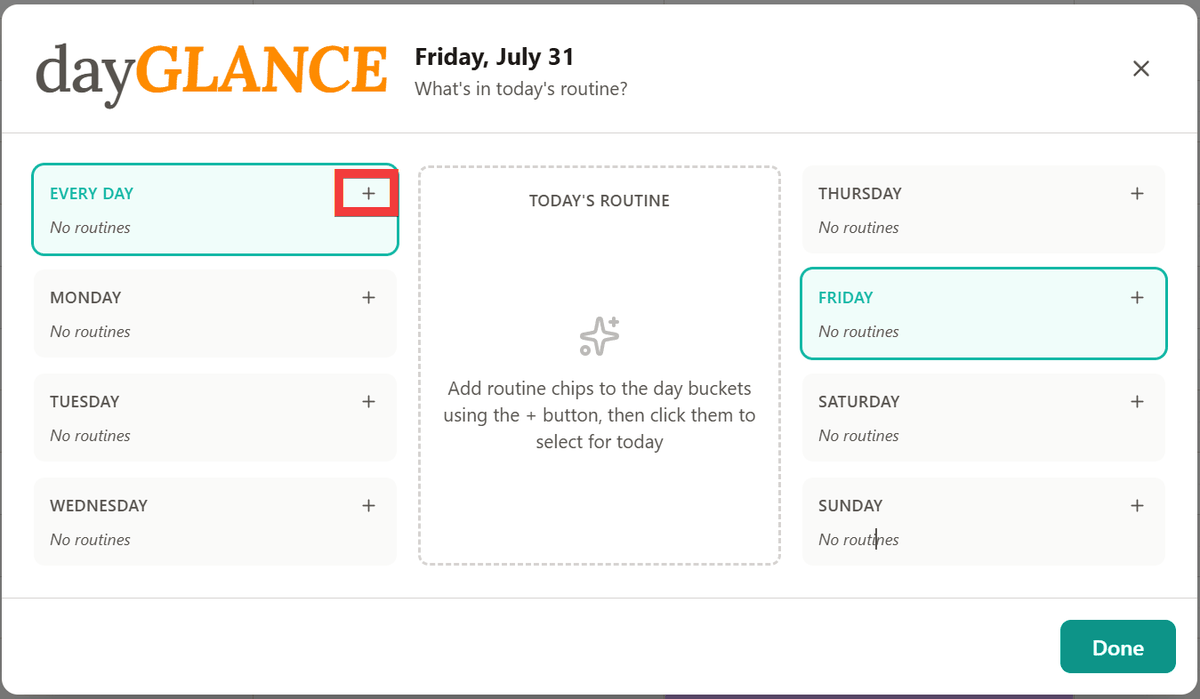
Tasks that are done daily, such as breakfast and exercise, can be registered as routines. Press the 'R' key and click the 'Add' icon in the 'EVERY DAY' section of the routine registration dialog that appears.
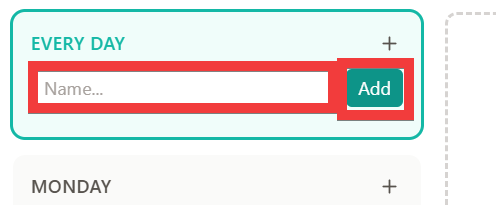
Enter the task name in 'Name' and click 'Add'.
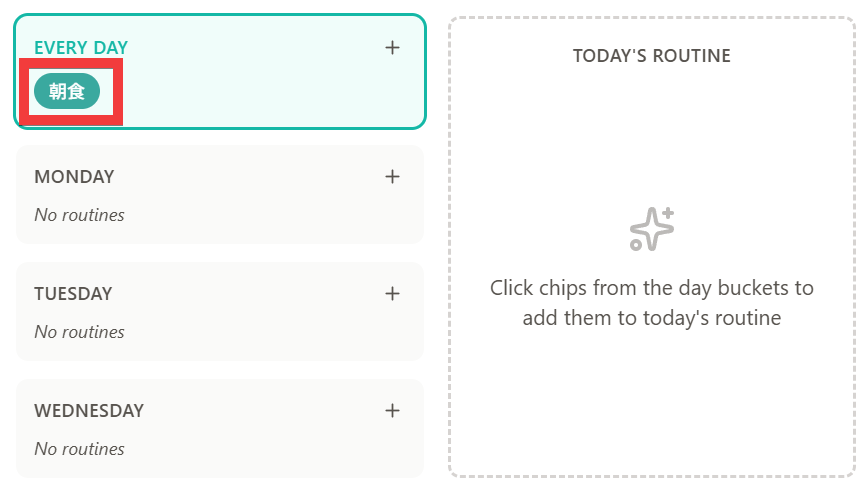
When you click on a registered task...
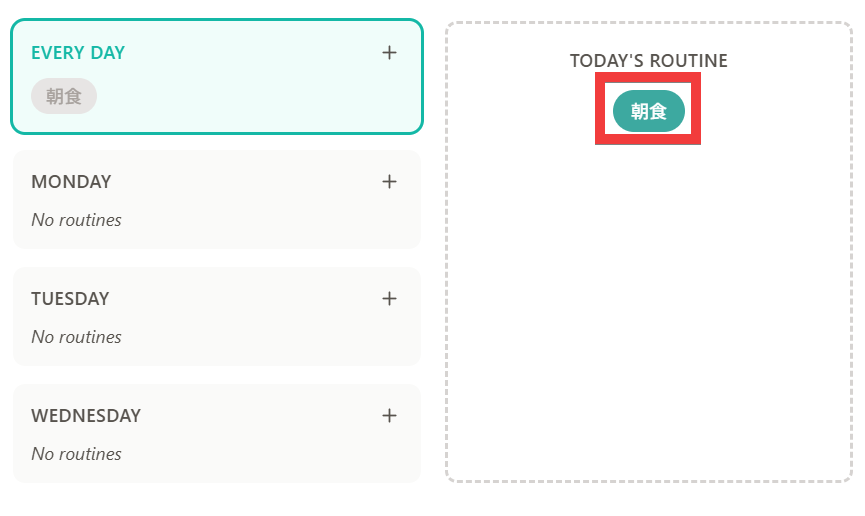
Click again to register in 'TODAY'S ROUTINE'.
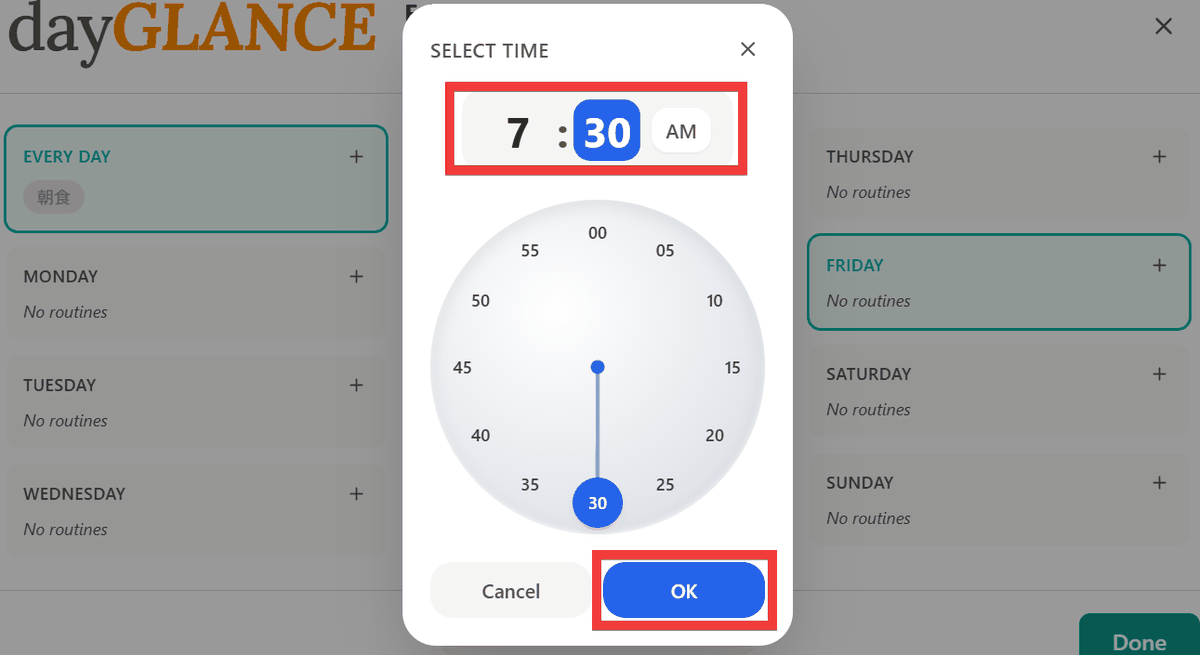
To register the start time, set the time in 'SELECT TIME' and click 'OK'.
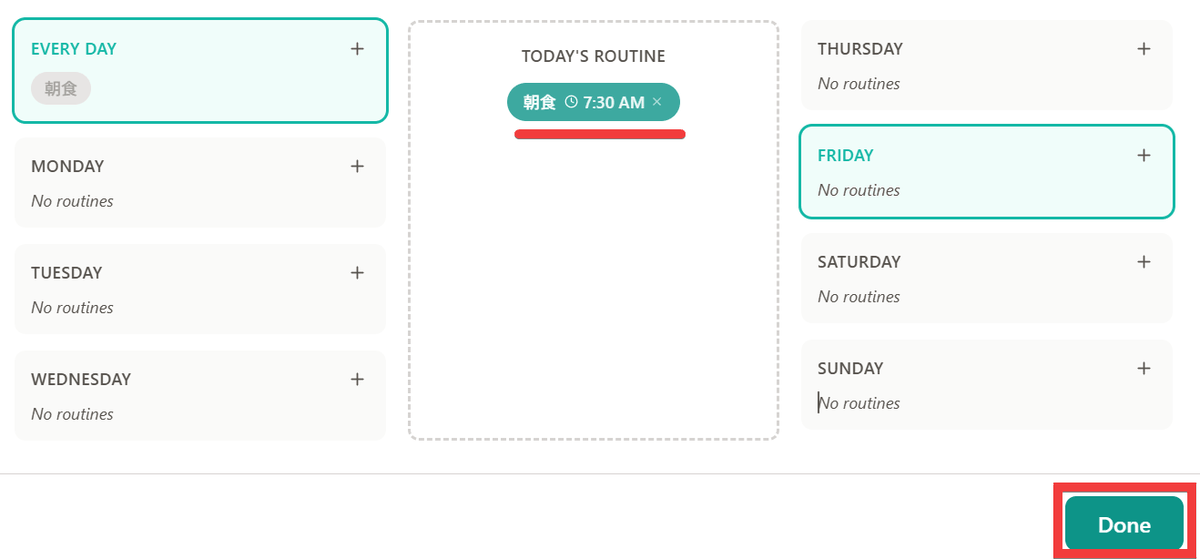
A task with a set start time has been registered, so click 'Done'.
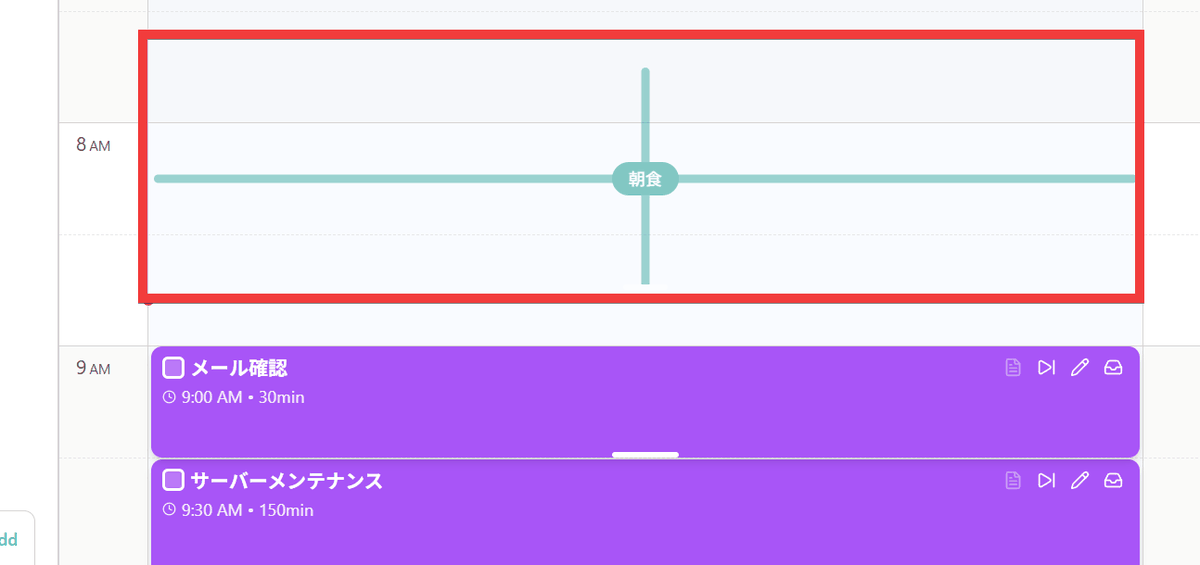
Routine tasks are registered on the timeline.
◆Collaboration with AI
Enabling AI integration allows you to create tasks from natural language and speech, estimate the time required and tags, generate subtasks, rearrange incomplete tasks, and review your day's activities.
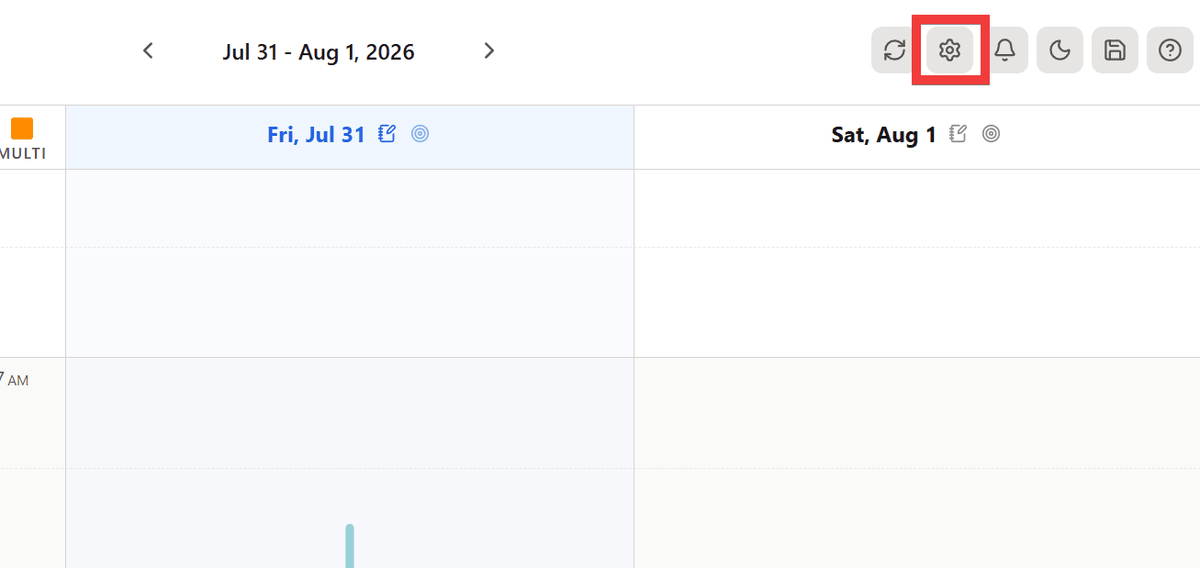
Click the 'gear' icon in the menu at the top of the dayGLANCE screen.
Click 'AI Features' in Settings and turn on the 'Enable AI Features' toggle.
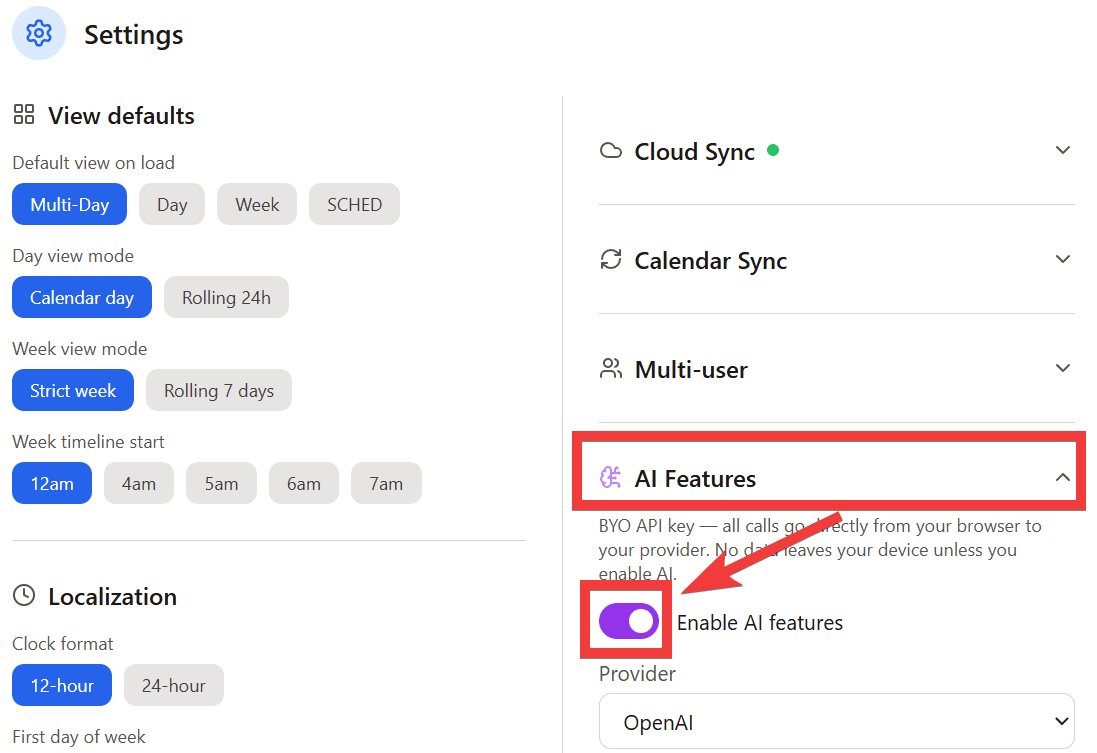
The AI settings form will appear. Select an AI provider from
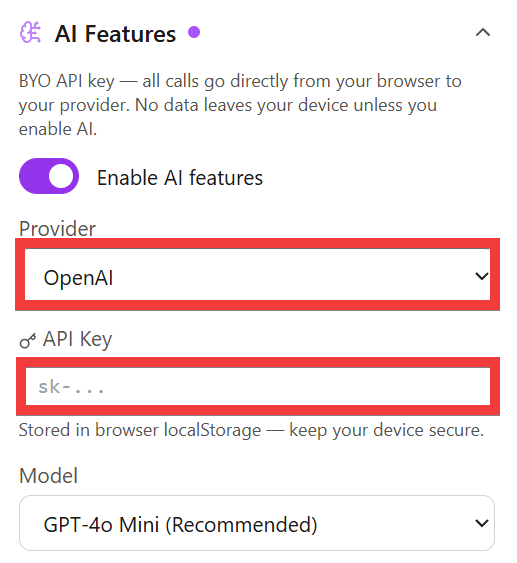
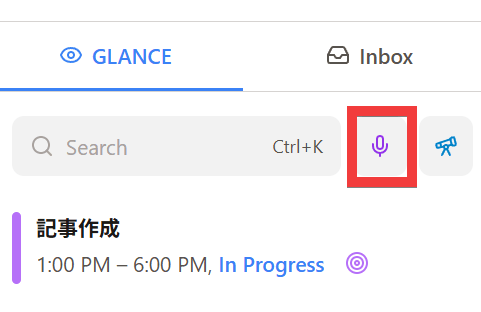
Let's try creating a task from voice input. Click the 'microphone' icon.
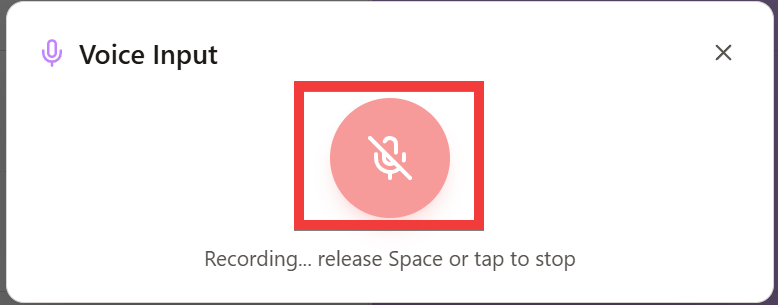
The Voice Input dialog box will appear, so click the 'Microphone' button.
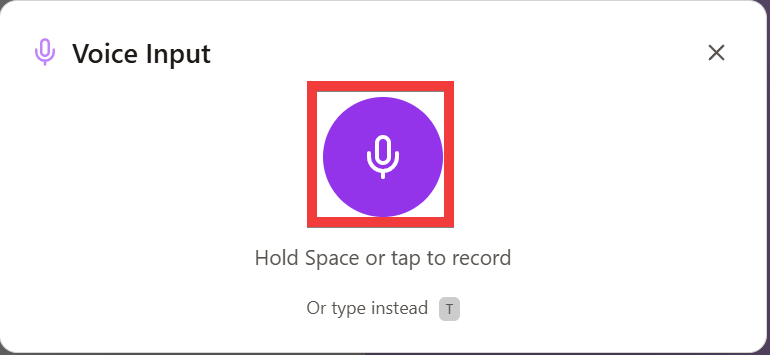
After voice-inputting 'Please add a breakfast task for 7:30 AM on July 30th,' I clicked the 'Microphone' button.
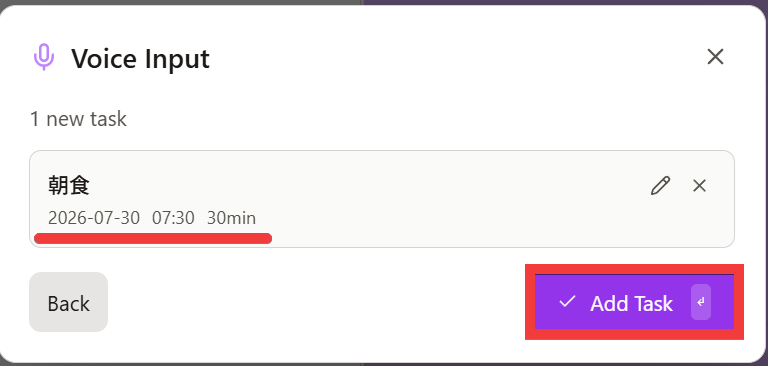
A task suggestion, 'Breakfast 2026-07-30 07:30 30min,' appeared, so I clicked 'Add Task.'
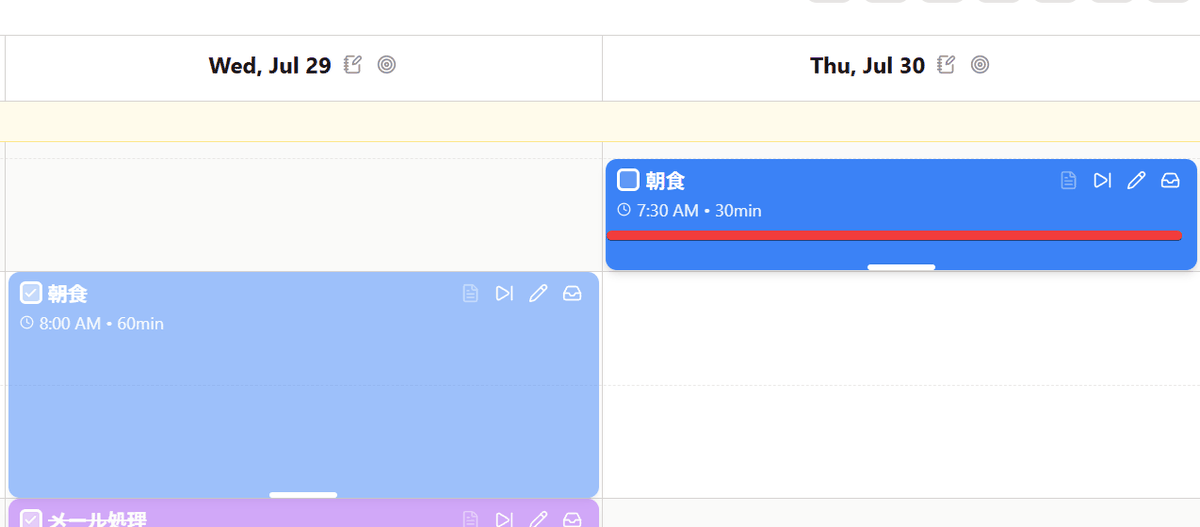
A task has been added.
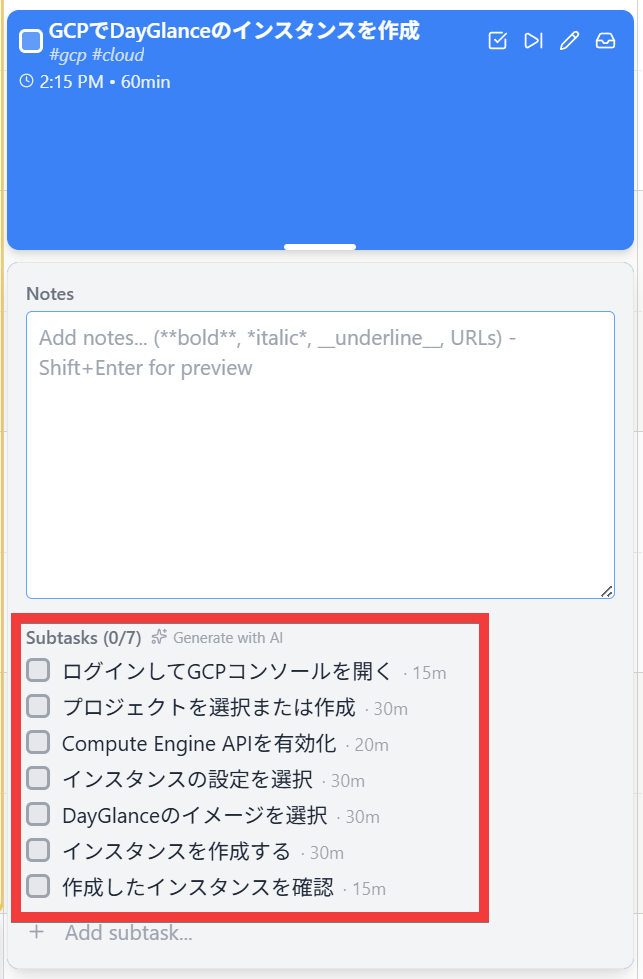
To request the AI to create subtasks, right-click on the registered task block and select 'Generate subtasks (AI)'...
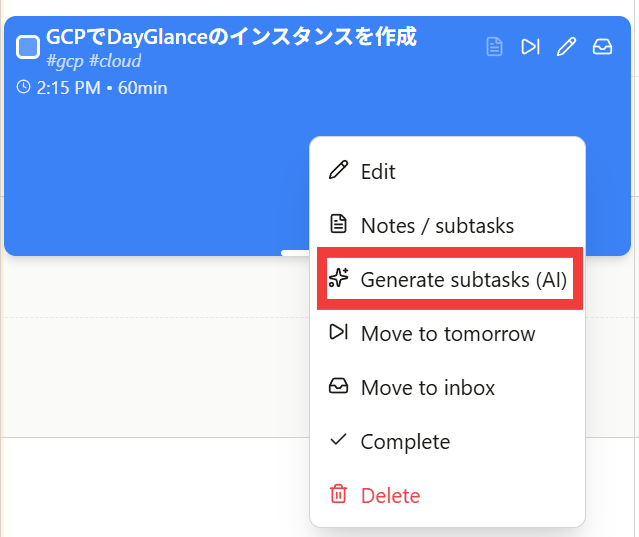
The AI infers the content from the task name and creates subtasks.
◆ How to sync with other devices and browsers
Initially, tasks and settings are saved within the browser you are currently using. Synchronization with other devices and browsers is possible using NextCloud, WebDAV, Obsidian, etc.
This time, we'll cover the setup procedure using WebDAV. Click the 'gear' icon in the menu at the top of the dayGLANCE screen.
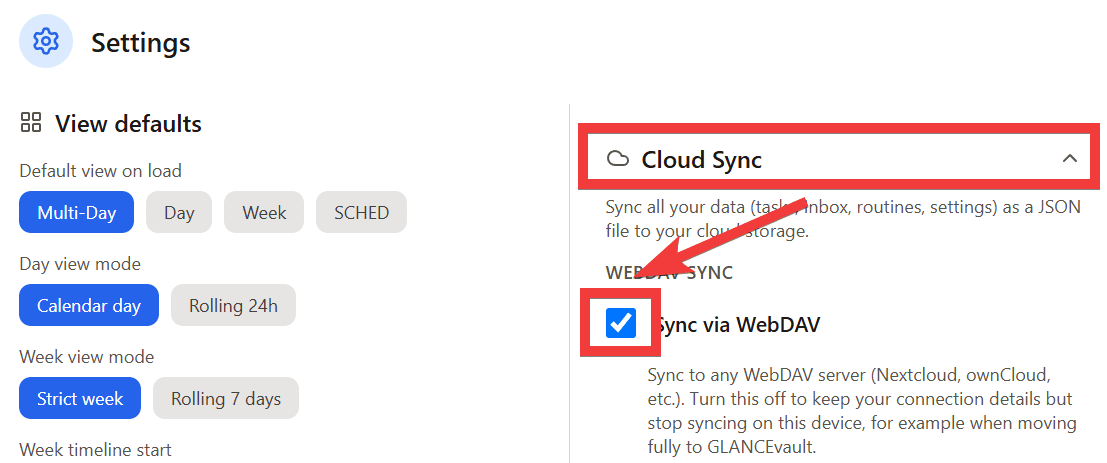
Click 'Cloud Sync' in Settings and check the 'Sync via WebDAV' checkbox.
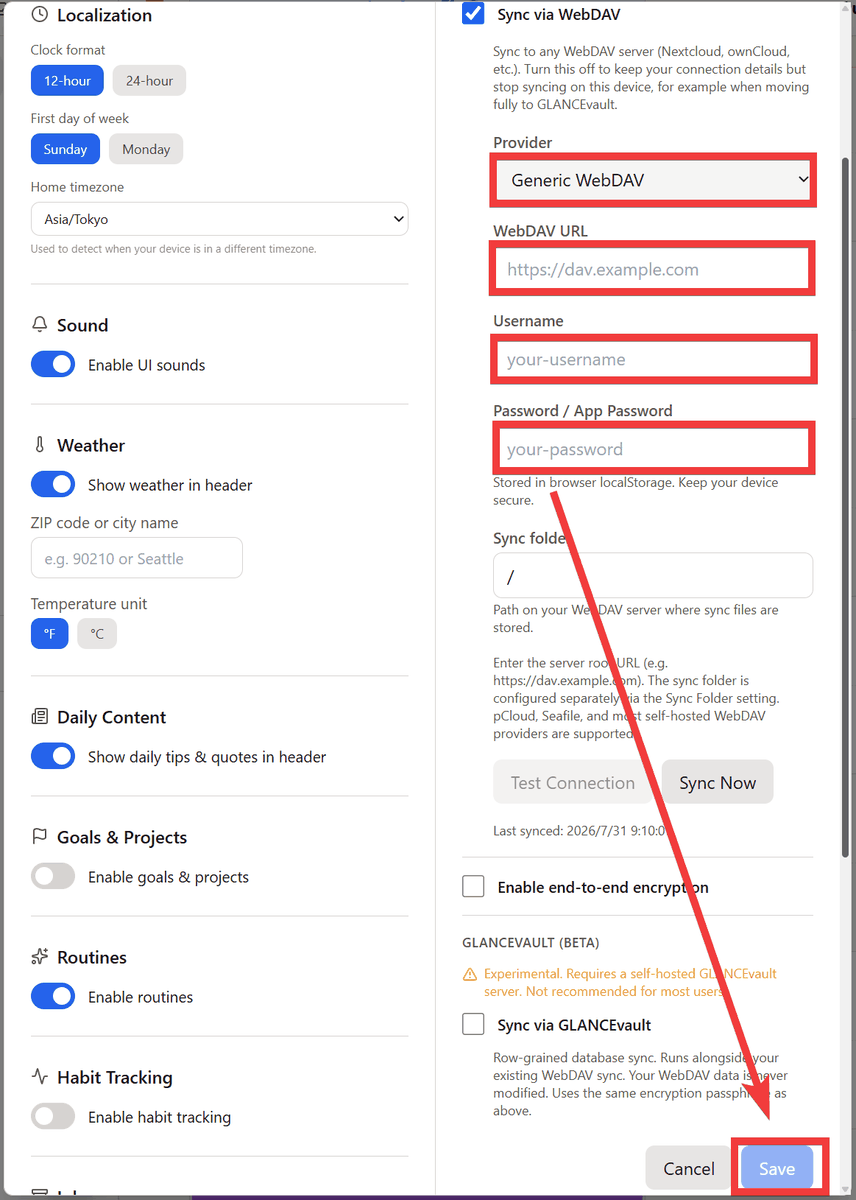
A WebDAV configuration form will appear. Change 'Provider' to 'Generic WebDAV,' enter the URL of your WebDAV server in 'WebDAV URL,' your WebDAV username in 'Username,' and your WebDAV password in 'App Password,' then click 'Save.'
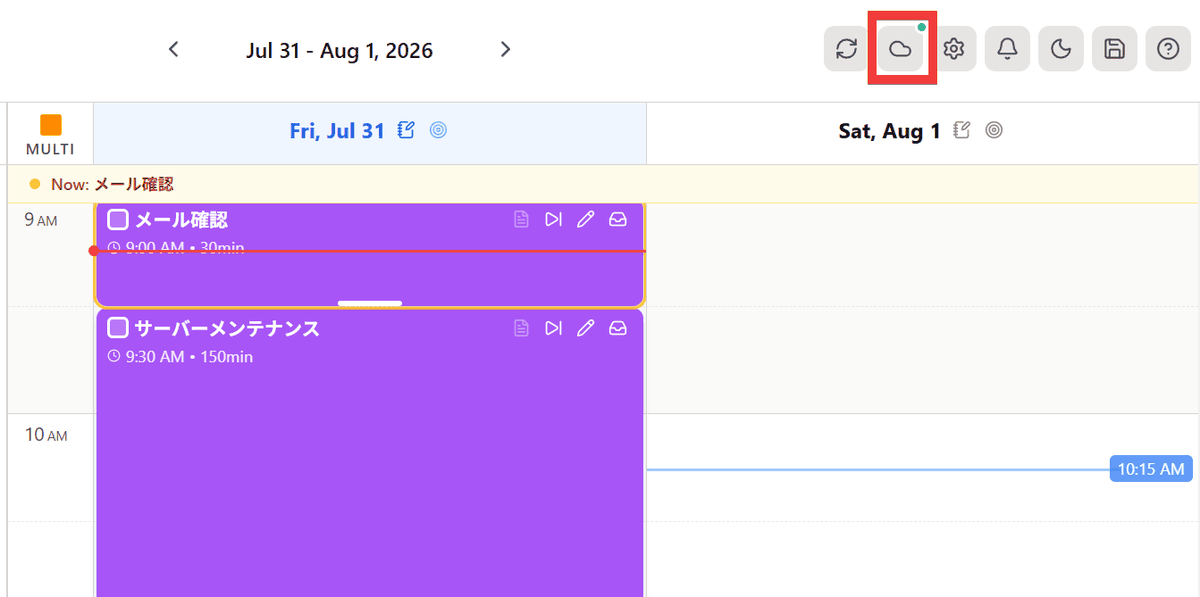
If a green dot appears on the cloud icon, it means that synchronization is working correctly.
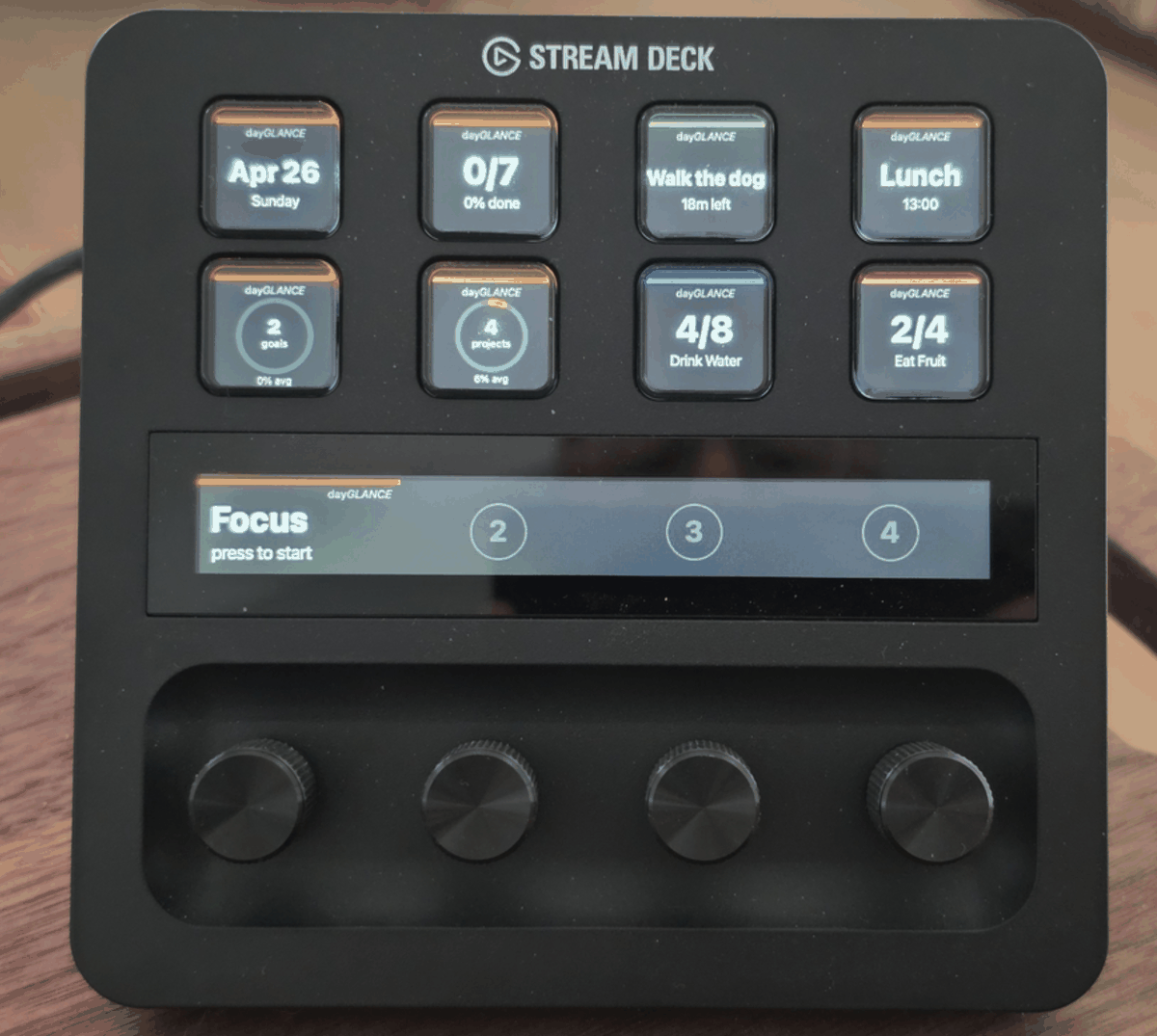
◆ Integration with Stream Deck
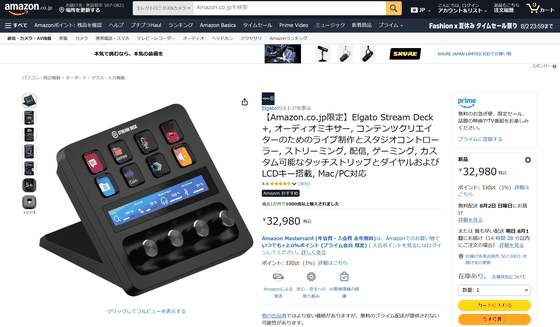
By installing
◆ Android app
dayGLANCE: Daily Planner - Google Play app
While dayGLANCE can be used on any device via a browser through synchronization settings such as WebDAV, the Android app adds features such as a home screen widget, Health Connect , background notifications, and the in-device calendar.
◆ iOS app
dayGLANCE App - App Store
https://apps.apple.com/us/app/dayglance/id6771540599
The iPhone and iPad versions will include additional features such as iCloud syncing, home screen widgets, Apple Calendar integration, Spotlight search, and task creation from the Control Center.
Please note that the apps distributed on the Android and iPhone/iPad/Mac app stores are paid apps. The Android APK distributed in the Releases section of the repository is available for free.
◆ How to set up a self-hosted version
A Docker container is already prepared. Create the following compose.yml file.
 services:
 Dayglance:
 image: ghcr.io/krelltunez/dayglance:latest
 container_name: dayglance
 restart: unless-stopped
 ports:
 - '6767:80'
Start the container.
docker compose up -d
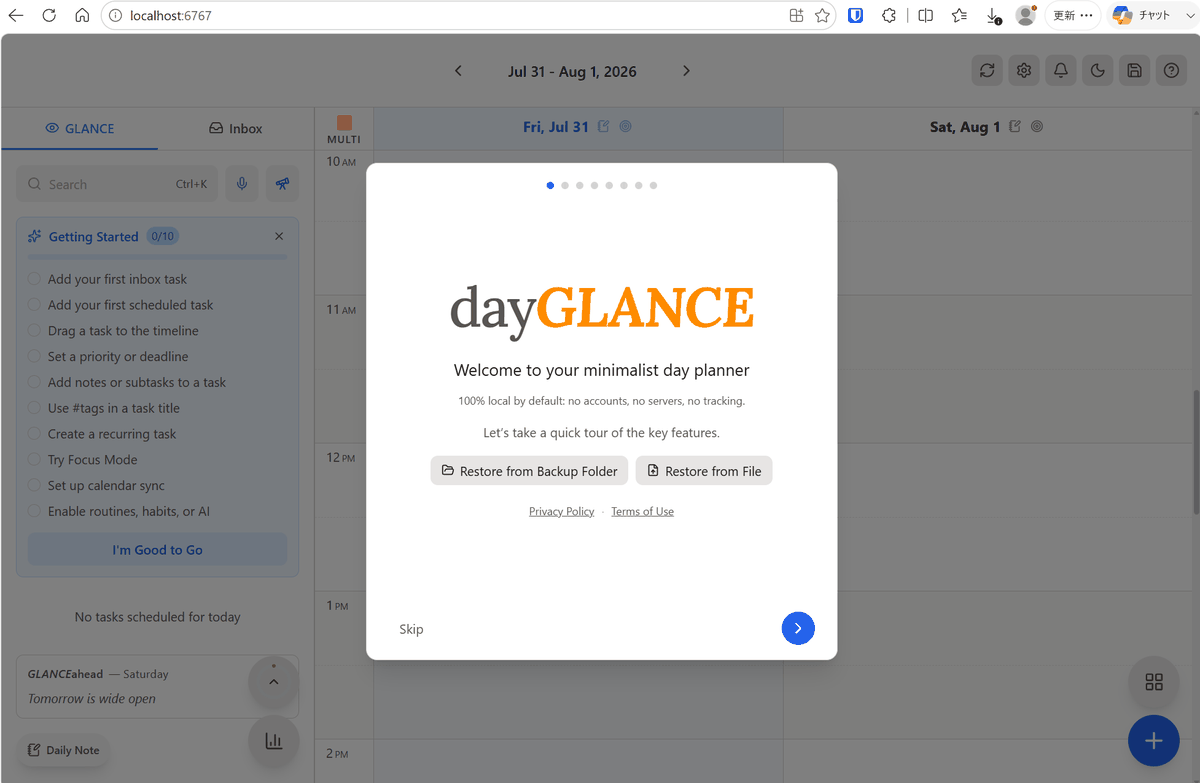
If you launch your browser and access 'localhost:6767' and the initial dayGLANCE screen is displayed, the installation is complete.
Related Posts:
in Web Service, Review, Posted by darkhorse_logmk