Flow Launcher is a free tool that allows you to quickly move files to a specified folder in the Windows file save/open dialog box and open them with a specific file manager with a single click.
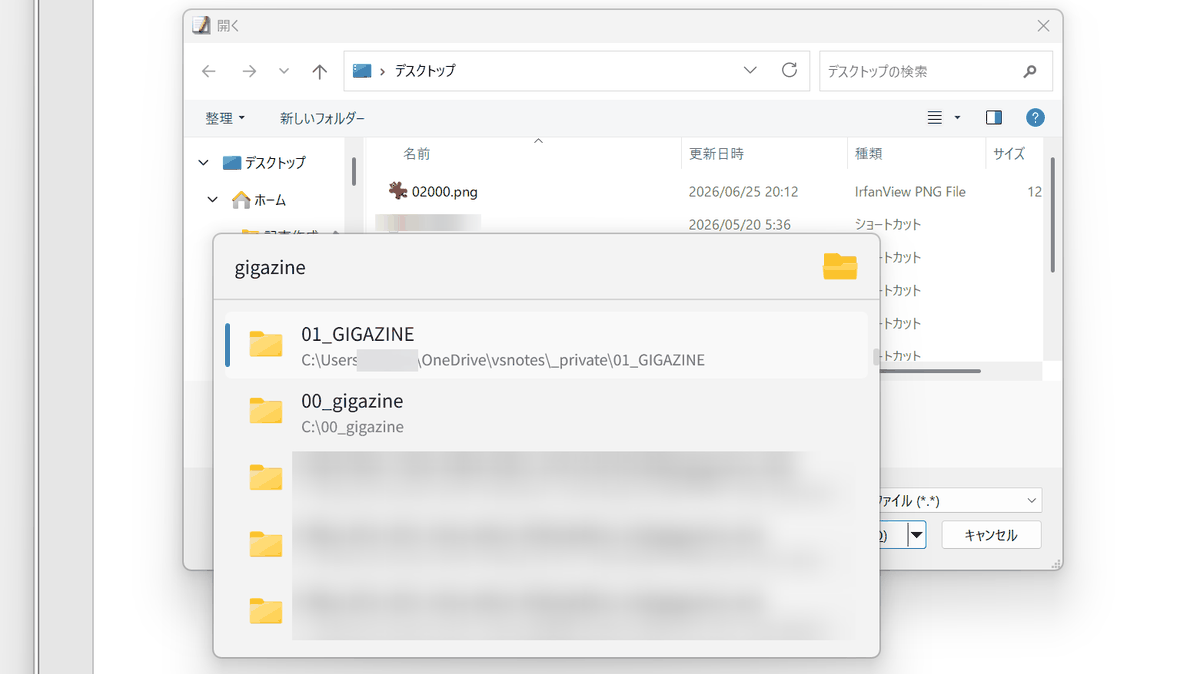
When opening or saving files from image editing software or a browser, navigating to the desired folder each time is cumbersome. Therefore, I tried out ' Flow Launcher ,' which allows you to search for files and folders, quickly navigate to the desired location from the Windows open/save dialog, and even open the search results with your usual file manager.
Flow Launcher
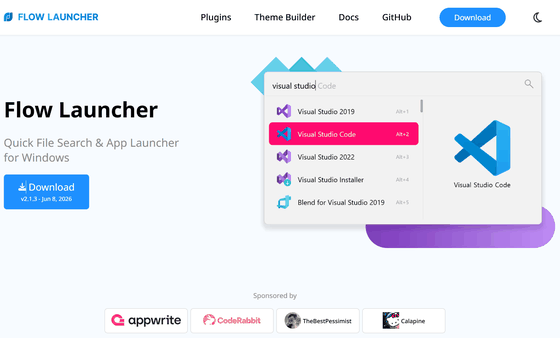
Flow-Launcher/Flow.Launcher: Quick file search & app launcher for Windows with community-made plugins
◆Searching for folder names using Flow Launcher
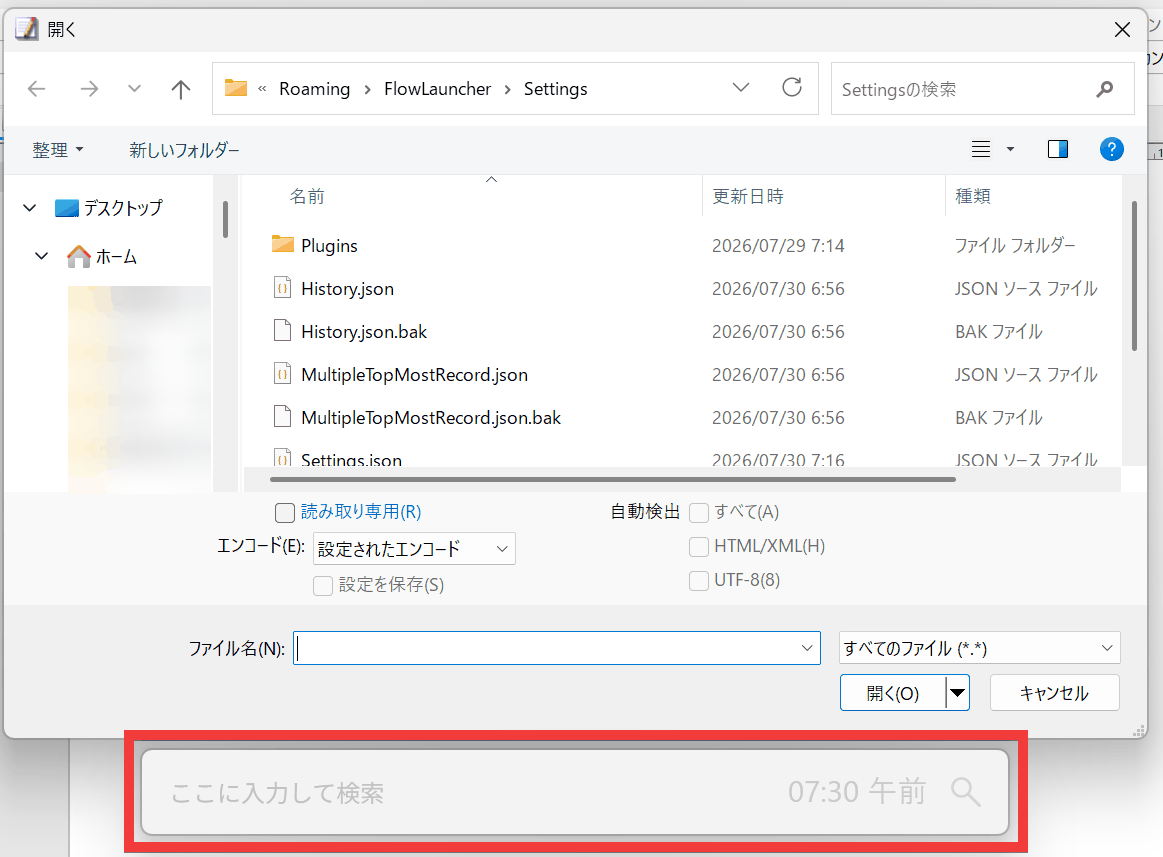
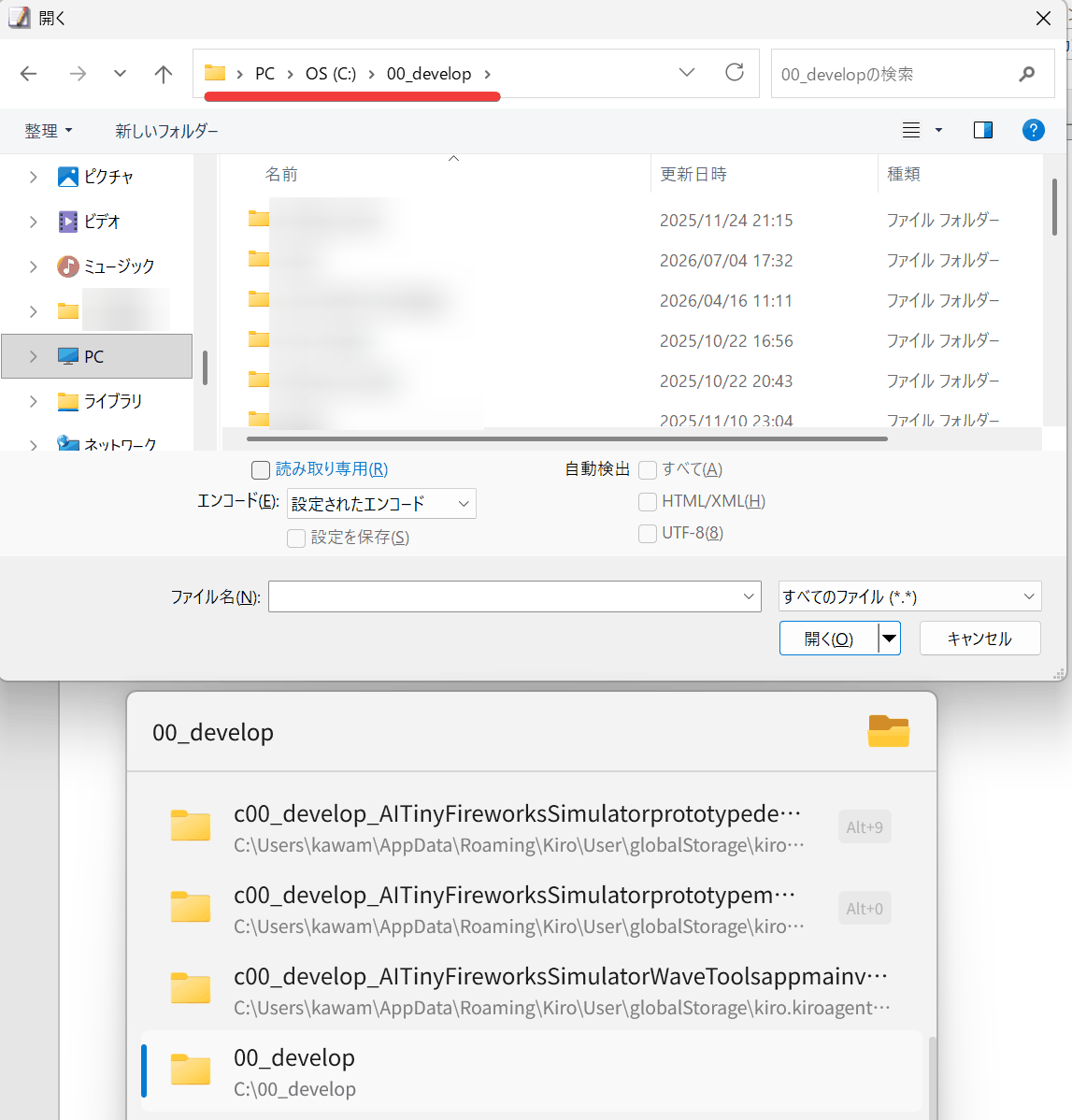
When Flow Launcher is installed, if you display an 'Open' or 'Save' dialog from any software, a search bar for Flow Launcher will appear at the bottom of the dialog.
Enter the name of the folder you want into the search bar, and folder suggestions will be displayed. Find the folder you want and click on it.
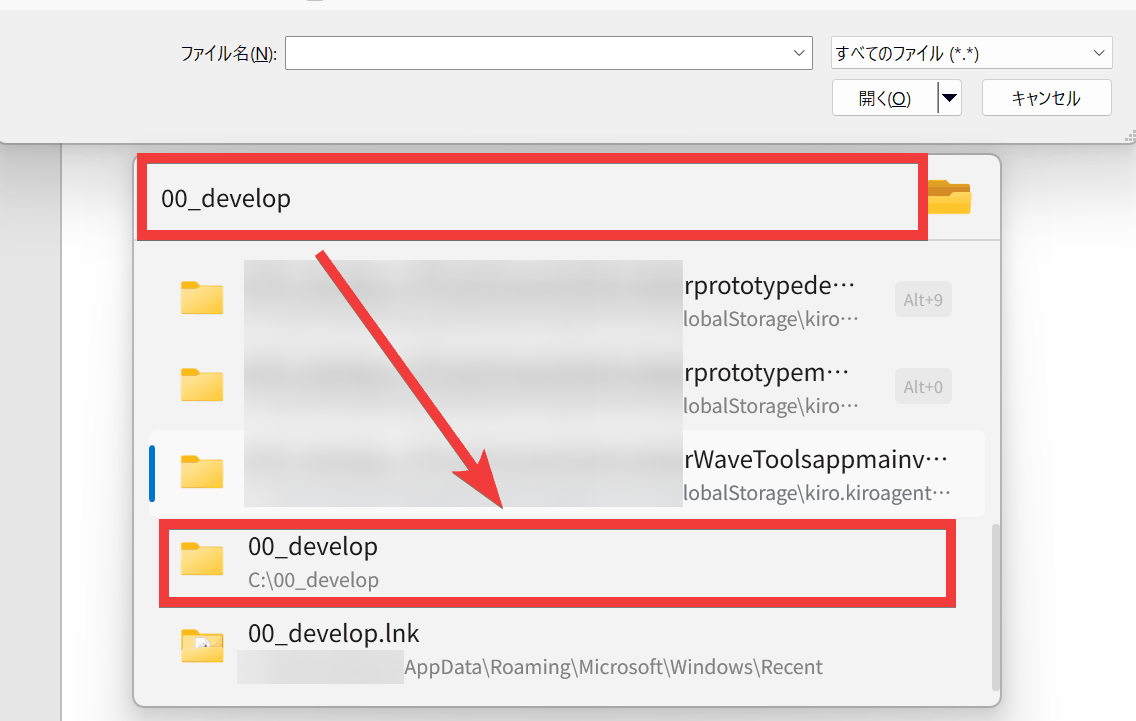
The folder path displayed in the dialog box will switch to the specified folder.
◆ Search for the folder and open it with a file manager.
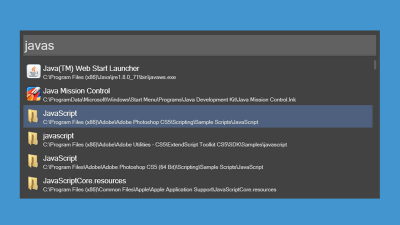
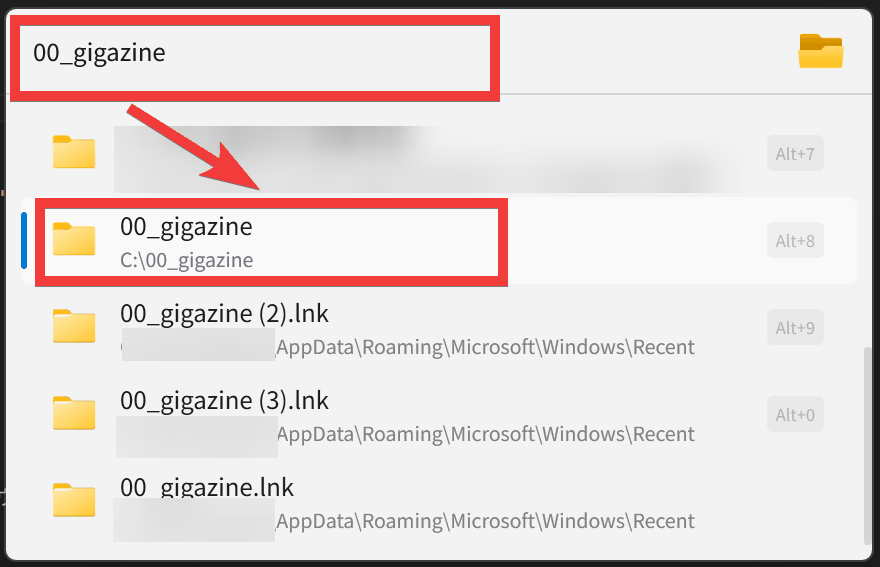
After launching Flow Launcher by pressing 'Alt + Space', enter the name of the folder you want to open in the search bar, find the corresponding folder in the list, and click it.
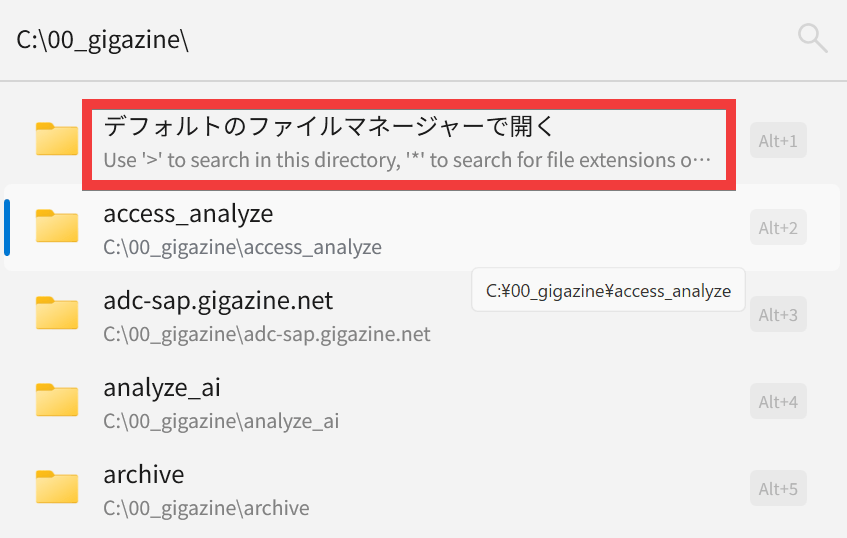
Click 'Open with default file manager'.
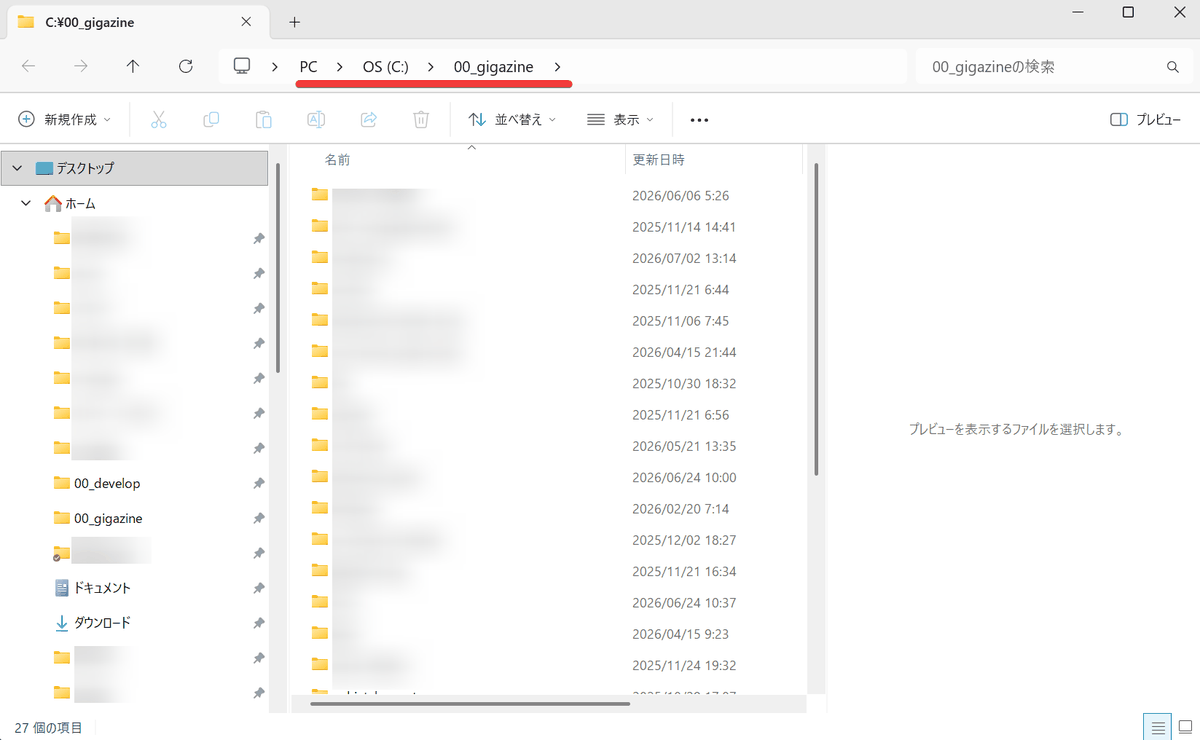
The file manager will launch with the specified path already open.
◆Basic functions of Flow Launcher
Press 'Alt+Space' anywhere on your desktop to launch Flow Launcher.
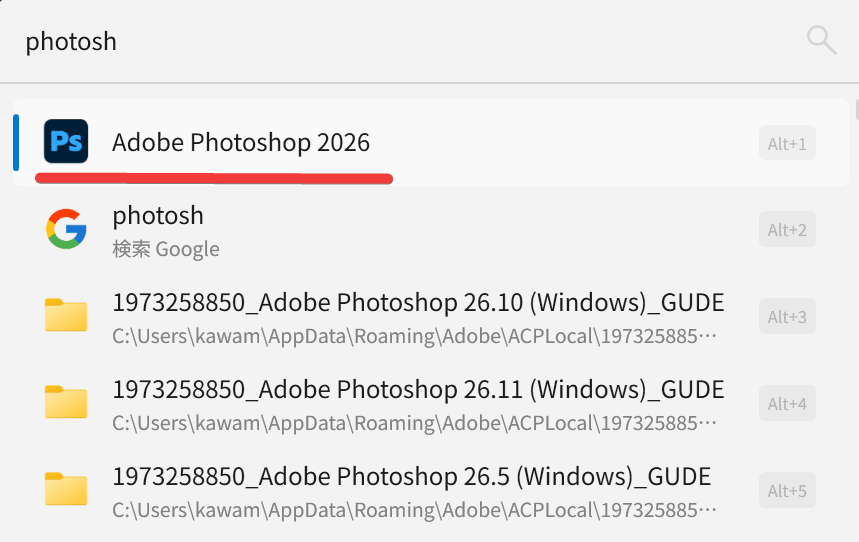
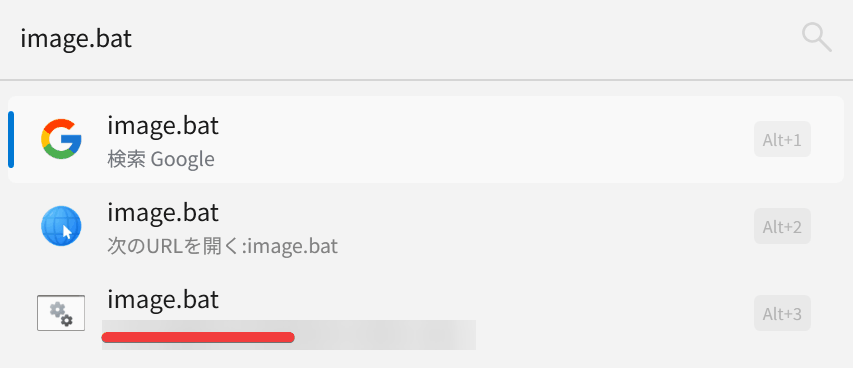
Enter the app name to launch it.
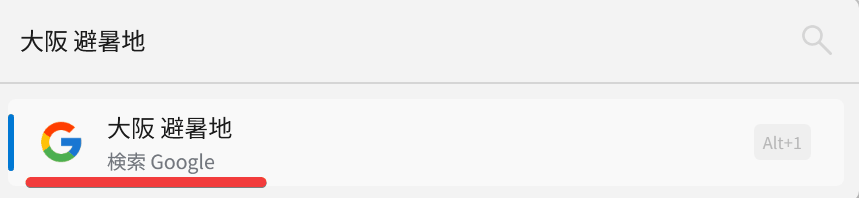
Web search
Your browser will launch and the search results will be displayed.
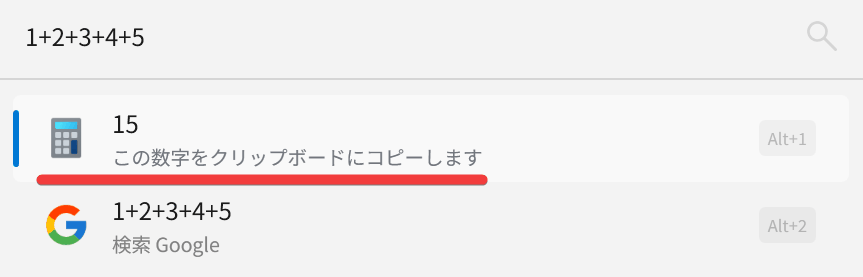
Enter a formula and perform the calculation.
Clicking this will copy the calculation result to the clipboard.
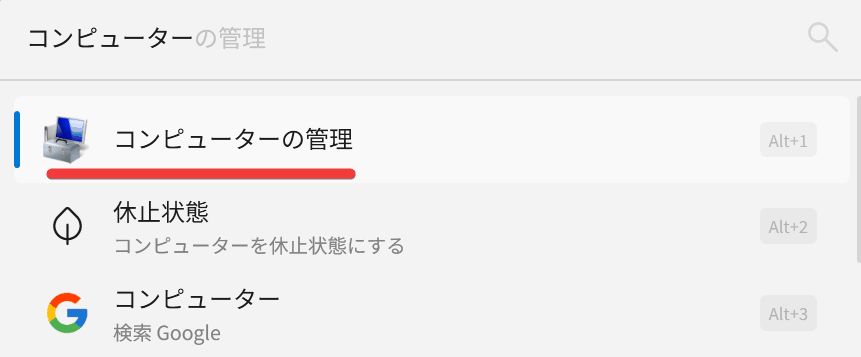
- Search Windows settings or Control Panel
- Execute PowerShell or Command Prompt commands
It features integrated launcher functionality, and you can add features such as
◆Flow Launcher Installation
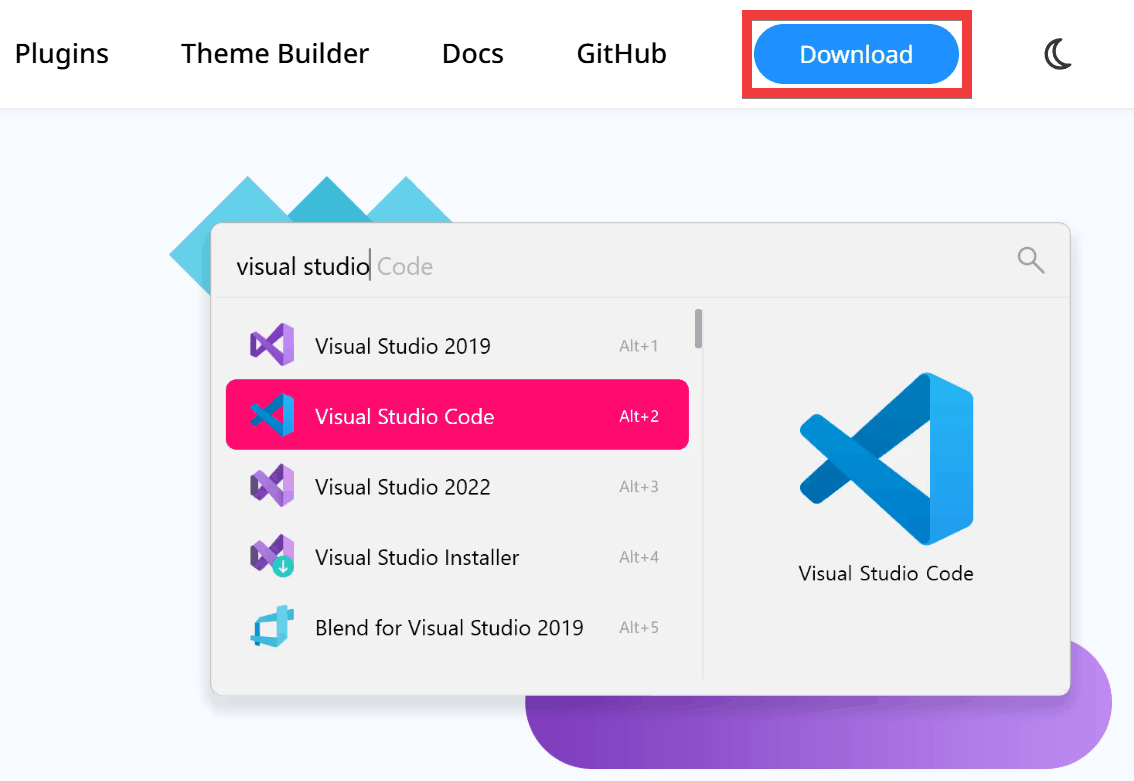
Click 'Download' in the top menu of the official website .
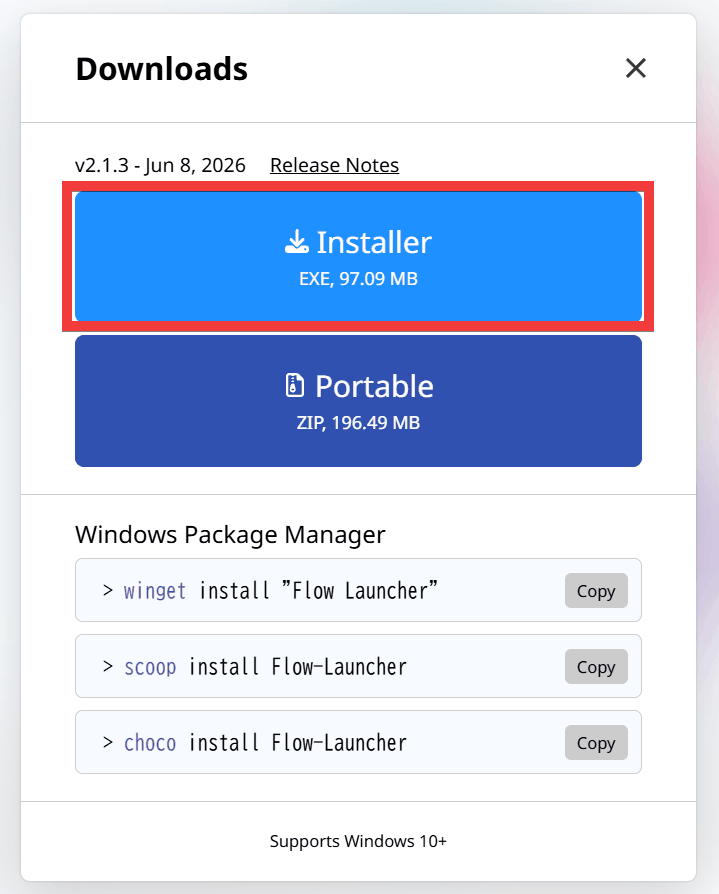
Click 'Installer' to save.
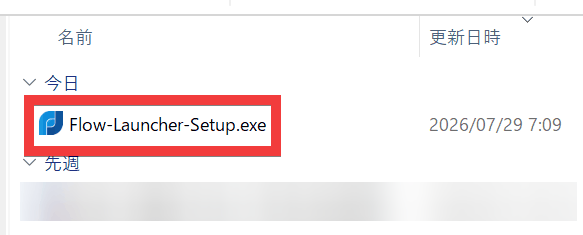
Double-click the saved installer to run it.
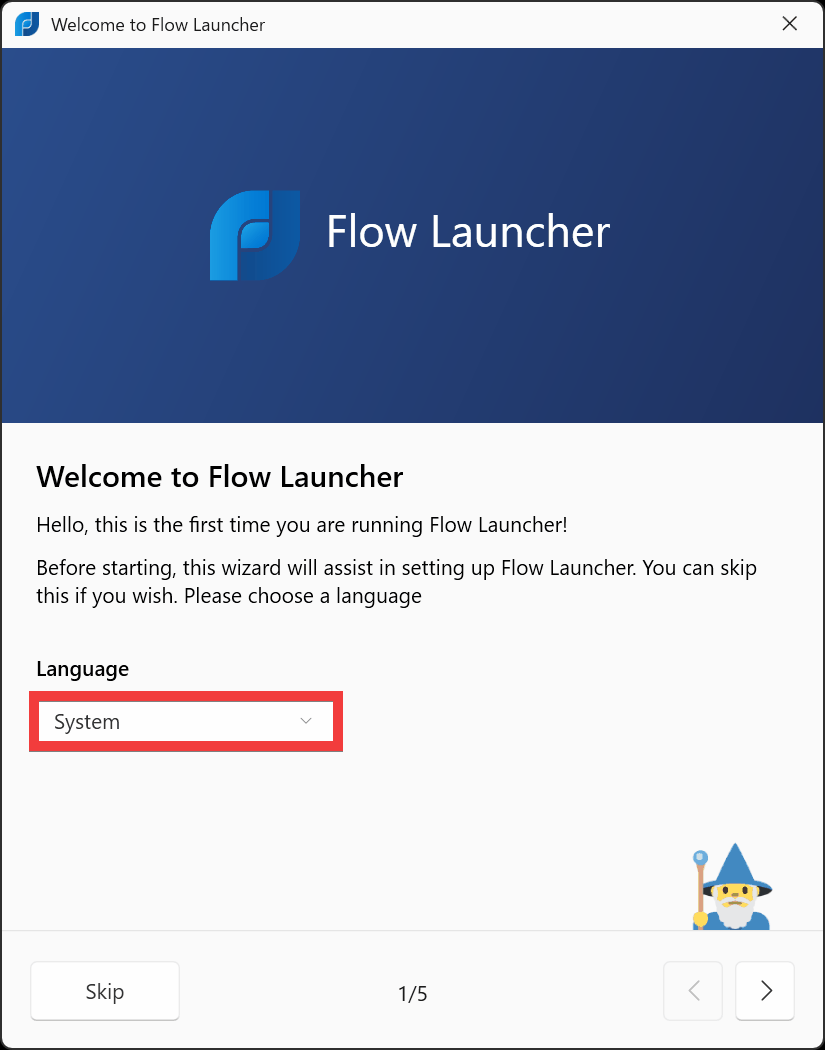
The initial setup wizard will appear, so click 'System' in the 'Language' dropdown menu.
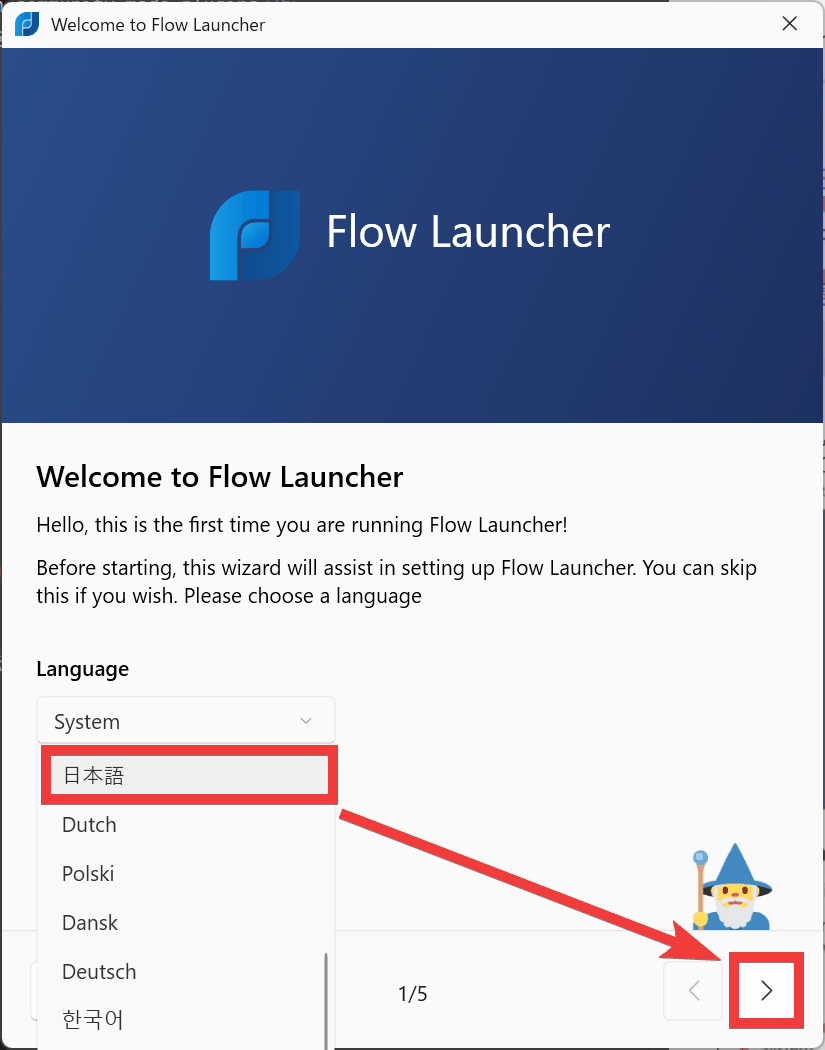
Select 'Japanese' and click ']'.
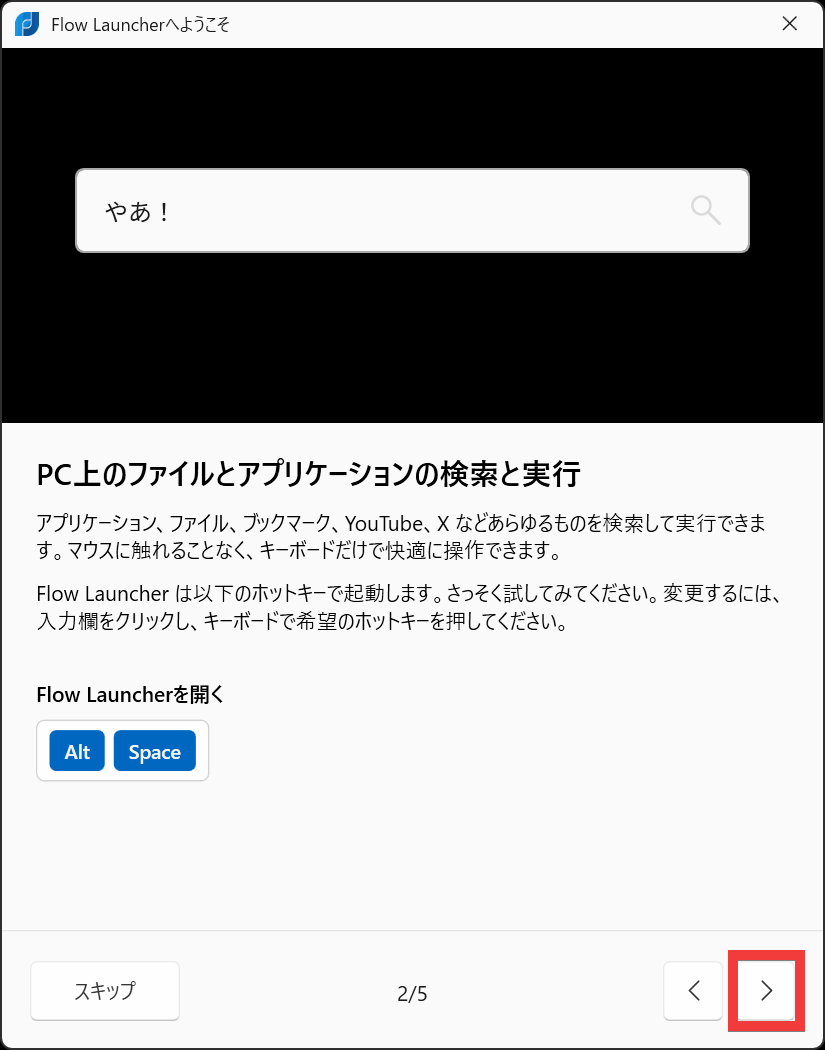
The default hotkey assignment for activation is 'Alt + Space'. Click the ']' button.
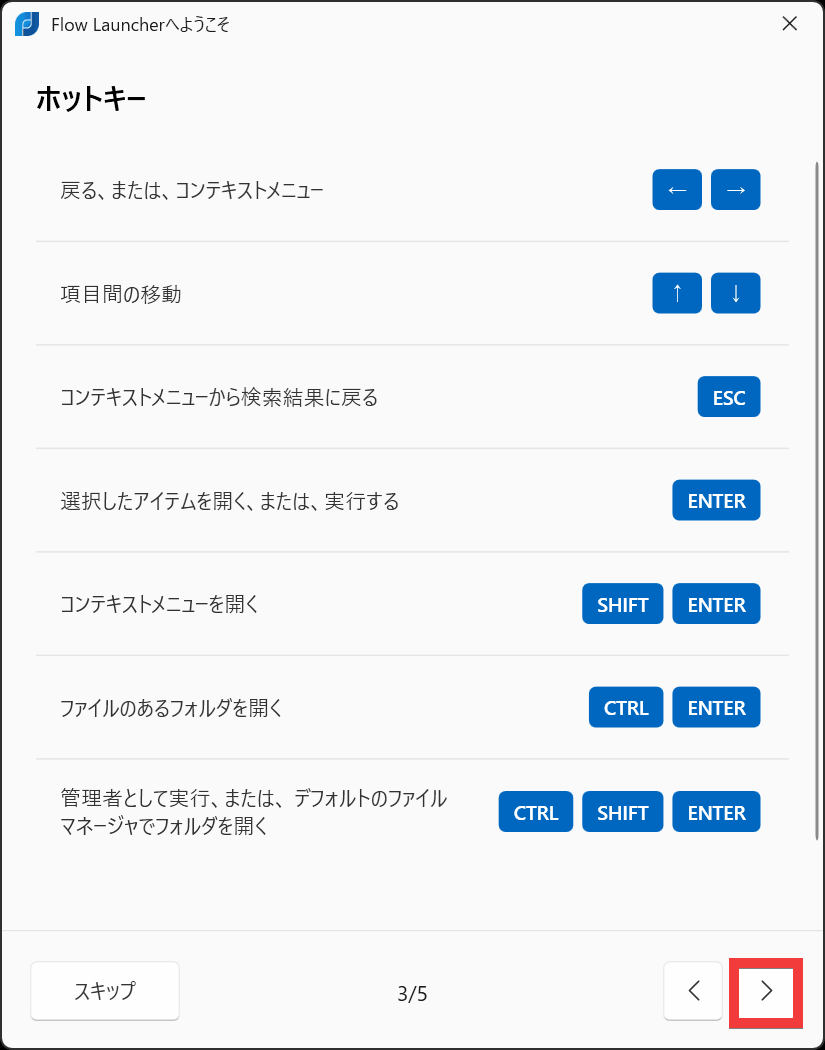
A list of other hotkey assignments will be displayed, so click the ']' button.
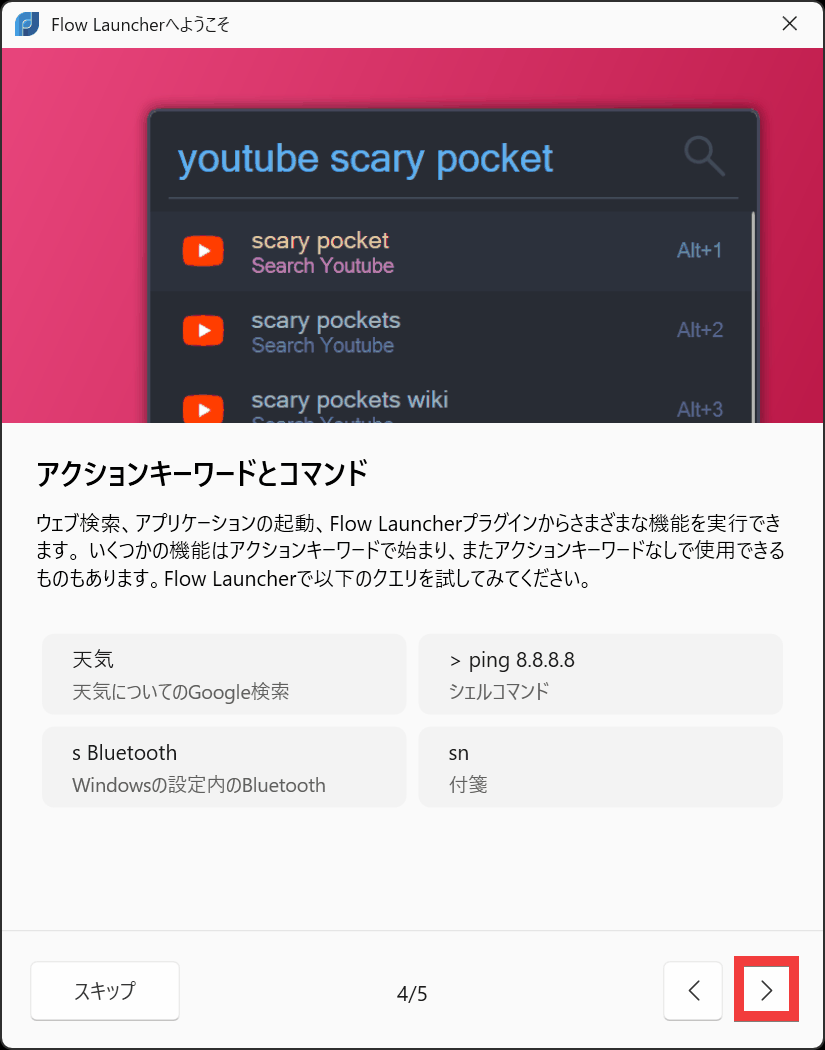
The screen will display 'Enter a specific keyword to execute the function' and 'Description of action keywords and commands,' so click the ']' button.
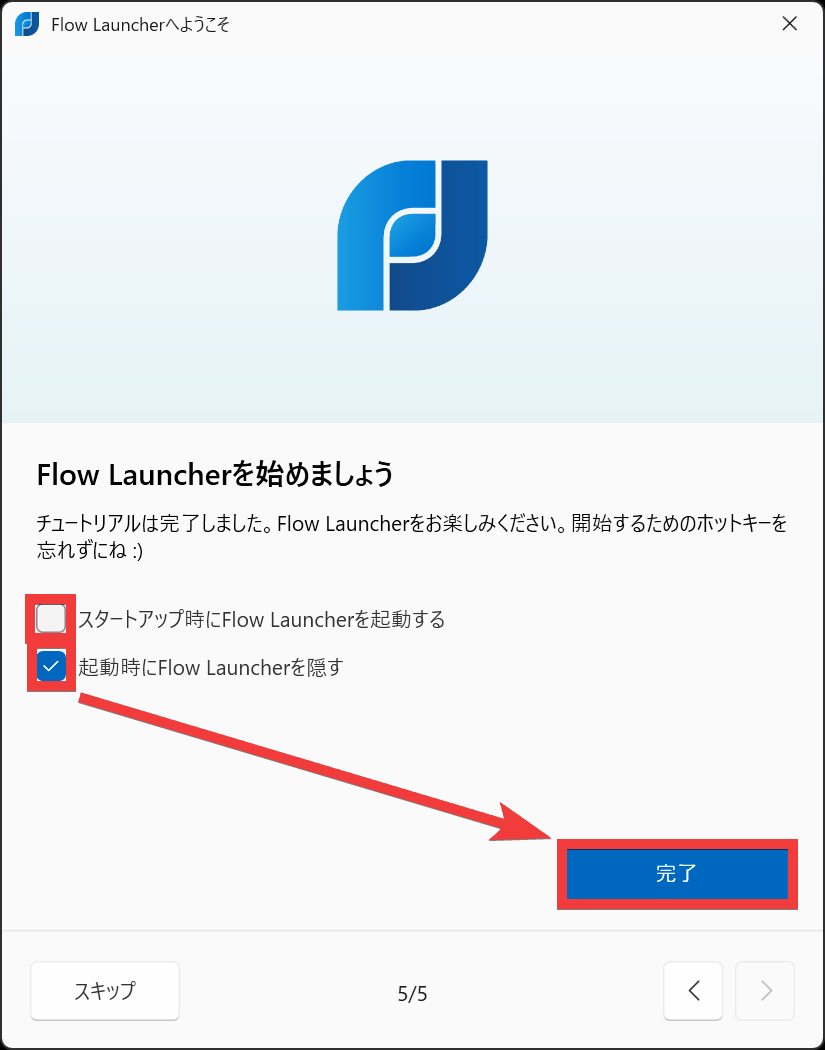
Check the boxes for 'Launch Flow Launcher at startup' and 'Hide Flow Launcher at startup' as desired, then click 'Finish' to complete the installation.
◆Folder name search settings
By default, only folders registered in
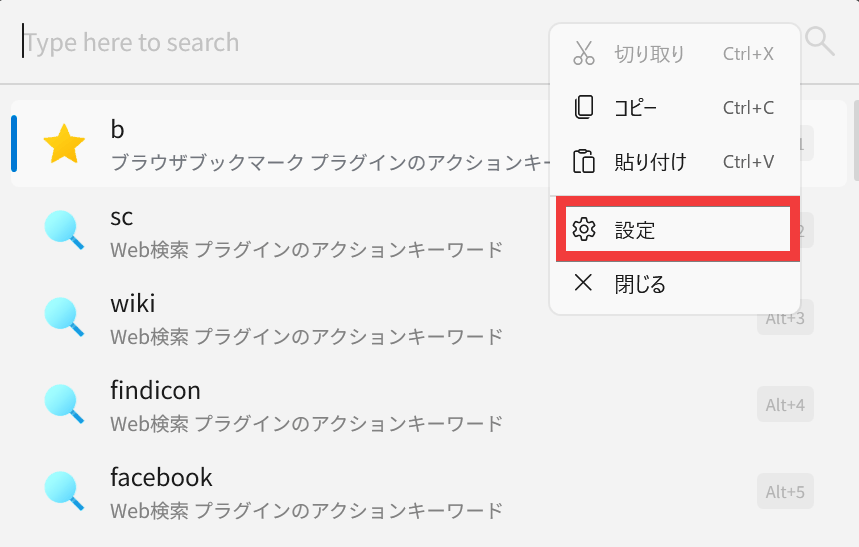
Launch Flow Launcher by pressing 'Alt + Space,' right-click in the search bar, and select 'Settings.'
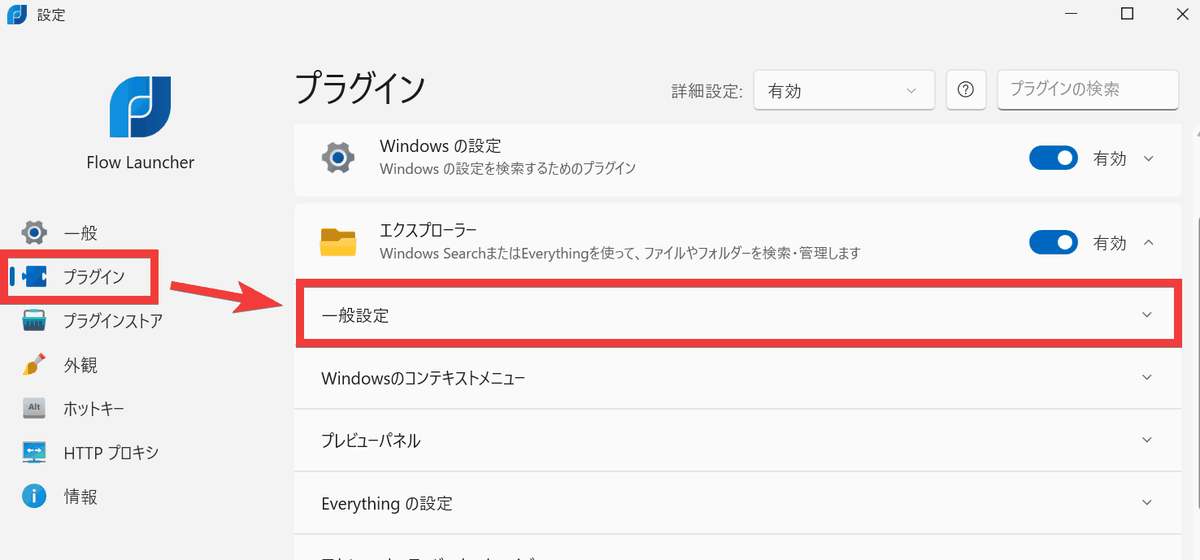
From the settings menu, click 'Plugins,' then click 'General Settings' in Explorer.
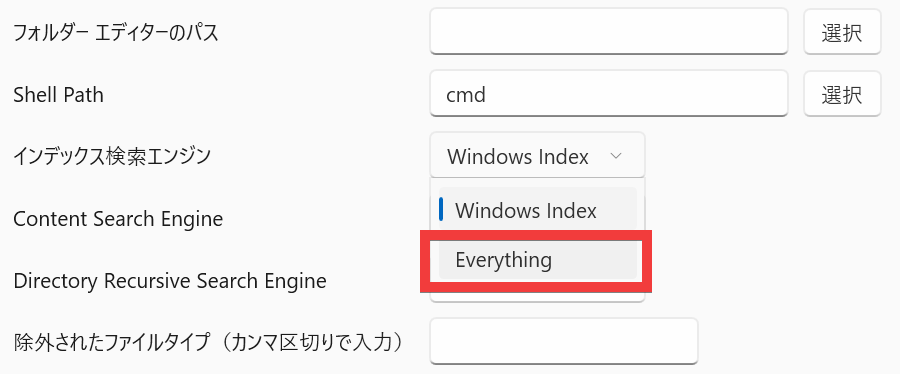
Changed the 'Indexing Search Engine' to 'Everything'.
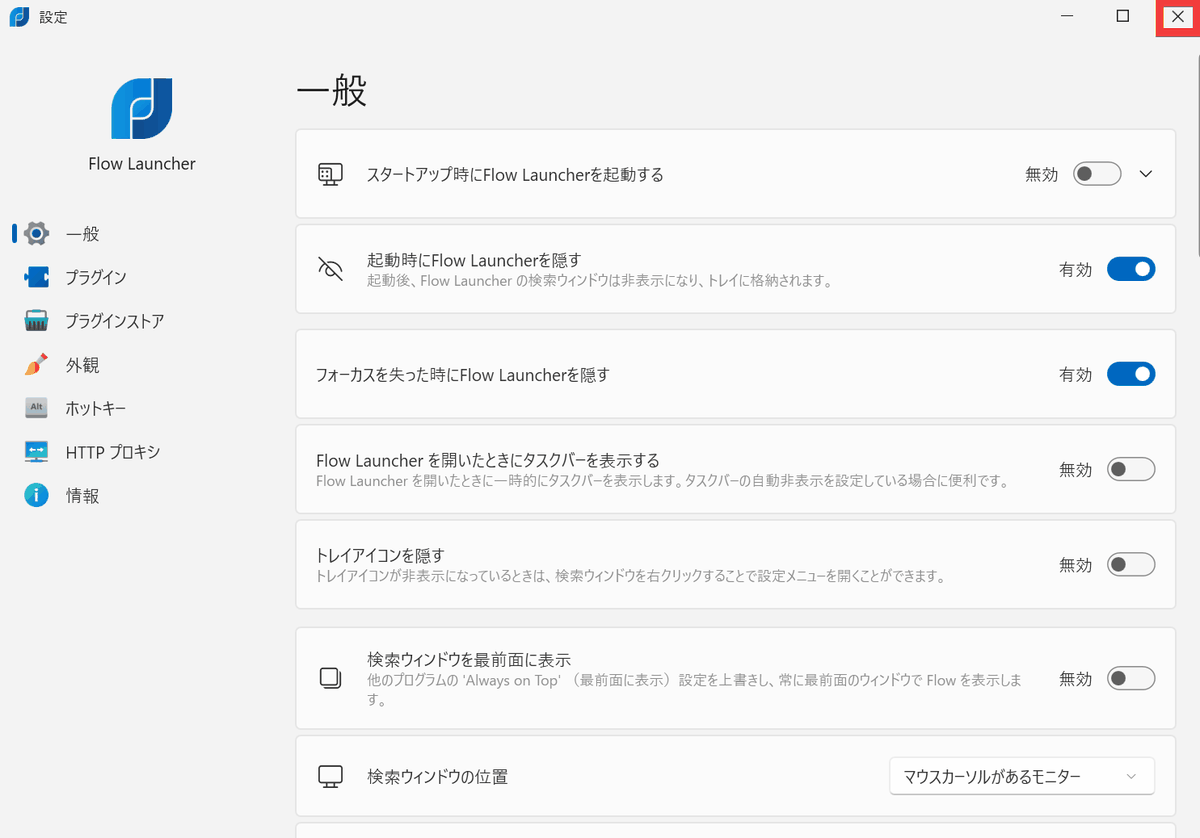
Click 'Close'.
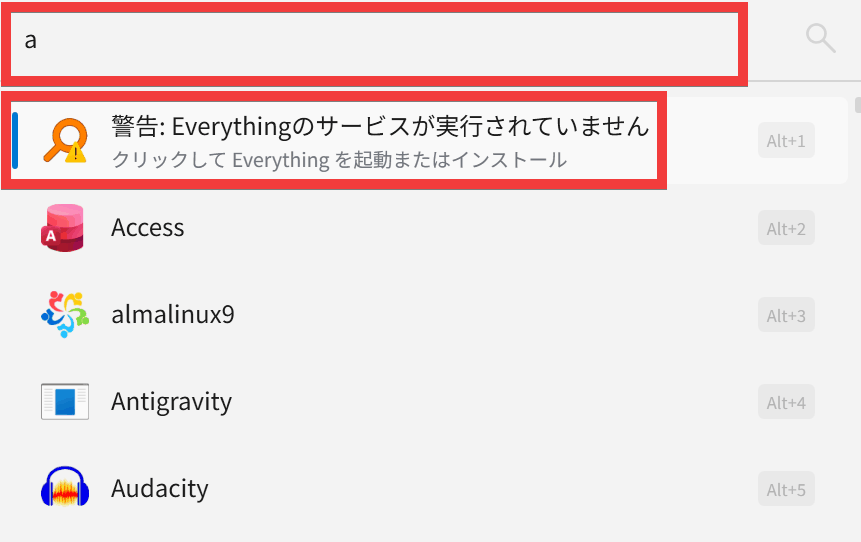
Launch Flow Launcher and enter any text into the search bar. A warning message will appear saying 'Warning: The Everything service is not running.' Click on the part where the warning is displayed.
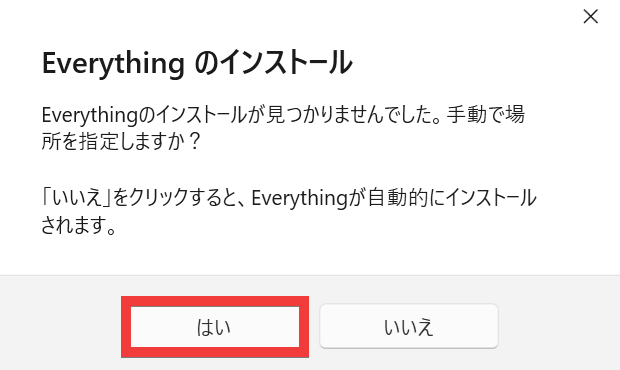
The Everything installation dialog will appear; click 'Yes' and the installation will begin automatically.
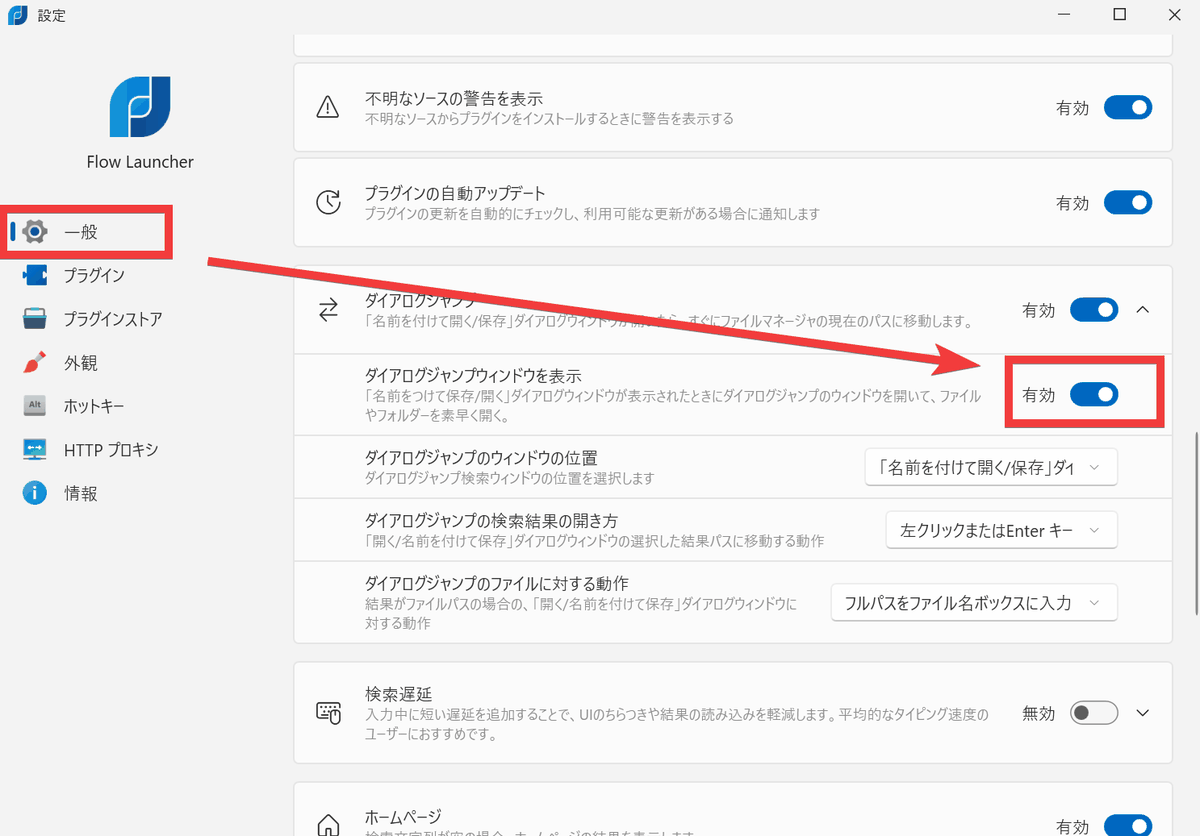
To automatically activate Flow Launcher when the 'Open' or 'Save' dialog box appears, turn on the 'Show Dialog Jump Window' toggle switch in the 'General' section of the settings screen.
Related Posts: