Odysseus is a free, self-hosted ChatGPT-like local AI workspace that also offers features such as file uploads, model downloads, web searches, and email/calendar integration.
Odysseus is a self-hosted AI workspace that supports chat, agent, deep research, document, email, memo, calendar, and local model workflows.
pewdiepie-archdaemon/odysseus: Self-hosted AI workspace.
◆Features
According to the official GitHub repository, the features of Odysseus are as follows:
Chat + Agent : Local/API Model, Tools, MCP, Files, Shell, Skills, Memory
• Cookbook : Recommended models, downloads, and provision based on hardware considerations.
• Deep Research : Multi-stage web research including thorough reading of information sources and report writing.
• Model comparison : Blind-based parallel model verification and synthesis
• Documentation : A writing-first editor with AI editing, suggestions, Markdown, HTML, CSV, and syntax highlighting features.
• Email : IMAP/SMTP inbox with triage, tagging, summarization, reminder, and reply draft features.
• Notes, Tasks, Calendar : Reminders, To-Do Lists, Scheduled Agent Tasks, CalDAV Sync
Additional features : Gallery/image editor, themes, upload, web search, presets, sessions, two-factor authentication
◆ Introduction
The following method is provided for installing Odysseus.
odysseus/docs/setup.md at dev · pewdiepie-archdaemon/odysseus
https://github.com/pewdiepie-archdaemon/odysseus/blob/dev/docs/setup.md
Docker
Native (Linux, Intel-based macOS)
- Native (macOS on Apple Silicon)
Native (Windows)
This time, we will install it by running it natively on Windows. The following must be installed as a prerequisite for installation.
Git for Windows
• Python (version 3.11 or later)
First, if your installed Python version is 3.12 or later, the version check will fail, so you need to run the following command beforehand.
[code]
py install 3.11
[code]
Install Odysseus by executing the following command at the 'Git CMD' prompt.
[code]
git clone https://github.com/pewdiepie-archdaemon/odysseus.git
cd idesseus
powershell -ExecutionPolicy Bypass -File .\launch-windows.ps1
[code]
The installation is mostly automated, but you may be prompted to set an administrator username and password.
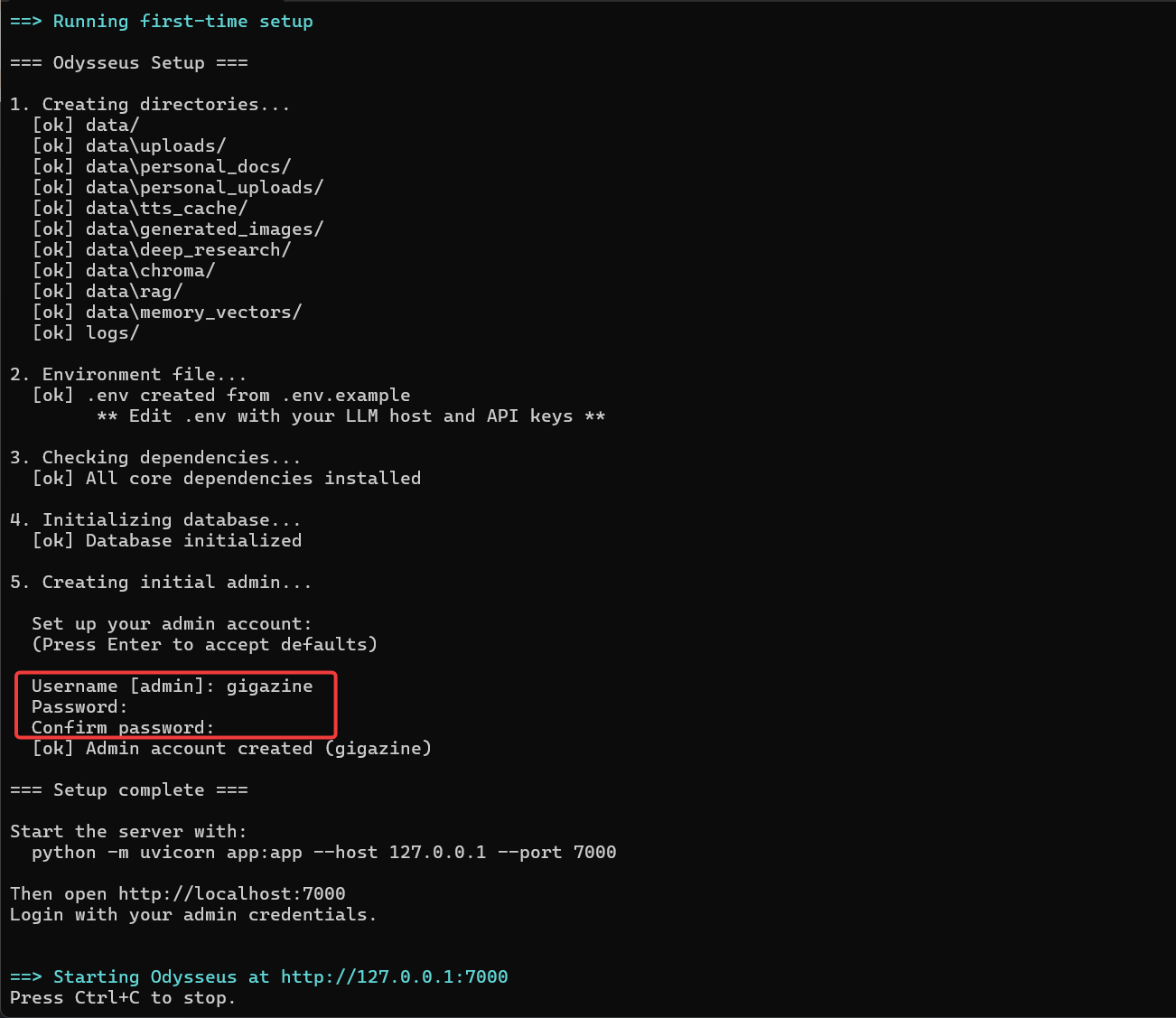
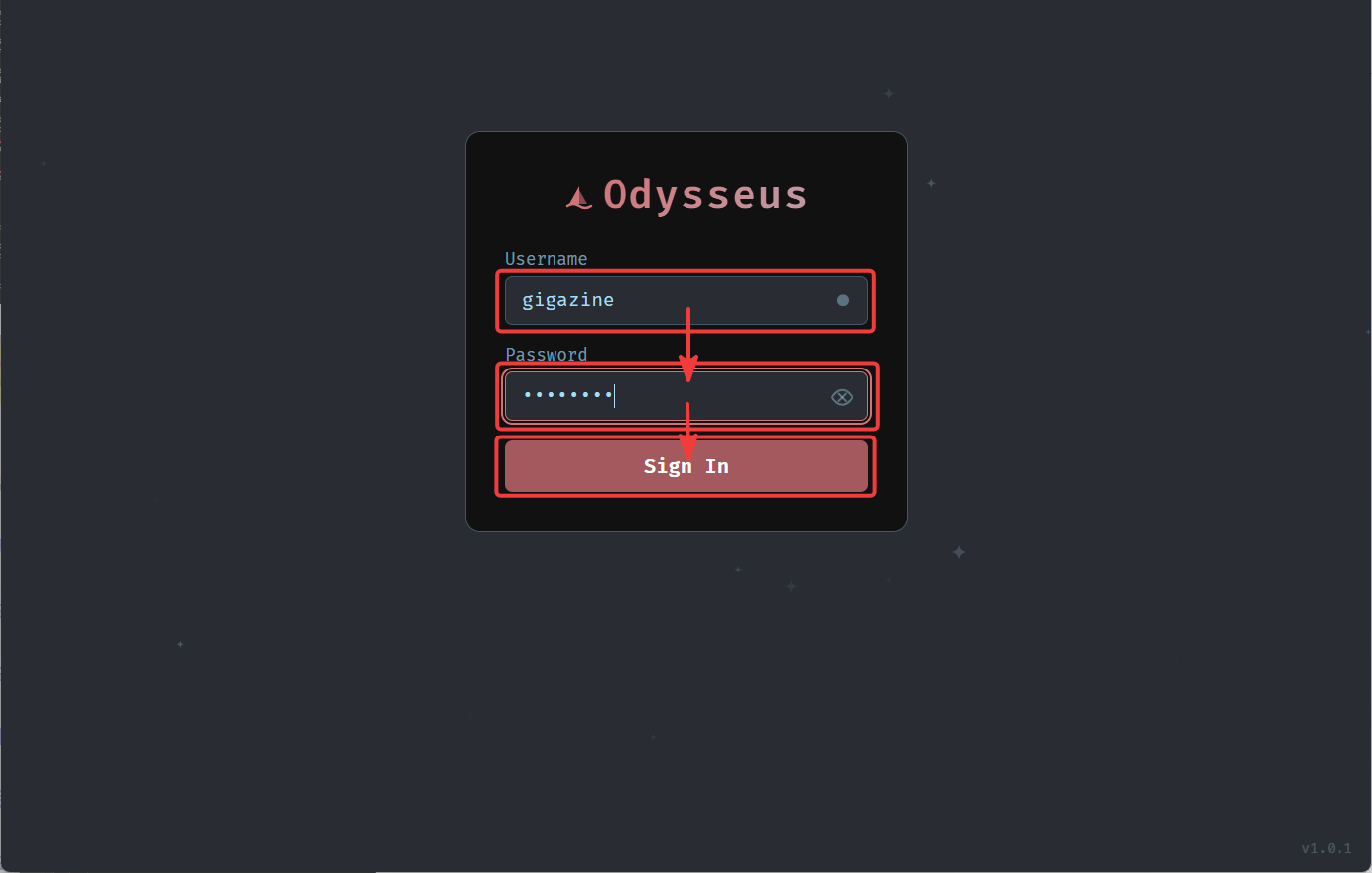
If you see the message 'Starting Odysseus at http://127.0.0.1:7000', Odysseus has started successfully. Access 'http://127.0.0.1:7000' in your browser to display the Odysseus dashboard, enter the administrator username and password you set earlier, and click the 'Sign In' button to sign in.
◆Main screen
The following is the Odysseus screen immediately after signing in.
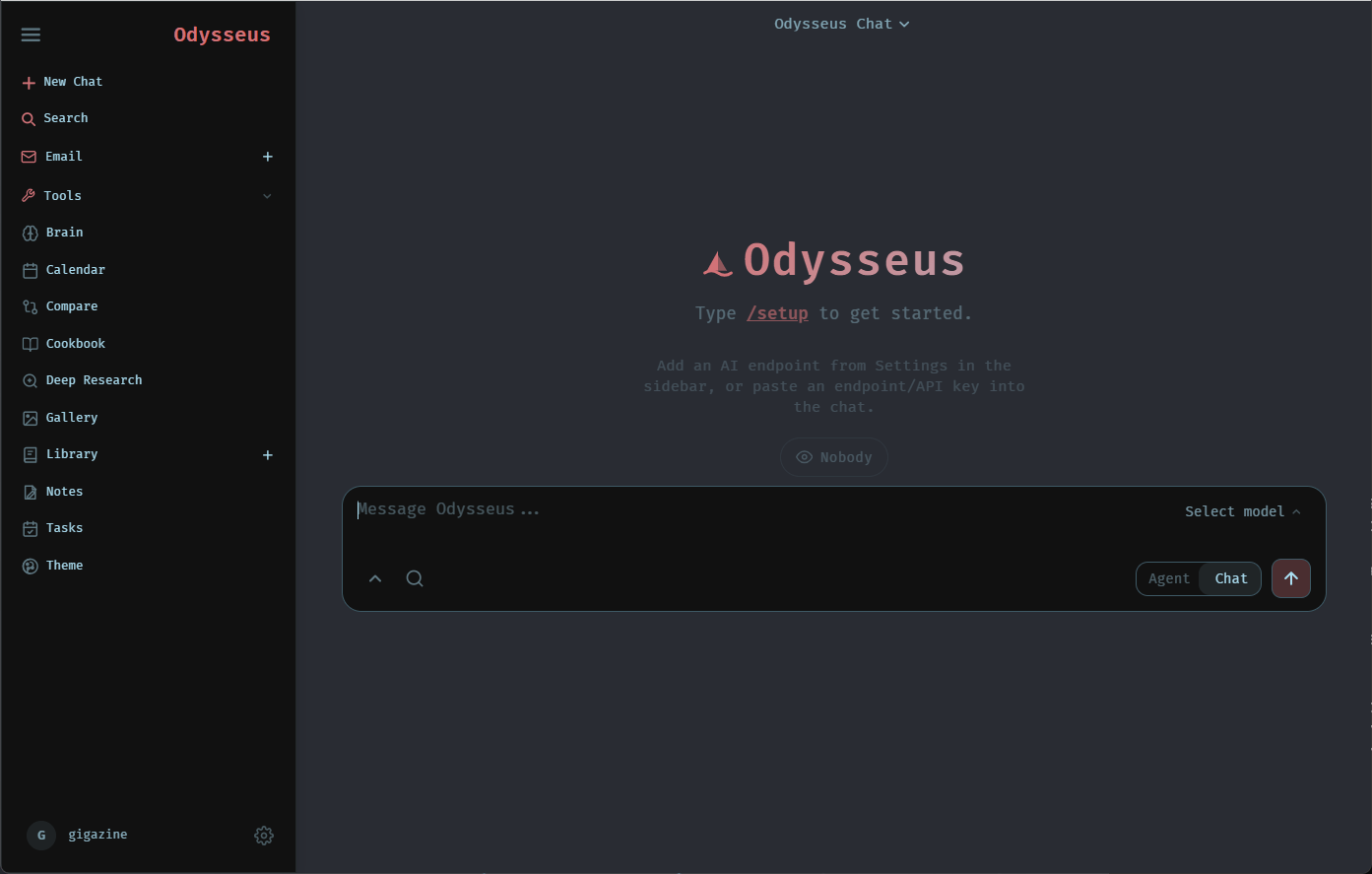
Clicking 'Select model' in the upper right corner of the text input area in the center of the screen will display a pop-up window where you can select an available model.
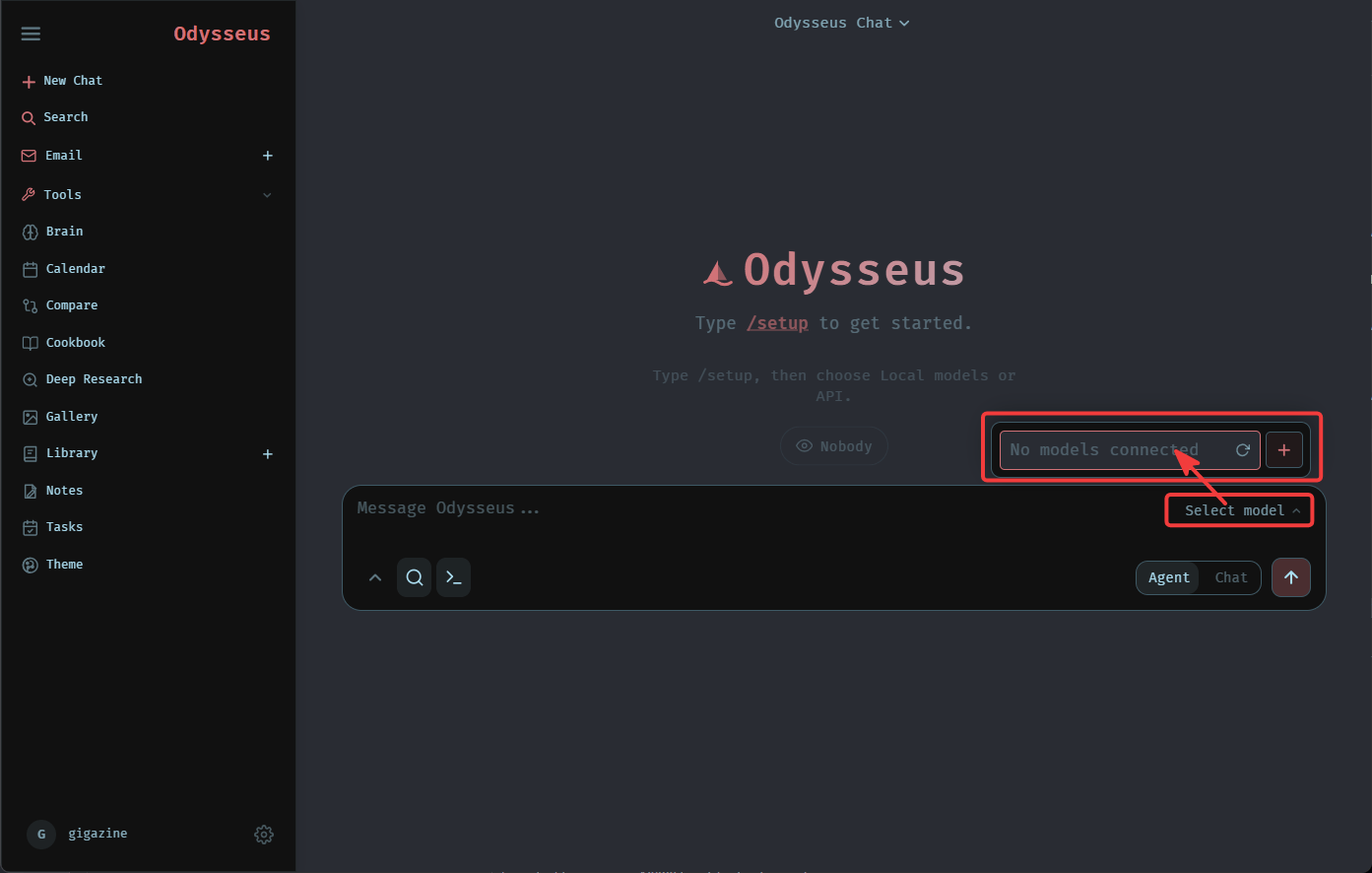
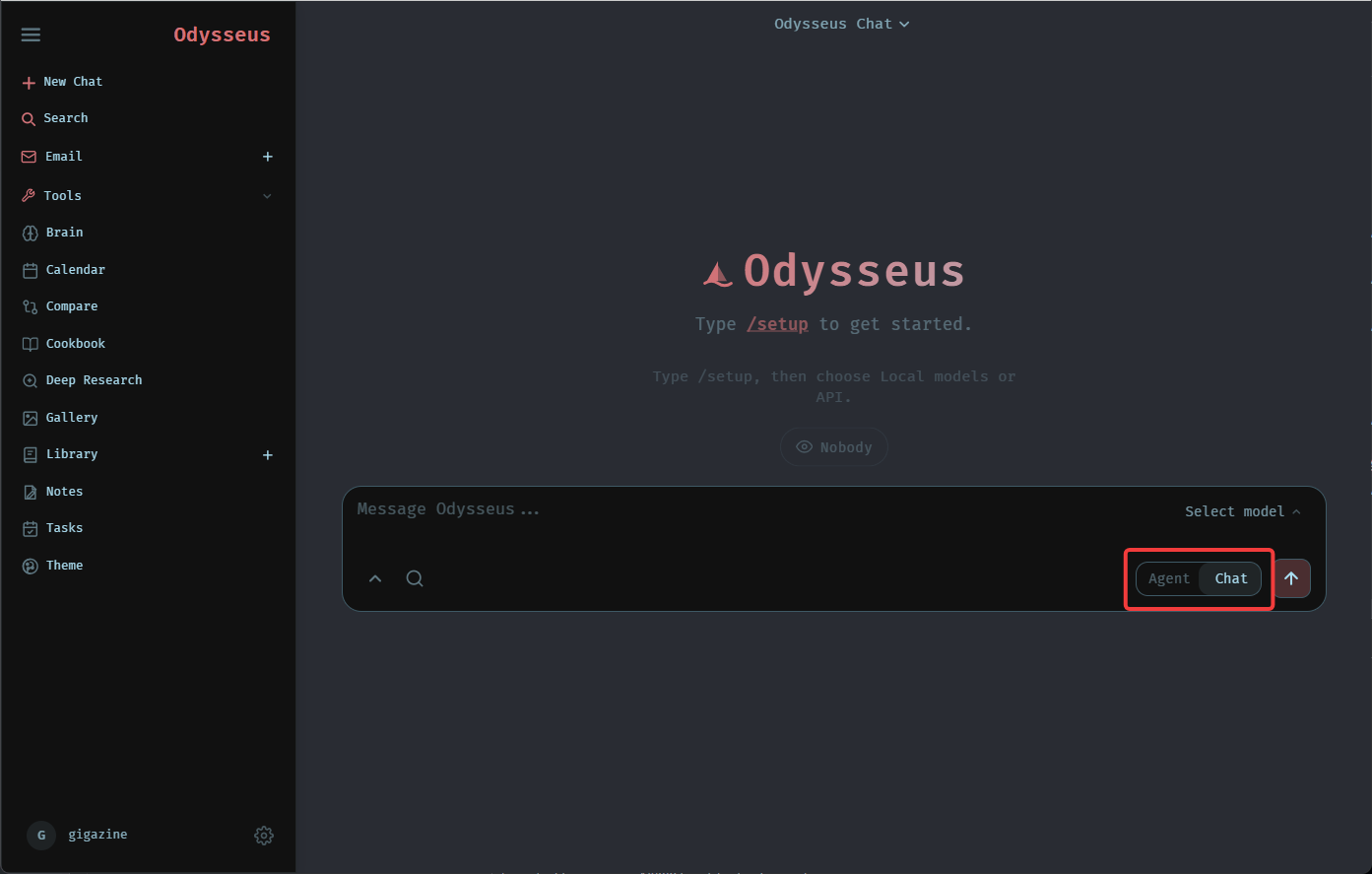
You can switch between 'Agent Mode' and 'Chat Mode' in the lower right corner of the text input area.
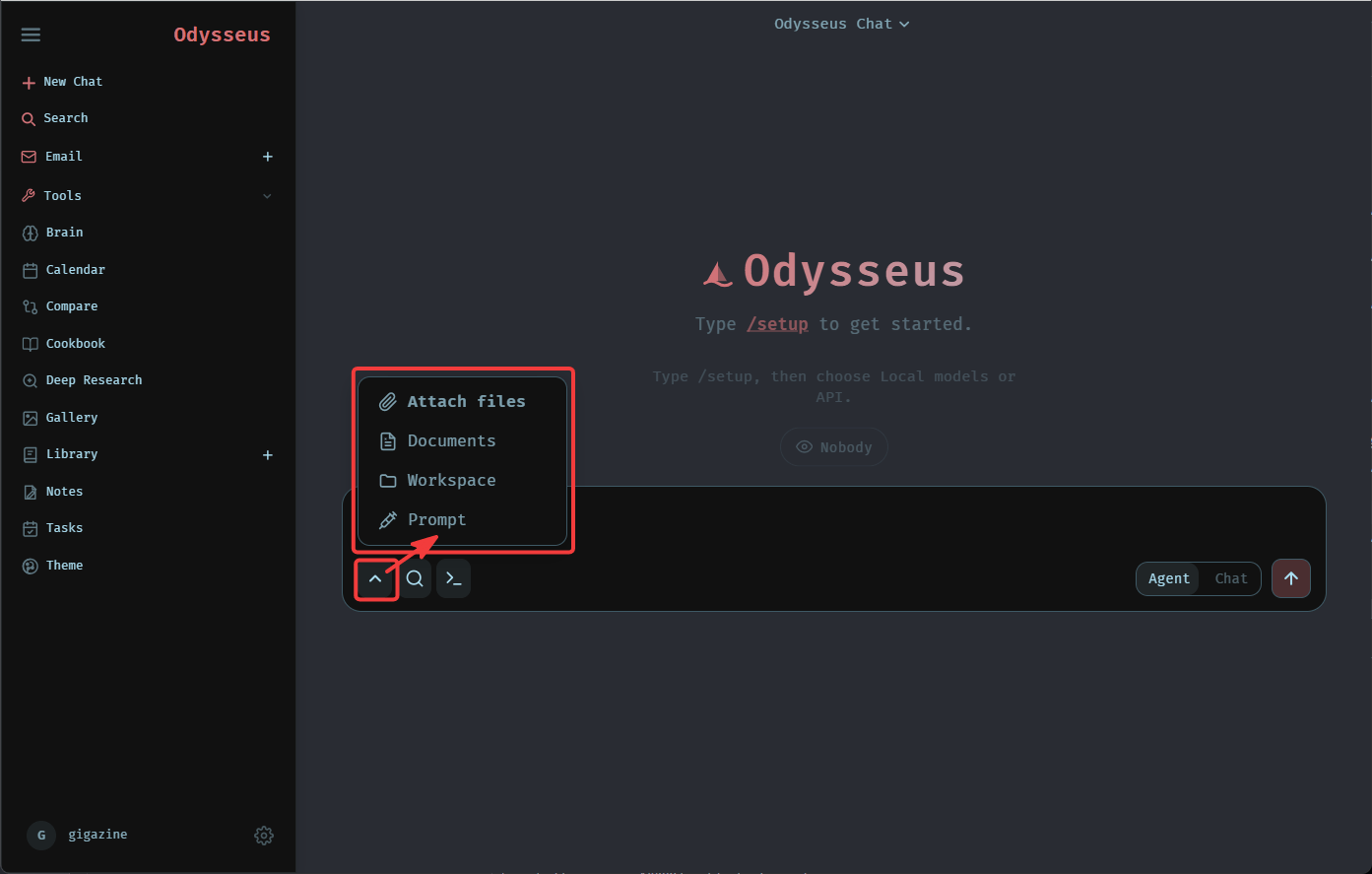
Clicking the '∧' icon among the icons lined up in the lower right corner of the text input area will display a pop-up that allows you to select the input target.
Attached files
·document
• Workplace (Agent mode only)
·prompt
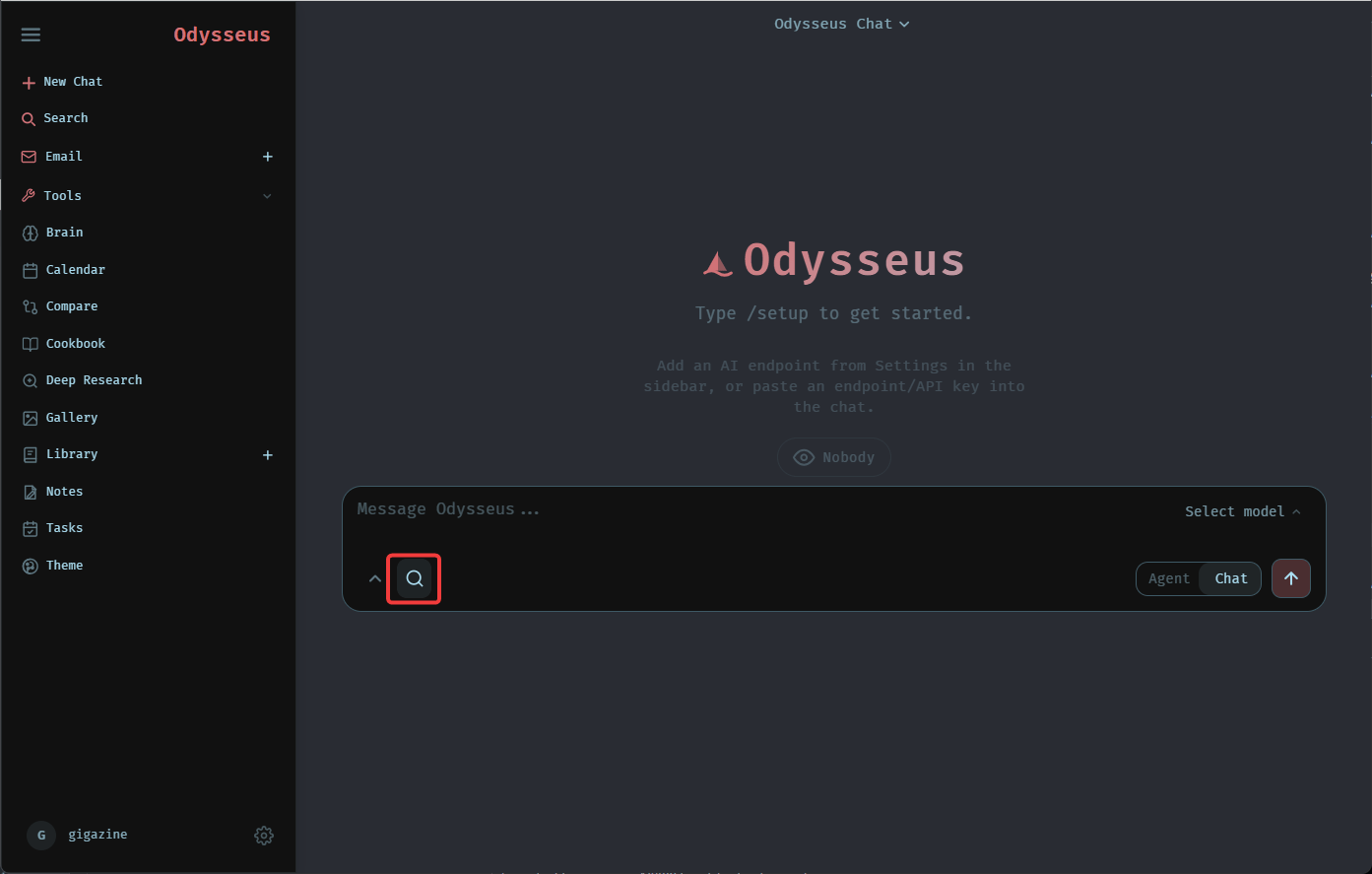
Clicking the magnifying glass icon in the lower right corner of the text input area allows you to toggle 'Web Search' on and off.
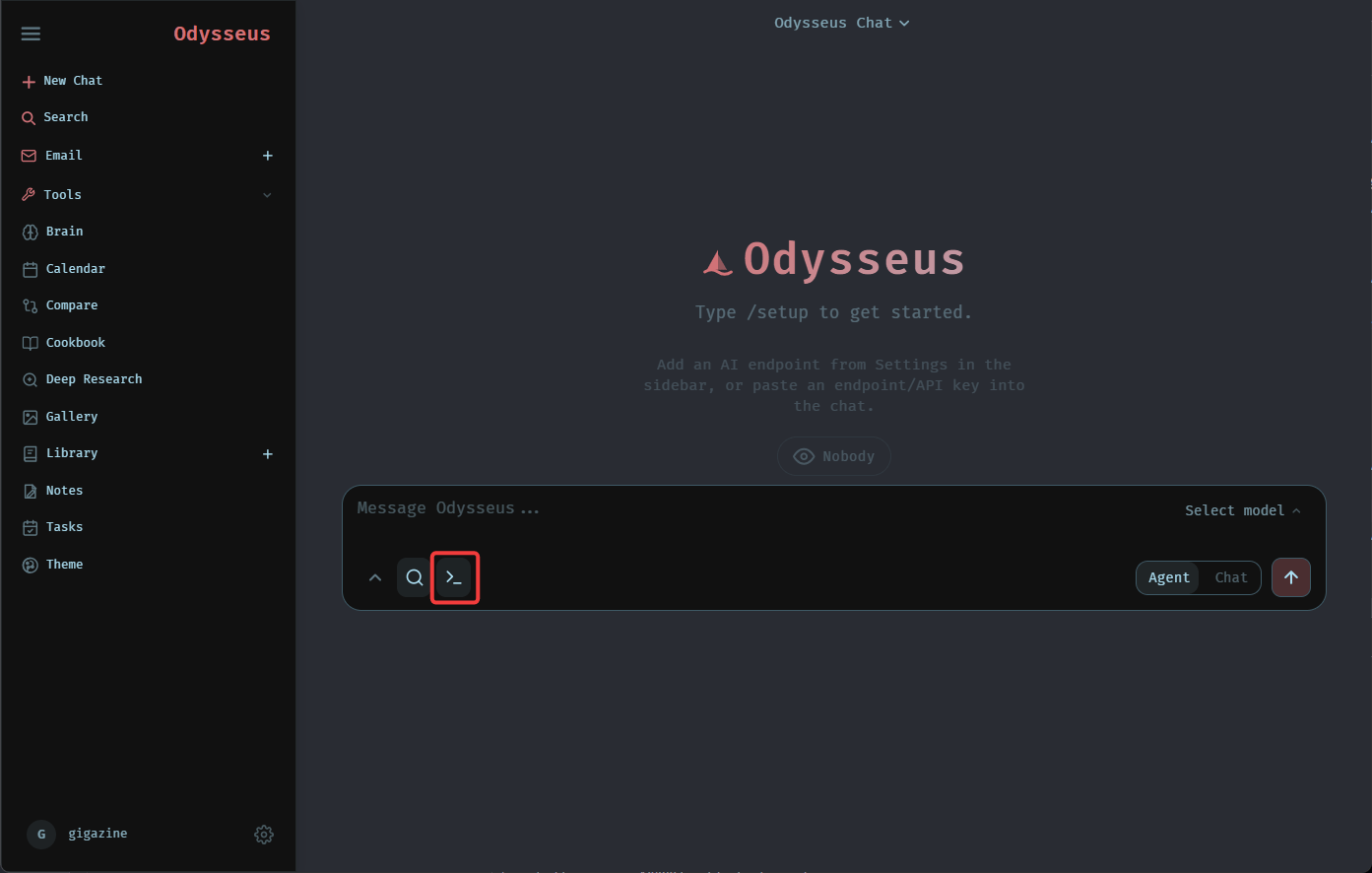
Clicking the '>_' icon, which is only displayed in Agent mode in the lower right corner of the text input area, allows you to toggle 'Shell Access' on and off.
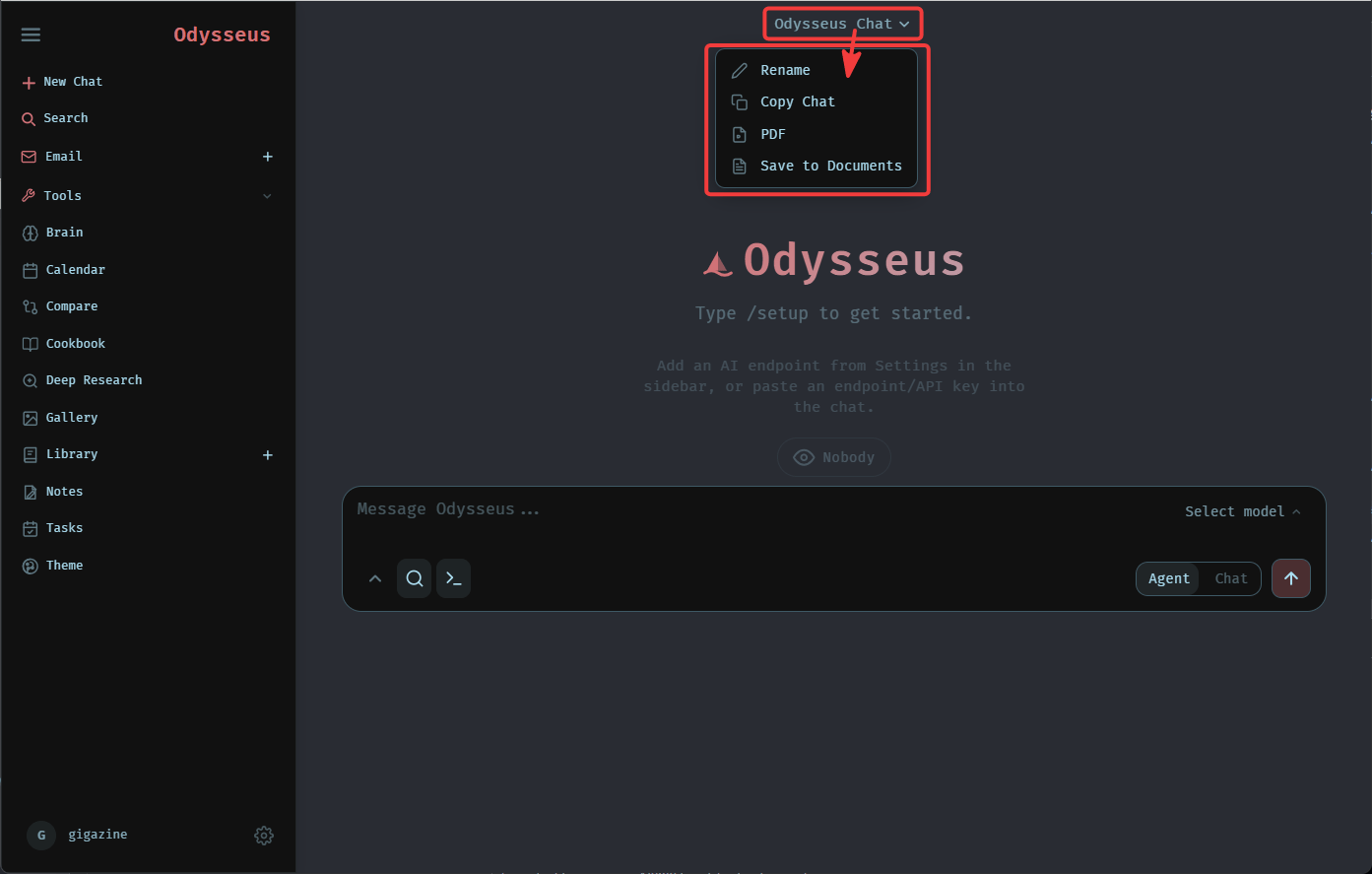
Clicking 'Odysseus Chat' at the top of the screen will display a pop-up menu with the following options:
- Rename chat
- Copy of chat
- Converting chat messages to PDF
- Documenting chats
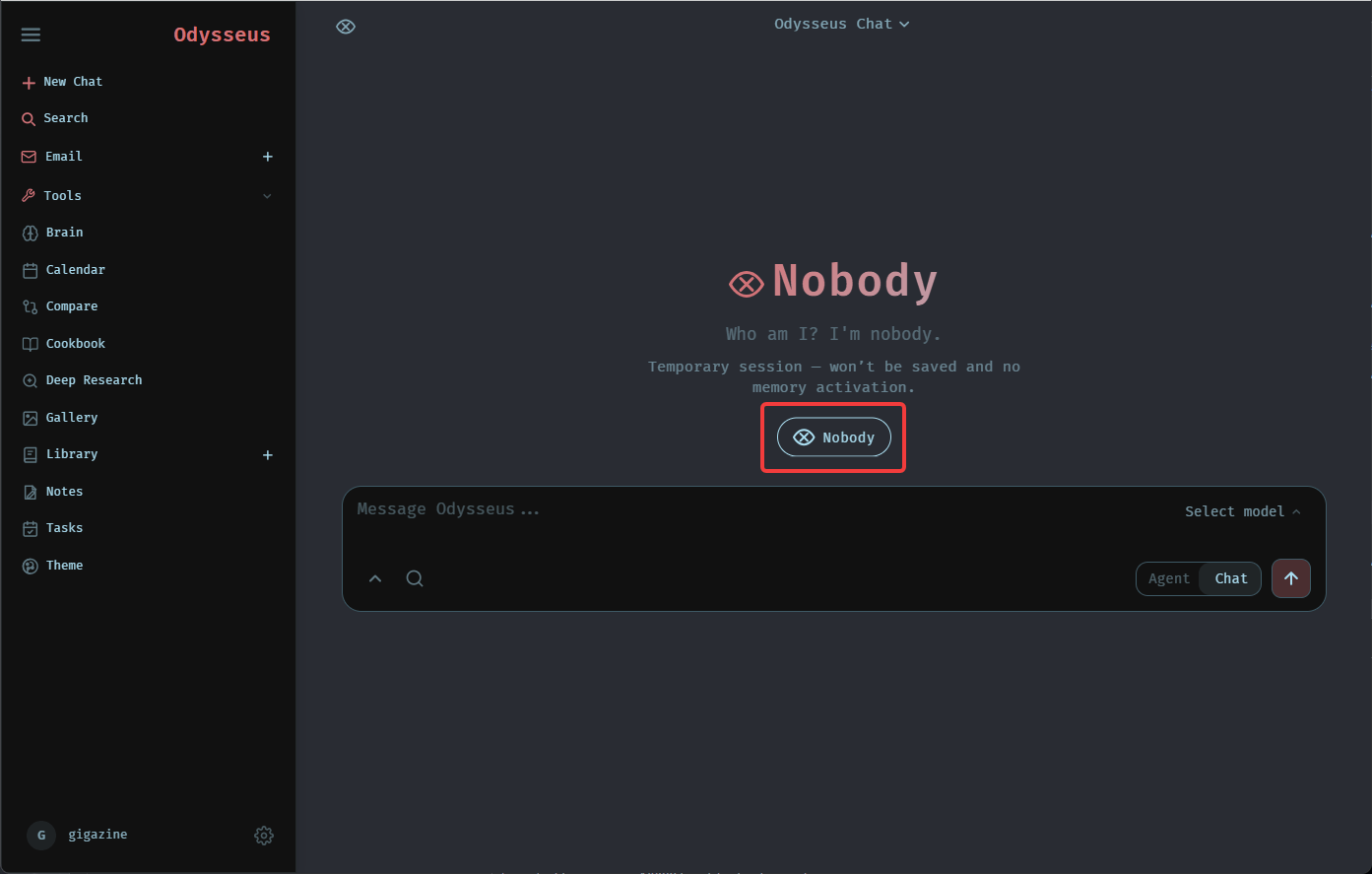
Clicking 'Nobody' located just above the text input area toggles 'Nobody Mode' on and off, which disables memory and history saving.
◆Side Menu
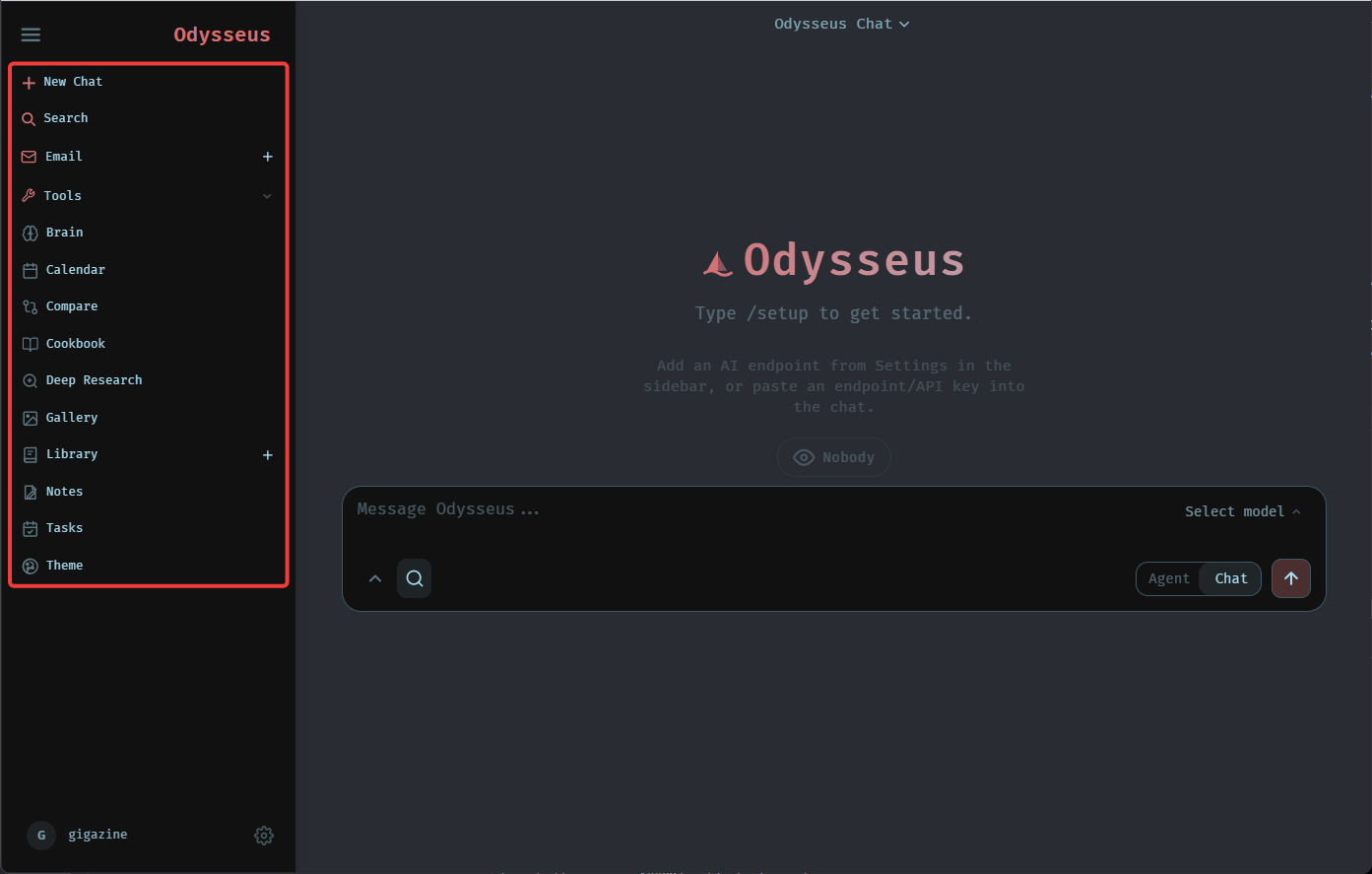
The following functions are available from the side menu on the left side of the main screen.
• New Chat : Start a new chat.
• Search : Web search
• Chats : Chat list
• Email : Mailbox
• Tools : Tools (Toggles the display of the following functions on and off)
Brain : Brain
・Calendar : Calendar
• Compare : Model comparison
Cookbook : Cookbook
• Deep Research
• Gallery : Check the gallery
• Library : Check the library (documentation)
• Notes : Notes (To-Do list)
Tasks : Tasks (schedule)
• Theme : Switch themes
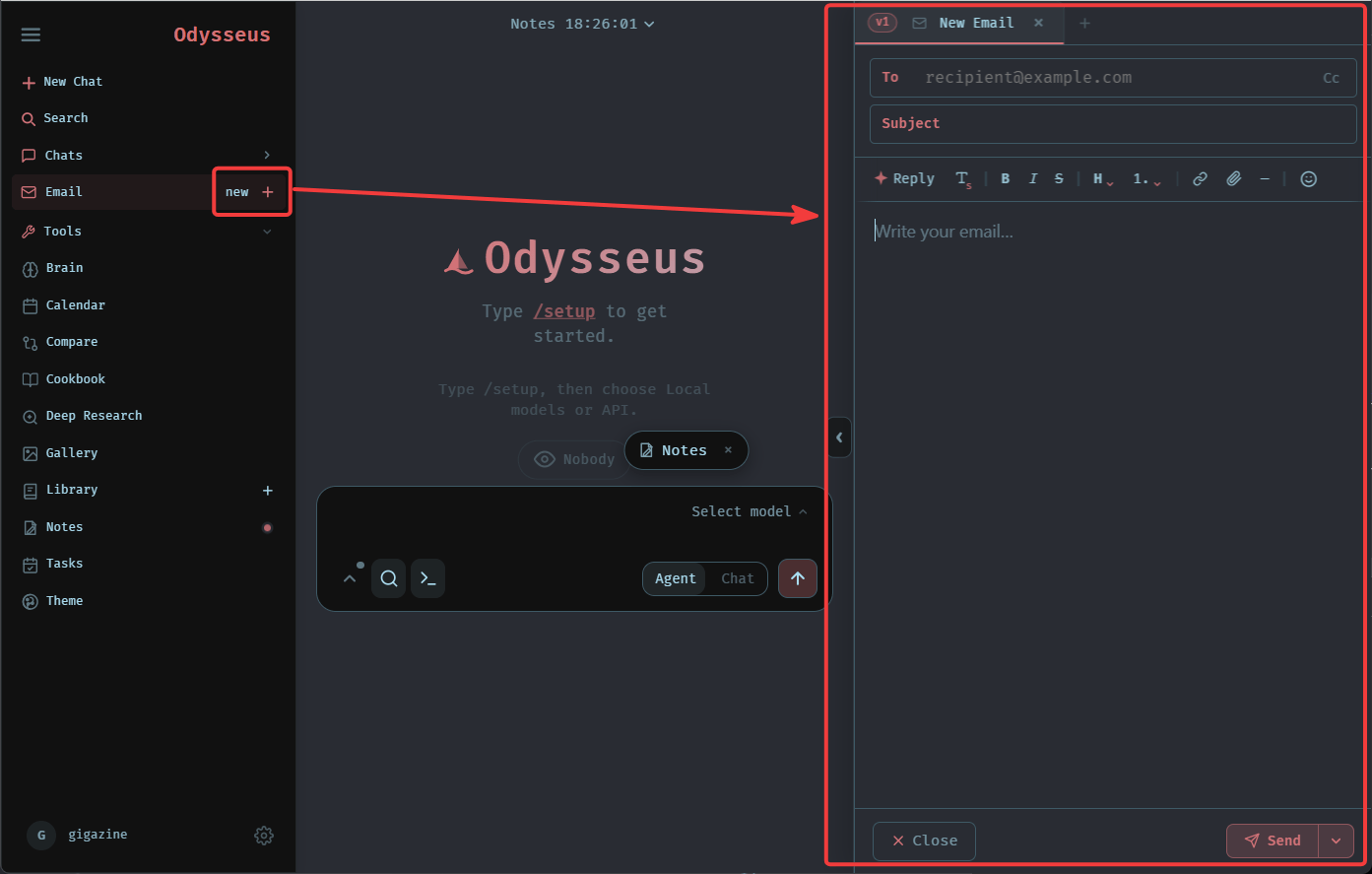
Clicking the '+' to the right of 'Email' will open the email composition screen.
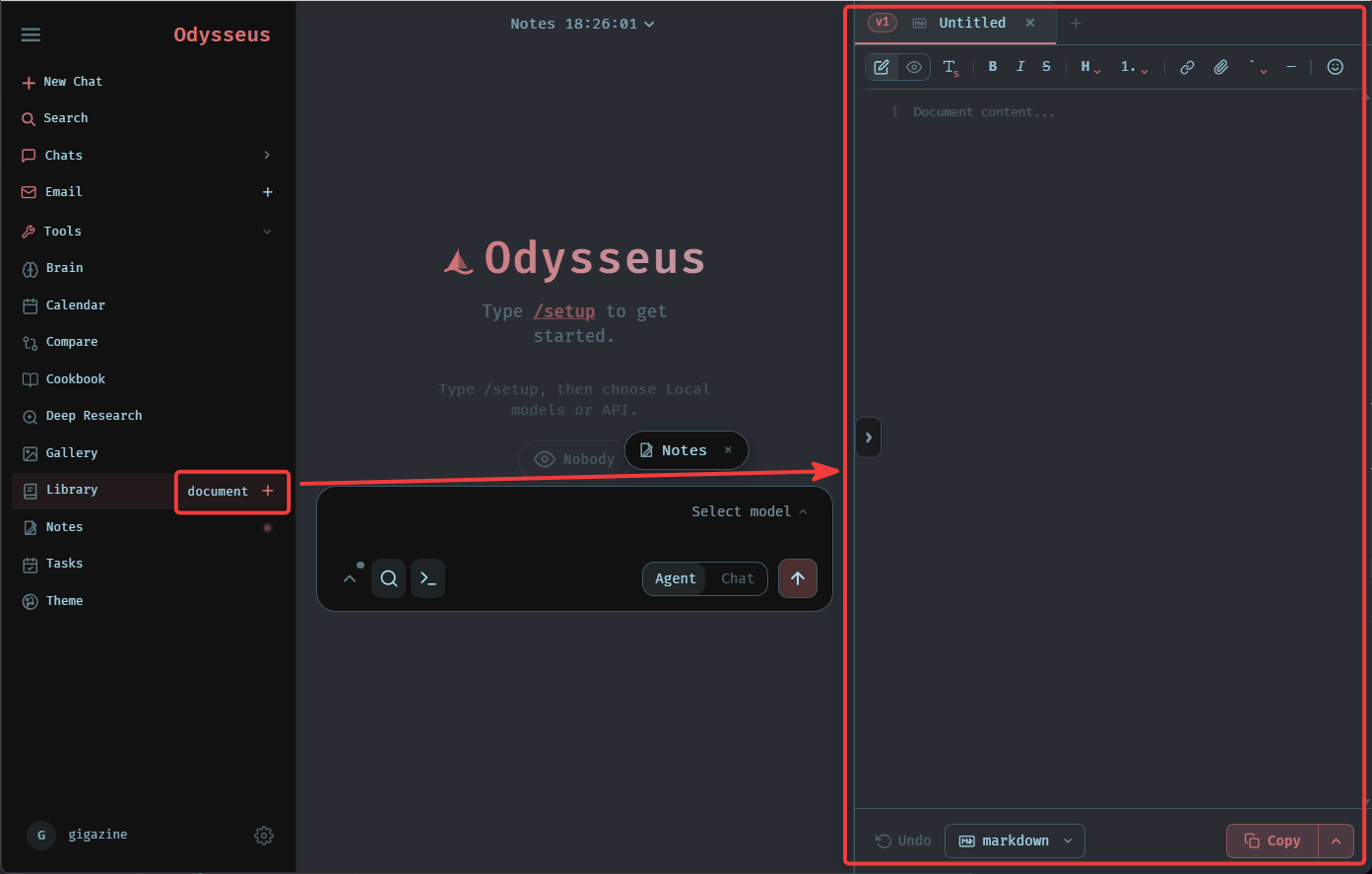
Clicking the '+' to the right of 'Library' opens an editor where you can create and edit documents in formats such as Markdown.
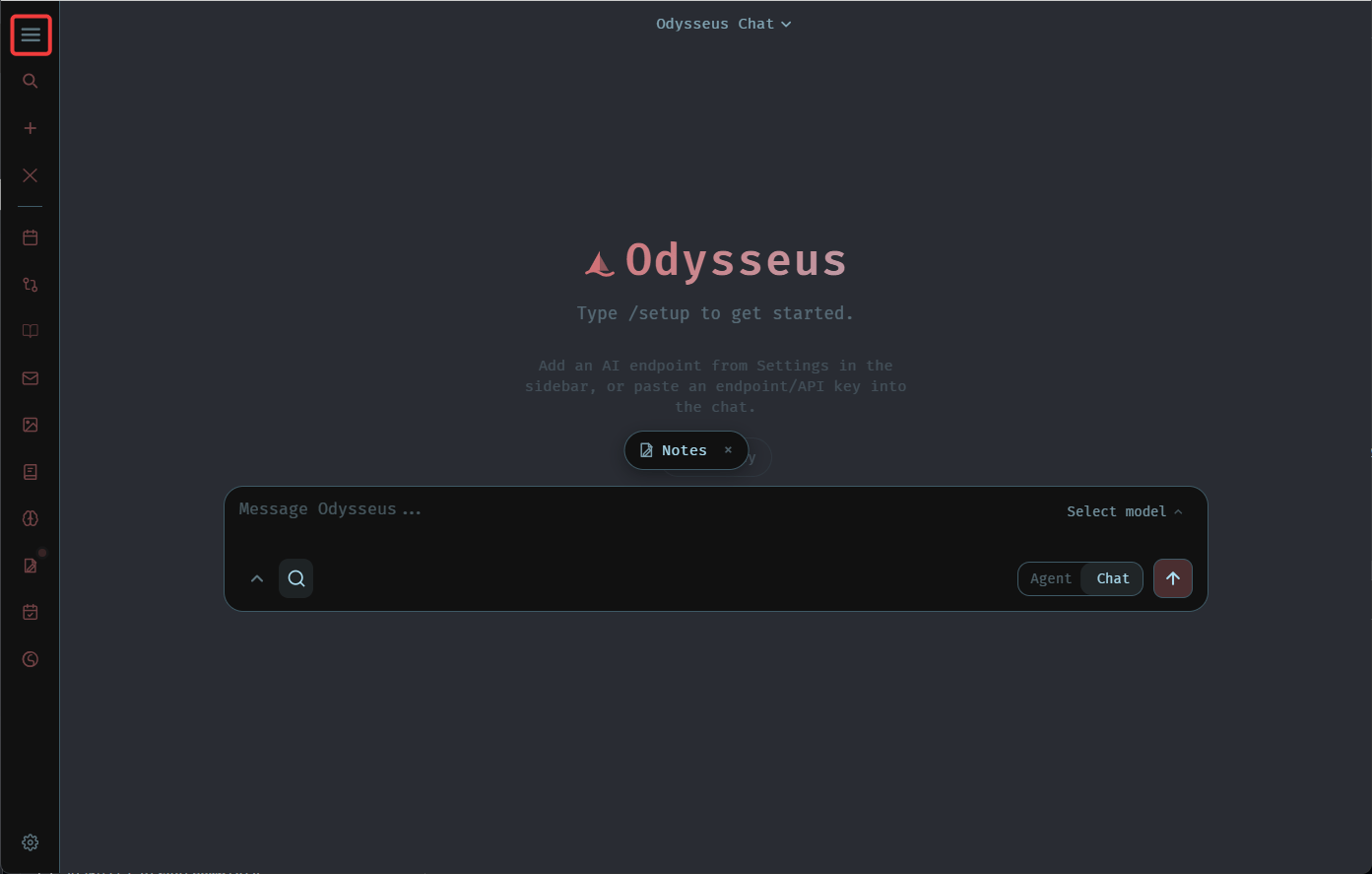
Clicking the hamburger icon in the upper left corner of the side menu will display only icons, saving space.
◆Settings
Clicking the gear icon in the lower right corner of the side menu will bring up a settings screen.
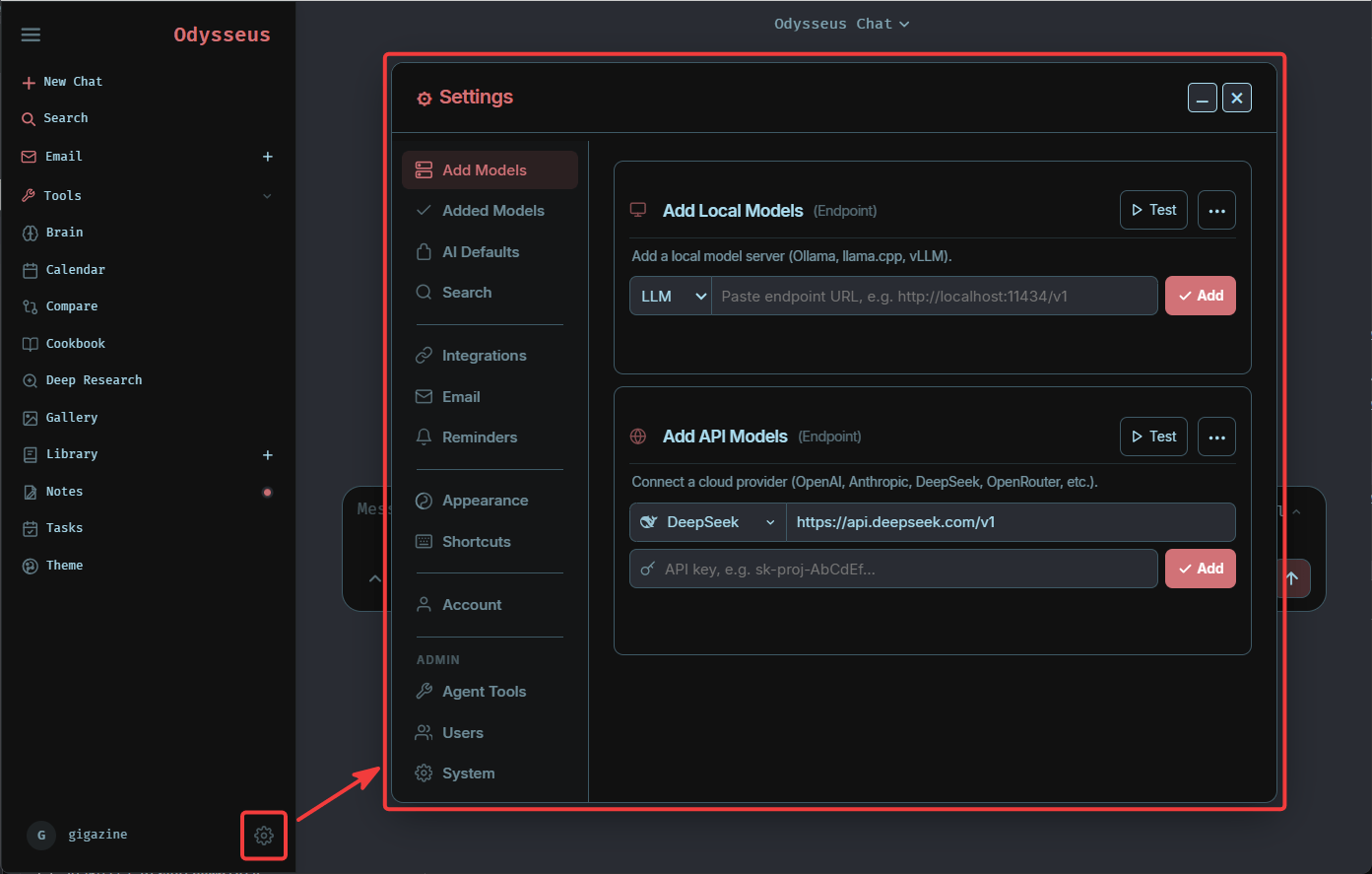
The following items can be configured on the settings screen:
• Add Models : Add a model
- Added Models : Display and delete a list of added models.
• AI Defaults : Defaults for the AI Model
• Search : Web search and deep research
Integrations : Integration of external services
Email : Email
• Reminders : Reminders
・Appearance : Show/Hide
Shortcuts : Shortcut keys
• Account : Account
• Agent Tools : Administrator only - Agent Tools
• Users : Administrator only - User management
• System : Administrator only - System administration (logs, data export, data import, data destruction)
◆Summary
Using Odysseus improves the user experience of your local AI workspace, providing an experience comparable to that of dedicated AI services. If you are considering implementing local AI, you might want to consider implementing Odysseus as well.
Related Posts: