Hister is a free, general-purpose search engine that automatically saves and indexes websites visited in Chrome and Firefox, and maintains its up-to-date status through regular automatic retrieval. It can be self-hosted and configured as an MCP server, enabling AI integration and local file searching.
There are cases where you try to find an article you read several months ago, but the keywords are vague, making it difficult to find the desired page using search engines or browser history. Hister , newly developed by the creator of the meta search engine
Hister - Your Own Search Engine
https://hister.org/
asciimoo/hister: Your own search engine
◆How to use and operate Hister
After starting the Hister server and installing the Chrome or Firefox extension , simply browsing websites in your browser will automatically send the following information to the server.
• The complete URL of the page
Page title
• Full text of the page
• Favicon
• Timestamp of the visit
- Entire HTML document
If the page content has been updated when you view the same page, the updated content will be sent to the server.
◆Web applications and features
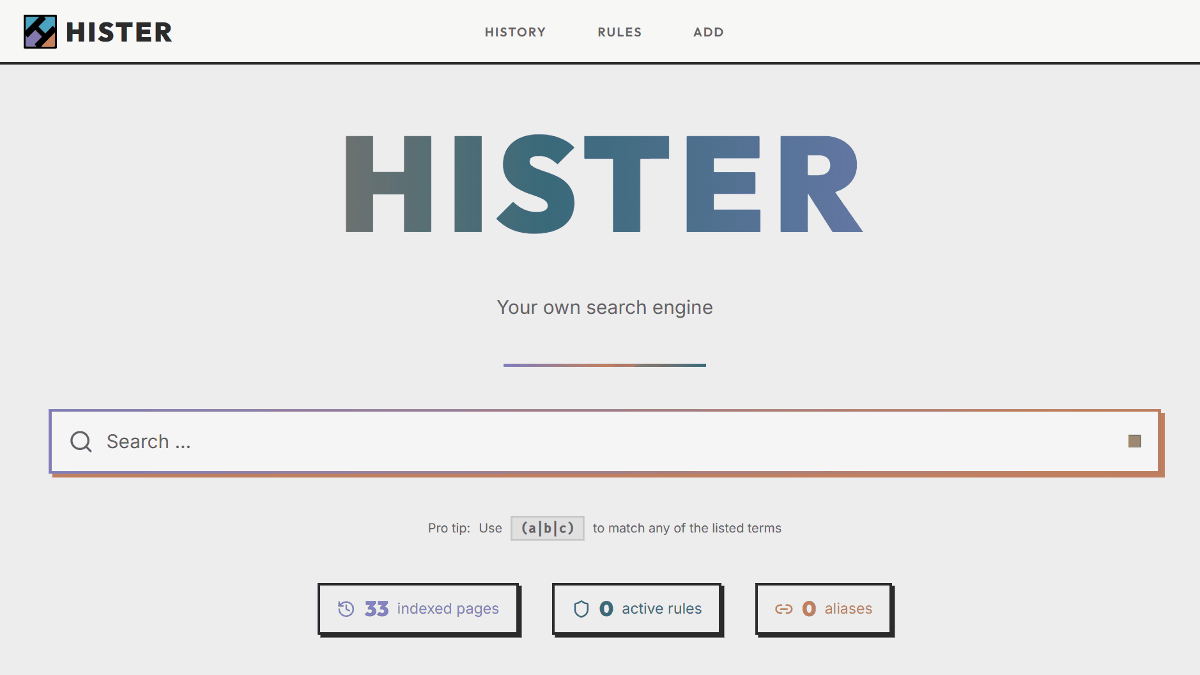
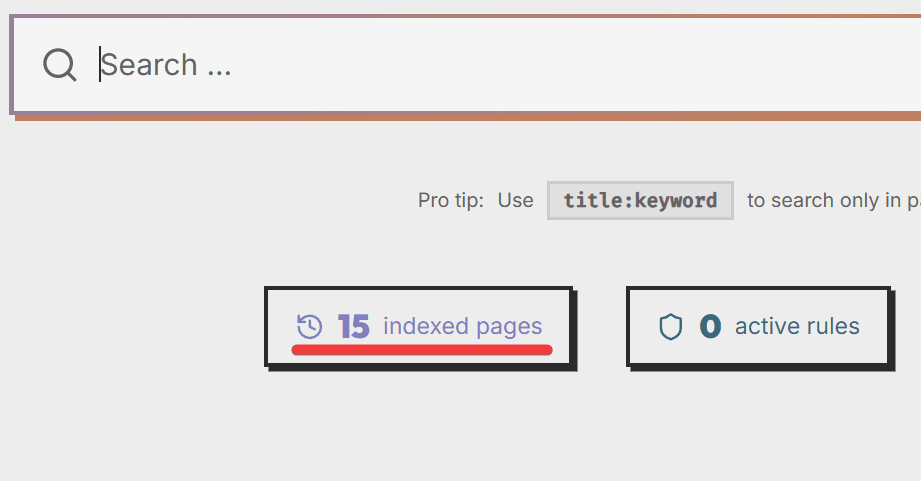
Accessing 'http://127.0.0.1:4433' in your browser will display the Hister search page. Entering text in the 'Search' field will...

You will be redirected to the search page, and the results will be filtered in real time based on your input.
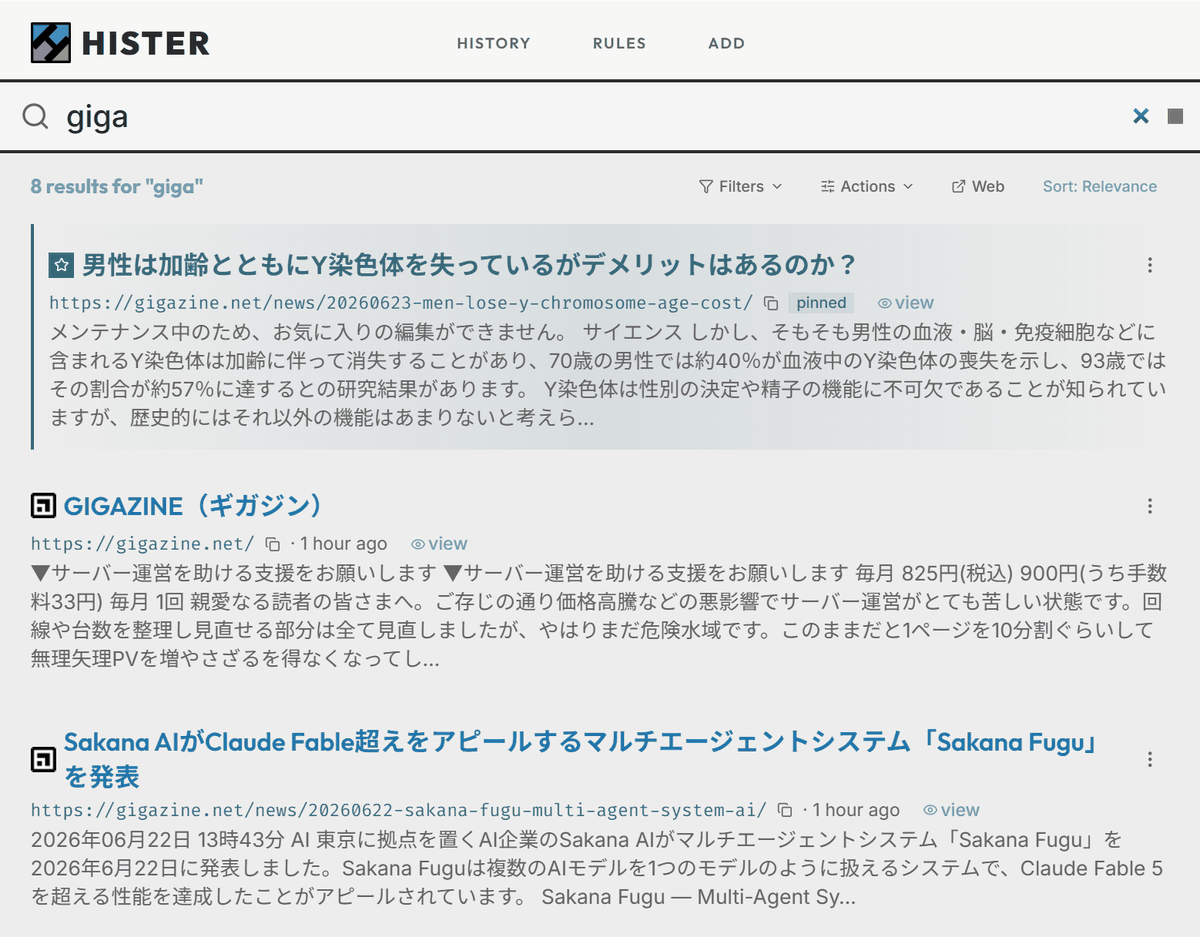
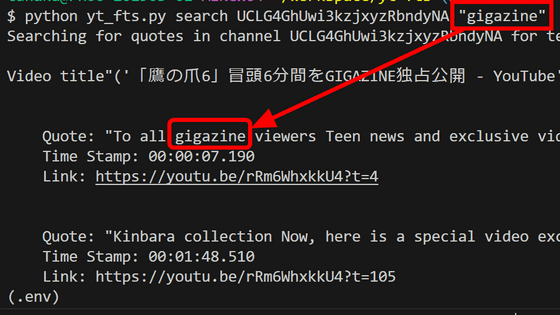
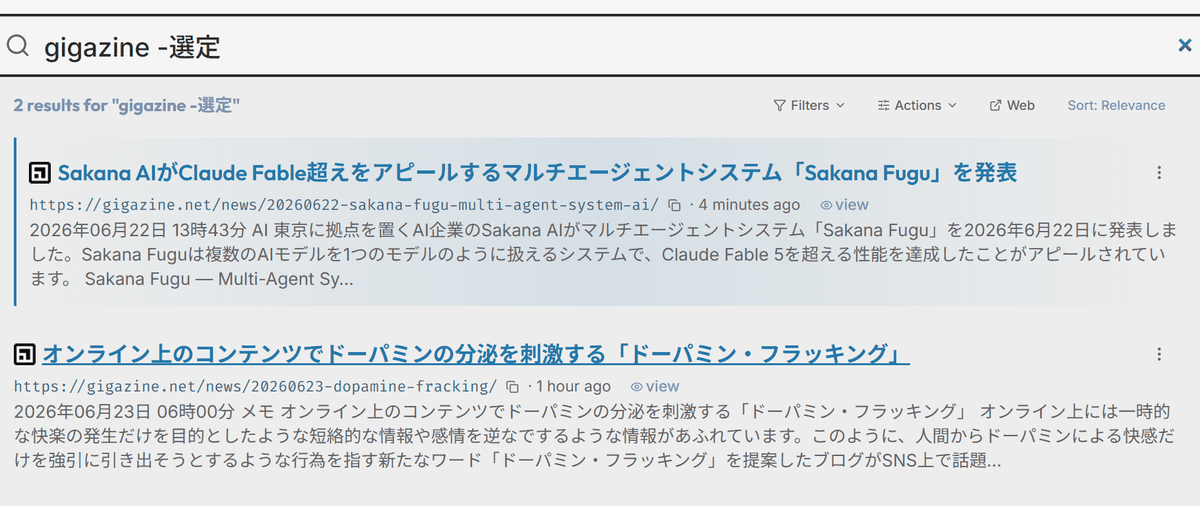
The search bar allows you to perform AND searches that include multiple words, specify words to exclude, and limit your search to specific domains.

However, when I set the exclusion settings in Japanese, there were cases where it worked correctly and cases where it excluded more than necessary.
The server indexes the data of the pages it receives, providing the following functionality during searches:
• Relevance Ranking: Pages where the search term is included in the title and appears multiple times within the content will be ranked higher than pages where the search term is only briefly mentioned once.
Keyword aliases: For example, if you set 'go' as an alias for both 'go' and 'golang', when you search for 'go [string]', you will find pages that refer to it as 'Golang [string]'.
• Prioritized Search Results: This feature automatically learns which pages you've opened for specific searches and prioritizes those pages for future searches. You can also manually pin results to always appear at the top of specific search queries.
- Duplicate detection: If you visit the same page multiple times, Hister will automatically update the existing entry instead of creating a duplicate.
◆ Command line tools
Retrieving browser history and collecting local files are done using command-line tools. The command to retrieve browser history is as follows. This takes time because it actually accesses and retrieves all past history.
 # Please replace the file name with the name you used when you downloaded it.
 # Scan all automatically installed browsers
 hister_0.15.0_windows_amd64.exe import-browser

 # When specifying a browser
 hister_0.15.0_windows_amd64.exe import chrome 'C:\Users\[username]\AppData\Local\Google\Chrome\User Data\Default\History'
For local files, create a config.yml file.
hister_0.15.0_windows_amd64.exe create-config 'config.yml'
Register folder names and file extensions in the created config.yml file.
 # Find the indexer section and register the path and file extension in directories:
 indexer:
 detect_languages: true
 Highlights:
 - path: 'C:\Users\[User]\Documents'
 filetypes: ['txt', 'md', 'pdf', 'docx']
 excludes: ['*secret*', '*.tmp']
 max_file_size_mb: 1
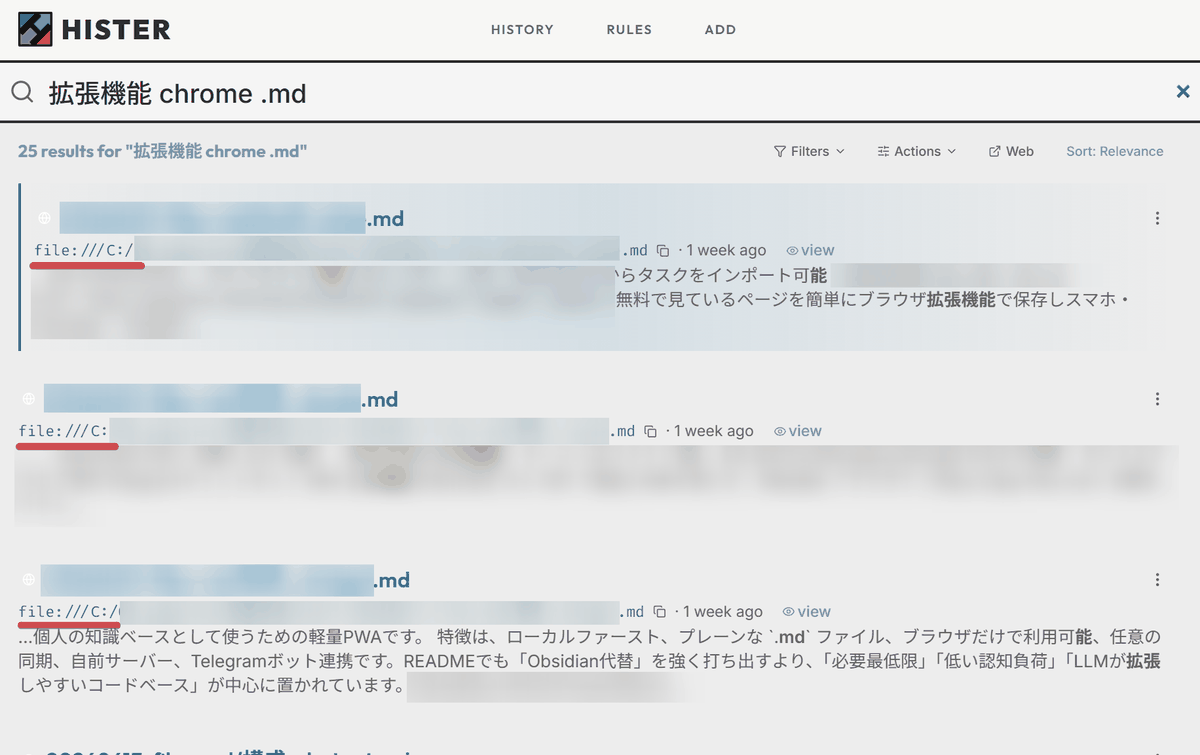
When you start the Hister server, it automatically accesses the specified folder, collects data, and automatically detects and adds/updates any files that have been added or updated in that folder.
hister_0.15.0_windows_amd64.exe listen
When I searched by the contents of a file, a list of files was displayed in the search results.
◆Semantic Search
If you have an environment where Ollama or OpenAI- compatible Embedding APIs are available, you can enable semantic_search in config.yml to use it.
 semantic_search:
 # Enable
 enable: true
 embedding_endpoint: http://localhost:11434/v1/embeddings
 # Enter the model
 embedding_model: qwen3-embedding:8b
 api_key: ''
 headers: {}
 # If you change the model, adjust the dimensions accordingly.
 Dimensions: 4096
 max_context_length: 4096
 chunk_overlap: 128
 query_prefix: 'query: '
 document_prefix: ''
 similarity_threshold: 0.1
 result_limit: 50
 semantic_weight: 0.4
When you search, the similarity to the word you entered is displayed as a numerical value. In the case of Japanese, it tends to count if even a part of the characters matches after being broken down.

◆MCP Server
You can search Hister's index from MCP-compatible clients such as
claude mcp add --transport http hister http://127.0.0.1:4433/mcp --header 'Origin: hister://'
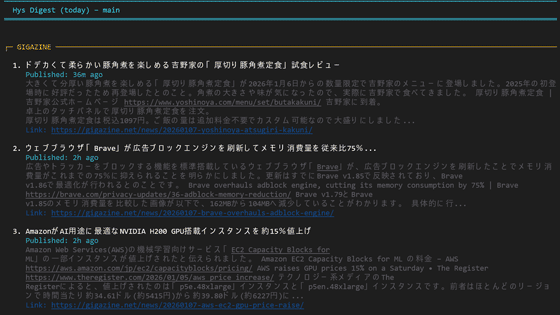
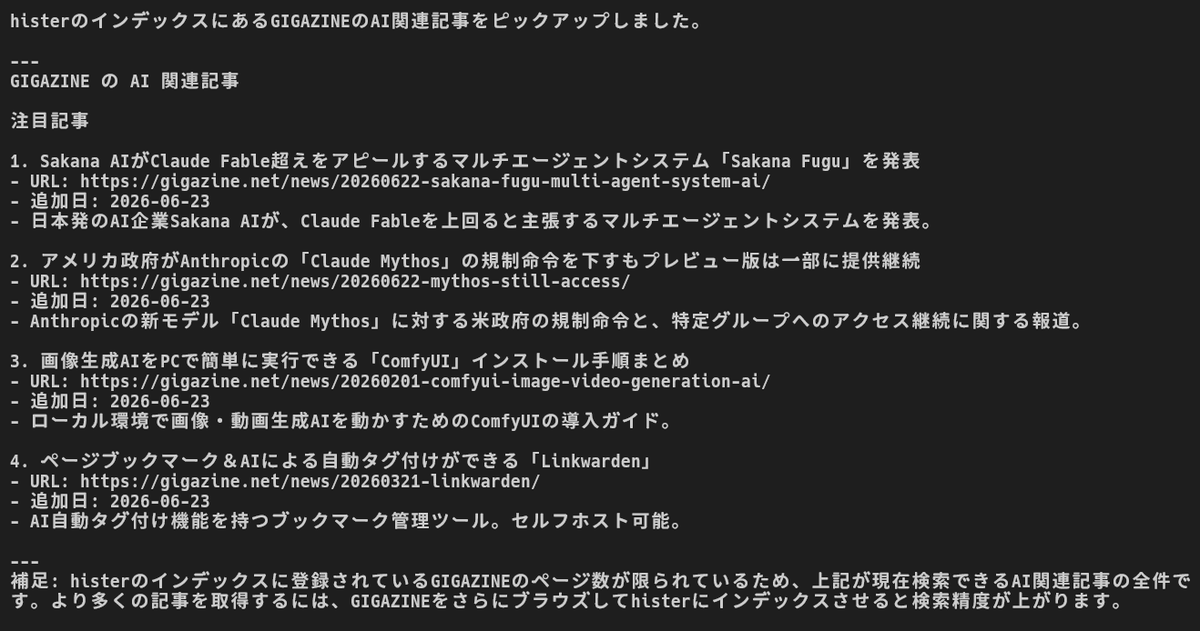
When I launched Claude Code and entered 'Use hister to pick out articles about AI from GIGAZINE articles,' the relevant articles were picked from the indexed data. It can also be used as'RAG,' which provides accuracy, knowledge update speed, and answer transparency to large-scale language models .
◆ How the author uses it
The author himself uses it in the following workflow.
- Set a hotkey to open Hister immediately.
First, search using Hister.
- If the results are sparse, pass them on to an external search.
Furthermore, we perform maintenance such as setting
◆Summary
While semantic search in Japanese is limited to simple character breakdown and therefore not entirely sufficient for Japanese use, the ability to save data locally simply by browsing websites makes it well worth using.
◆How to set up a Hister server
This time, we'll build it on Windows 11. Download the latest executable file from the repository releases .
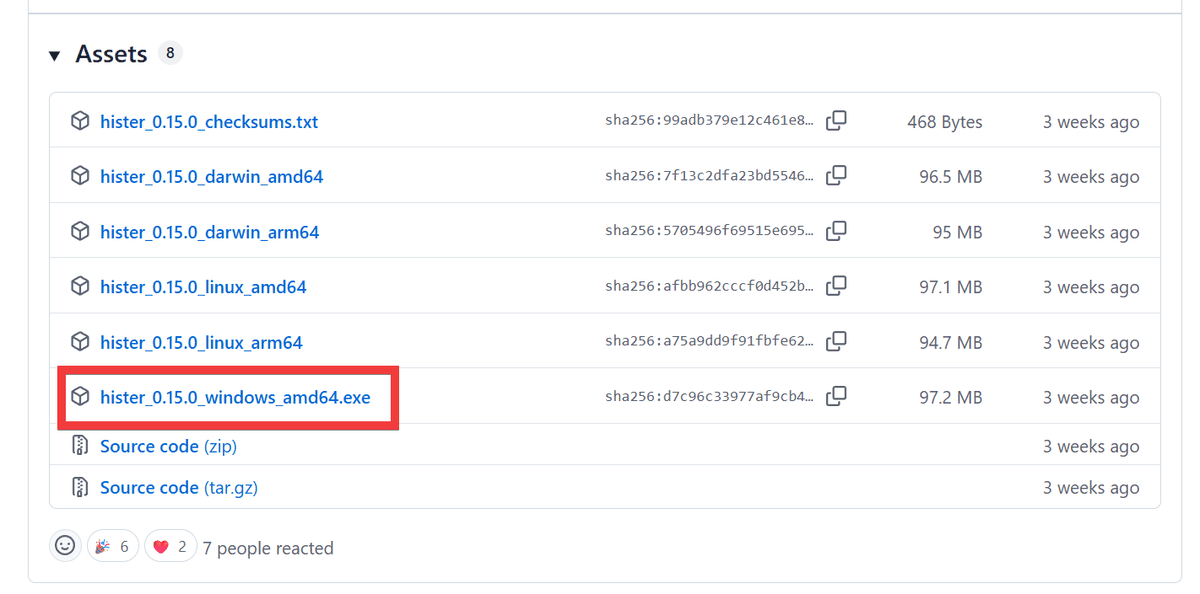
Since it requires command-line startup, open Command Prompt or PowerShell and execute it with the 'listen' option as an argument.
hister_0.15.0_windows_amd64.exe listen
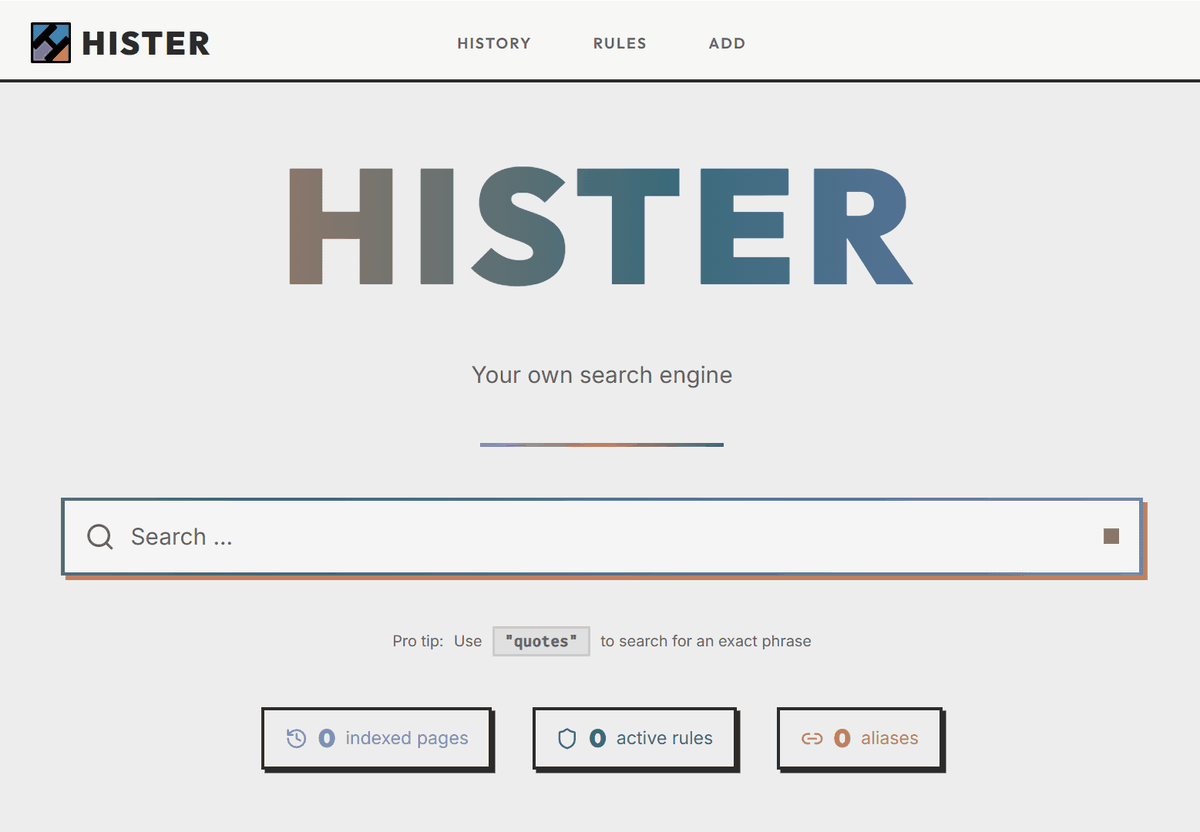
Once Hister starts, access 'http://127.0.0.1:4433' in your browser. If the search screen appears, the installation is complete.
◆Install the Chrome extension
Access the following link.
Hister - Chrome Web Store
Click 'Add to Chrome'.
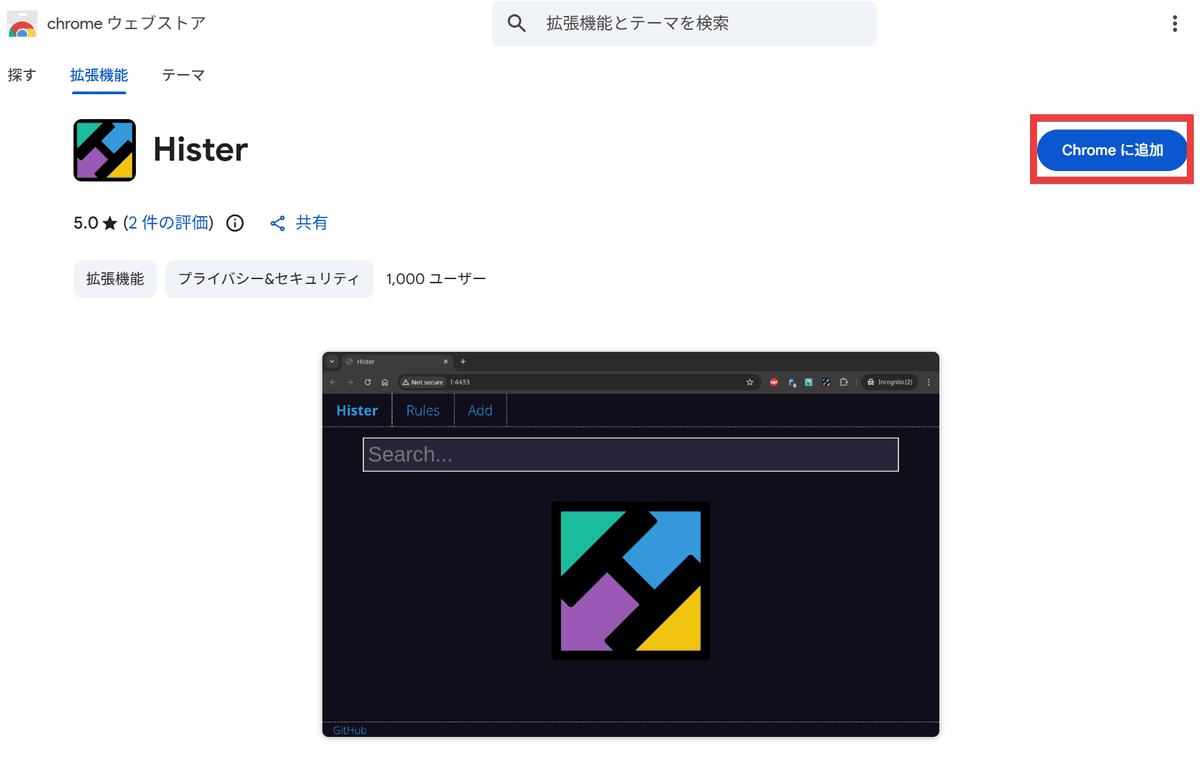
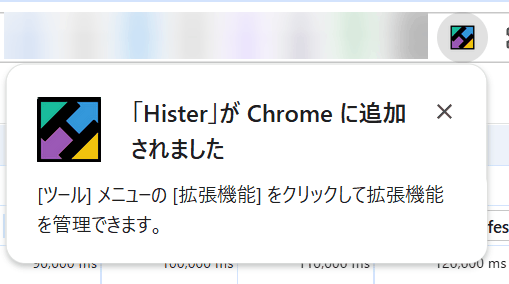
A confirmation dialog will appear, so click 'Add extension'.

Once the installation is complete, data will be automatically sent to the Hister server simply by browsing pages.
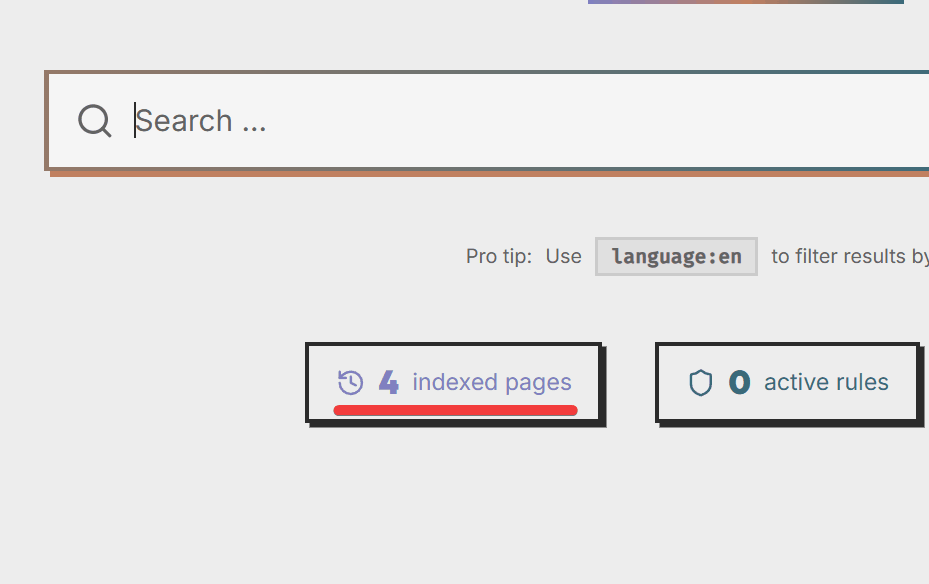
After viewing a few pages, access 'http://127.0.0.1:4433' and if the number of 'indexed pages' has increased, it is working correctly.
◆Install the Firefox extension
Access the following link.
Hister – Get this Extension for Firefox
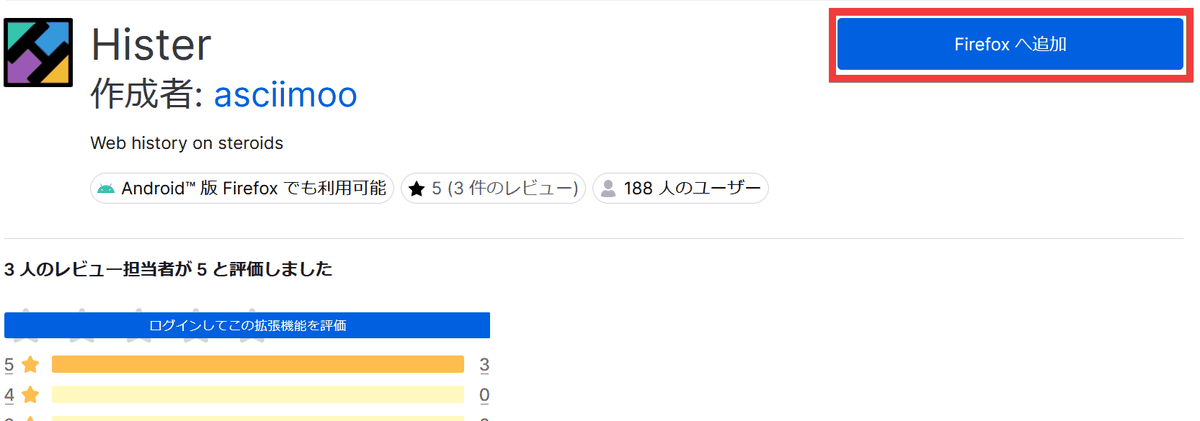
Click 'Add to Firefox'.
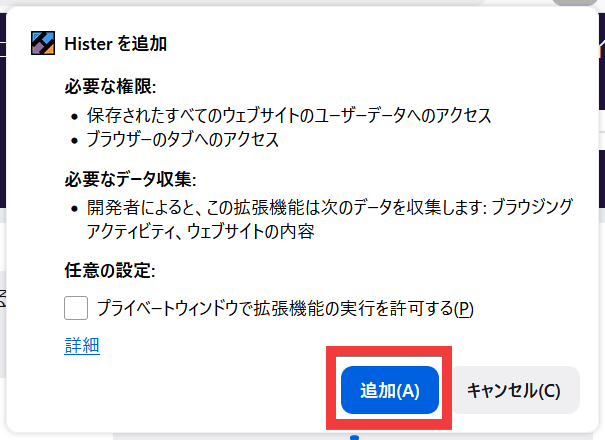
A confirmation dialog box will appear; click 'Add'.
Once the installation is complete, data will be automatically sent to the Hister server simply by browsing pages.

After viewing a few pages, access 'http://127.0.0.1:4433' and if the number of 'indexed pages' has increased, it is working correctly.
Related Posts: