'Karakeep' is a free app that lets you save links, notes, images, videos, and PDFs to read later on your smartphone or other devices. It's open source and self-hostable.
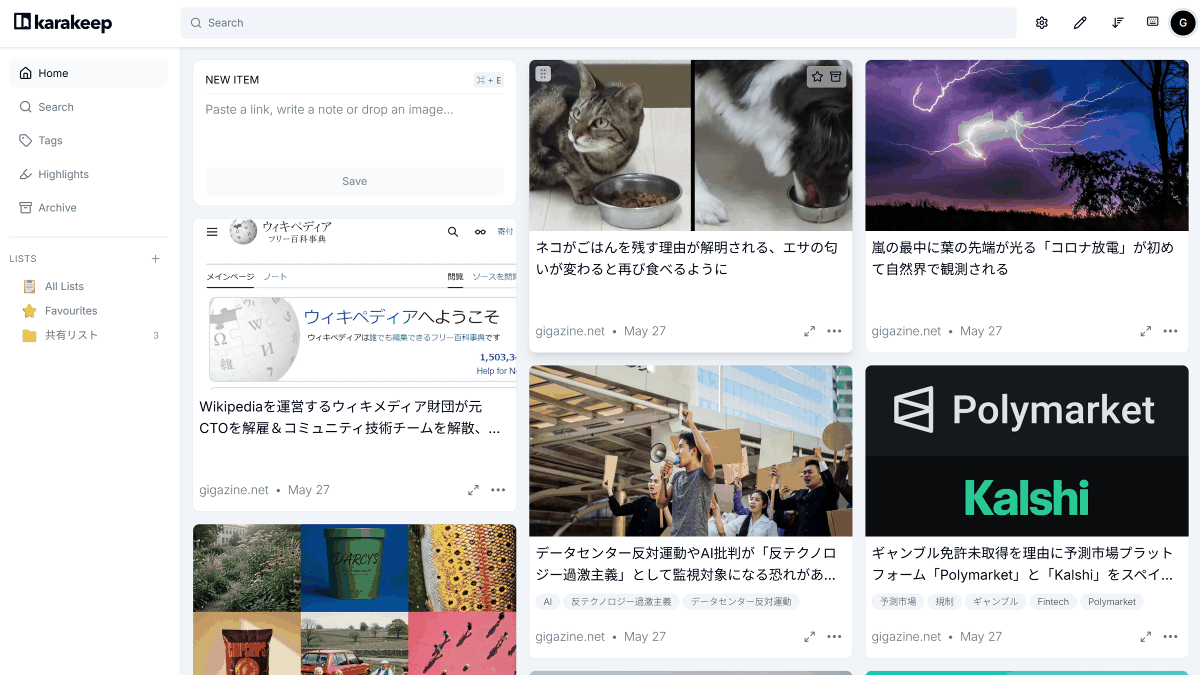
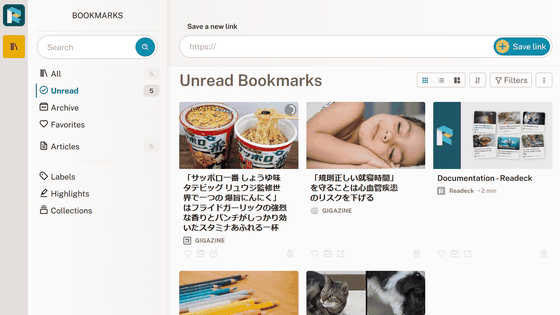
Browser bookmarks are convenient, but as the number of saved items increases, categorization and searching become difficult. Karakeep, a self-hosted app that saves links, notes, images, videos, and PDFs together and makes them easier to find later with full-text search and AI tagging , is available as open source.
Karakeep - The Bookmark Everything App | Save, Organize & Tag with AI
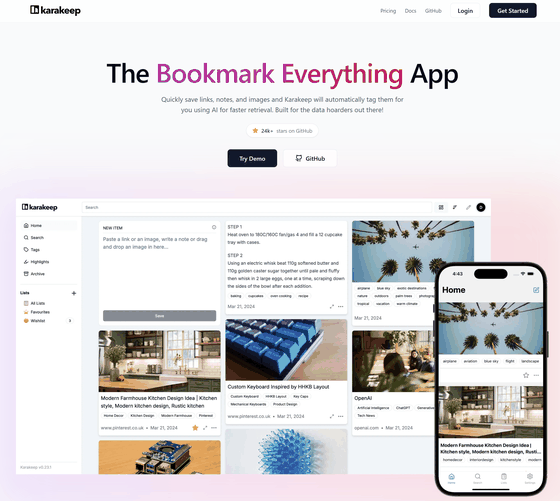
karakeep-app/karakeep: A self-hostable bookmark-everything app (links, notes and images) with AI-based automatic tagging and full text search
◆List of items that can be saved in Karakeep
- Bookmark and save content via links
• Notes
· image
- Videos can only be retrieved via links from video sites such as YouTube , and local files can only be registered via the API.
◆ How to add items to Karakeep
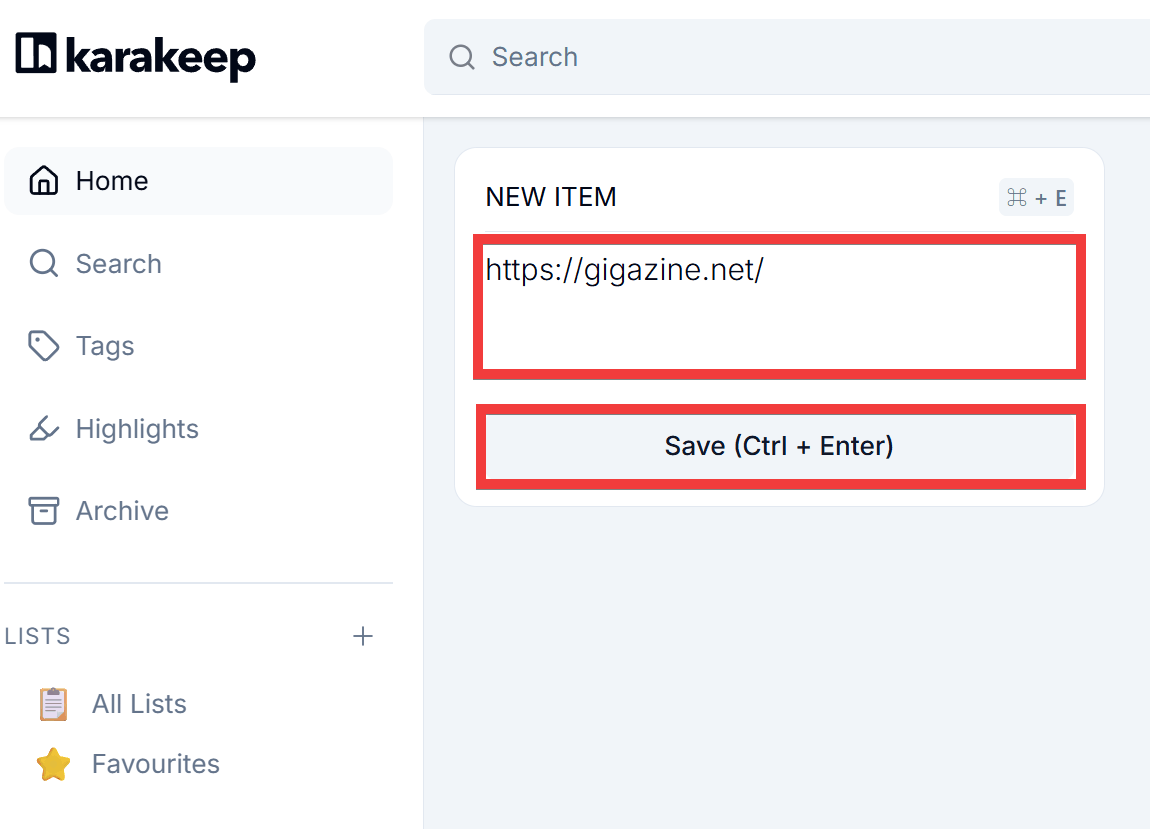
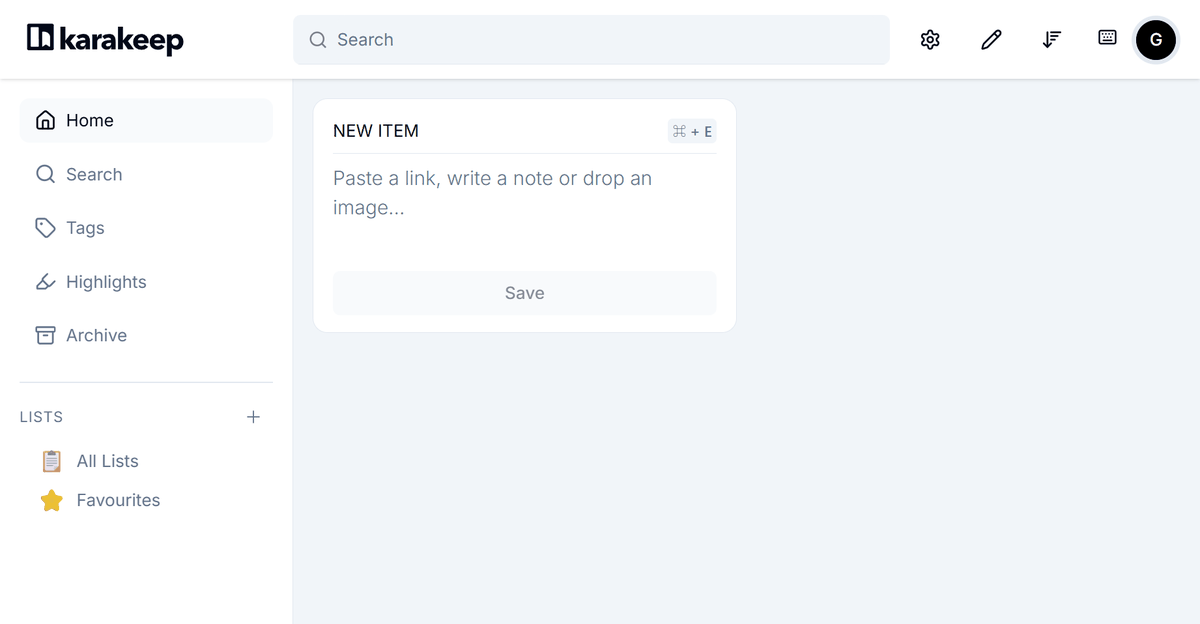
Enter the link or memo in the 'NEW ITEM' form on the home screen and click the 'Save' button.
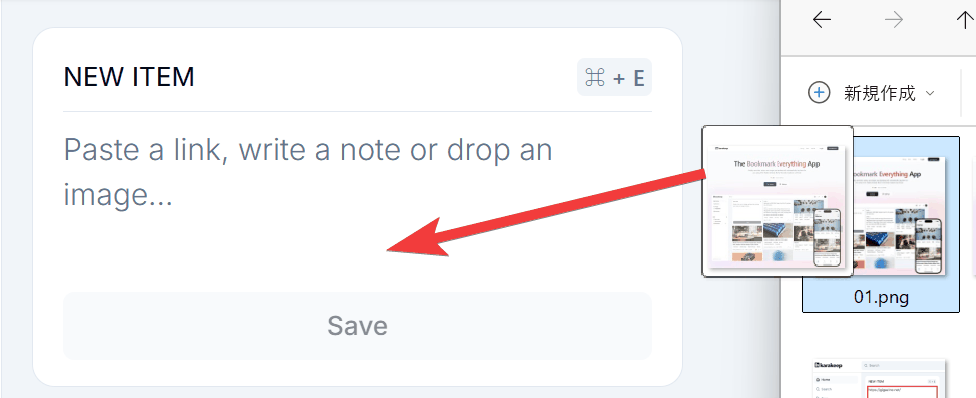
Additionally, you can register by directly dragging and dropping images or PDFs.
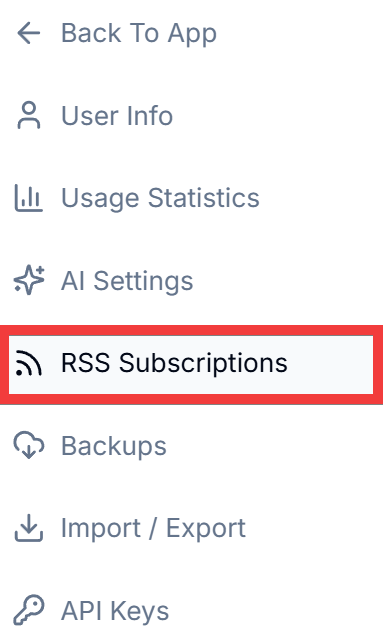
You can also automatically add articles by subscribing to RSS feeds. Click 'RSS Subscriptions' in the settings menu.
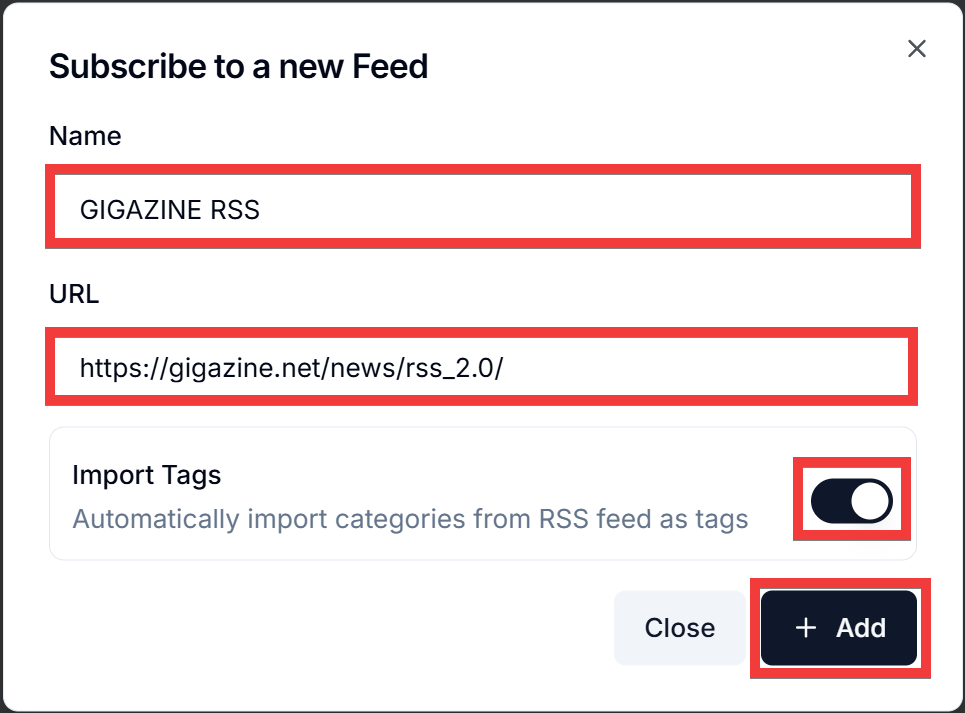
In the registration form, enter a name of your choice in 'Name,' enter the URL of the RSS feed you want to subscribe to in 'URL,' turn 'Import Tags' to 'On' to import tags set in the RSS feed, and click 'Add.'
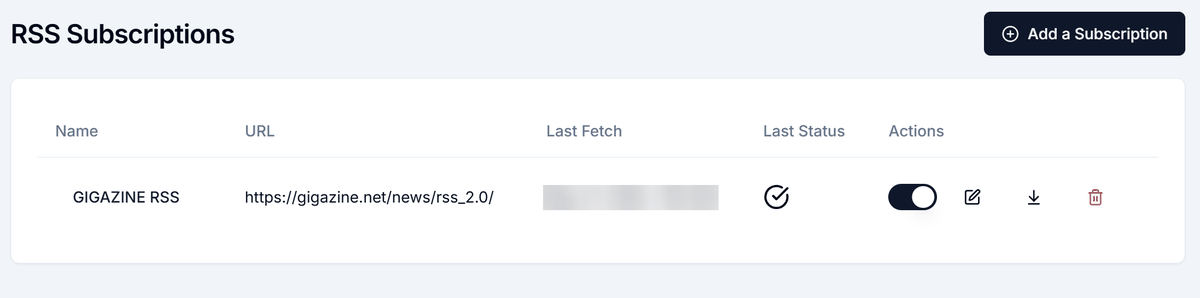
The RSS feed is subscribed to and new items are automatically retrieved every hour.
Furthermore, registration is possible via
◆Incremental search of saved content
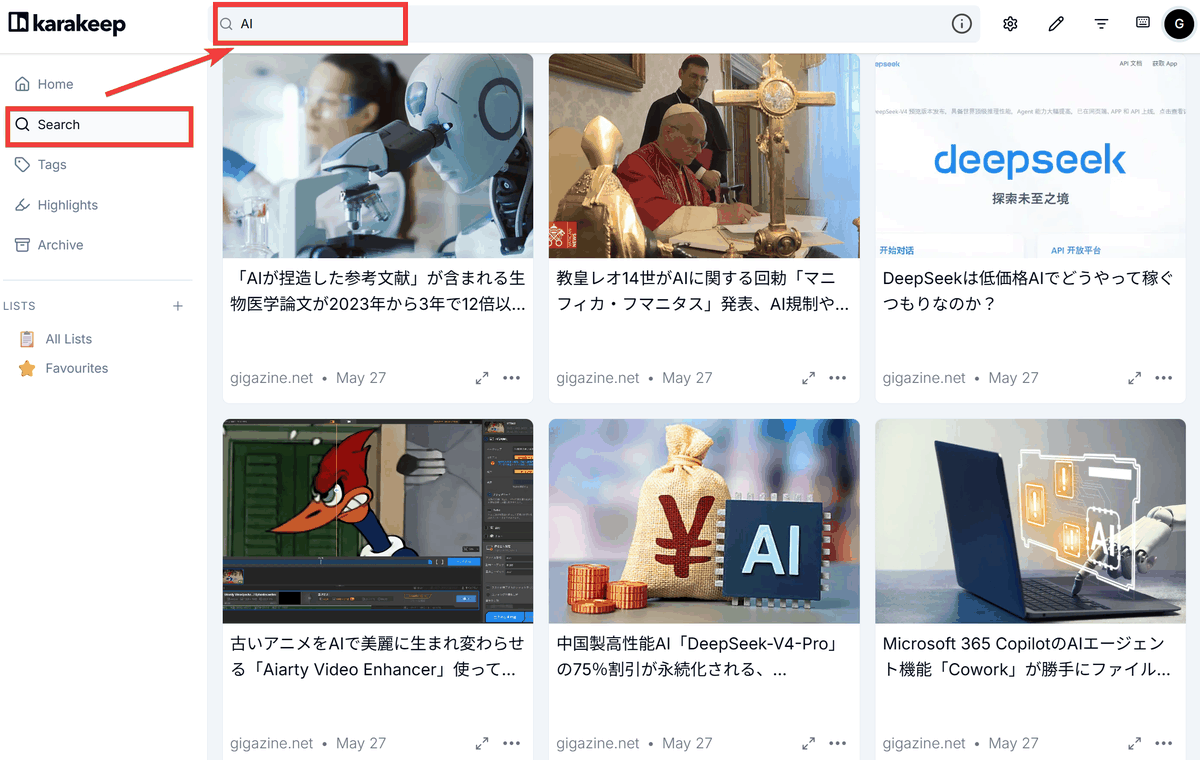
By selecting 'Search' from the menu, you can go to the search page, and as you type into the input form, the suggestions will be narrowed down, making it easy to find the item you're looking for.
◆ AI-powered tagging
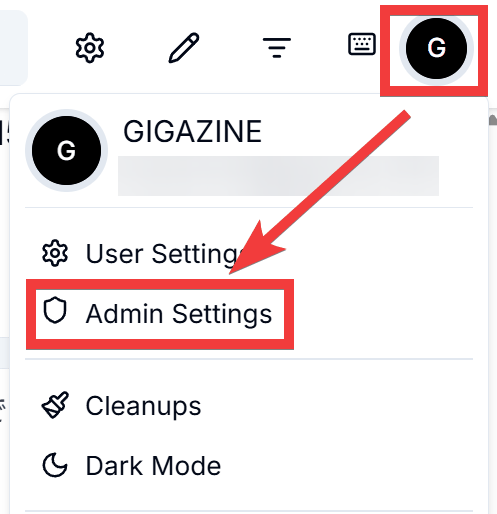
It is possible to automatically tag items. Click the 'Profile' icon, and then click 'Admin Settings' from the menu that appears.
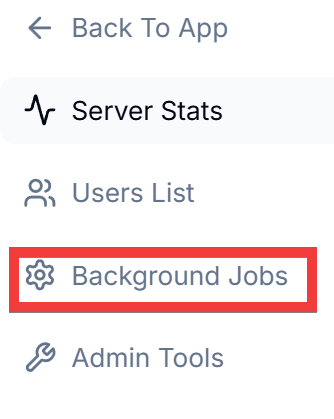
Click 'Background Jobs' from the 'Admin' menu.
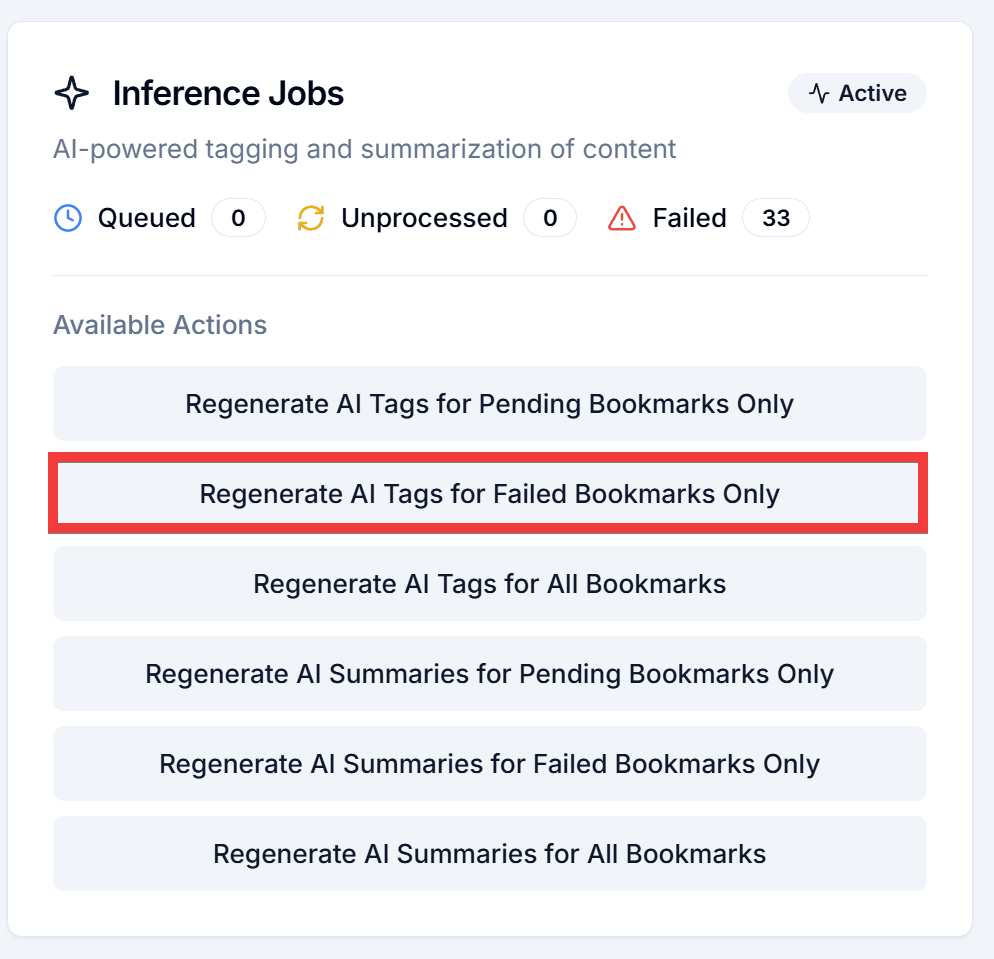
This time, click 'Regenerate AI Tags for Failed Bookmarks Only' to rebuild only the items that failed to tag due to errors.
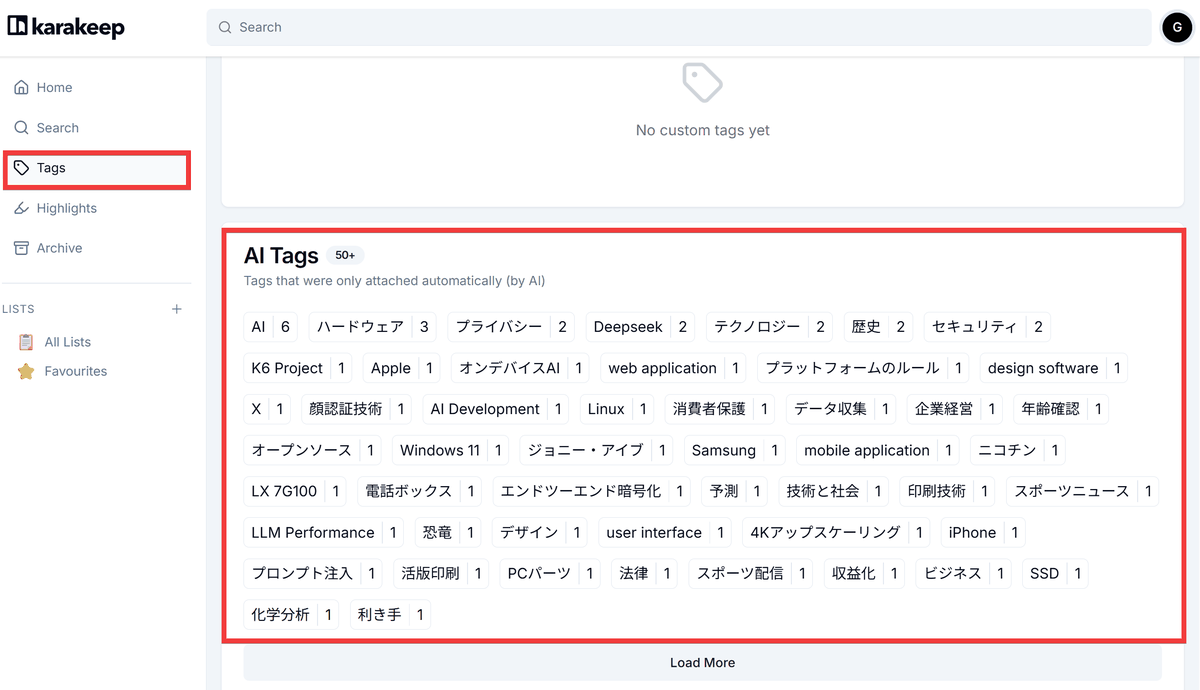
After waiting a while, return to the home screen and click 'Tags' from the menu. A list of tags automatically assigned by the AI will be displayed as 'AI Tags'.
◆Highlight function
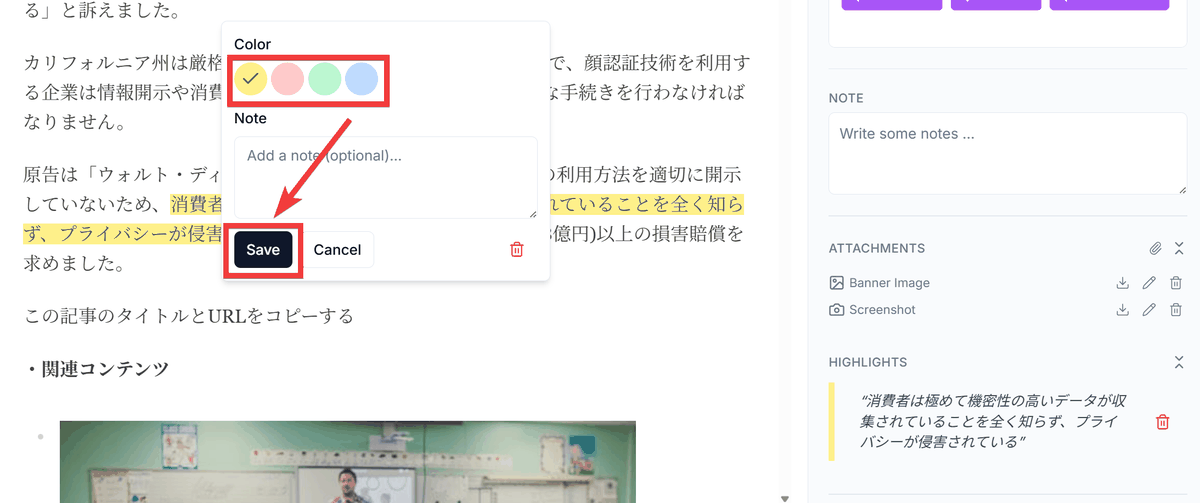
You can record highlights by selecting any area on the preview screen, right-clicking, choosing a color, and then clicking 'Save.'
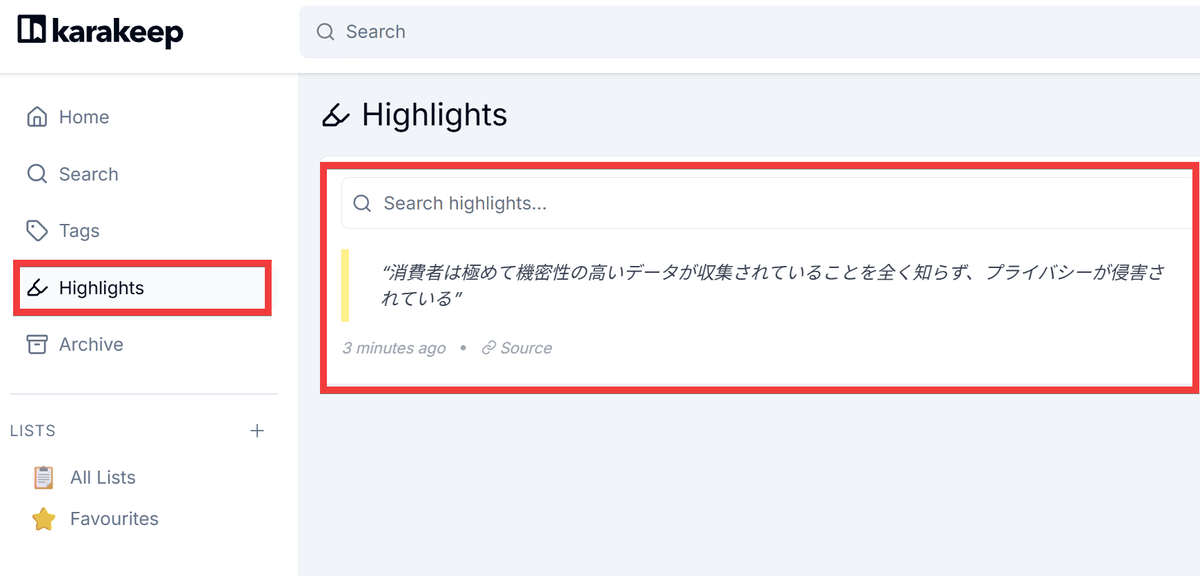
Clicking 'Highlights' on the home screen will display a list of your recorded highlights.
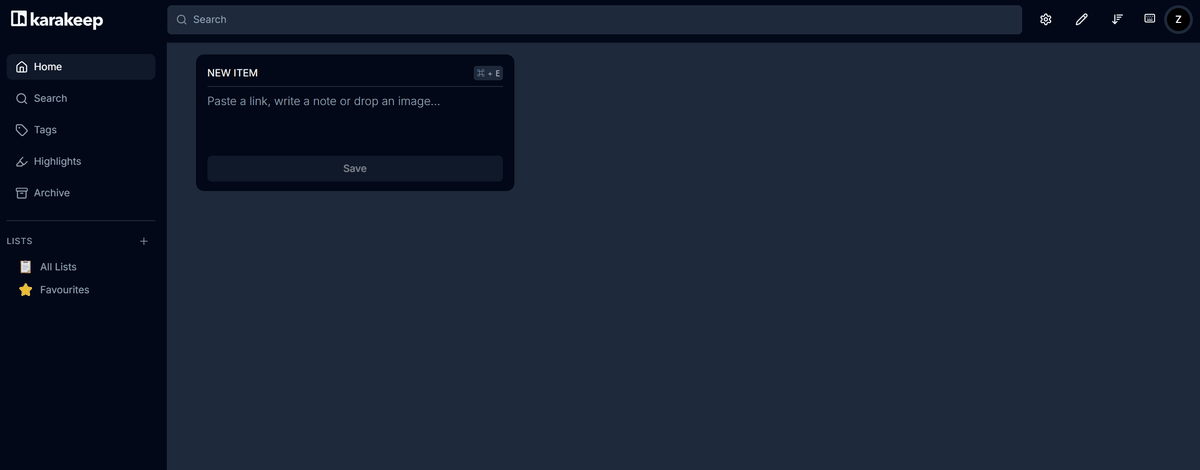
◆Multiple accounts
Multiple accounts are supported, and items are managed independently for each account. Newly created accounts will start with no items.
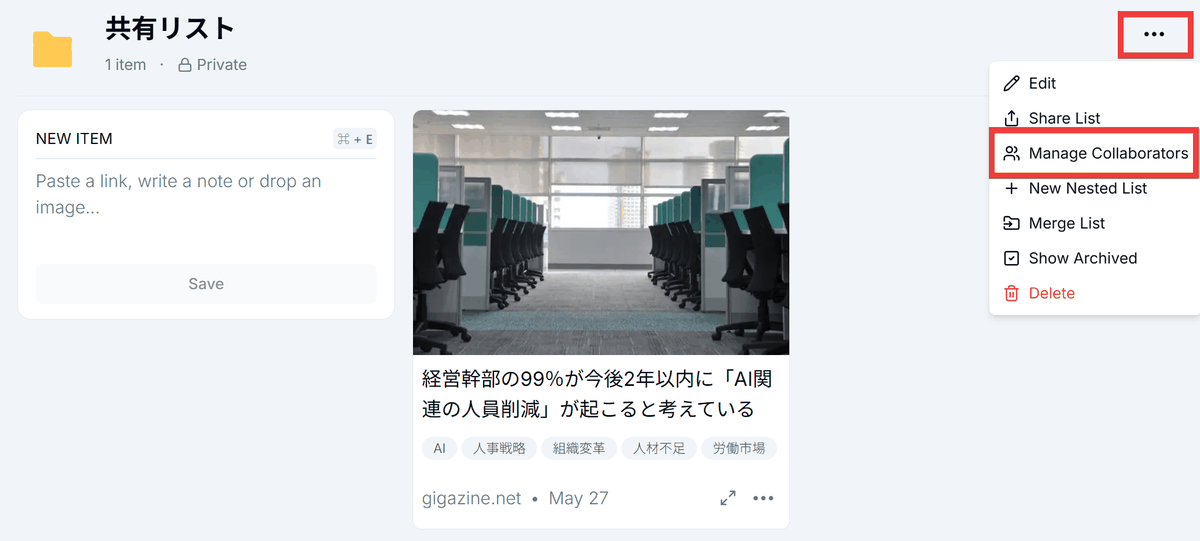
◆ Sharing the list
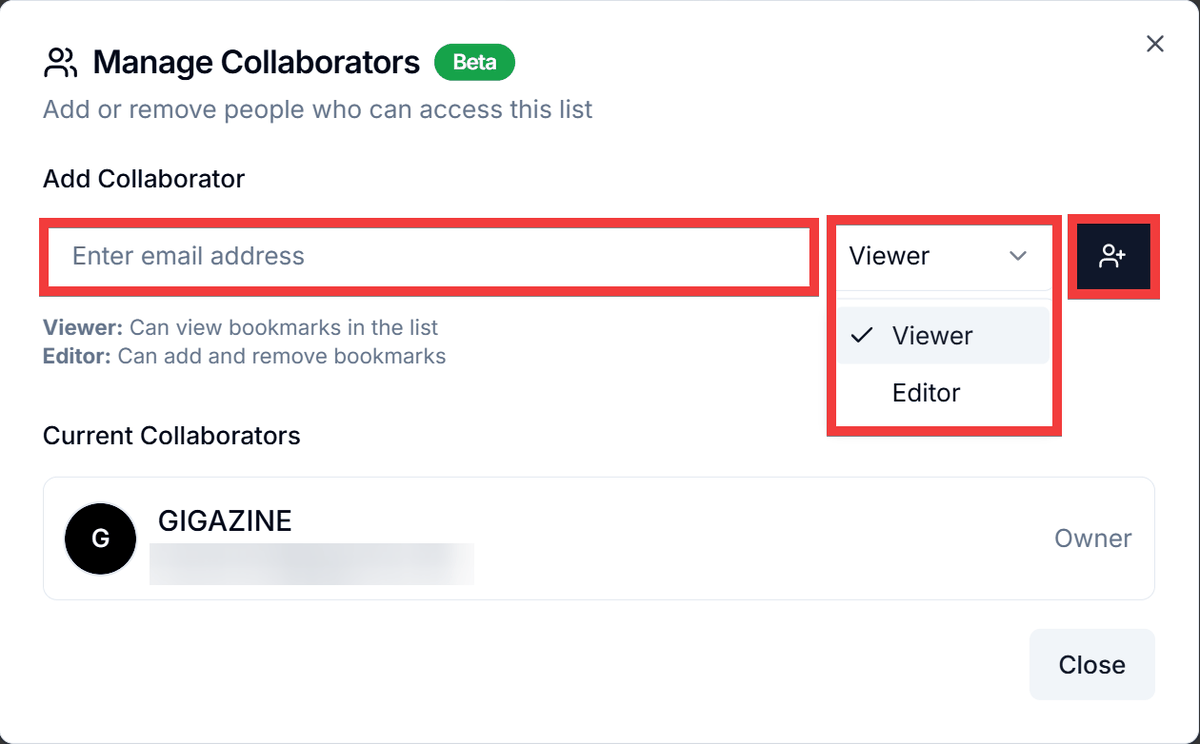
You can share items with other accounts by sharing a list. Click the 'three-dot menu' icon in the upper right corner of the list and then click 'Manage Collaborators'.
Enter the email address of the other person's account in 'Add Collaborator,' select either 'Viewer' (to view the list only) or 'Editor' (to edit the list) as their permission, and click the 'Add' icon.
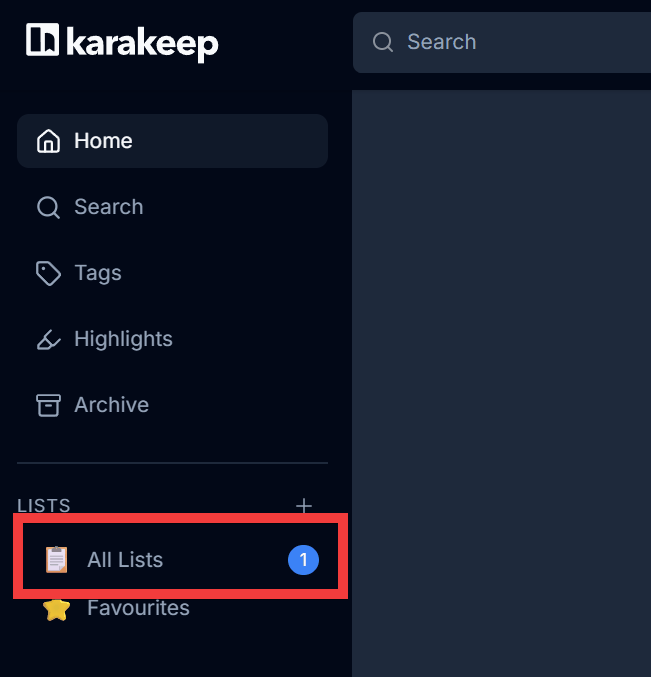
A notification will appear in the menu of the account that was invited, so click 'All Lists'.
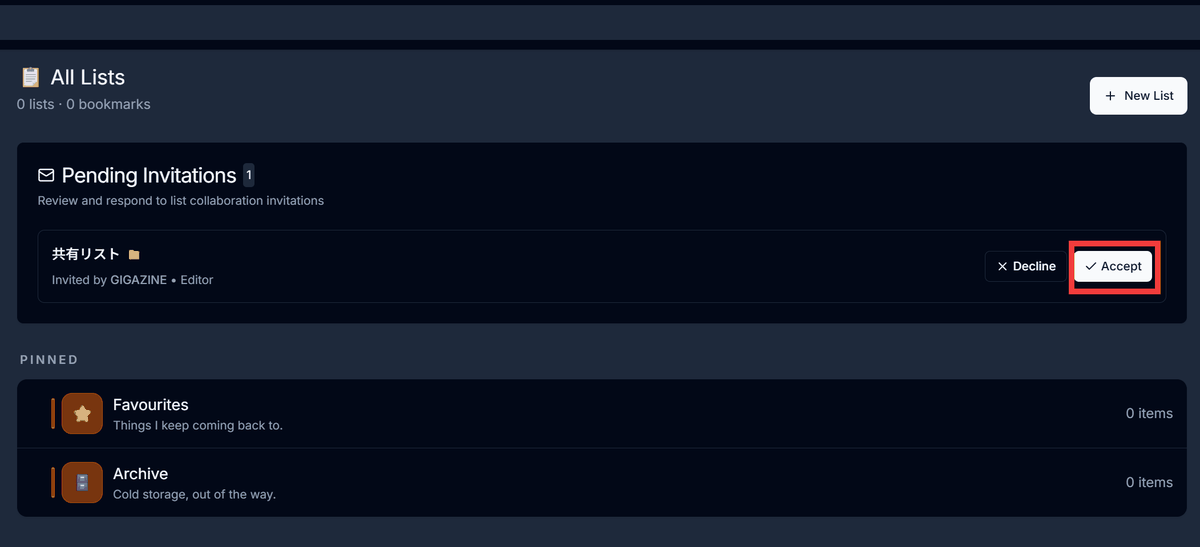
The list of invited guests and an accept button will appear under 'Pending Invitations,' so click 'Accept.'
You can view items in the shared list. Furthermore, if you have Editor privileges, you can enter a link in the 'NEW ITEM' form and click 'Save'...
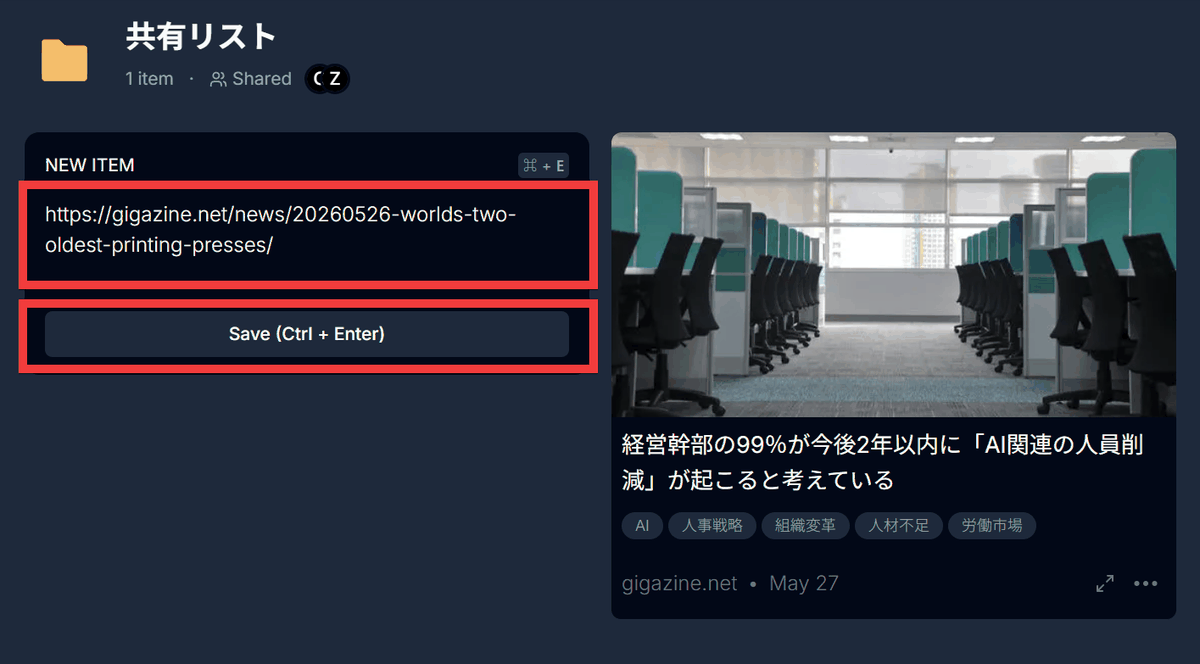
When an item is added to the shared list, it is also added to the other person's list in real time.
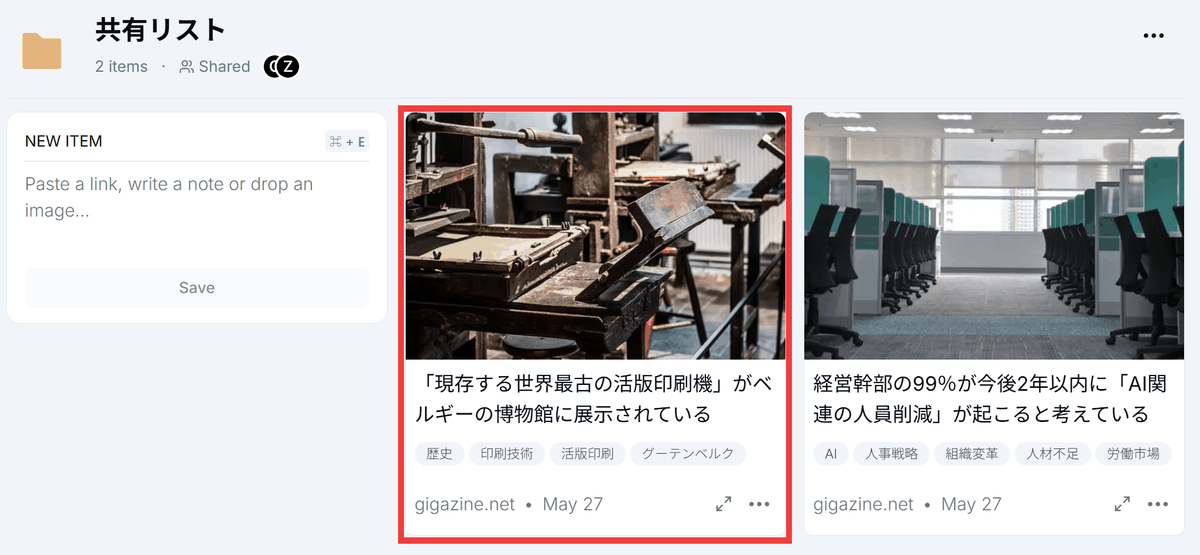
◆RSS output
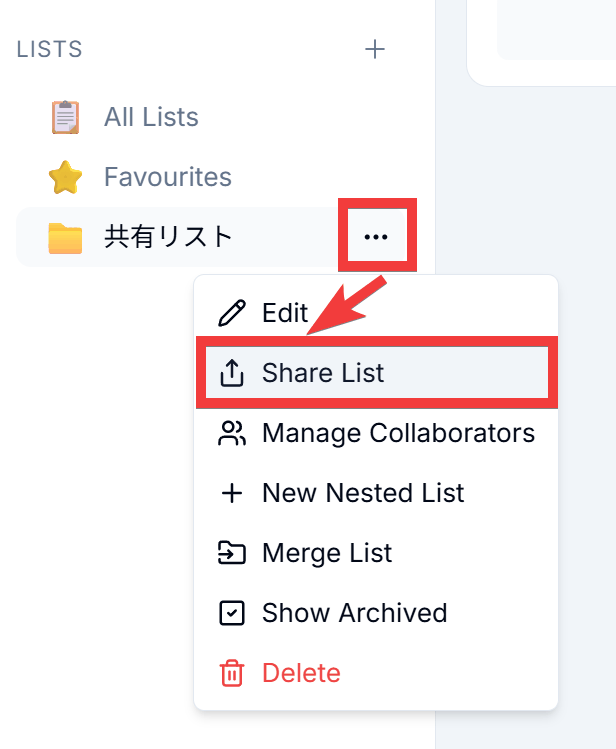
Click the 'three-dot menu' icon on the right side of the list menu, then click 'Share List'.
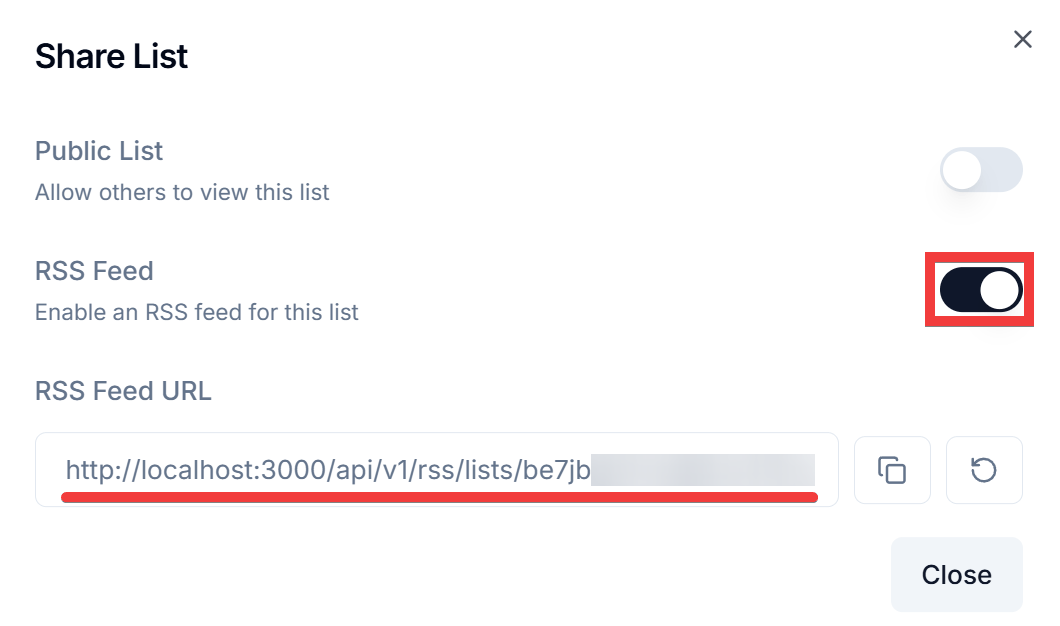
Turning the 'RSS Feed' toggle in the Share List dialog to 'On' will create an 'RSS Feed URL' and allow you to retrieve the RSS feed.
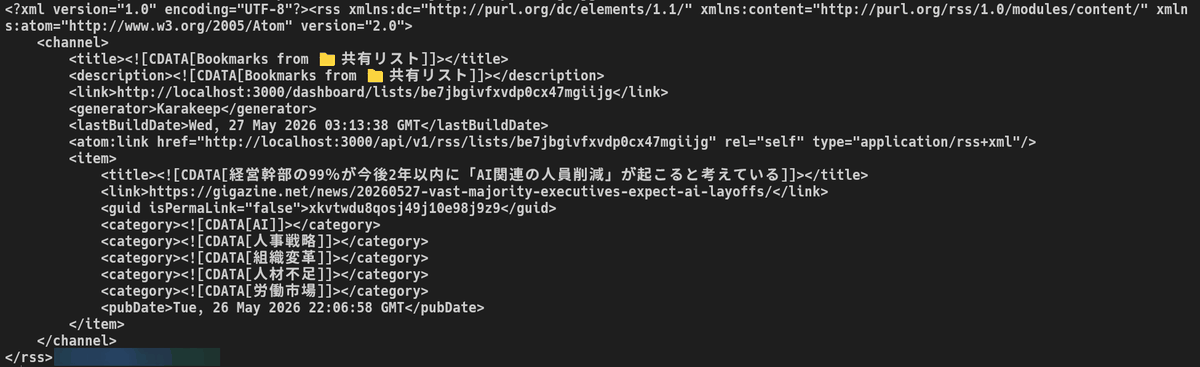
When you access the URL, an RSS feed is displayed, but in the case of a shared list, items registered by the collaborator are not shown; only items registered by the list administrator are displayed.
◆ How to register using a browser extension
While there is also a method of registration via SingleFile , SingleFile has now been integrated into the official Karakeep extension, so we will explain how to use the official Karakeep extension.
- In the case of Cloud
Access the following link.
Karakeep - Chrome Web Store
https://chromewebstore.google.com/detail/karakeep/kgcjekpmcjjogibpjebkhaanilehneje
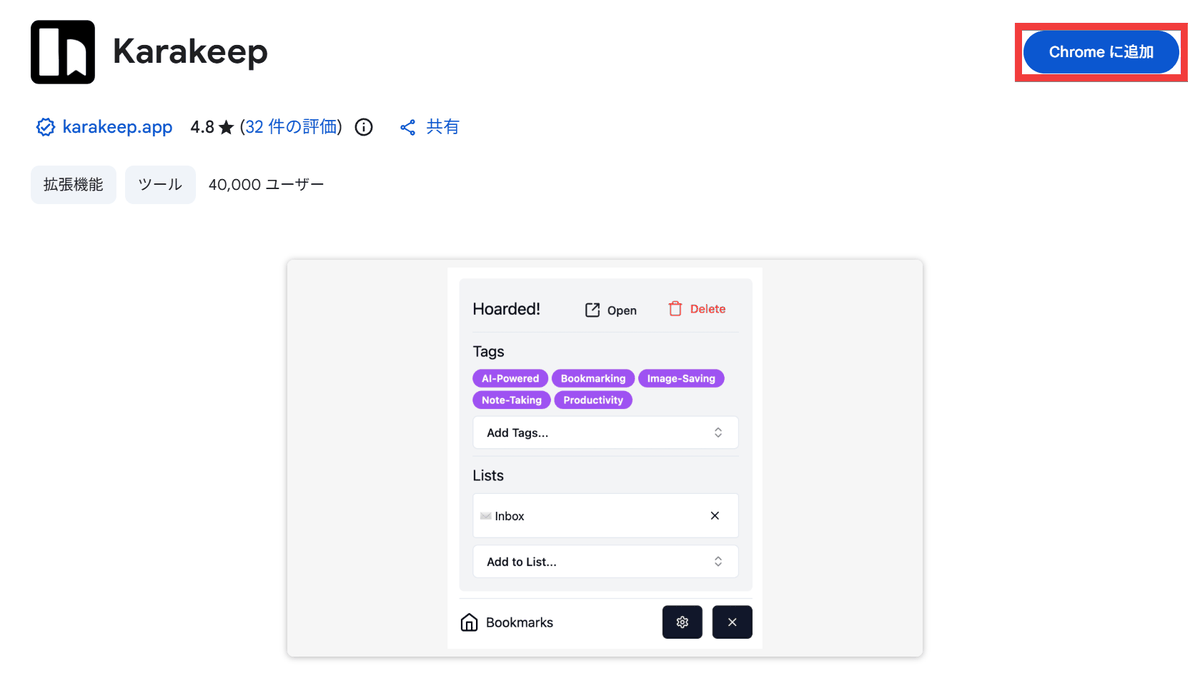
Click 'Add to Chrome'.
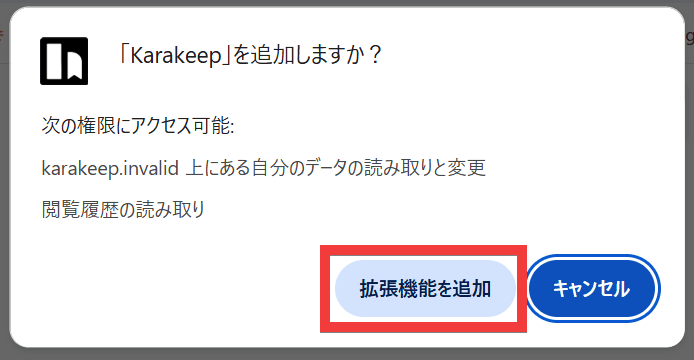
Click 'Add extension'.
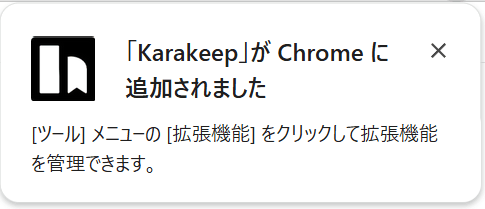
The installation is complete when you see the message, 'Karakeep has been added to Chrome.'
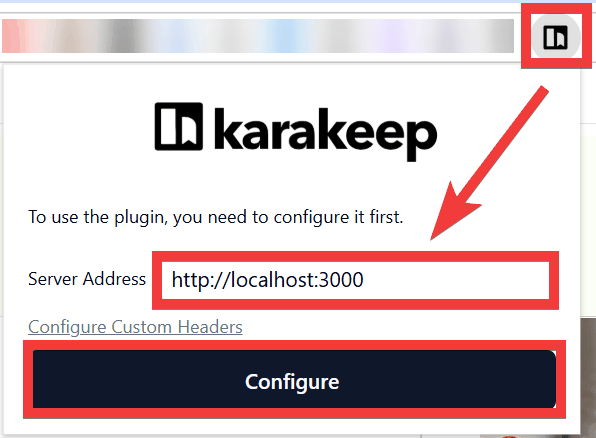
Click the extension icon, change the 'Server Address' to the host server's address, and click the 'Configure' button.
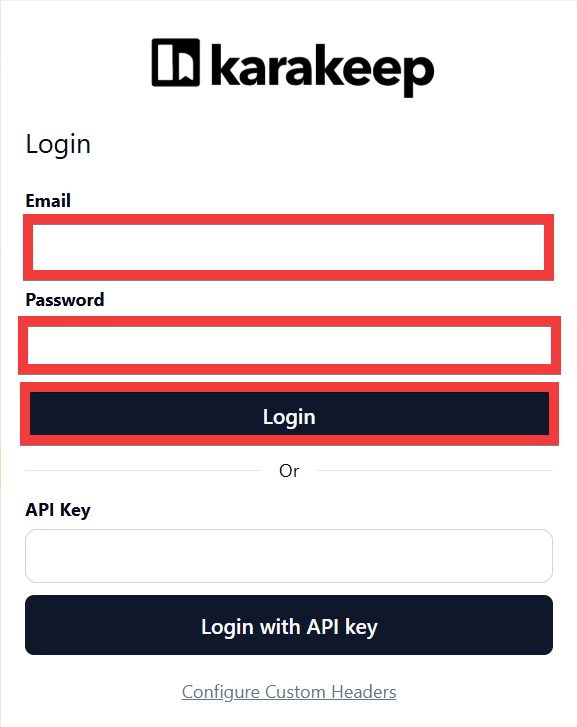
A login form will appear. Enter your email address in the 'Email' field and your password in the 'Password' field, then click 'Login' to complete the login process.
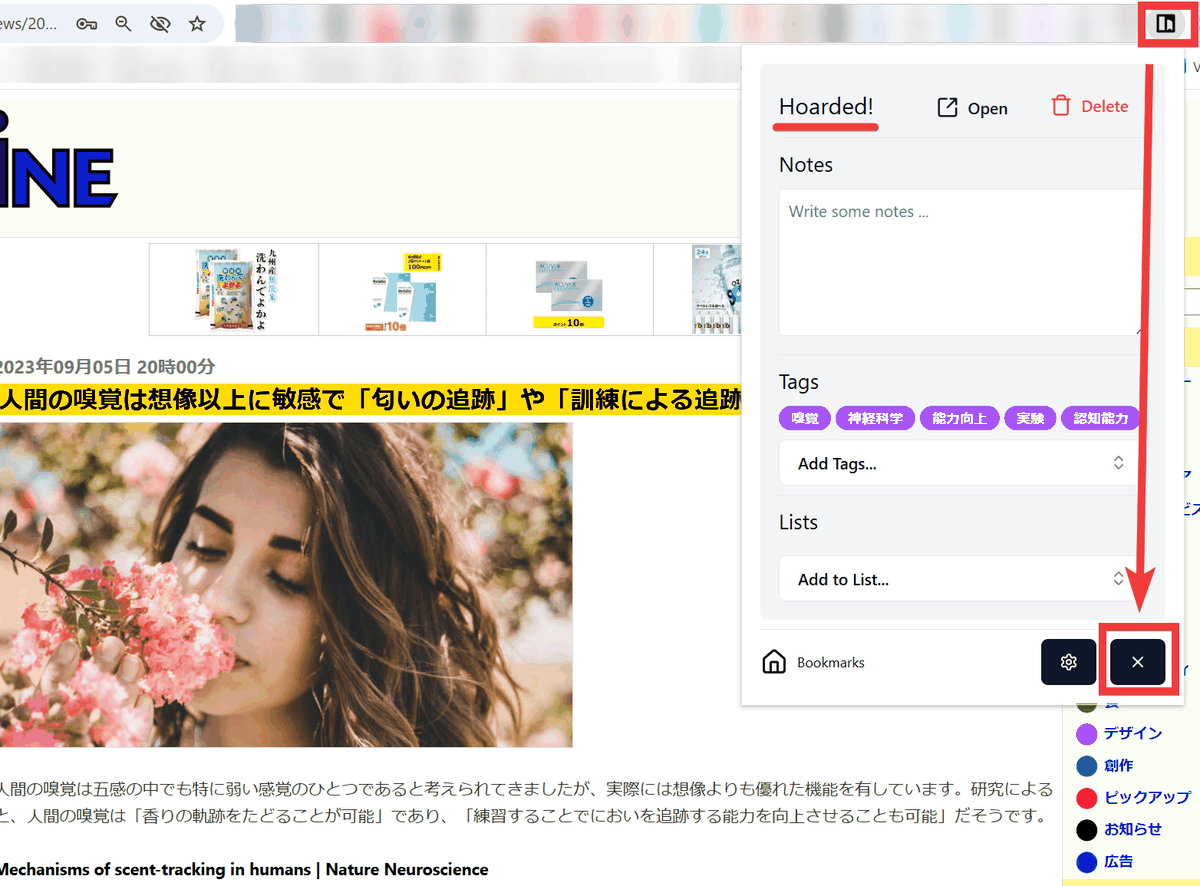
Clicking the Karakeep extension icon on the page you are currently viewing will register you as a host. You can also select notes, tags, and lists.
・For Firefox
Access the following link.
Karakeep – Get the extension for Firefox (ja)
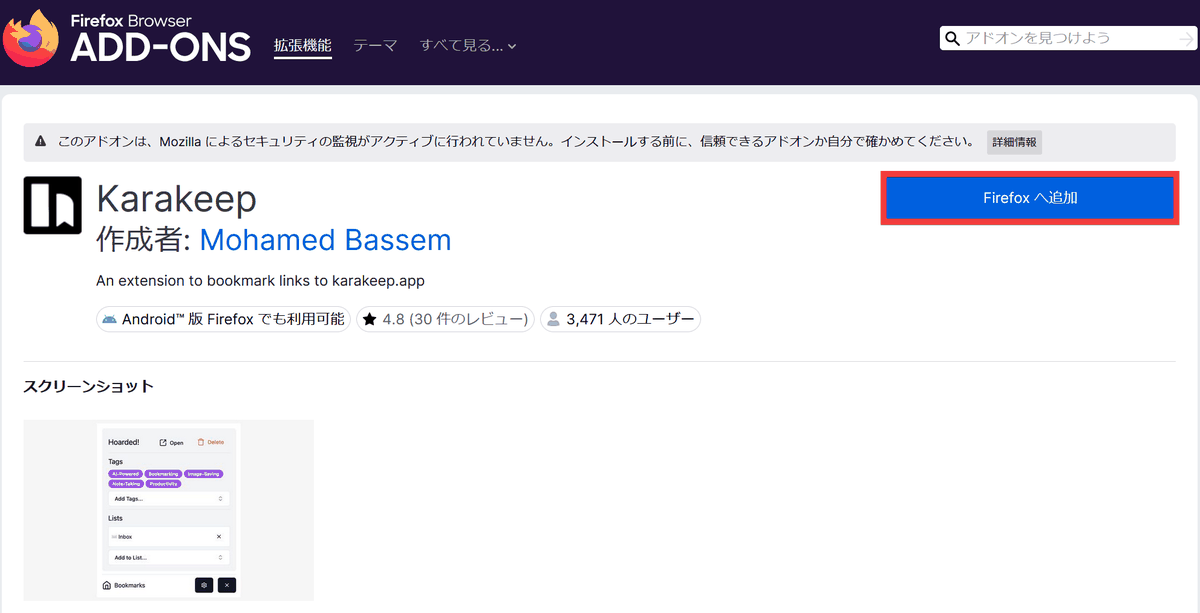
Click 'Add to Firefox'.
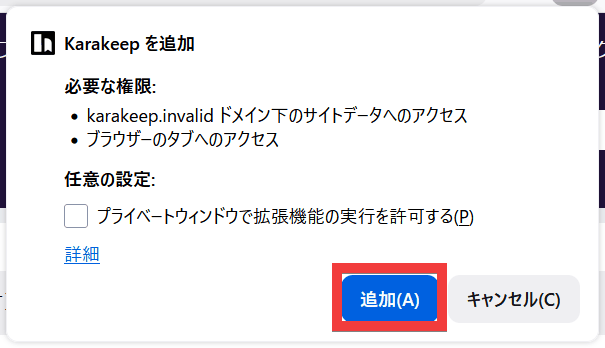
Click 'Add'.
The installation is complete when you see the message 'Karakeep has been added.' Click 'OK'.
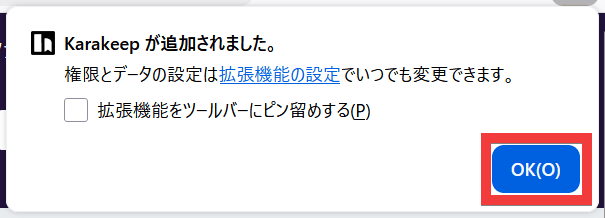
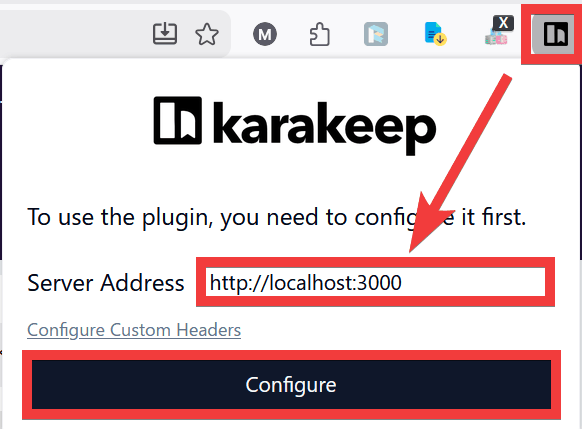
Click the extension icon, change the 'Server Address' to the host server's address, and click the 'Configure' button.
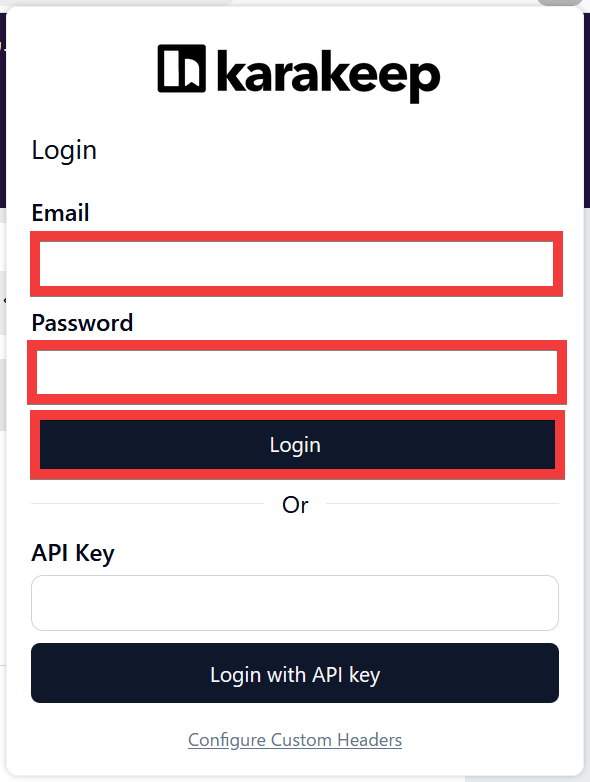
A login form will appear. Enter your email address in the 'Email' field and your password in the 'Password' field, then click 'Login' to complete the login process.
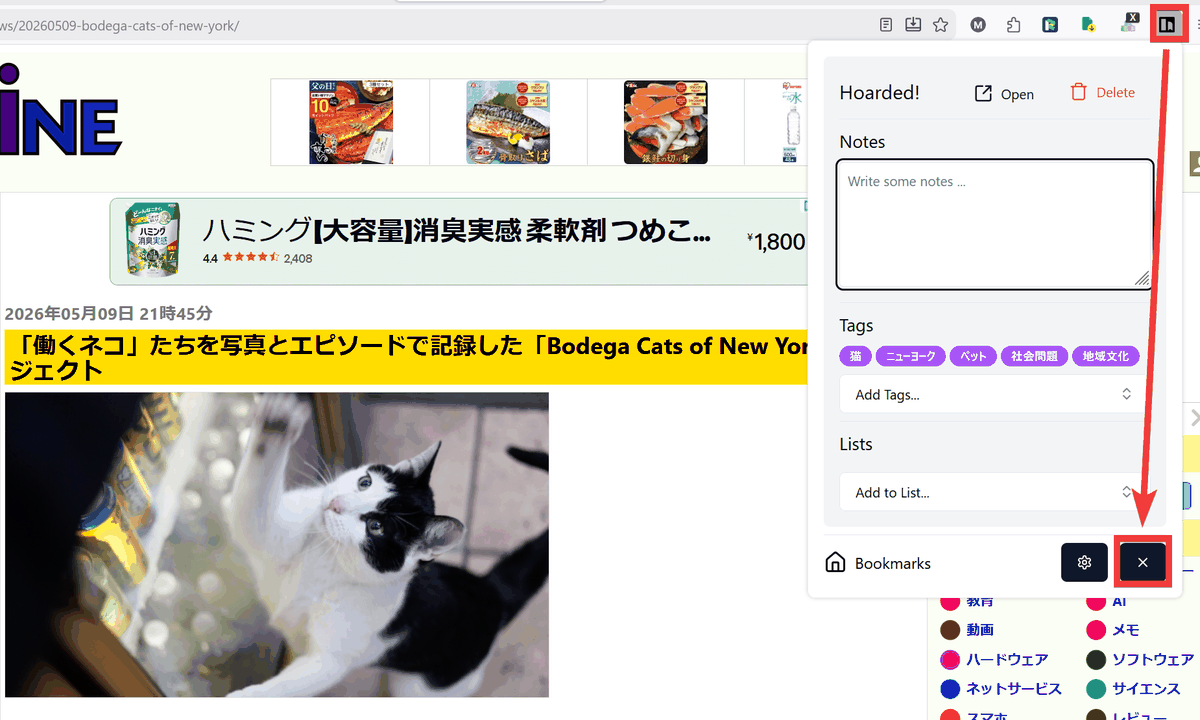
Clicking the Karakeep extension icon on the page you are currently viewing will register you as a host. You can also select notes, tags, and lists.
◆ How to register via mobile app
- For iOS apps
Karakeep App - App Store
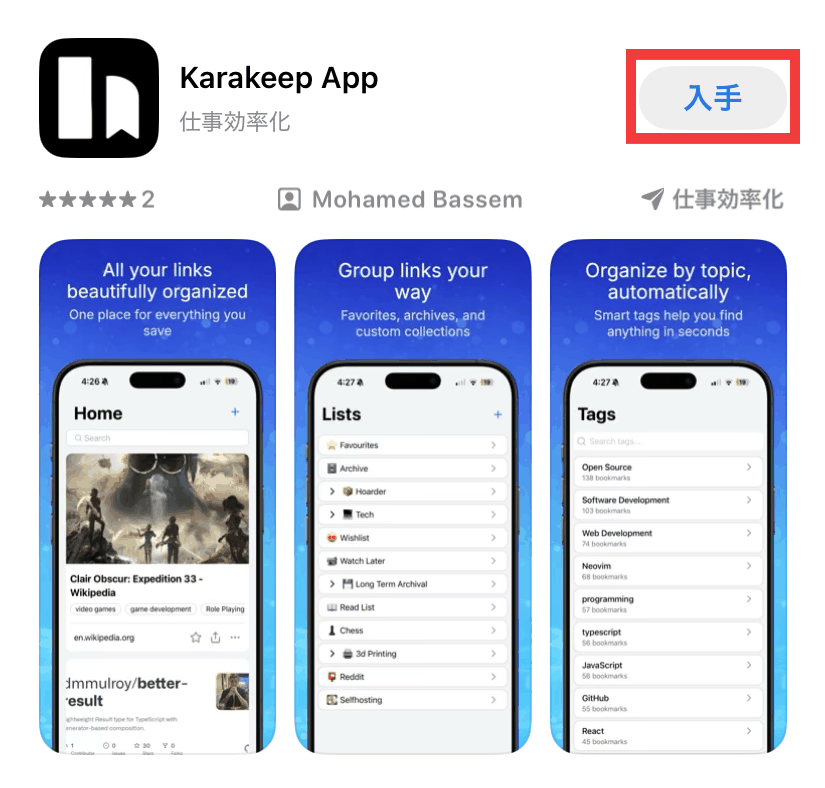
Access the App Store distribution page and tap 'Get'.
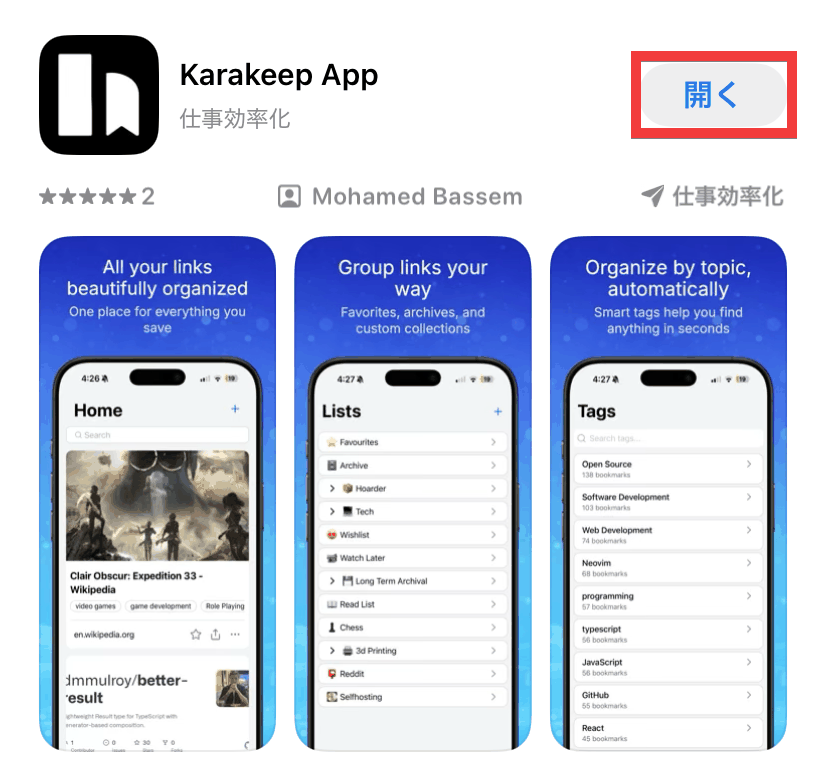
Once the installation is complete, tap 'Open'.
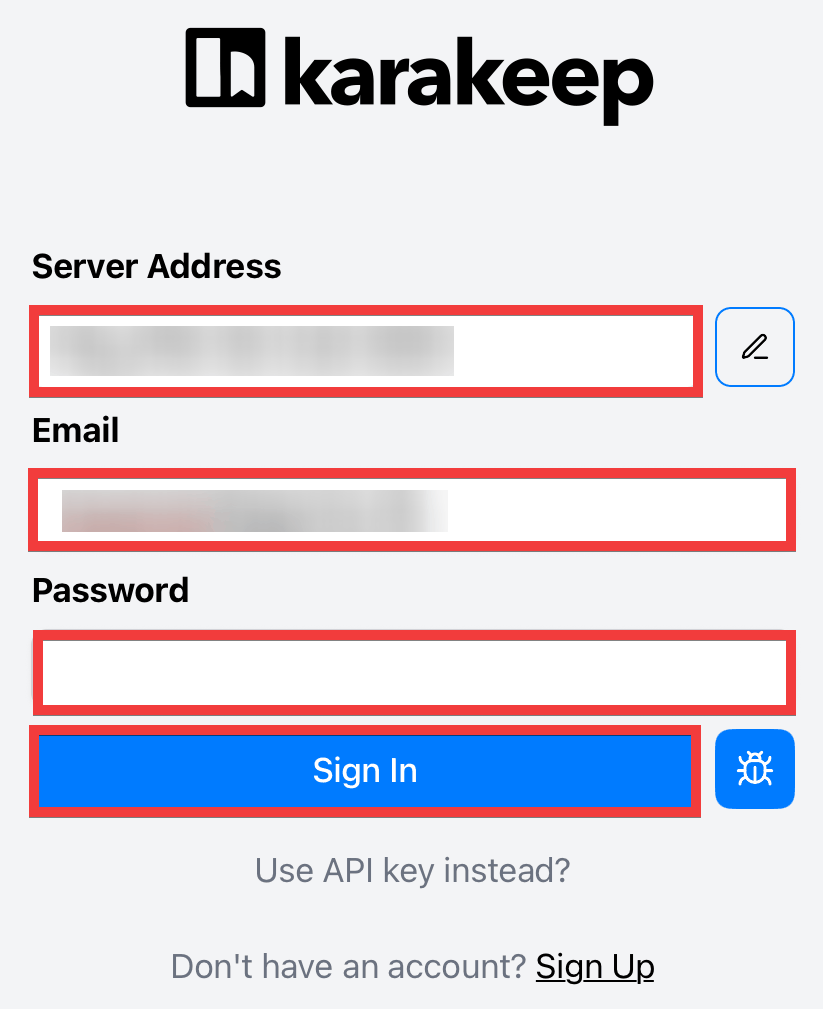
A sign-in form will appear. Enter the address of your Karakeep host in 'Server Address,' your email address in 'Email,' and your password in 'Password,' then tap 'Sign In.'
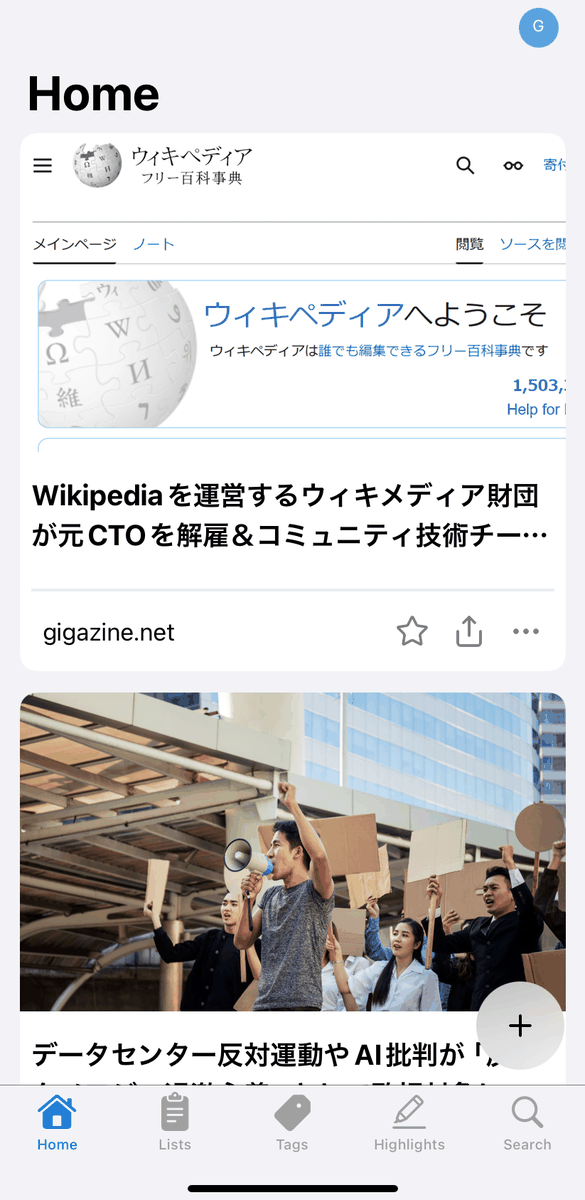
Once the home screen appears, the app installation is complete.
To register, tap the 'Share' icon while the item is displayed.

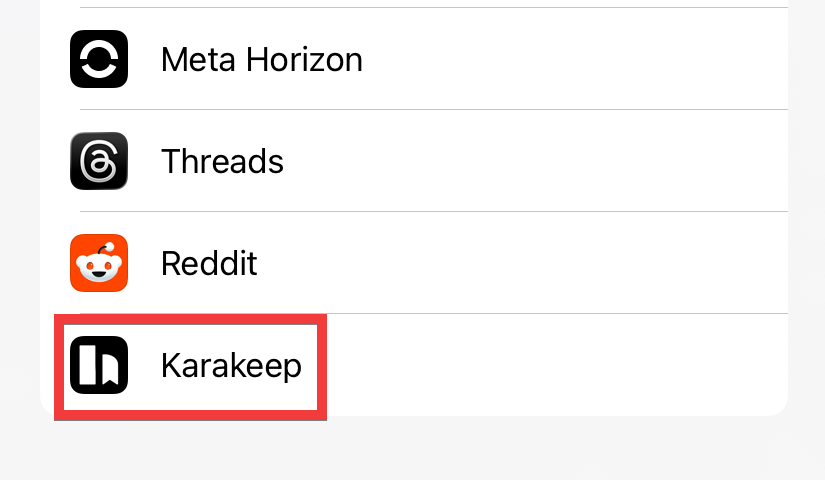
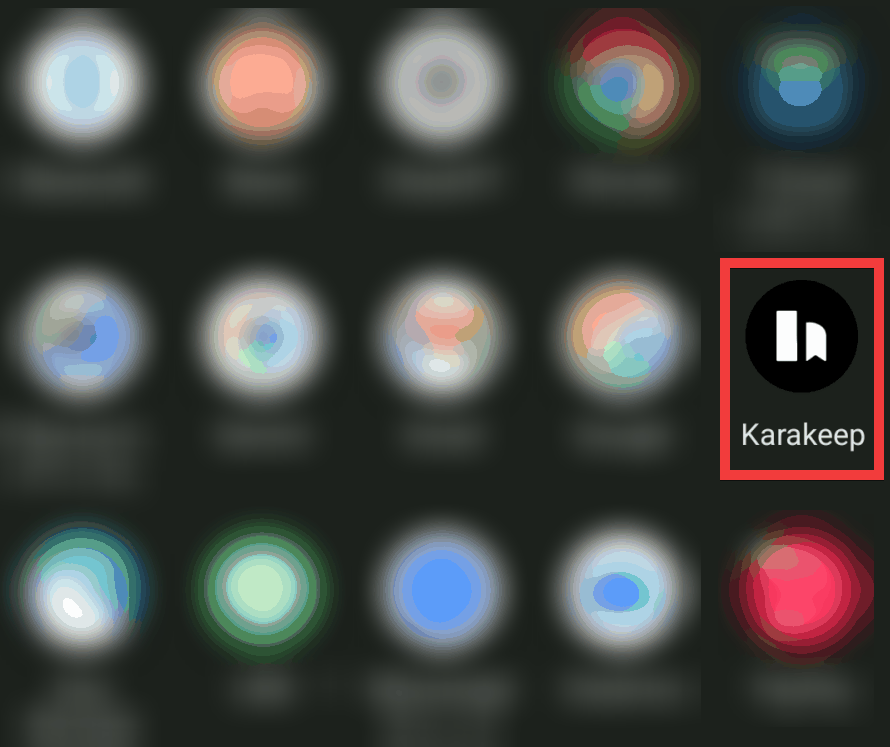
Tap Karakeep from the list of apps to share with.
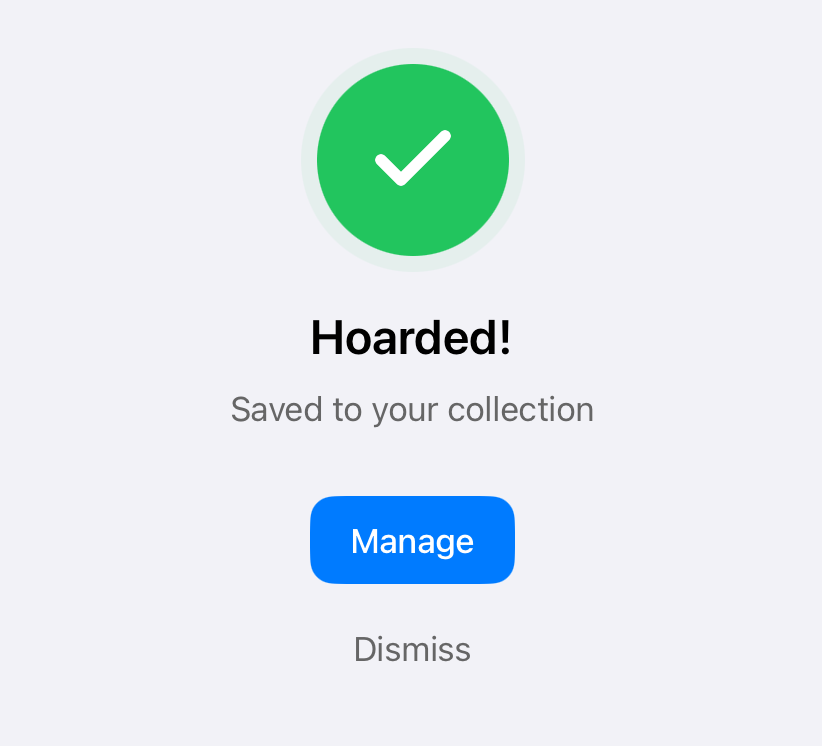
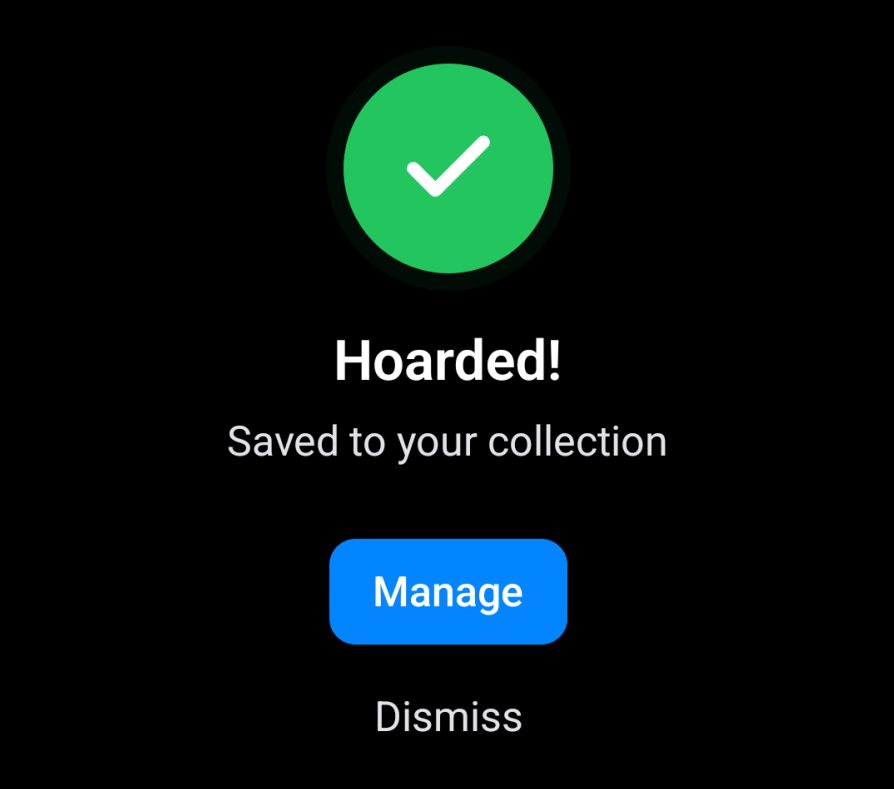
Registration is complete when 'Hoarded!' is displayed.
- For Android
Karakeep App - Apps on Google Play
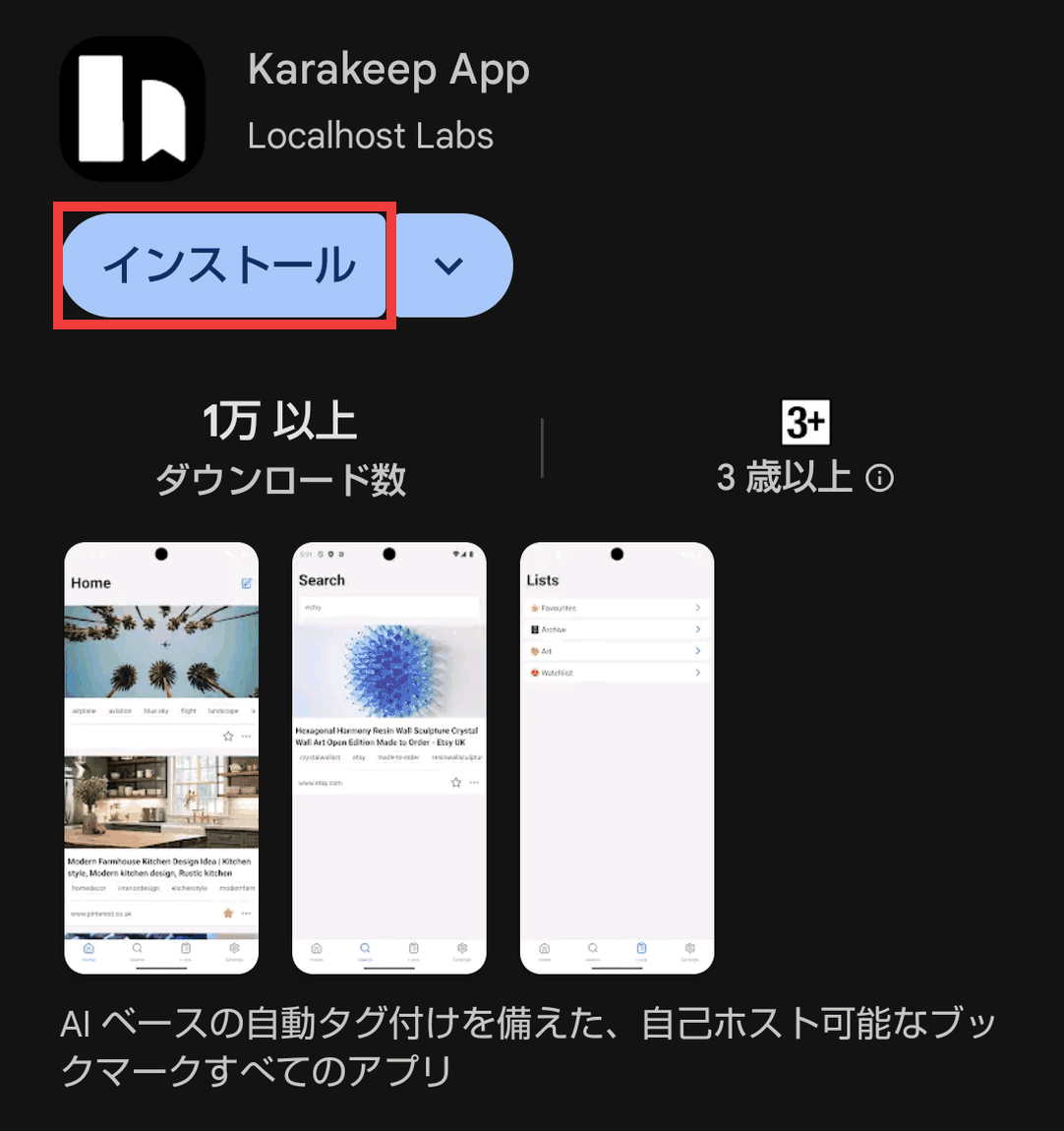
Go to the Play Store distribution page and tap 'Install'.
Once the installation is complete, tap 'Open'.
A sign-in form will appear. Enter the address of your Karakeep host in 'Server Address,' your email address in 'Email,' and your password in 'Password,' then tap 'Sign In.'
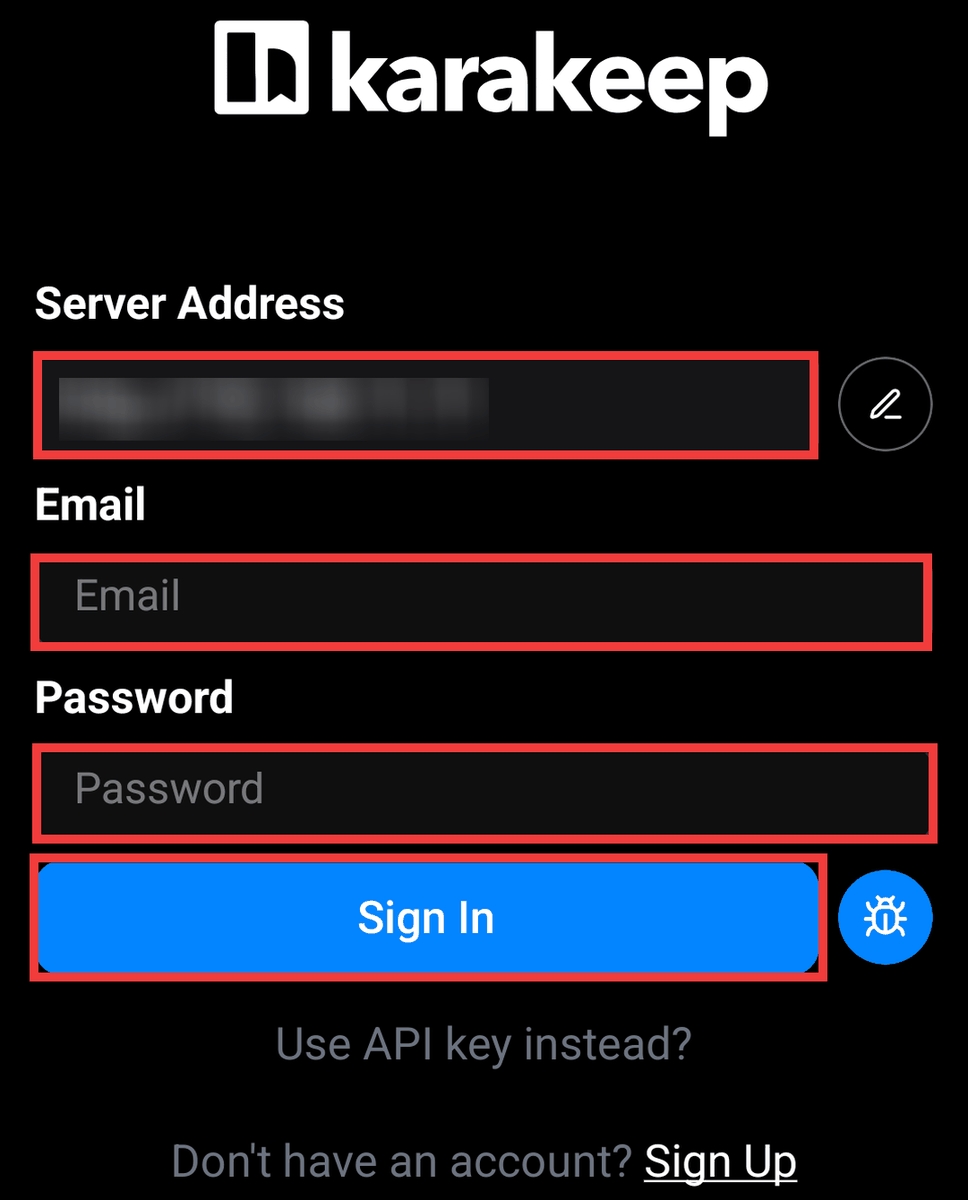
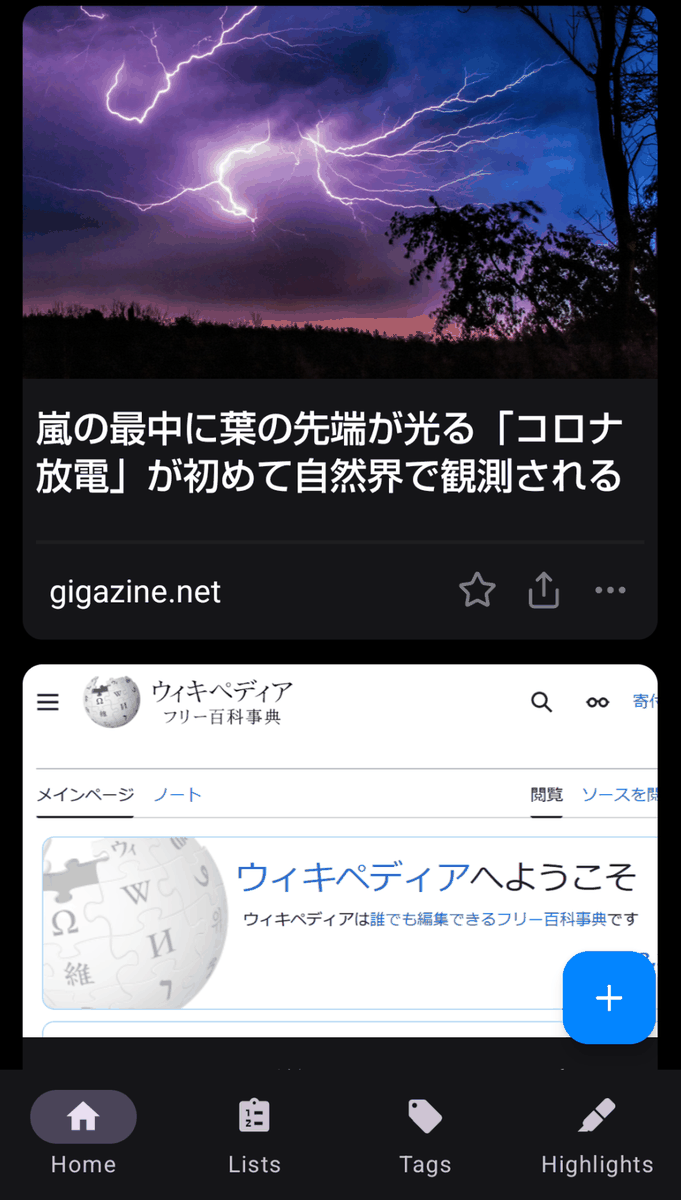
Once the home screen appears, the app installation is complete.
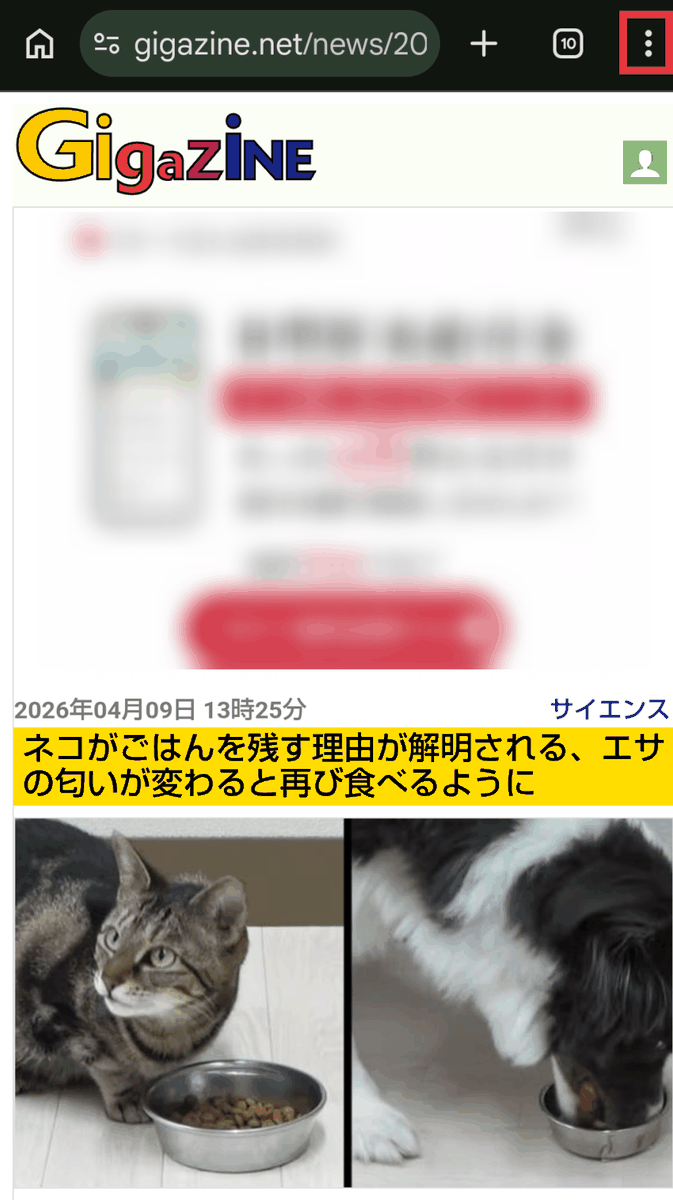
To register a webpage, tap the 'three-dot menu' in the upper right corner of your browser.
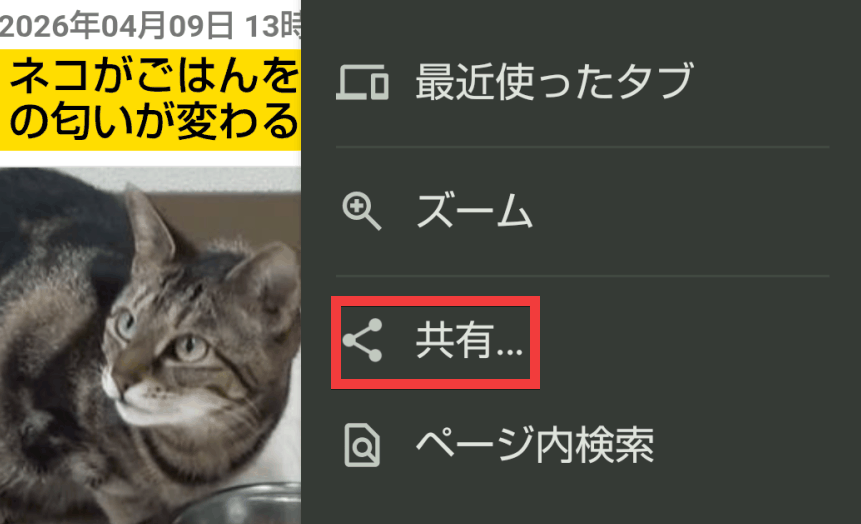
Tap 'Share' from the menu.
Tap Karakeep from the list of apps to share with.
Registration is complete when 'Hoarded!' is displayed.
◆ How to set up self-hosting on Karakeep
This time, we will set it up in an environment where Docker Desktop and Git Bash for Windows are installed on Windows. Download the docker-compose.yml file to your working folder.
curl -o docker-compose.yml https://raw.githubusercontent.com/karakeep-app/karakeep/main/docker/docker-compose.yml
Create a .env file and configure the following items.
 KARAKEEP_VERSION=release
 # Use openssl rand -base64 36 to generate a random string.
 NEXTAUTH_SECRET=【Generated string】
 # Use openssl rand -base64 36 to generate a random string.
 MEILI_MASTER_KEY=【Generated string】
 # This time, since it's a local environment, use http://localhost:3000
 NEXTAUTH_URL=http://localhost:3000
 # Japan time
 TZ = Asia/Tokyo
 # Enter your OPENAI API key
 OPENAI_API_KEY=【Enter your OpenAI API key】
 # If you want to use Ollama, configure it as follows.
 #OPENAI_API_KEY=ollama
 #OPENAI_BASE_URL=http://host.docker.internal:11434/v1
 # Translating AI-generated tags into Japanese
 #INFERENCE_LANG=japanese
 #If you allow saving of the video
 #CRAWLER_VIDEO_DOWNLOAD=true
 #CRAWLER_VIDEO_DOWNLOAD_MAX_SIZE=200
 #CRAWLER_VIDEO_DOWNLOAD_TIMEOUT_SEC=1200
Start the container.
docker compose up -d
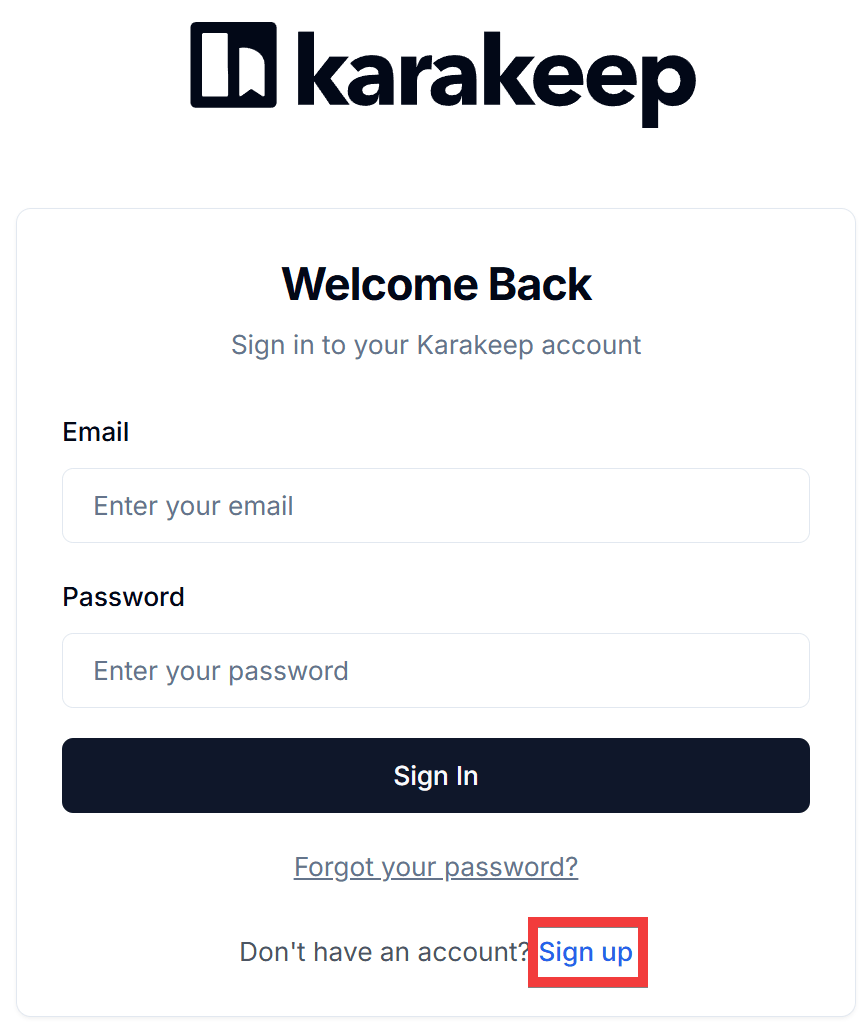
When you access 'http://localhost:3000' in your browser, a login form will appear, so click 'Sign up'.
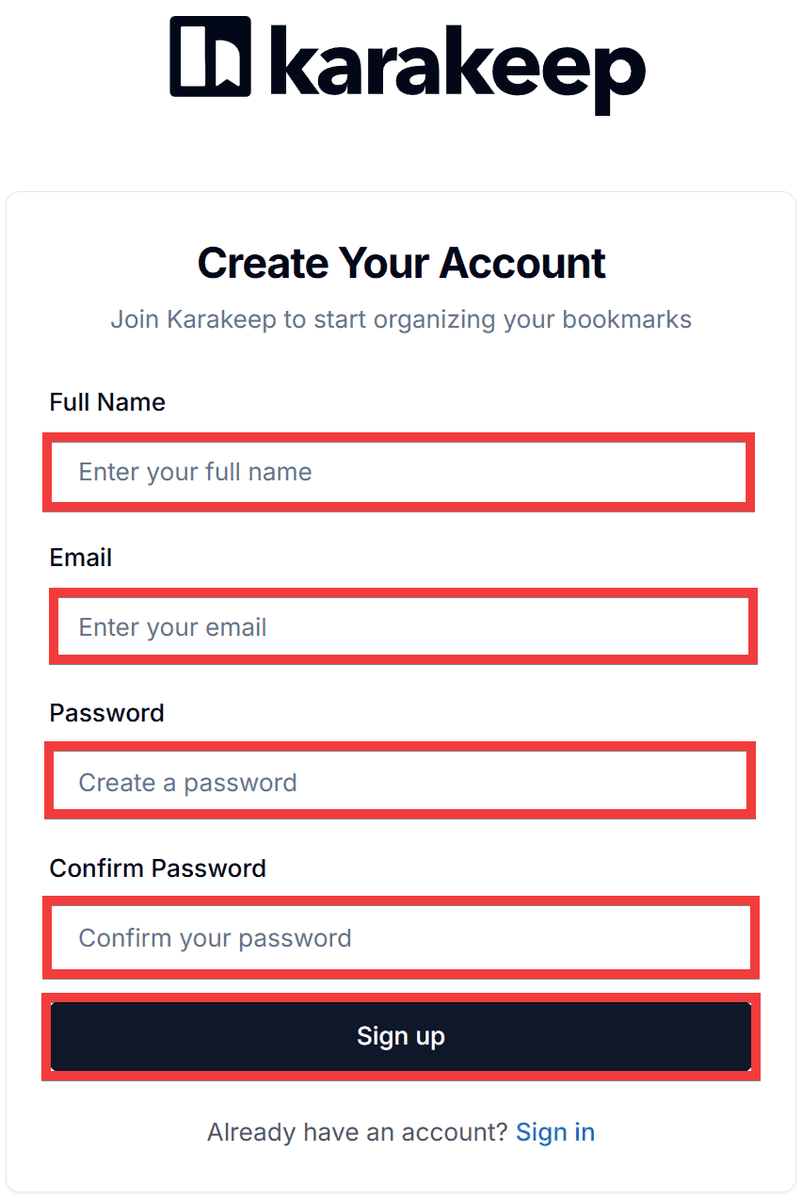
Enter a name of your choice in 'Full Name,' your email address in 'Email,' and your password in 'Password' and 'Confirm Password,' then click 'Sign up.'
The installation is complete when the home screen appears.
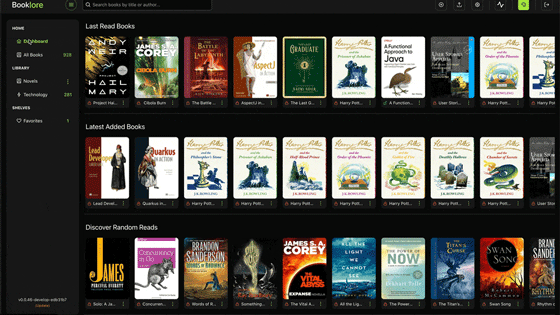
Compared to similar tools such as Linkwarden and Readeck , Karakeep was easier to set up with AI integration and Japanese language support, resulting in fewer installation problems. It supports both OpenAI-compatible APIs and Ollama's native API for integration.
Related Posts: