Comentario, an open-source web comment engine that adds free comment functionality to pages, can be self-hosted with Docker
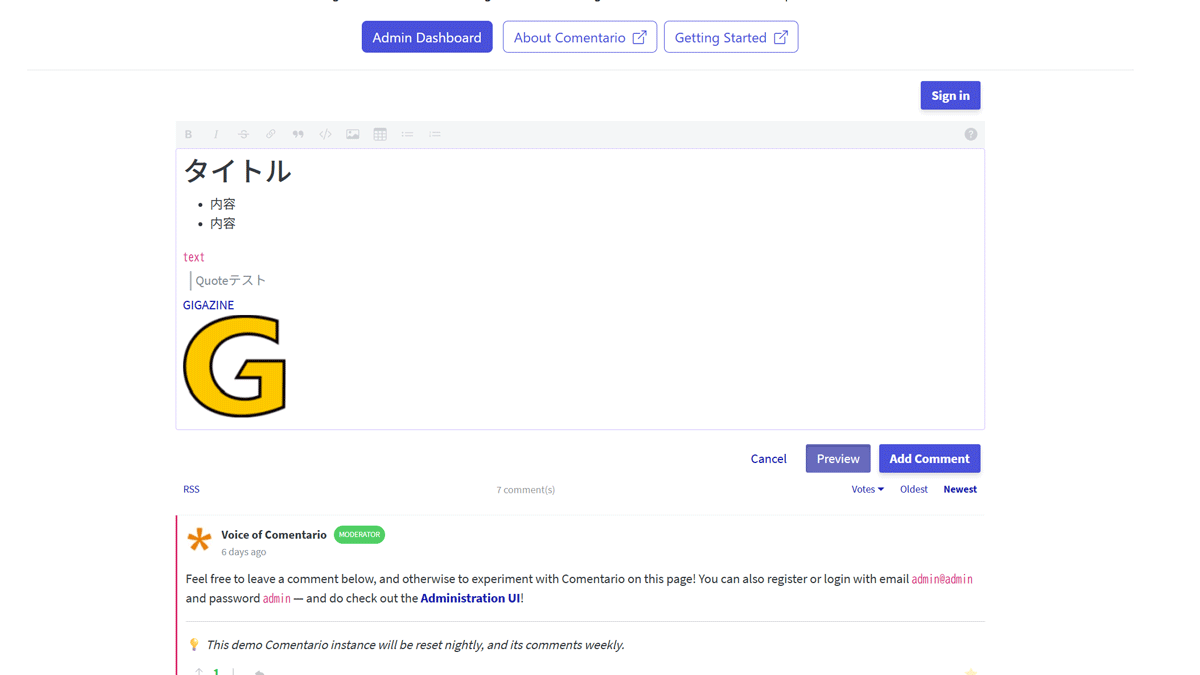
Comentario is an open source comment engine that can be introduced simply by embedding a tag into an existing homepage, and has a variety of features including Markdown support, anonymous comments, and OAuth login.It is free of ads and tracking.
Commentary
commentario / Commentario · GitLab
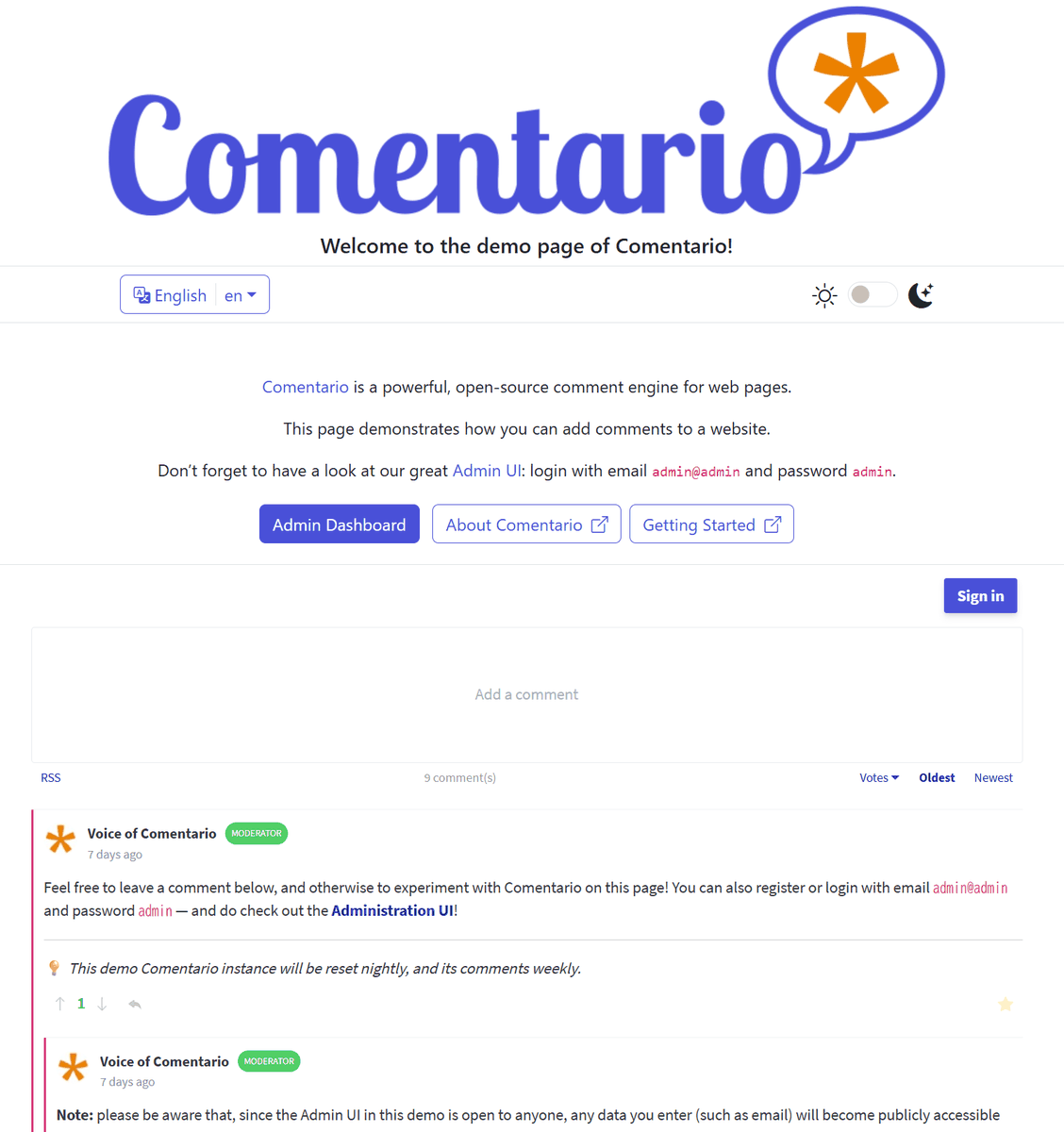
◆Demo site
Commentary Demo
https://demo.comentario.app/
◆ Main features of Comentario
・Easy to install
It can be installed simply by embedding two tags into an existing homepage, and using Docker makes it easy to set up a server.
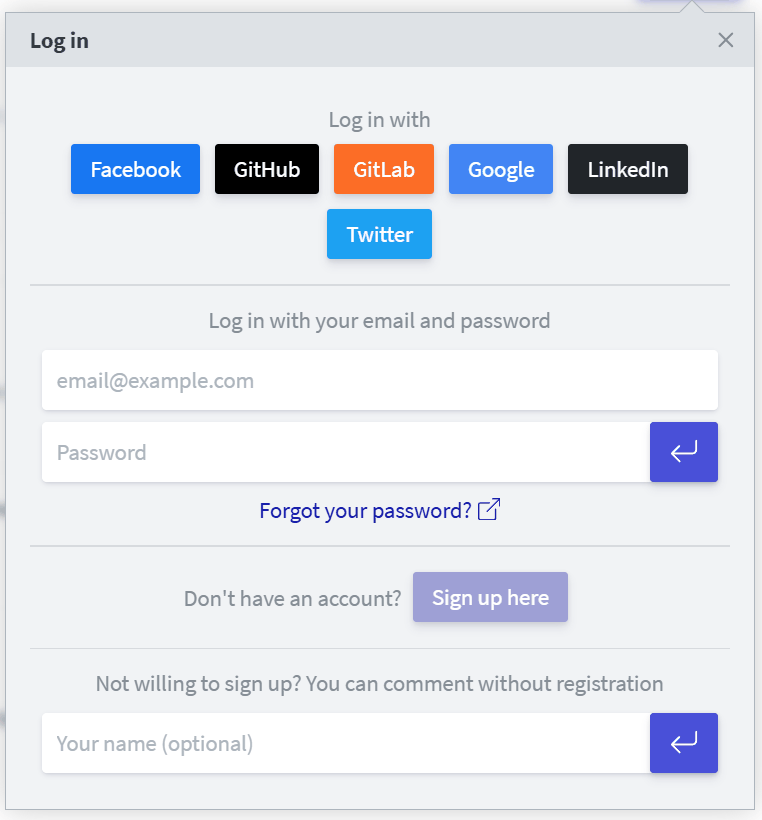
・Supports various authentication methods
It supports social account integration via
・Supports Markdown format
It supports formats such as headings, code blocks, lists, and tables, and also allows you to embed links and images.
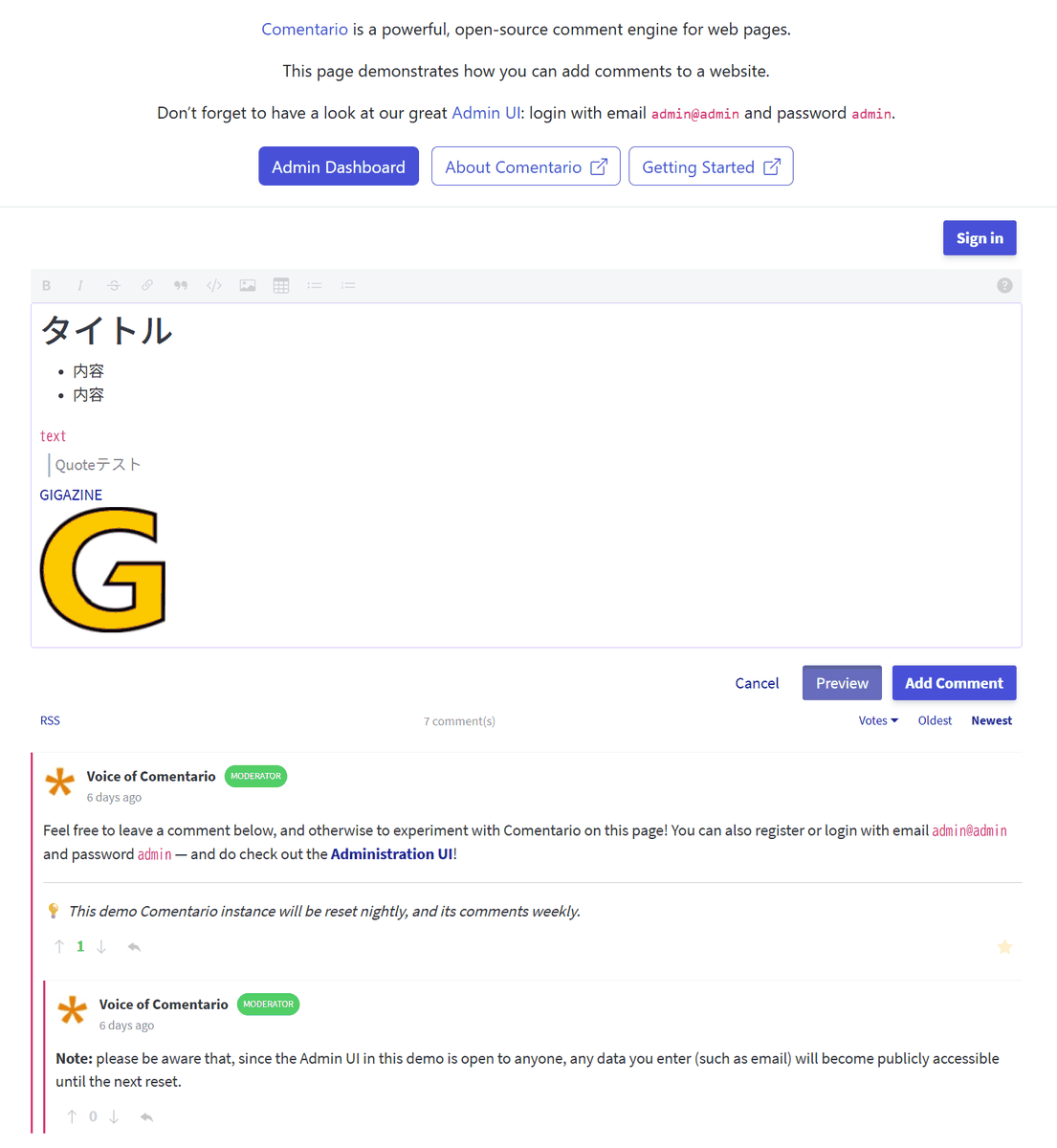
It is also possible to restrict 'embedding images,' 'embedding links,' and 'embedding tables.'

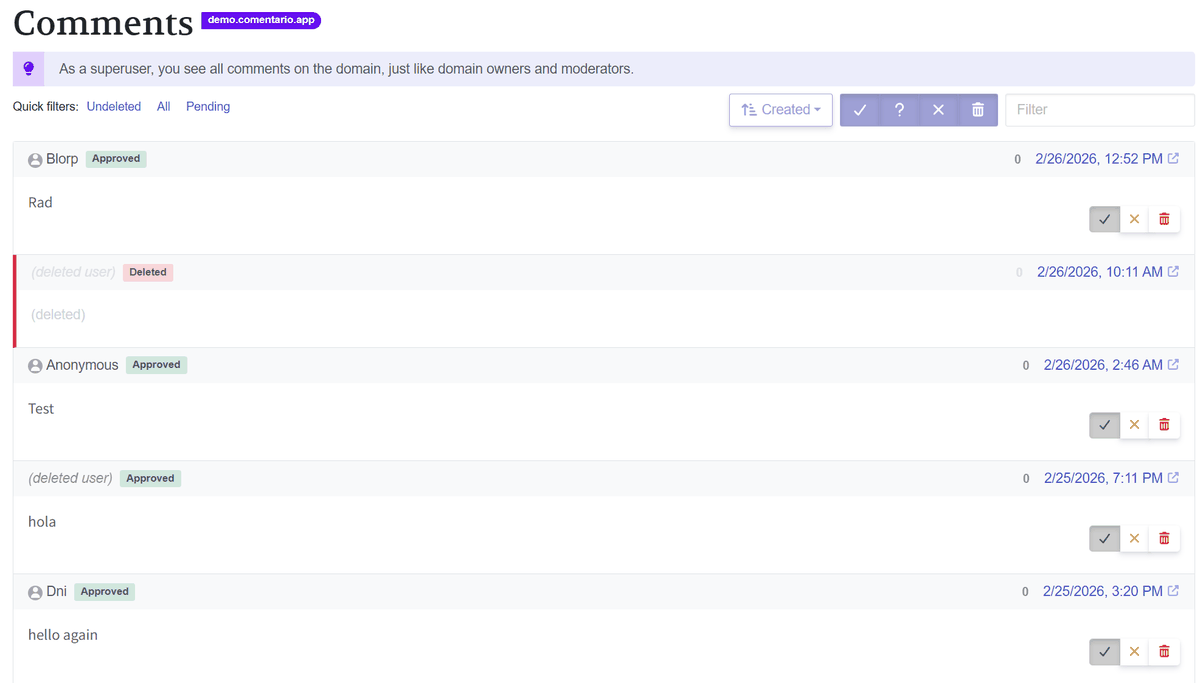
・Manage comments
Edit or delete any comments you have posted.
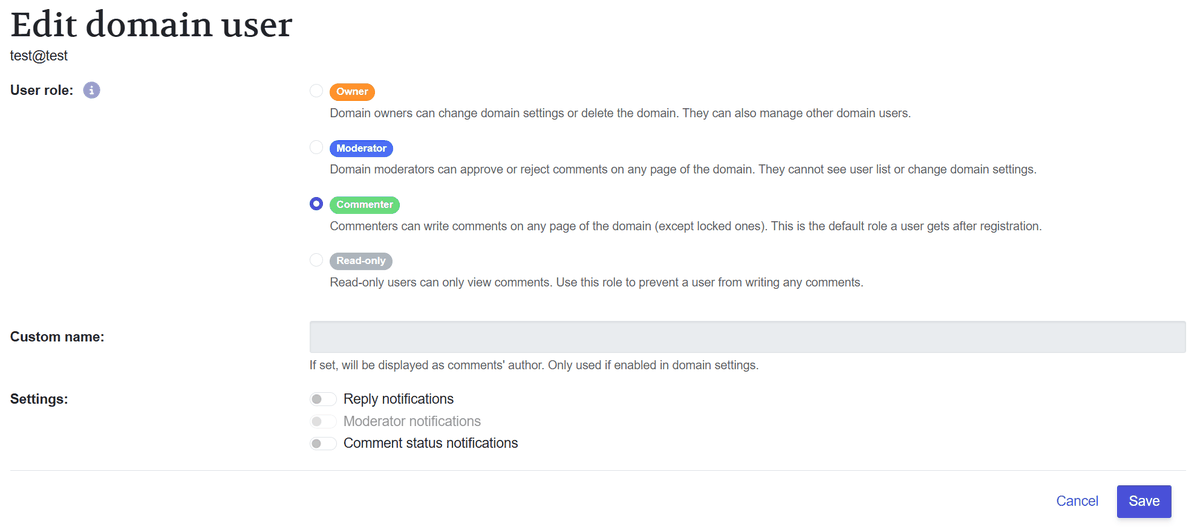
・Role management
Set roles such as administrator, moderator, contributor, and read-only user.
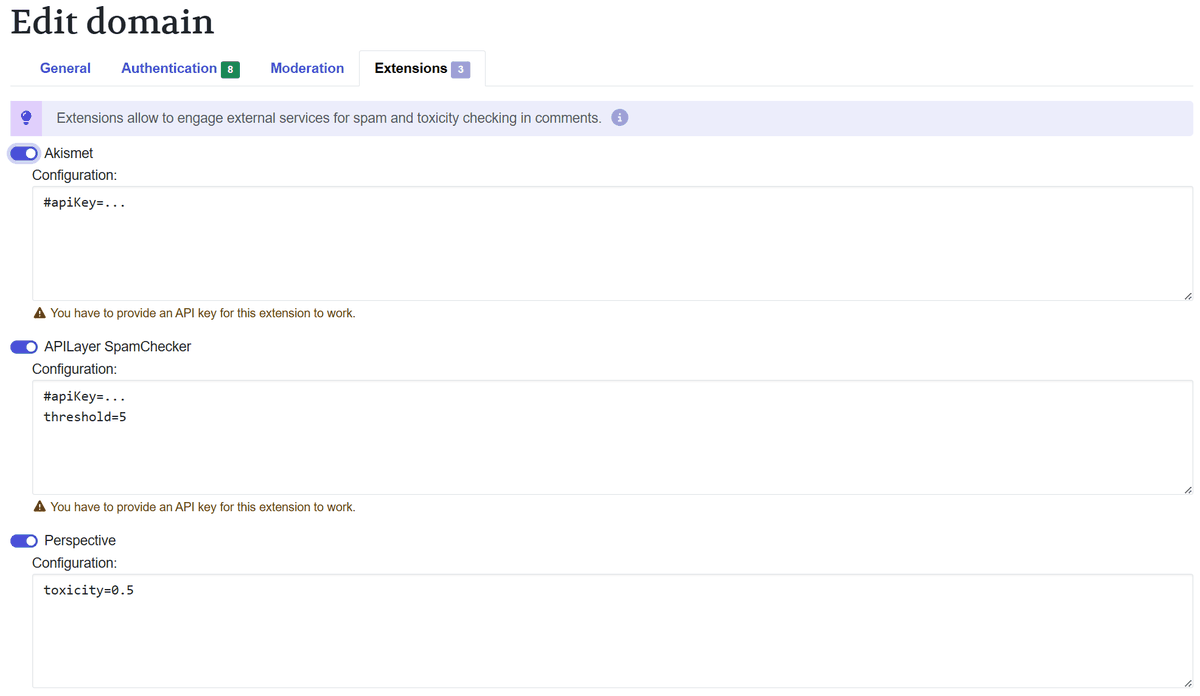
・Spam prevention
Using
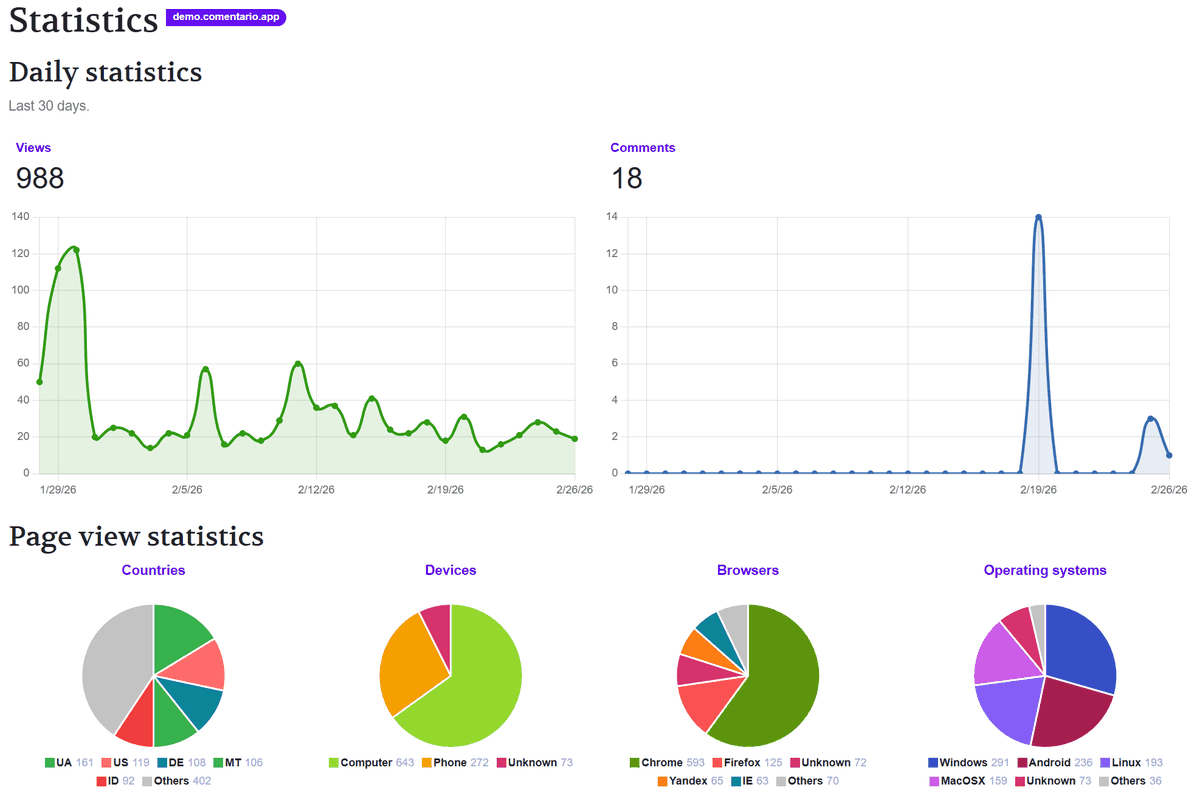
・Statistics information
Statistics are displayed in graphs and other formats using minimal information, such as the number of views and comments, and the type of user device and browser, while taking privacy into consideration.
In addition, you can choose whether to post a comment immediately after registering it or have it approved by a moderator, and the app also has features such as the ability to like comments, display comment threads, and email notifications.
◆How to build
This time, we will prepare Docker Desktop and Python on Windows 11 and build using the Git Bash prompt. Create a working folder for Comentario and move there.
mkdir comentario && cd comentario
Create docker-compose.yml and write the following content:
 services:
 db:
 image: postgres:17-alpine
 environment:
 POSTGRES_DB: commentario
 POSTGRES_USER: postgres
 POSTGRES_PASSWORD: postgres
 Ports:
 - '5432:5432'
 healthcheck:
 test: ['CMD', 'pg_isready', '-U', 'postgres']
 timeout: 5s
 retries: 5
 start_period: 10s

 app:
 image: registry.gitlab.com/comentario/comentario
 environment:
 BASE_URL: http://localhost:8080/
 SECRETS_FILE: '/secrets.yaml'
 Ports:
 - '8080:80'
 healthcheck:
 test: ['CMD', 'wget', '-O', '-', 'http://localhost/api/user']
 timeout: 5s
 retries: 5
 start_period: 5s
 depends_on:
 db:
 condition: service_healthy
 volumes:
 - ./secrets.yaml:/secrets.yaml:ro
Create secrets.yaml and write the following content:
 postgres:
 host: db
 port: 5432
 database: commentario
 username: postgres
 password: postgres
Launch Comentario.
docker-compose up -d
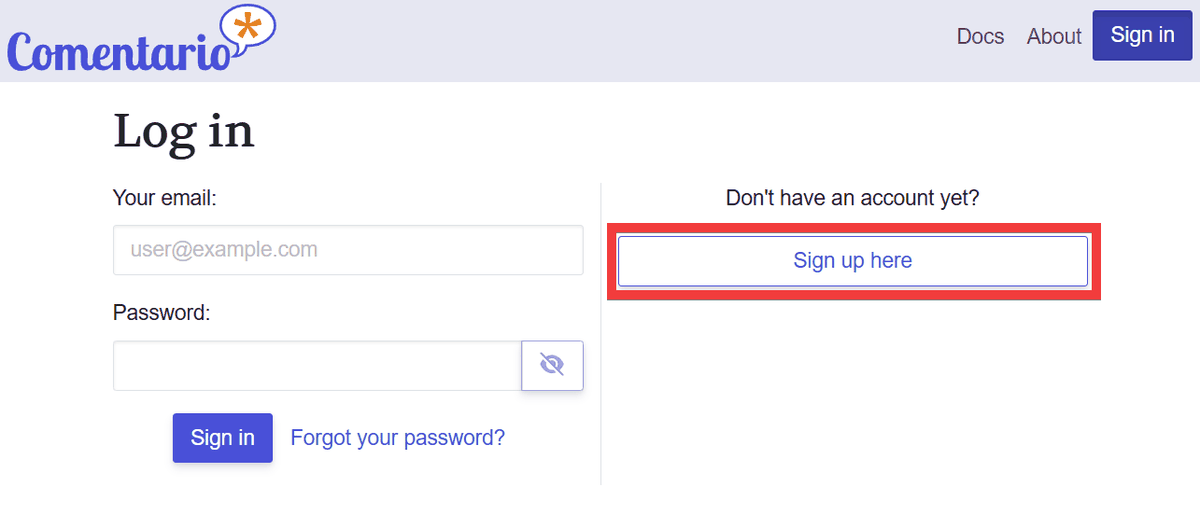
Open your browser and access http://localhost:8080/. The Comentario homepage will be displayed, so click 'Sign Up here' to register an administrator.
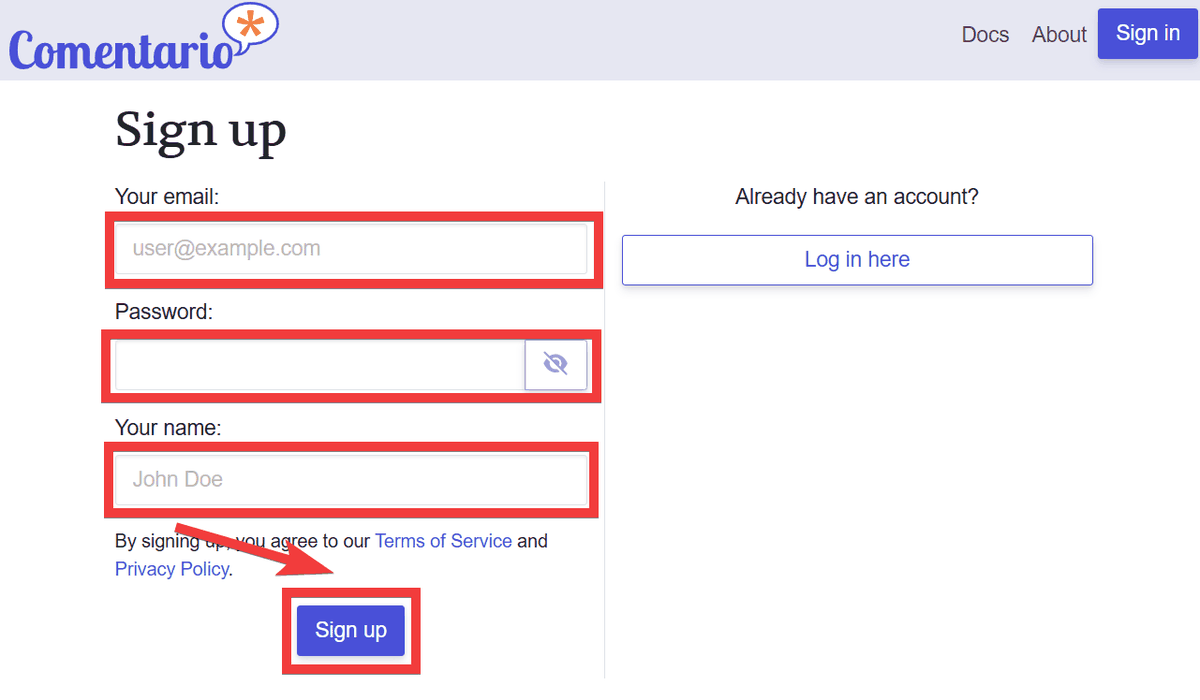
Enter your email address in 'Your email', your password in 'Password', and any name in 'Your name', then click 'Sign up'.
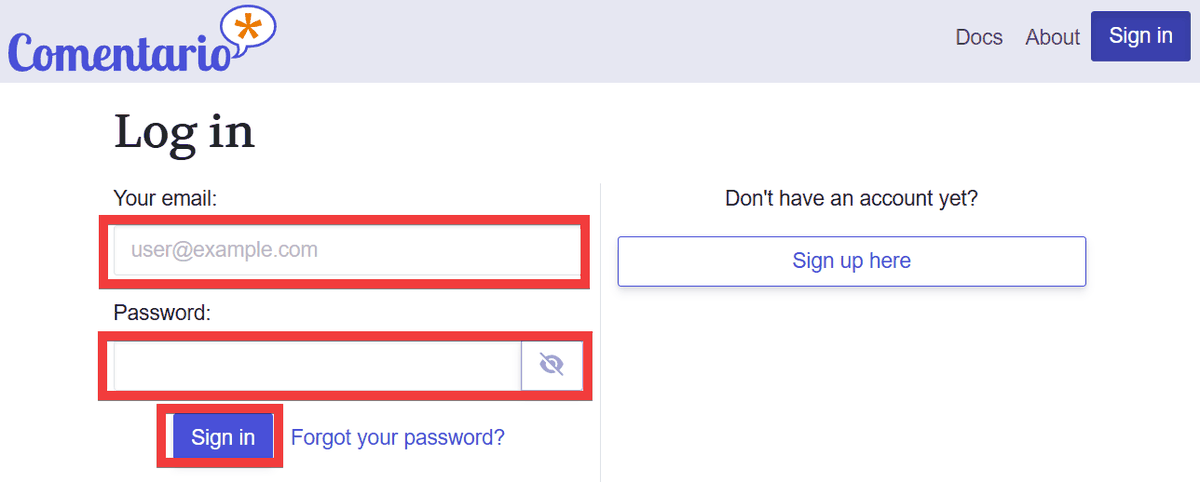
A login form will appear, so enter the email address and password you registered earlier and click 'Sign in'.
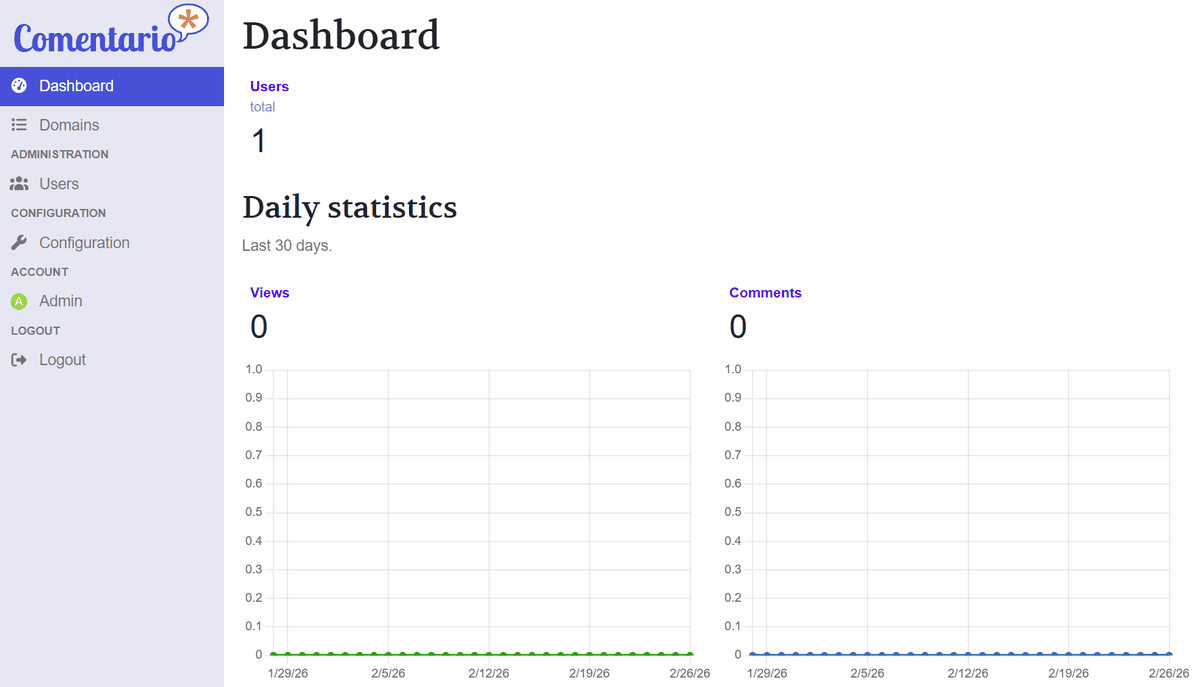
The dashboard appears.
◆Embedding comments
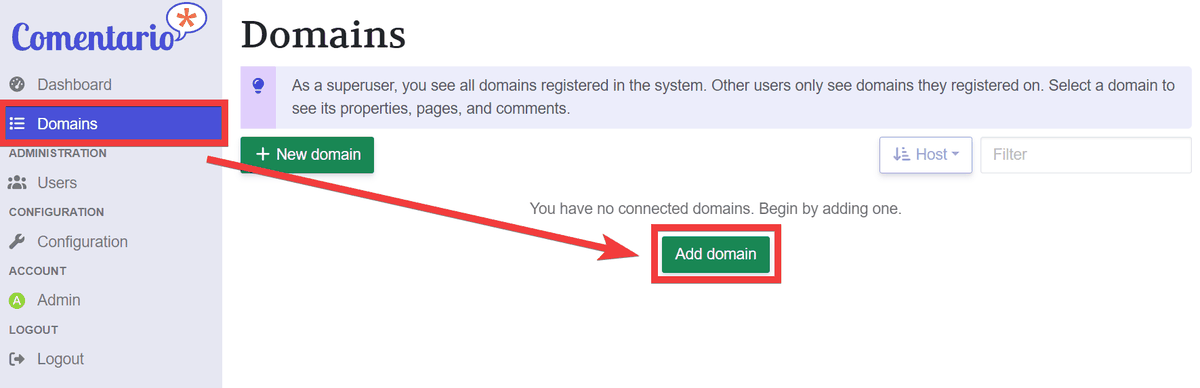
You need to register a domain for the test site, so click 'Domains' and then click 'Add domain.'
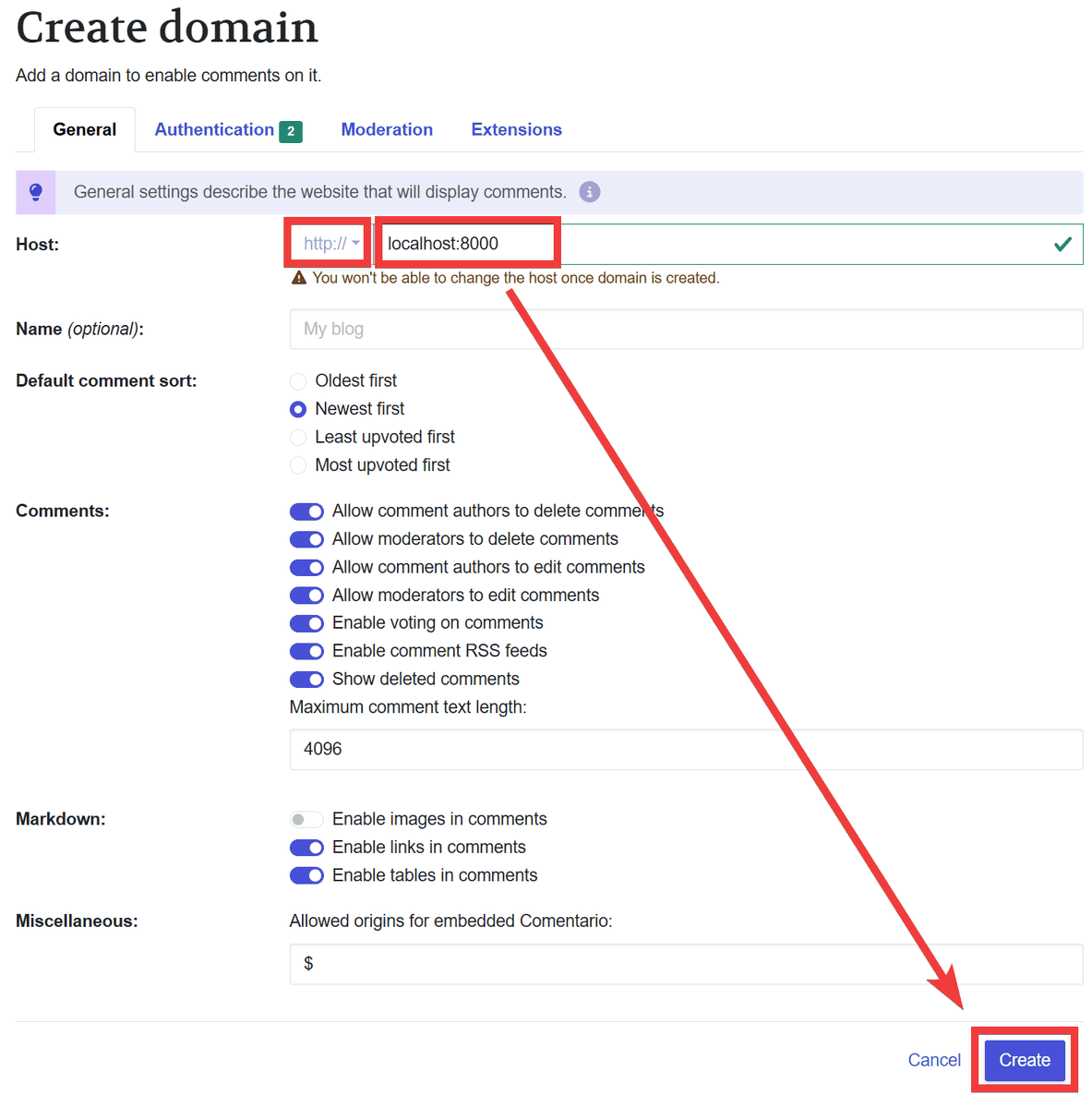
In the 'Host' field, select 'http://' or 'https://', enter your domain, and click 'Create'.
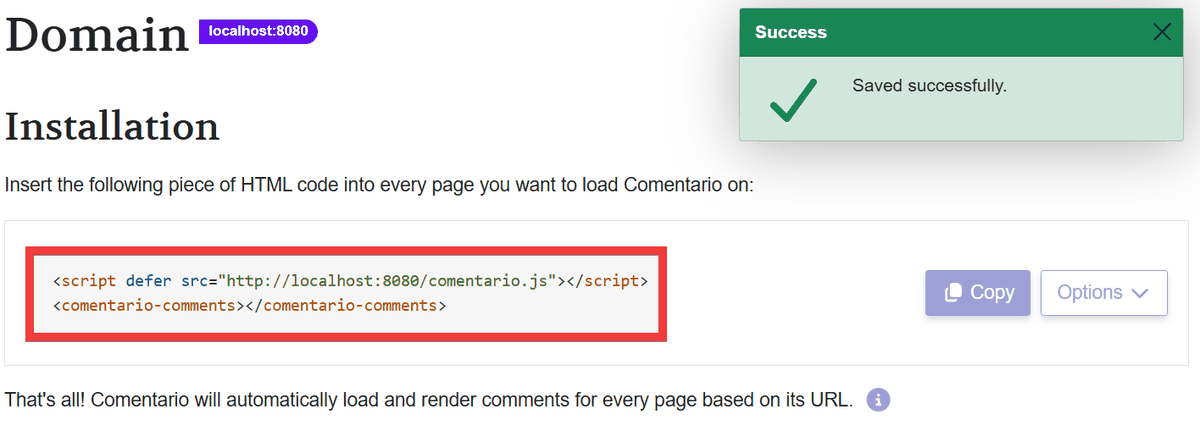
Once registration is complete, you will be shown a code to embed the comment section, so copy it.
Next, create a test HTML file, insert the code you copied into the place where you want to insert the comment field, and save it.
 <script defer src='http://localhost:8080/commentario.js'></script>
 <commentario-comments></commentario-comments>
Start a local server in the folder where you created the HTML file.
python -m http.server 8000
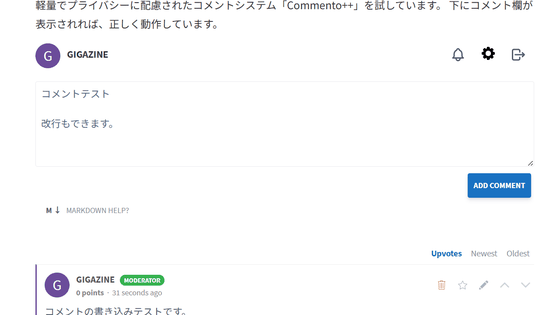
When I accessed the URL of the test page in my browser, the comment section of Comentario was displayed.
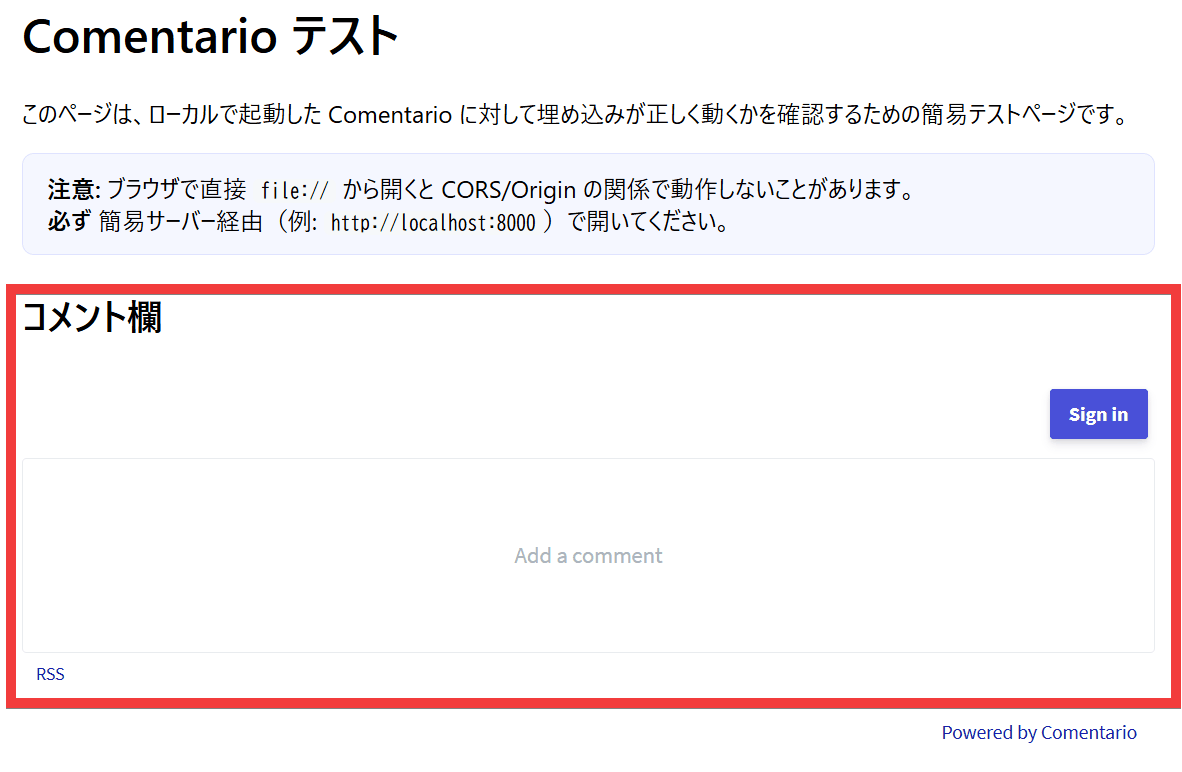
Although posting in Japanese is not an issue, the UI items and other displays are not in Japanese. However, if you prepare a language file, you can display them in Japanese.
Related Posts: