'Mail-Archiver' that allows you to archive emails such as Gmail for free, automatically delete them after saving, and increase free space
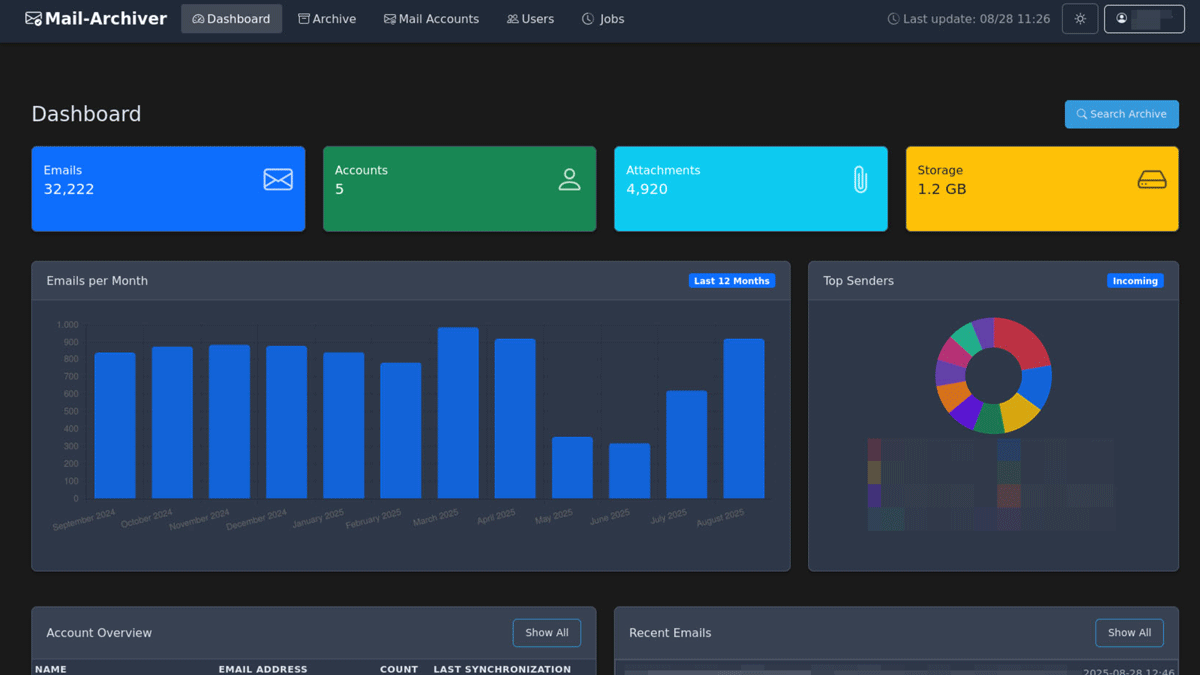
To free up space in your mailbox, you can create a backup file using export, but when you need to, it can be a hassle to search through the backup file to check the contents. By using the open-source email archiving system ' Mail-Archiver ,' you can automatically back up and delete emails, while also making it easy to search and view archived emails at any time.
GitHub - s1t5/mail-archiver: Mail-Archiver is a web application for archiving, searching, and exporting emails from multiple accounts
This time, we assumed a Windows environment and used Docker and Git Bash from Git for Windows . Copy the Docker Compose template in the README in the GitHub repository to your working folder as docker-compose.yml and update the following items to suit your environment.
POSTGRES_PASSWORD
・Authentication__Username
・Authentication__Password
・TimeZone__DisplayTimeZoneId
 services:
 mailarchive-app:
 image: s1t5/mailarchiver:latest
 restart: always
 environment:
 # Database Connection
 - ConnectionStrings__DefaultConnection=Host=postgres;Database=MailArchiver;Username=mailuser;Password=masterkey;

 # Authentication Settings
 - Authentication__Username=admin
 - Authentication__Password=secure123!

 # TimeZone Settings
 - TimeZone__DisplayTimeZoneId=Etc/UCT
 Ports:
 - '5000:5000'
 networks:
 - postgres
 volumes:
 - ./data-protection-keys:/app/DataProtection-Keys
 depends_on:
 postgres:
 condition: service_healthy

 postgres:
 image: postgres:17-alpine
 restart: always
 environment:
 POSTGRES_DB: MailArchiver
 POSTGRES_USER: mailuser
 POSTGRES_PASSWORD: masterkey
 volumes:
 - ./postgres-data:/var/lib/postgresql/data
 networks:
 - postgres
 healthcheck:
 test: ['CMD-SHELL', 'pg_isready -U mailuser -d MailArchiver']
 interval: 10s
 timeout: 5s
 retries: 5
 start_period: 10s

 networks:
 postgres:
Start the container.
docker compose up -d
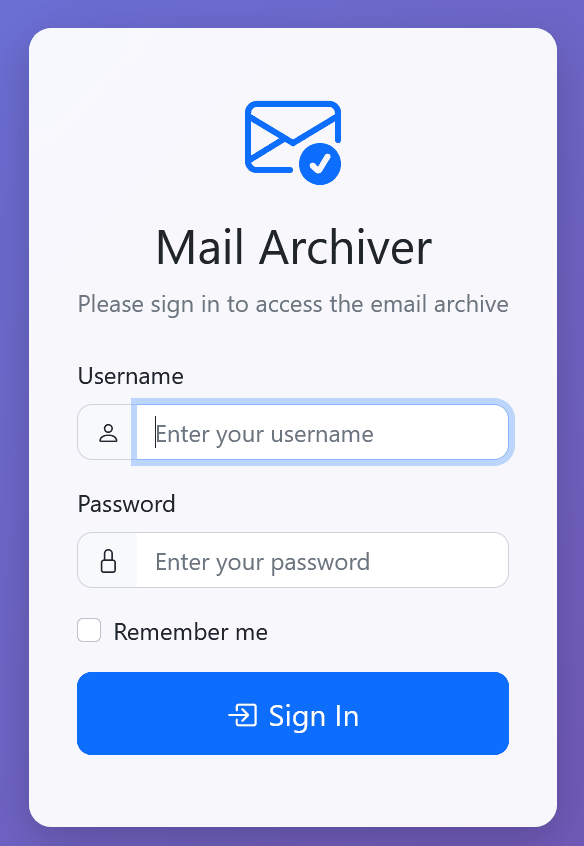
After confirming that it has started, access 'http://localhost:5000/' in your browser and the login screen will be displayed.
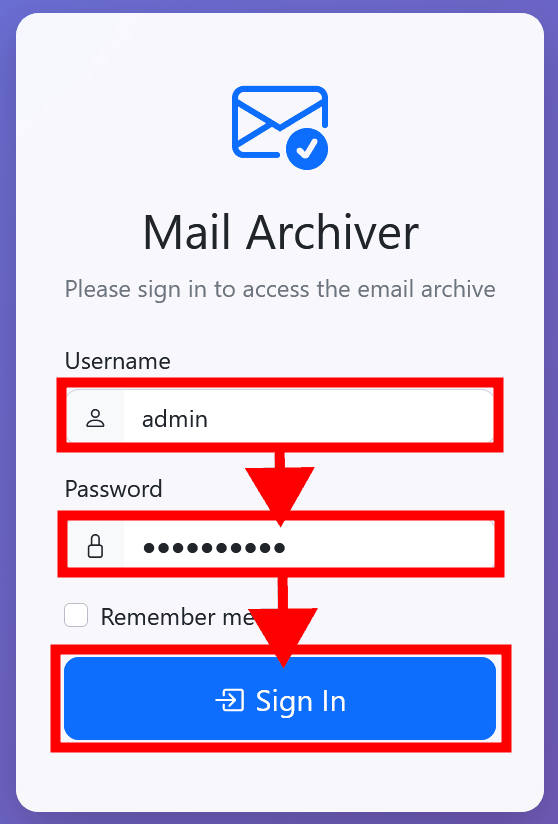
Enter the username and password you set in docker-compose.yml and click 'Sign In' to log in.
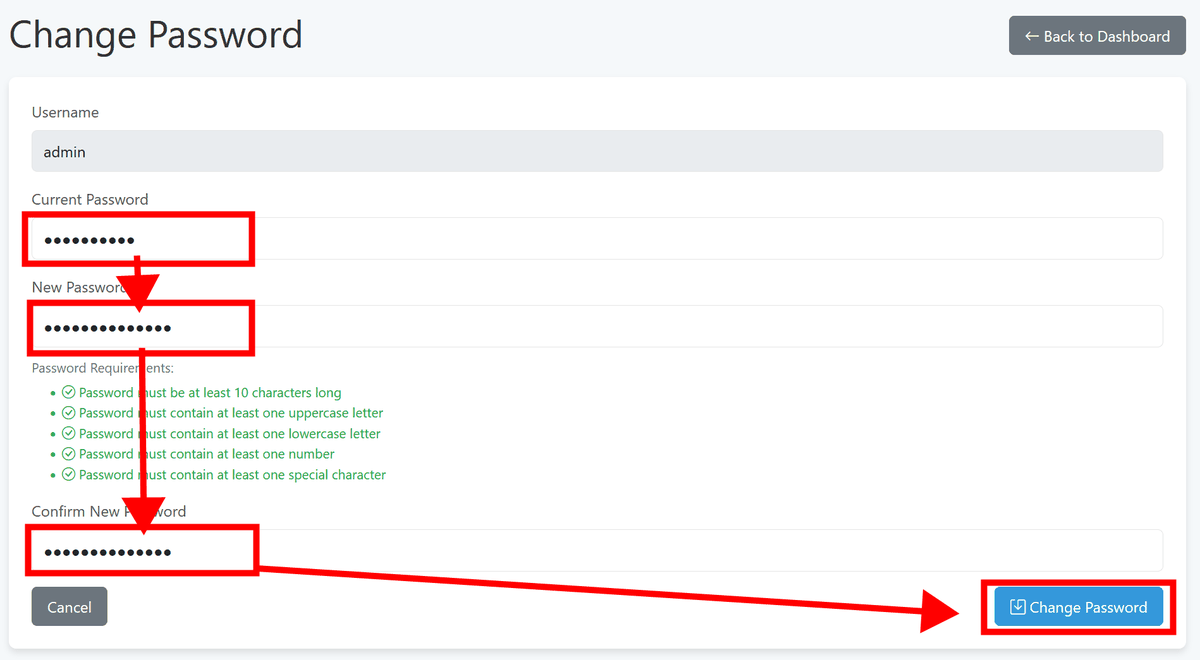
You will be asked to set your password again, so enter the appropriate password and click 'Change Password'.
The login procedure is complete and the dashboard is displayed.
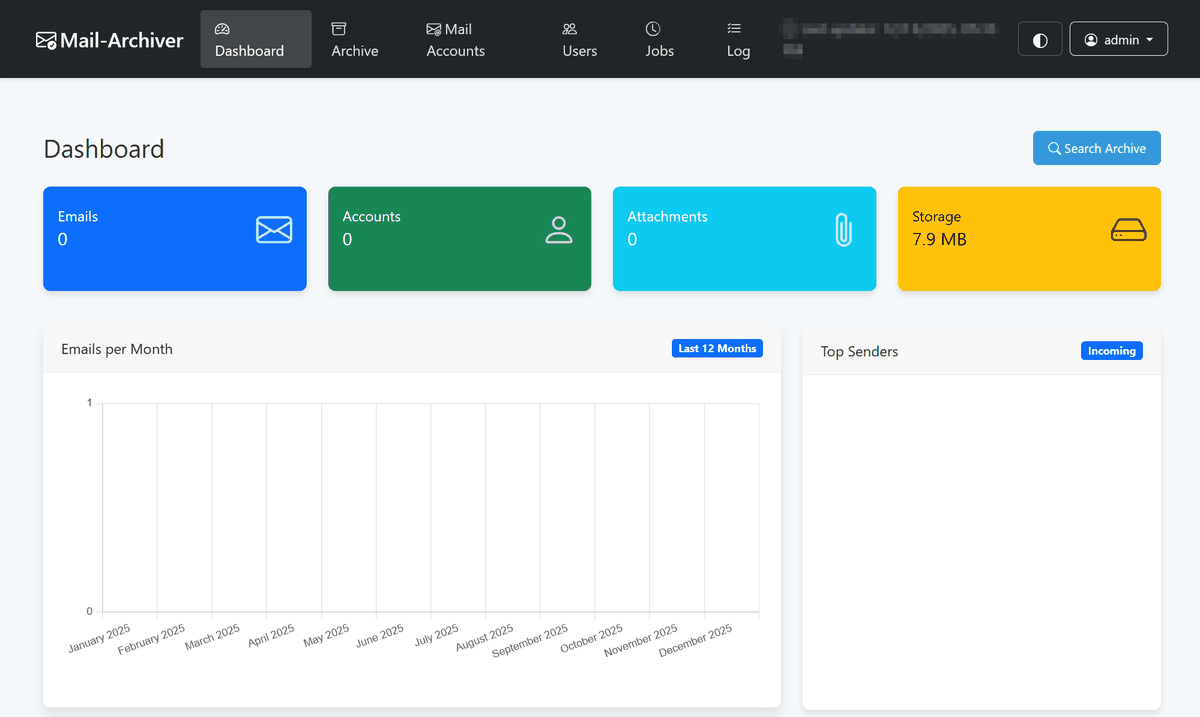
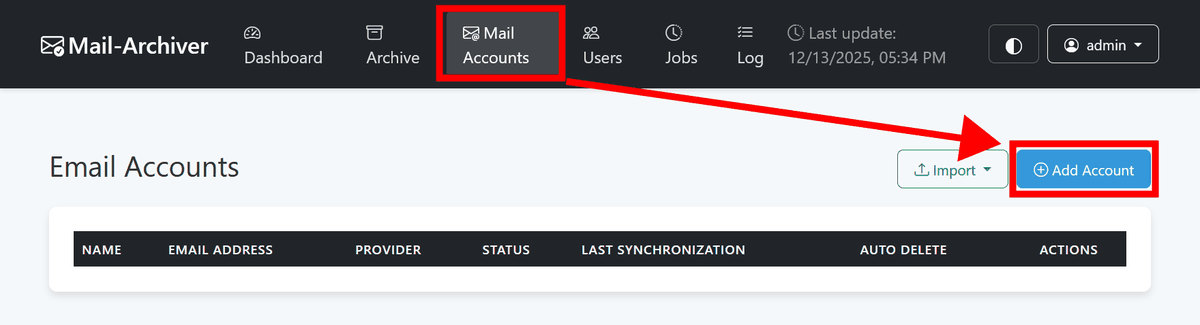
Click 'Add Account' from 'Mail Accounts' to set up an email account.
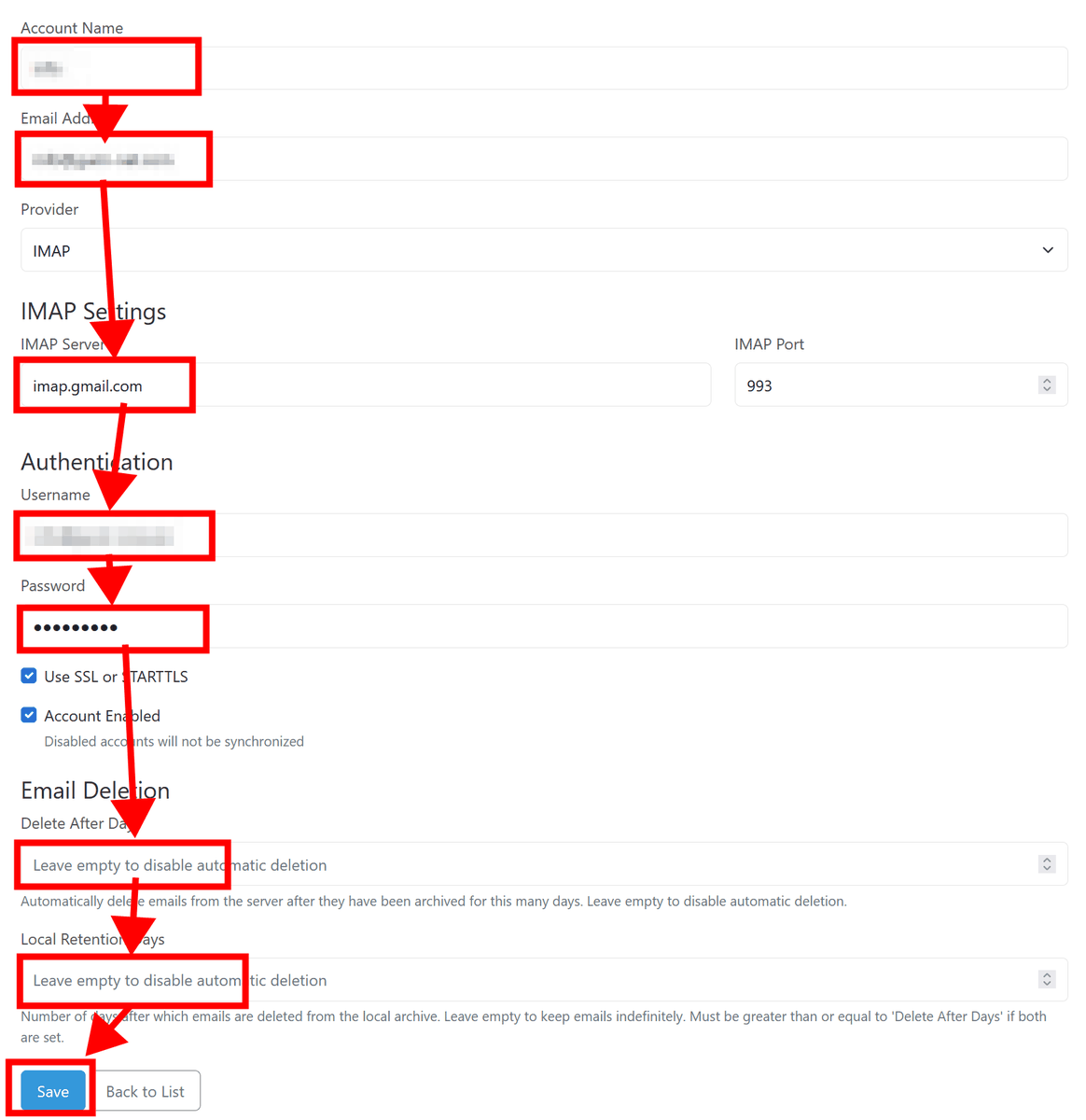
Enter the information for the email account you want to register and the number of days to store it on the server and local side. Leaving the number of days blank will set it to not be deleted. After entering all the information, click 'Save' to save it.
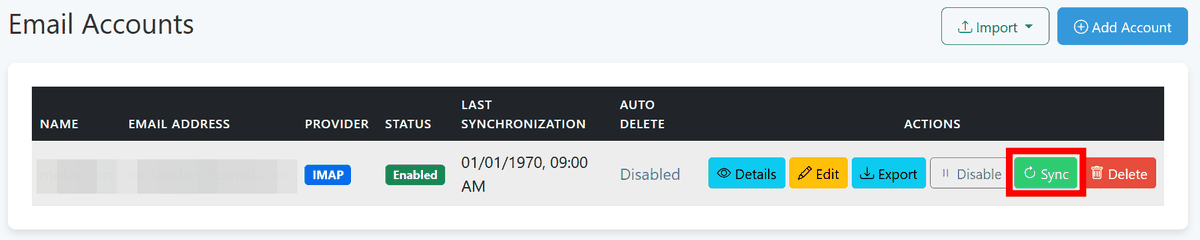
After registering your email account, it will be synchronized, so click 'Sync'.
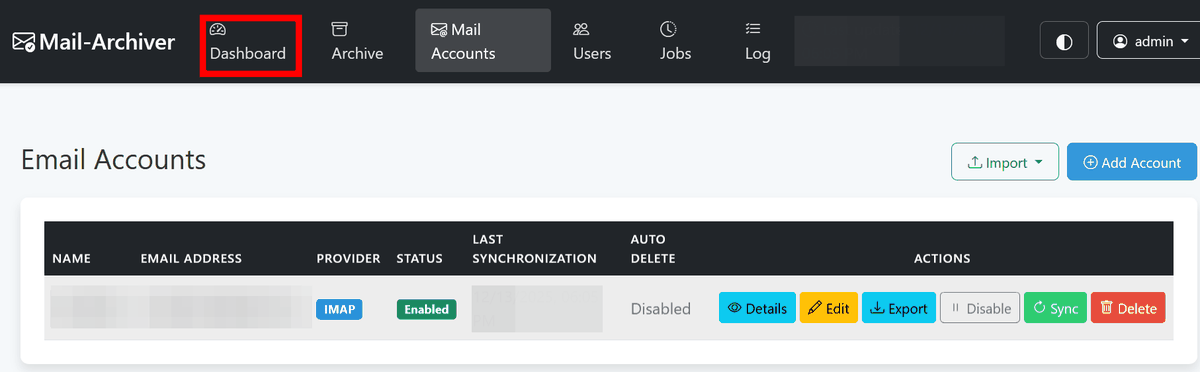
Wait a moment and then click 'Dashboard' to display the dashboard.
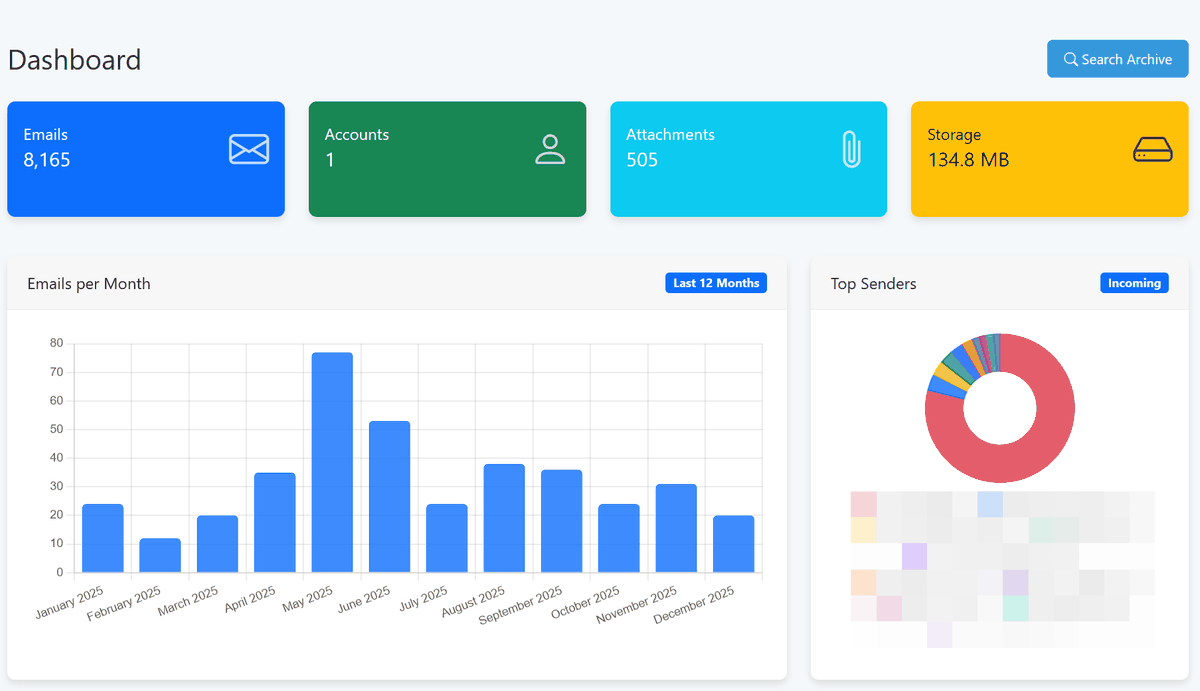
A summary of the emails synced is displayed.
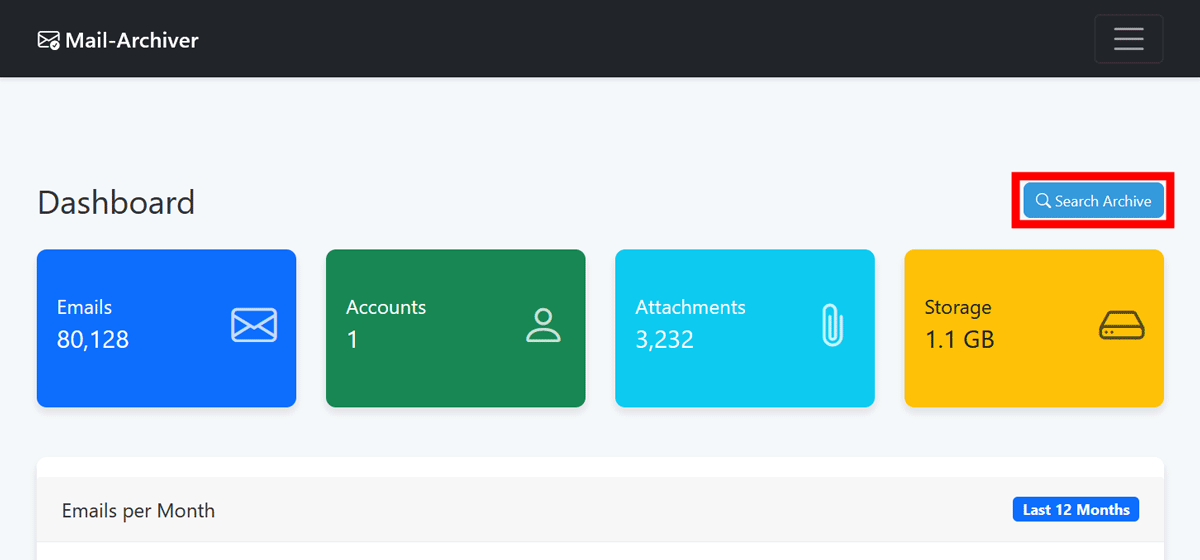
To search for emails, click 'Search Advances' to go to the search page.
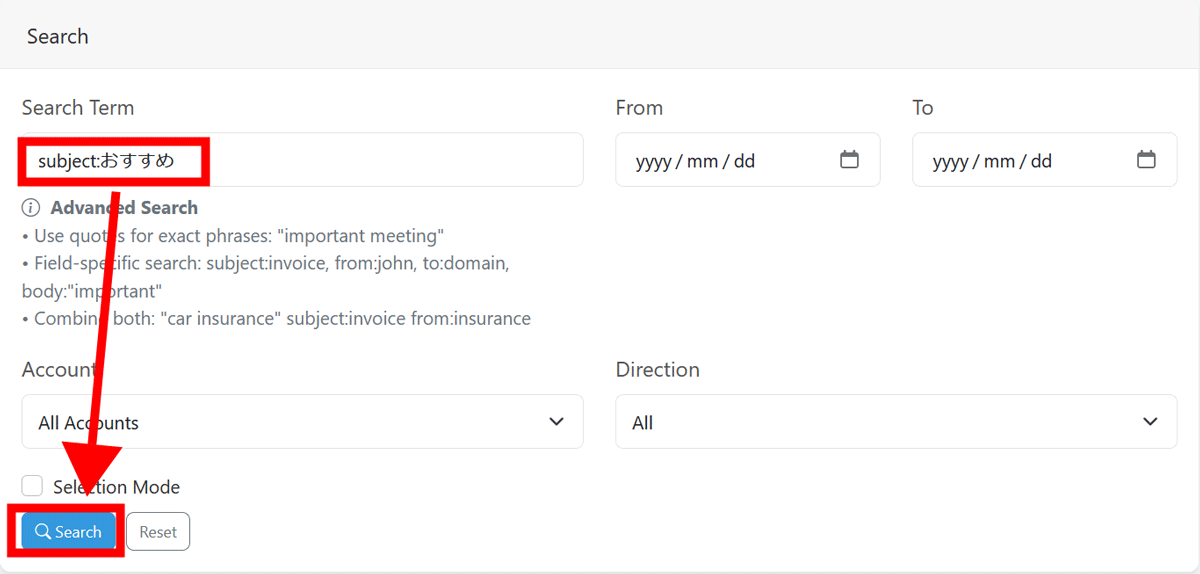
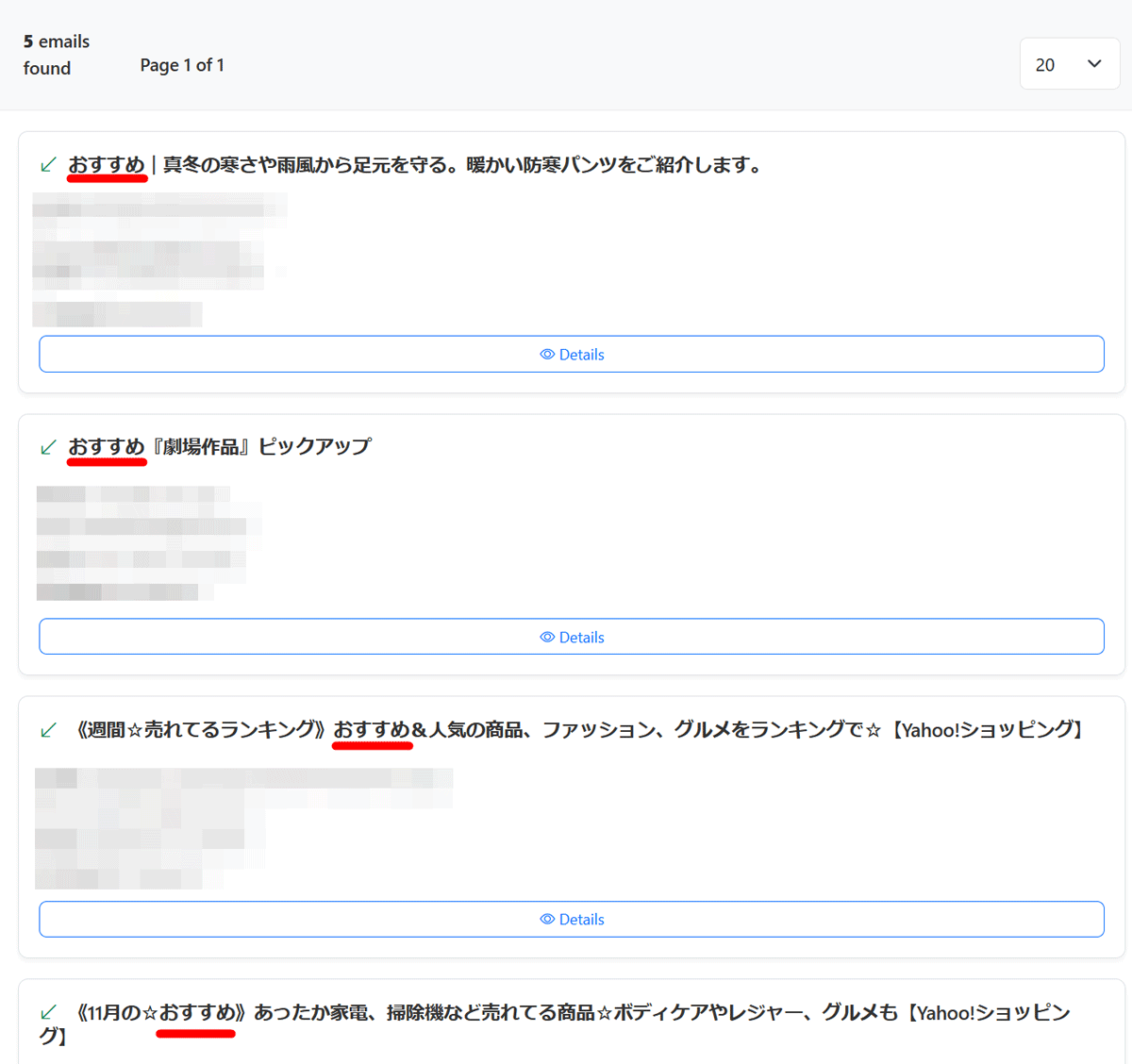
To test whether a search works in Japanese, enter the subject search command and keyword 'subject:recommended' and click 'Search'...
Emails with 'Recommended' in the subject line were extracted.
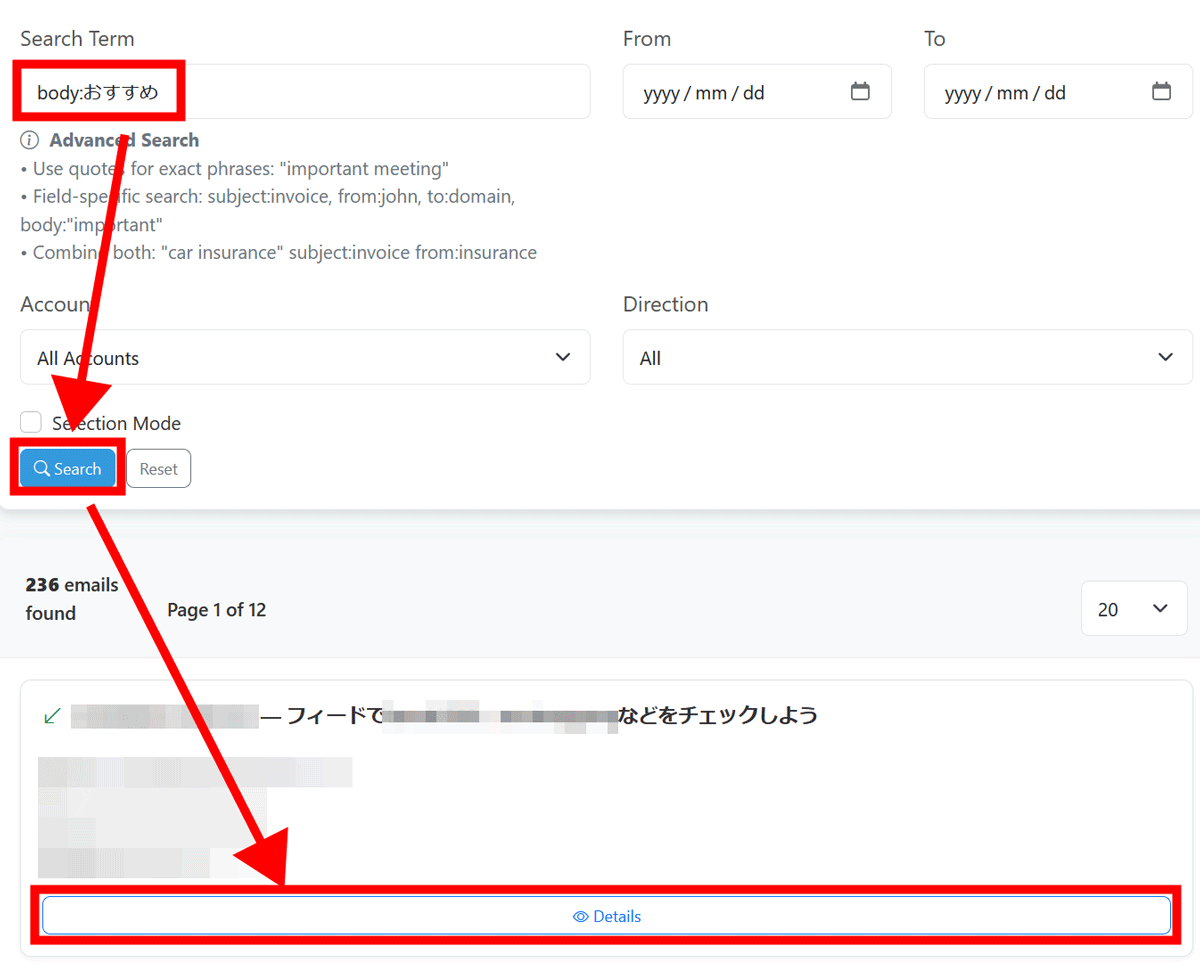
Similarly, to search the body of the email, enter 'body:recommended' and click 'Details' from the search results to open the email.
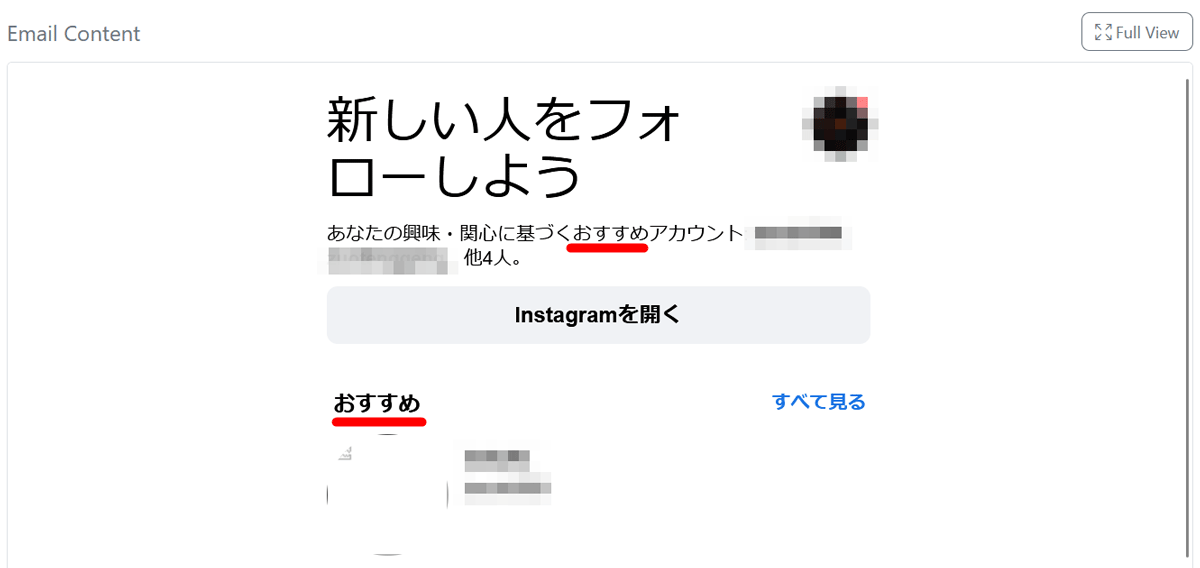
We were able to confirm that emails containing the word 'recommended' in the body of the email were extracted.
◆Main features of Mail-Archiver
- Centralized management of multiple accounts and archive function
It stores email content and attachments sent and received from multiple email accounts, synchronizes them according to schedule, and allows you to search all archived emails using a dedicated search function.
・Export function
Export entire email accounts in mbox format or as EML archives (ZIP), or select individual emails to export.
- Automatically secure capacity with retention policy
Emails that are older than the specified number of days for each email account are automatically deleted from the email server and local archive according to their respective retention periods.
・Supported providers and import functions
The following three account types are supported:
IMAP : Traditional IMAP account
M365 : Microsoft 365 email accounts via the Microsoft Graph API
IMPORT : Used to migrate mbox and EML format data exported from other email clients or archive systems. After importing, you can restore selected emails or the entire mailbox to the destination mailbox.
- Multi-user support and access management
Multiple users can be assigned different permissions, and activity and access logs can be recorded.You can also select OpenID Connect as an external authentication service.
UI
The responsive design is intended for use on mobile and desktop screens, and it is multilingual and supports dark mode.
Please note that Mail-Archiver is a receiving-only tool with no sending function, and is intended to be used solely as a backup and archiving tool.
Related Posts:

in Software, Posted by darkhorse_logmk