'MediaCMS' allows you to build your own fully-featured YouTube-like video site for free
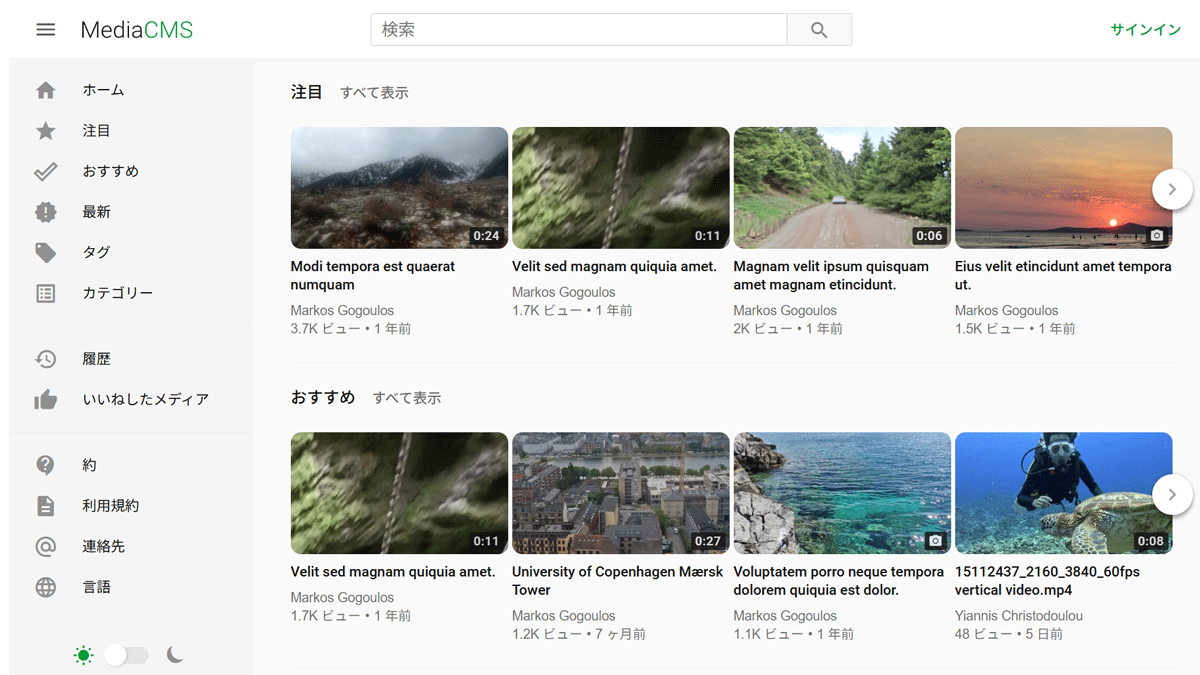
'MediaCMS' has been released, which can handle a variety of file formats such as video, audio, images, and PDFs, and can reproduce
mediacms-io/mediacms: MediaCMS is a modern, fully featured open source video and media CMS, written in Python/Django and React, featuring a REST API.
https://github.com/mediacms-io/mediacms/
MediaCMS - Modern Open Source Video & Media CMS | Professional Services
https://mediacms.io/
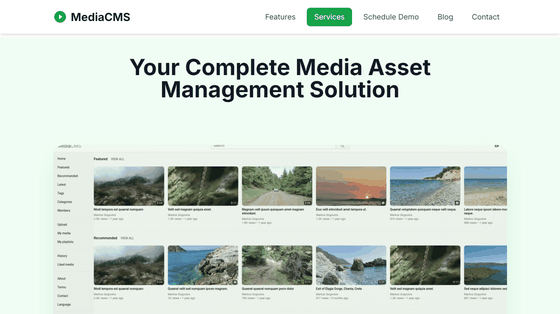
◆Demo site
◆Main features of MediaCMS
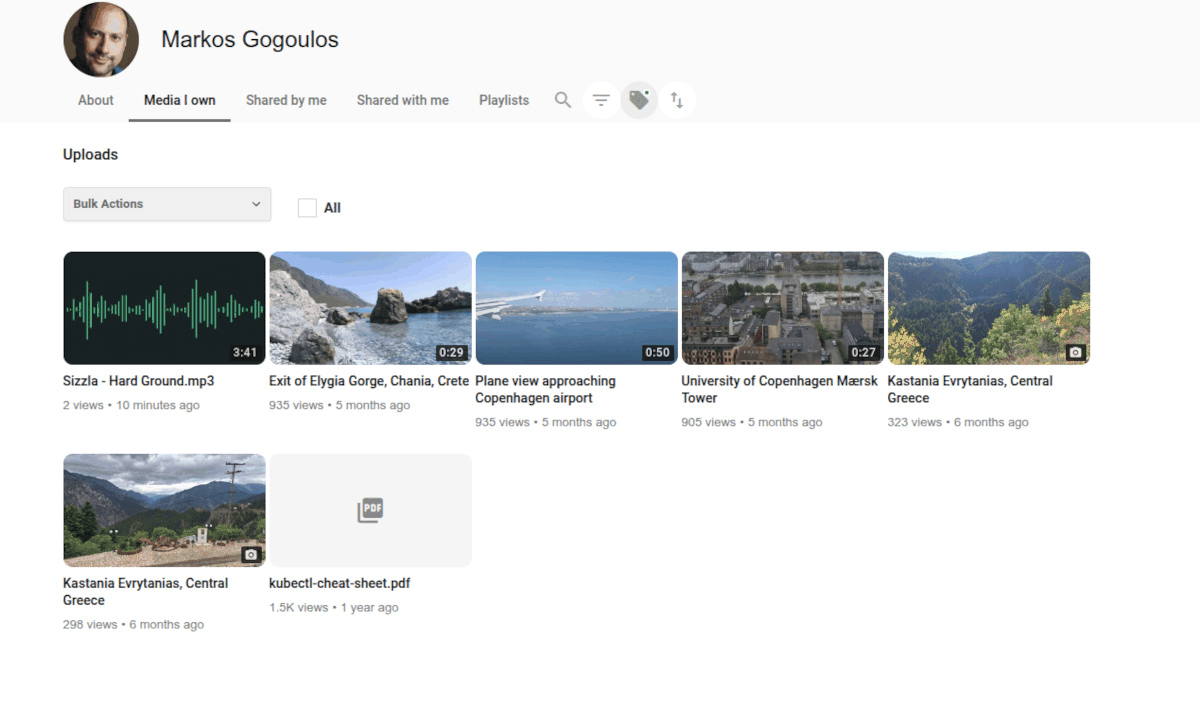
Supports various media types including video, audio, images, and PDF.
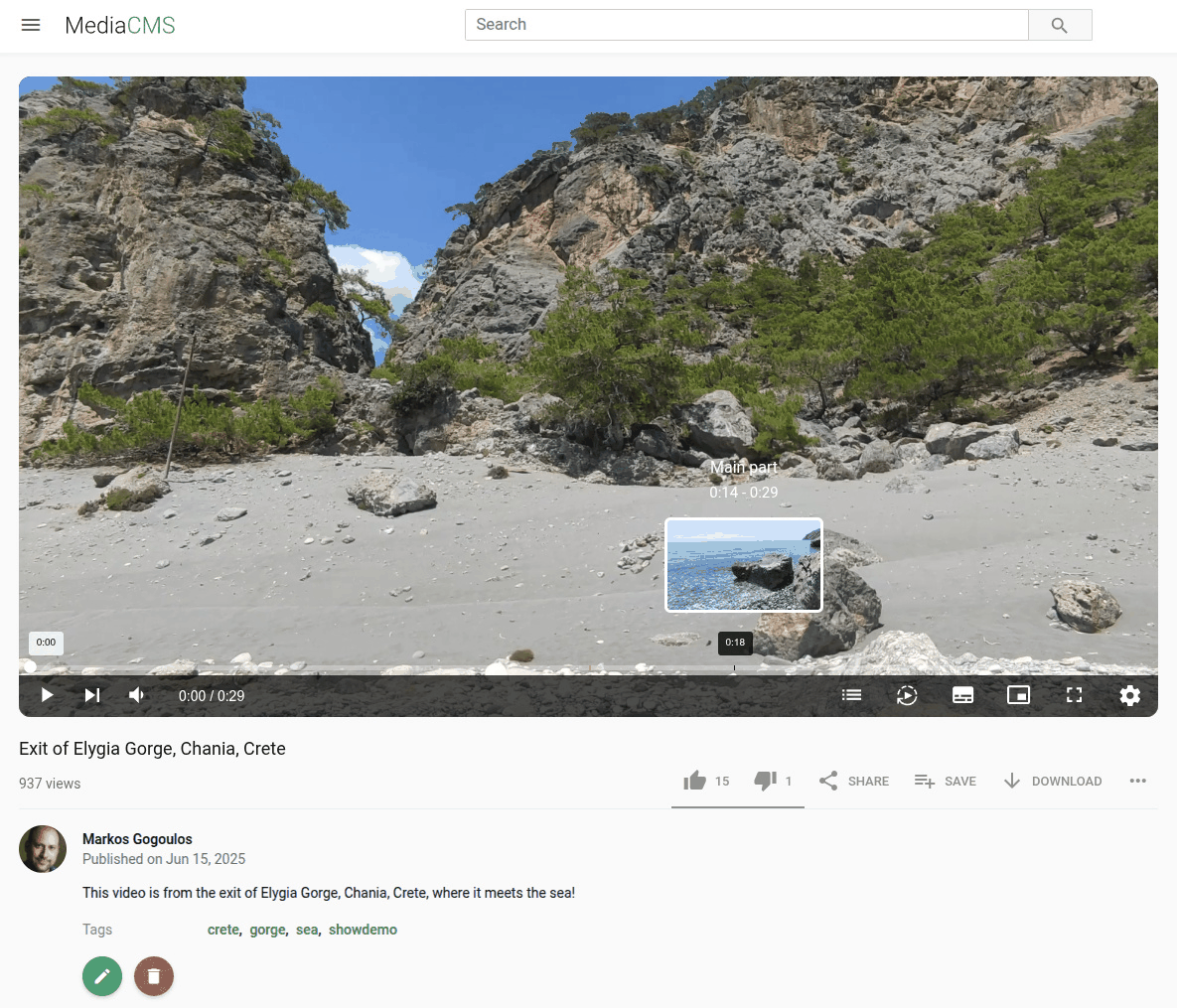
A highly functional video player that allows you to switch resolutions and adjust playback speed.
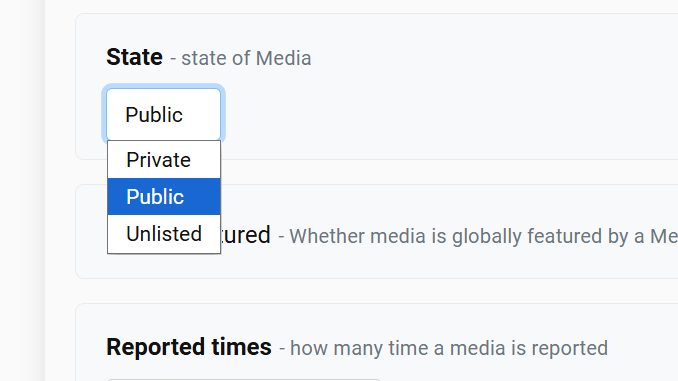
Access control is possible, allowing media to be made public, private, or limited.
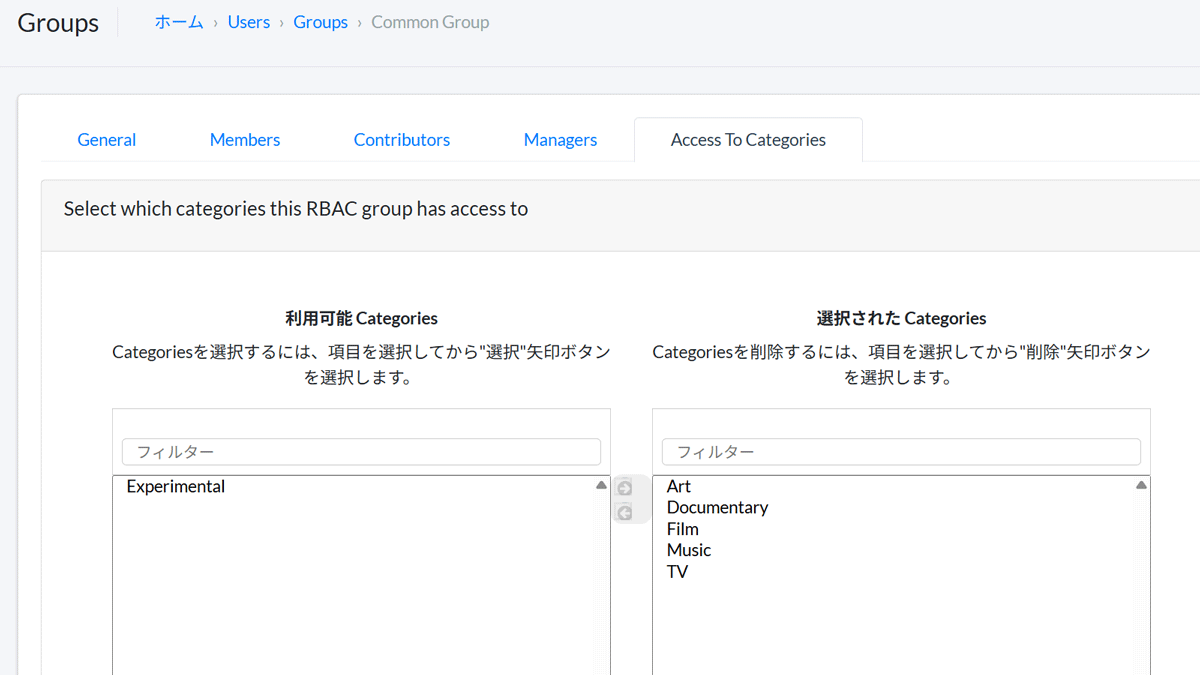
It is possible to restrict viewing by category for groups.
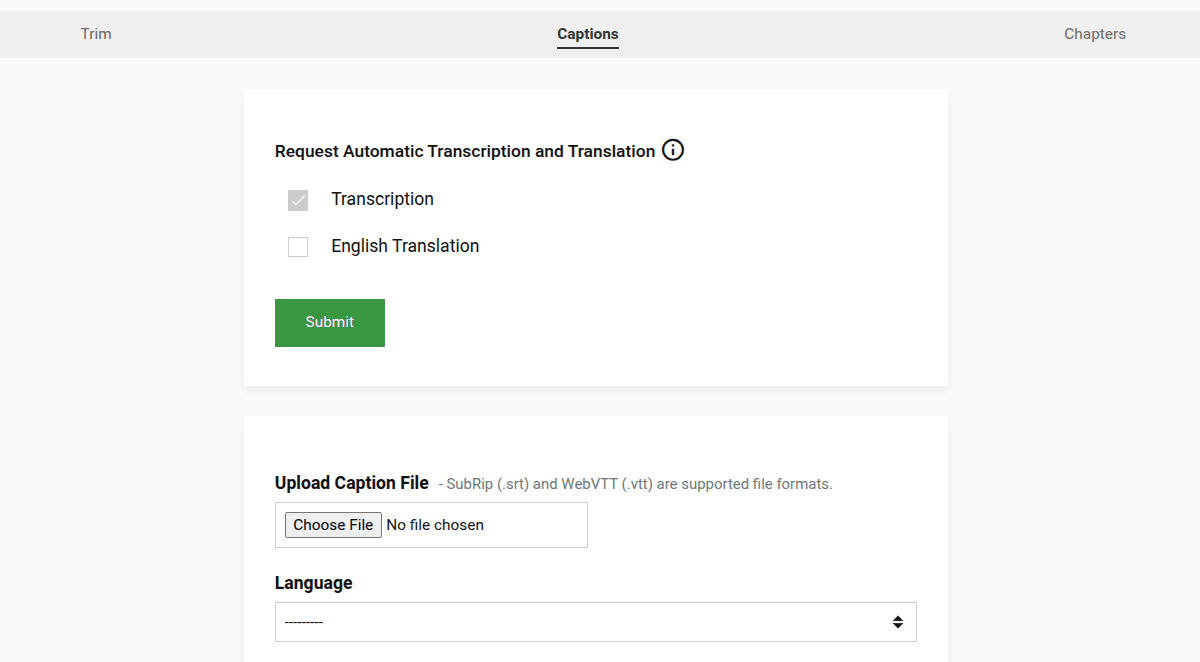
Automatic transcription by
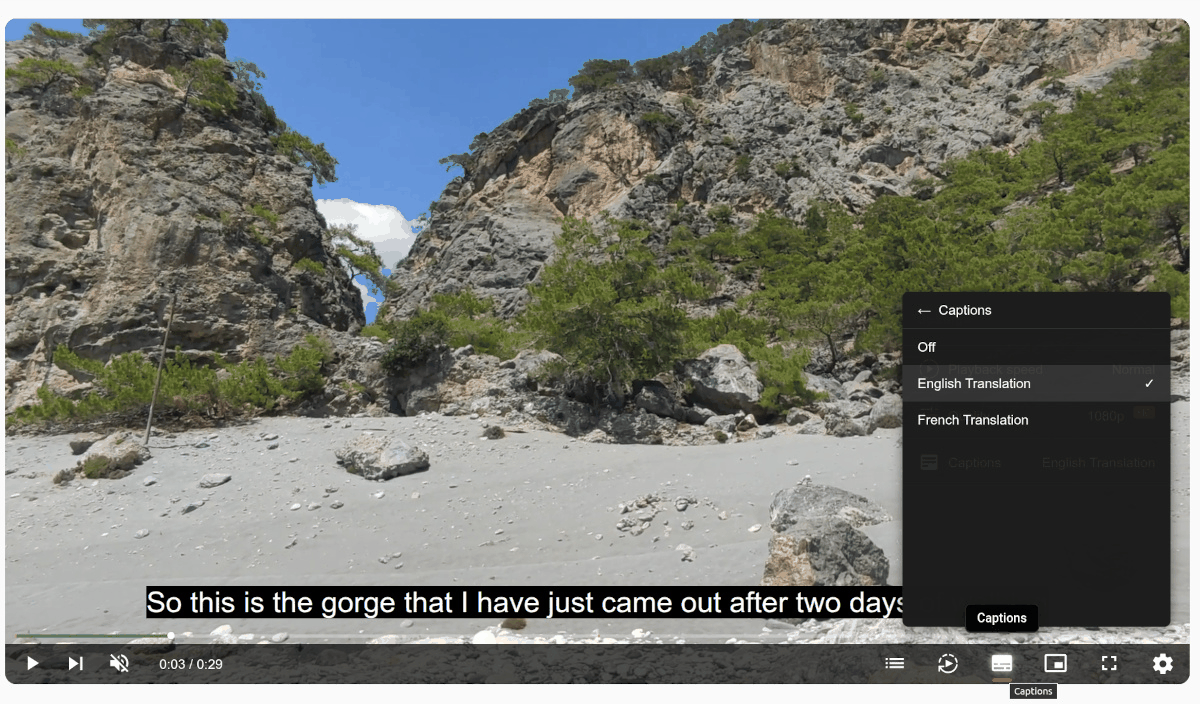
Supports subtitles in multiple languages.
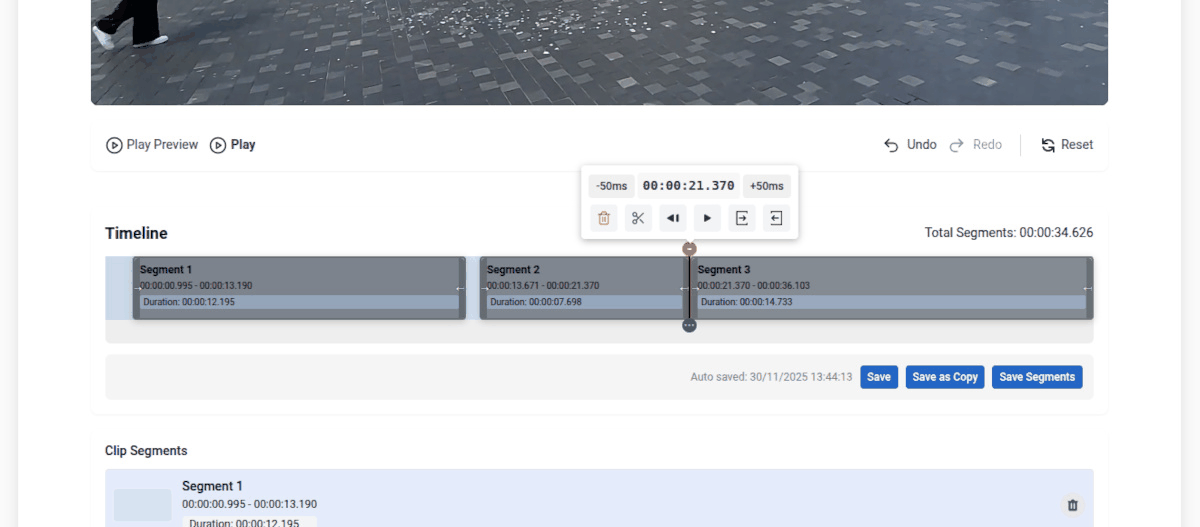
You can trim, replace, save, and edit videos, save the edited video as a new video, and divide it into chapters in your browser.
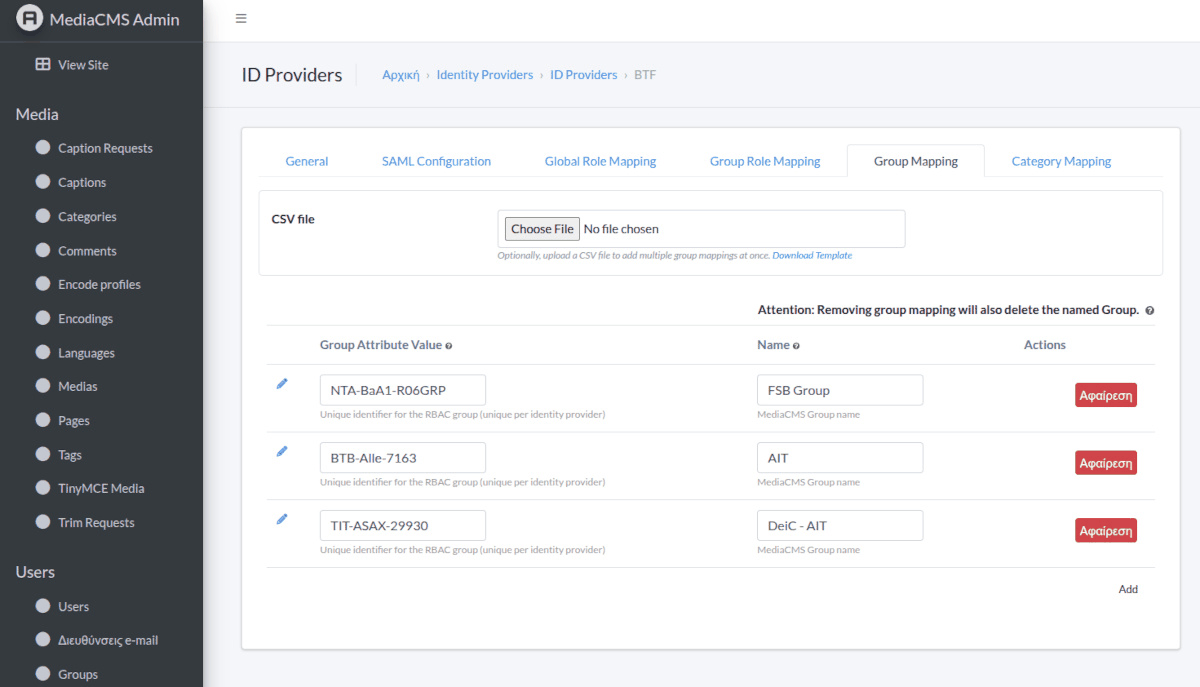
It can be linked to the authentication system used by organizations and companies.
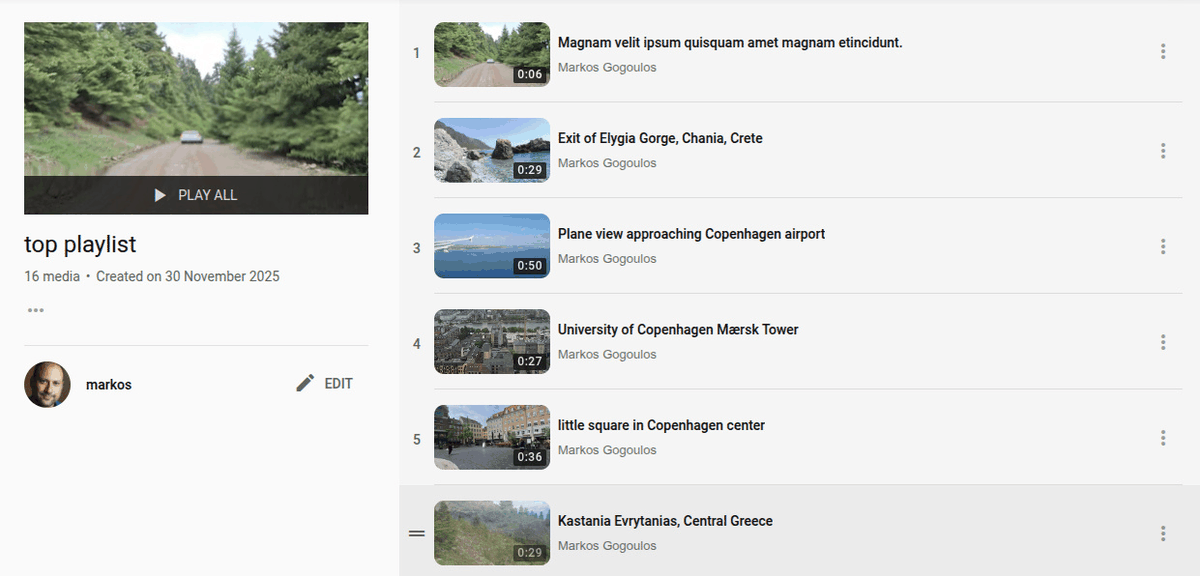
You can create and sort audio and video playlists.
User registration methods can be selected from public, where anyone can register, invitation, where registration is only possible with an invitation from an administrator, or closed, where user registration is disabled.
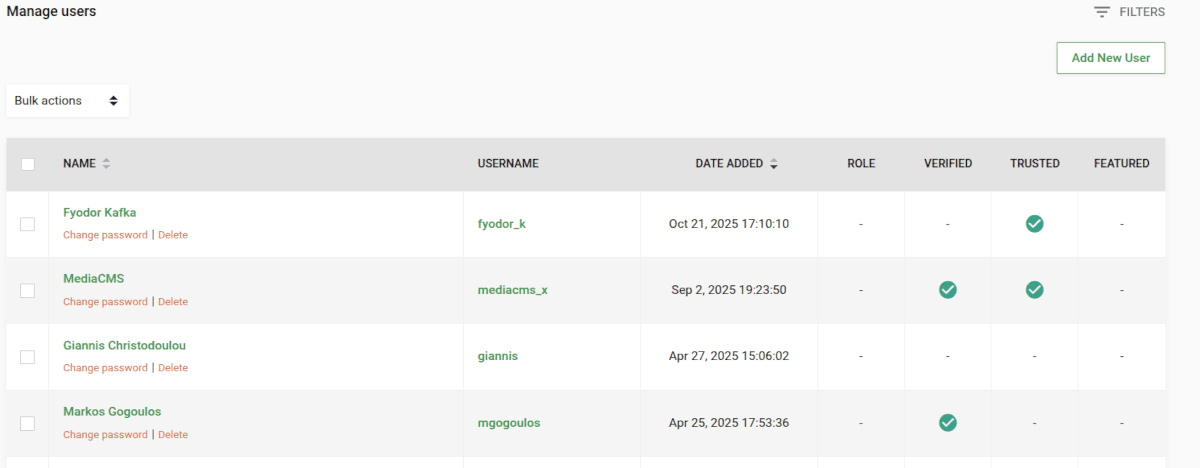
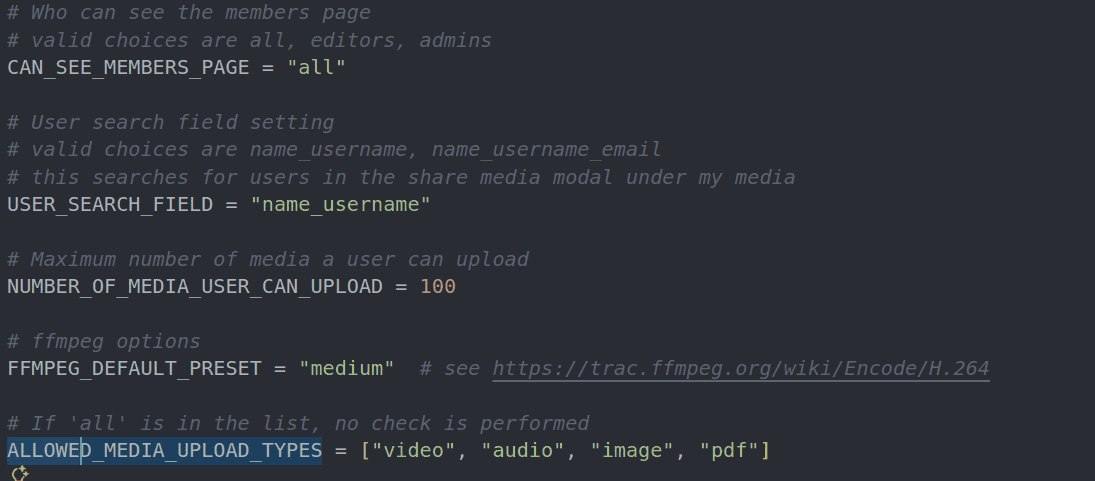
You can customize features and designs such as viewing restrictions, post limit, and uploadable media formats.
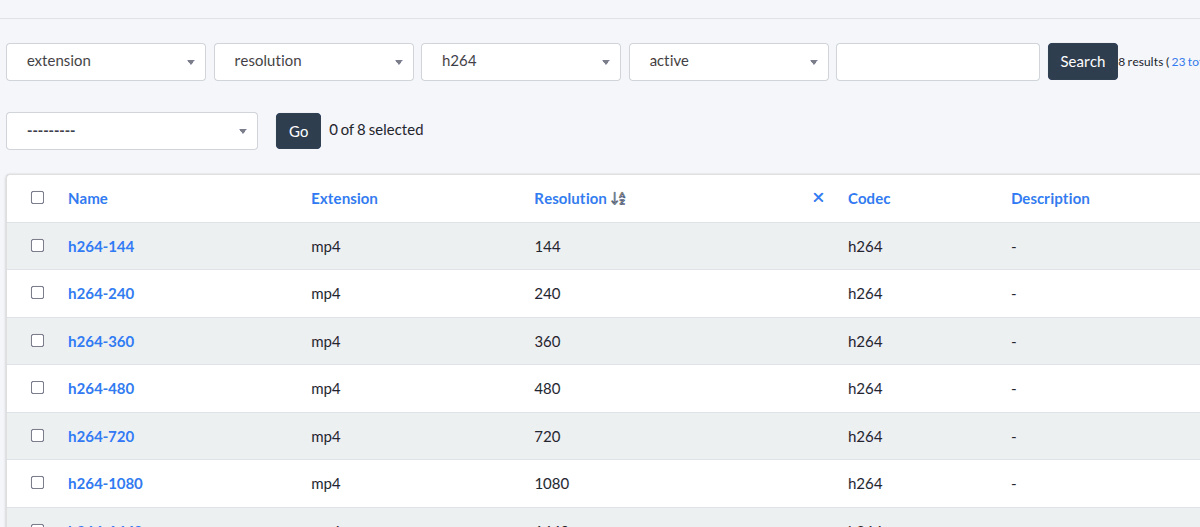
Supports resolutions from 144p to 1080p and multiple compression formats such as h264, h265, and vp9.
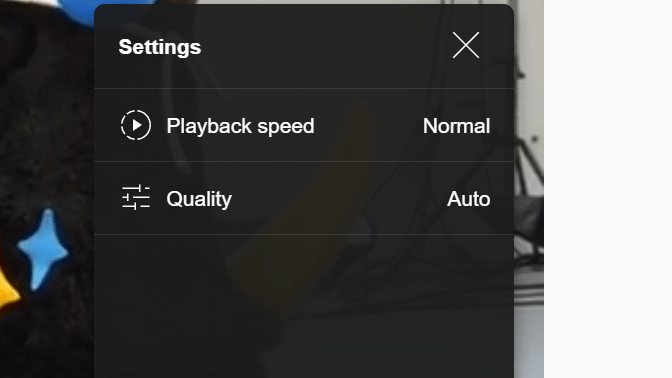
Automatically adjusts image quality according to the network environment.
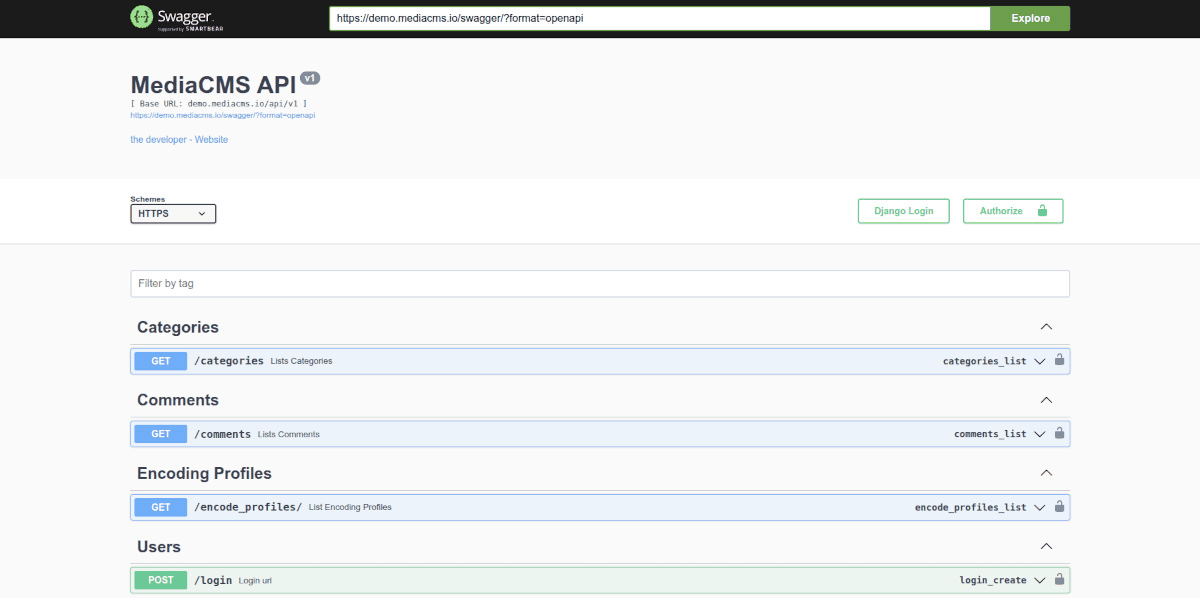
REST API allows integration with external programs and services.
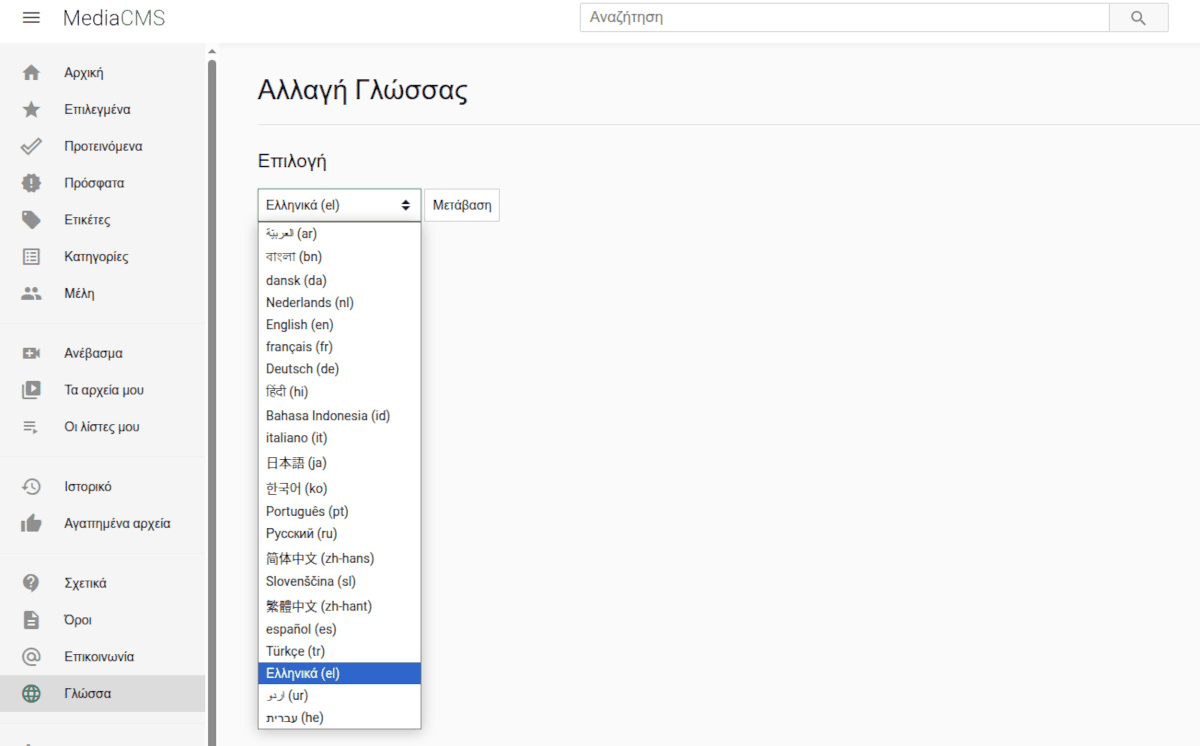
Supports multilingual interface.
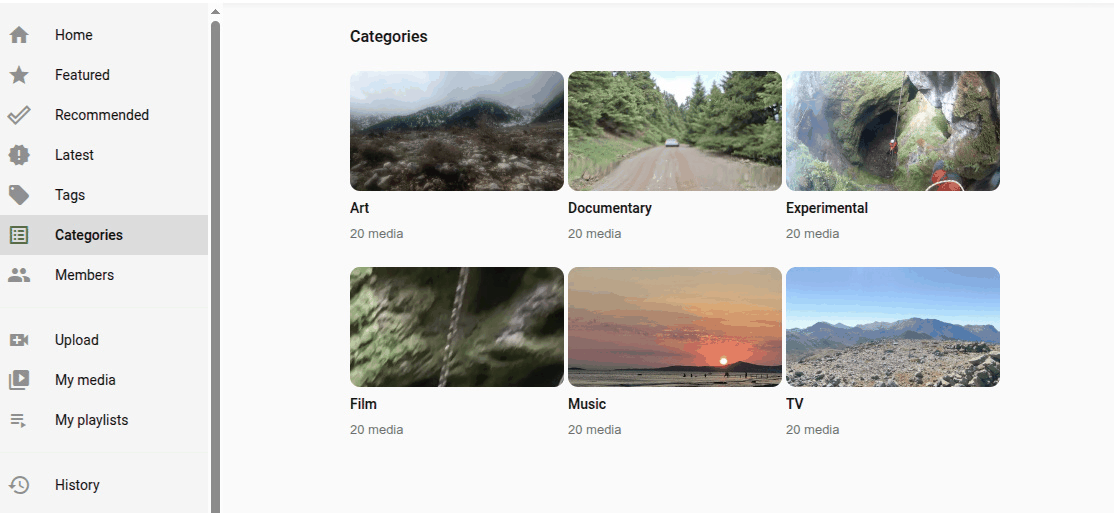
You can organize your media by categorizing it with categories and tags.
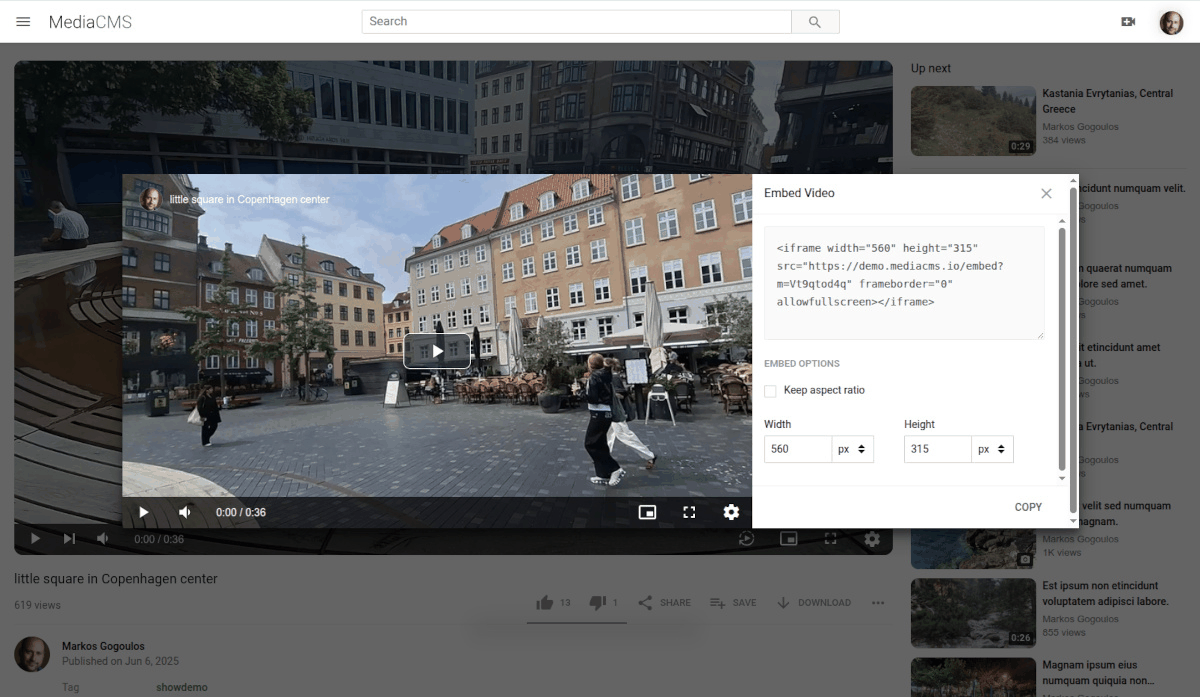
Supports generating social media sharing buttons and embed codes.
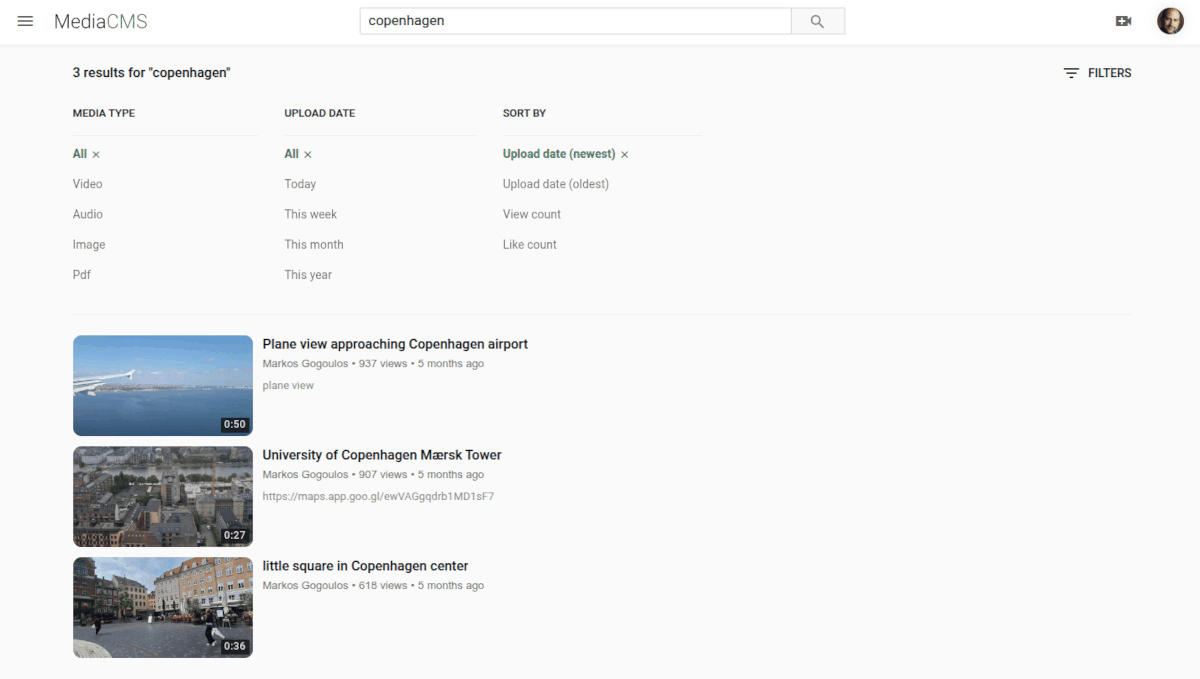
The keyword prediction function allows you to quickly search for the media you are looking for.
Responsive design for optimal viewing on desktops, tablets and smartphones.
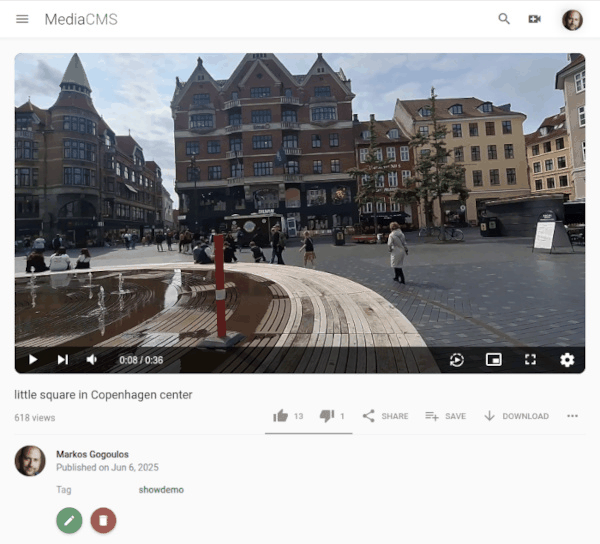
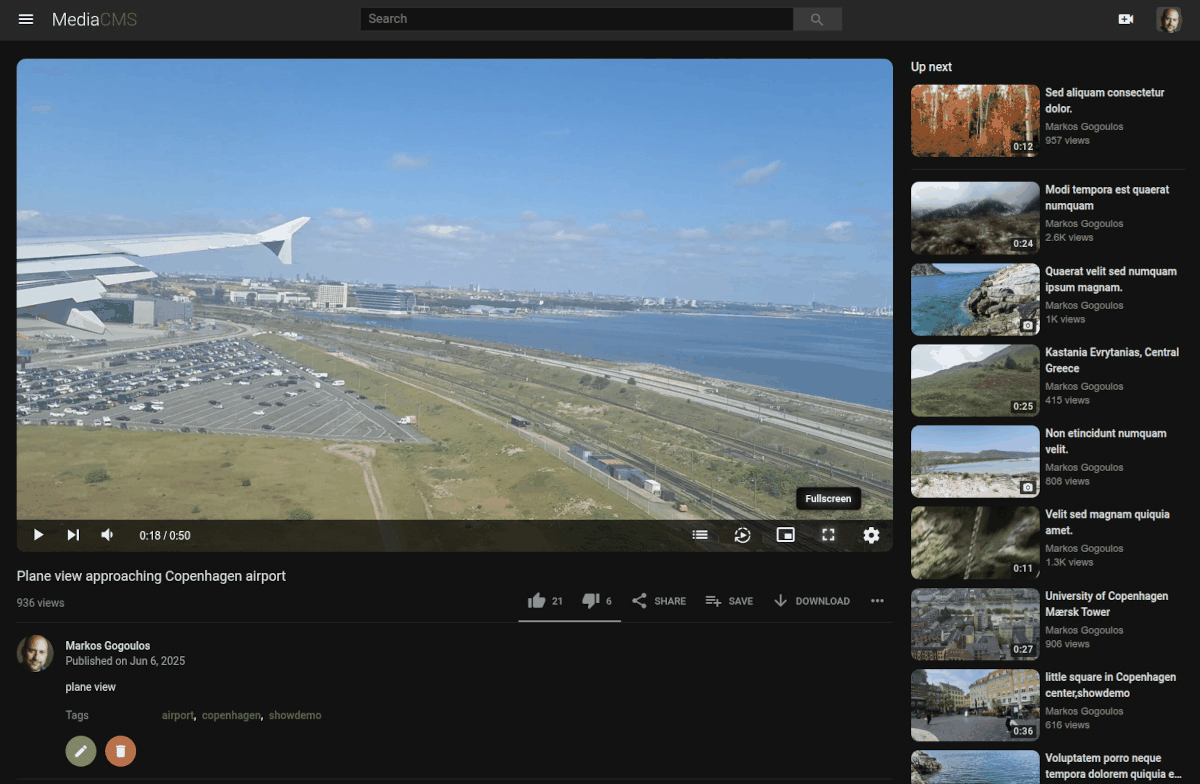
It offers many features, including the ability to choose between light and dark modes to suit your preferences.
◆How to build a MediaCMS
This time, we will build an environment where Docker can be used on Ubuntu on a Google Cloud VM instance. Clone the MediaCMS repository into a working folder.
git clone https://github.com/mediacms-io/mediacms.git
Go to the mediacms folder.
cd mediacms
Edit docker-compose.yaml to set the admin password.
 vi docker-compose.yaml

 16 ADMIN_PASSWORD: 'uncomment_and_set_password_here'
If you want to use the automatic voice transcription feature, edit local_settings.py and add the environment variable 'USE_WHISPER_TRANSCRIBE = True'.
vi deploy/docker/local_settings.py
Start a container for the full version.
docker compose -f docker-compose.yaml -f docker-compose.full.yaml up -d
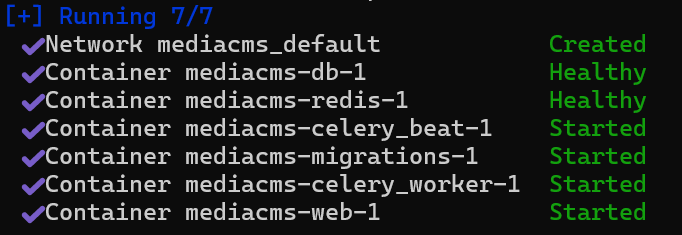
After a while, all the containers will start.
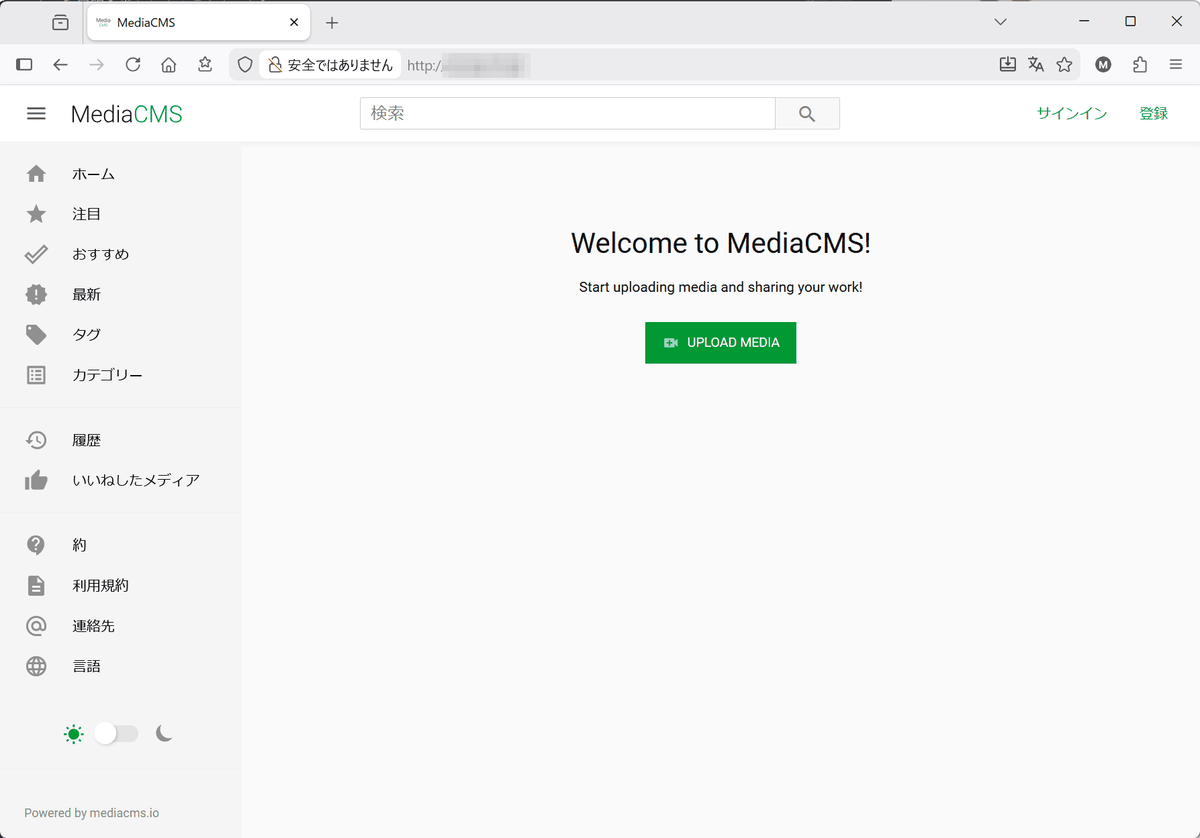
If you access the host's IP address in your browser, the MediaCMS homepage will be displayed.
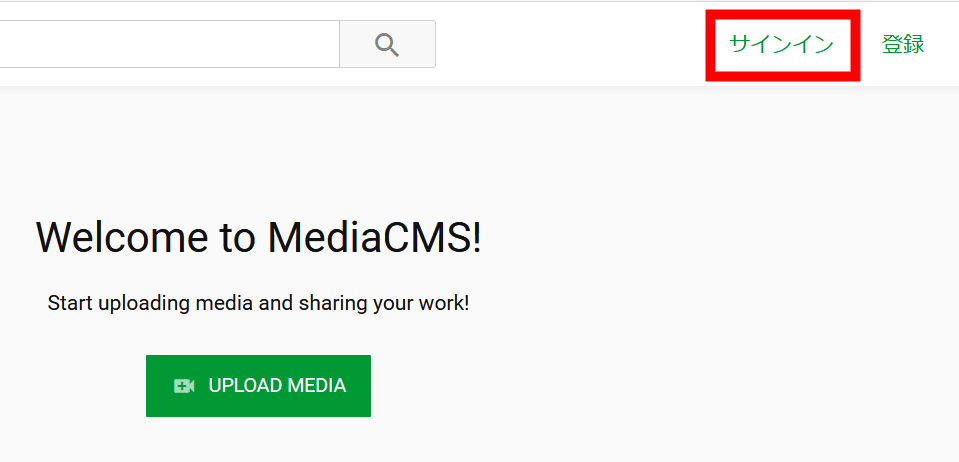
Click Sign In in the top right.
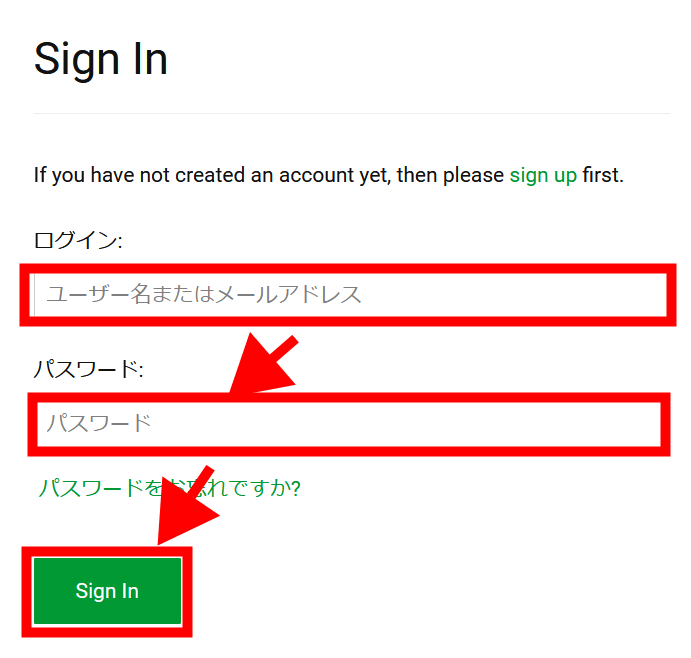
Enter the administrator account and password you set in docker-compose.yaml in the 'Login' and 'Password' fields and click the 'Sign In' button.
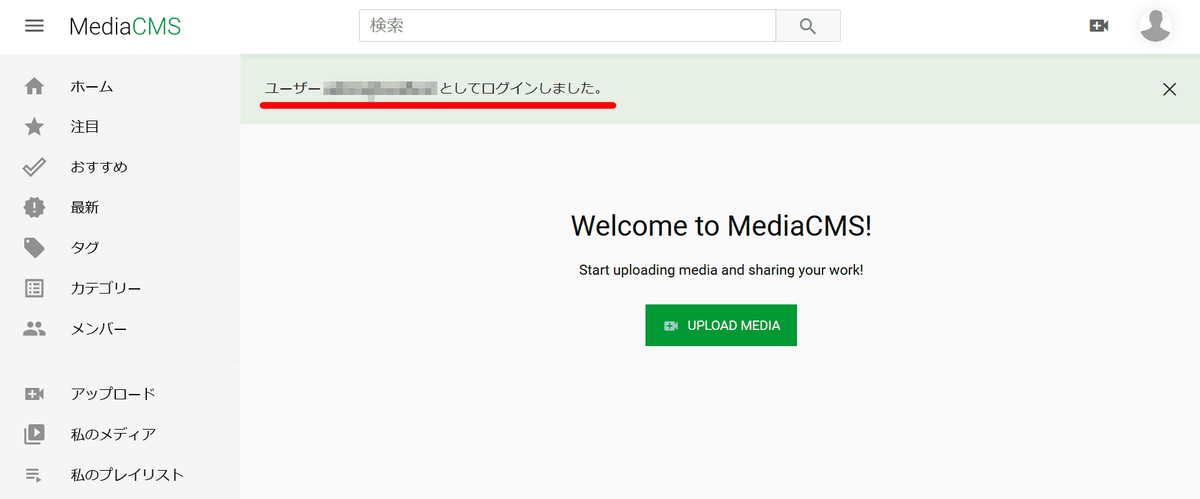
A message will appear once you have logged in.
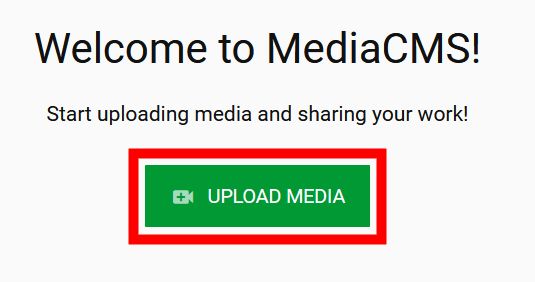
Click the 'UPLOAD MEDIA' button to upload a test video.
Drag and drop video files to upload.
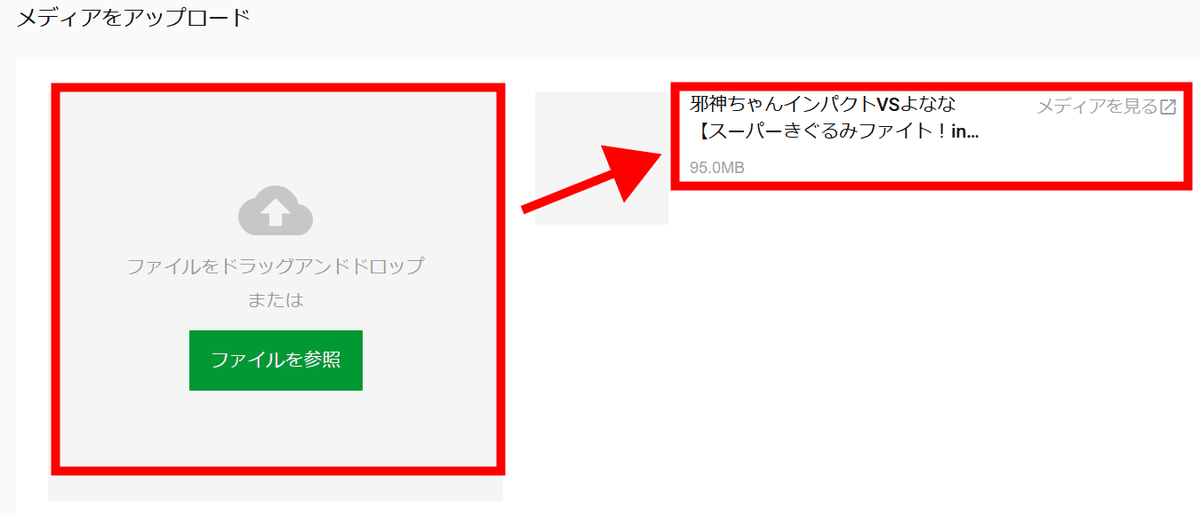
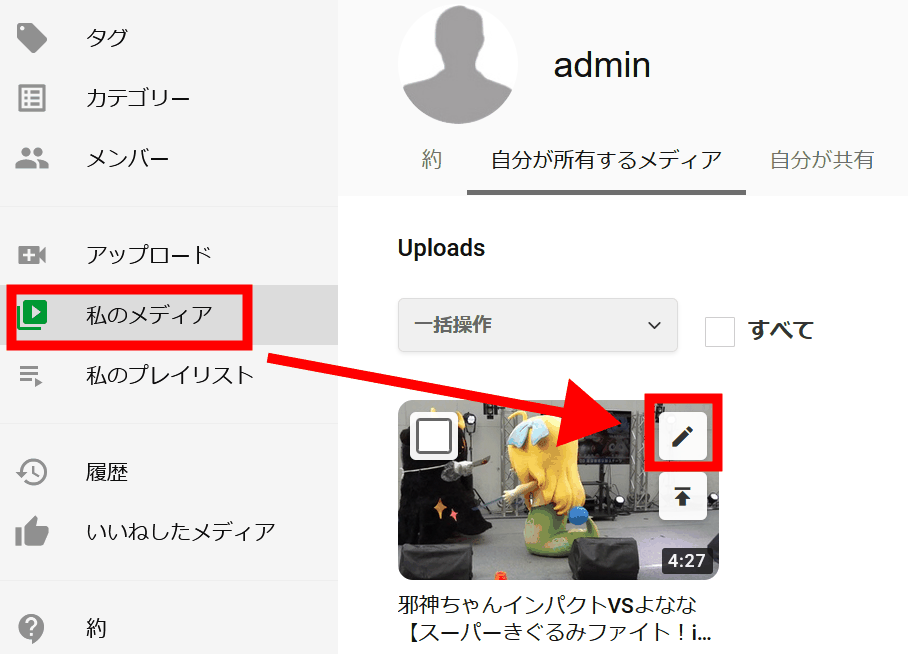
Once the upload is complete, go to 'My Media' and a list will appear. Click the 'pen' icon next to the video you uploaded.
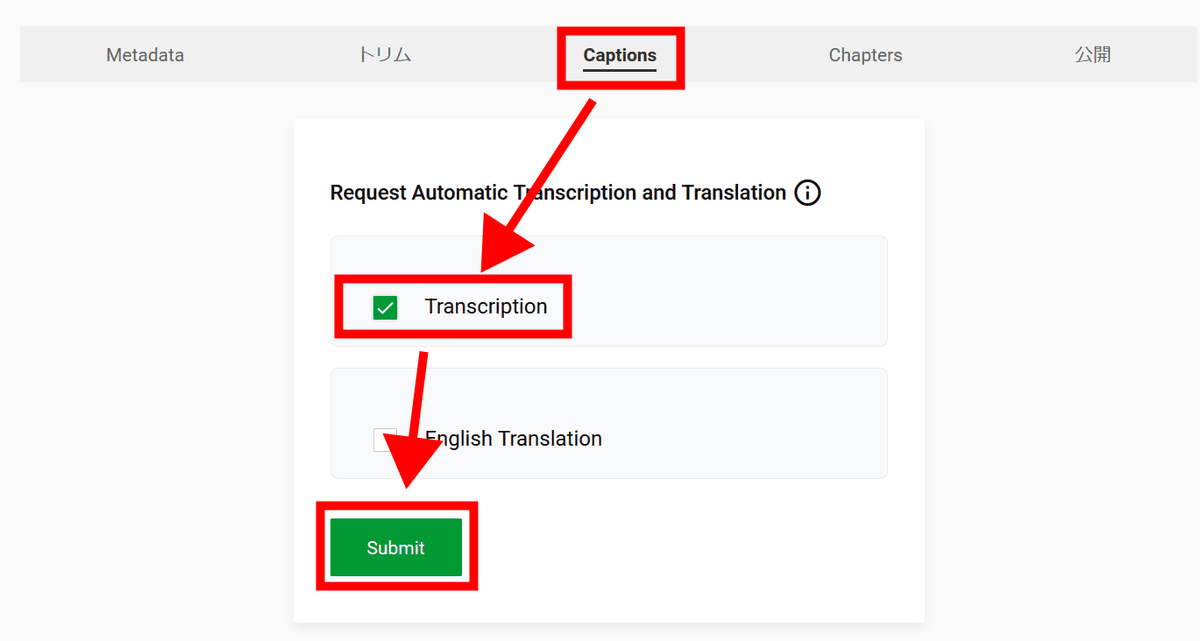
The video settings screen will appear, so try out the automatic transcription feature. Check 'Transcription' under 'Captions' to turn it on, then click 'Submit.'
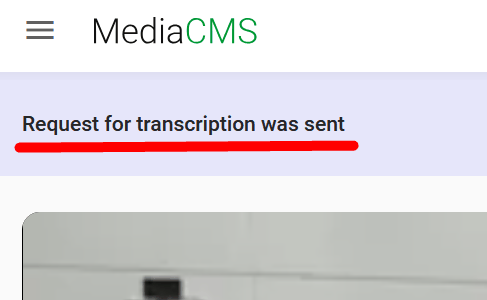
Please wait a while for your request to be accepted.
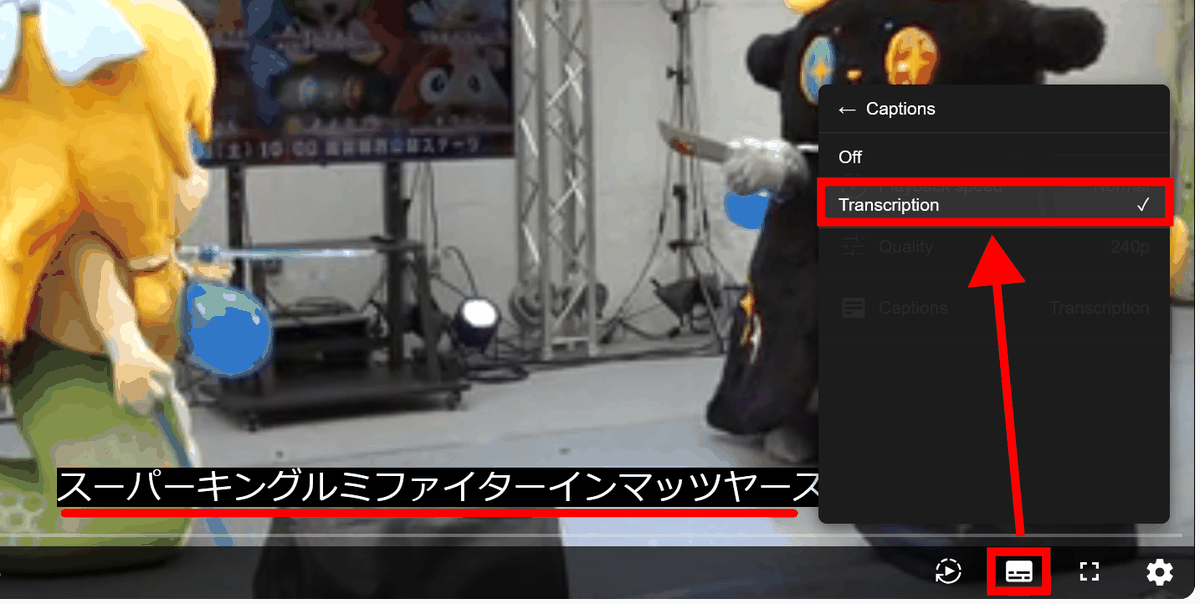
Once the transcription is complete, a subtitle icon will appear in the bottom right corner of the video playback screen. Click on it and select 'Transcription' to display the subtitles.
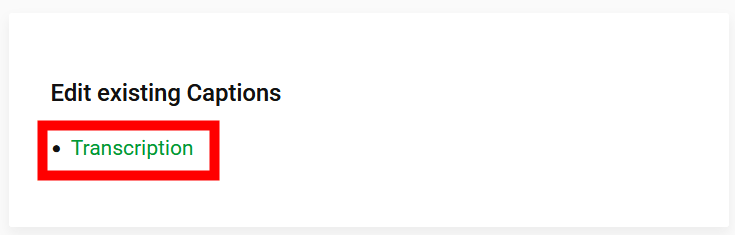
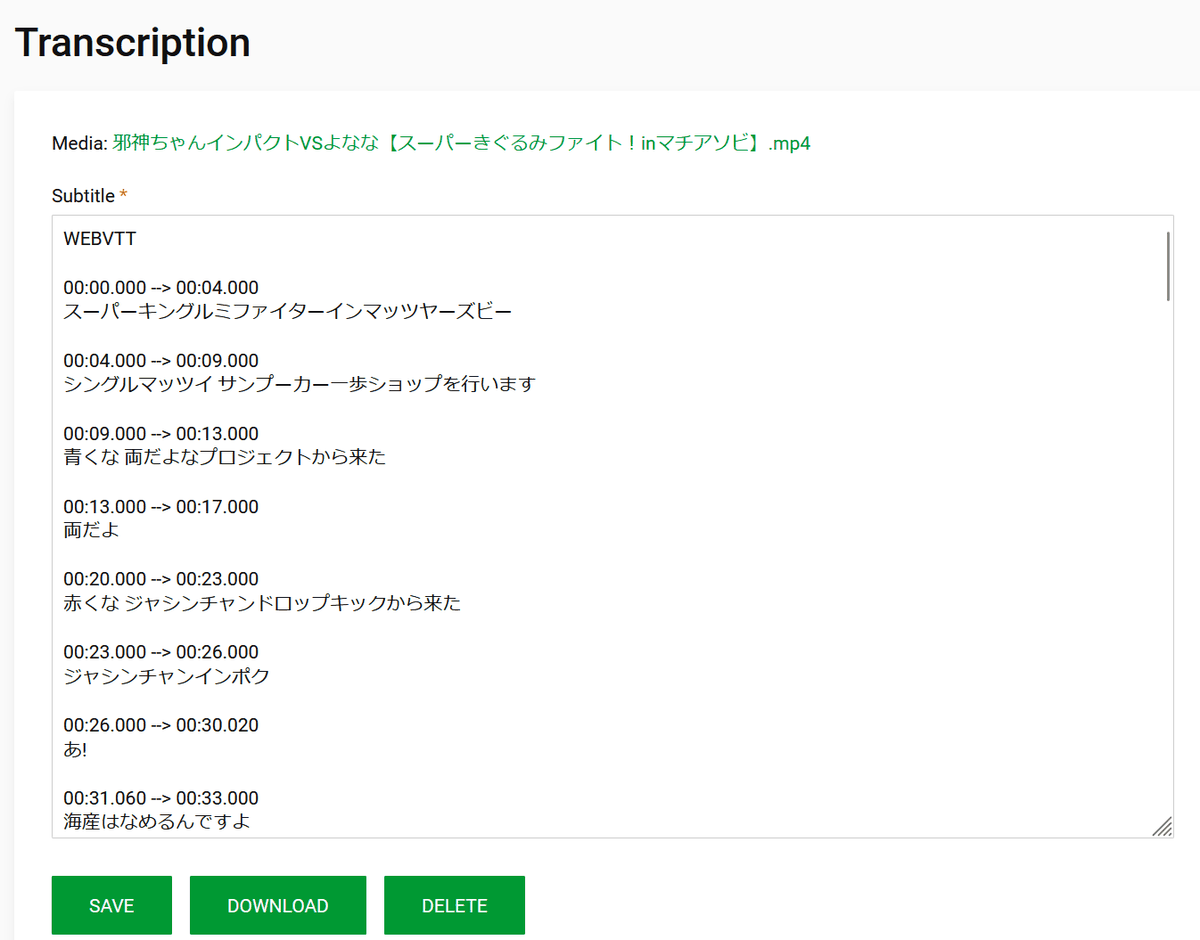
To edit subtitles, click 'Transcription' at the bottom of the 'Captions' section of the video settings screen.
The edit form appears.
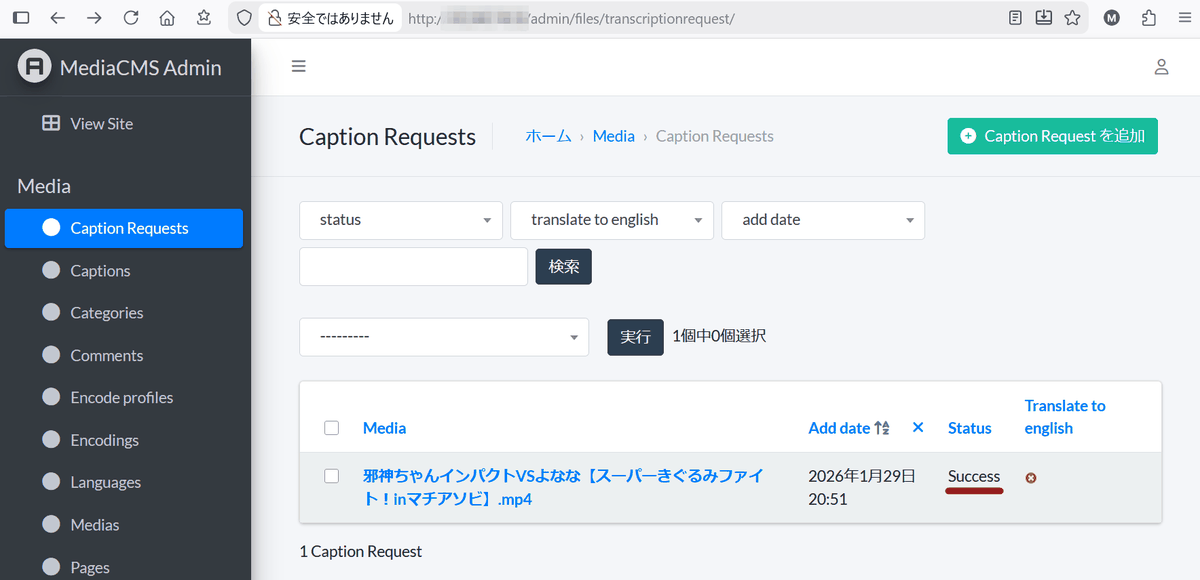
If you are logged in with an administrator account, you can add '/admin/' to the end of the URL to display the backend administration screen where you can check the processing status of video encoding, transcription, etc.
Related Posts: