Review of HP's EliteBoard G1a Next Gen AI PC, an AI-powered PC with an all-in-one keyboard that makes your work environment incredibly clean and organized.
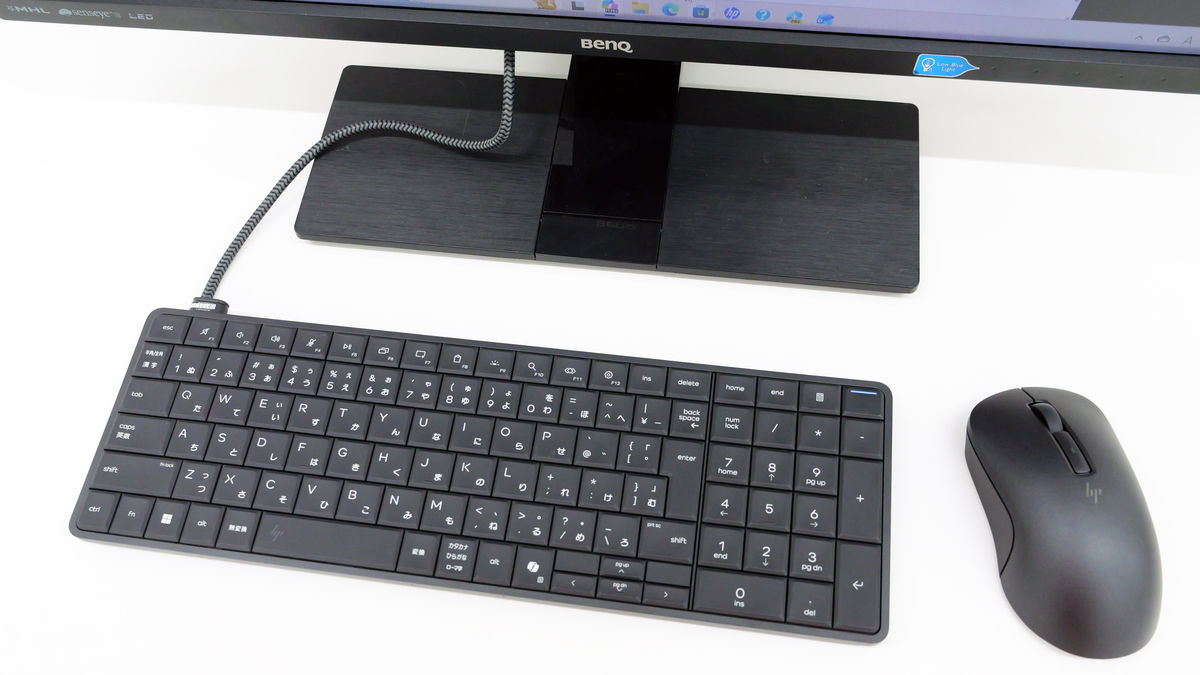
HP's ' EliteBoard G1a Next Gen AI PC ' is a keyboard-integrated PC that can be used as an AI-powered desktop PC simply by connecting the keyboard to a monitor, and is described as 'HP's smallest and lightest next-generation AI PC.' I was able to borrow the EliteBoard G1a Next Gen AI PC, so after taking tons of pictures of its exterior, I actually started it up.
HP EliteBoard G1a Next Gen AI PC Product Details & Specifications - Desktop PC Online Store | HP Japan
The outer box of the EliteBoard G1a Next Gen AI PC.
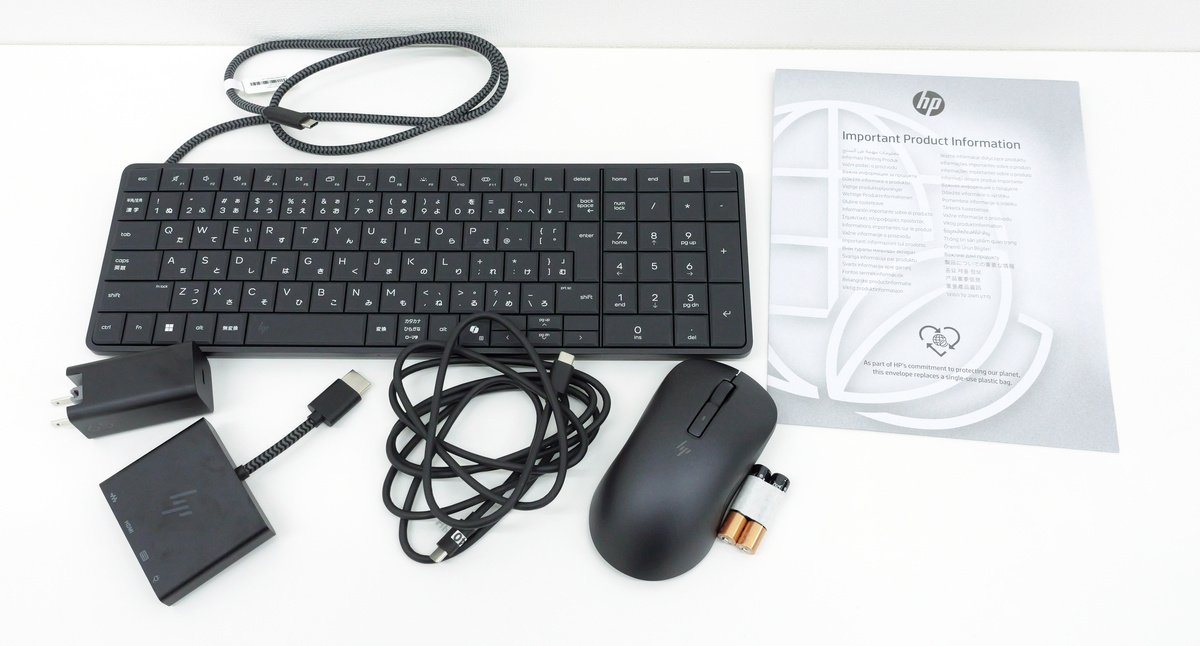
The package contents include the EliteBoard G1a Next Gen AI PC unit, AC adapter, HDMI multiport hub, USB Type-C cable, included HP 675M wireless mouse, mouse batteries, and documentation.
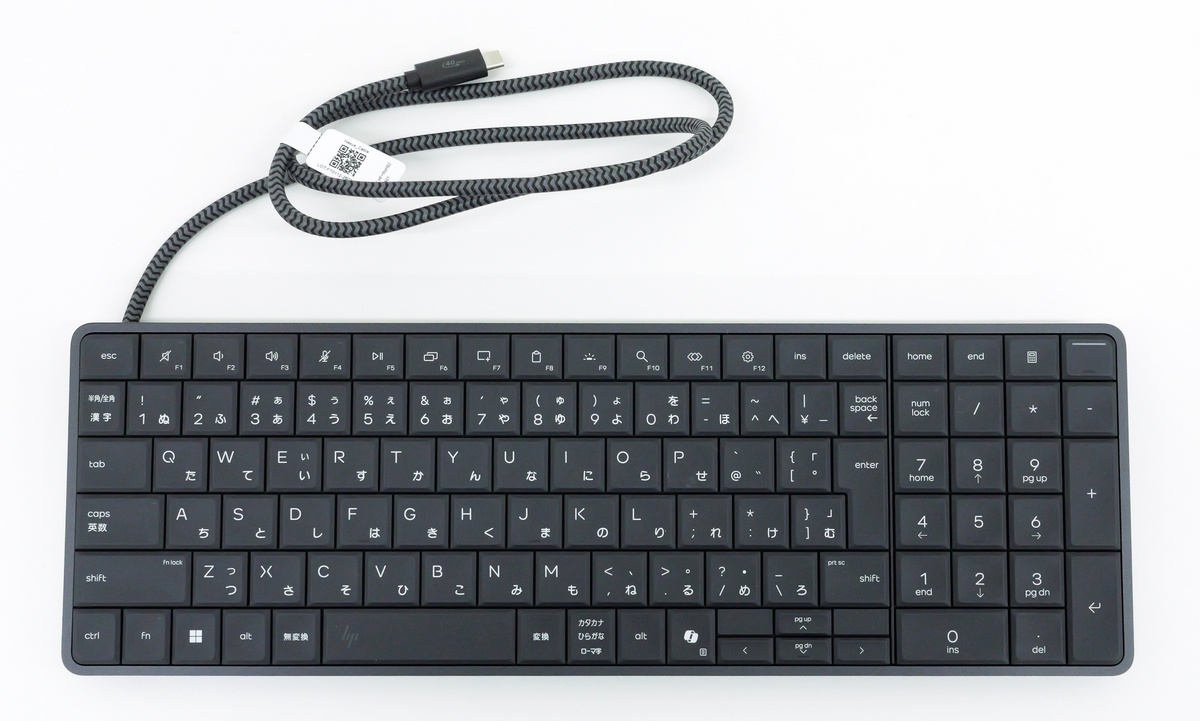
Below is the EliteBoard G1a Next Gen AI PC itself. The EliteBoard G1a Next Gen AI PC comes in several models: the 'D55FHPT' with a detachable cable and no battery, the 'D56XWPT' and 'D73TJPT' with a detachable cable and built-in battery, and the 'D73TDPT' and 'D73TCPT' with a fixed cable. The model we will be using is the 'D73TCPT' with a fixed cable and equipped with an AMD
It has dual microphones on the front.
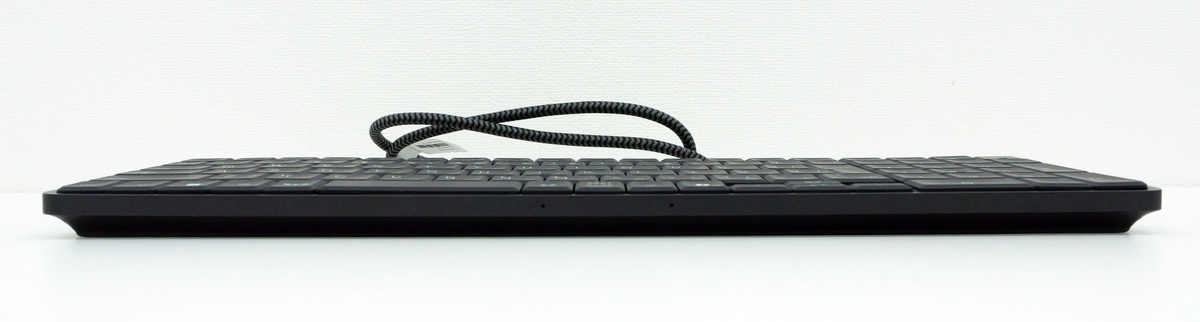
The right side looks like this.
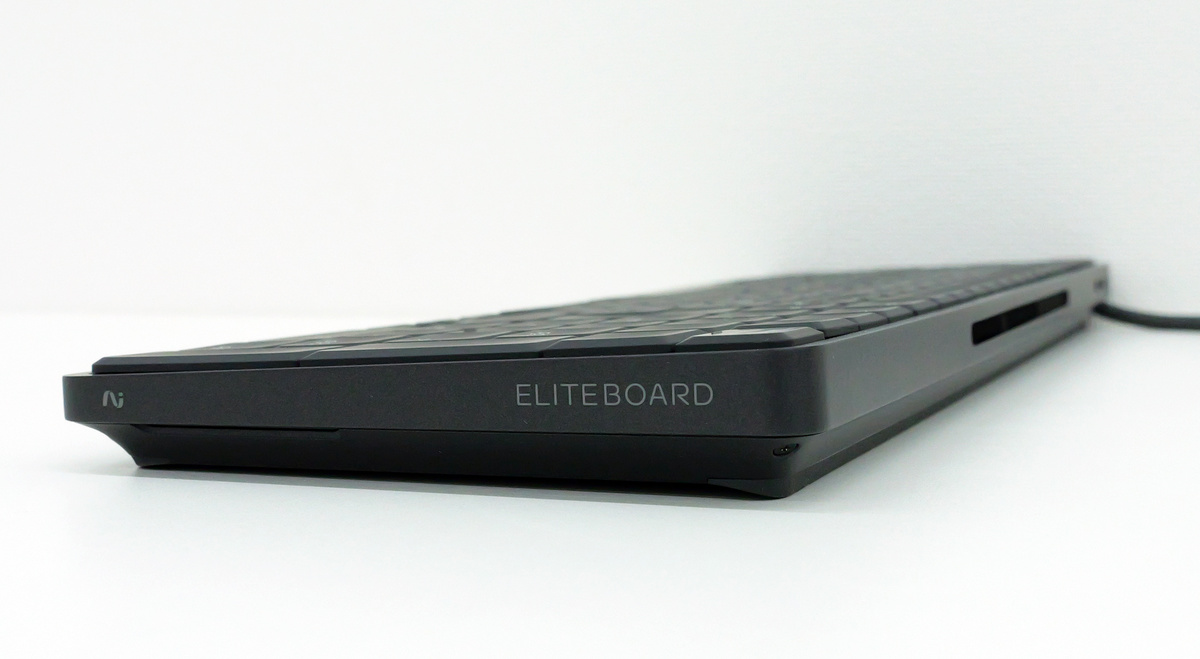
There is a security lock slot on the left side.
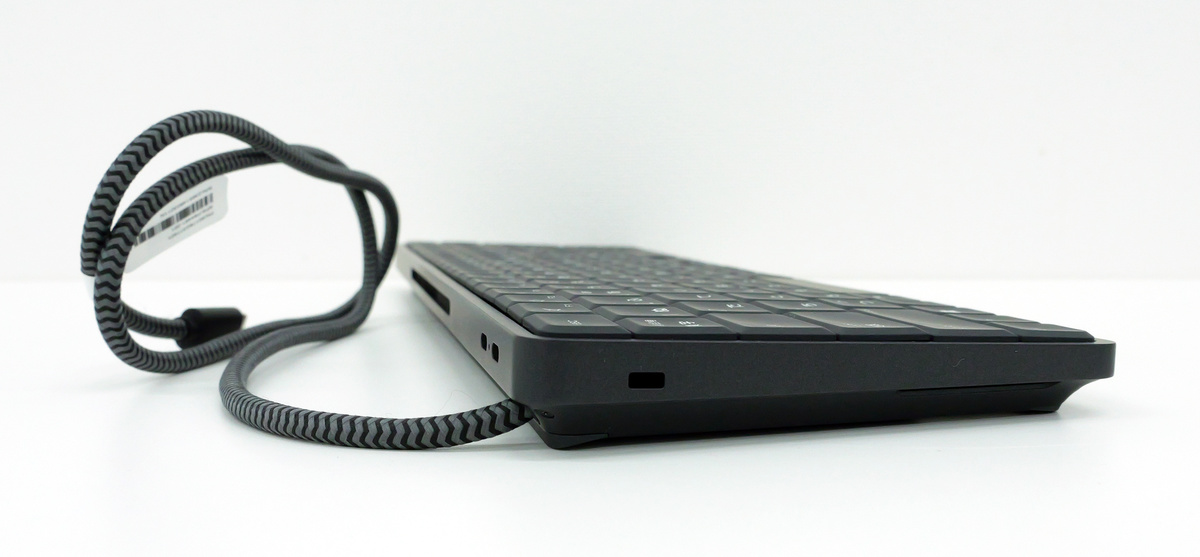
The rear has ventilation holes and securing cables.
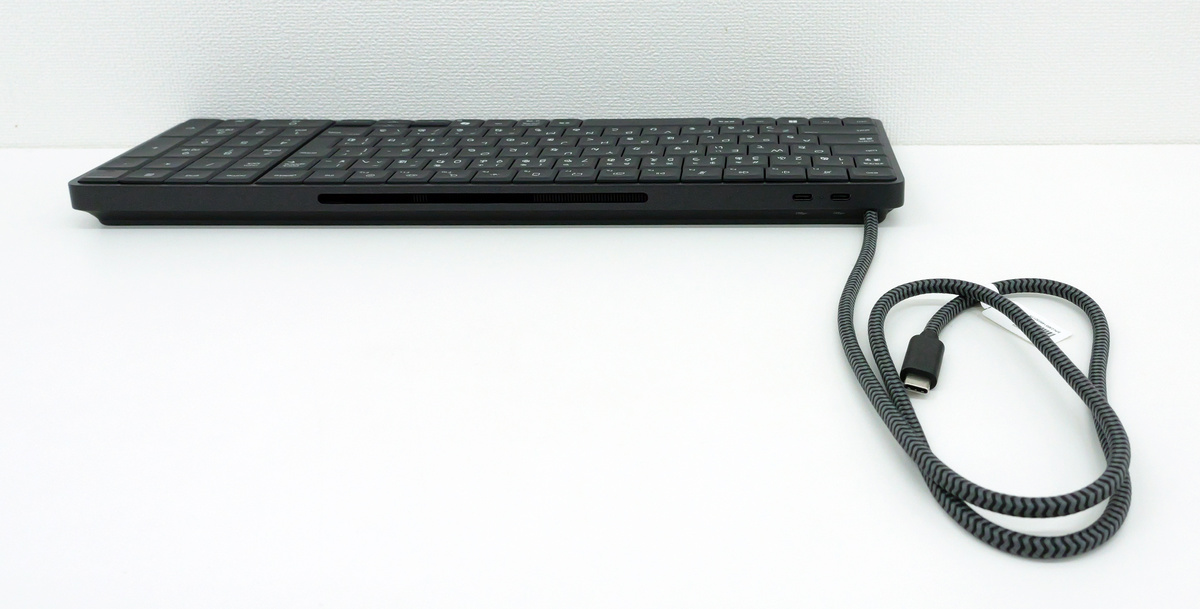
Additionally, there are two USB-C ports right next to the fixed cable.
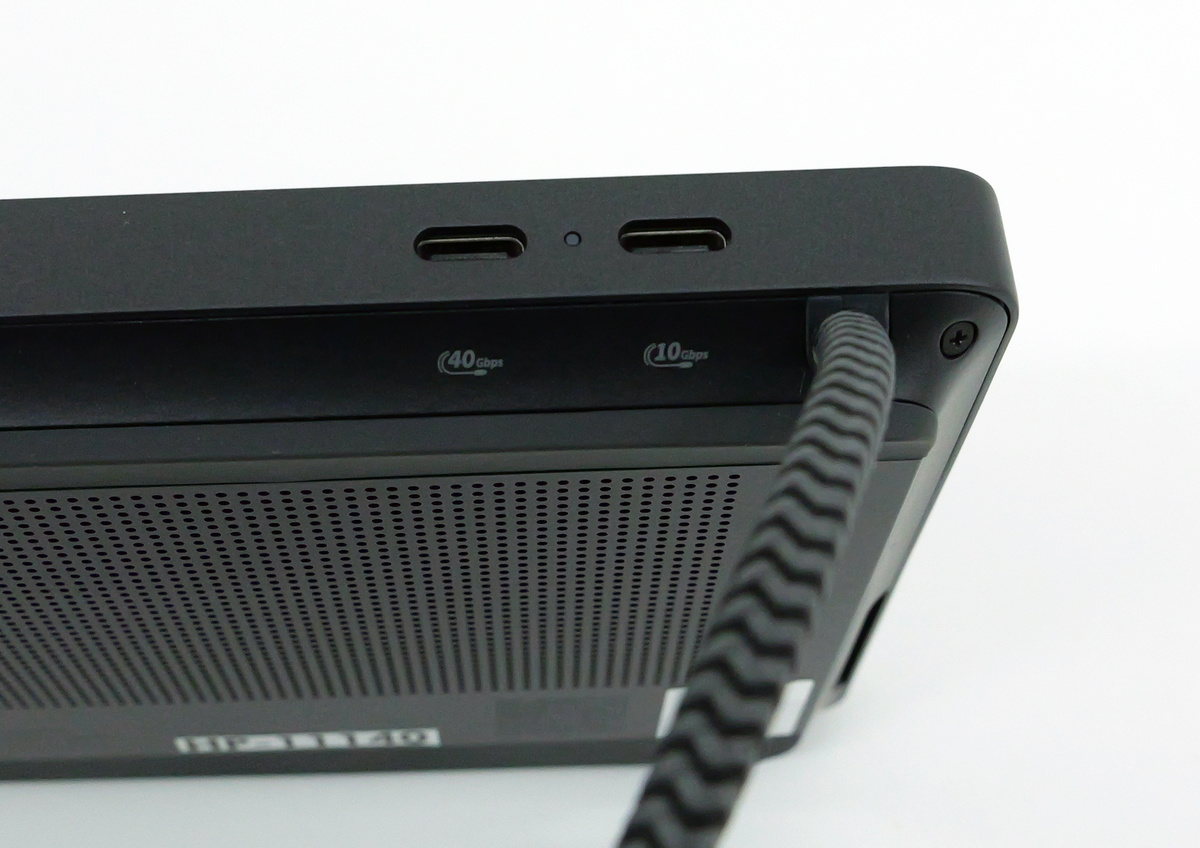
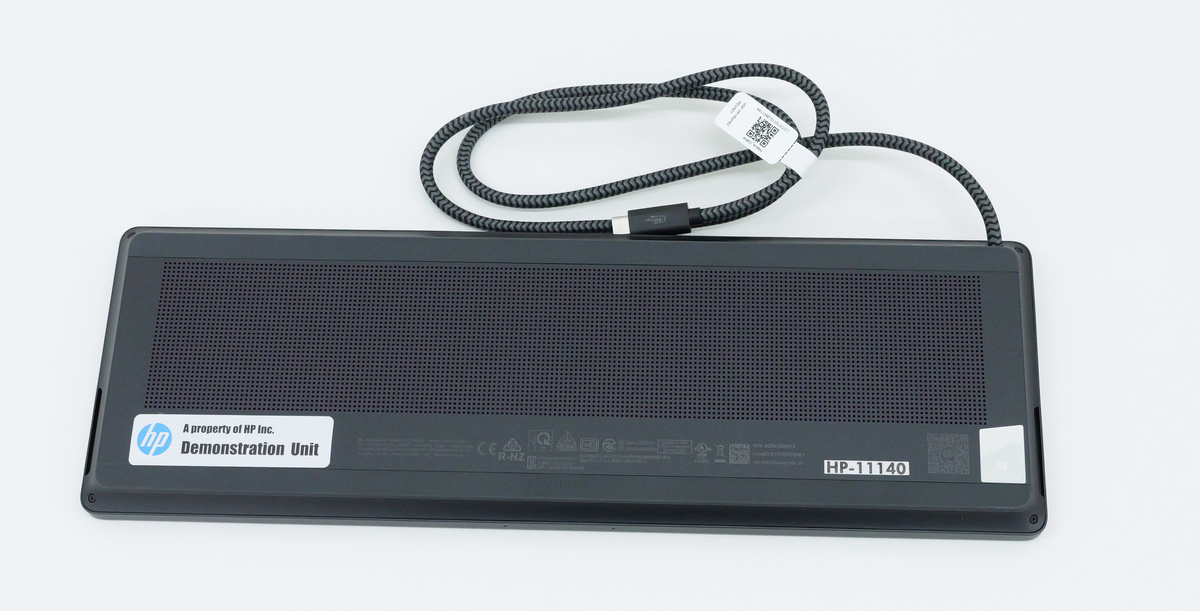
The back looks like this.
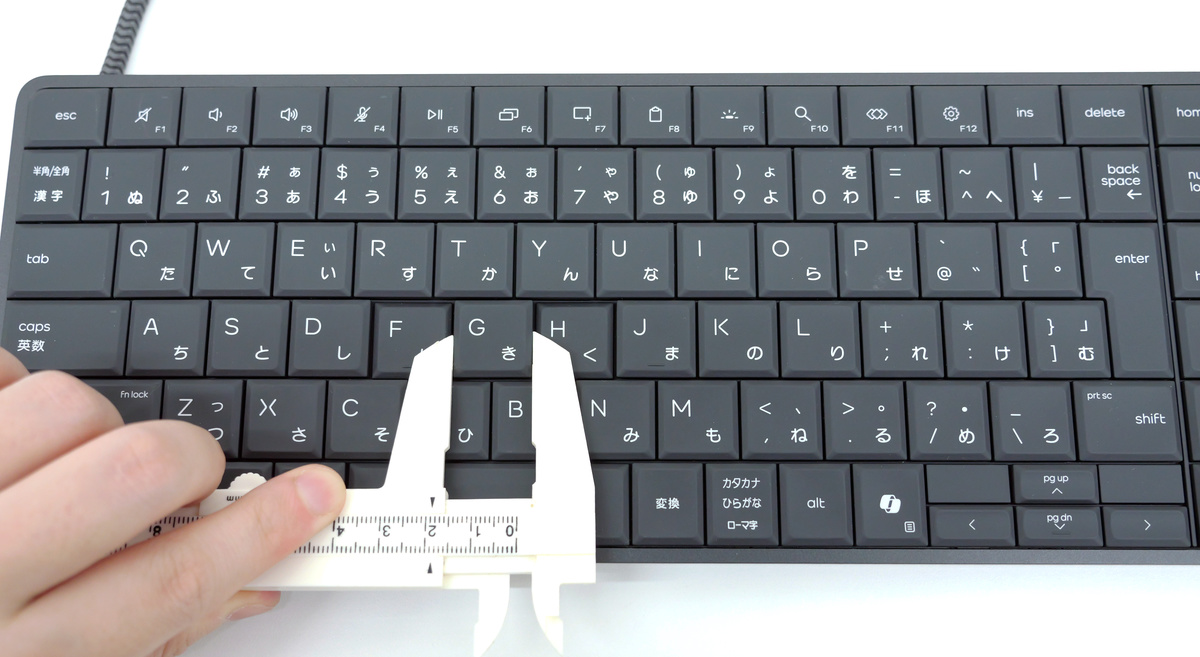
The actual size of the keys is approximately 19mm, and the gap between keys is approximately 1mm.
Let's actually connect the EliteBoard G1a Next Gen AI PC to a monitor and boot it up. If you have a portable monitor that can be powered via a USB-C port, you can boot up the EliteBoard G1a Next Gen AI PC simply by connecting it to the monitor. However, this time we will use a standard monitor that connects via an HDMI cable, so we will use the included HDMI multiport hub.
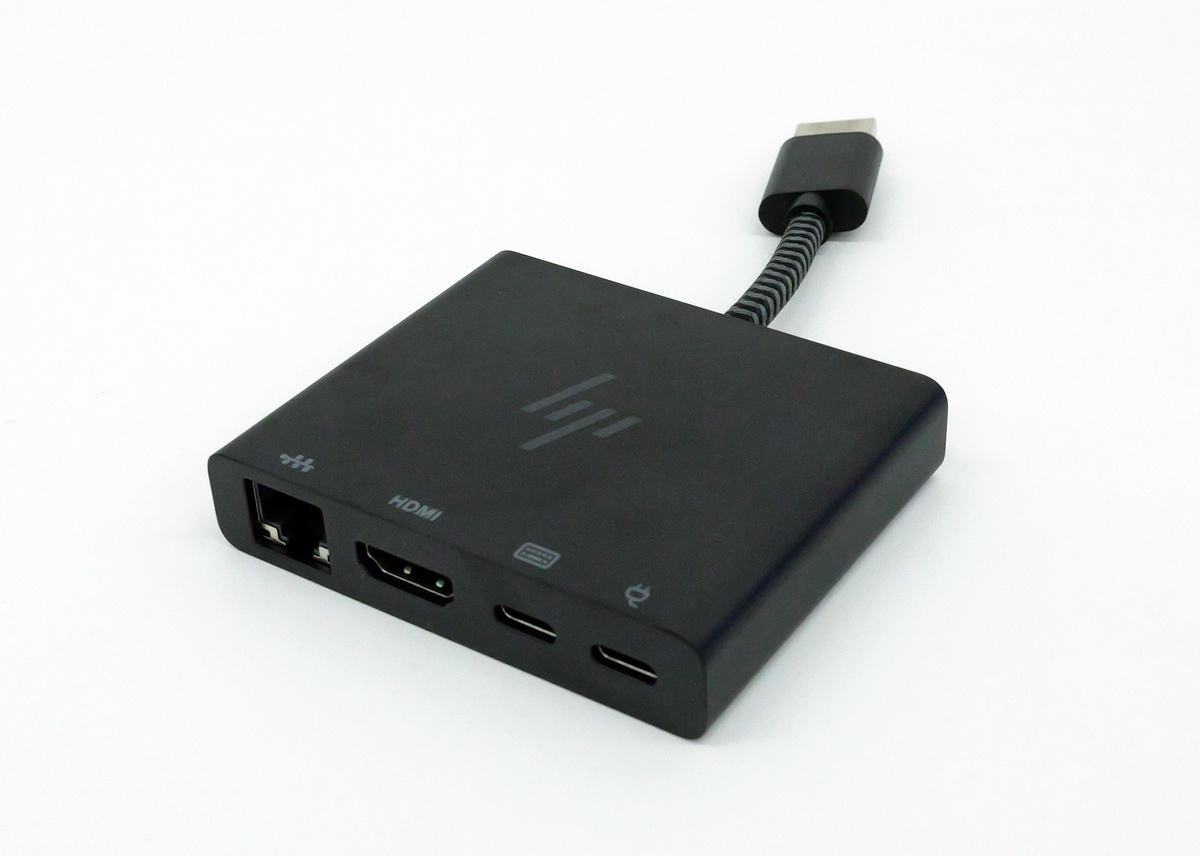
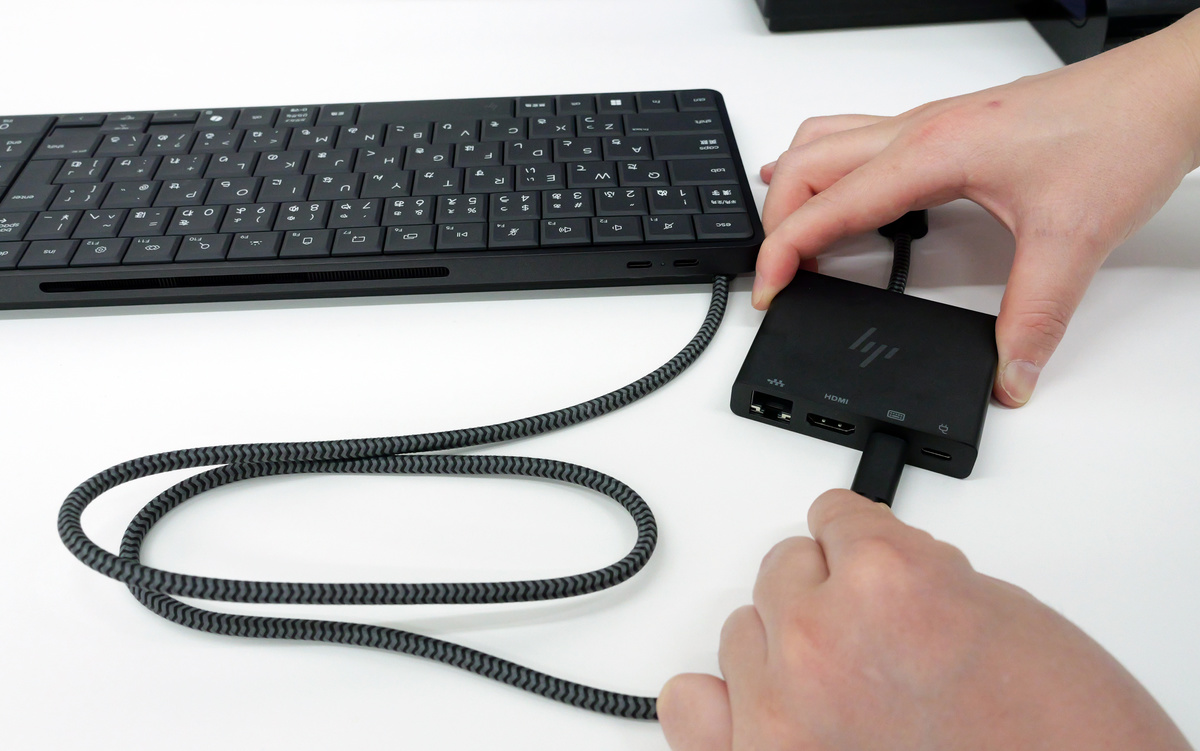
First, connect the EliteBoard G1a Next Gen AI PC's cable to the second USB-C port from the right on the HDMI multiport hub.
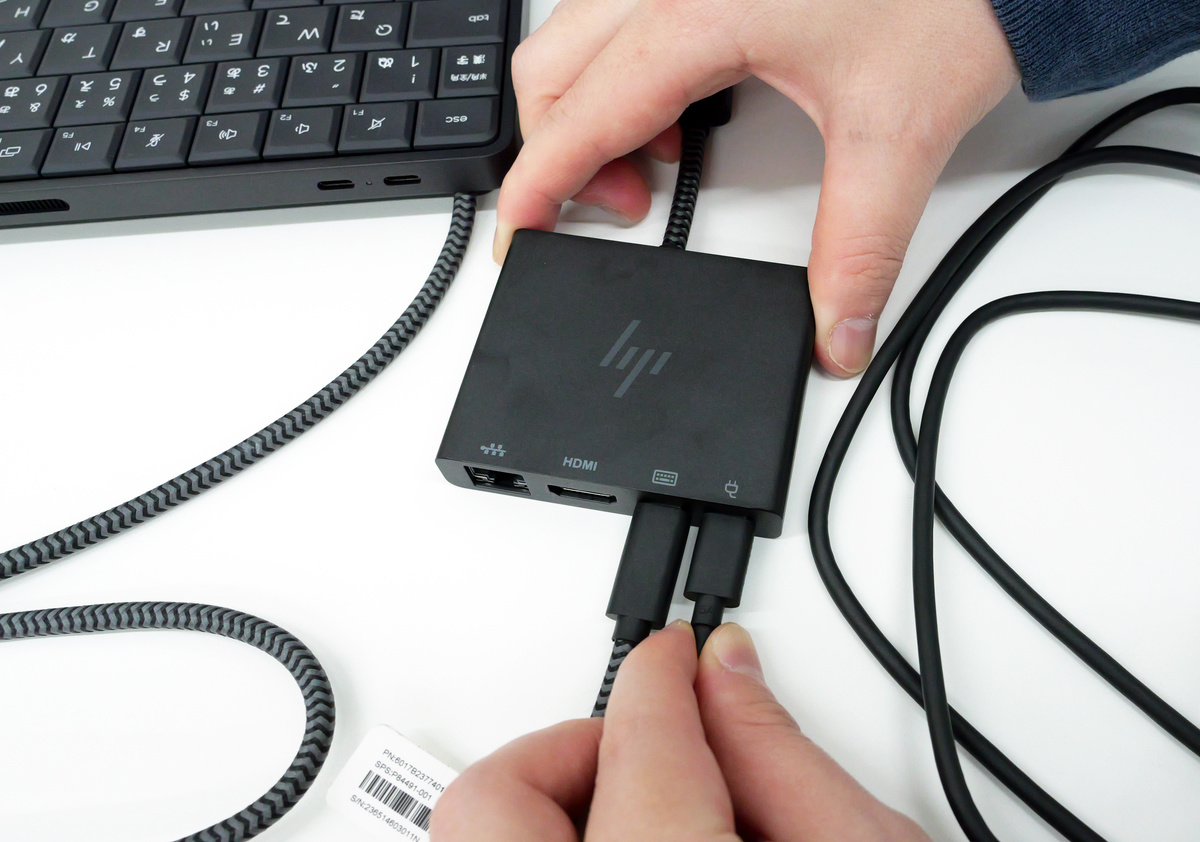
Next, insert the included USB-C cable into the right-hand USB-C port of the HDMI multiport hub, the one with the power plug icon.
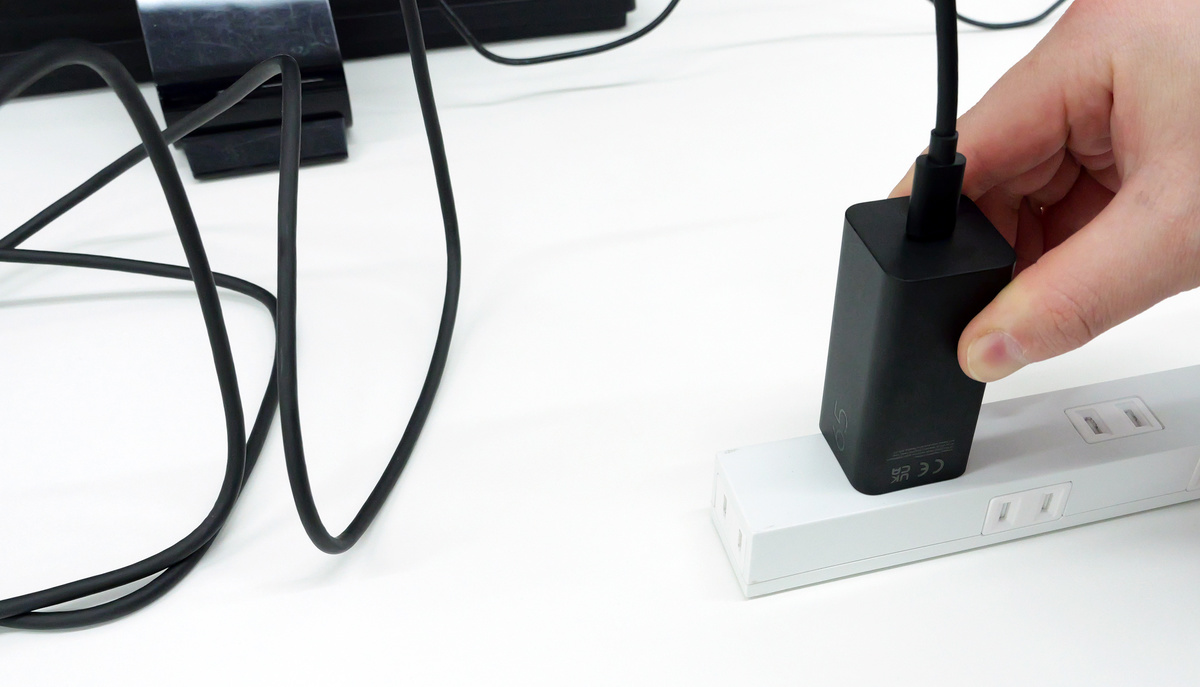
Insert the other end of the USB-C cable into the included AC adapter, then plug it into a power source.
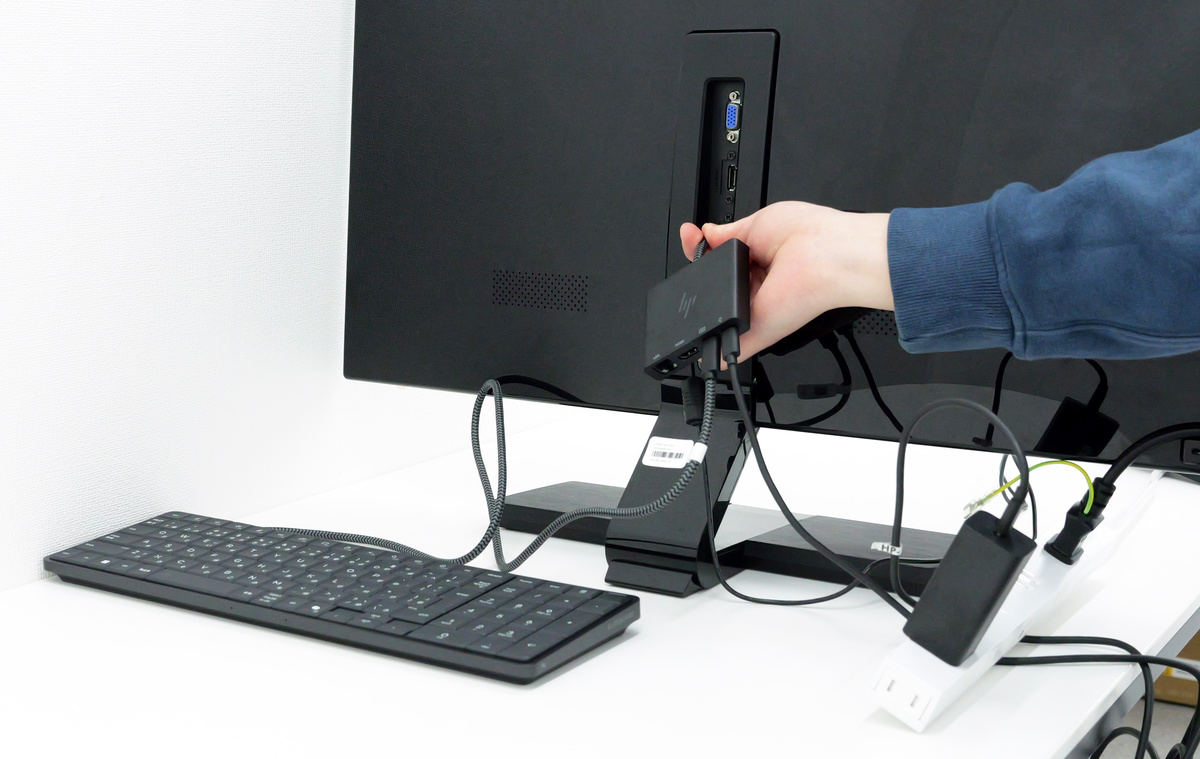
Insert the EliteBoard G1a Next Gen AI HDMI multiport hub, connected to the PC and power supply, into the monitor's HDMI port.
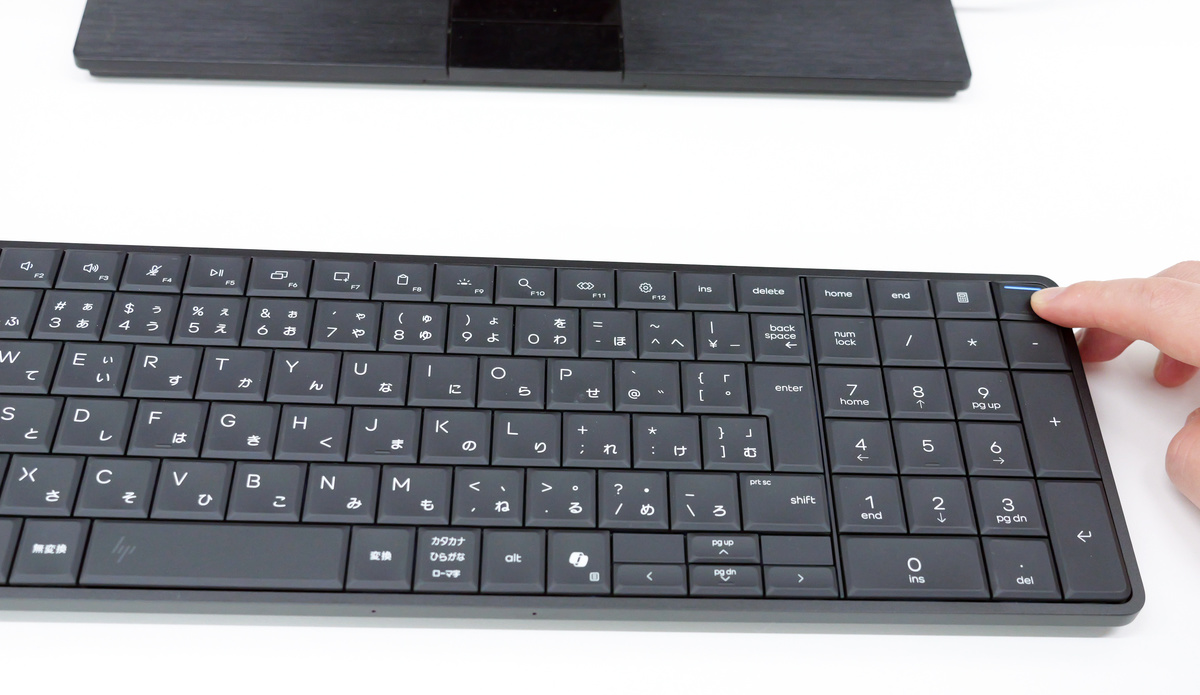
Start the EliteBoard G1a Next Gen AI PC by pressing the power button in the upper right corner.
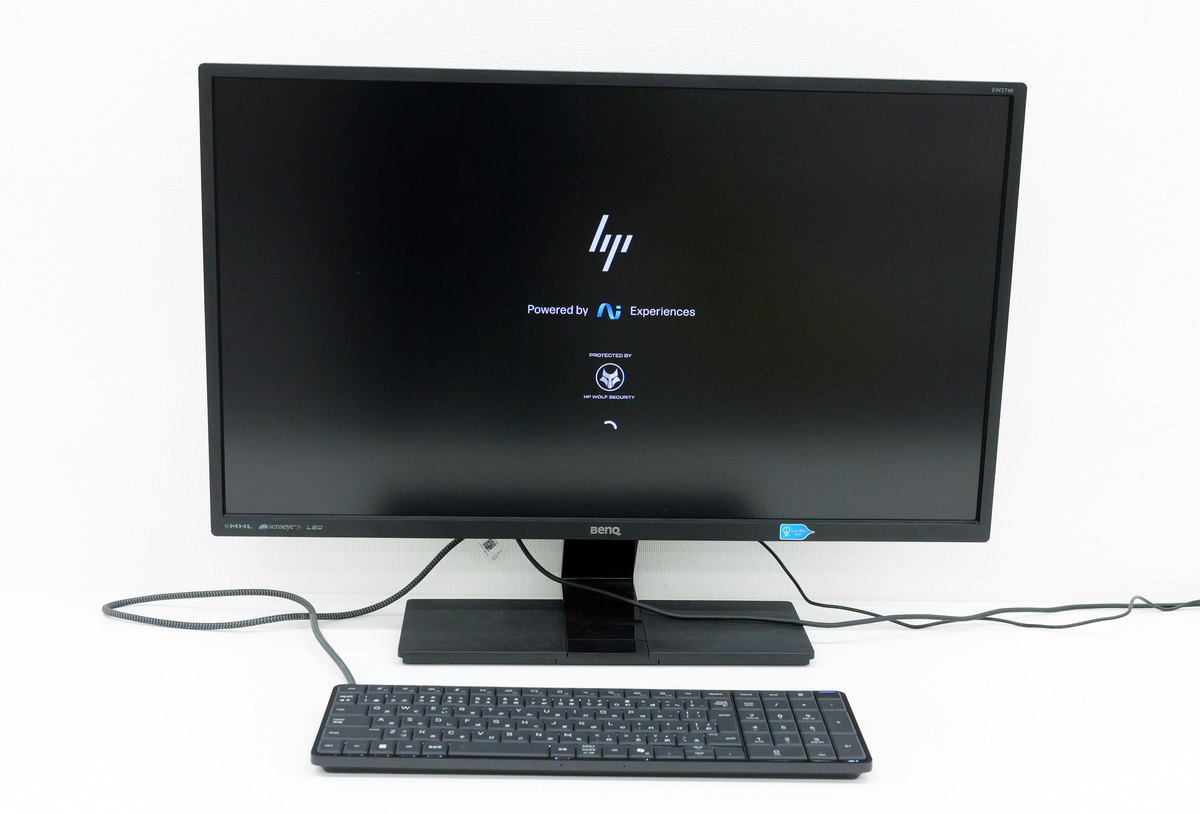
The PC has started up. As you can see, even with models that don't have a battery, you can create an extremely clean workspace with just the monitor, the main unit, and two cables. If you're using a model with a built-in battery or powering it from a portable monitor, you only need one cable. This is one of the features of the EliteBoard G1a Next Gen AI PC.
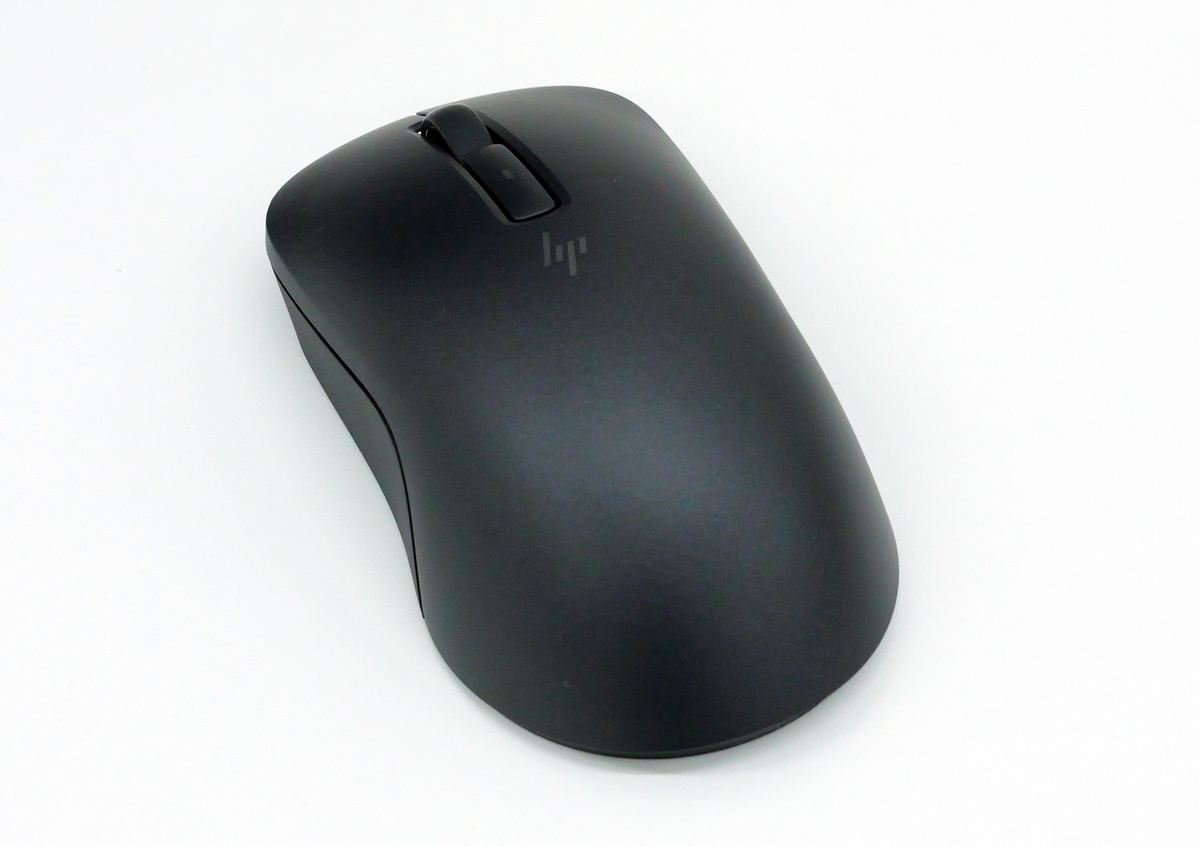
The following is the included Bluetooth mouse. It has left and right click buttons, a scroll wheel, and a cursor speed adjustment button, but no side buttons.
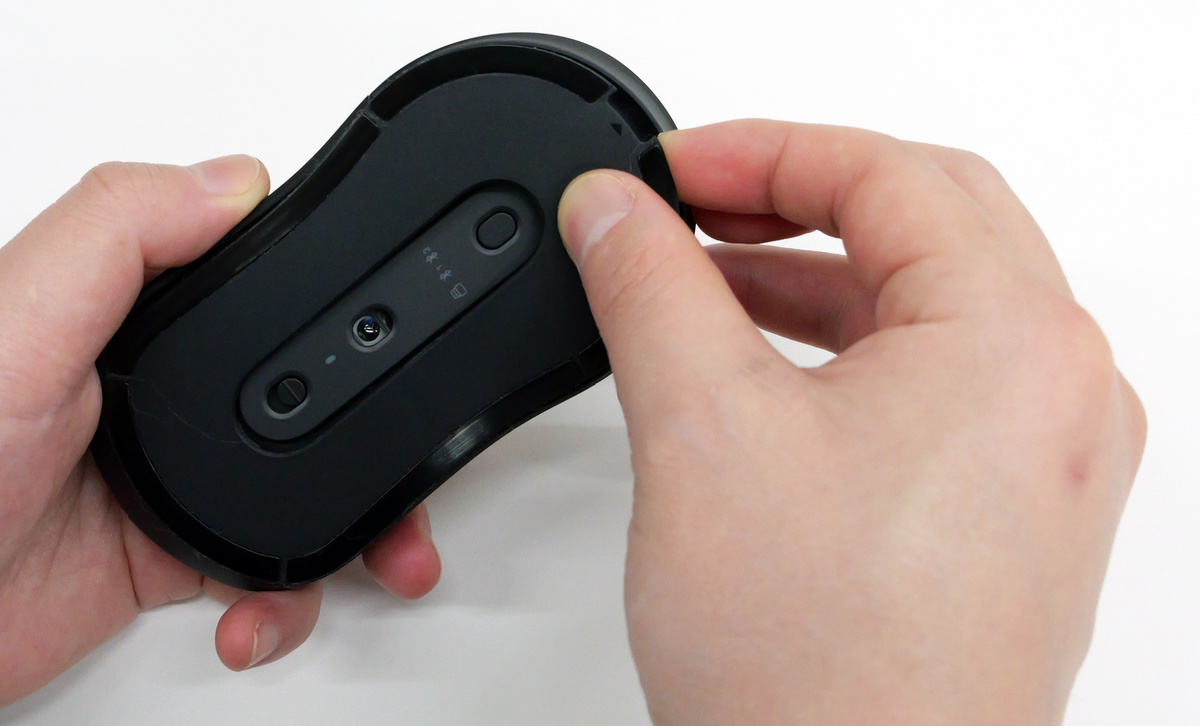
The bottom of the mouse has a power switch, sensor, and connection switching button.
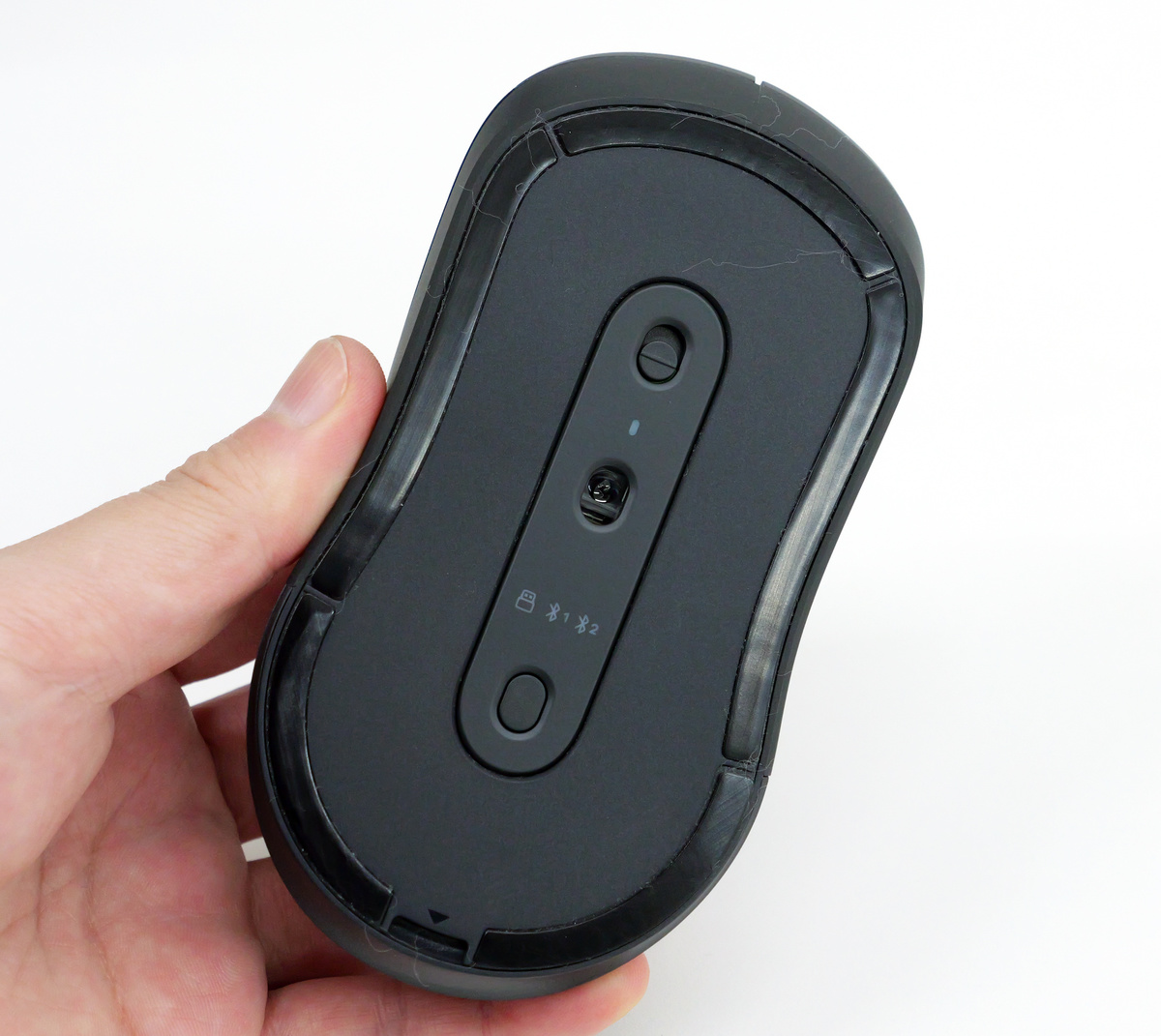
Remove the lid by placing your fingers in the gap at the top of the bottom.
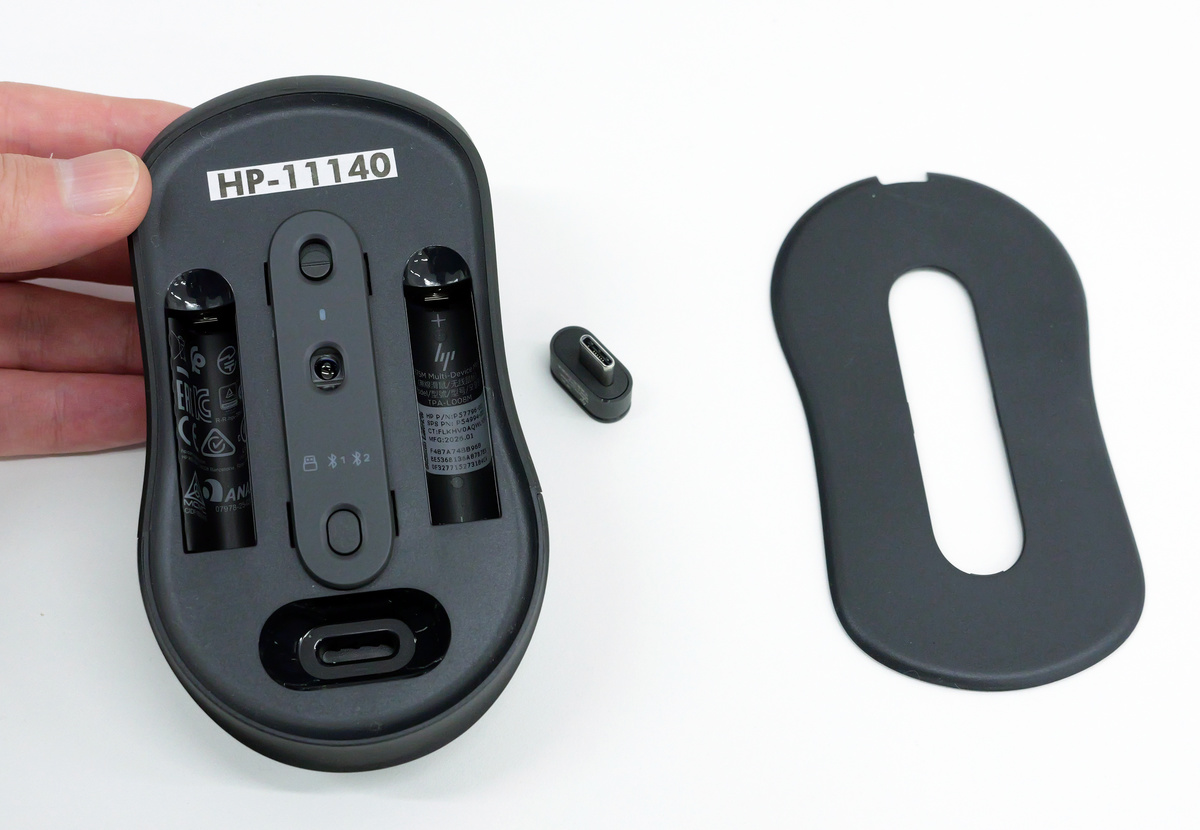
I was able to remove the bottom cover and take out the receiver.
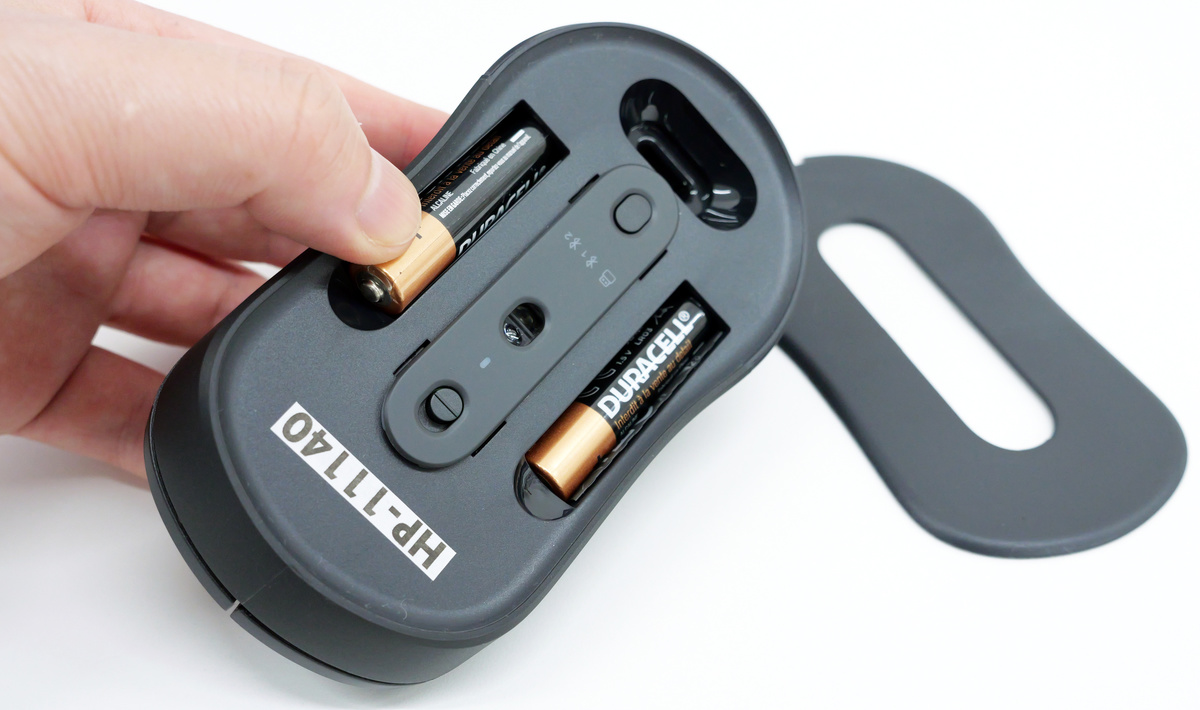
Once you've inserted two AAA batteries into the bottom, you're ready to go.
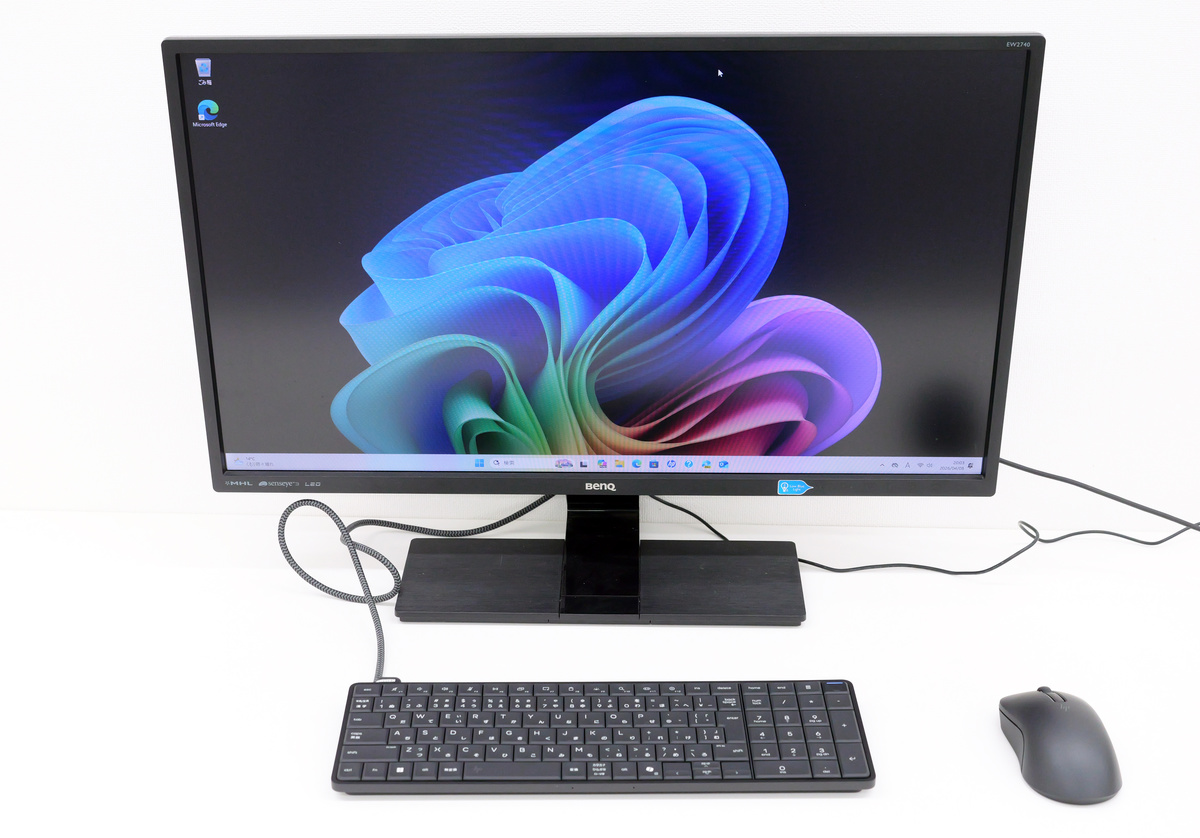
I have completed the initial setup of my PC and have created the following work environment, including the keyboard and mouse.
You can see what it's like to actually type on the EliteBoard G1a Next Gen AI PC in the video below.
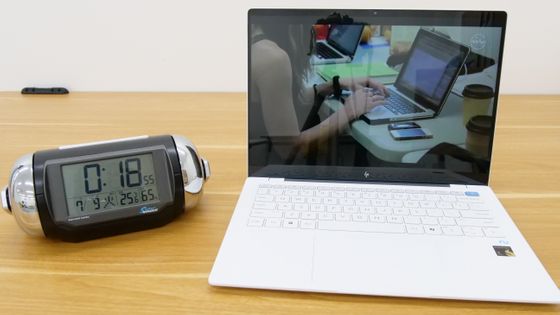
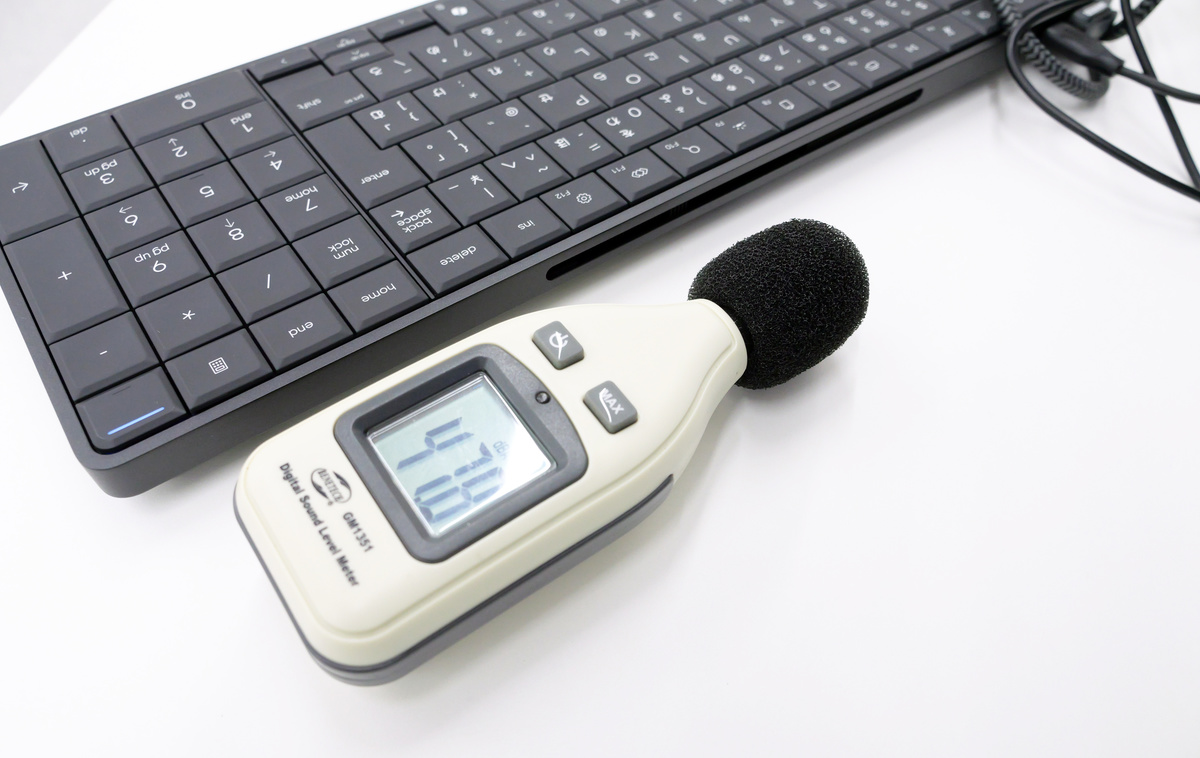
When we measured the exhaust noise under load using the load testing software ' BurnInTest ,' the noise level was around 47dB even with the sound level meter placed close to the exhaust fan. The Ministry of the Environment's document (PDF file) on the Noise Regulation Law specifies that noise levels for factories, etc., should be kept within the range of 45-50dB during the day and 40-45dB at night in quiet environments. The EliteBoard G1a Next Gen AI PC is about 37dB from the working position and about 47dB even very close to the exhaust fan, so there seems to be little need to worry about people around you finding the PC noisy.
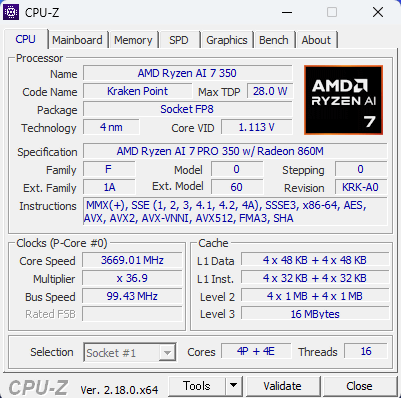
When I checked the CPU of the EliteBoard G1a Next Gen AI PC 'D73TCPT' used in this test with '
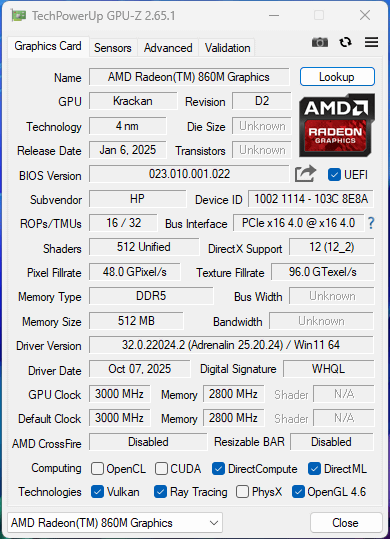
Furthermore, the GPU information checked with '
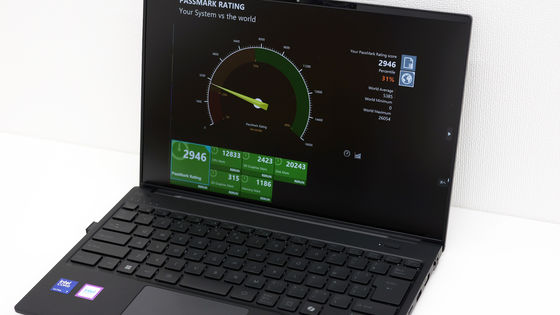
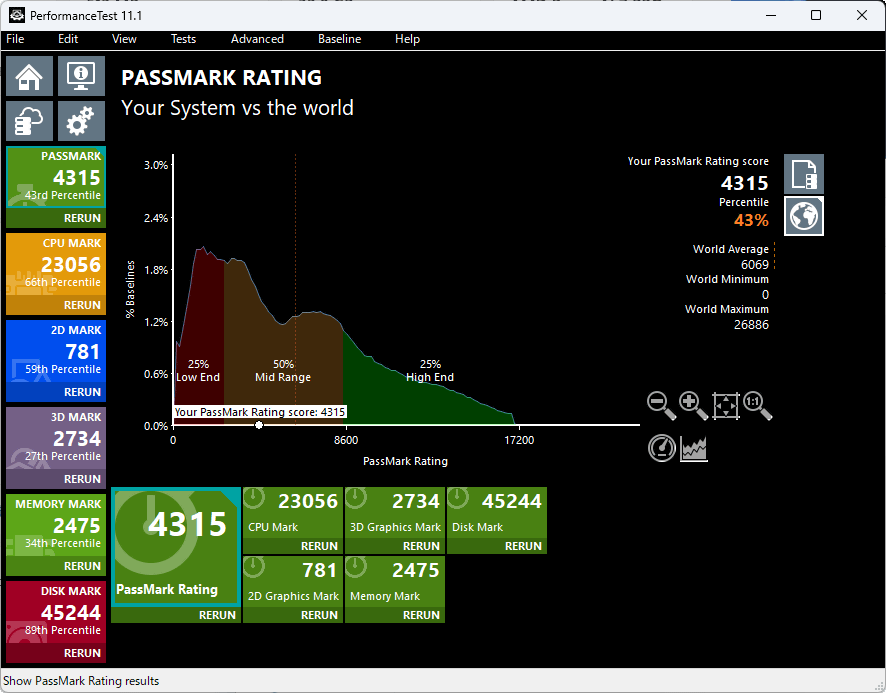
We ran a benchmark using '
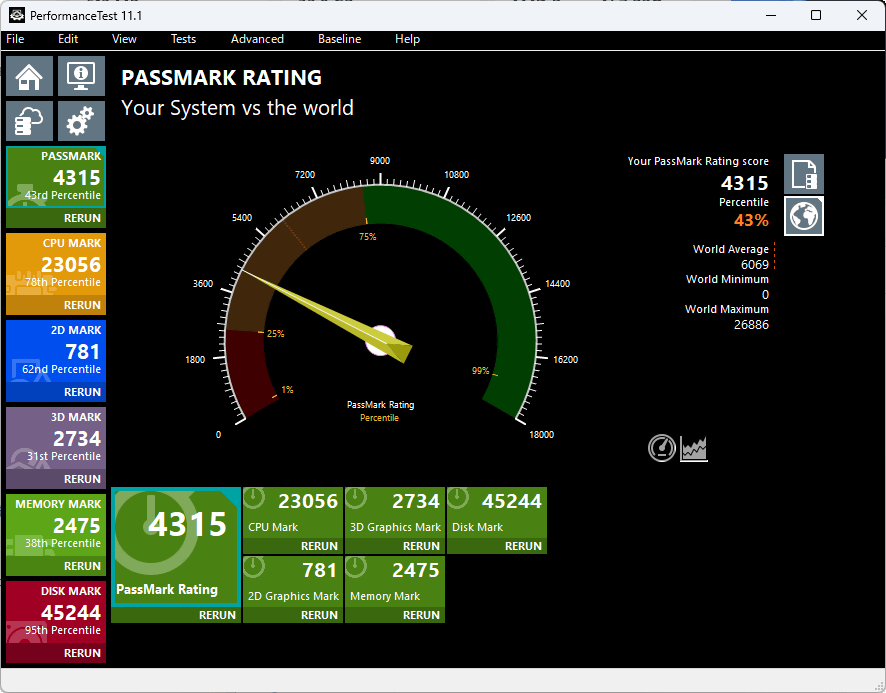
Looking at the overall score on the graph for all PCs, the EliteBoard G1a Next Gen AI PC 'D73TCPT' seemed to be somewhere in the 'lower middleweight' category.
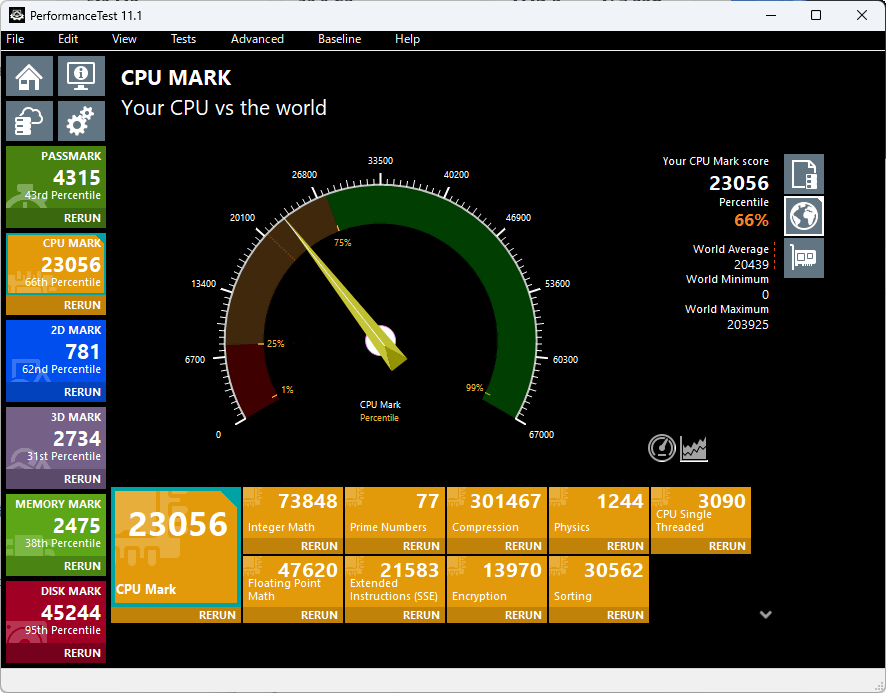
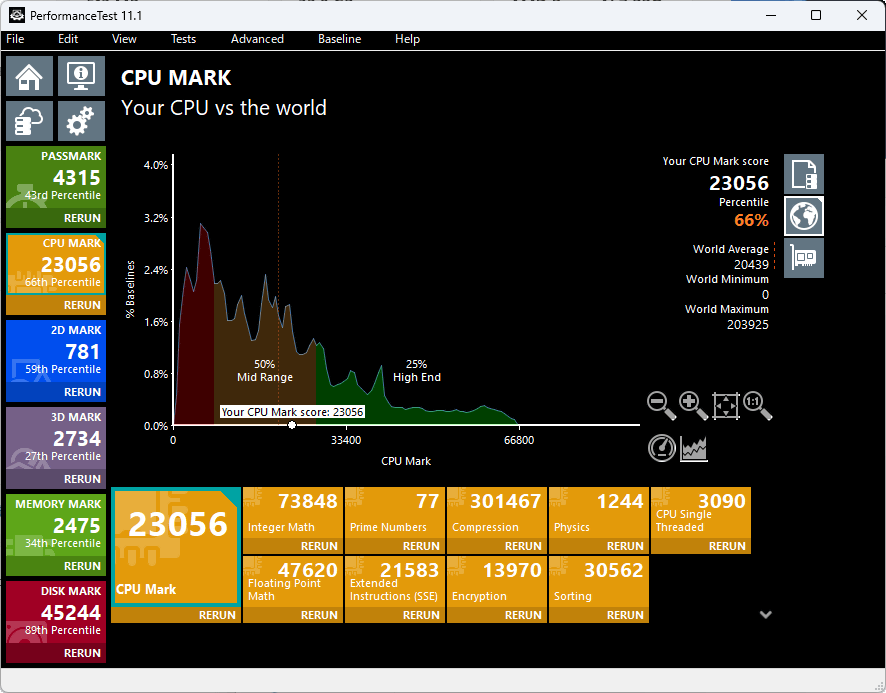
The CPU score is 23056, placing it at the 66th percentile.
Looking at the graph, the CPU benchmark scores were among the highest for a mid-range device.
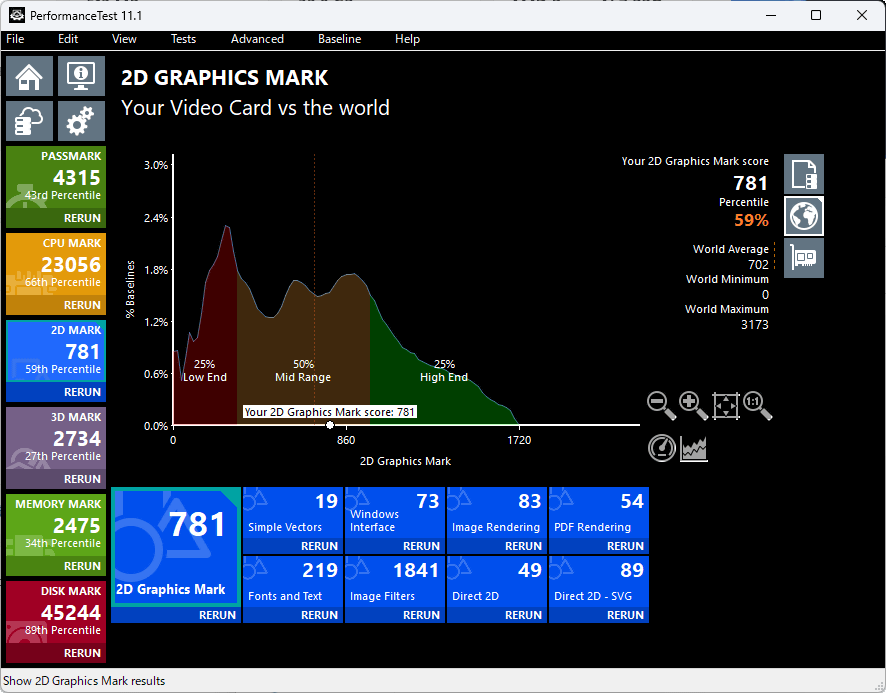
The 2D graphics benchmark score was 781, placing it at the 59th percentile.
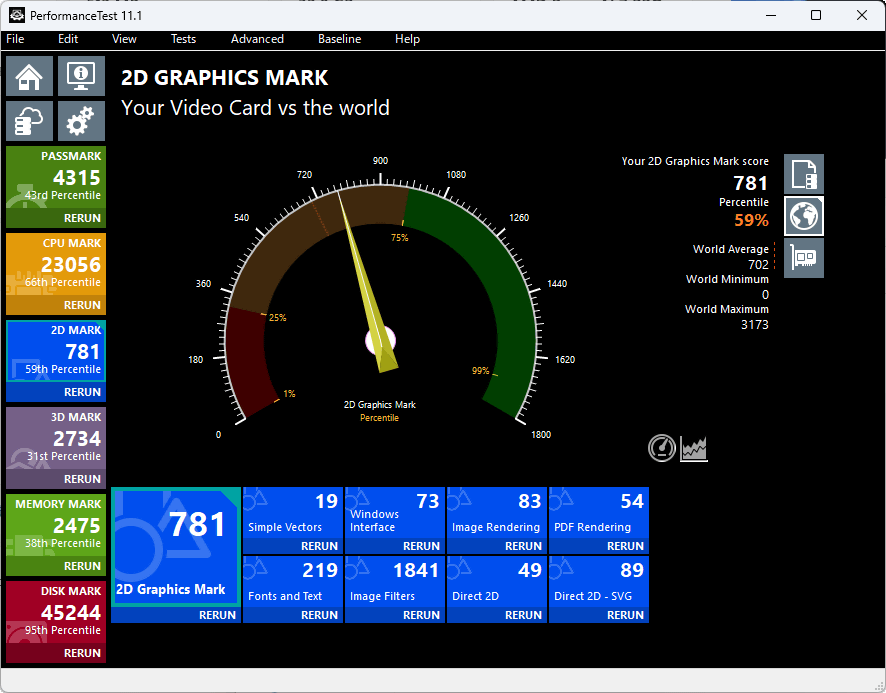
Looking at the graph, 2D graphics are positioned relatively high within the middleweight category.
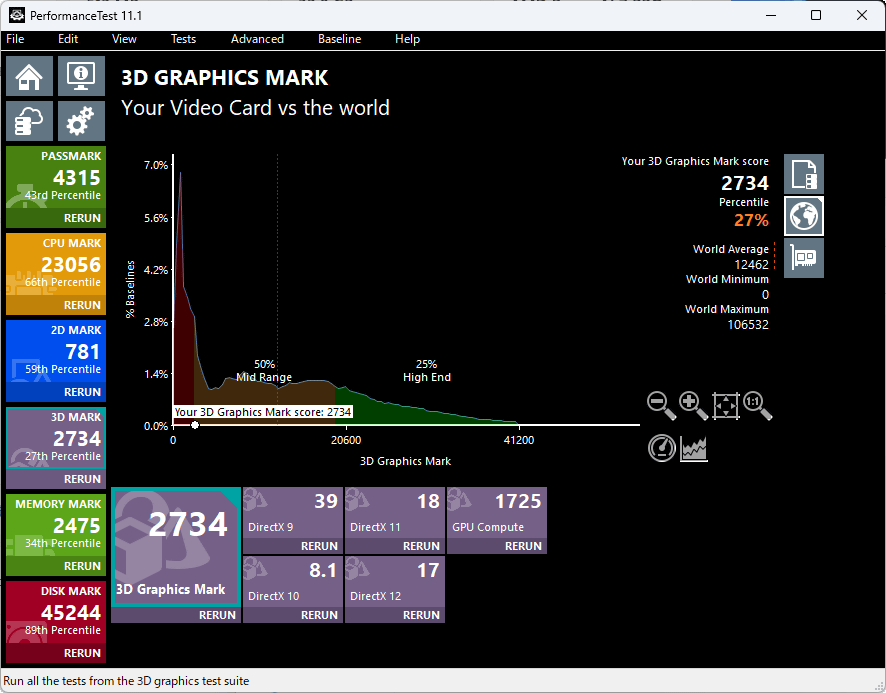
The 3D graphics benchmark score was 2734, placing it in the 27th percentile, which is a relatively low result.
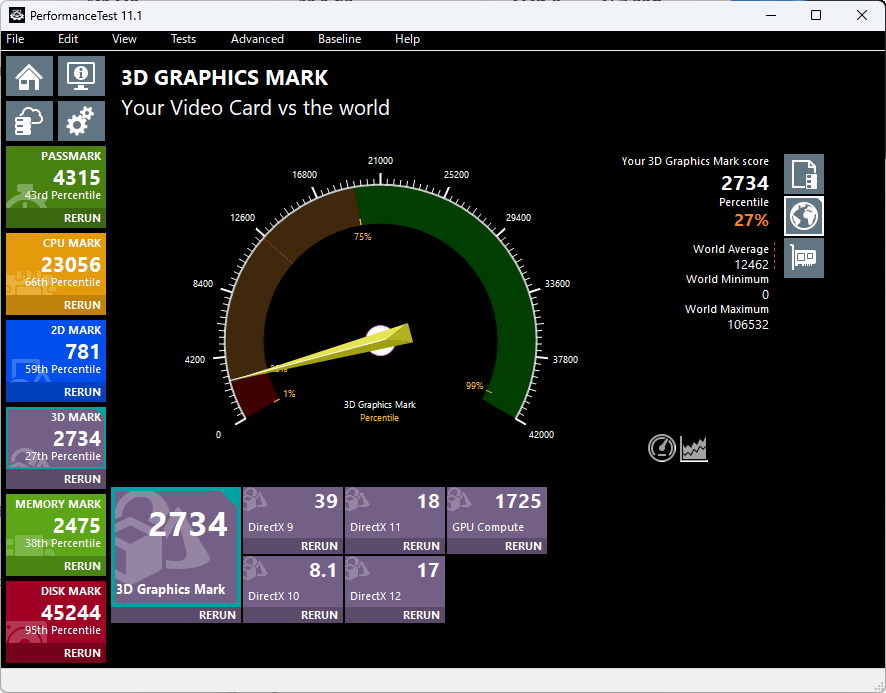
Looking at the overall graph for the PC, the 3D graphics score is in the low-end range.
The memory benchmark score was 2475, placing it at the 34th percentile.
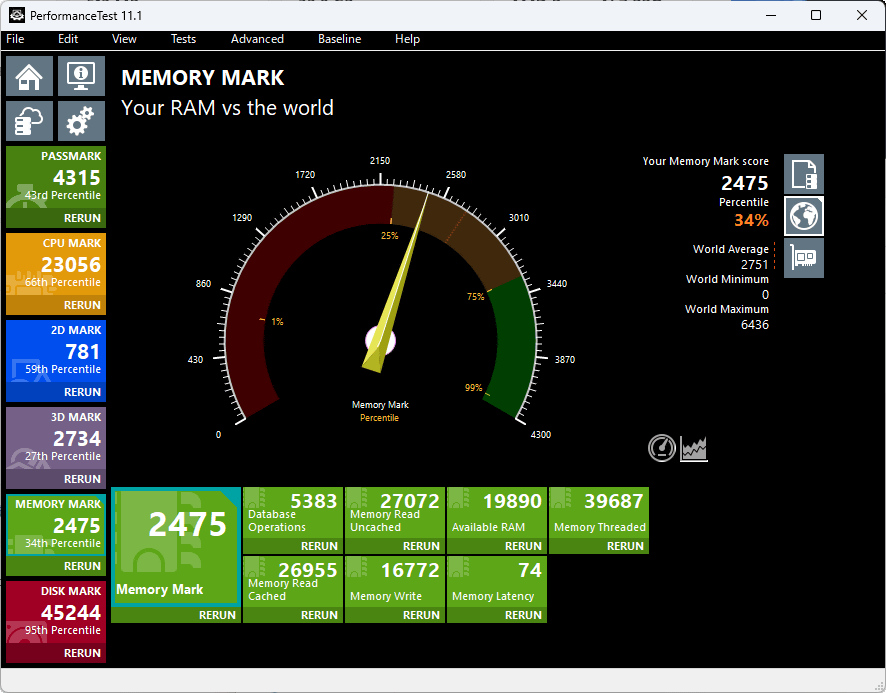
The memory benchmark results place it somewhere in the middle of the mid-range.
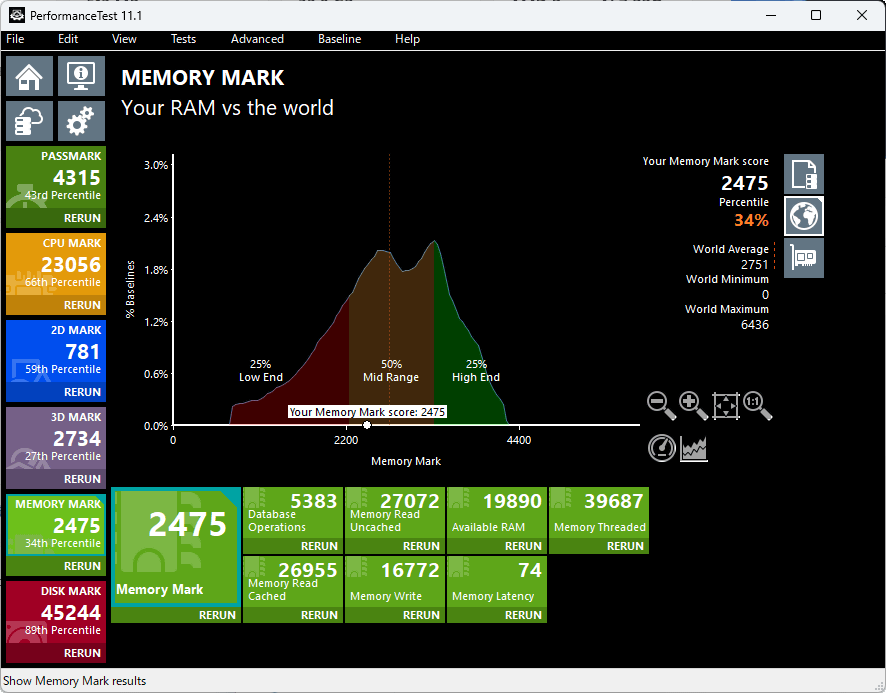
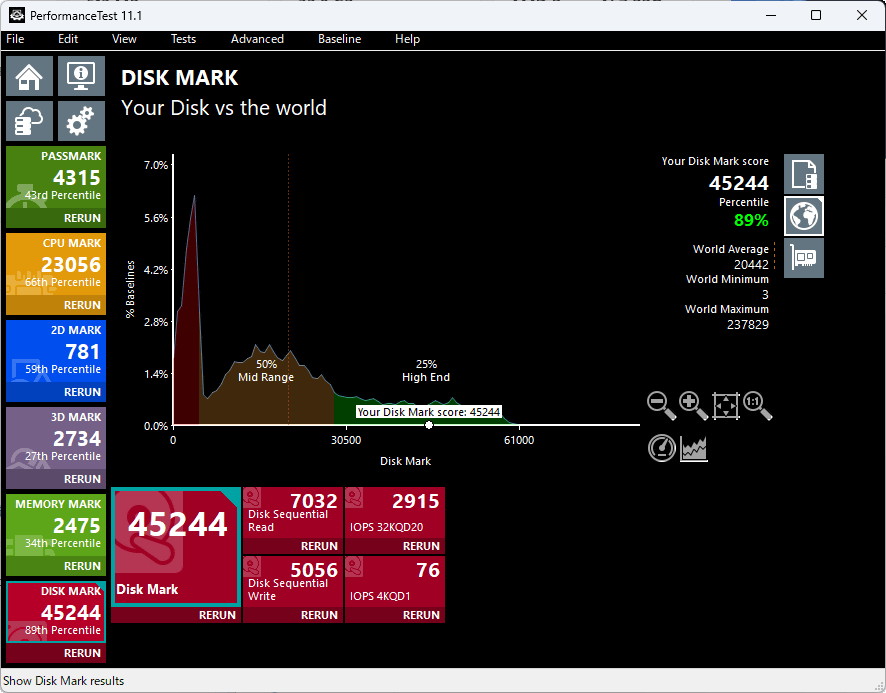
Finally, the disk benchmark score was 45244, placing it at the 89th percentile.
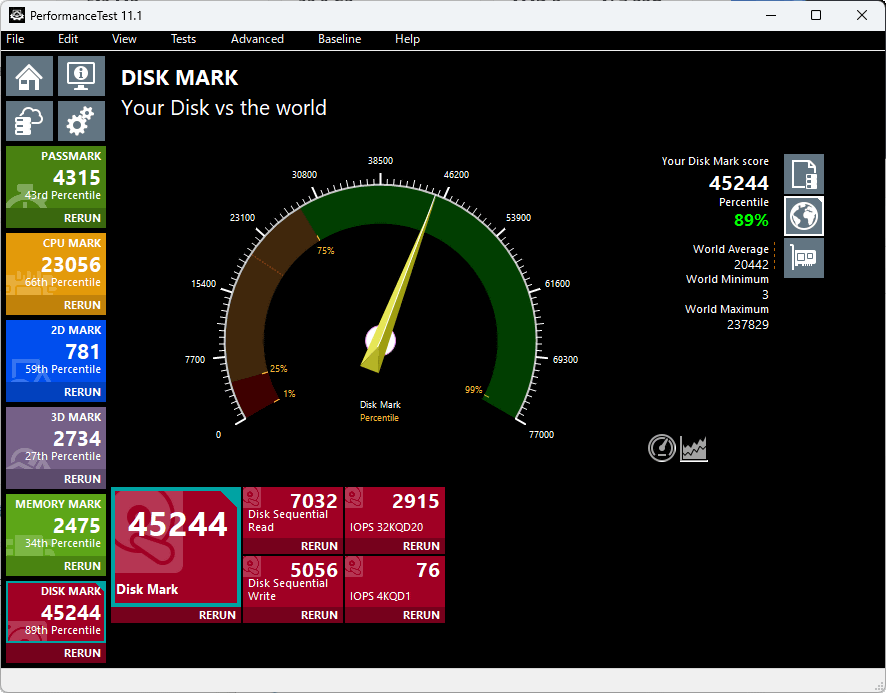
The disk benchmark achieved a high score comparable to that of a high-end PC.
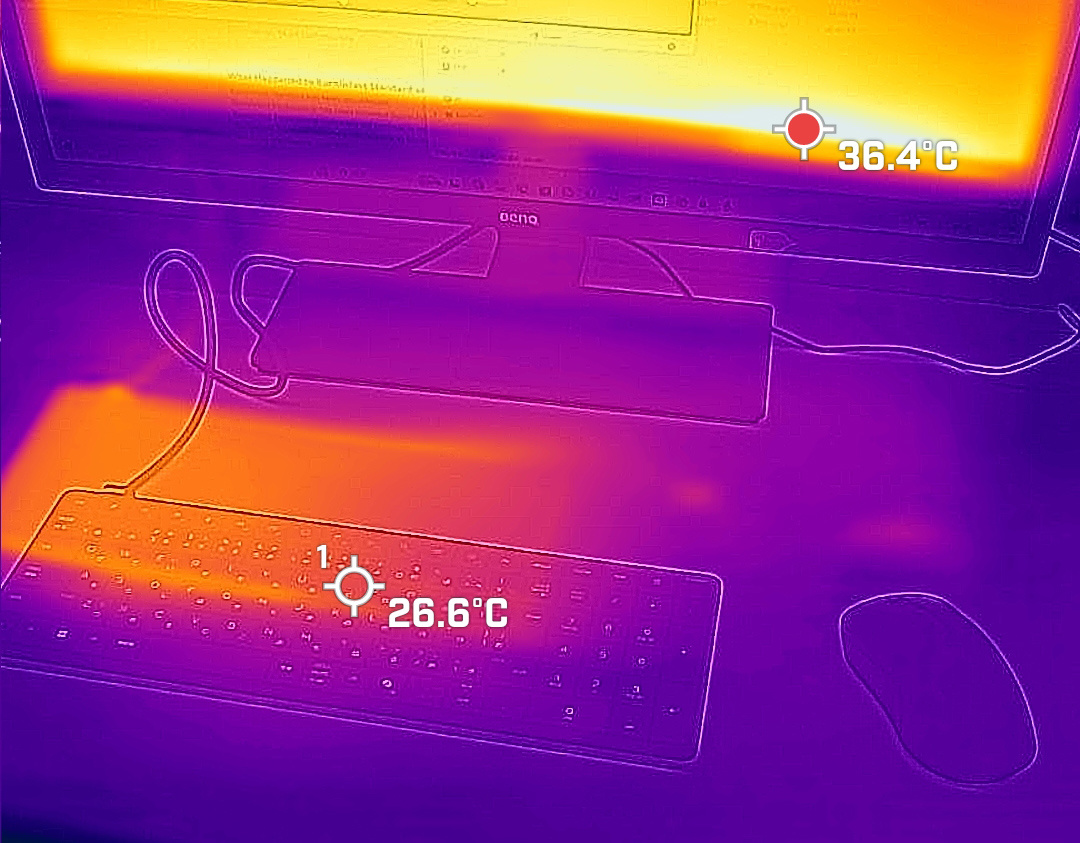
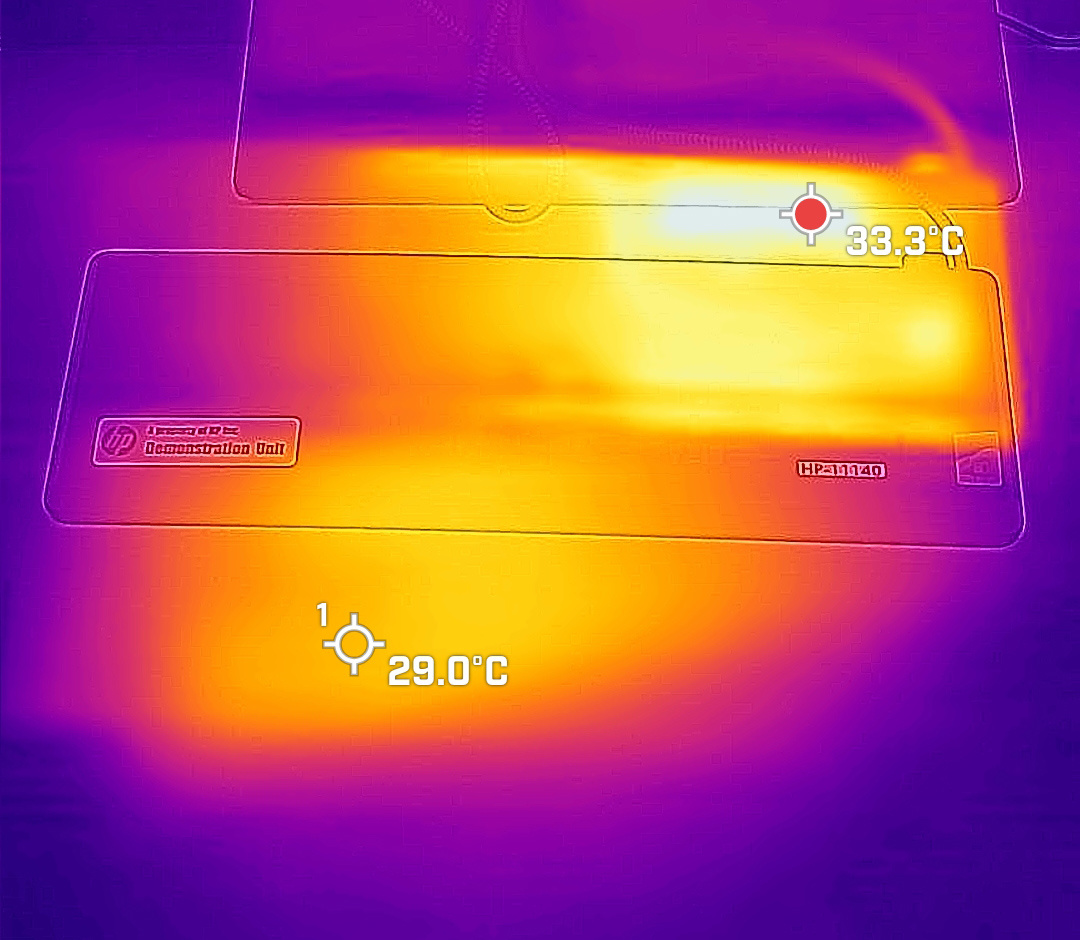
We also measured how much heat was generated under load using the load testing software 'BurnInTest'. The following results were obtained after turning on the power for about 30 minutes in a room with a room temperature of around 20 degrees Celsius and performing only simple browsing. When the temperature was measured with the thermal camera 'FLIR ONE Pro', the keyboard side of the EliteBoard G1a Next Gen AI PC reached 26.6 degrees Celsius in the hottest spot, and it felt only 'slightly warm' to the touch.
I also recorded the temperature of the underside of the EliteBoard G1a Next Gen AI PC and the desk on which it was placed for 30 minutes. The underside reached 33.3 degrees Celsius and the desk reached 29.0 degrees Celsius. While these were warmer than the keyboard side, they were still not excessively hot; they were just noticeably warm.
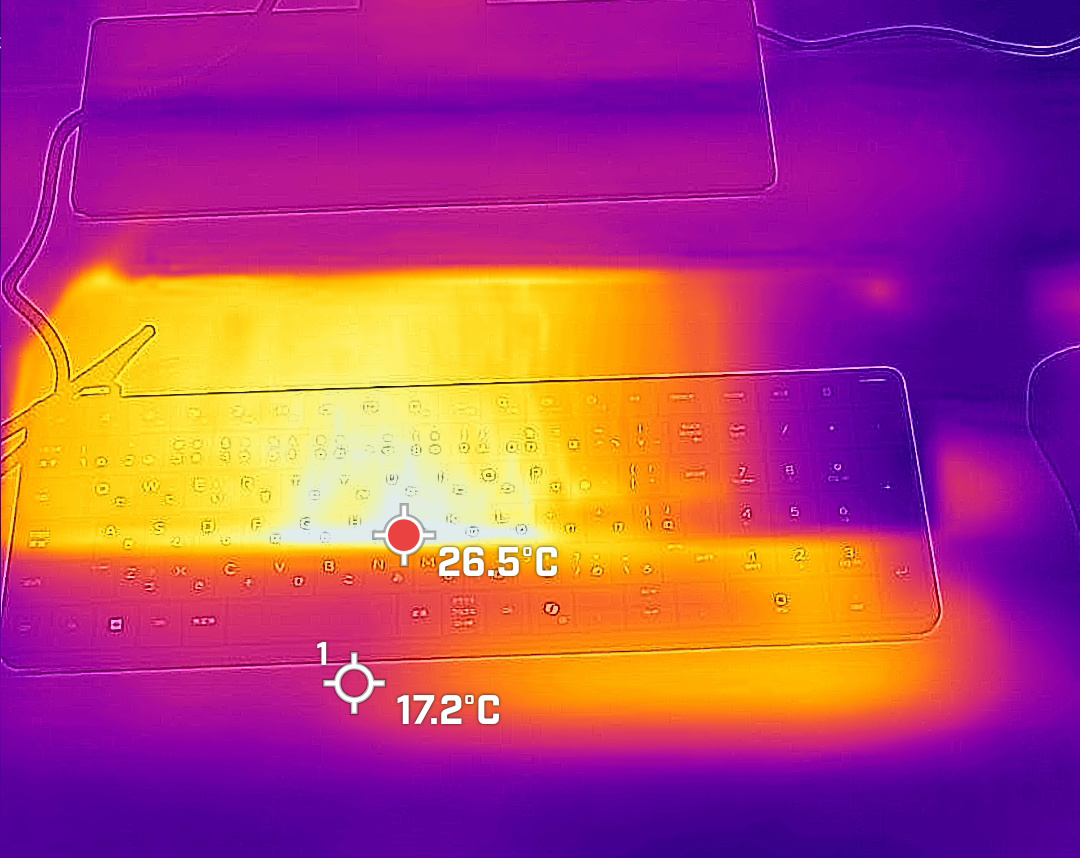
After conducting a 15-minute load test and then measuring the temperature again, the keyboard side of the EliteBoard G1a Next Gen AI PC was 26.5 degrees Celsius at its hottest point, which was almost unchanged from before the load test.
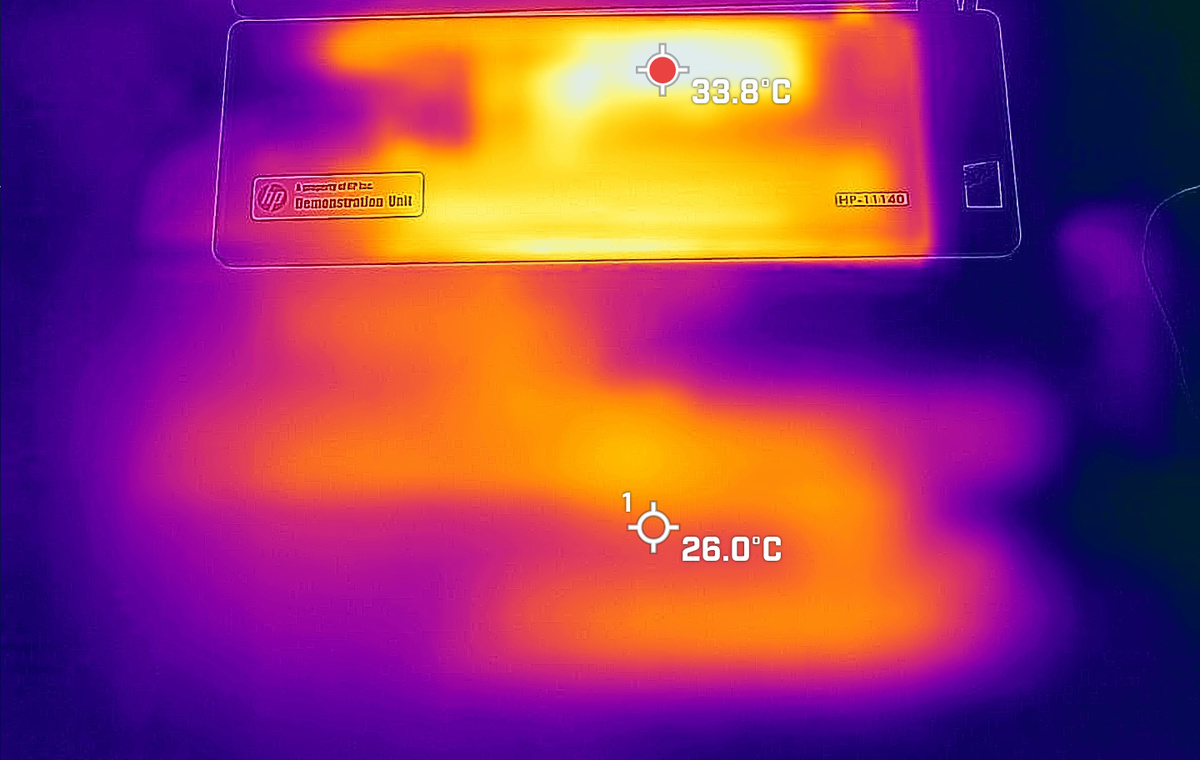
The temperature on the underside was 33.8 degrees Celsius, and the desk temperature was 26.0 degrees Celsius, showing little change before and after the load test. The EliteBoard G1a Next Gen AI PC is easy to set up anywhere and portable due to its smart connectivity, but it also excels in terms of noise and heat dissipation.
The EliteBoard G1a Next Gen AI PC 'D73TCPT' used in this review is priced at 370,300 yen on the HP official store . The configurations and prices of other products are shown in the table below.
| Product Number | D73TDPT | D56XWPT | D55FHPT | D73TCPT | D73TJPT |
|---|---|---|---|---|---|
| processor | AMD Ryzen AI 5 330 | AMD Ryzen AI 7 PRO 350 (Base clock 2.0 GHz - Maximum boost clock 5.0 GHz / Cache 24 MB / 8 cores / 16 threads / NPU performance up to 50 TOPS) | |||
| Main unit specifications | Fixed cable | Detachable cable, built-in battery | Detachable cable | Fixed cable | Detachable cable, built-in battery |
| storage | 256GB(Value), M.2 PCIe NVMe SSD | 512GB(Value), M.2 PCIe NVMe SSD | |||
| Price (tax included) | 238,300 yen | 249,300 yen | 232,800 yen | 359,300 yen | 370,300 yen |
Each model can be purchased from the official HP website.
HP EliteBoard G1a Next Gen AI PC Product Details & Specifications - Desktop PC Online Store | HP Japan
https://jp.ext.hp.com/desktops/business/eliteboard_g1a_ngai/
Related Posts: