I tried out 'JUST Checker,' which uses the text proofreading engine from the popular 'Ichitaro' word processor to correctly proofread text input in Chrome. It can be used on various sites like X and Gmail.
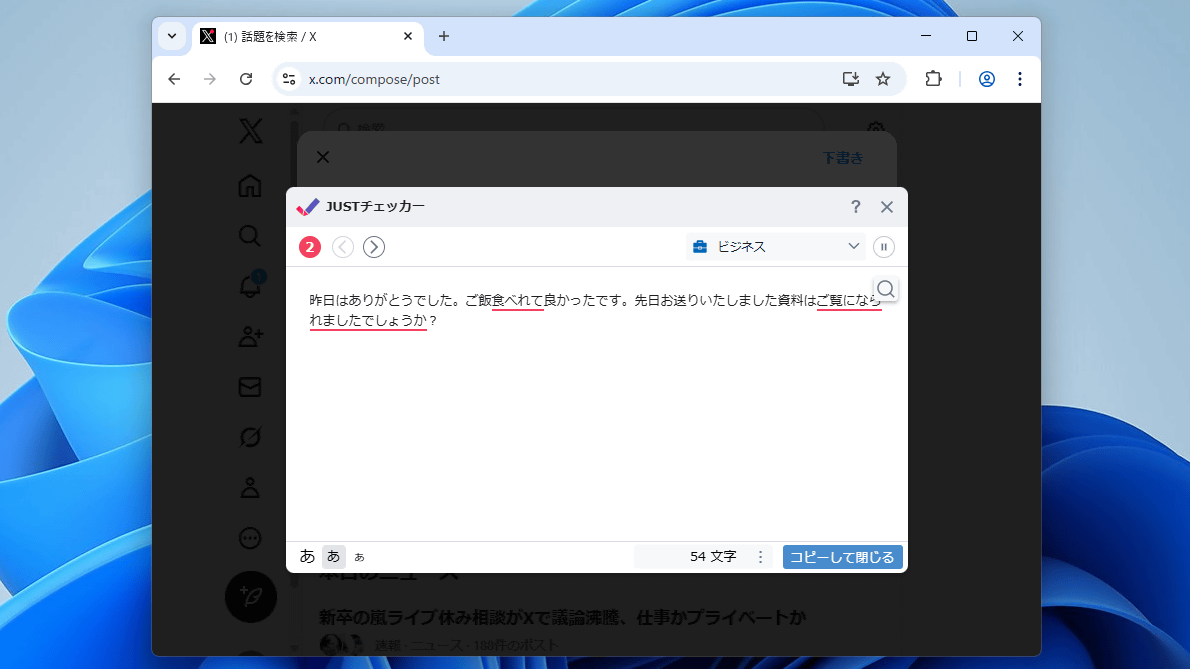
JustSystems' long-established word processing software, 'Ichitaro,' is equipped with a high-performance proofreading engine for writing correct Japanese text. ' JUST Checker ' is a browser extension that allows you to use Ichitaro's proofreading engine in Chrome and Edge, enabling proofreading functionality in a wide range of applications, including X posting screens, Gmail email composition screens, and contact forms on various websites. It seemed useful, so I decided to try it out.
JUST Checker | JustSystems
JUST Checker is available in both Chrome and Edge versions . While JUST Checker itself is a free extension, you need to have Ichitaro 2024 or later installed on your PC to use its proofreading function. This time, we'll try using the Chrome version of JUST Checker on a PC with Ichitaro 2026 installed.
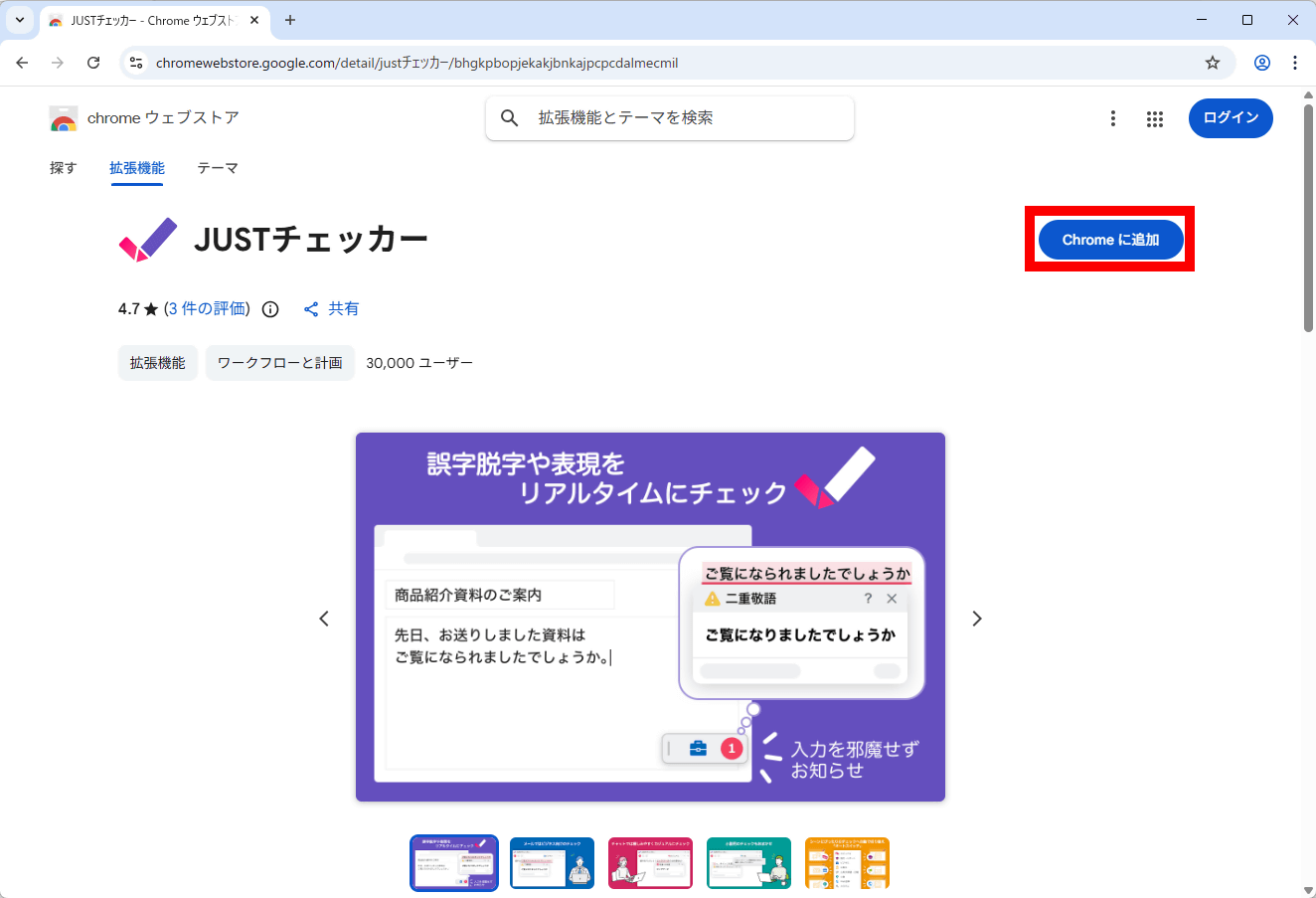
First, go to the Chrome Web Store distribution page and click 'Add to Chrome'.
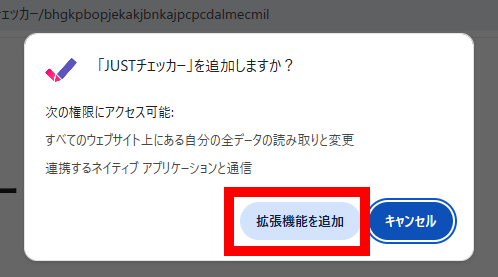
Click 'Add extension'.
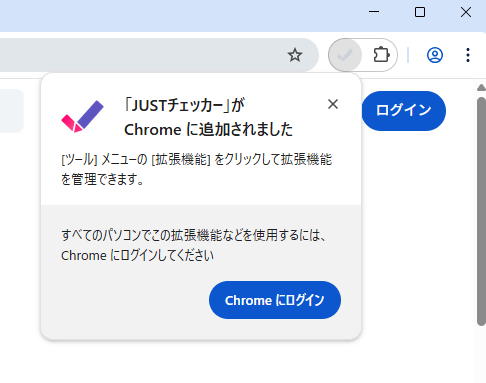
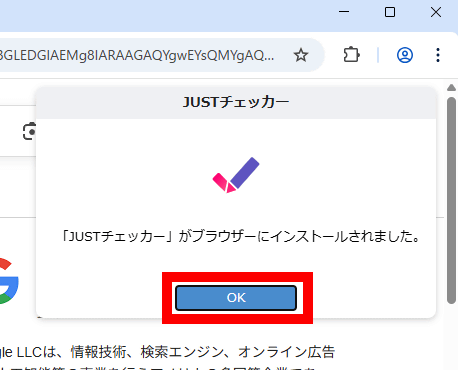
You're ready when you see the following notification.
After browsing the web for a while, the following notification will appear, indicating that you are ready to use JUST Checker.
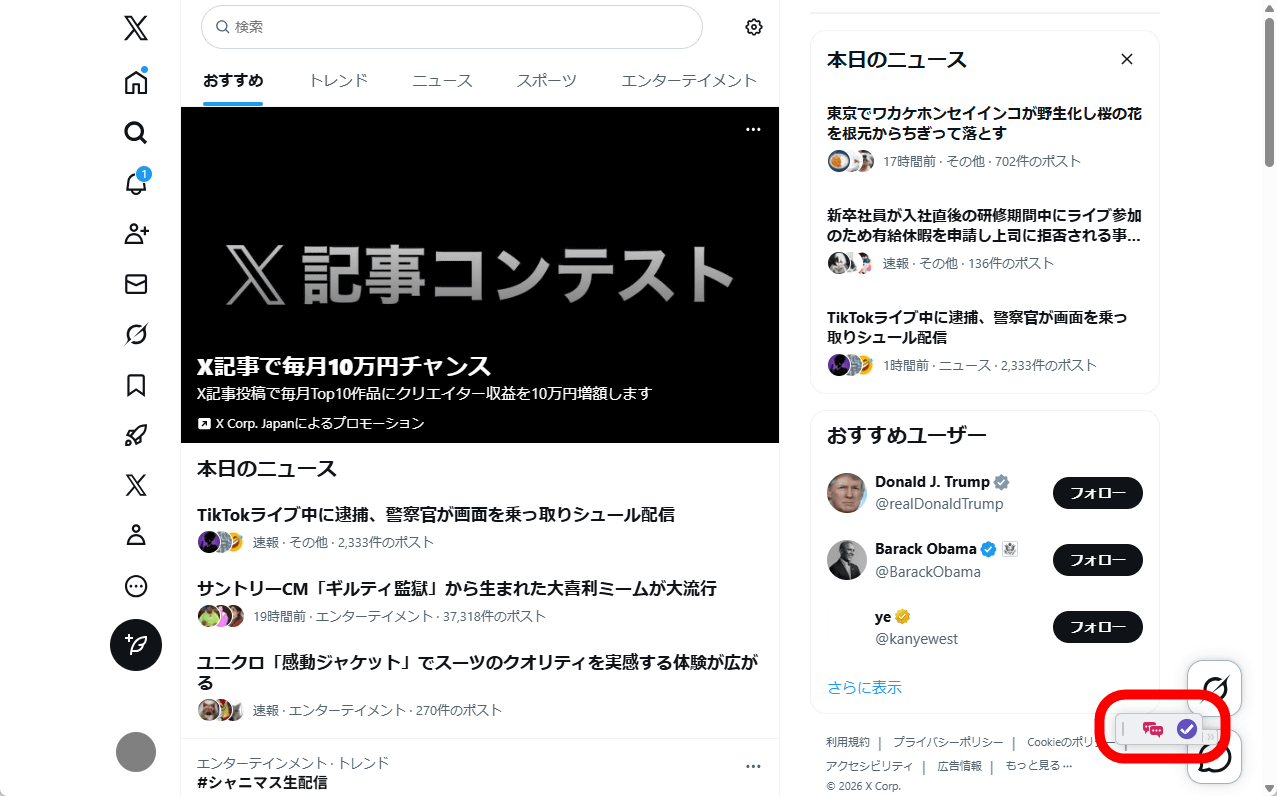
When the JUST checker becomes available, the JUST checker menu will appear in the lower right corner of the screen.
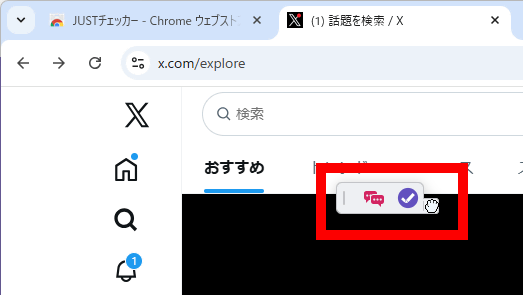
You can move the menu to your preferred position.
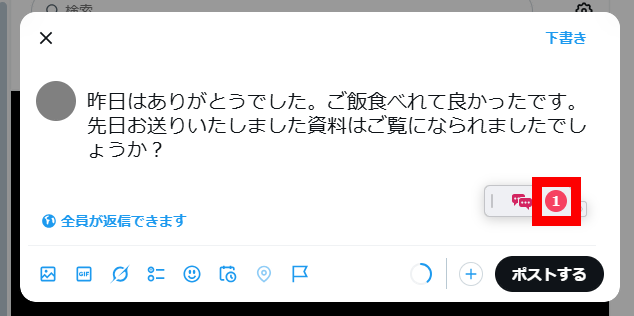
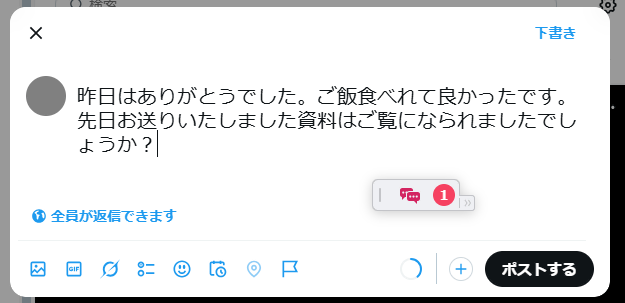
When I entered text into the X posting screen, a number appeared in the JUST checker menu. Clicking the number opened the proofreading screen.
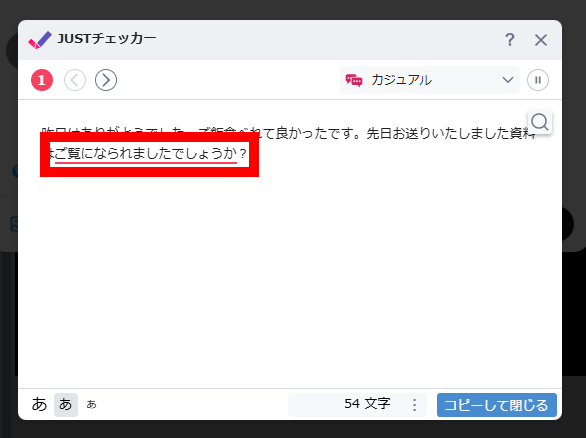
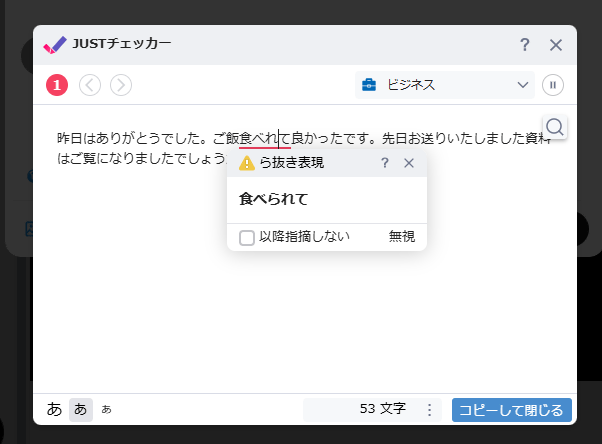
This is the proofreading screen. There are red lines under the problematic areas, so let's click on them.
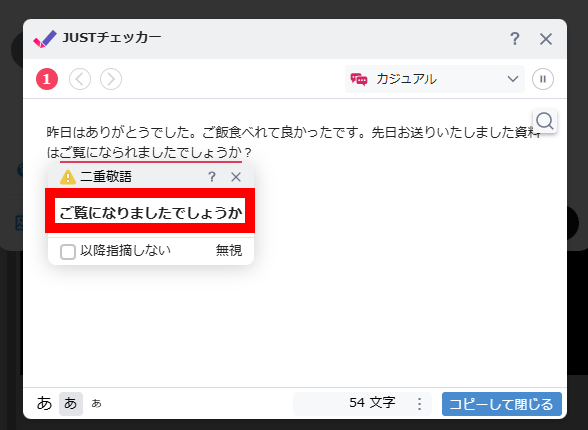
A suggested correction was displayed, so I clicked it.
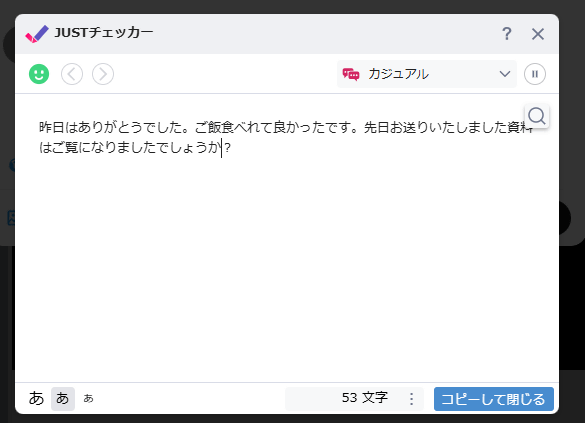
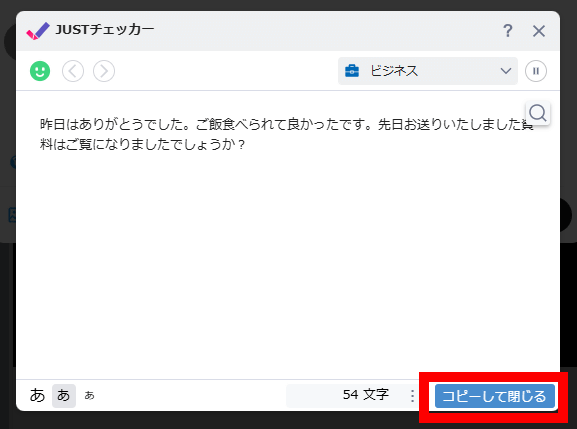
The text has been replaced with the corrected version.
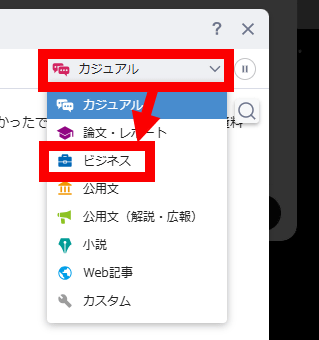
The default proofreading setting is 'Casual,' so let's change it to 'Business.'
In a business context, the omission of 'ra' in verb conjugations was also pointed out.
Once you've finished proofreading, click 'Copy and Close'.
The original text remains, so simply delete it and paste the corrected text you copied.
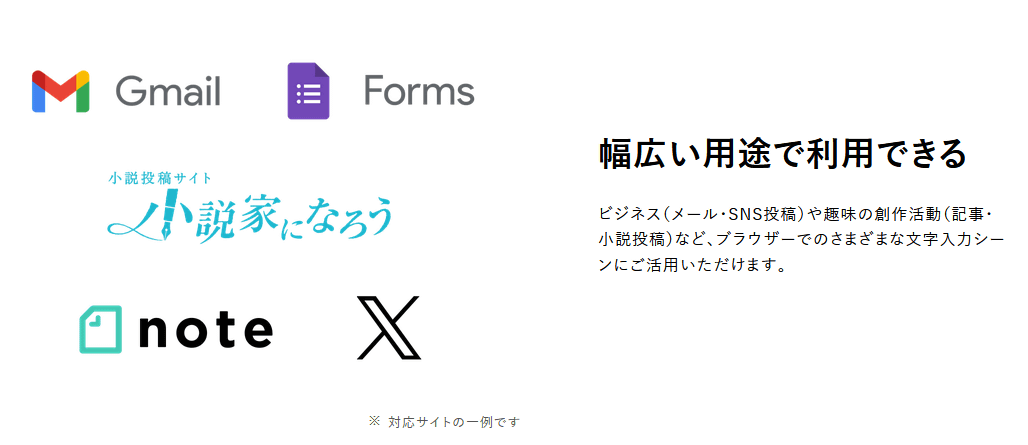
JUST Checker can be used not only on X but also on Gmail, novel submission services, blog services, and more. It also works on contact forms on various websites.
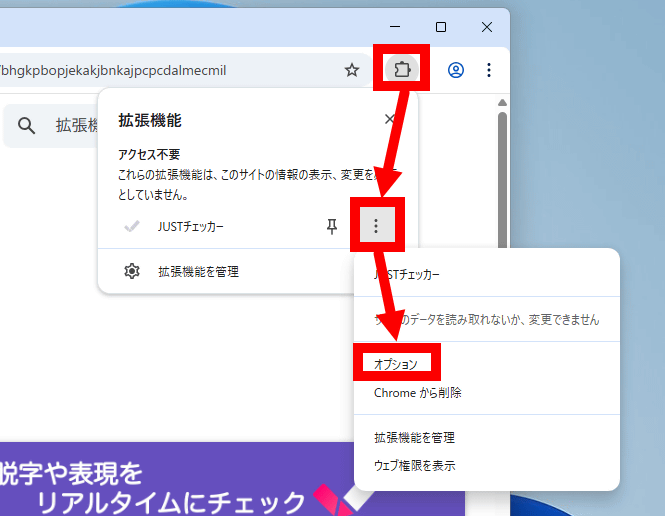
To access the JUST Checker settings screen, click the Extensions button in the upper right corner of the screen, then click the menu button to the right of JUST Checker, and then click 'Options'.
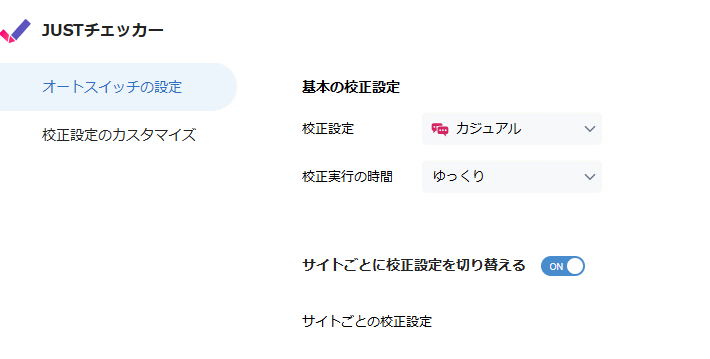
The settings screen allows you to switch calibration settings and toggle the automatic calibration setting switching function on or off.
Related Posts: