Review of the HIKMICRO Mini2Plus V2, an external infrared camera module that can easily measure temperature by simply attaching it to a smartphone
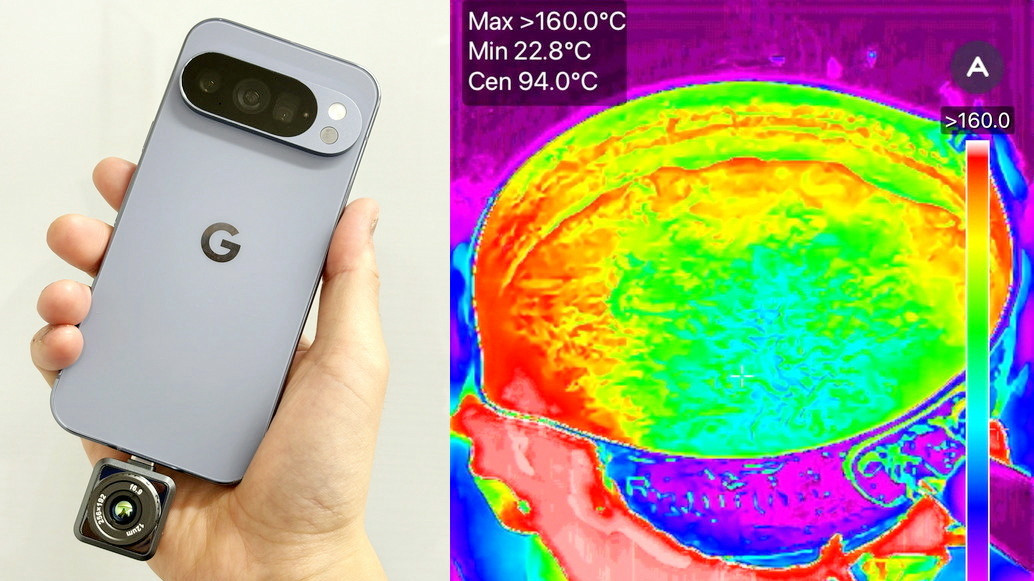
HIKMICRO's ' Mini2Plus V2 ' is a battery-free external infrared camera module compatible with iOS and Android. Simply connect it to an iPhone or Android smartphone to easily measure temperature and capture thermal images. We received support from readers via
HIKMICRO Mini2 Smartphone Thermal Camera, 256 x 192 Pixels, Ultra-Compact Thermal Camera, Android Type-C Connector, 25Hz Thermal Image Capture Frequency
https://www.hikmicro.jp/products/mini2plus-v2
·table of contents
◆Mini2Plus V2 unboxing, check the contents and appearance
◆App setup and connection
◆I tried taking a photo with HIKMICRO Viewer
◆ Various settings for HIKMICRO Viewer
◆ Save photos taken with Mini2Plus V2
◆Mini2Plus V2 unboxing, check the contents and appearance
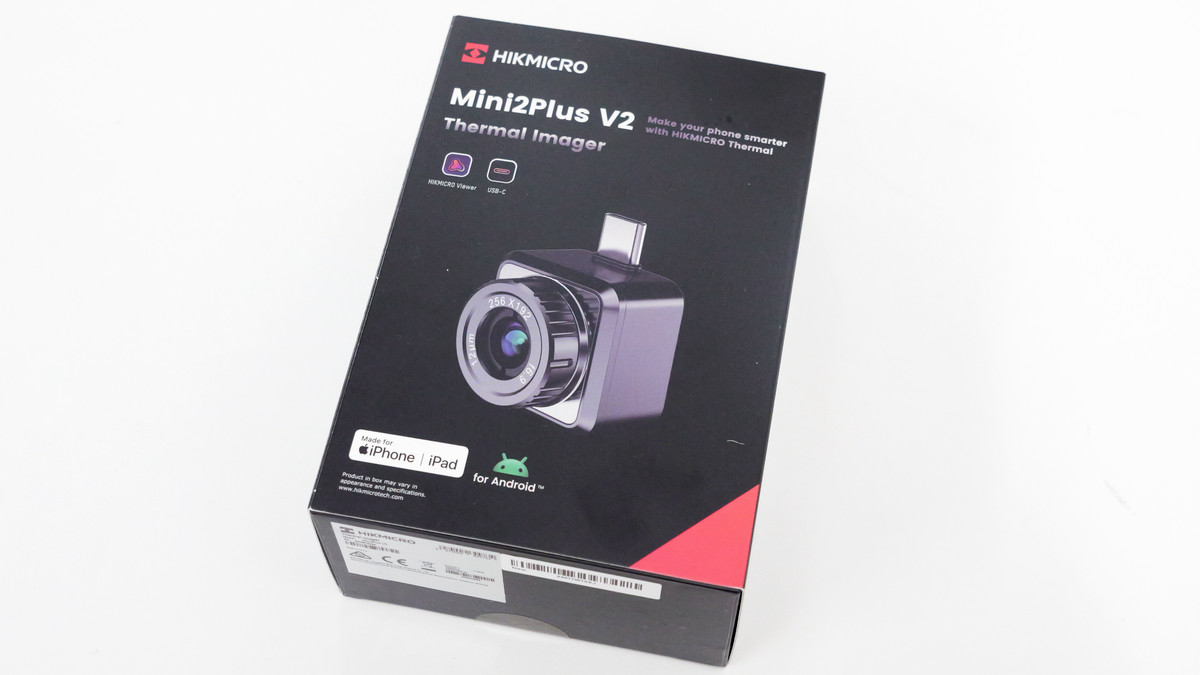
The Mini2Plus V2 packaging looks like this.
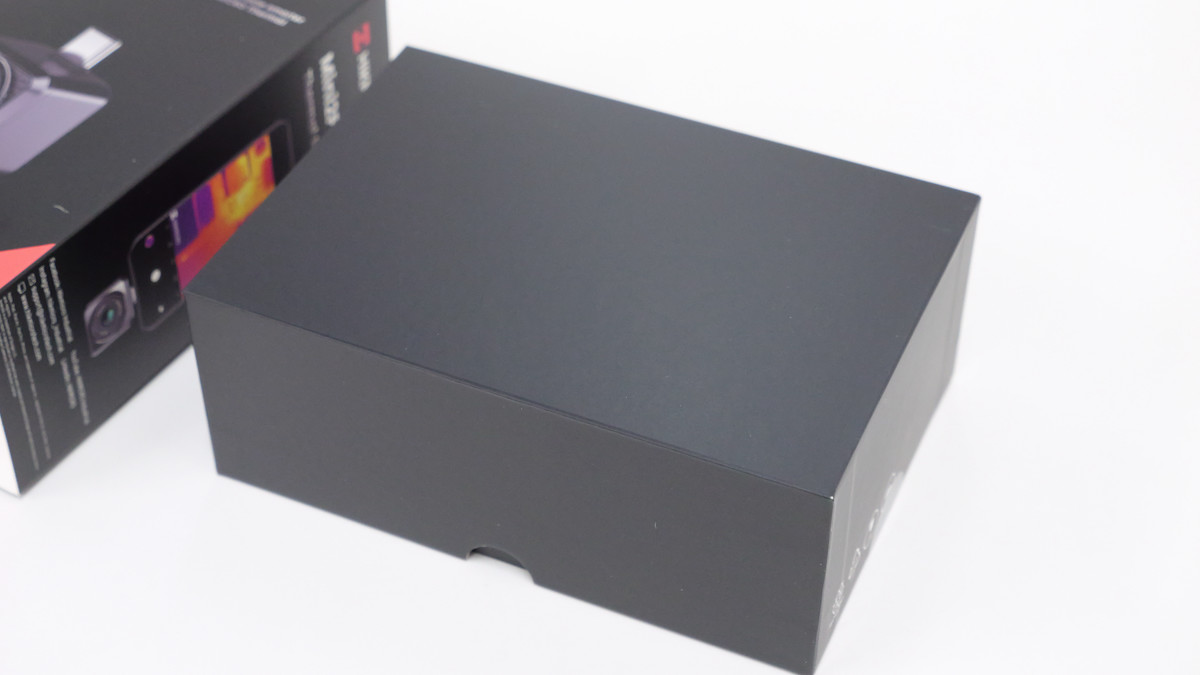
The inner box was pitch black.
When you open the inner box, you'll find an instruction manual, warranty documents, and a hard case.
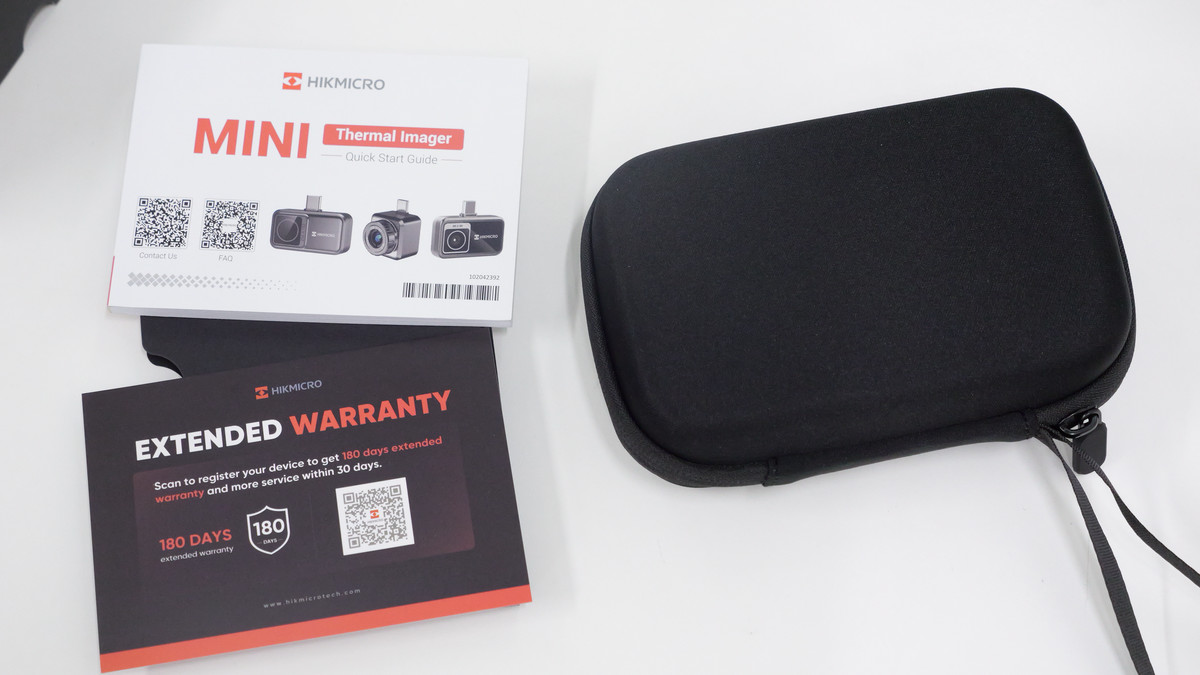
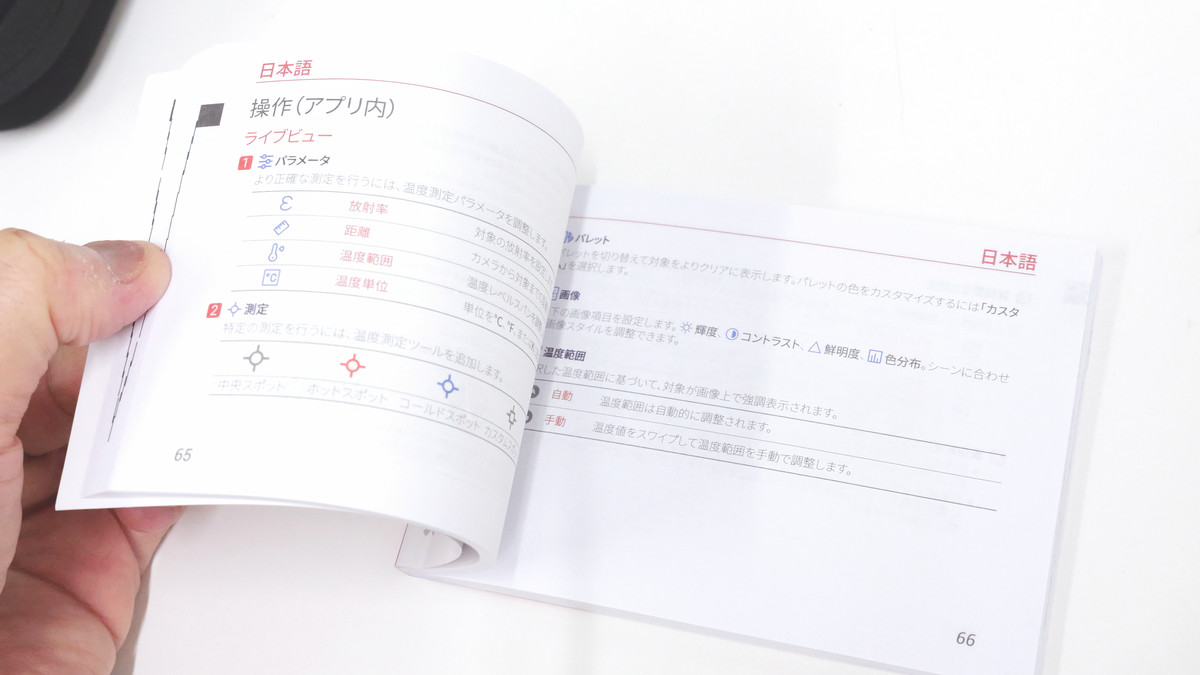
The instruction manual also includes a Japanese page.
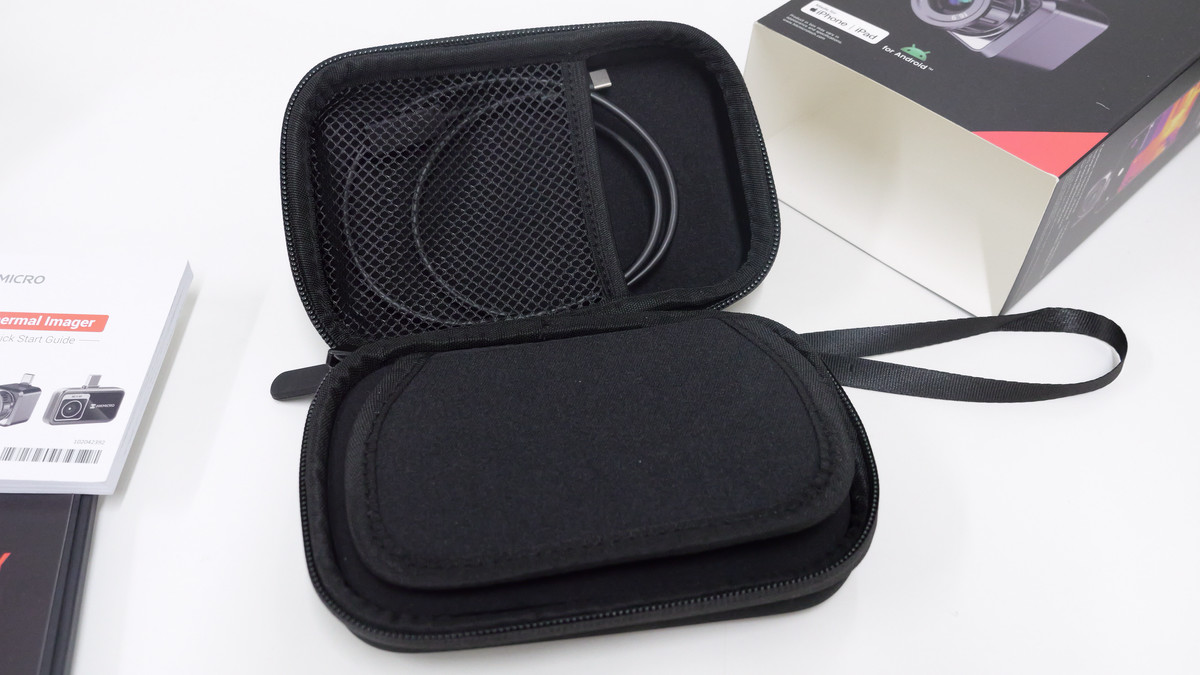
I opened the hard case.
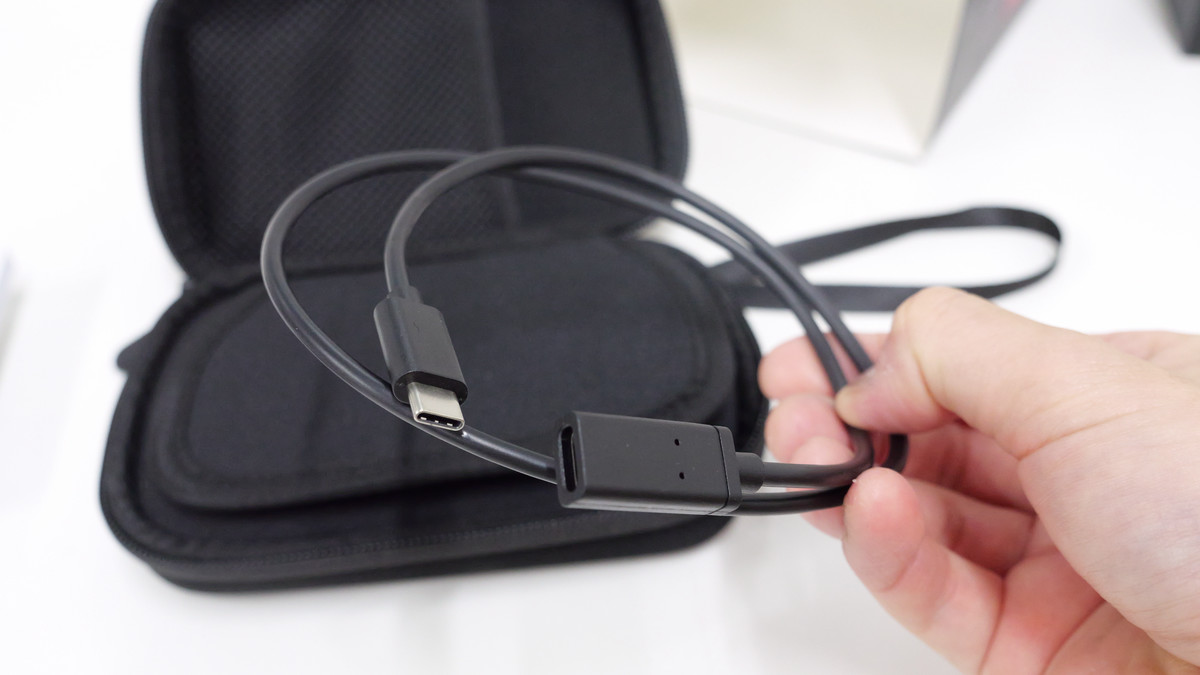
This USB-C cable is for extending the Mini2Plus V2 body and has a female connector on one end.
The inner lid of the hard case has been opened.
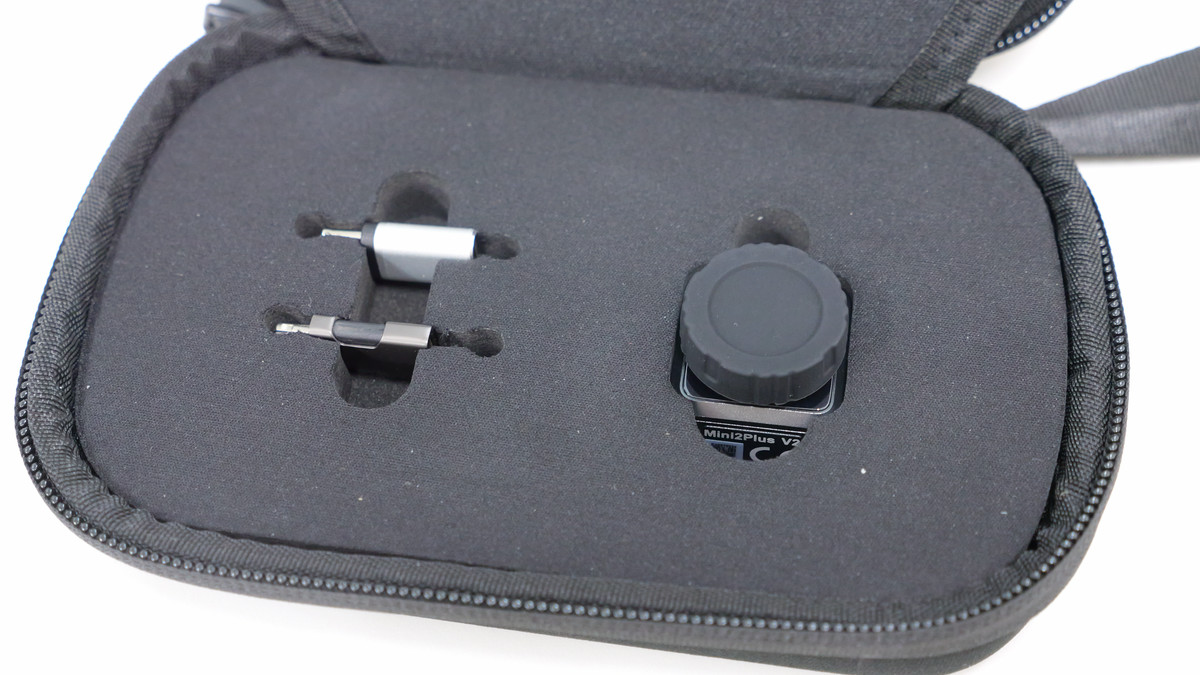
This is the Mini2Plus V2 itself.
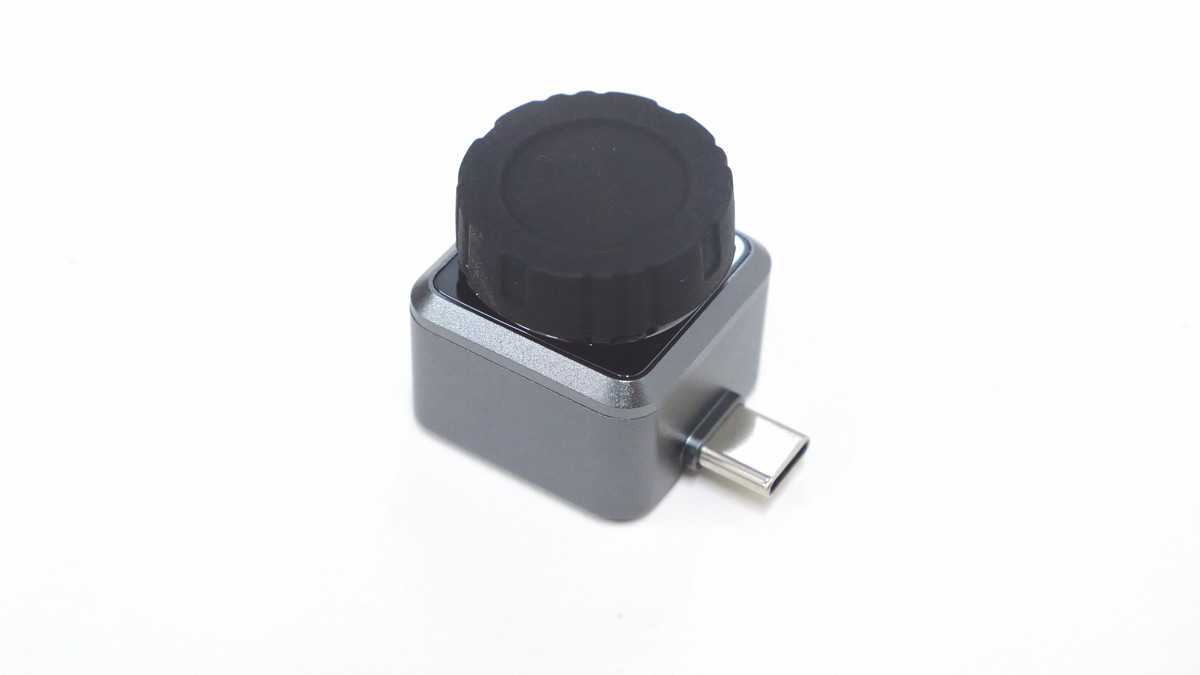
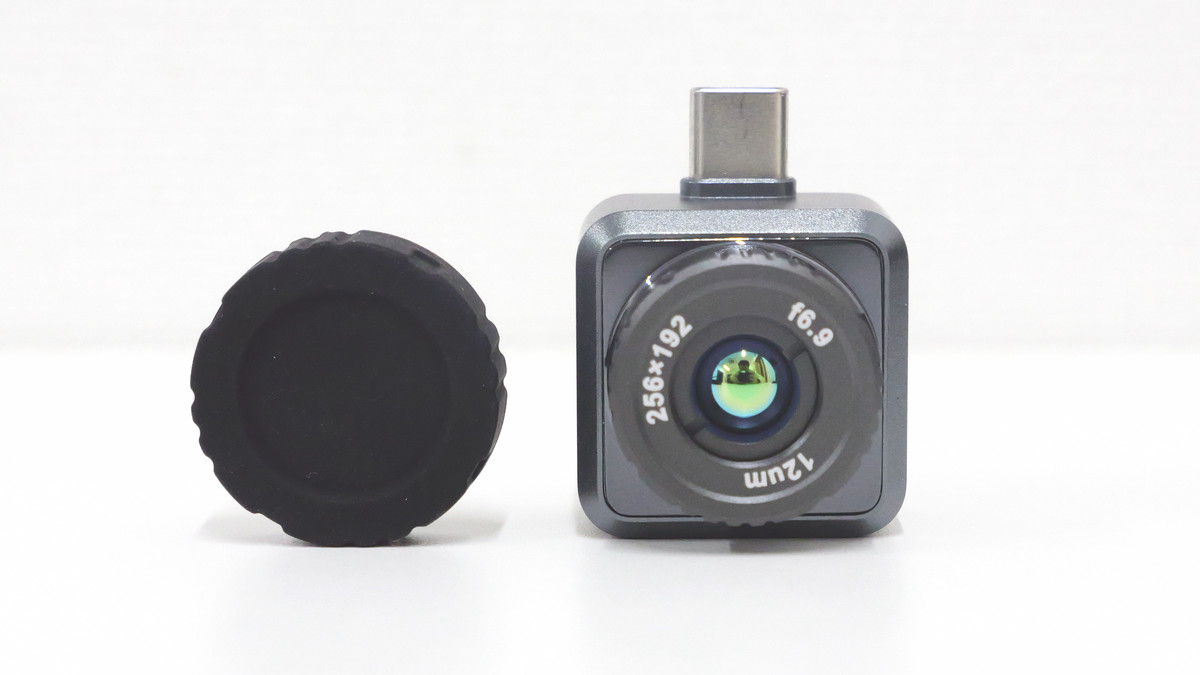
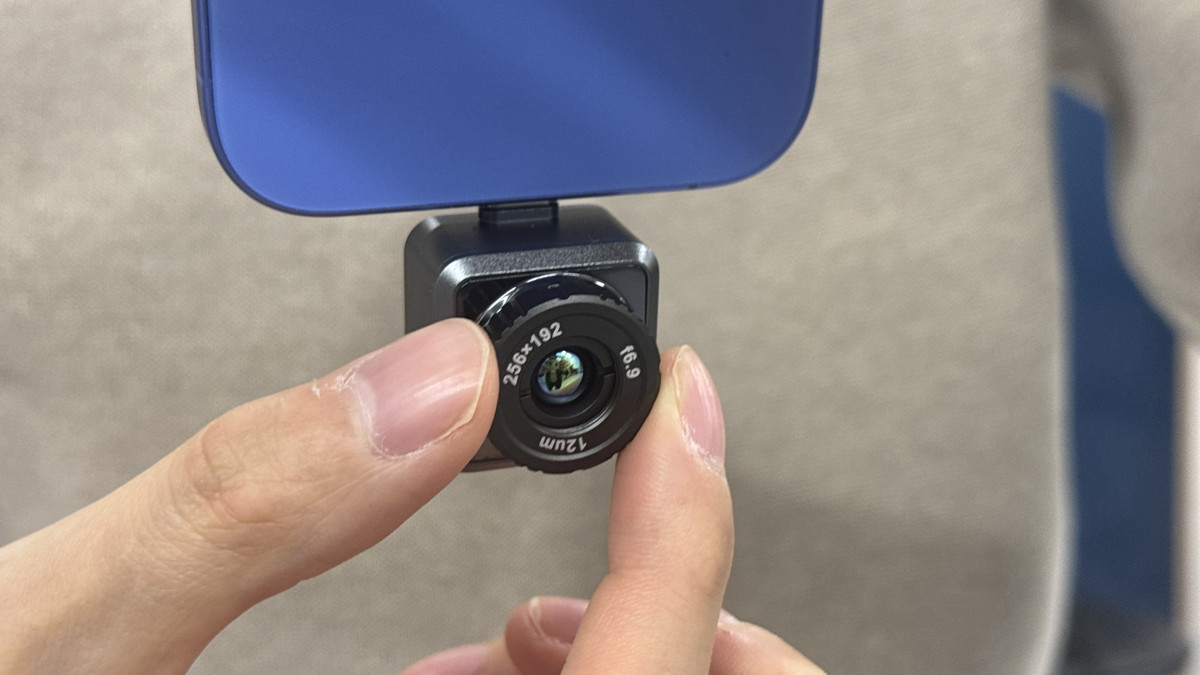
This is what it looks like when you remove the rubber cover covering the lens. The Mini2Plus V2 features manual focus control, with a dial-like area around the lens.
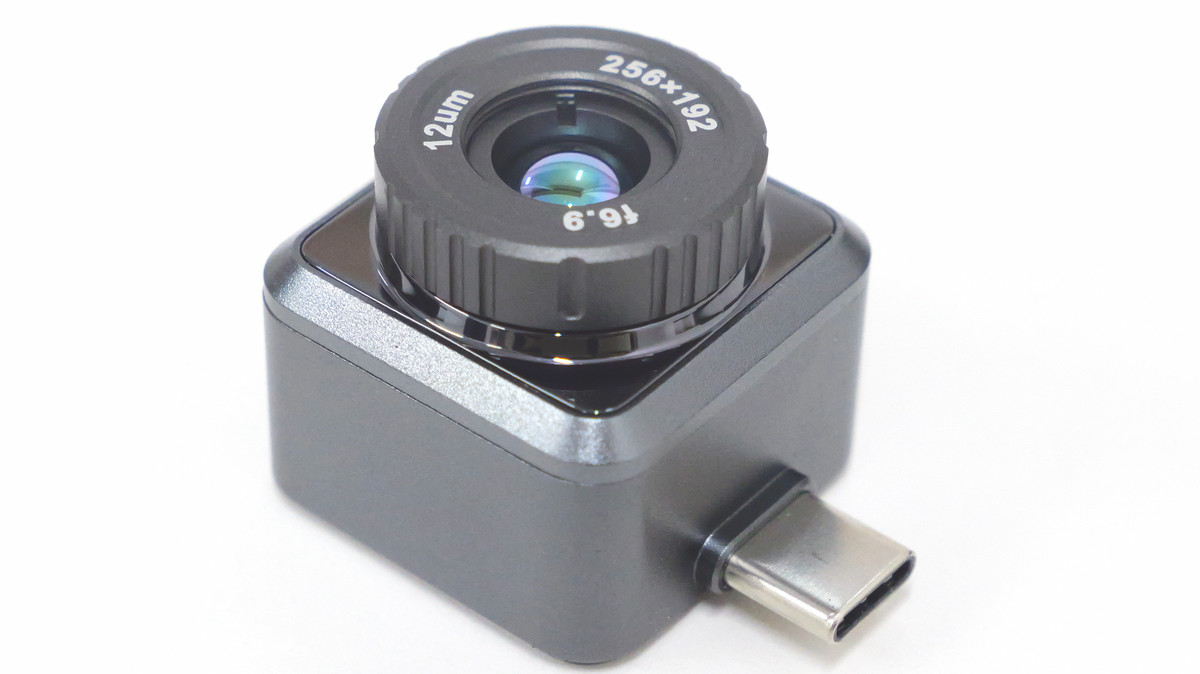
This is what it looks like from the front.
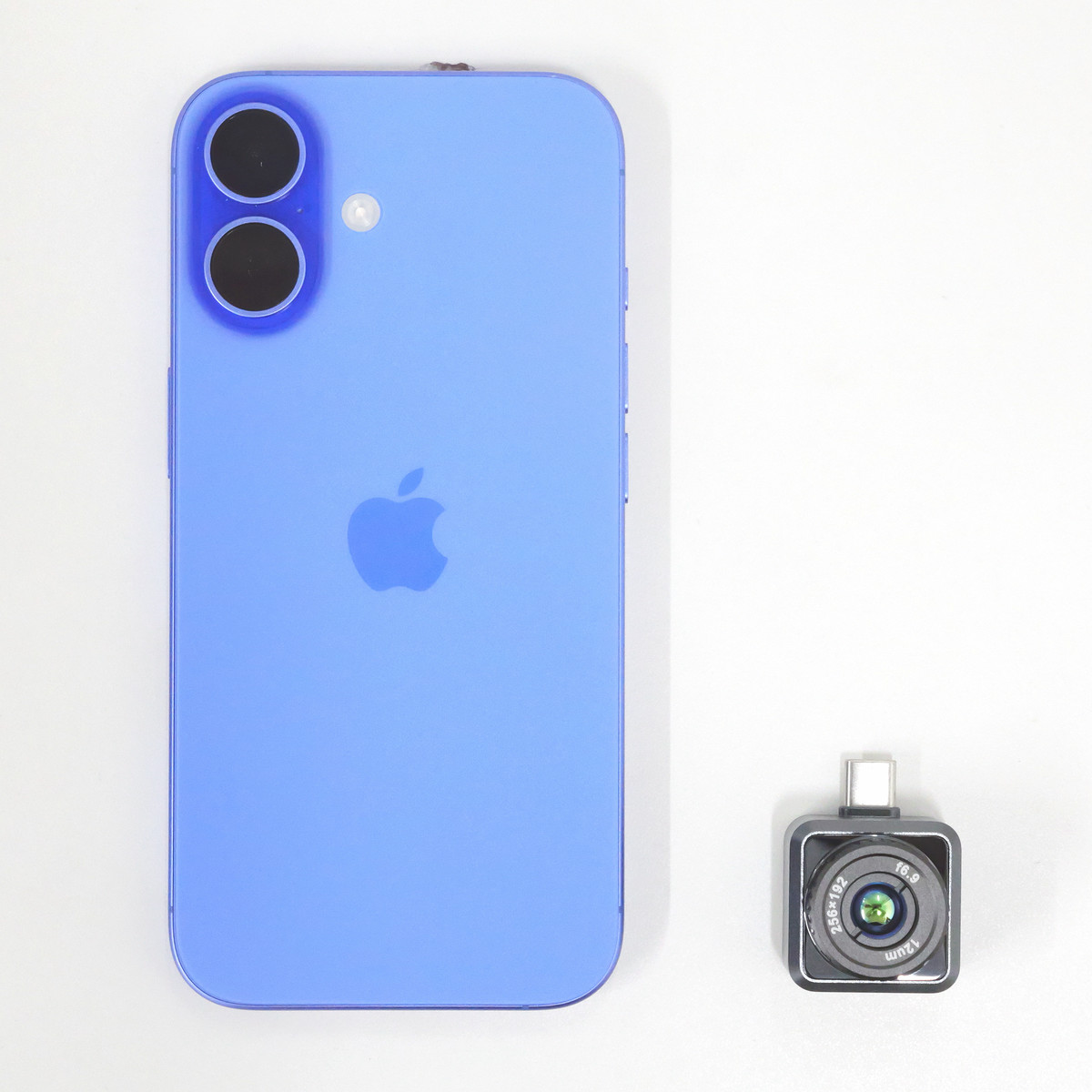
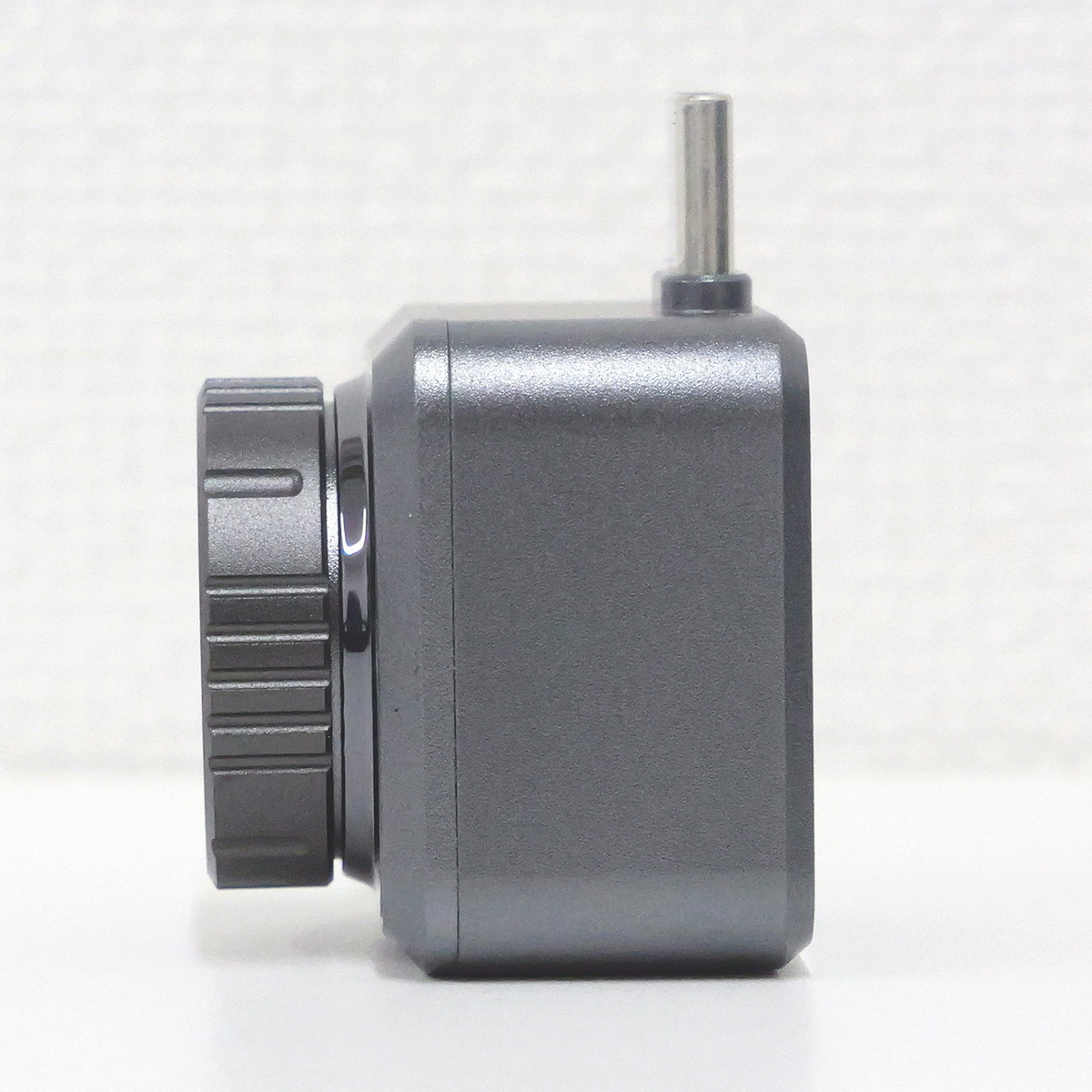
The size is 26.6mm wide x 26.6mm high x 25mm deep. It looks like this when lined up with the iPhone 16, which has a long side of 147.6mm.
There is a 'HIKMICRO' logo on the back.
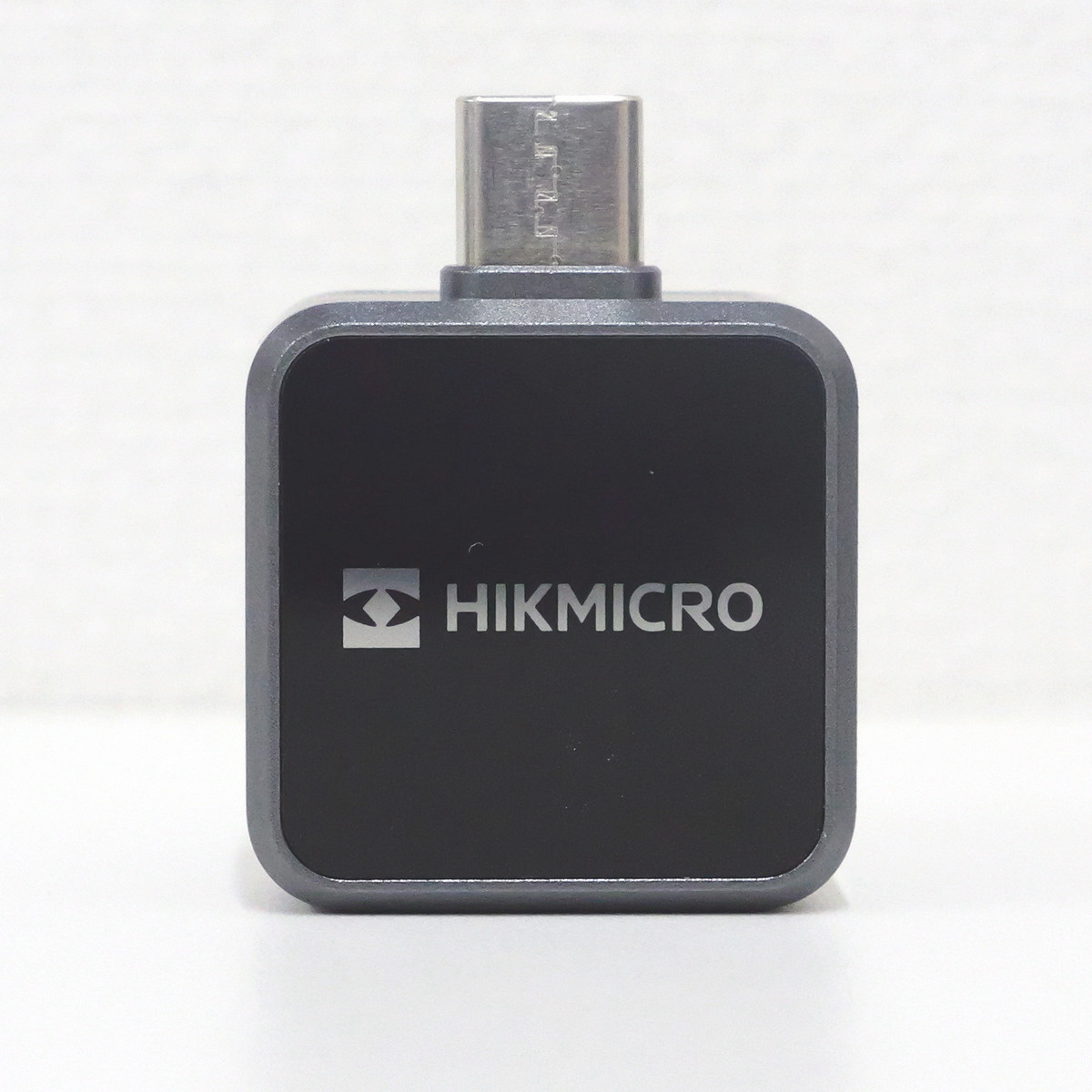
There is a USB-C connector on the top.
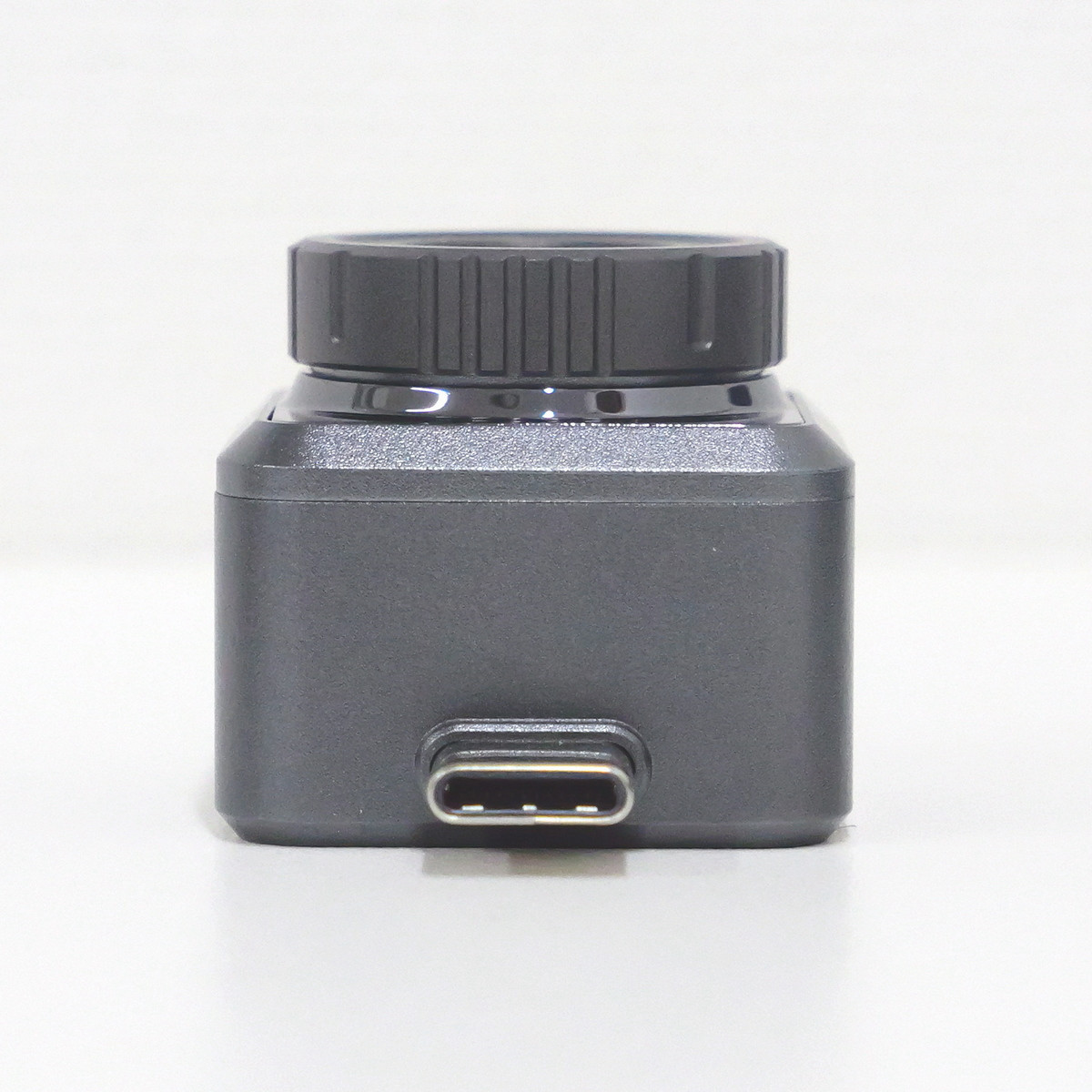
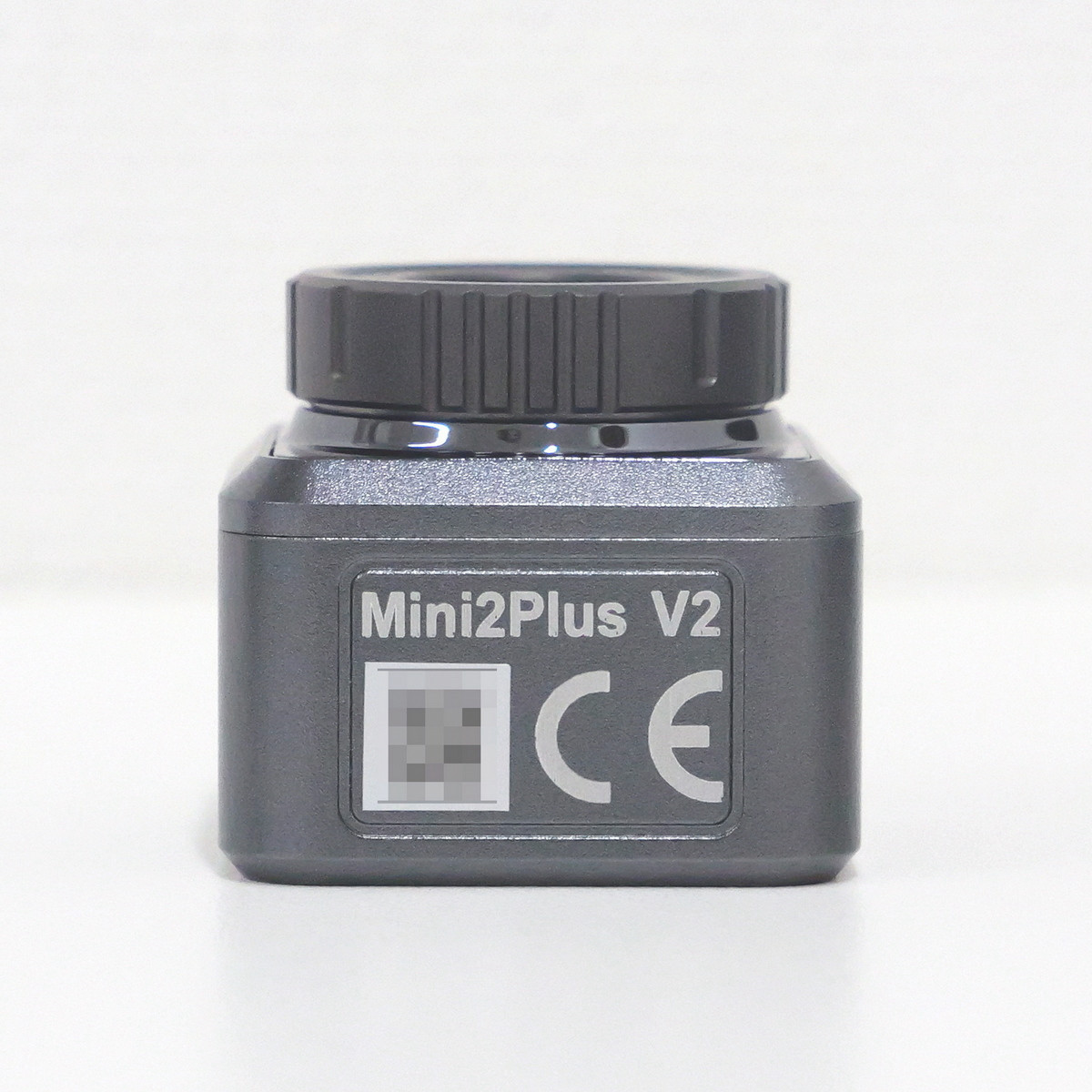
The bottom has the words 'Mini2Plus V2', a serial number, and the CE mark.
There is nothing on the left side.
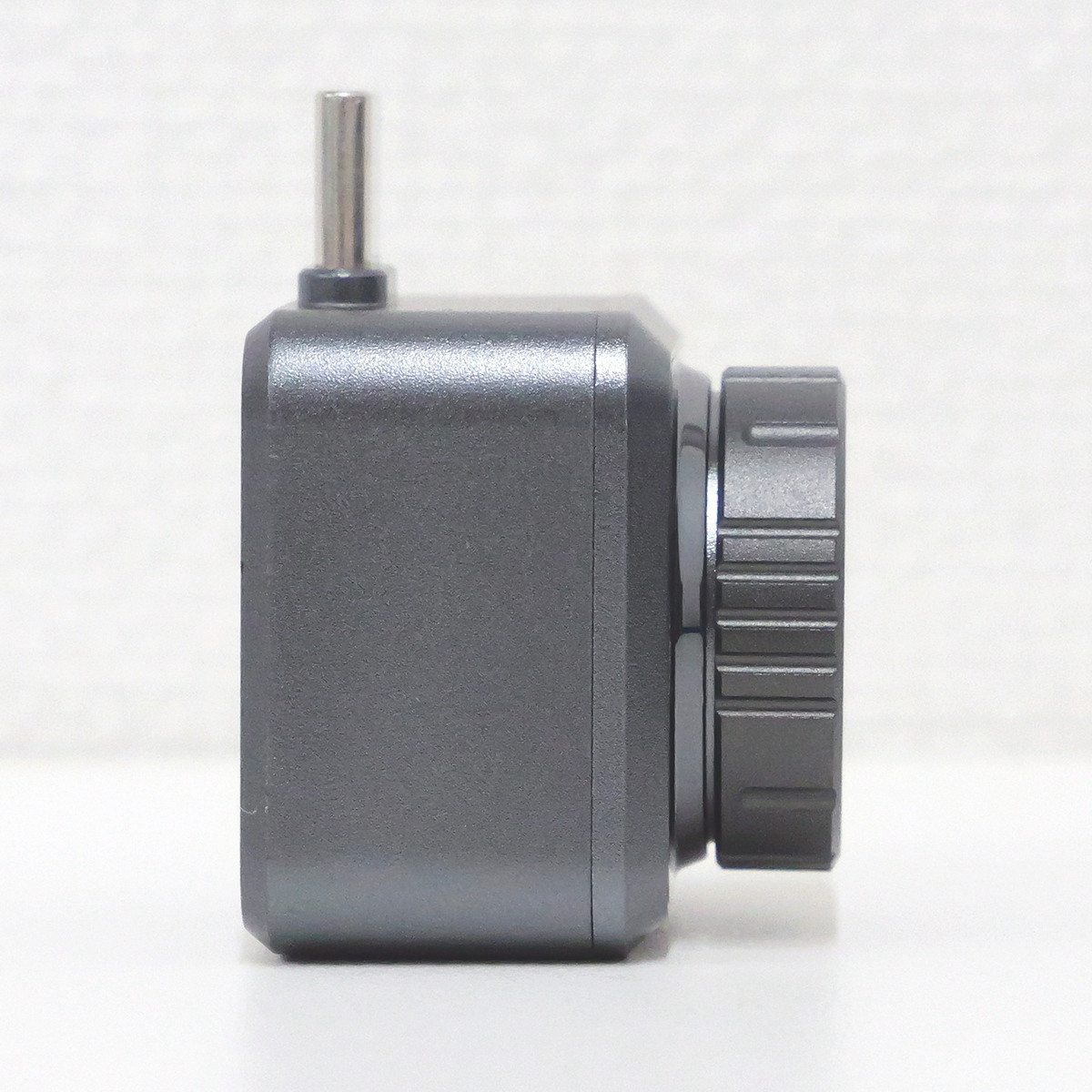
The same on the right side.
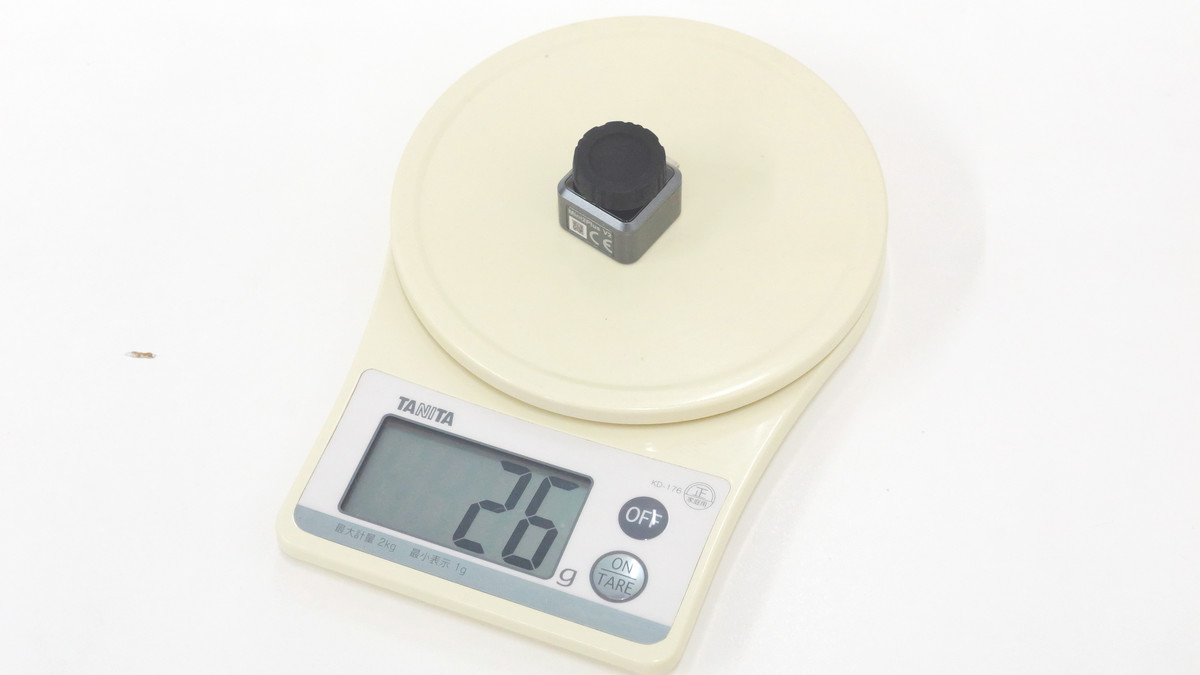
The actual weight of the Mini2Plus V2 body was measured to be 26g.
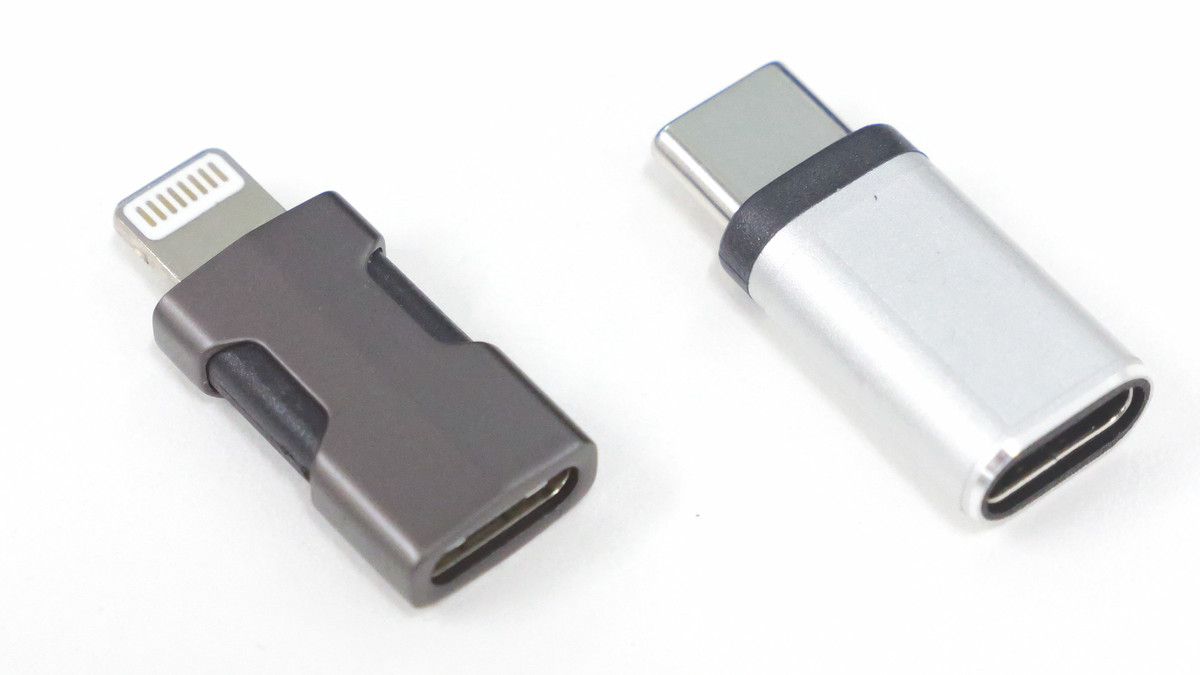
The hard case also included a Lightning connector and a USB-C connector.
◆App setup and connection
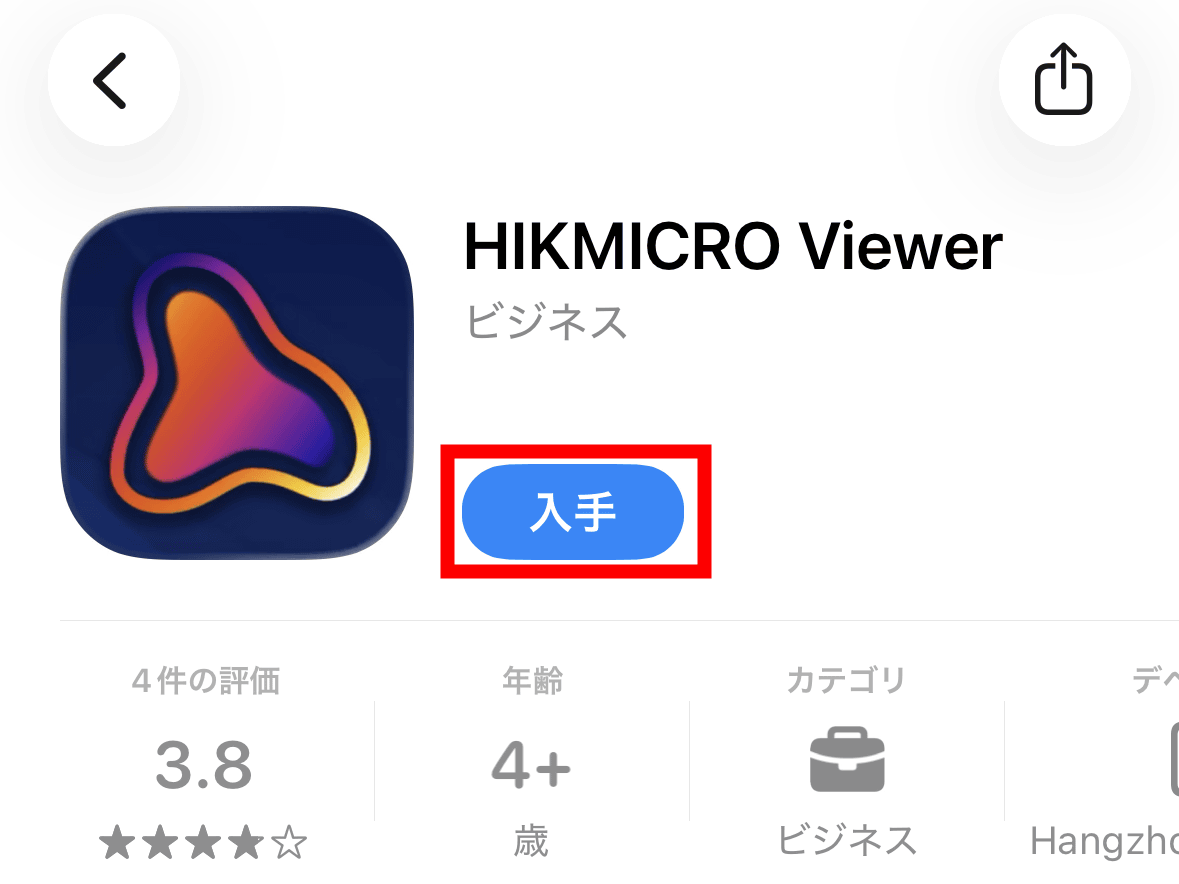
To use Mini2Plus V2, you need to use the official HIKMICRO app, ' HIKMICRO Viewer .' HIKMICRO Viewer is available for iOS and Android.
HIKMICRO Viewer App - App Store
HIKMICRO Viewer - Apps on Google Play
https://play.google.com/store/apps/details?id=com.hikvision.thermalGoogle&hl=ja
This time, I installed the iOS version on my iPhone. At the time of writing, there was no difference in functionality between the iOS and Android versions.
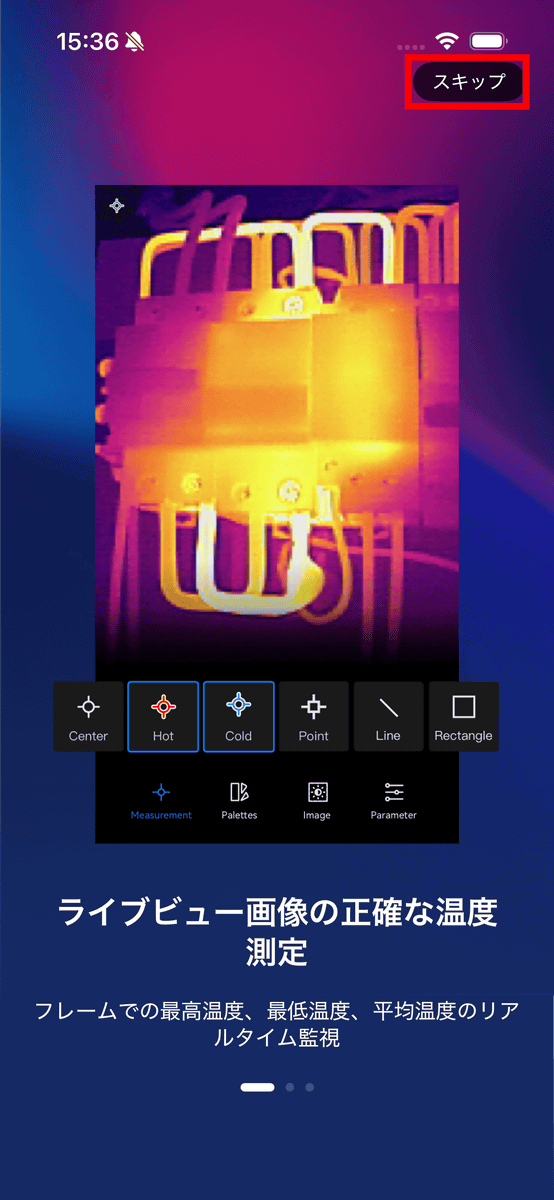
When you launch HIKMICRO Viewer, a brief explanation will be displayed, so tap 'Skip' in the upper right corner.
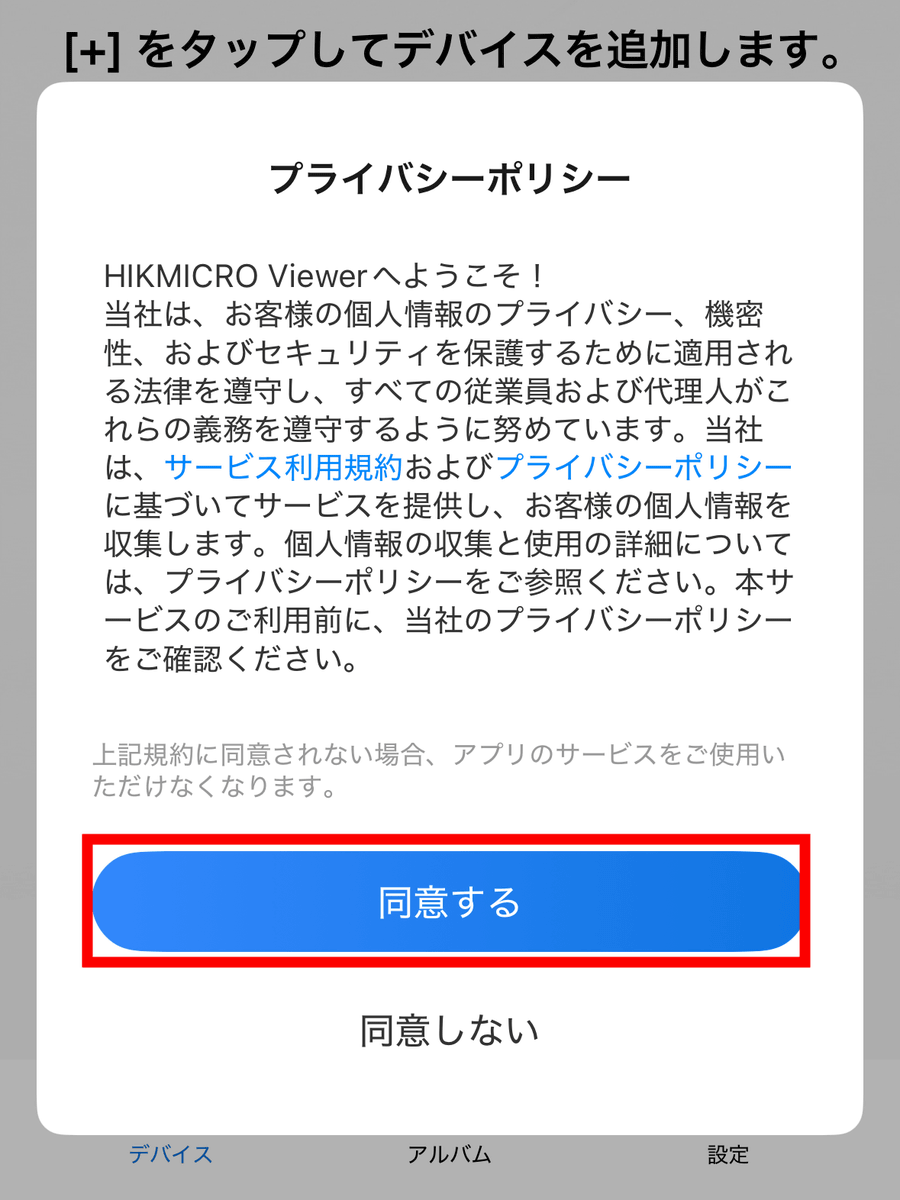
The privacy policy will be displayed, so tap 'Agree'.
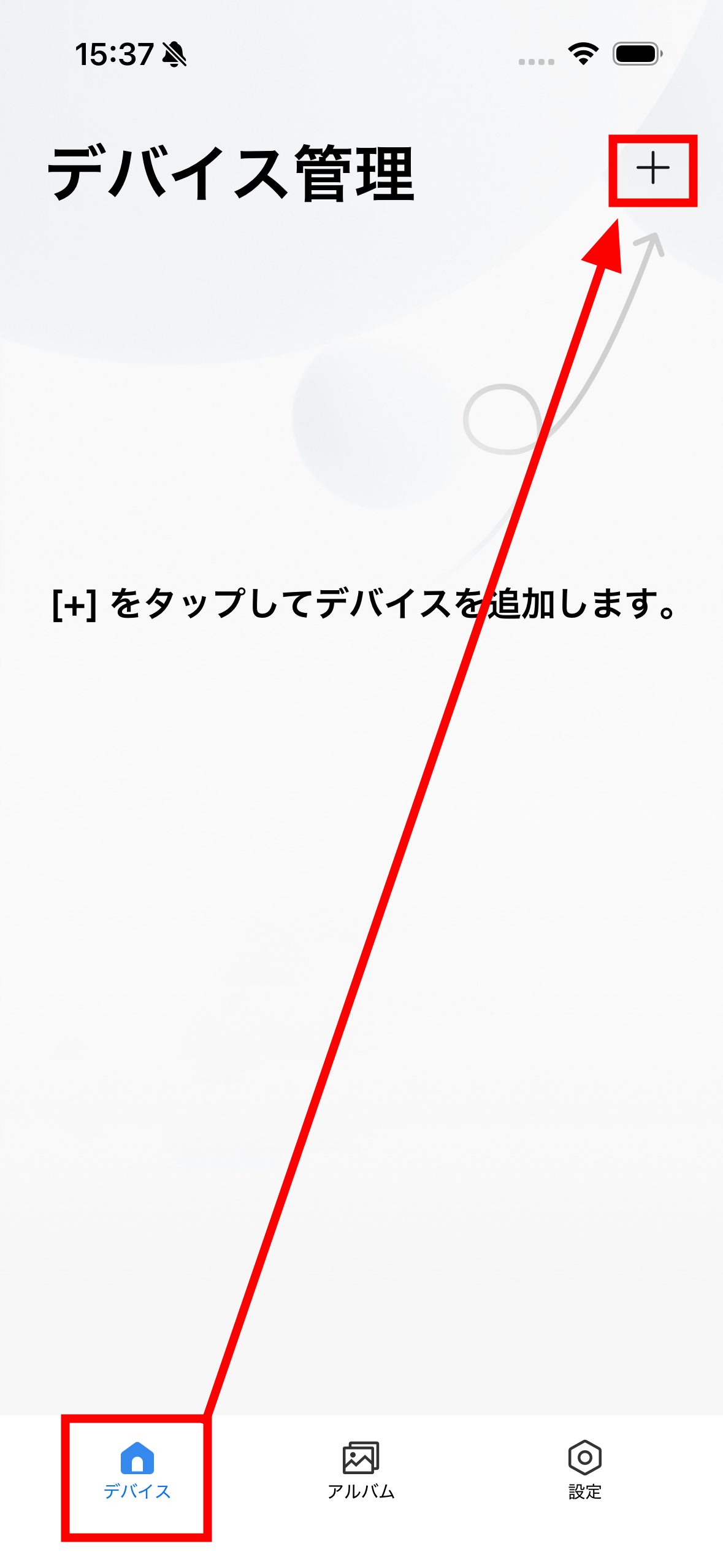
No user registration is required to use HIKMICRO Viewer. The app has a simple UI with only three sections at the bottom: 'Devices,' 'Albums,' and 'Settings.' Tap the '+' in the top right corner of 'Devices.'
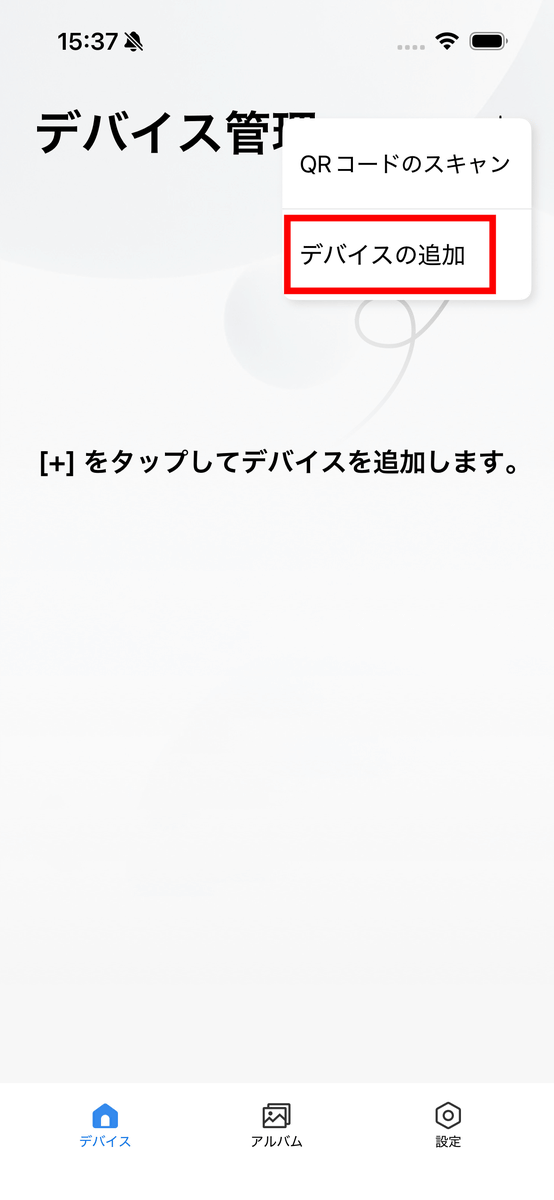
Tap 'Add device.'
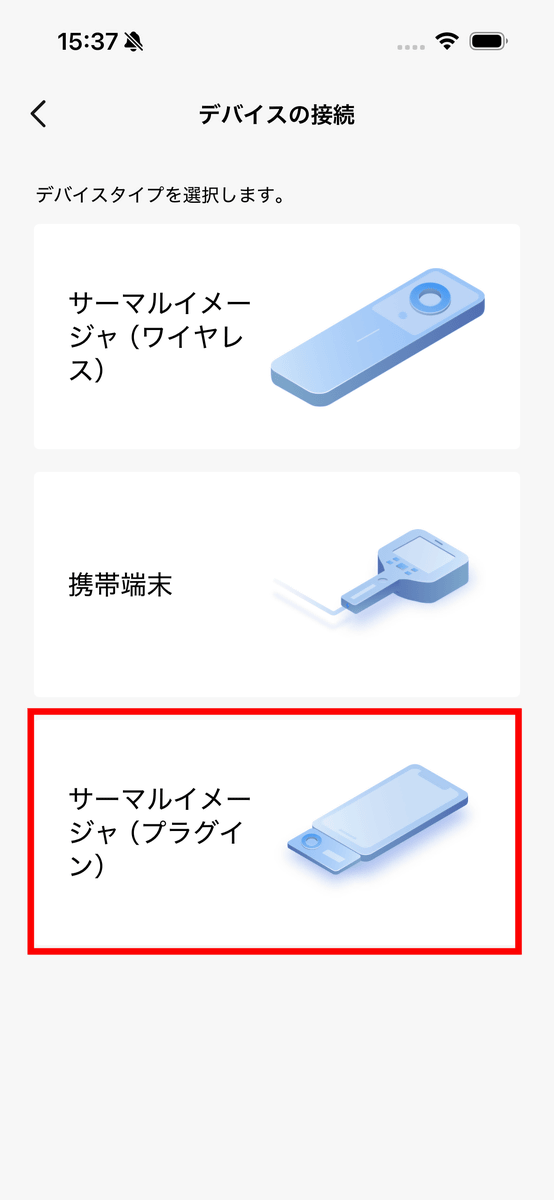
Select 'Thermal Imager (plugin)'.
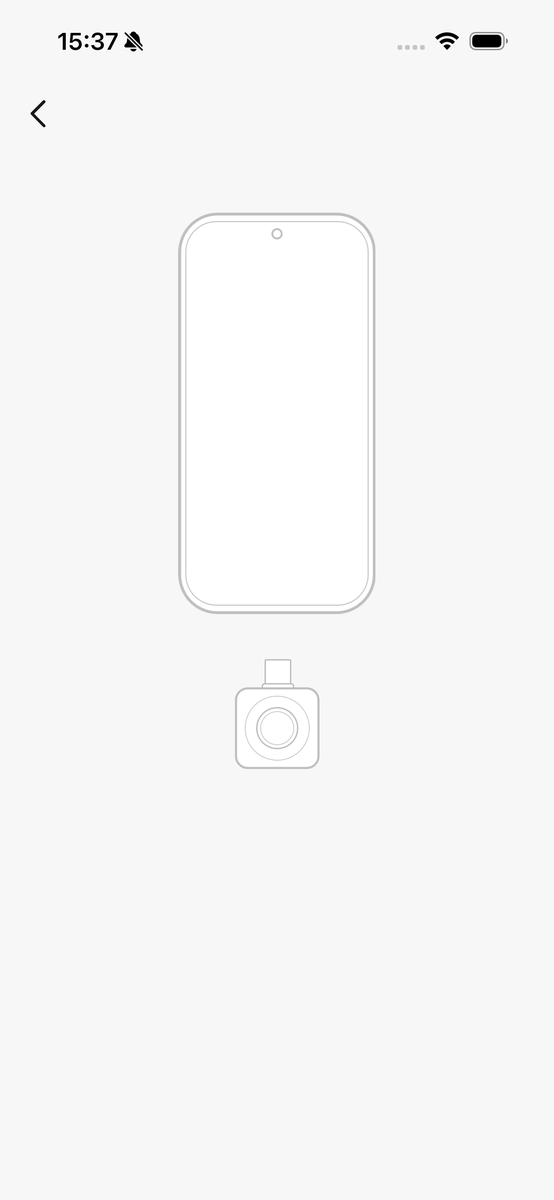
An illustration was displayed instructing me to insert the Mini2Plus V2 into my iPhone.
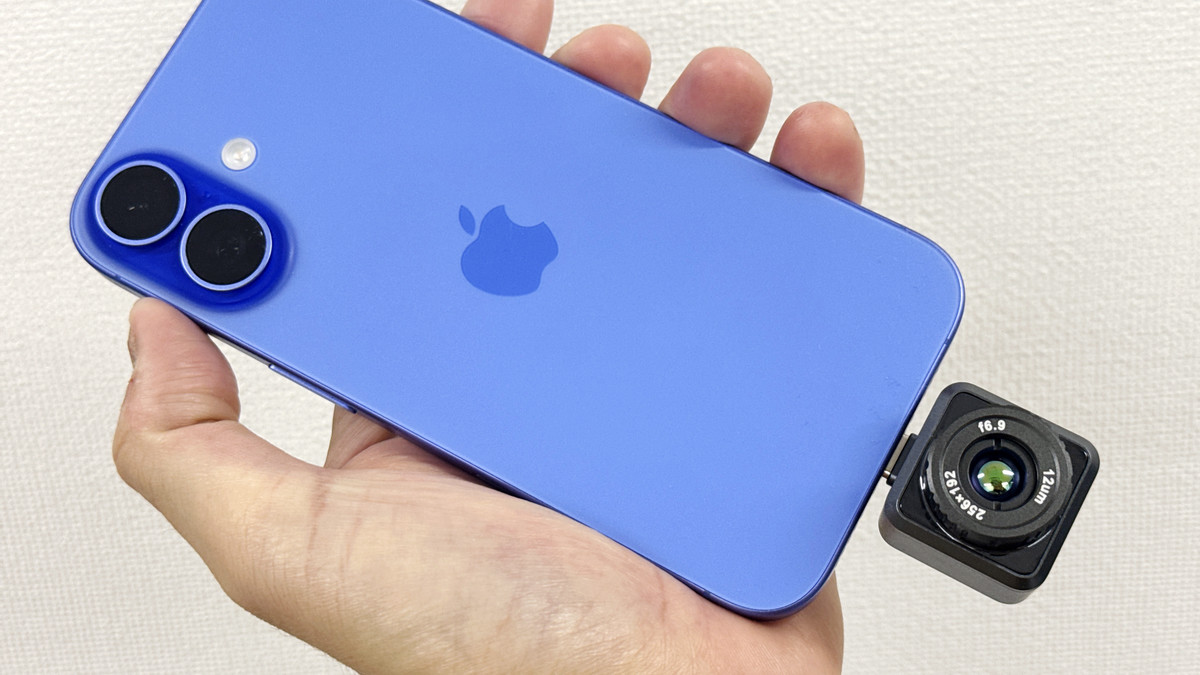
I connected the Mini2Plus V2 to the USB-C port on my iPhone 16.
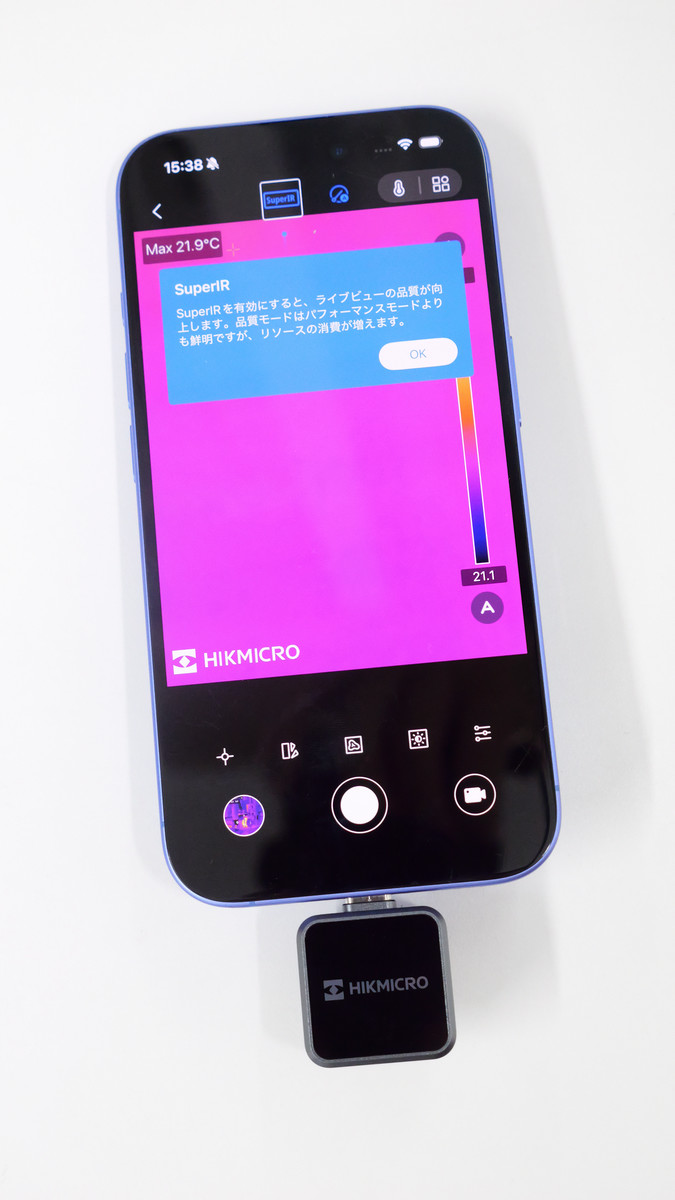
Then, the infrared camera screen was displayed on the HIKMICRO Viewer as shown below. Setup and connection are now OK.
◆I tried taking a photo with HIKMICRO Viewer
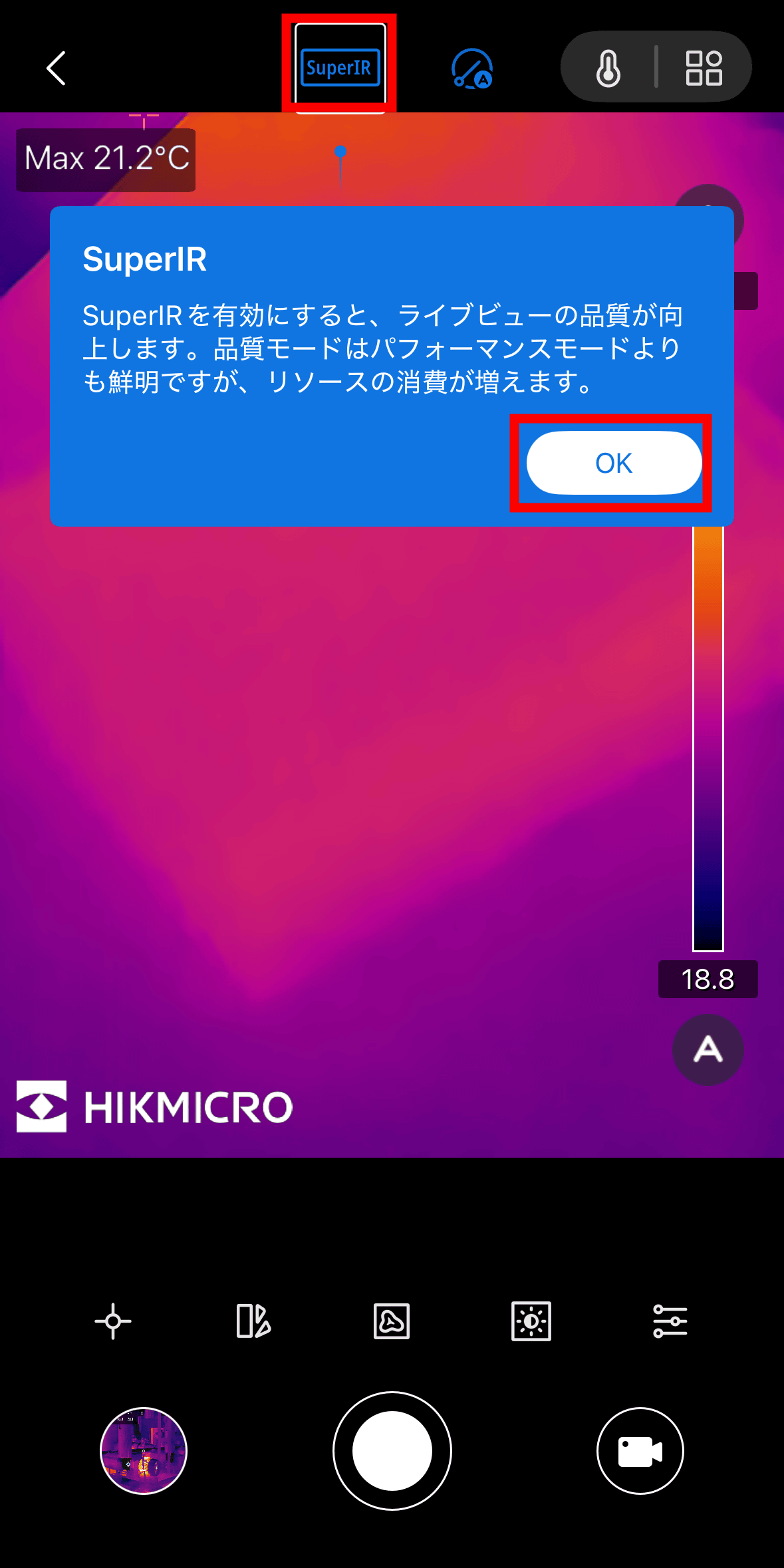
When you start the app with the Mini2Plus V2 connected to your smartphone, it looks like this. When you first start it, a description of SuperIR, which is the high-quality mode, will be displayed, so tap 'OK.'
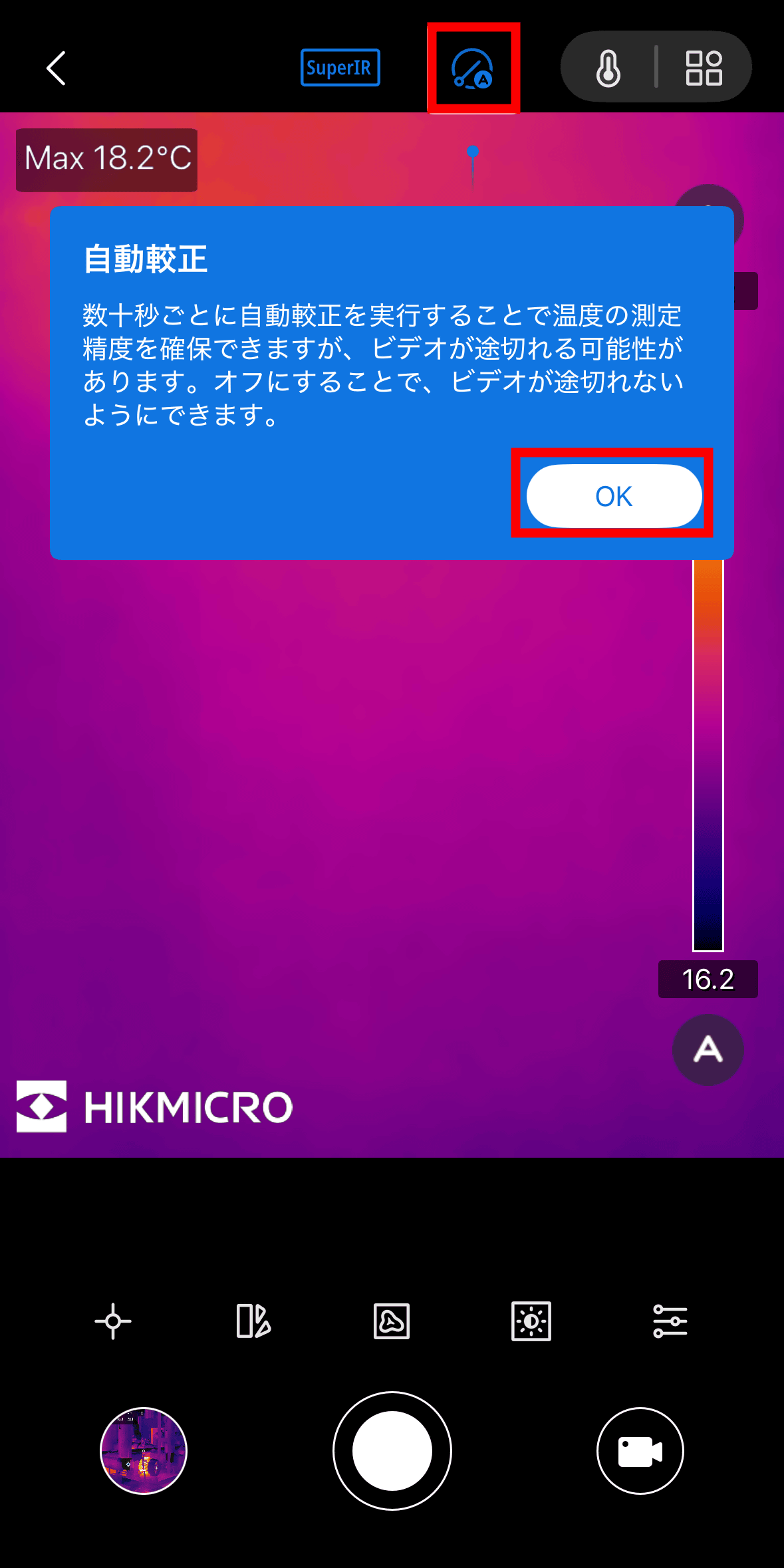
Explanation of 'automatic calibration' that automatically calibrates the temperature measurement accuracy every few tens of seconds. Tap 'OK'.
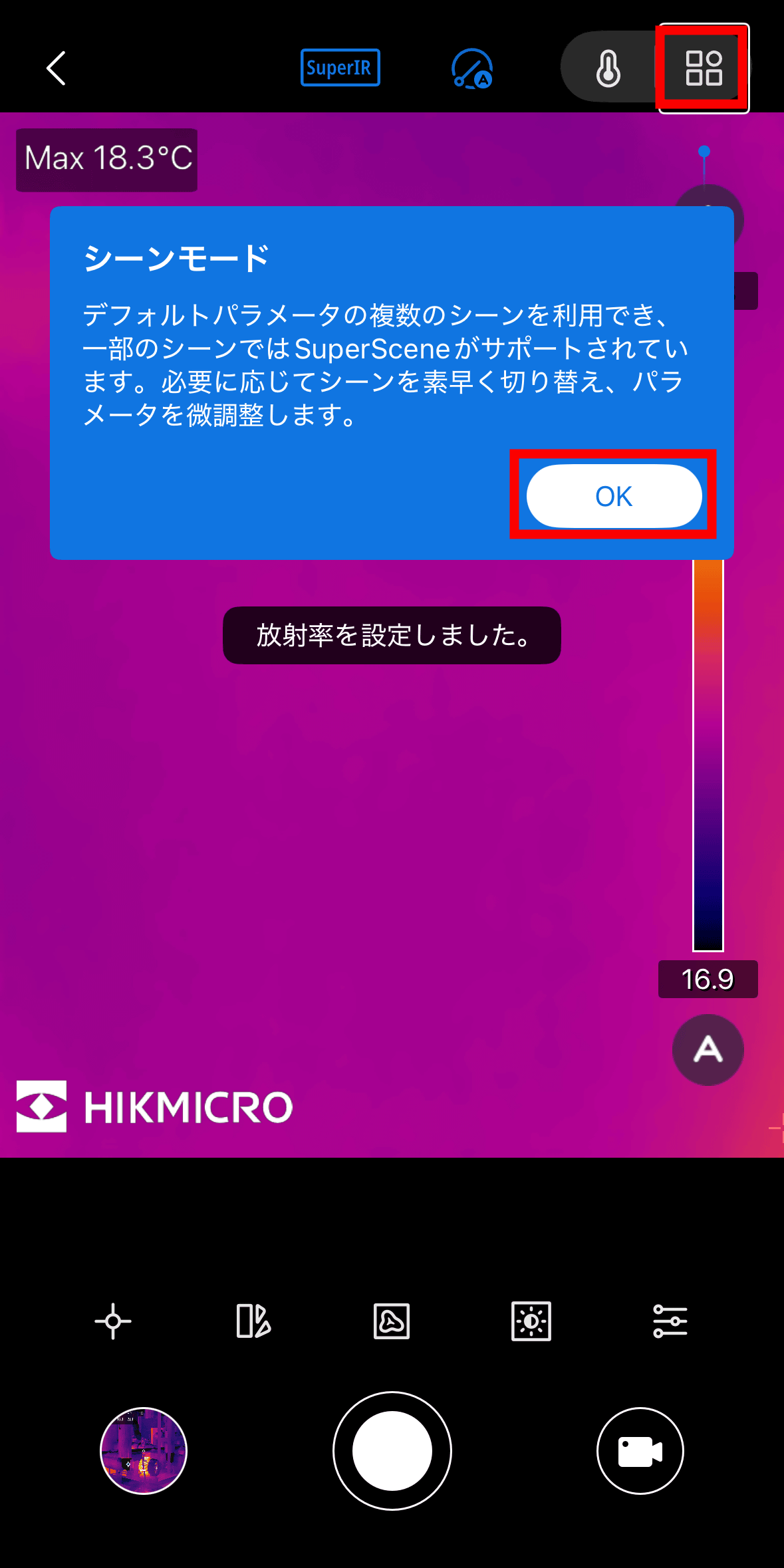
'Scene Mode' is a mode that enables more accurate temperature measurement by presetting the emissivity of the object. Tap 'OK'.
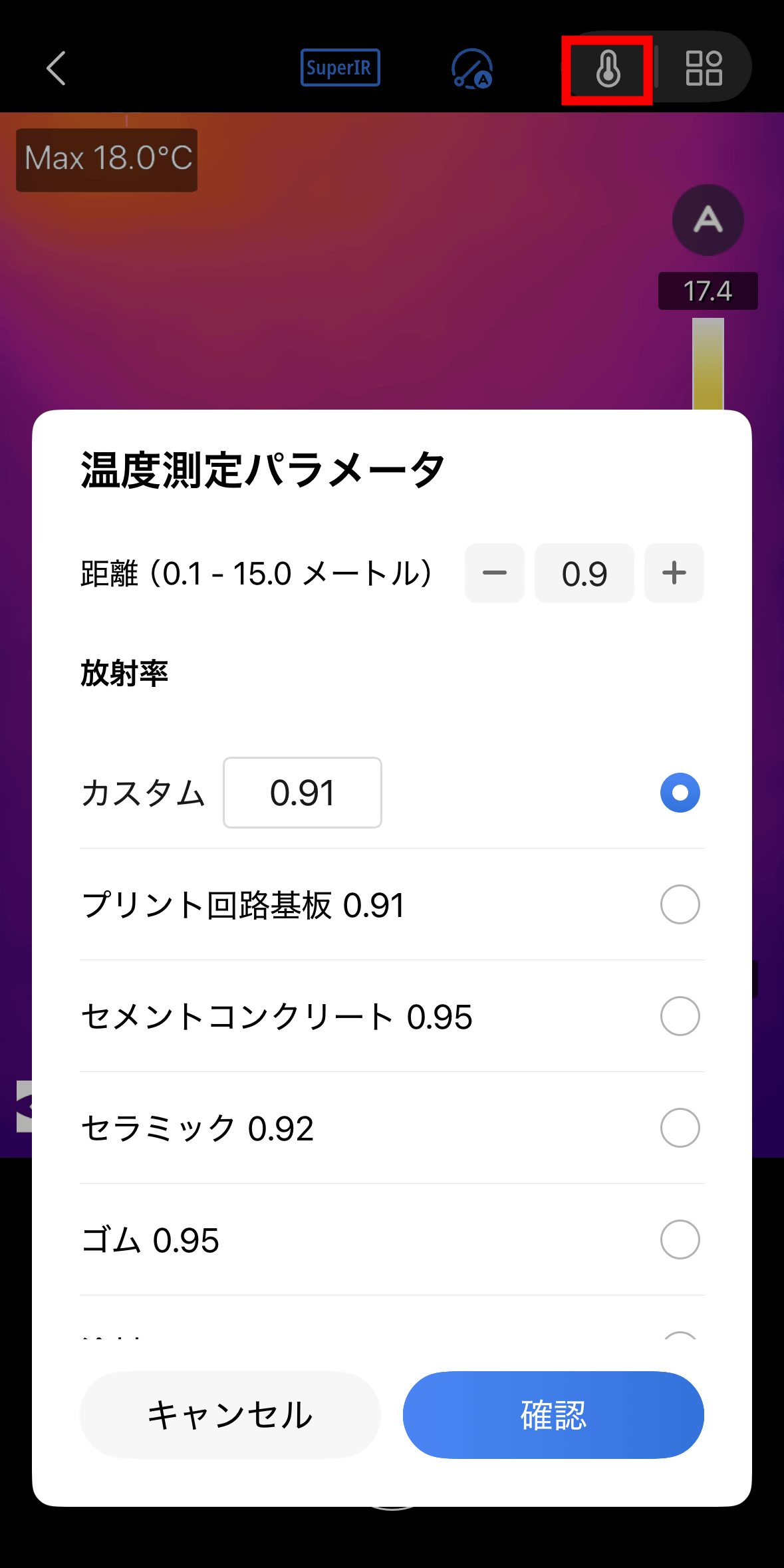
The Mini2Plus V2 allows you to adjust measurement parameters to improve temperature accuracy, allowing you to customize the distance and emissivity of the target. Tap the thermometer icon at the top of the app screen to display the adjustment screen shown below.
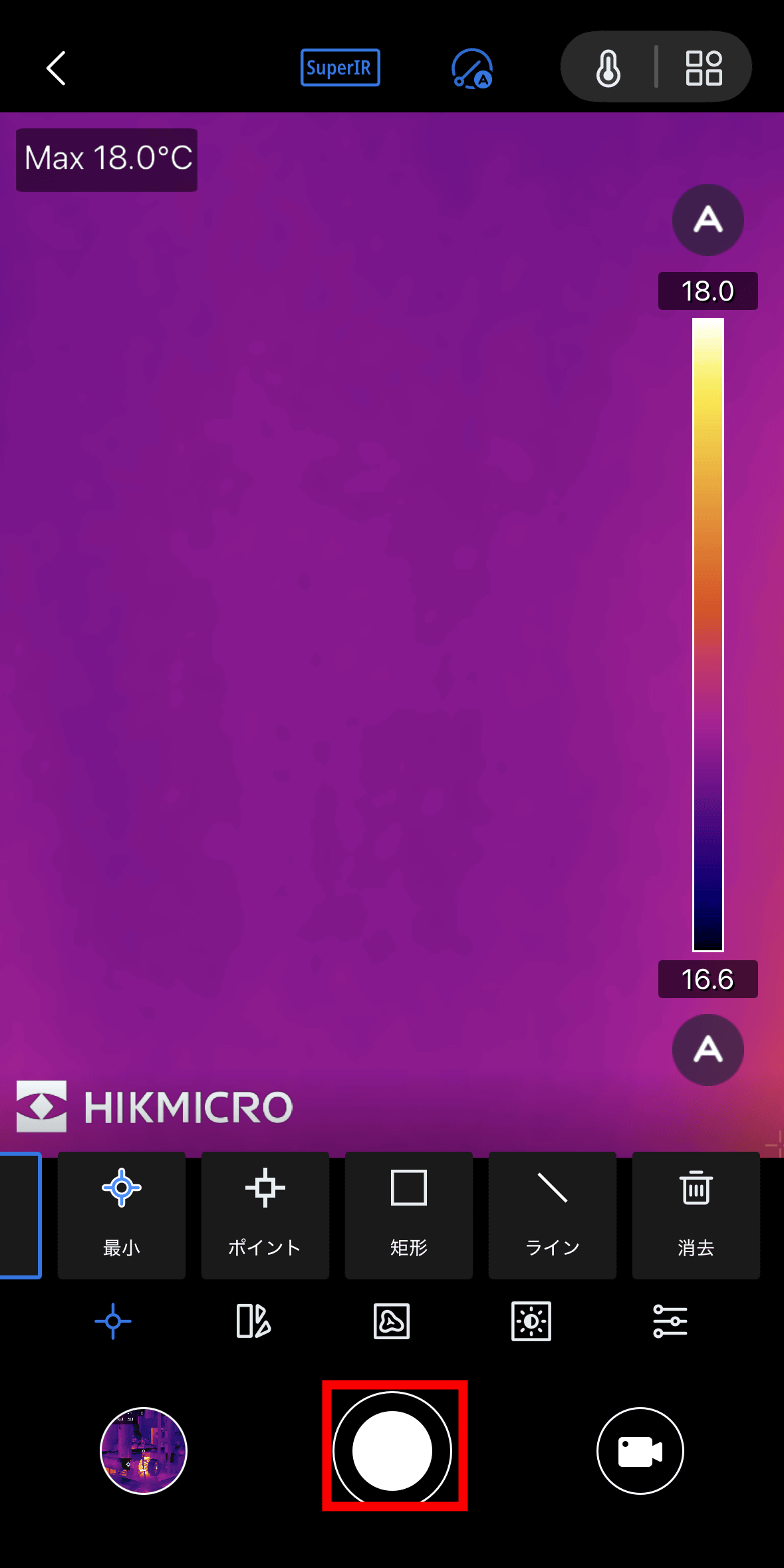
To take a photo, just tap the button in the center at the bottom.
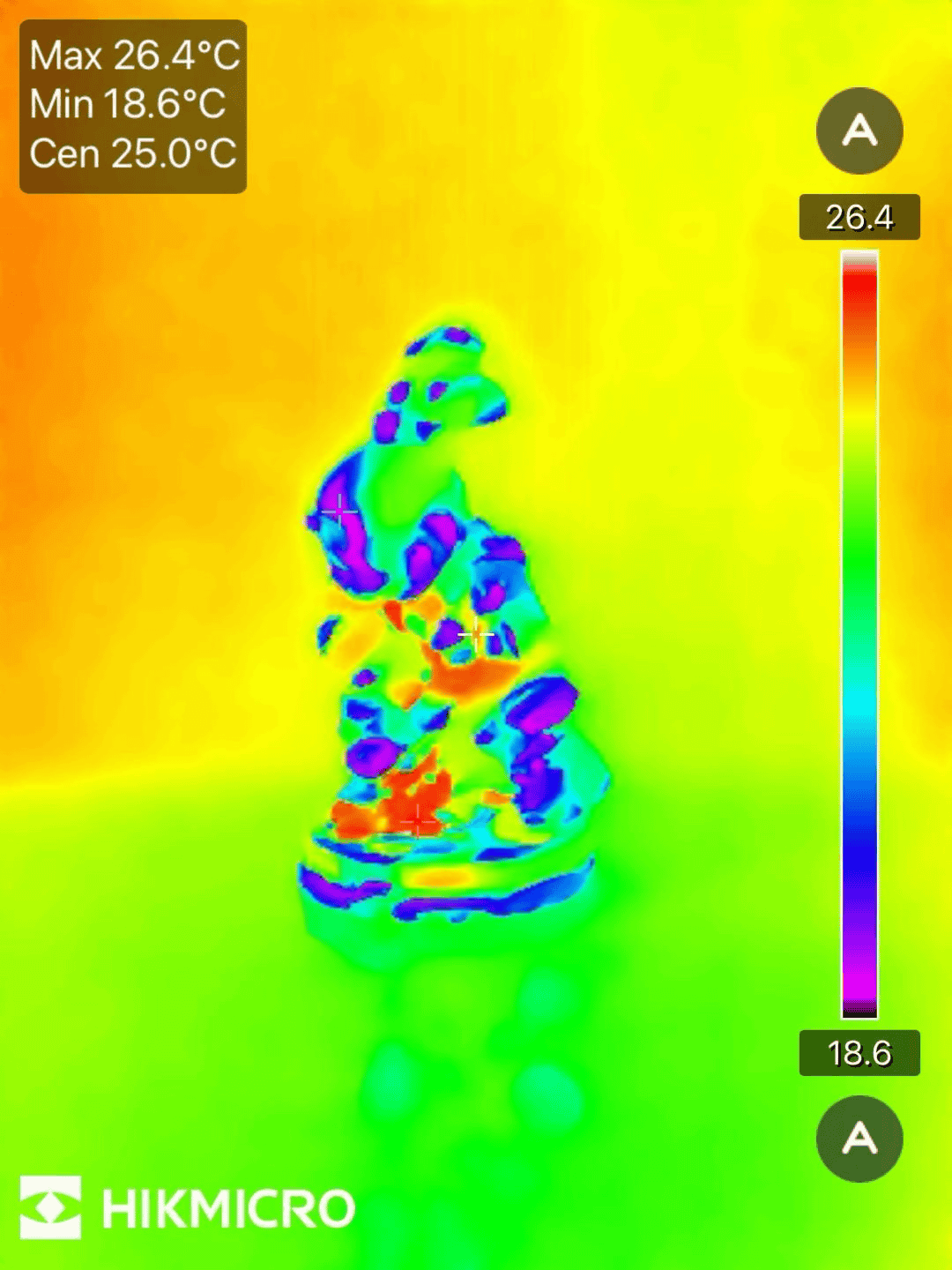
This is a photo of the figure actually placed on a desk.
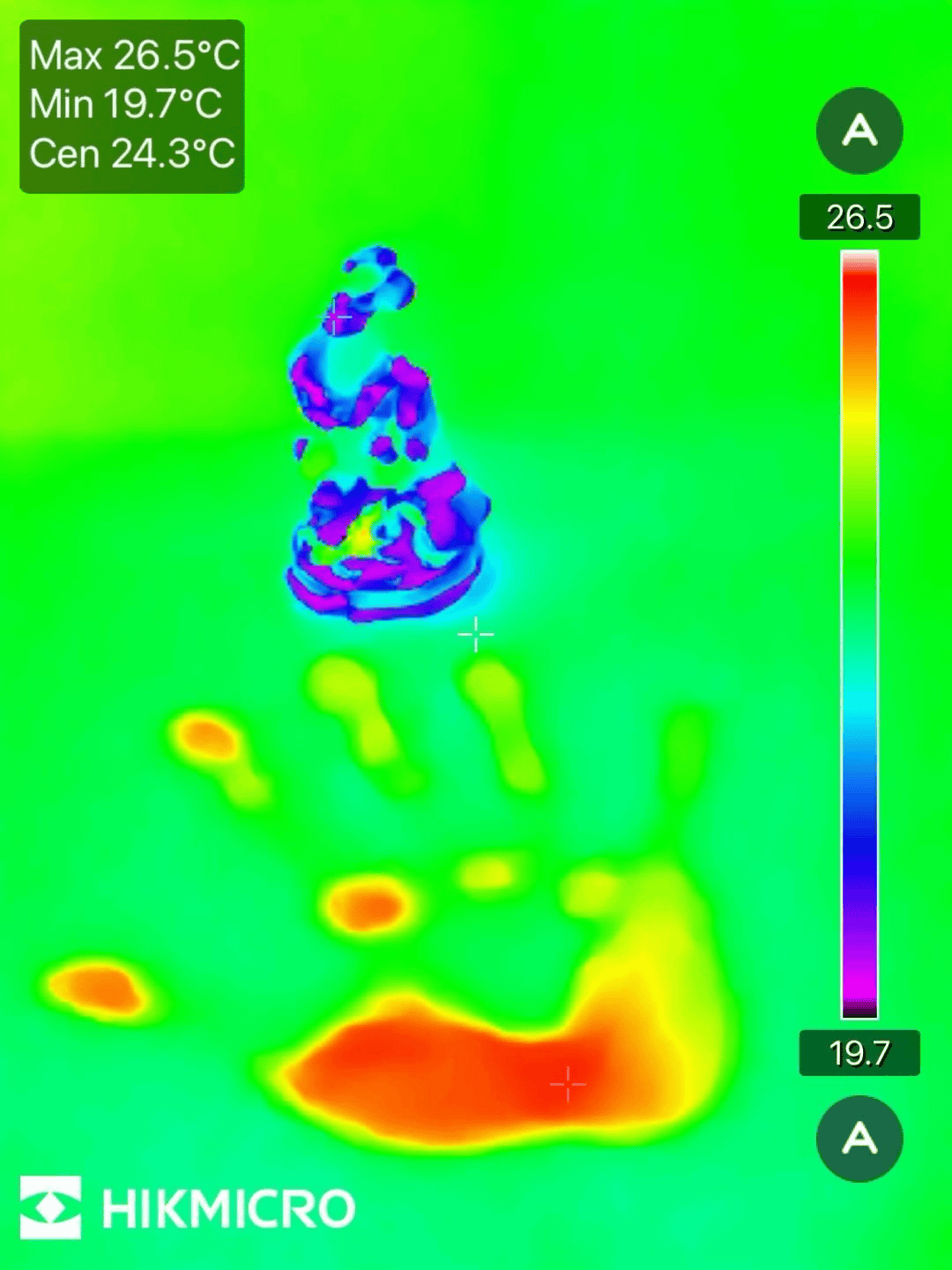
I took a photo of the moment I put my hand in front of the figure and then took it away.The heat from my body heat was transferred to the desk and captured on camera.
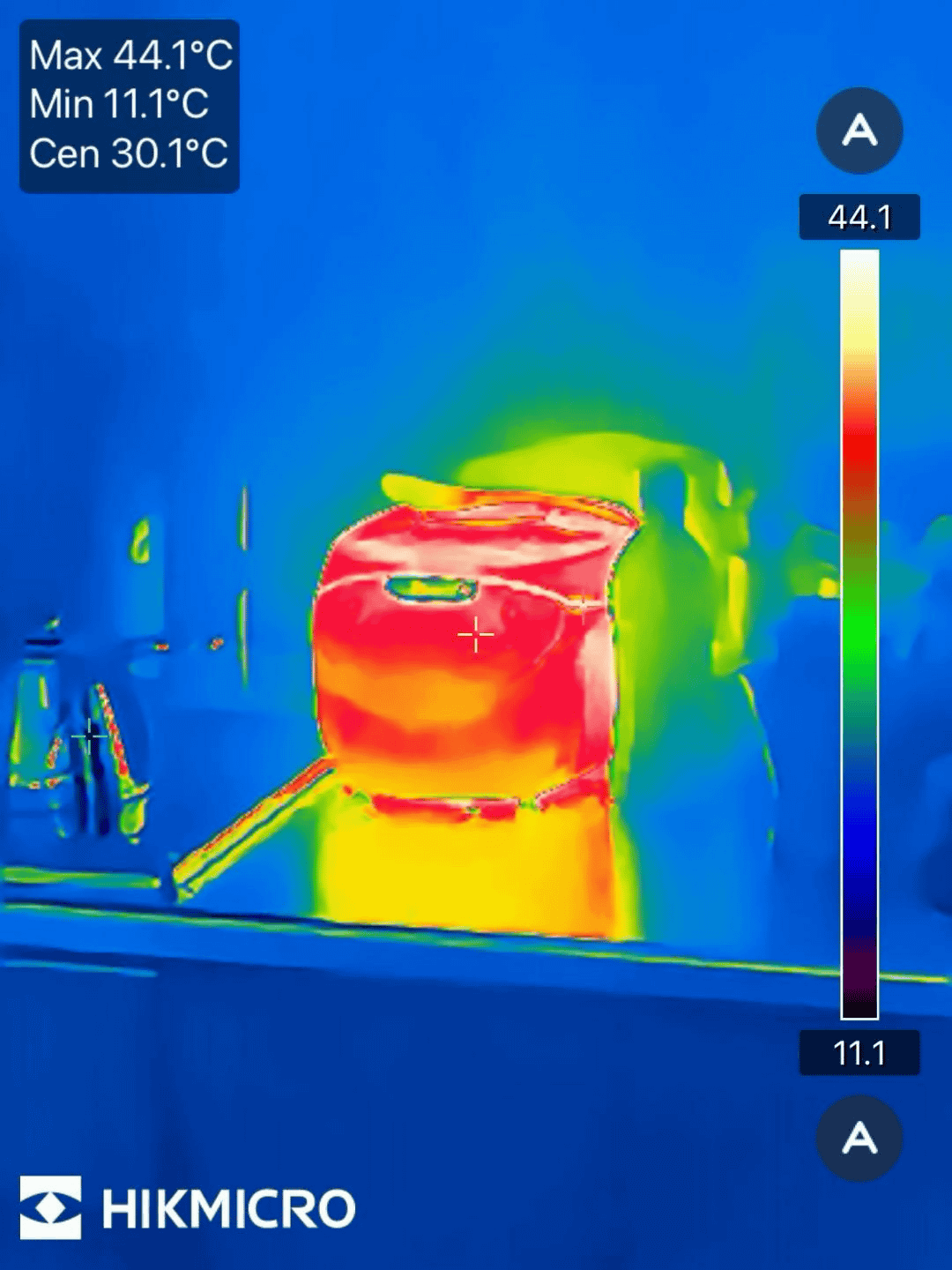
I took a photo of the rice cooker in my kitchen. The rice cooker was on keep warm setting, at 30-40 degrees. The rest of the rice was just 10 degrees, a little lower than room temperature.
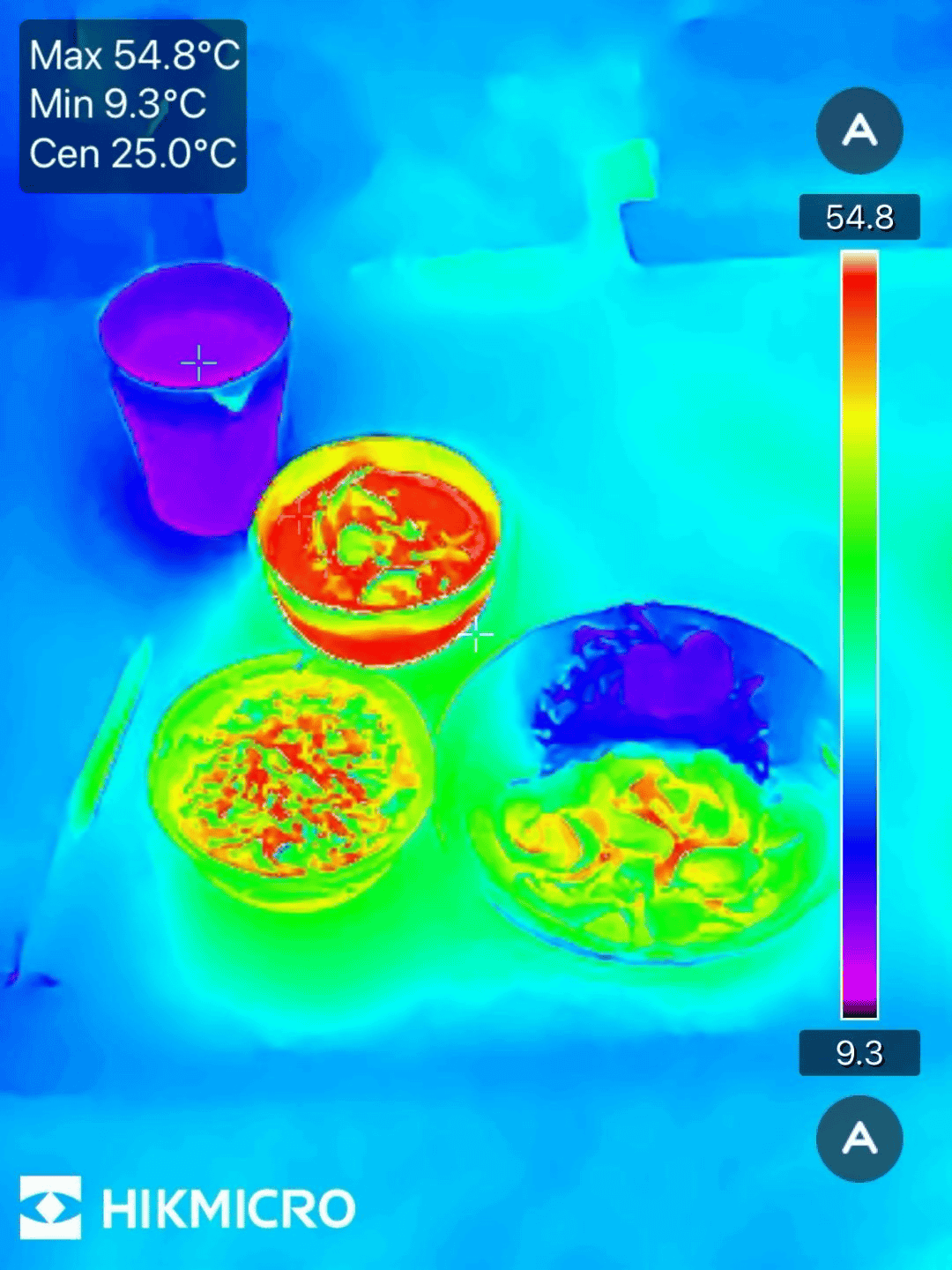
The rice we ate looked like this. The rice, soup, and pork ginger side dish were all around 50 degrees, which is quite hot. On the other hand, the water in the upper left was quite cold, around 10 degrees.
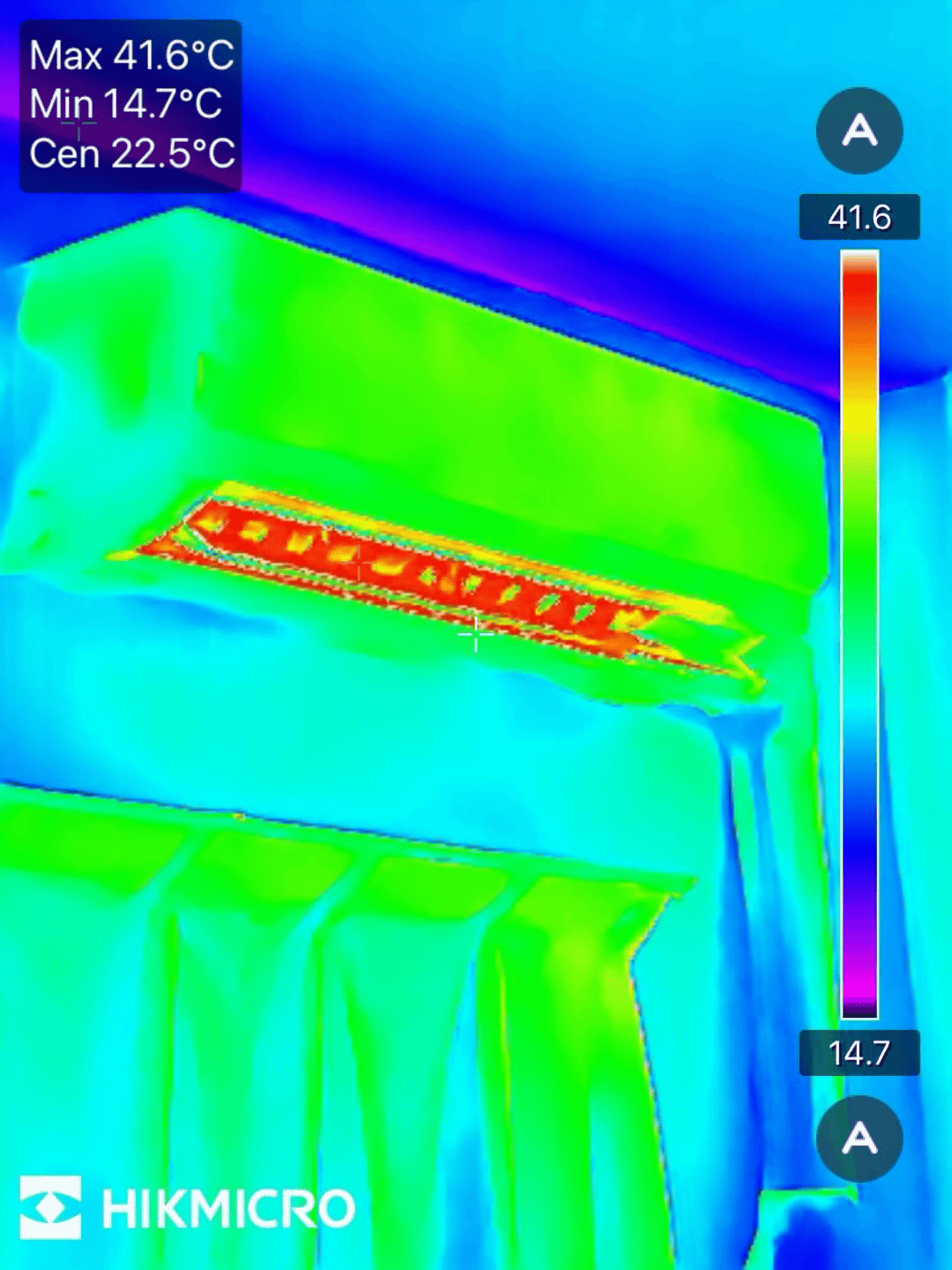
This photo was taken in the morning with the air conditioner turned on for heating. You can see that the temperature at the air outlet is particularly high, and that the surrounding wall is lower than the air conditioner itself and the curtains.
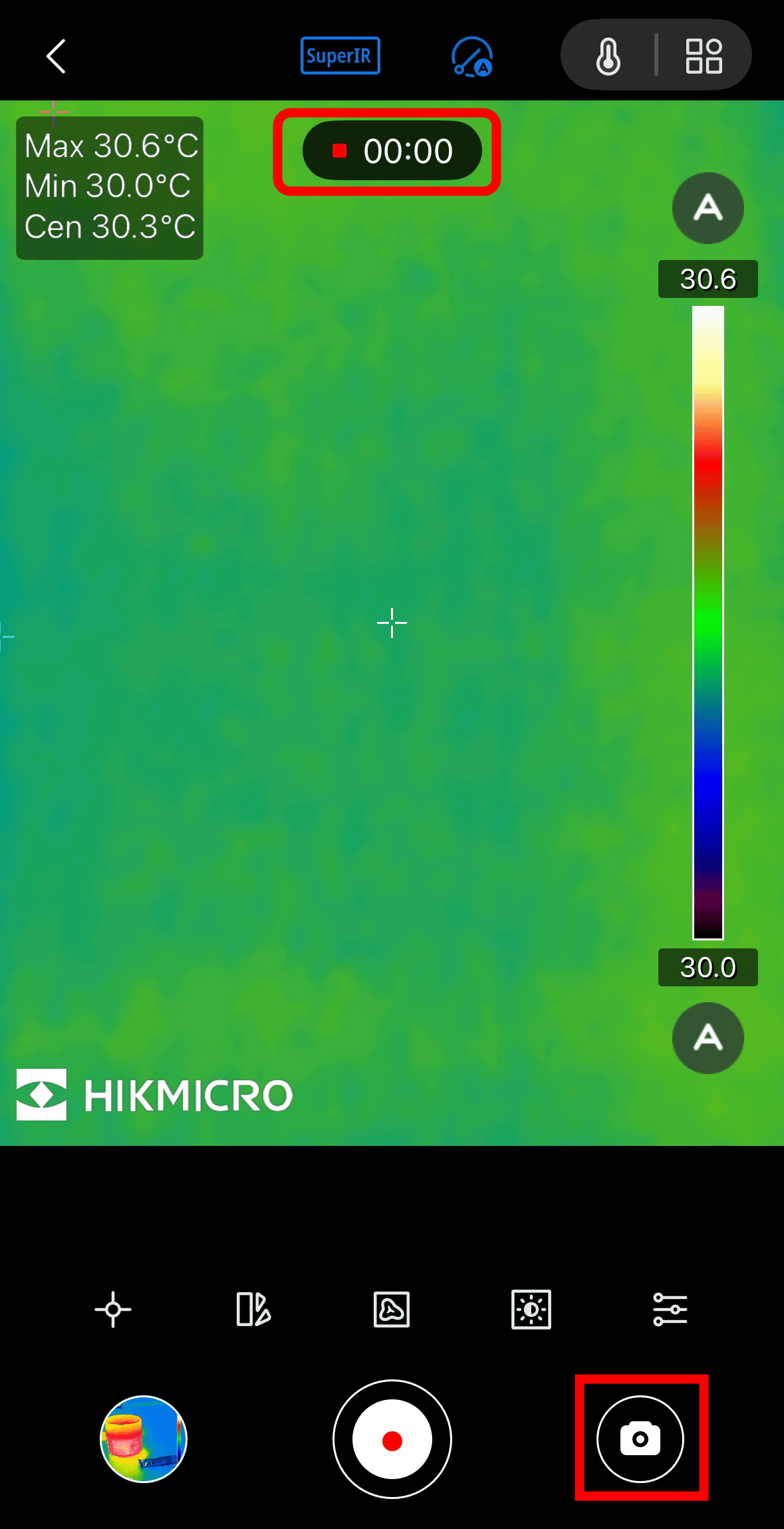
You can also switch between photo and video capture modes by tapping the camera icon at the bottom right. When you switch to video mode, the recording time will be displayed at the top of the screen.
Below is a movie taken with Mini2Plus V2 of hot water being poured into a teacup. You can clearly see how the temperature of the hot water poured into the teacup changes as it swirls.
To focus on the object to be measured, manual adjustment is possible by turning the dial around the lens.
I actually filmed a movie of manually focusing the measurement on the figure. You can clearly see how the measurement target goes from being blurry to being able to measure heat more precisely when it comes into focus.
◆ Various settings for HIKMICRO Viewer
The available temperature measurements are 'Center (center of the screen),' 'Max (temperature),' and 'Min (temperature).' The temperature can be selected by tapping the icon at the bottom left of the screen, and the value will be displayed in the upper left corner of the screen.
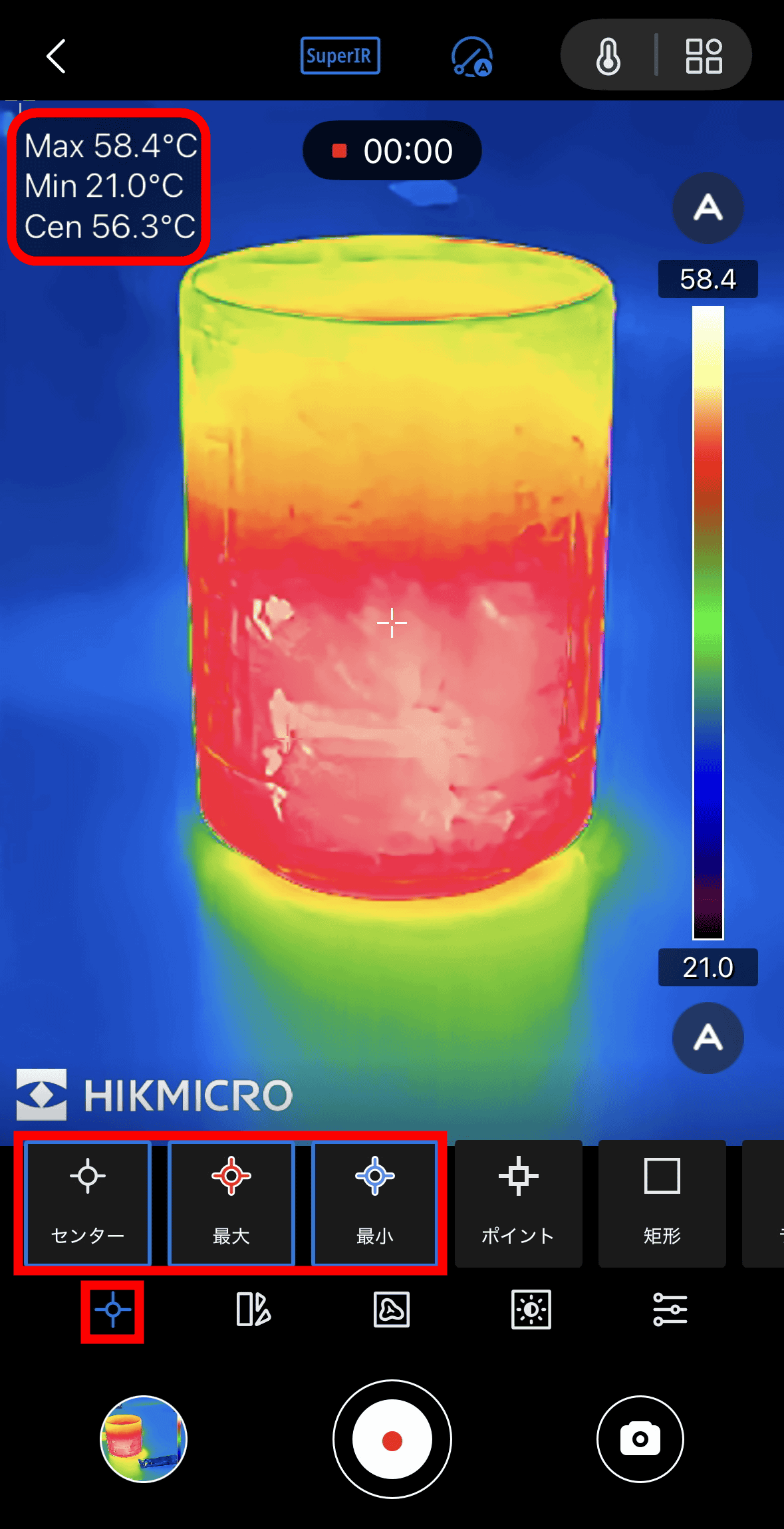
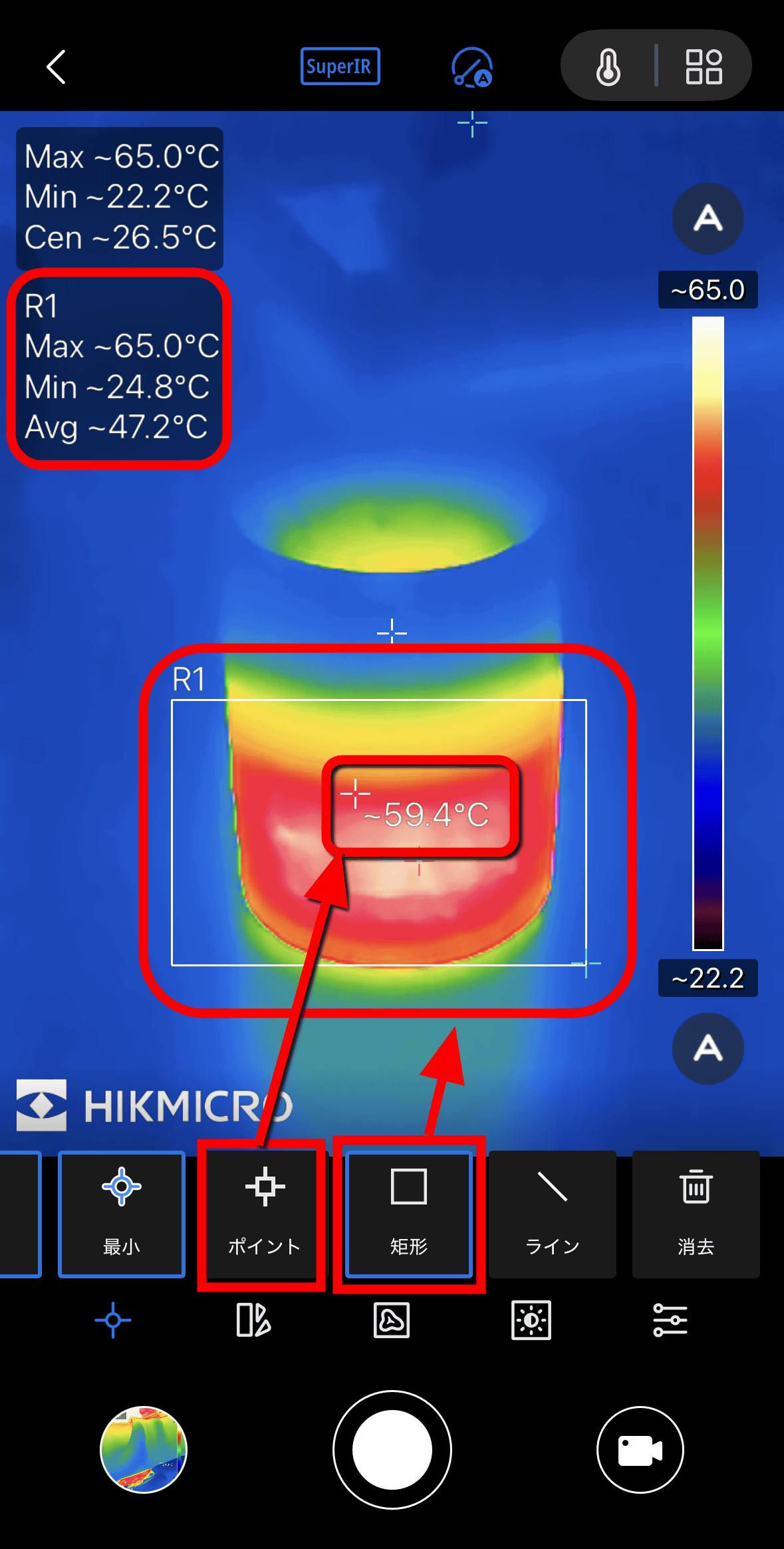
Additionally, you can tap on the 'Point' button to measure the temperature at any location, and swipe to select the area you want to measure the center, maximum, and minimum.
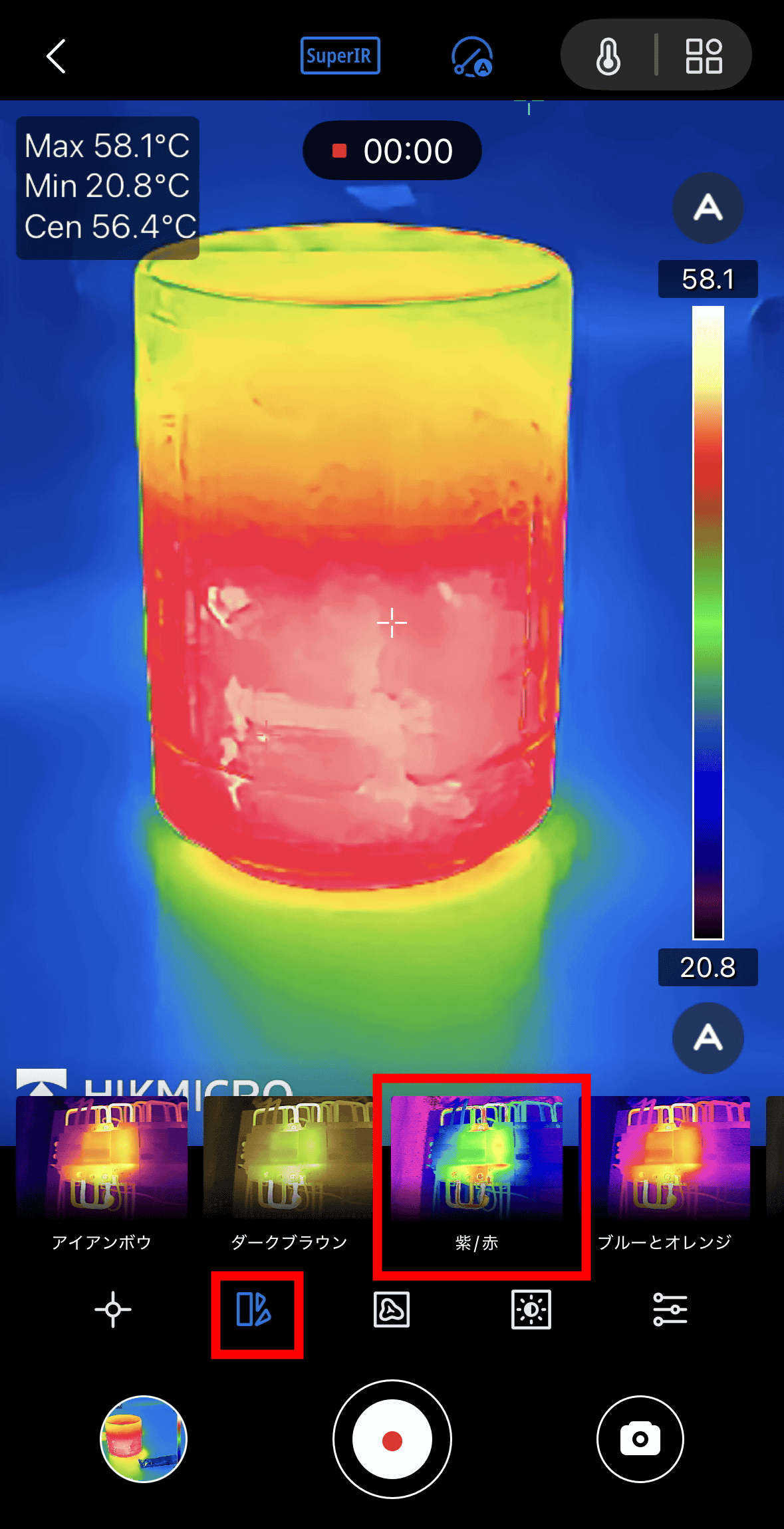
The second icon from the left at the bottom of the screen allows you to change the color of the thermography.
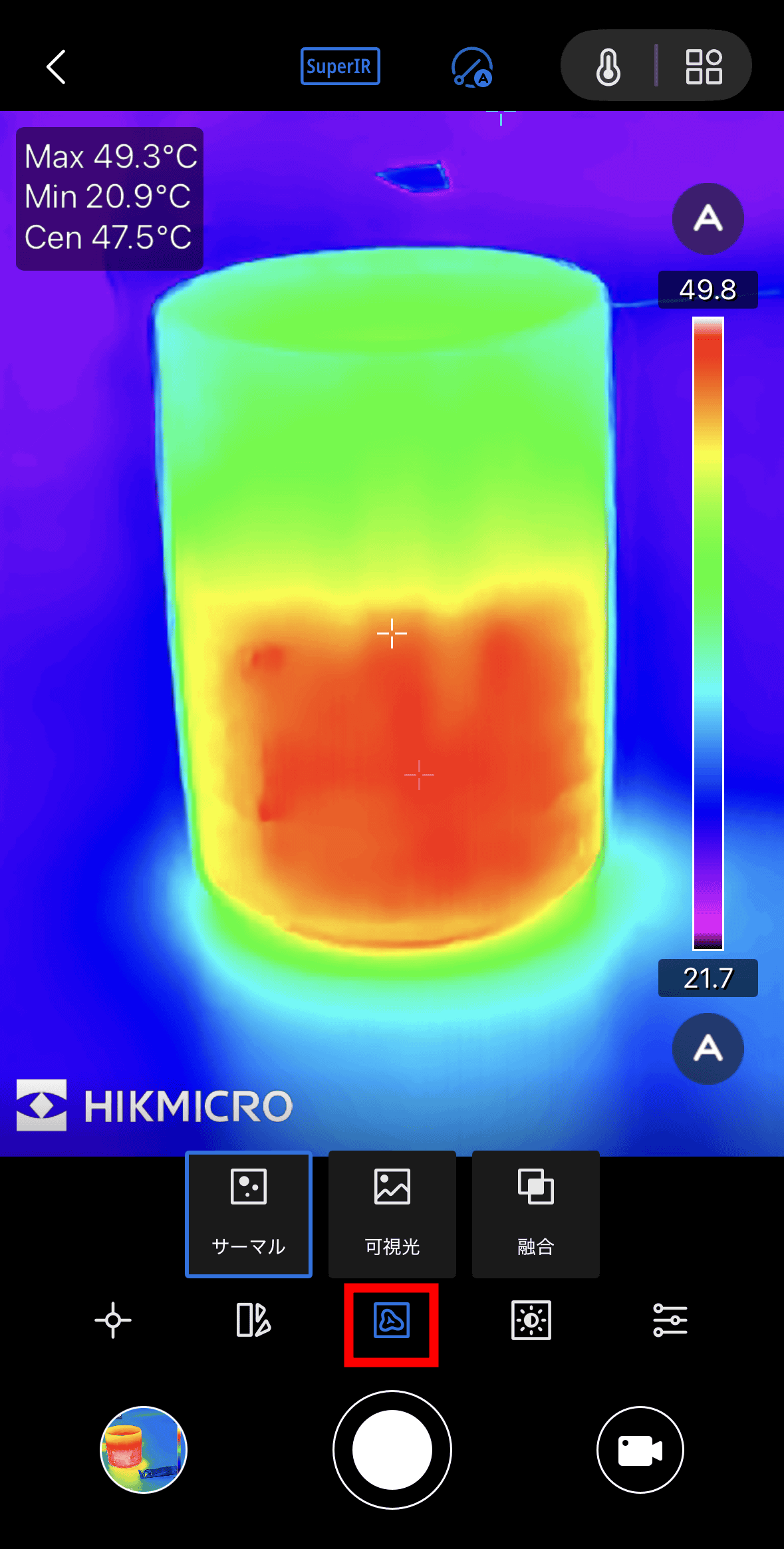
You can change the camera image by tapping the icon in the center. You can choose from three options: 'Thermal' which shows only thermal images, 'Visible Light' which shows images taken with your smartphone camera at the same time, and 'Merge' which overlays the two.
The fourth icon from the left allows you to change brightness, contrast, sharpness, and color distribution.
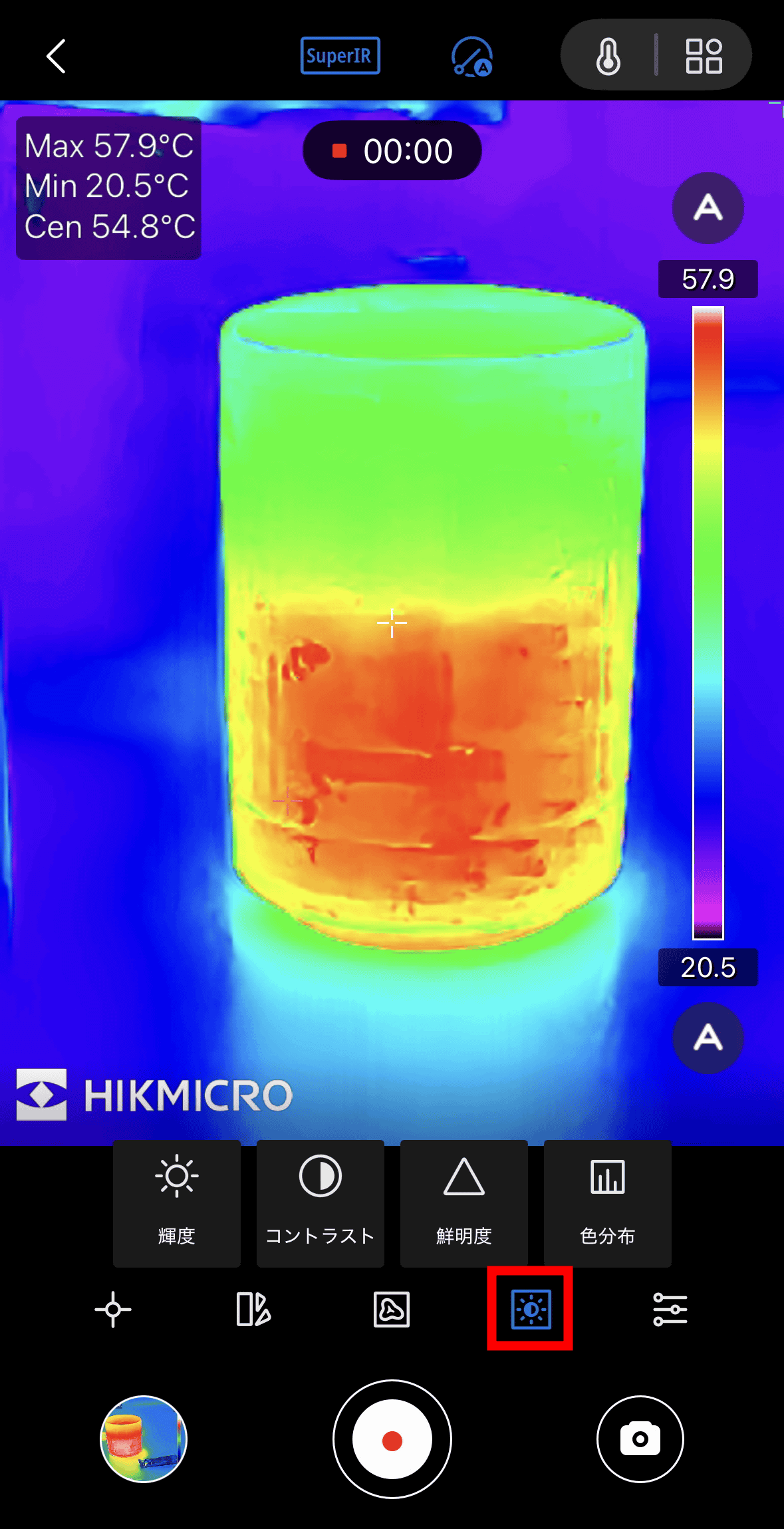
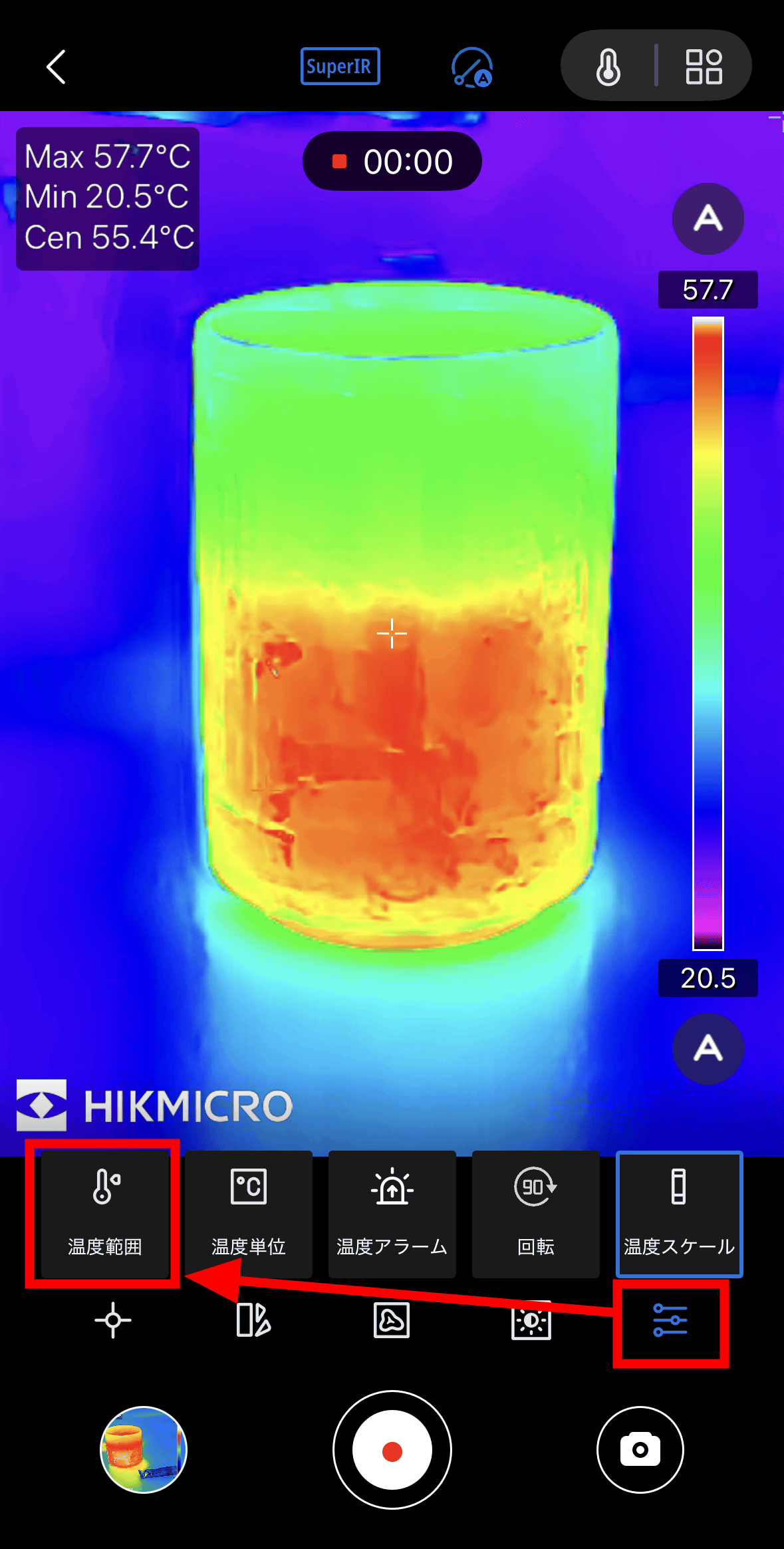
The rightmost icon allows you to set the 'Temperature Range,' 'Temperature Units' (which switches between Celsius, Fahrenheit, and Kelvin), 'Temperature Alarm' (which sounds an alarm when a certain temperature is detected), 'Rotation' (which rotates the camera screen by 90 degrees), and 'Temperature Scale' (which toggles the display of the temperature scale on the right side of the screen). This time, tap 'Temperature Range.'
The Mini2Plus V2 can measure in two temperature ranges: Level 1, which is -20°C to 150°C, and Level 2, which is 100°C to 400°C. Level 1 is recommended for room temperature, and Level 2 should be selected for environments where high temperatures are expected.
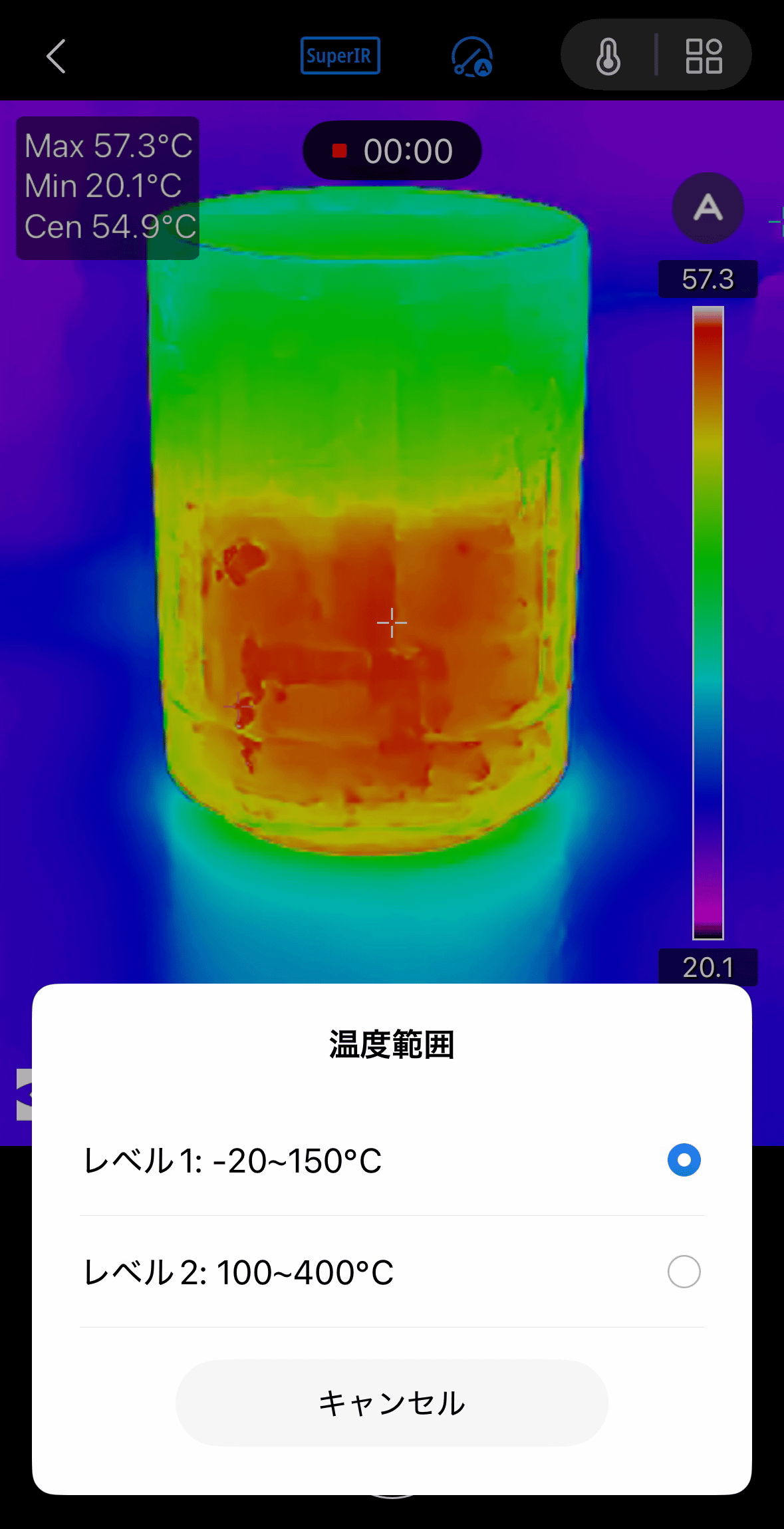
Below is a photo of a pot filled with water and placed on the fire at temperature range level 1, taken from the side.
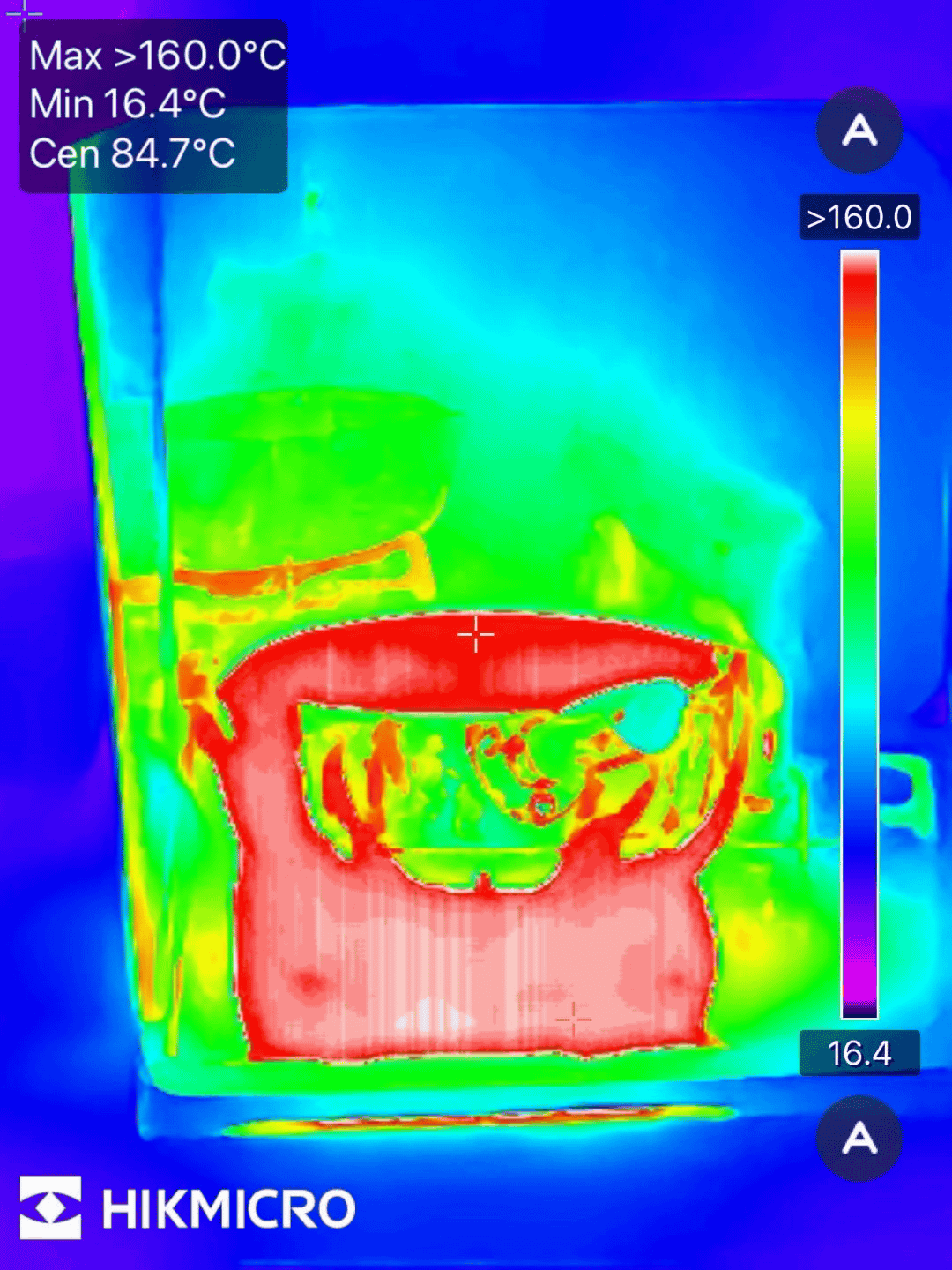
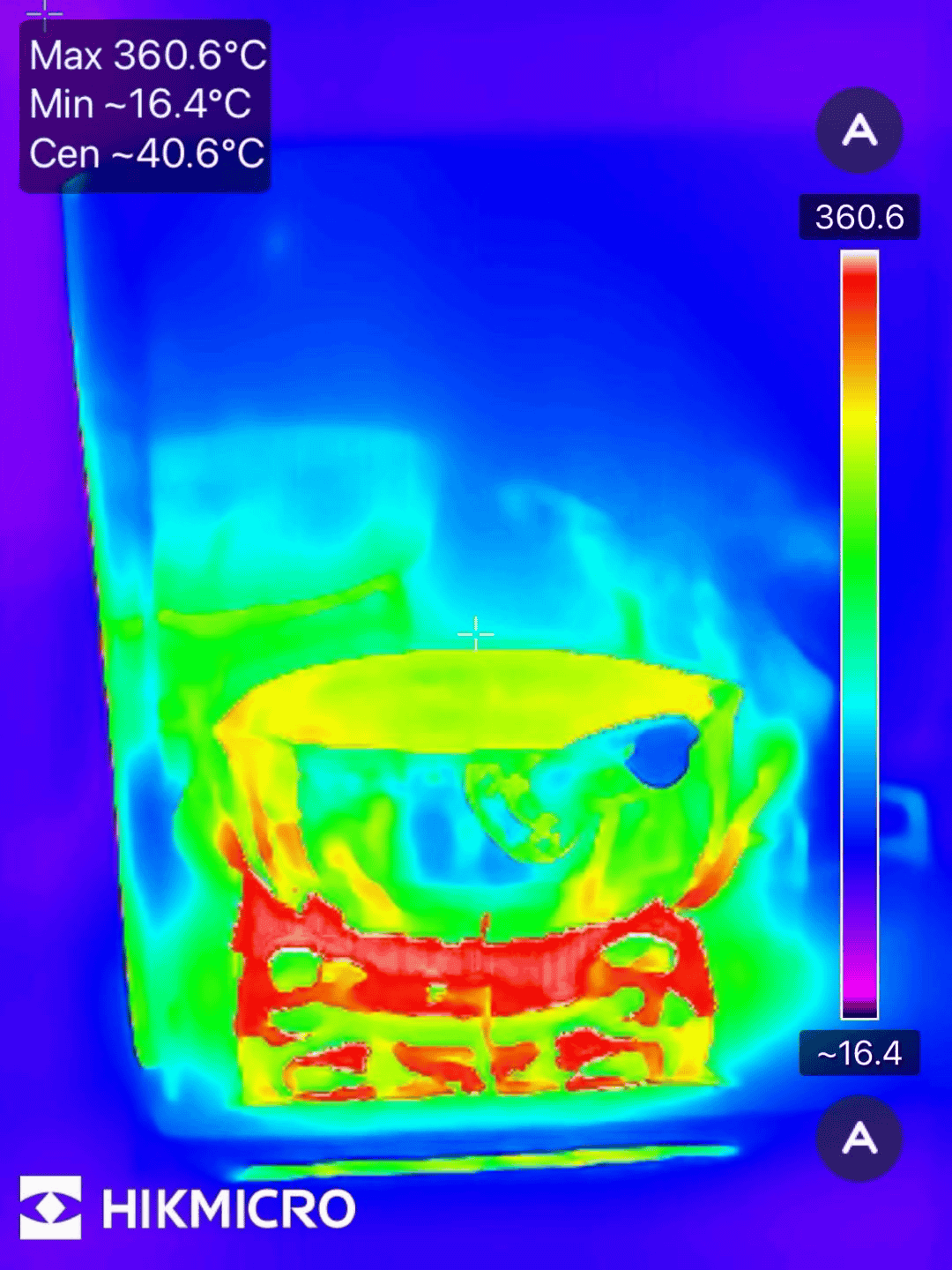
And it looks like this at temperature range level 2. At level 2, you can capture higher temperatures, so you can see that the measurement results around the fire are particularly detailed.
◆ Save photos taken with Mini2Plus V2
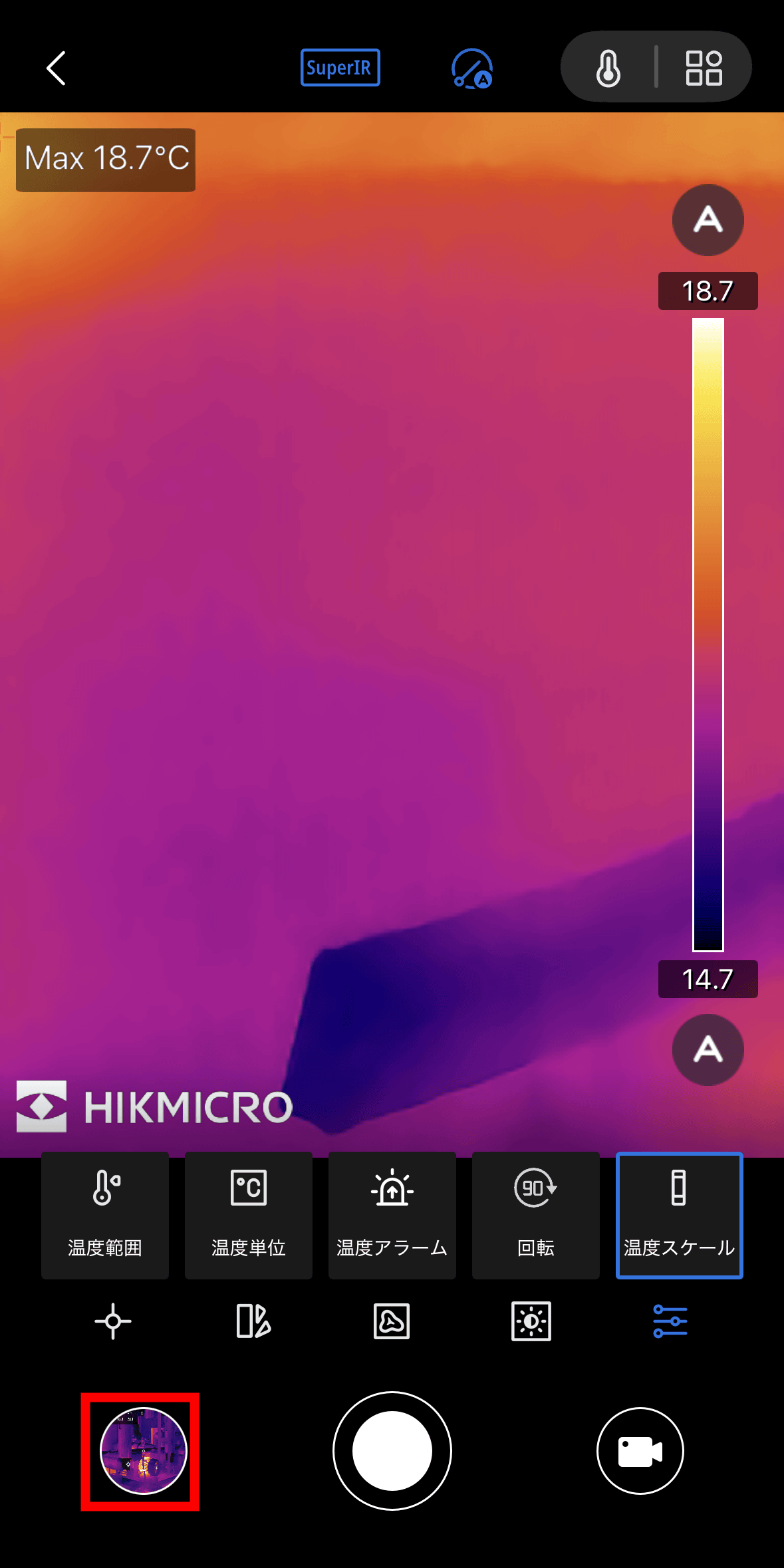
Photos taken with the Mini2Plus V2 are stored in the HIKMICRO Viewer app. You can access the HIKMICRO Viewer album by tapping the bottom left of the camera screen.
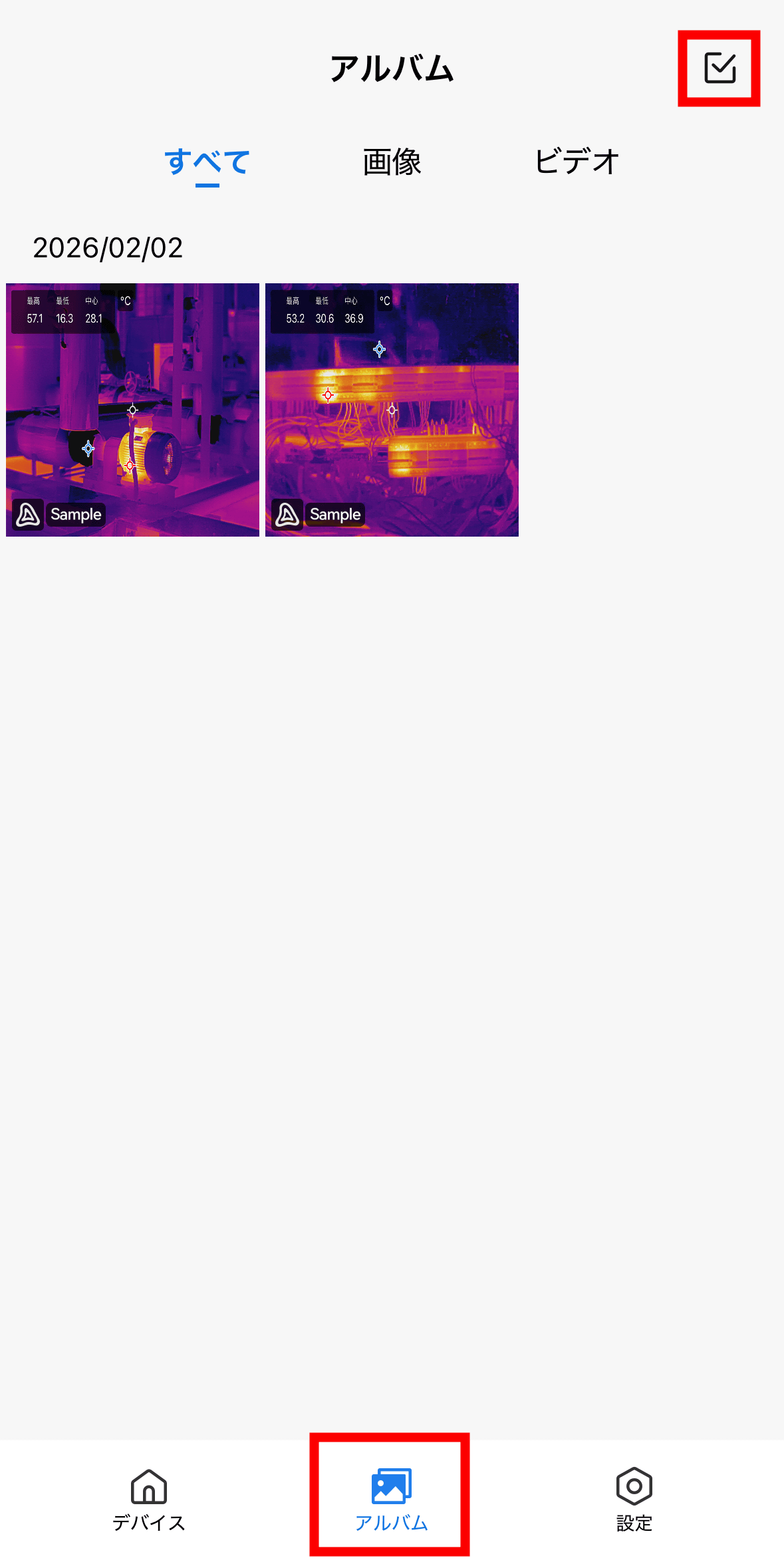
To access the album, select the 'Album' tab at the bottom of the HIKMICRO Viewer home screen and tap the check mark in the upper left.
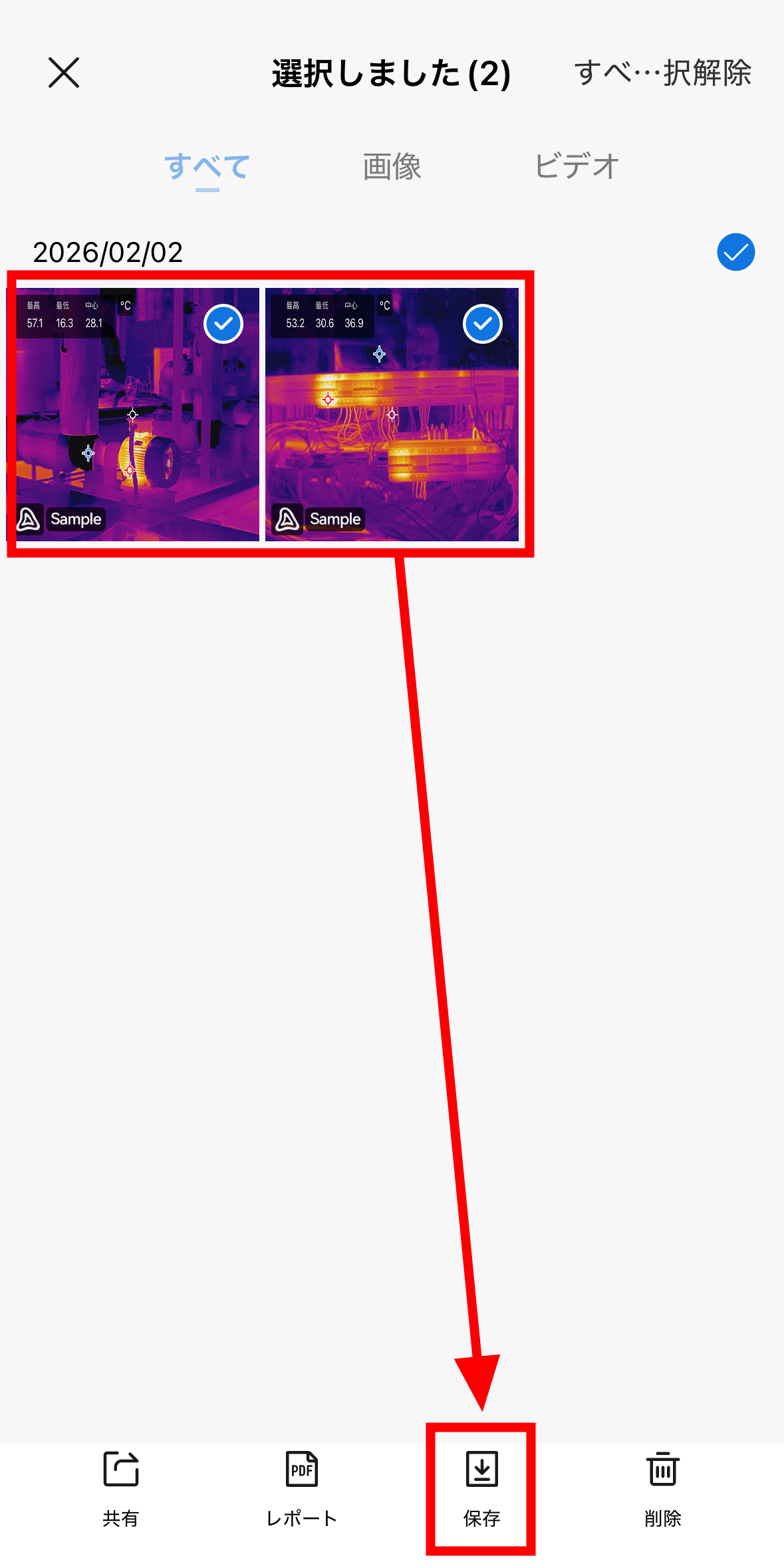
Select the photos and videos you want to extract and tap 'Save' at the bottom of the screen.
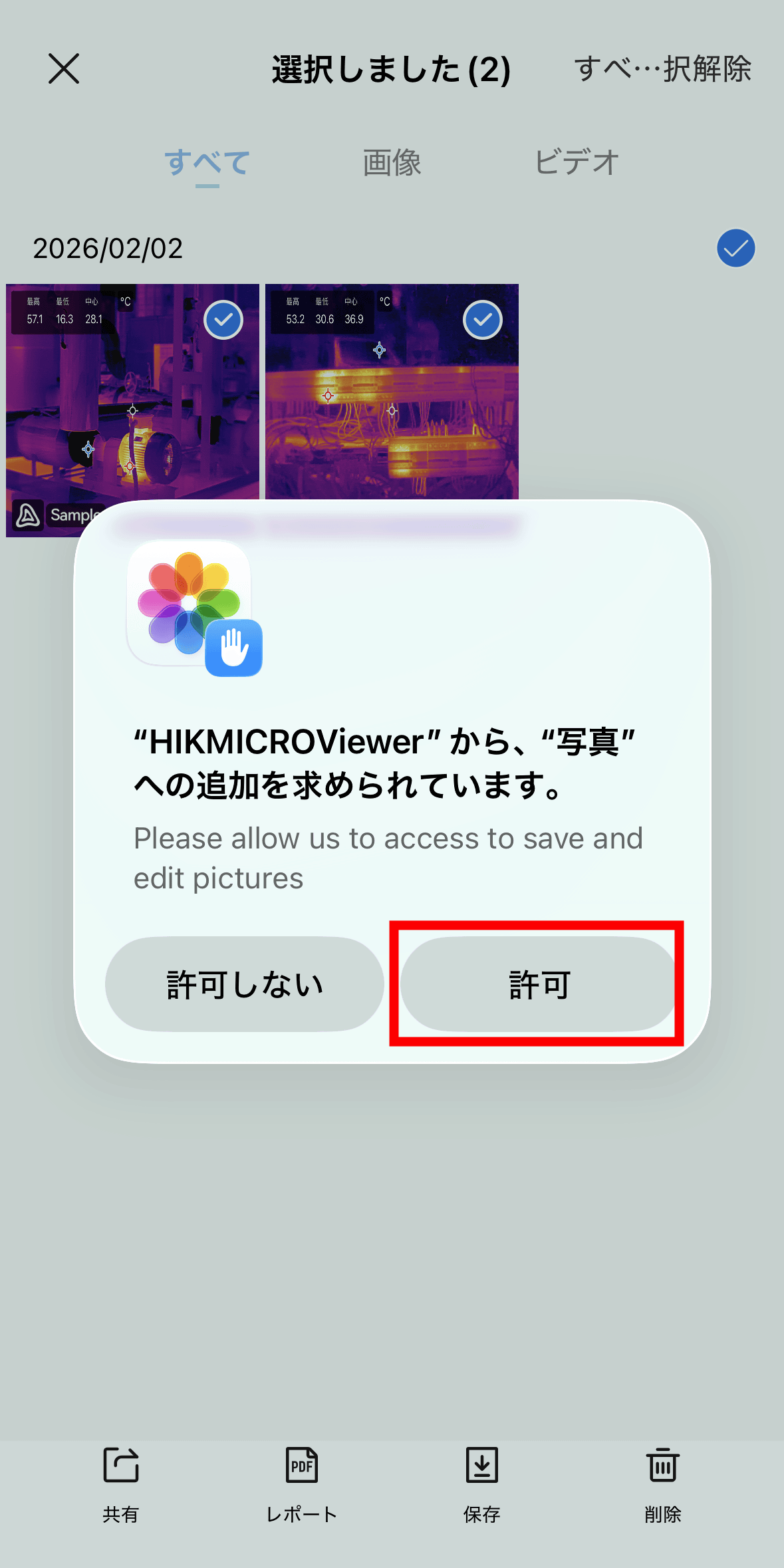
The first time you do this, you will be asked to grant permission to access 'Photos,' so tap 'Allow.'
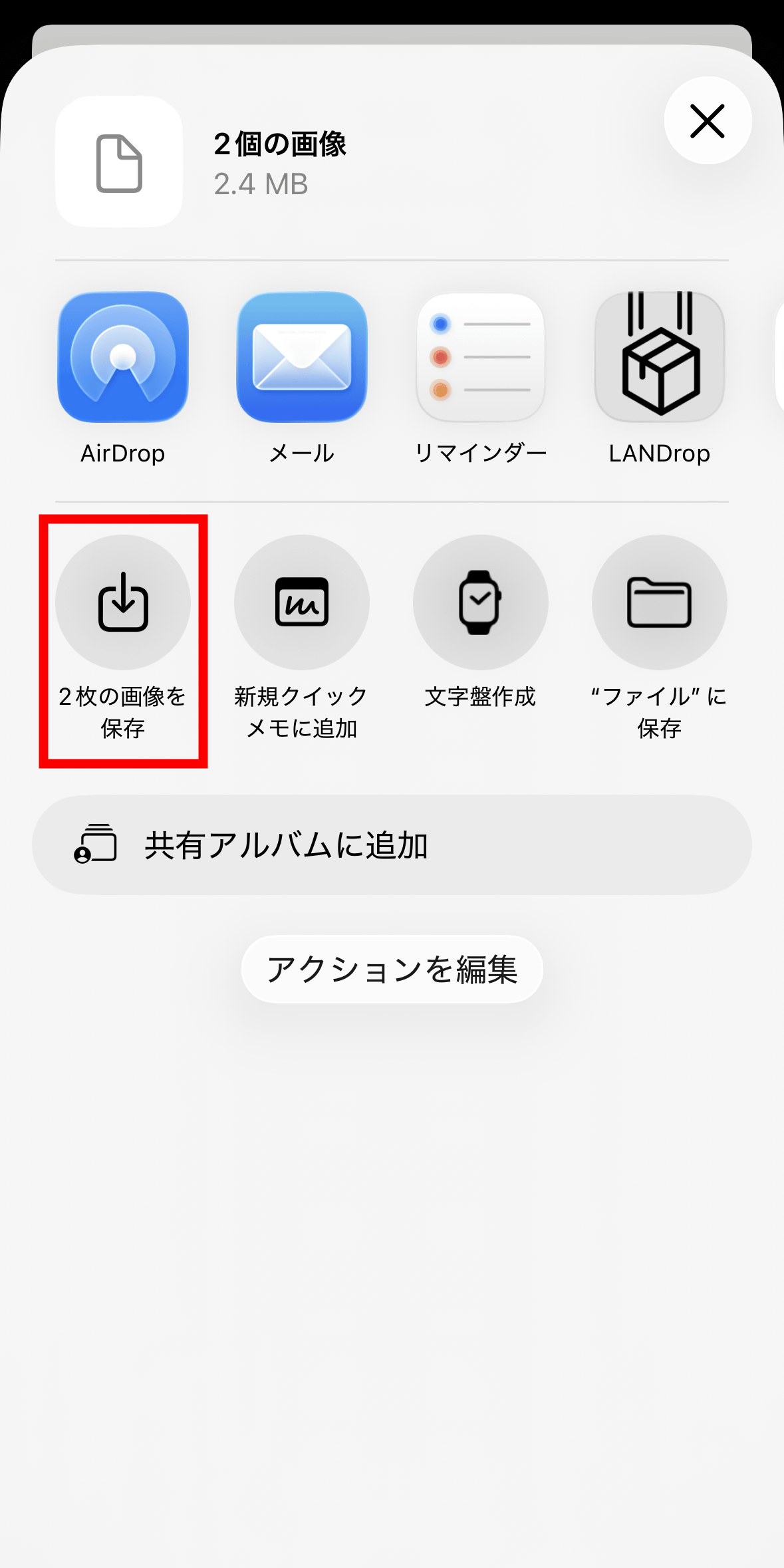
If you tap 'Save 2 Images,' the photos and videos you took will be copied to your photo library in Photos.
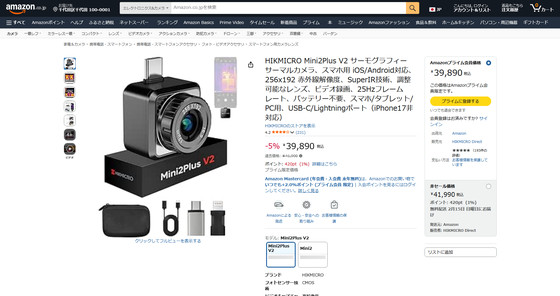
The HIKMICRO Mini2Plus V2 retails for 40,700 yen (including tax) and can be purchased from the HIKMICRO official website . It can also be purchased from Amazon.co.jp, where the price was 39,890 yen (including tax) at the time of writing.
Amazon.co.jp: HIKMICRO Mini2Plus V2 Thermography Thermal Camera for Smartphones, Compatible with iOS/Android, 256x192 Infrared Resolution, SuperIR Technology, Adjustable Lens, Video Recording, 25Hz Frame Rate, No Battery Required, for Smartphones/Tablets/PCs, USB-C/Lightning Port (Not Compatible with iPhone 17): Industrial & Scientific
Related Posts:

in Video, Hardware, Smartphone, Review, Posted by log1i_yk