Logitech's first gasket-mounted mechanical keyboard with a Japanese layout, the K98M, offers a satisfying clunking sound. We review the keyboard and experience its soft typing and keystroke sound.
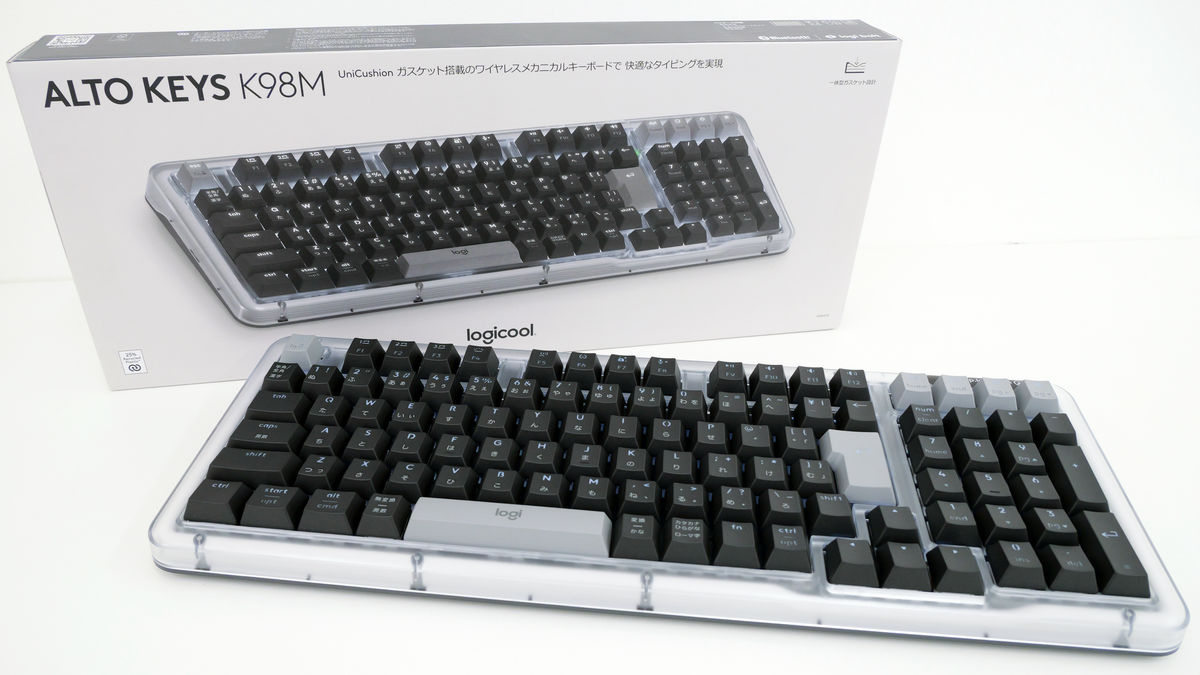
Logitech announced the Alto Keys K98M , the company's first Japanese-layout mechanical keyboard with a gasket mount that absorbs keystroke sounds, on February 2, 2026. I was able to borrow the K98M ahead of its release, so I took a close look at the appearance of the thick gasket mount and experienced the actual keystroke feel.
The K98M packaging looks like this:
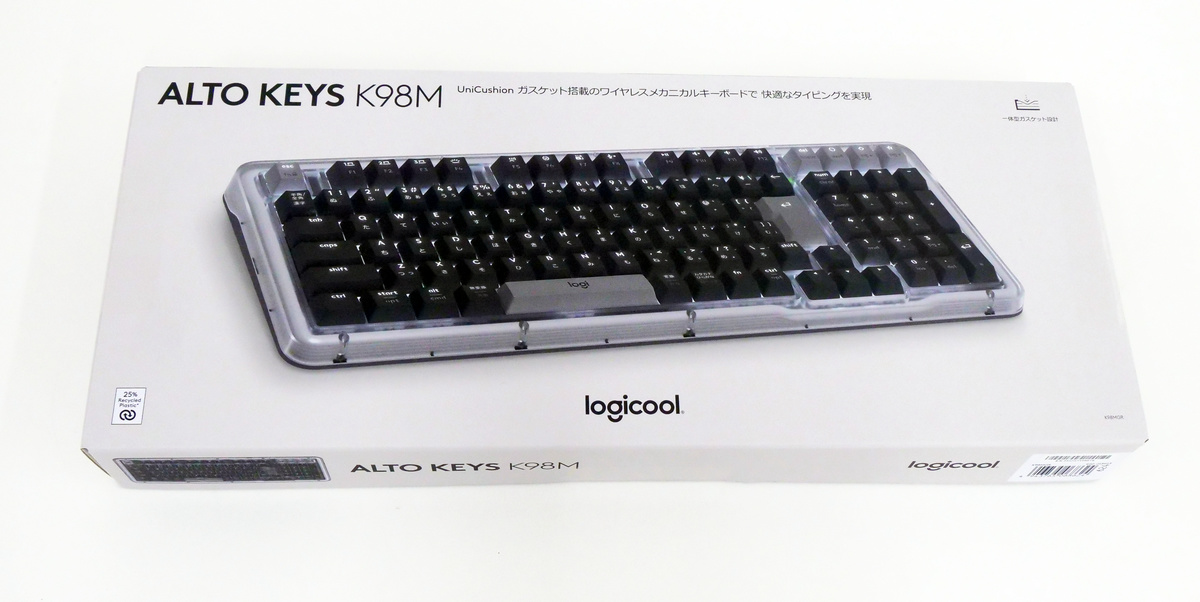
The back of the keyboard lists the K98M's features. The K98M features a proprietary gasket mount layer called 'UniCushion,' which absorbs typing noise and vibrations to create a comfortable feel and typing sound. It also features

When I opened the box, the K98M was protected by white paper.
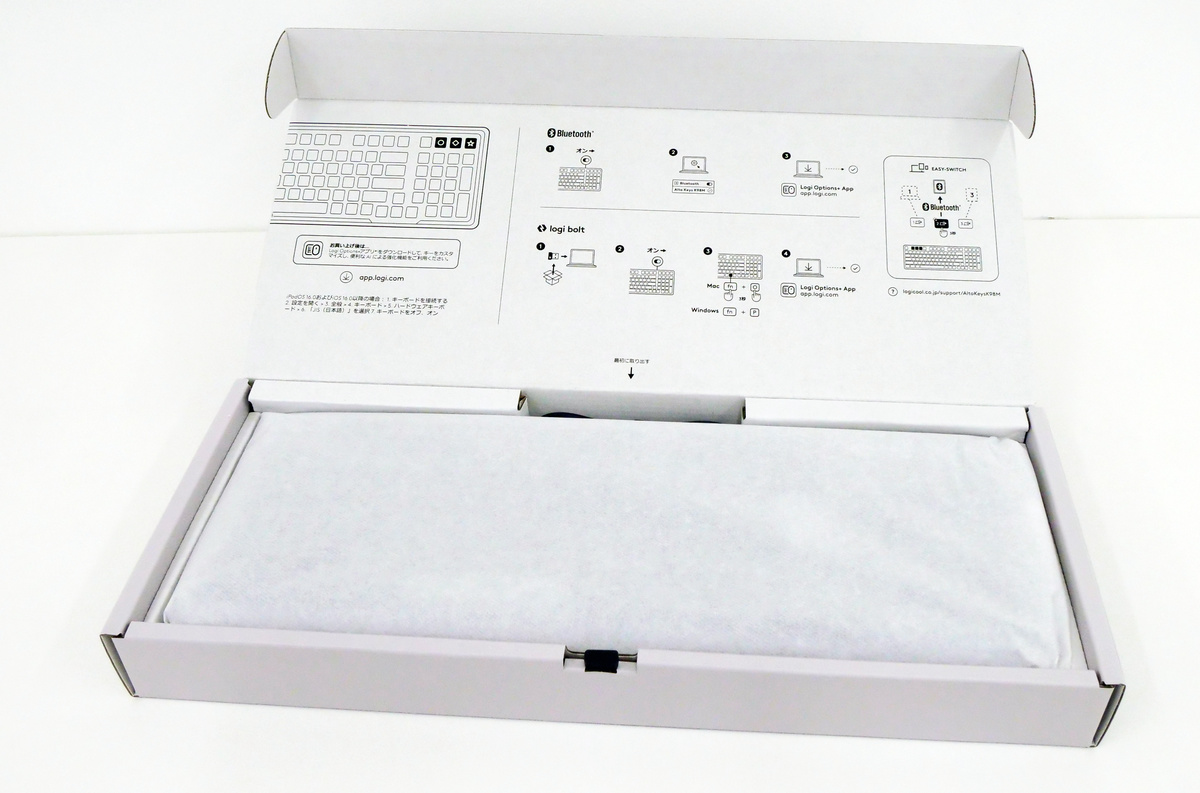
The contents include the K98M unit, a USB-C cable for charging, a Logi Bolt USB receiver for connection, and warranty documents.
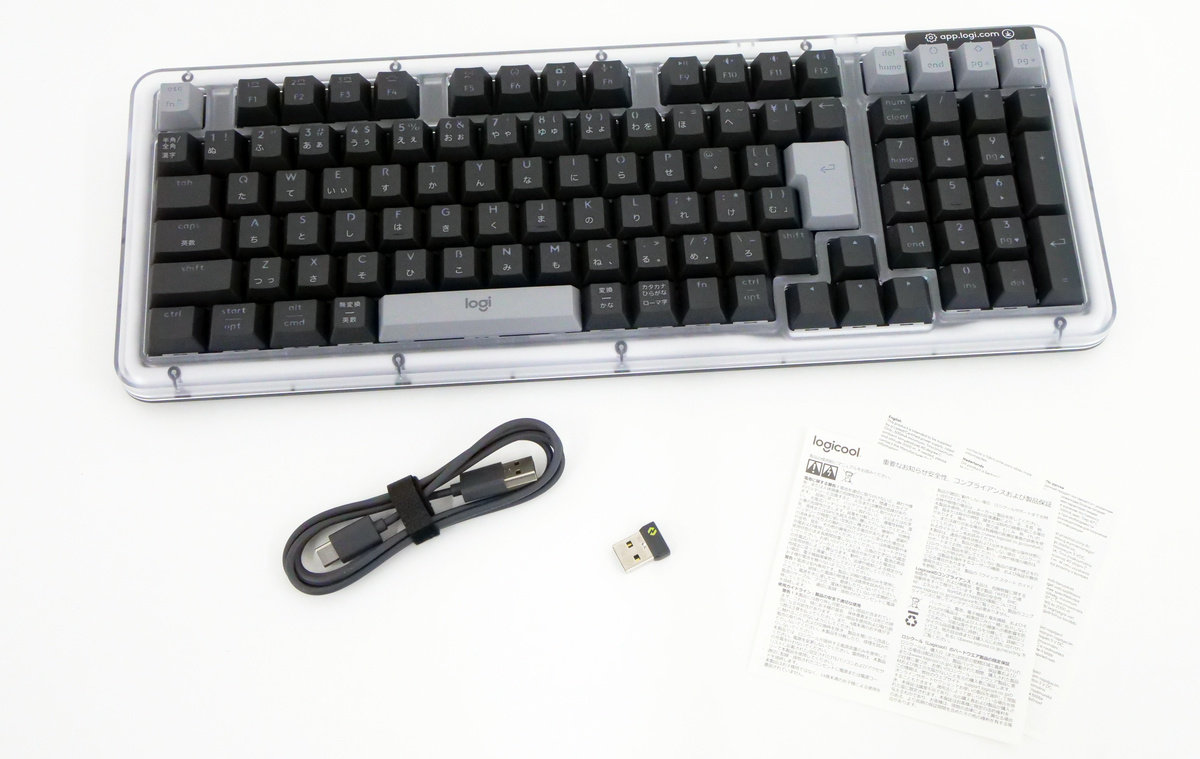
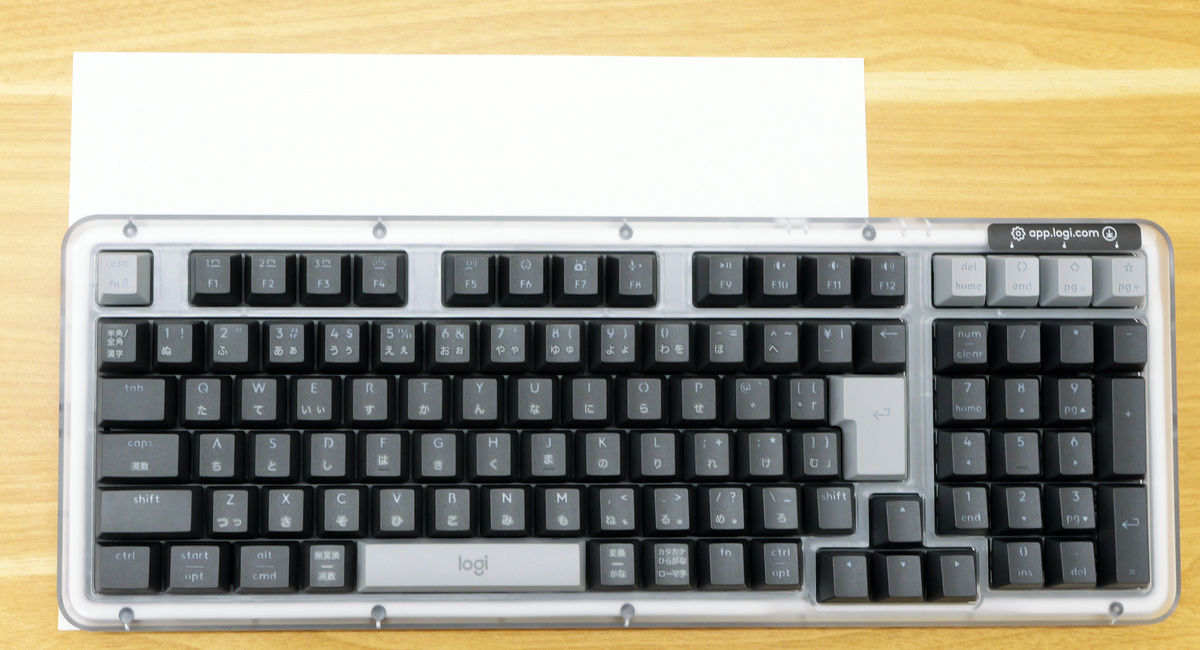
The K98M looks like this. It comes in two colors, 'Graphite' and 'Off-White,' but the one we'll be using here is 'Off-White.' The K98M has a JIS Japanese layout with half-width keys and conversion keys, and has 102 keys. It's a compact keyboard that's 98% of the standard, with a reduced width while retaining the numeric keypad, making it ideal for use at work or at home.
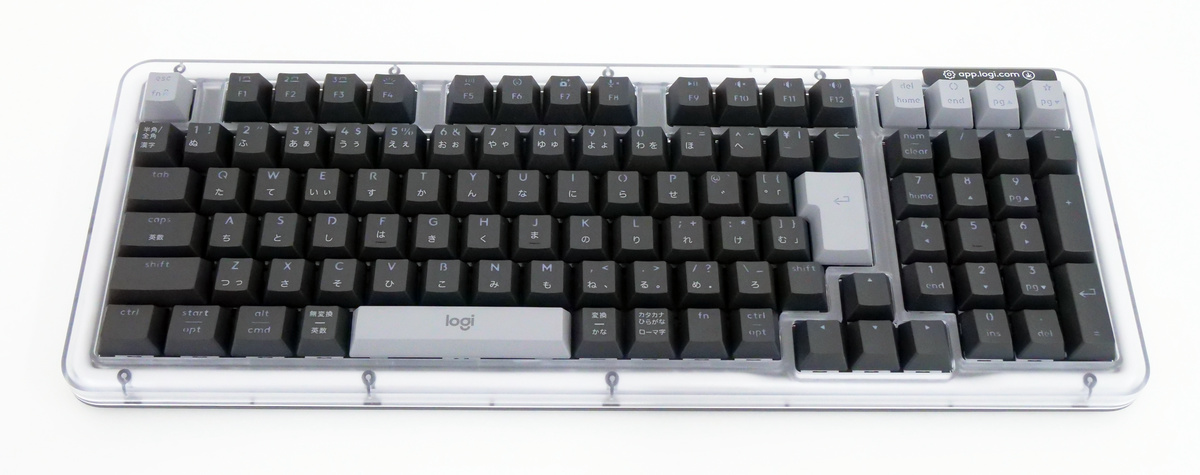
The dimensions of the device are 401mm wide, 147mm deep, and 39.6mm high. It weighs 1100g. Below is a picture of it stacked with an A4 sheet of paper, with the bottom left corner aligned.
The key pitch of the alphabet keys (the distance from the center of a key to the center of the adjacent key) is approximately 19 mm.
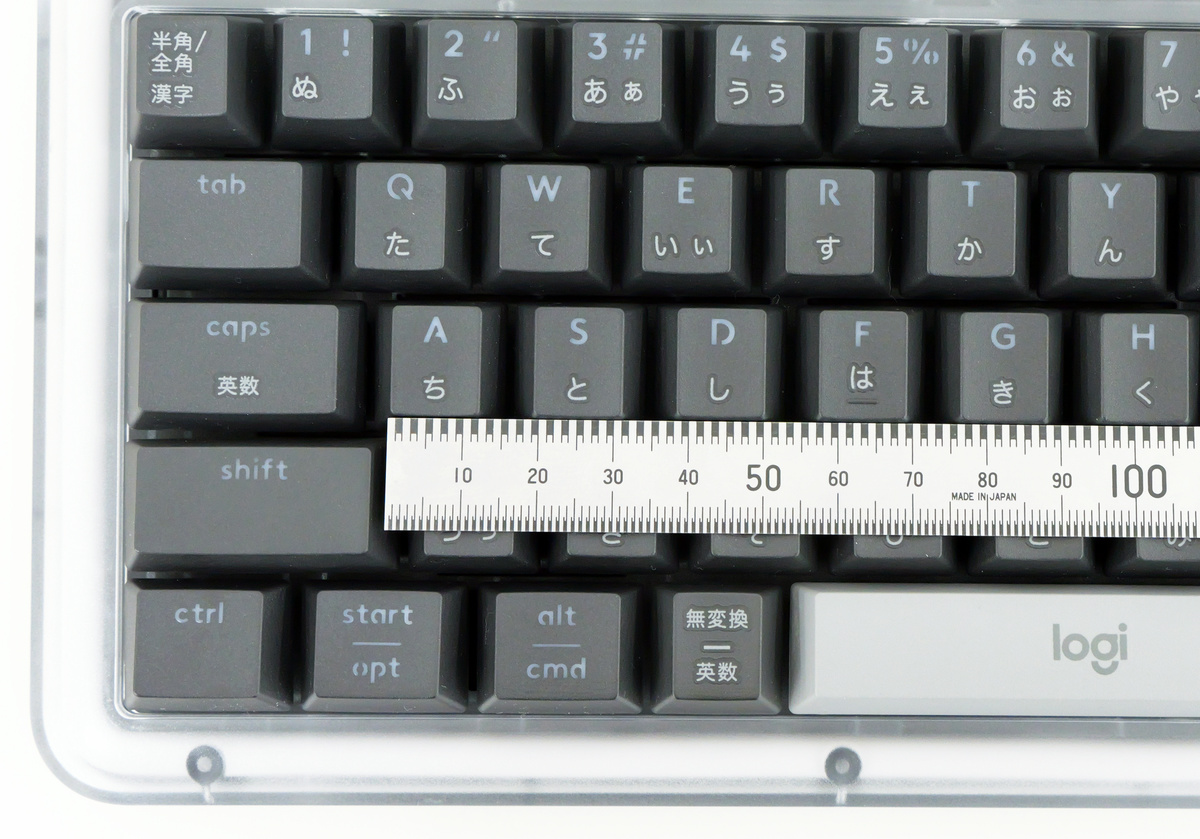
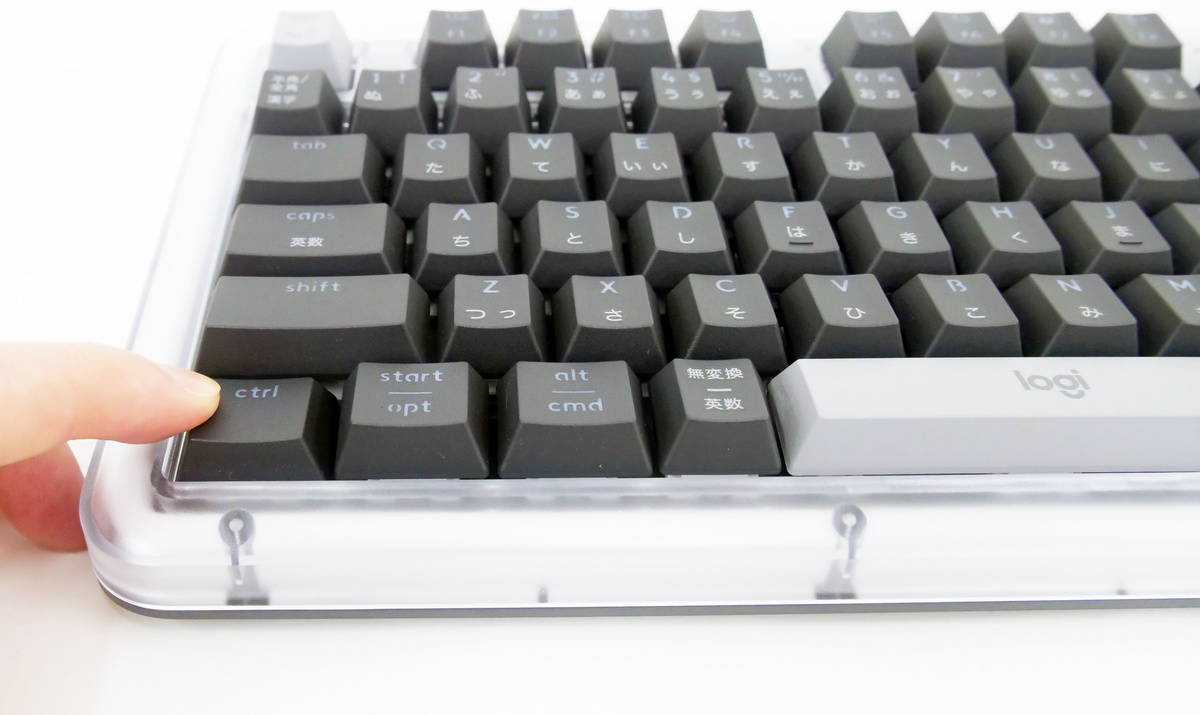
The keystroke is approximately 4.5mm.

You can see what it's like to actually type on the K98M by checking the video below. The gasket mount absorbs the keystroke noise, resulting in a 'clacking' sound, without the metallic feel of a mechanical keyboard or the 'clacking' sound typical of keyboards with larger keystrokes. The Enter key, space bar, and arrow keys felt relatively light, but even when pressing the Enter key forcefully, the keystroke sound was modest.
The K98M is a mechanical keyboard, and its 'actuation point,' or how many millimeters you need to press down before it responds to your input, is precisely controlled. When you press down on the keys, you can feel the appropriate typing feel, while also noticing that the bottoming out sensation that's typical of mechanical keyboards is absorbed.
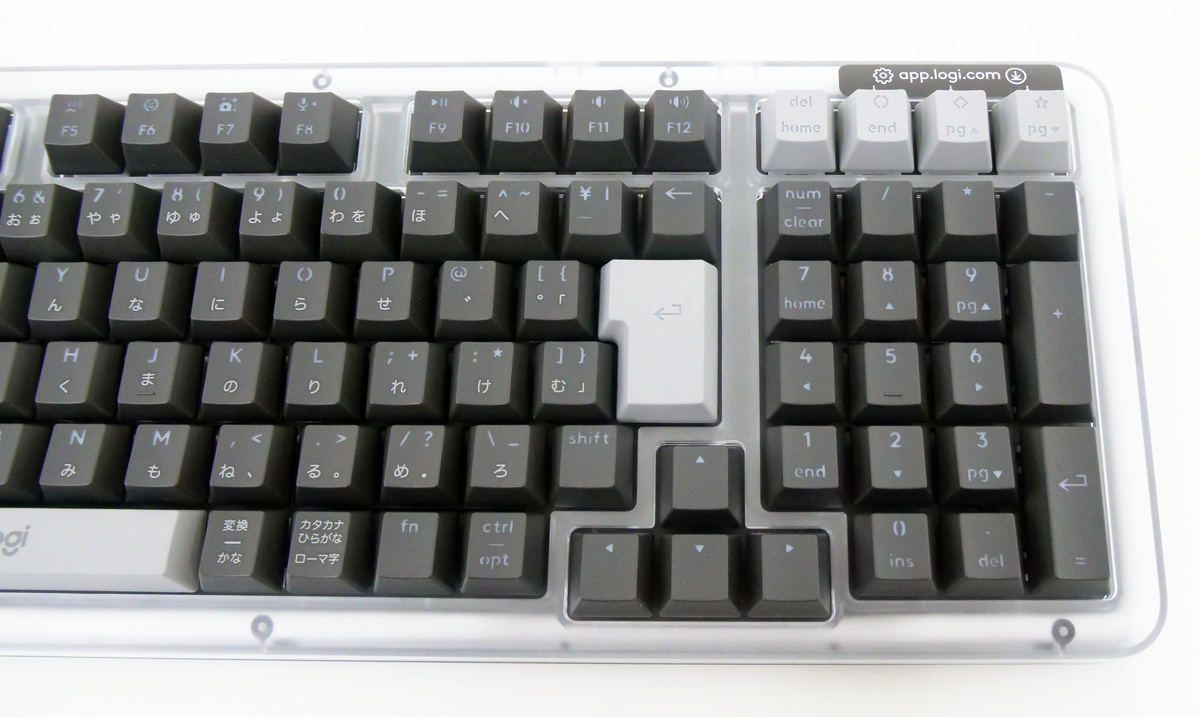
On the right side are the numeric keypad and arrow keys, and on the top right is the smart action key that can be configured using the Logitech device customization app
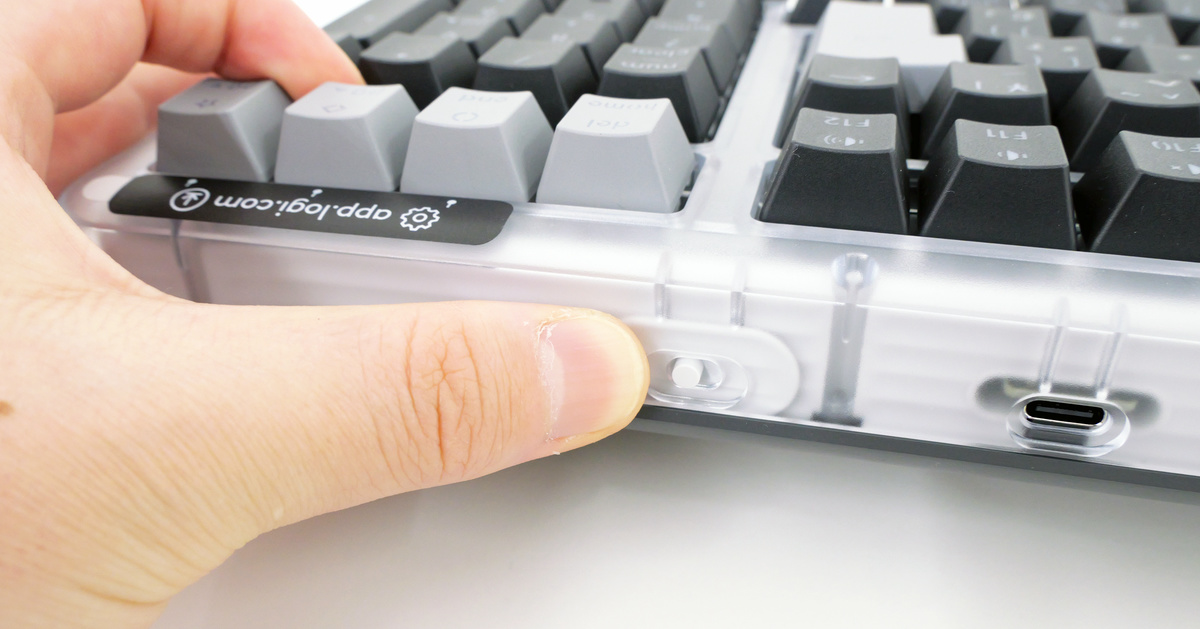
The top panel houses the Bluetooth switch and USB-C port. The white part visible through the transparent body is the gasket mount 'UniCushion.' Gasket mounts tend to wear out over time, but the K98M's UniCushion is quite thick, providing excellent shock absorption and long-lasting durability.
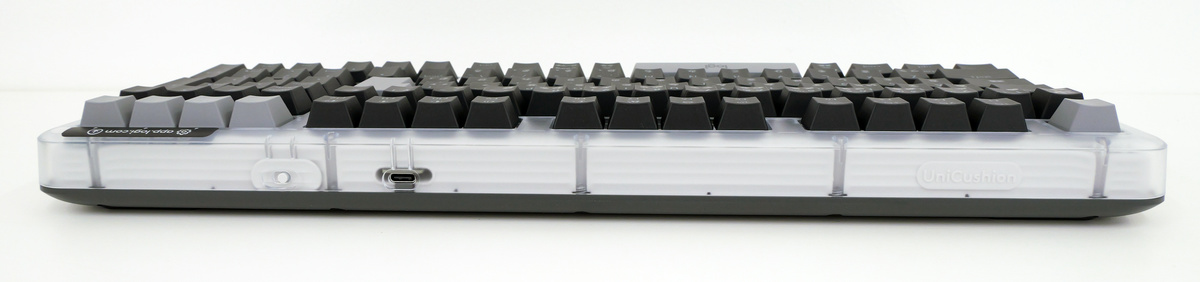
The right side looks like this. The back side is thick and has a slight slope.
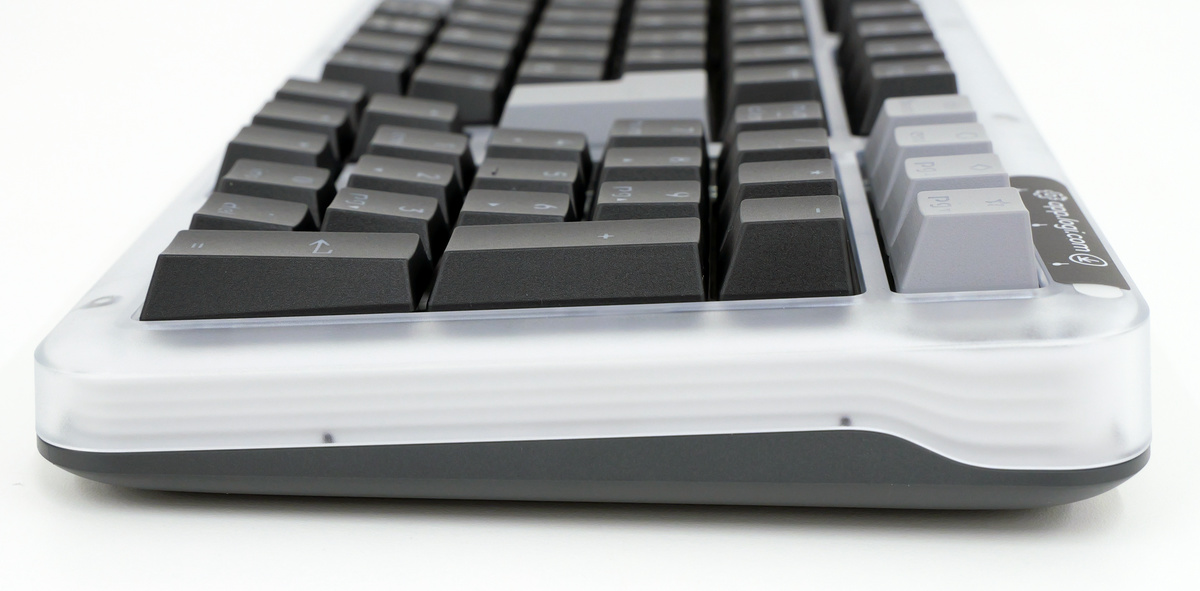
Left side.
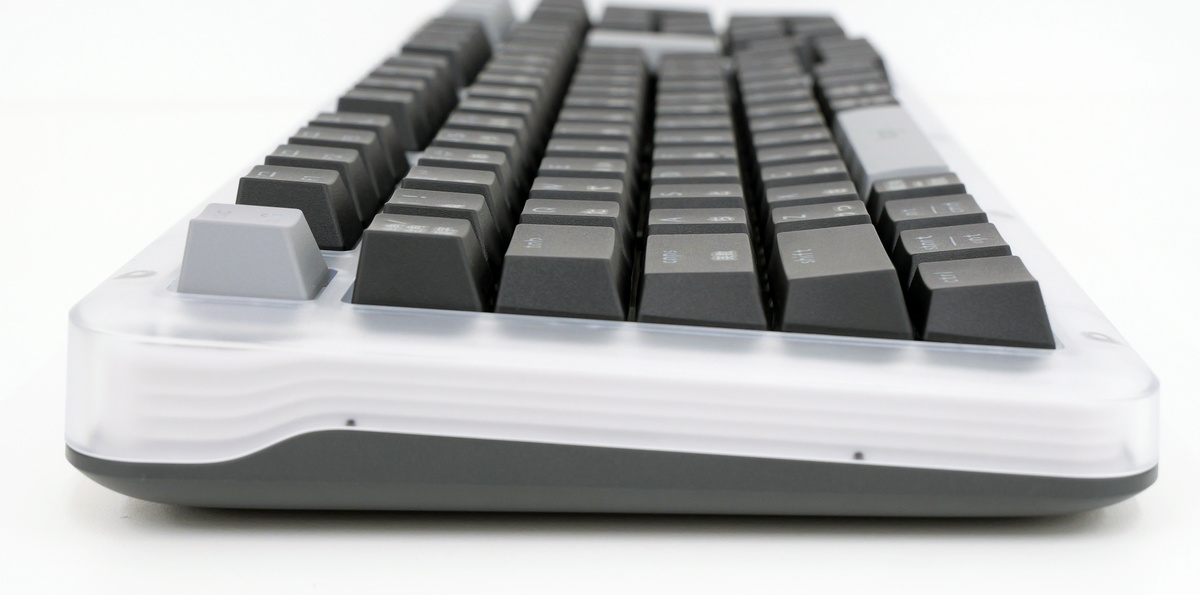
There are no buttons on the bottom either.
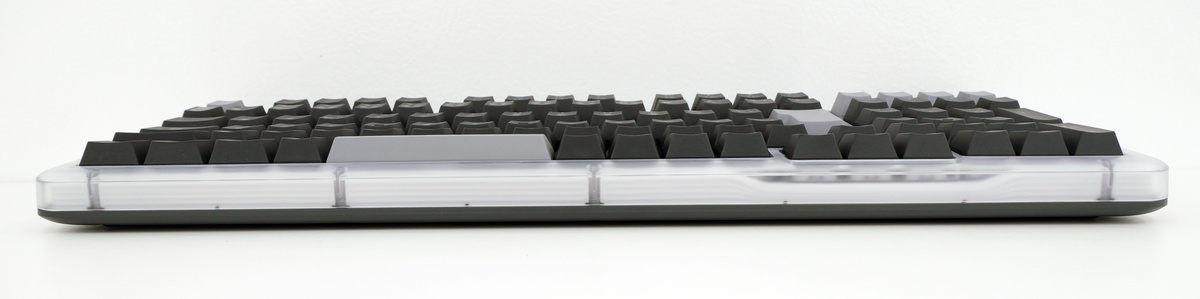
Looking at the back, there are two anti-slip pads on the top and four on the bottom. The solid weight of 1100g and the anti-slip pads mean that there is almost no stress of the keyboard slipping while you are working.
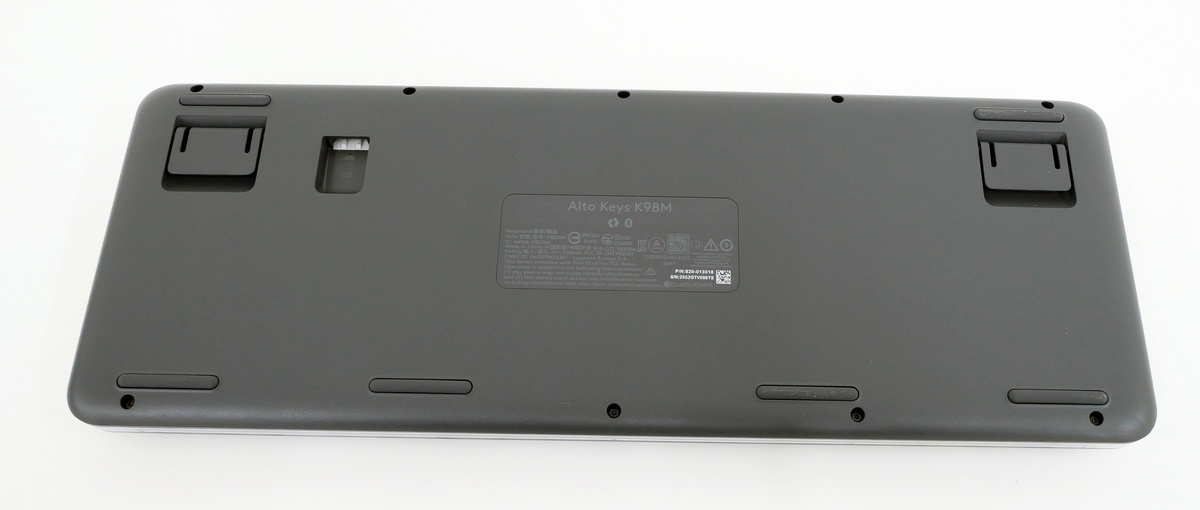
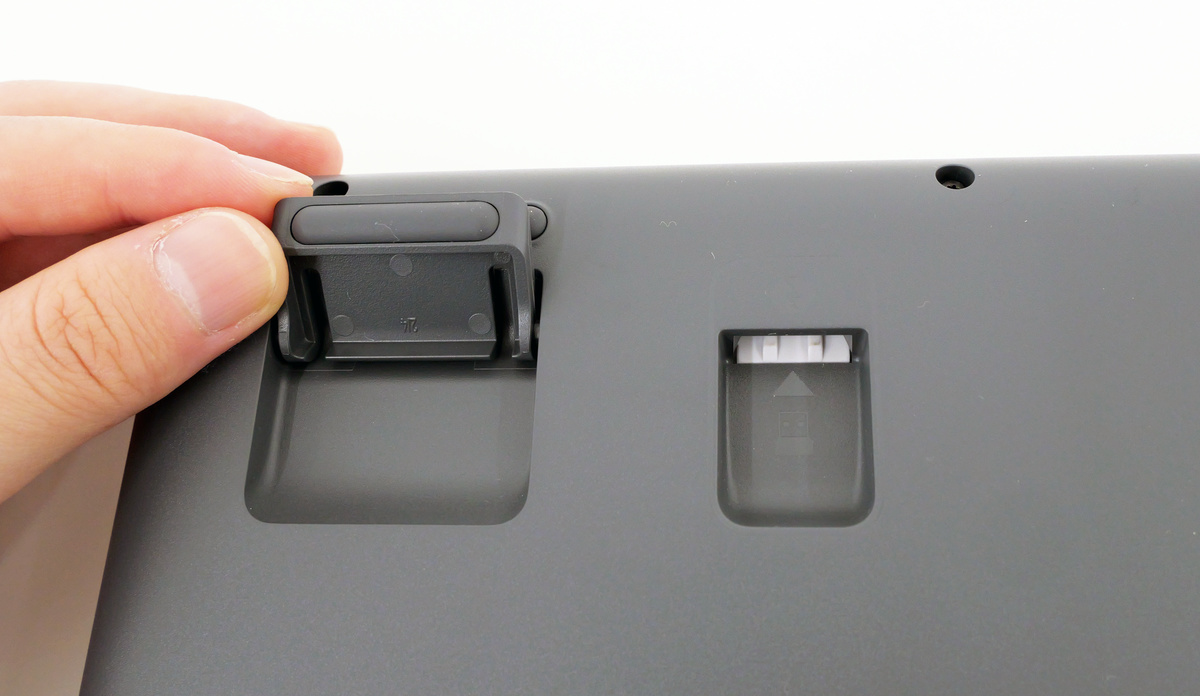
There are angle-adjustable stands on the top left and right sides, so you can open it up and stand it up.
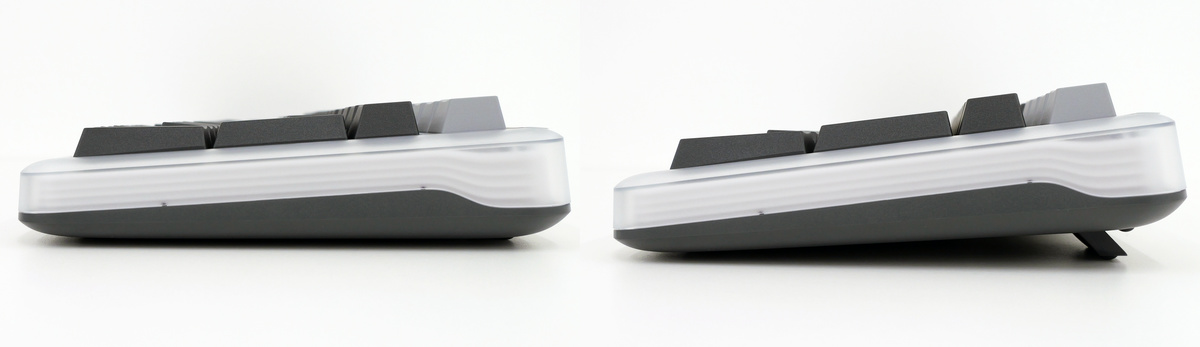
Below is a side view of the camera without the stand on the left and with the stand on the right.
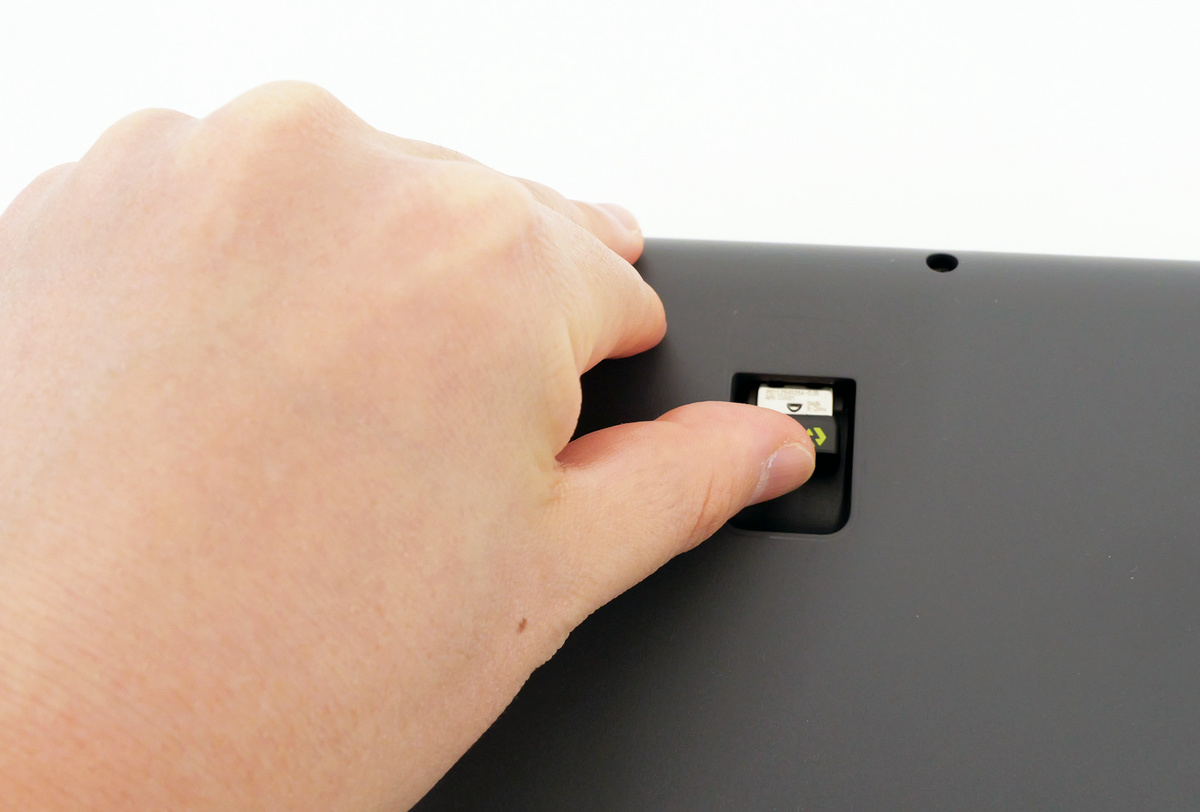
In addition, the groove on the back can be used to store the Logi Bolt USB receiver when not in use.
Now let's actually connect it to a PC and use it. There are two ways to connect the K98M to a PC: using Bluetooth or using the Logi Bolt USB receiver. First, to connect via Bluetooth, turn on the Bluetooth switch on the top panel.
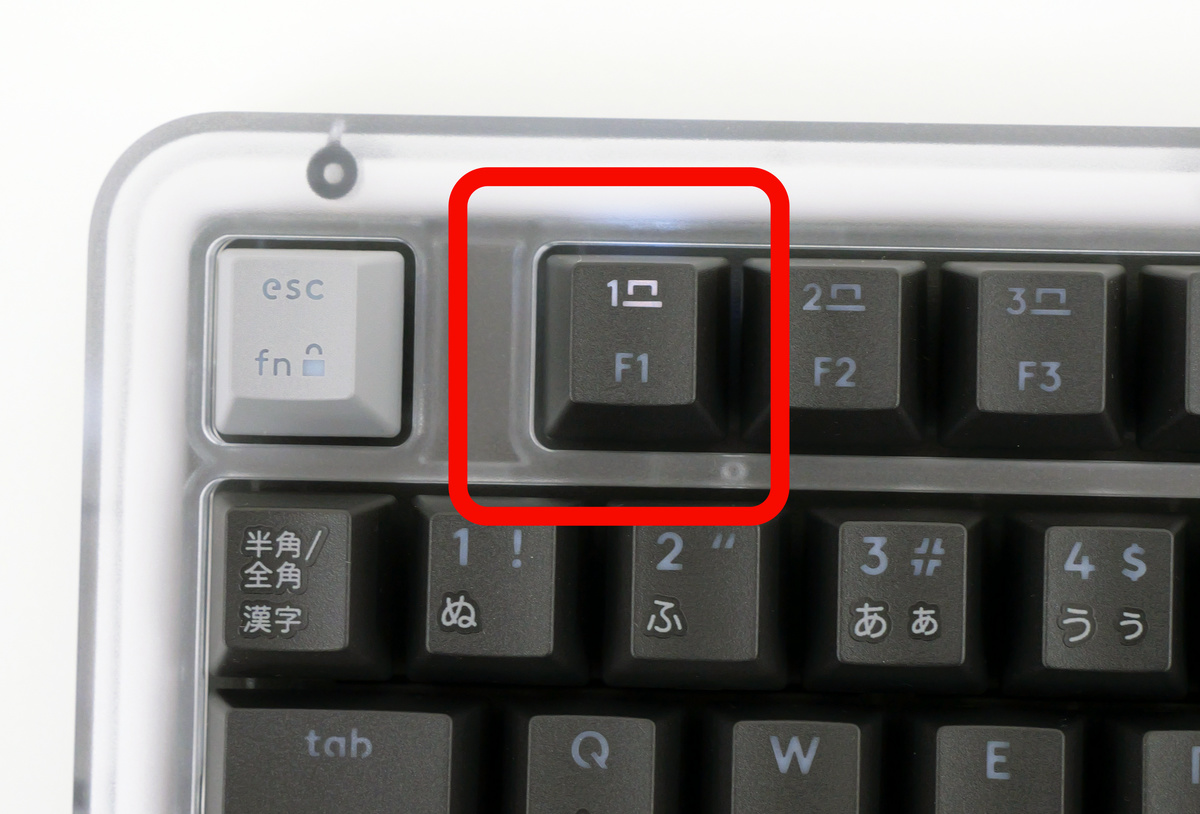
When the F1 key starts flashing, the Bluetooth connection is ready.
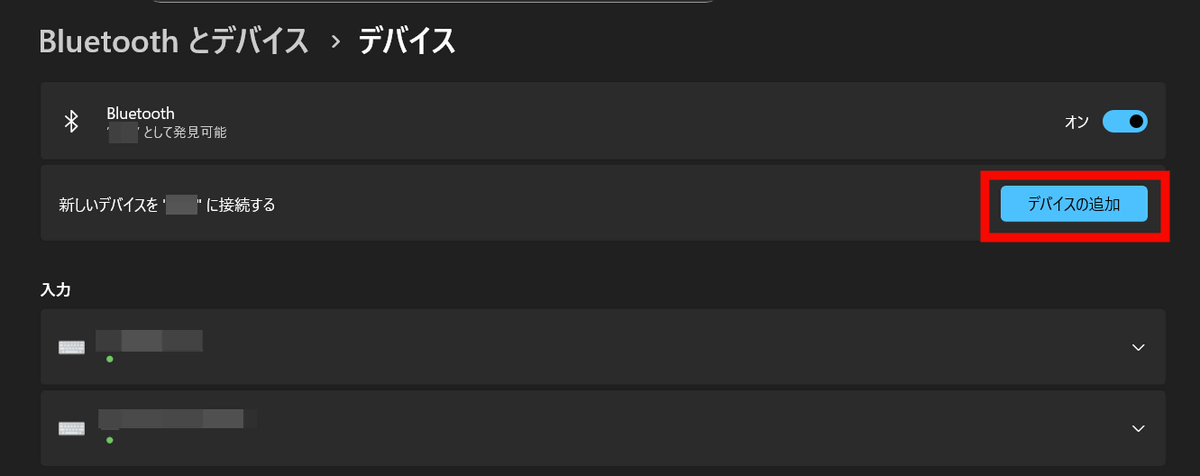
Open the Bluetooth settings on your PC and click 'Add a device.'
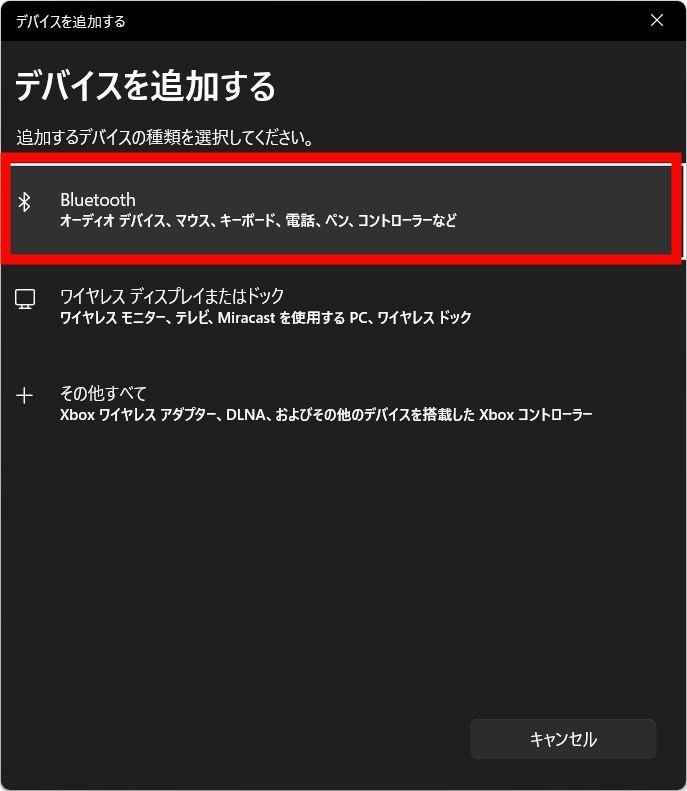
Click Bluetooth.
It said 'Alto Keys K98M' so I clicked on it and the PIN was displayed.
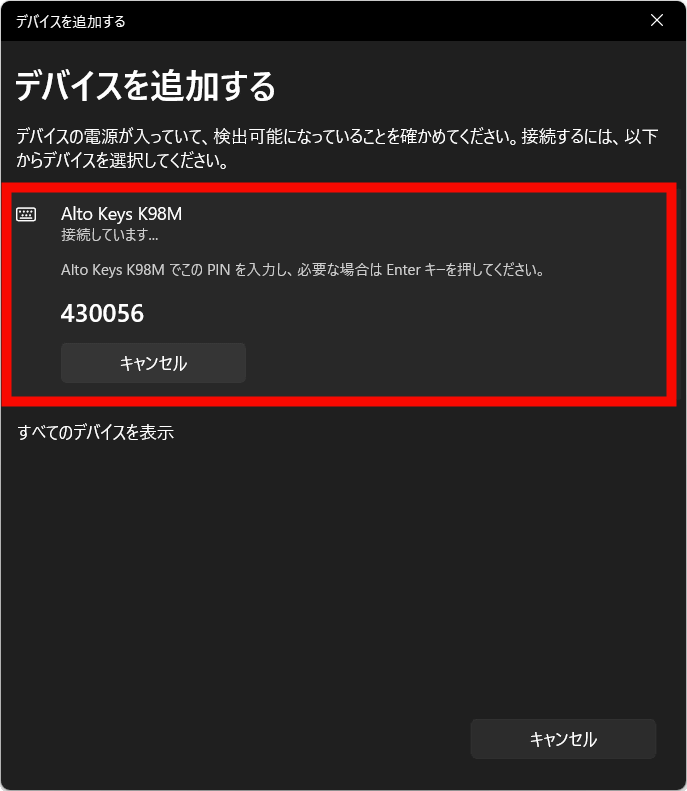
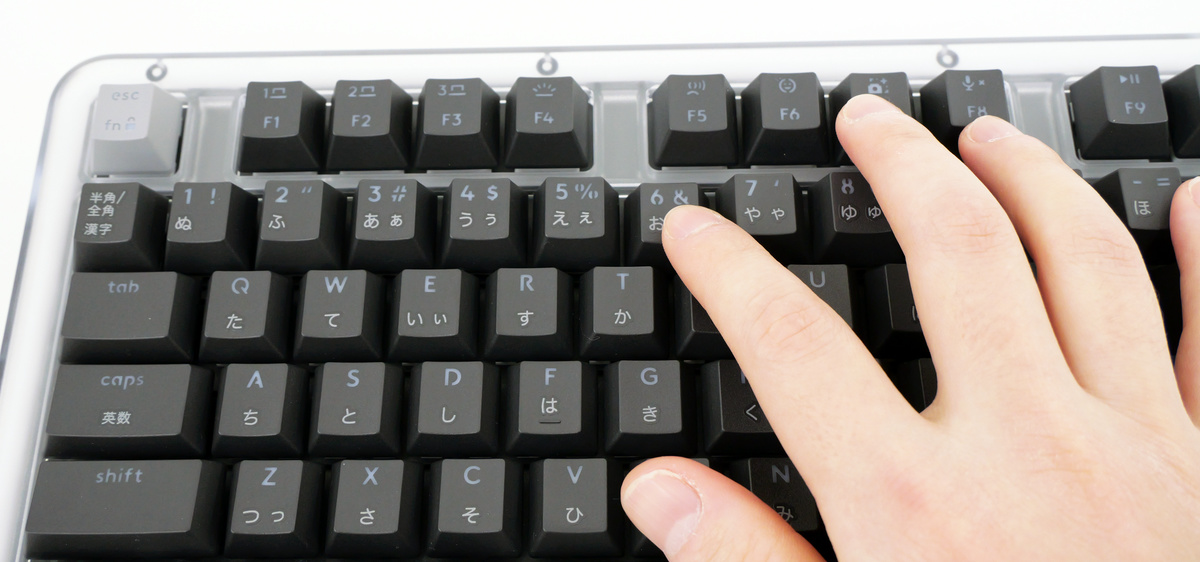
Enter your PIN in K98M.
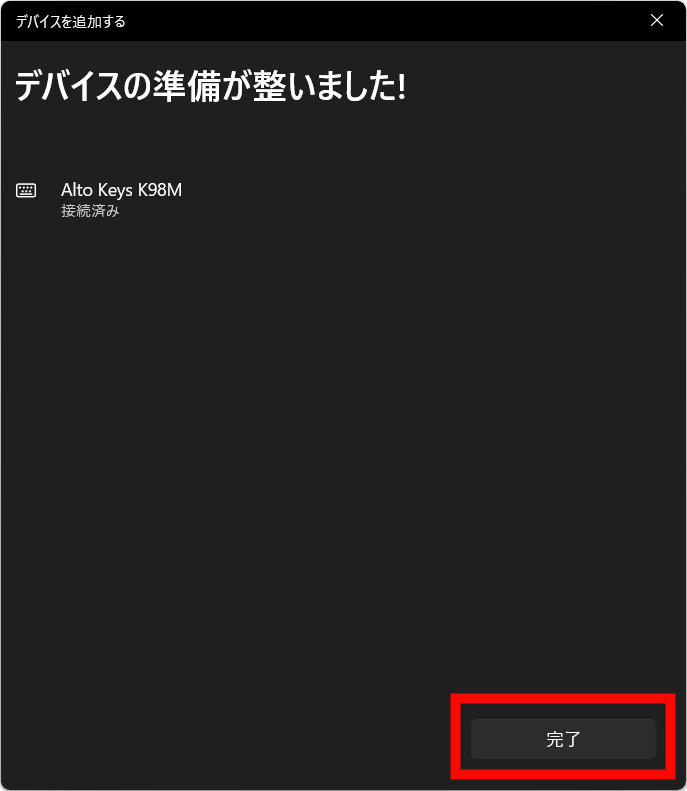
When you see 'Your device is ready!', click 'Finish.'
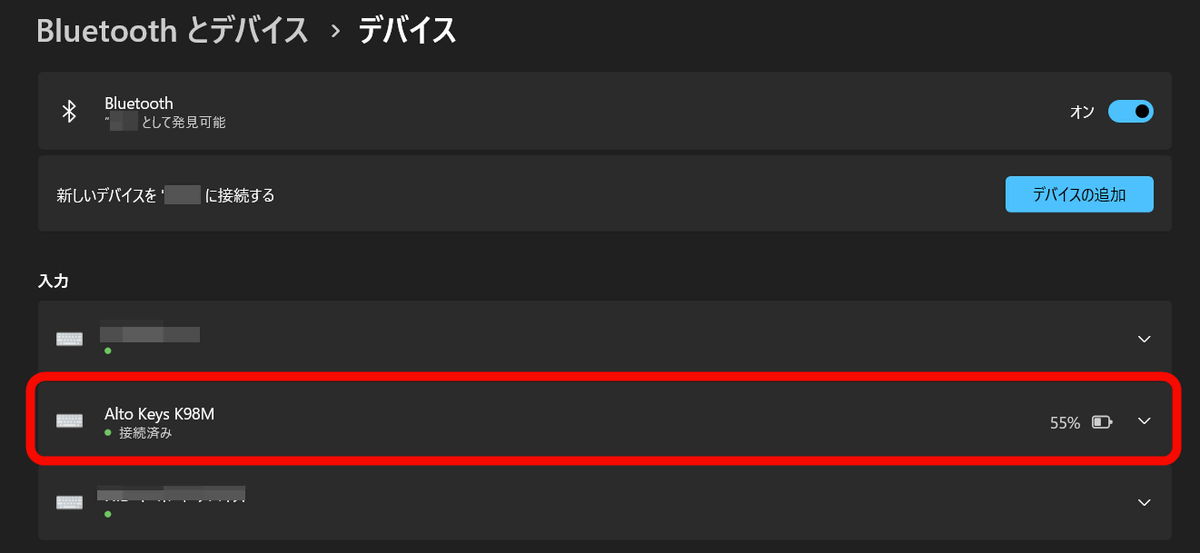
'Alto Keys K98M' has been added.
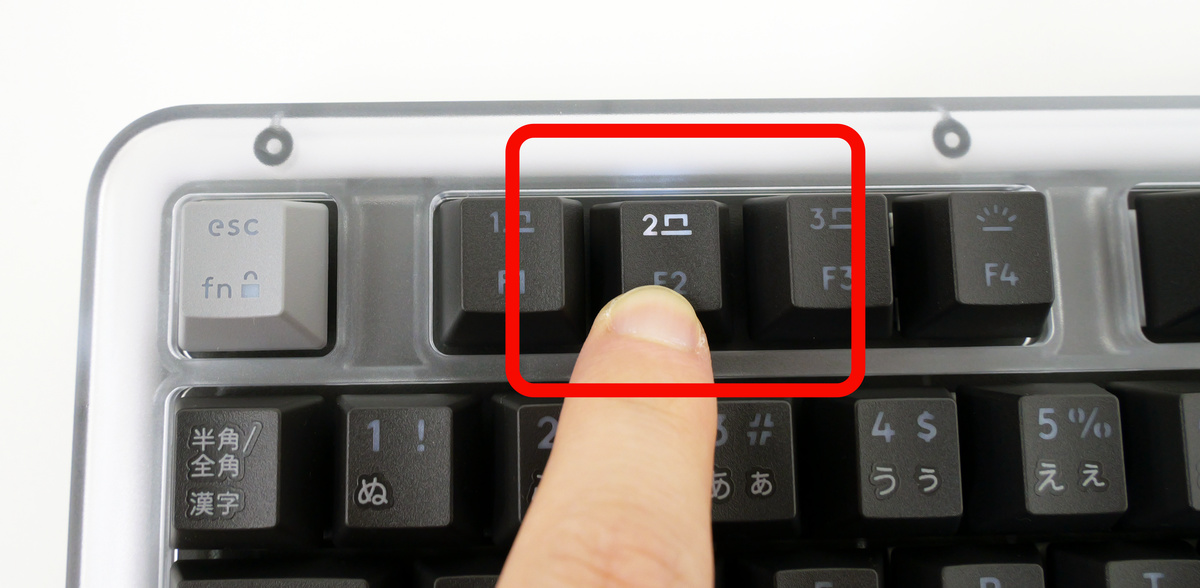
You can register and switch between three Bluetooth devices. To register a new device or switch between them, press and hold the F1, F2, or F3 key until it flashes.
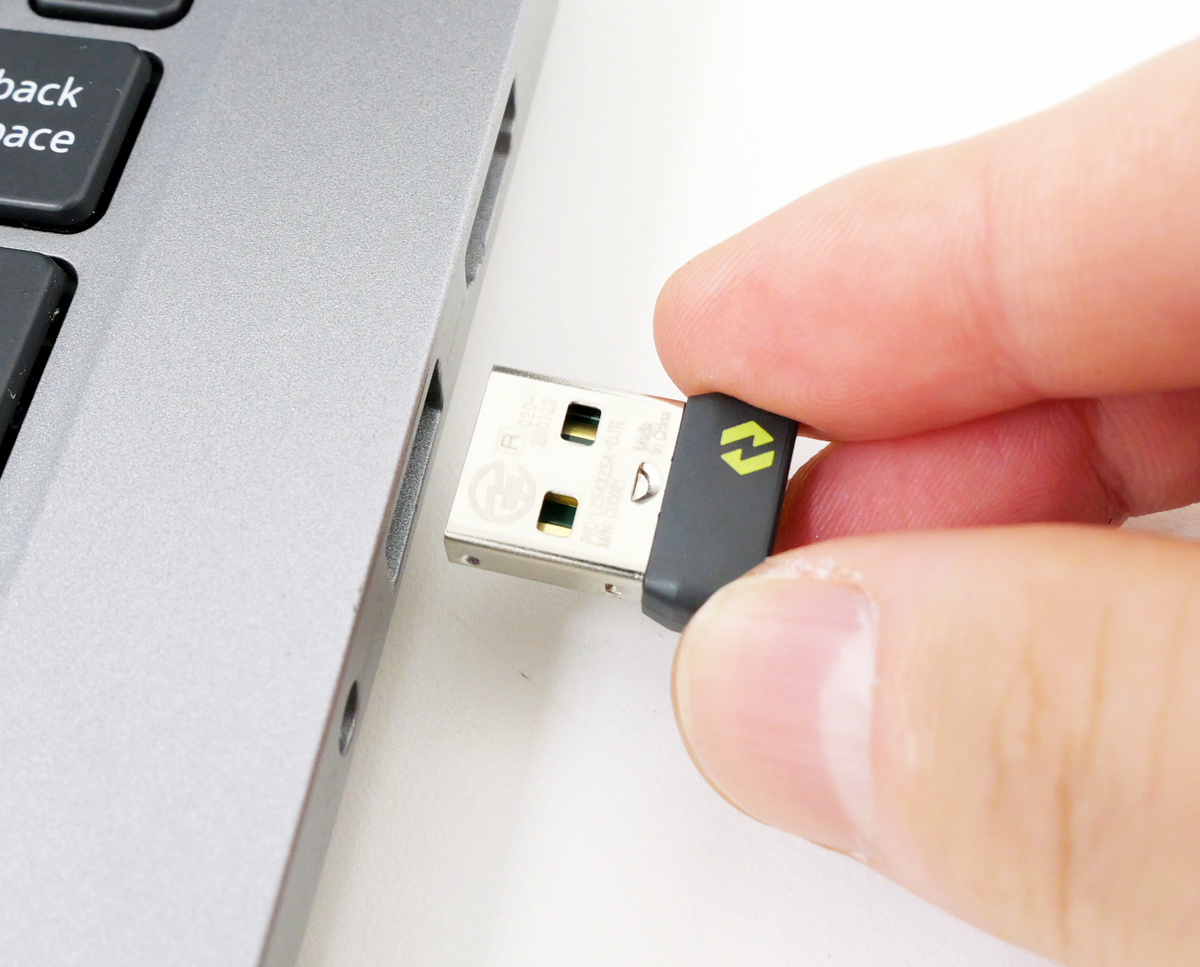
For even simpler connection, use the included LogiBolt USB receiver. Simply insert the LogiBolt USB receiver into your PC's USB port.
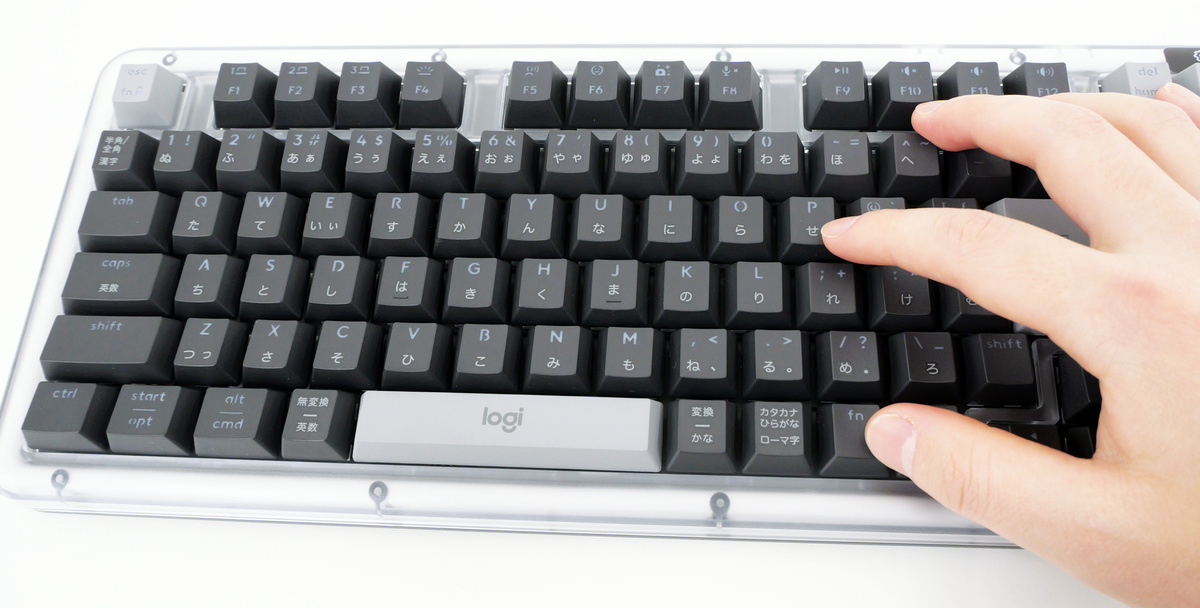
Press and hold the fn key and P simultaneously on the K98M to complete the connection.
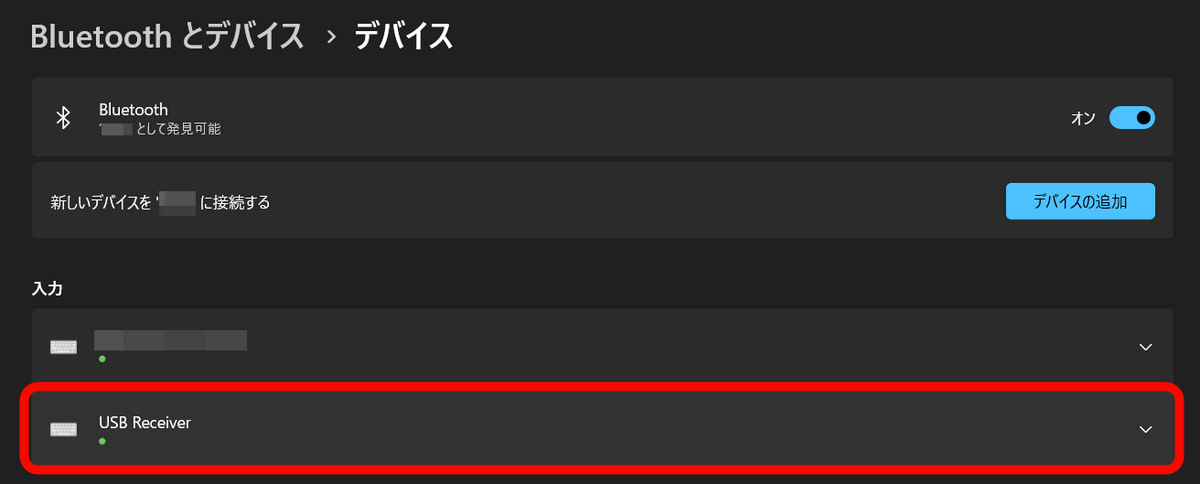
It was listed as 'USB Receiver' in the device list.
To charge the K98M, insert the included charging cable into the USB-C port on the top panel.
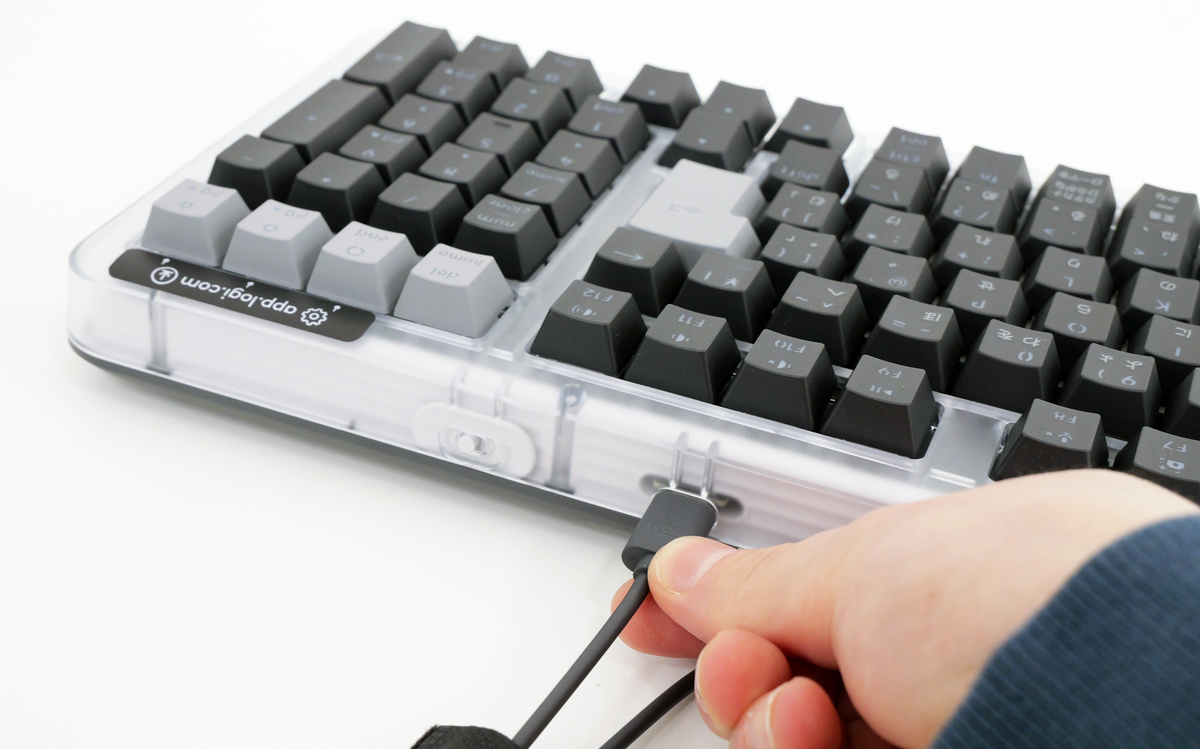
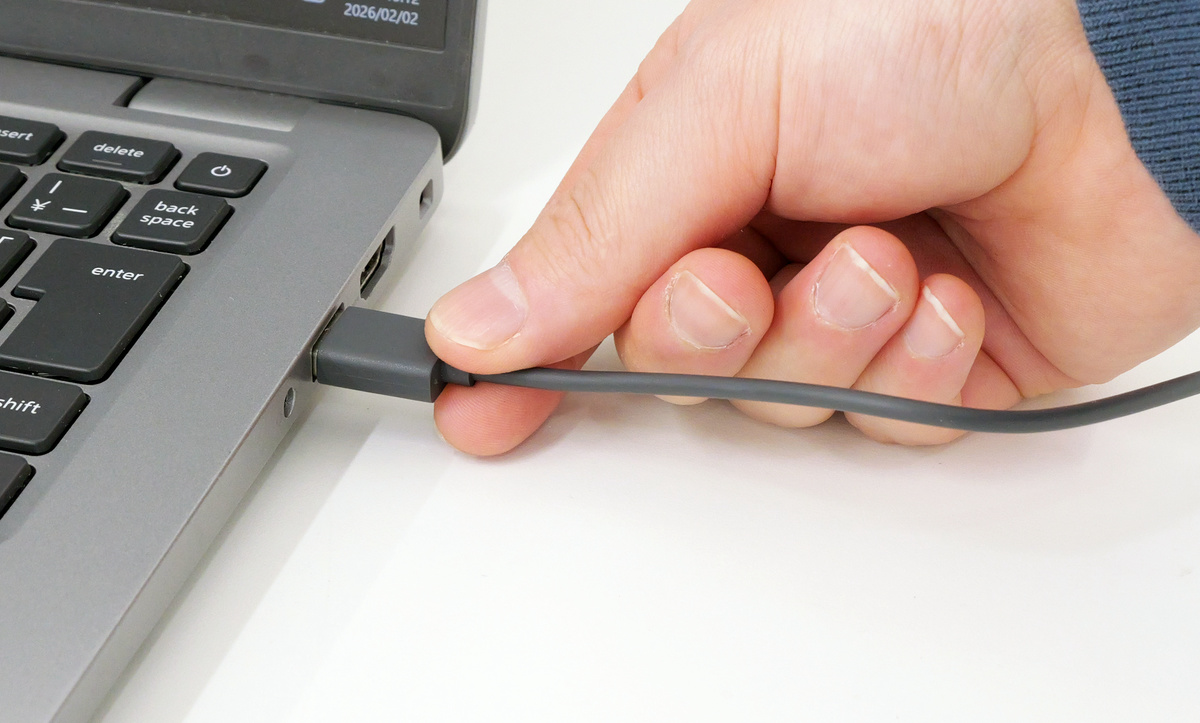
The device can be charged by plugging the charging cable into a PC or other device, and can be used while charging. When fully charged and with the backlight turned off, it can be used continuously for one year.
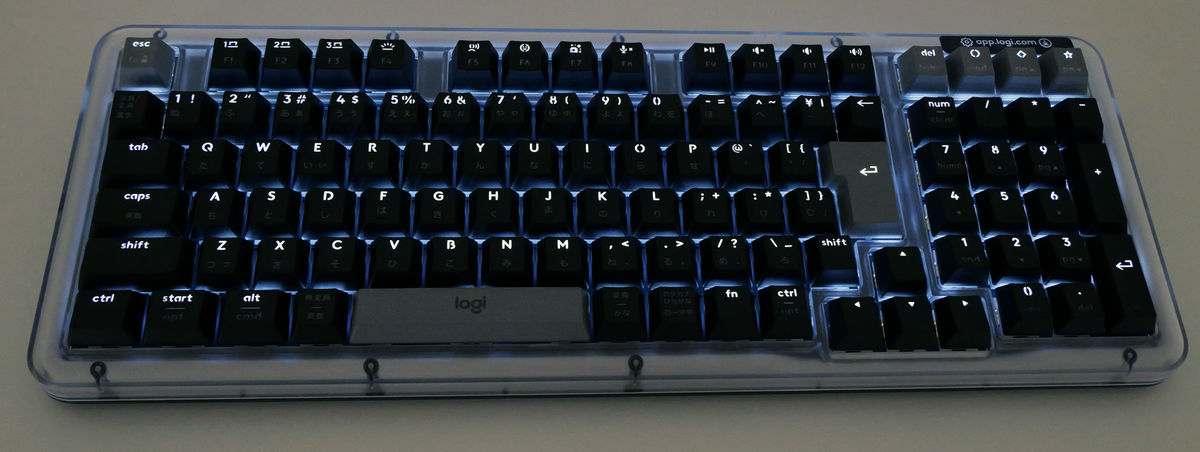
You can also turn on the backlight in seven levels by pressing the F4 key. Below is what it looks like in a dark room with the backlight at maximum brightness.
I actually tried typing on the K98M, typing the same characters as on a membrane keyboard I have and a laptop keyboard, and compared the typing feel. While the K98M's keys felt like they could be typed with just a light touch, I rarely had the problem of accidentally pressing keys unintentionally, which can happen with keyboards I'm not used to. The typing feel, along with the satisfying click of the keys, felt quite good. You can feel the distinctive features of the K98M with just a little touch, but the weight, the sense that the keyboard is fixed in place, and the durability of the thick gasket mount mean that the longer you use it, the more you'll appreciate its quality.
Logitech's Alto Keys K98M is scheduled to be released on February 26, 2026, and the price on the Logitech online store is 18,590 yen including tax.
Related Posts: