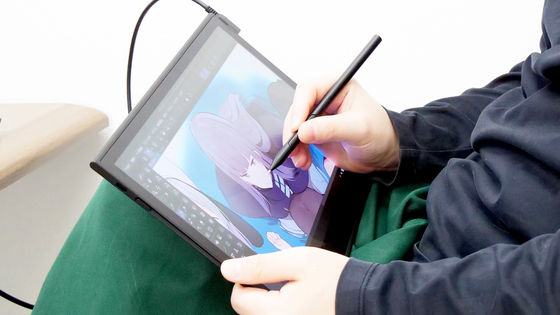
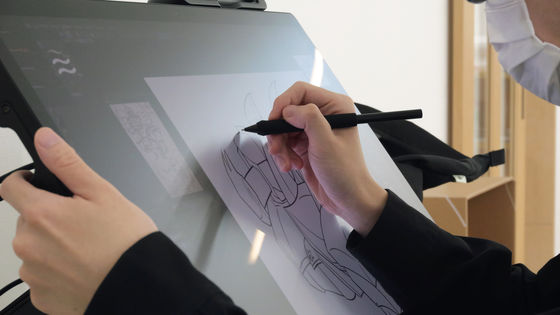
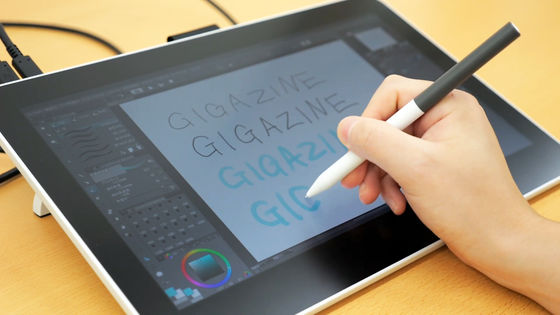
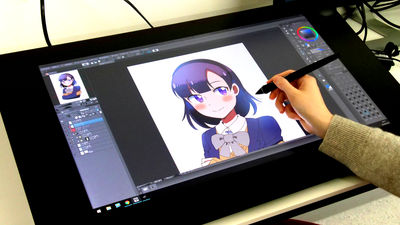
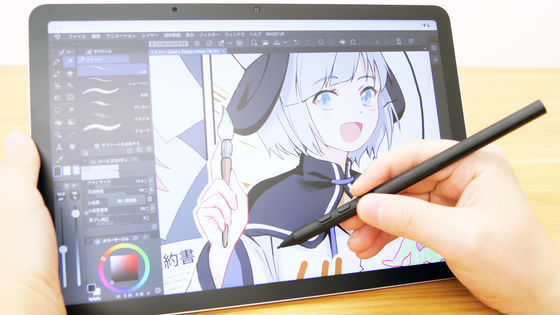
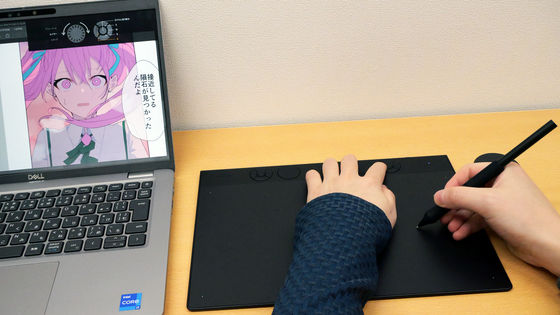
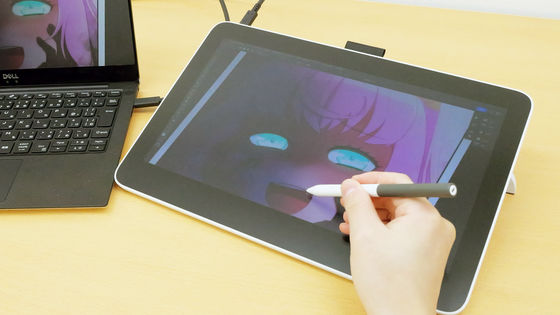
I connected the drawing-specialized Android tablet 'Wacom MovinkPad Pro 14' to my PC and tried out 'Instant Pen Display Mode,' which allows me to use it like a drawing tablet.
Wacom's drawing-focused Android tablet,
About Instant Pen Display Mode on Wacom MovinkPad Pro 14 – Wacom
https://support.wacom.com/hc/ja/articles/35307611485463
Wacom MovinkPad Pro 14 (DTHA140L0Z) - 14-inch | Find tablets, pens, and other display devices at the Wacom Store (Wacom) [Official]
https://estore.wacom.jp/ja-JP/products/wacom-movinkpad-pro/dtha140l0z.html
The appearance of the Wacom MovinkPad Pro 14 and its features as an LCD tablet can be seen in the article below.
Wacom's Android-equipped, PC-free drawing tablet, specialized for drawing, has been powered up for professionals with the 'Wacom MovinkPad Pro 14' review. What are its performance features? - GIGAZINE

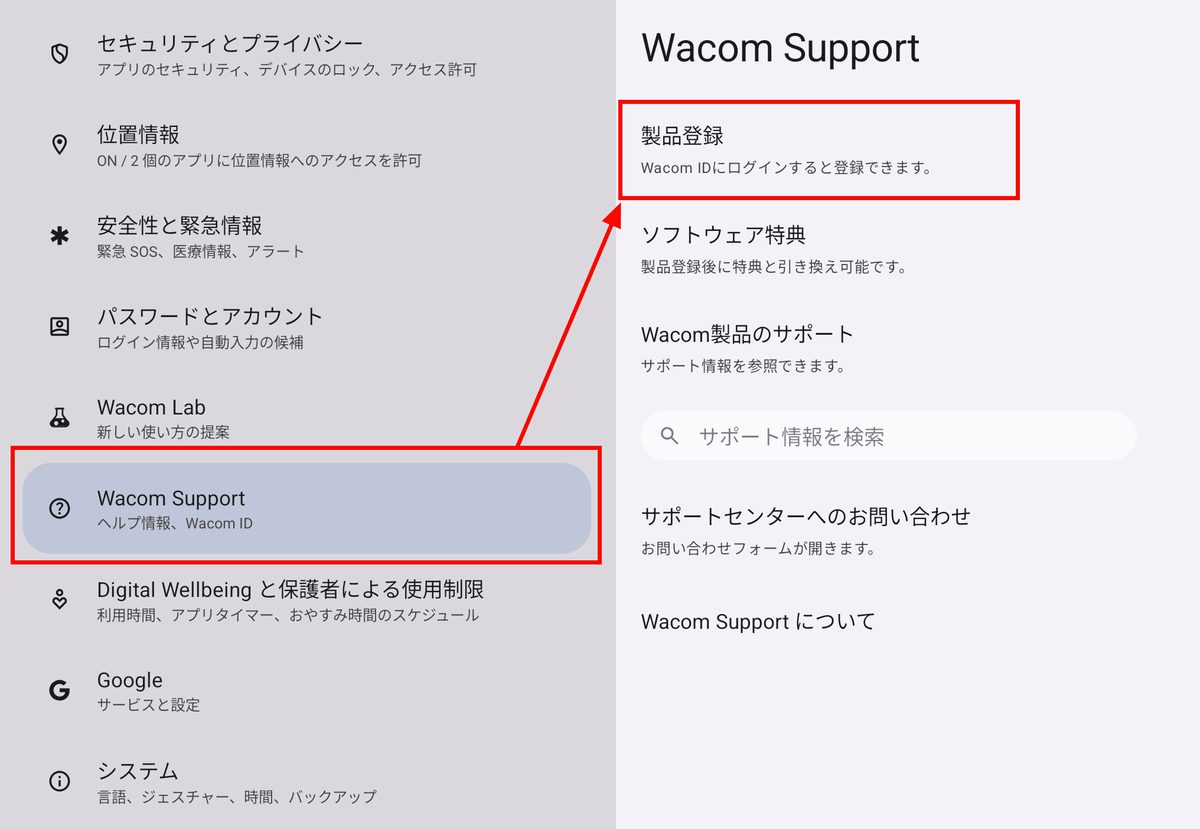
To use Instant Pen Display Mode, you must first register your MovinkPad Pro 14 with your Wacom ID. Select 'Wacom Support' from the Settings app and tap 'Register Product.'
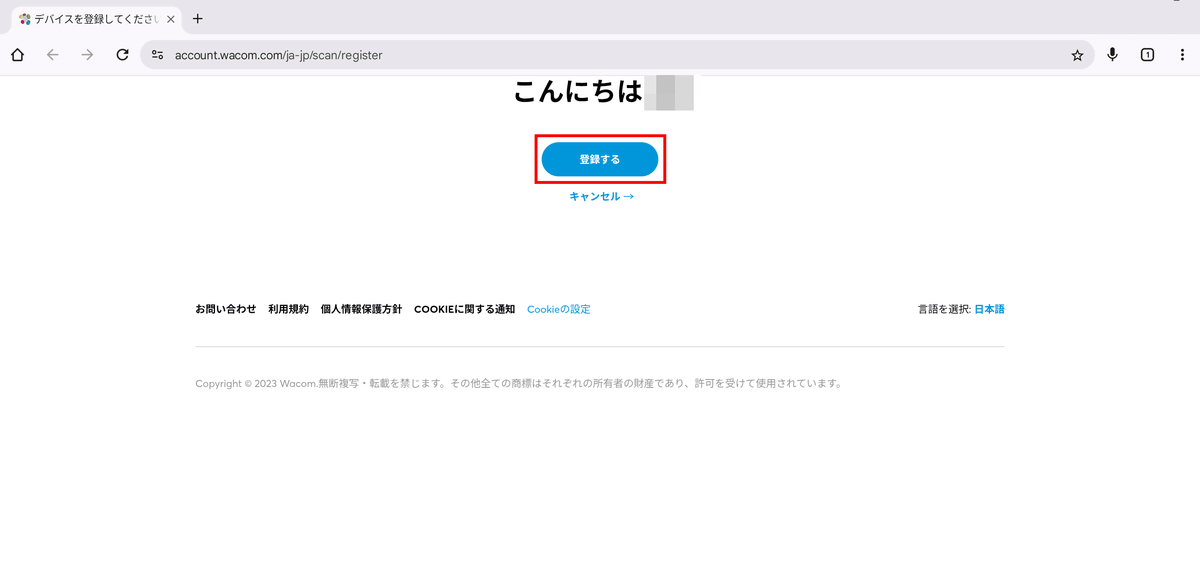
A browser will open, so log in to your Wacom ID and tap 'Register.'
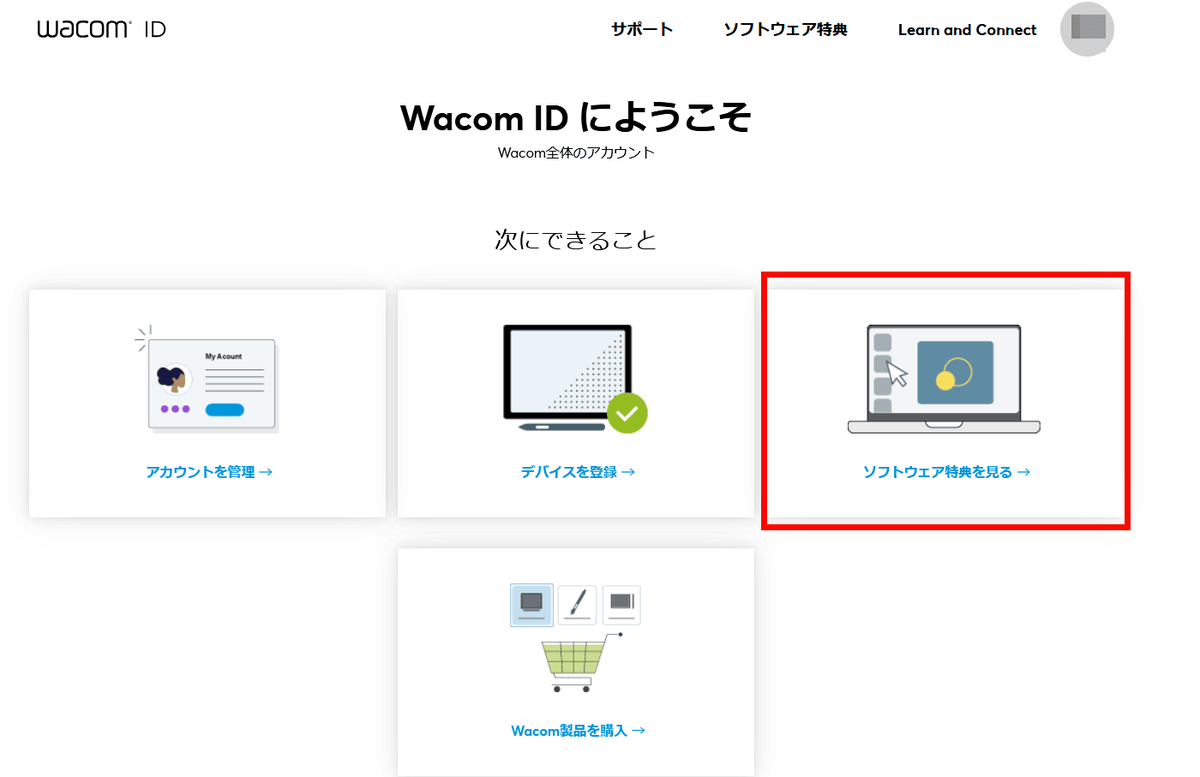
After registering your product, log in to your Wacom ID on your PC and install the Instant Pen Display Mode for PC from 'View Software Benefits.' Note that the MovinkPad Pro 14 used in this example was borrowed from Wacom, so the steps and screen displays may be slightly different.
If your PC is running Windows, simply install the Instant Pen Display Mode app. If you're using macOS, you'll need to enable Instant Pen Display Mode from the settings. For more information, see the video below.
Getting started with Wacom MovinkPad Instant Pen Display Mode - YouTube
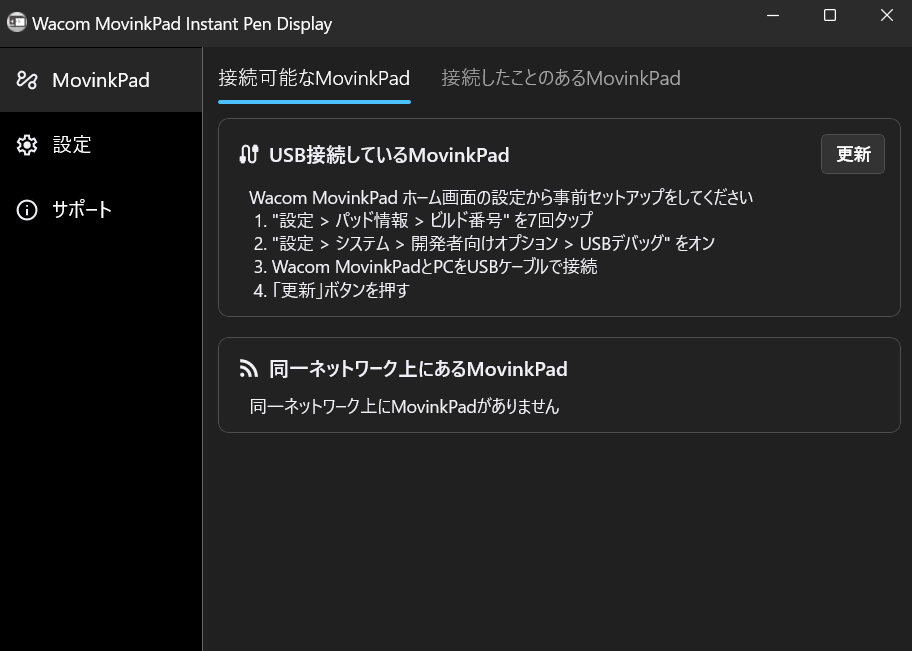
Once the installation was complete, the Instant Pen Display Mode app opened.
To use Instant Pen Display Mode, tap 'Wacom Lab' in the Settings app of MovinkPad Pro 14. Read the End User License Agreement (EULA) and tap 'Agree.'
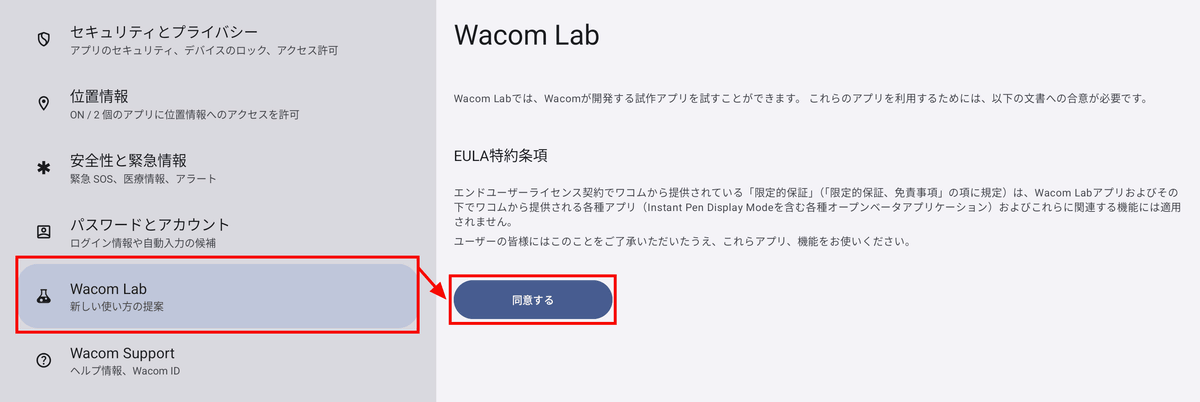
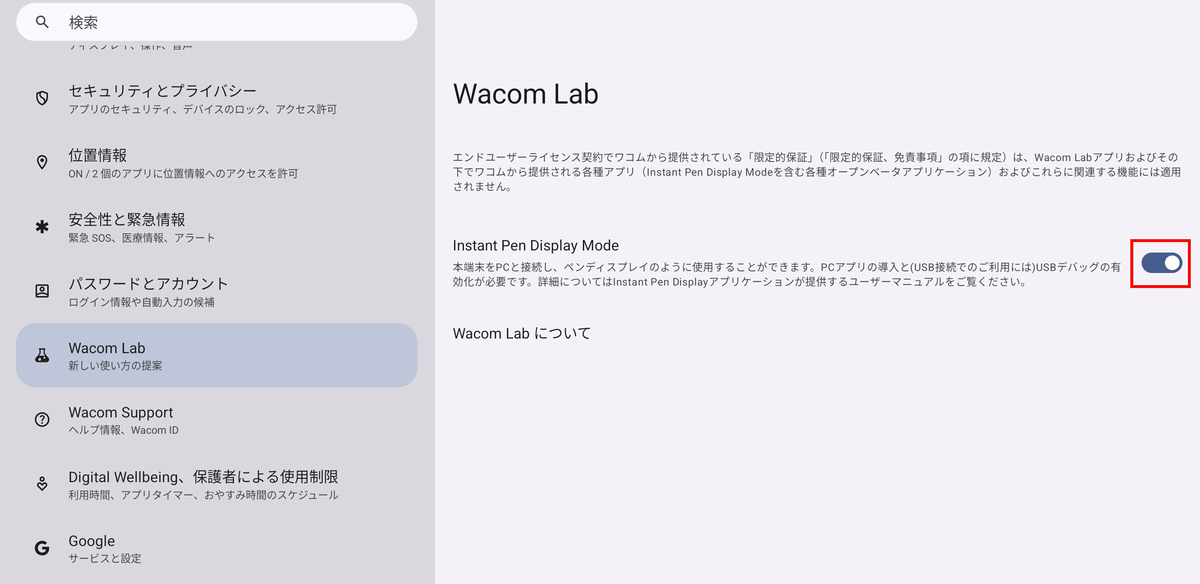
Wacom Lab is a feature that allows you to try out beta software, and at the time of writing, only the first version, Instant Pen Display Mode, was displayed. Tap the Instant Pen Display Mode toggle switch to turn it on.
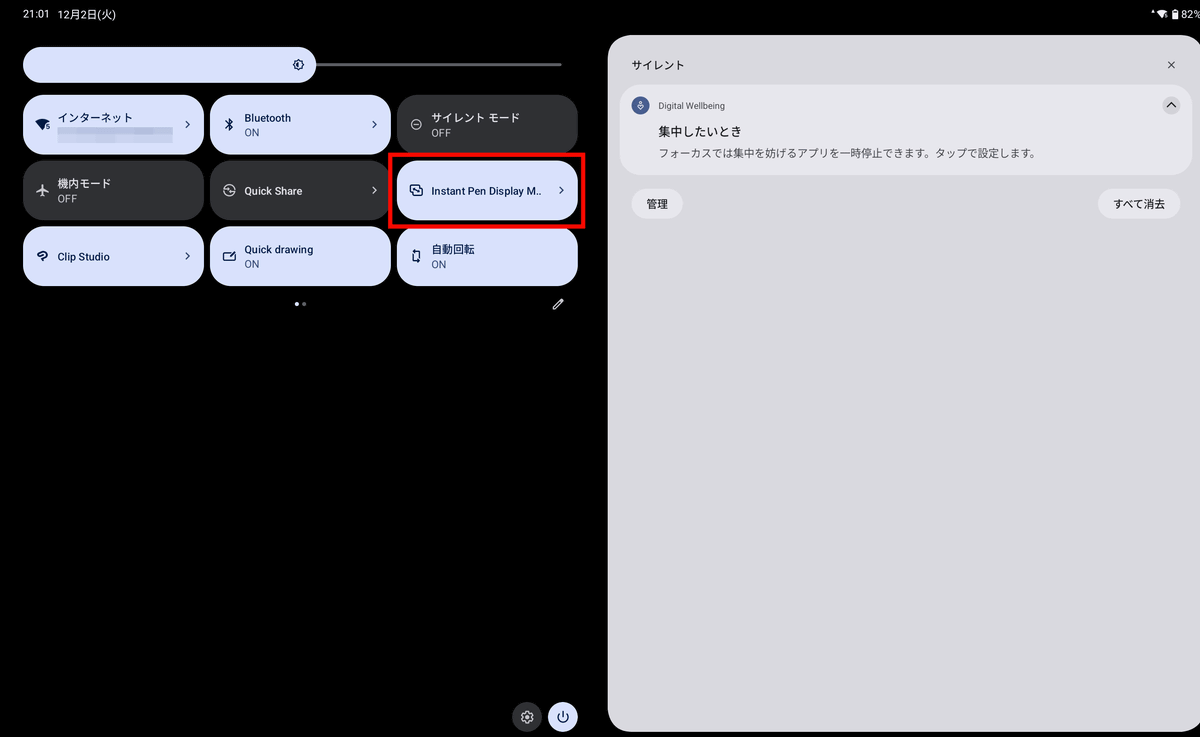
Swipe down from the top of the screen to open the notification panel, then tap 'Instant Pen Display Mode.'
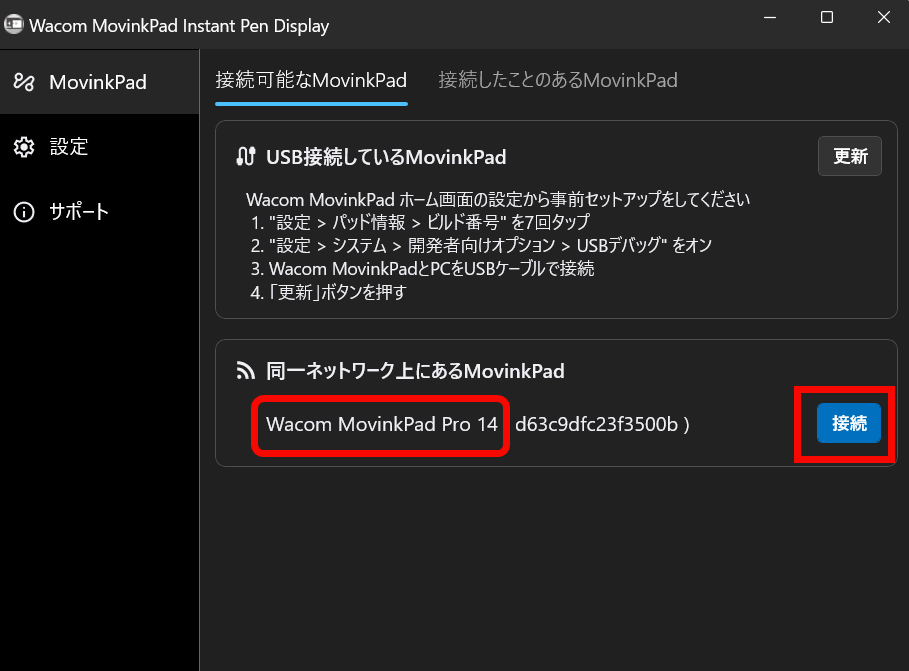
Then, the MovinkPad Pro 14 appeared in the Instant Pen Display Mode app on the PC as a 'MovinkPad on the same network.' Click 'Connect.'
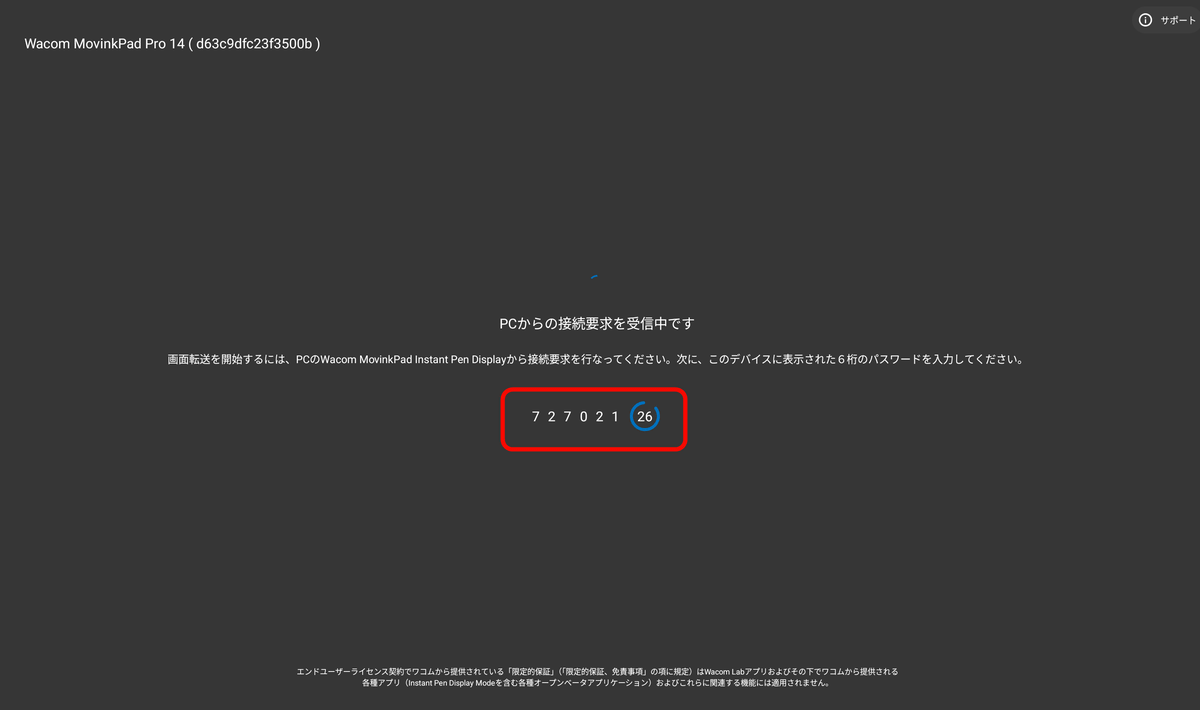
The connection password is displayed on MovinkPad Pro 14.
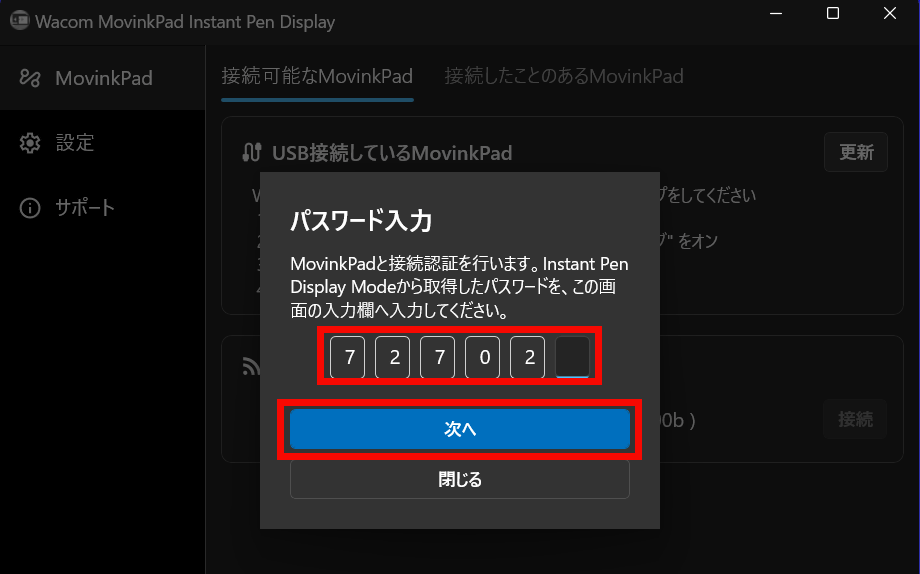
Enter your password in the Instant Pen Display Mode app on your PC and click 'Next.'
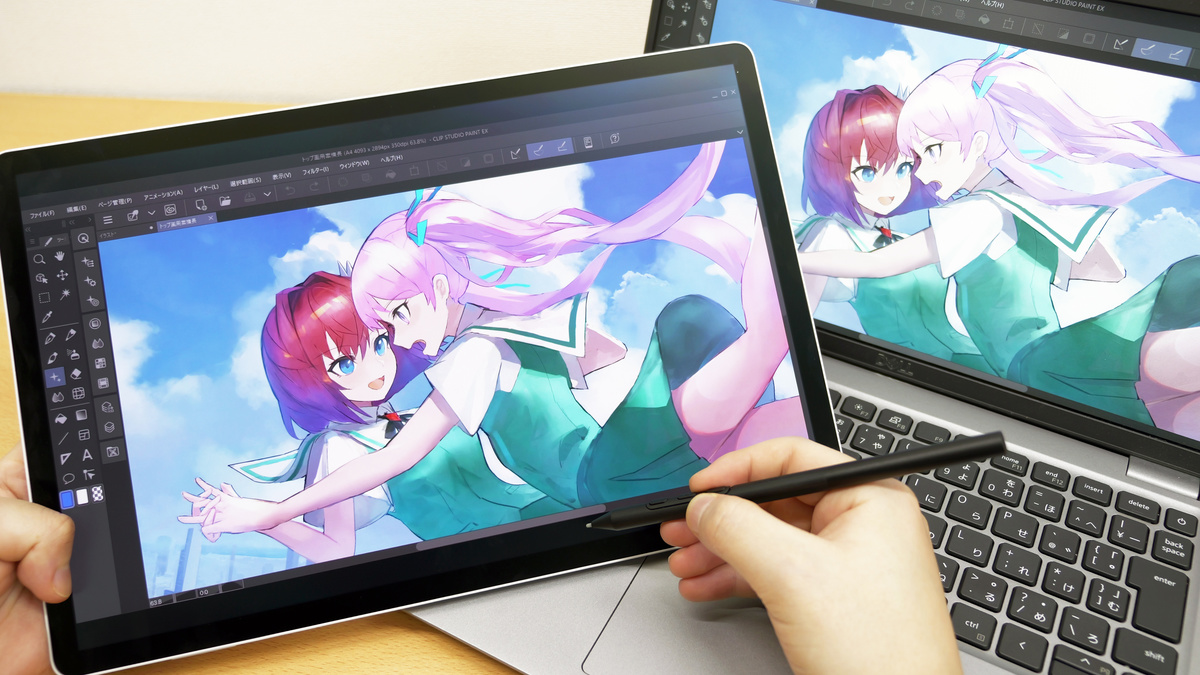
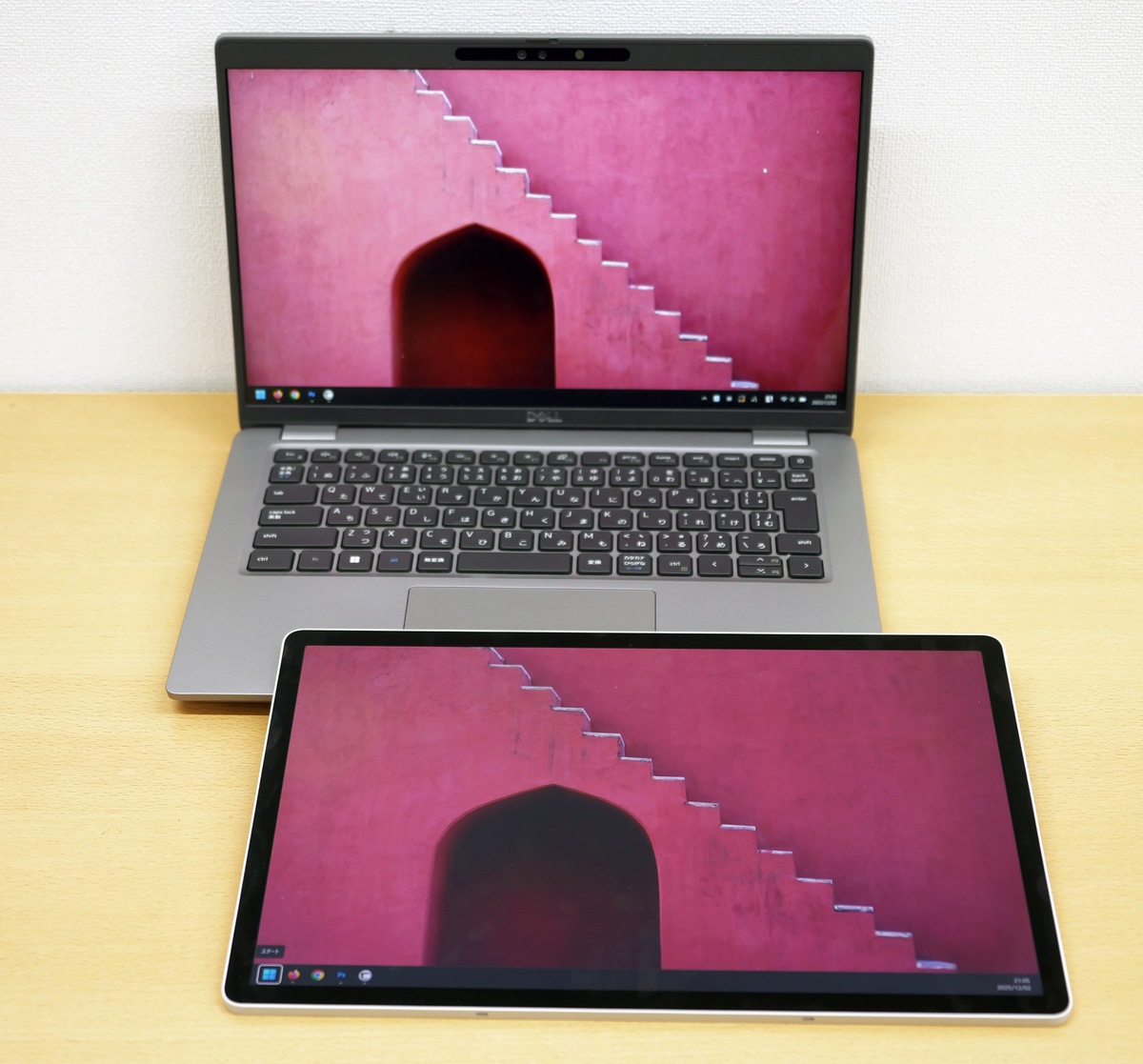
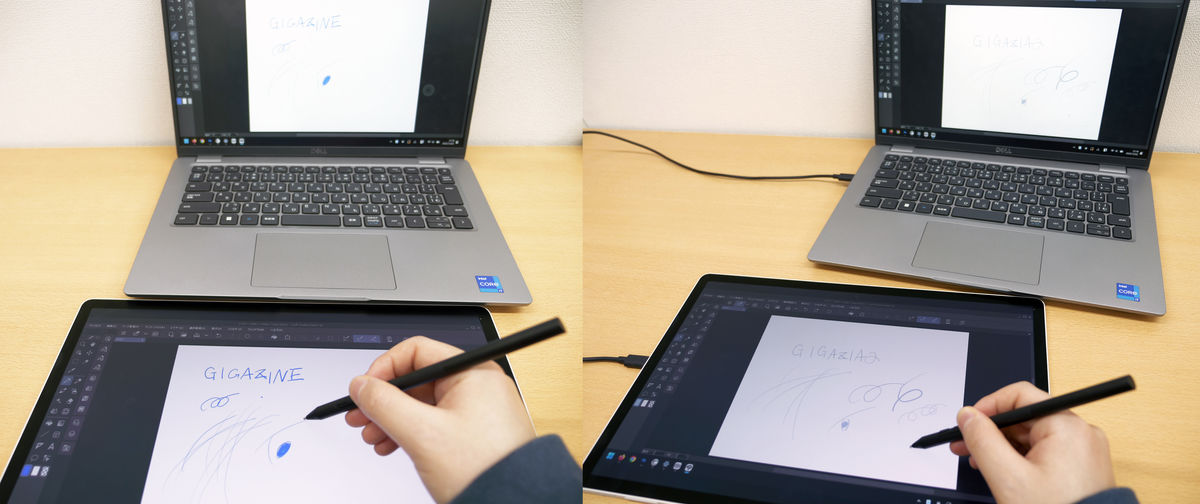
I was able to display the same screen as my PC on the MovinkPad Pro 14. I could also operate my PC by operating the MovinkPad Pro 14.
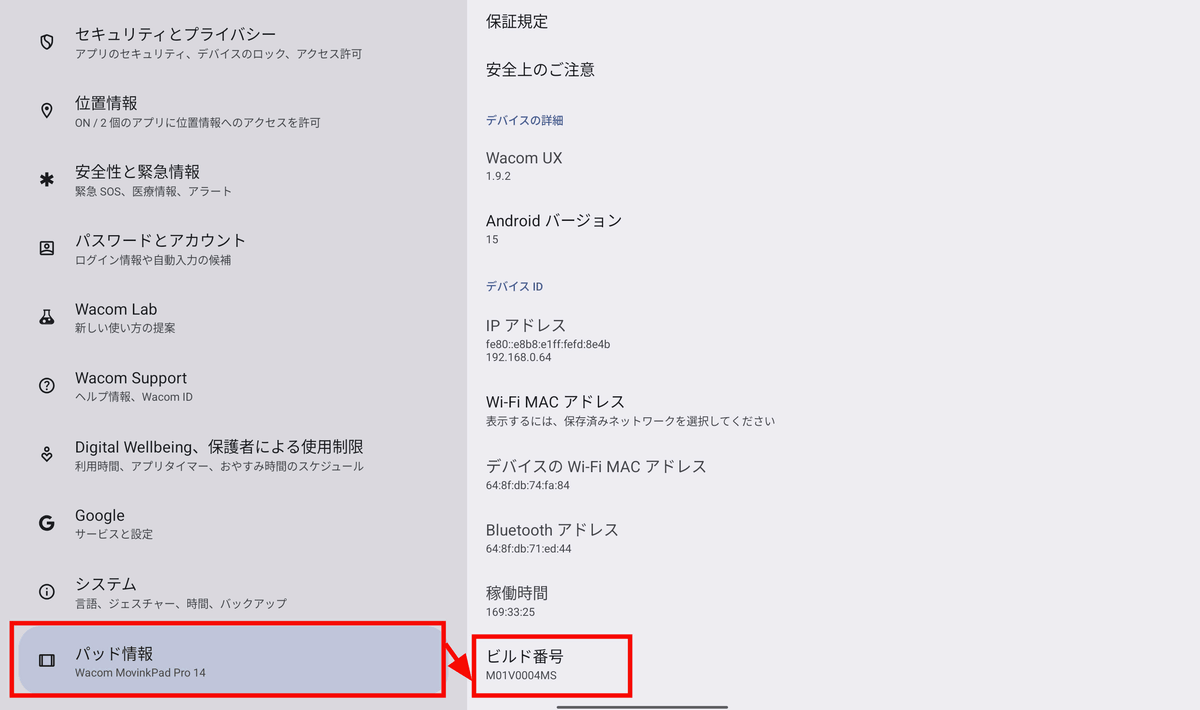
Next, we'll try connecting via USB in Instant Pen Display Mode. Please note that in order to connect via USB, you need to enable 'USB Debugging Mode' using the MovinkPad Pro 14's developer mode. First, select 'Pad Info' from the Settings app and tap the 'Build Number' at the bottom seven times in a row. This will enable developer mode.
With Developer Mode enabled, you can access Developer Options by opening System.
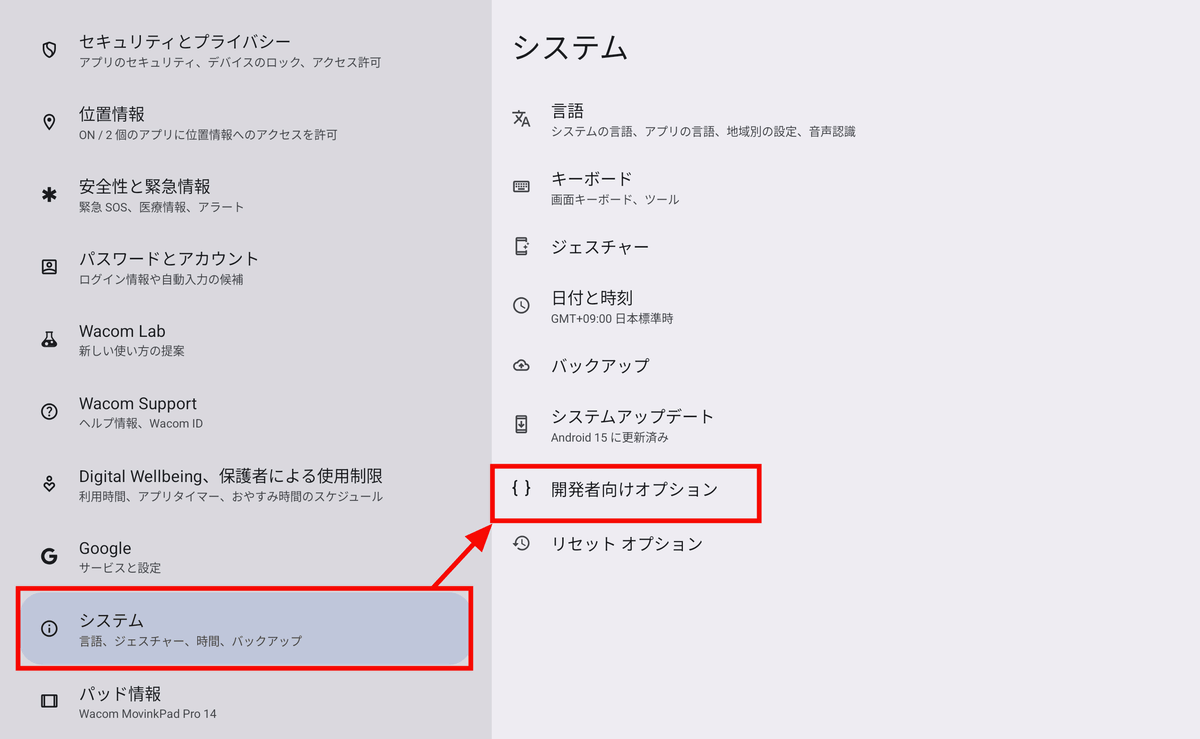
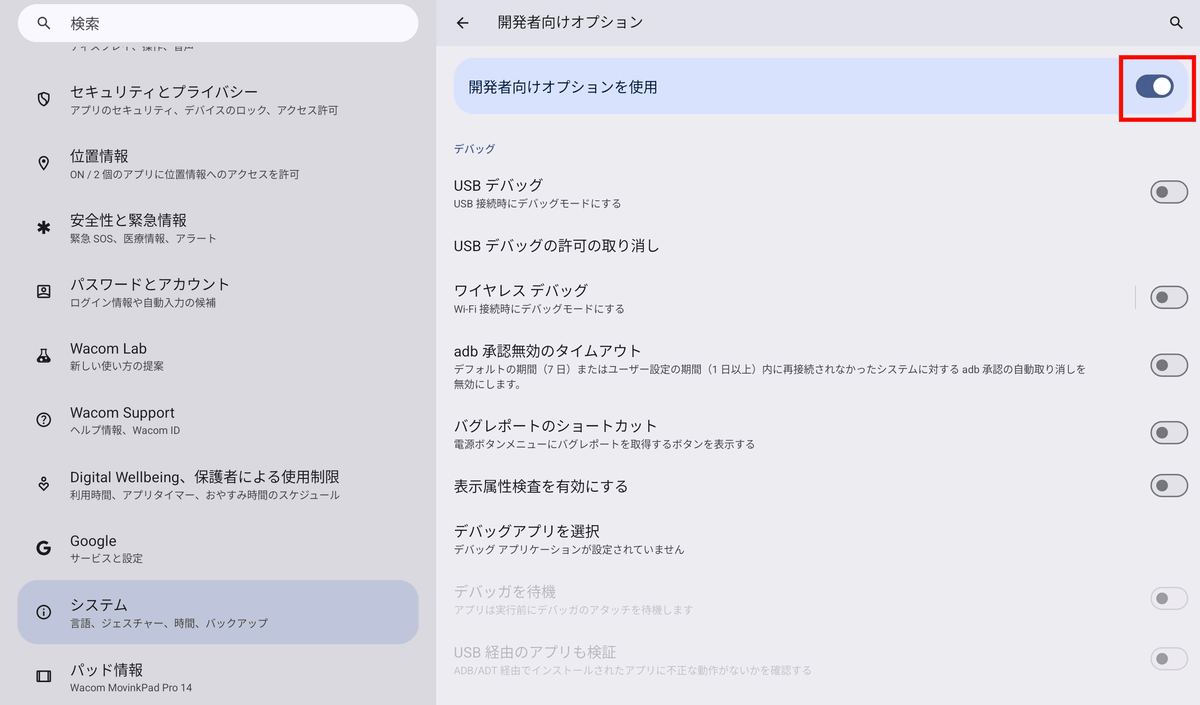
Toggle on 'Use developer options'.
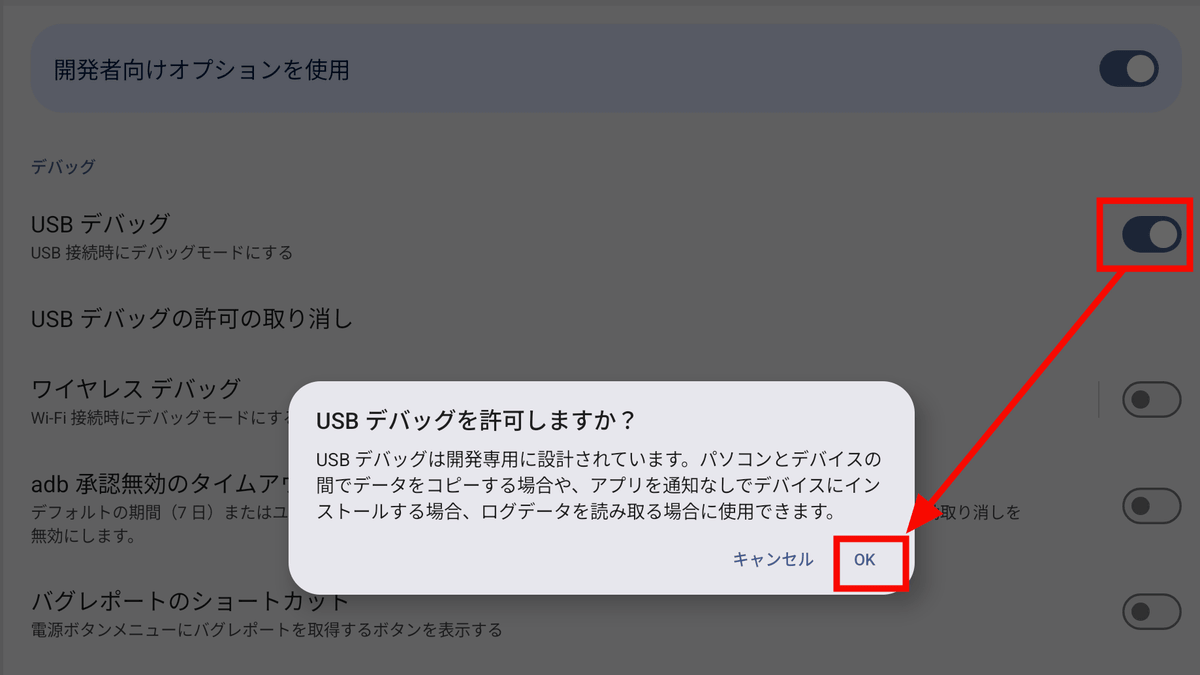
Tap the 'USB debugging' toggle switch, then tap 'OK' when prompted 'Allow USB debugging?'. You're ready to go.
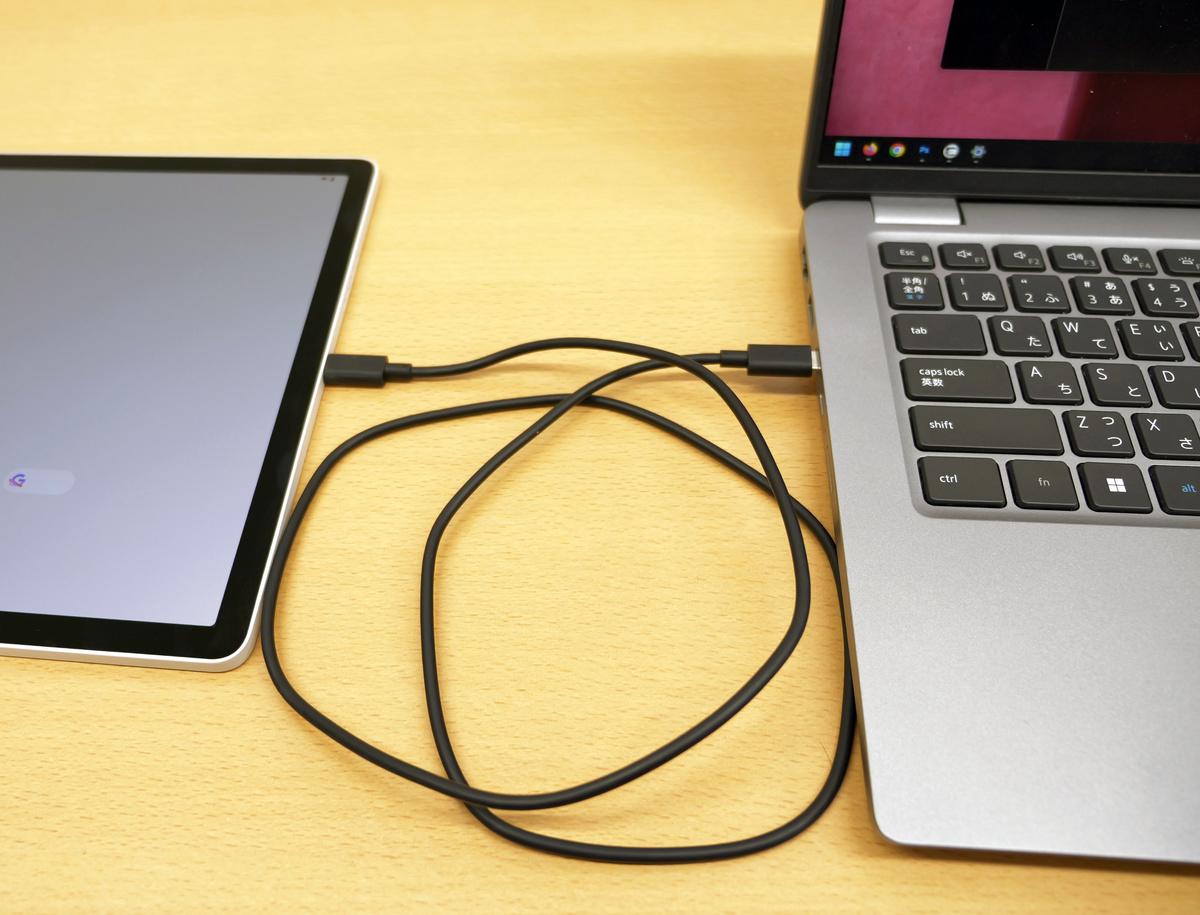
Connect your PC and MovinkPad Pro 14 with a USB cable.
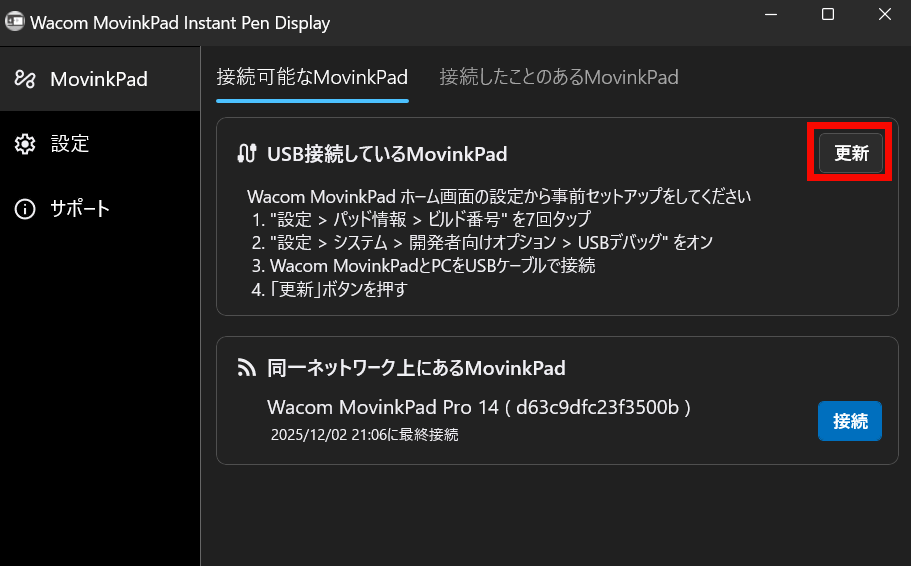
In the Instant Pen Display Mode app on your PC, click 'Update' for 'USB-connected MovinkPad.'
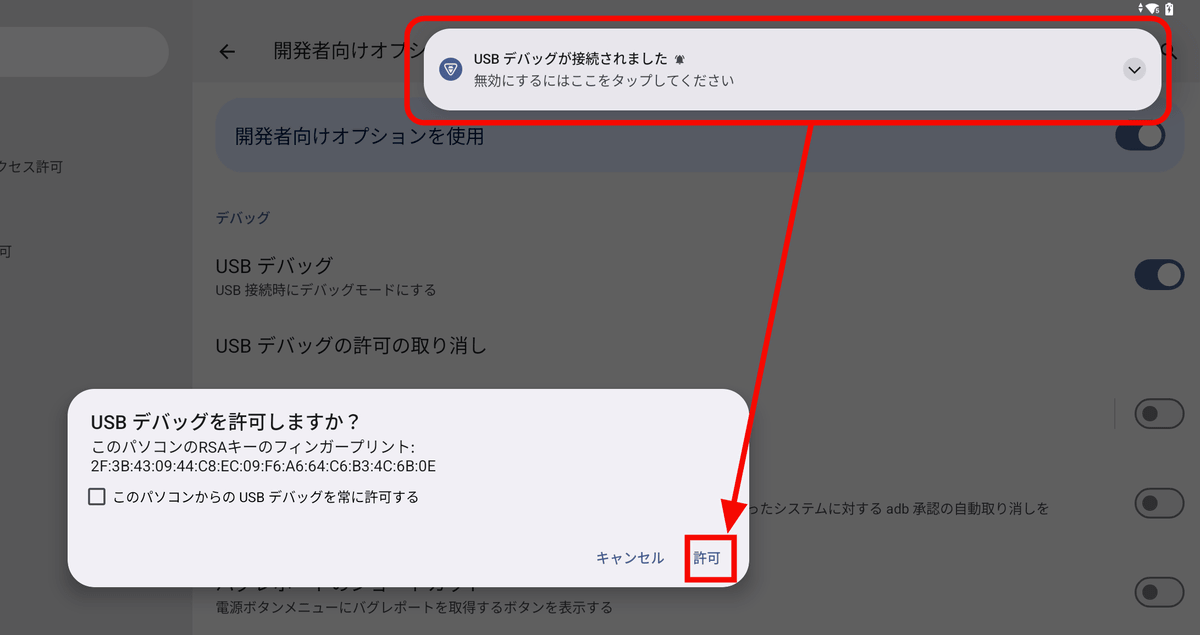
The MovinkPad Pro 14 will display the message 'USB debugging connected,' so tap 'Allow.'
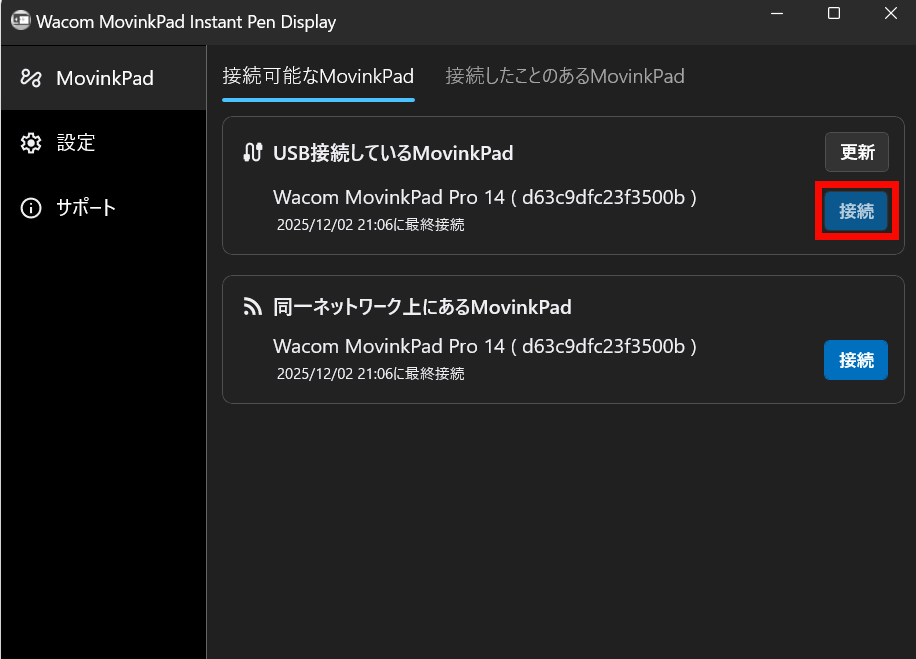
Click 'Connect' in the Instant Pen Display Mode app on your PC.
I was able to display my PC screen on the MovinkPad Pro 14 via USB connection.
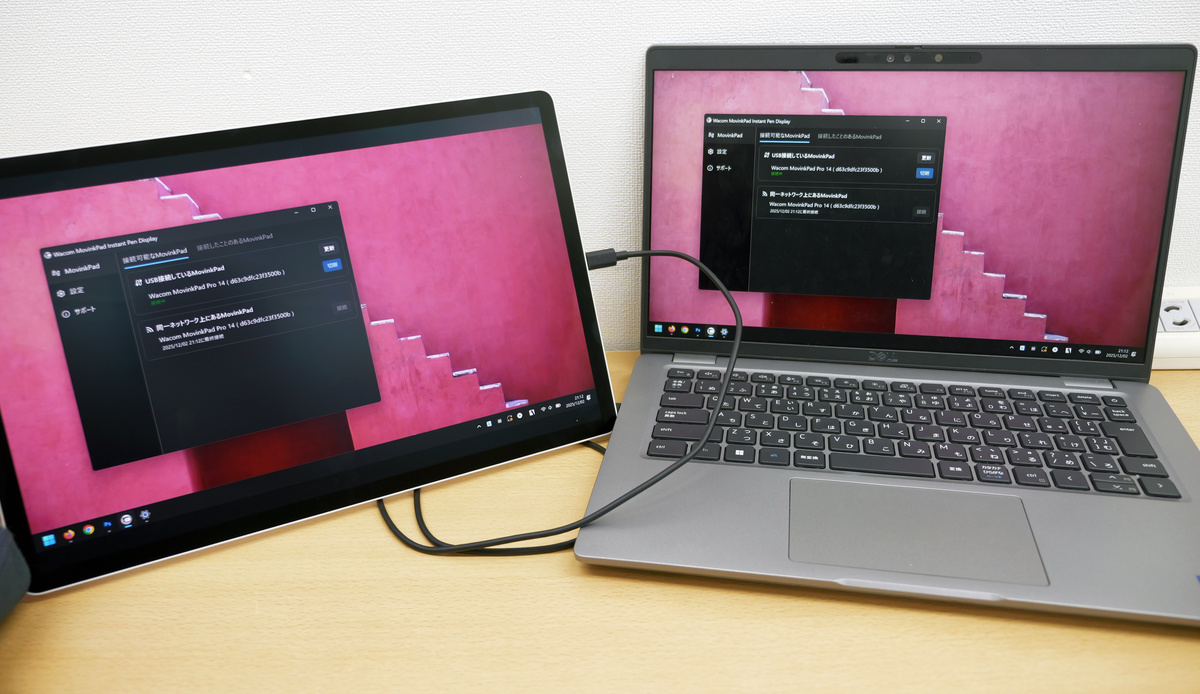
When I tried using the MovinkPad Pro 14 like a pen tablet using Instant Pen Display Mode, I noticed almost no delay in drawing, no lag in operation, and almost no misalignment of the pen tip, whether connected wirelessly or wired. Therefore, it seems possible to connect the MovinkPad Pro 14 to your PC in Instant Pen Display Mode and work like a pen tablet when you want to work on a large screen at home. However, it should be noted that this is an experimental feature that can be used as a secondary tool, as the resolution of the PC and the MovinkPad Pro 14 are different, and significant enlargement can cause blurring of curves.
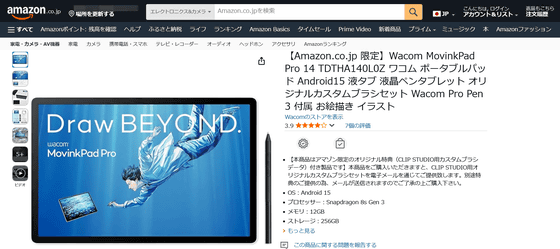
The Wacom MovinkPad Pro 14 will be released on October 31, 2025, and the price at the Wacom Store will be 144,980 yen including tax. It can also be purchased on Amazon, and the price is the same as the Wacom Store, 144,980 yen including tax. In addition, the Wacom MovinkPad Pro 14 comes with a one-year license for CLIP STUDIO PAINT DEBUT and a three-year license for CLIP STUDIO PAINT EX, so those who want to try digital drawing for the first time or those who want to switch from an entry model to a professional model can register an account and use it immediately.
Amazon.co.jp: [Amazon.co.jp Exclusive] Wacom MovinkPad Pro 14 TDTHA140L0Z, a portable tablet compatible with Android 15, includes a custom brush set and Wacom Pro Pen 3, and is ideal for drawing and illustration.
Related Posts: