Review of 'Draw Things,' a heavy-duty image generation AI tool that can be run locally on iPhones and Macs. It can also run large models like Qwen Image.
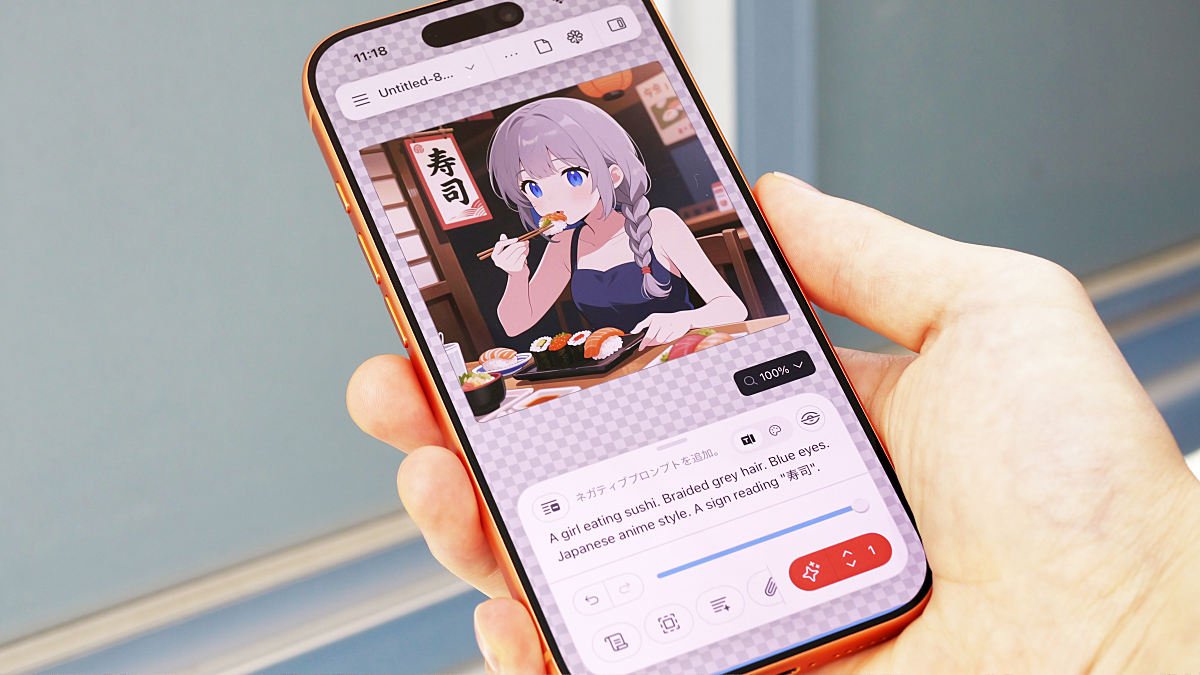
' Draw Things ' is a free image generation AI app for iPhone, iPad, and macOS that can generate images locally using a variety of models. It also runs large models like Qwen Image locally on the iPhone, so I tried it out.
Draw Things: AI-assisted Image Generation
'Draw Things: Offline AI Art' on the App Store
https://apps.apple.com/jp/app/draw-things-offline-ai-art/id6444050820
Draw Things was developed in 2022, a year when image generation AI was gaining attention with the advent of Stable Diffusion . GIGAZINE reviewed it early on, but in the three years since, it's been updated to support macOS, enable ControlNet, and support LoRA learning, making it a truly unique, highly functional app. When Apple announced the iPad Pro with the M5, it was used alongside other popular apps like Final Cut Pro and DaVinci Resolve to promote its performance, demonstrating its recognition even from Apple.
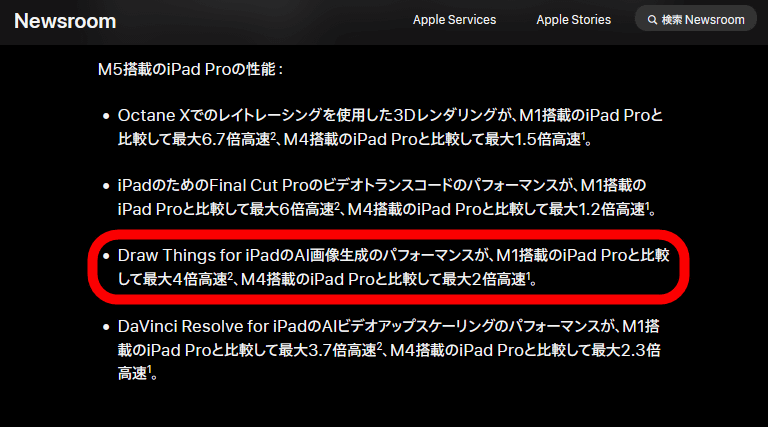
So, I'll actually try using Draw Things. Draw Things is compatible with iPhone, macOS, and iPad, but this time I want to check whether I can run large models locally on an iPhone, so I'll install it on
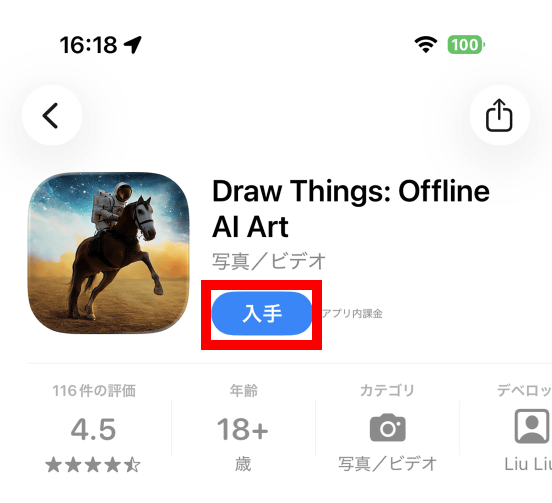
Open the Draw Things distribution page on the App Store and tap 'Get.'
Once the installation is complete, tap 'Open.'
When you first launch the app, you'll be prompted to choose how you want to prepare your model. Draw Things offers three options for preparing your model: downloading a model from the official server, importing a previously downloaded model, or using a model stored on the cloud instead of locally.
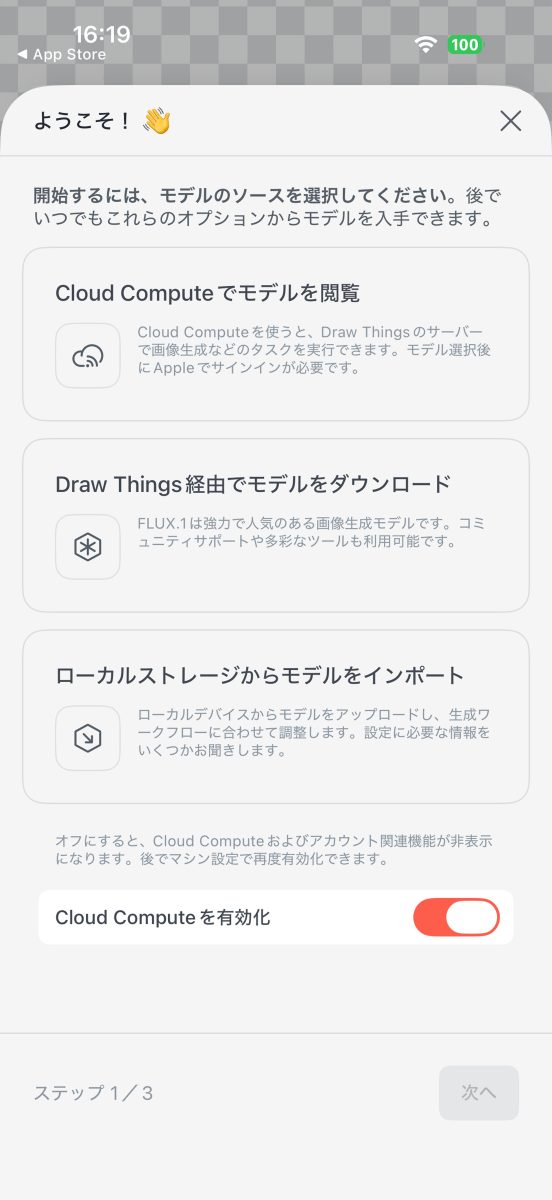
This time, I wanted to test the iPhone's local generation capabilities, so I toggled off 'Enable Cloud Compute,' tapped 'Download model via Draw Things,' and then tapped 'Next.'
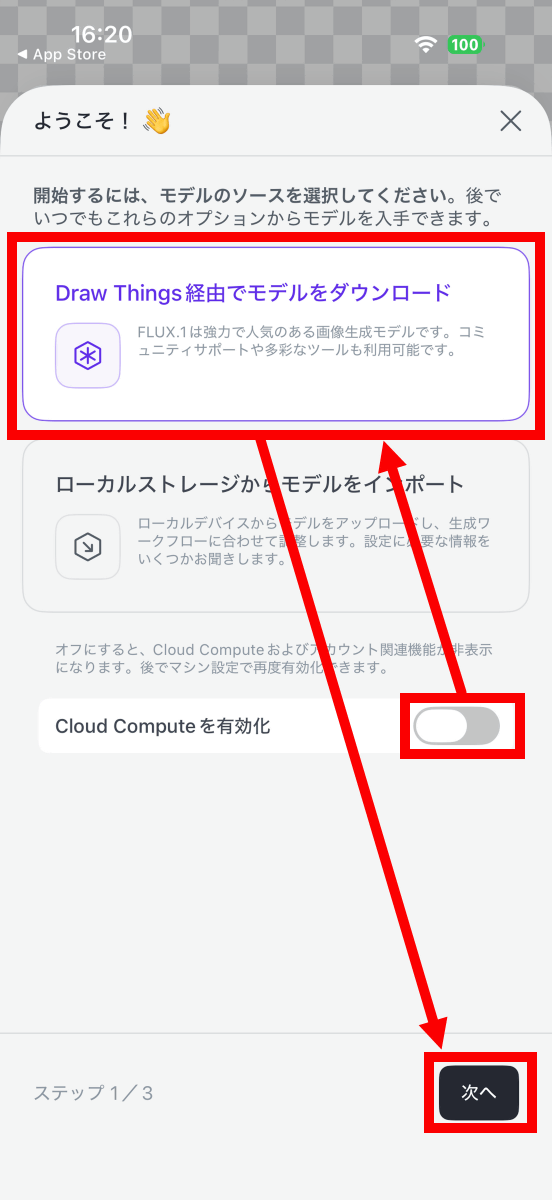
Next, the model selection screen will appear. There are many models available, including 'Qwen Image,' 'Stable Diffusion XL,' 'HiDream,' and 'FLUX.' In this example, I selected 'Qwen Image 1.0' and tapped 'Next.'
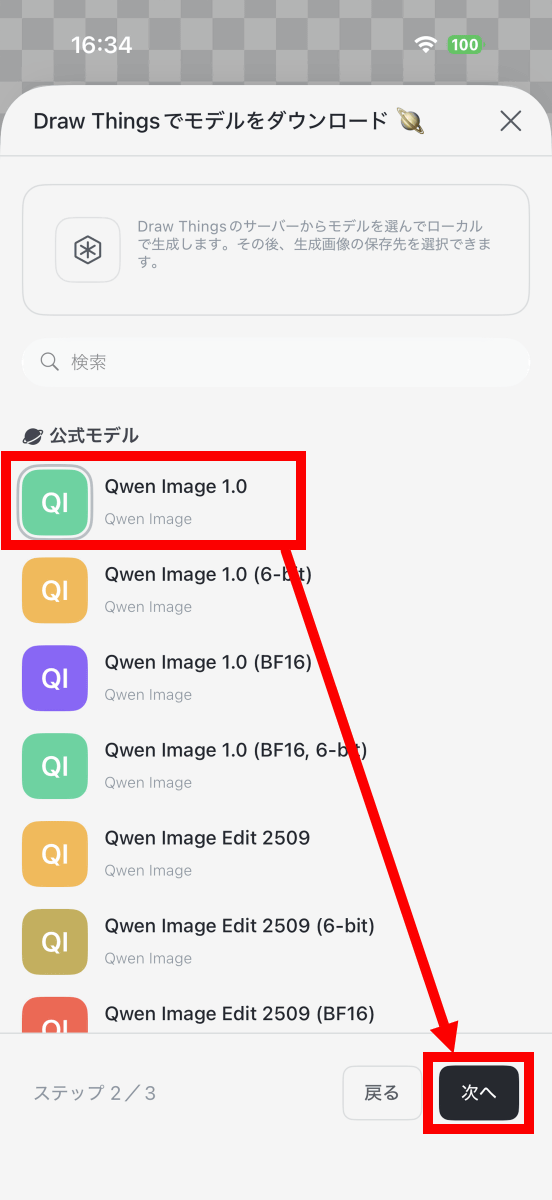
The AI model used to generate images has a very large file size, so a data usage warning will be displayed. Make sure there are no problems and then tap 'Continue.'
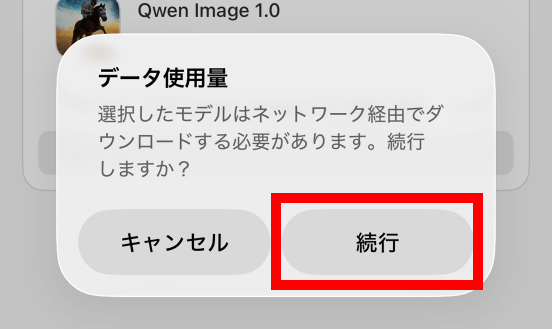
The download started. Qwen Image 1.0 is about 20GB, and it didn't finish downloading after 3 hours, so I left it overnight with the screen on.
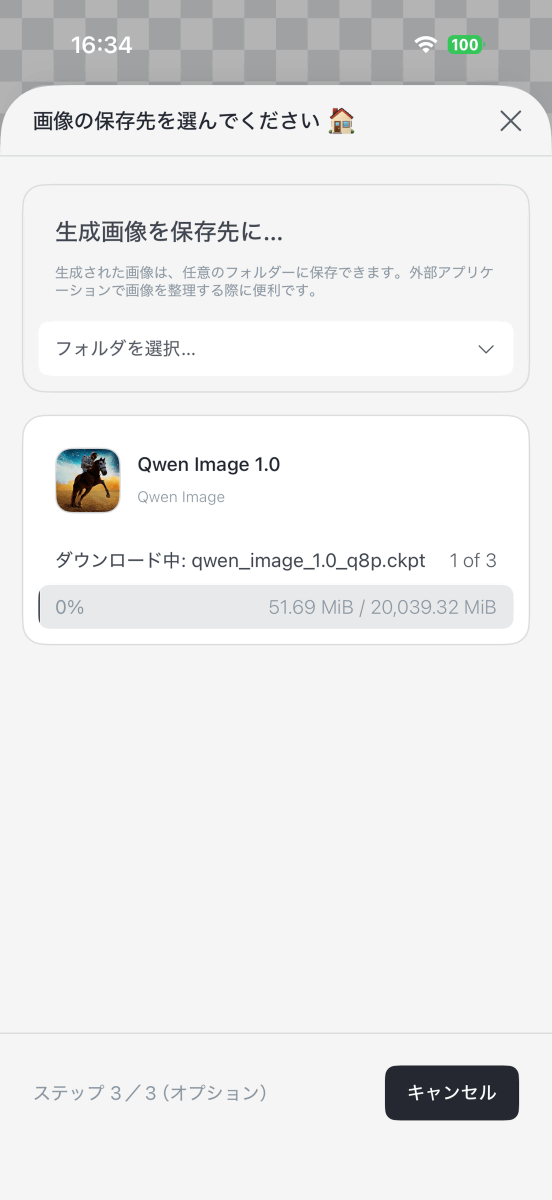
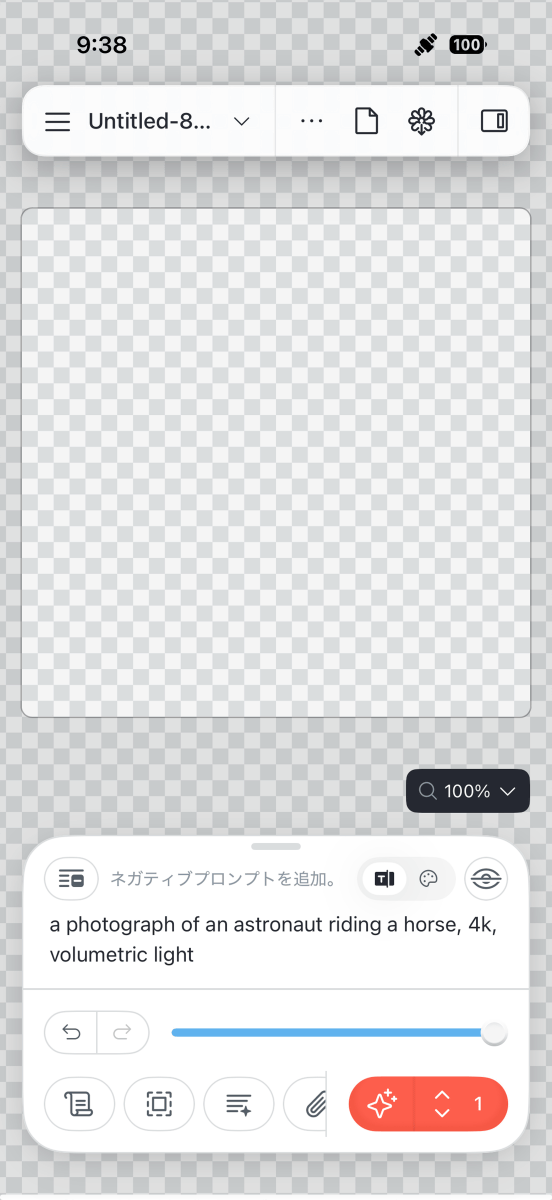
When I checked my iPhone 16 Pro the next day, the model download was complete and the image generation screen was displayed.
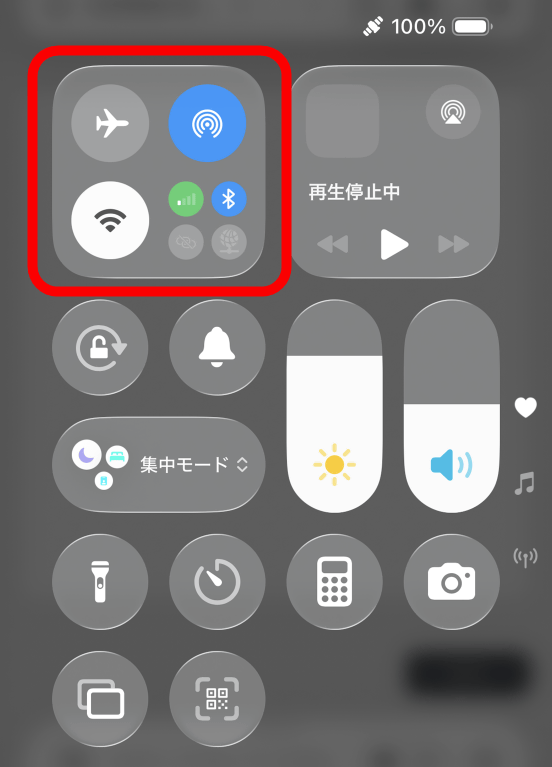
Since we want to run the process entirely locally, we'll turn off Wi-Fi. The data icon is green, but this device doesn't have an eSIM registered, so it can't connect to a mobile network.
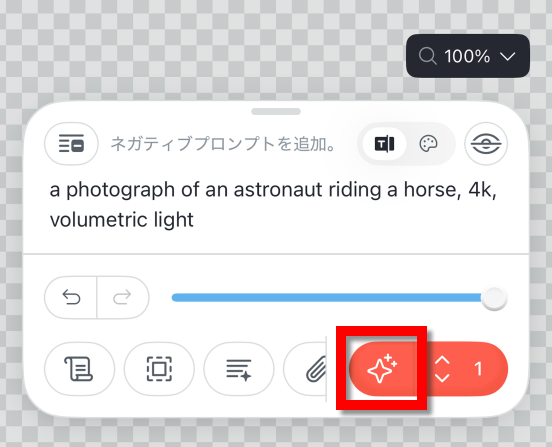
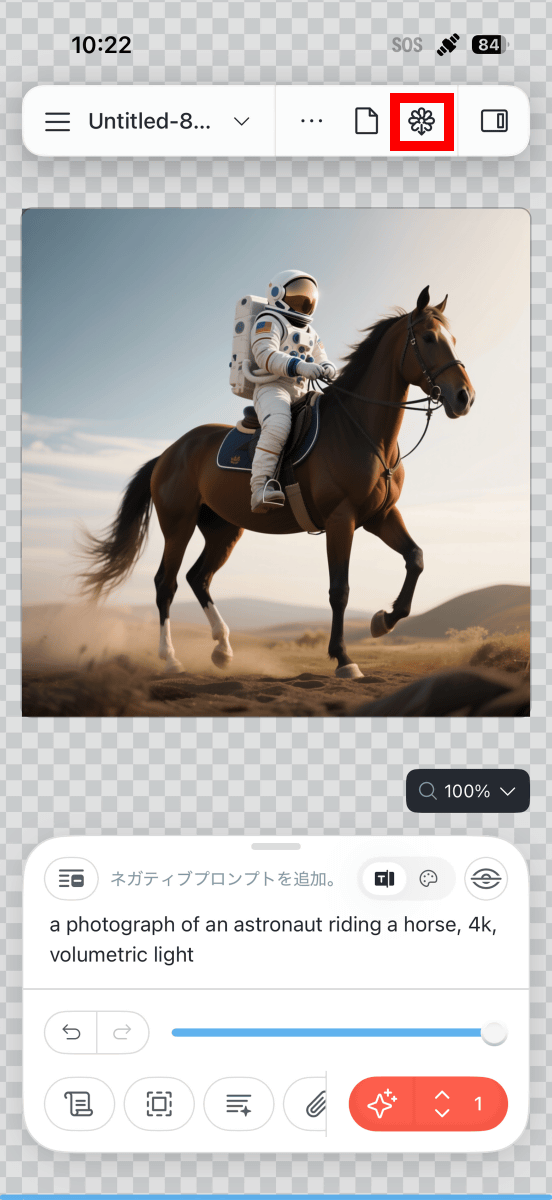
The initial prompt was 'a photograph of an astronaut riding a horse, 4k, volumetric light,' so I just tapped the Start Generation button (circled in red).
Once generation begins, the current model name, number of steps, and other settings will be displayed on the screen. The progress and estimated completion time will also be displayed in the red frame.
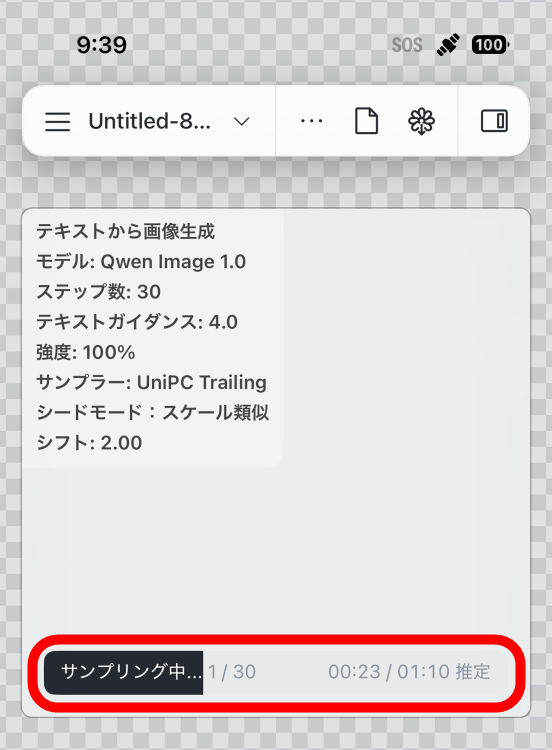
Immediately after starting image generation, the estimated remaining time was around 1 minute, but that was just the time required for one step. By default, it was set to generate in 30 steps, and after completing one step, the estimated completion time changed to over 30 minutes.
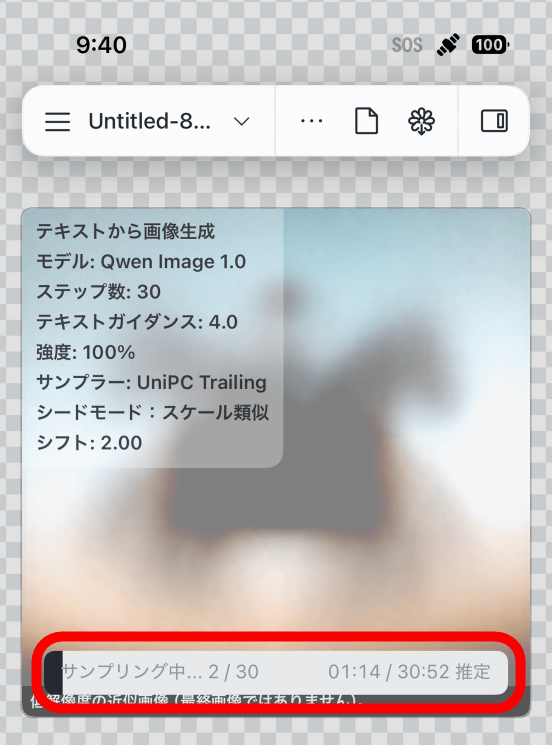
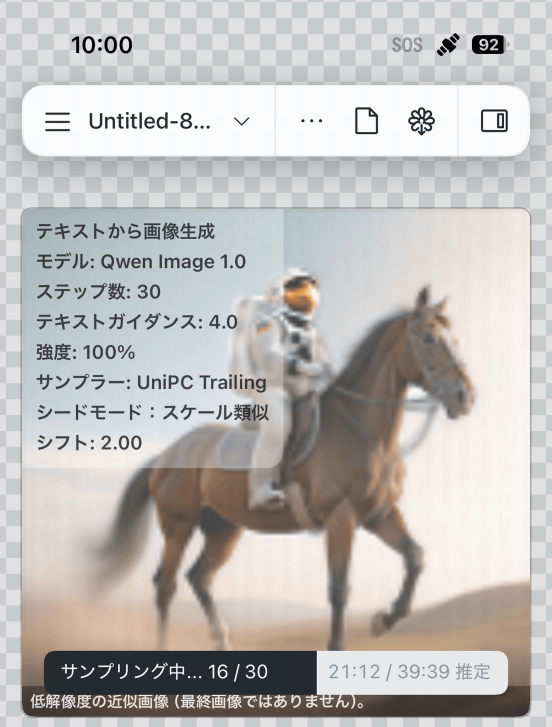
The preview image will be updated as the number of steps increases.
In the end, it took 43 minutes and 58 seconds to generate one image. It took a long time, but it's amazing that Qwen Image 1.0 can run on an iPhone without any complicated settings.
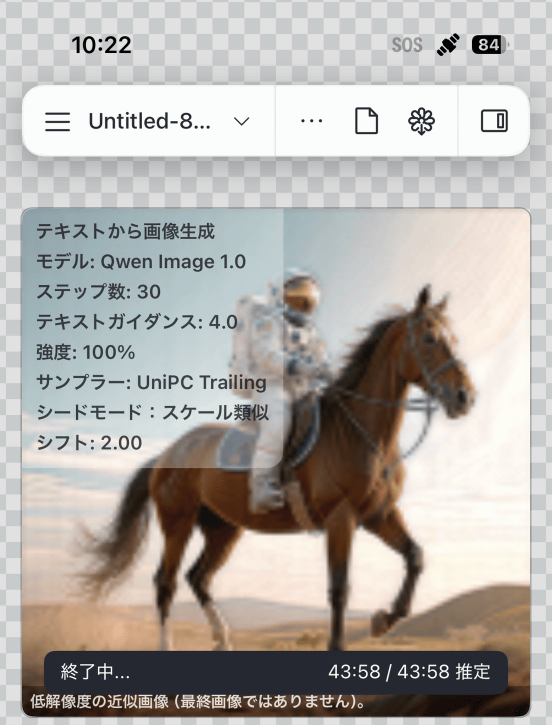
Once generation is complete, you can save the image by tapping the button in the red frame at the top.
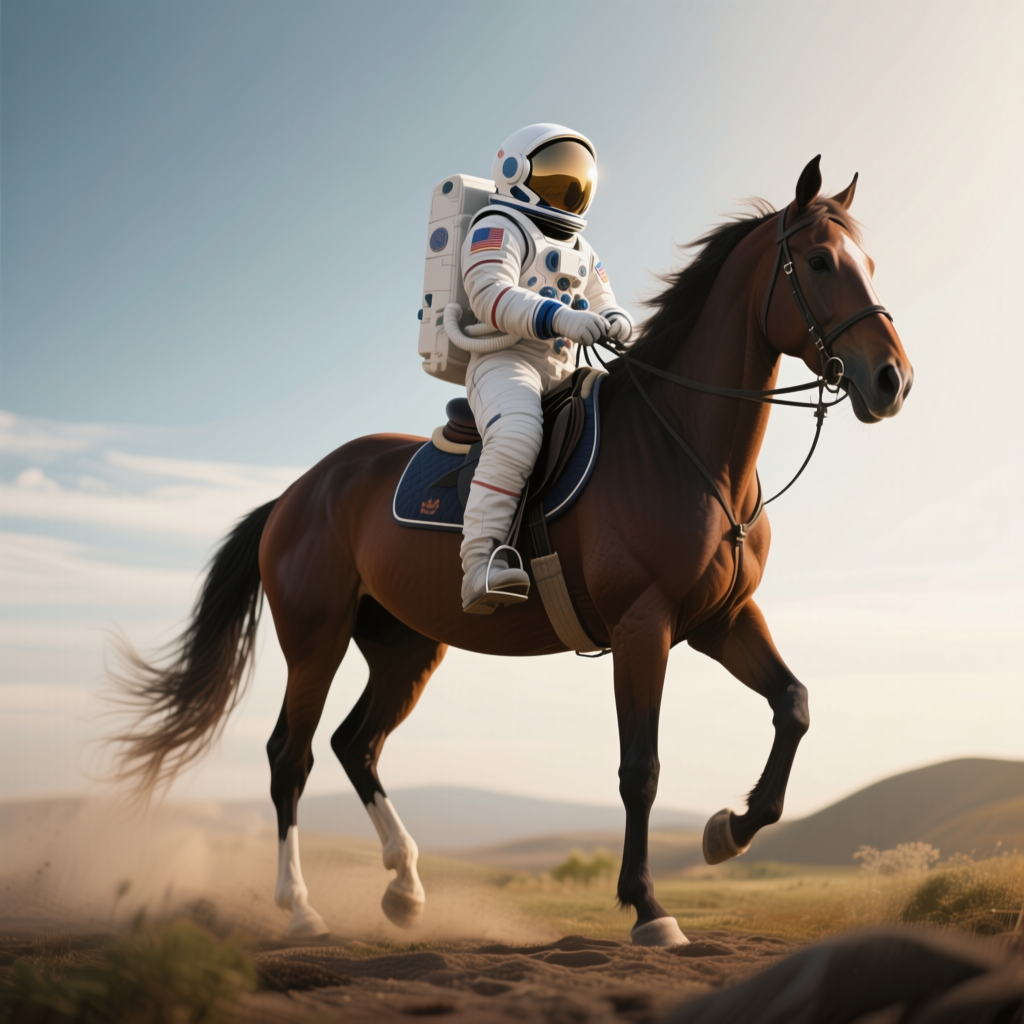
The saved image is below. The resolution is 1024 x 1024 pixels and the file size is 1.07 MB. The image below has been reduced in size; click on the image to see the original image before reduction.
Qwen Image 1.0 is also good at generating 'anime-style images' and 'images containing kanji and alphabets.' So, I tried generating an image with the prompt 'A girl eating sushi. Braided gray hair. Blue eyes. Japanese anime style. A sign reading 'Sushi'.'
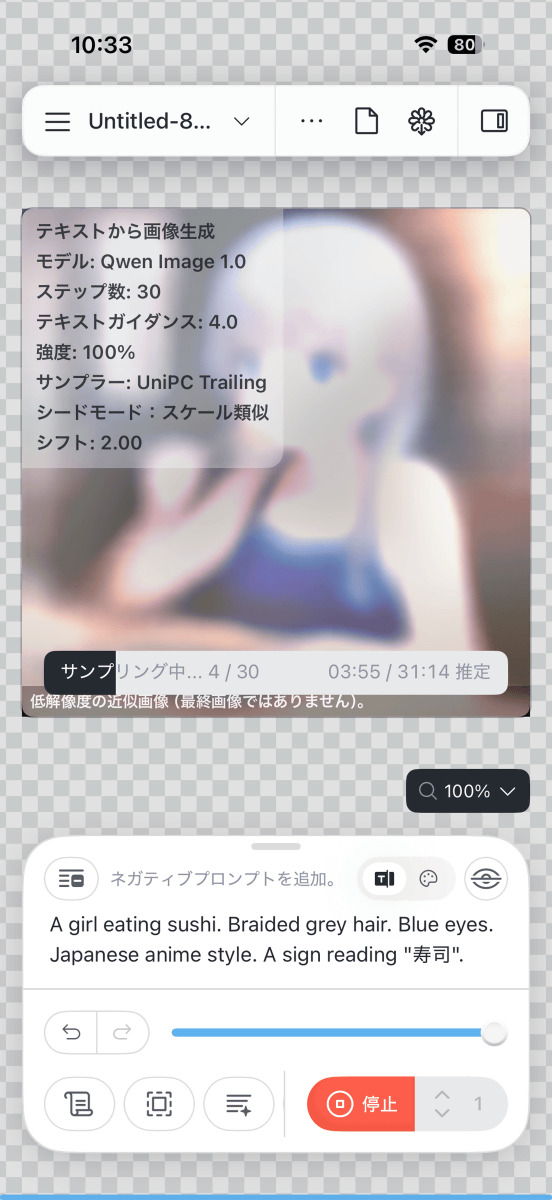
It took about 45 minutes to complete the printing. The battery consumption was quite high, and after printing two images from a fully charged state, the battery was down to 64%.
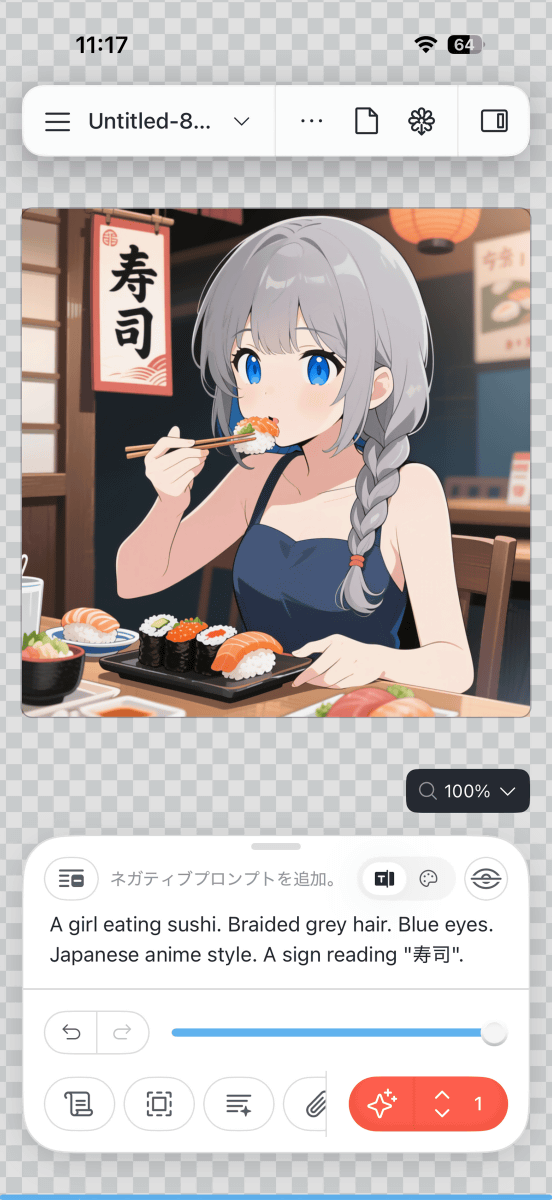
The generated image is shown below. Although the tips of the chopsticks look a bit strange, the overall illustration is of high quality. The character for 'sushi' is also drawn without any flaws.

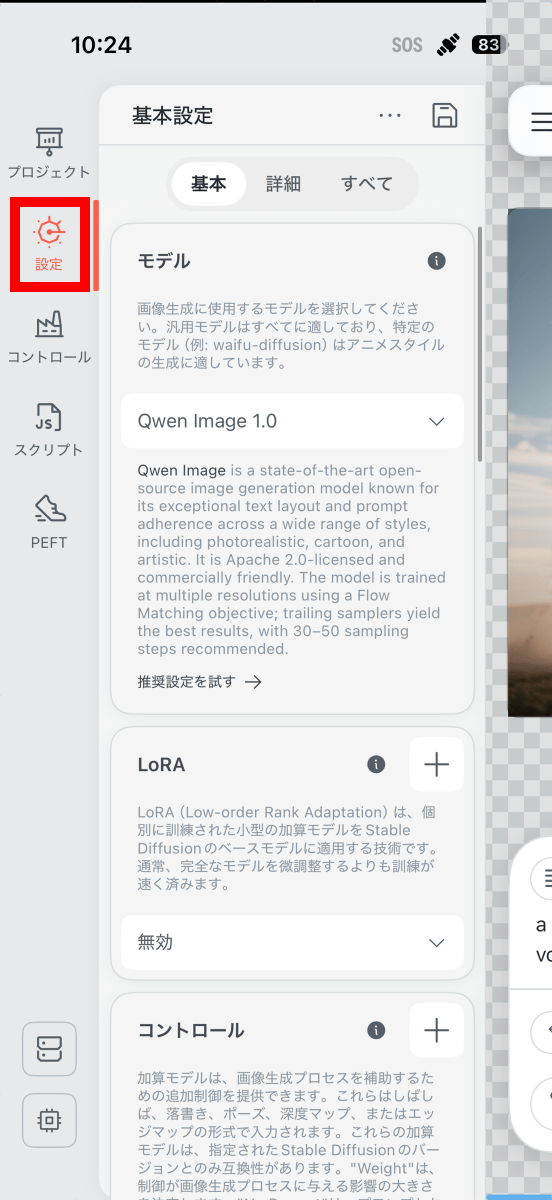
Tap 'Settings' in the menu on the left side of the screen to specify the model and LoRA.
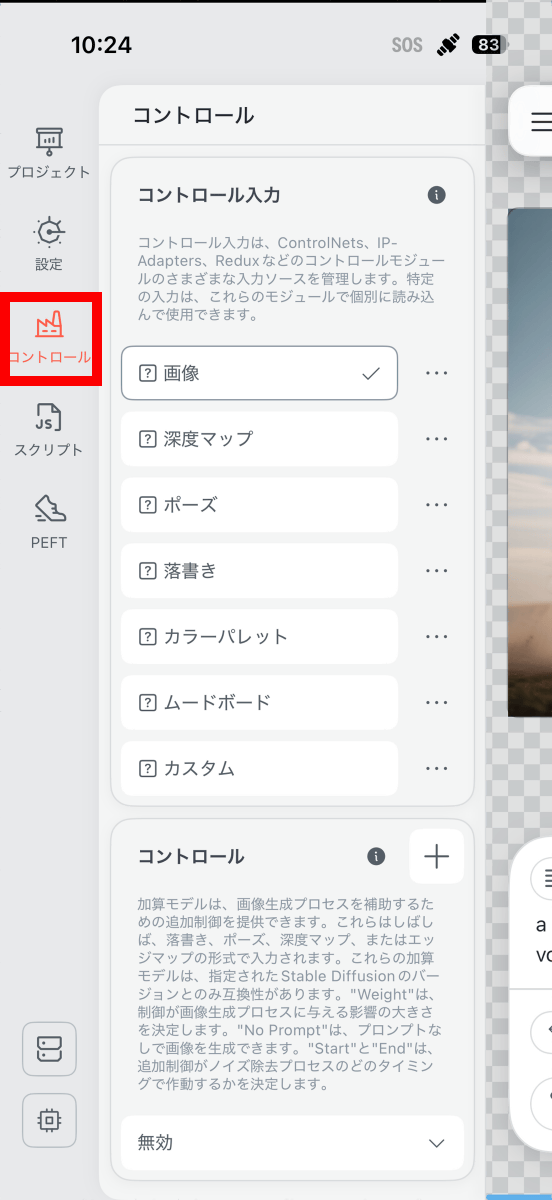
Additionally, tapping 'Control' will open the control input screen, where you can use ControlNet to perform advanced operations such as specifying depth maps and poses.
Related Posts:
in AI, Software, Smartphone, Review, Posted by log1o_hf