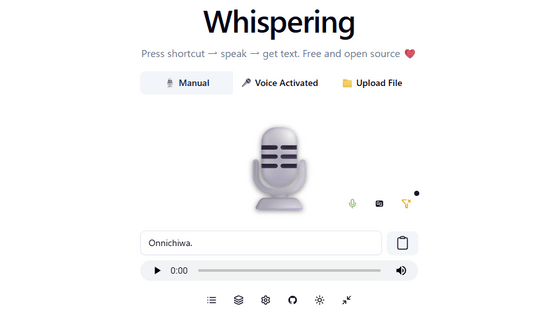
'speech.cpp,' which can transcribe recorded audio, transcribe in real time, and read text aloud, can run on CPU alone without a GPU.

' speech.cpp ' is a free, open-source tool that combines Japanese-specific speech recognition AI '
nyosegawa/speech.cpp: Speech synthesis, speech recognition and voice activity detection for voice conversation, in C++ on ggml
https://github.com/nyosegawa/speech.cpp
◆Installation of speech.cpp
speech.cpp is compatible with Windows, macOS, and Linux. This time, we will install it on a PC running Windows 11 by running the following command from PowerShell.
[code]irm https://raw.githubusercontent.com/nyosegawa/speech.cpp/main/install.ps1 | iex[/code]
Once the installation is complete, restart PowerShell and run the following command to launch the web interface, specifying that it should run on the CPU only.
[code]speech serve --open --device cpu --host localhost[/code]
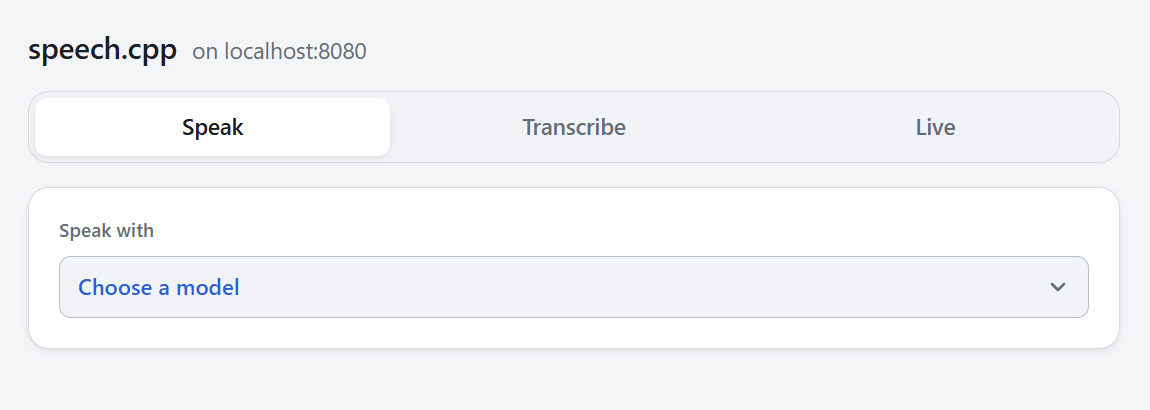
When you open 'http://localhost:8080/' in your browser, you will see three tabs at the top: 'Speak' for text-to-speech, 'Transcribe' for transcribing from audio files, and 'Live' for real-time transcription.
◆Generate Japanese speech from text
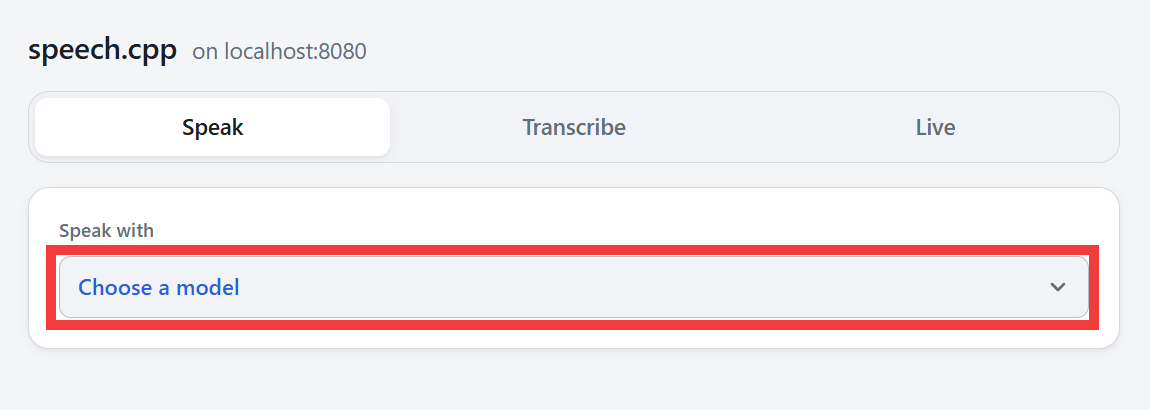
First, to generate speech from text, click the model selection button in the 'Speak' tab.
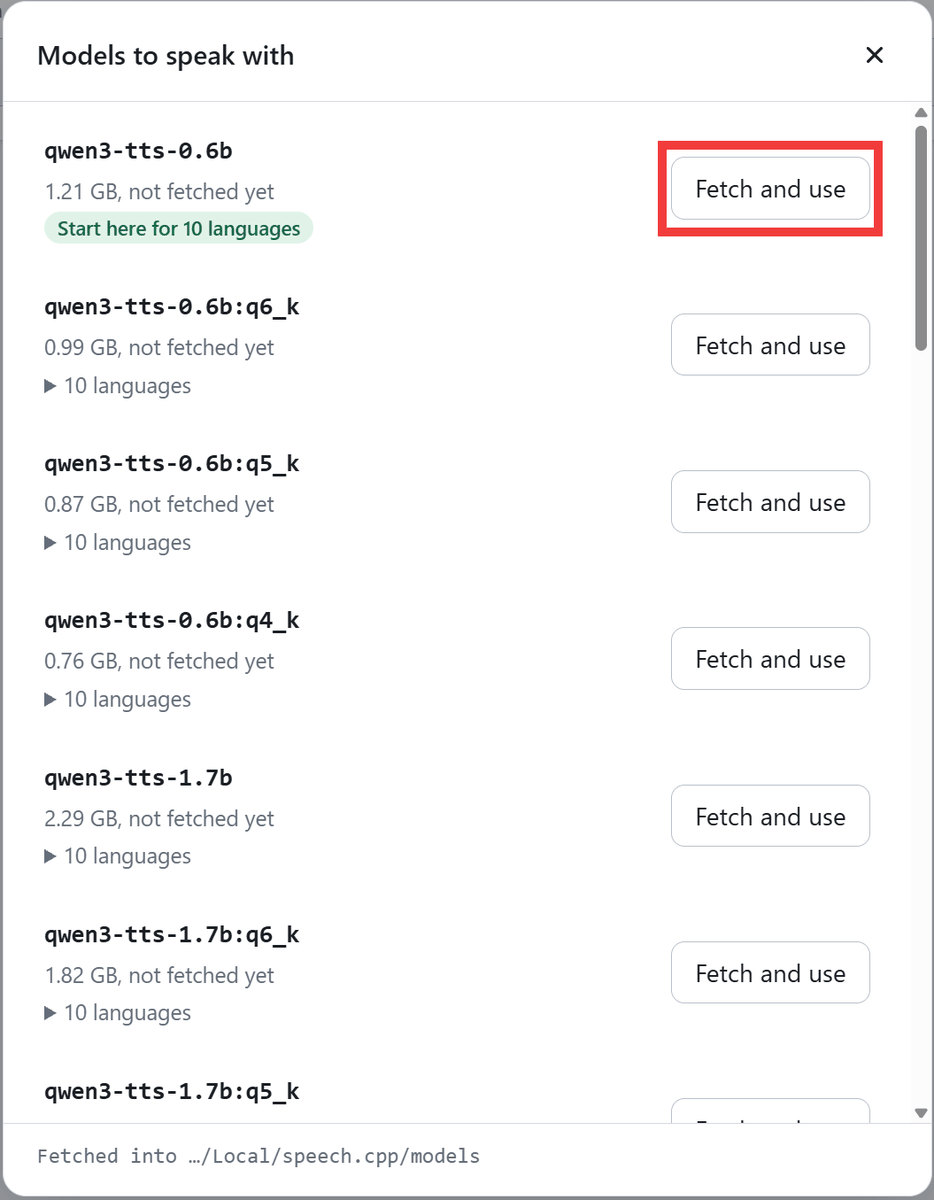
A list of available speech synthesis AI models will be displayed. This time, we will click 'Fetch and use' to download 'Qwen3-TTS 0.6B,' a speech synthesis model that supports 10 languages, including Japanese.
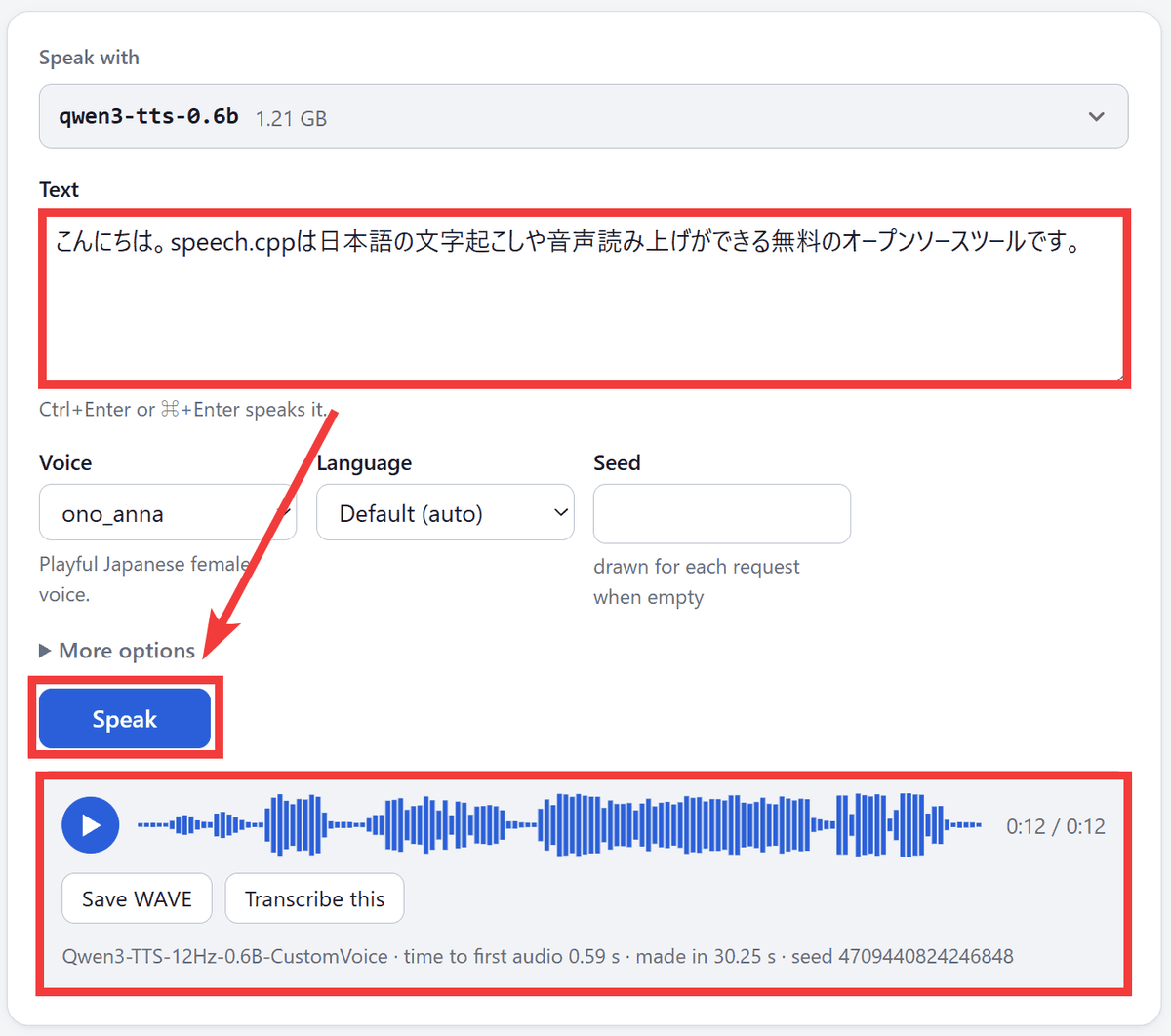
Once the model has finished loading, enter your text in 'Text,' select the Japanese speaker 'ono_anna' in 'Voice,' and click 'Speak.' The audio will be generated and can be played back or downloaded in WAV format.
◆Transcription from audio files
Since speech.cpp can also transcribe the generated audio directly, I clicked 'Transcribe this' below the audio waveform.
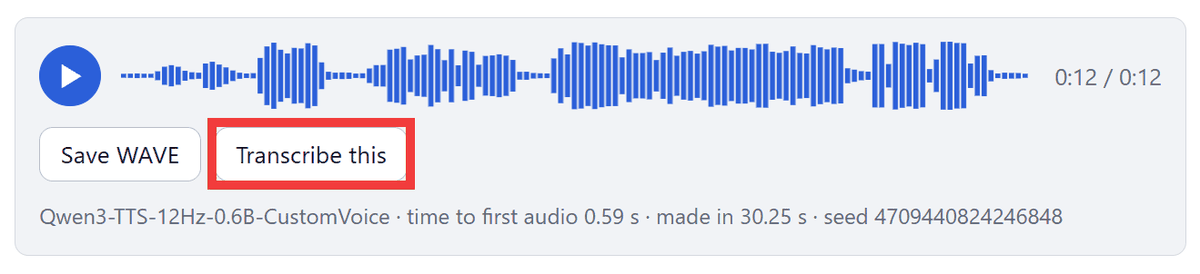
The tab will switch to 'Transcribe,' and the audio you just generated will be set as the target for transcription. Click 'Choose a model.'
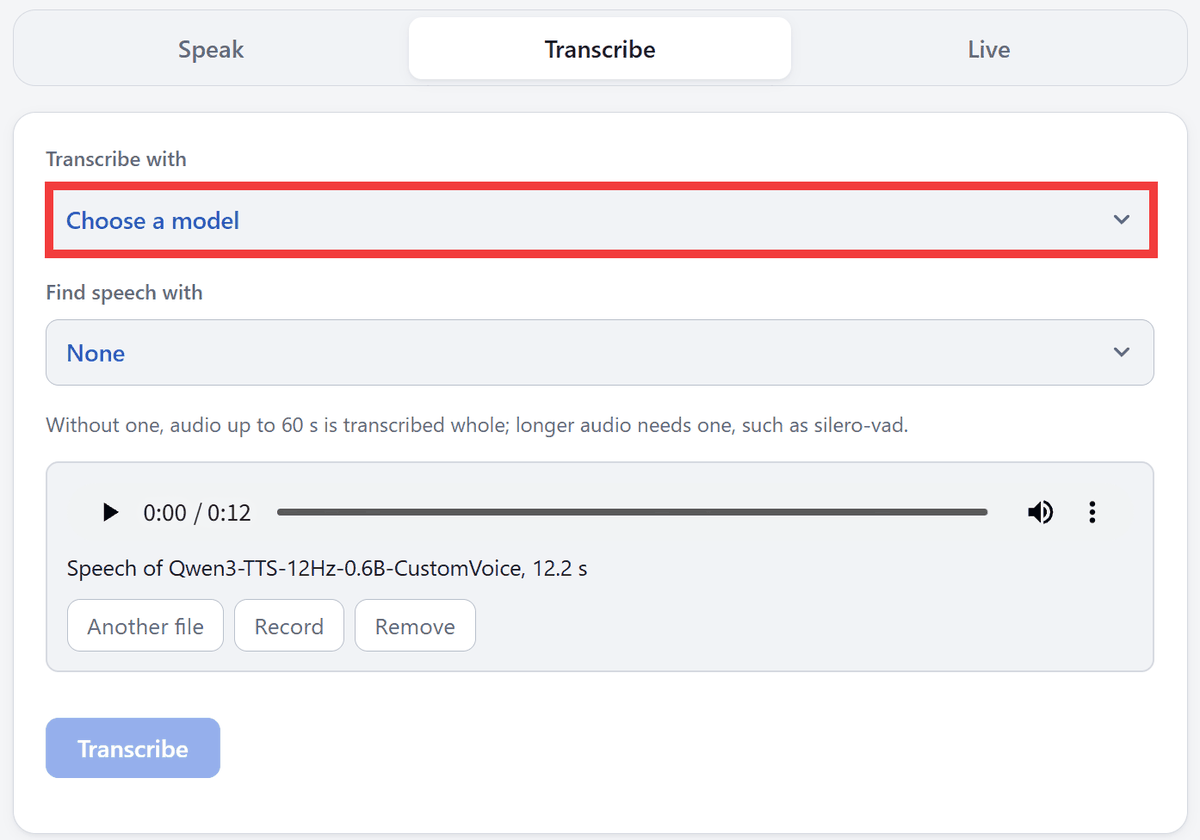
For speech recognition, click 'Fetch and use' to download the Japanese-specific speech recognition model '
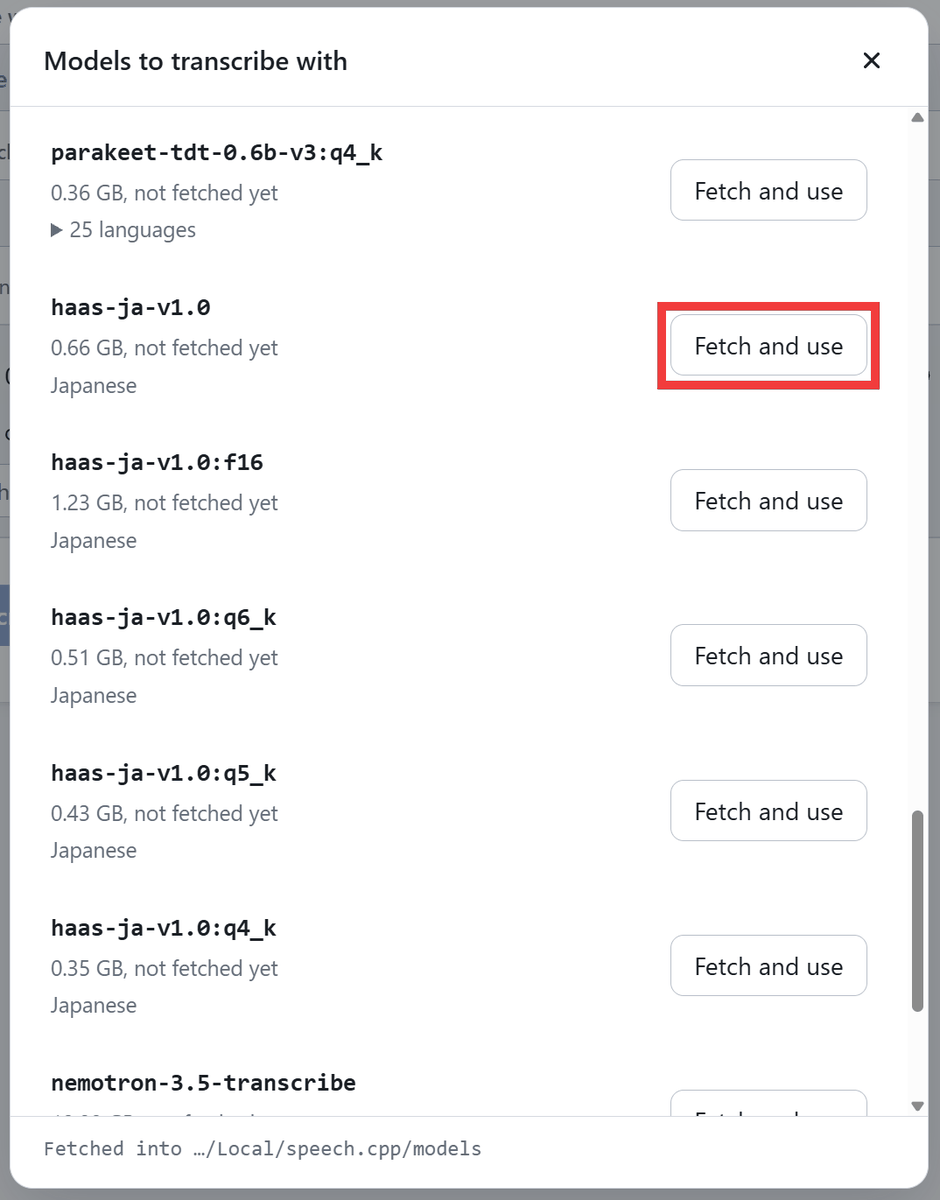
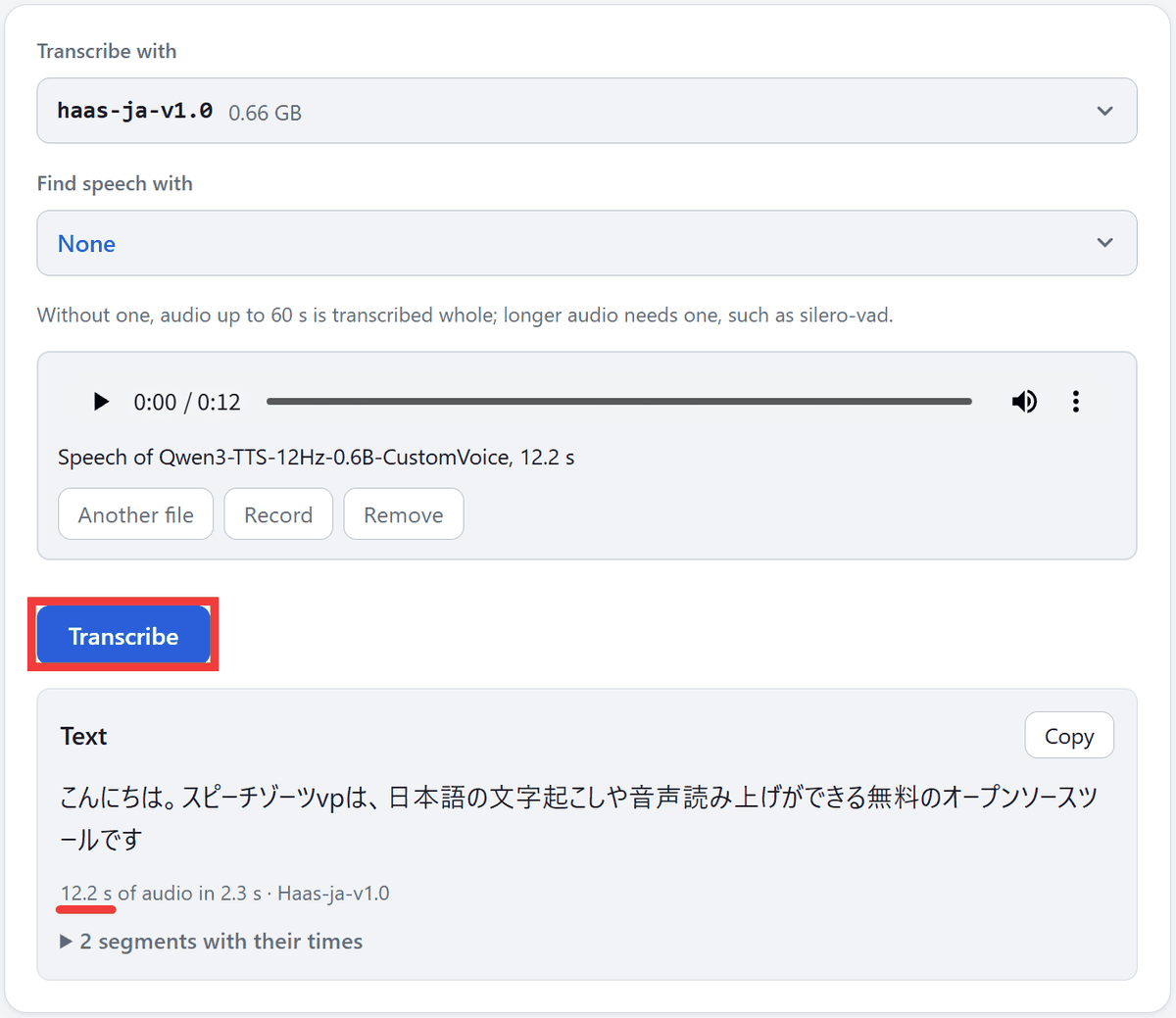
Once the model has finished loading, clicking 'Transcribe' will display the transcribed text, and you can also check the processing time. The 'speech.cpp' section was misrecognized, but the rest of the Japanese text was transcribed mostly correctly.
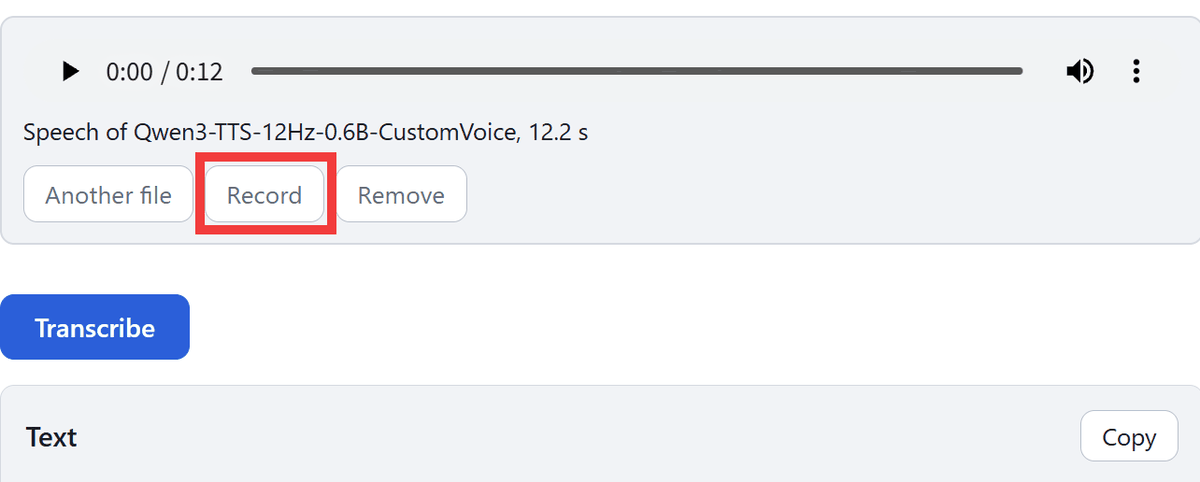
You can transcribe audio files by dragging and dropping them, or you can transcribe audio you record on the spot by clicking 'Record'.
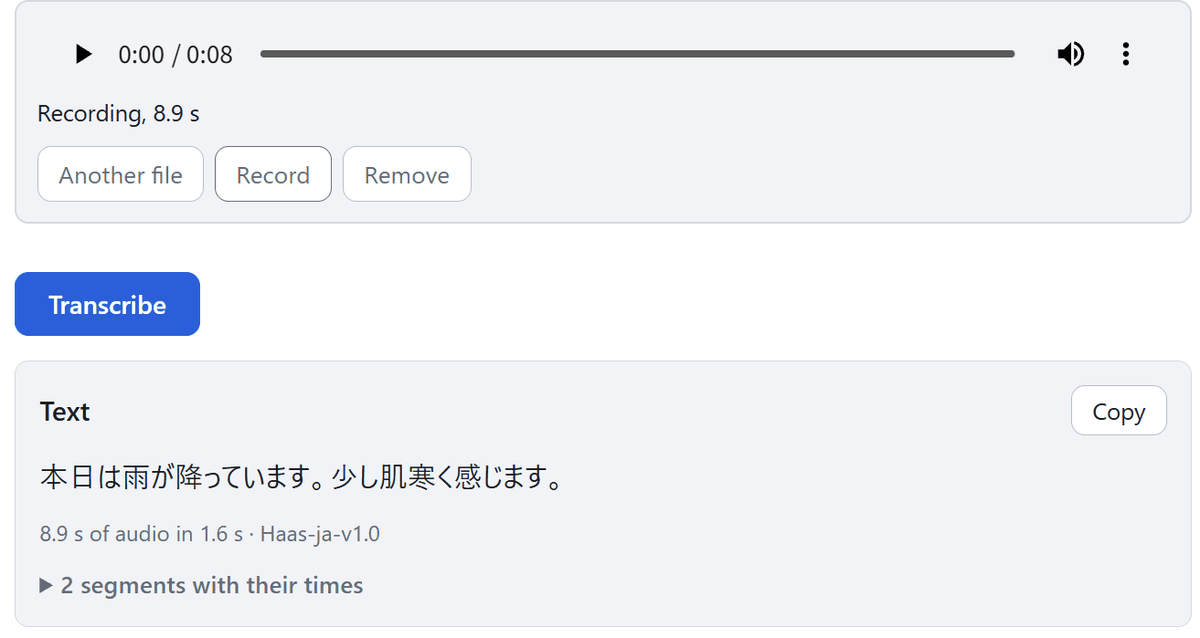
The transcript of the recorded audio showed that the content of the recording was accurately reproduced.
◆Real-time transcription from the microphone
To start real-time transcription without waiting for the recording to finish, open the 'Live' tab and download the Japanese-compatible speech recognition model '
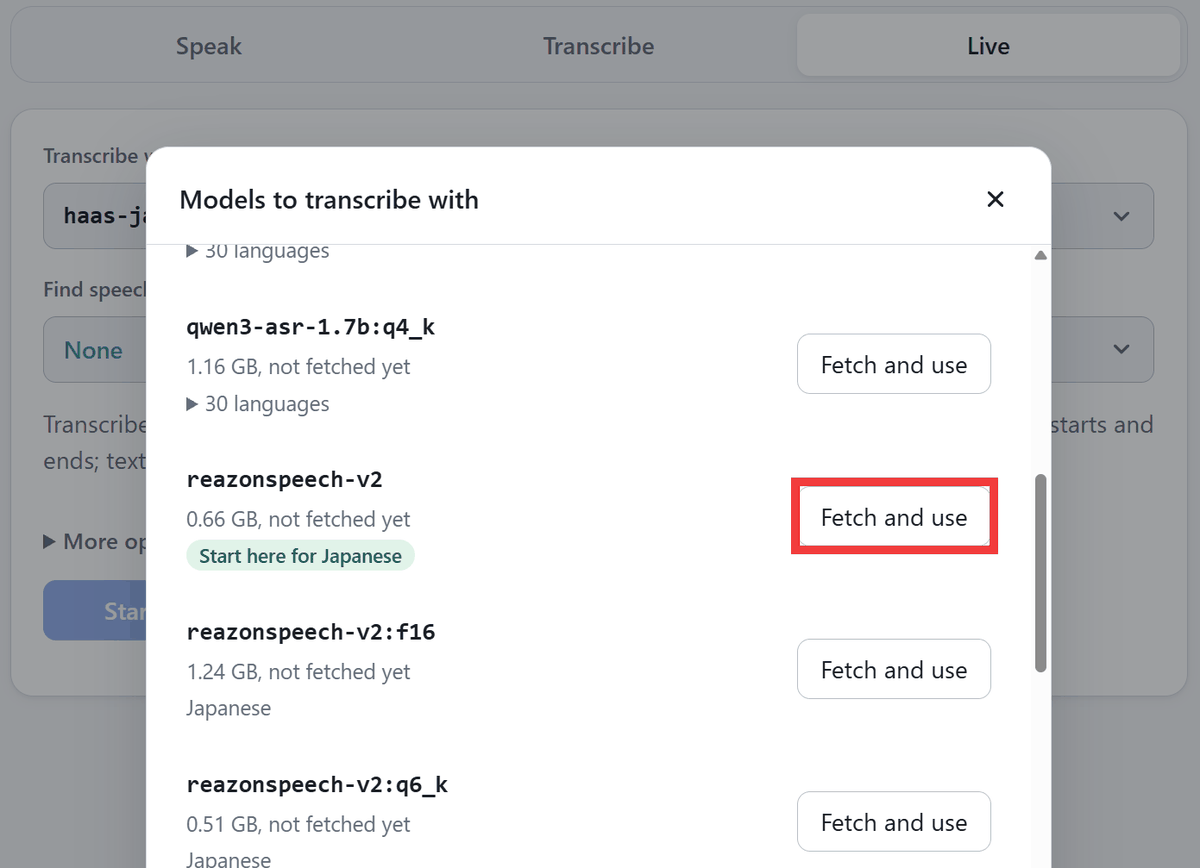
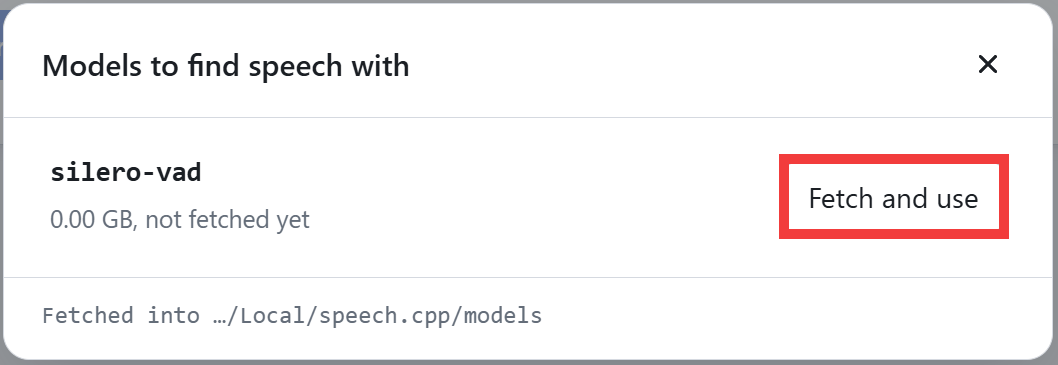
Click the 'Find speech with' option to select a model that detects segments of human speech.
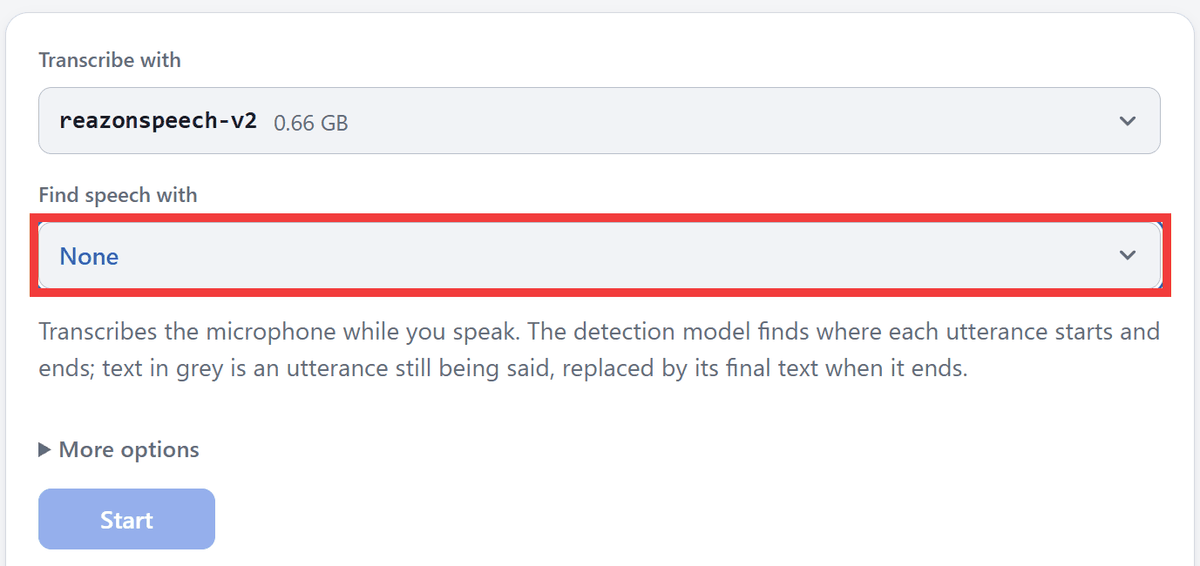
Click 'Fetch and use' for '
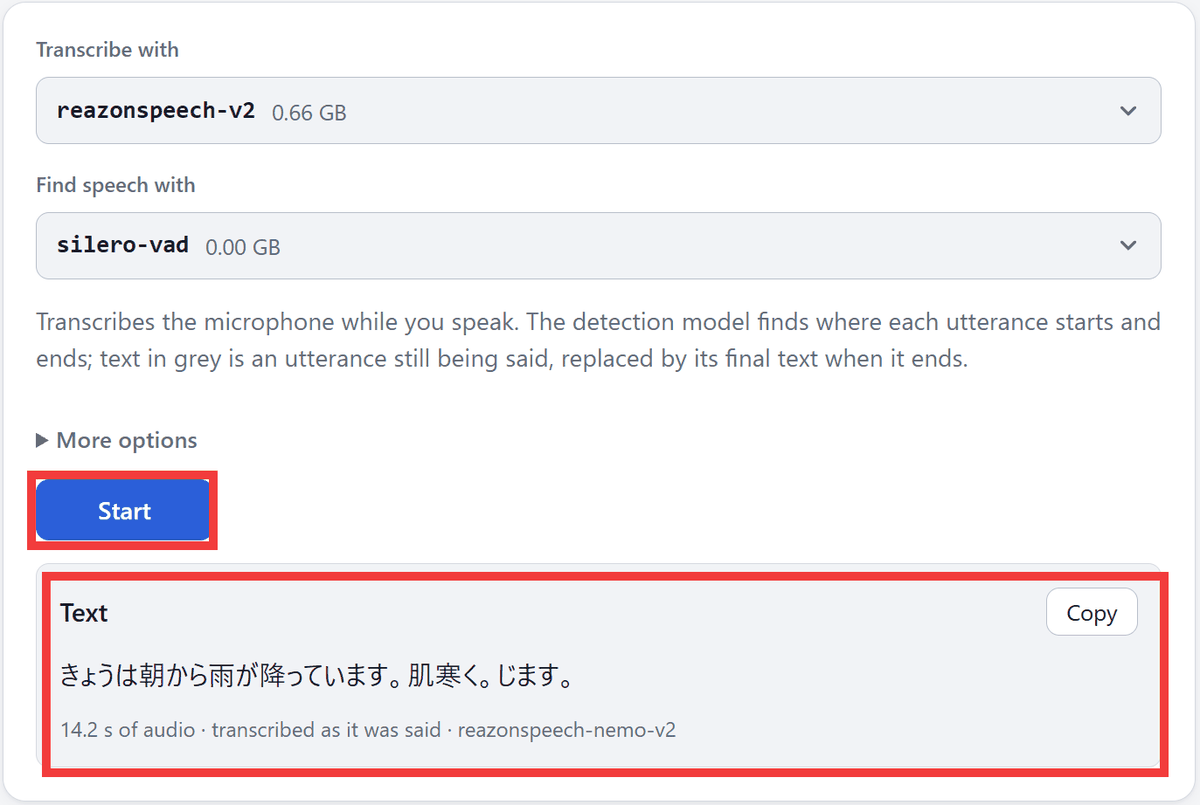
Click 'Start' and speak into the microphone. The text you are speaking will be displayed in gray, and the transcription will be finalized once you finish speaking. The part that says 'It's chilly. feels.' was processed as a sentence break because I paused slightly between 'chilly' and 'feels.'
◆A voice clone that reads aloud your favorite texts in your own voice.
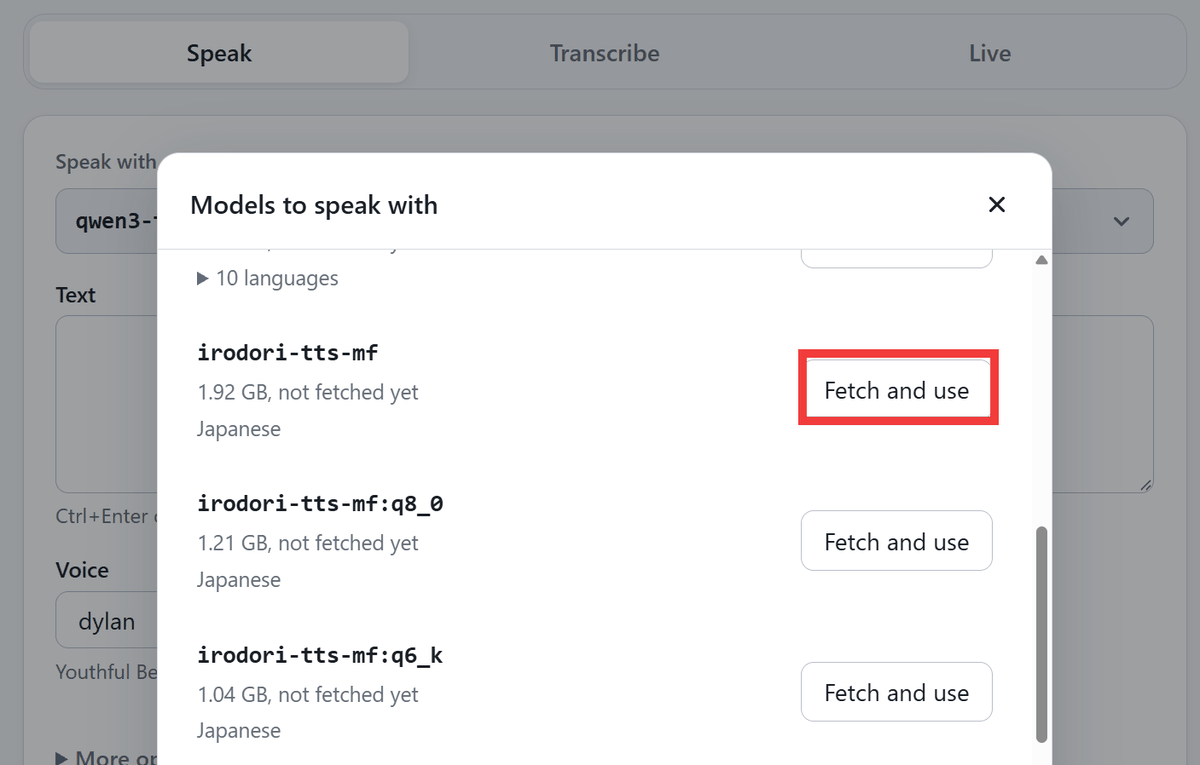
By switching the speech synthesis model to the Japanese-specific '
Click the model selection button in the 'Speak' tab, then click 'fetch and use' for 'irodori-tts-mf' to download it.
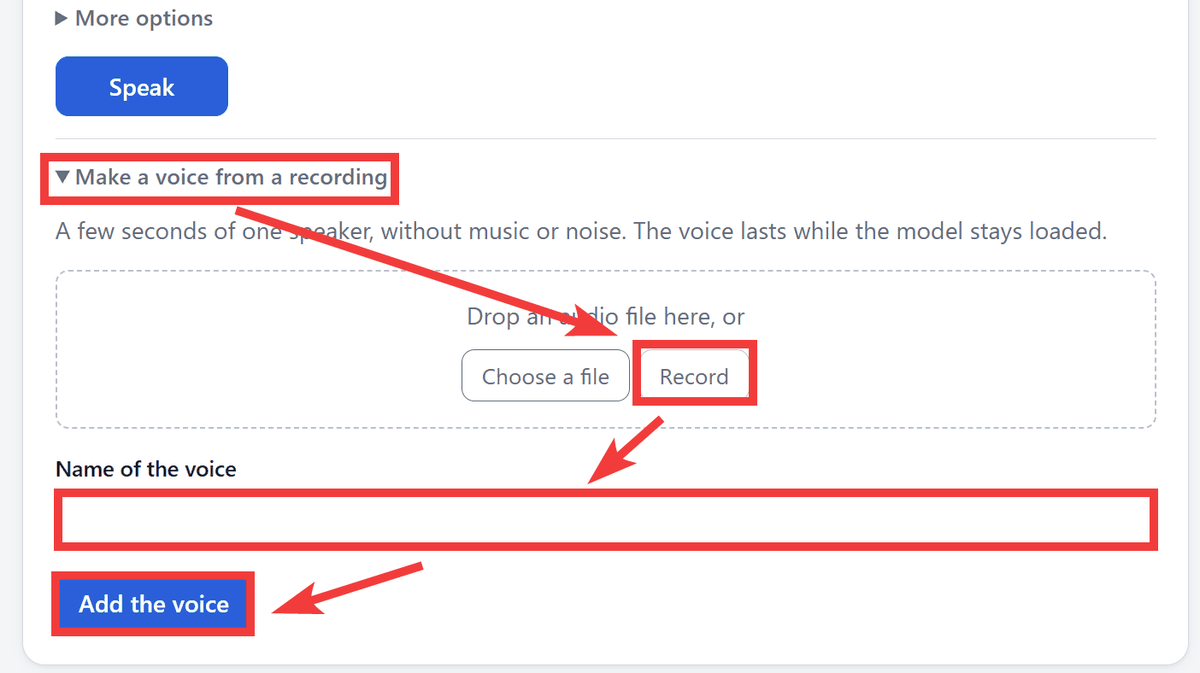
Open 'Make a voice from a recording,' click 'Record,' record your voice, enter a name of your choice in 'Name of the voice,' and click 'Add the voice.'
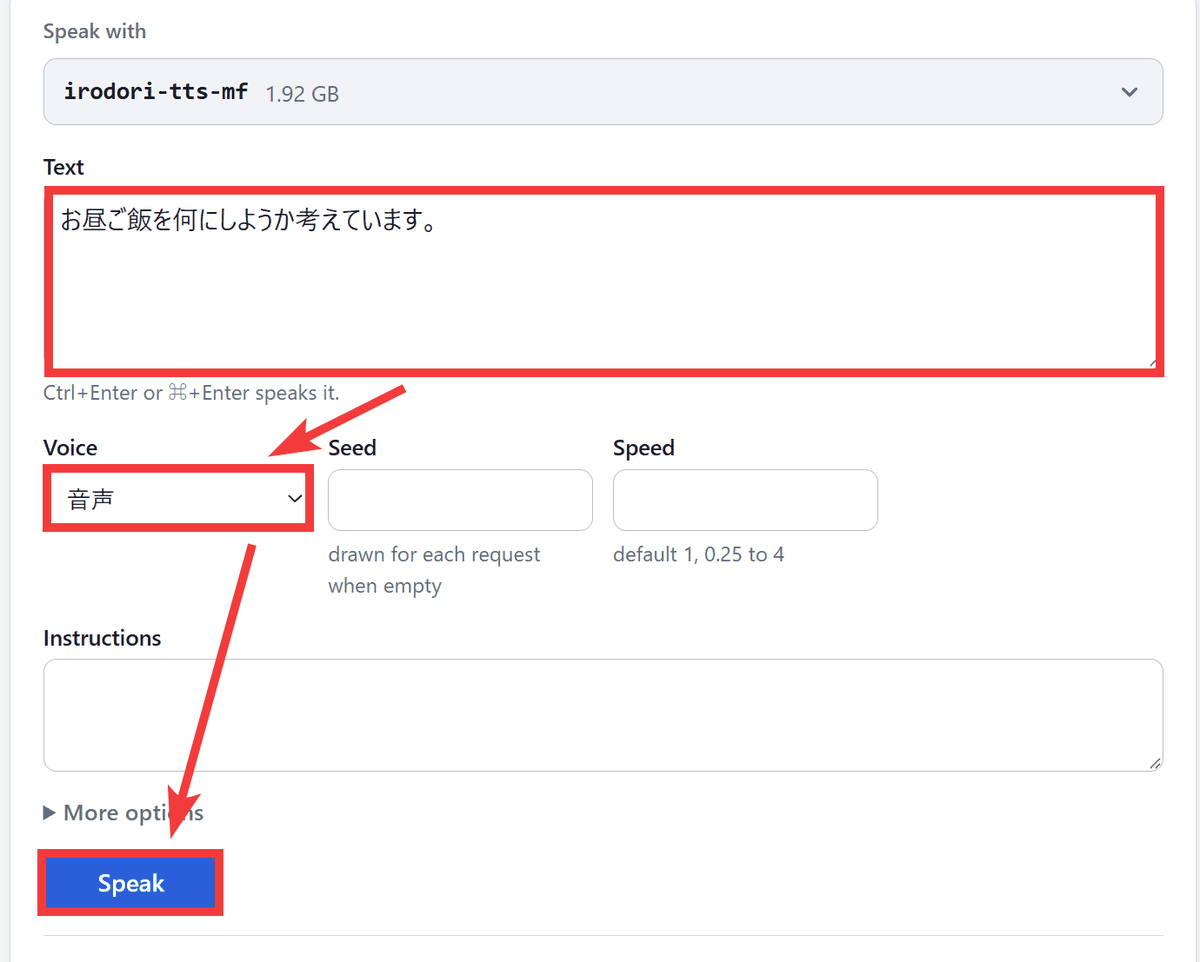
Enter a different sentence in 'Text' than the one used in the recording, select the registered voice in 'Voice,' and click 'Speak'...
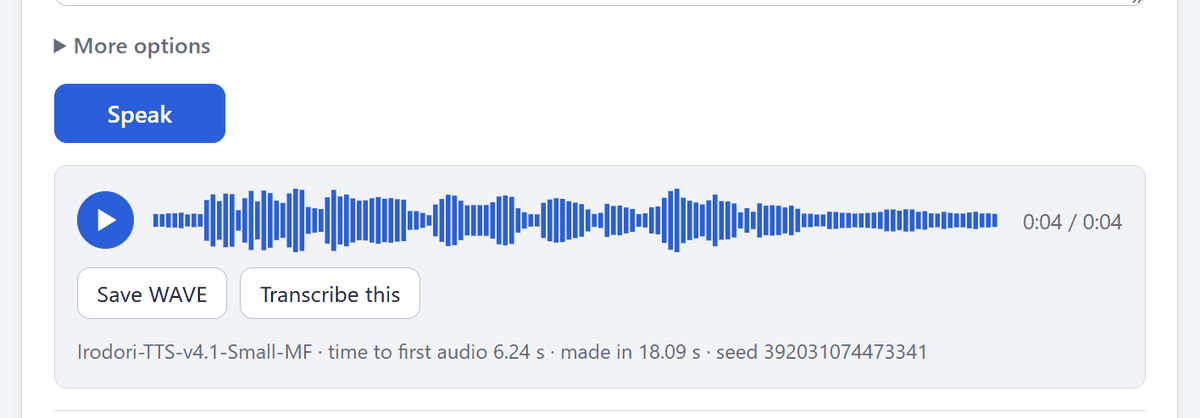
You can generate audio that replicates the characteristics of your own voice.
◆AI models available in speech.cpp
Speech.cpp allows you to switch between multiple AI models depending on the application and supported language. As of the time of writing, the supported models are as follows:
Speech synthesis
Qwen3-TTS: Supports 10 languages, including Japanese.
Irodori-TTS: Japanese language specialized and supports voice cloning.
Drama 3: Supports 83 languages and can generate conversations with up to 16 voices.
• Voice recognition
Qwen3-ASR: Supports 30 languages.
ReasonSpeech v2: Supports long speech in Japanese.
Parakeet JA: Supports high-speed transcription of Japanese text.
Parakeet v3: Supports 25 European languages.
Haas-ja-v1.0: Japanese-specific version that also supports specifying custom vocabulary.
Nemotron 3.5 Transcribe: Supports 40 languages and can process up to 1 hour of audio.
Other audio processing
Silero VAD: Detects speech segments.
Nemotron 3 Diarization: Speaker separation for up to 8 speakers.
RE-USE: Removes noise and reverberation.
RE-USE Laughter: Noise removal that leaves behind laughter.
◆Mechanism that operates without a GPU
speech.cpp uses the ggml library for performing calculations on AI models, and supports GPU processing using Vulkan on Windows and Linux, and Metal on Apple Silicon Macs, as well as CPU-only operation. Note that the official distribution for Windows requires the Vulkan loader even when processing with the CPU.
Being able to perform speech recognition and speech synthesis locally would enable applications such as processing interview audio or internal meeting recordings without sending them to external services, or converting large amounts of documents into speech without additional API fees.
Related Posts: