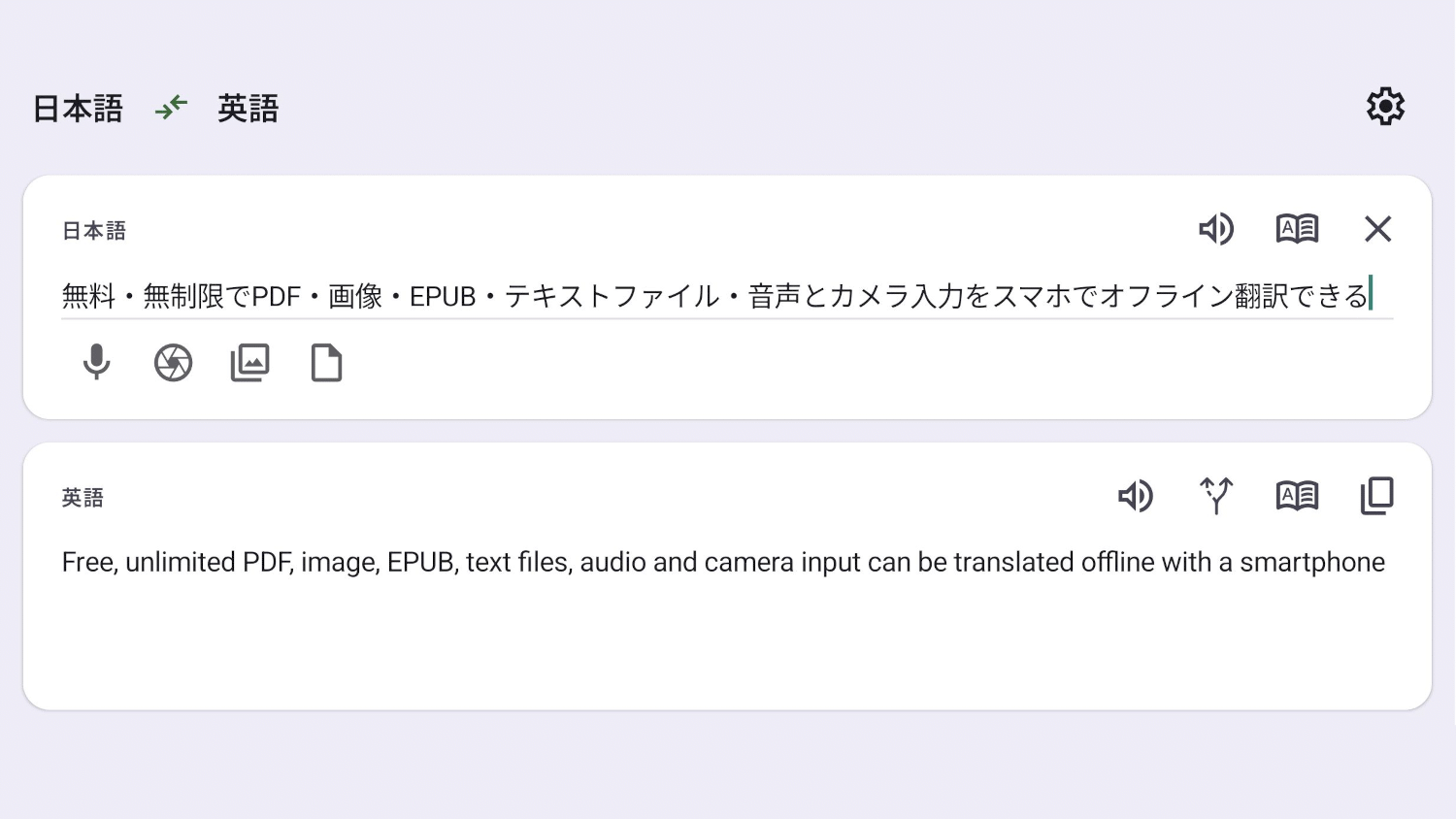
'Offline Translator' is a free, unlimited offline translation app for PDFs, images, EPUBs, text files, and audio/camera input on your smartphone. It supports 60 languages and even vertical Japanese text.
In today's world, with the availability of excellent translation apps, services that translate various languages into native languages are becoming accessible to everyone. However, in most cases, translation functions are provided as web apps or web APIs, and therefore require an internet connection. ' Offline Translator ' uses the translation model of
DavidVentura/offline-translator: Use Firefox Translation Models for on-device translation on Android
https://github.com/DavidVentura/offline-translator
Offline Translator | F-Droid - A free and open-source Android app repository
https://f-droid.org/packages/dev.davidv.translator/
◆Features
The features of Offline Translator, as described on the F-Droid page, are as follows:
- No internet connection is required for translation; you only need to download the model once.
- Enables image translation overlay (OCR) that preserves the original formatting.
- Translation of PDF/ODT files is possible.
- Supports text-to-speech (TTS) in major languages
- Supports automatic language detection
- Supports transliteration of non-Latin characters
• Quickly translate on-screen content through Accessibility Services and Device Assistant.
◆Supported Languages
According to the official GitHub repository, Offline Translator supports the following 60 languages as of the time of writing:
Albanian
Arabic
Azerbaijani
Basque
Belarusian
Bengali
Bosnian
Bulgarian
Catalan
・Chinese (Simplified)
・Chinese (Traditional)
Croatian
Czech
Danish
Dutch
·English
Estonian
Finnish
·French
Galician
German
Greek
Gujarati
Hebrew
Hindi
Hungarian
Icelandic
Indonesian
Italian
·Japanese
Kannada
·Korean
Latvian
Lithuanian
Malay
Malayalam
Marathi
Norwegian
Norwegian (Bokmål)
Norwegian (Nynorsk)
Persian
Polish
Portuguese
Romanian
Russian
Serbian
Slovak
Slovenian
Spanish
Swahili
Swedish
Tagalog
Tamil
Telugu
Thai
Turkish
Ukrainian
Urdu
Uyghur language
Vietnamese
◆ Introduction
Offline Translator can be installed via the following method:
F-Droid
- Obtain the APK file from the official GitHub Release page.
This time, we will install it via F-Droid. We assume that the F-Droid app is already installed in your app store, so please refer to the following for installation and usage instructions.
'F-Droid' allows you to easily install and automatically update free, open-source Android apps other than those on Google Play - GIGAZINE
https://gigazine.net/news/20260504-f-droid/
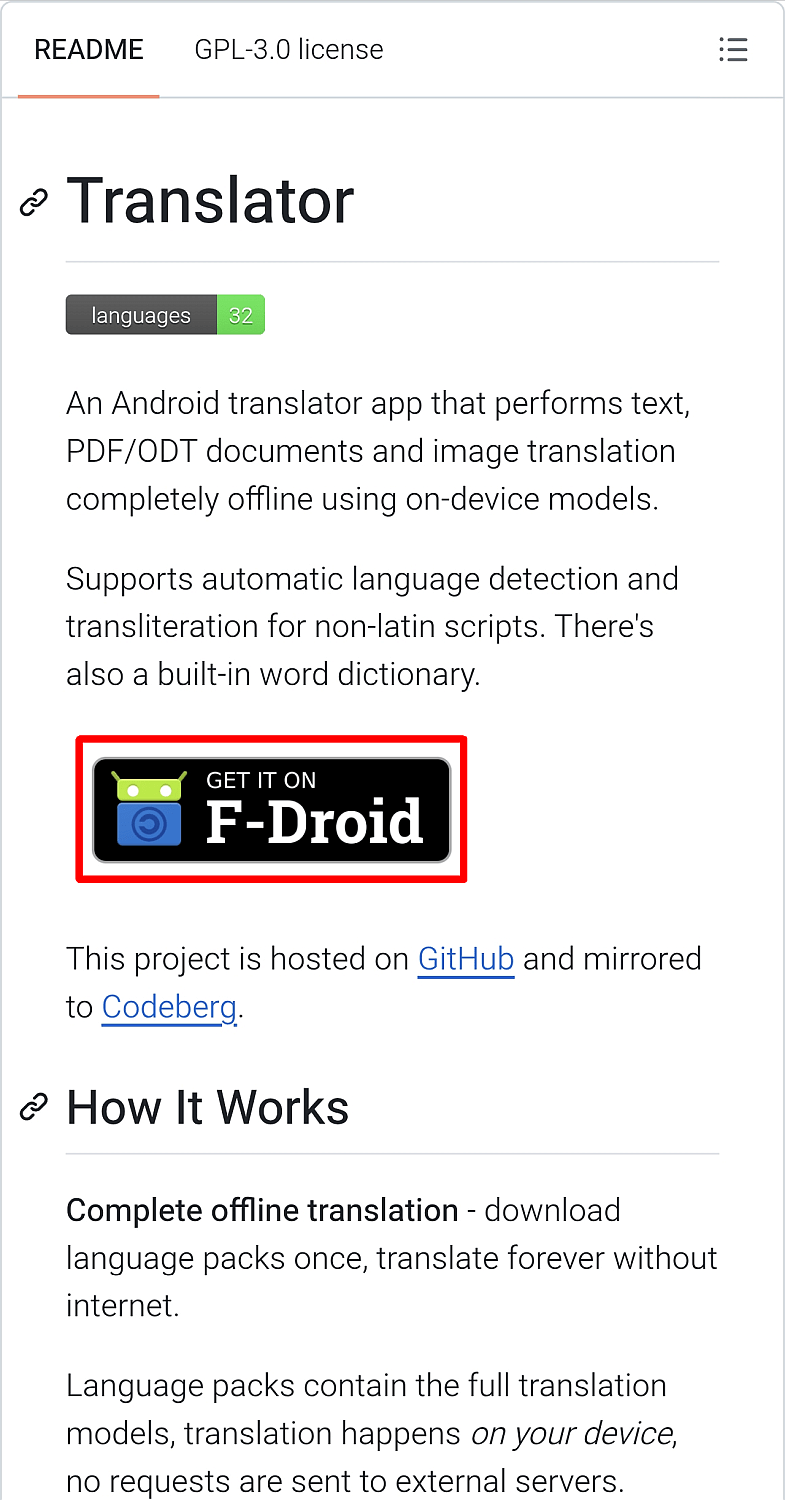
Tap the 'Get it on F-Droid' banner on the official GitHub repository.
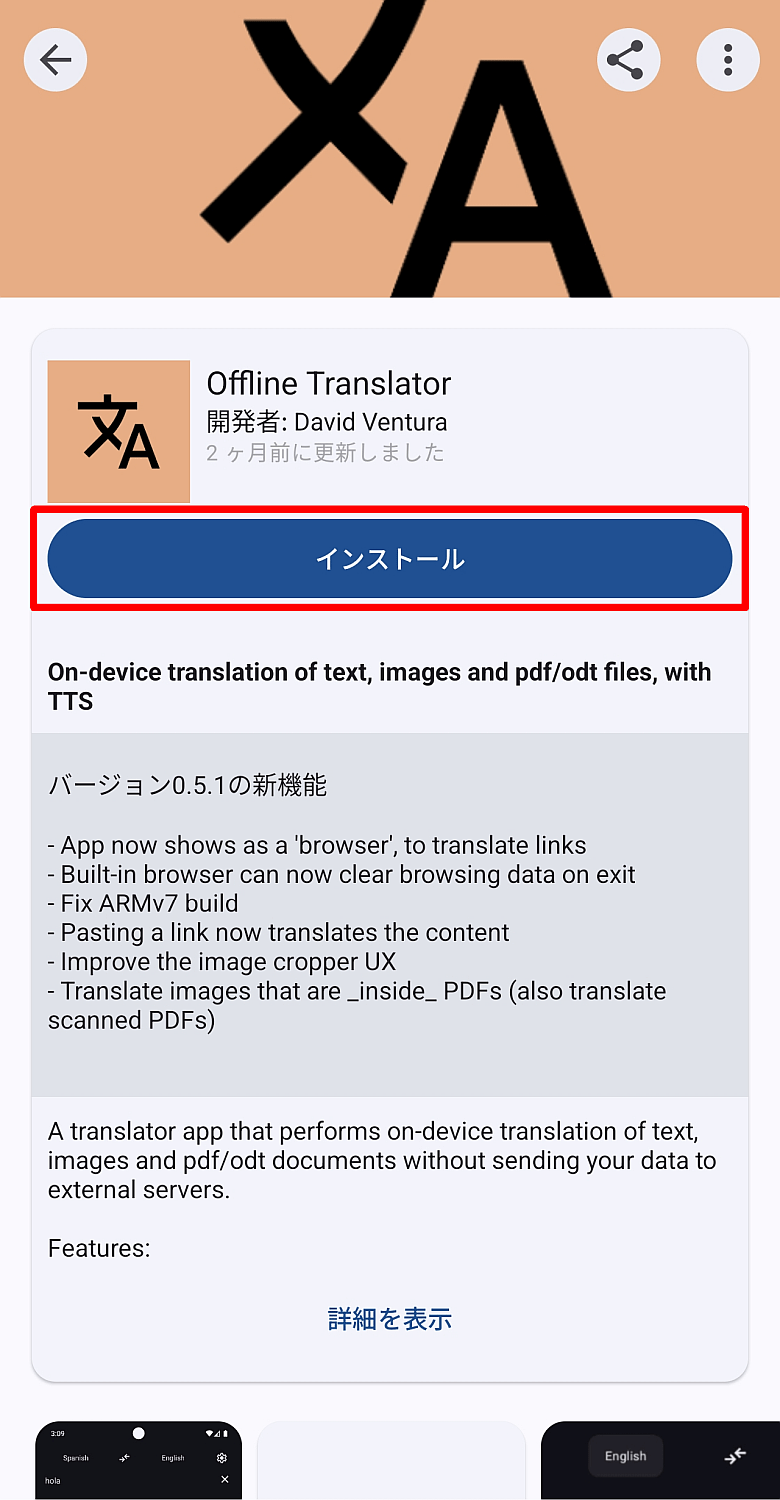
The F-Droid app will launch and the Offline Translator screen will open, so tap the 'Install' button.
A progress bar will appear once the download begins.
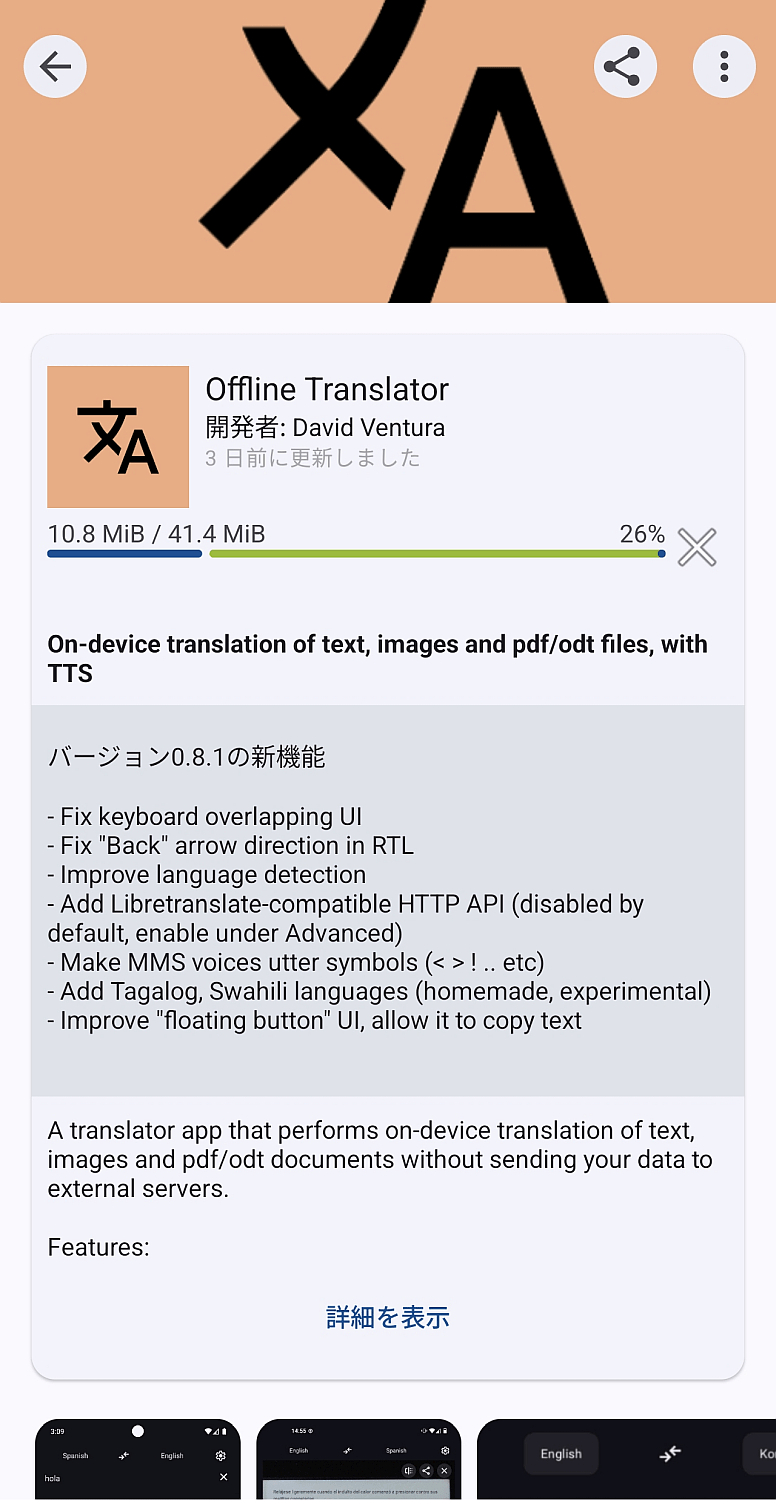
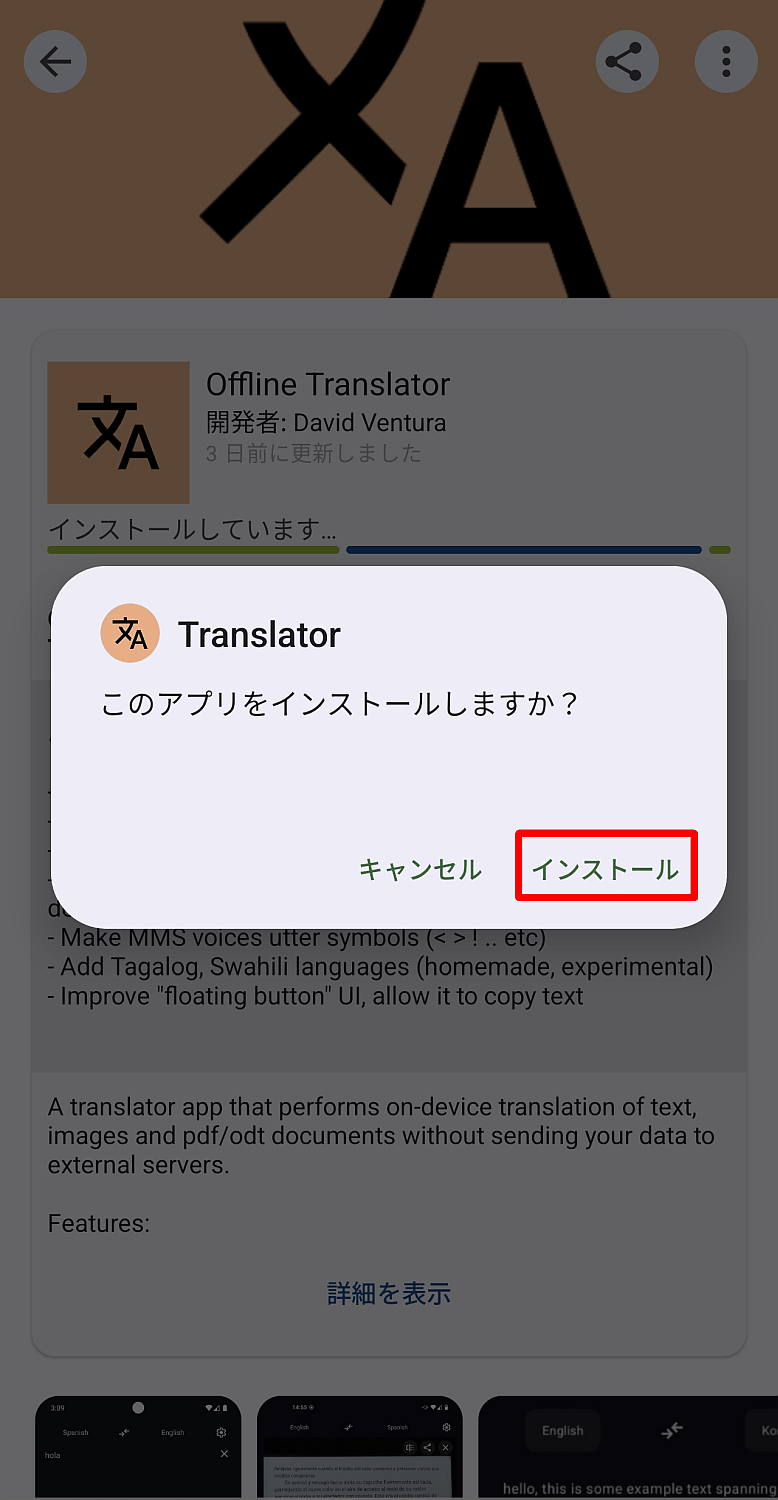
Once the download is complete, a pop-up will appear asking 'Do you want to install this app?'. Tap 'Install'.
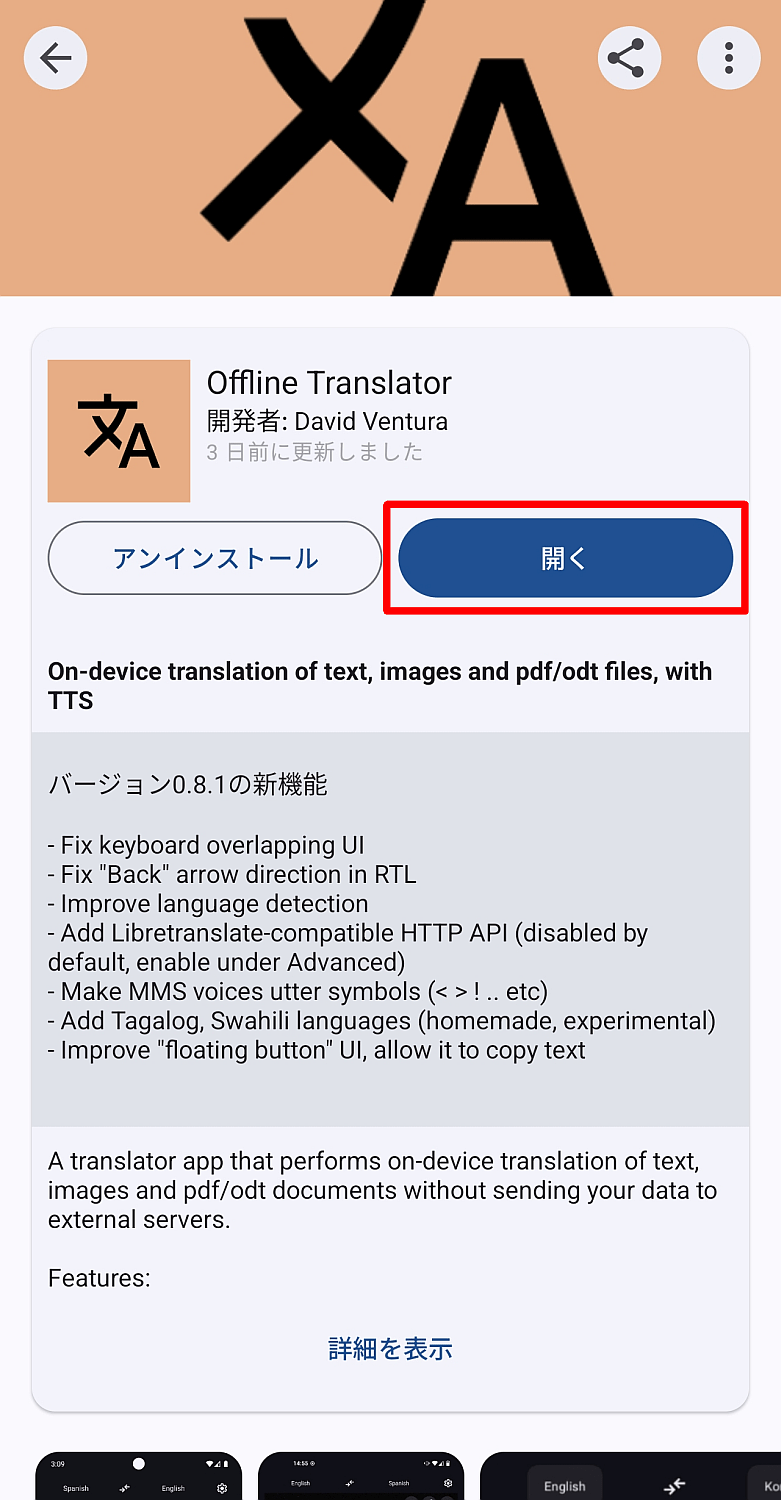
Once the installation is complete, an 'Open' button will appear; tap it.
◆Let's try translating it
The 'Language Settings' screen will appear the first time you launch the application.
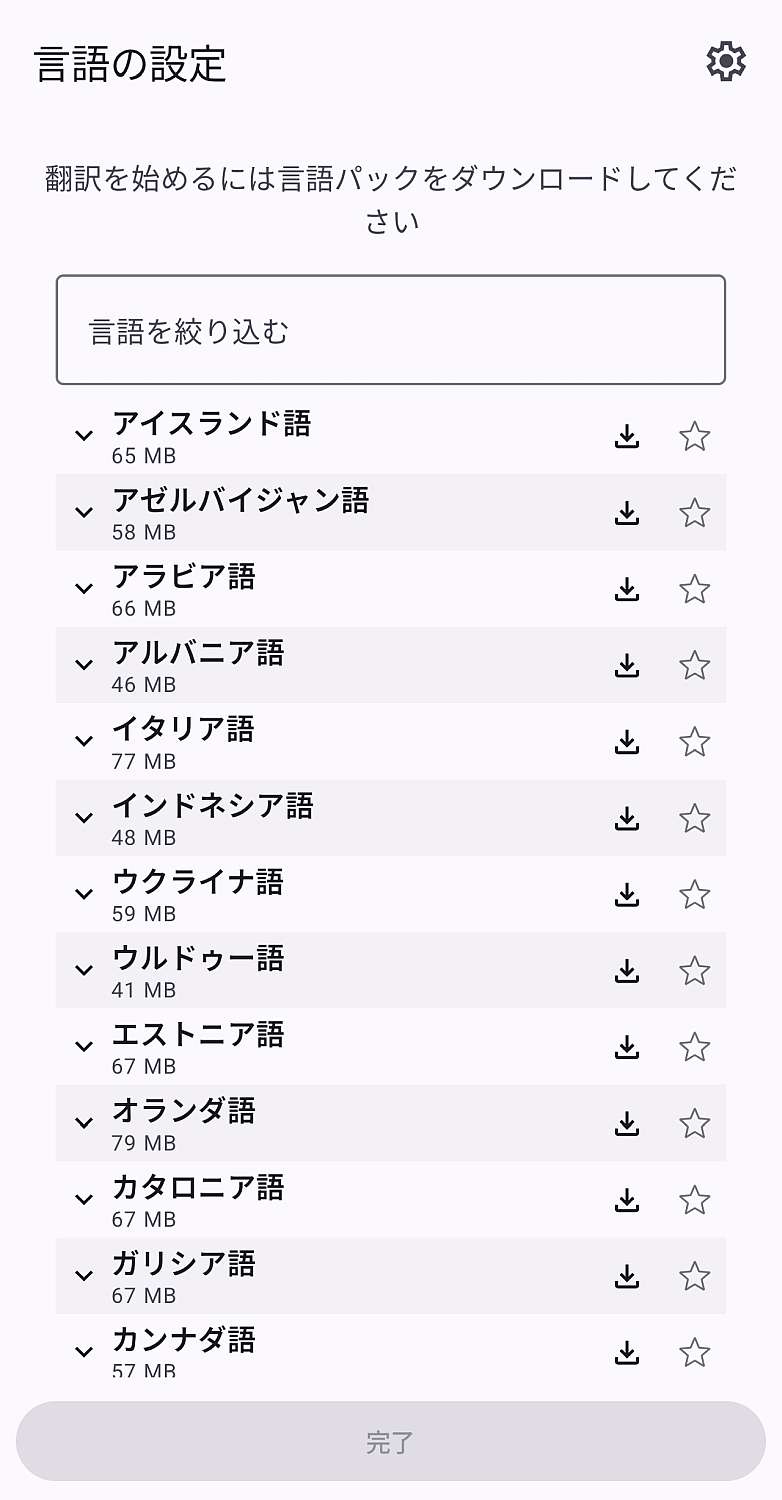
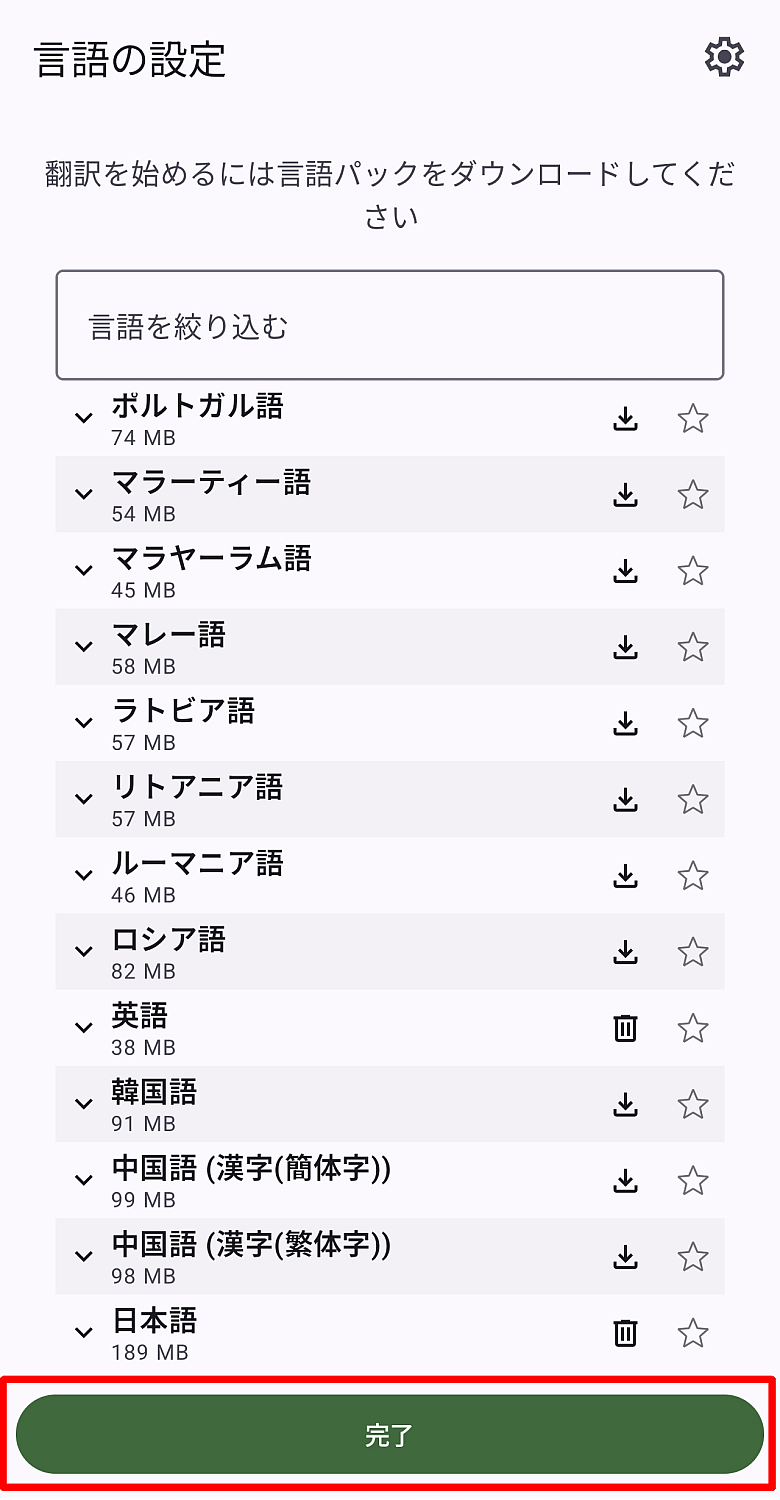
Find the language you want to use from the list of languages, and tap the download icon on the right to start downloading the language pack.
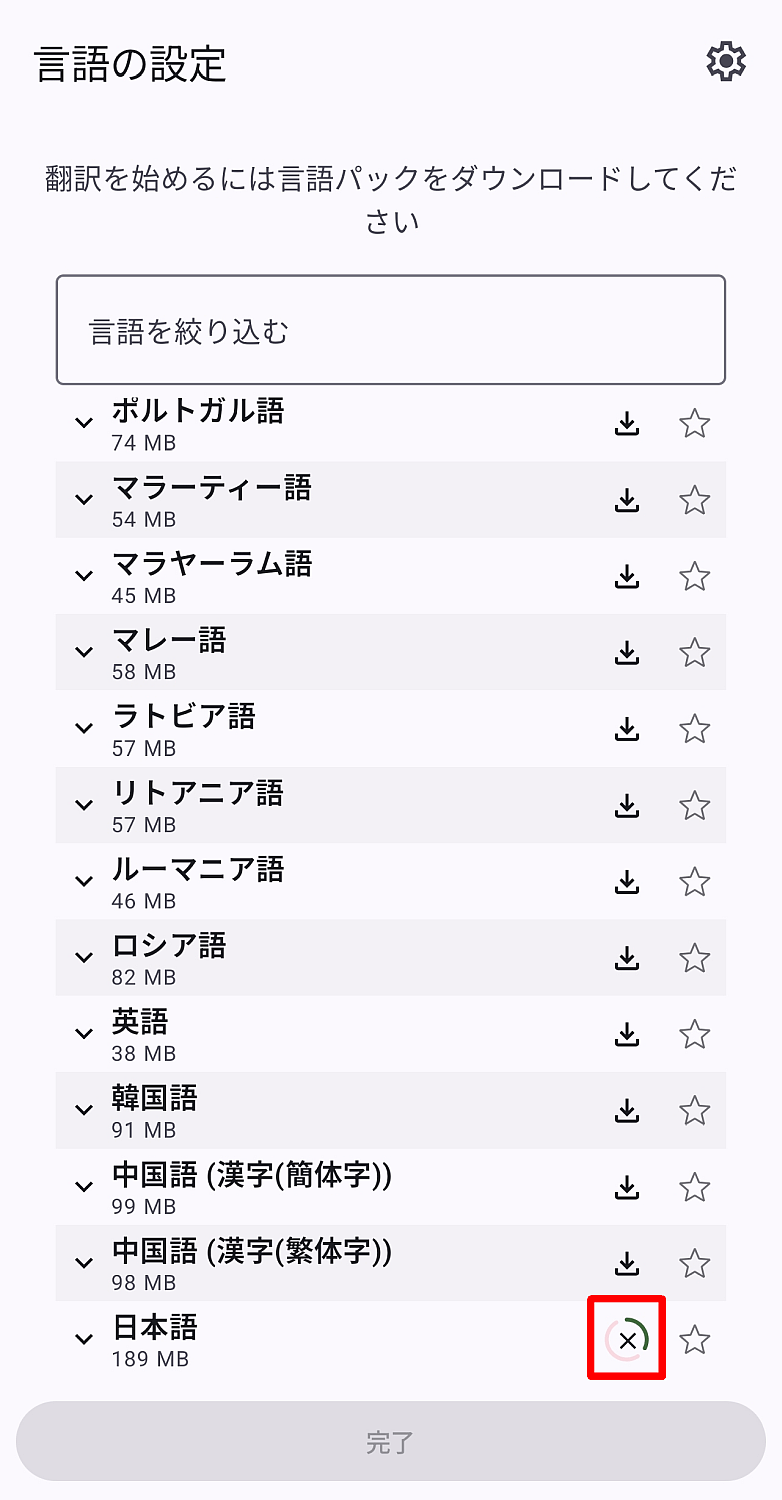
Once you have downloaded the necessary language packs, tap the 'Done' button to display the main screen.
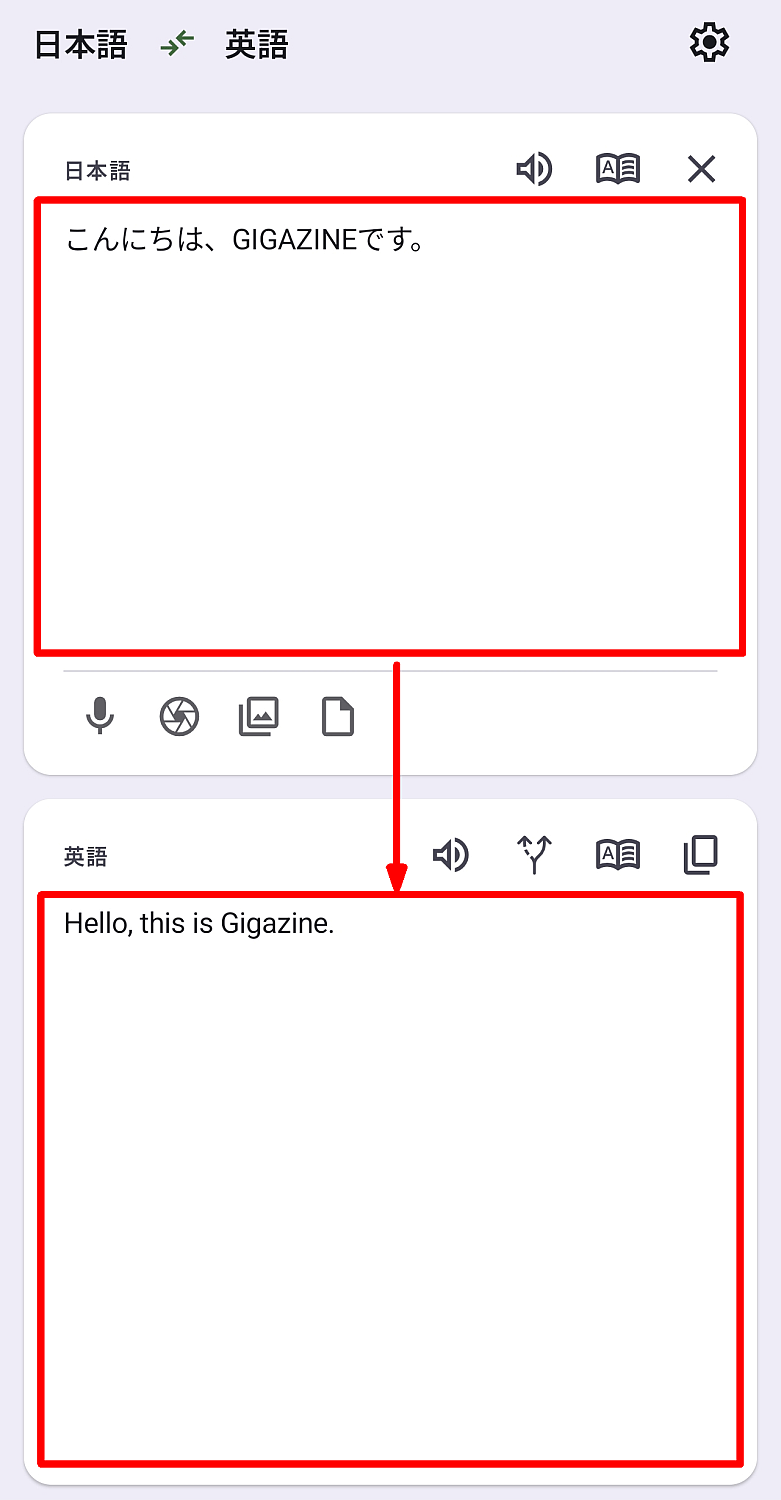
The main screen works basically the same as any other translation app. For example, when translating from Japanese to English, you enter Japanese text at the top of the screen, and the translated English text is automatically displayed at the bottom.
To switch languages, tap on the language you want to switch to. A list of available languages will pop up; select the language you want to switch to and tap it.
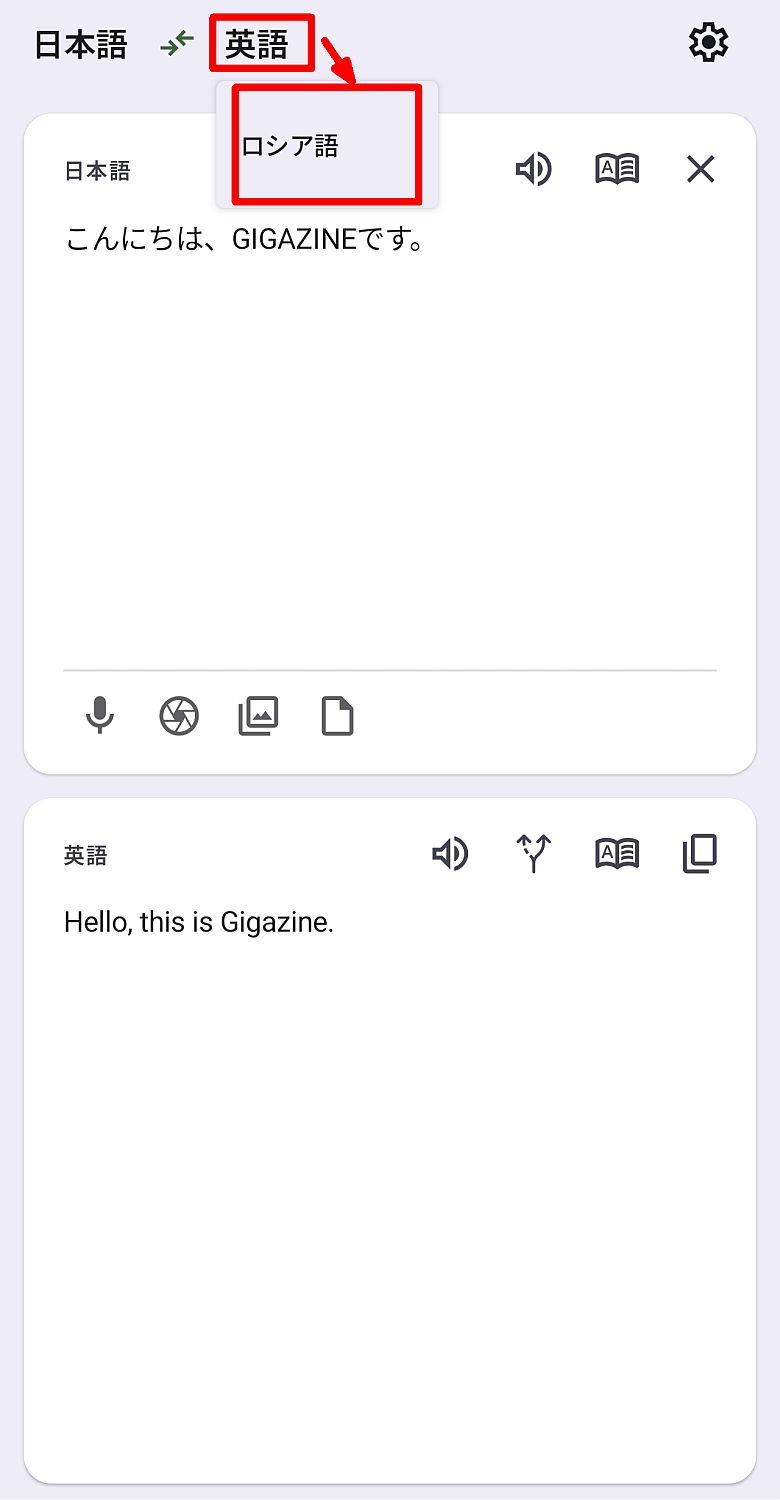
When you switch languages, the translation will also switch automatically.
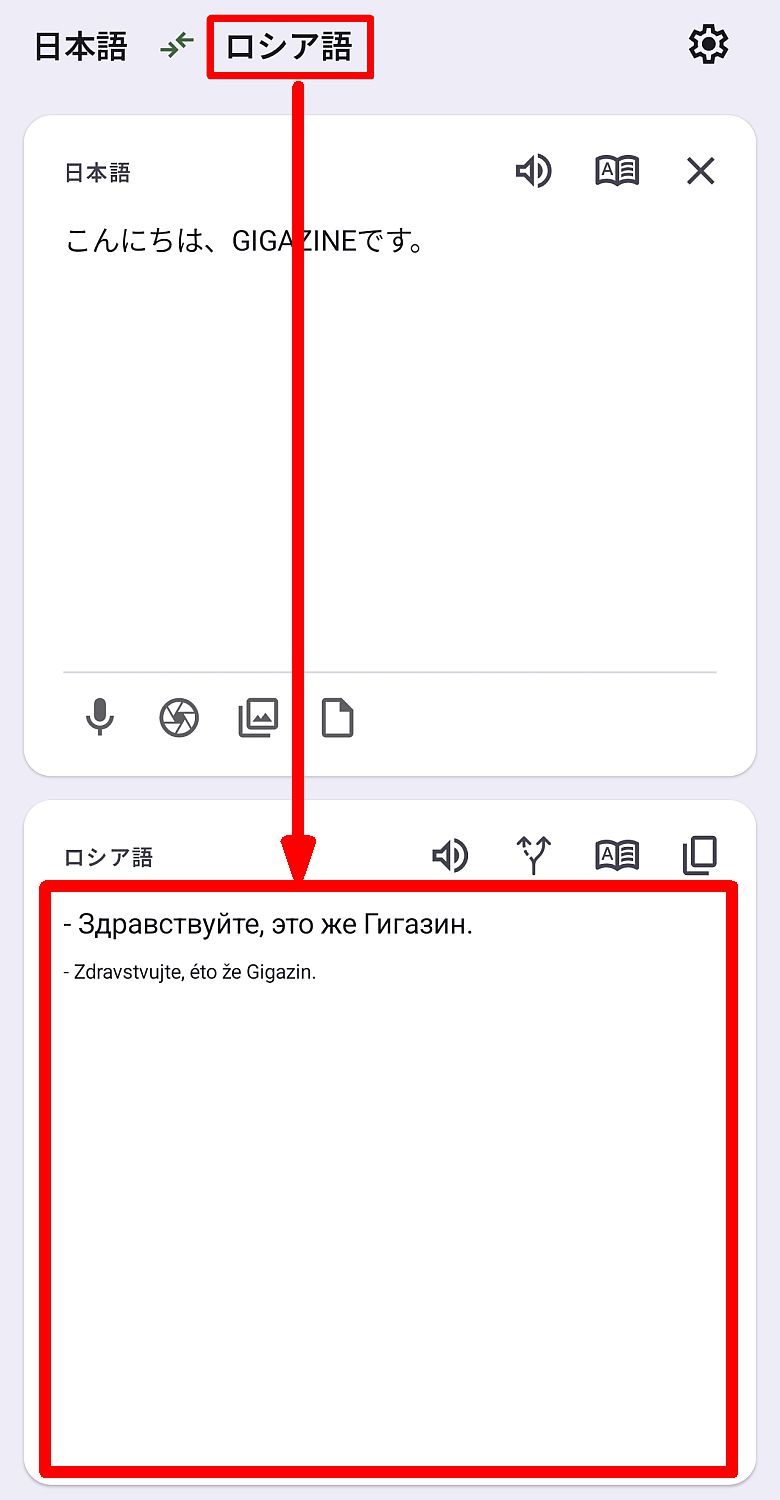
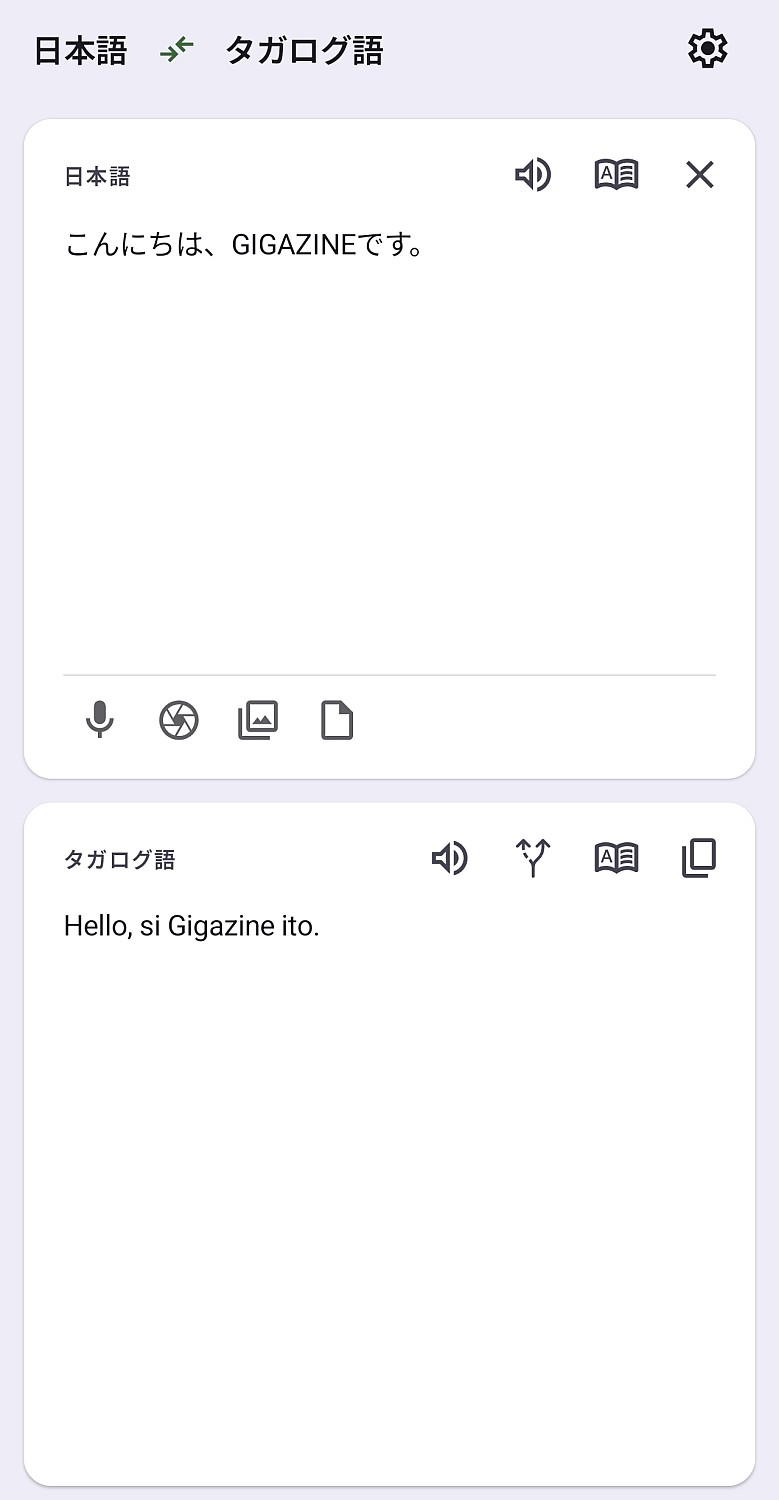
I recently switched the target language to Tagalog, which was recently added to the supported languages at the time of writing this article, and it worked perfectly, especially since the sentences were simple.
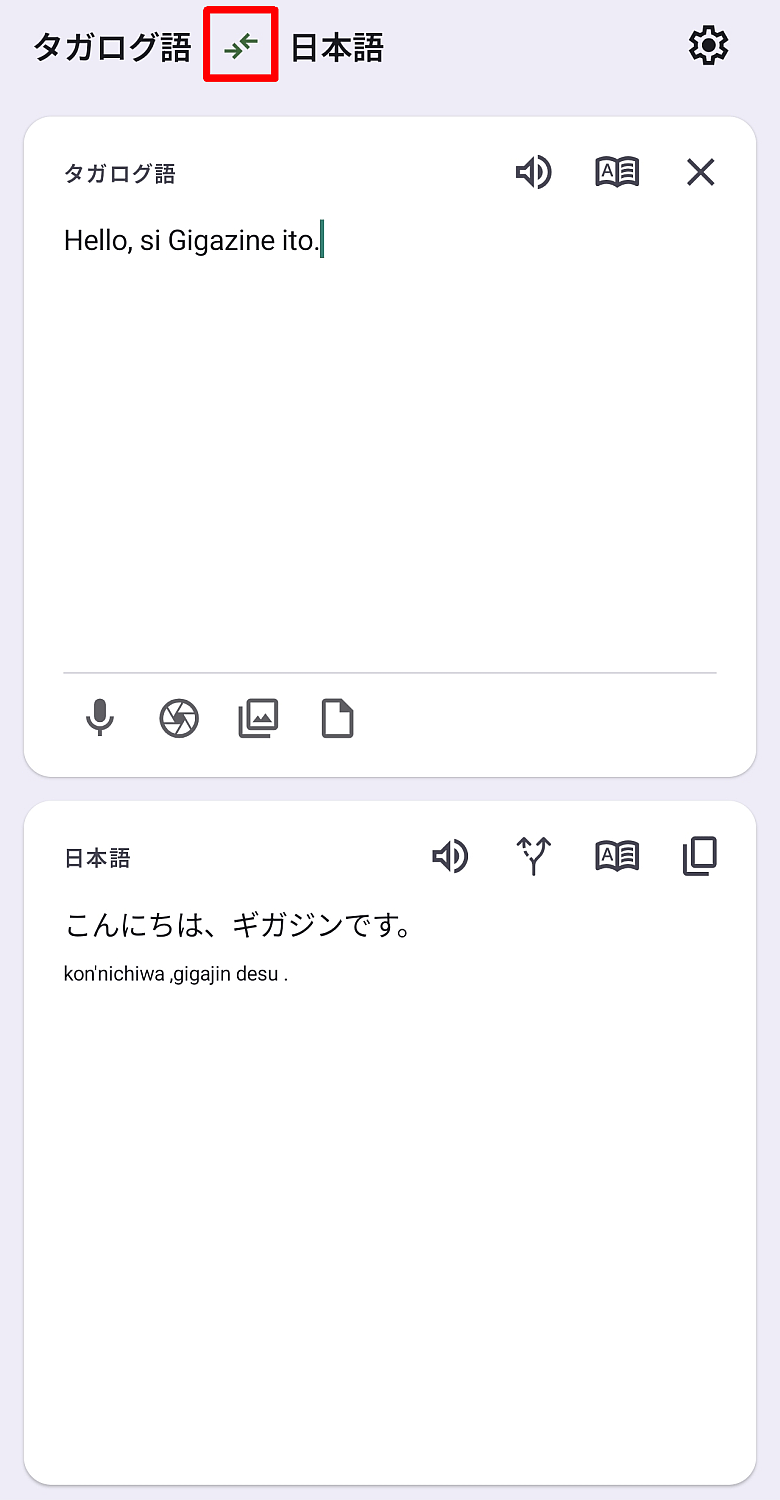
To switch between the source and target languages, simply tap the arrow icon between the languages, just like in most translation apps.
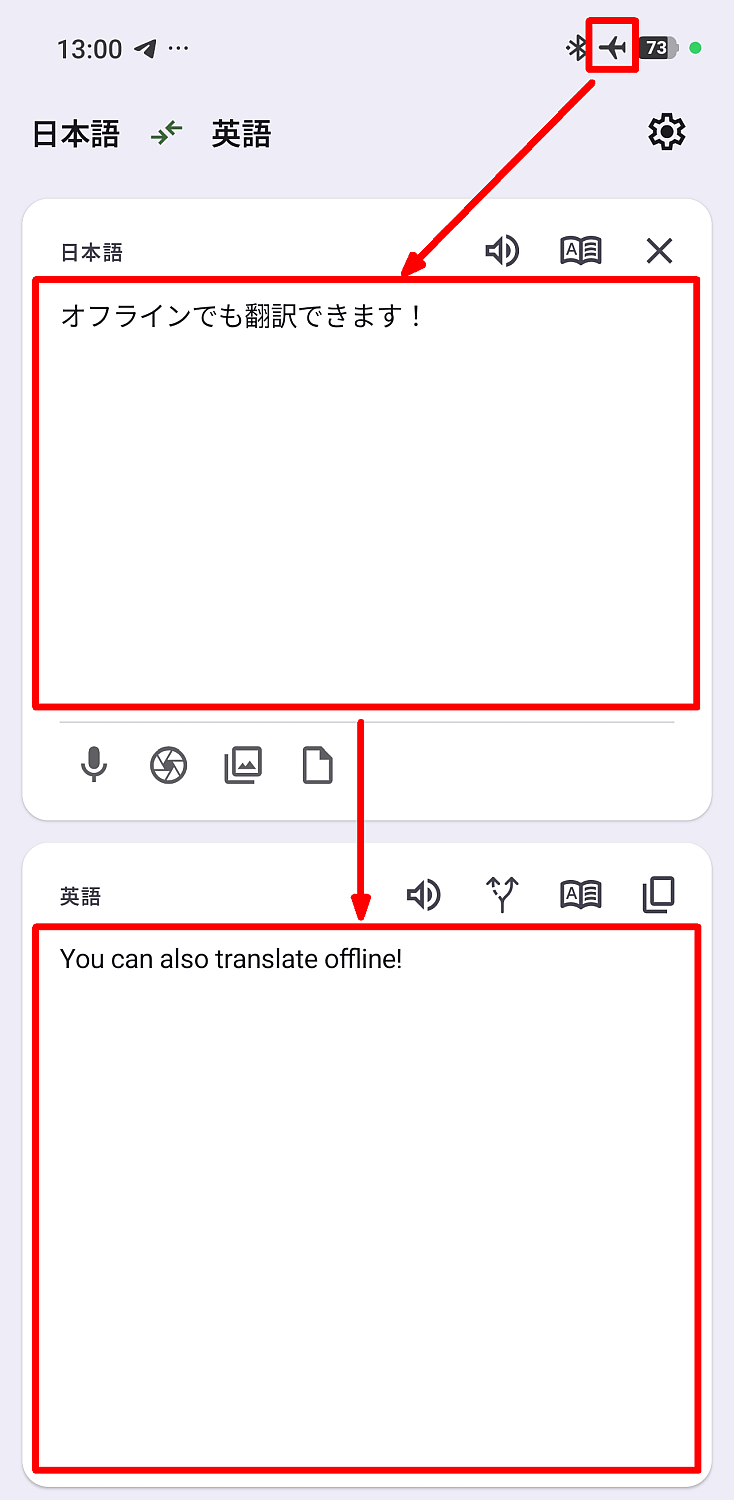
To confirm that it could translate offline, I put my smartphone in airplane mode, and I was able to confirm that it could translate without any problems.
◆Other features
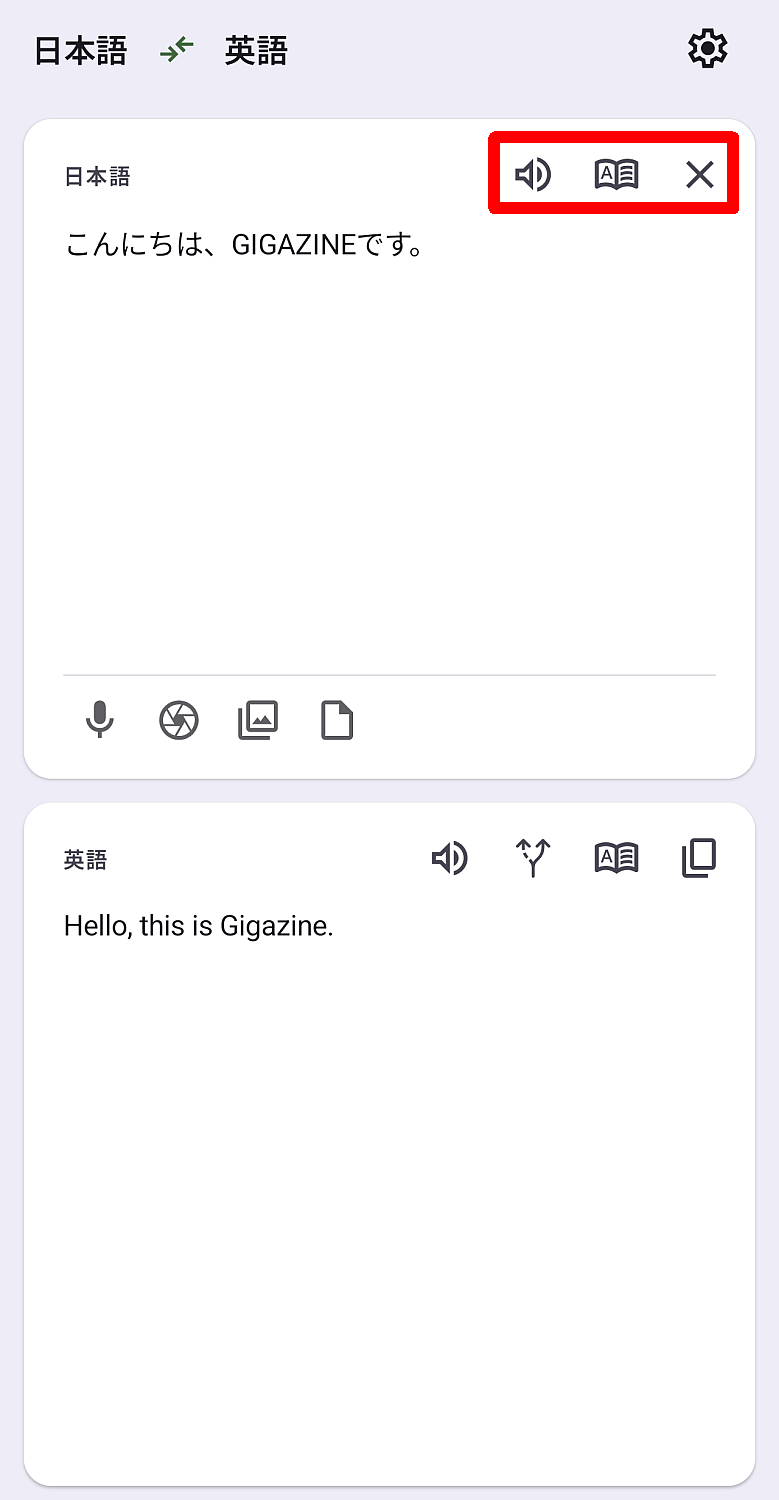
Above the source text input area at the top of the screen, there are three icons. Tapping each icon performs the following functions:
• Sound icon : Reads aloud the source text.
• Dictionary icon : Tapping the source text will display the selected text in the dictionary.
- × icon : Clears the source text for translation.
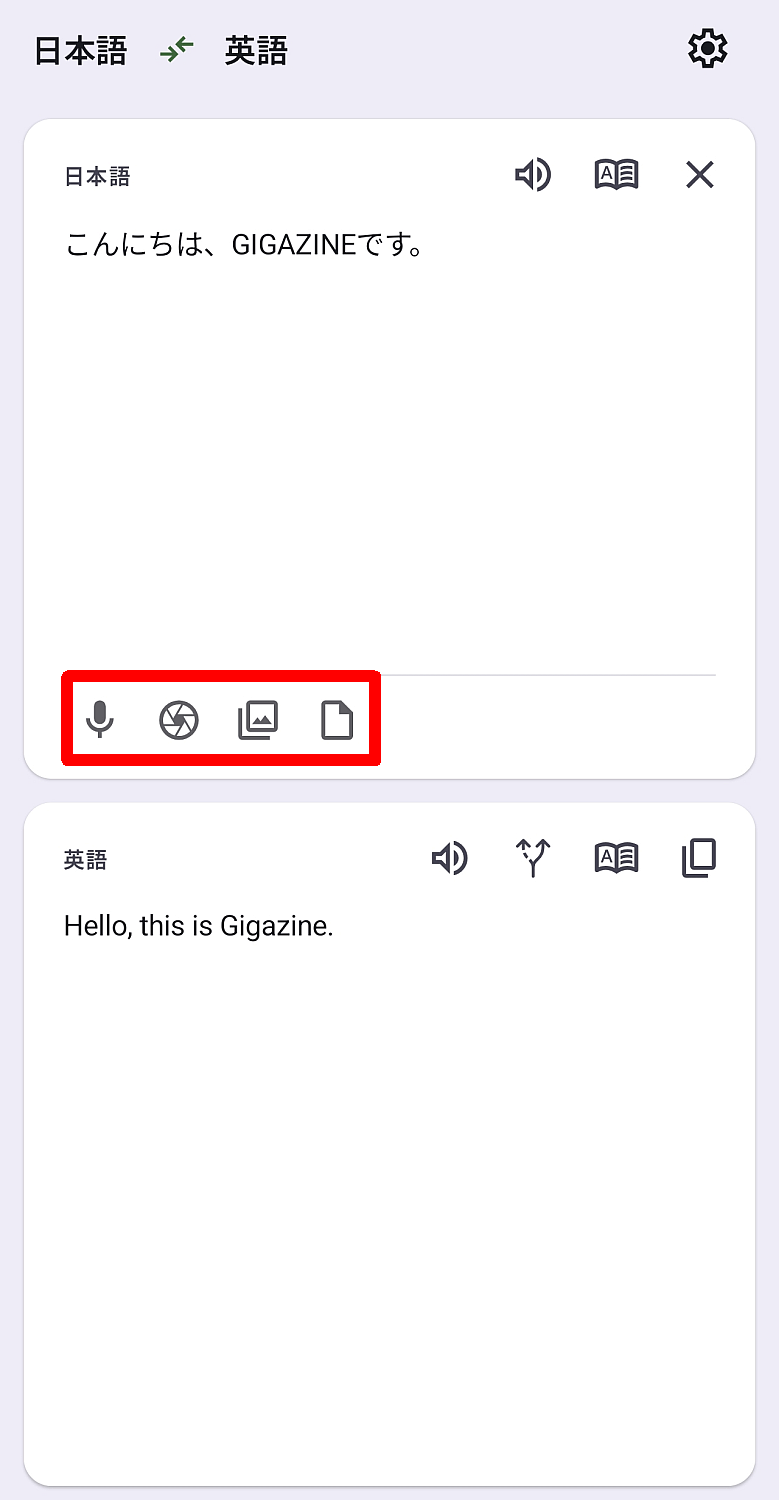
Below the source text input area at the top of the screen, there are four icons. Tapping each icon performs the following functions:
• Microphone icon : Input the source text by voice.
• Shutter icon : Translates text contained in images taken with the camera.
- Image icon : Translates text contained in images stored in storage.
- File icon : Translates text strings contained in files (text, images, PDFs, EPUBs, etc.) in storage.
I had an EPUB file that I created when I converted a GIGAZINE article into an ebook, so I decided to check if it could be translated.

The EPUB translation process involved overwriting the file contents and saving it under a different name. While there were some omissions in the translation and some questionable translations involving proper nouns, the translation itself was completed.

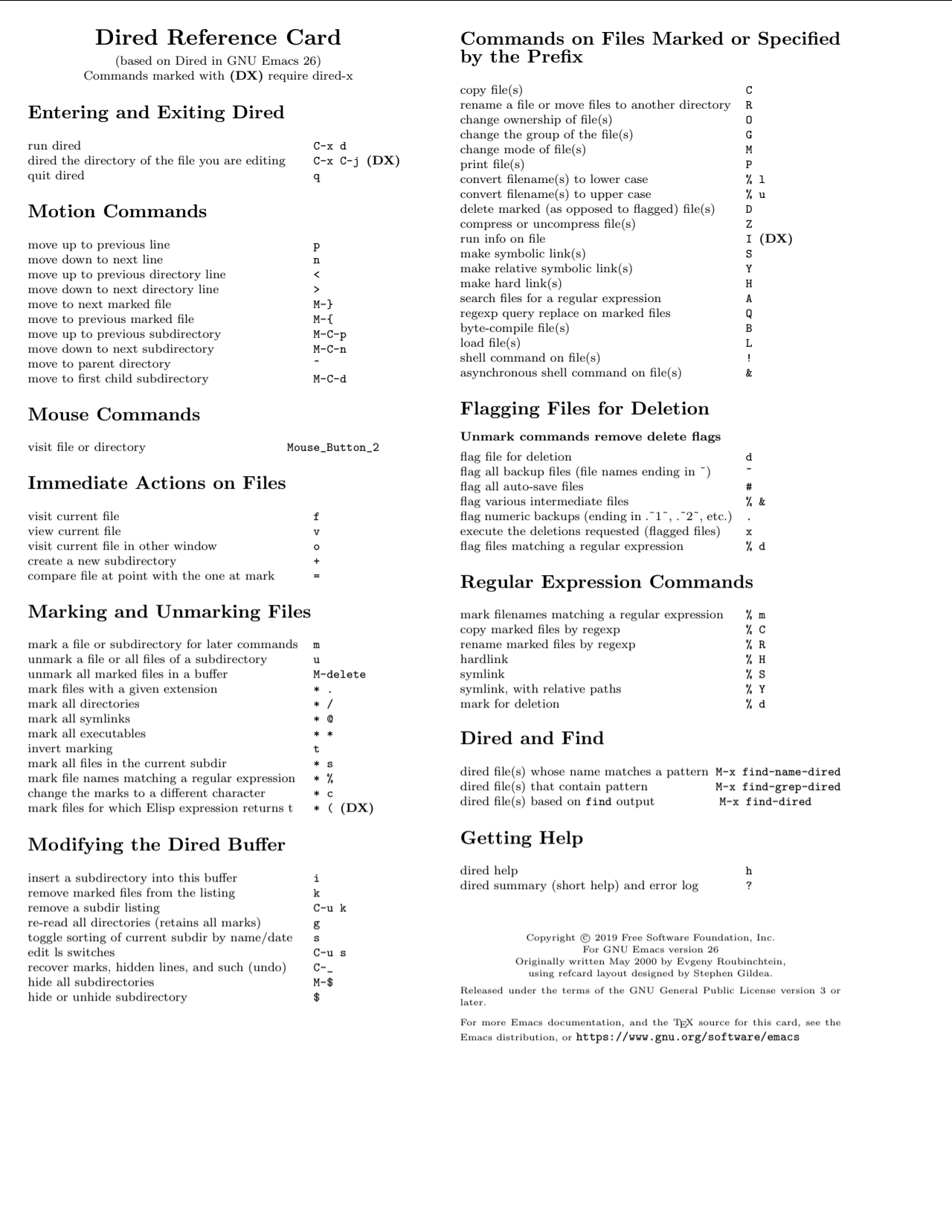
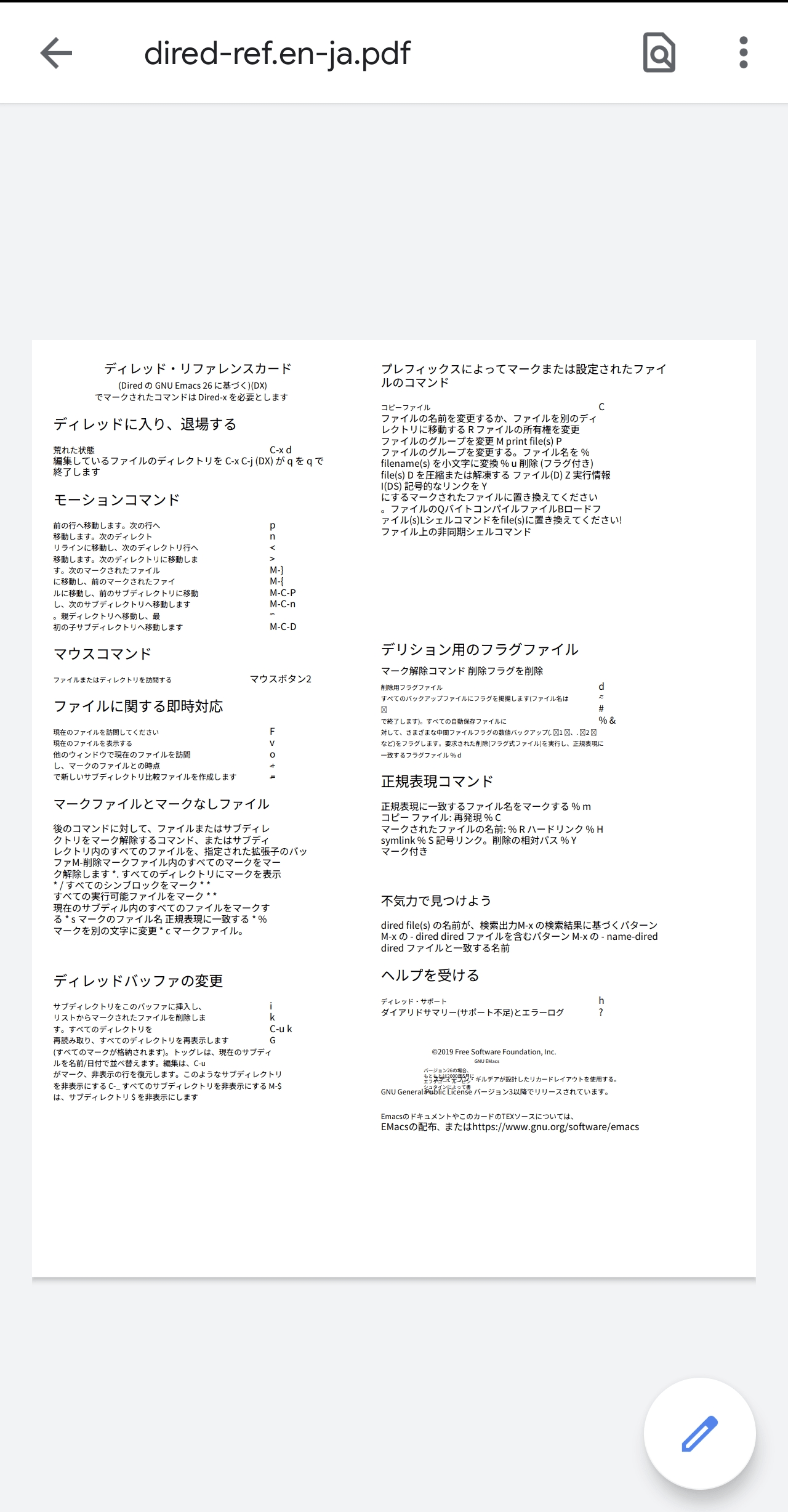
I tried translating an English PDF file into Japanese to see what would happen. It looks like this translation will be quite difficult...
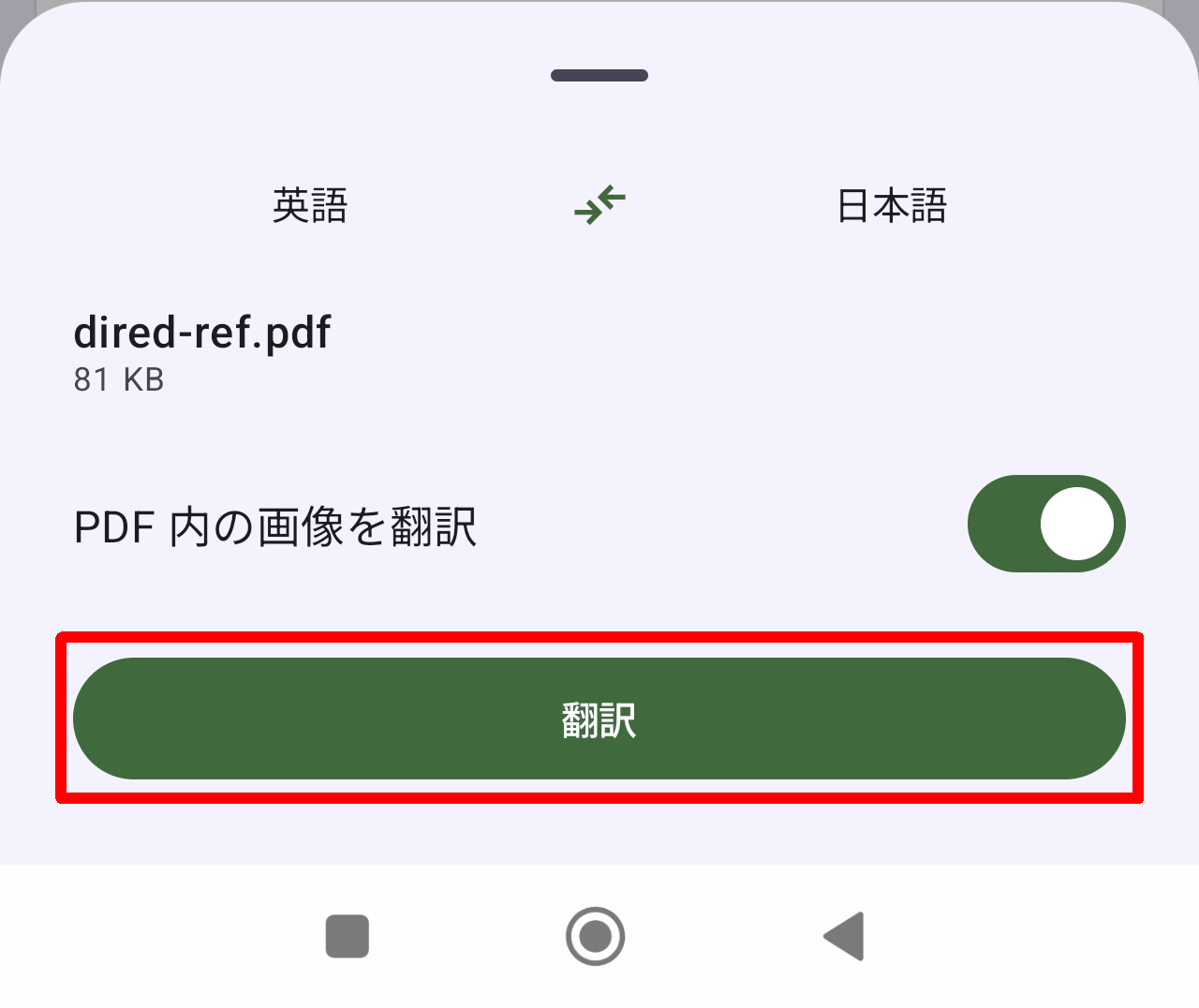
After selecting the file, a confirmation pop-up will appear; tap the 'Translate' button.
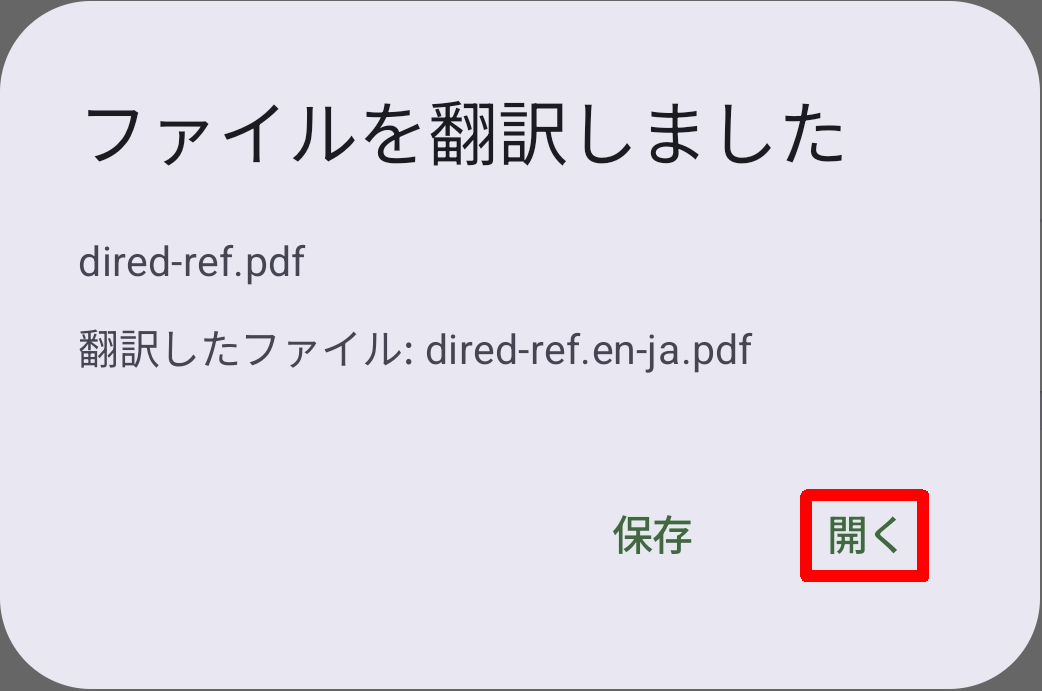
The PDF translation process also involved saving the file under a different name. A 'File translated' pop-up appeared, and I could tap either 'Save' or 'Open.' The only difference between the two was whether the translated and saved file would open in the app, so I chose 'Open' this time.
I opened the translated PDF file. It seems the translation was quite difficult because the original file was very unusual, but it was barely legible.
Regarding image translation, I also checked whether it could recognize vertical Japanese text.

The result was a fairly accurate translation, except for the logo portion which wasn't recognized as text.

Tapping the shutter icon will translate the subject visible to the camera in real time.
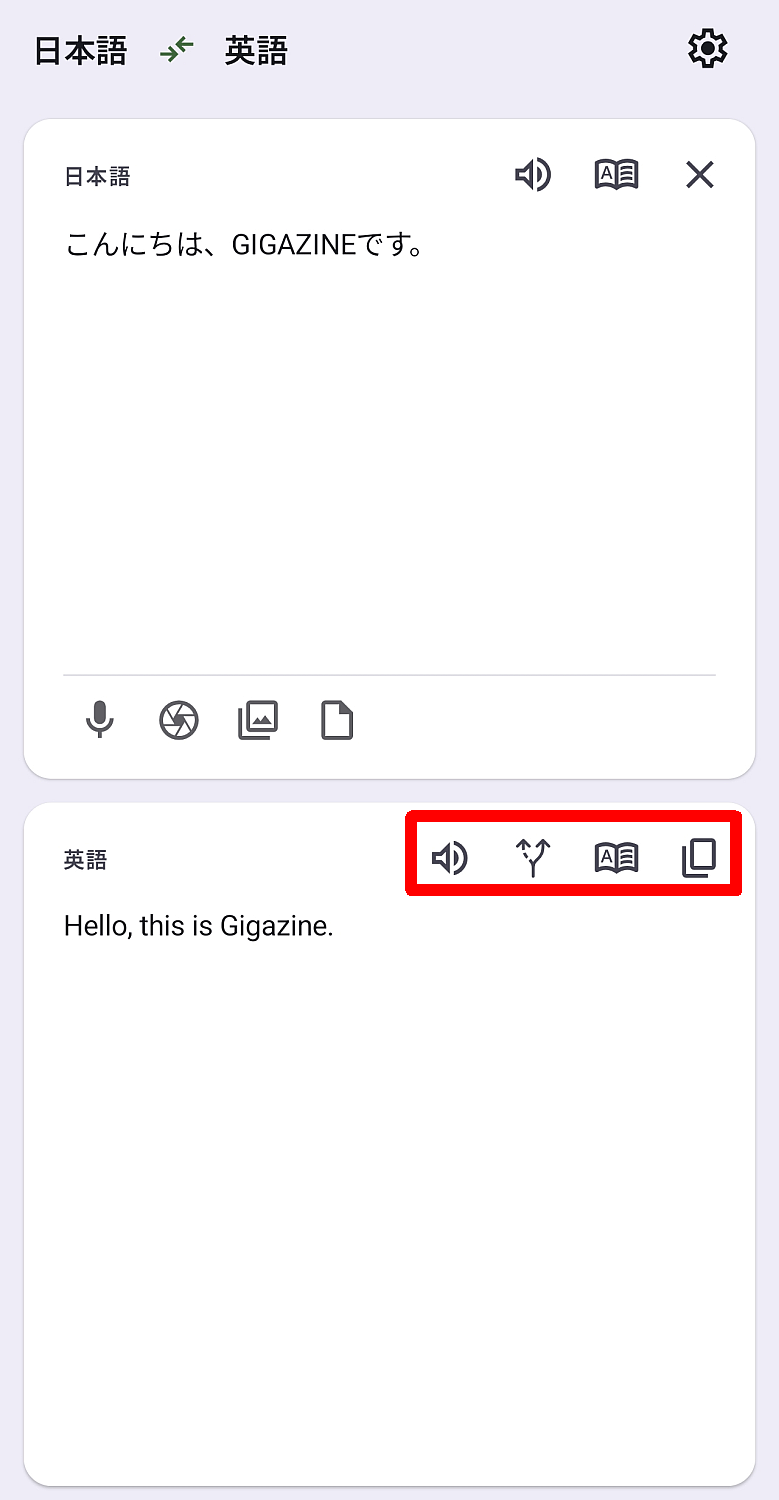
There are four icons above the translation target string output area at the bottom of the screen. Tapping each icon performs the following functions:
• Sound icon : Reads aloud the target text.
• Branching icon : Tapping the target text changes the translation of the tapped section.
• Dictionary icon : Tapping the target text will display the selected text in the dictionary.
• Copy button : Copies the target text for translation.
◆Settings
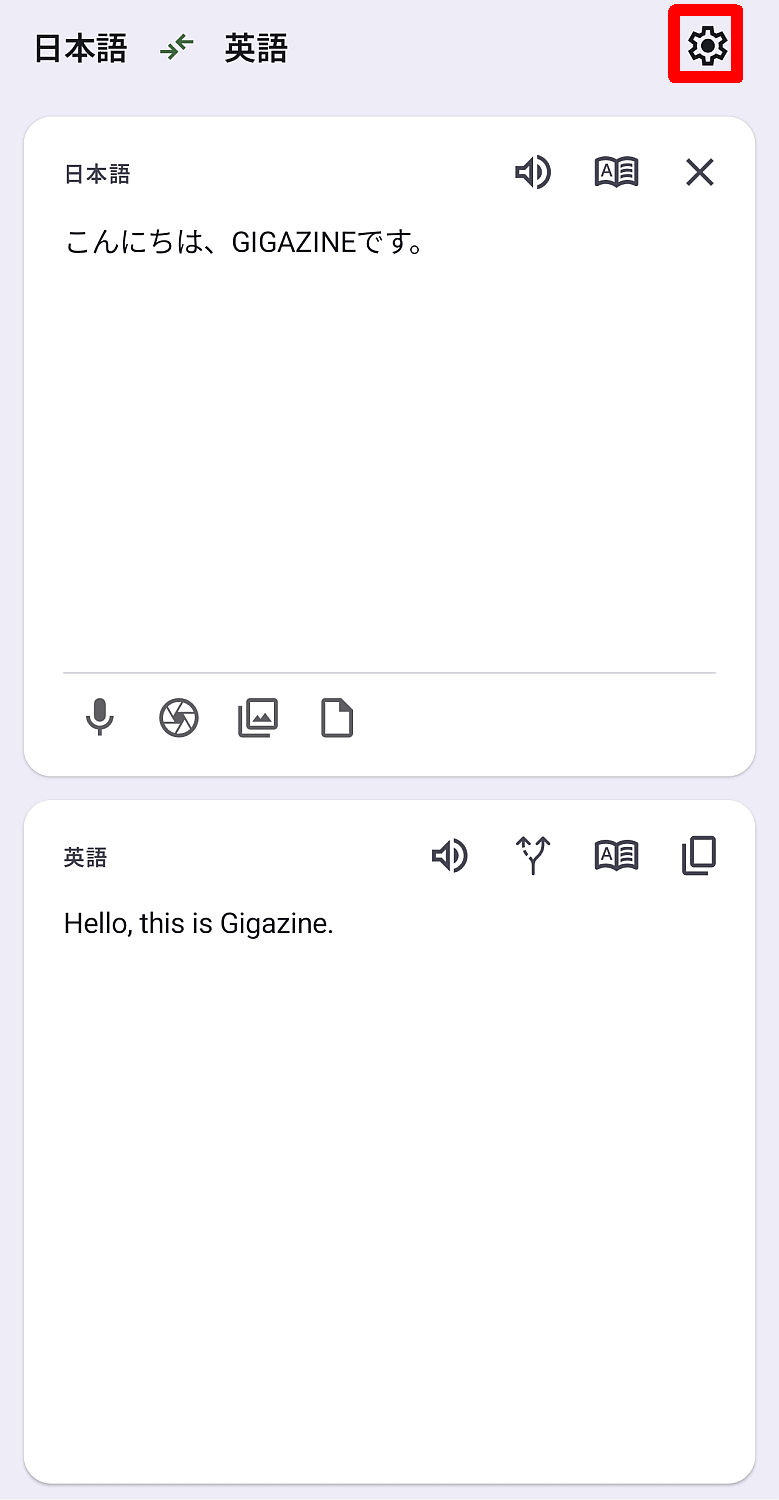
Tapping the gear icon in the upper right corner of the screen will display the settings screen.
The settings are as follows:
·language
• Language Packs: Managing language packs (downloading and discarding)
・General
- Select the default source language for translation
- Select the default target language for translation
- Change font size
• Quick translation notification
Web translation
Ad blocker
- Clear browsing data upon exit: Delete cookies, cache, and local storage.
Text-to-speech
- Read out the URL and hashtags
Pop-up
Hide input
• Pop-up location
Pop-up size
Screen translation
• Always-on button
- Translate the screen using shortcuts
- Select the action to take when the shortcut is launched.
·image
- Background for replacing text
Minimum confidence
Maximum image size
・Advanced settings
• Catalog URL
Use external storage
- Disable automatic language detection
- Screen translation (experimental feature)
• Supports multiple source languages
- Display phonetic symbols in the translated text
- Display phonetic symbols for the source text.
- Added spaces to Japanese pronunciation notation
- Images within the PDF will also be translated.
- Camera provides real-time translation from the start.
- Register as a browser: Allows you to translate links from other apps.
Enable
About the app
• How to use: Display instructions
• To report a problem/request help, open the official GitHub repository.
- Support development: Display Liberapay

◆Summary
Offline Translator is a translation app with more than enough features for everyday use and can be used offline. Looking at its settings, it seems to have even more potential, so if you're interested, please try it out for yourself.
Related Posts:



in Software, Smartphone, Review, Posted by log1c_sh