A review of my experience trying out the beta version of WordPress.com's 'Studio Code,' which is available for free on desktop.
StudioCode – Resources for Developers
https://developer.wordpress.com/ja/docs/developer-tools/studio/studio-code/
WordPress Studio – Agent-based local development
https://developer.wordpress.com/ja/studio/
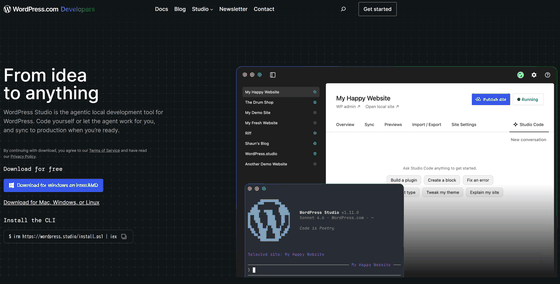
For instructions on installing the desktop application, please refer to '
◆How to launch Studio Code
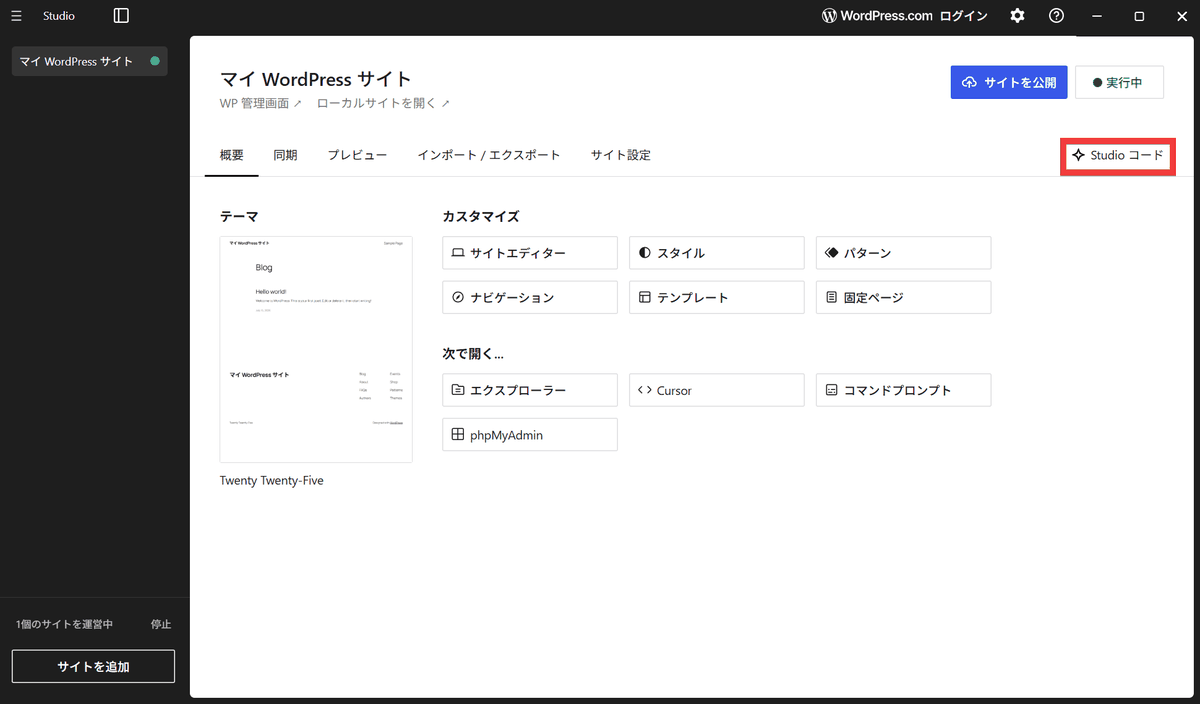
When you launch Studio, the initial screen of the site will appear, so click 'Studio Code' on the right side.
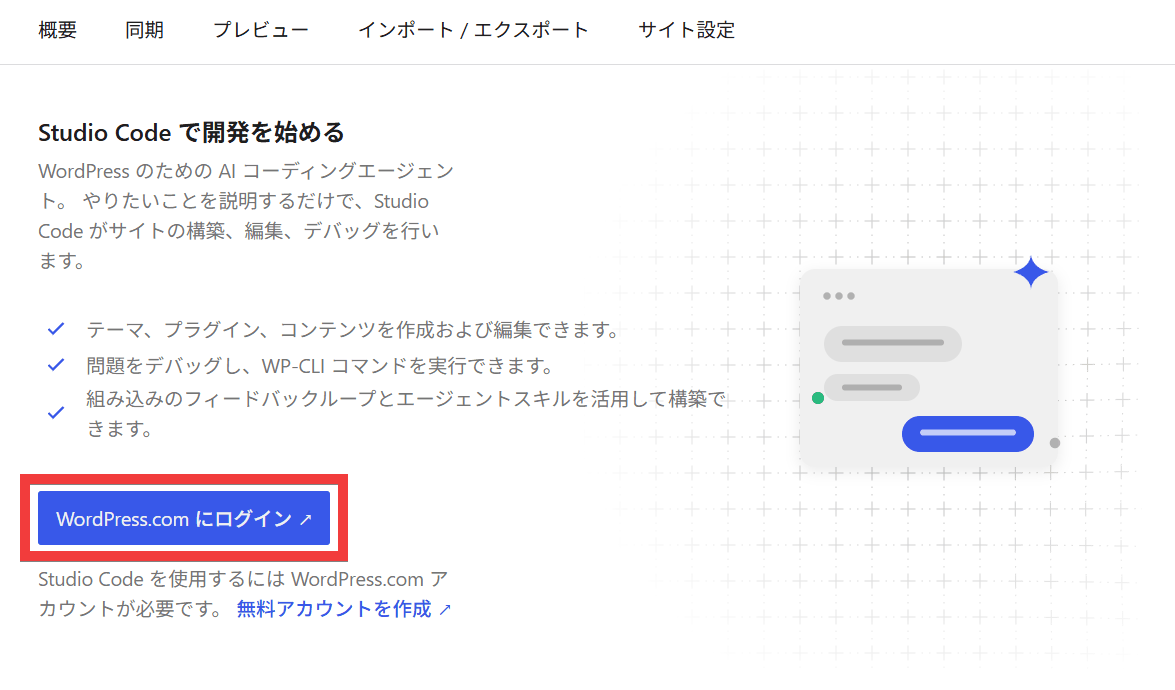
Click 'Log in to WordPress.com'.
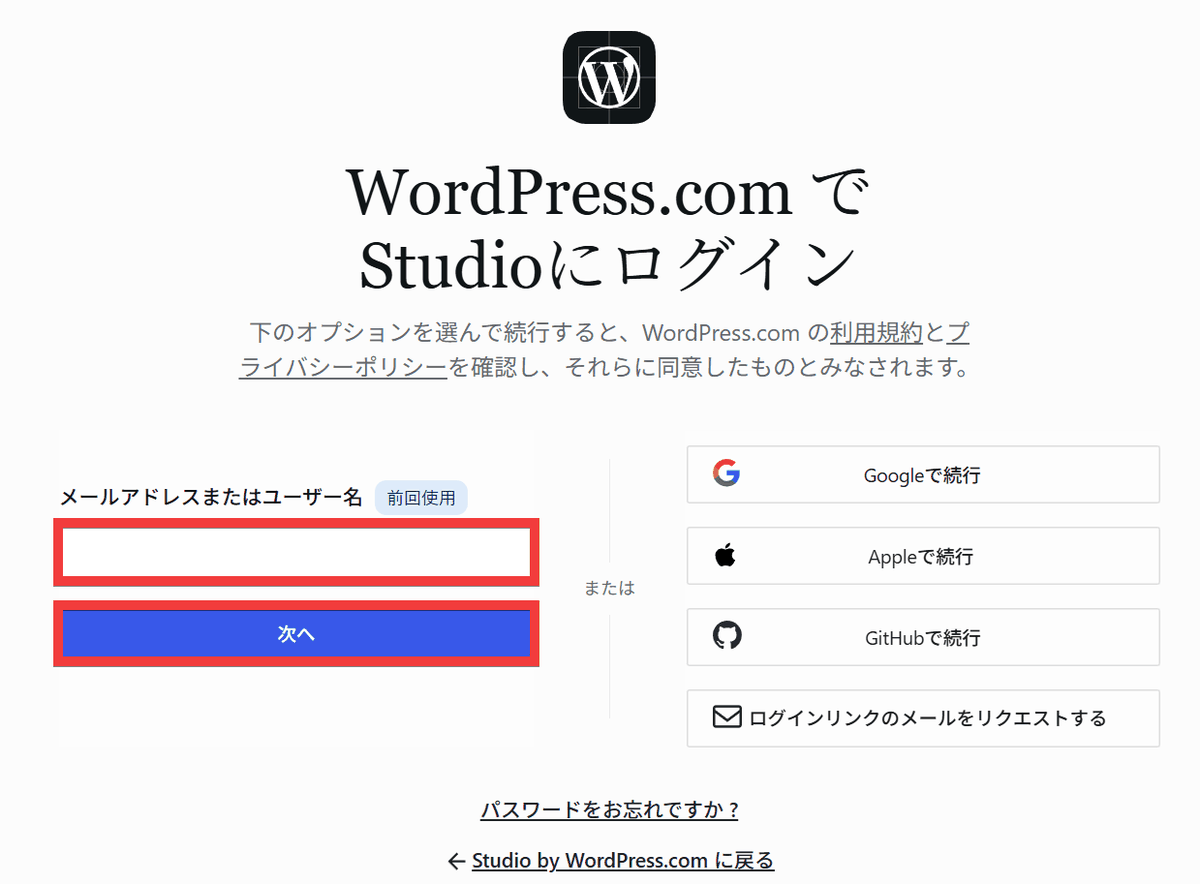
Your browser will launch and a login form will appear. Enter your registered email address or account in the 'Email address or username' field and click 'Next'.
Enter your password in the 'Password' field and click 'Login'.
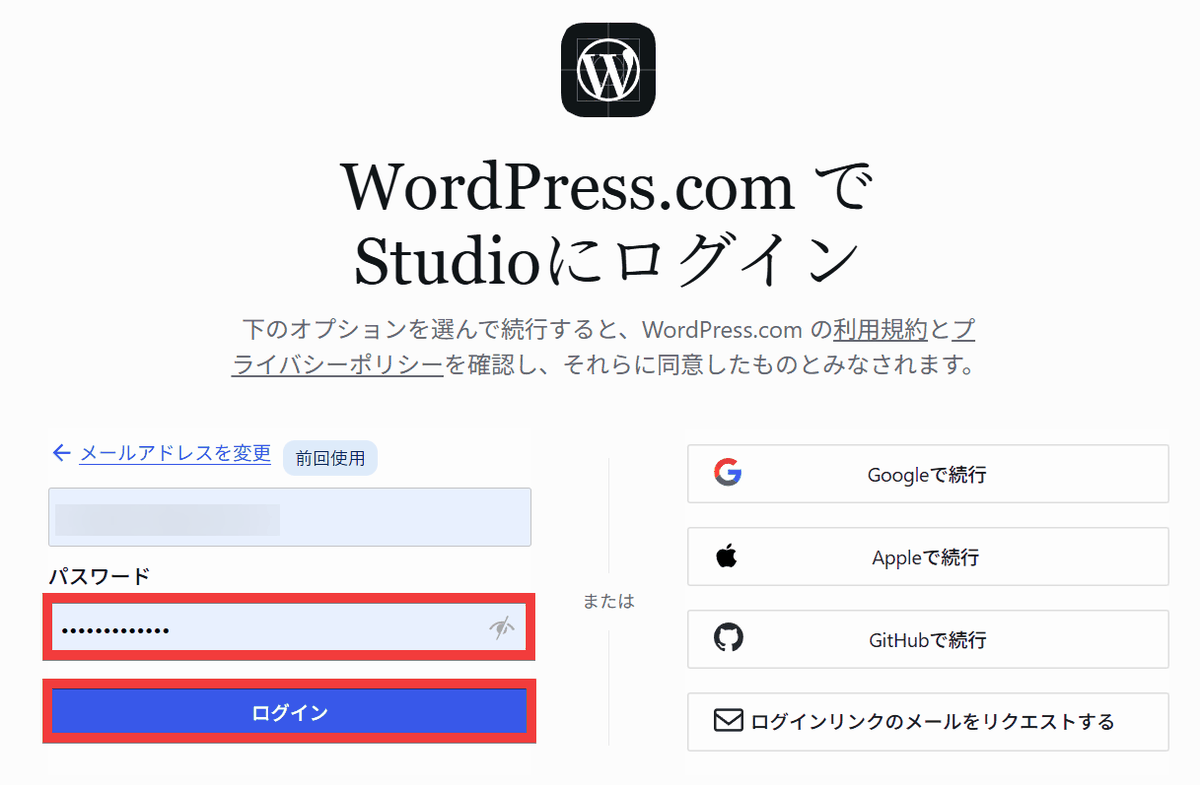
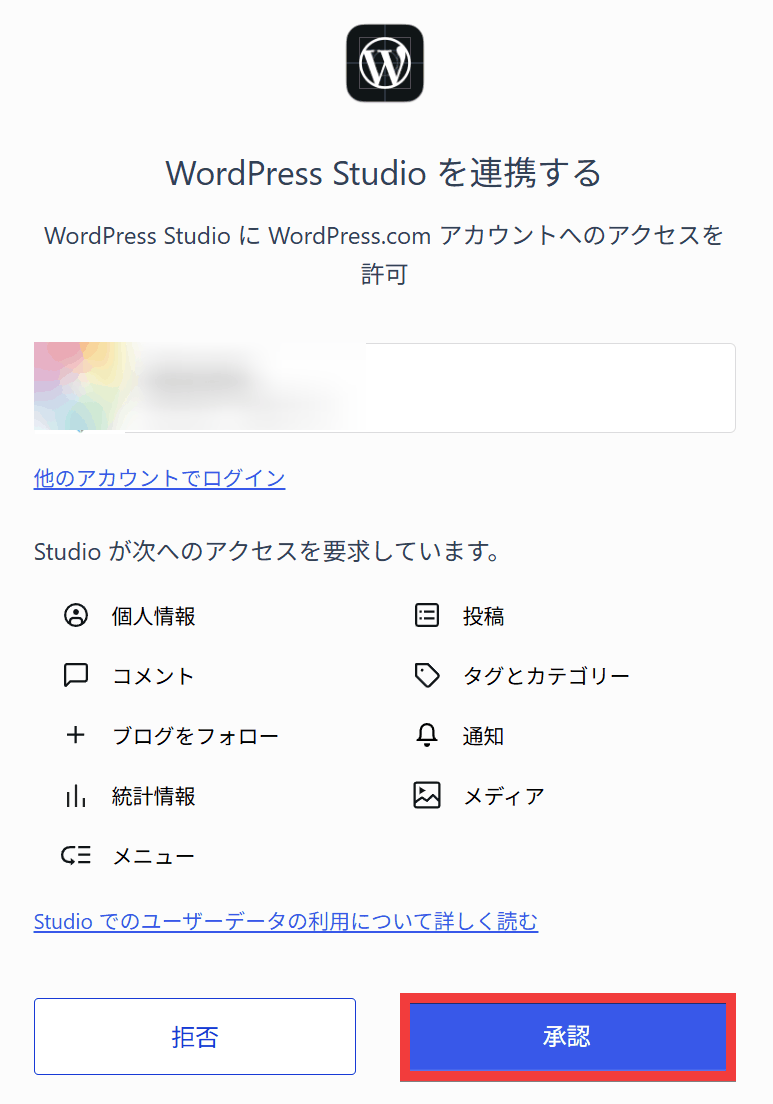
You will be asked to allow WordPress Studio to connect, so click 'Approve'.
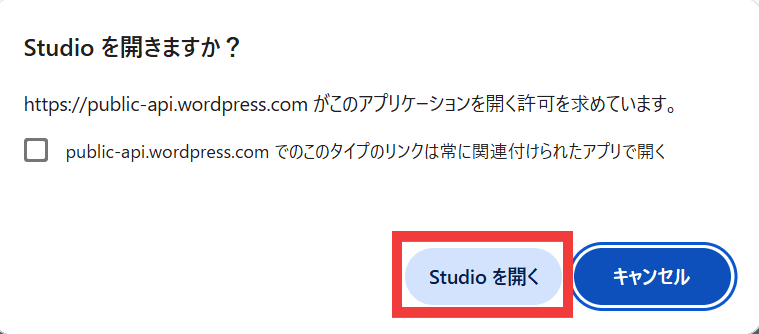
A dialog box will appear asking if you want to open Studio, so click 'Open Studio'.
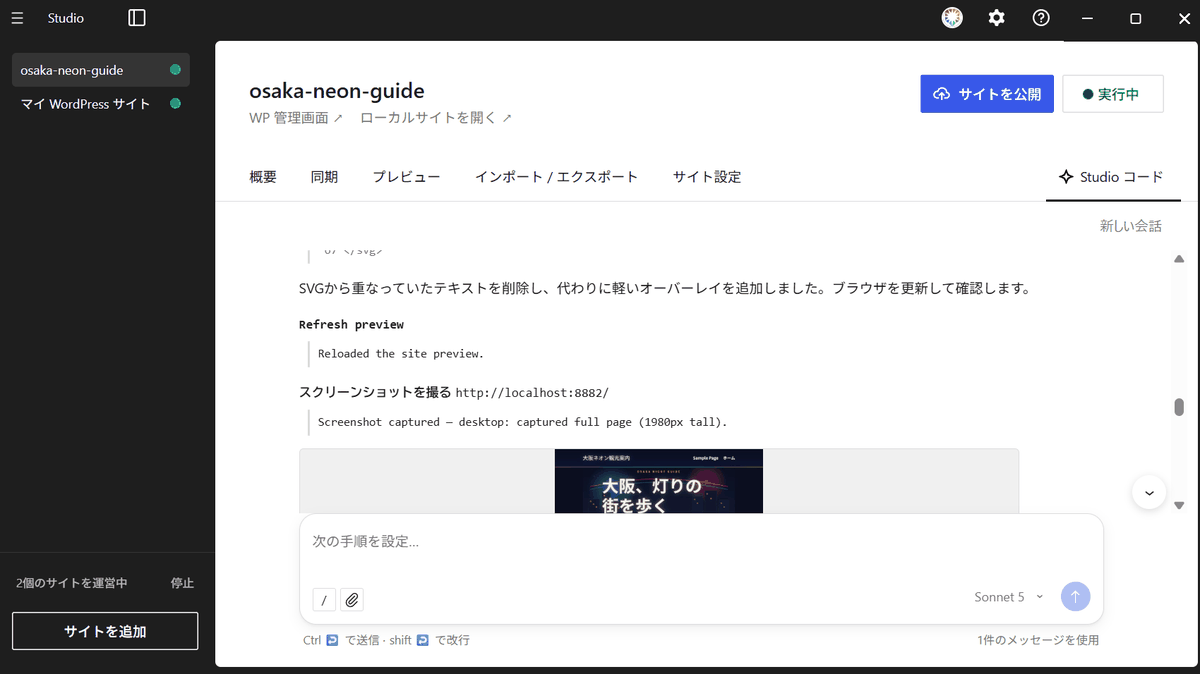
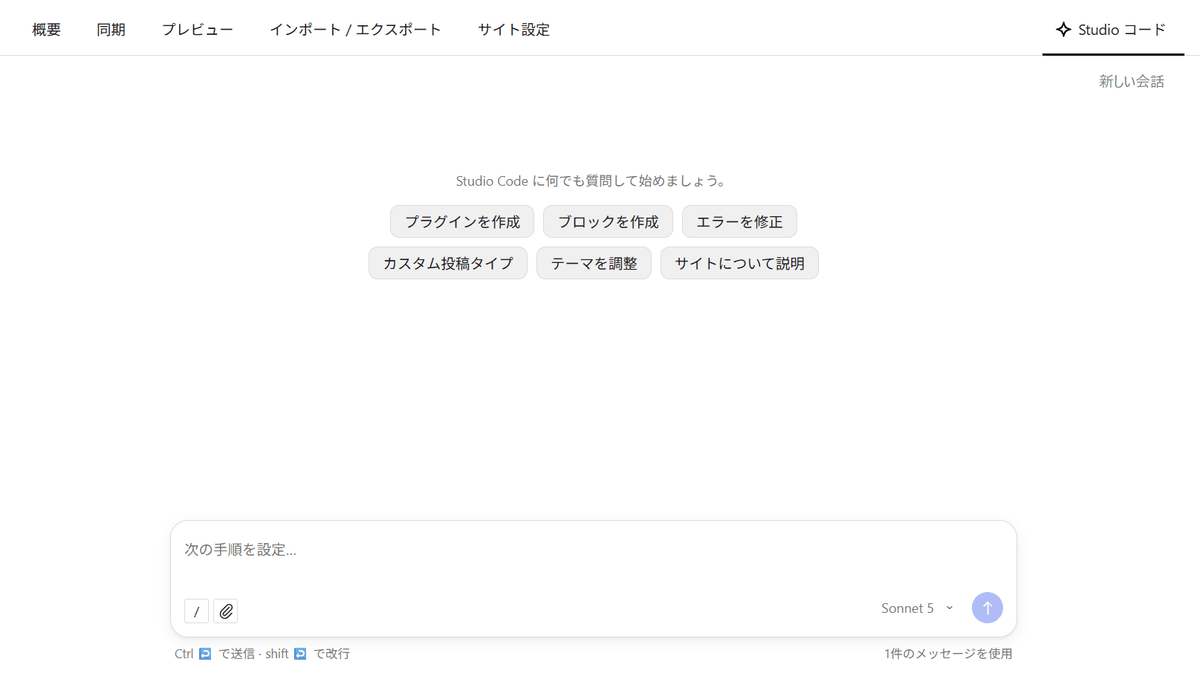
Returning to Studio, the chat screen will appear.
◆Available models
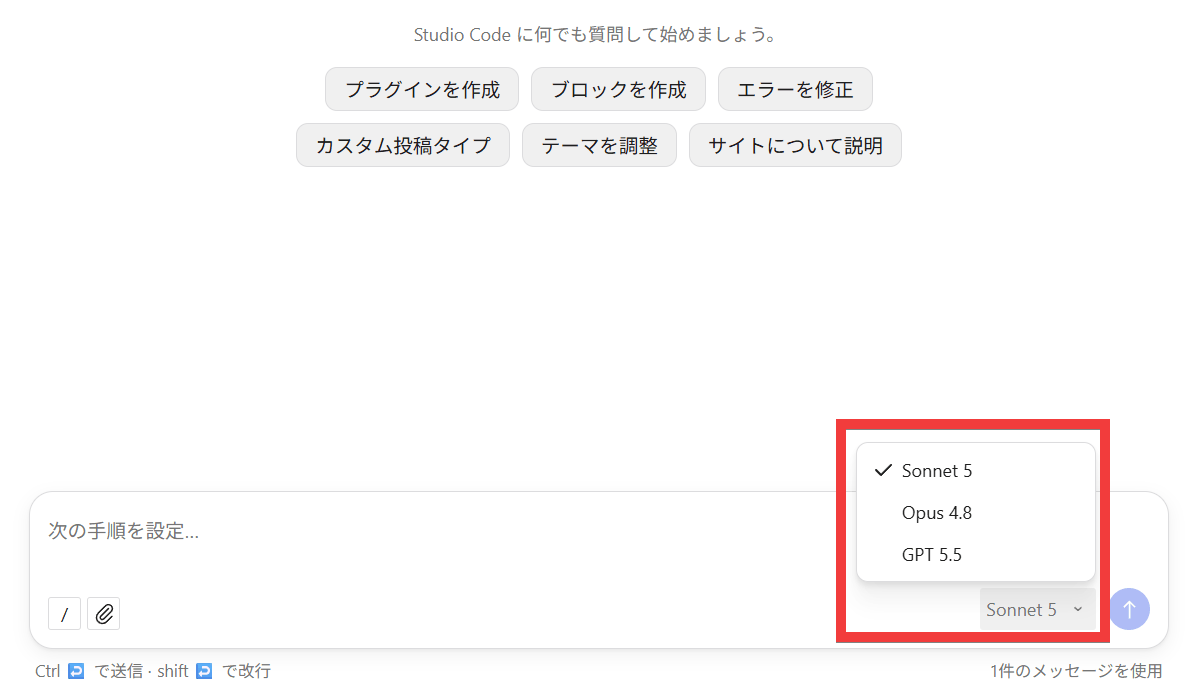
◆Examples of using chat
• Site construction
I gave the following instructions: 'Please create a WordPress site introducing tourist attractions in Osaka Prefecture, Japan. The homepage should include a large main image, a list of tourist attractions, and access information.'
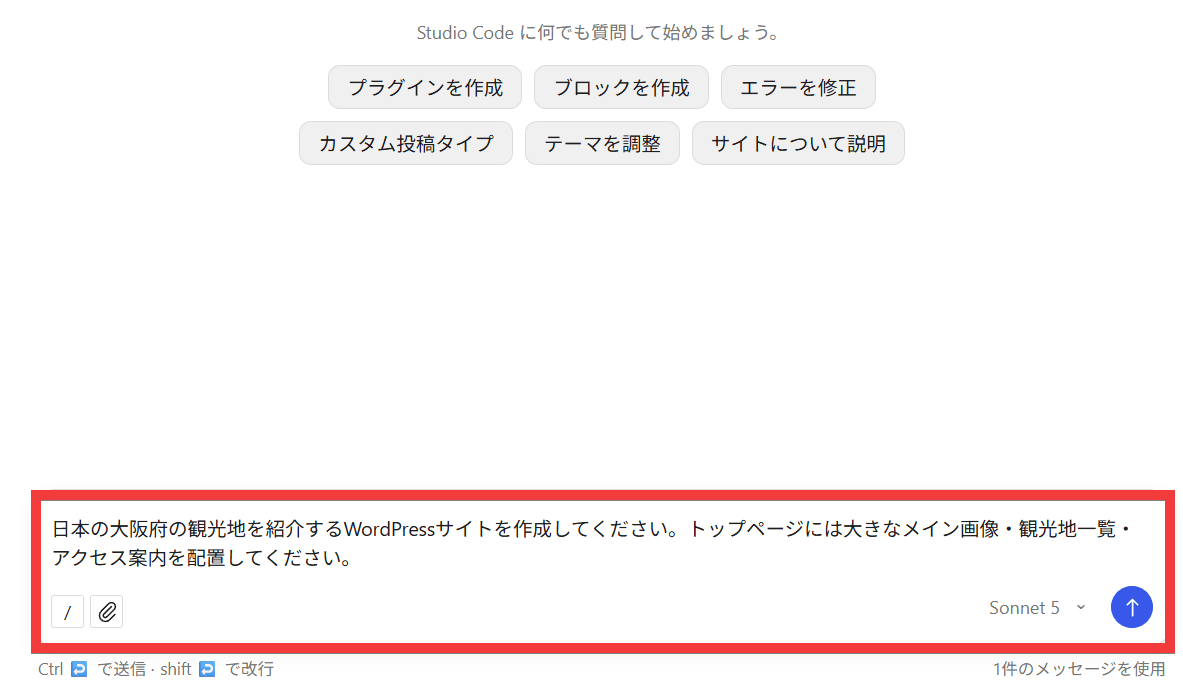
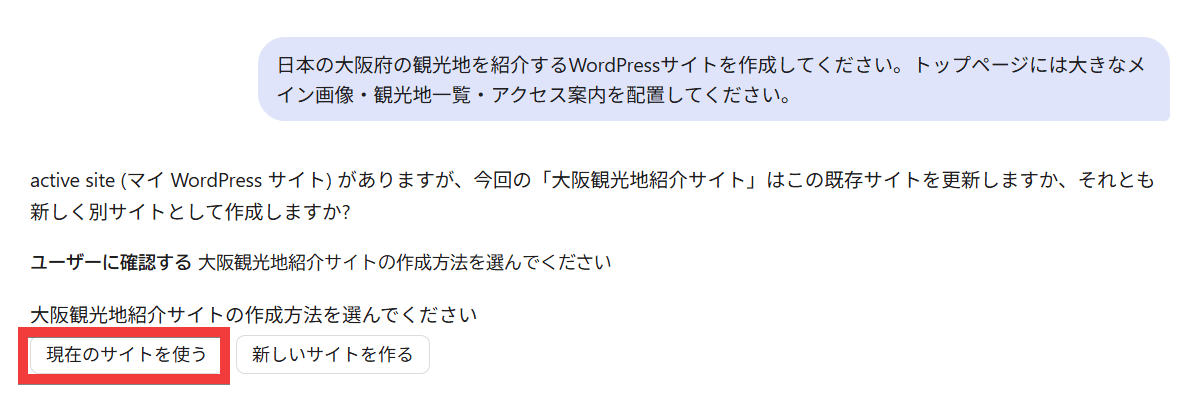
I received a response asking, 'You have an active site (My WordPress site), but for this 'Osaka Tourist Spot Introduction Site,' would you like to update this existing site or create a new, separate site?' I selected 'Use the current site.'
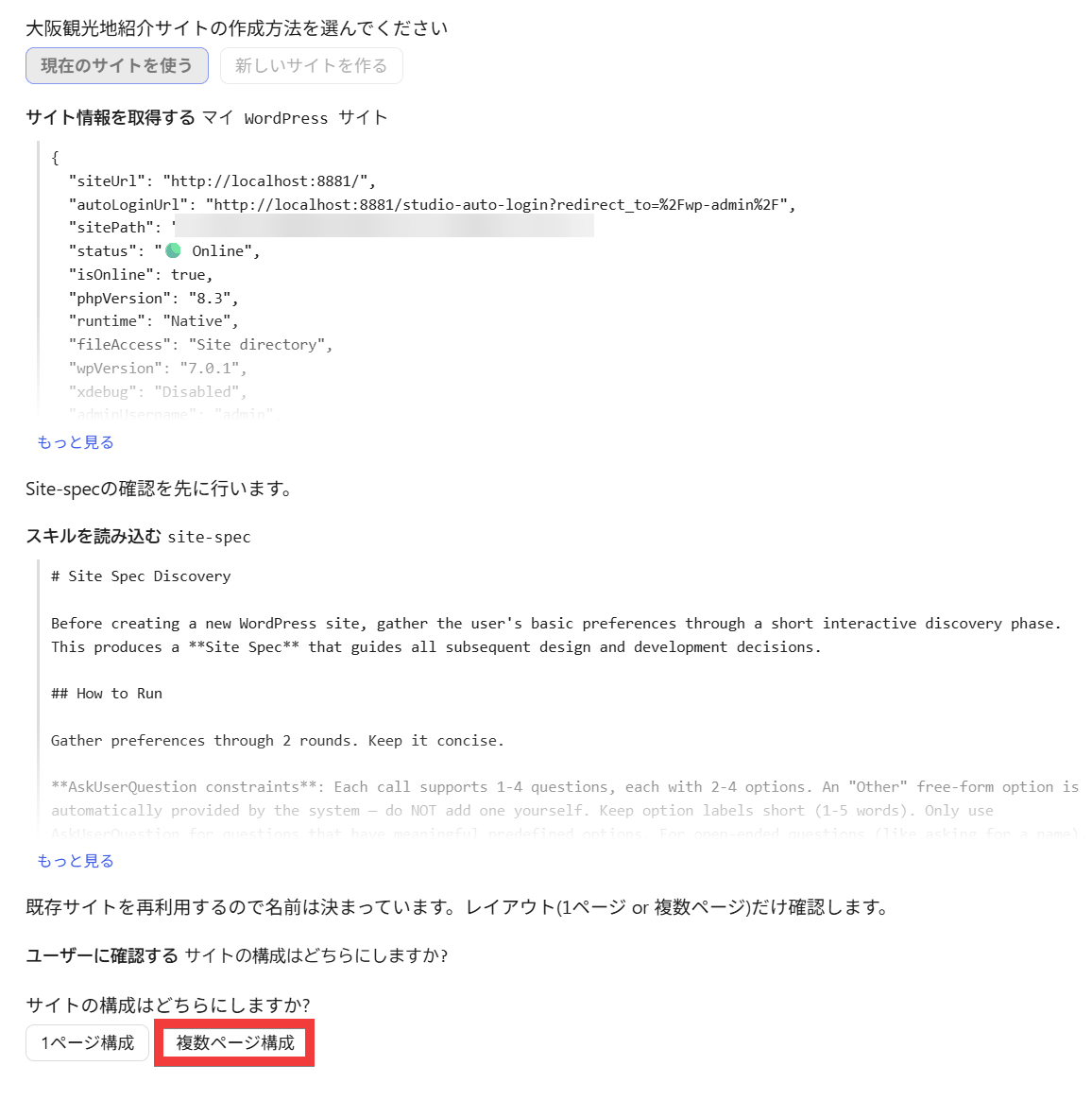
When asked, 'Which site structure would you prefer?', I selected 'Multi-page structure'.
When asked 'Which design direction do you prefer?', I selected 'Neon Urban Style (Dotonbori style)'.
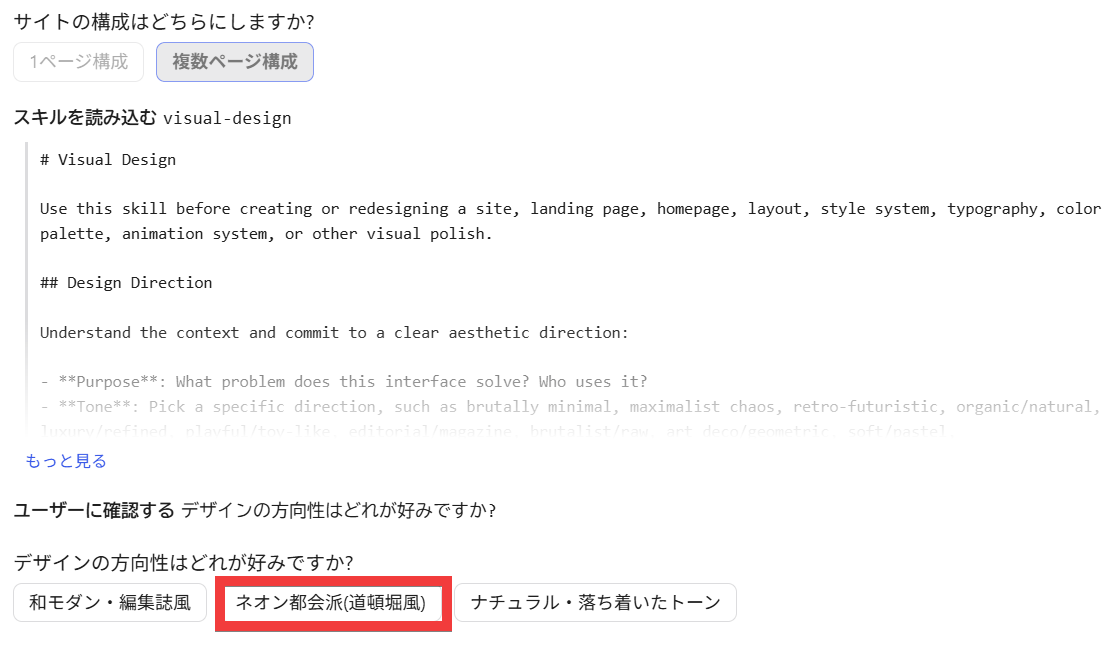
The message said, 'A problem was found with the path to the administration panel.' It seems that the Japanese site name caused a problem because the folder name contained Japanese characters, interrupting the process. I selected 'Create new with alphanumeric name.'
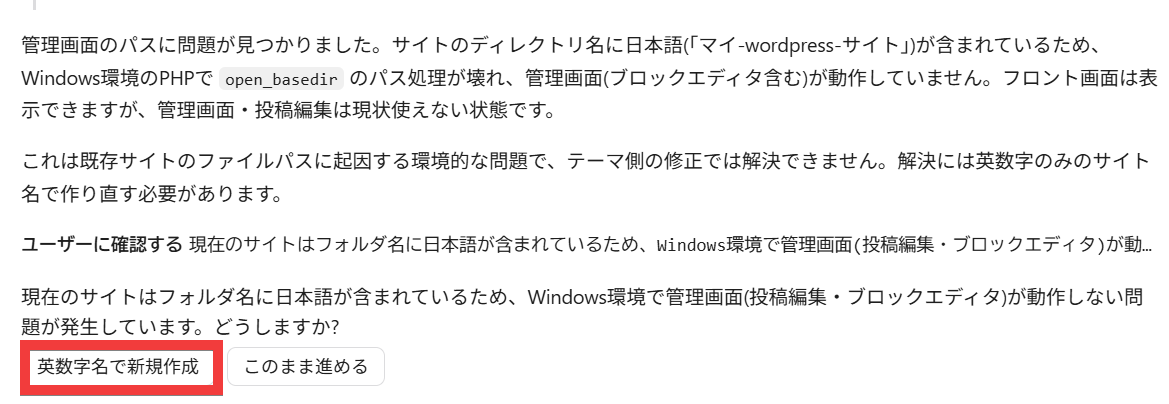
A new site, 'osaka-neon-guide,' was created, and I was prompted to move to it, so I clicked 'Open osaka-neon-guide.'
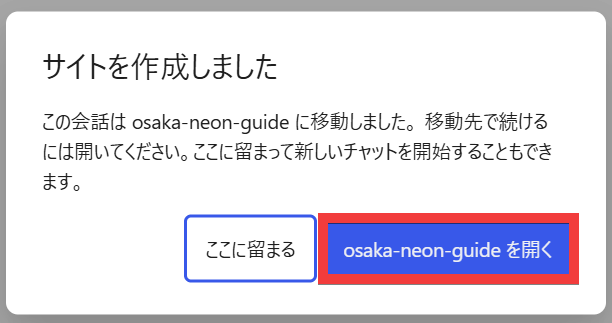
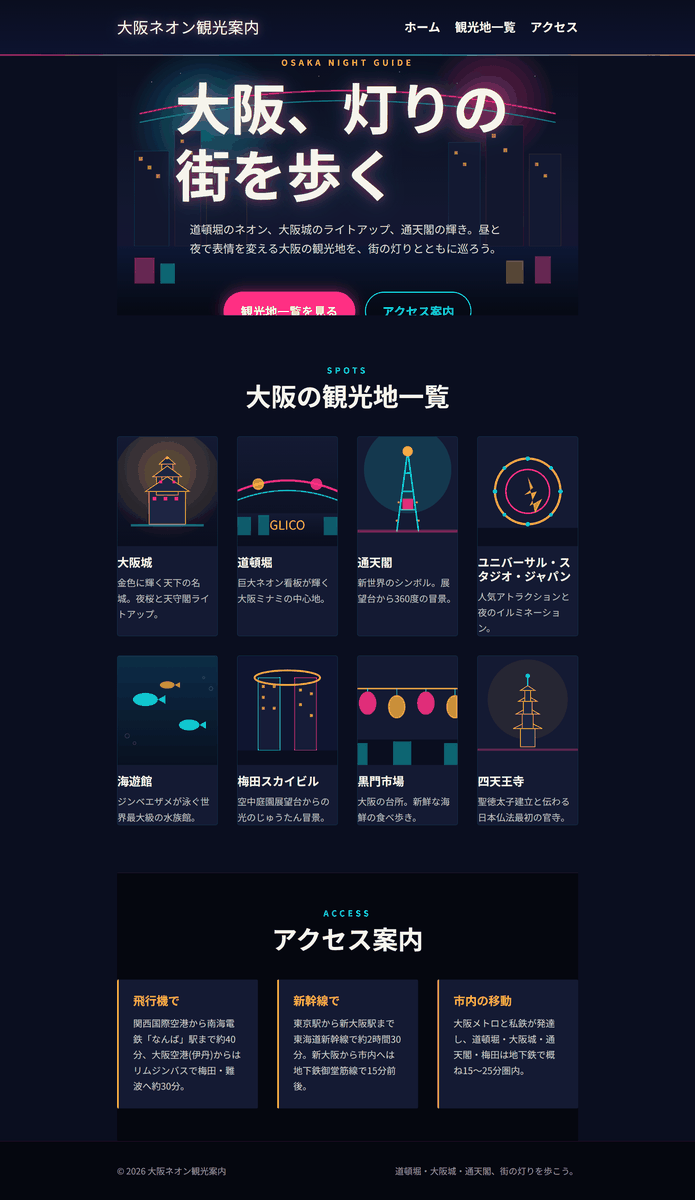
The chat application I moved to was already operational, and the site was completed in about 30 minutes. I clicked the site URL to confirm.
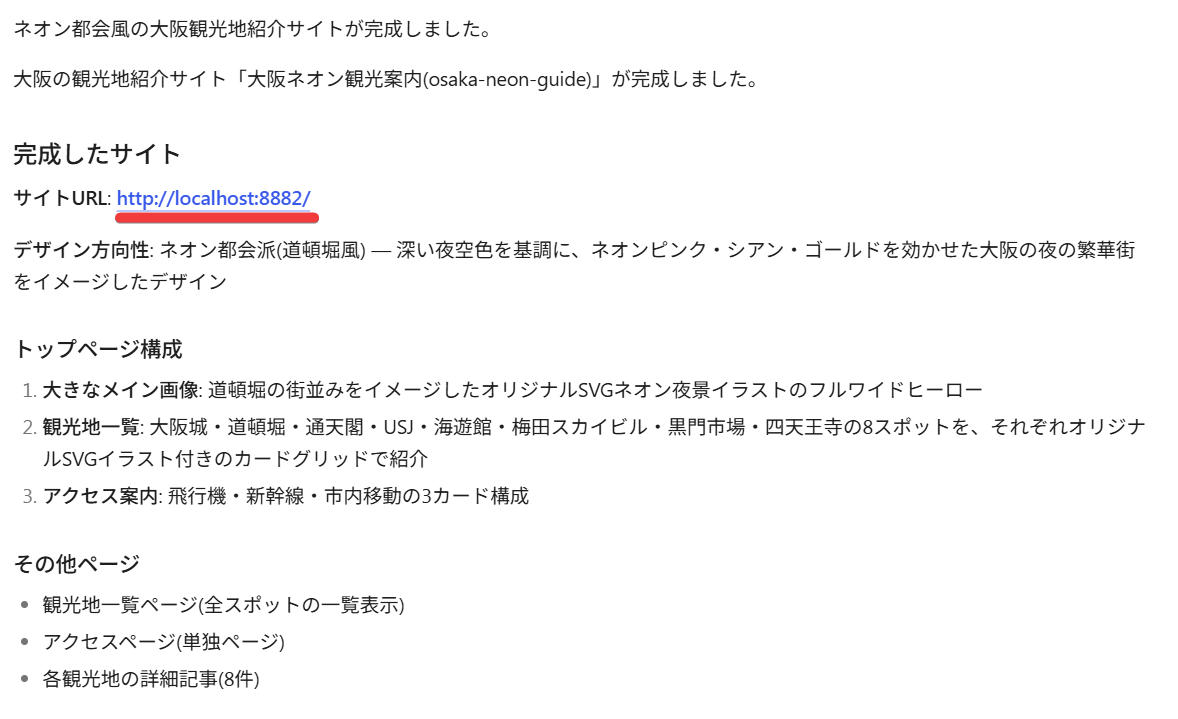
The following website was displayed:
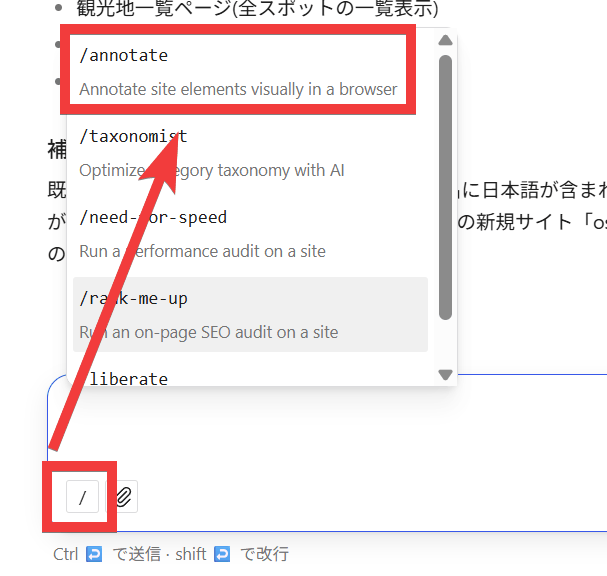
- Select and modify parts directly from the preview screen.
Click the 'Slash Command' icon and select '/annotate'.
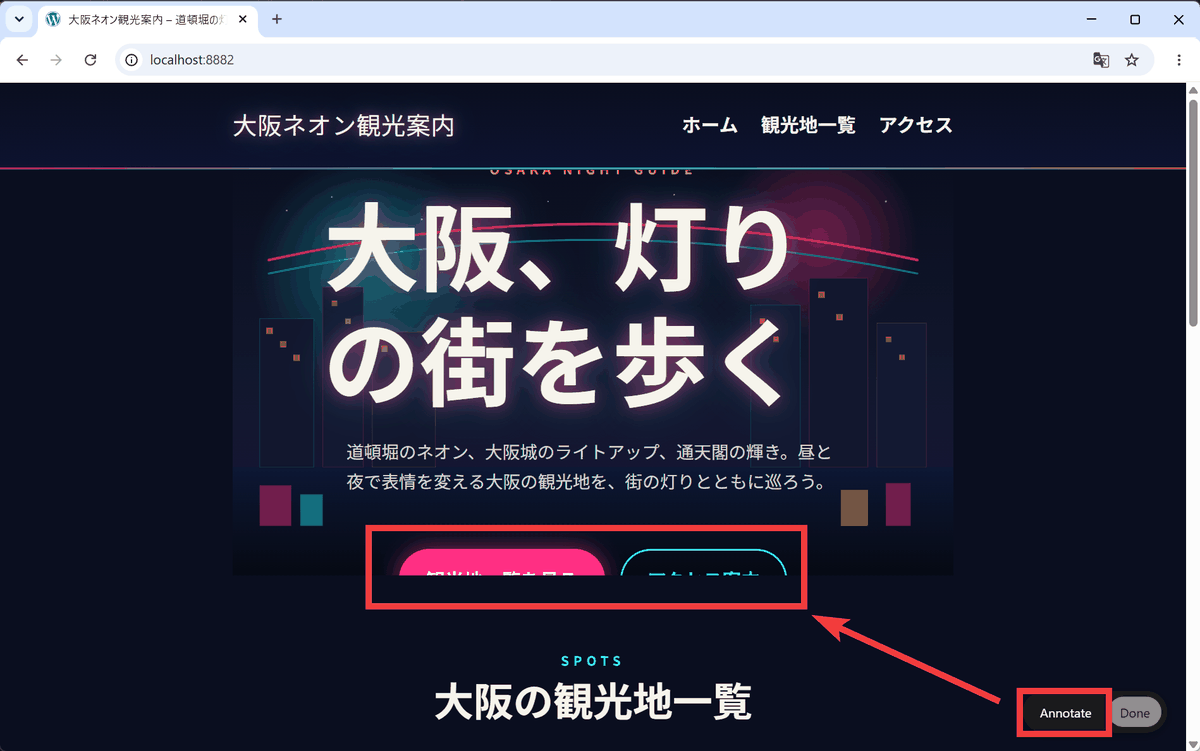
Your browser will launch and a preview screen will appear. Click 'Annotate' and then click the leftmost of the 'hidden buttons' in the area you want to modify.
A chat window will pop up, so type 'The button is hidden behind its parent element and only half of it is visible,' and click 'Save' to save.
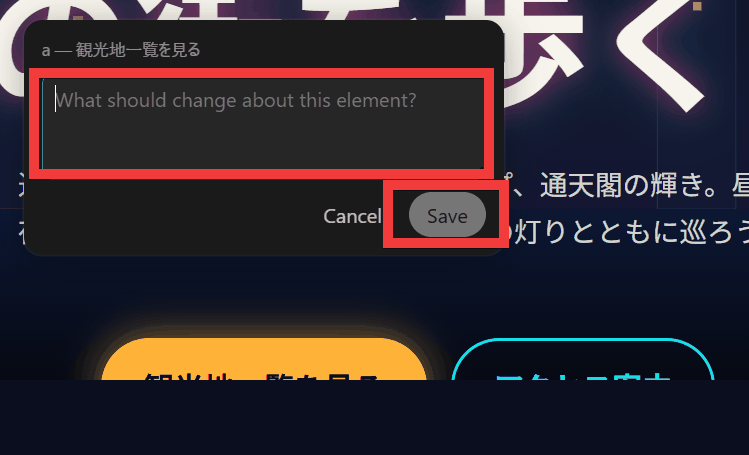
Enter the correction request text in the other button as well, save it, and click 'Done' when registration is complete.
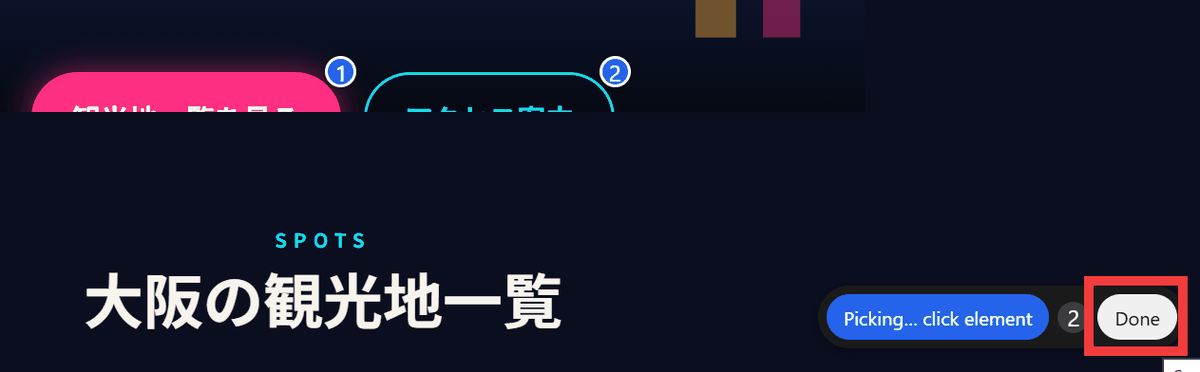
The correction work was performed, and the entire button is now displayed as intended.

In this way, website construction and modification work can be done simply by giving instructions via chat.
◆List of Features
In addition, the following features are available in Studio Code:
| function | Content |
|---|---|
| Create a new website | Create a WordPress Studio site from natural language. |
| Create a static page | Generate page content and structure |
| Create a post | Add post body, headings, categories, etc. |
| Content editing | Modify existing text or blocks. |
| Image attached | The images sent via chat were used on the website. |
| Theme Introduction | Searching for, installing, and activating themes |
| Plugin installation | Searching for, installing, and activating plugins |
| Execute WP-CLI | The agent executes WordPress-related commands. |
| File operations | Read and write files in the site directory. |
| screenshot | Capture the website screen and check the displayed content. |
| /annotate | Visually specify the changes on the screen. |
| /need-for-speed | Site performance audit |
| /taxonomist | Optimization of category structure |
| /preview | Temporary preview published on WordPress.com |
◆Summary
As it's a beta version, there are some unstable aspects, such as errors occurring if folder names contain Japanese characters. However, I was able to run it for over 30 minutes without any usage restrictions and complete the entire website construction process. The feature that allows you to directly specify and instruct on corrections from the preview is particularly convenient, making it a tool that allows you to build a website just by communicating, even without knowledge of design coding such as HTML, CSS, and JavaScript.
Related Posts: