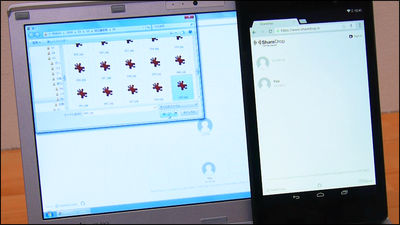
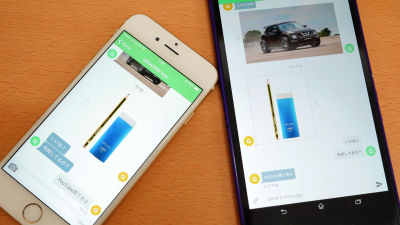
AlterSend is a free P2P transfer service that allows you to directly transfer large files over the internet or even using only local Wi-Fi. It requires no account, is ad-free, and is compatible with smartphones and PCs.
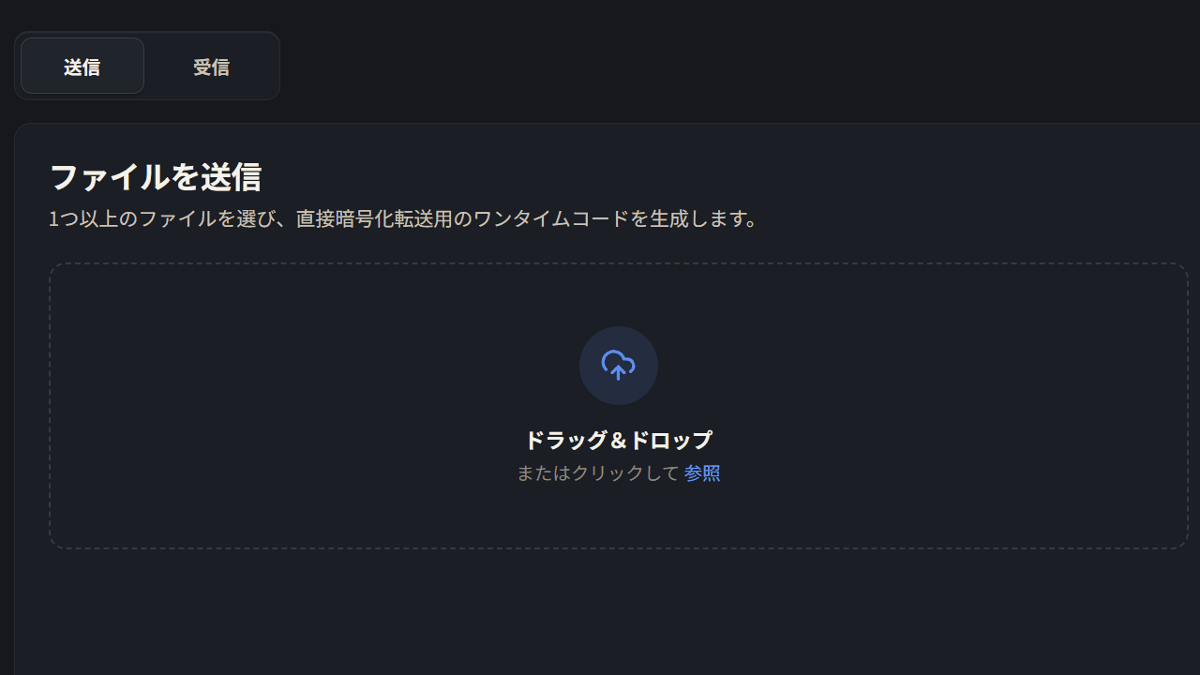
When transferring files between iOS, Android, and PC devices, various limitations arise, such as the hassle of registering and logging into cloud storage services, or the inability to transfer files without an internet connection. However, ' AlterSend ' seems to overcome these problems, as it allows direct
AlterSend — Private, unlimited file transfer | Peer-to-peer, encrypted, no accounts
https://altersend.com/
denislupookov/altersend: Send files directly between devices over the internet - no cloud, no servers, no size limits.
◆Devices that can use AlterSend
It can be used simply by installing the app on each device.
Windows
macOS
Linux
Android
iOS
◆Features of AlterSend
- No transfer server is required; files can be transferred directly between devices.
No account required, no ads.
- Transfers are possible not only using the internet, but also using only a local Wi-Fi environment.
• Unlimited data transfer capacity
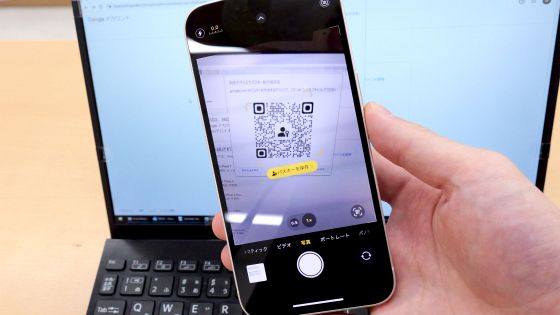
Connect using a QR code or join code.
Connection and transmission are possible simply by having the recipient scan the QR code or string of characters called 'join code' displayed on the source device.
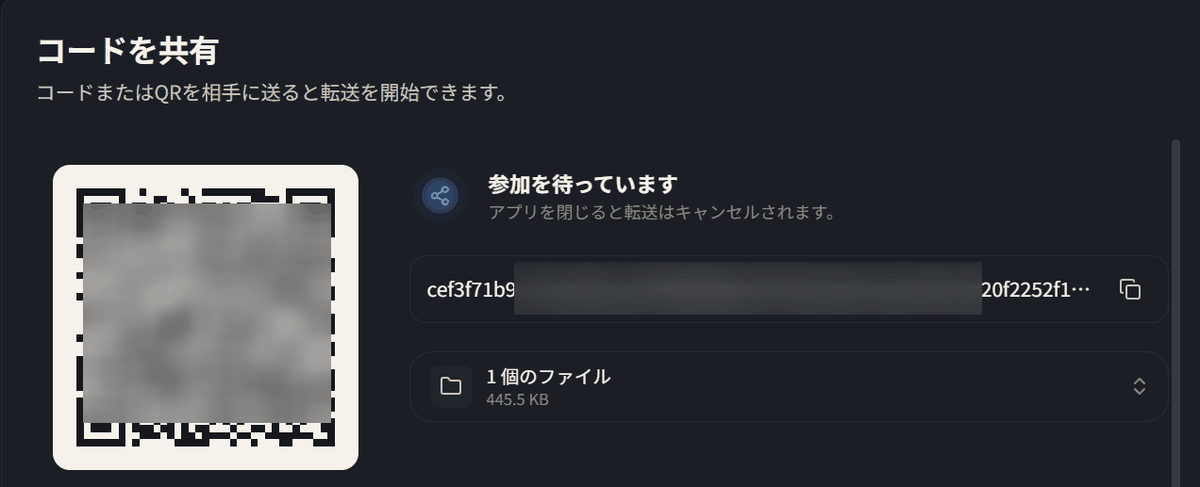
- Once paired, you won't need to enter a code next time.
If the devices are paired, you can transfer files by selecting the files you want to send and then selecting the destination device.
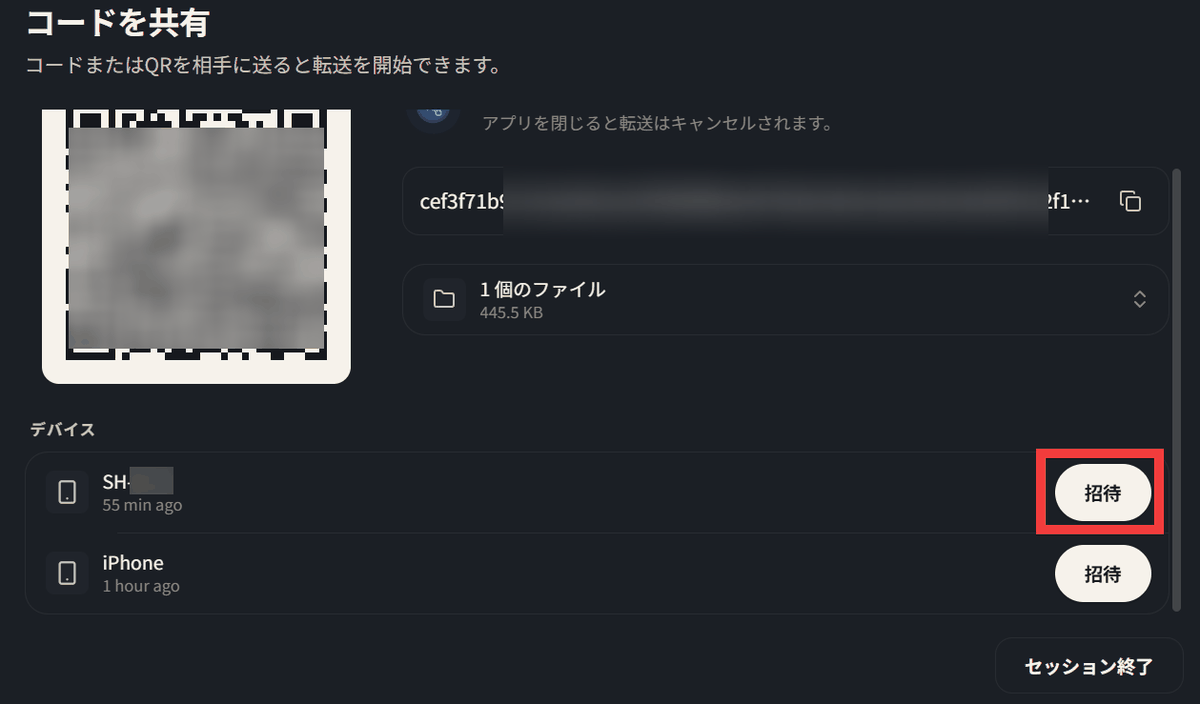
By simply installing a dedicated app, you can easily share files.
◆How to use AlterSend
To transfer files from iOS to your PC, select the files you want to send and tap the 'Share' icon.
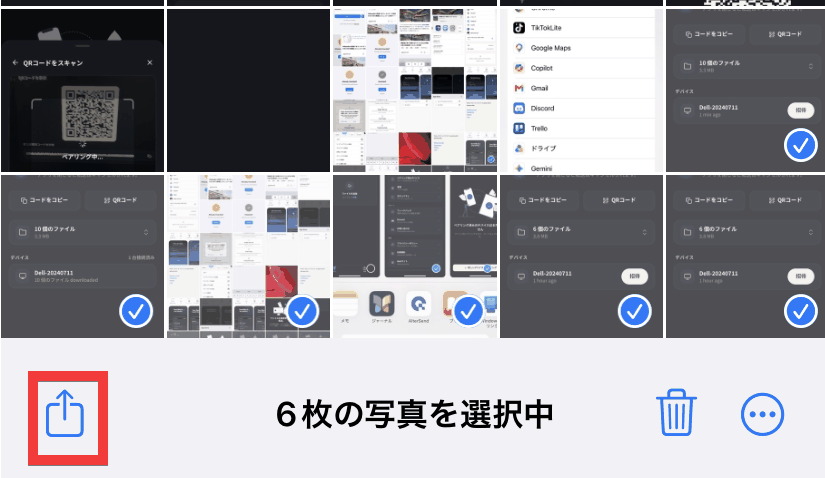
Tap 'AlterSend' from the app list.
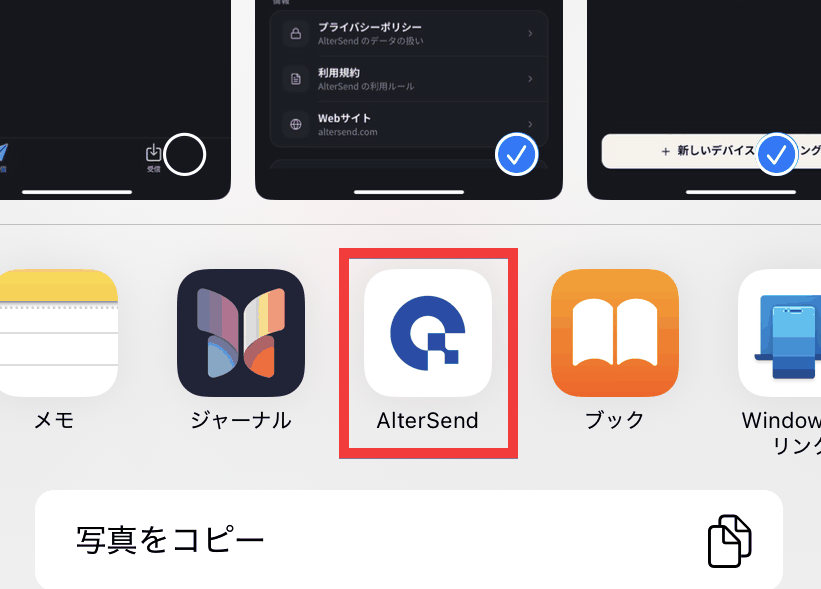
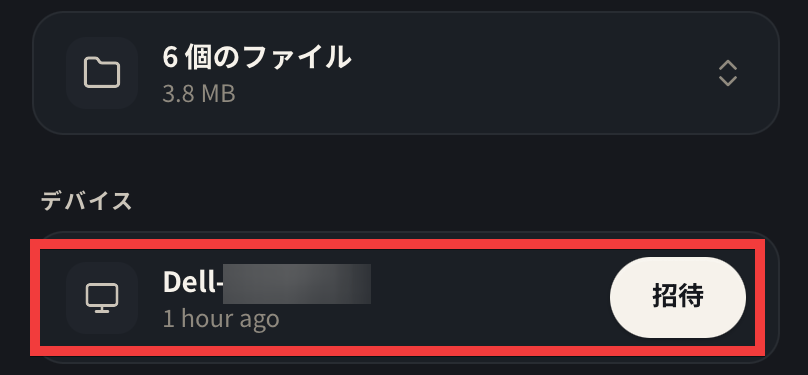
If already paired, select the destination device.
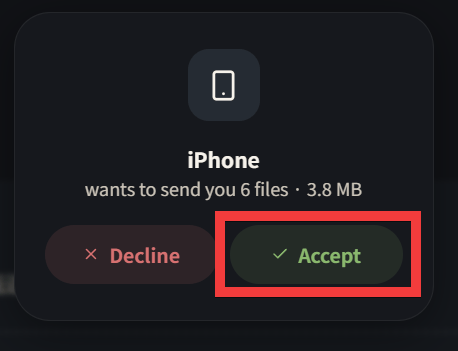
On the destination PC, you will be asked whether to accept the transfer, so select 'Accept'.
A list of files will be displayed, so click 'Download All' to save the files.
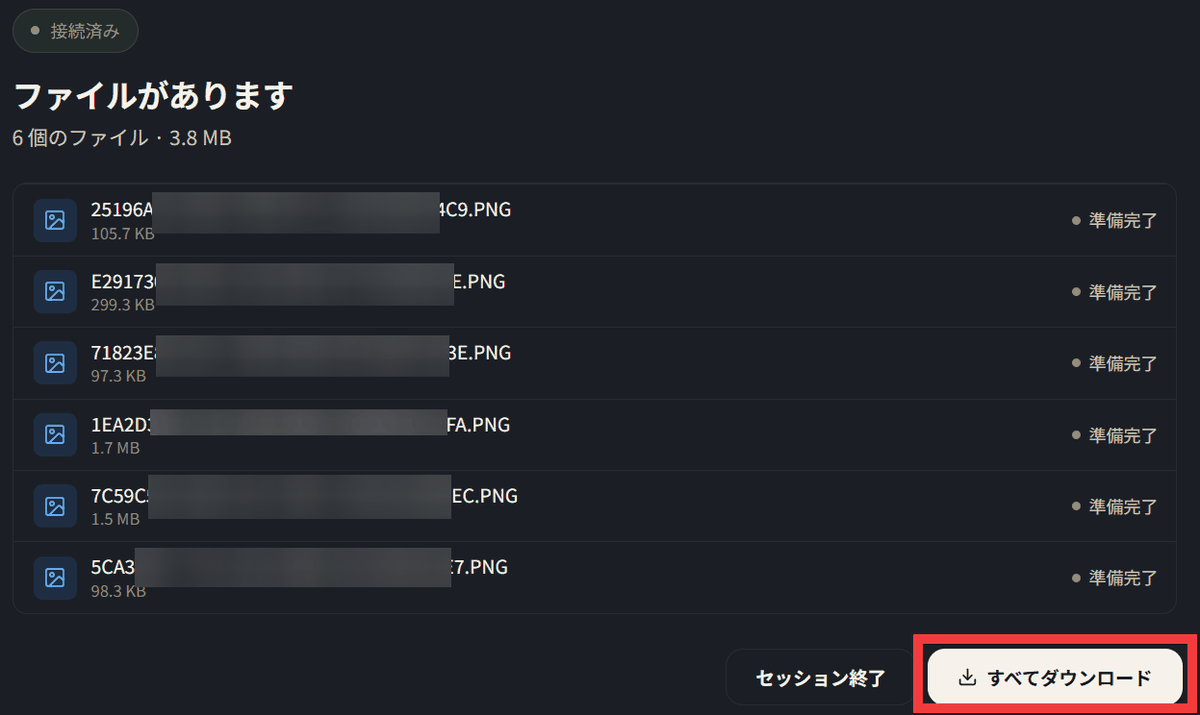
You can transfer files in a few simple steps.
◆How to install and pair the Windows app
Click 'Download for free' on the official
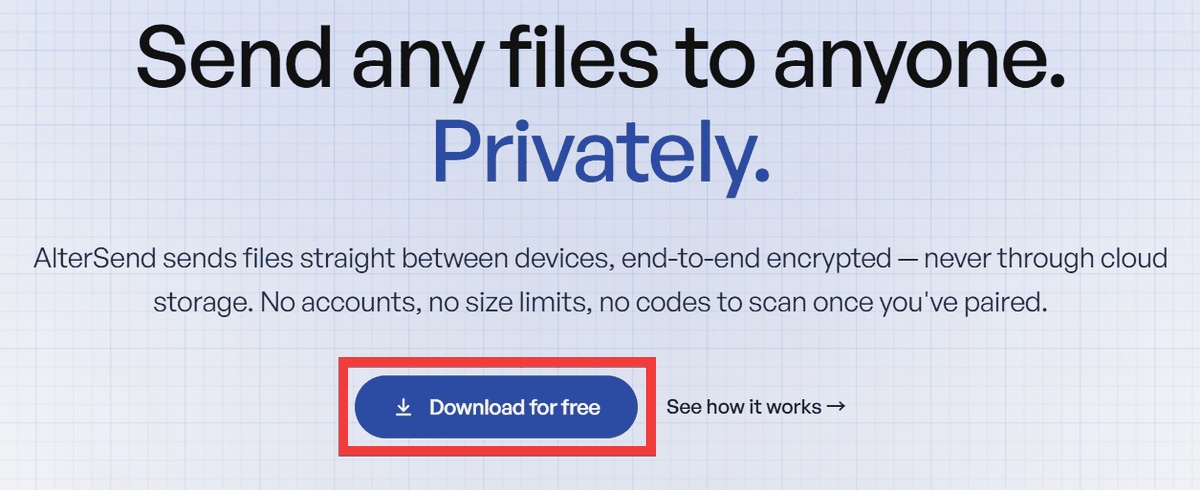
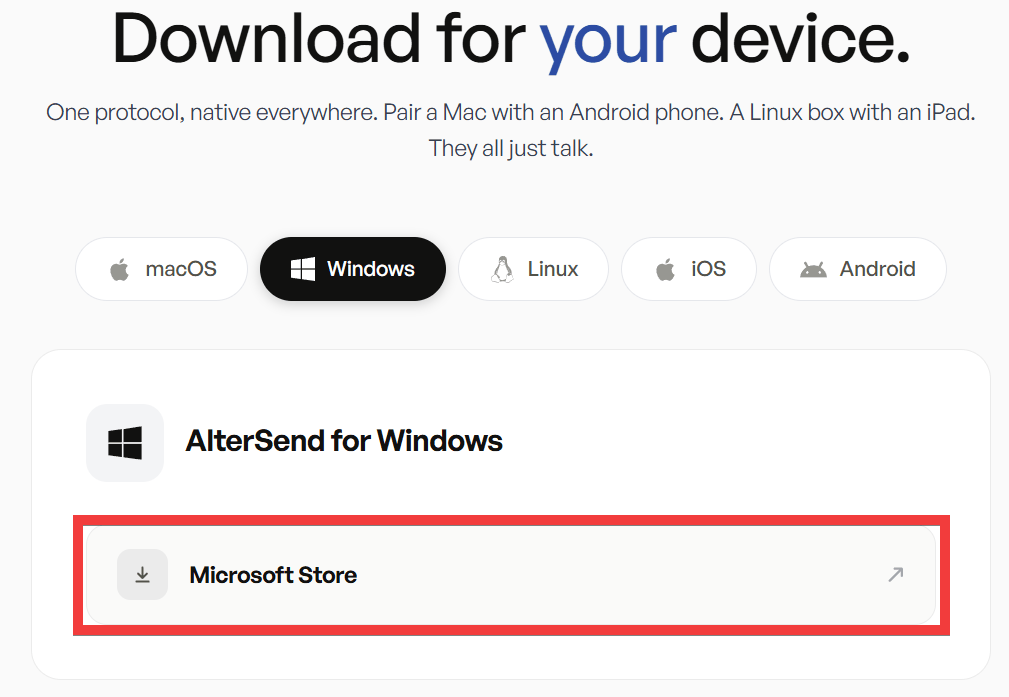
Click on 'Microsoft Store' on the download instructions page.
Click 'Download' on the Microsoft Store
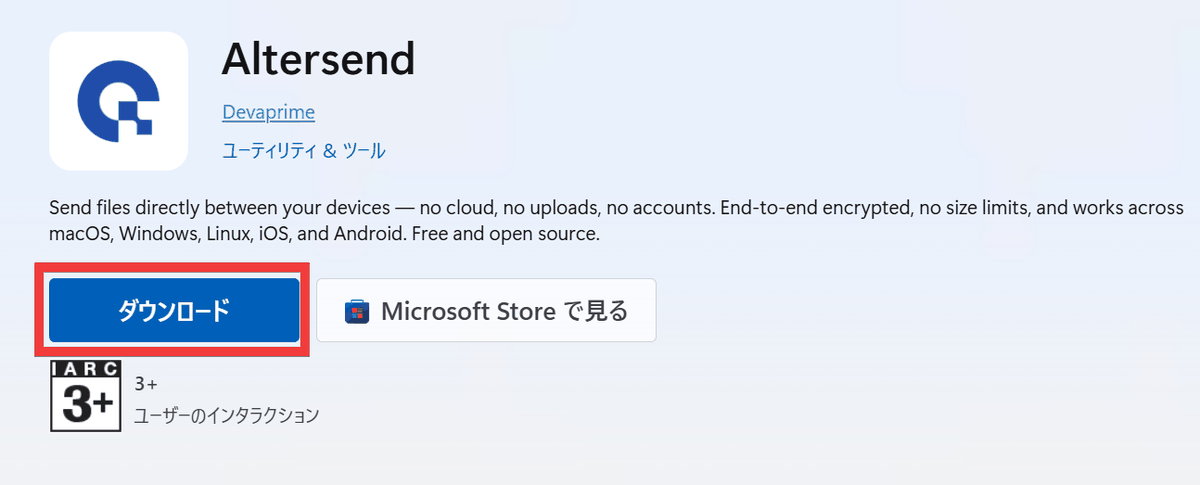
Double-click the downloaded file to launch the installer.
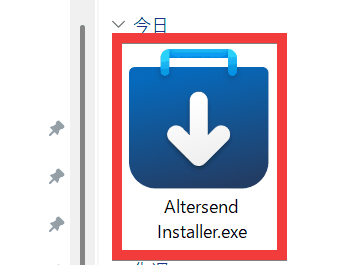
Once the installation is complete, the app will launch, so click 'Skip'.
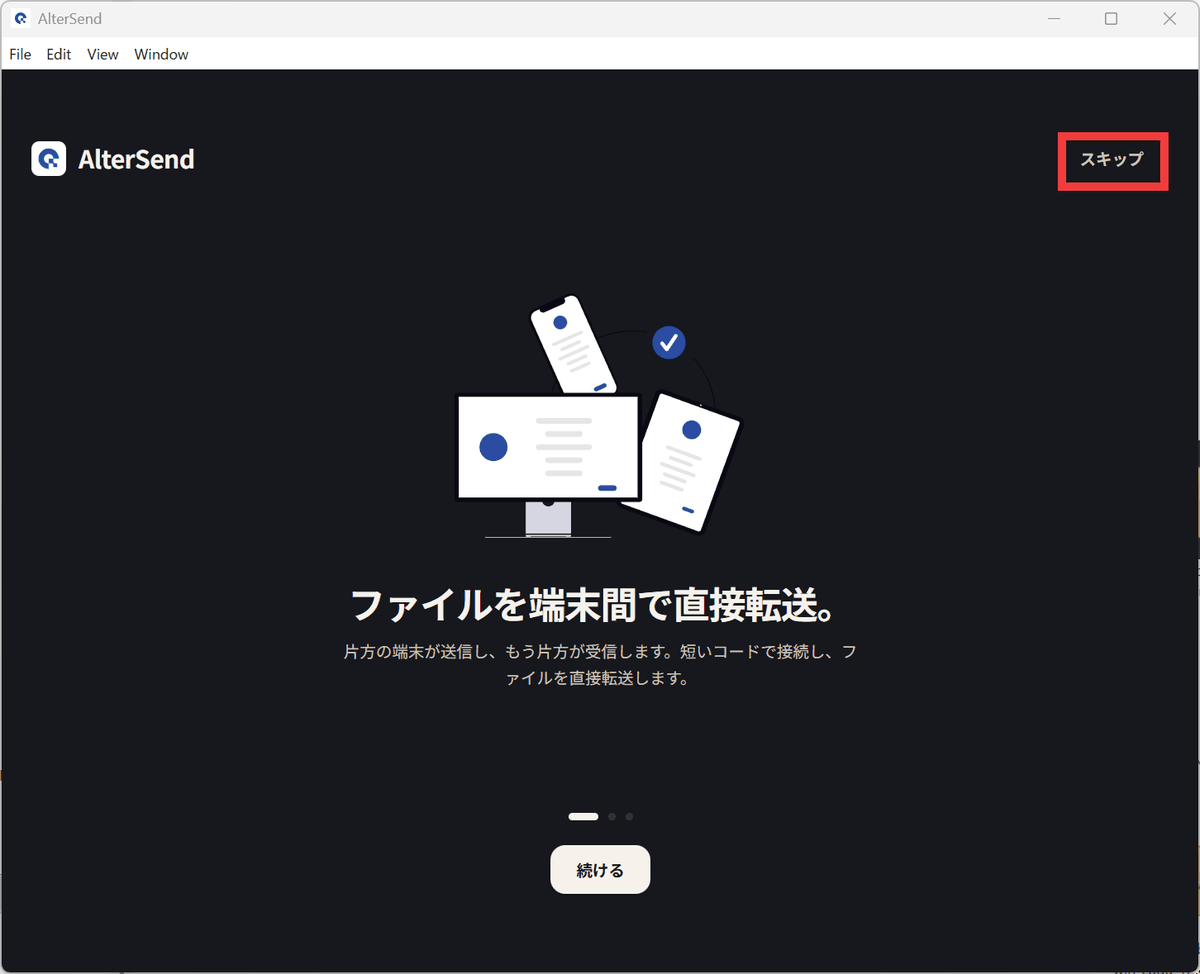
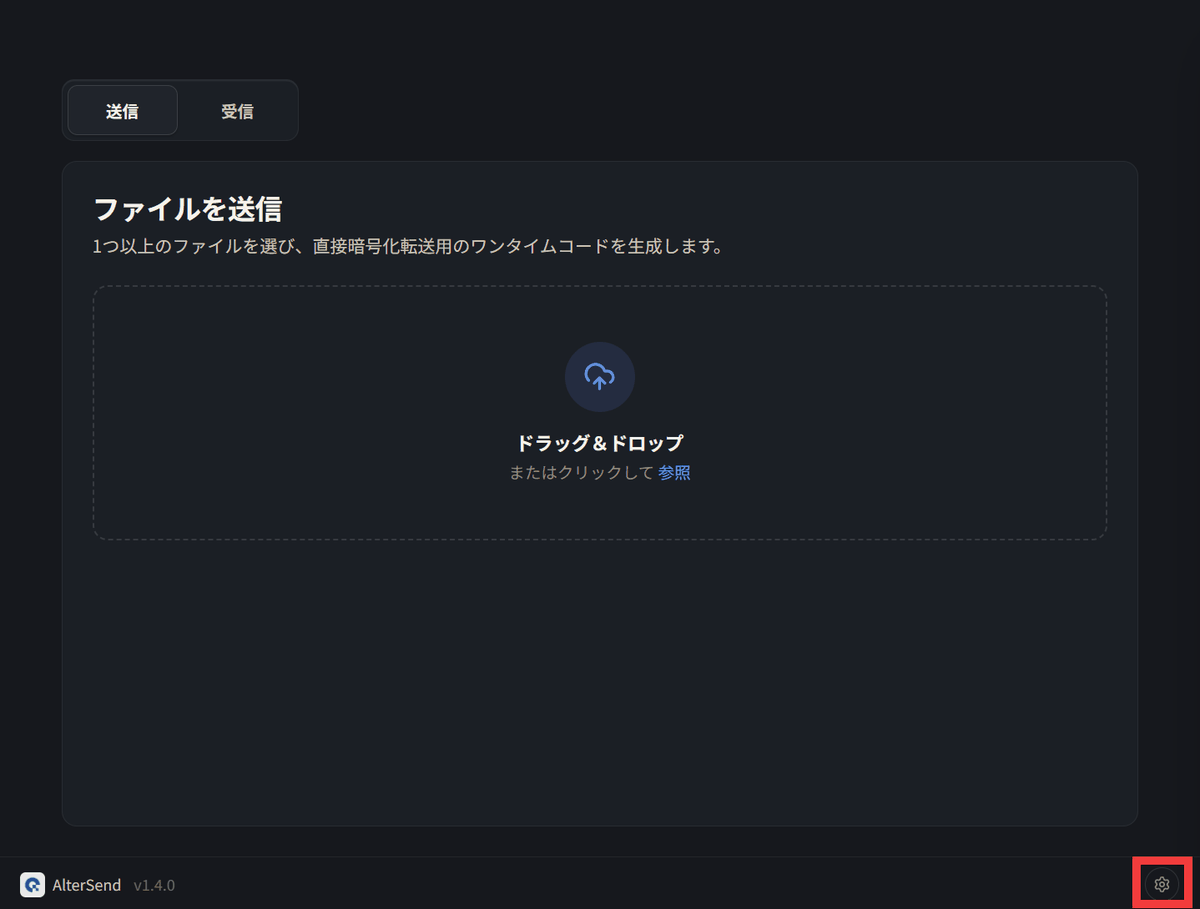
Installation is complete when the app's initial screen appears. To pair the devices, click the 'gear' icon in the lower right corner of the screen.
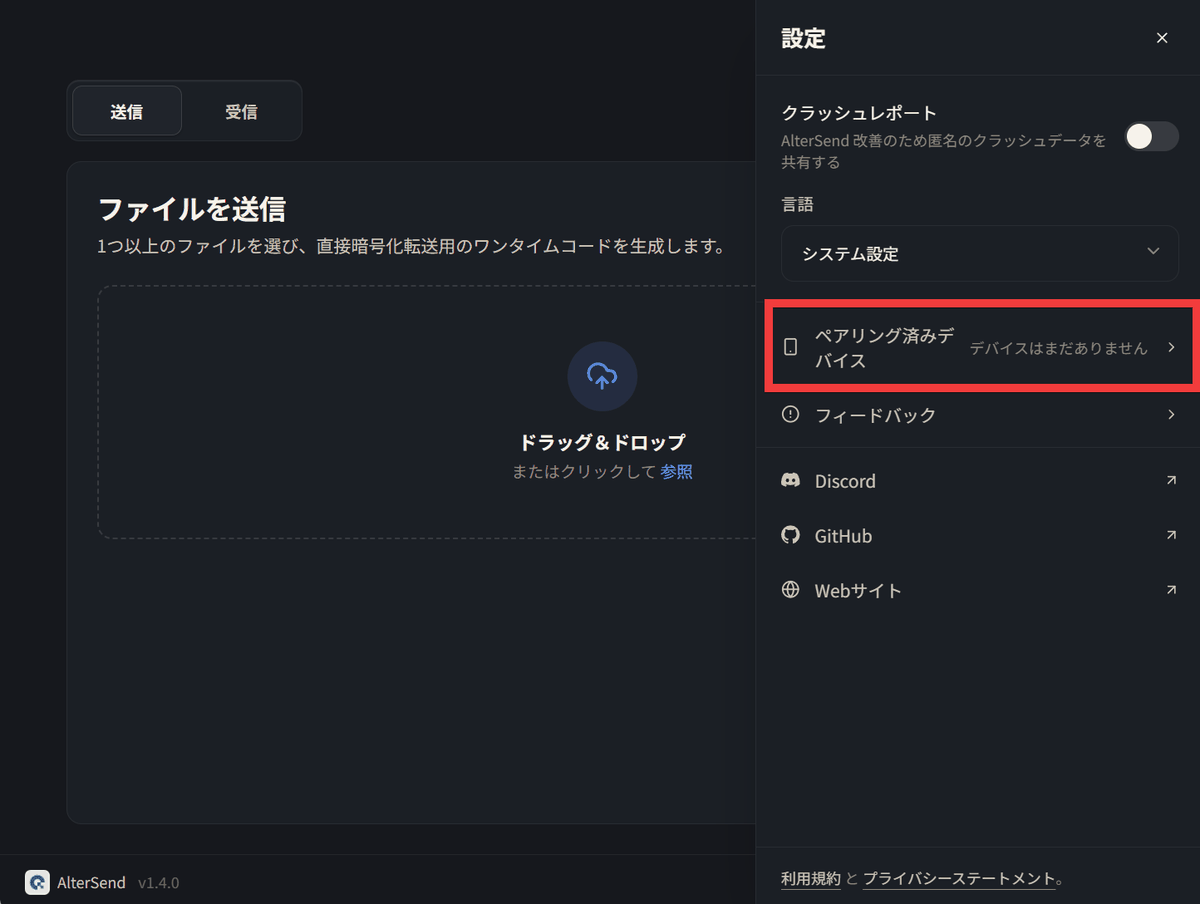
Click 'Paired Devices' from the menu.
Click 'Pair a new device'.
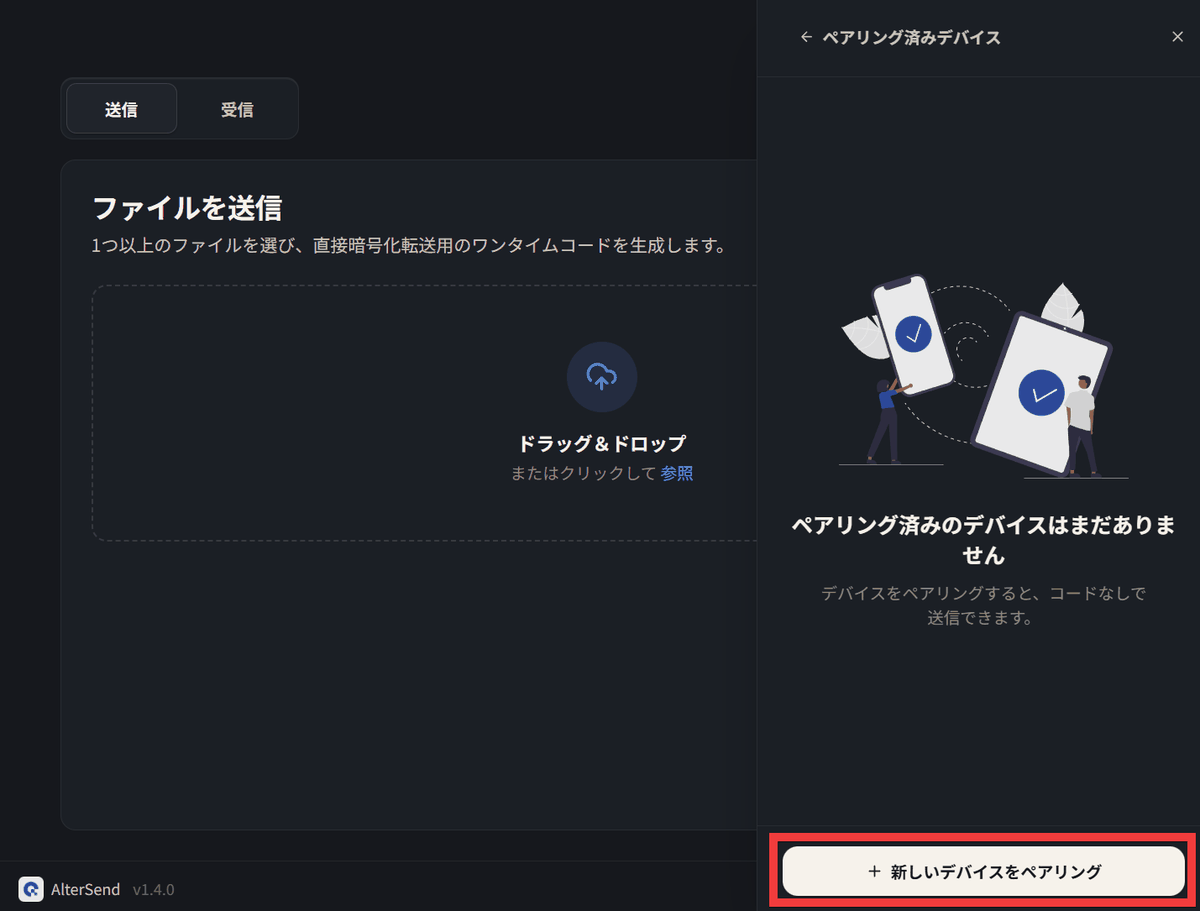
Choose one of the following registration methods: 'Display QR code' or 'Enter code'.
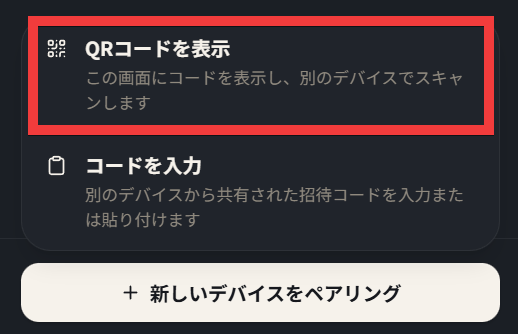
If you select to display the QR code, pairing will be completed by scanning the QR code with your smartphone or other device's camera.
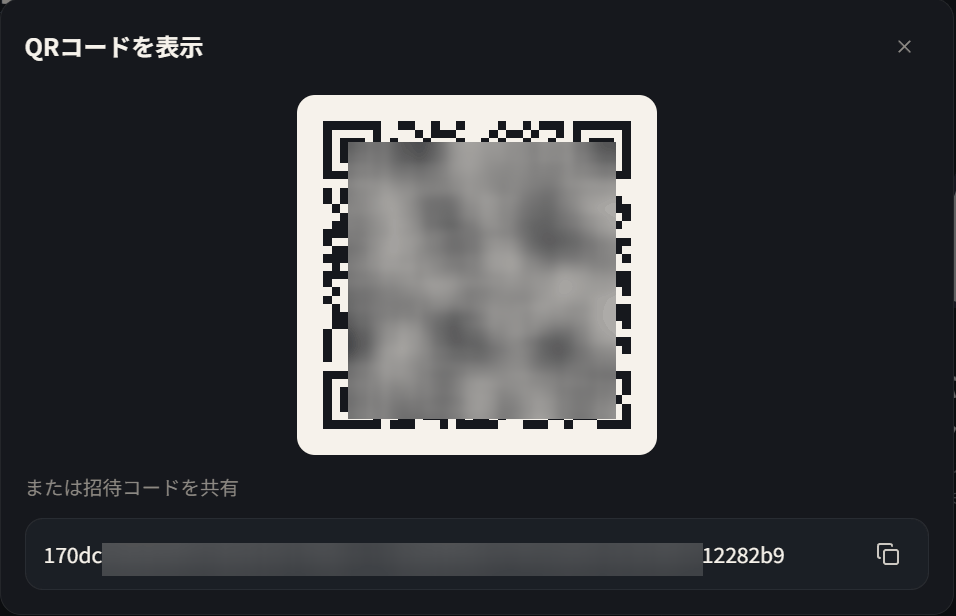
If your device cannot read QR codes, you can pair it by sending the code via email or other means and entering it.
◆How to install and pair the iOS app
AlterSend: File Transfer App - App Store
Access the App Store distribution page and tap 'Get'.
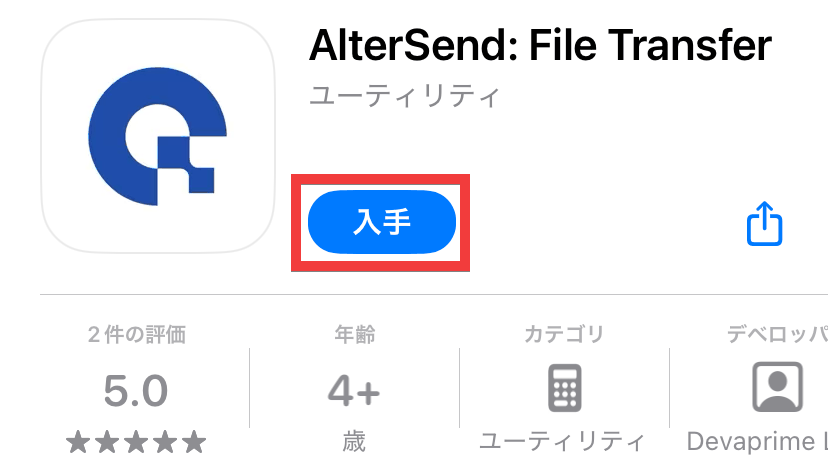
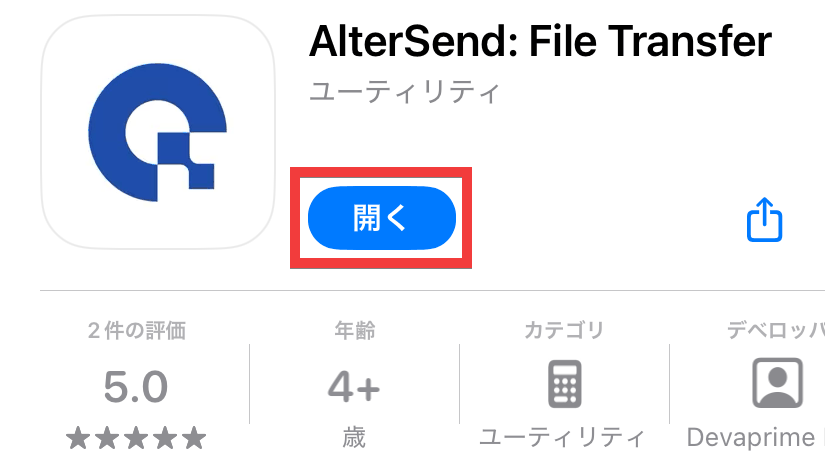
Once the installation is complete, tap 'Open'.
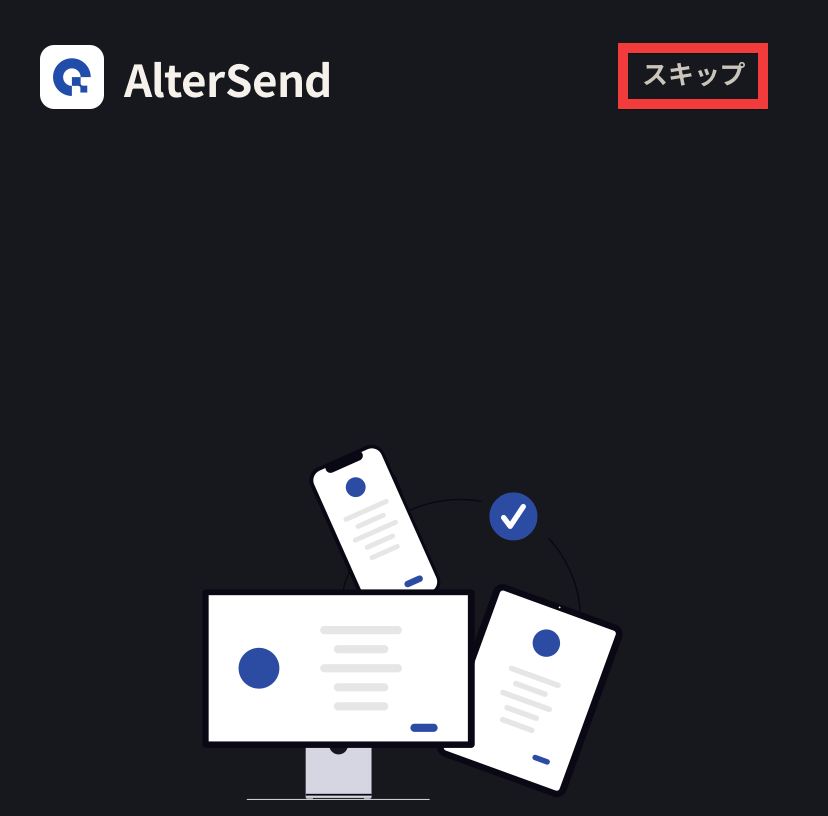
Once the app launches, tap 'Skip'.
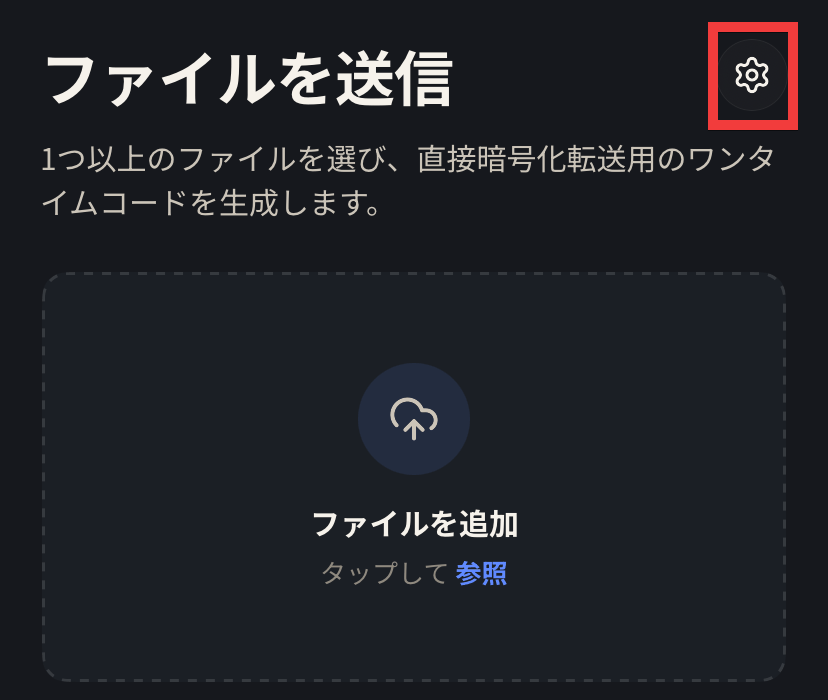
Installation is complete when the initial screen appears. To pair, tap the 'gear' icon in the upper right corner of the screen.
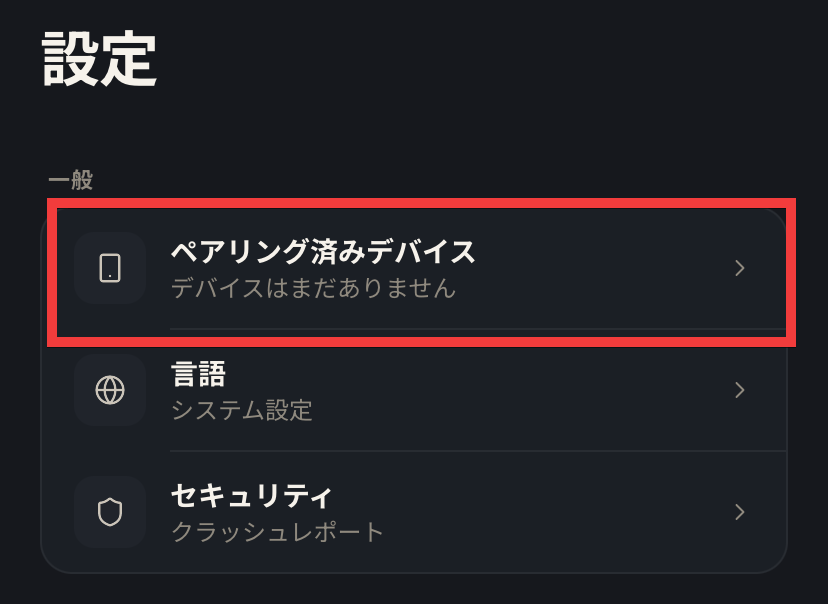
From the settings menu, tap 'Paired Devices'.
Tap 'Pair a new device'.
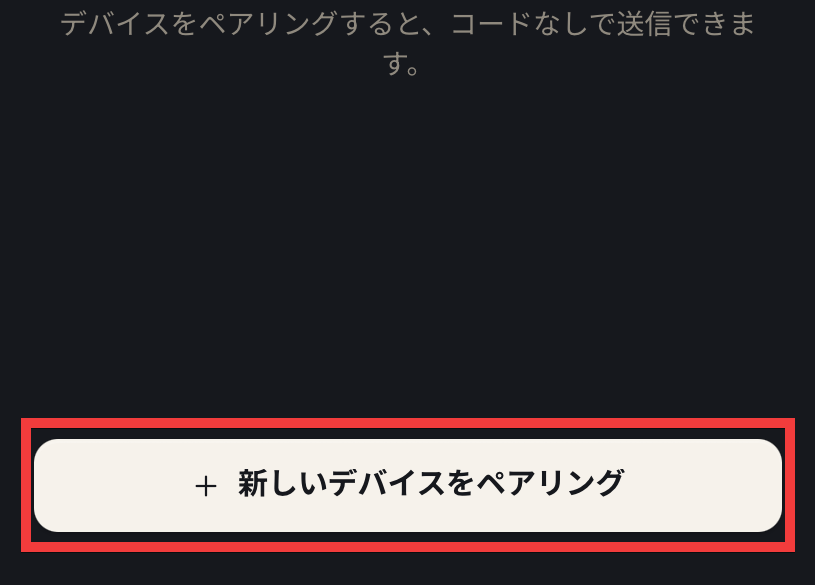
Choose one of the following registration methods: 'Display QR code,' 'Scan QR code,' or 'Enter code.'
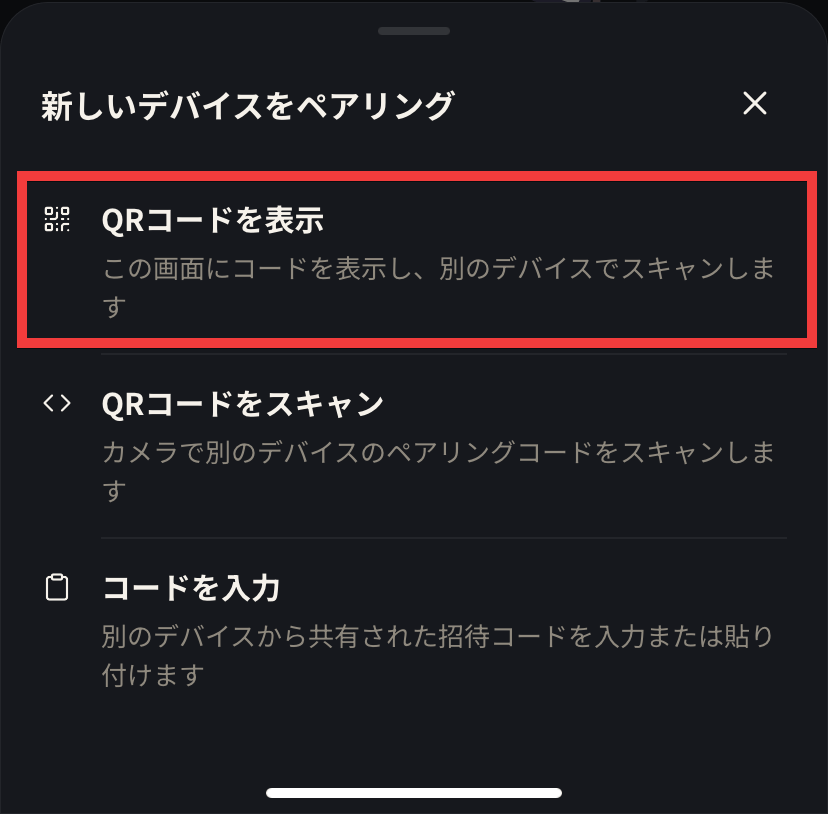
If you select to display the QR code, pairing will be completed by scanning the QR code with your smartphone or other device's camera.
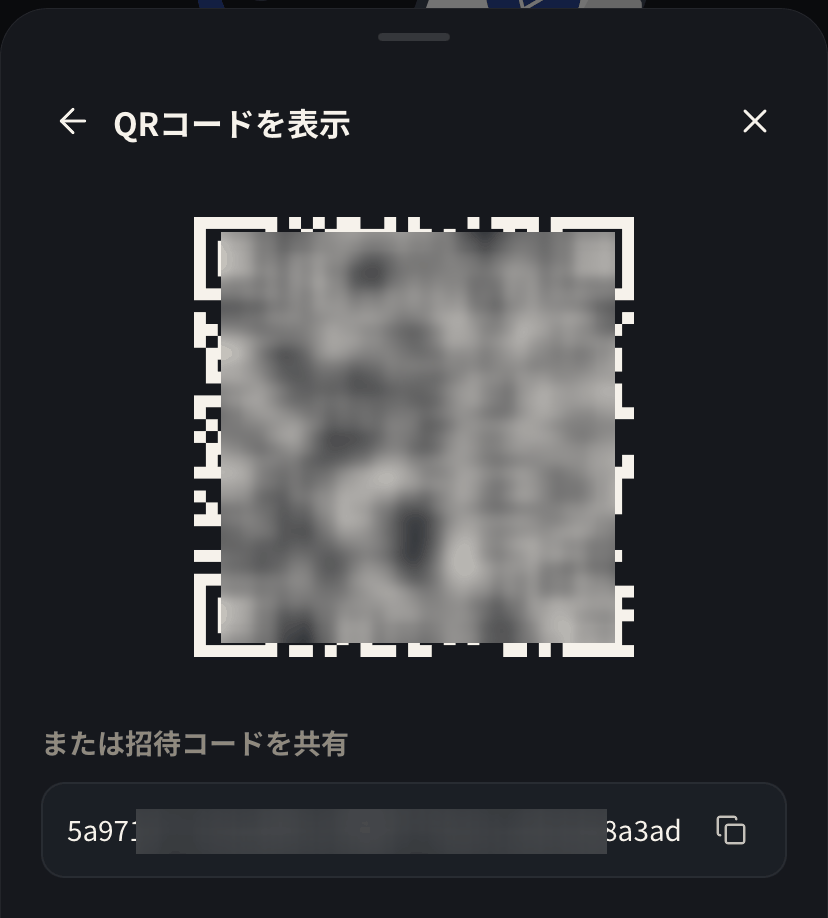
You can also register by scanning the other person's QR code with your camera. If your device cannot read QR codes, you can pair them by sending the code via email or other means and entering it.
◆How to install and pair the Android app
AlterSend: File Transfer - Google Play app
Go to the Play Store distribution page and tap 'Install'.
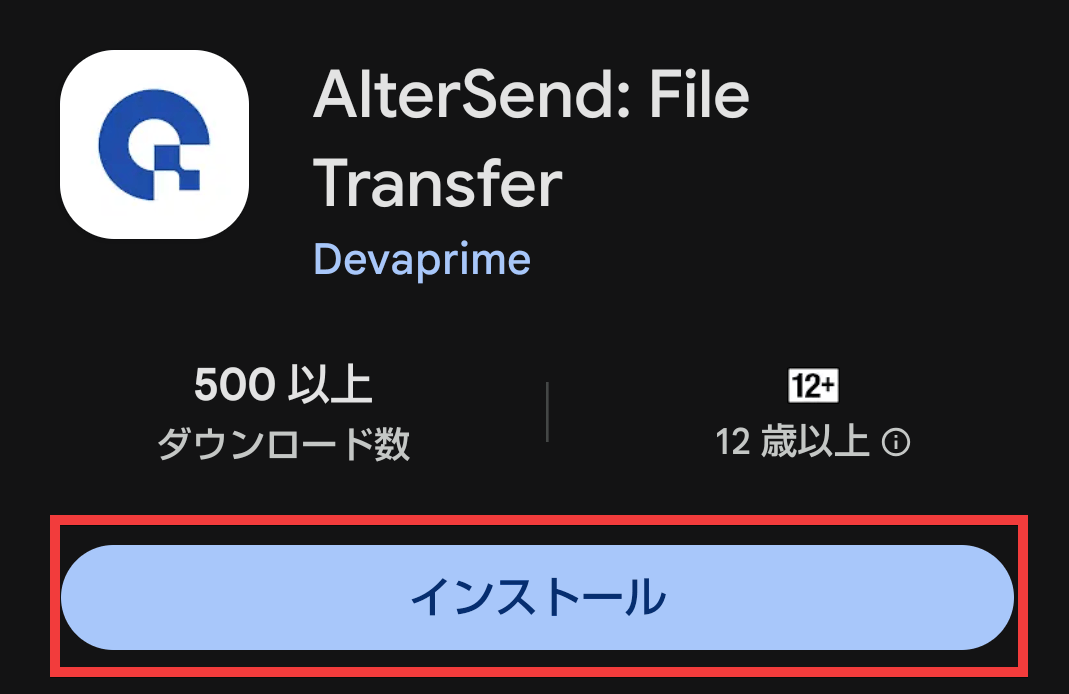
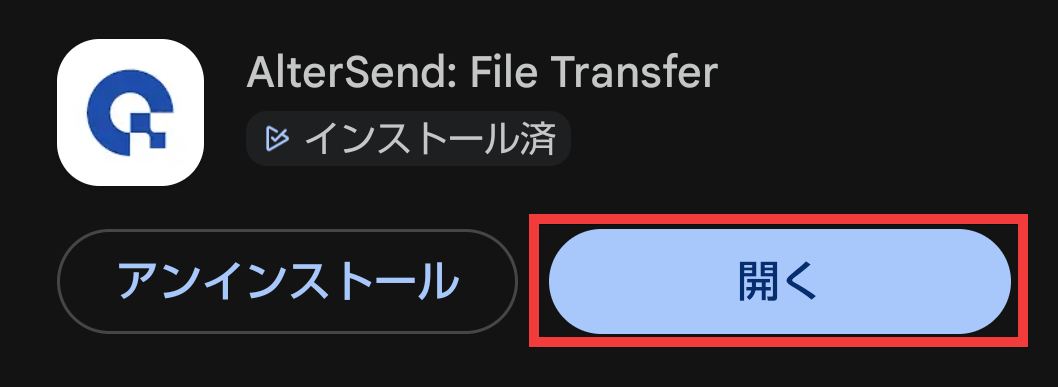
Once the installation is complete, tap 'Open'.
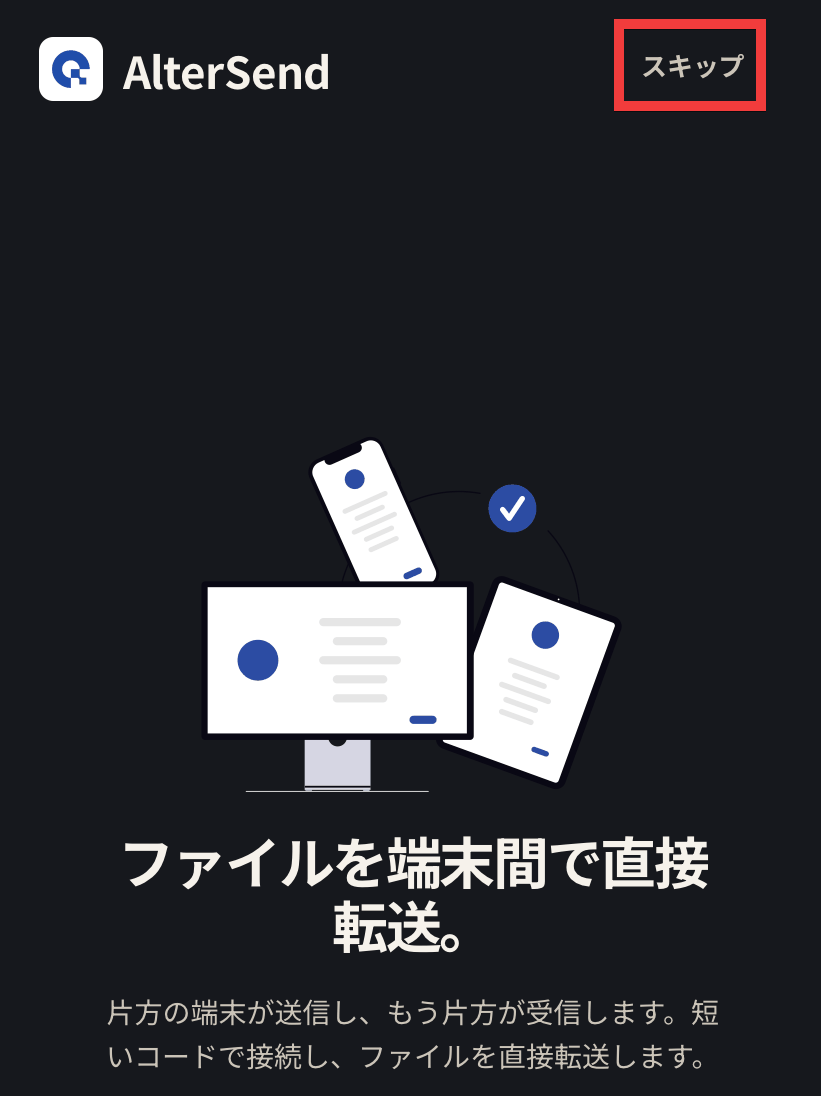
Once the app launches, tap 'Skip'.
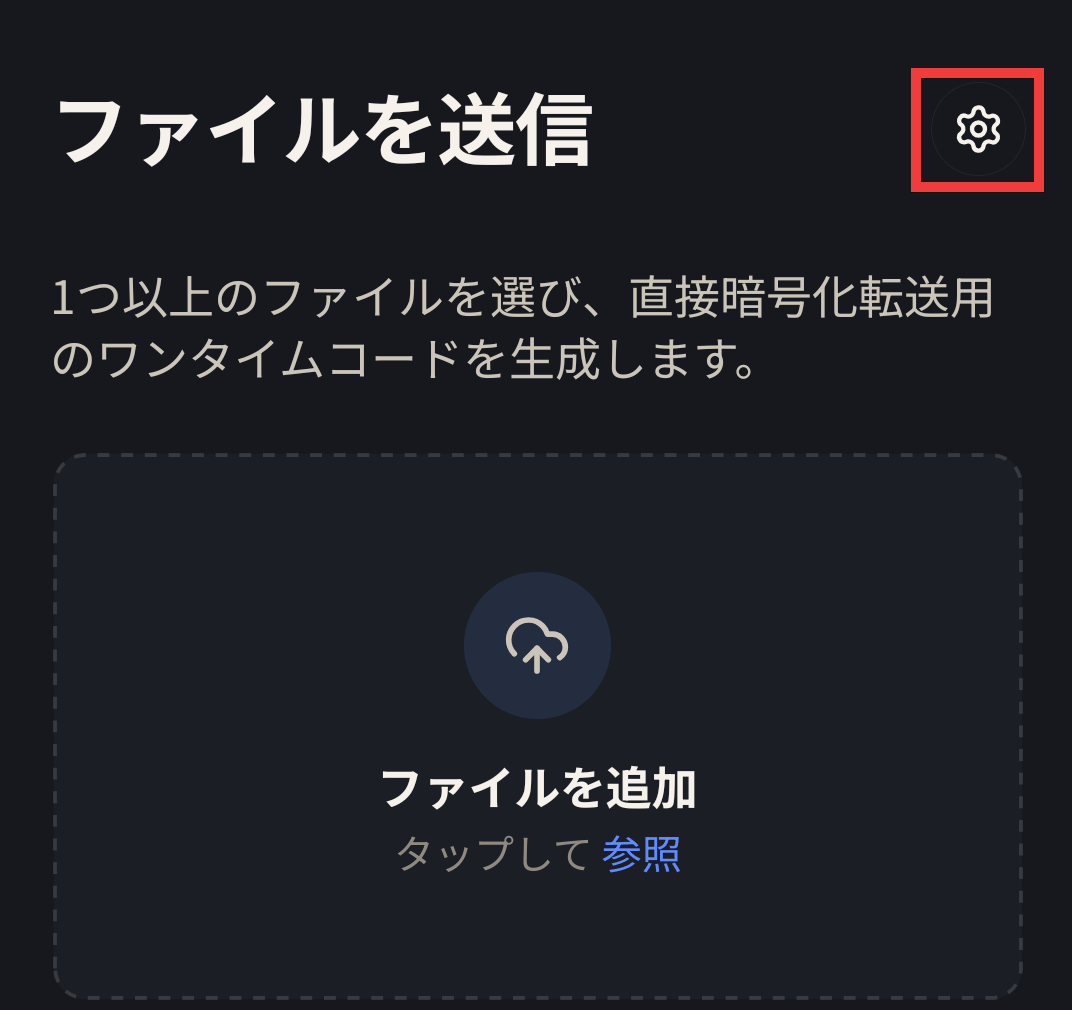
Installation is complete when the initial screen appears. To pair, tap the 'gear' icon in the upper right corner of the screen.
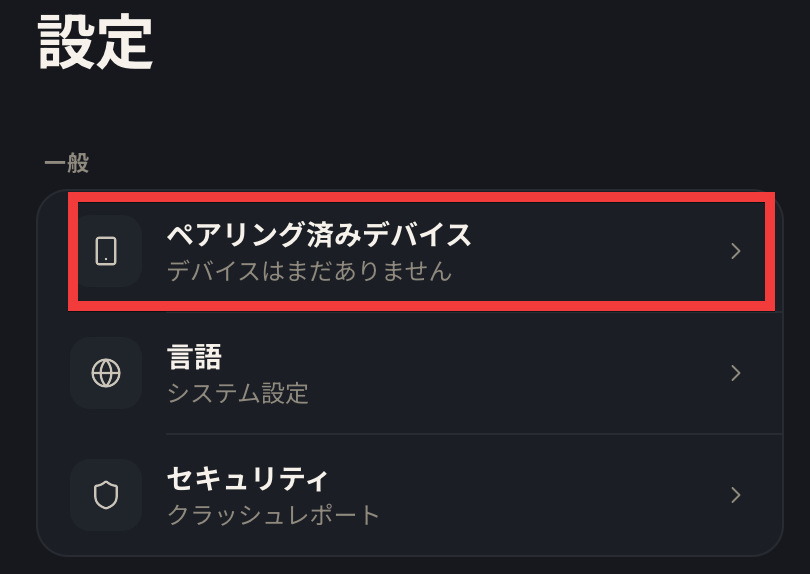
From the settings menu, tap 'Paired Devices'.
Choose one of the following registration methods: 'Display QR code,' 'Scan QR code,' or 'Enter code.'
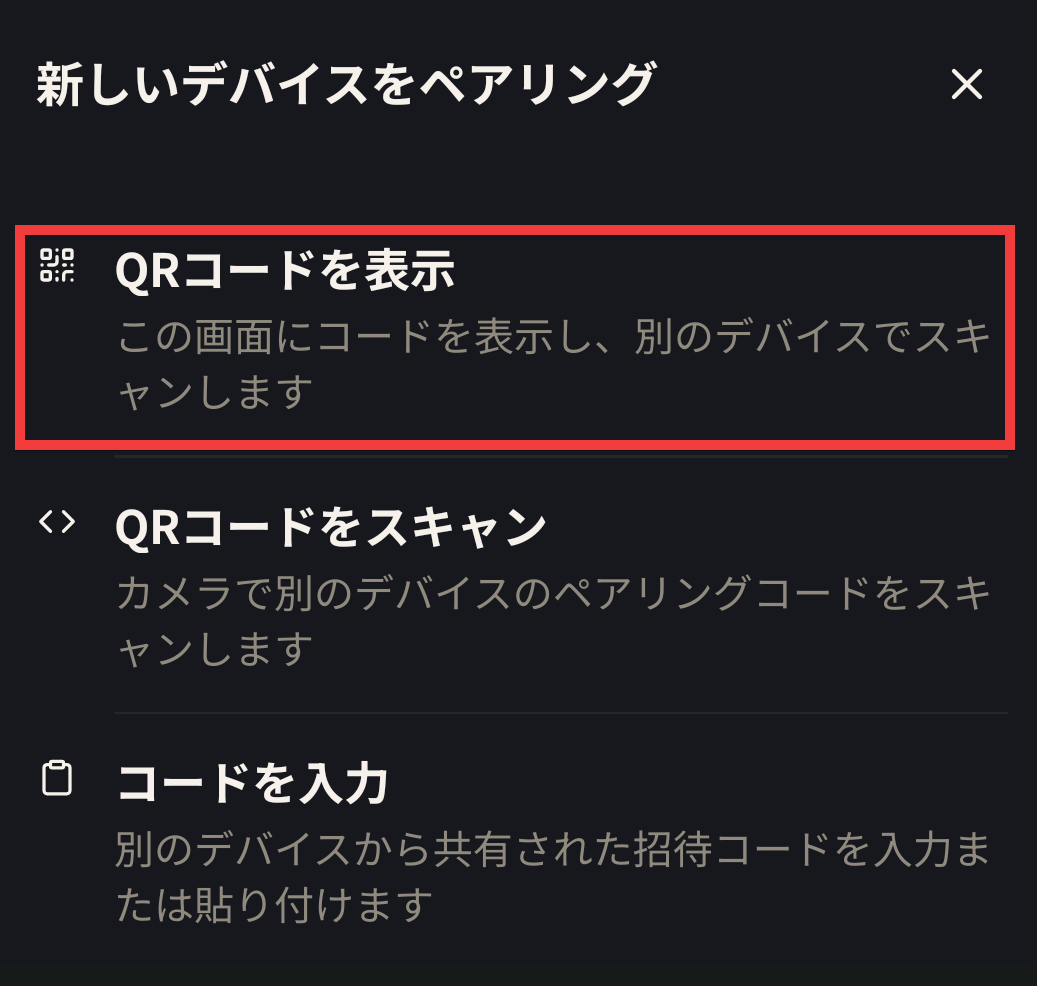
If you select to display the QR code, pairing will be completed by scanning the QR code with your smartphone or other device's camera.
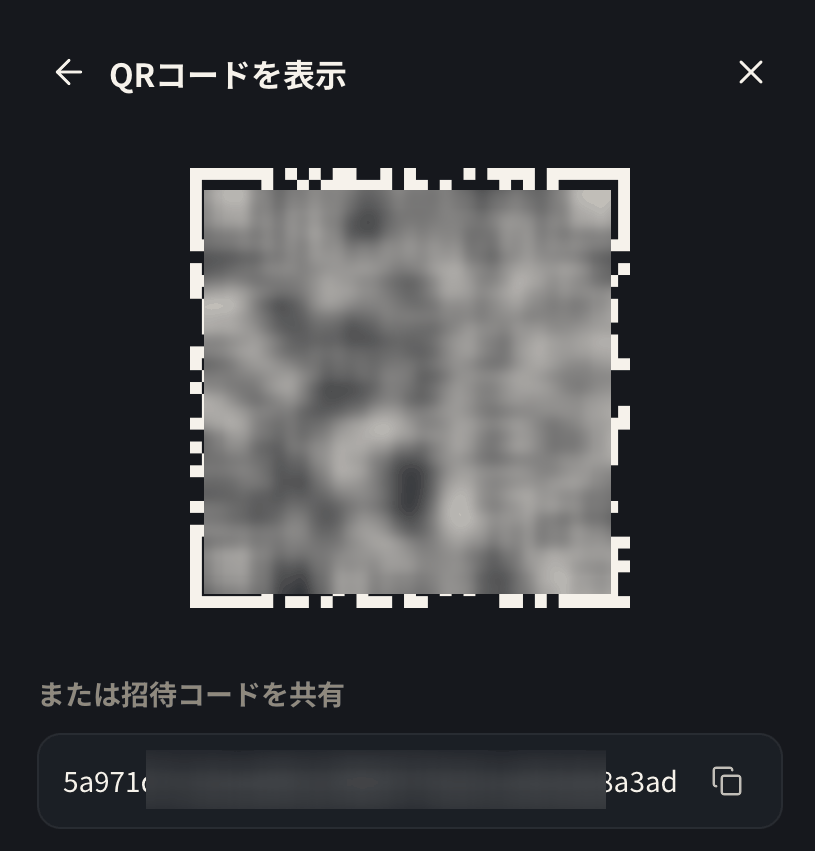
You can also register by scanning the other person's QR code with your camera. If your device cannot read QR codes, you can pair them by sending the code via email or other means and entering it.
Related Posts: