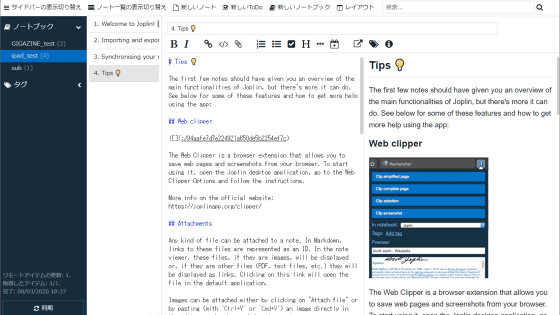
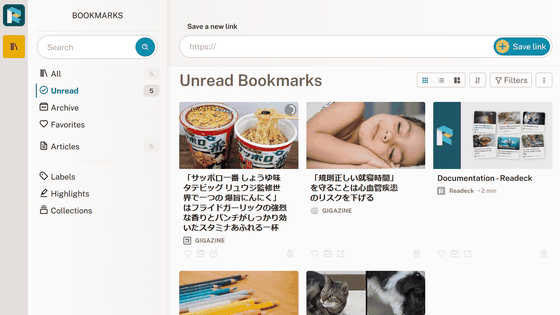
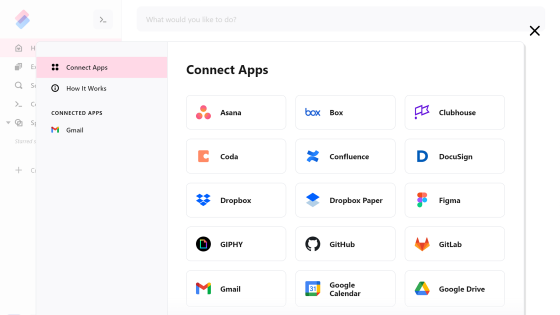
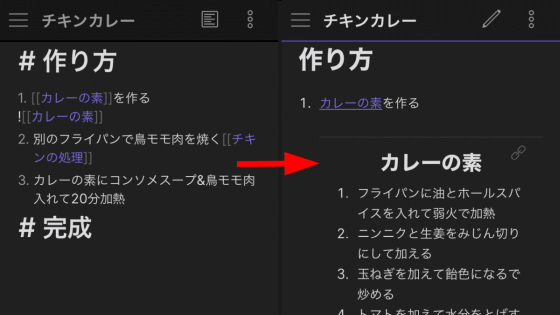
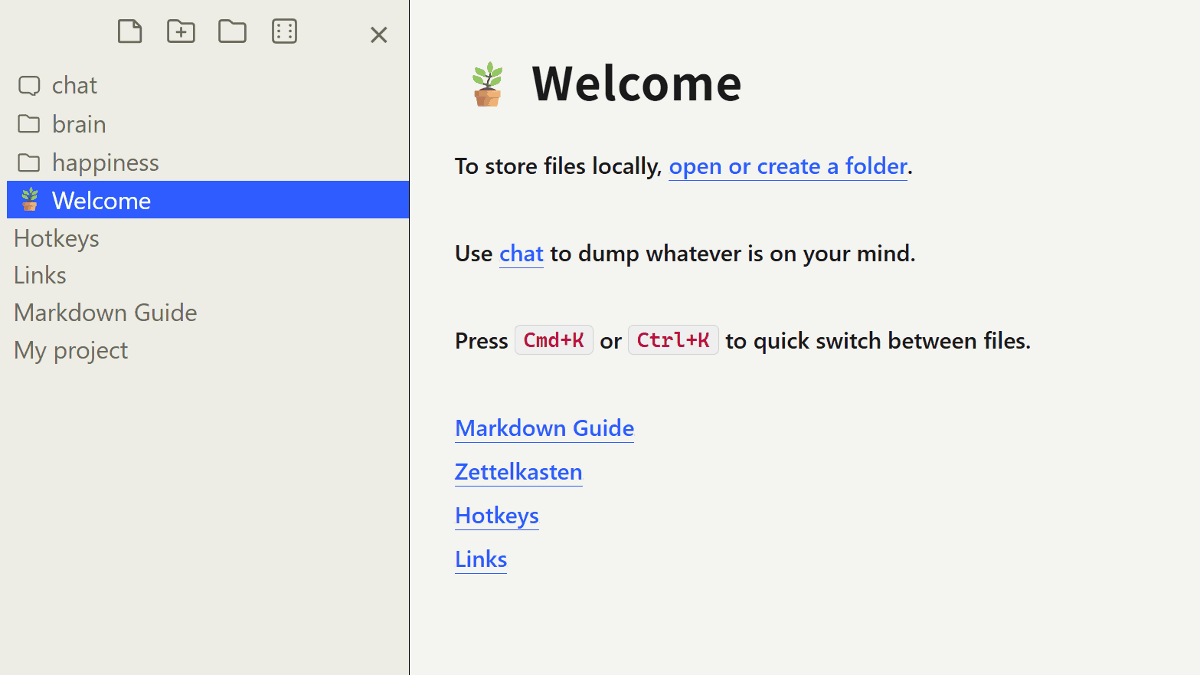
Files.md is a free, locally running, and device-syncable Obsidian application that lets you create your own personal Obsidian to store and organize notes and knowledge. It's open source and self-hostable.
The more you use note-taking apps like
Files.md
https://files.md/
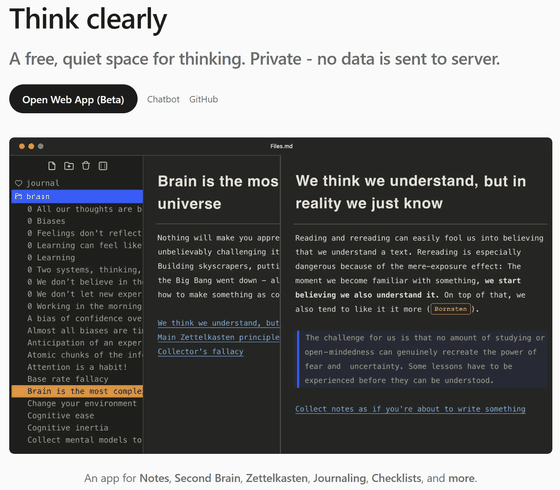
zakirullin/files.md: Private, quiet space for thinking. Simple app for .md files. LLM-friendly.
Web version Files.md
https://app.files.md/
◆ How to use Files.md and an introduction to its functions
• Markdown notes usable in a browser only
It can be used simply by accessing the official app site . You can leave notes in Markdown format.
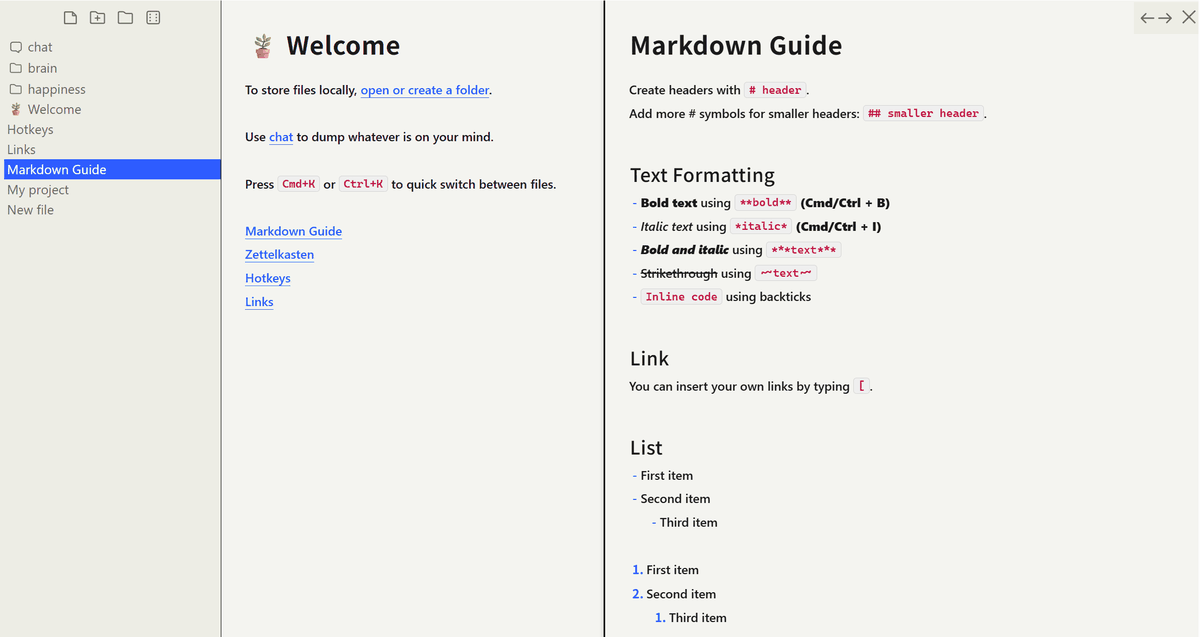
- Open local folders and manage .md files directly
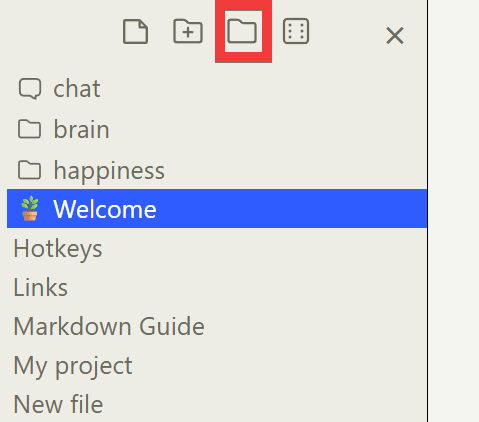
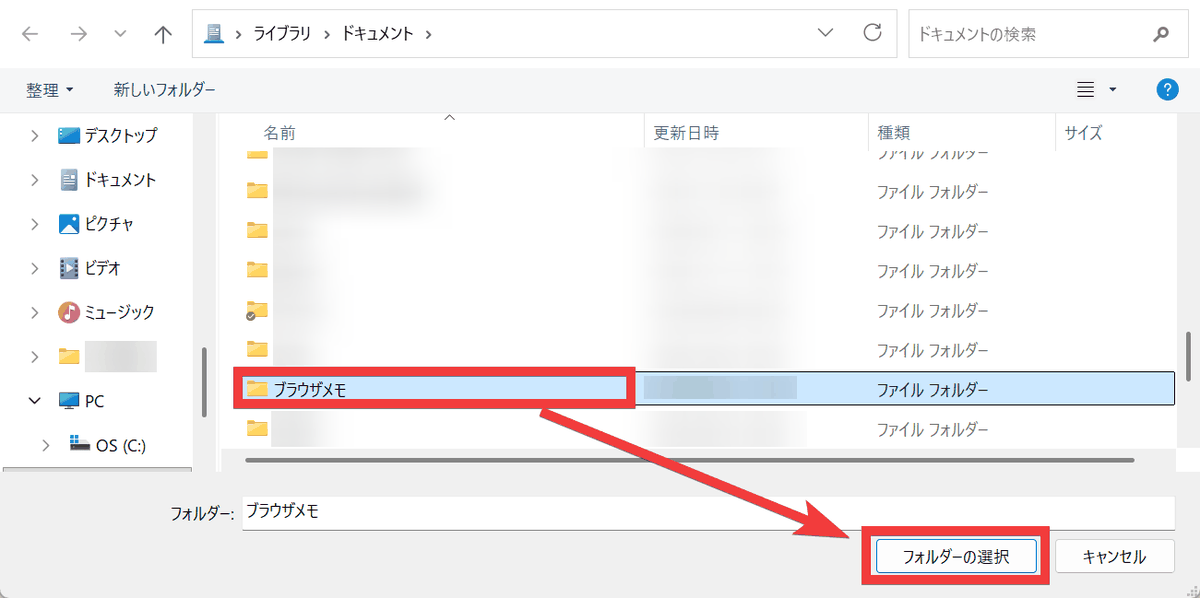
Notes created when accessing an app site are saved within the browser, but if the site data is accidentally deleted, the notes will also be lost. To keep them permanently, click the 'Folder' icon from the icon menu at the top of the side menu.
Select the folder where you want to save your notes and click 'Select Folder'.
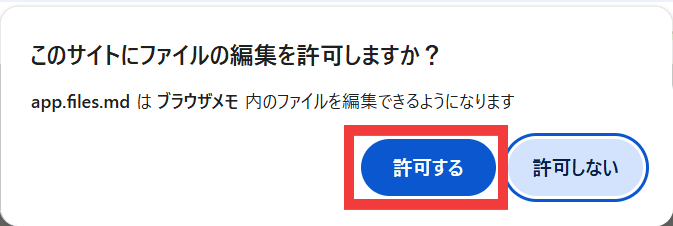
A dialog box will appear asking, 'Do you want to allow this site to edit your files?' Click 'Allow'.
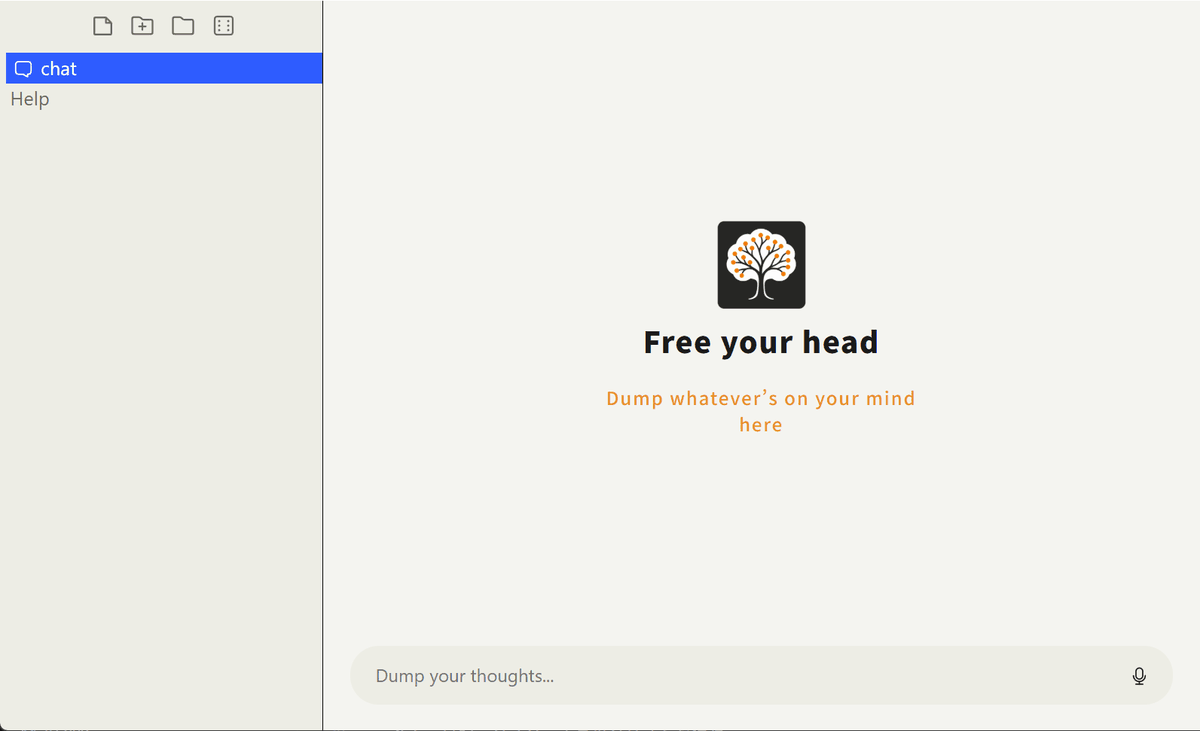
When you open an empty local folder, Files.md will appear as a new web application screen with nothing in it. Any notes you create in this state will be saved as Markdown files in the selected local folder.
• How to sync with other devices
When specifying a local folder, you can share it by specifying a folder in a cloud service such as
- Quickly save with chat-style input.
Click 'chat' in the side menu.
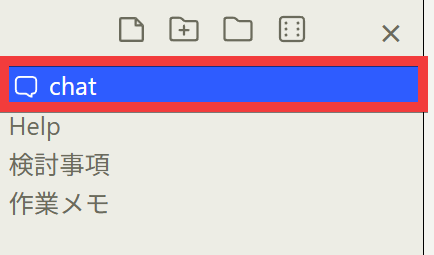
Enter your desired message in the chat box in the bottom right and press 'Enter'.

Notes are saved in a chat-like format.
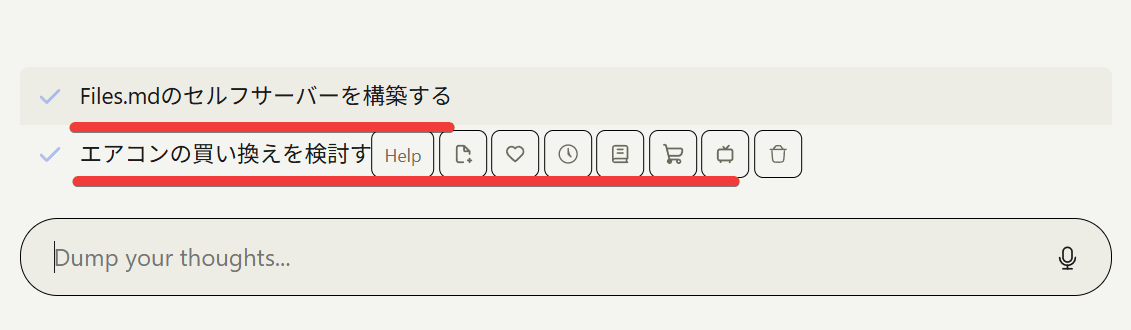
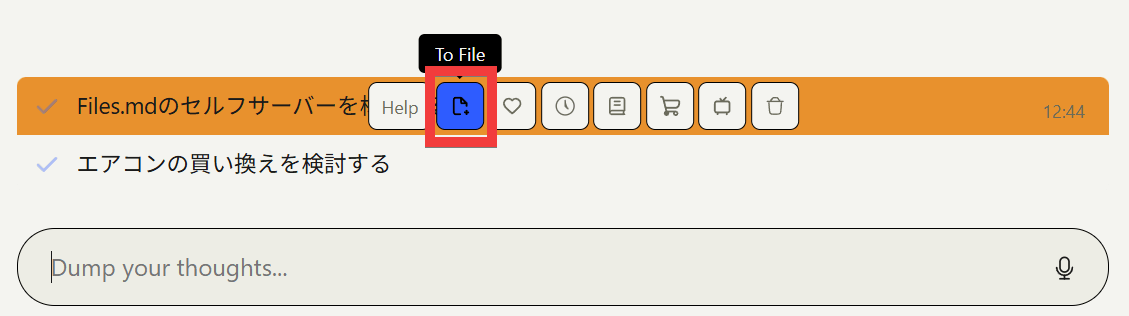
When you hover your mouse cursor over a saved note, operation icons will appear on the right, so click the 'To File' icon.
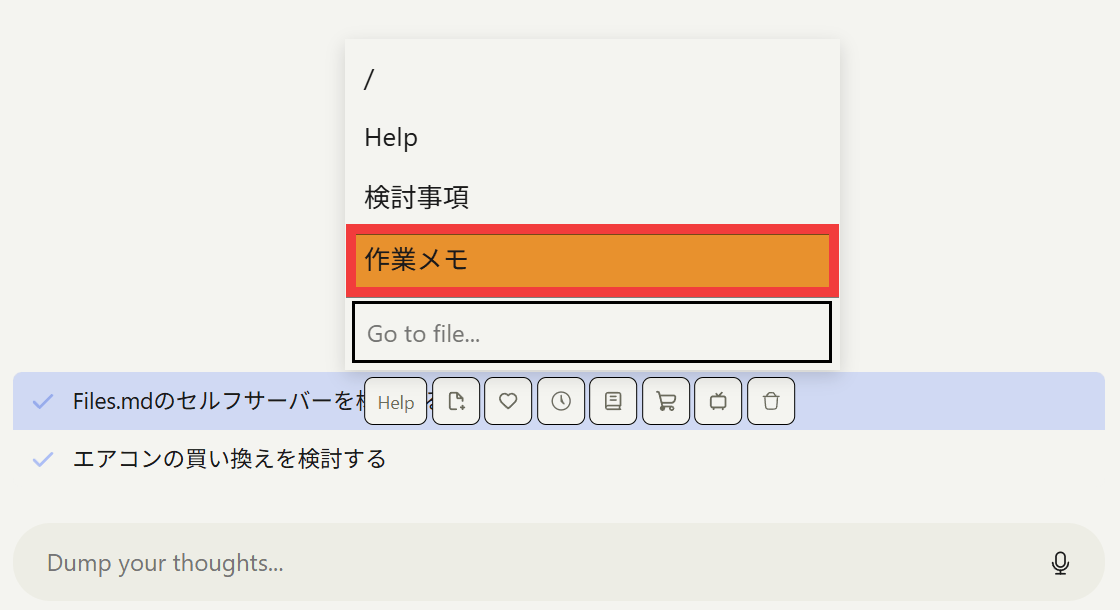
Select the desired memo file from the list of existing memo files.
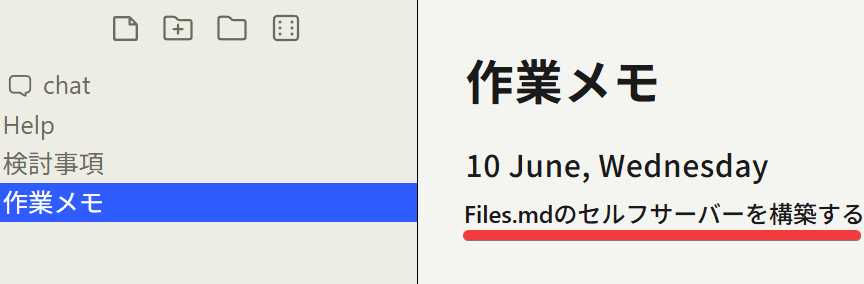
The chat notes will be appended to the saved memo file.
◆ How to build a self-hosted version of Files.md
This time, we will set it up in an environment where
 git clone https://github.com/zakirullin/files.md.git
 cd files.md
Start the container.
docker compose up -d
Once the container starts, access 'http://localhost' in your browser. If the initial Files.md screen is displayed, the setup is complete.

◆Installing the iOS app
Access the Files.md
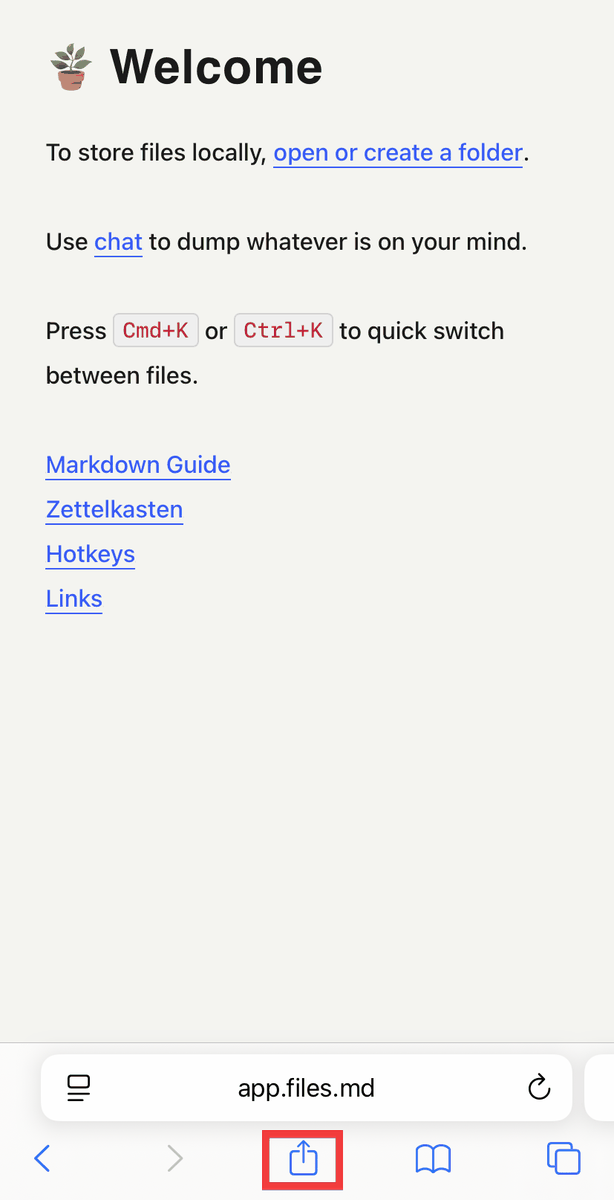
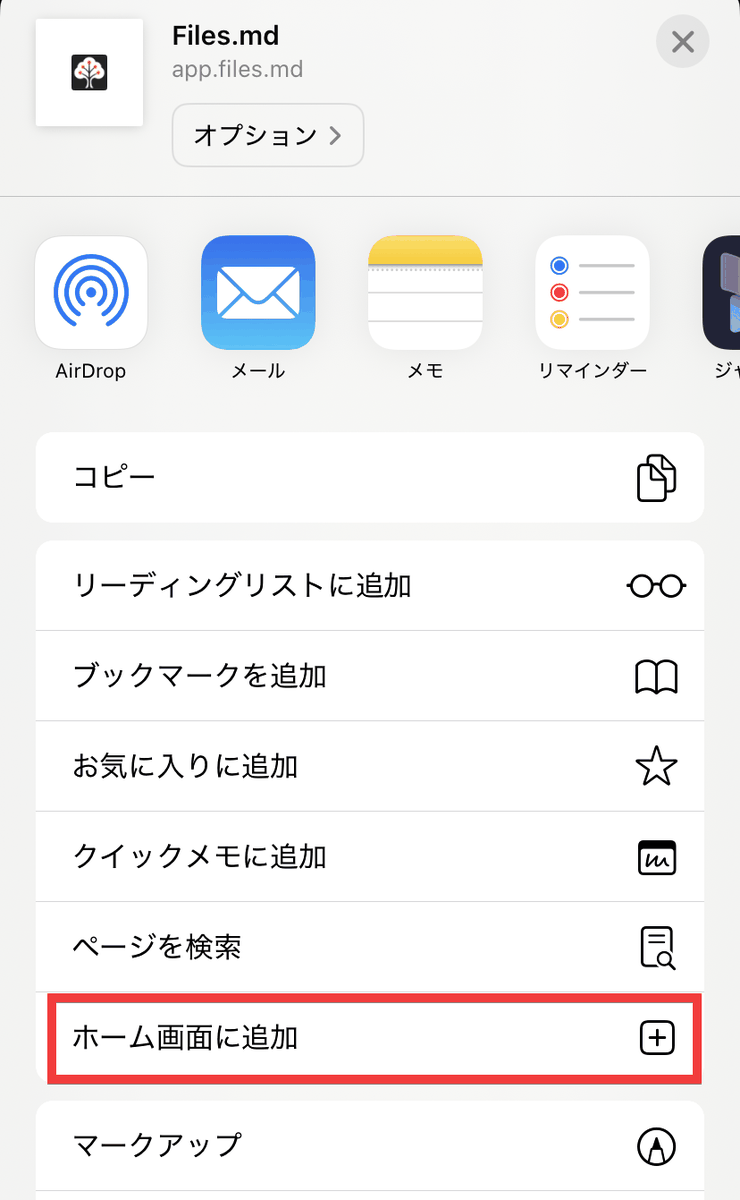
Tap 'Add to Home Screen' in the share menu.
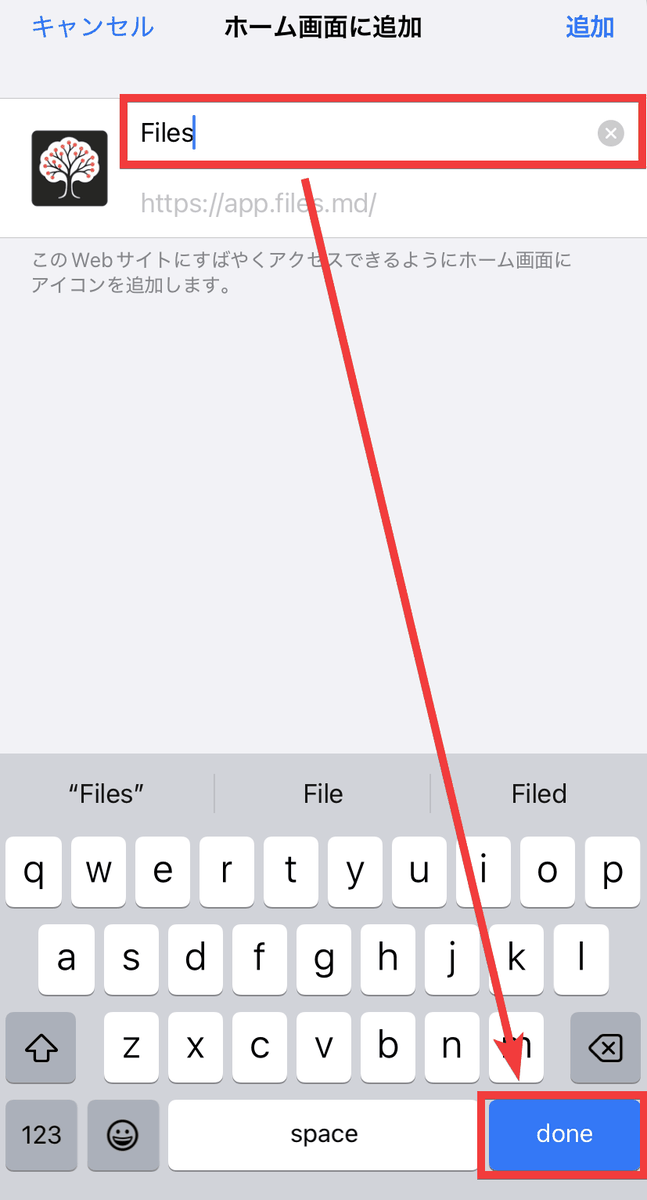
The name field already contains 'Files,' so you can either change it to a name of your choice or tap 'done.'
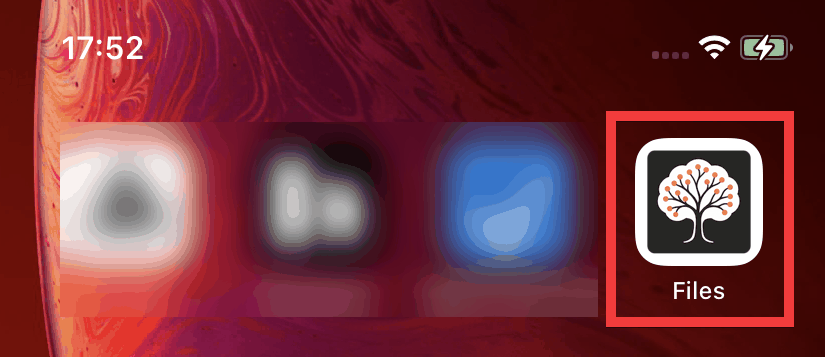
It will be added to the home screen.
◆Installing the Android app
Access the Files.md
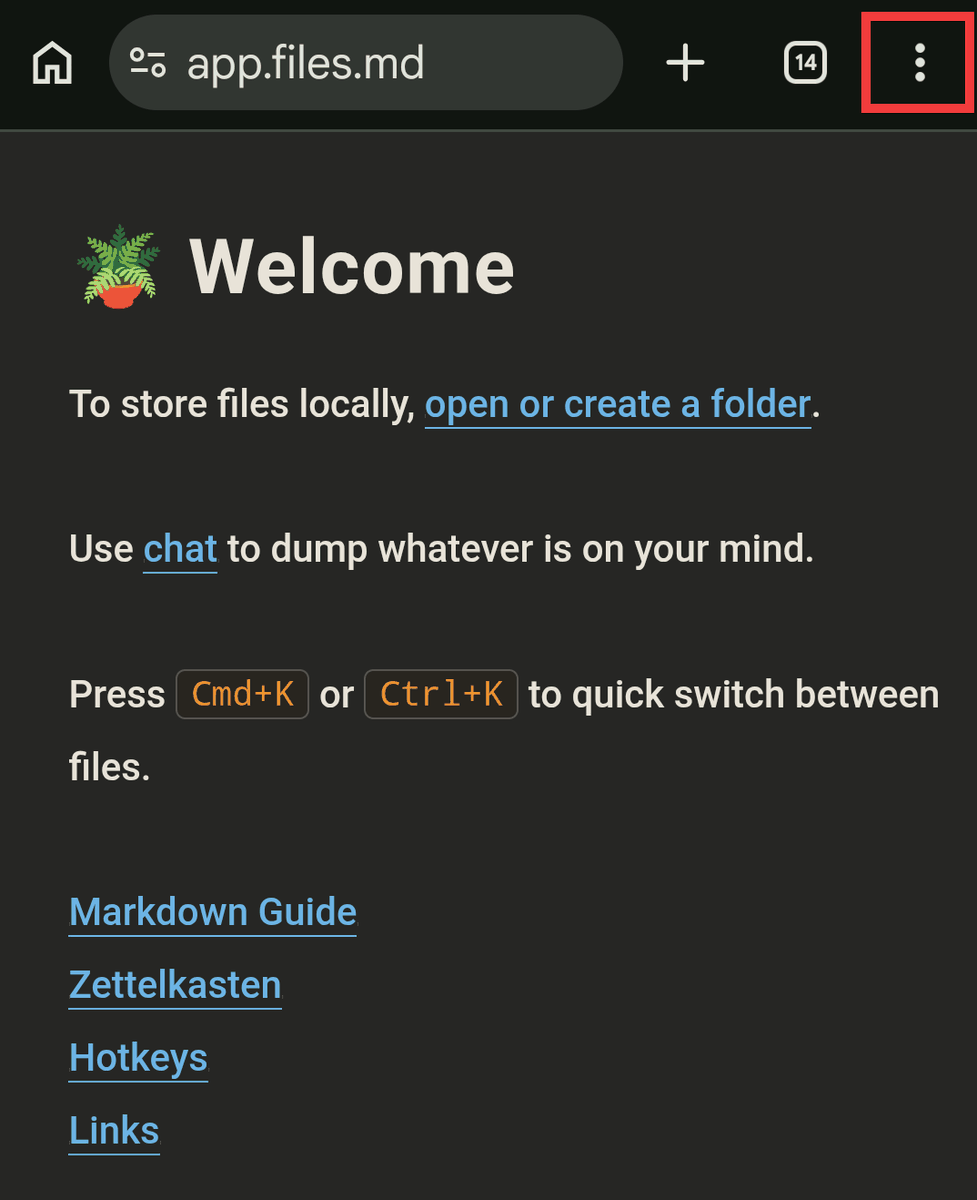
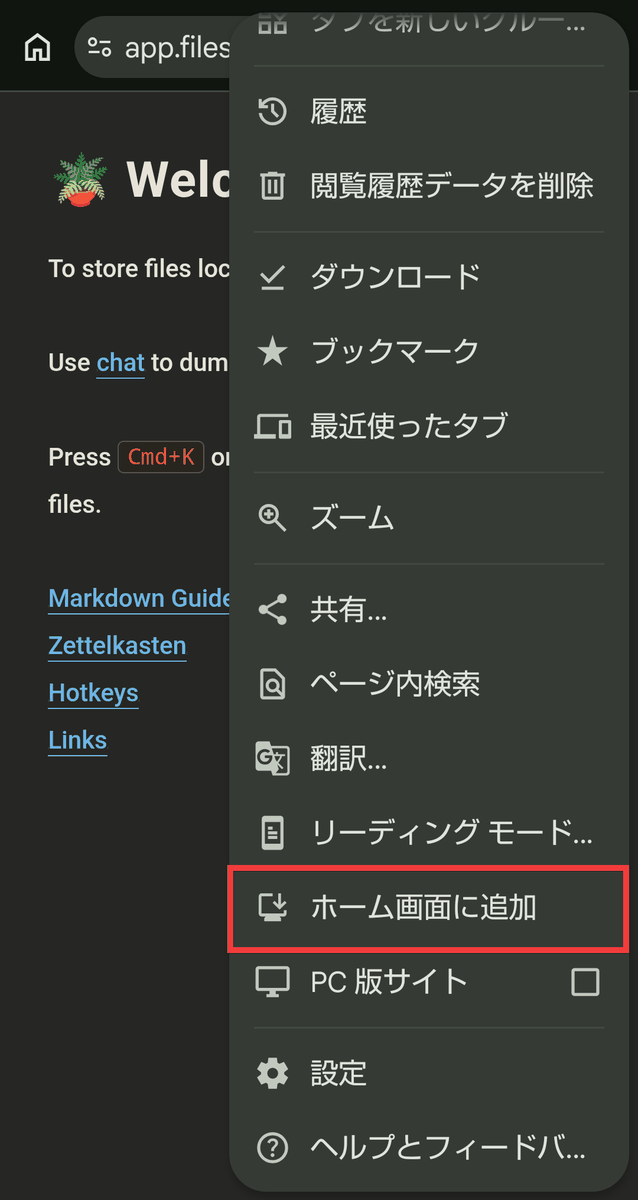
Tap 'Add to Home Screen' from the browser menu.
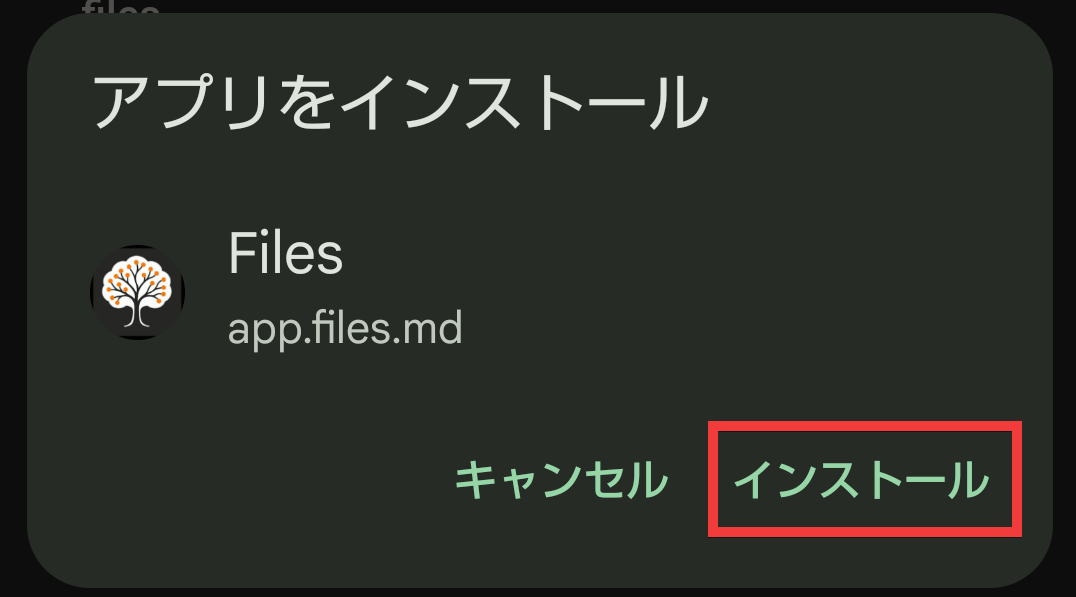
A dialog box asking you to 'Install the app' will appear, so tap 'Install'.
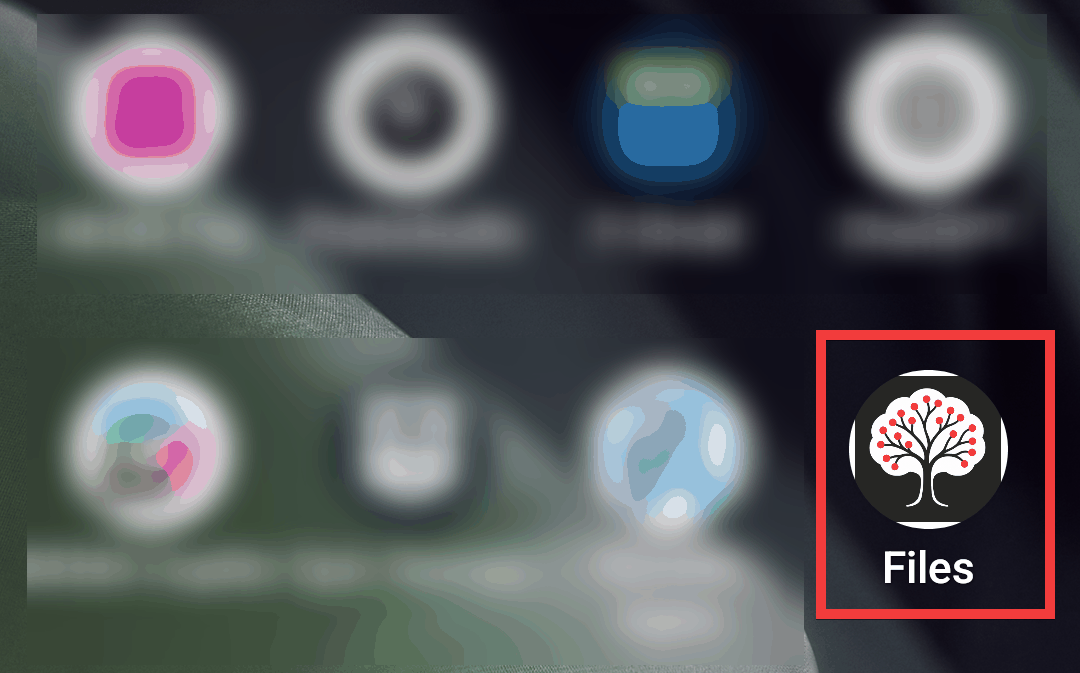
It will be added to the home screen.
On the social news site Hacker News, there has been much discussion about Files.md, with reports such as, 'I read it as an alternative and assumed it would have equivalent functionality or API compatibility, but it's actually completely different and far more interesting and worth trying,' and a response from the author stating , 'It hasn't been sufficiently tested on mobile yet.'
Related Posts: