'F-Droid' allows you to easily install and automatically update free, open-source Android apps other than those on Google Play.
When installing apps on Android, it's common to do so via Google Play. However, from an app developer's perspective, Google Play is seen as incompatible with 'free and open source' because it requires registration fees and passing a review process to publish an app. Another way to distribute apps is through APK files, but this raises security risks associated with installing APK files of questionable origin, as well as the potential risk of not knowing when an app has been updated. F-Droid is an Android app distribution ecosystem that prioritizes user freedom, guaranteeing the reliability of installed apps and providing update notifications and support, making it a 'home base for free and open-source mobile apps.'
F-Droid - A free and open-source Android app repository
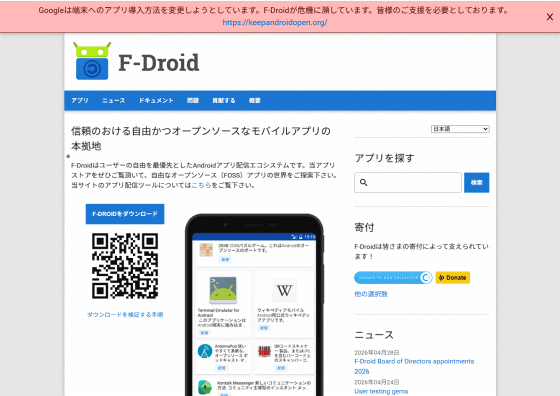
◆ Installing F-Droid
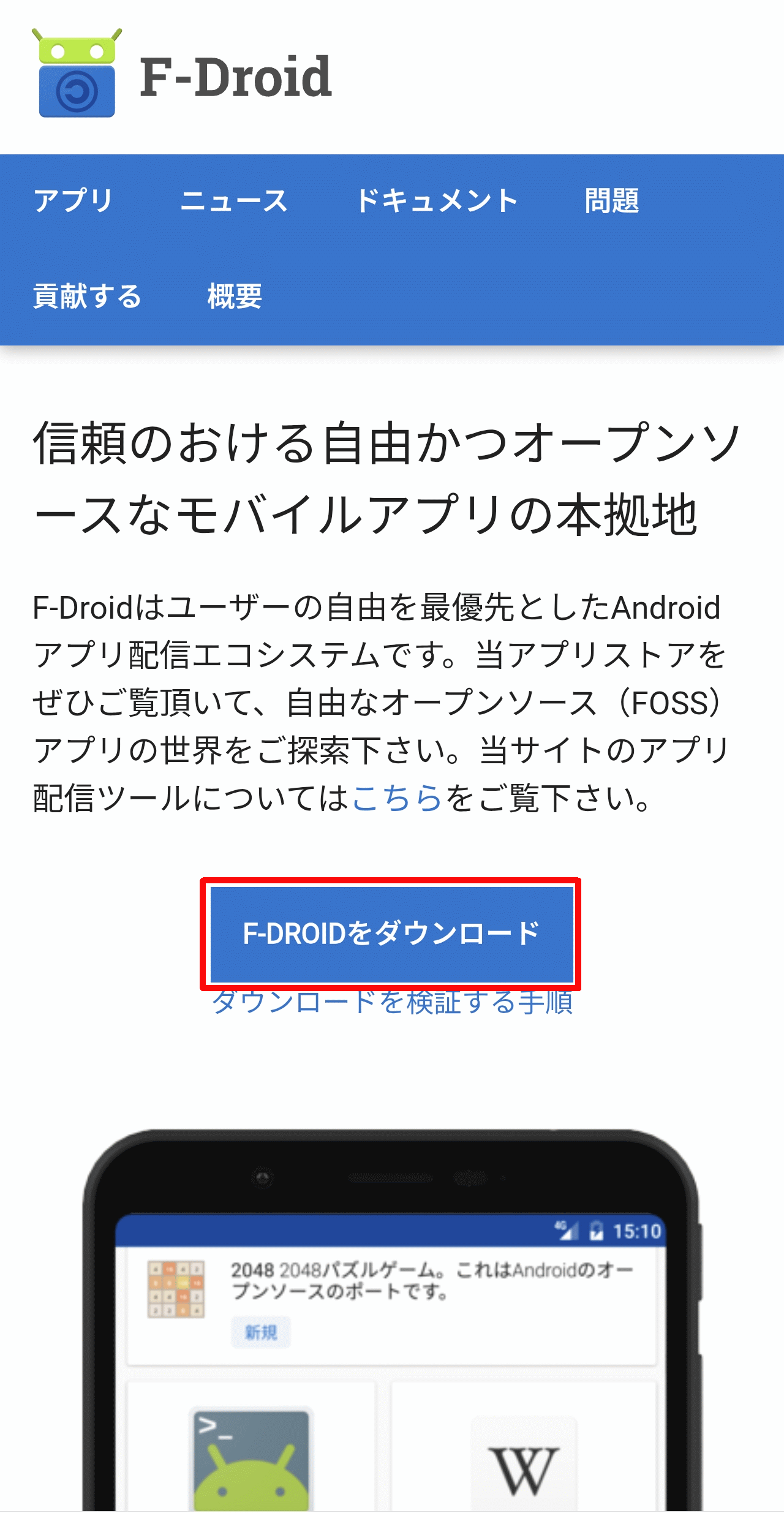
Unlike Google Play, which is pre-installed on Android OS, you need to install F-Droid before you can use it. To install it, open the official website on your Android smartphone and tap the 'Download F-DROID' button.
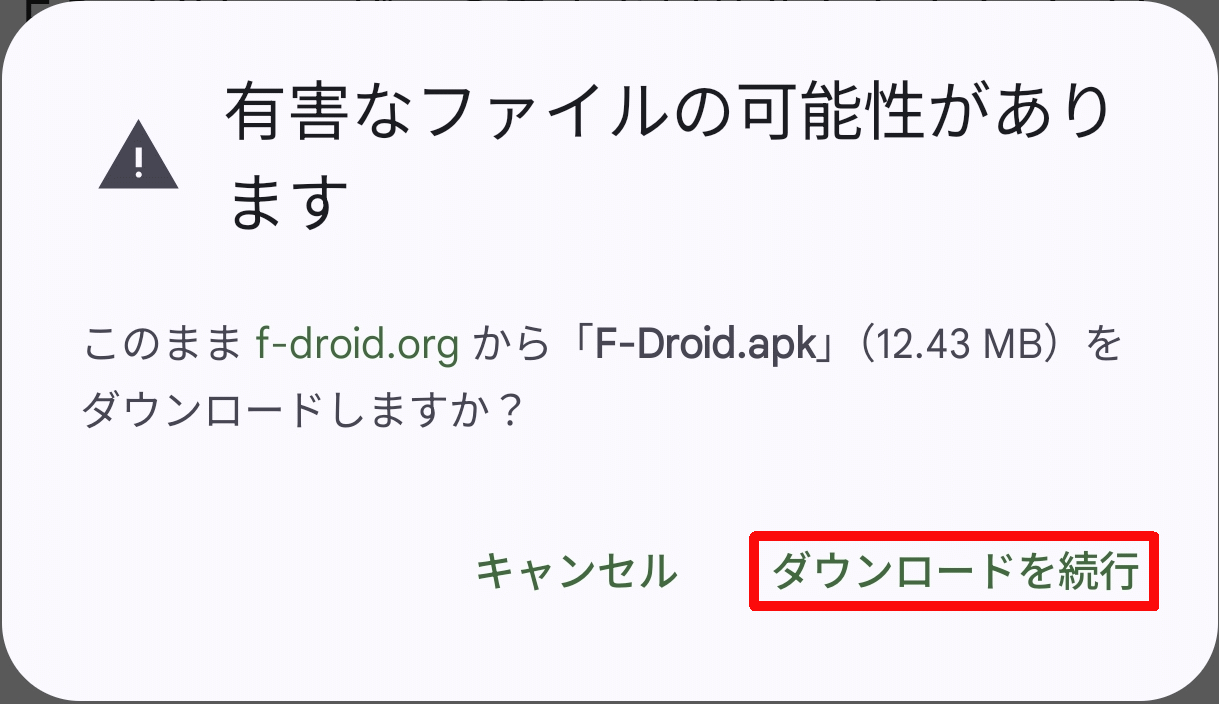
A pop-up message will appear saying 'This file may be harmful,' but tap 'Continue downloading.'
When the pop-up message '1 download complete' appears, tap 'Open'.

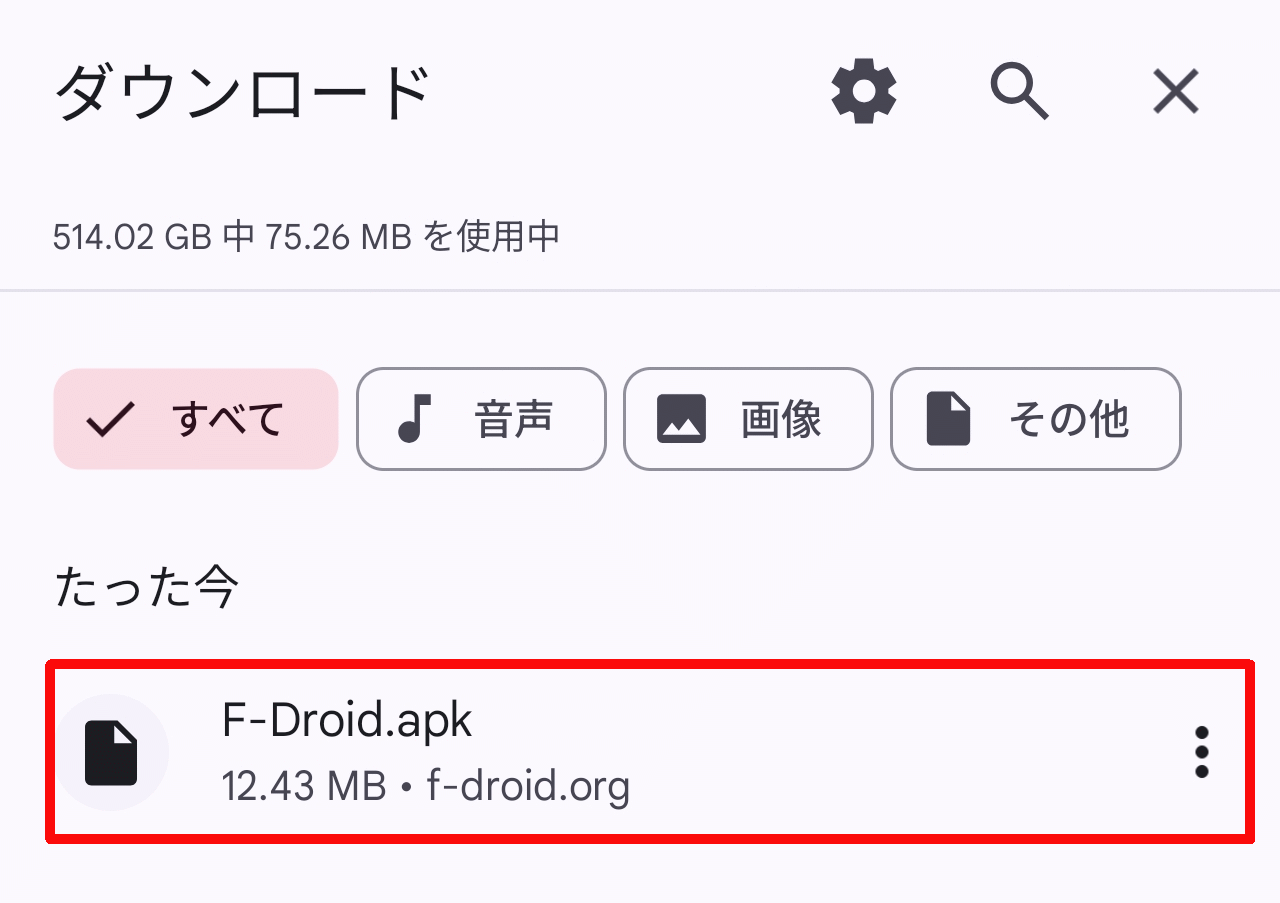
The 'Download' screen will open, so tap 'F-Droid.apk'.
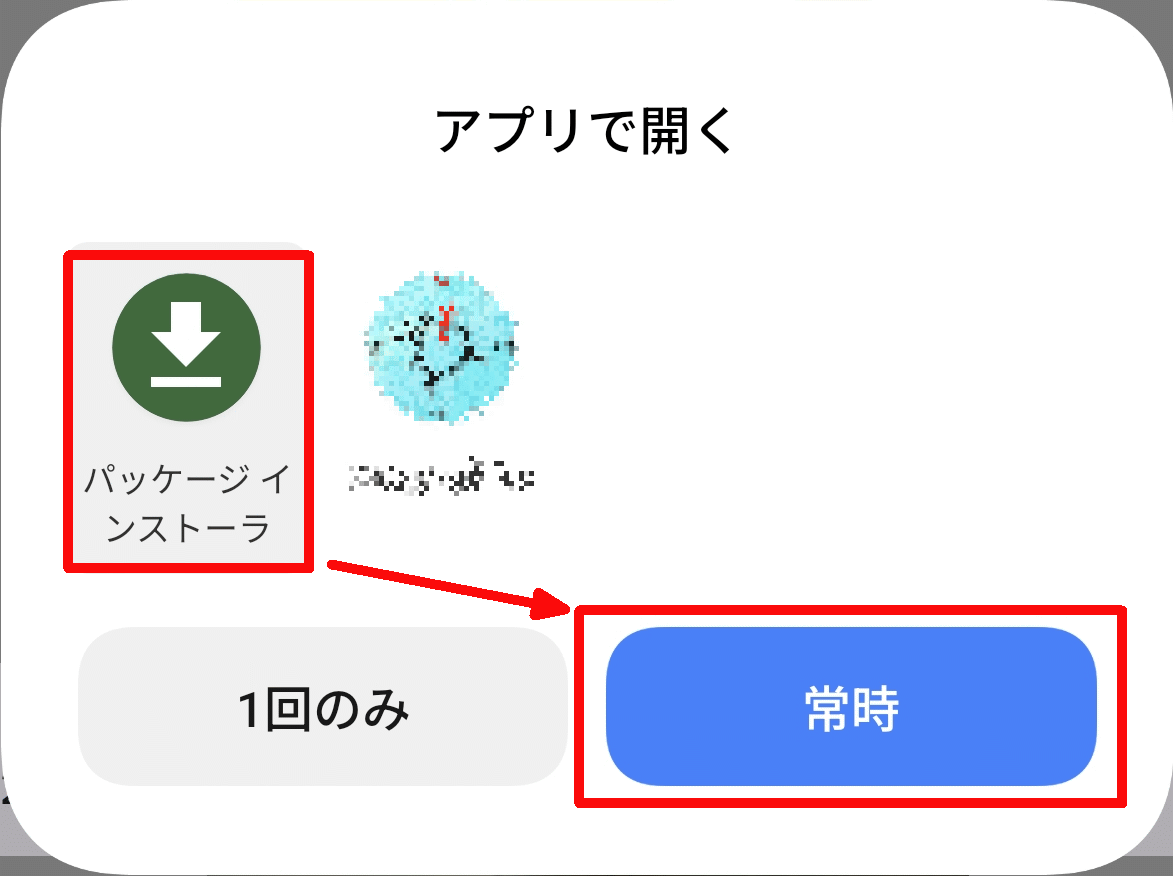
Depending on your Android environment, a 'Open with app' pop-up may appear, but select 'Package Installer' and tap the 'Always' button.
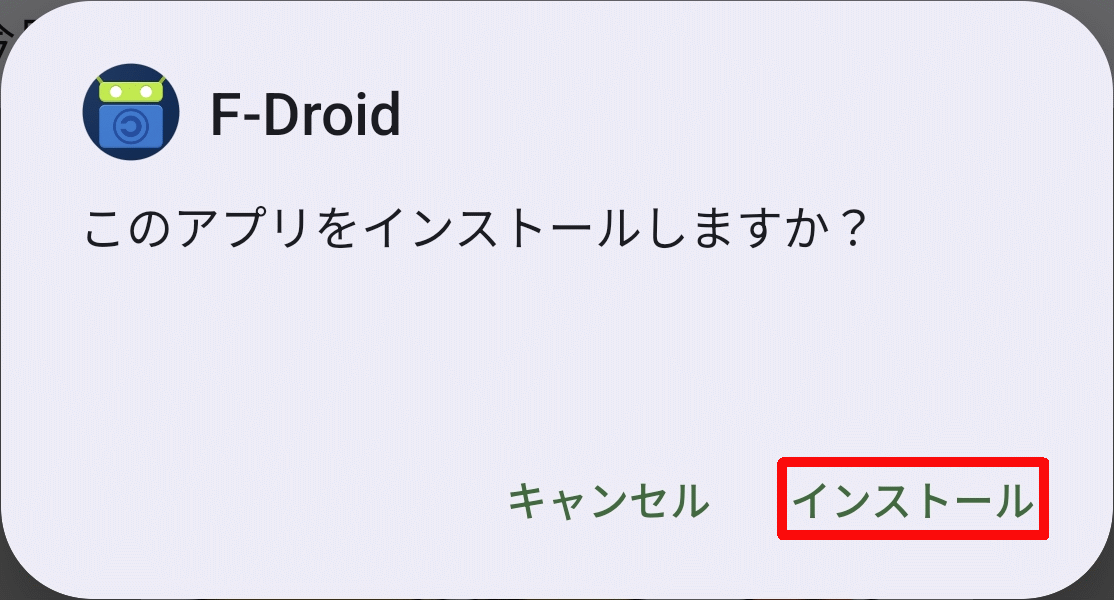
A pop-up will appear asking, 'Do you want to install this app?' Tap 'Install'.
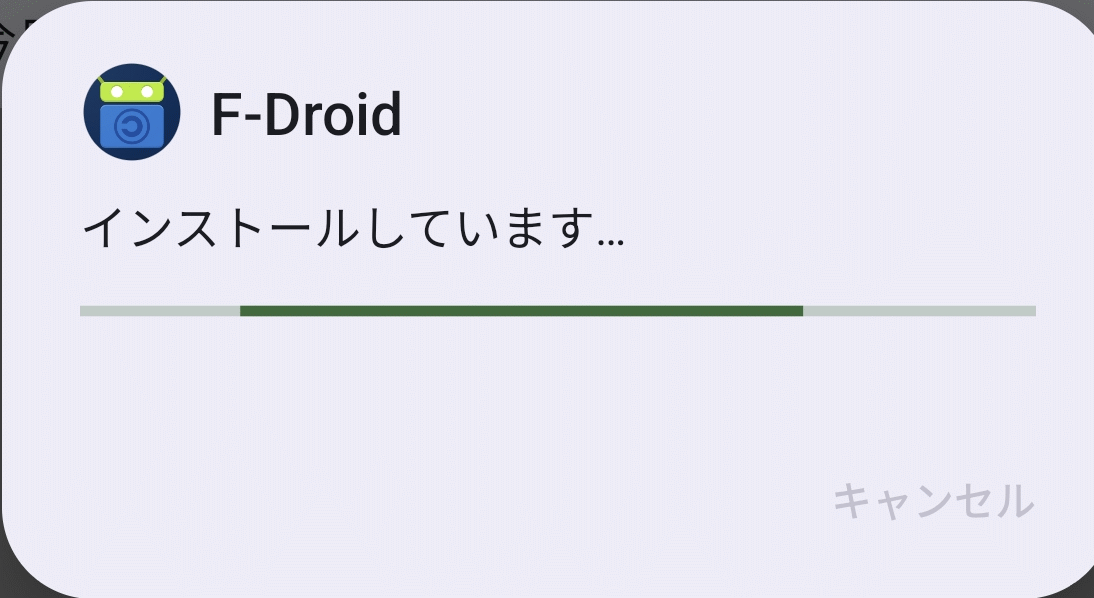
Once the installation begins, a 'Installing...' pop-up with a progress bar will appear. The installation is complete when the pop-up disappears.
◆Launch F-Droid
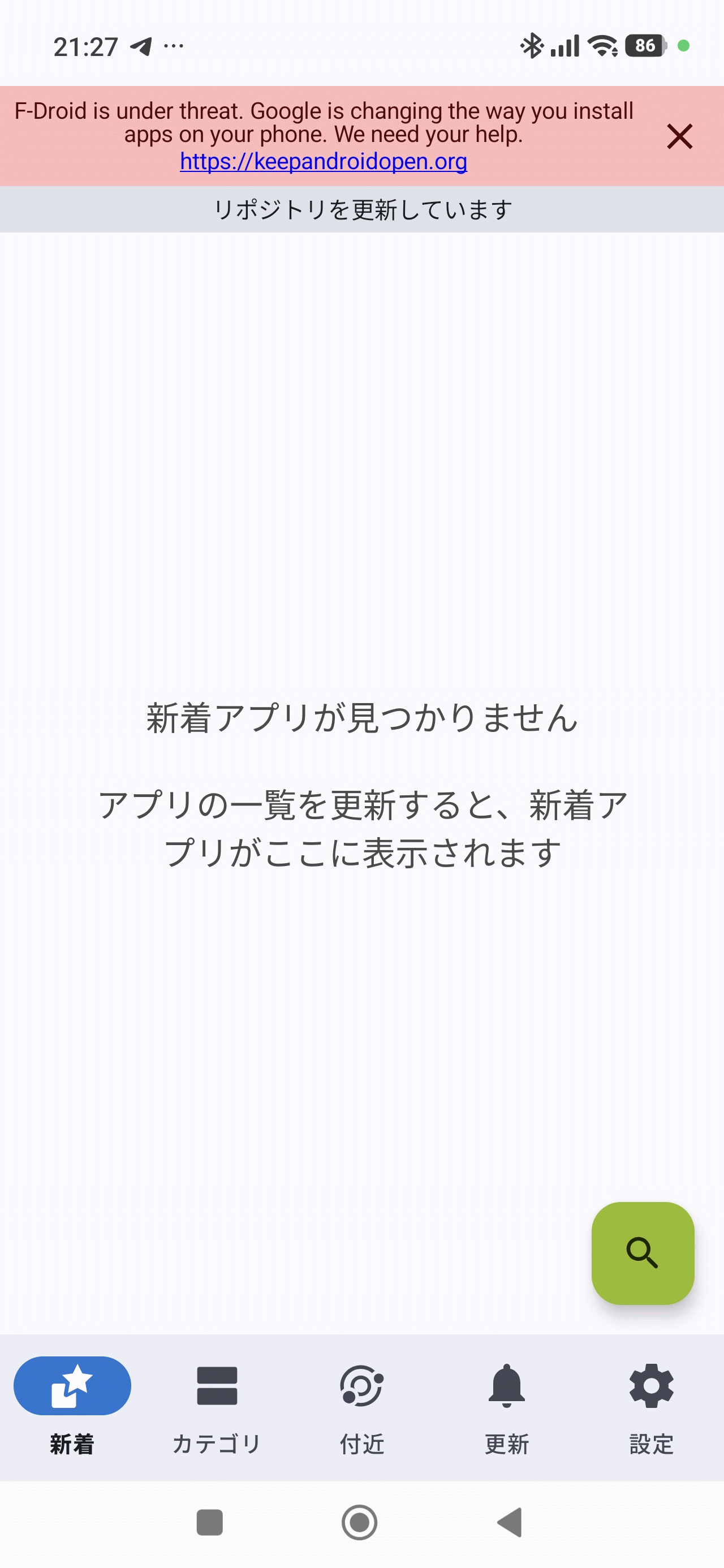
This is what it looks like when launched immediately after installation. Although the 'New Arrivals' tab is open, nothing is displayed because the repository is being updated.
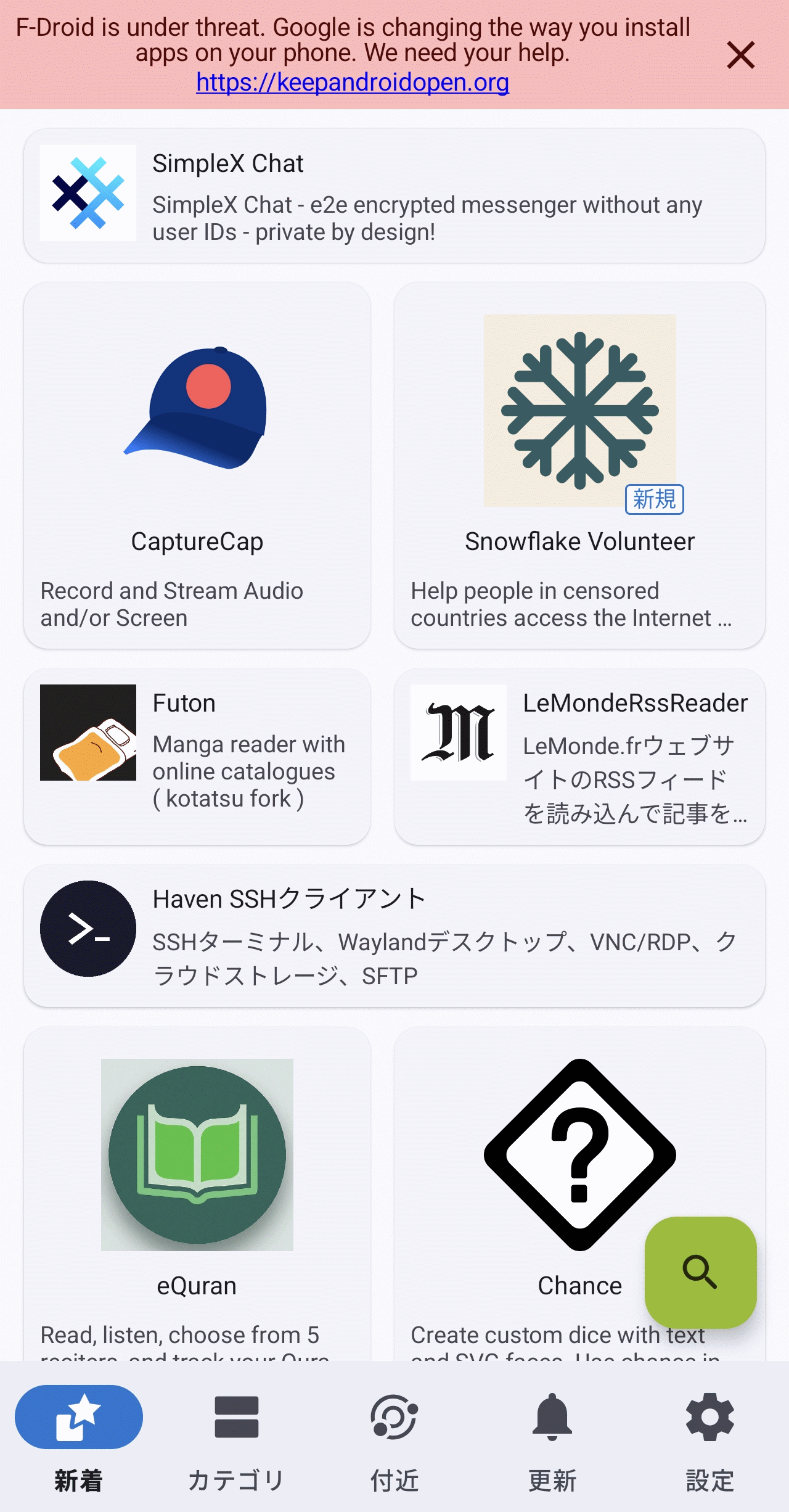
Once the repository update is complete, the app will appear in the 'New' tab.
◆App Installation
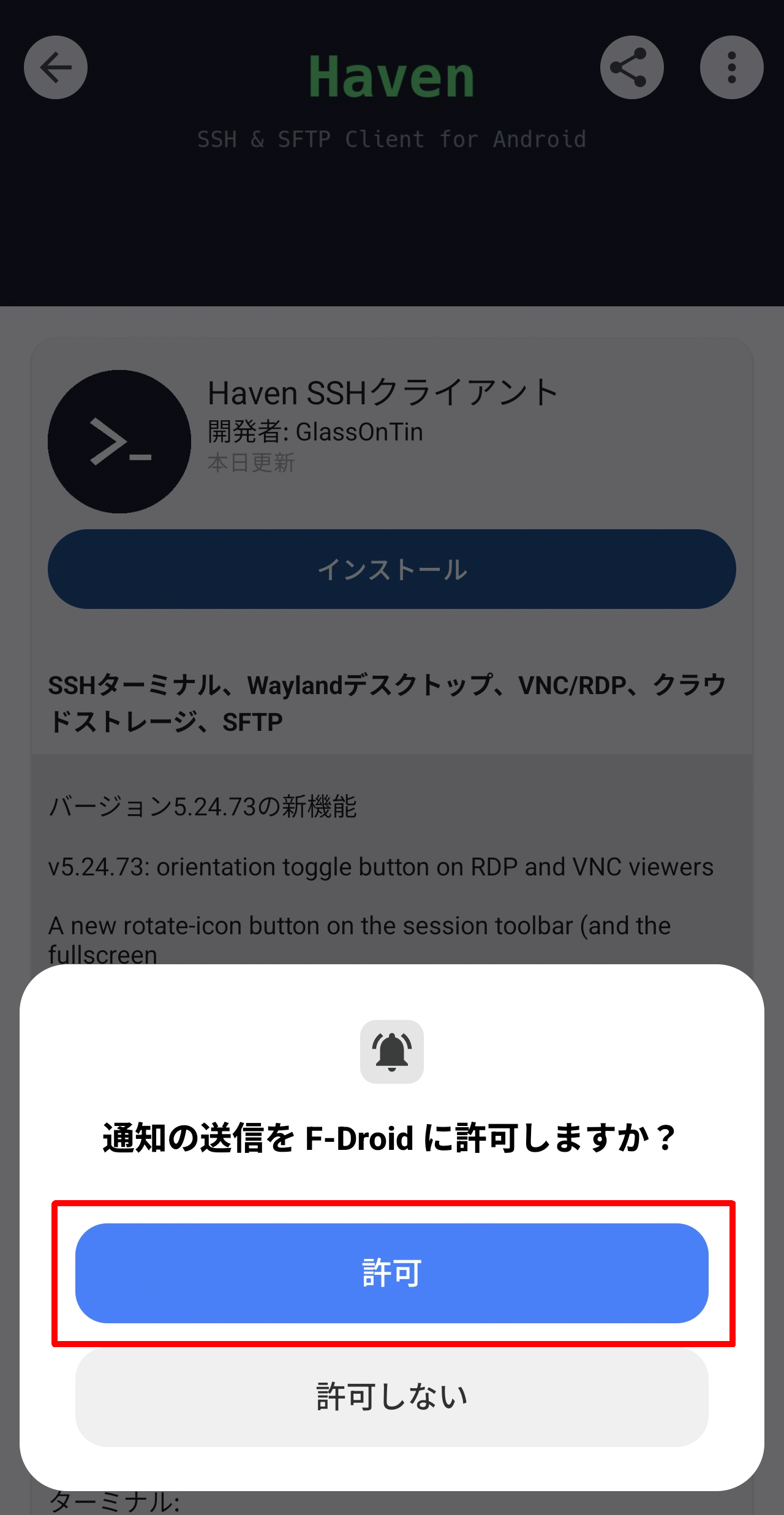
When you select the app you want to install, the first time you do, a pop-up will appear asking, 'Do you want to allow F-Droid to send notifications?' Tap the 'Allow' button.
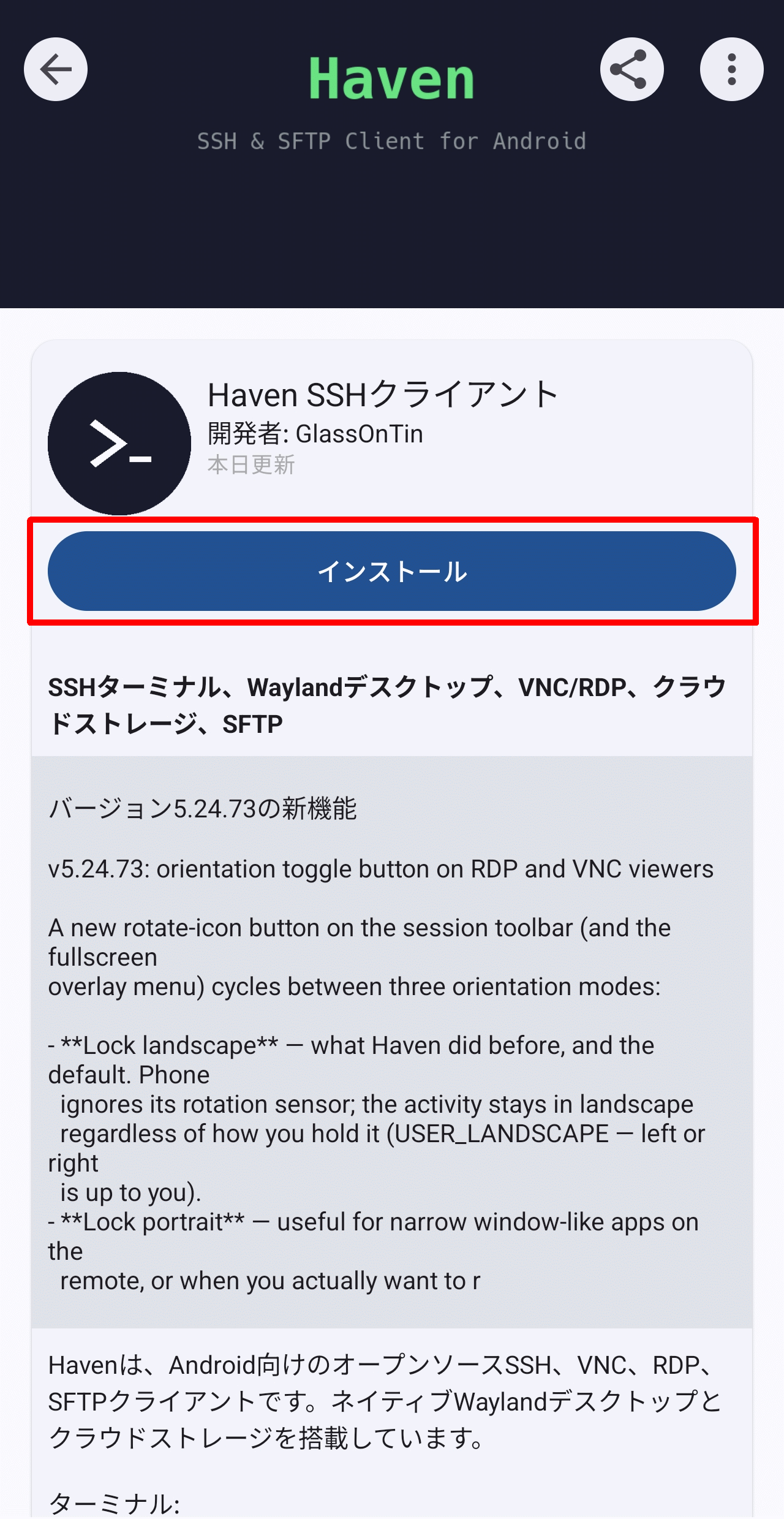
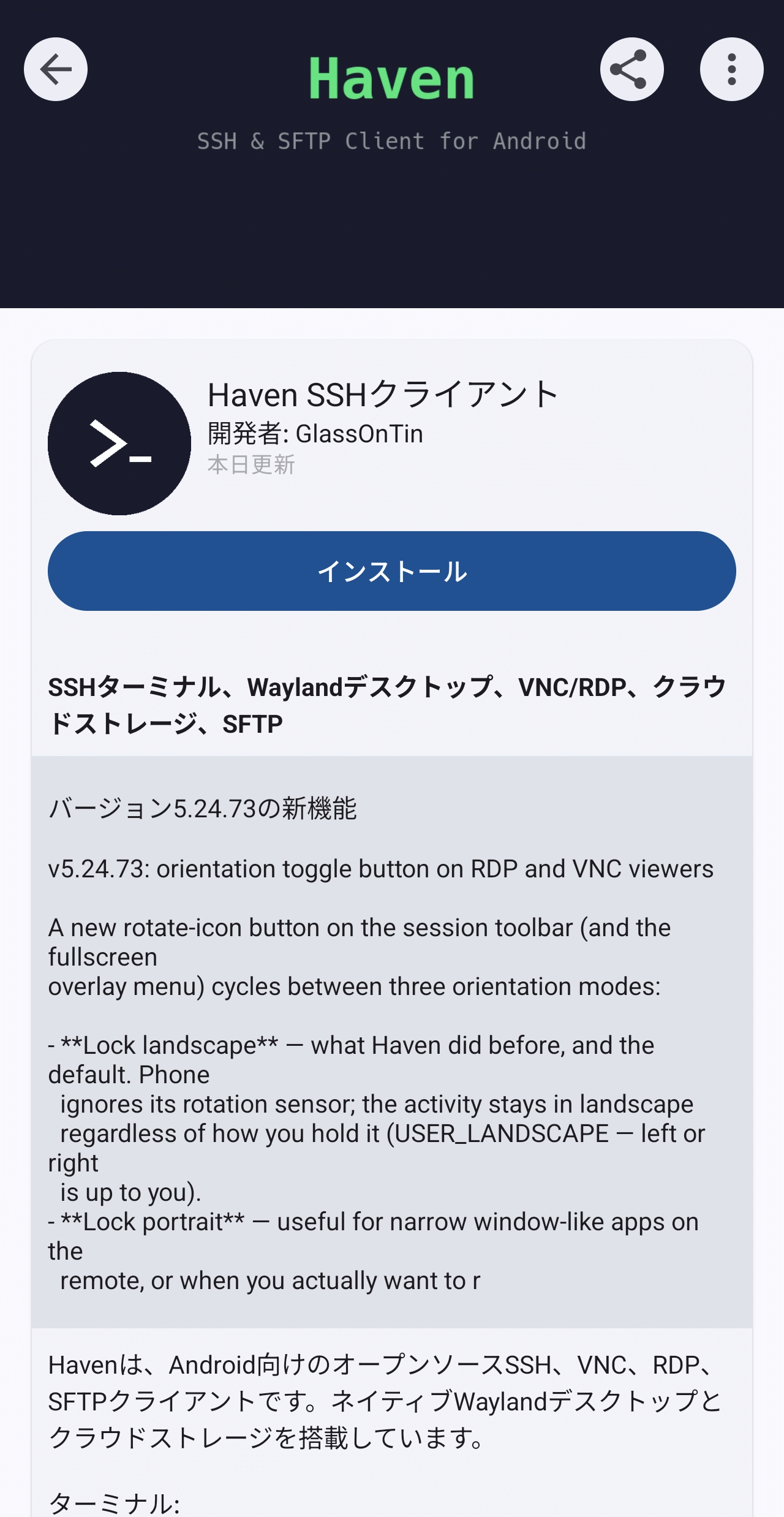
The information for the selected app will be displayed, and tapping the 'Install' button will start the download.
A progress bar will appear once the download begins.
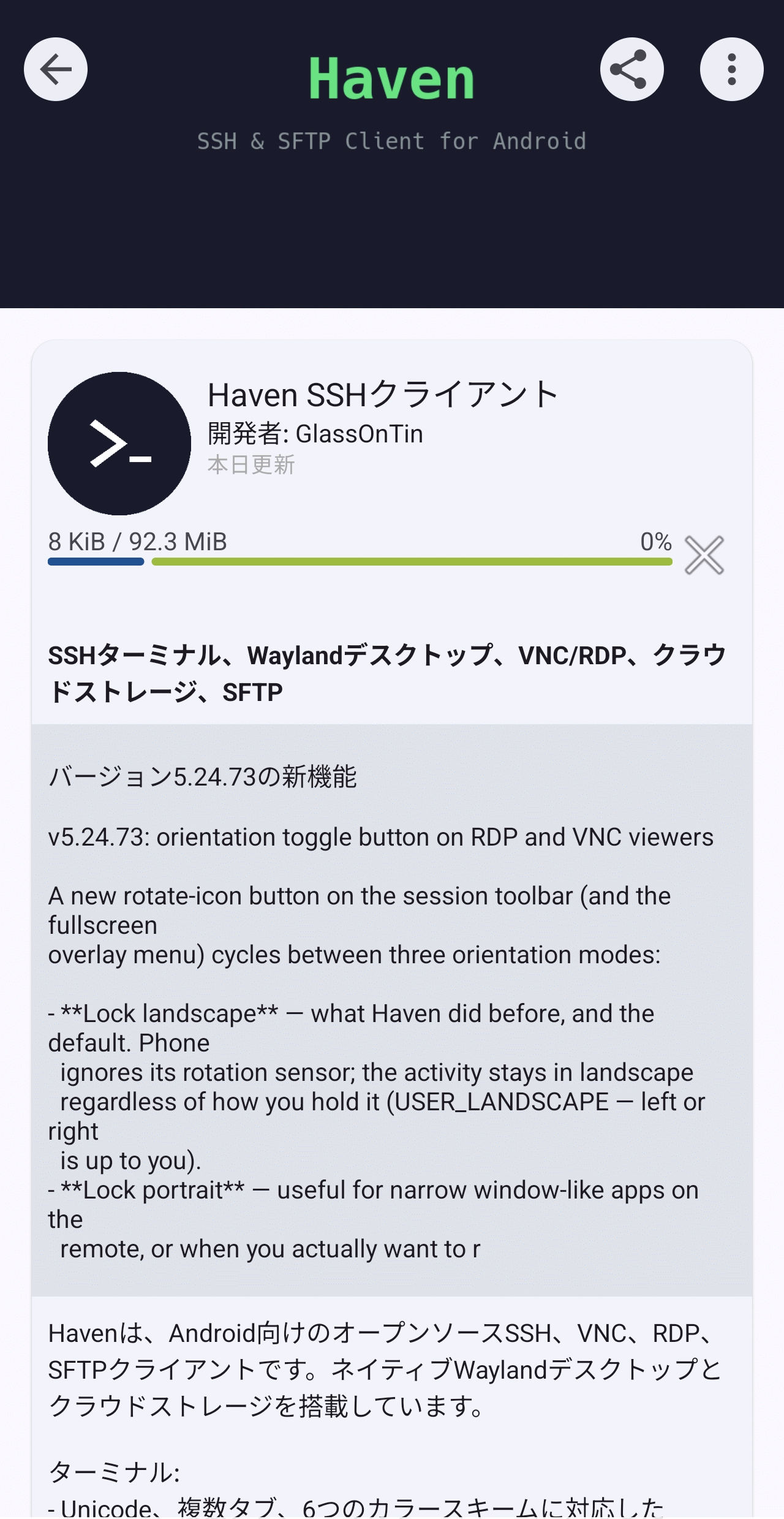
If the download is interrupted for any reason, the progress bar will disappear and the 'Install' button will reappear. Pressing the 'Install' button will resume the download from where it left off.
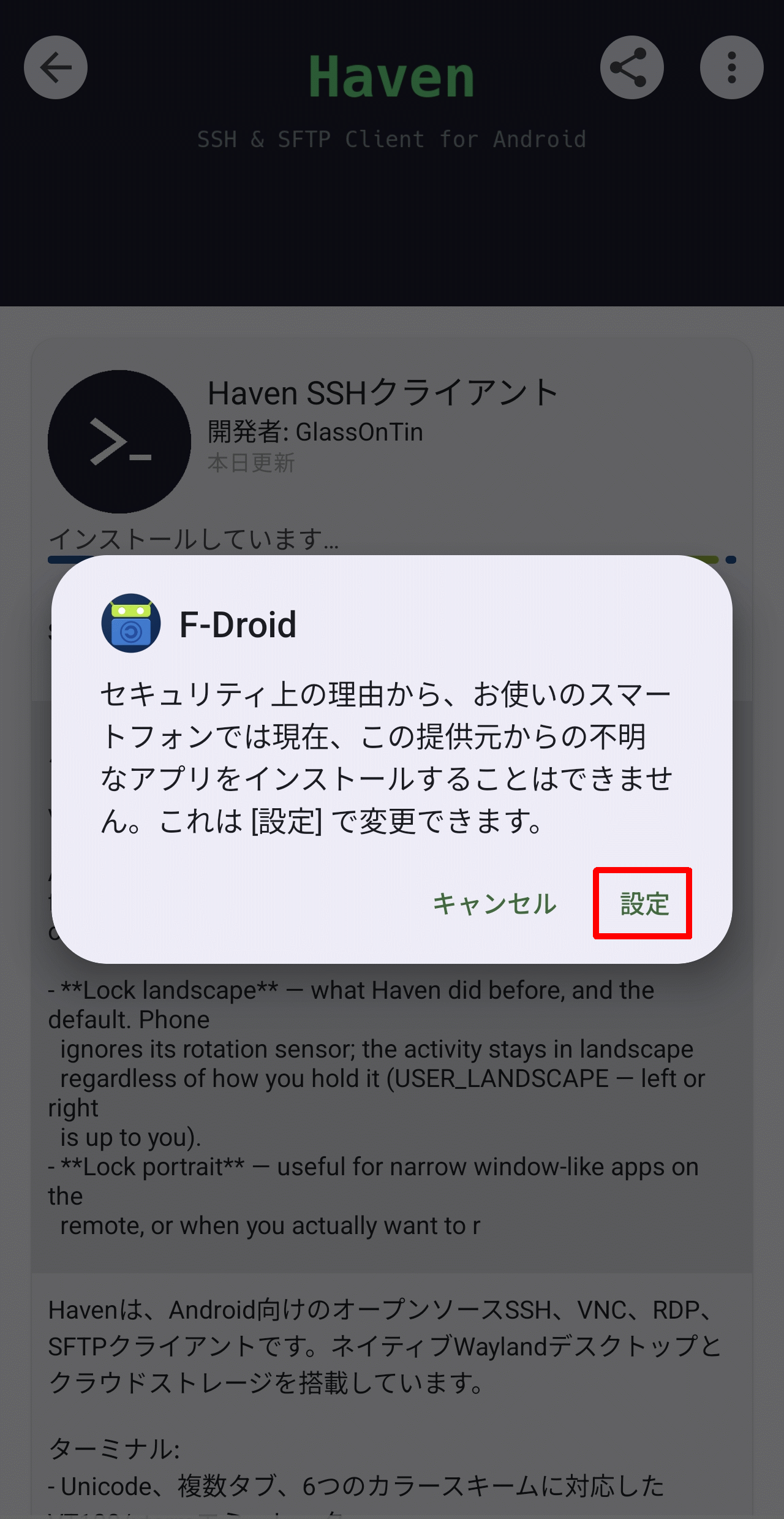
Upon completion of the initial download, a pop-up message will appear stating, 'For security reasons, your smartphone cannot currently install unknown apps from this source.' Tap 'Settings.'
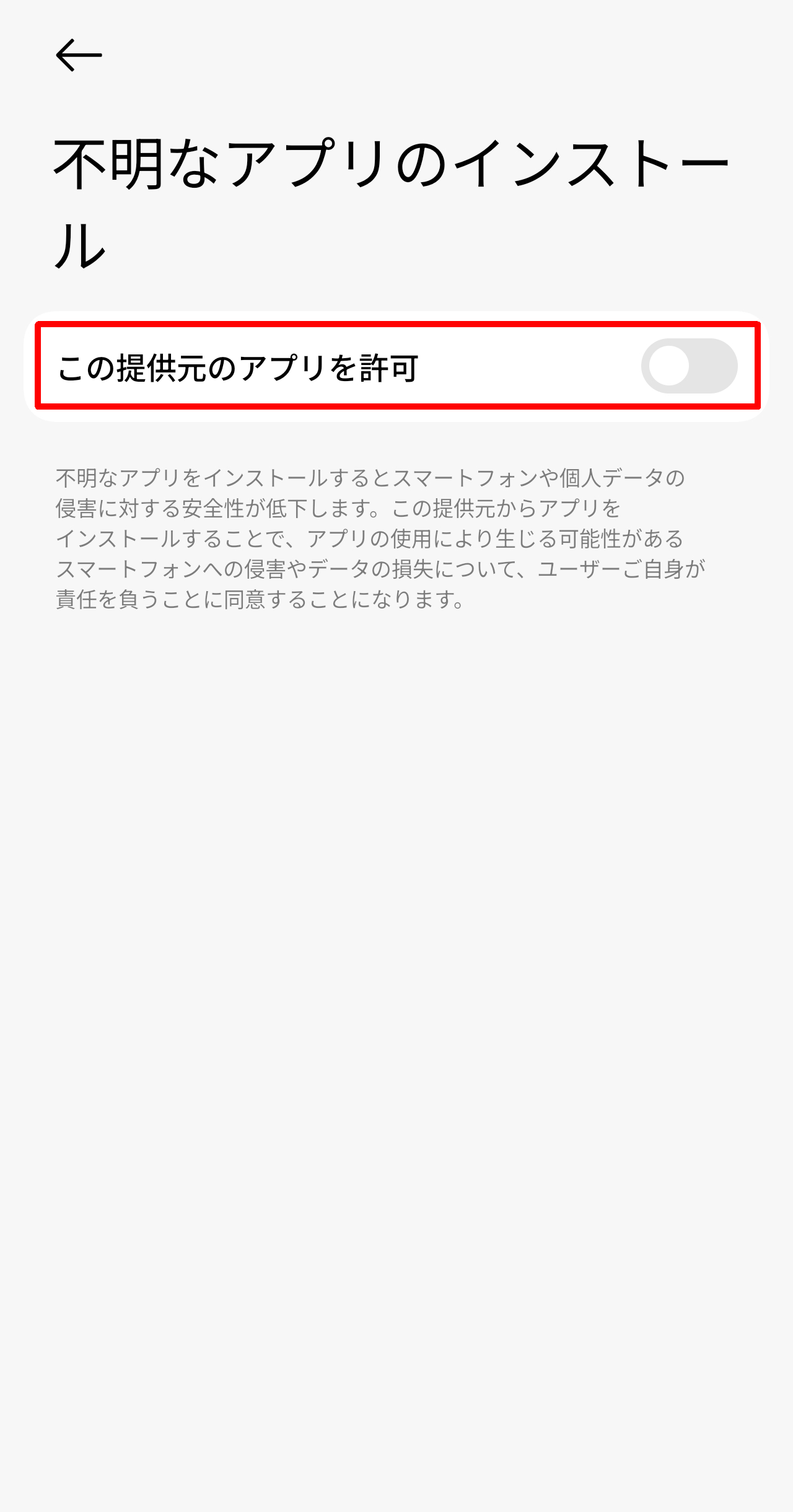
A pop-up will appear saying 'Install an unknown app,' so turn on 'Allow apps from this source.'
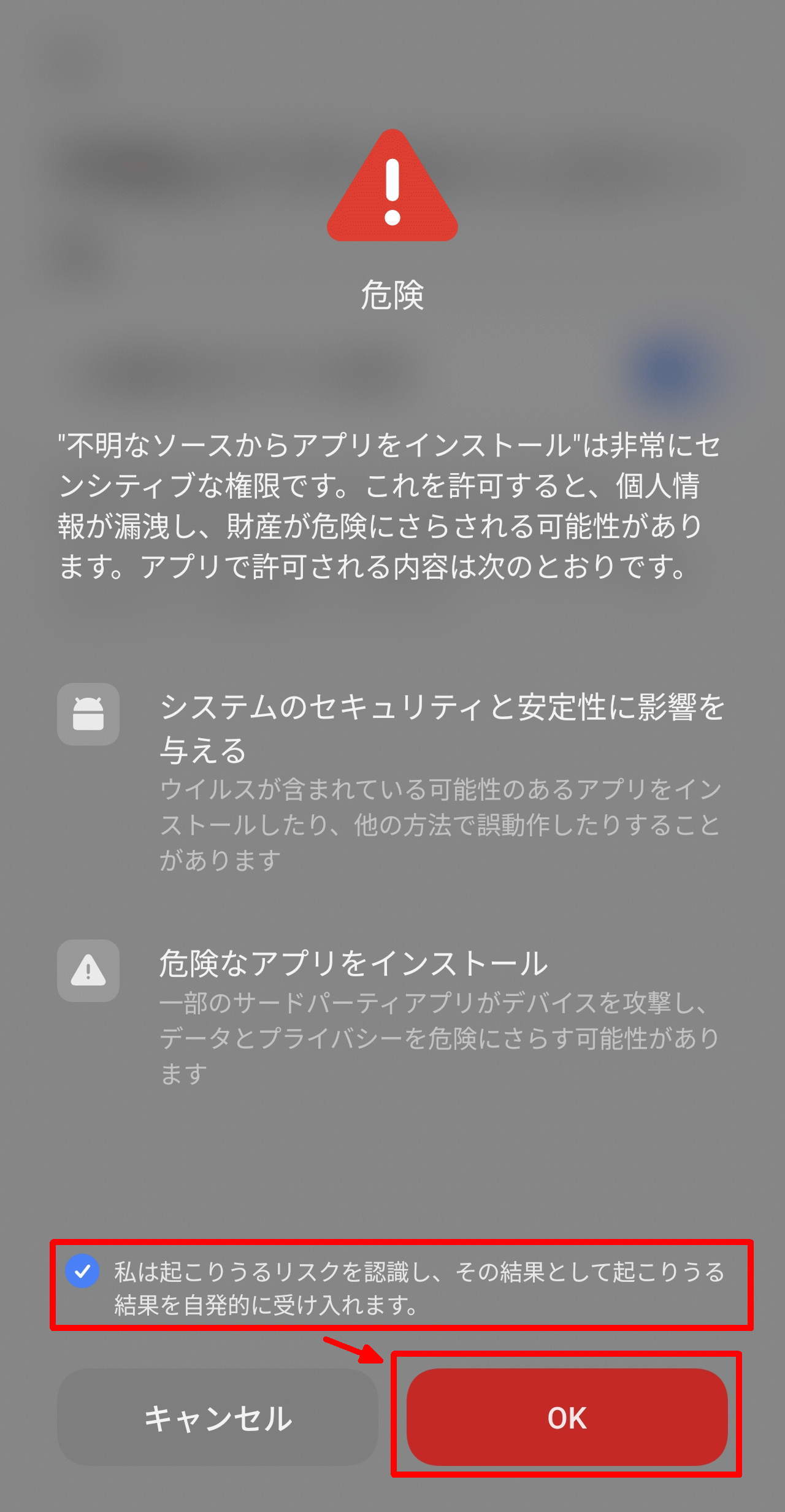
A screen displaying 'Danger' will appear as an overlay. Check the box that says 'I understand the potential risks' and tap the 'OK' button. Please note that the 'OK' button will not become active until a few seconds have passed after checking the box, to prevent accidental taps.
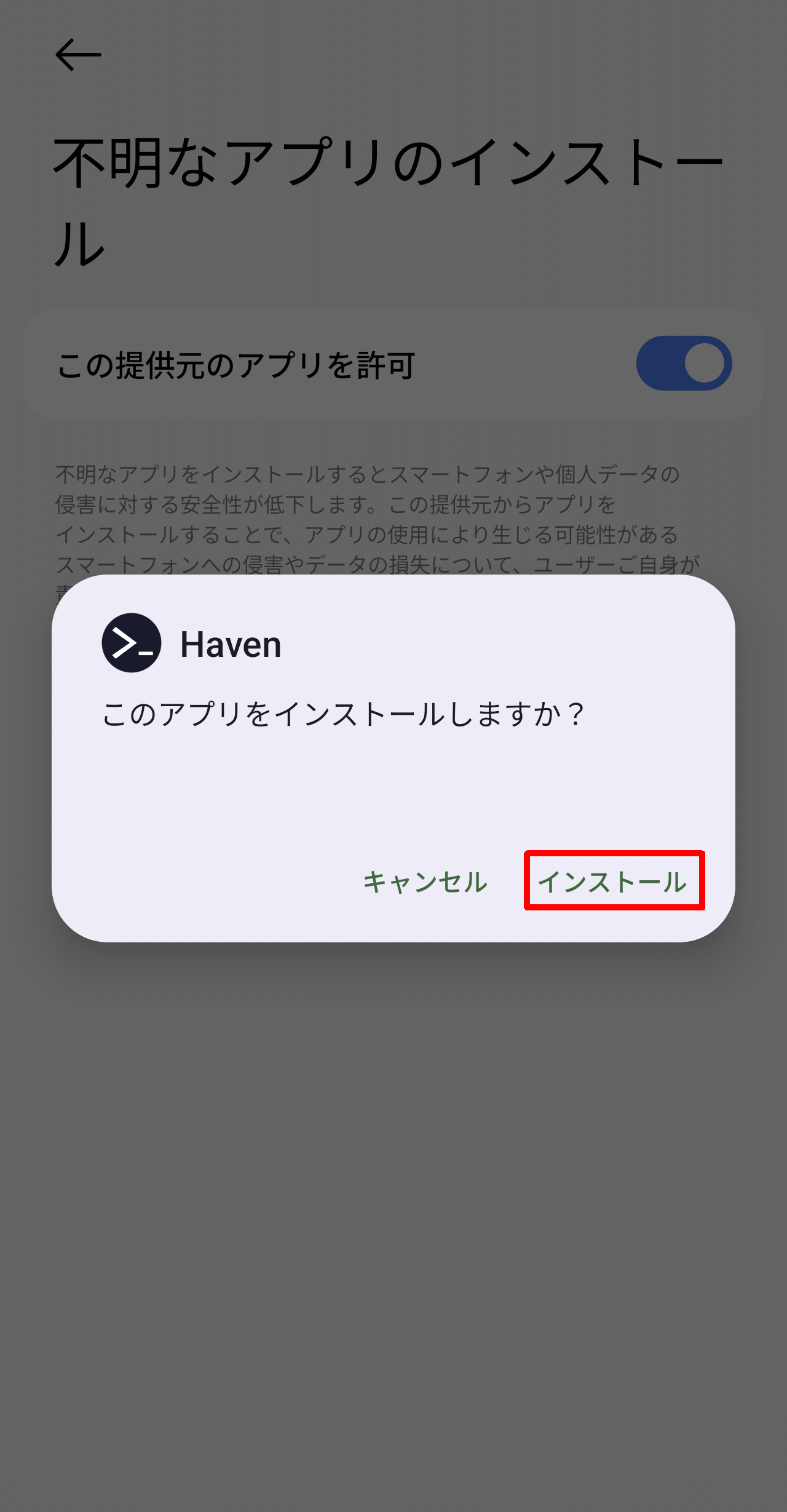
A pop-up will appear asking, 'Do you want to install this app?' Tap 'Install'.
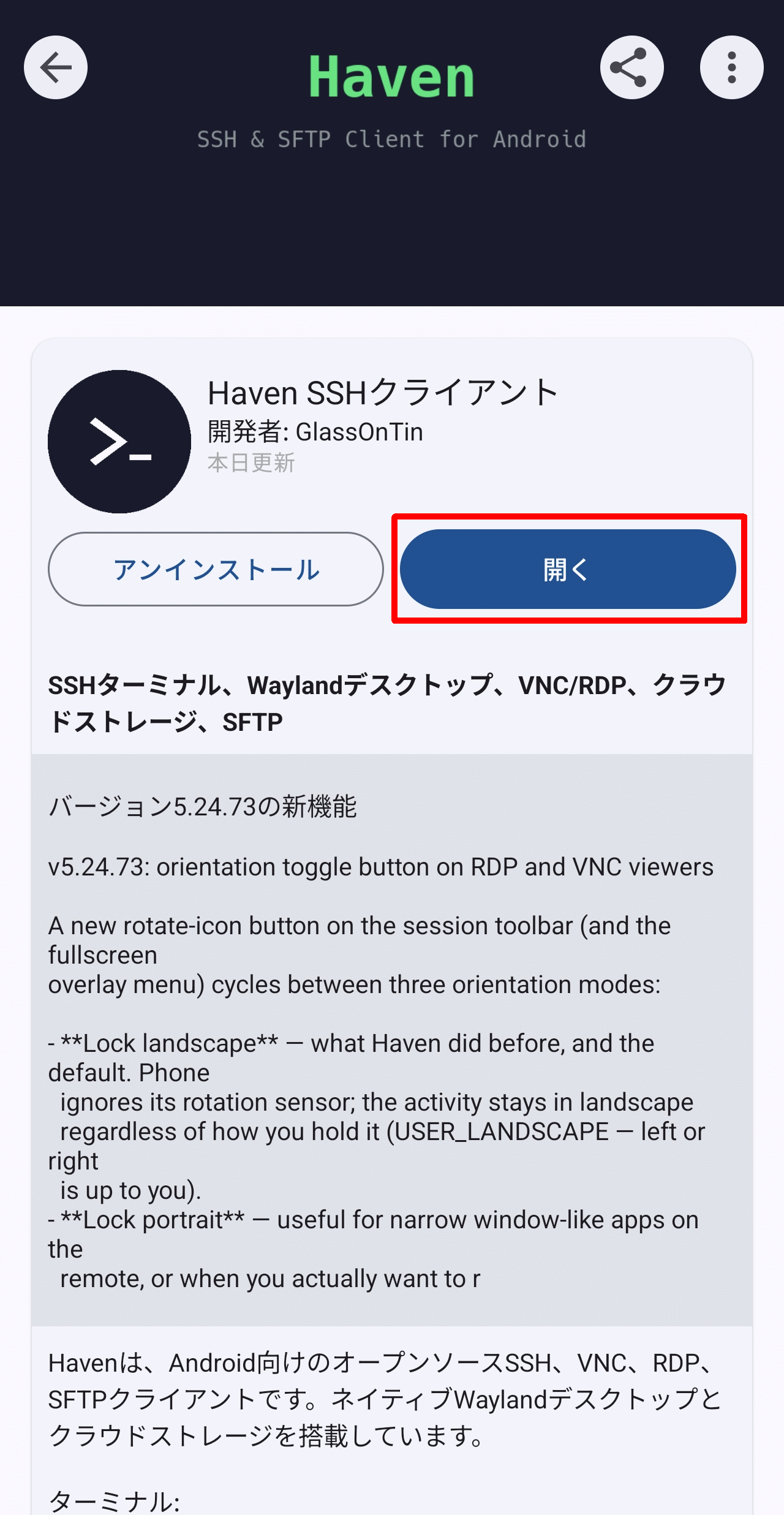
Once the installation is complete, an 'Open' button will appear. To launch the app, tap the 'Open' button.
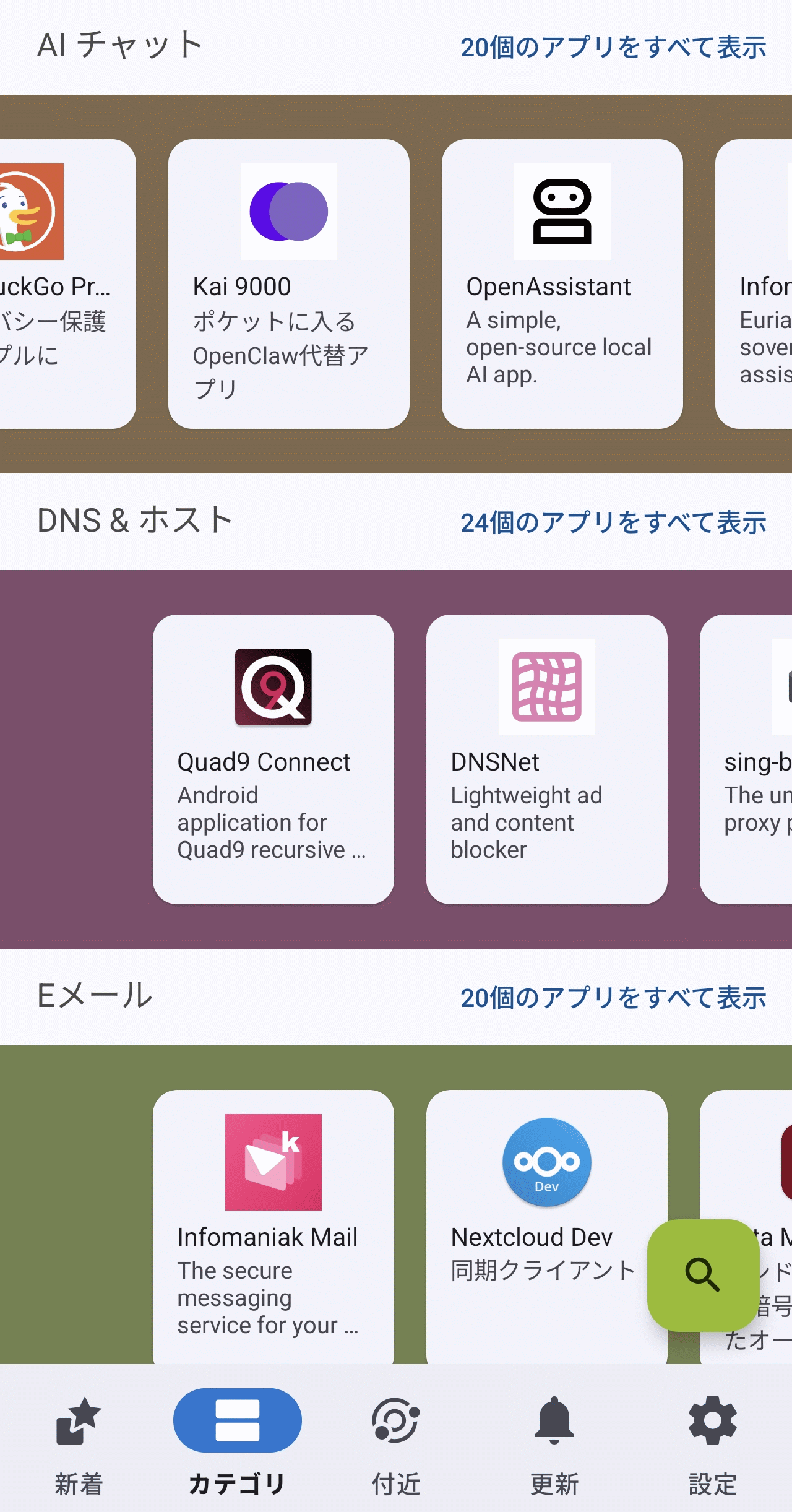
Selecting a 'Category' tag categorizes apps, making it easier to find the app you're looking for.
Selecting the 'Nearby' tab allows you to receive apps from nearby devices that are running the F-Droid app.
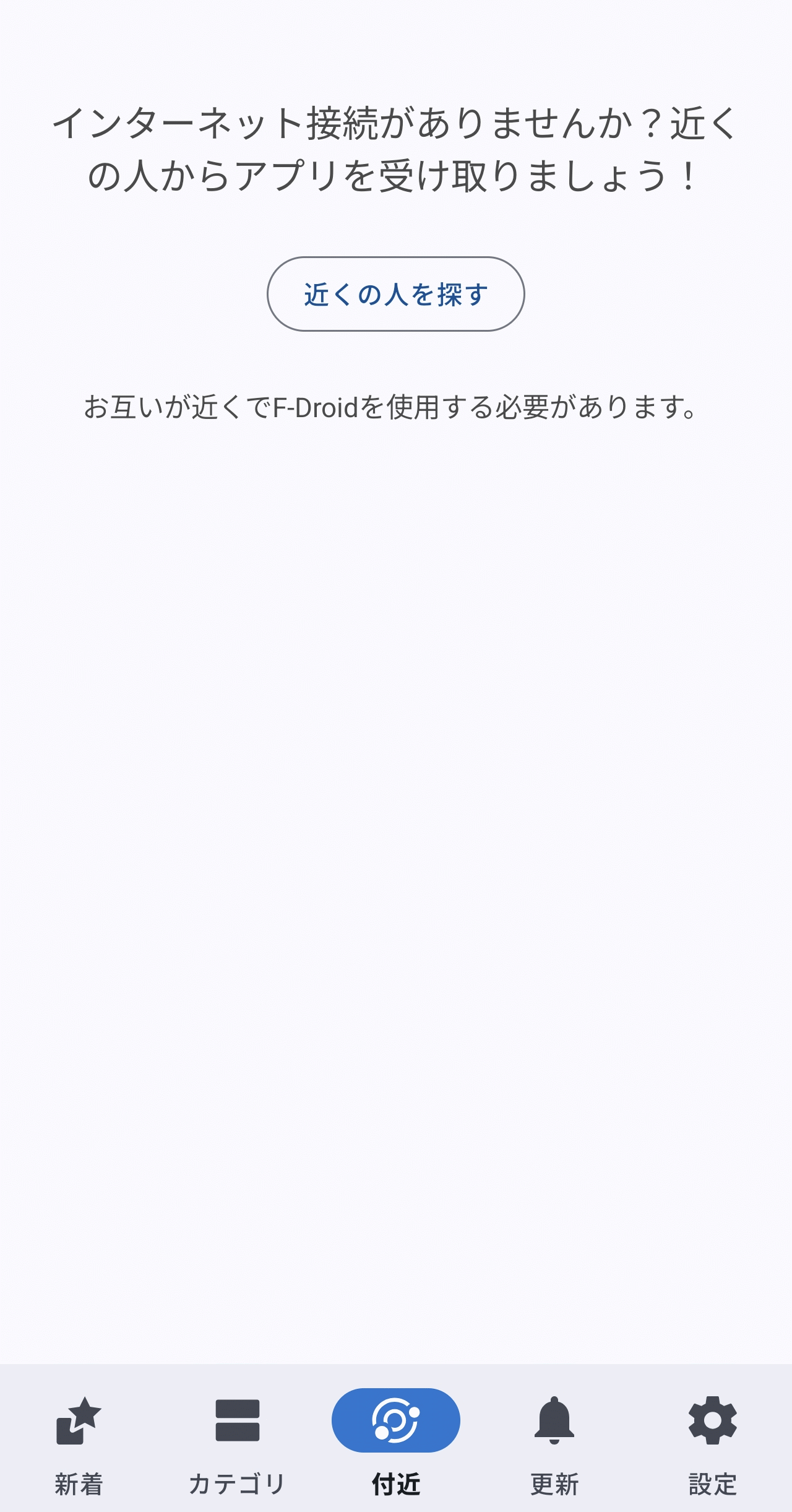
◆ Search for apps
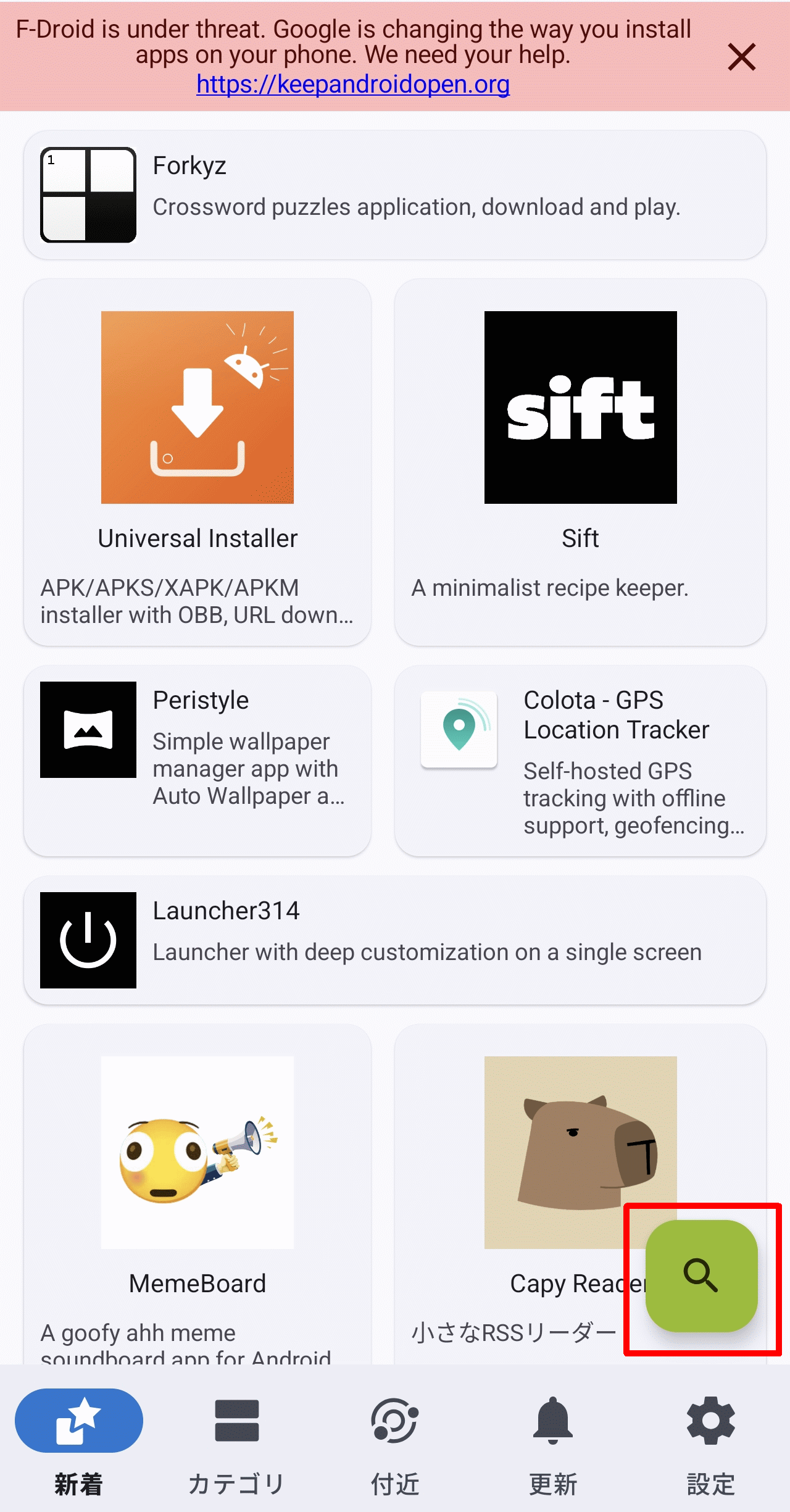
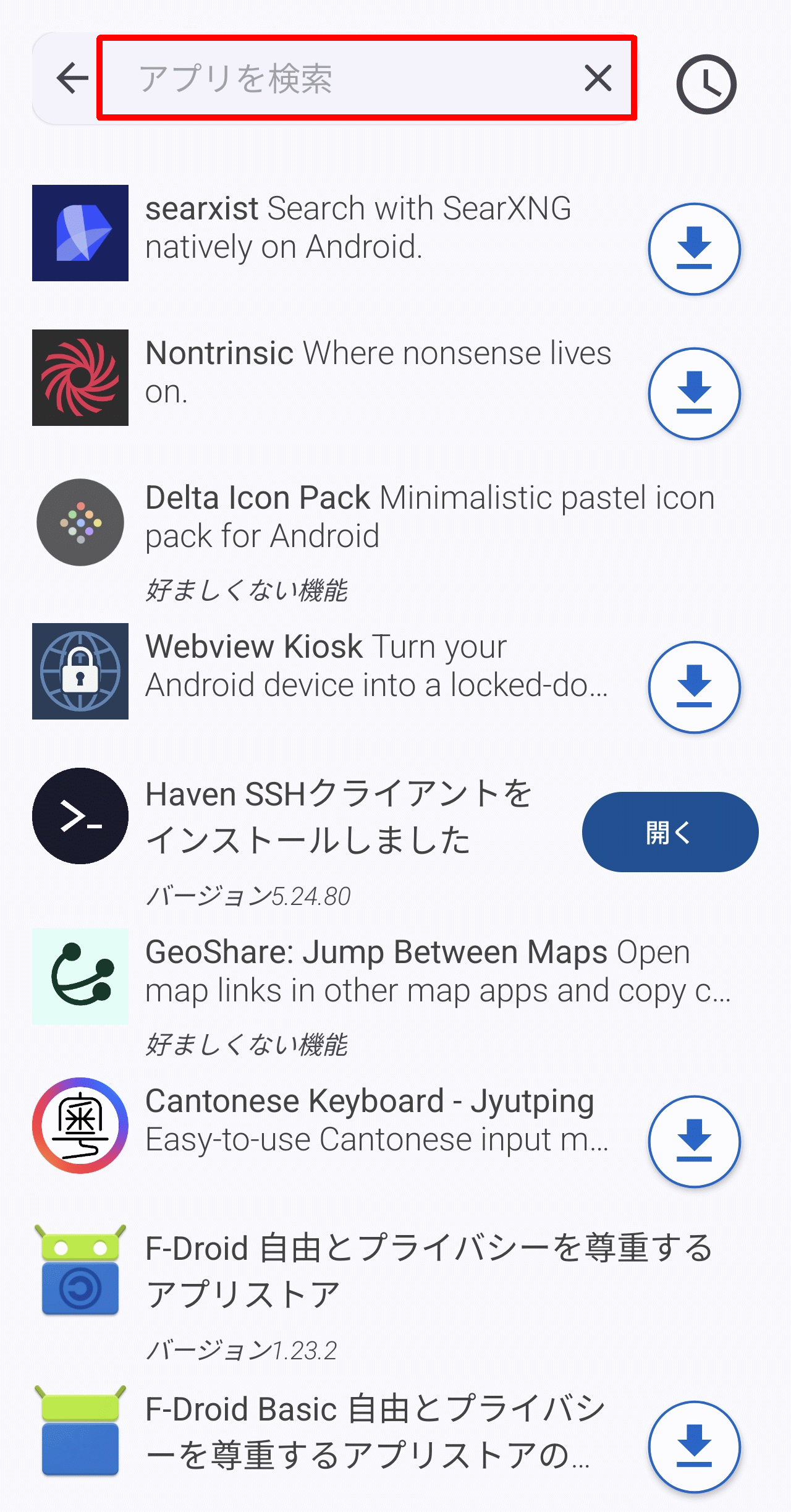
Tapping the magnifying glass icon in the lower right corner of the 'New Arrivals' tab or 'Category' tag will open the search screen.
You can quickly find the app you're looking for by entering its name in the text box at the top of the search screen.
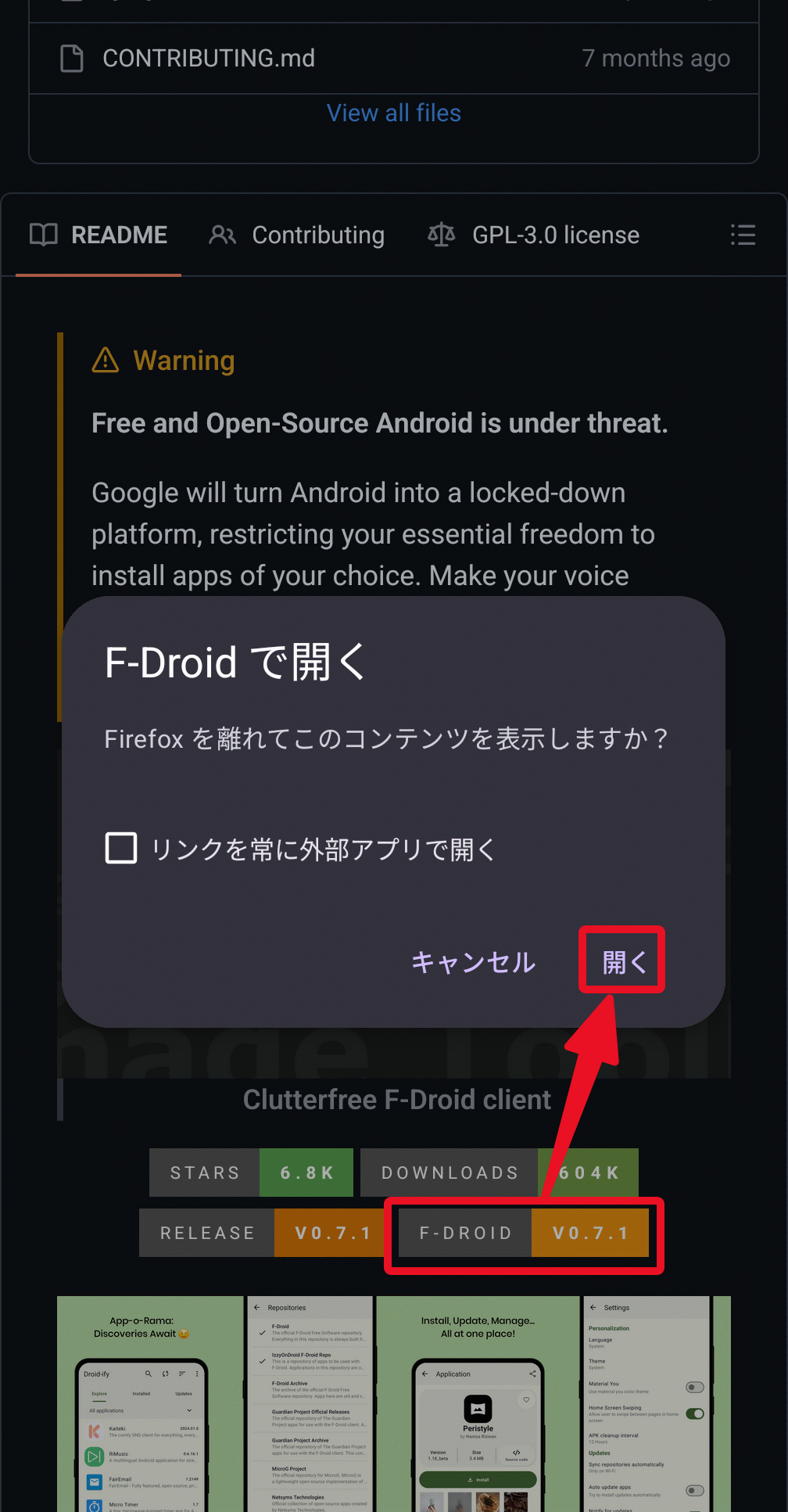
◆When installing by tapping the link to F-Droid
If a link to F-Droid is provided as a download source on GitHub or elsewhere, and you have the F-Droid app installed, tapping the link will display a 'Open with F-Droid' pop-up, and tapping 'Open' will launch the app.
Since the app launches with the target app's screen already open, all you have to do is tap the 'Install' button to install it.
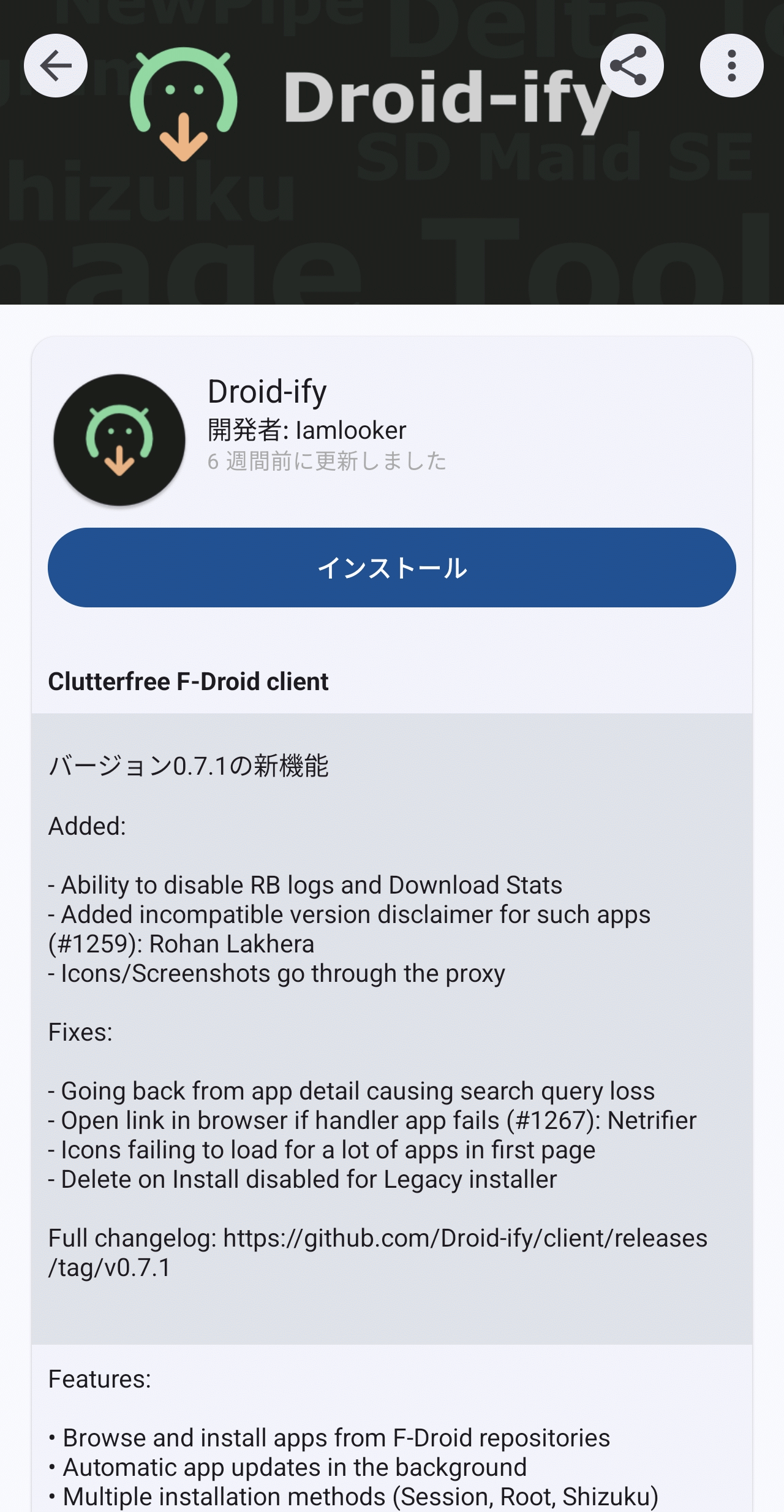
◆App updates
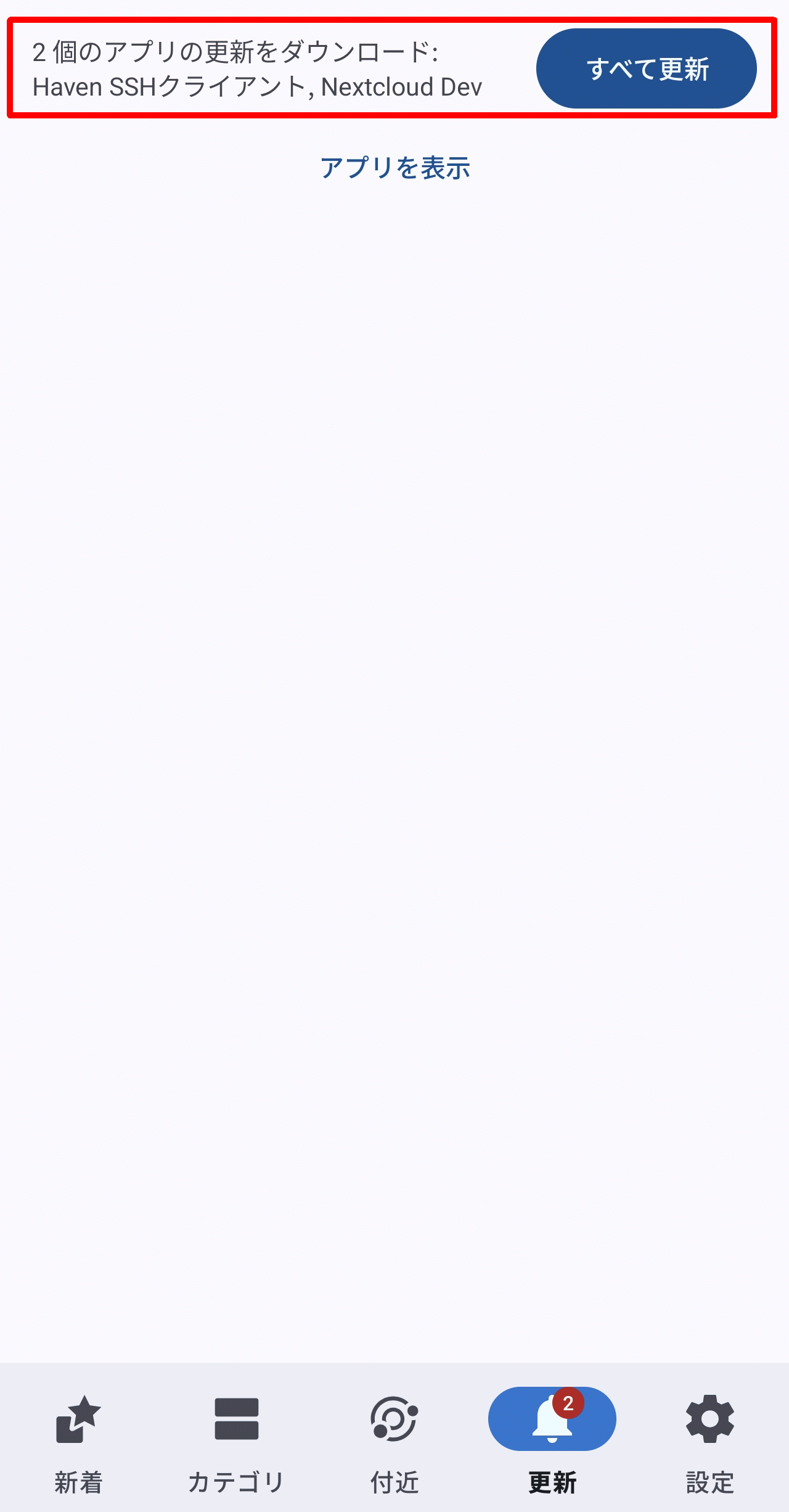
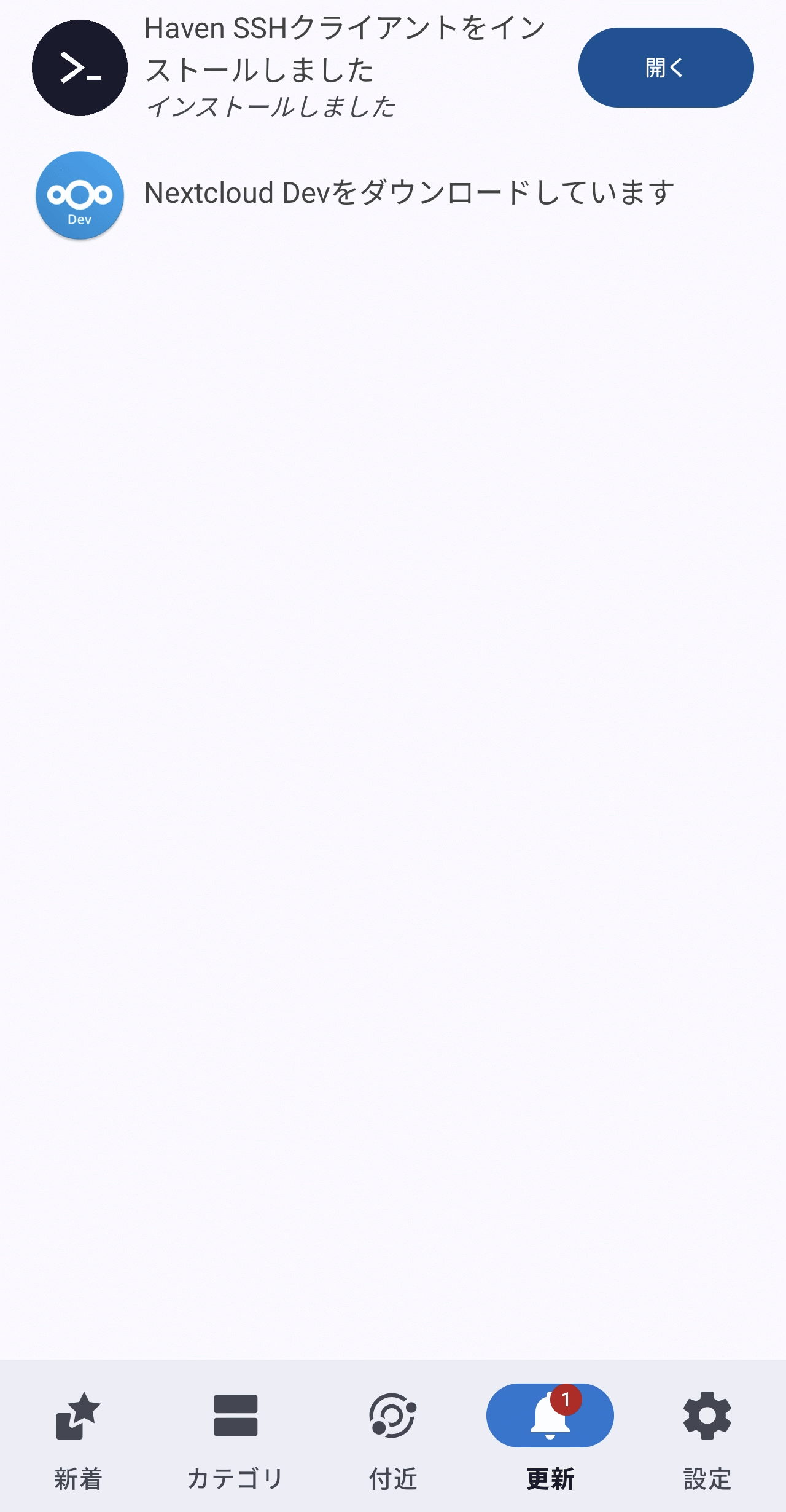
If there are updates for the apps you've installed, they will appear in the 'Updates' tab. To apply the updates, tap the 'Update All' button.
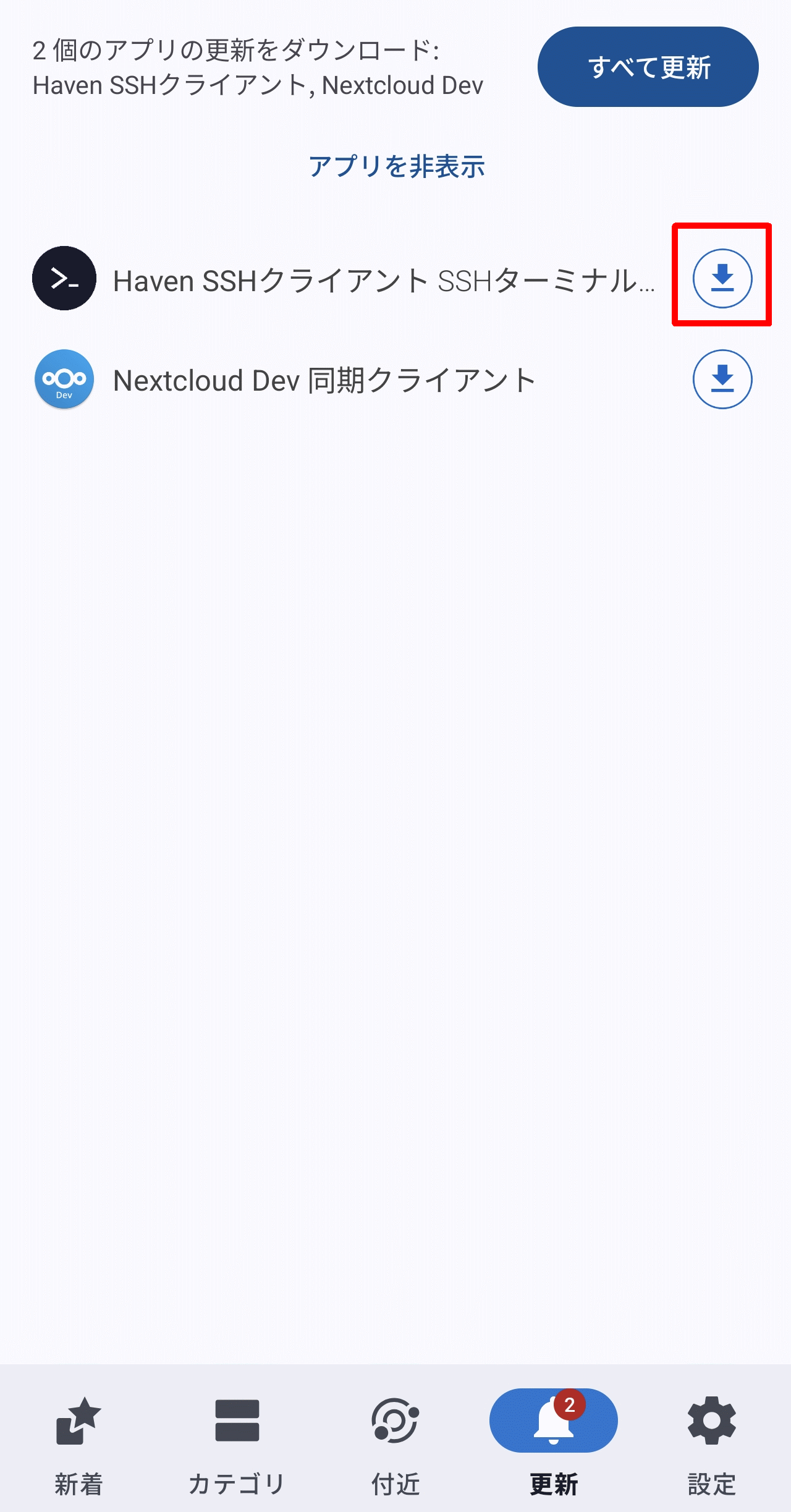
The apps that have updates will be displayed, so we will update them one by one.
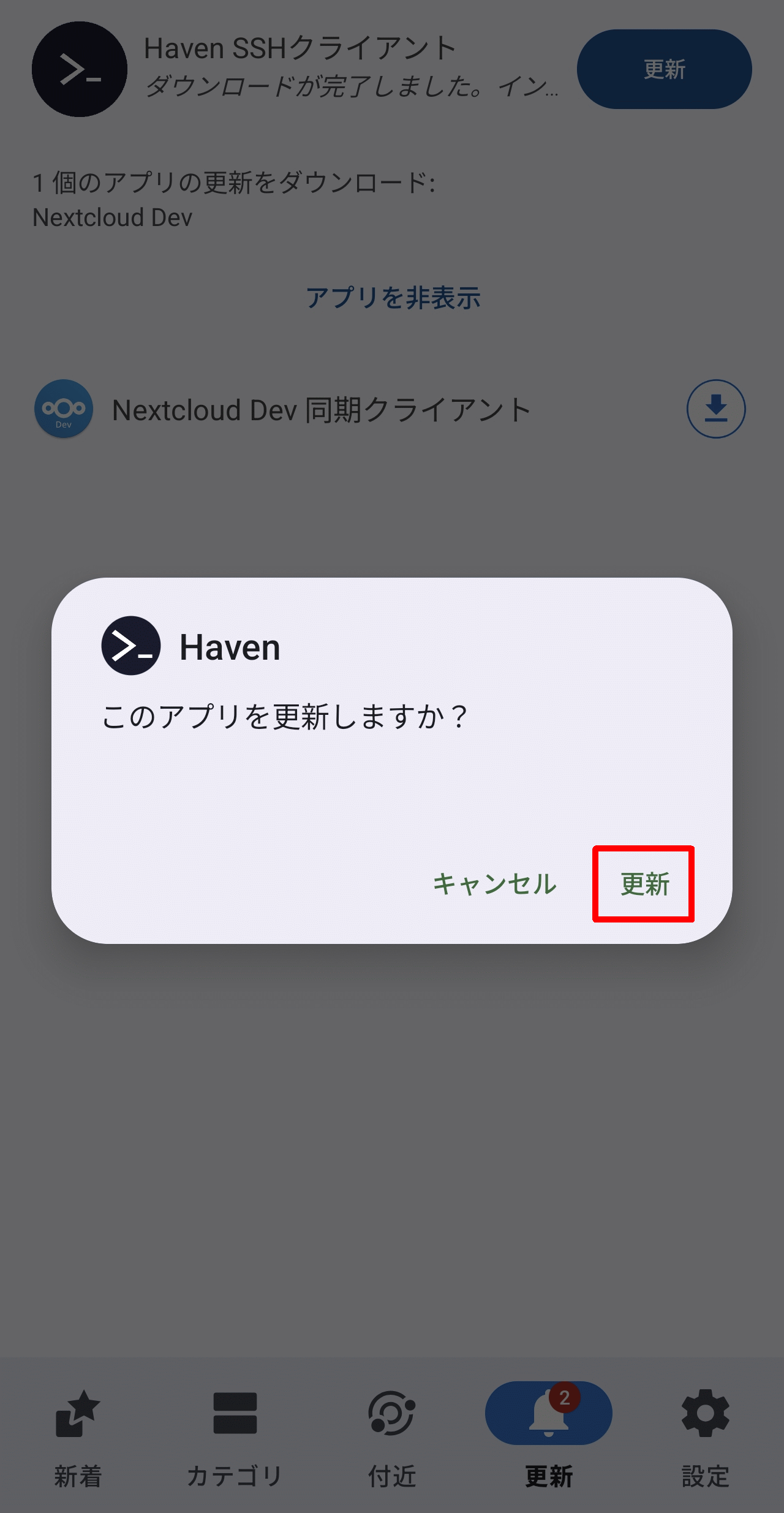
A pop-up will appear asking, 'Do you want to update this app?' Tap 'Update'.
Once the update is complete, the 'Open' button will appear.
◆Summary
Using F-Droid, you'll receive notifications when installed apps are updated. This ensures your apps are always up-to-date. F-Droid distributes a large number of apps, so if you're interested, install F-Droid and check which apps are supported.
Related Posts:

in Software, Web Service, Smartphone, Review, Posted by log1c_sh