Open Screen is a free tool that makes it easy to create explanatory videos by recording on your desktop and zooming in on the cursor. It is compatible with Windows, Mac, and Linux.
Open Screen is a demo video creation tool that allows you to record your screen, perform simple editing, and export all in one place. Positioned as a free and open-source alternative to
OpenScreen
https://openscreen.vercel.app/
siddharthvaddem/openscreen: Create stunning demos for free. Open-source, no subscriptions, no watermarks, and free for commercial use. An alternative to Screen Studio.
https://github.com/siddharthvaddem/openscreen
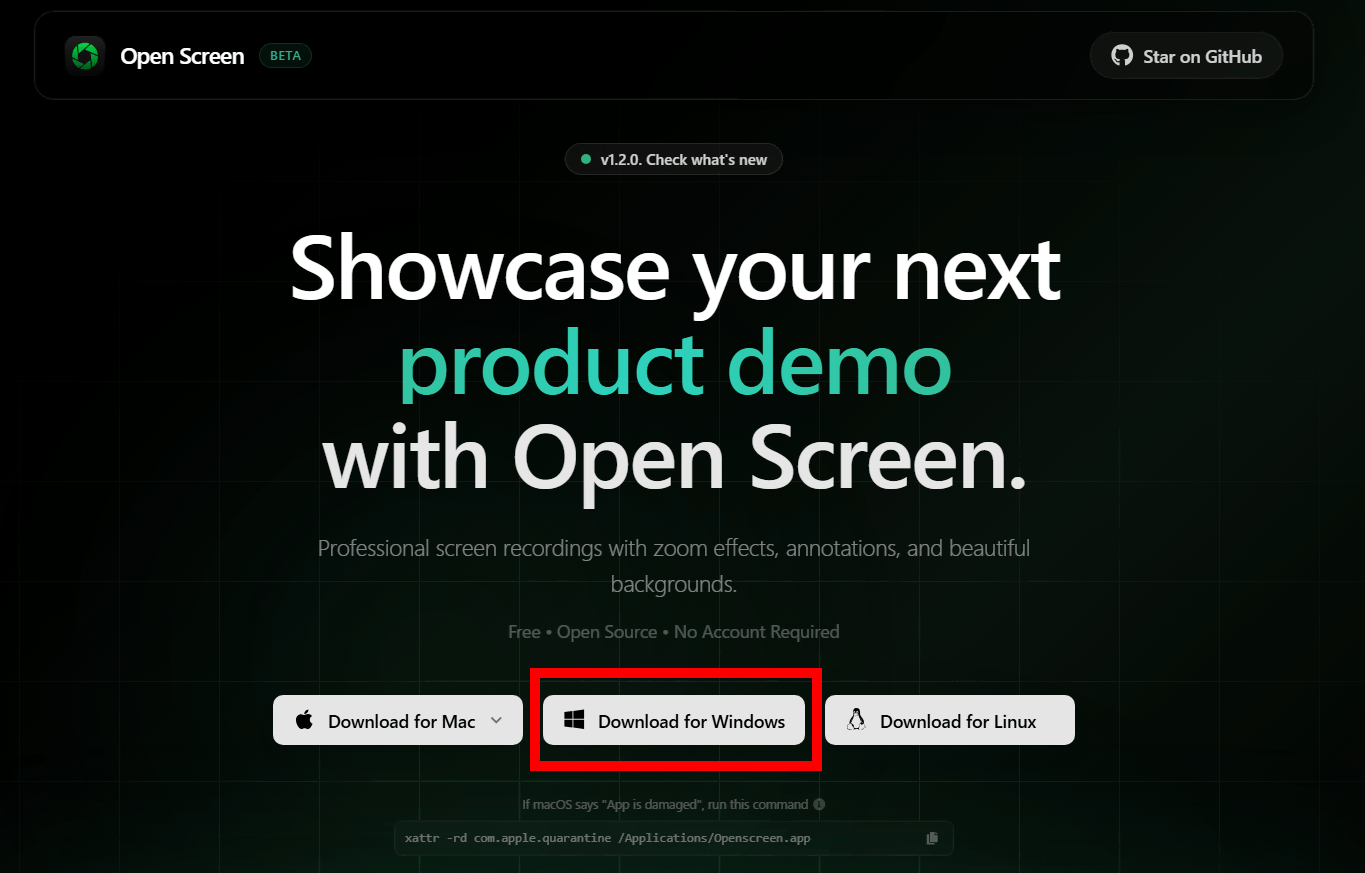
Access the official website and download the installer. Open Screen is available for Windows, macOS, and Linux. This time, we will install the Windows version, so click 'Download for Windows'. The installer is in EXE format and the file size is 221.5MB.
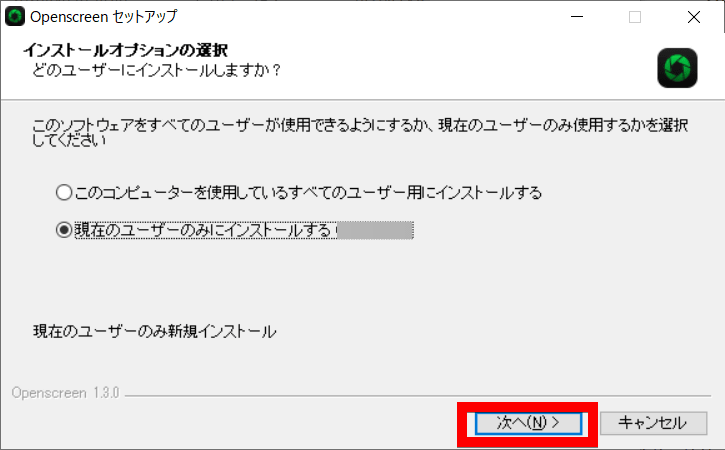
Launch the installer. Click 'Next'.
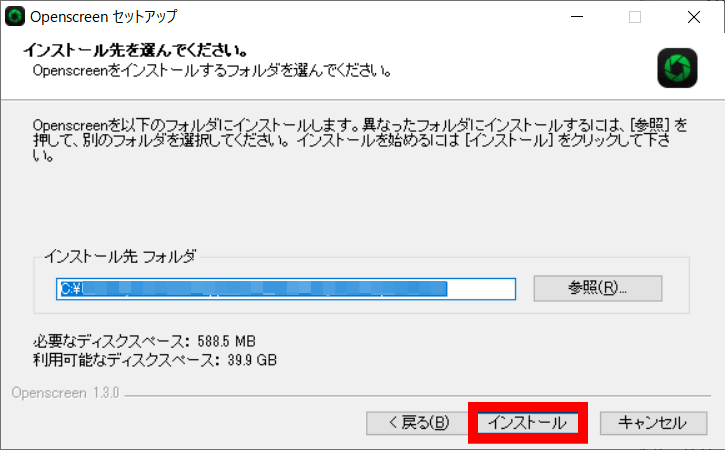
After confirming the installation location, click 'Install'.
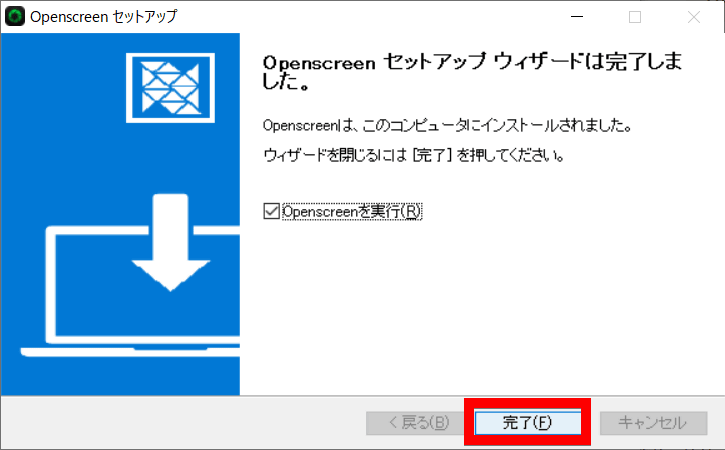
Once the installation is complete, click 'Finish'.
Open Screen will appear on your desktop as an overlay toolbar. Click 'Screen'.

You can select which screen to record. 'Screen' records the entire desktop.
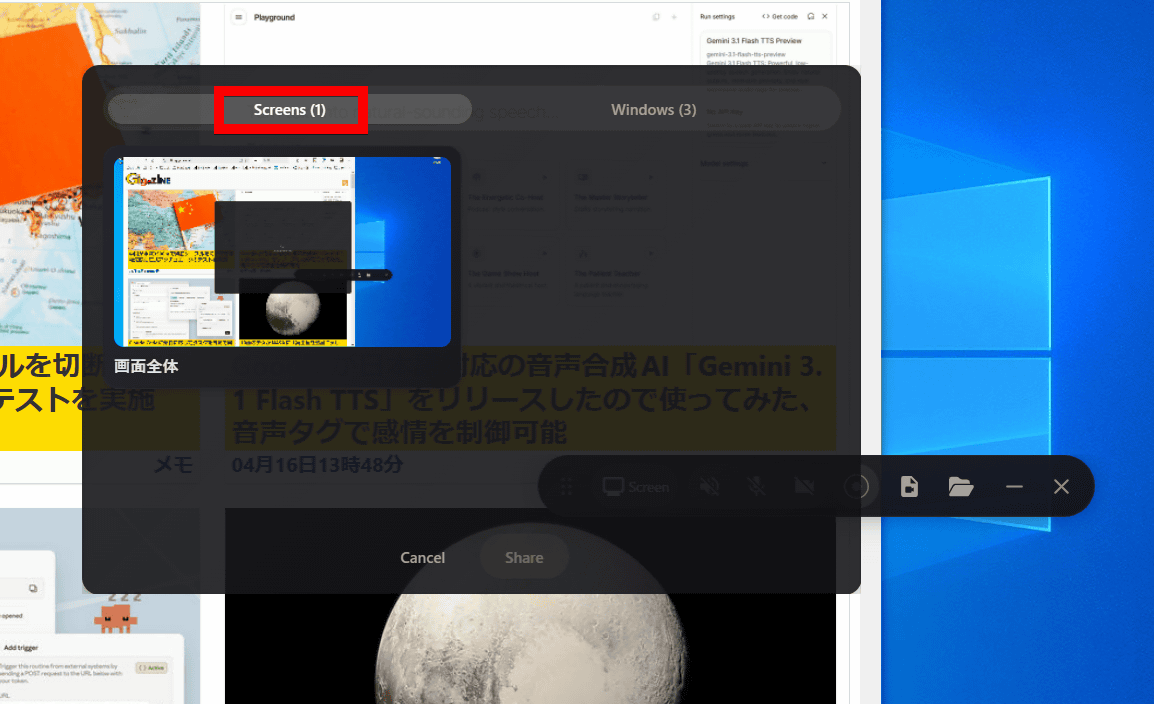
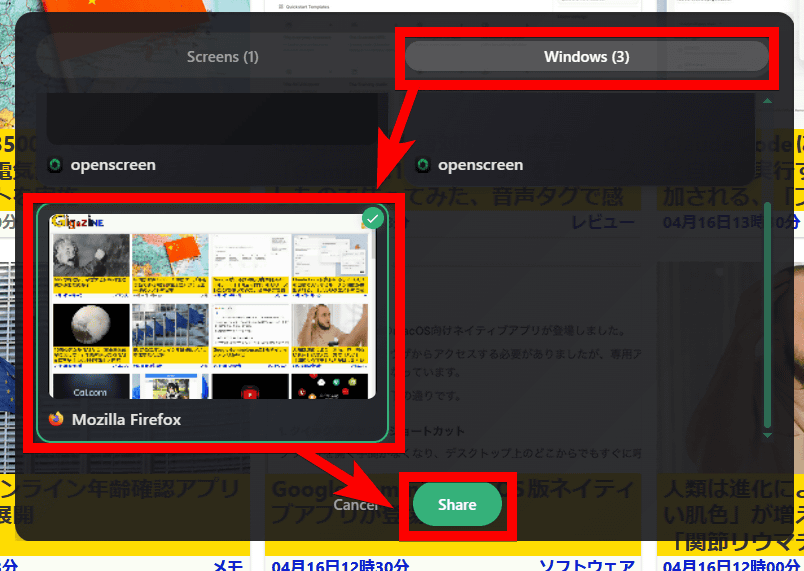
In Windows, you can select the screen to record on a window-by-window basis. This time, to record the Firefox screen, select 'Mozilla Firefox' and click 'Share'.
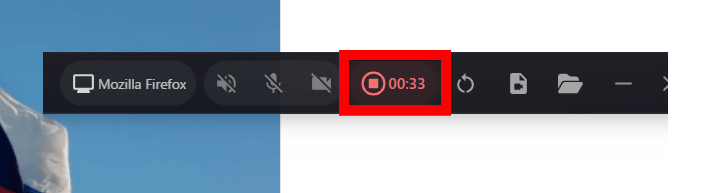
Once you've selected the screen you want to record, click the record button to start recording. Note that activating the speaker, microphone, and camera icons to the left of the record button enables audio recording, external microphone recording, and external camera recording, respectively. In this example, all of these were disabled during recording.

Clicking the record button again will stop the recording.
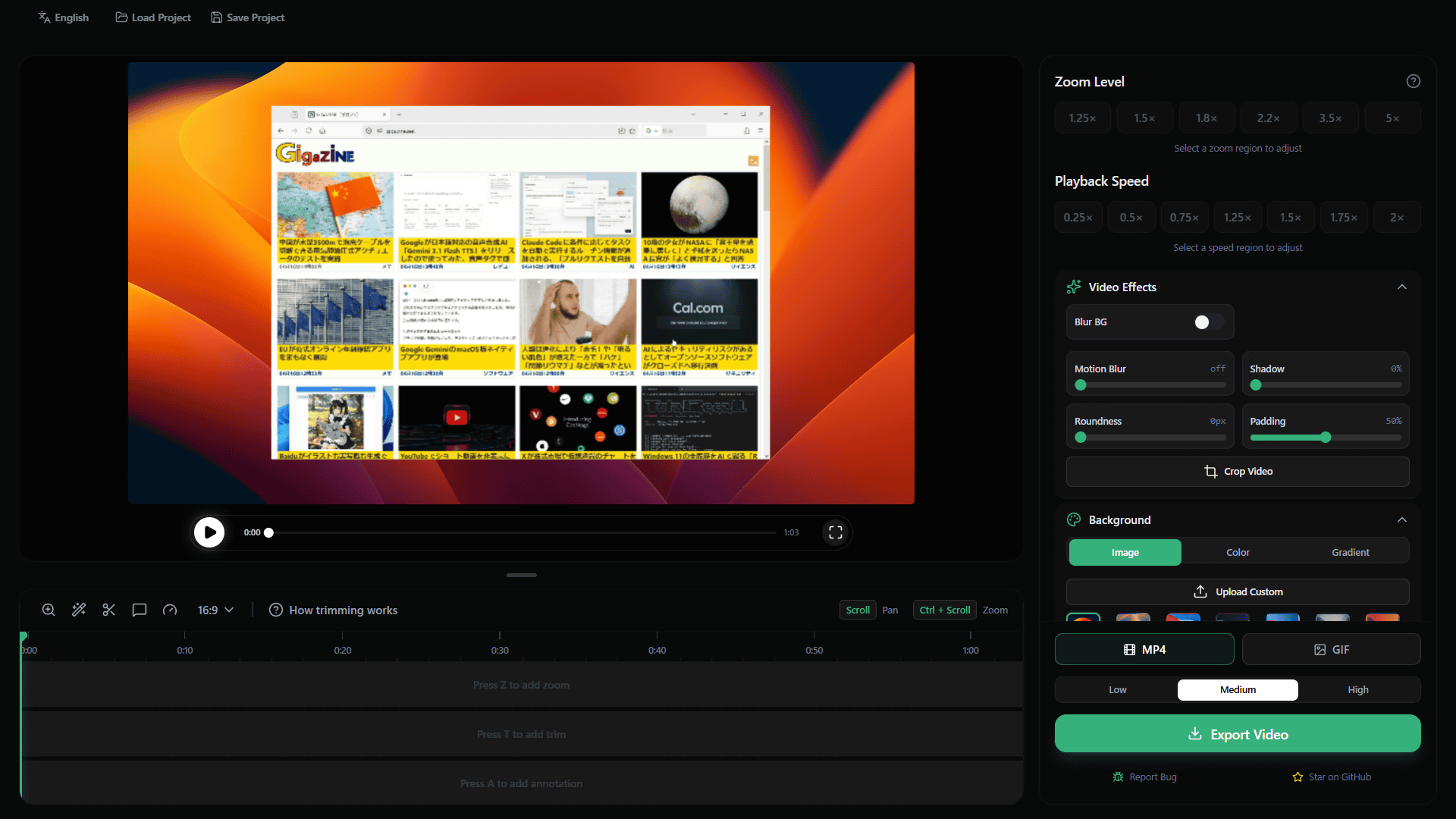
Once recording is complete, the editing screen will open automatically. The left side of the editing screen displays a video preview and timeline, while the right side contains the editing menu.
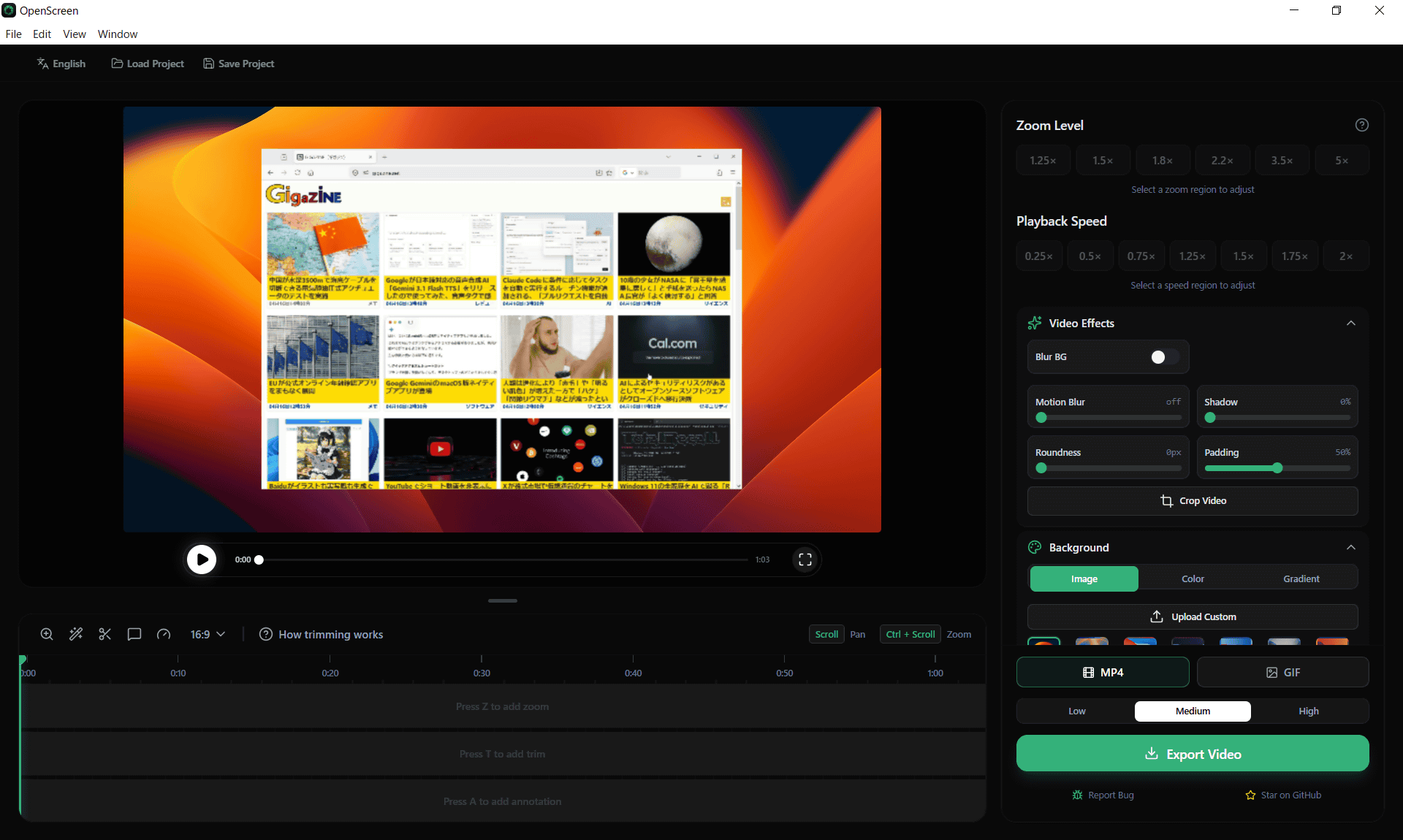
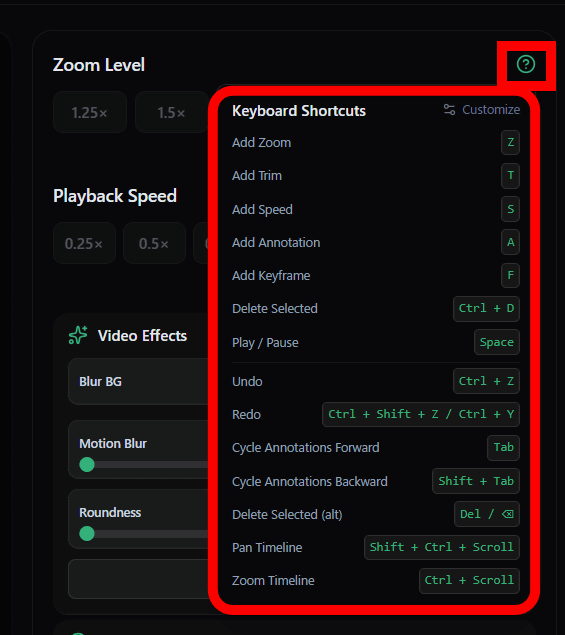
Editing basically involves placing shortcuts on the timeline to control zoom, speed, text input, and more. A list of shortcuts can be viewed by hovering your cursor over the '?' icon in the upper right corner.
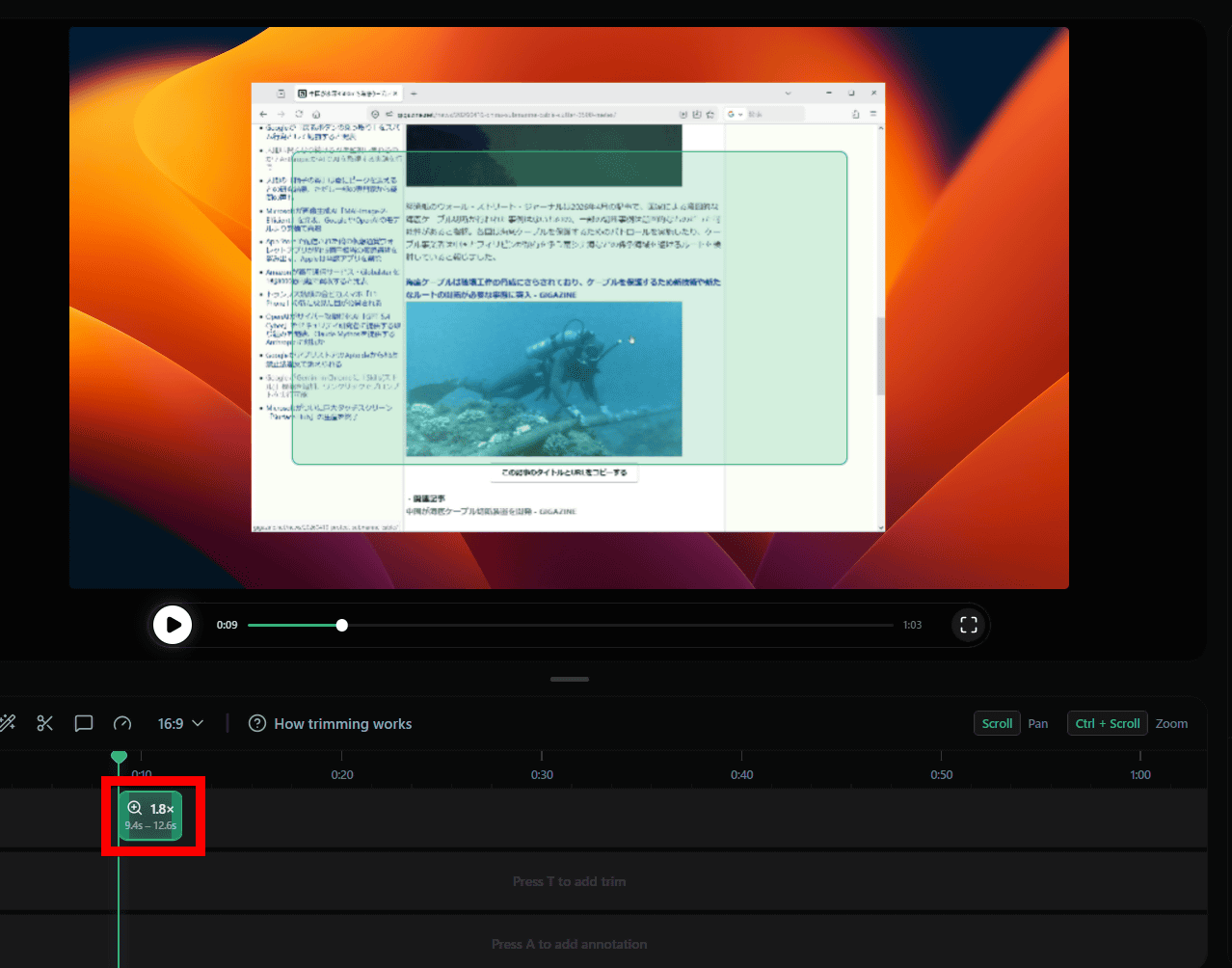
For example, pressing the Z key at any point on the timeline allows you to zoom. This 'magnifies a specified area by a specified magnification for a specified period of time.' The specified area is shown in green on the preview and can be transformed by moving it with the cursor.
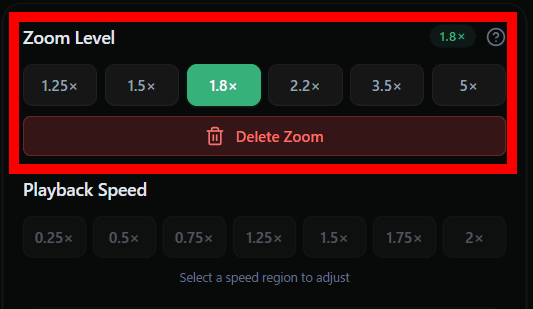
You can change the zoom level using 'Zoom Level,' which is at the top of the editing menu on the right side of the screen.
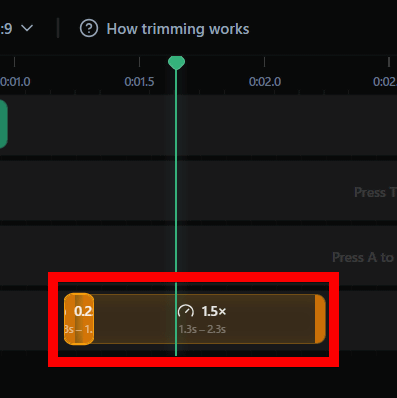
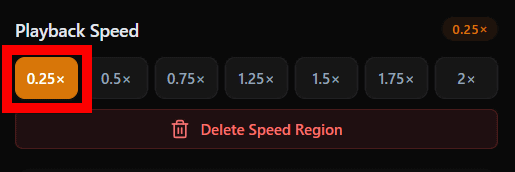
You can change the video playback speed for a specified period of time by pressing the S key.
You can change the playback speed using 'Playback Speed' in the editing menu on the right side of the screen.
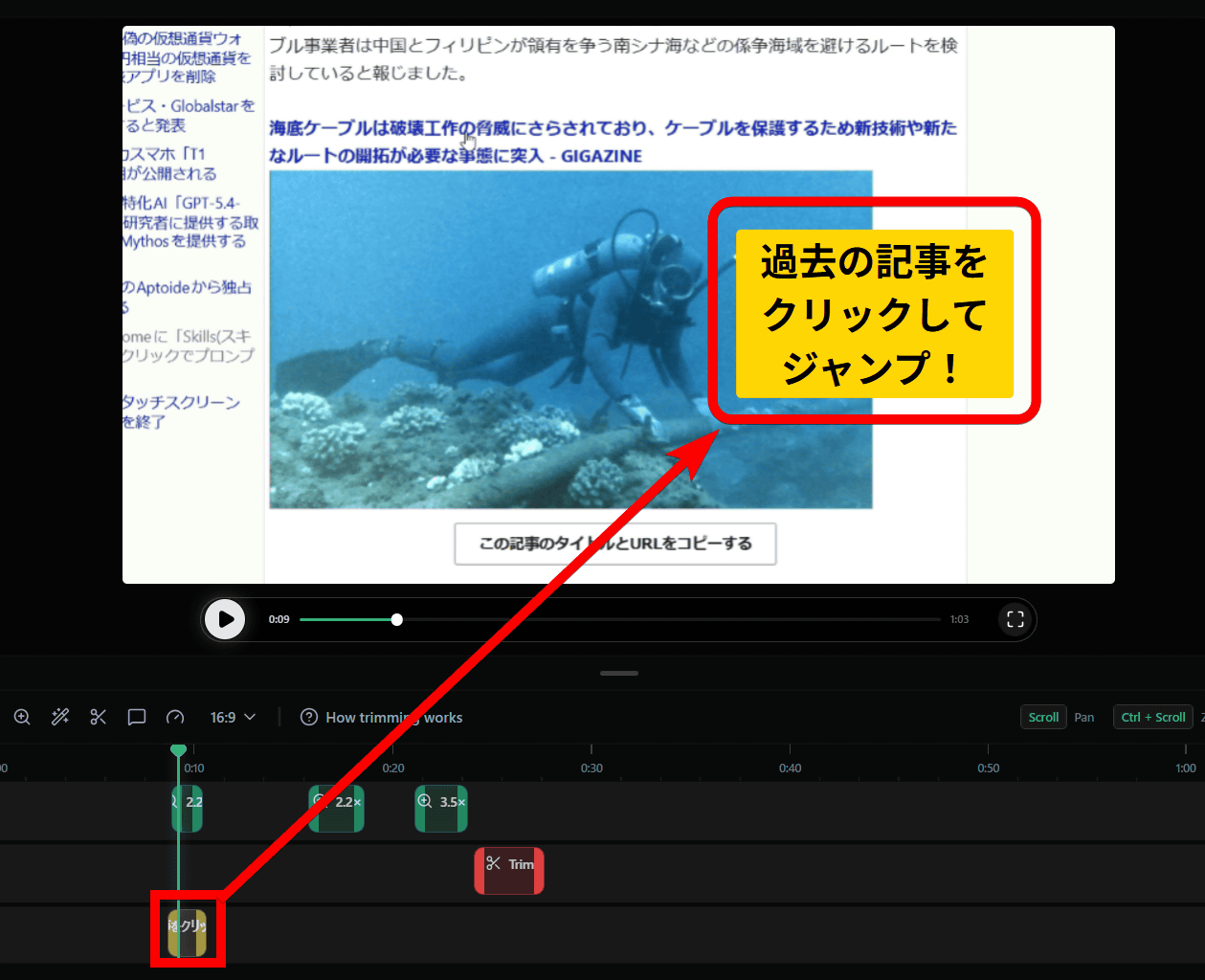
You can add text annotations using the A key. While you can input Japanese text in the editing screen, be aware that it may not display correctly in the exported video.
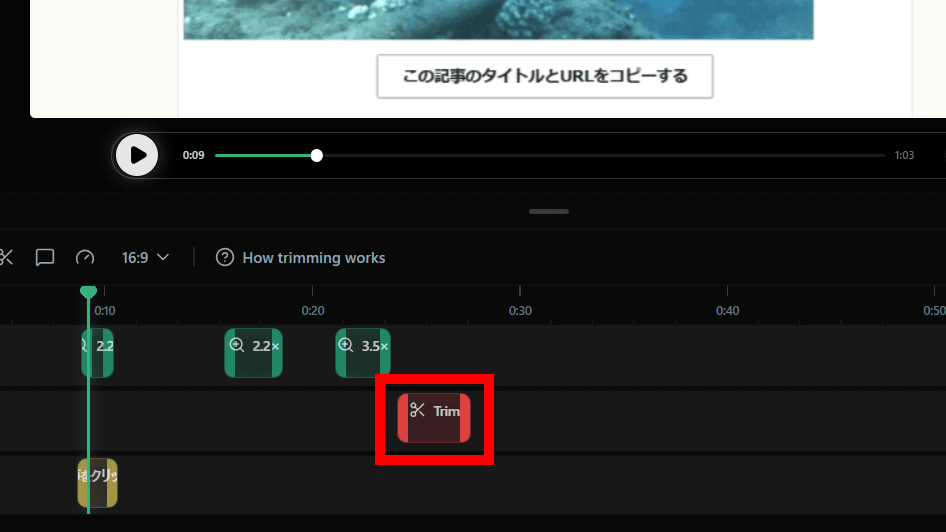
To trim unwanted parts of a video, press the T key and select 'Trim.' The trimmed portion of the video will be removed during the export process.
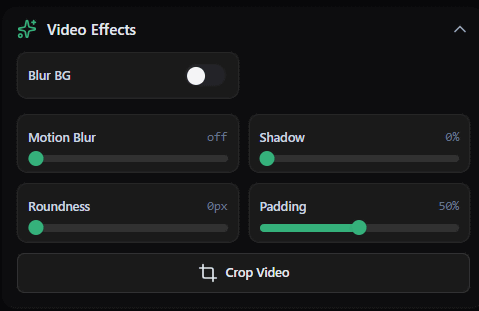
The editing menu on the right side of the screen allows you to change the effects overlaid on the video and the cropping of the video.
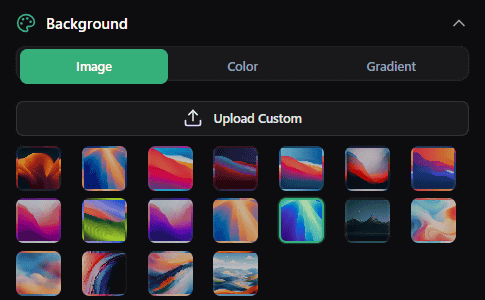
The 'Background' option allows you to select an image or color to fill the blank space outside the included window.
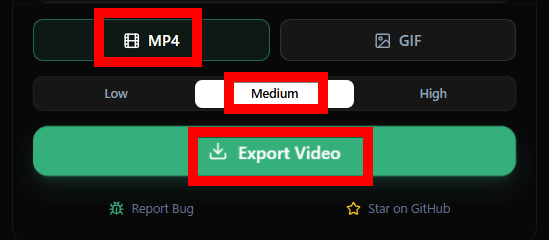
Open Screen allows you to export in MP4 or GIF format. You can choose from three quality levels: Low, Medium, and High. Simply click 'Export Video.' No complicated settings are required, making it easy for beginners to use.
And here is the video that I actually recorded, edited, and exported. Open Screen is the perfect tool for quickly creating simple explanatory videos because you can easily understand it even on small screens like smartphones by simply zooming in on the cursor.
This is what a video shot using 'Open Screen,' an open-source tool that allows anyone to easily record tutorial videos on how to zoom in on the cursor, looks like - YouTube
Related Posts: