'Video Duplicate Finder' is a free tool that detects duplicate video and image files based on similarity. Unlike other duplicate file search tools, it can also detect duplicate files with different resolutions, frame rates, or watermarks.
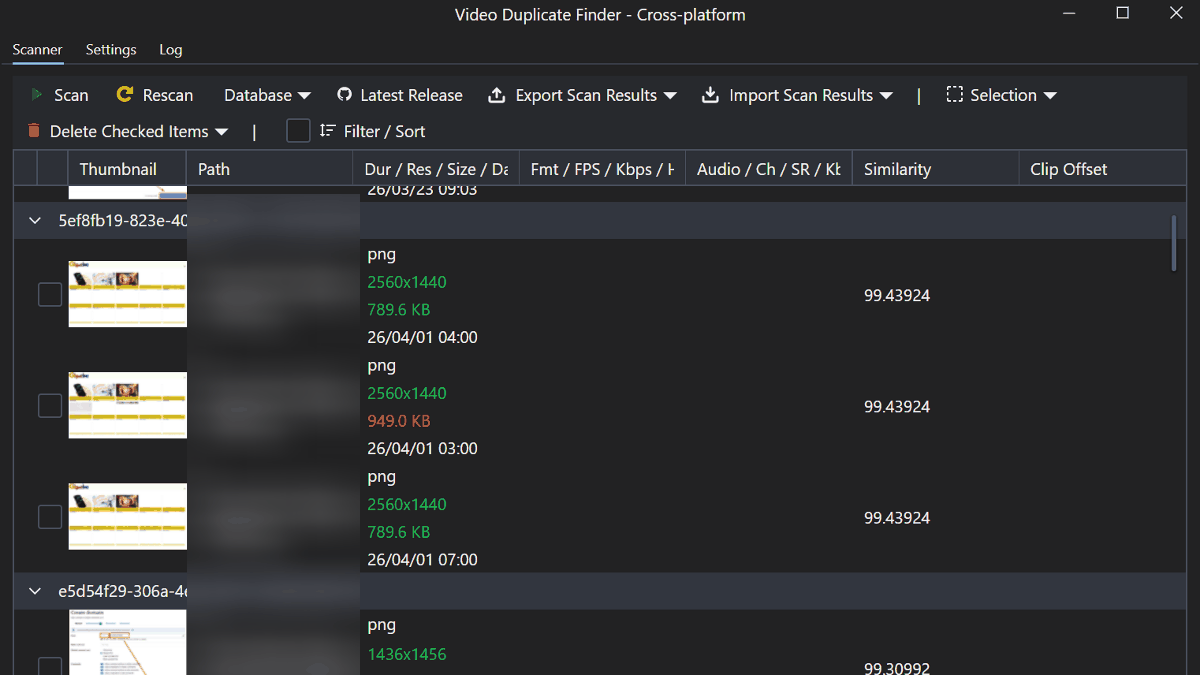
While there are many tools for detecting duplicate video and image files, most can only determine duplication based on additional information such as matching filenames or hash values, or even exact matches. ' Video Duplicate Finder ' is an open-source tool that can detect duplicates based on visual similarity, even for videos and images with different file formats or resolutions, or those that have only been partially modified, such as with watermarks.
0x90d/videoduplicatefinder: Video Duplicate Finder - Crossplatform
◆How to use Video Duplicate Finder
If you are using the GUI version of Video Duplicate Finder, click 'Settings' > 'Directories' from the main screen, and then specify the folder to scan using the 'Add' button or by dragging and dropping.
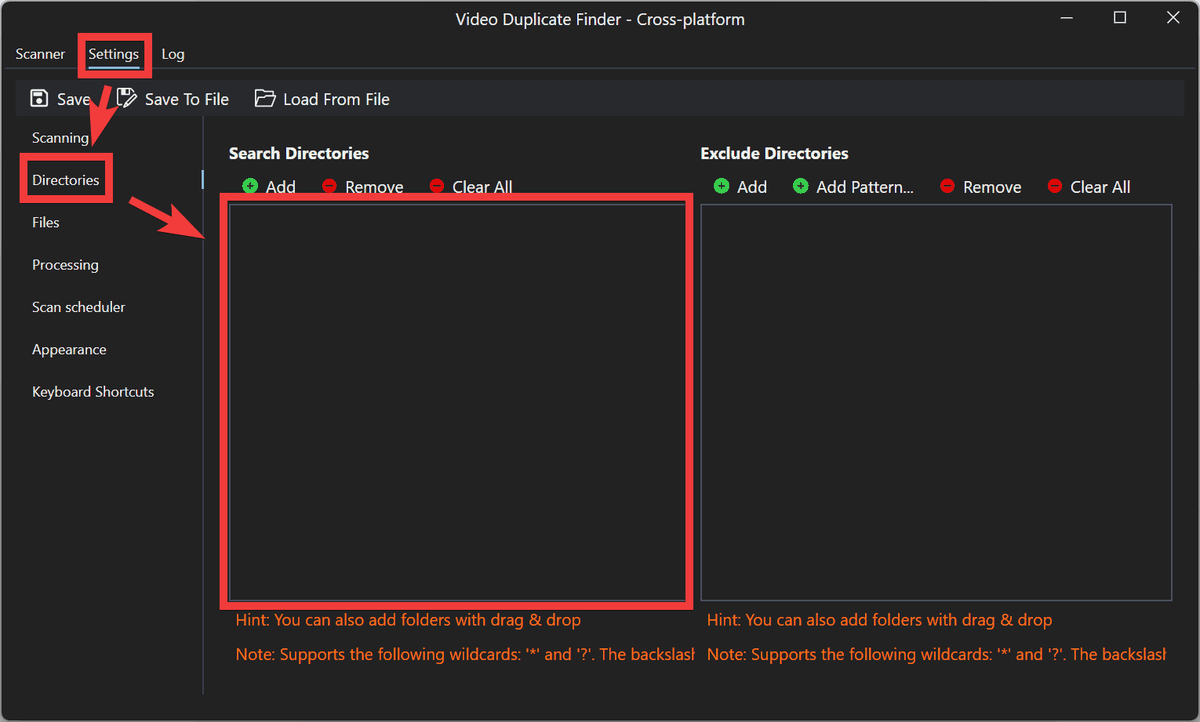
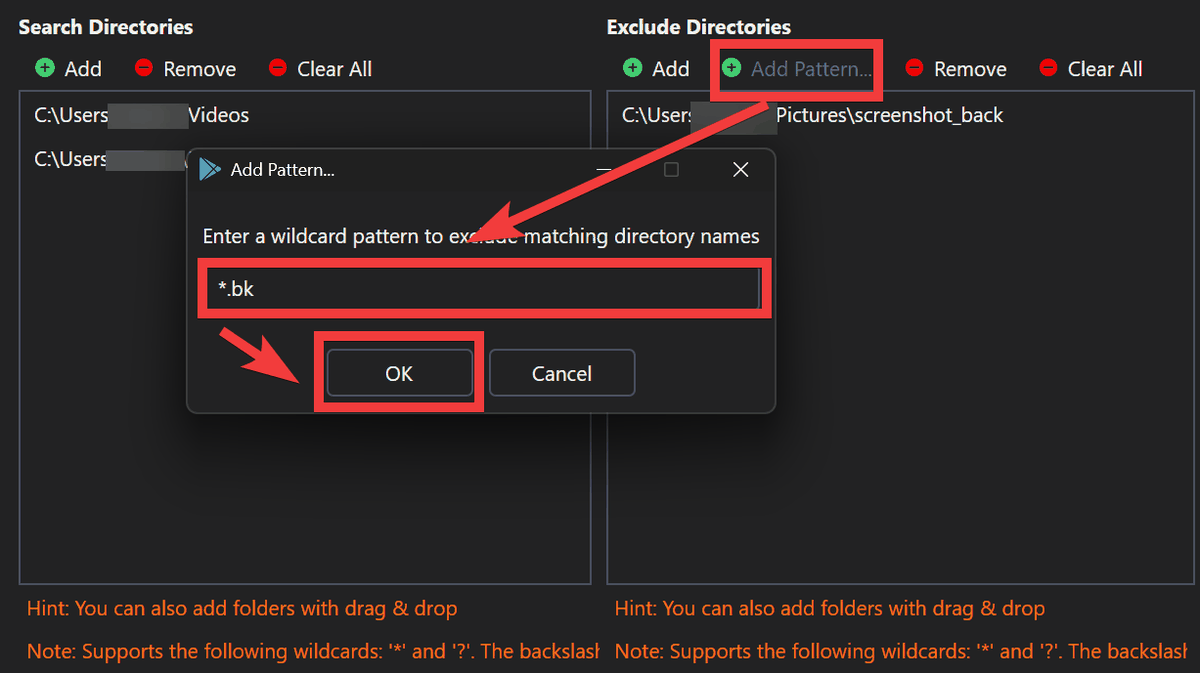
You can also register folders to exclude. If you want to exclude based on a file name or folder name pattern, click 'Add Pattern,' enter the pattern you want to exclude (e.g., '*.bk'), and click 'OK.'
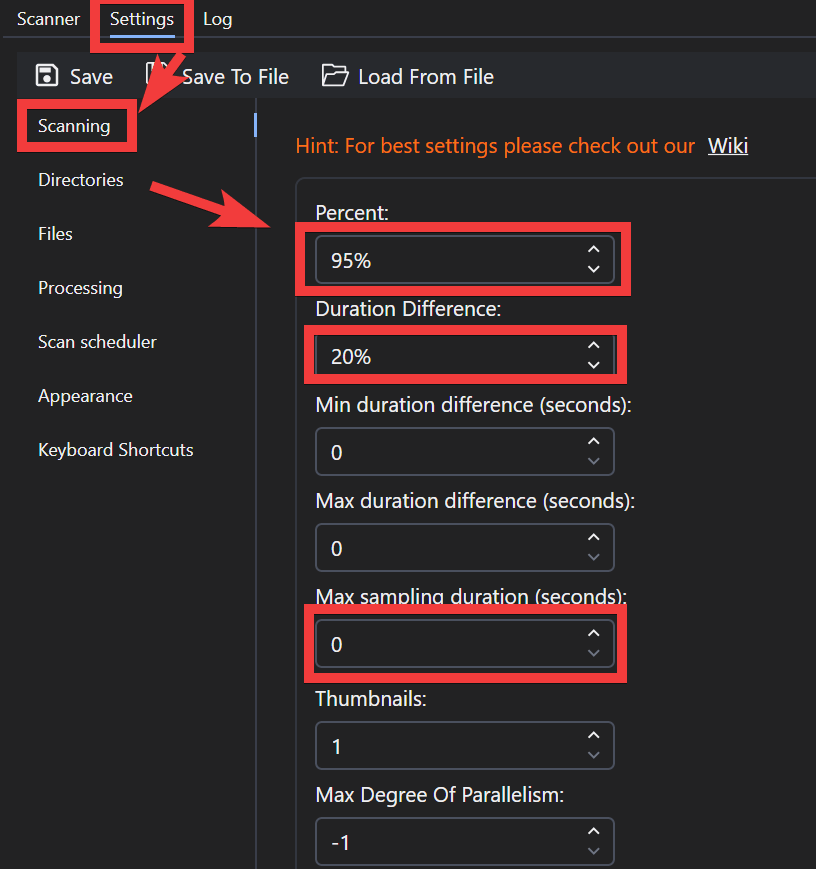
To set the criteria for determining whether an item is a duplicate, click 'Scanning' under 'Setting' and configure the various parameters. Three main settings influence the criteria for determining duplicates.
Percent: This is the percentage of matching entries that are considered duplicates. The recommended value is '90 to 95%'.
Duration Difference: This determines the acceptable range of video length differences. 0 means only exact matches will be detected. The recommended value is '10 to 20%'.
Max sampling duration: This is the sampling time for the video to be analyzed. A value of 0 means the entire video will be analyzed. The recommended value is '30 seconds'.
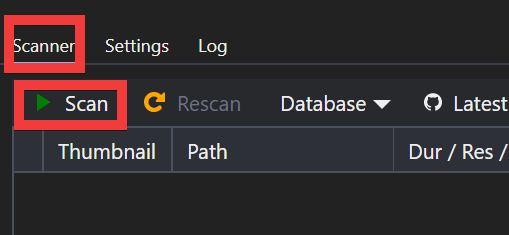
Once the setup is complete, click 'Scan' under 'Scanner' to start scanning.
If duplicate files are detected, they will be displayed in the list.
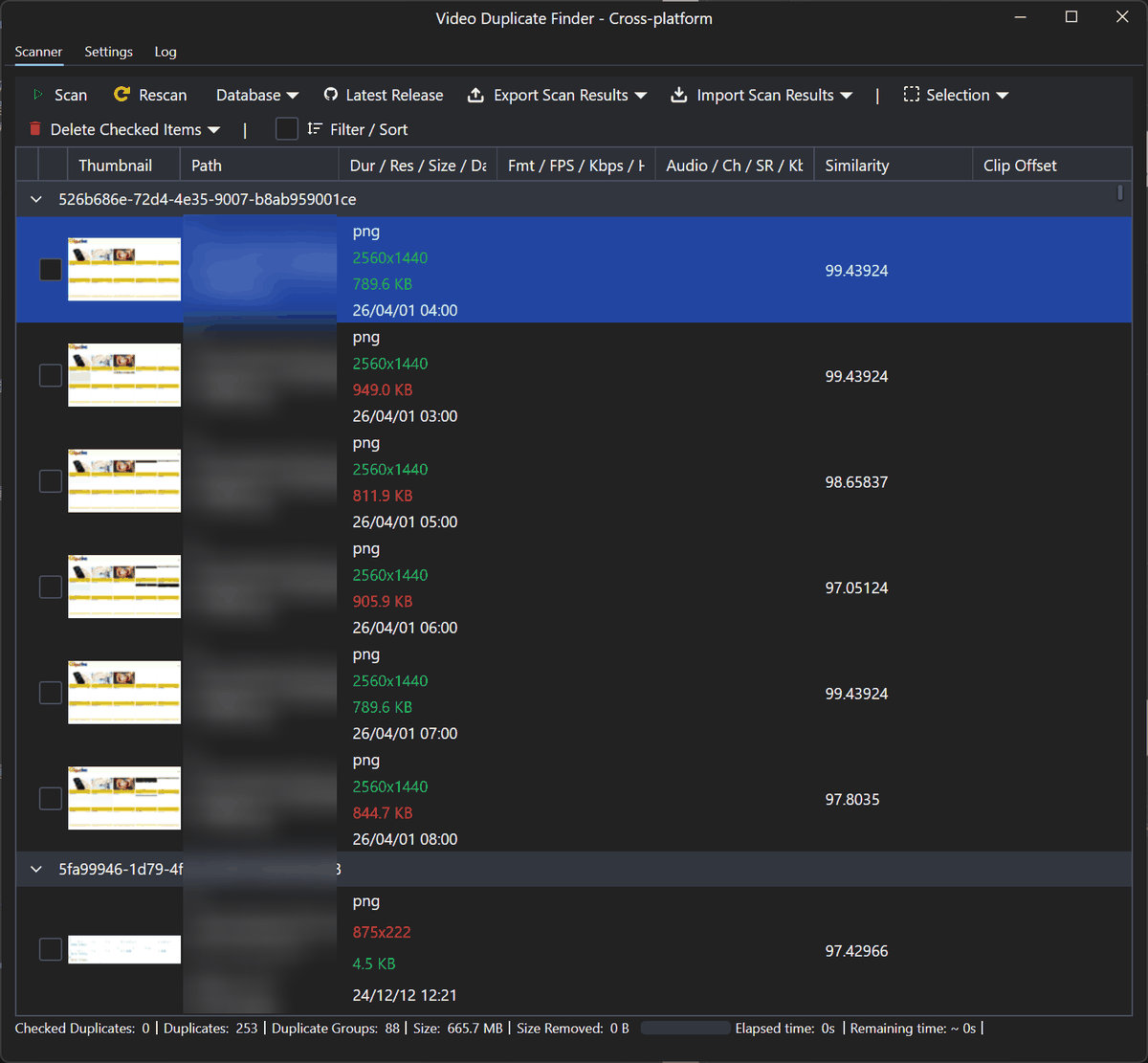
You can delete a file by checking the checkbox to the left of the item and clicking 'Delete Checked Items'.
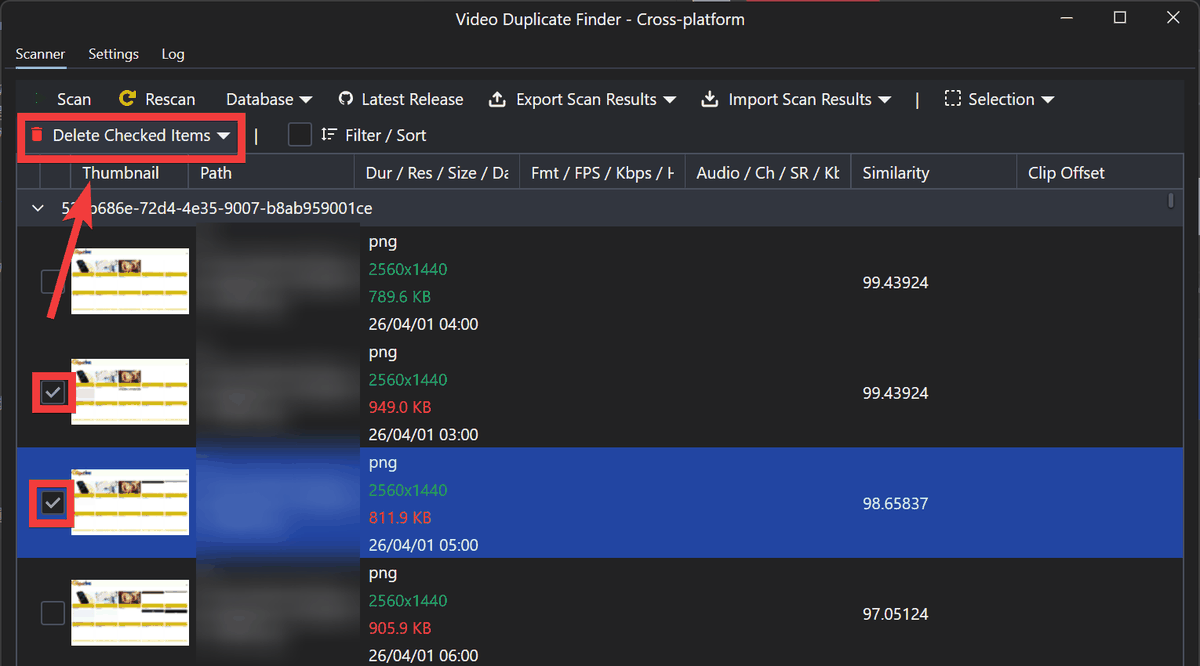
For screenshots, set 'Percent' to 99% because there are many matching parts. For photos of people or landscapes, setting it to 97% will bring up similar shots as suggestions, so you need to adjust the criteria depending on the content.
◆How to build a Video Duplicate Finder
This time, we will build a GUI version of Video Duplicate Finder for Windows. Download the GUI version ZIP file from the official
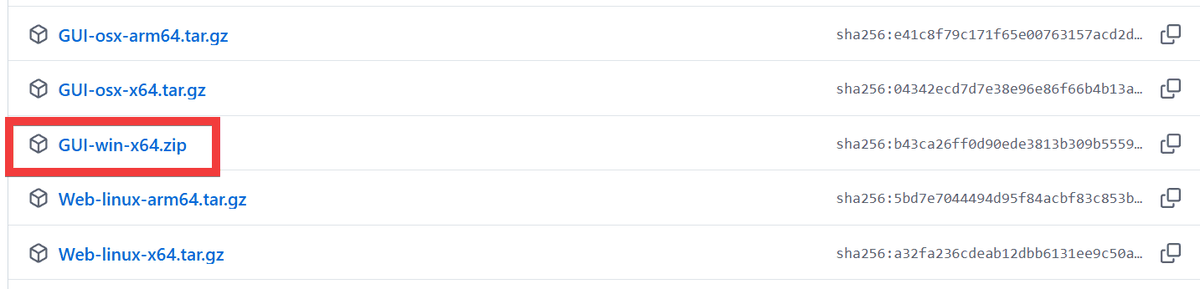
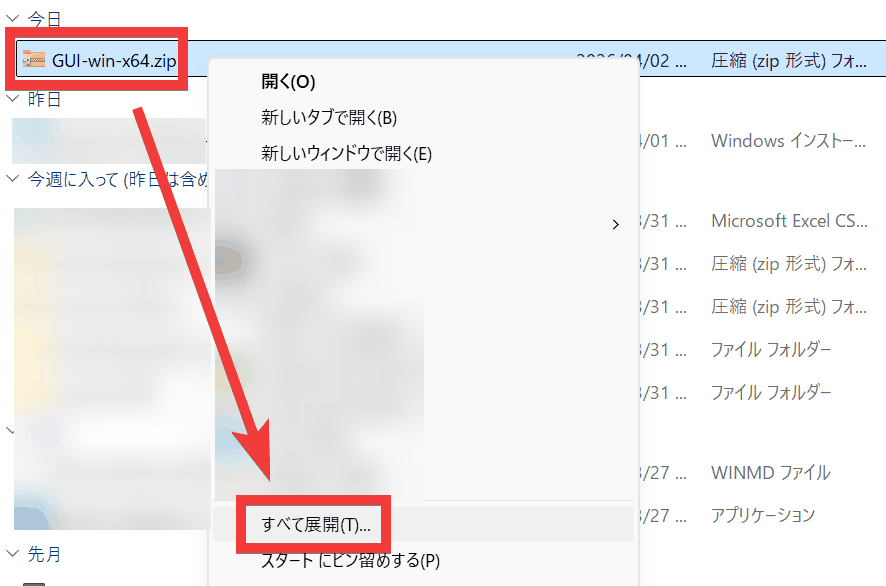
Right-click the downloaded ZIP file and select 'Extract All'.
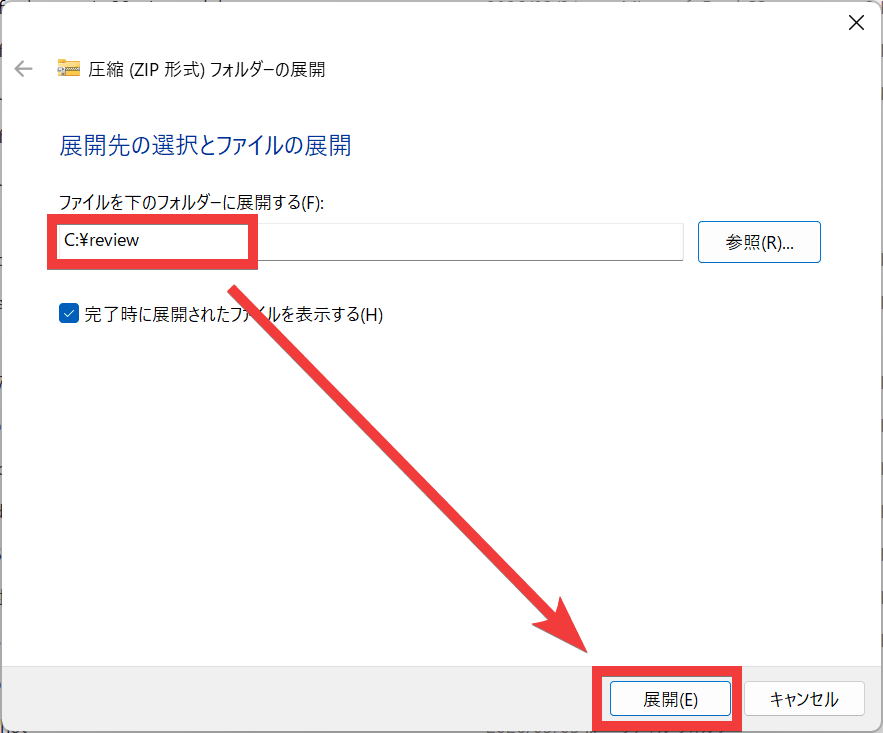
Specify the destination folder for extraction and click 'Extract'.
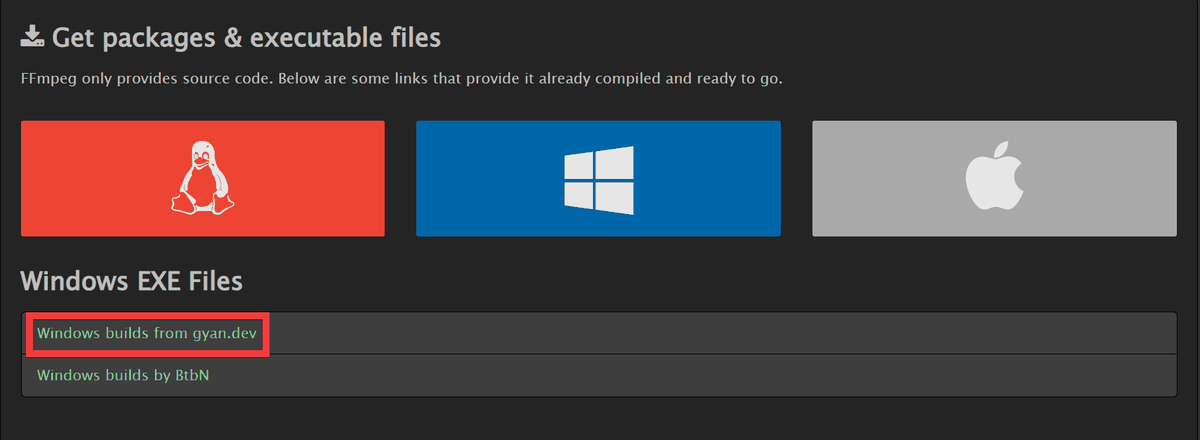
Click the link to the download site to download FFmpeg from
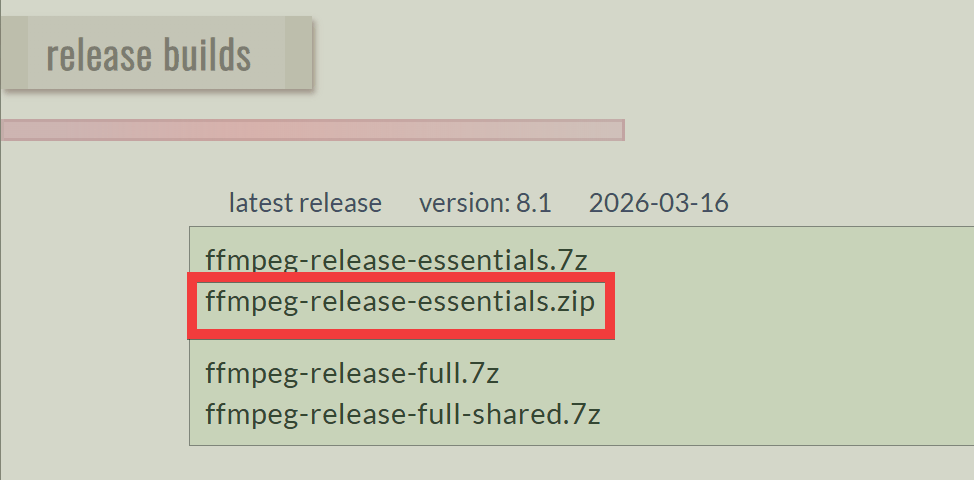
Download the pre-built ZIP file.
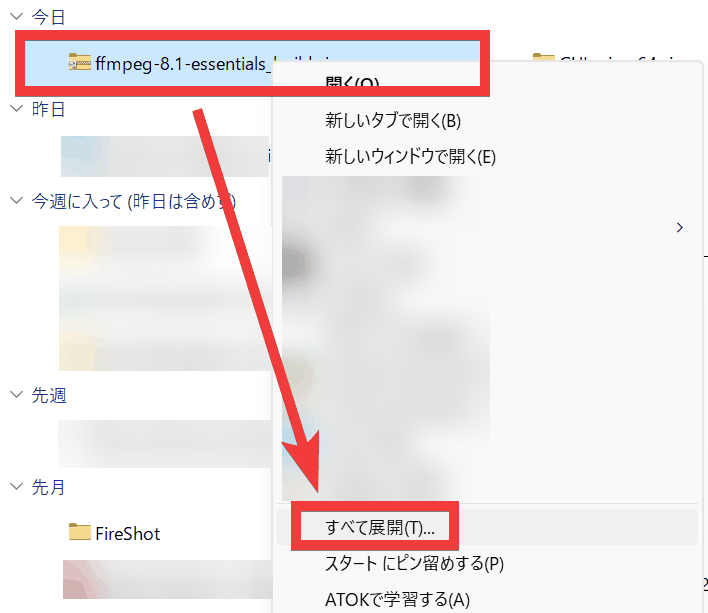
Right-click the downloaded ZIP file and select 'Extract All'.
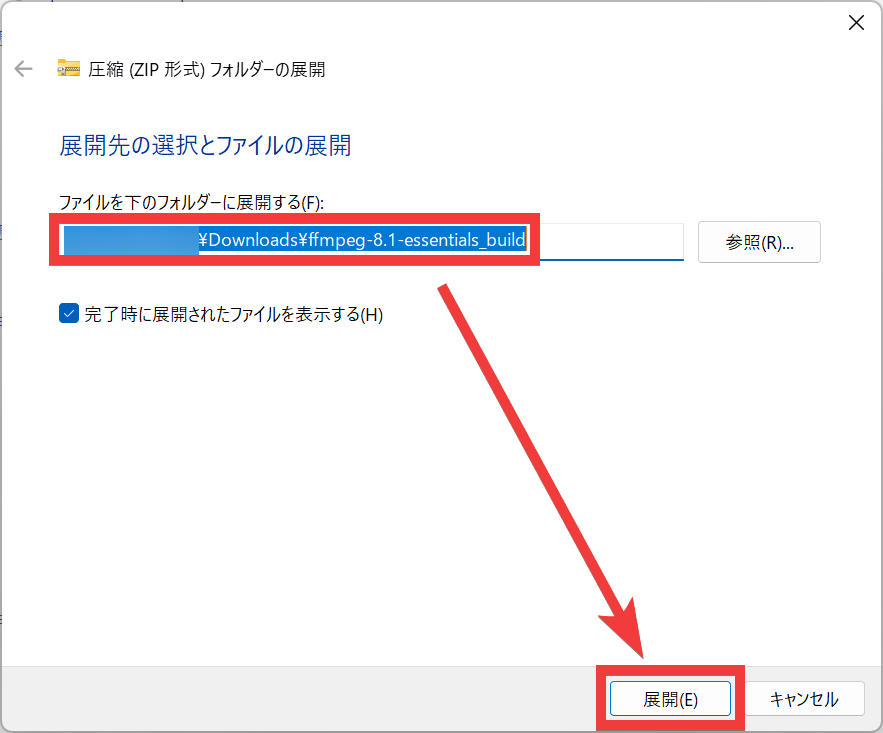
Specify the destination folder for extraction and click 'Extract'.
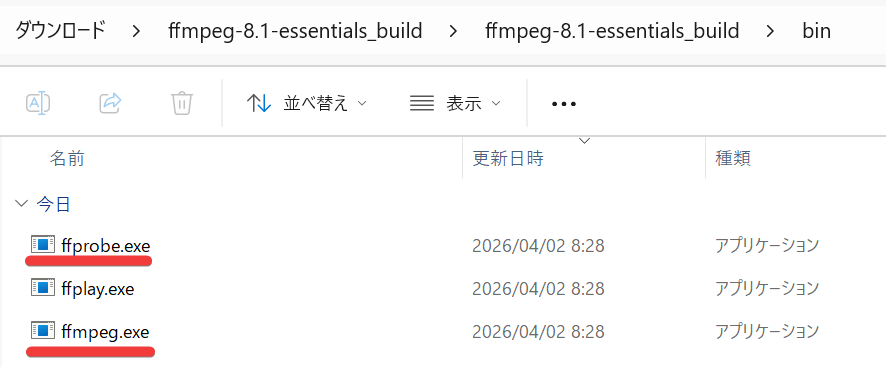
Open the destination folder and copy 'ffprobe.exe' and 'ffmpeg.exe' to the folder where you extracted Video Duplicate Finder.
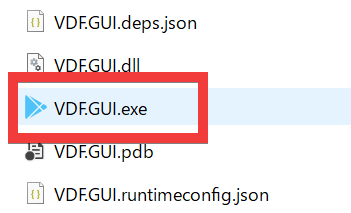
Double-click 'VDF.GUI.exe' to launch Video Duplicate Finder.
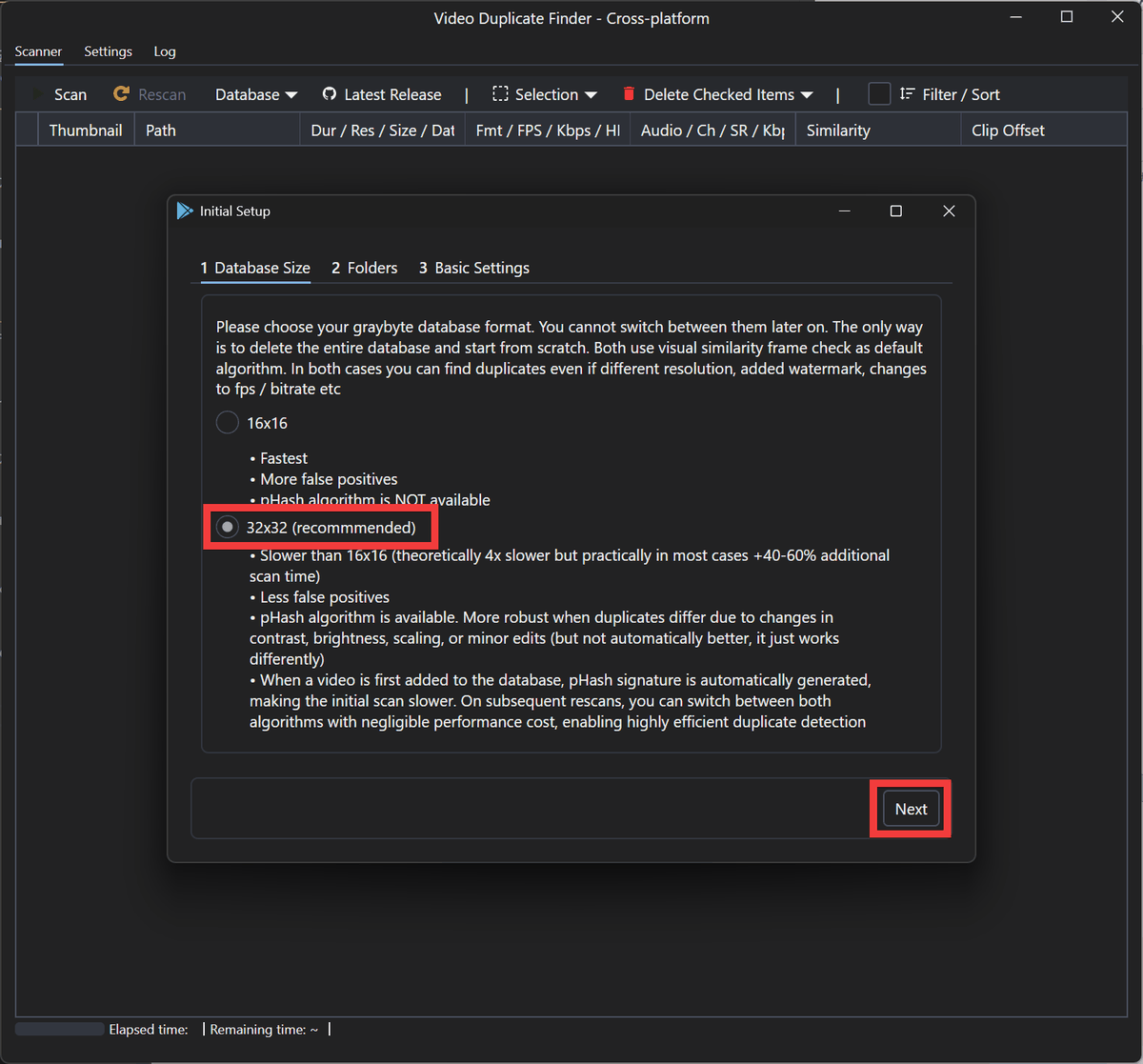
When you start the application, the initial setup screen will appear. Select '32x32' for 'Database Size' and click 'Next'.
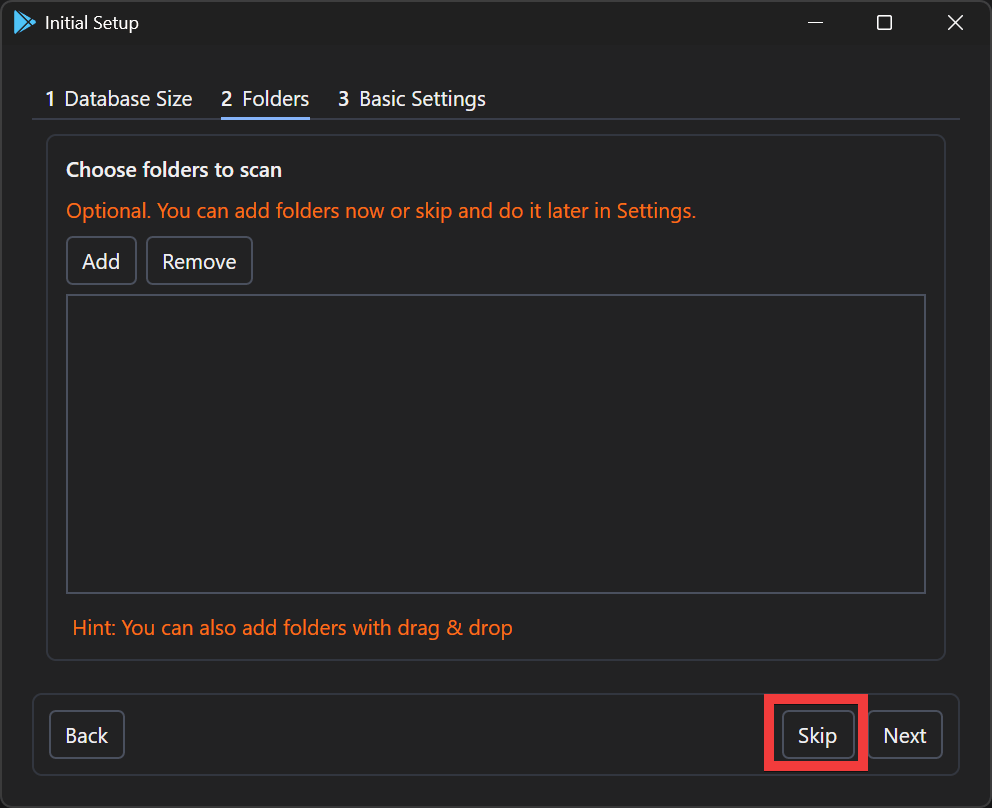
A screen will appear asking you to register the folders to scan, but for now, click 'Skip'.
Setup is complete and the main screen of Video Duplicate Finder will appear.
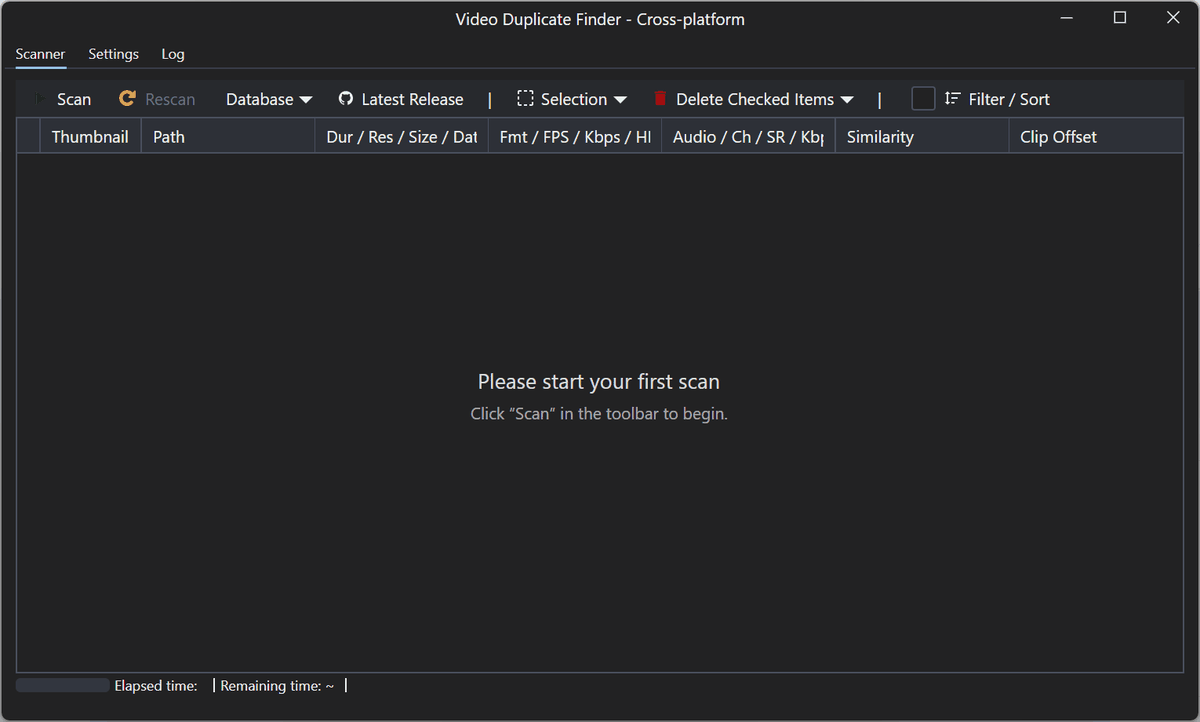
This is an excellent tool that allows you to easily configure settings such as folders to scan and criteria for detection, offers detailed settings for duplicate detection, and enables high-speed processing.
Related Posts: