The official smartphone app for video generation AI 'Wan' has been released, and it can generate full HD videos for free, so I tried using it.
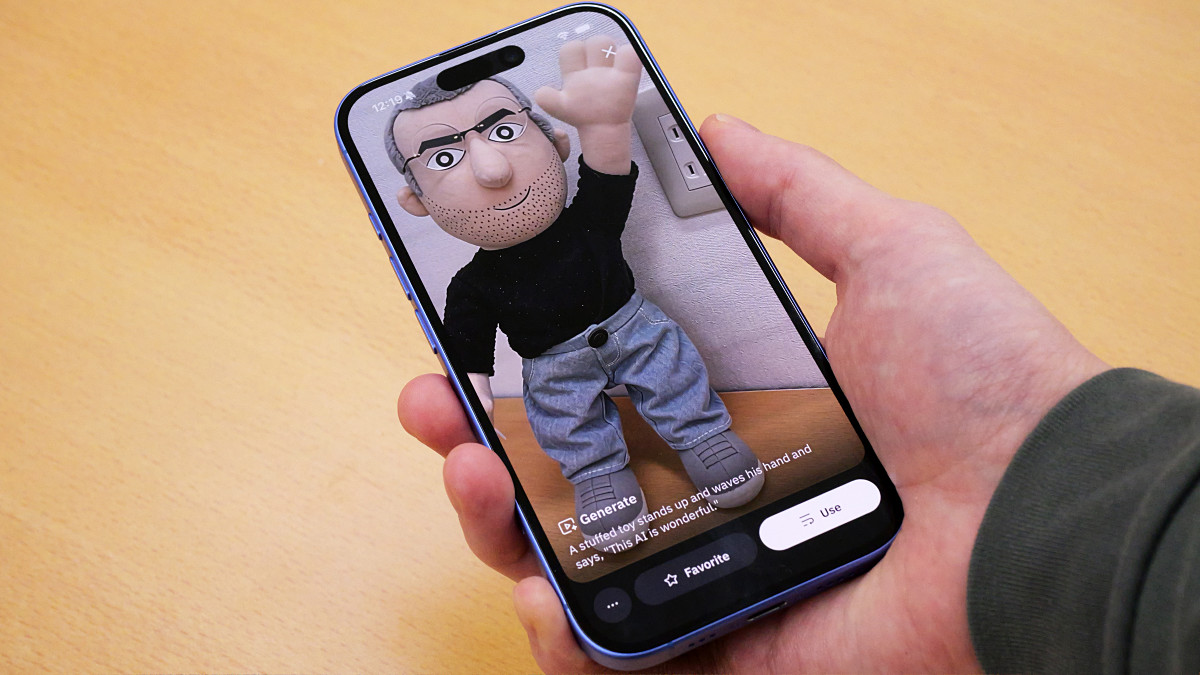
Alibaba has released a smartphone app for its video-generating AI, 'Wan.' The app allows users to generate videos by inputting text and images, and also includes video sharing functionality. It's already available for free on iPhones and Android smartphones in Japan, so I gave it a try.
Wan App is now live on iOS & Android! 🚀
pic.twitter.com/rT0TEqLndB — Wan (@Alibaba_Wan) January 8, 2026
Unlock the full spectrum of AI visual creation:
- Starring: Cast your characters into any video—perfect identity & voice consistency, no retraining needed.
- Video: From T2V to I2V, enjoy cinematic motion, precise control, native A/V sync,…
Wan App - App Store
https://apps.apple.com/jp/app/wan/id6753616942
Wan - Apps on Google Play
https://play.google.com/store/apps/details?id=com.aliyun.wan.android&hl=ja_JP
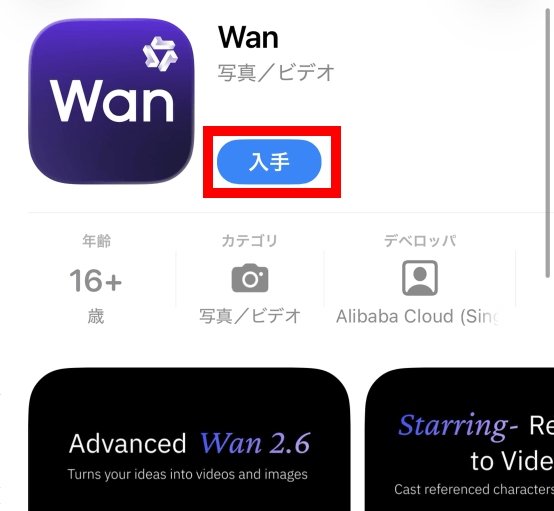
This time I will use the iOS version of Wan. Tap the link above to access the distribution page and then tap 'Get'.
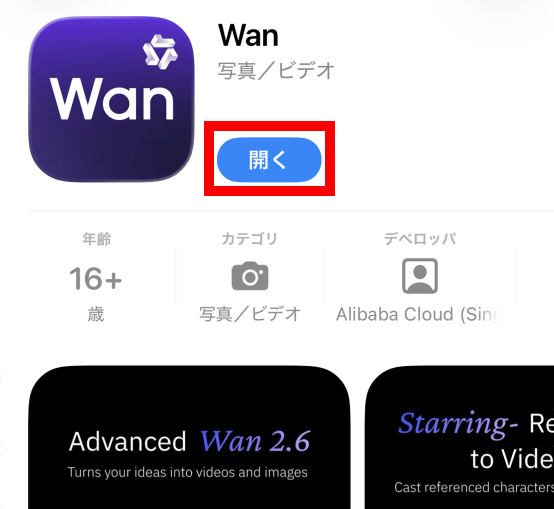
Once the installation is complete, tap 'Open.'
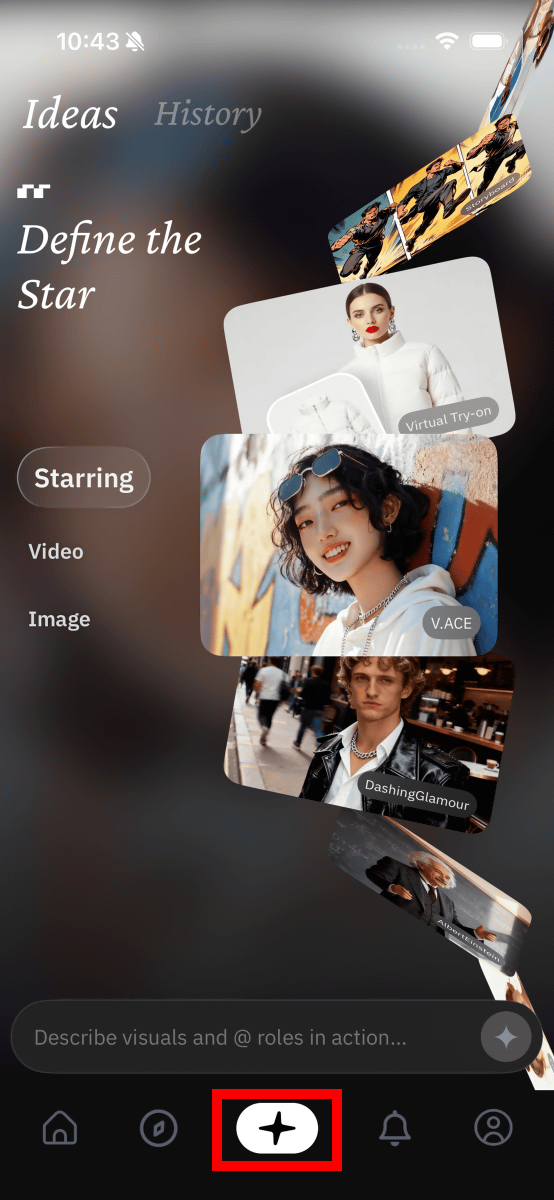
Once Wan is launched, tap the button in the bottom center.
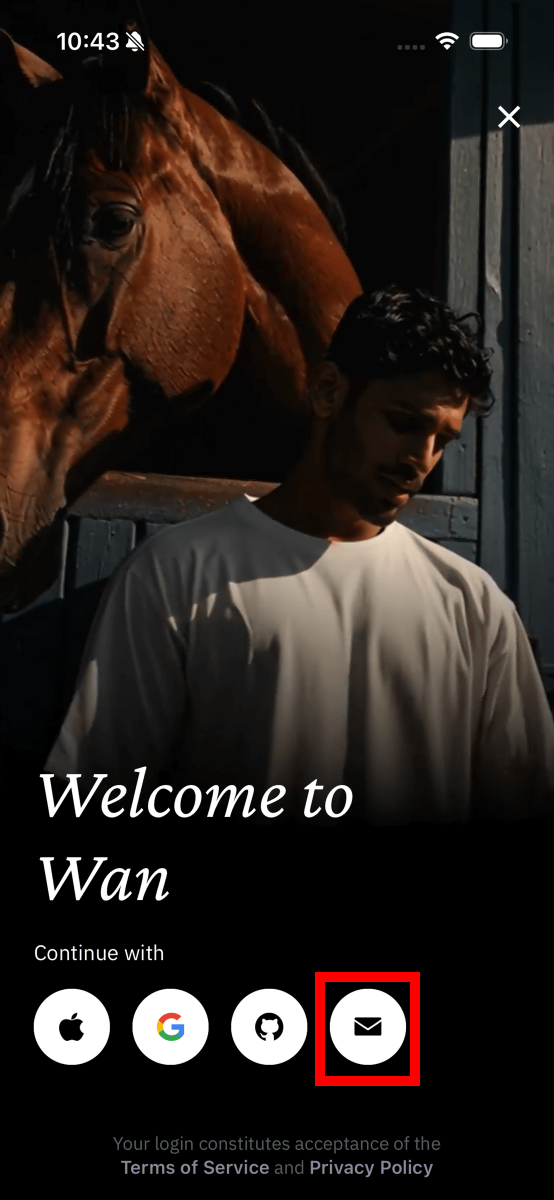
To generate a video, you need to sign in with either your Apple account, Google account, GitHub account, or an account created with your email address. This time, enter your email address to create a new account. First, tap the email button in the bottom right of the screen.
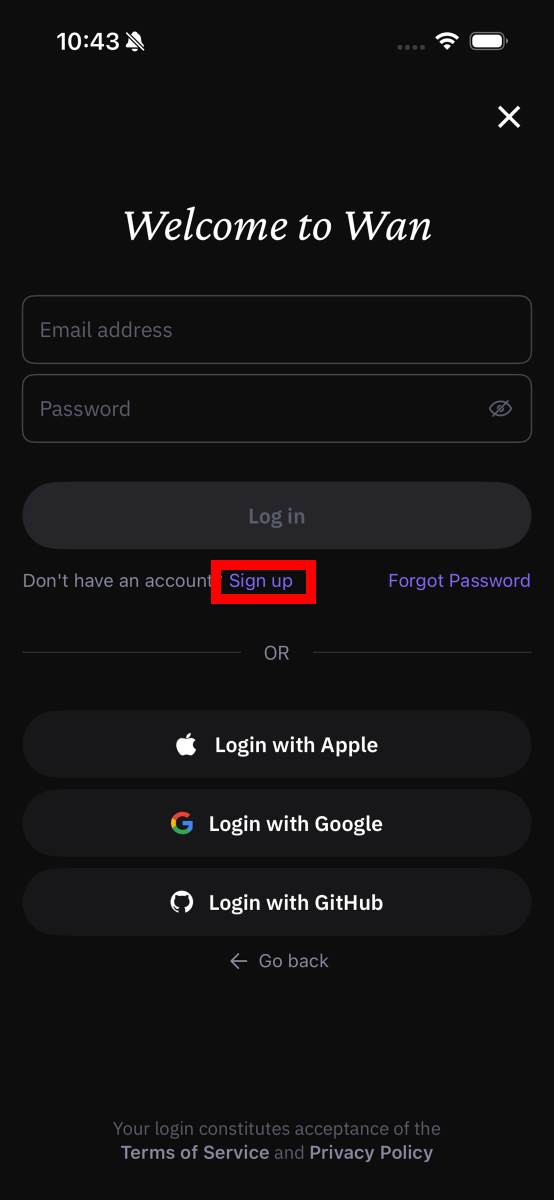
Tap “Sign up”.
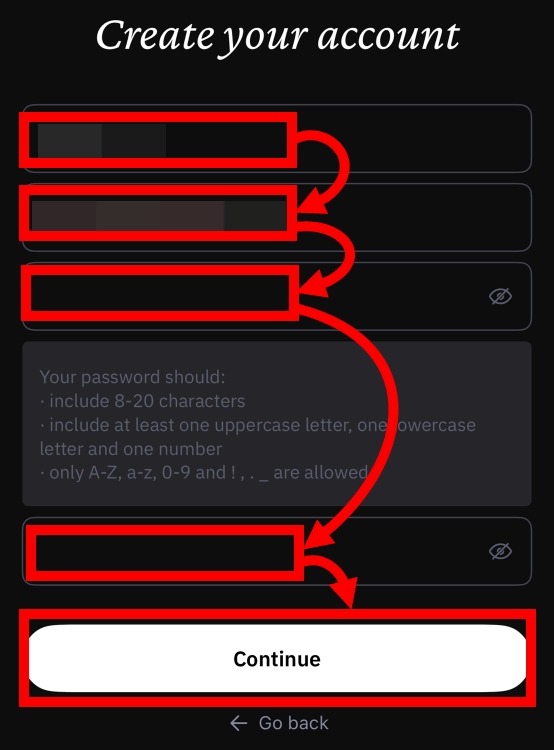
Enter your account name, email address, and password in that order, then enter the same password again to confirm, then tap 'Continue.'
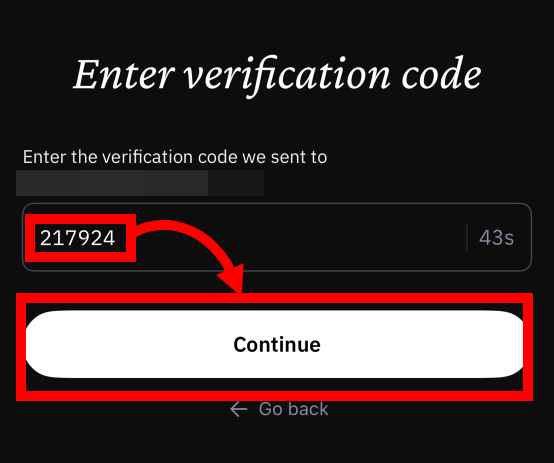
A 6-digit verification code will be sent to the email address you entered, so enter the code and tap 'Continue'.
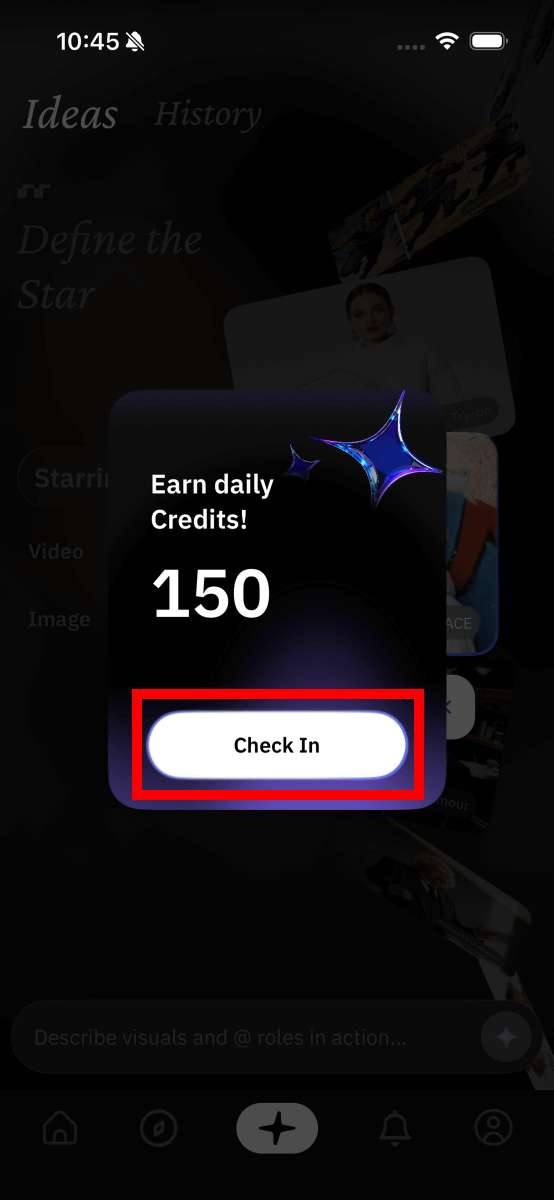
Your account has been successfully created and you will be given 150 credits. Tap 'Check In' to proceed to the next screen.
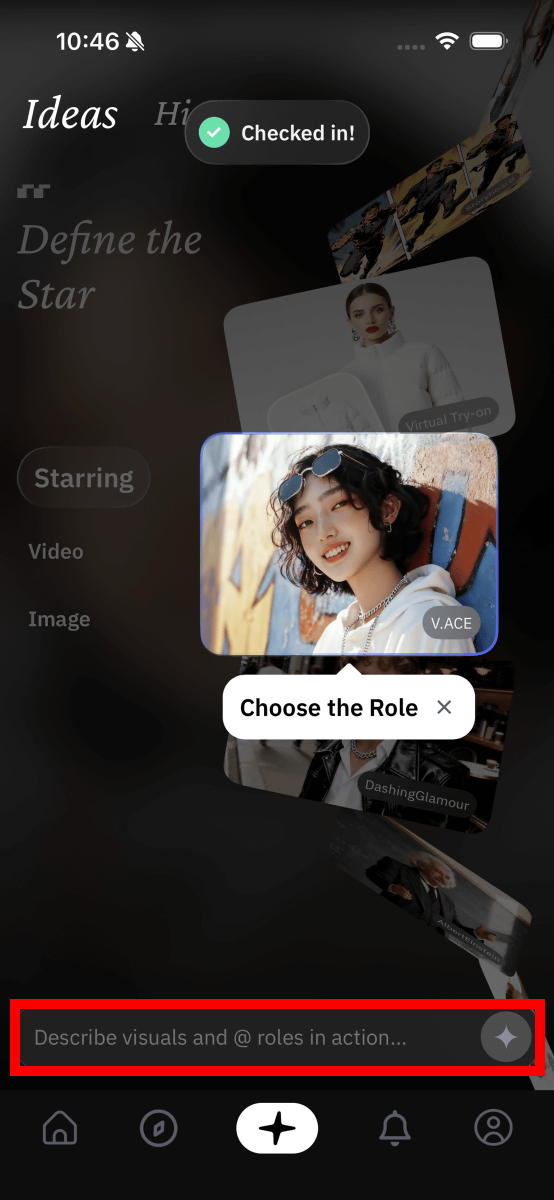
Tap the input field at the bottom of the screen.
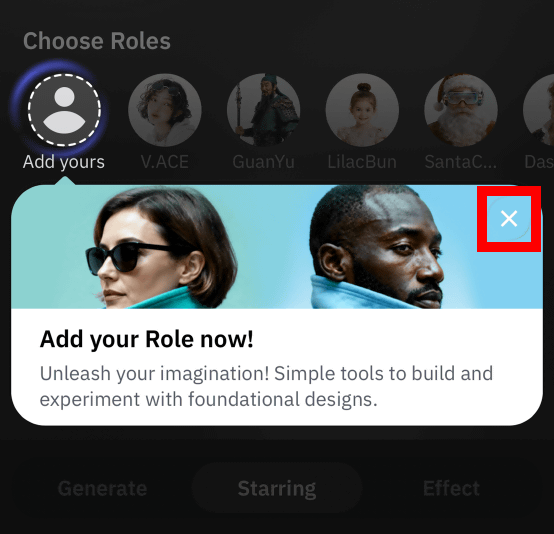
The first time you use the app, you will be asked to register a 'Role.' Role is a feature that allows you to register your face photo, voice, etc. and have yourself appear in the video. Since I won't be using the Role feature this time, I tapped the x button.
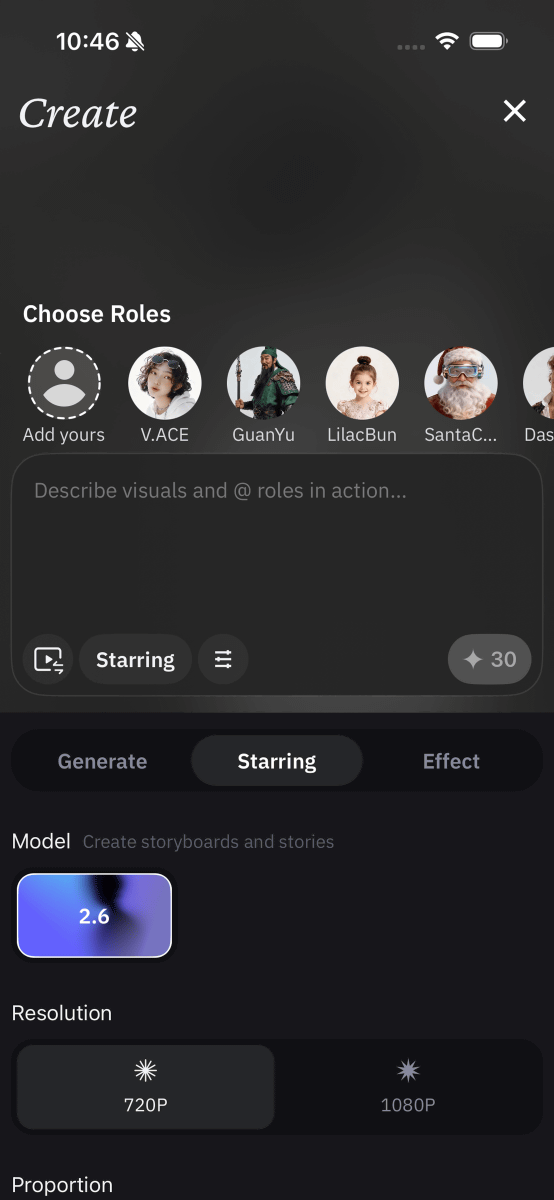
The video creation screen looks like this. You can enter a description of the generated video in the input area in the center, and the video settings area is located at the bottom.
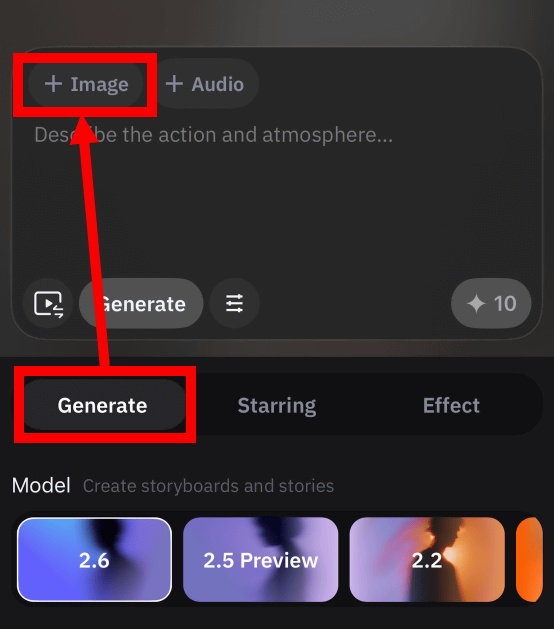
This time, I'll input a photo of a stuffed animal and create a video of a dancing stuffed animal. First, tap 'Generate' and then tap 'Image.'
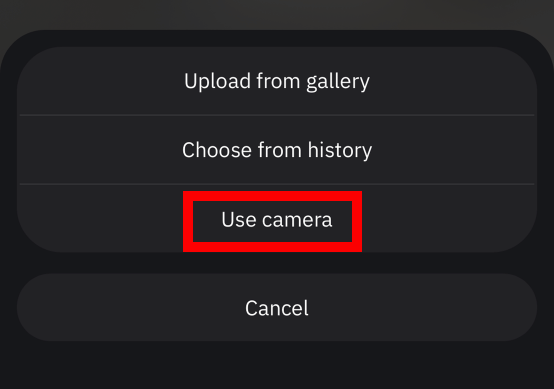
Tap 'Use camera'.
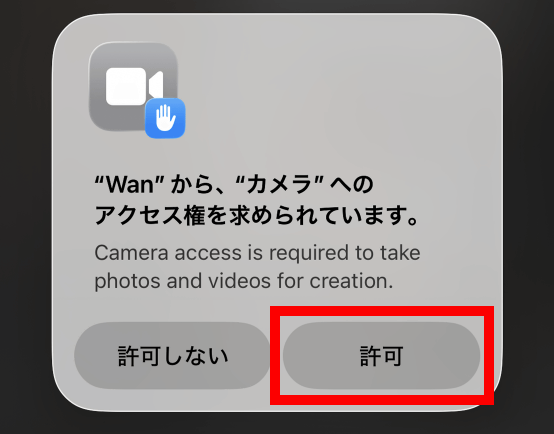
If you are asked for permission to use the camera, tap 'Allow.'
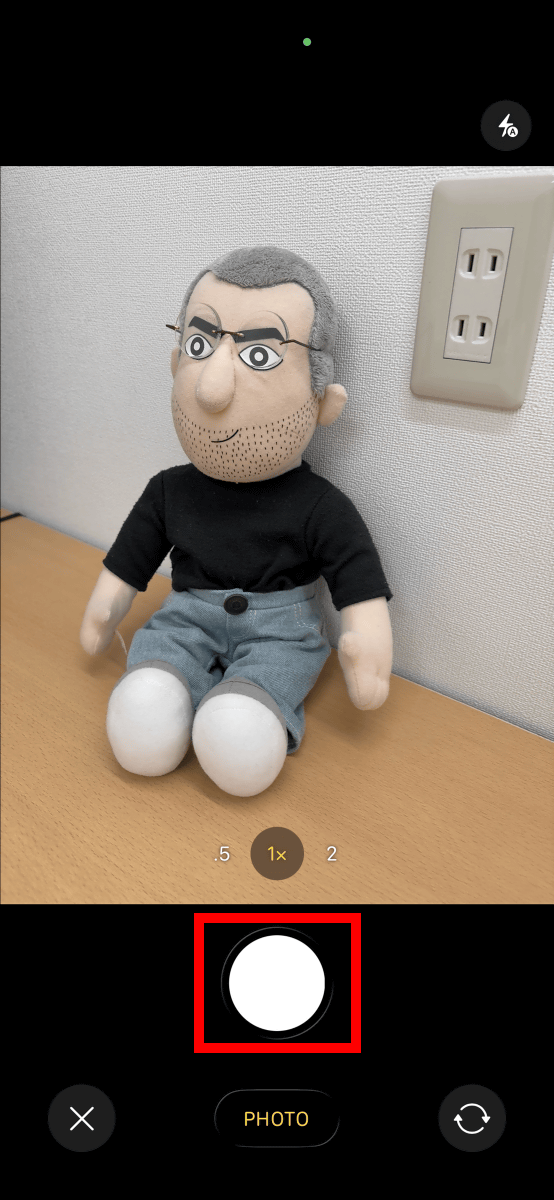
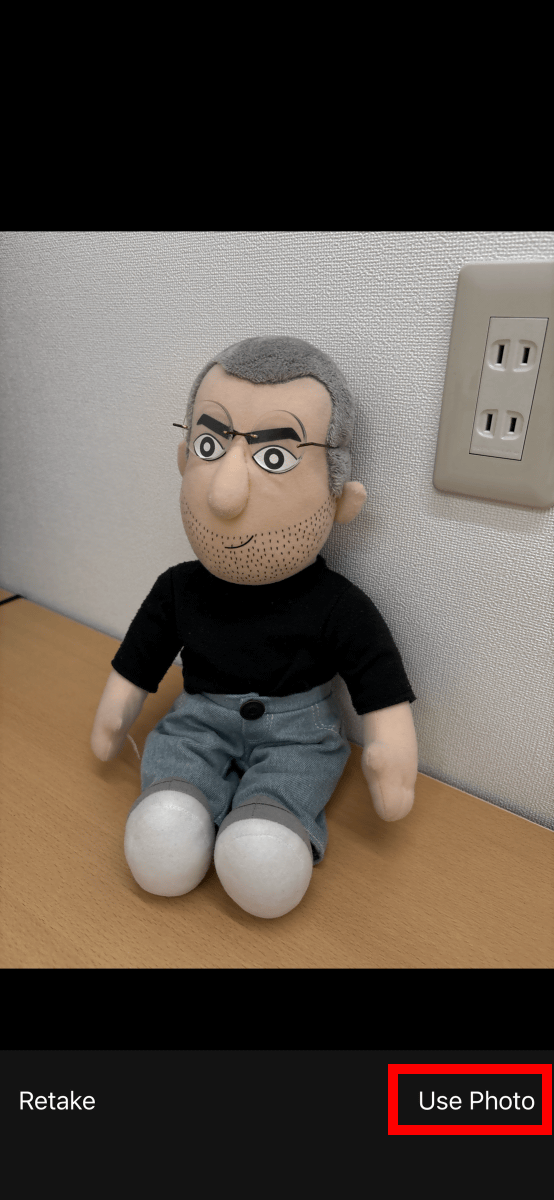
Take a photo of the stuffed toy.
Tap 'Use Photo'.
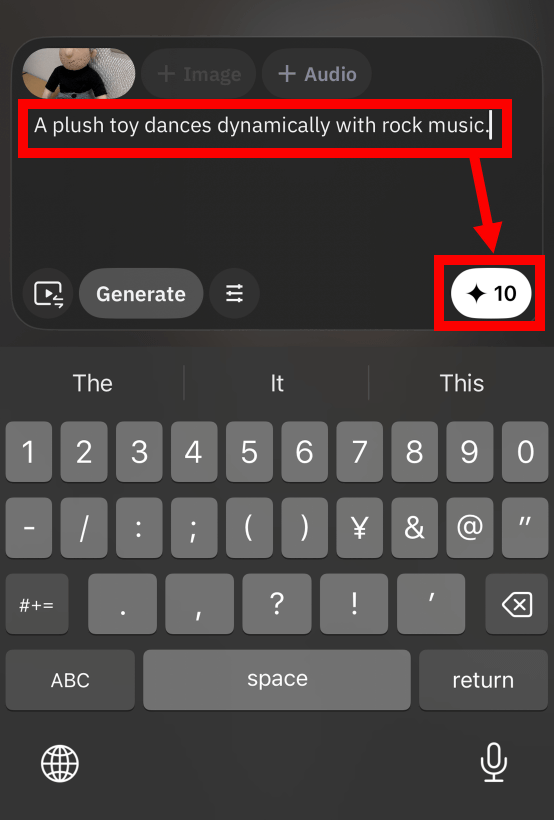
Enter 'A plush toy dances dynamically with rock music.' and then tap the button on the bottom right.
The generation process is performed on the server, so it doesn't matter if your smartphone has low performance.
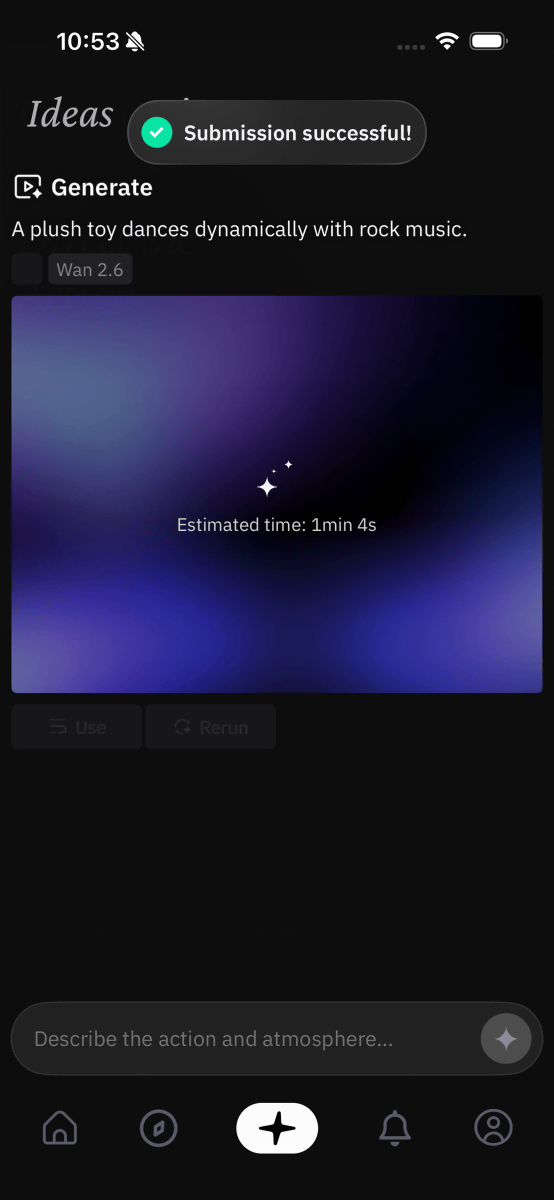
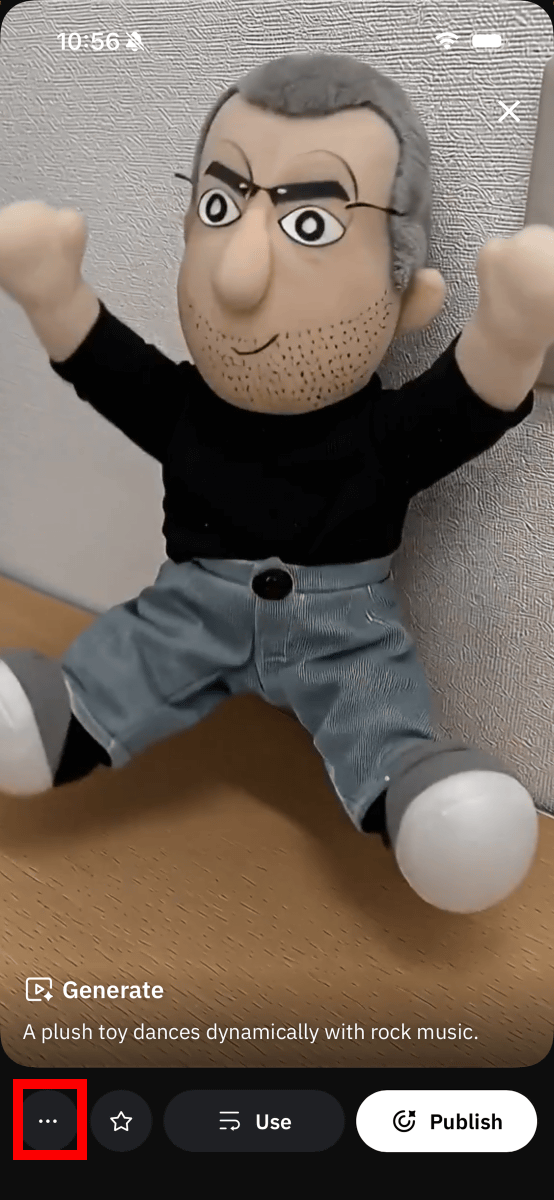
The video will be completed in about a minute. To play the video, just tap the thumbnail.
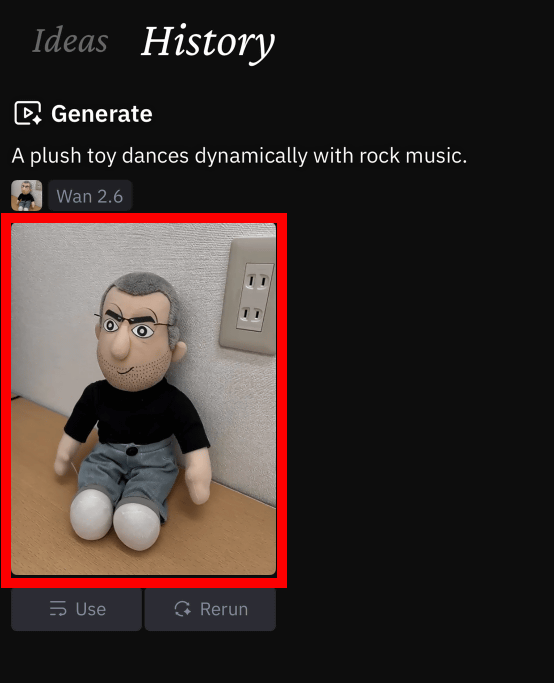
To download the video, tap the menu button at the bottom left.
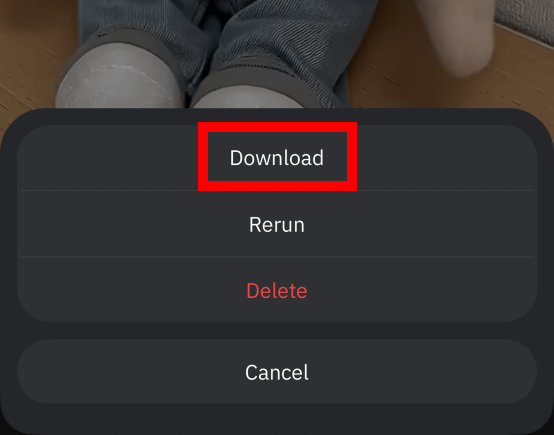
Tap “Download”.
I uploaded the downloaded video to YouTube, and just as instructed, the stuffed animal danced to rock music.
The default setting is to generate a 5-second 720p video. When you tap 'Generate' to enter the video description, the keyboard at the bottom of the screen disappears and an area for setting the length and resolution appears.
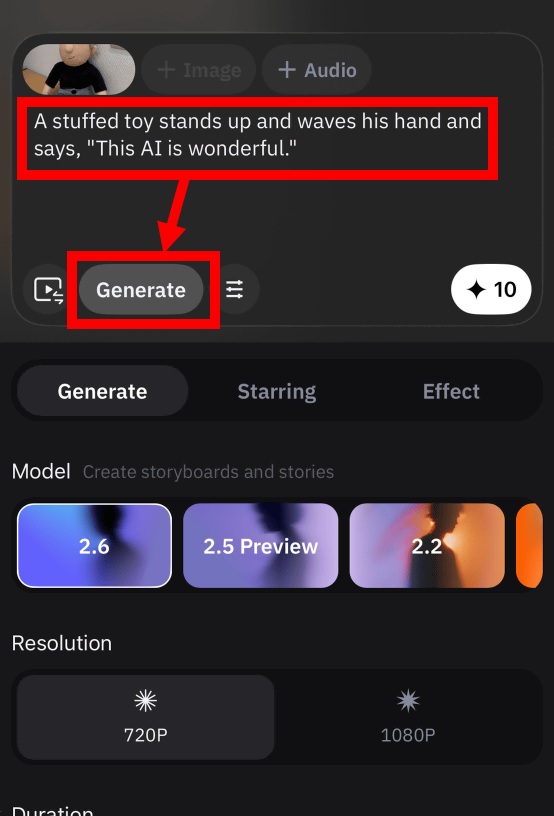
You can choose the resolution from '720P' or '1080P' and the length from '5 seconds,' '10 seconds,' or '15 seconds.' The number of credits consumed increases or decreases depending on the resolution and length. Creating a 10-second 1080P video will cost 30 credits.
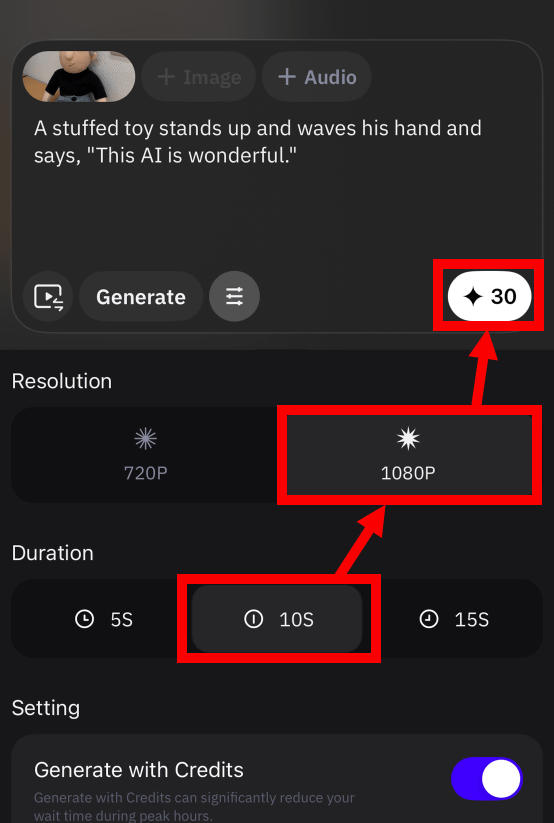
Below is a 10-second 1080P video generated with the prompt, 'A stuffed toy stands up and waves its hand and says, 'This AI is wonderful.'' The speech and mouth movements match.
1080p video generated by video generation AI app 'Wan' - YouTube
Alibaba also publishes a page that explains tips for entering descriptions into Wan .
Related Posts:


in AI, Video, Software, Smartphone, Review, Posted by log1o_hf