Review of 'bash-screensavers', a collection of 12 free screensavers
In the days when computer displays were CRTs,
GitHub - attogram/bash-screensavers: Turn your idle shell into a visual playground with this collection of Bash screensavers
https://github.com/attogram/bash-screensavers
◆ Building an operating environment
Since bash-screensavers runs on Bash, you need a Bash environment, such as Linux, macOS, or Windows' WSL (Windows Subsystem for Linux). Here, we'll install Ubuntu on WSL and then install and run bash-screensavers.
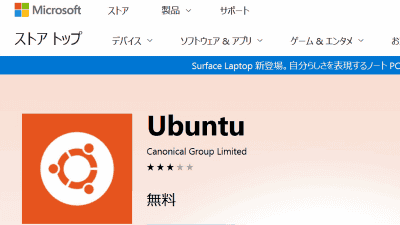
First, install Ubuntu from the Microsoft Store. Select Ubuntu 24.04.1 LTS , the latest LTS version at the time of writing, and click the 'Get' button to install it.
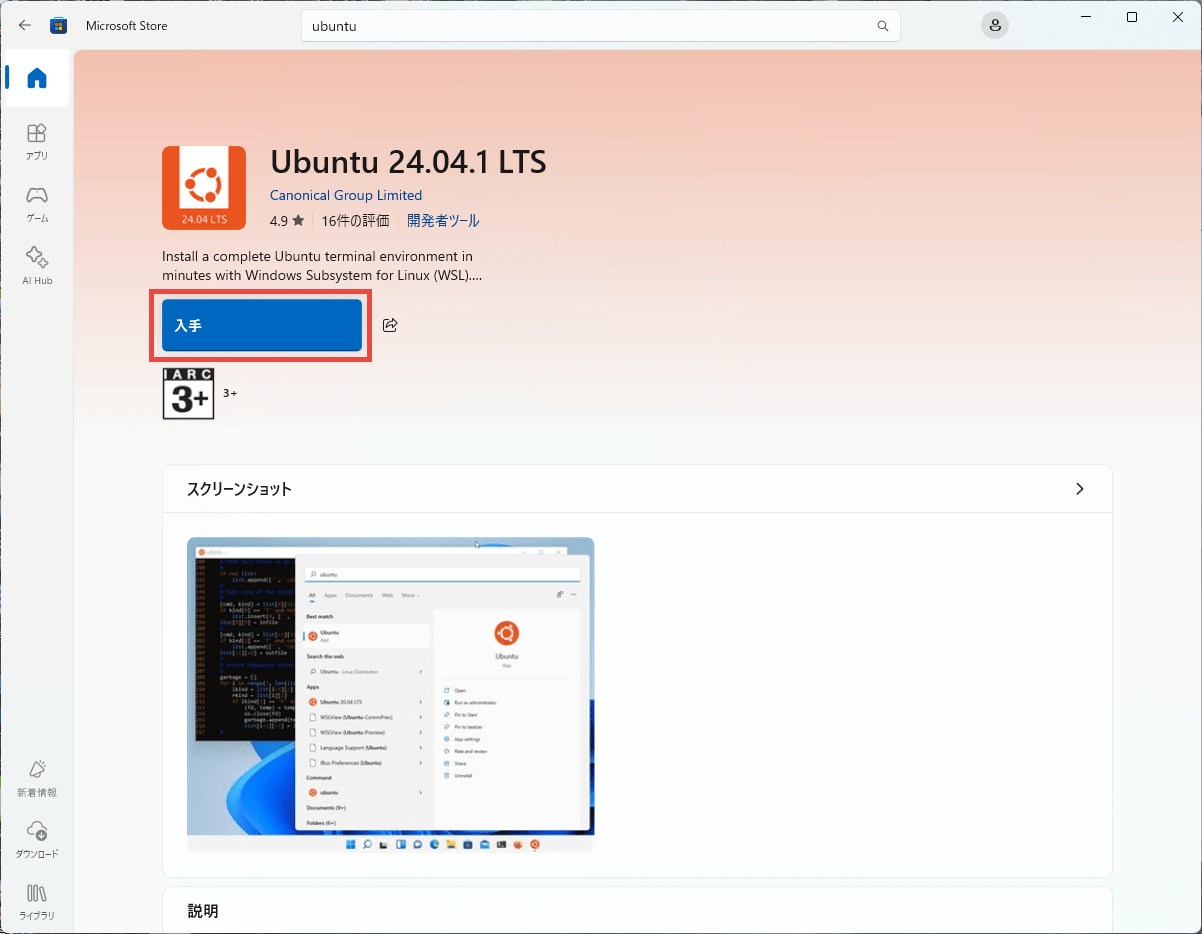
Once the installation is complete, the 'Get' button will change to an 'Open' button, so click 'Open' to start Ubuntu.
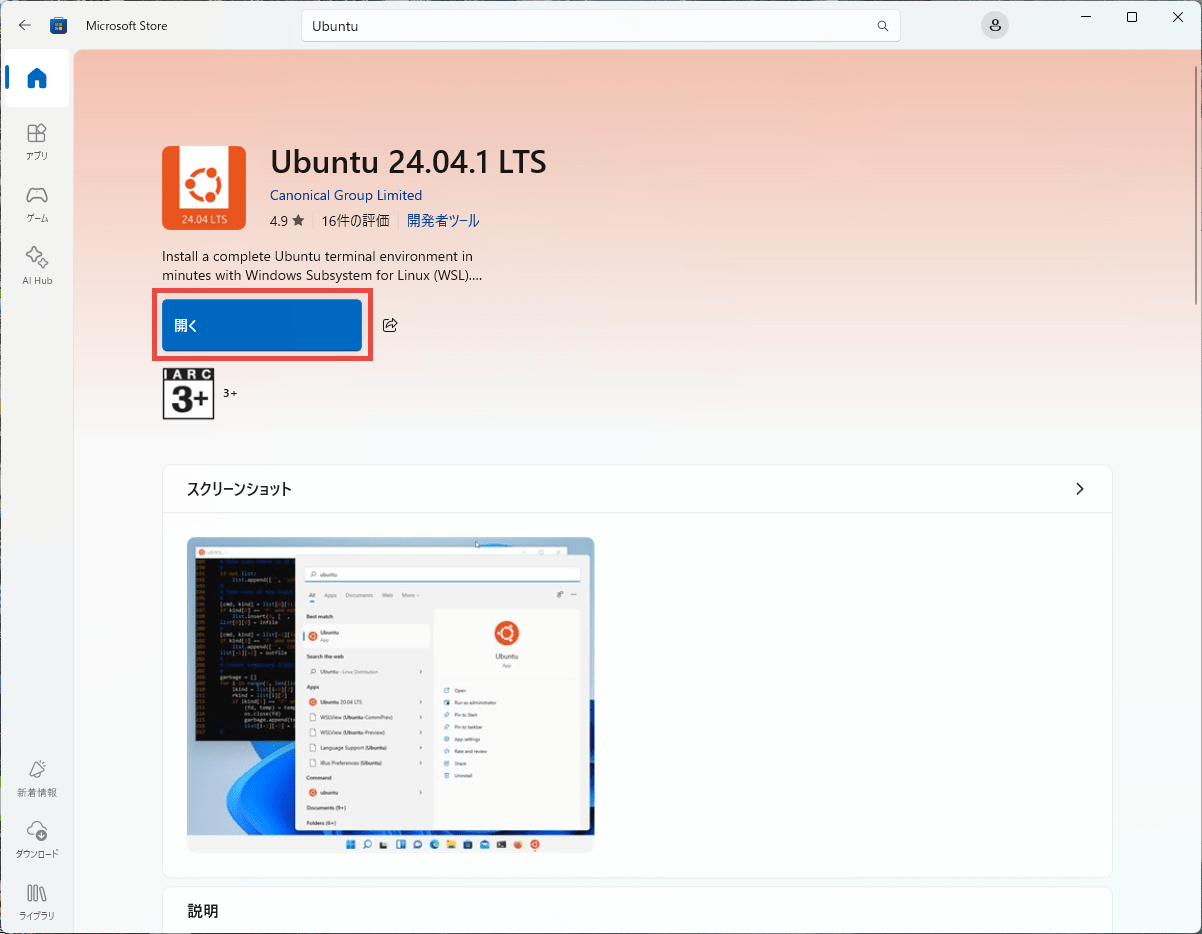
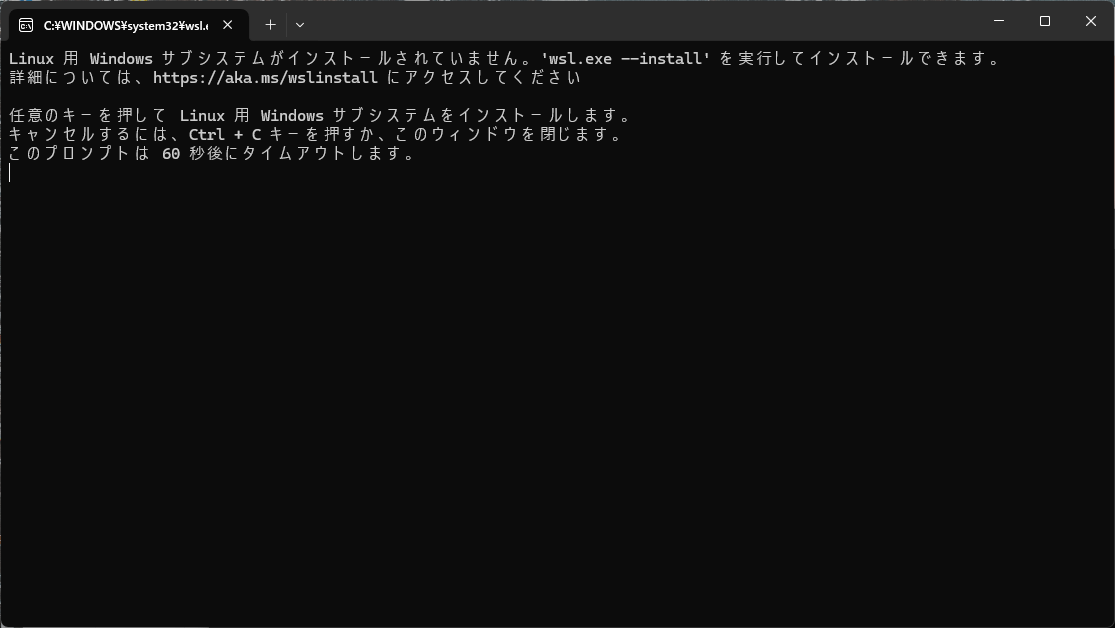
If WSL is not installed at this point, a UAC prompt will appear. Clicking the 'Yes' button will display the following window, so press any key to install WSL.
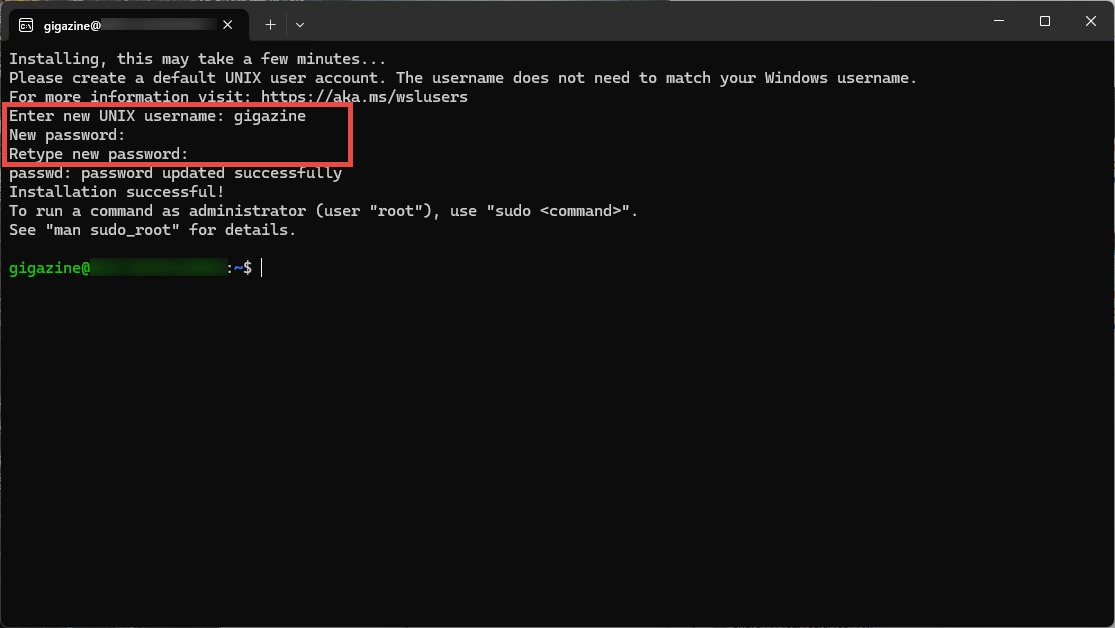
Once the WSL installation is complete, restart Windows. After that, when you start Ubuntu, you will be asked to set a username and password the first time you start it, so enter your desired username and password. Once you enter them, once the prompt appears, Ubuntu on WSL is ready to use.
Next, make sure Ubuntu is up to date. Execute the following command to update the package list and perform the upgrade. Note that you will be prompted for a password to use the sudo command, so enter the password you set earlier.
[code]
sudo apt update
sudo apt upgrade -y
[/code]
We need to clone the repository from GitHub, so we will install Git by running the following command. Git is probably already installed by default, but we will run it just to be sure, as there will be no problems with installing it twice.
[code]
sudo apt install -y git
[/code]
To clone the bash-screensavers repository, run the following command:
[code]
git clone https://github.com/attogram/bash-screensavers.git
[/code]
Now that all the bash-screensavers scripts have been copied, run the following command to start bash-screensavers.
[code]
cd bash-screensavers
./screensaver.sh
[/code]
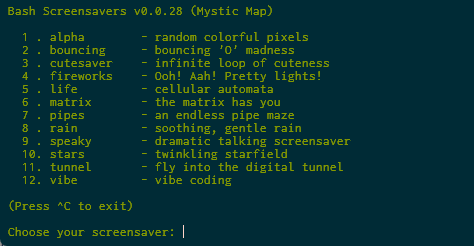
If the program starts up successfully, the menu screen will appear as shown below. Various screensavers are listed in the menu. The cursor will be placed after 'Choose your screensaver:' on the last line, and entering a number between 1 and 12 will launch the corresponding screensaver. To end the screensaver and return to the menu, press the Ctrl and C keys simultaneously. If you also want to exit the menu, press the Ctrl and C keys simultaneously again to return to the prompt.
◆1. alpha
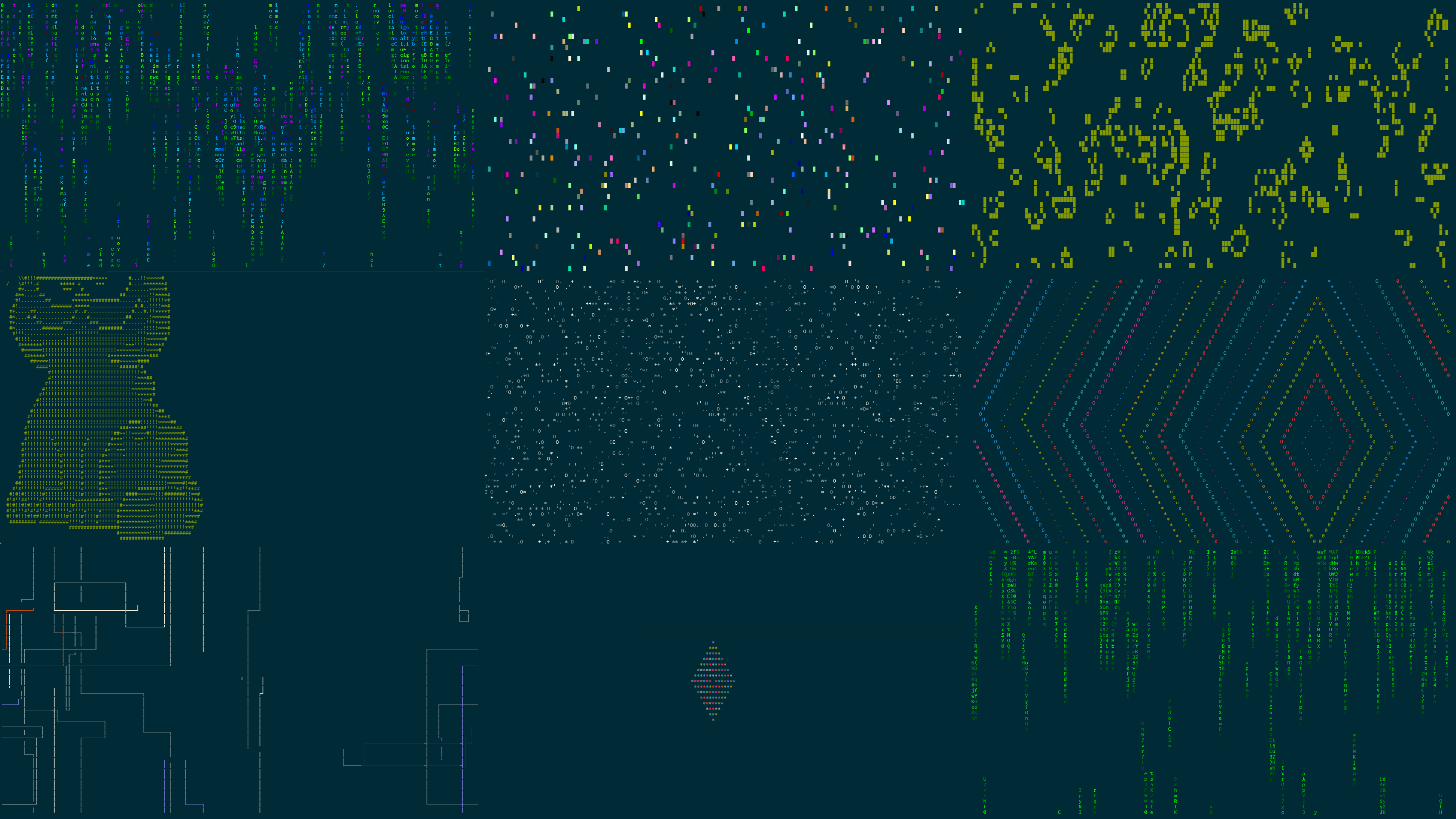
This screensaver displays colorful blocks randomly on the screen. The blocks gradually scatter across the screen, eventually filling the entire screen and forming a mosaic pattern. 
◆2. bouncing
This screensaver features multiple 'O's bouncing around the screen. The bouncing 'O's are colorful and bounce off walls. According to the description, it's an 'homage to DVD screensavers of the past.' 
◆3. cutesaver
The app randomly switches between cute ASCII art, ranging from animals like cats, bears, and wolves to anime characters like Astro Boy and Project A-ko . 
◆4. fireworks
This screensaver depicts fireworks exploding one after another across the night sky. The fireworks are launched at random locations, lighting up the night sky with a variety of colorful displays. From a Japanese perspective, fireworks would be better suited to the image of large flowers blooming across the night sky, but it's surprising how much can be achieved using only Bash scripts. 
◆5. life
This is a screensaver for the so-called ' Game of Life .' The Game of Life is a type of cellular automaton, where the life and death of cells are determined based on rules, and the patterns change with each generation. In bash-screensavers' 'Life,' the initial state is randomly generated, and various patterns emerge with each generation. 
◆6. matrix
This screensaver features vertically flowing green text, reminiscent of the movie ' The Matrix .' The text is randomly generated, and countless lines of text flow across the entire screen. 
◆7. pipes
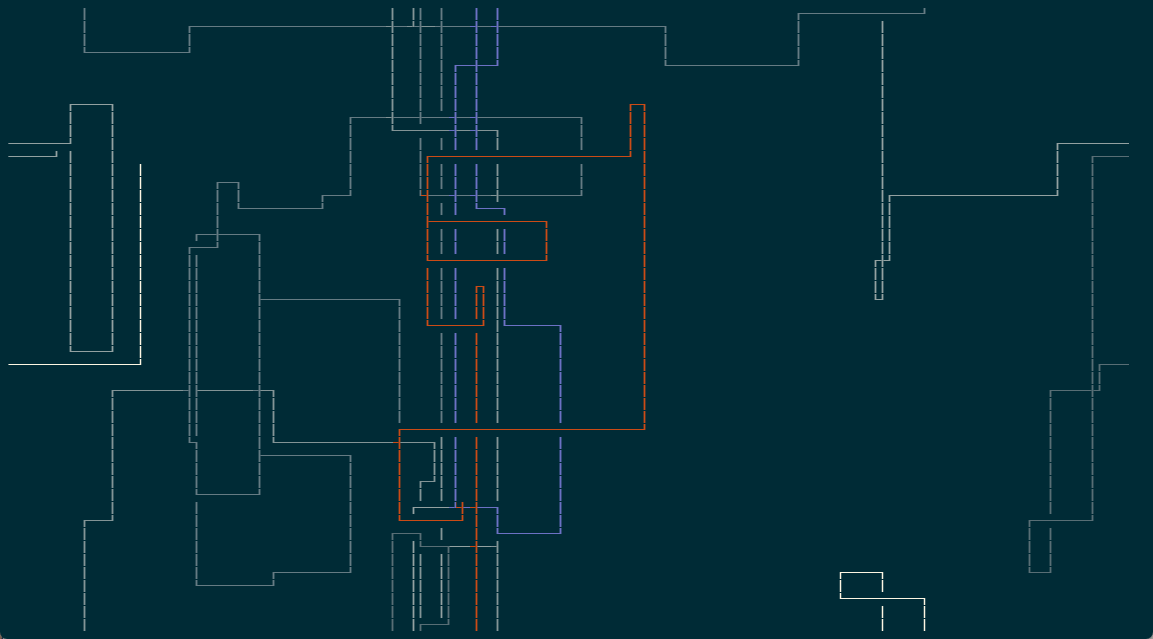
This screensaver features colorful, intricately twisted pipes moving across the screen. The pipes are randomly generated, eventually forming a maze that covers the entire screen.
◆8. rain
This screensaver depicts the constant rain. Watching the raindrops has a soothing and relaxing effect. 
◆9. speaky
This screensaver uses text-to-speech technology, which means that the text displayed on the screen is read aloud. Various words and quirky phrases are displayed in random positions one after the other and are read aloud in a variety of voices. 
◆10. stars
This screensaver depicts the sky filled with countless stars. The stars are randomly placed and vary in brightness, creating the atmosphere of a real night sky. 
◆11. tunnel
This screensaver creates a 3D-like visual effect, as if you were speeding through a tunnel. 
◆12. vibe
It's said to be inspired by ' vibe coding ,' but it's essentially a colorful 'matrix.' 
◆Conclusion
Above are my impressions after actually launching each screensaver and learning how to install bash-screensavers, a collection of screensavers that run entirely in Bash. Honestly, I still have some fundamental questions about what exactly a screensaver is, but it's amazing how such a wide variety of visual effects can be achieved using only Bash scripts, and it really shows the potential of Bash. It's available for free and isn't too difficult to install, so if you're interested, give it a try.
Related Posts: