A comparison of the load on PC game screen recording using 'Windows Game Bar,' 'OBS,' 'NVIDIA's recording function,' 'AMD's recording function,' and 'Streamlabs' has been released.
Recording gameplay of PC games consumes CPU and GPU resources for recording, which slightly reduces the game's frame rate. LTT Labs, which conducts PC parts reviews, has released the results of tests they conducted on the impact of screen recording on frame rate, targeting 'Windows Game Bar,' 'OBS,' 'NVIDIA's recording function,' 'AMD's recording function,' and 'Streamlabs.'
Your Screen Recorder Wants to Steal Your Frames! | LTT Labs
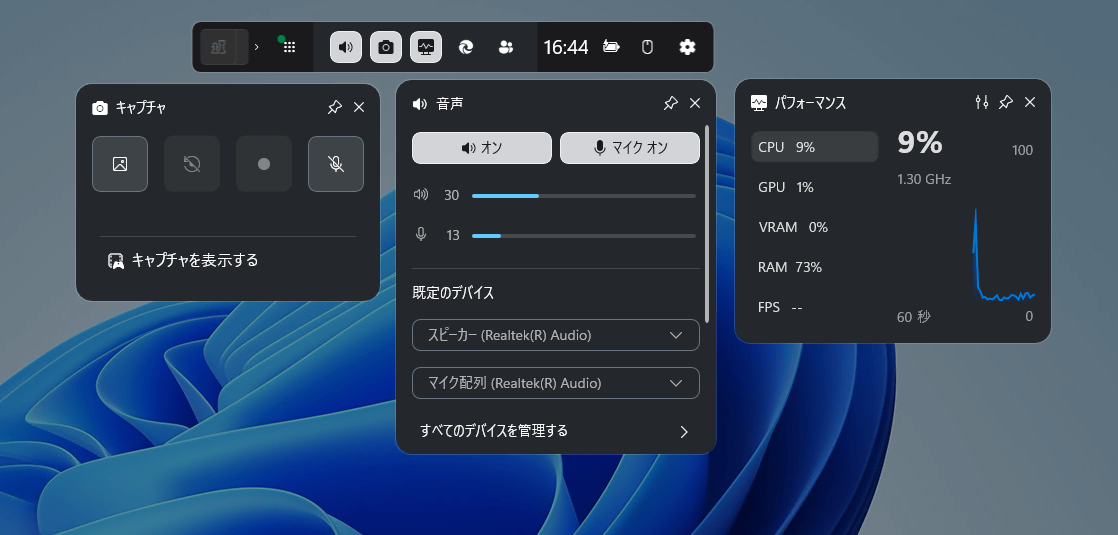
The features of the recording function tested are as follows: The Windows Game Bar is a function that allows you to call up various widgets using the shortcut key 'Windows key + G,' and you can record the game you are playing simply by clicking the record button in the capture widget. Although it does not support detailed settings such as recording quality, it has the major advantage of being usable without installing any additional apps.
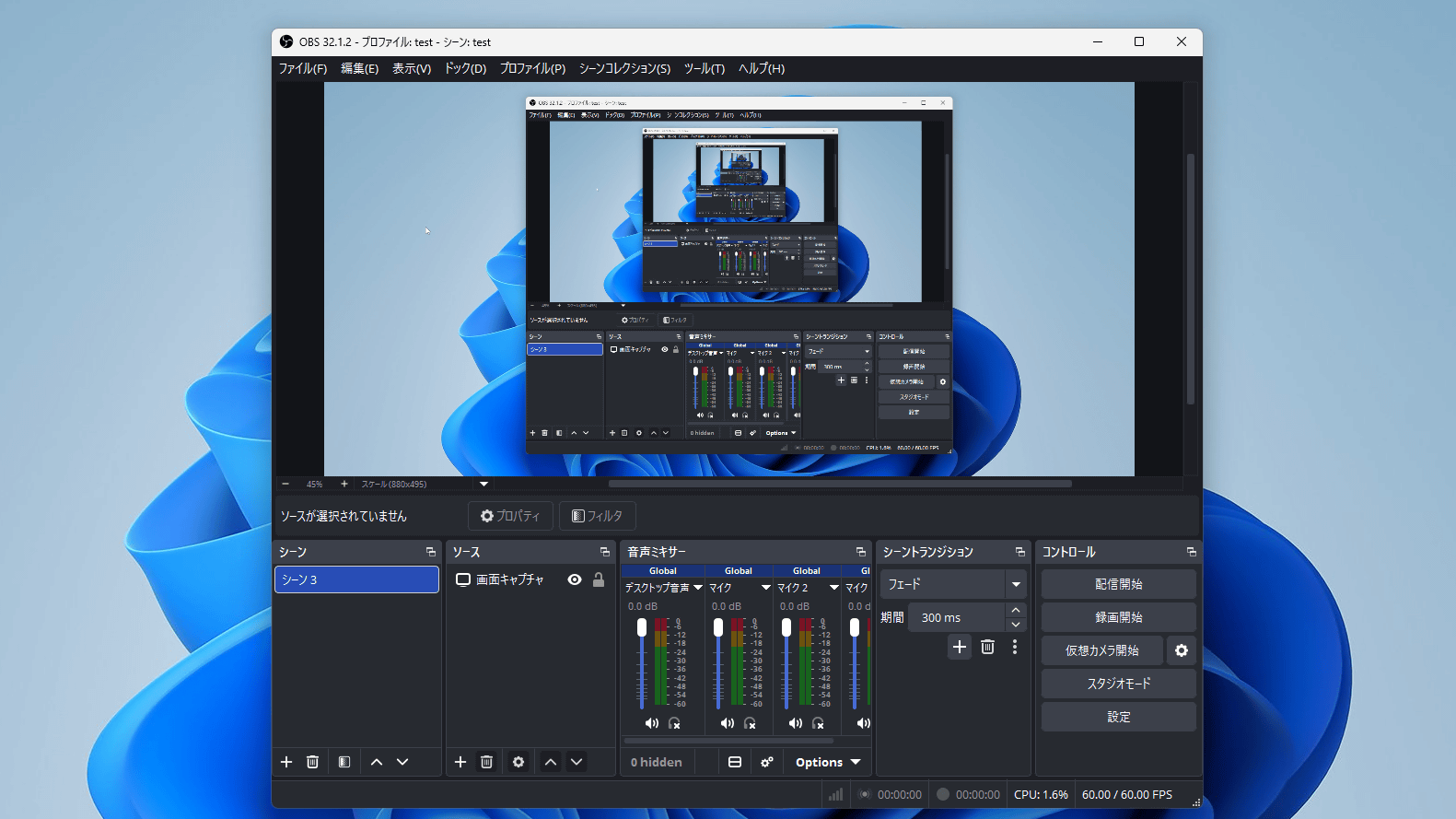
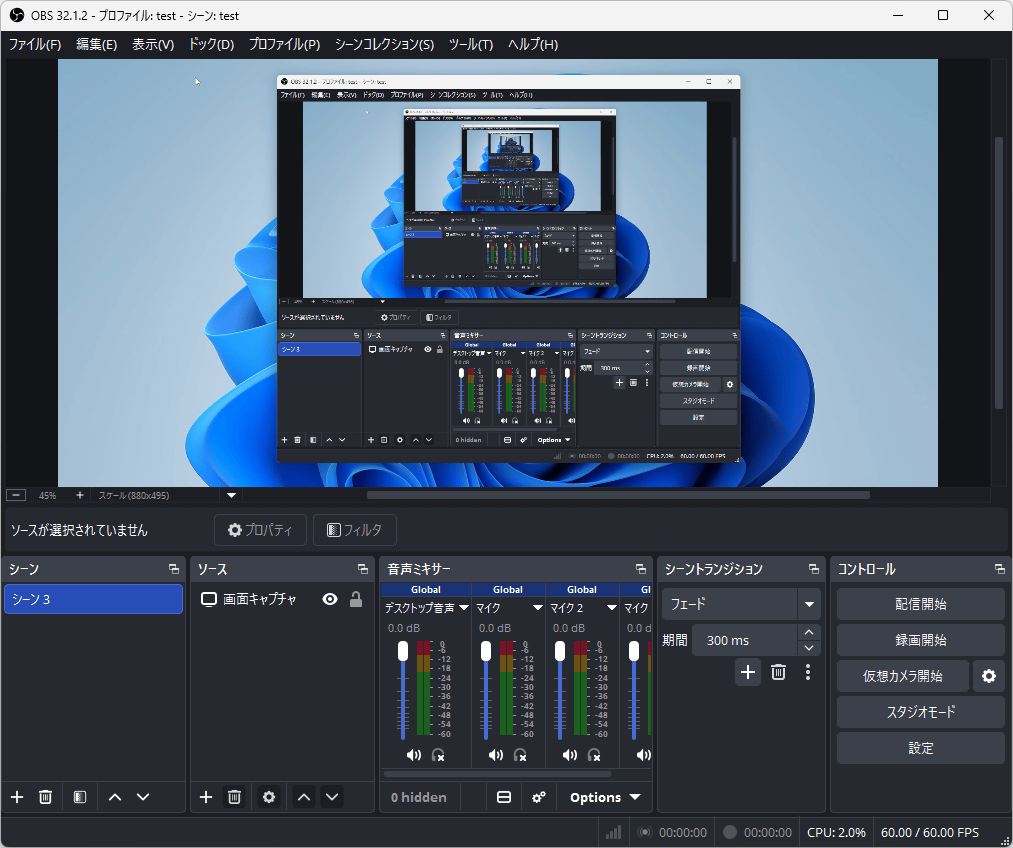
OBS is a free, open-source application. It allows you to select multiple video and audio sources, and offers detailed customization options for recording codecs and image quality. It also includes streaming capabilities, making it a highly functional application.
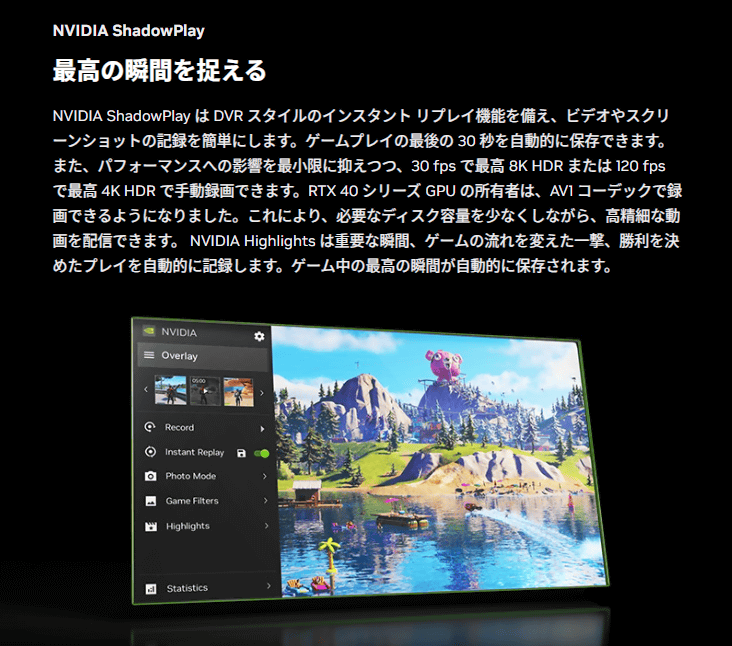
NVIDIA's recording feature is called 'ShadowPlay' and can be used by installing the 'NVIDIA app.' However, it is only compatible with NVIDIA GPUs.
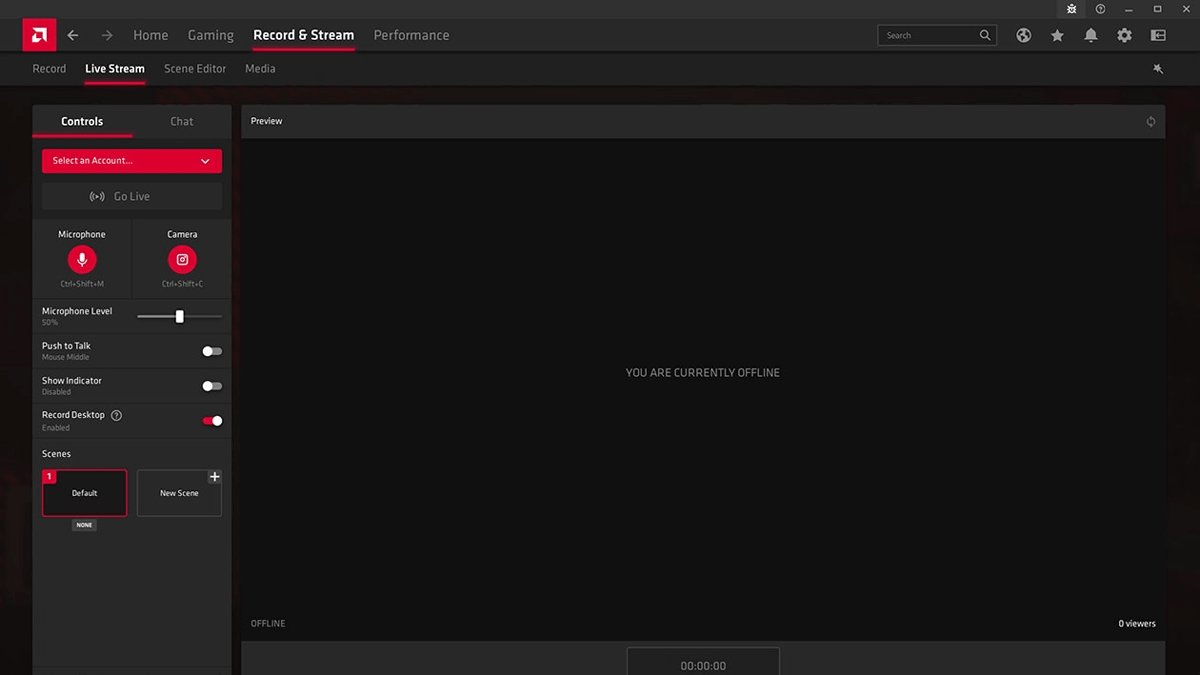
AMD's recording function is exclusive to AMD GPUs and can be used by installing 'AMD Software: Adrenalin Edition'.
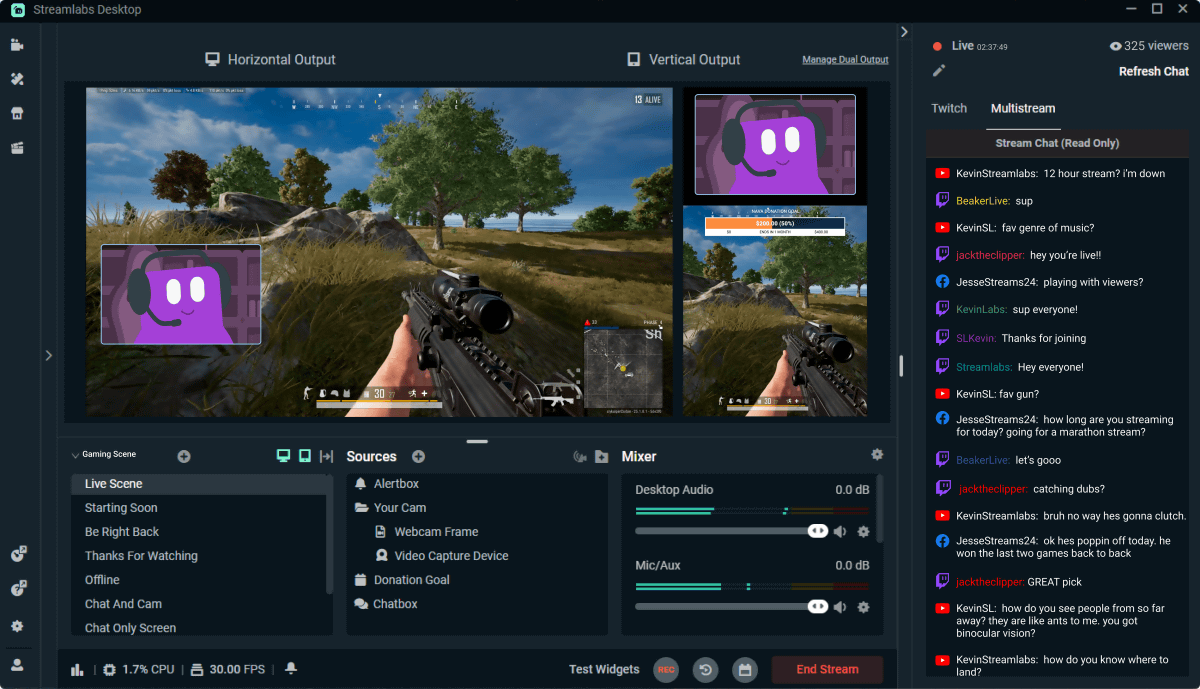
Streamlabs is a free recording and streaming app. It leverages the OBS recording engine while maintaining a user-friendly interface.
LTT Labs recorded the screen while playing three titles: 'Cyberpunk 2077,' 'F1 24,' and 'Red Dead Redemption 2,' to verify changes in frame rate. The PC configuration and recording settings used for the test are as follows.
| Motherboard | ASUS Strix X670E-F Gaming Wifi |
| CPU | AMD Ryzen 7 7800X3D |
| CPU cooler | Liquid Freezer III 360 Black AIO |
| graphics card | Ventus 2x GeForce RTX 5060 8GB or PULSE Radeon RX 9060 XT 8 GB |
| RAM | 2 x Trident Z5 Neo DDR5 16GB 6000MT/s CL30-38-38-96 |
| storage | Samsung SSD 980 PRO 2TB |
| power supply | Seasonic PRIME TX-1600 |
| OS | Windows 11 |
| codec | H.264 |
| bitrate | 6Mbps |
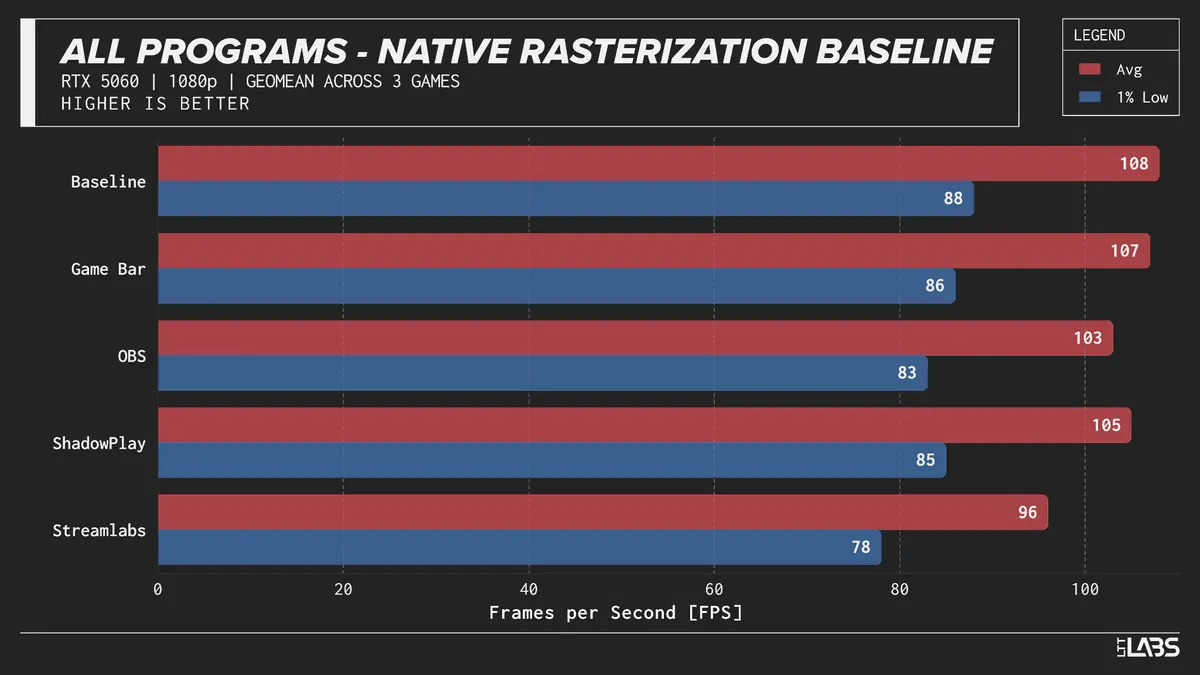
The following are the average frame rates for three titles when using a Ventus 2x GeForce RTX 5060 8 GB graphics card. From top to bottom, the results are for 'No Recording (Baseline)', 'Windows Game Bar', 'OBS', 'NVIDIA Recording Function', and 'Streamlabs'. Red indicates the average frame rate, and blue indicates the bottom 1% of frame rates. The impact of recording functions on the average frame rate was 1fps for Game Bar, 5fps for OBS, 3fps for NVIDIA Recording Function, and 12fps for Streamlabs.
The results for the PULSE Radeon RX 9060 XT 8 GB are as follows. The impact of recording functions on the average frame rate was 1fps for GameBar, 16fps for OBS, 5fps for AMD's recording function, and 22fps for Streamlabs. OBS works well with NVIDIA GPUs, but has a greater impact on the frame rate with AMD GPUs.
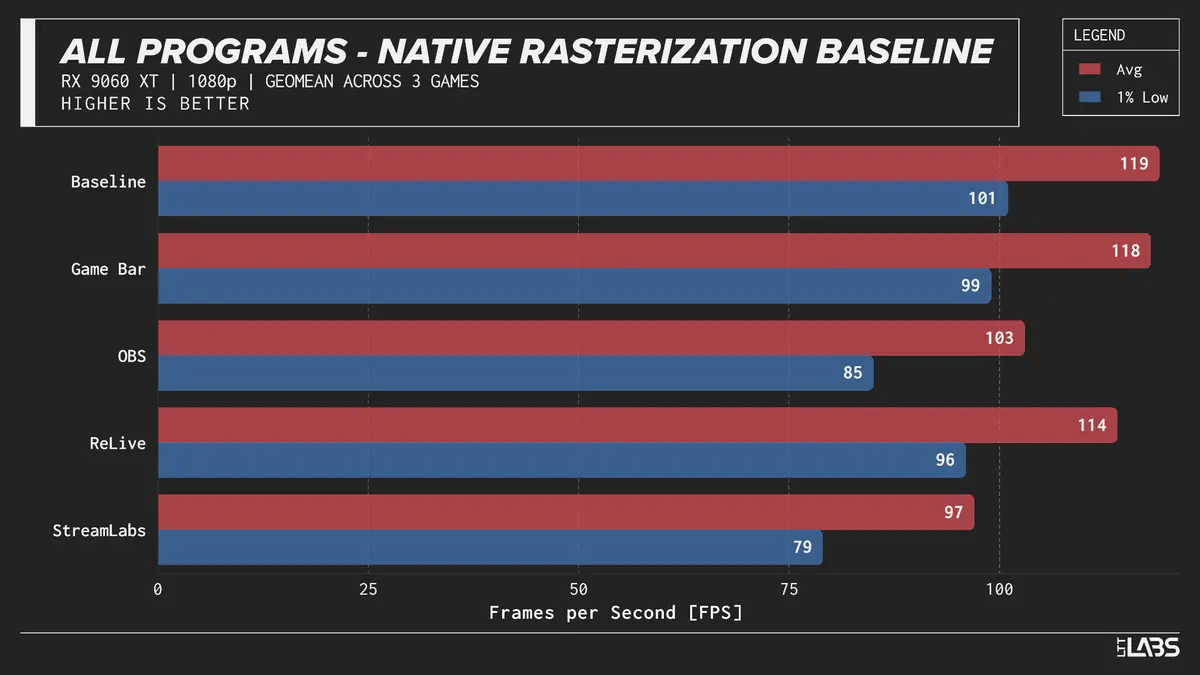
Based on the results above, for PCs equipped with NVIDIA GPUs, it seems best to use the Game Bar if you don't care about settings, and OBS if you do. On the other hand, if you are using an AMD GPU and want to be particular about settings, it seems better to try AMD's recording function before OBS.
Related Posts: