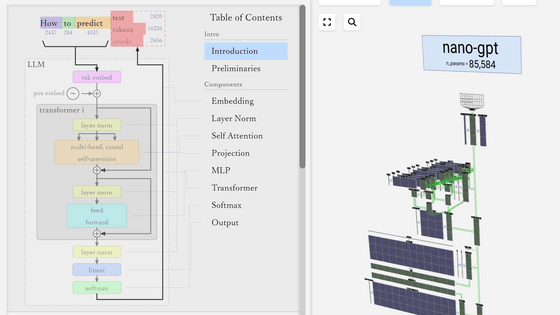
'Modelmap' allows you to visualize and check the internal structure and processing flow of an AI model through animation, helping you understand 'what it actually does.'
Hugging Face shares numerous AI models, but when selecting an AI model, it's important to understand how each model works internally and what changes depending on the model. ' modelmap ' is a website that allows you to visually check the structure of an AI model and the processing flow it performs during operation.
Modelmap

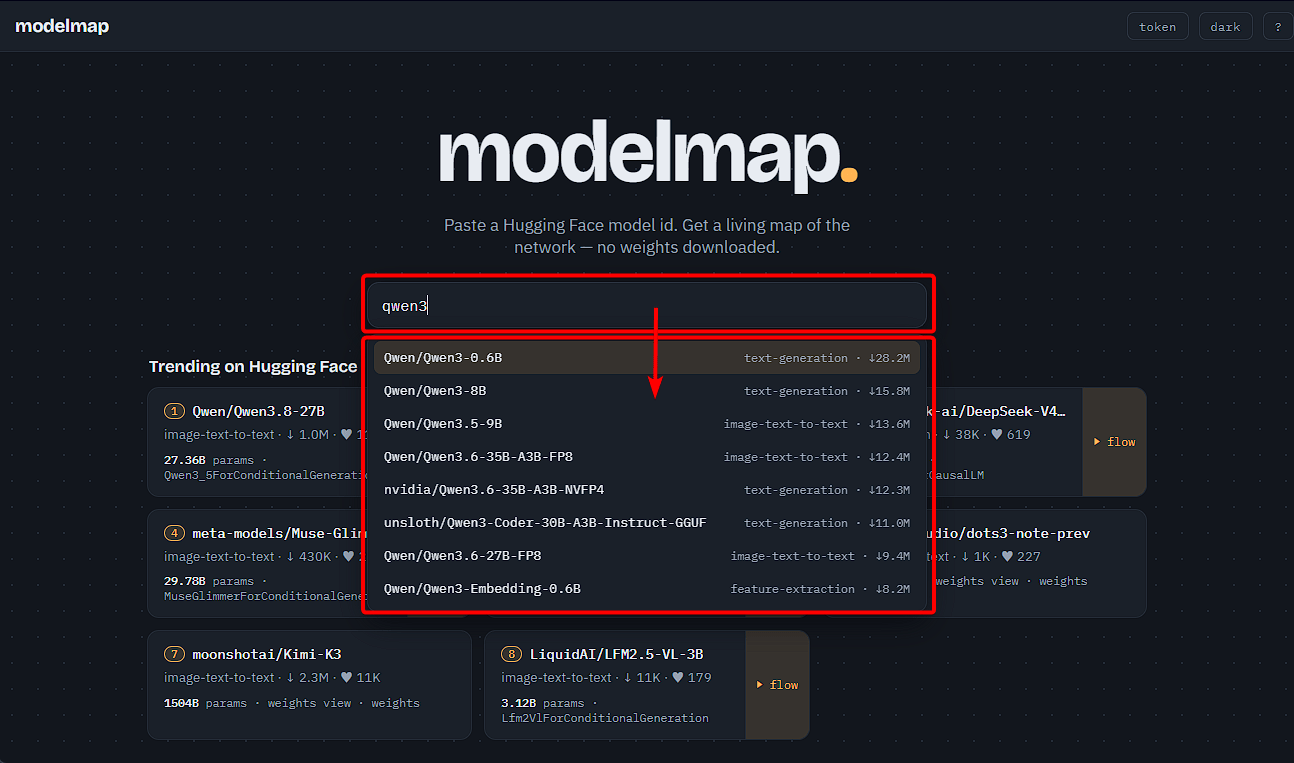
When you open the site, there is a text input field at the top of the screen. If you enter part of the AI model name, a list of matching candidates will be displayed. Note that at the time of writing this article, the candidate display sometimes did not work properly, and reloading the page sometimes resolved the issue.
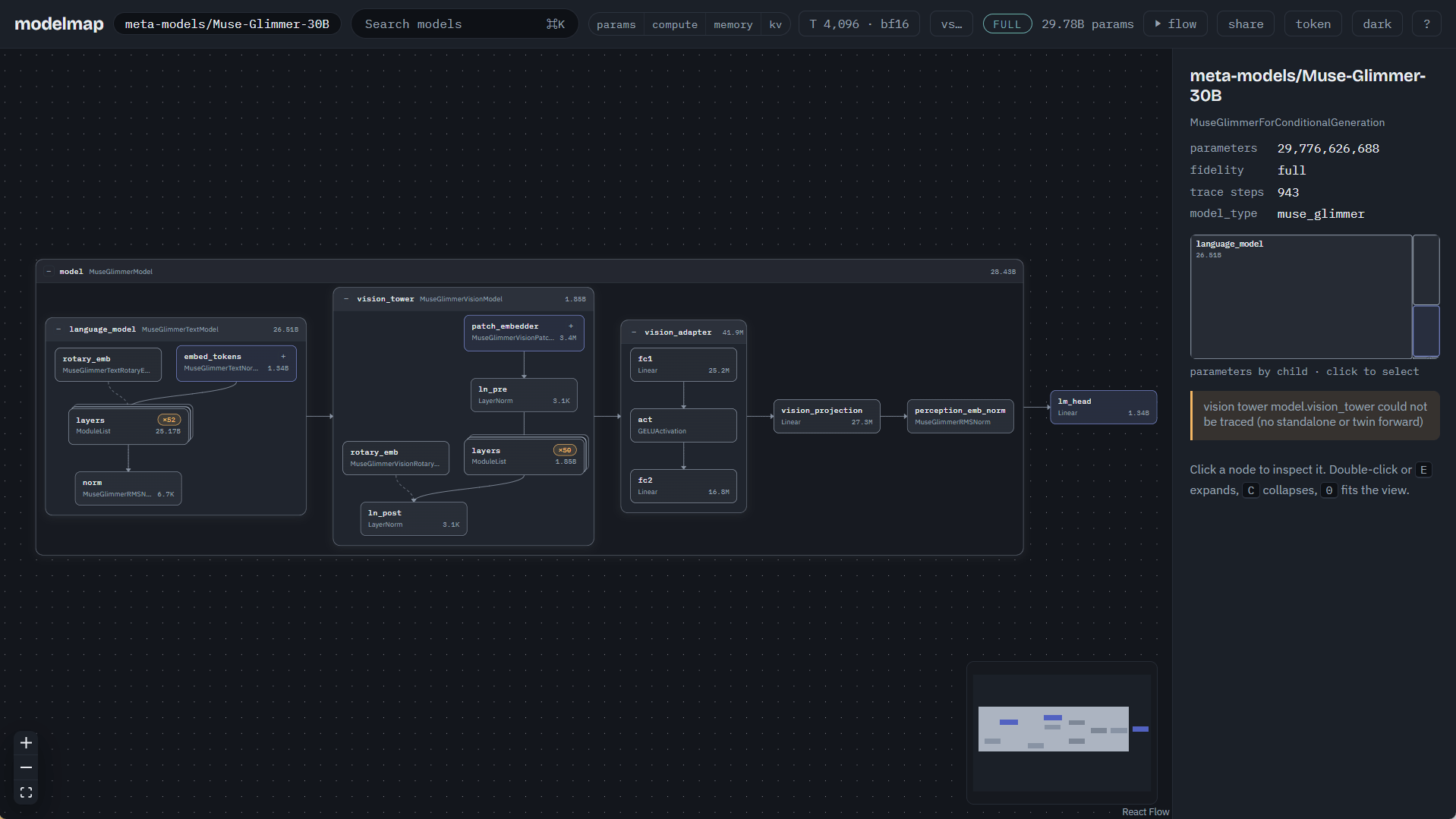
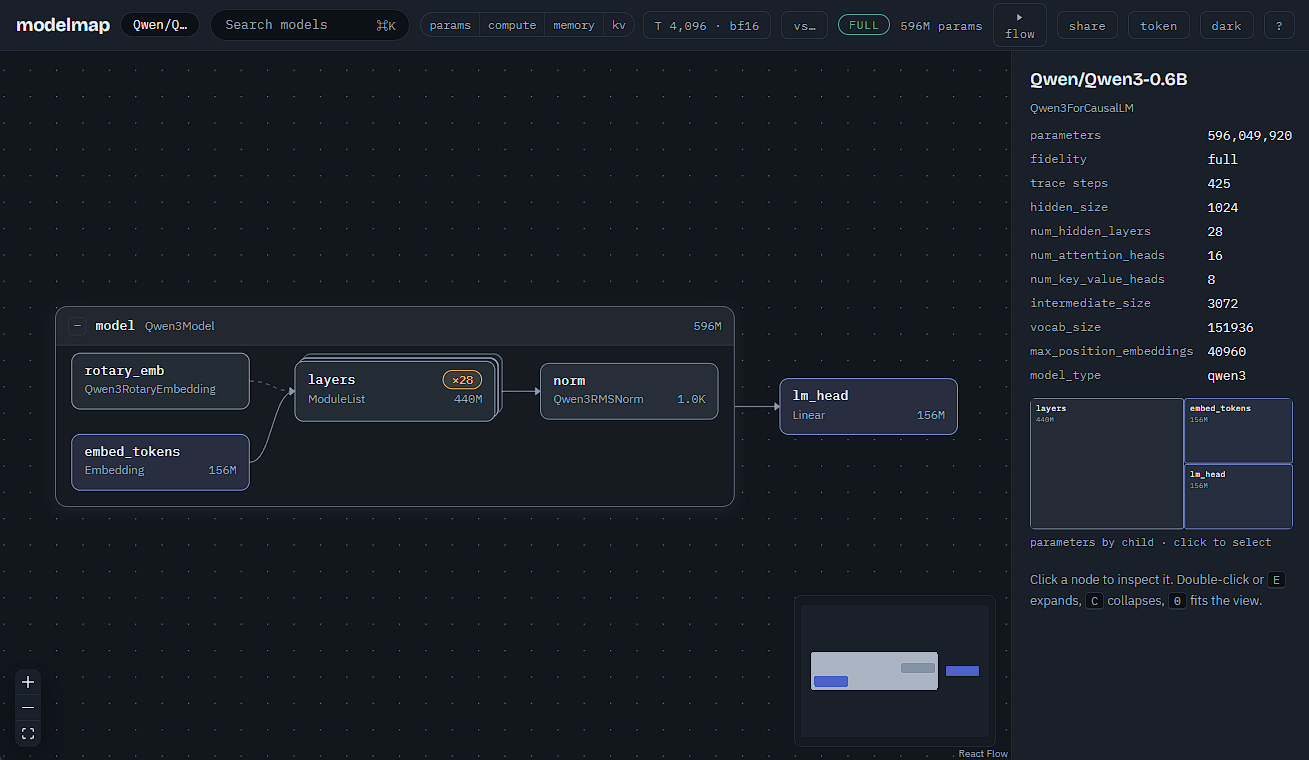
When you select an AI model from the candidates, its internal structure is visually displayed. In the case of the AI model selected this time, you can see that it consists of the main 'model' and the output layer 'lm_head'. Detailed information about the AI model is also displayed in the pane on the right side of the screen.
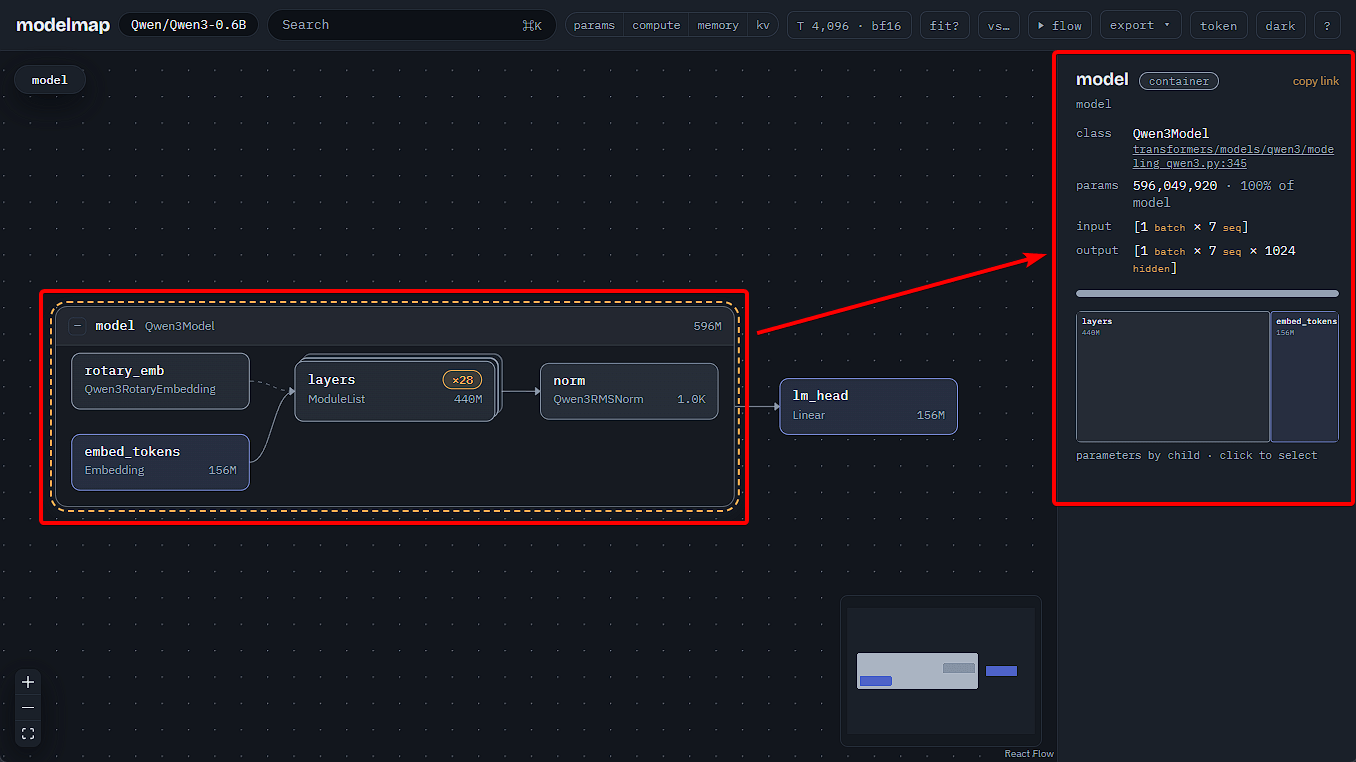
If you want to see more detailed information about the internal structure, for example, if you want to investigate 'model,' click on the 'model' shown in the diagram to select it, and the pane on the right side of the screen will switch to display detailed information about 'model.'
Parts of the internal structure that have a multi-layered structure, such as a list, will have a notation like 'x28' added to them. To see the internal structure in more detail, first select the target.
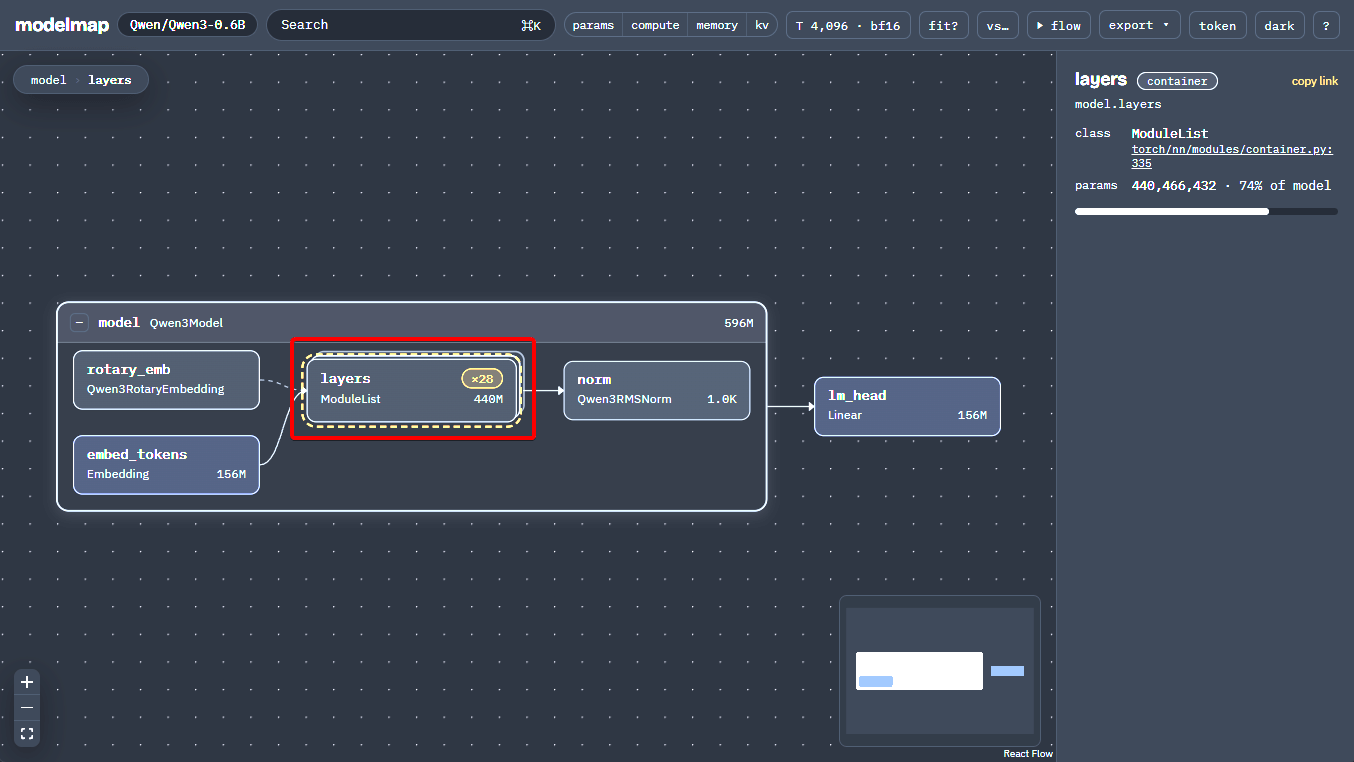
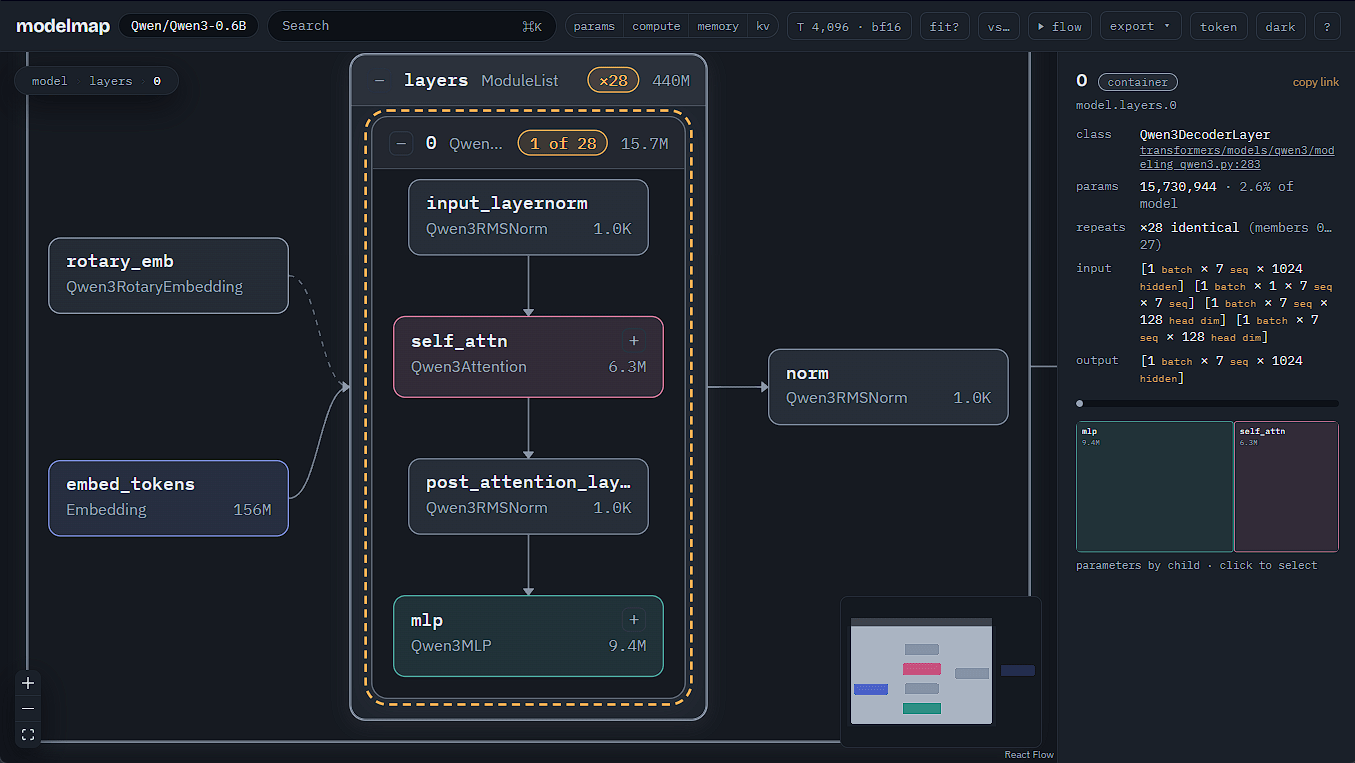
Pressing the E key while the item is selected will display a more detailed view of its internal structure.
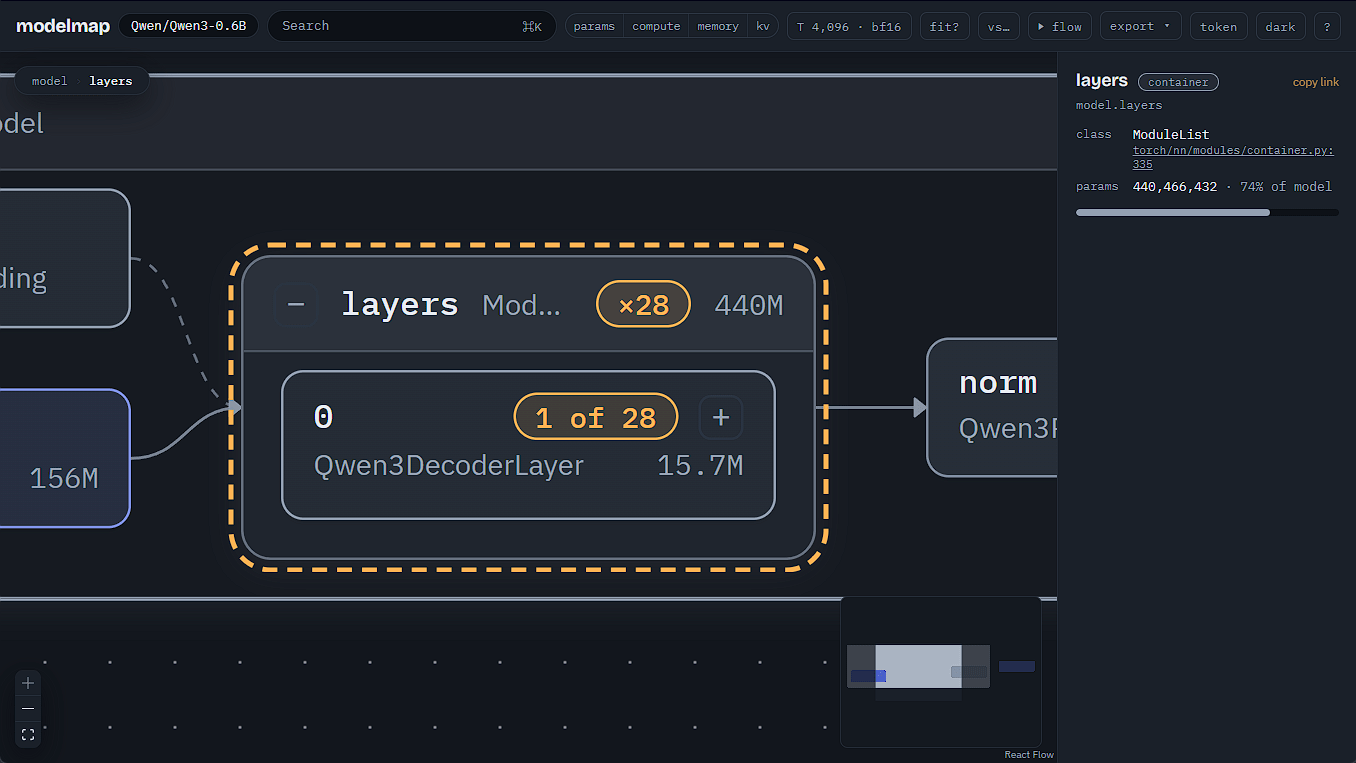
If the structure is nested, repeating the same process will display more details. Conversely, to return to a more compact display, press the C key.
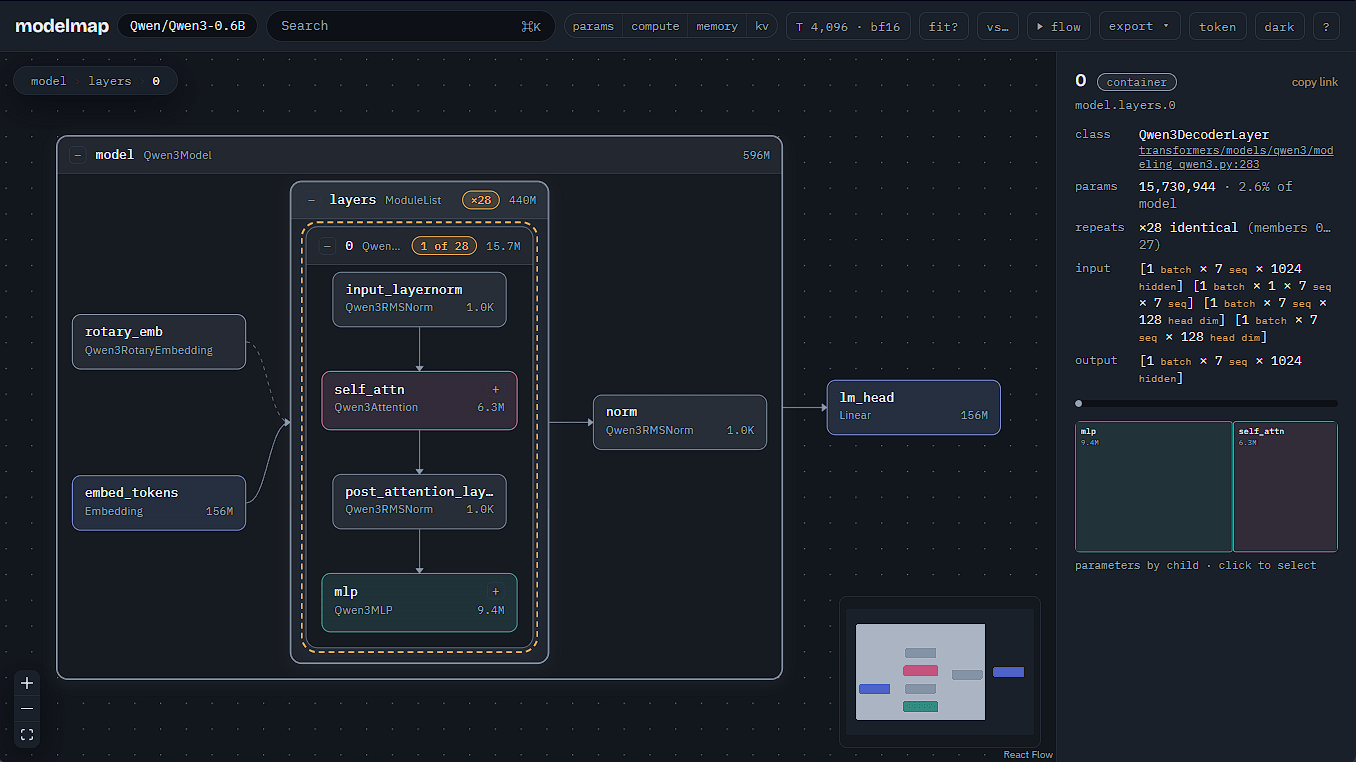
If too many inquiries are displayed and you can no longer see the whole picture, pressing the 0 key will automatically adjust the scale to the appropriate level.
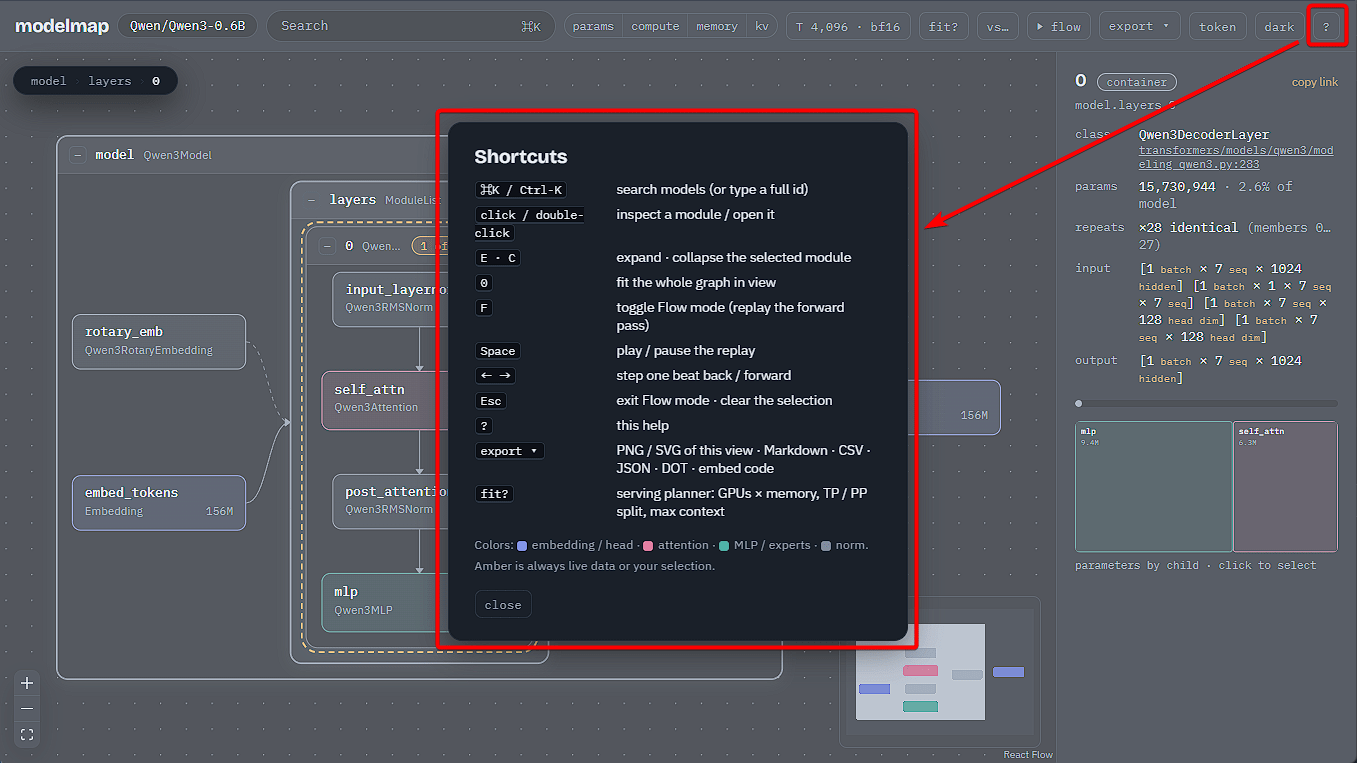
A list of available shortcut keys can be found in the pop-up window that appears when you click the '?' button in the upper right corner of the screen.
To view the processing flow, click the 'flow' button at the top of the screen. For some models, the processing flow cannot be viewed, and the 'flow' button will be disabled.
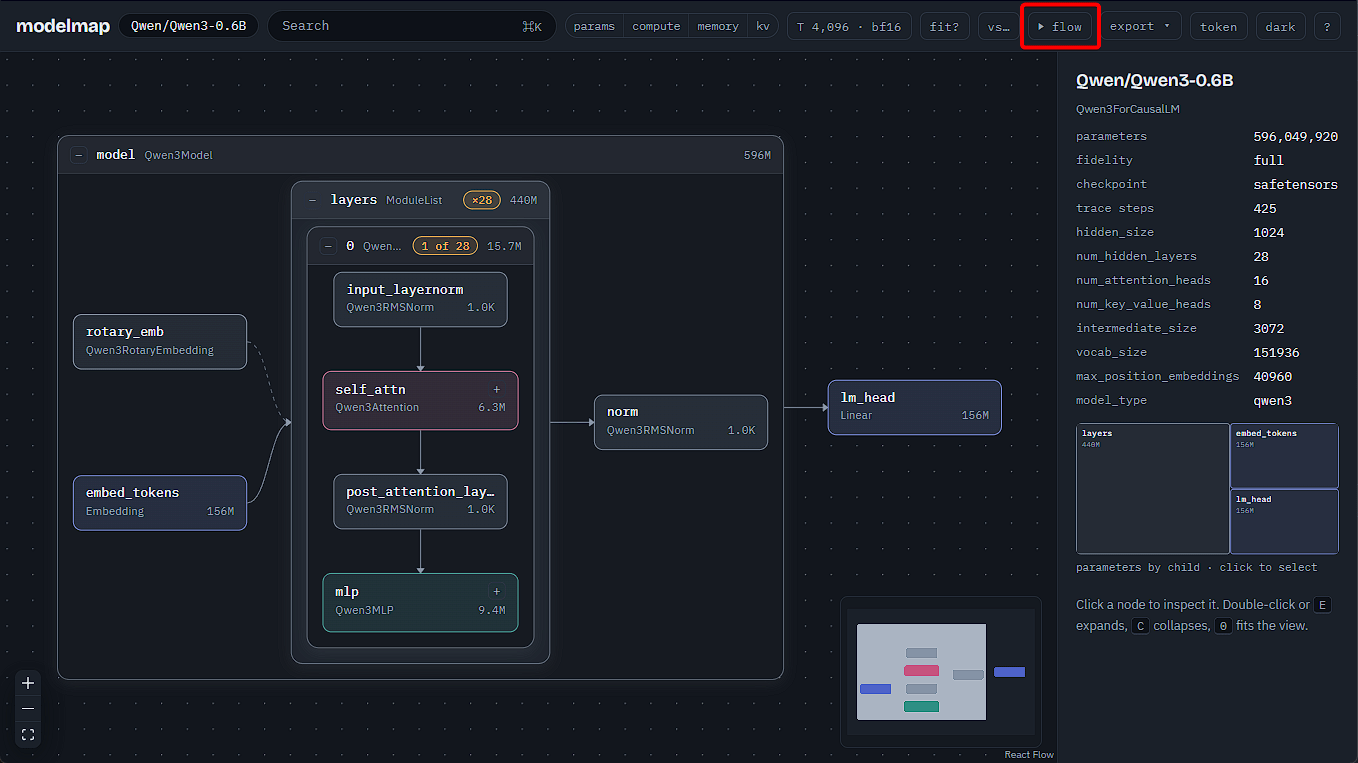
For models where the processing flow can be viewed, clicking the 'flow' button will start an animation, allowing you to see where processing occurs in the AI model in chronological order. The animation is very fast, so if you want to view it carefully, it is recommended to pause it by pressing the Space key and adjust it frame by frame using the left and right arrow keys.
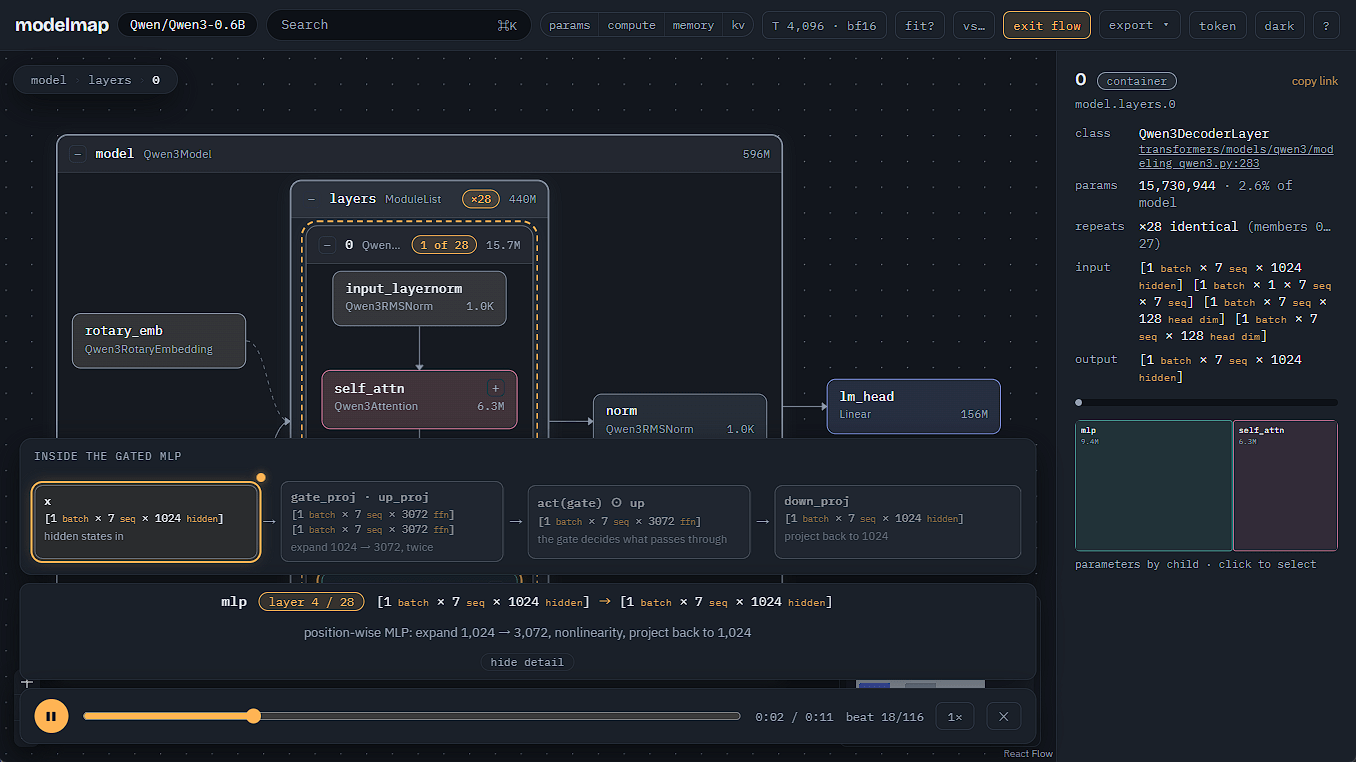
The actual animation display is shown in the video below.
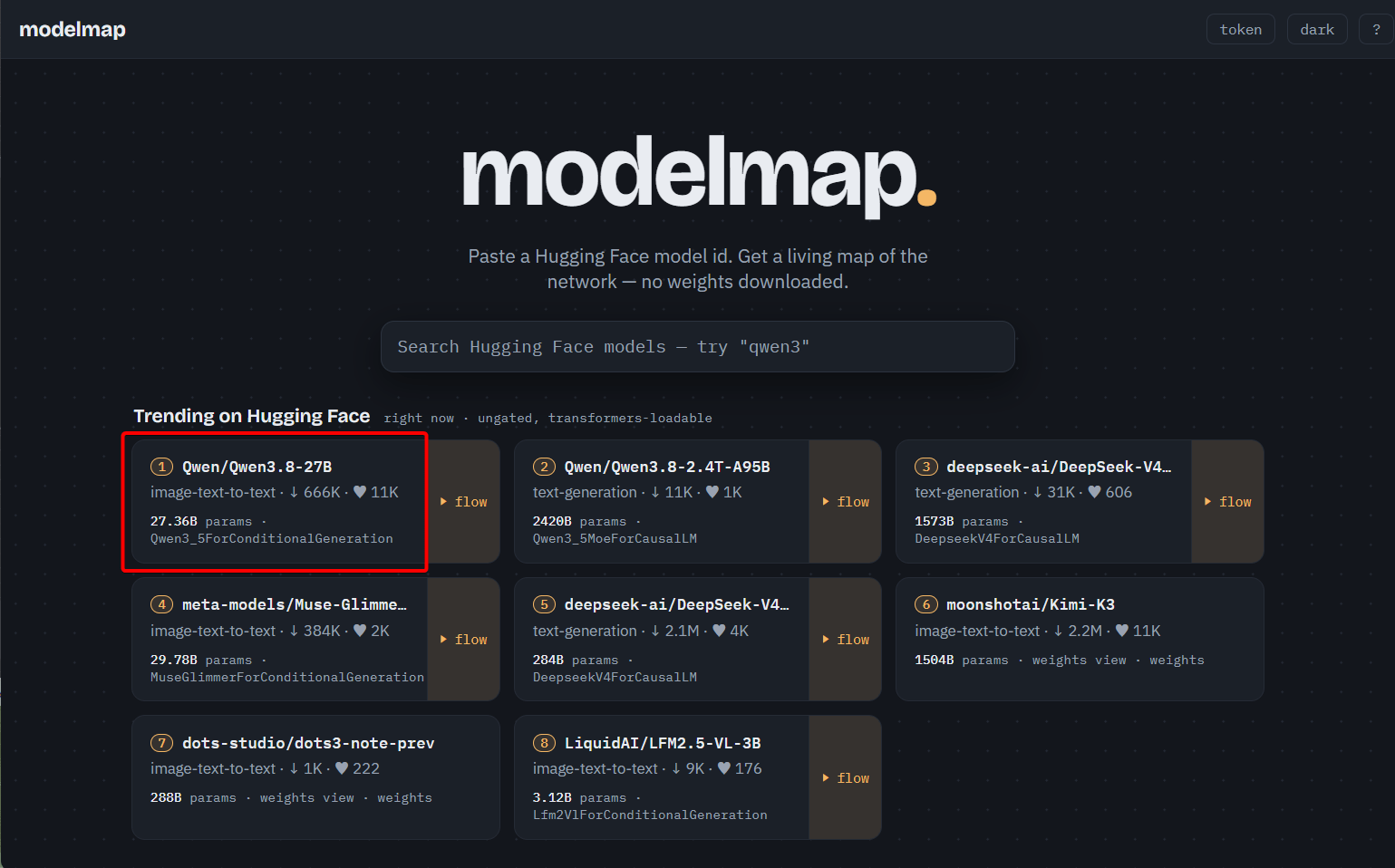
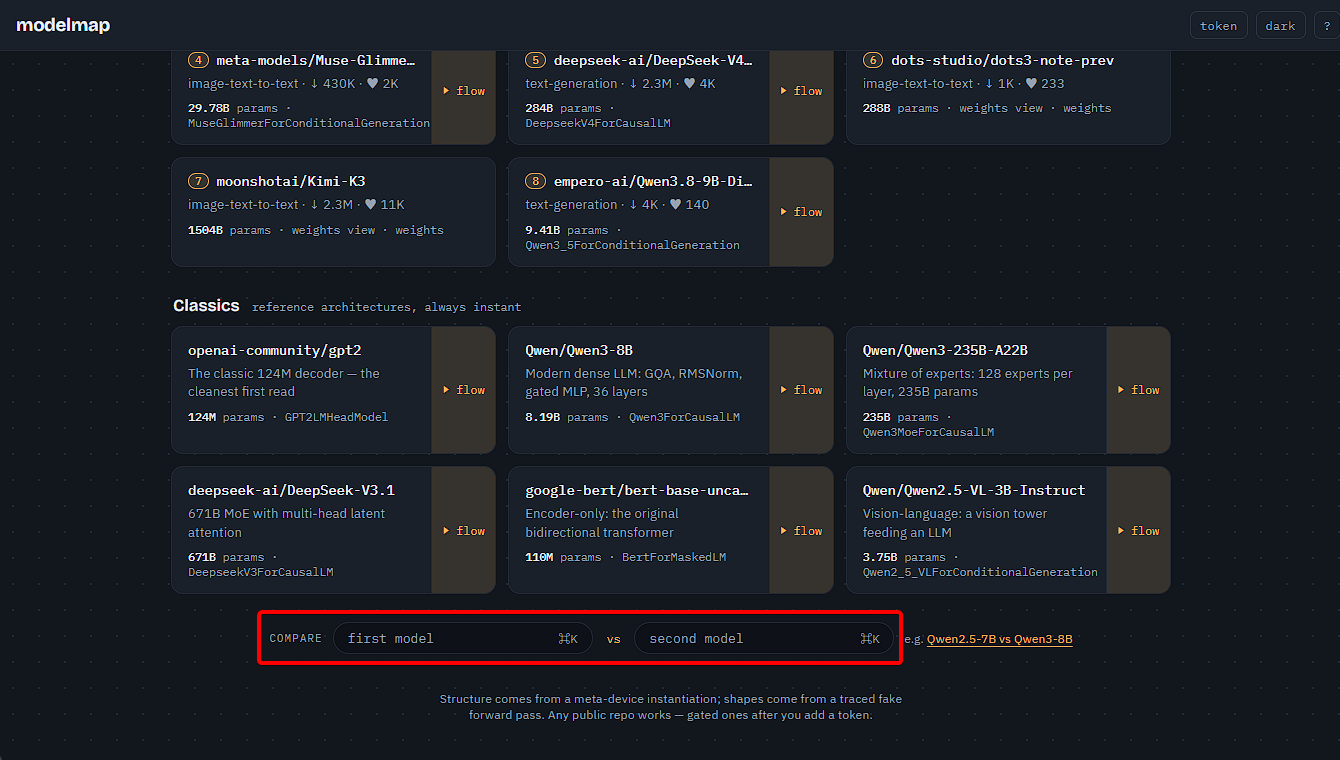
For major AI models, buttons are displayed on the top screen, allowing you to view their structure simply by clicking the corresponding button without having to search.
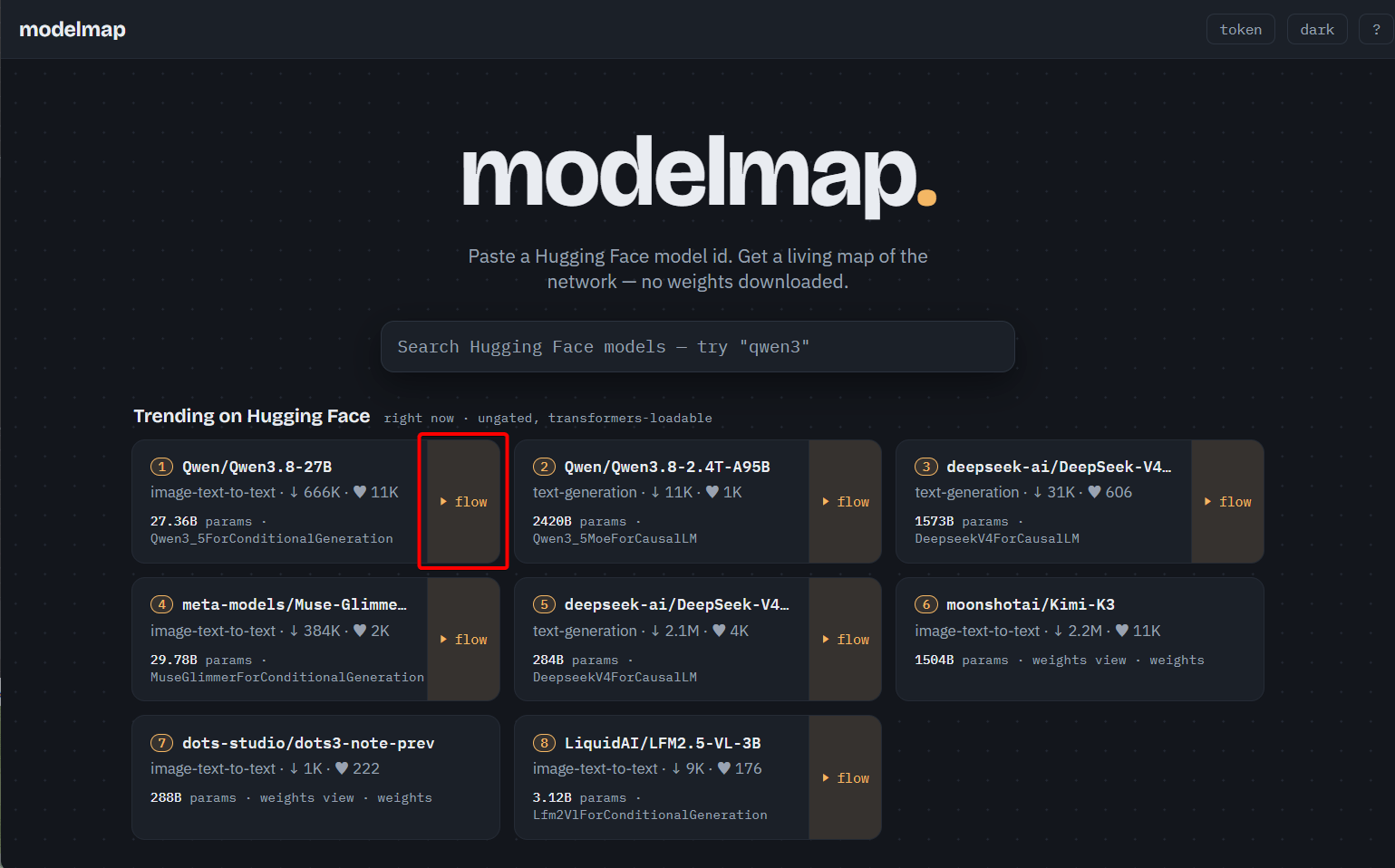
Additionally, for models that allow you to display processing flow animations, the word 'flow' is displayed to the right of the button, and clicking it will immediately start the animation.
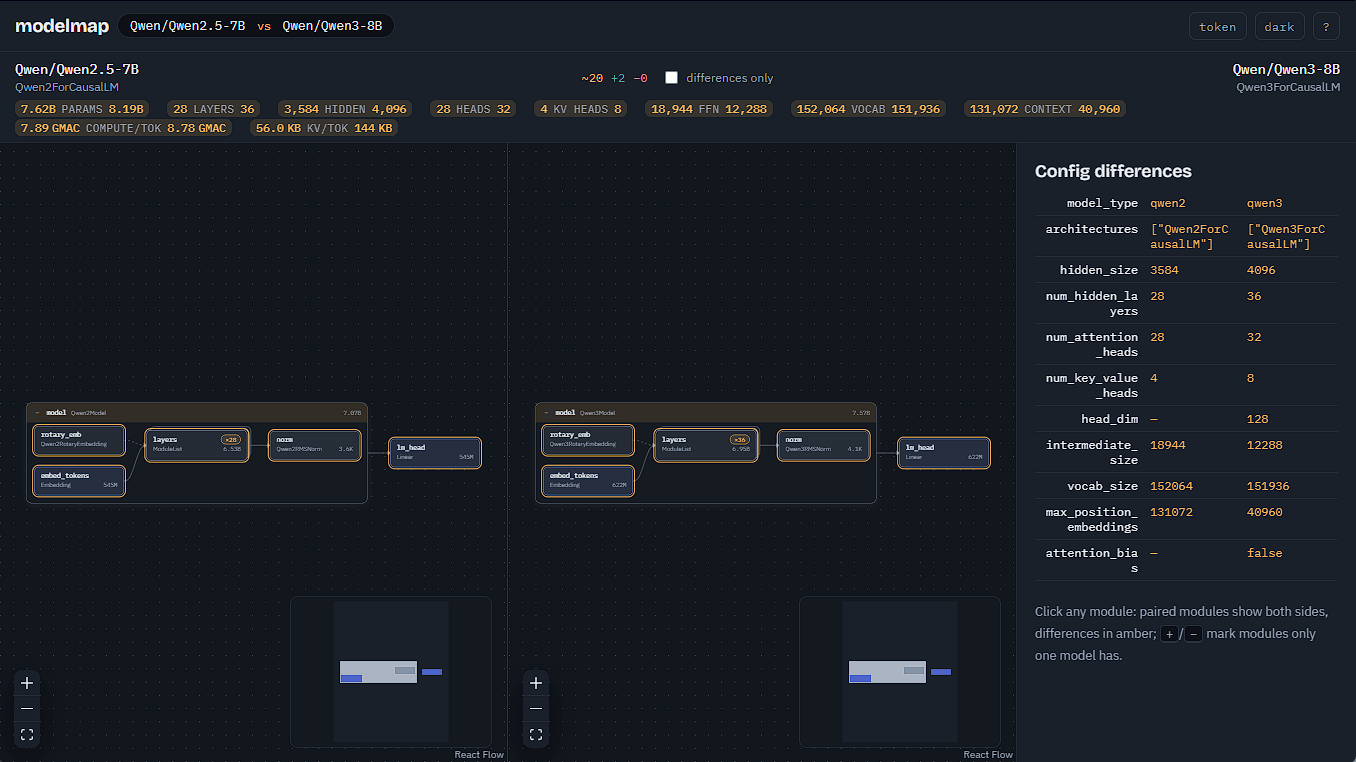
If you want to compare the differences between AI models, enter the names of the models you want to compare in the two text input fields labeled 'COMPARE' at the bottom of the screen.
The internal structure of the AI model is then displayed in parallel. Detailed information about the AI model is shown for comparison in the pane on the right side of the screen.
Modelmap helps you visually understand the internal structure and processing flow of an AI model, and even provides the rationale for deciding which AI model to use. If you want to understand AI models or are struggling to select one, we recommend trying out Modelmap.
Related Posts: