'kage' is a free service that removes JavaScript from web pages, saves the entire site locally, and allows you to view it offline.
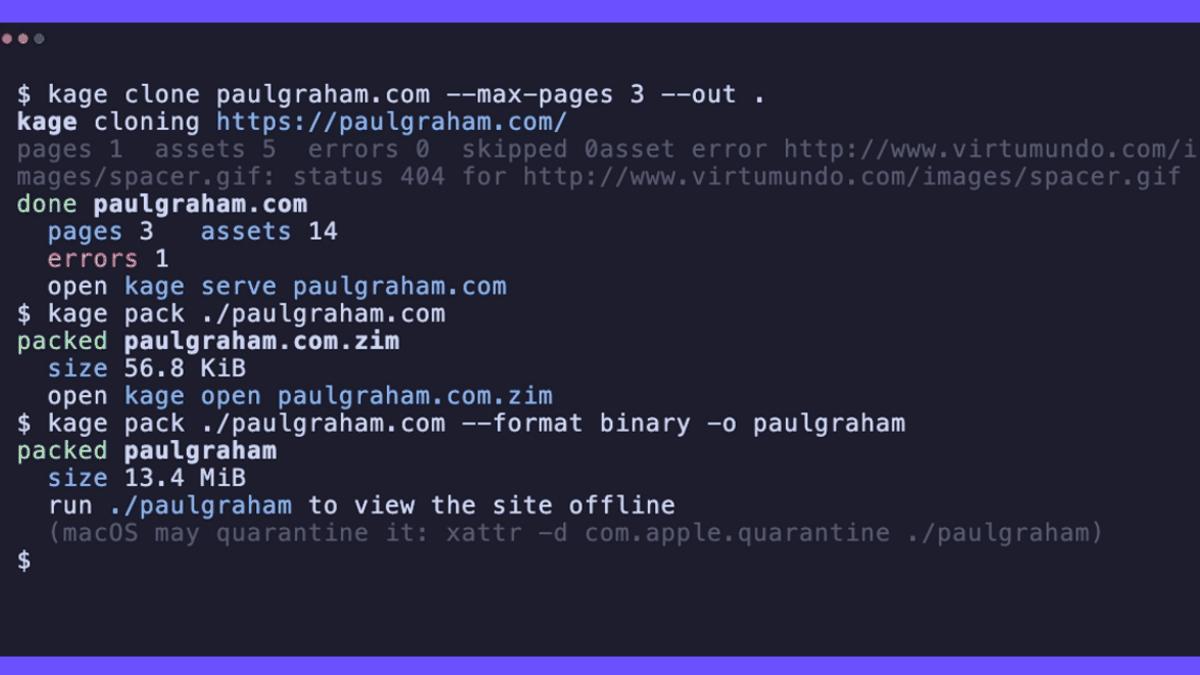
Even if you save a website displayed in your browser, if it relies on JavaScript for data retrieval or communication with external services, the main text may not display correctly, or images and layouts may be distorted in an offline environment. ' kage ' is a tool that removes JavaScript after the page has finished displaying in Chrome, and saves the HTML, images, and other files locally, allowing you to view dynamically generated content offline.
kage
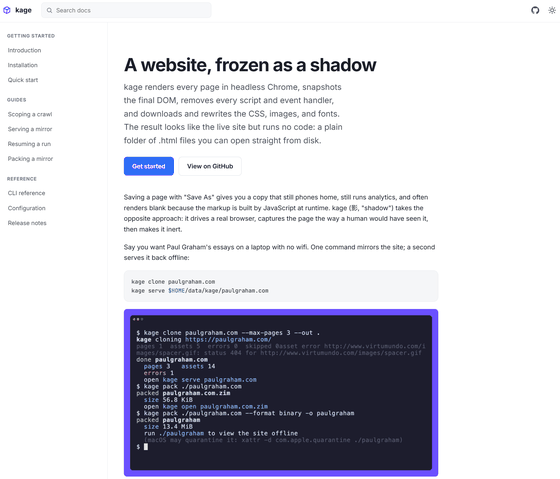
tamnd/kage: Shadow any website for offline viewing, with the JavaScript stripped out
◆Basic functions of kage
This command-line tool, compatible with Windows, macOS, and Linux, automatically analyzes the robots.txt and sitemap.xml files of a specified website, hierarchically traversing the entire site and saving the results.
◆Features of kage
• Browser-driven, reliable snapshots
Instead of simply downloading the HTML source, it actually runs headless Chrome internally to fully render the page, capturing content dynamically generated by JavaScript and lazy-loaded images as if you were actually browsing the site.
- Delete the script
After capturing, the DOM data is retrieved from the browser and all event handlers such as JavaScript tags and click events are completely removed, resulting in a static HTML file that does not involve any communication with external servers.
- Single binary application creation function
In addition to simply saving cloned folders, you can also convert them to the ' ZIM format ,' an open-source compressed archive format used for Wikipedia content, or package the website itself as a 'desktop application' that opens in a separate window when double-clicked.
◆List of other features
• Resume function: Even if you interrupt the crawl with Ctrl+C, your progress is automatically saved, so you can resume from where you left off the next time you run it.
- Differential update: Skips already cloned data and re-renders and updates only the newly added pages.
• Local preview server: Using HTTP server functionality, you can preview the site's behavior in a local environment just like the actual site.
◆ How to use kage
This time, we will be working in an environment where Docker Desktop and Git Bash for Windows are set up on Windows.
- Site acquisition
For example, to retrieve ' GIGAZINE.BIZ ', you can use the command 'kage clone gigazine.biz' with options such as 'up to 50 pages', 'only one level of links', and 'do not use sitemap' to retrieve the pages that are linked from the homepage up to one level.
 MSYS_NO_PATHCONV=1 docker run --rm -v './out:/out' \
 ghcr.io/tamnd/kage clone gigazine.biz \
 --max-pages 50 --max-depth 1 --no-sitemap
The execution result was as follows:
 kage cloning https://gigazine.biz/
 kage: container detected, Chrome sandbox disabled
 done /out/data/kage/gigazine.biz
 Pages 15, Assets 40
 open kage serve /out/data/kage/gigazine.biz
- Viewing the acquired website
Convert the command displayed in the execution result, 'open kage serve /out/data/kage/gigazine.biz', into a Docker command and execute it.
 MSYS_NO_PATHCONV=1 docker run --rm -p 8800:8800 \
 -v './out:/out' ghcr.io/tamnd/kage serve \
 /out/data/kage/gigazine.biz -a 0.0.0.0:8800
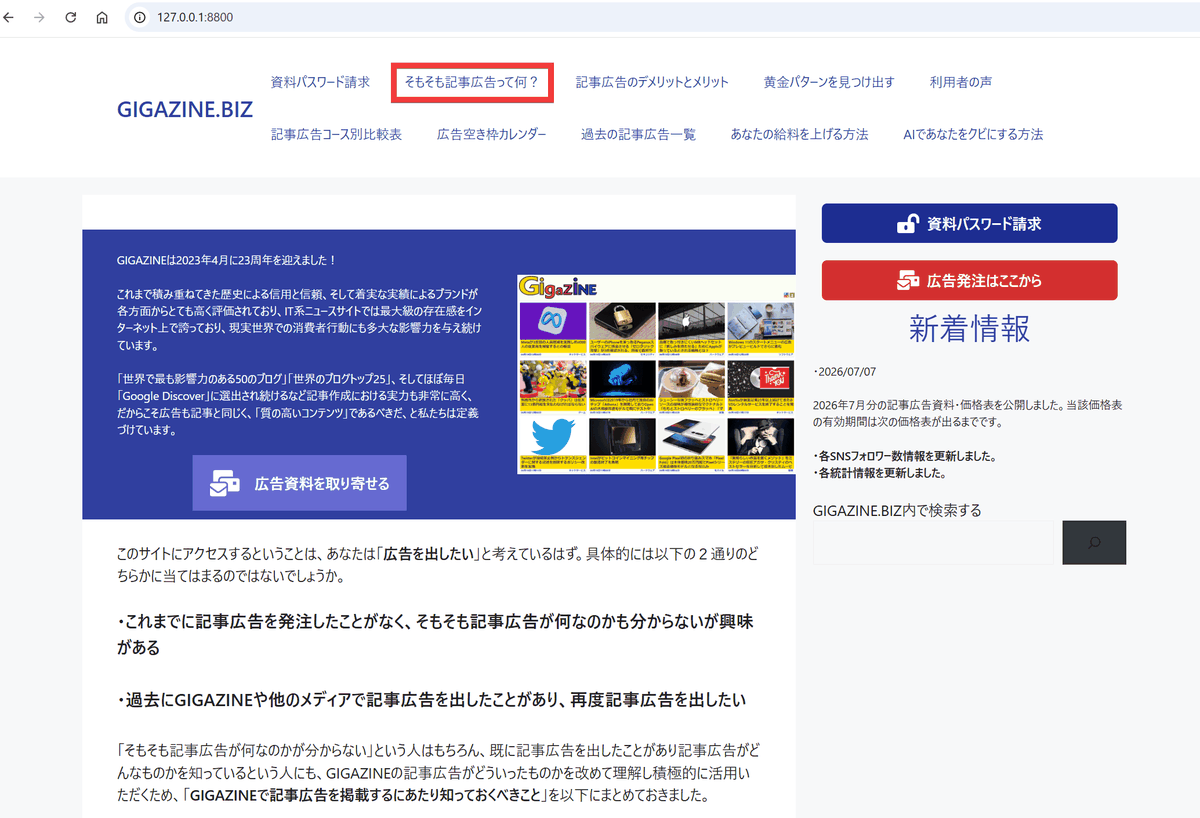
Once the server starts up and displays 'http://[::]:8800', open your browser and access 'http://127.0.0.1:8800'...
 kage serve /out/data/kage/gigazine.biz
 open http://[::]:8800
 Press Ctrl-C to stop
The GIGAZINE.BIZ homepage was displayed. Click the link 'What exactly is an advertorial?'.
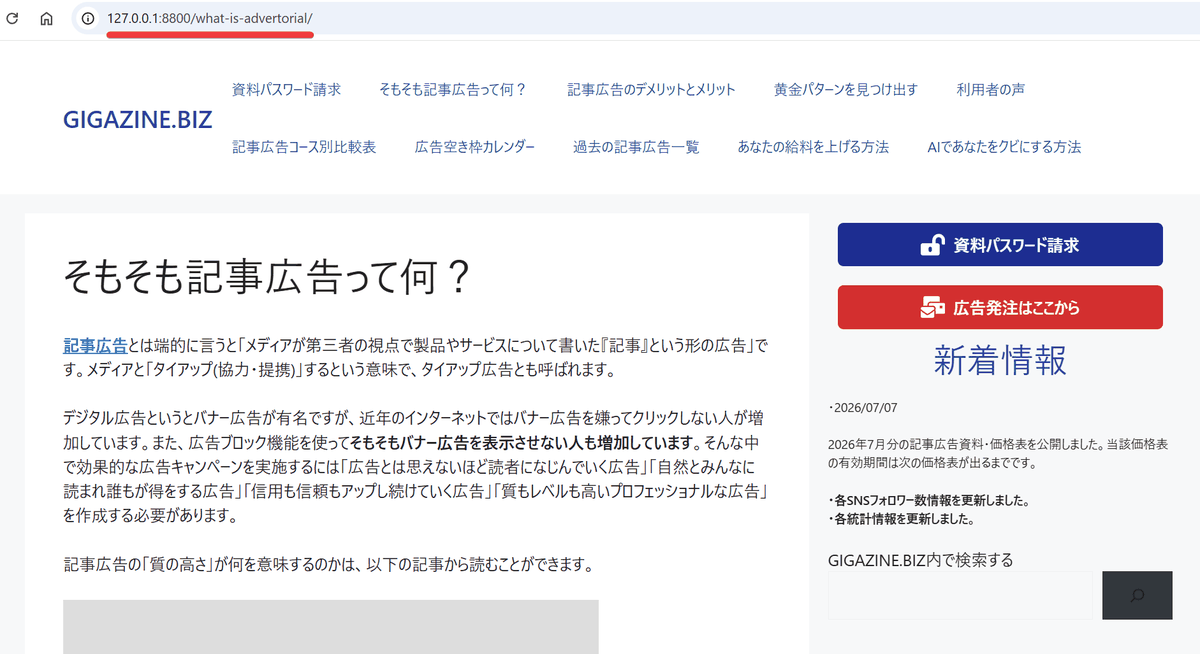
The website was accessed via 'http://127.0.0.1:8800/what-is-advertorial/', and access to subpages was also working correctly locally.
- Centralized as a ZIM file
After obtaining the site, running the 'kage pack' command will create a ZIM file named 'gigazine.biz.zim' in the out folder.
 MSYS_NO_PATHCONV=1 docker run --rm -v './out:/out' \
 ghcr.io/tamnd/kage pack gigazine.biz
To view ZIM files, use the 'kage open' command, which will start a server similar to the serve server.
 MSYS_NO_PATHCONV=1 docker run --rm -p 8800:8800 \
 -v './out:/out' ghcr.io/tamnd/kage open \
 /out/gigazine.biz.zim -a 0.0.0.0:8800
• Turning the website into an app
Releases · tamnd/kage
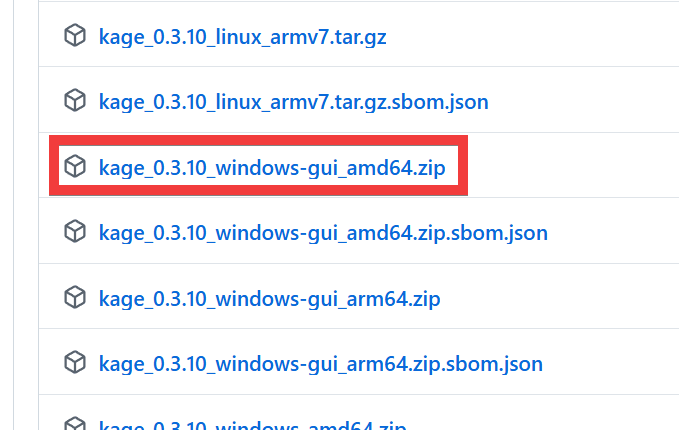
Since a base executable file is required, access the repository's Releases page, click on 'kage_0.3.10_windows-gui_amd64.zip', and save it.
After extracting the ZIP file and copying the 'kage.exe' file to the out folder, you're ready to go.
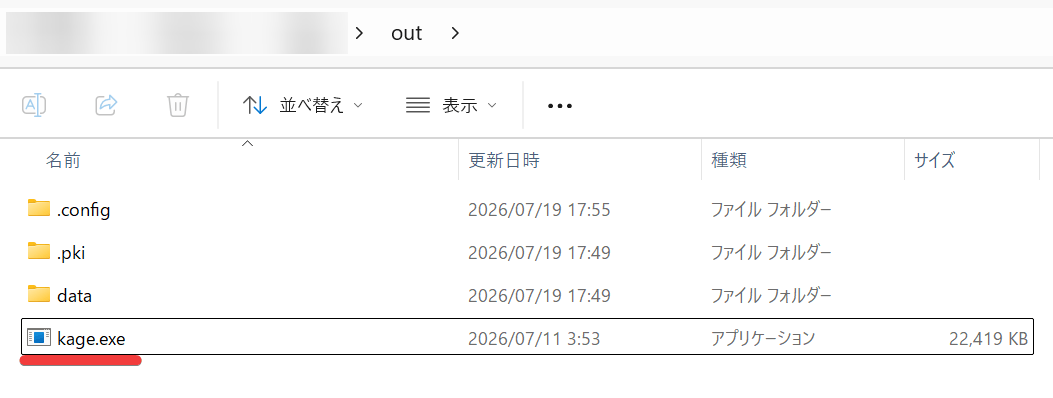
To create an application, execute the 'kage pack' command with the option '--format binary --base ./out/kage.exe'.
 MSYS_NO_PATHCONV=1 docker run --rm -v './out:/out' \
 ghcr.io/tamnd/kage pack gigazine.biz \
 --format binary --base /out/kage.exe
The execution result is as follows: 'gigazine.exe' has been created in the out folder.
 pack gigazine.exe
 size 24.4 MiB
 this is a Windows viewer; copy gigazine.exe to that machine to run it
Run gigazine.exe.
./out/gigazine.exe
Your browser will launch and display the saved website.

On the social news site Hacker News , there has been much discussion about kage, with one comment pointing out that, compared to SingleFile , 'SingleFile converts not only JavaScript but also web fonts, images, etc., into base64 strings and packs all assets into a single HTML file.' In response, the author explained that 'while SingleFile mainly saves one page, kage aims to save the entire site in a way that allows users to crawl multiple pages and move between them.' It should be noted that the SingleFile CLI version , which is derived from SingleFile, supports crawling the entire site.
Related Posts: