'FUTO Voice Input' enables Japanese voice input using Whisper on Android.

'FUTO Voice Input' enables Japanese voice input using
FUTO Voice Input
https://voiceinput.futo.org/
keyboard / VoiceInput · GitLab
https://gitlab.futo.org/keyboard/voiceinput
◆Overview
The following software keyboards are supported by FUTO Voice Input:
FUTO Keyboard
HeliBoard
・FlorisBoard supports it on newer releases
AnySoftKeyboard
・Unexpected Keyboard(v1.23+)
AOSP Keyboard
Grammarly Keyboard
Microsoft SwiftKey
The following software keyboards are not supported.
Gboard: Because it is hardcoded to use Google's voice input.
Samsung Keyboard: It is hardcoded to only allow Samsung voice input or Google voice input.
• Simple Keyboard by Raimondas Rimkus: No sound
• Simple Keyboard by Simple Mobile Tools: No sound
・TypeWise: Because it does not have a voice button.
FUTO Voice Input is based on the OpenAI Whisper model, so theoretically it supports all languages supported by OpenAI Whisper. However, in practice, it cannot fully demonstrate its potential with languages that require less training time. As a guideline for whether it can perform the expected voice input, we only support languages that require '1000 hours or more of training time.'
·English
- Chinese (However, there are currently some strange behaviors between traditional and simplified characters)
German
Spanish
Russian
·French
Portuguese
·Korean
·Japanese
Turkish
Polish
Italian
Swedish
Dutch
Catalan
Finnish
Indonesian
◆Installation
The download site is as follows:
Google Play
F-Droid
APK file
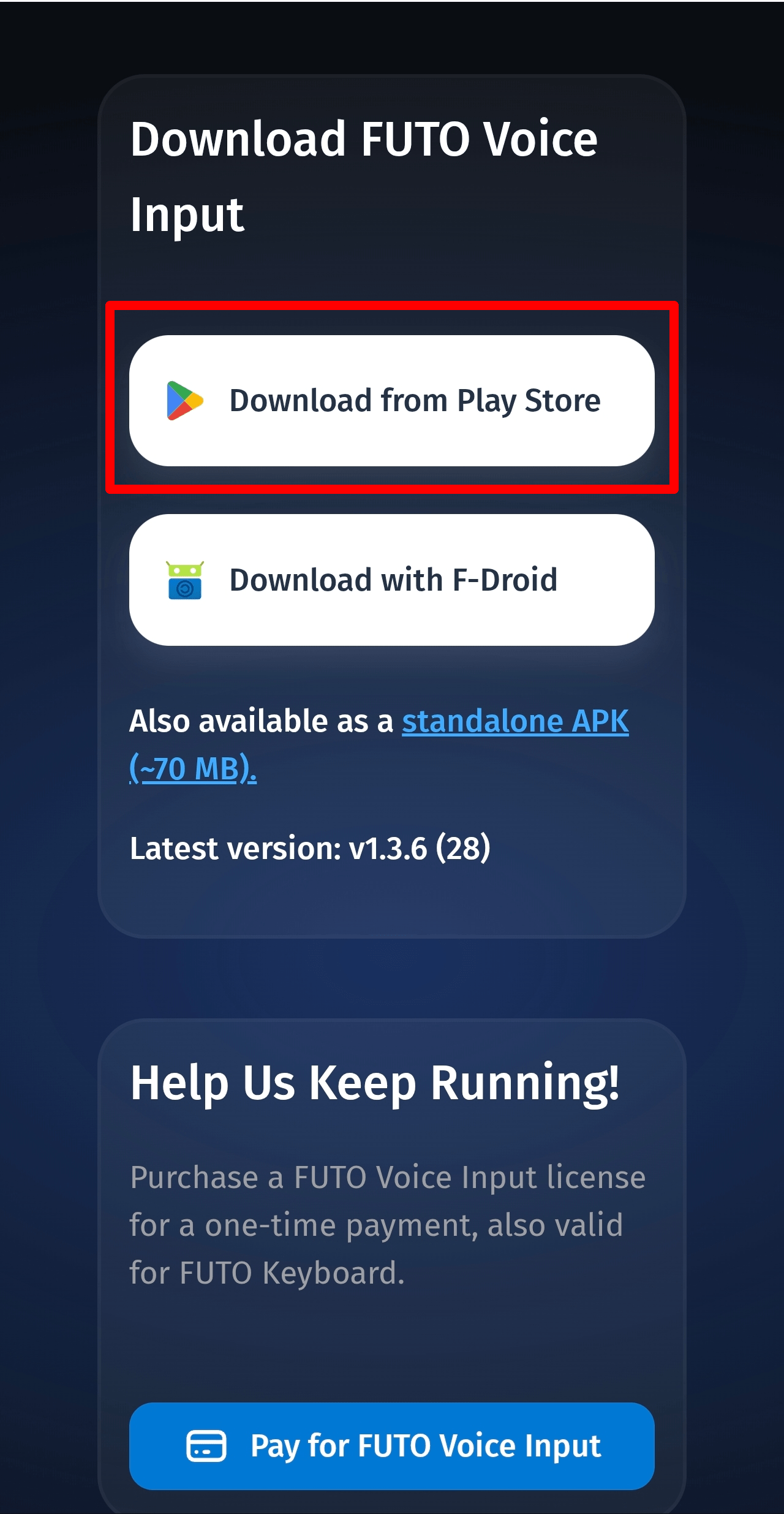
This time, we'll install it via Google Play. Tap 'Download from Play Store' located directly below 'Download FUTO Voice Input' on the official website.
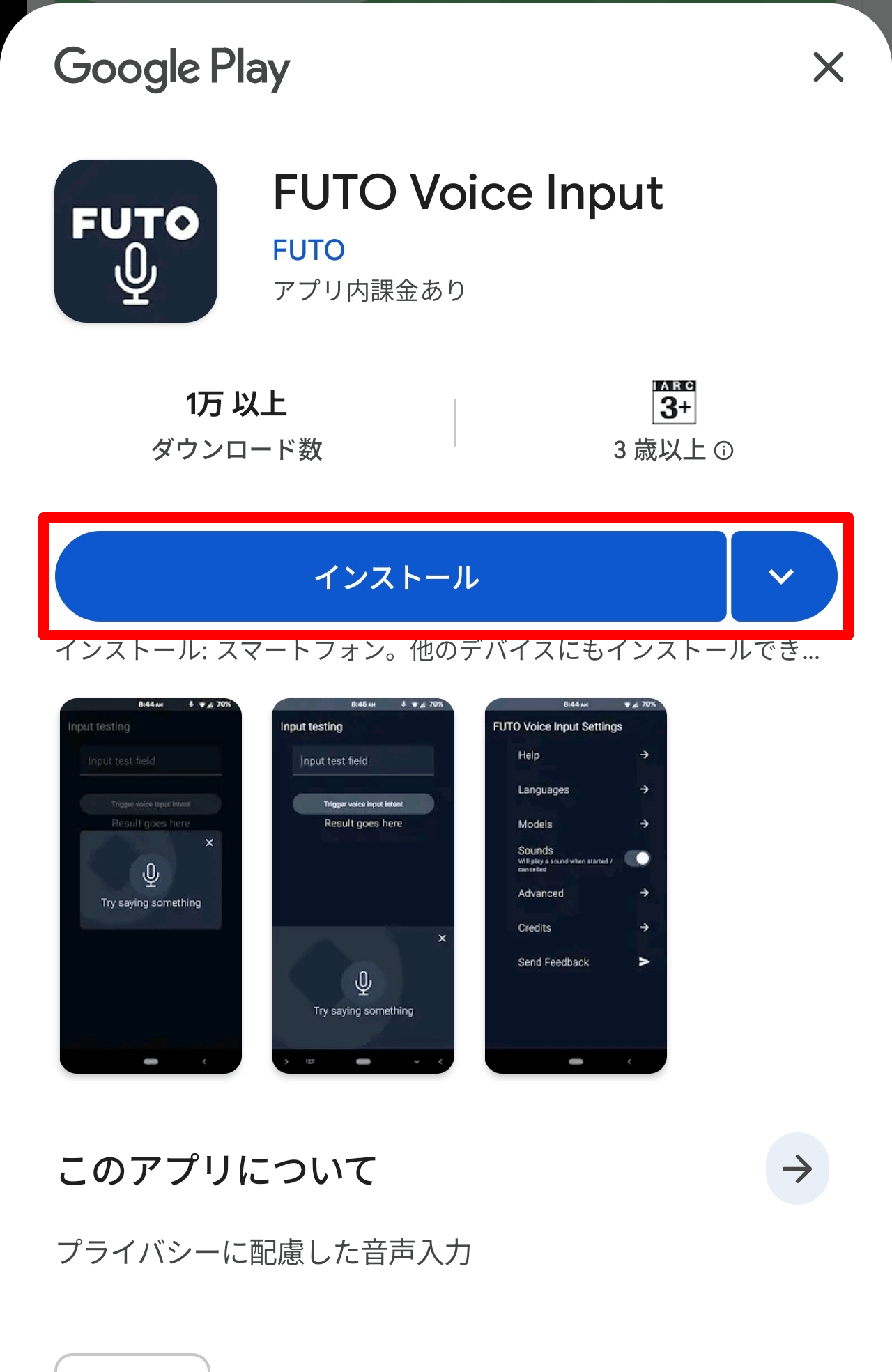
The Google Play page for 'FUTO Voice Input' will appear, so tap 'Install'.
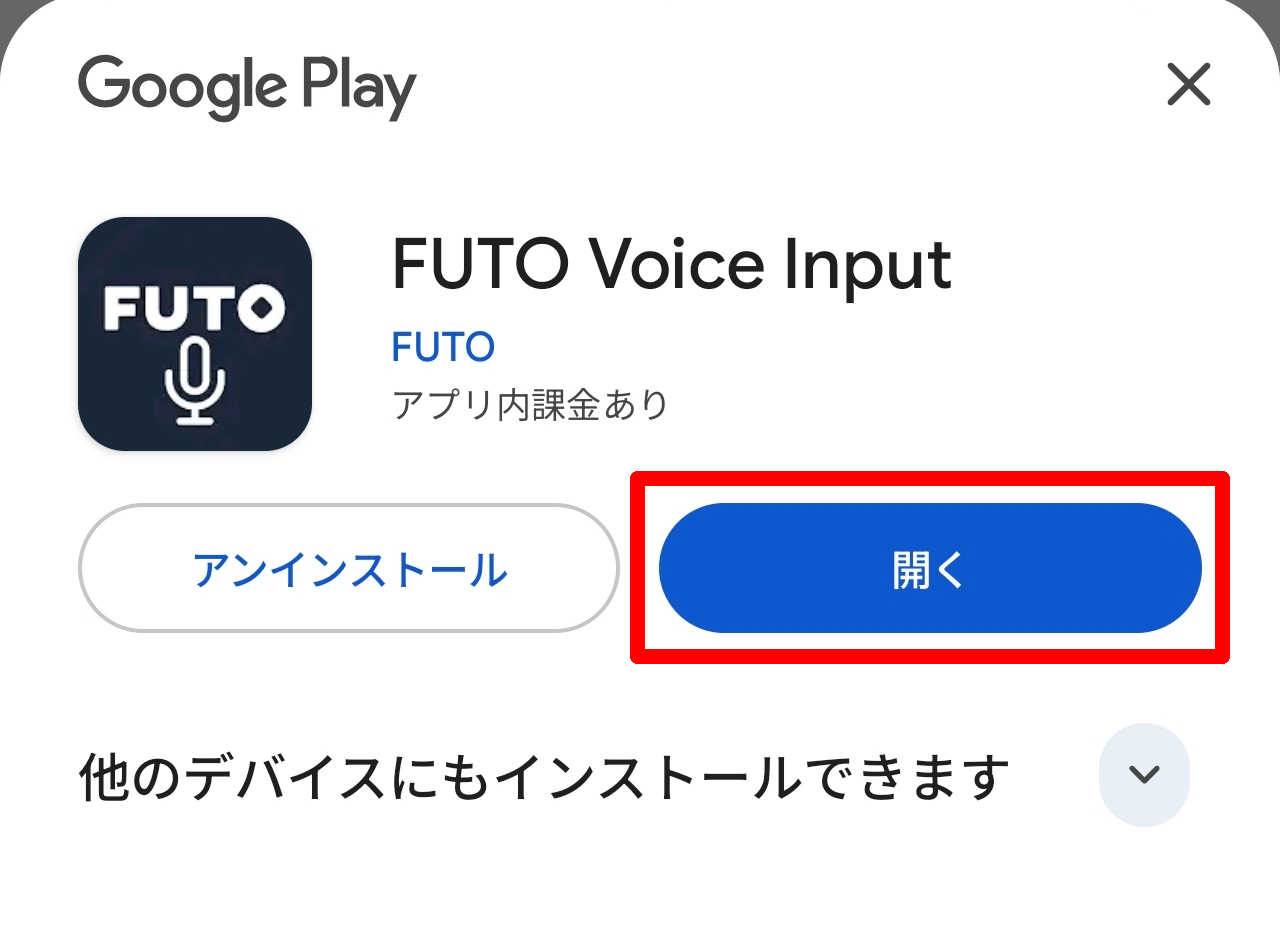
Once the installation is complete, tap 'Open'.
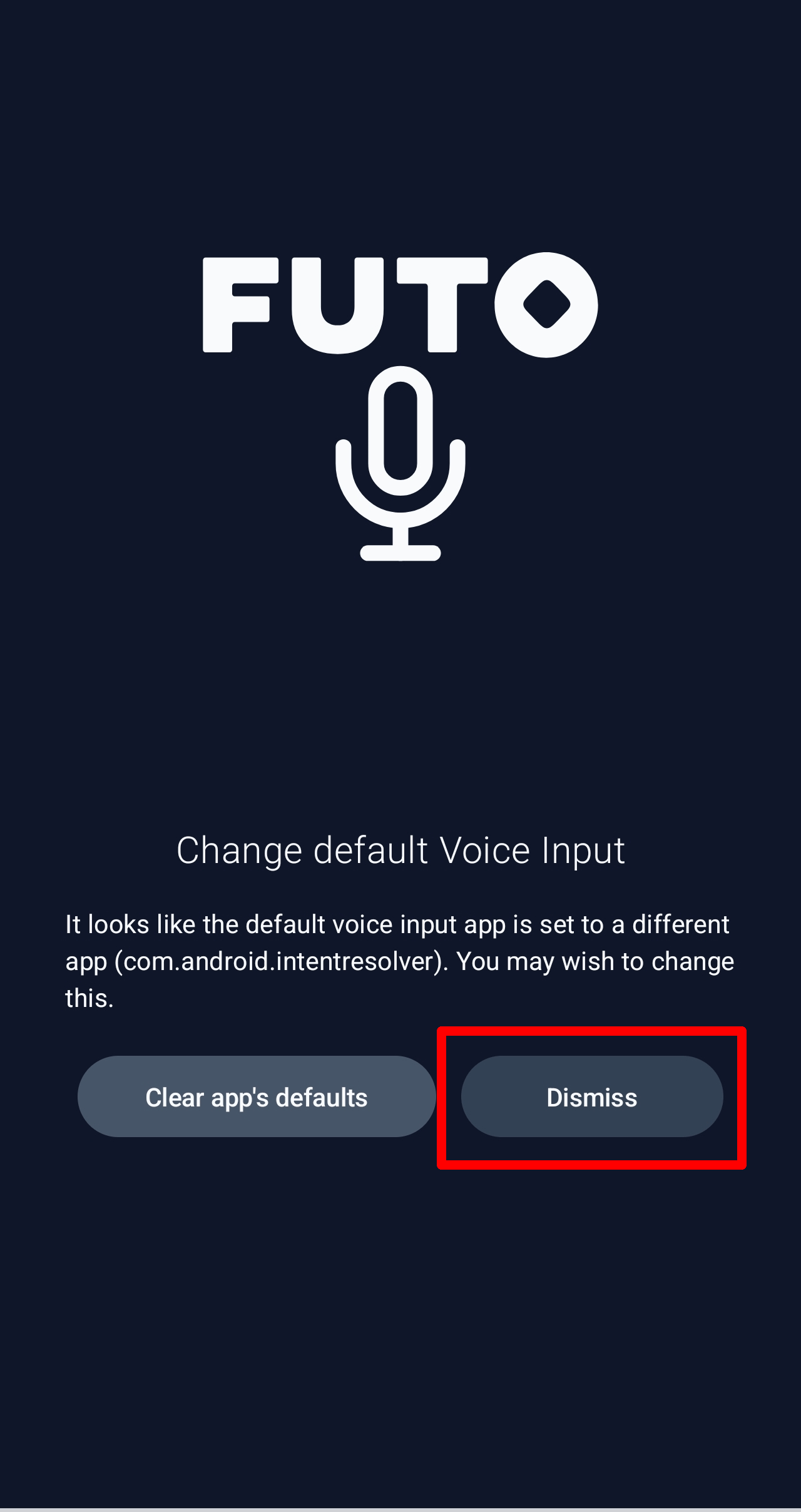
If another voice input app is enabled, the 'Change default Voice Input' screen will appear. Tap 'Dismiss' to proceed.
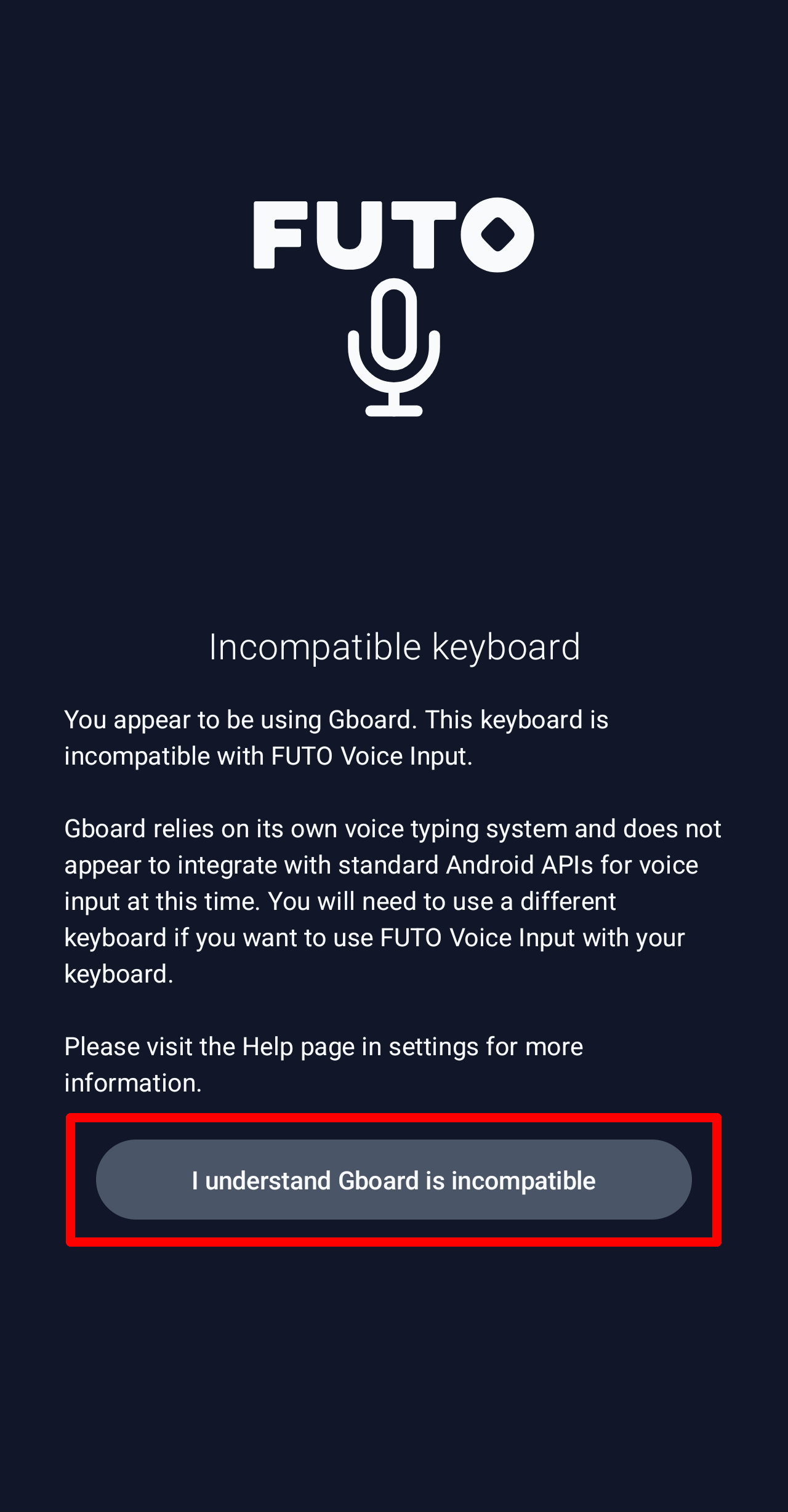
If an unsupported software keyboard is enabled, an 'Incompatible keyboard' screen will appear. Tap 'I understand [enabled software keyboard] is incompatible' to proceed.
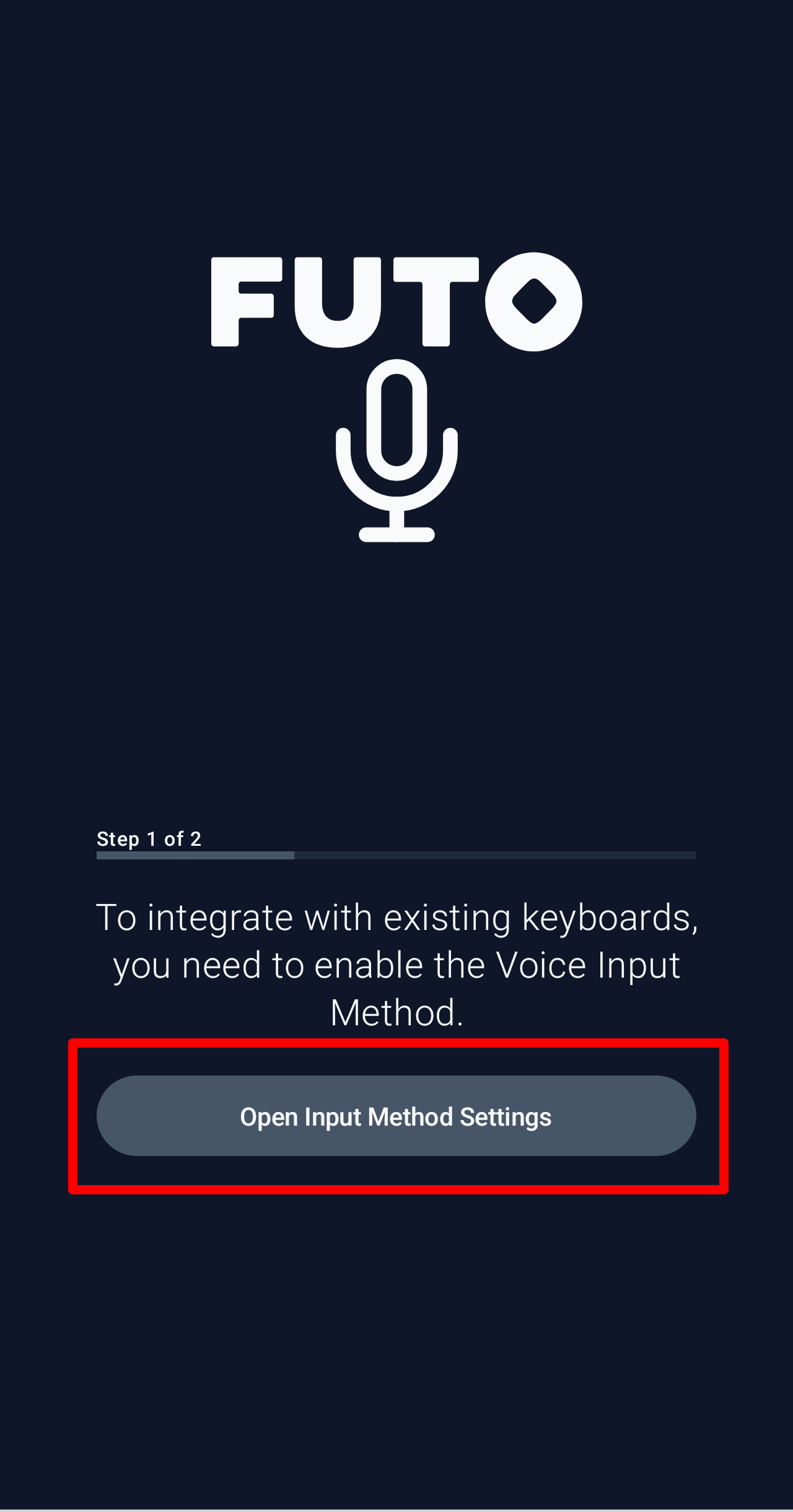
A message will appear stating, 'You need to enable Voice Input to integrate with your existing keyboard.' Tap 'Open Input Method Settings' to access the OS keyboard management screen and configure the settings.
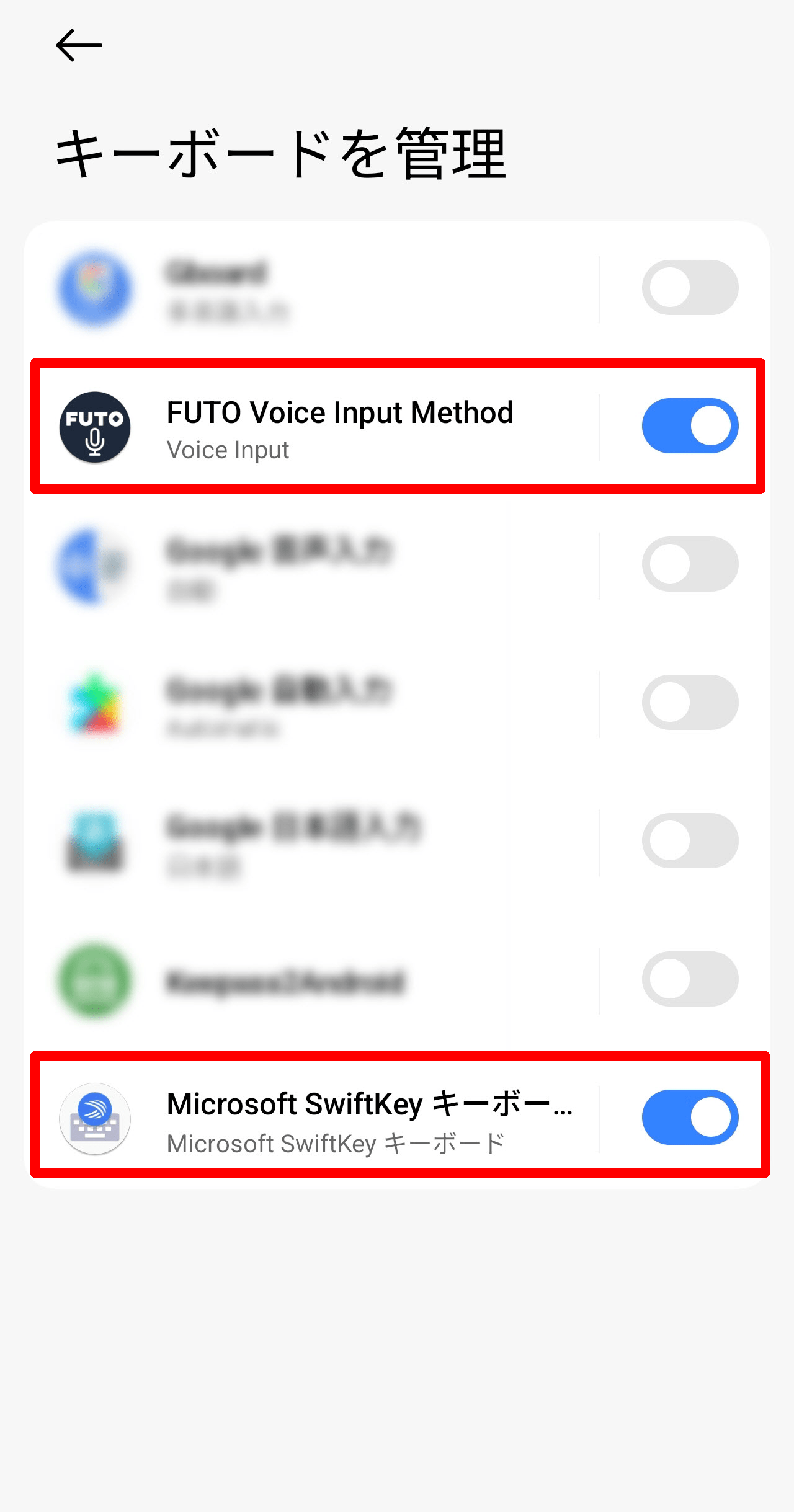
For now, enable FUTO Voice Input and any supported on-screen keyboards.
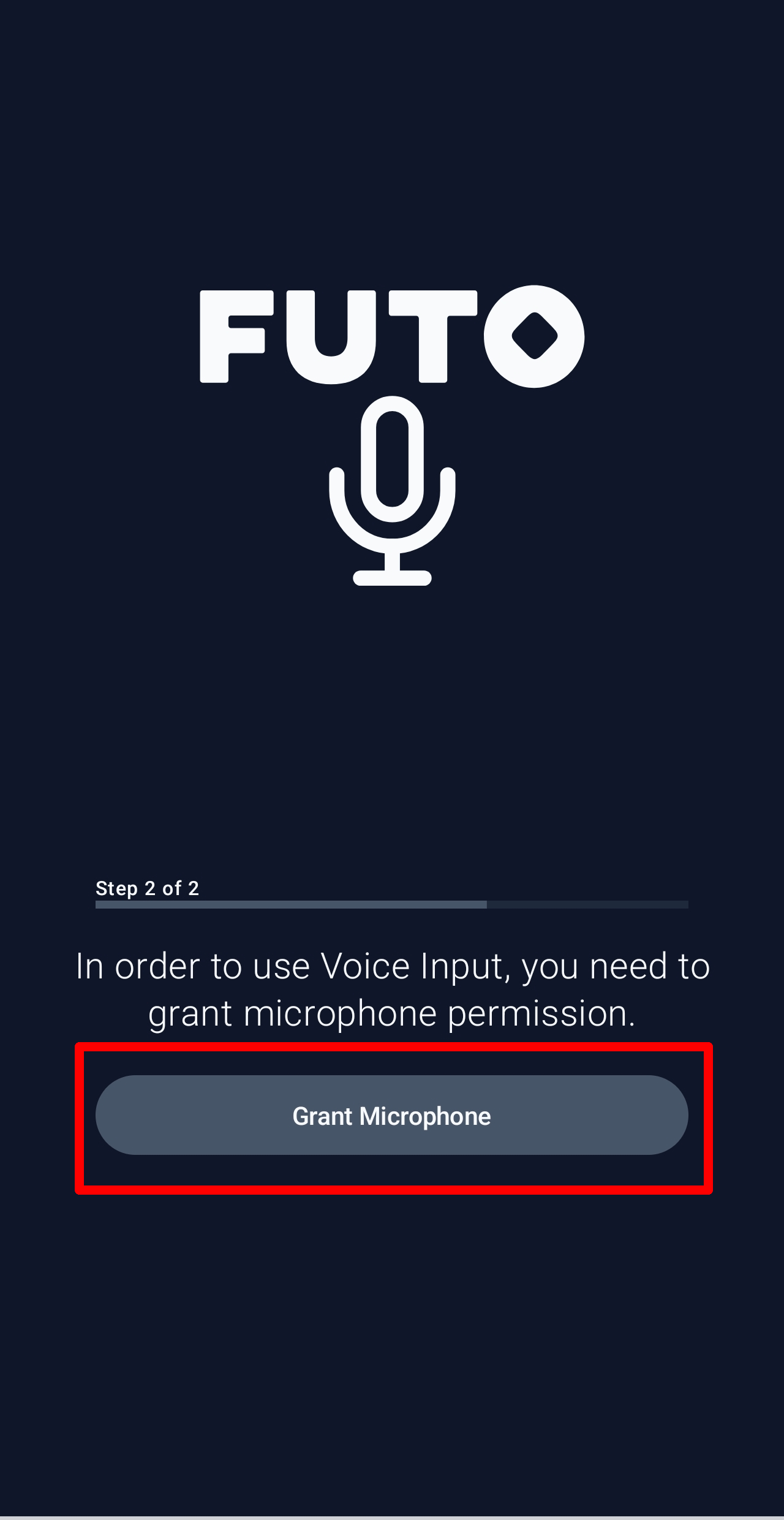
When you return to FUTO Voice Input, you will see a message saying, 'You need to grant permission to use the microphone in order to use Voice Input,' so tap 'Grant Microphone.'
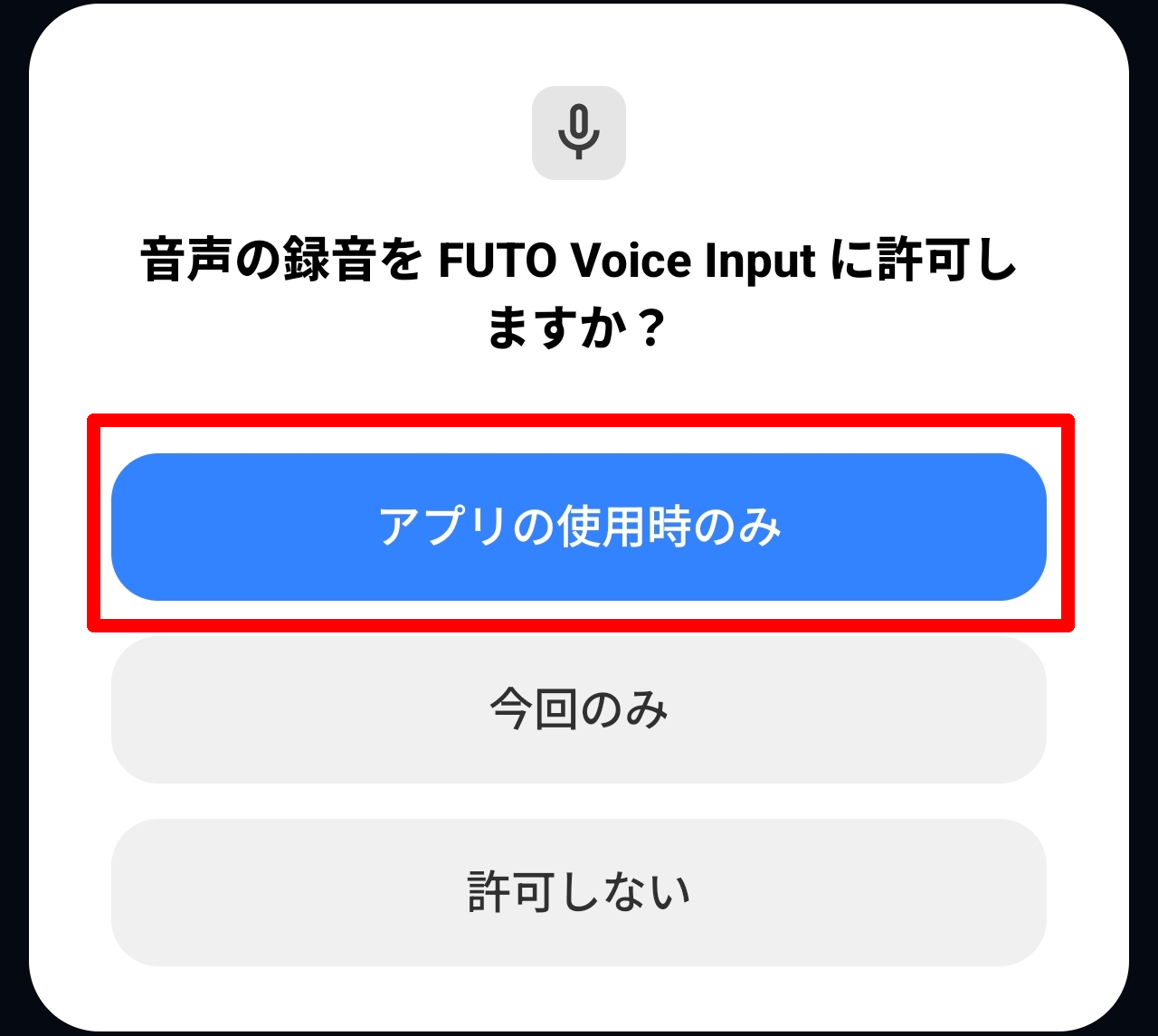
A message will appear asking, 'Do you want to allow FUTO Voice Input to record your voice?' Tap 'Only when using the app' to grant permission and proceed. This will complete the installation process, and you will then be taken to the settings screen.
◆Settings
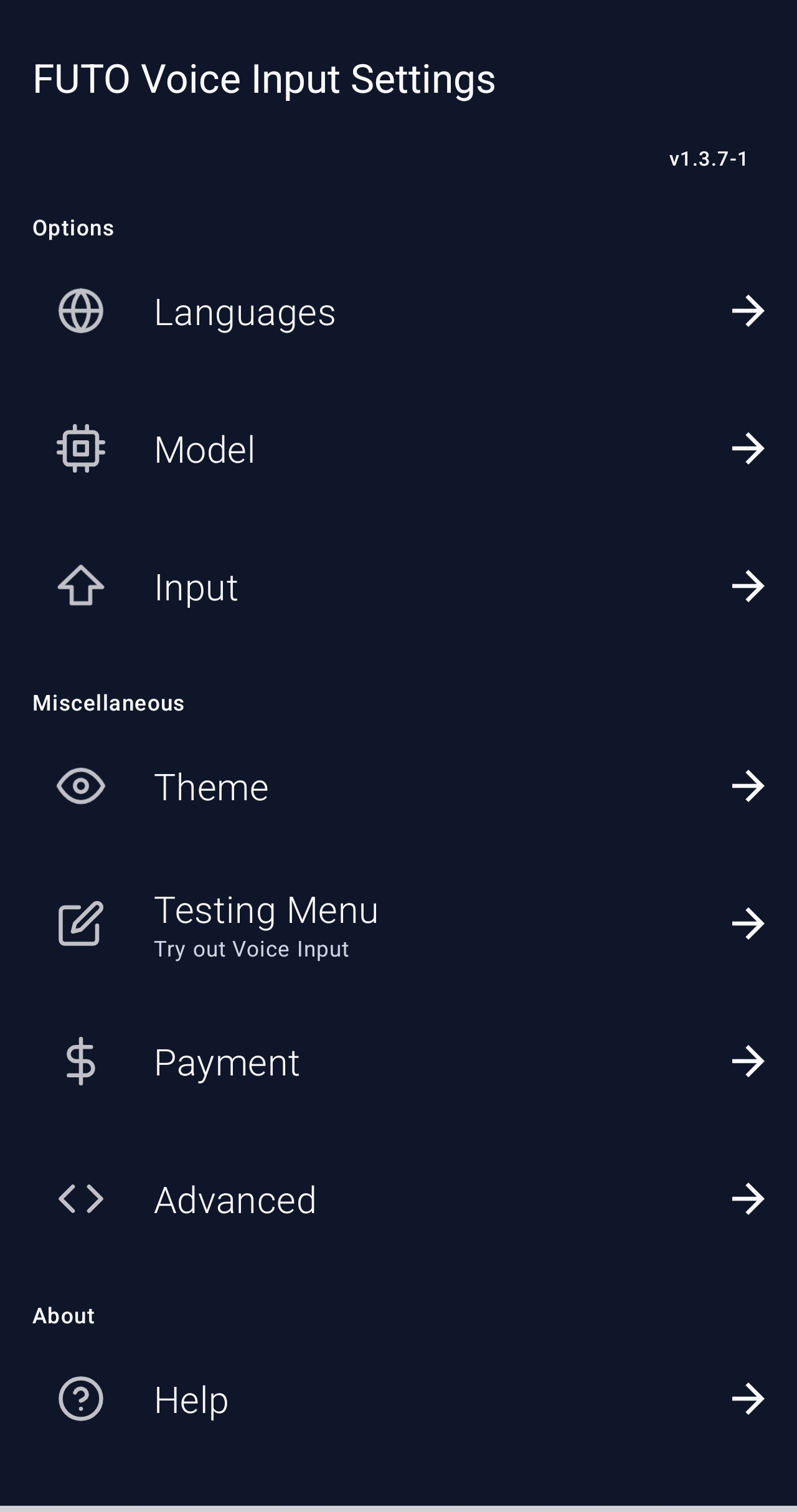
The settings screen is as follows:
Language
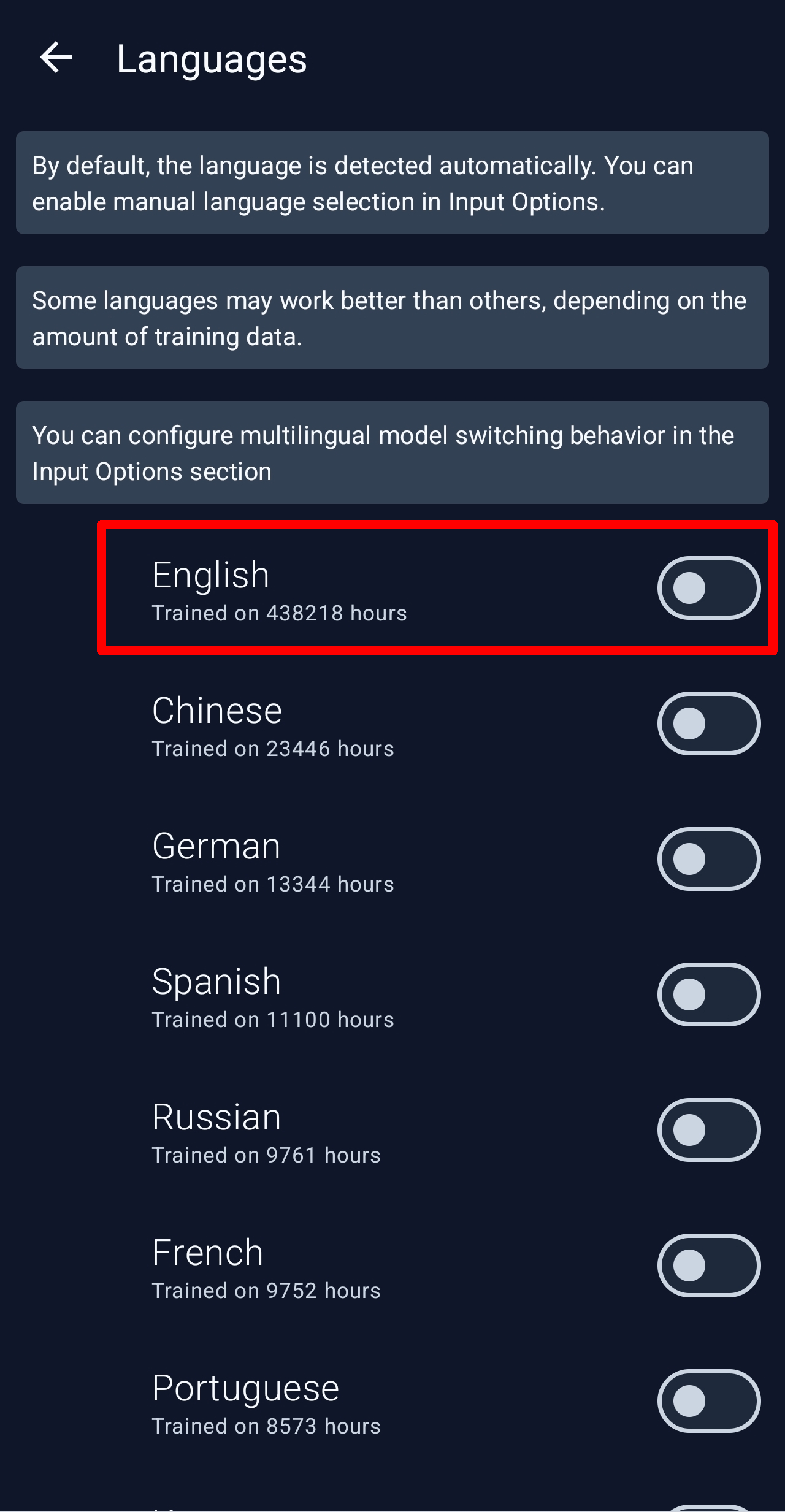
The settings screen for the language used for voice input initially only has 'English' enabled.
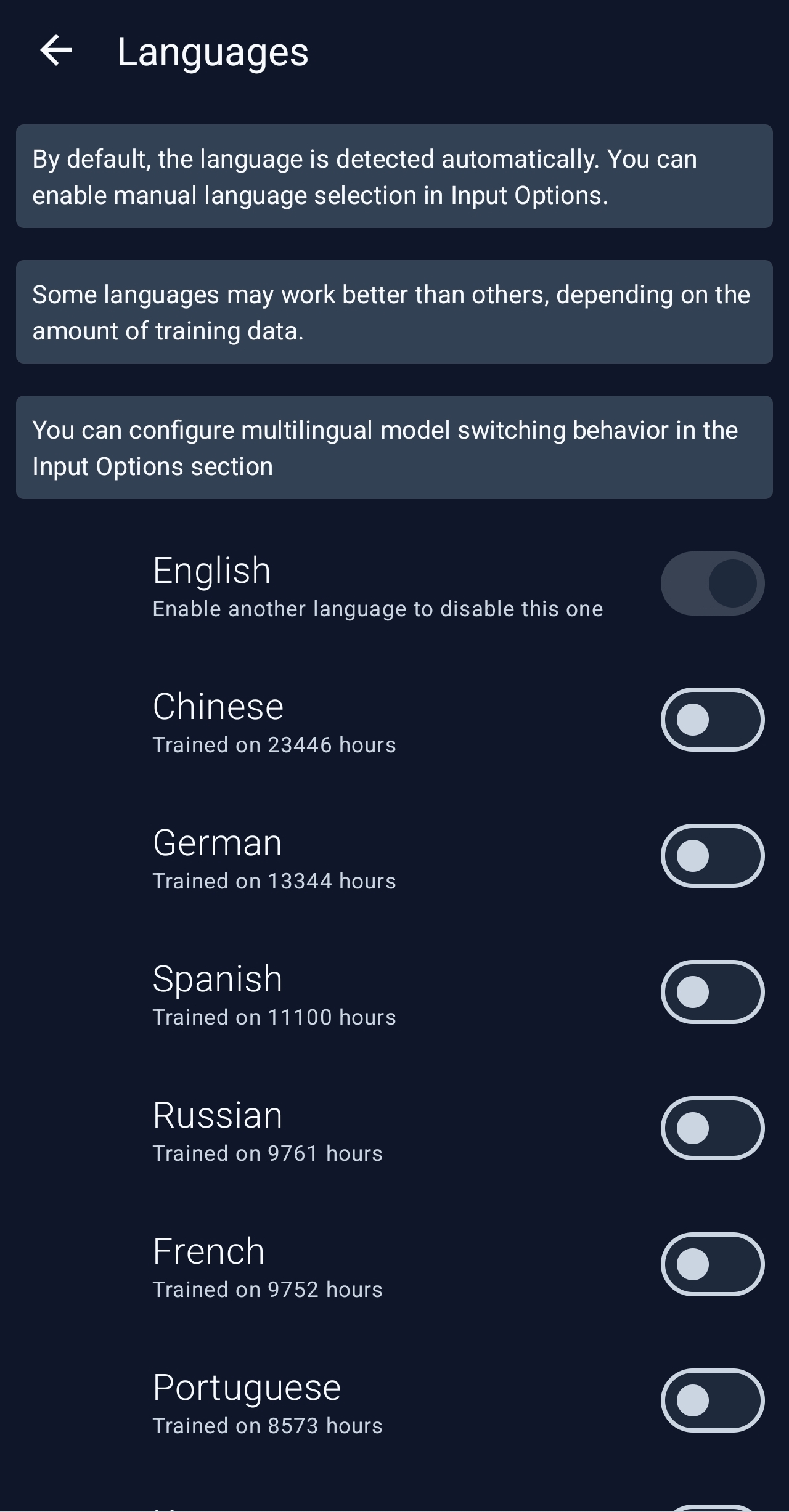
If you scroll down, you'll find 'Japanese,' and enabling it will allow you to use Japanese voice input.
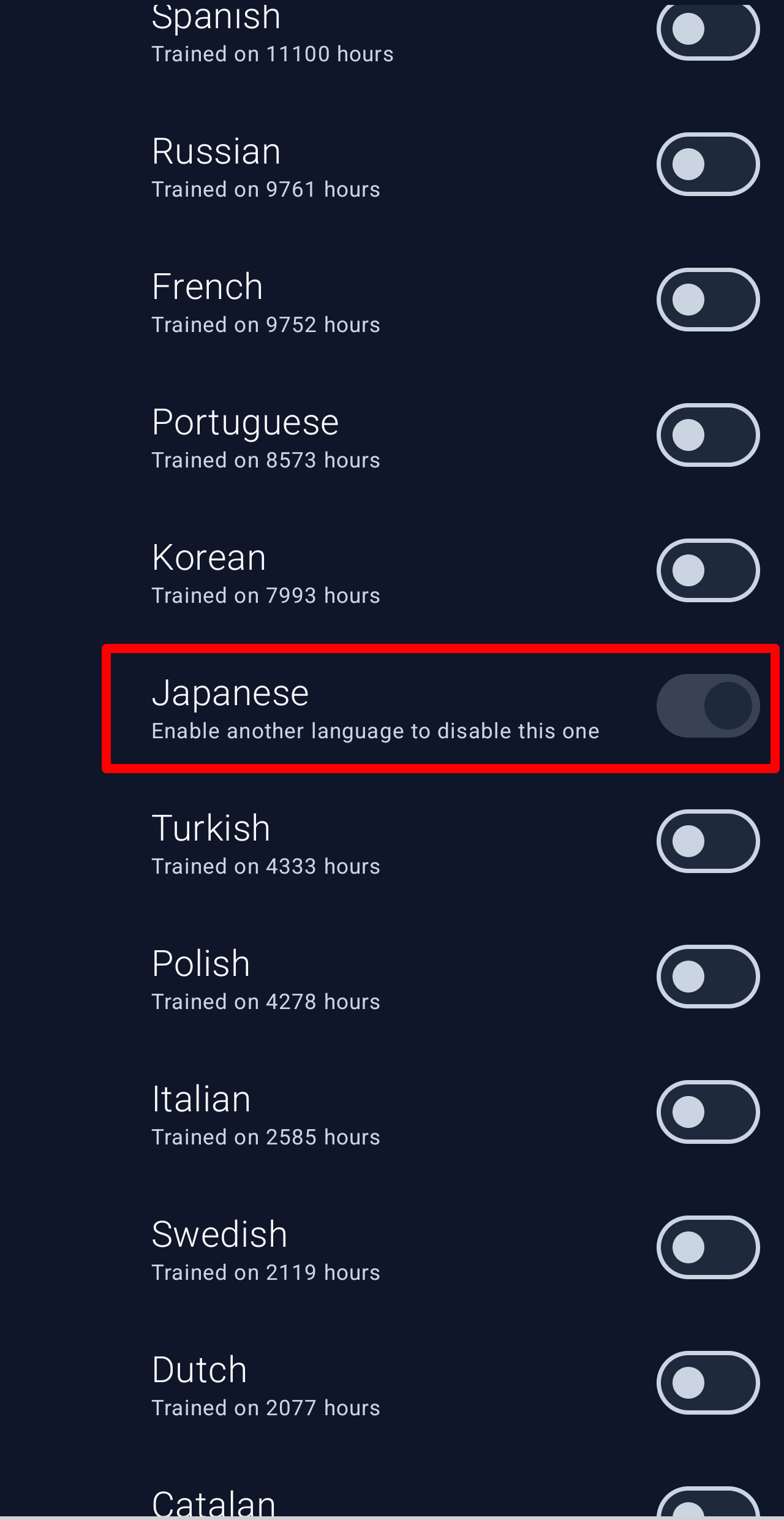
When multiple languages are enabled, you can disable 'English'.
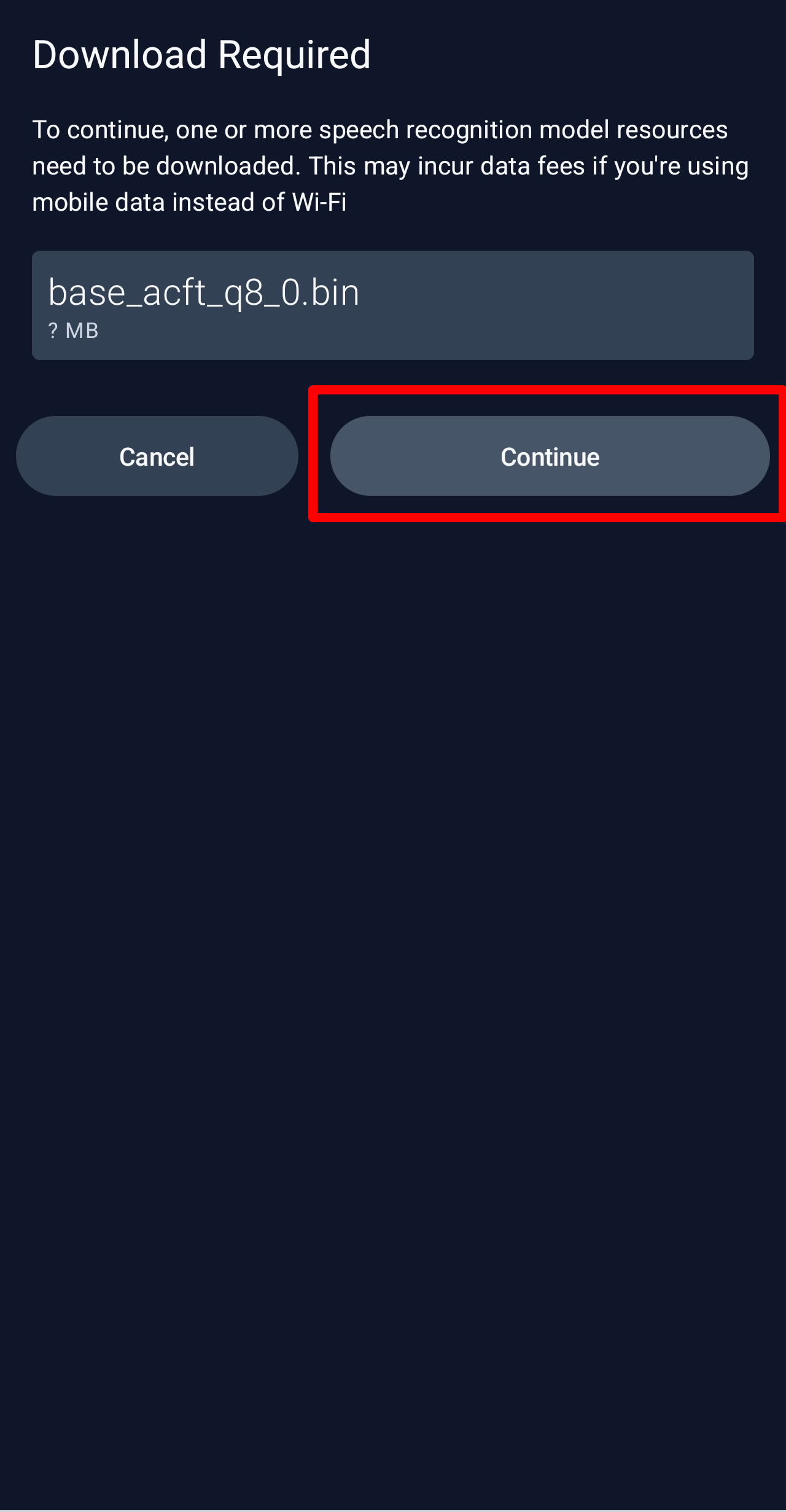
Enabling Japanese language support requires a multilingual model, so the download will begin. Since this download involves a fairly large file, it is recommended to do this while connected to Wi-Fi.
Model
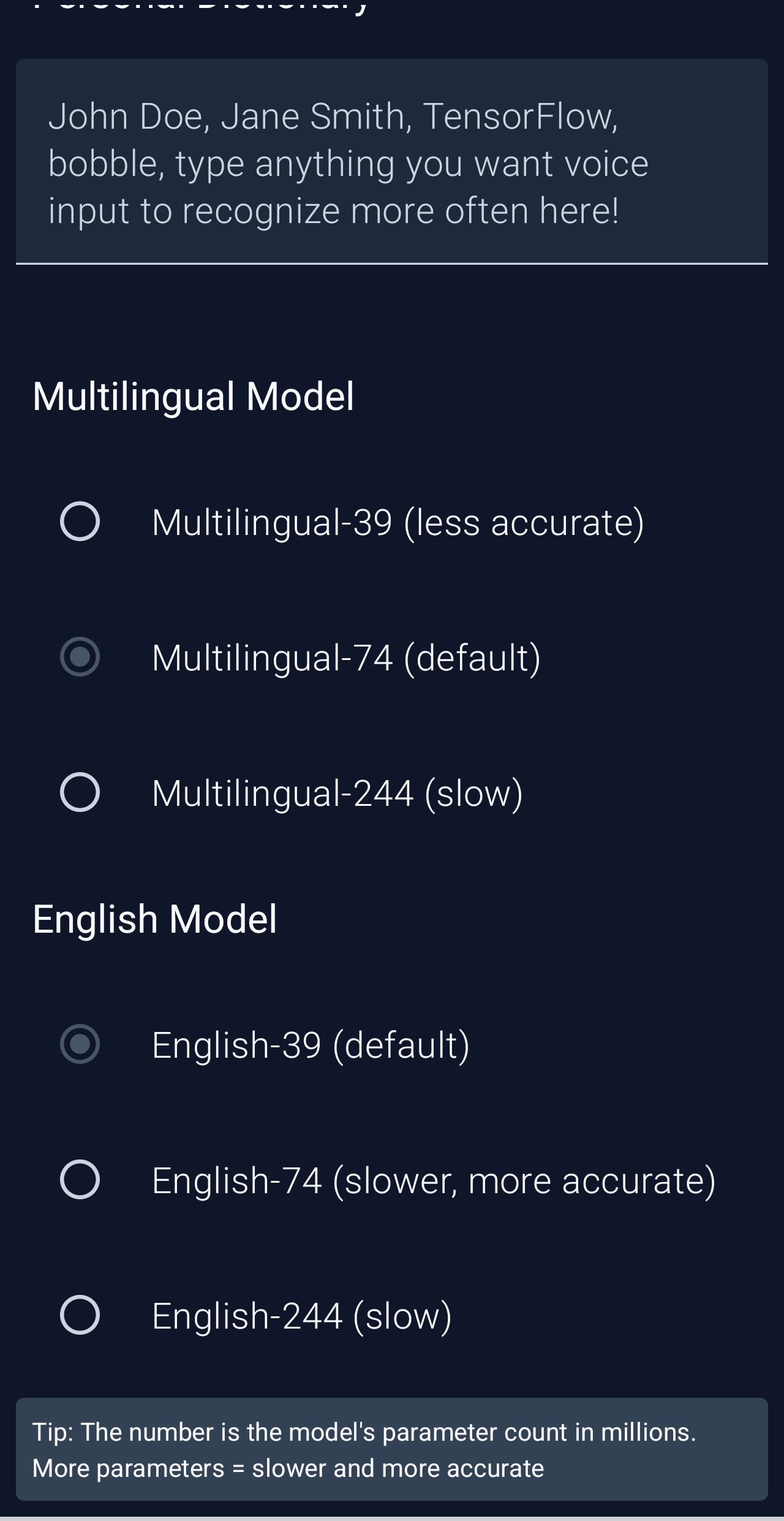
This screen allows you to select the AI model to use. If only Japanese is enabled, only multilingual models will be displayed, and you can choose from three models. If you don't have a particular preference, you can leave it as the default.
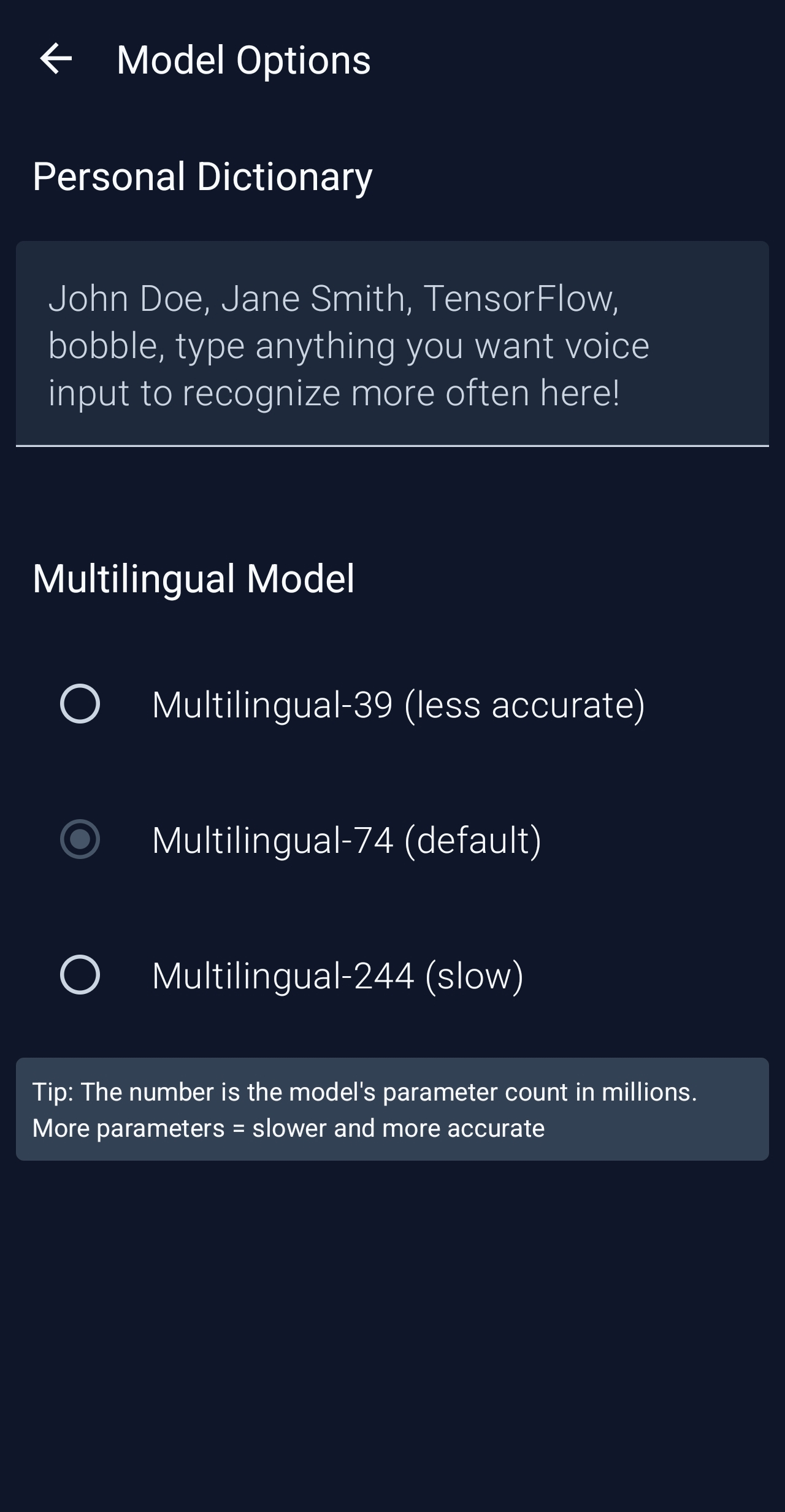
Incidentally, if you haven't disabled English, you can also select the English version of the model.
Theme
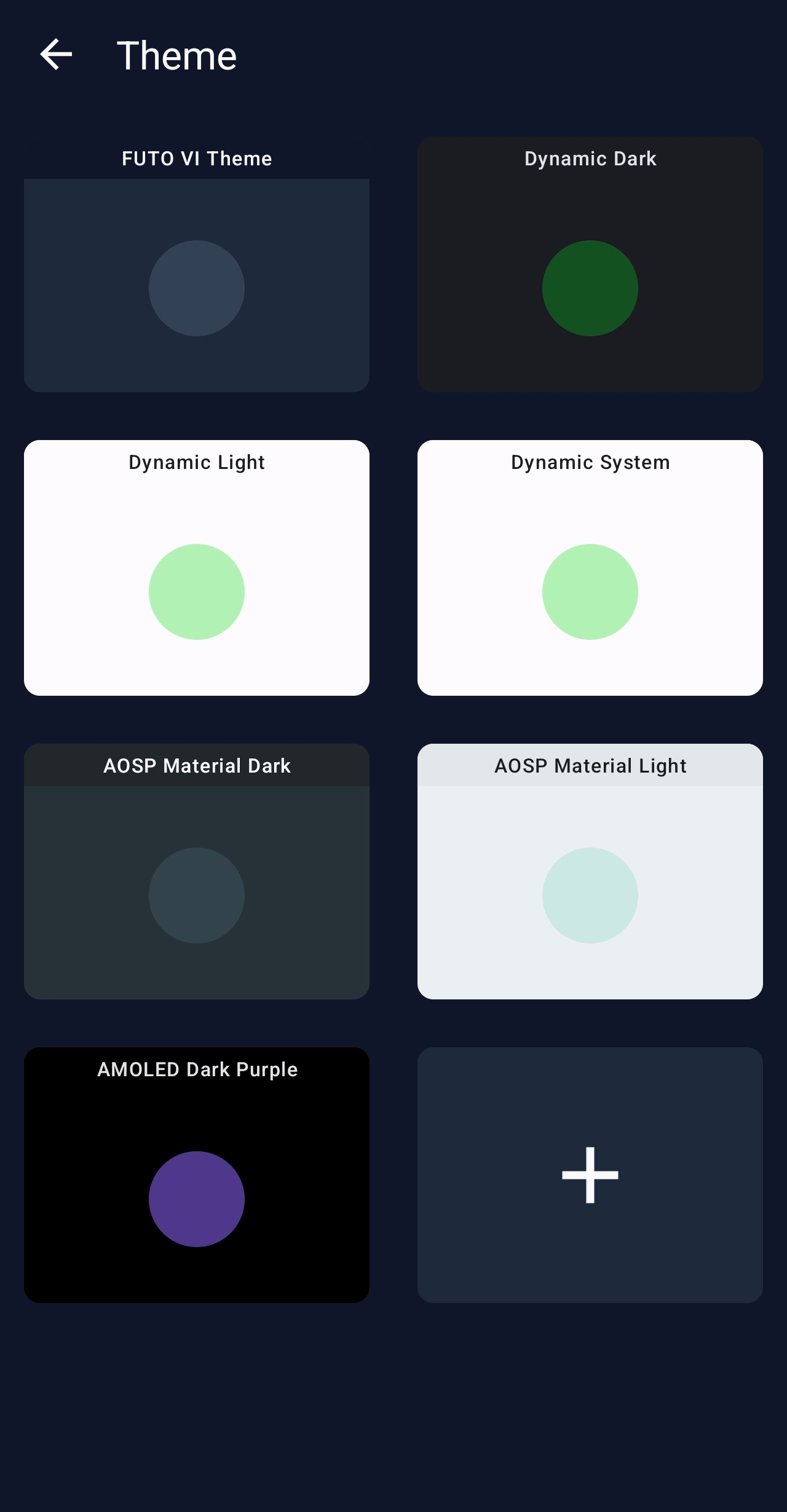
You can select the screen's theme color. There are four dark themes to choose from, including the default 'FUTO VI Theme,' and three light themes.
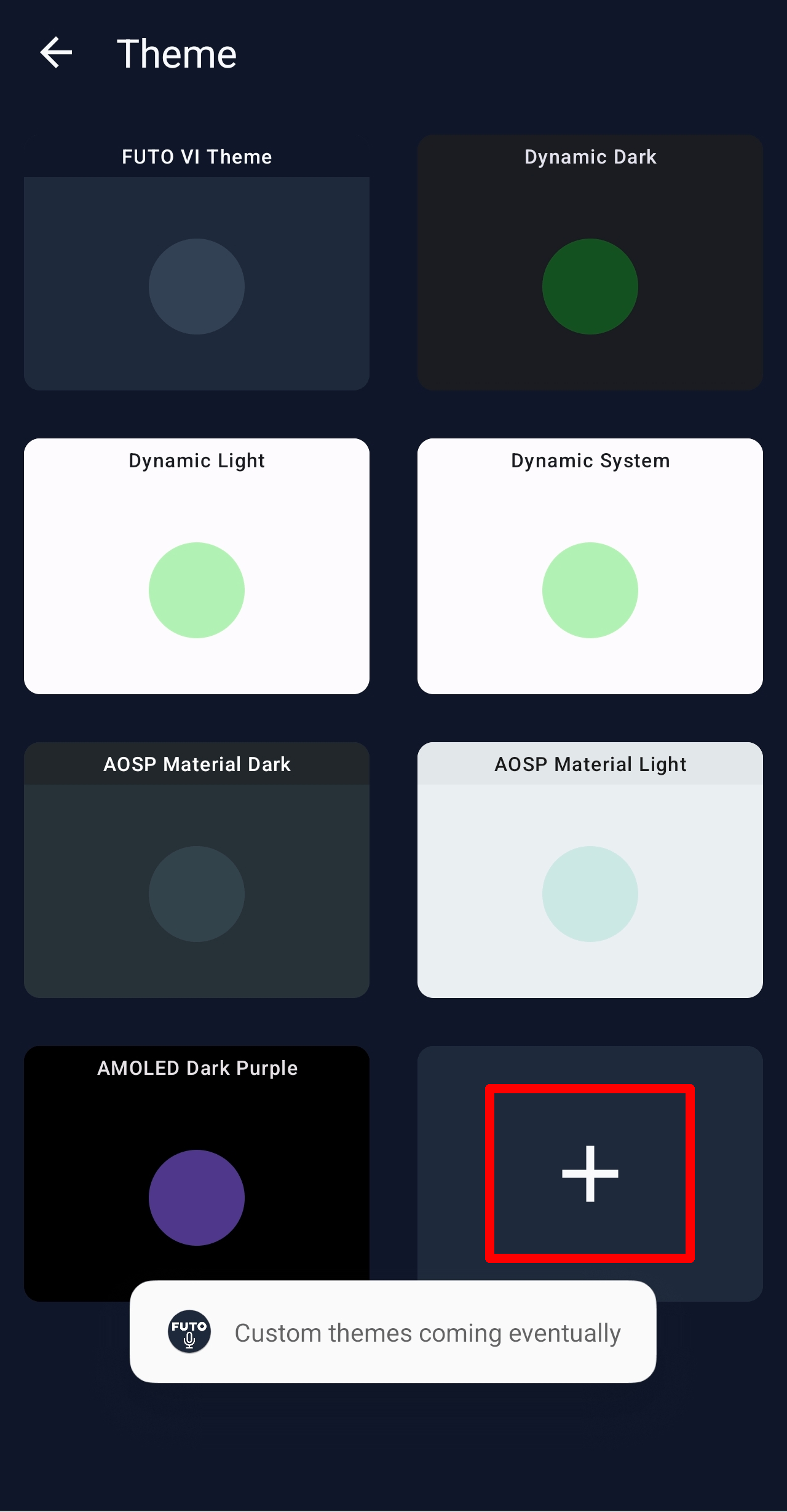
When I tapped the '+' in the empty slot, it displayed 'Custom themes coming eventually,' so it seems they will be distributed during some event.
• Testing Menu
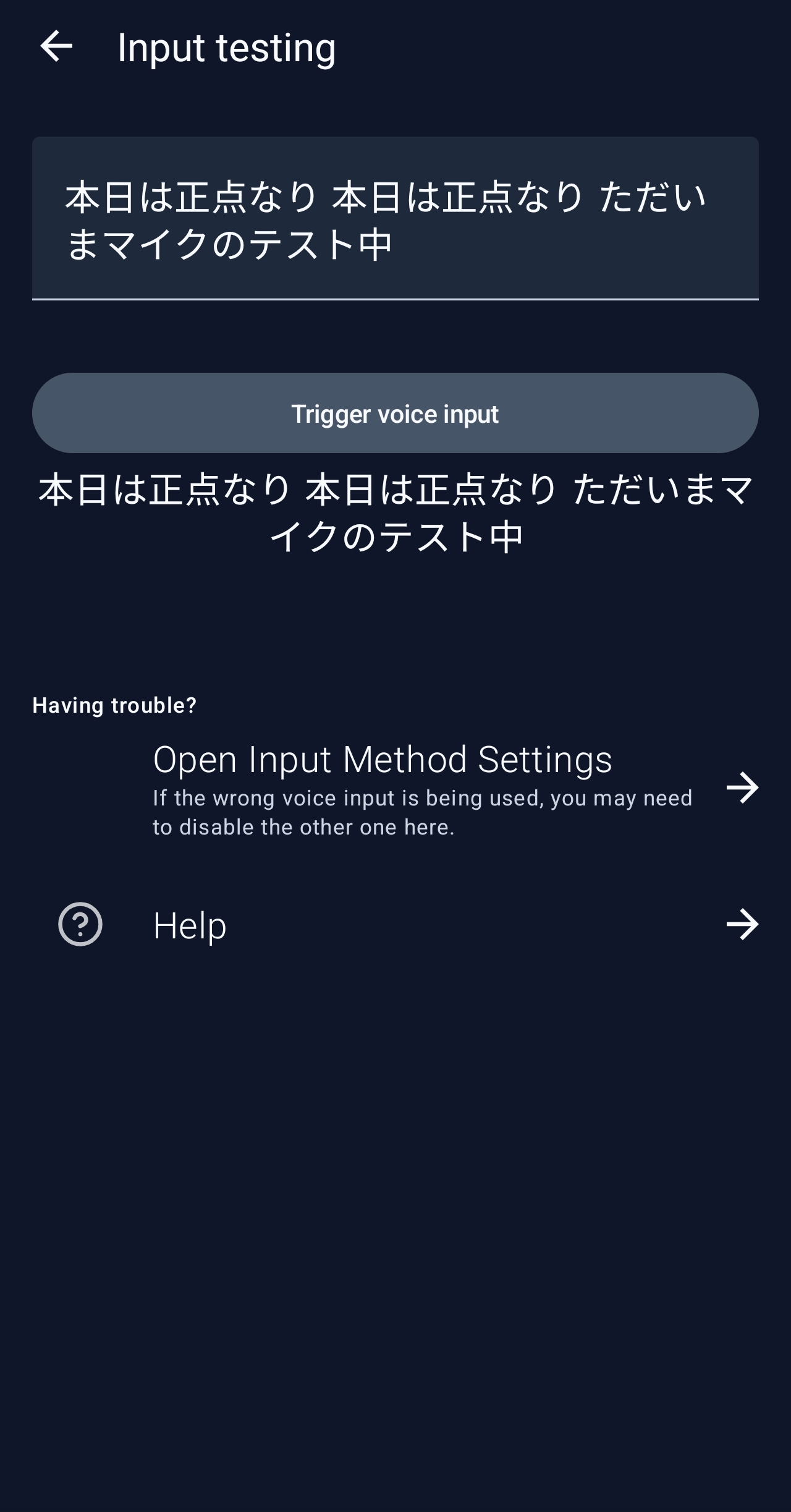
The test screen allows you to test voice input. Tapping 'Trigger voice input' will start voice input.
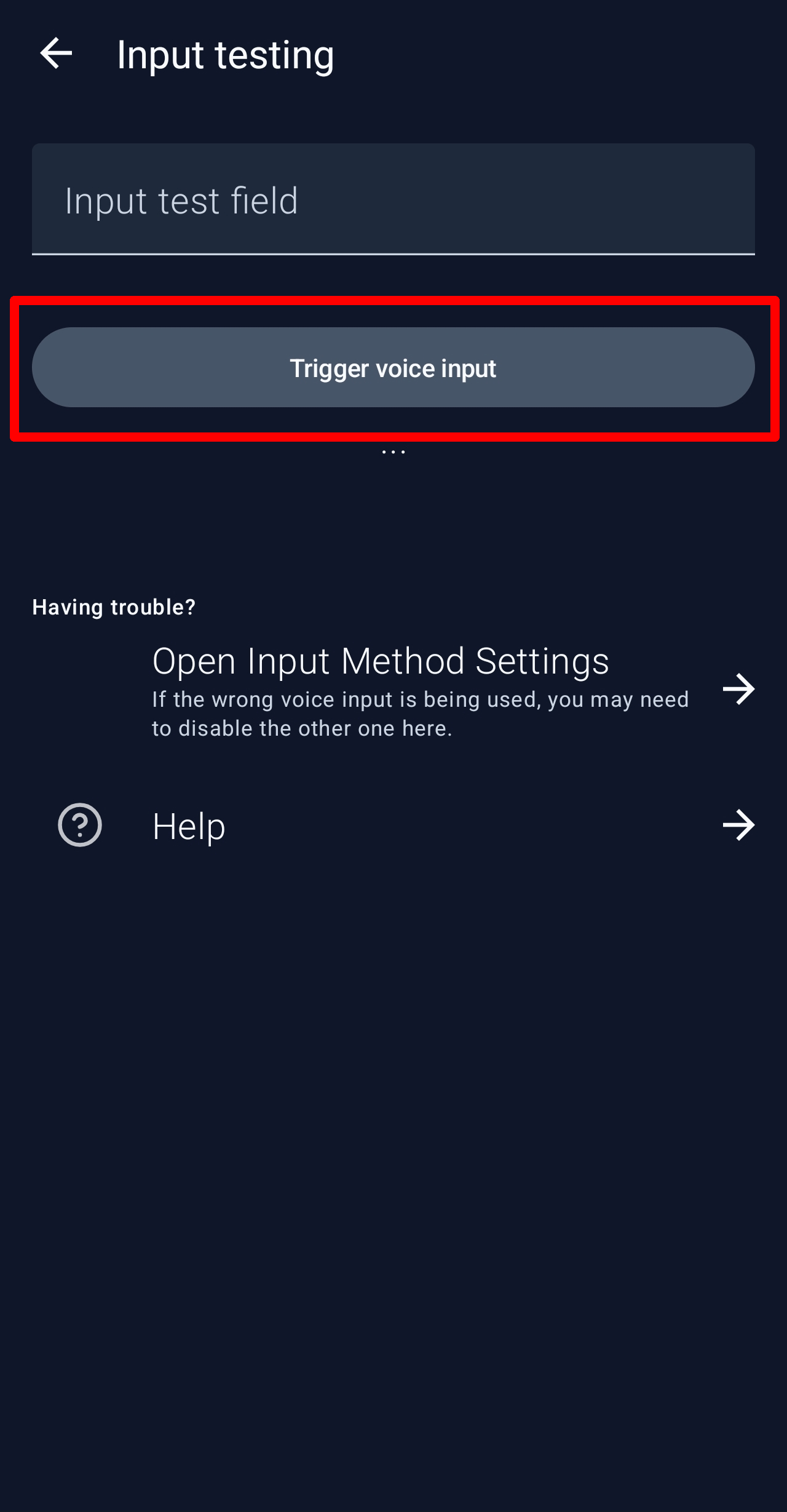
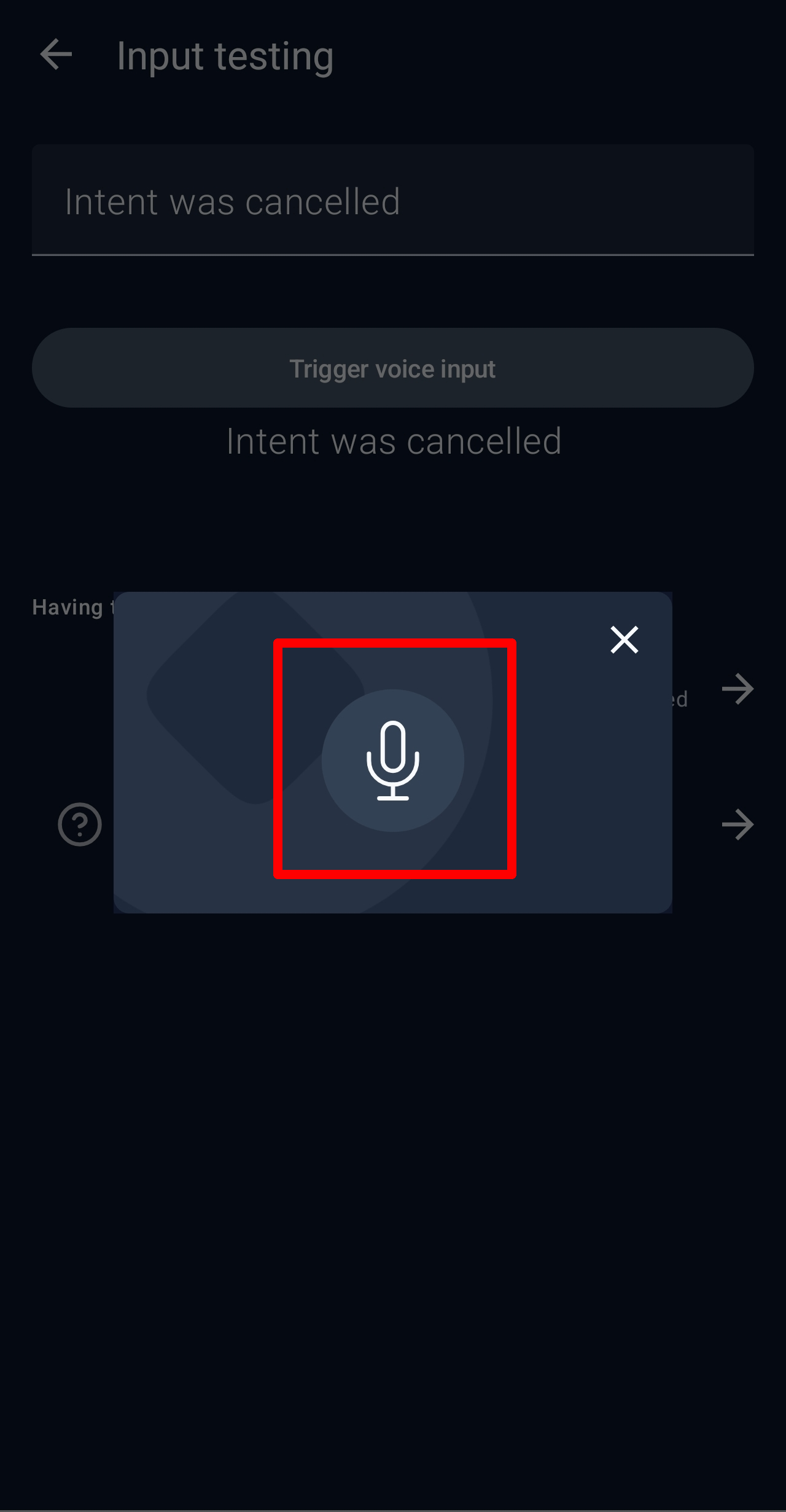
While voice input is being accepted, a pop-up with a microphone icon will appear in the center of the screen. Tapping it will end the voice input.
The text entered in the text box at the top of the screen is displayed. When I said 'It's a sunny day today,' 'It's a sunny day today,' and 'Currently testing the microphone,' it was displayed correctly except that 'sunny day' was converted to 'correct point.'
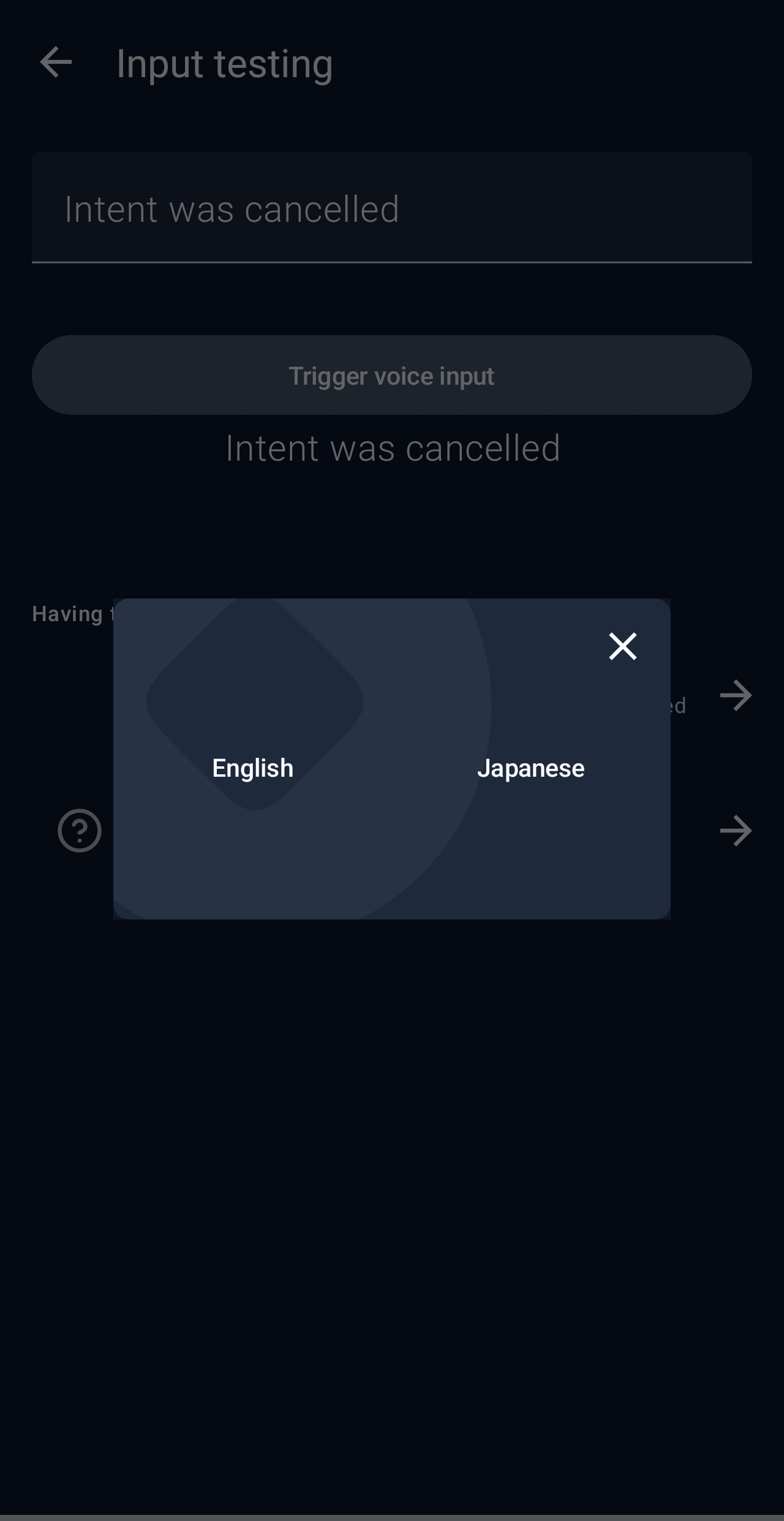
When I enabled English and Japanese, a pop-up appeared asking me to select the target language before starting voice input.
Payment
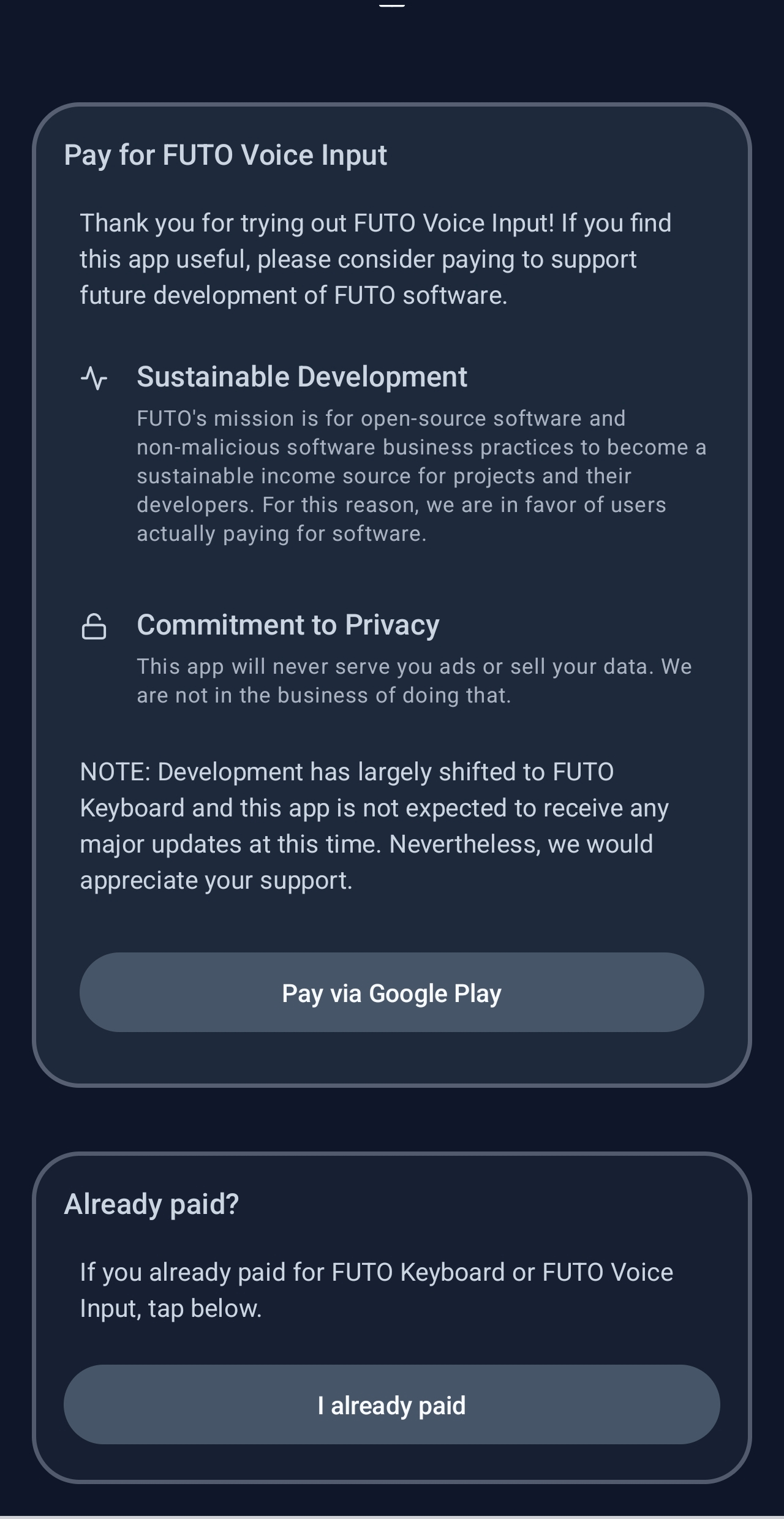
FUTO Voice Input is free to use, but if you like the app, you can also purchase it via Google Play. At the time of writing this article, the price was 1500 yen.
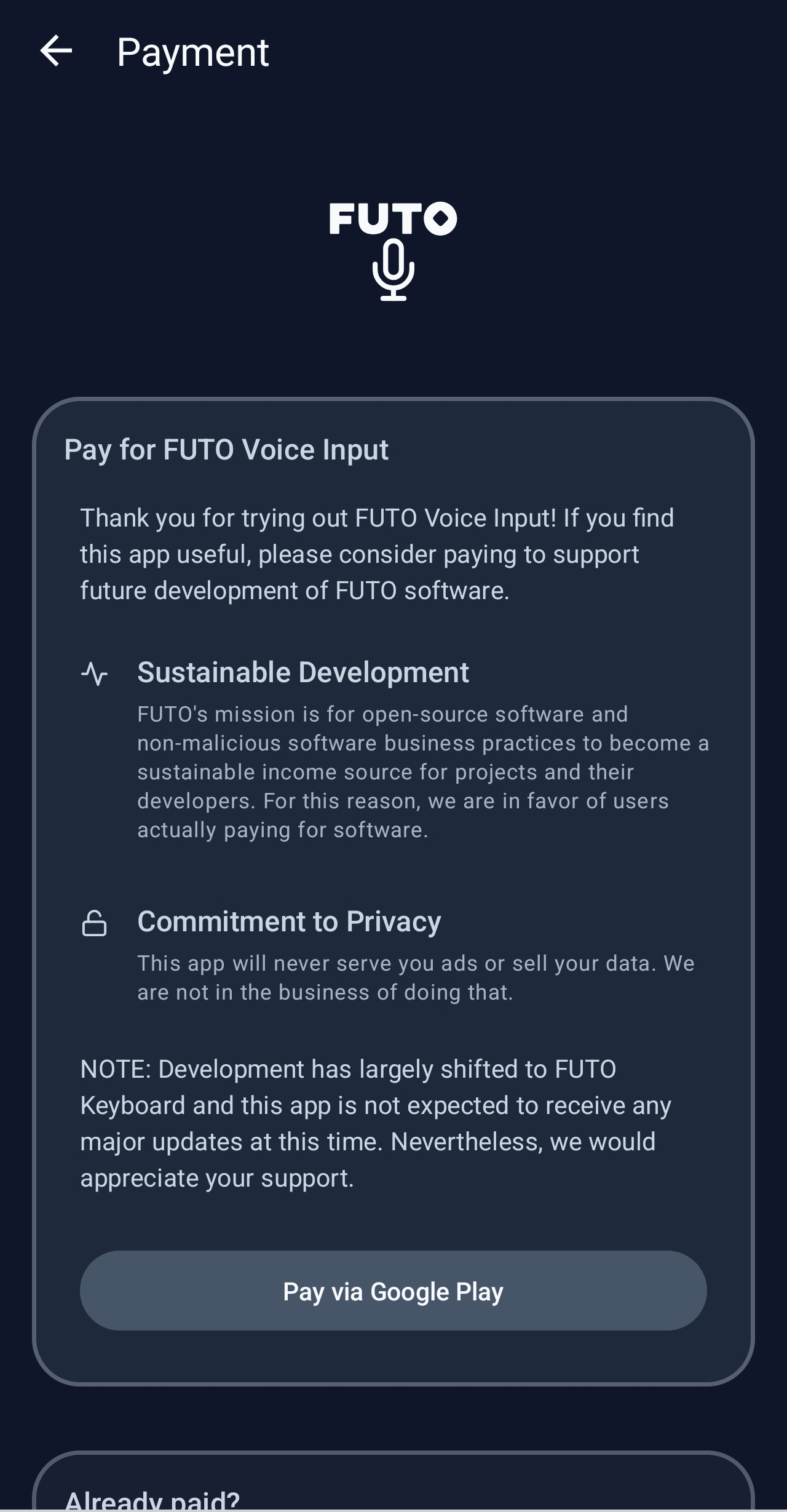
If you've already paid, you should tap 'I already paid.' When I tried tapping it, I was asked to tap again for confirmation, and then the 'Payment' option itself disappeared.
Advanced
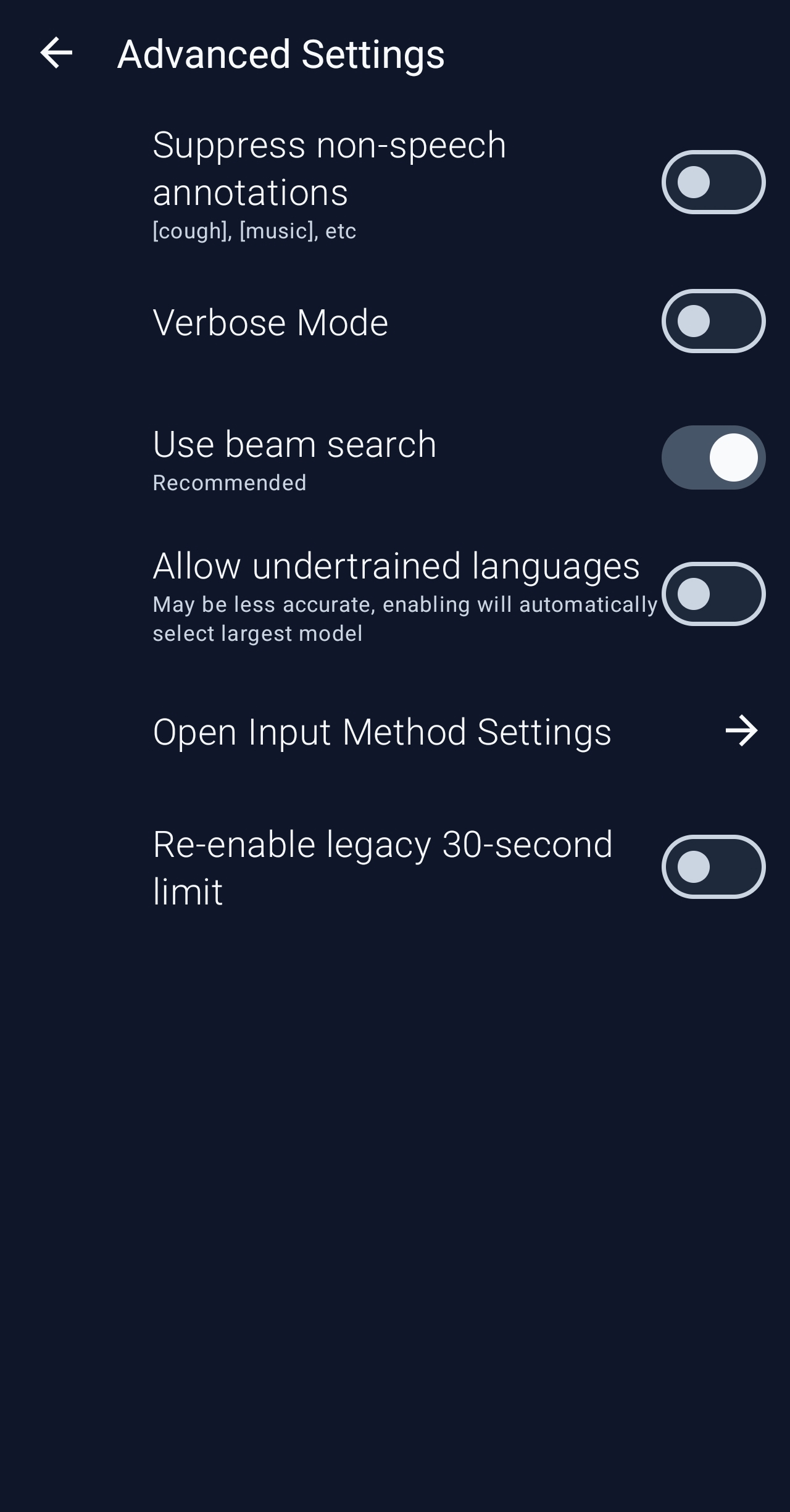
The Advanced Settings screen allows for advanced user settings. Of particular interest is 'Suppress non-speech annotations,' which, when enabled, excludes non-speech annotations such as coughs and music from being included in the voice input.
◆I tried it out
Before actually using it, make sure you can access FUTO Voice Input from your software keyboard. This time, we want to use the 'Microsoft SwiftKey keyboard' that FUTO Voice Input supports, so enable both FUTO Voice Input and Microsoft SwiftKey keyboard in the 'Manage keyboards' section of your Android settings.
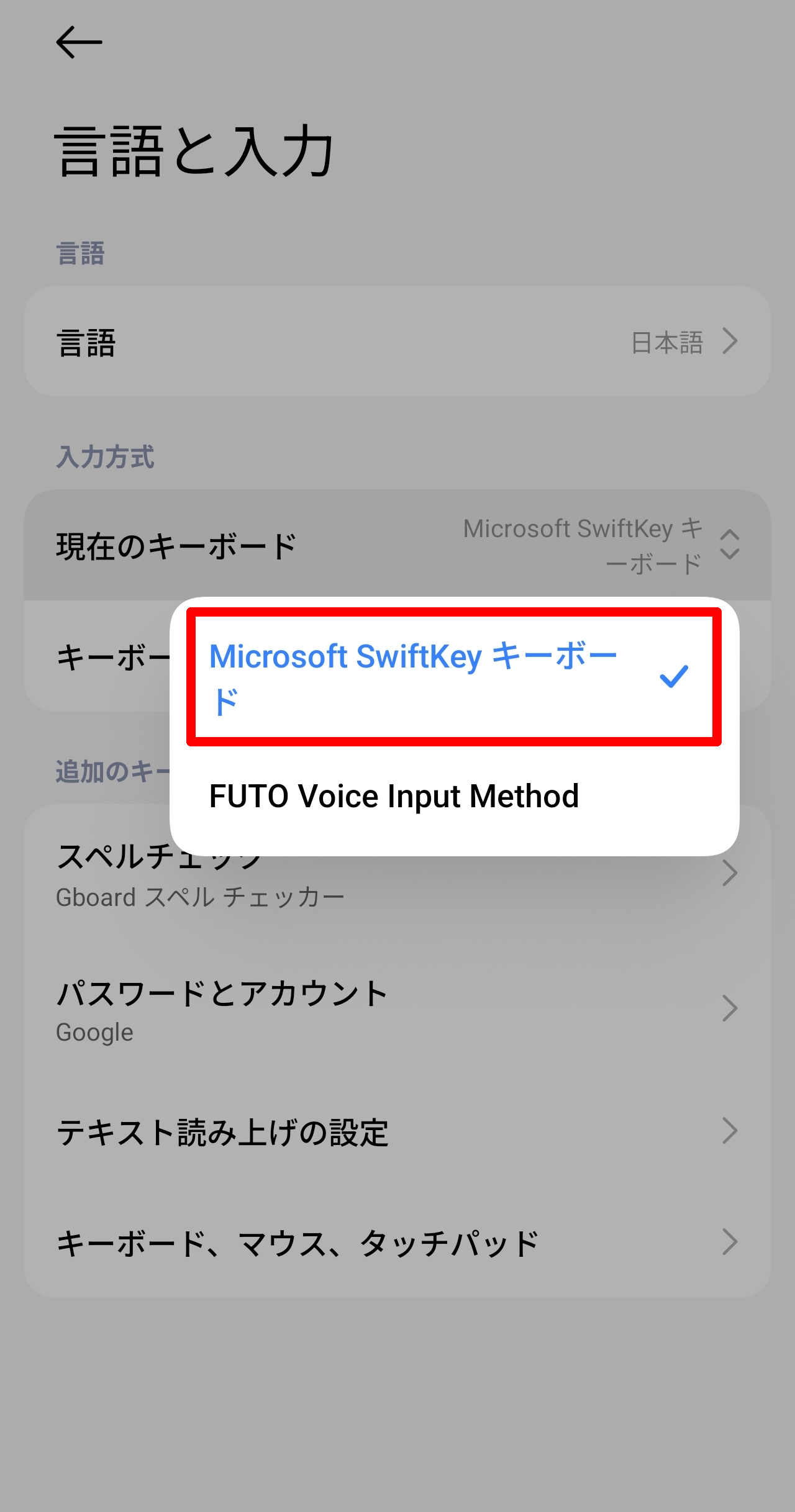
Next, in Android settings, under 'Language and input,' change 'Current keyboard' to 'Microsoft SwiftKey keyboard.' Conversely, be careful not to set it to 'FUTO Voice Input,' as this will cause FUTO Voice Input to always be displayed when you are typing.
In this state, display the Microsoft SwiftKey keyboard and long-press the button in the upper left corner where the microphone icon is faintly visible.
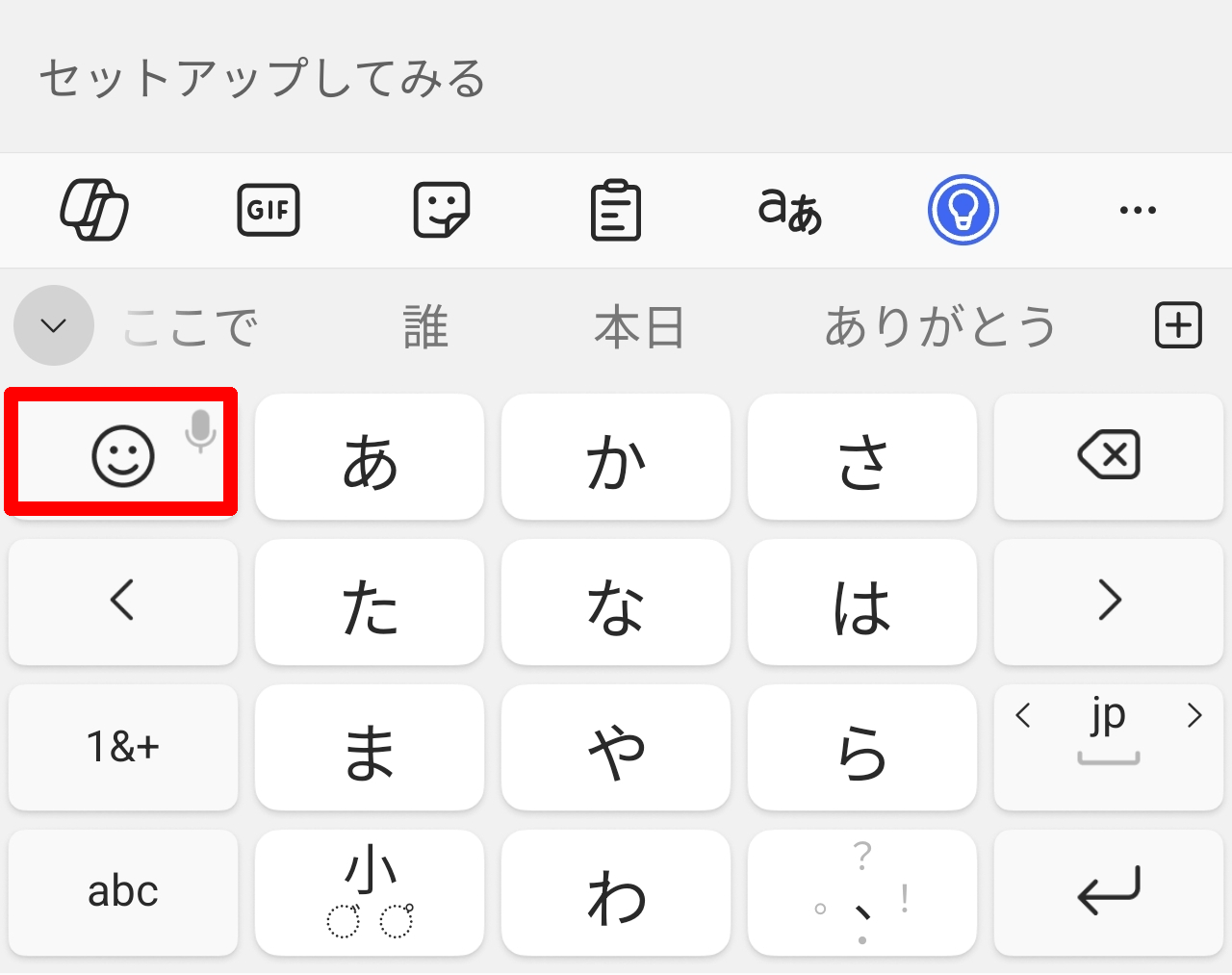
Then FUTO Voice Input will be displayed and voice input will begin.
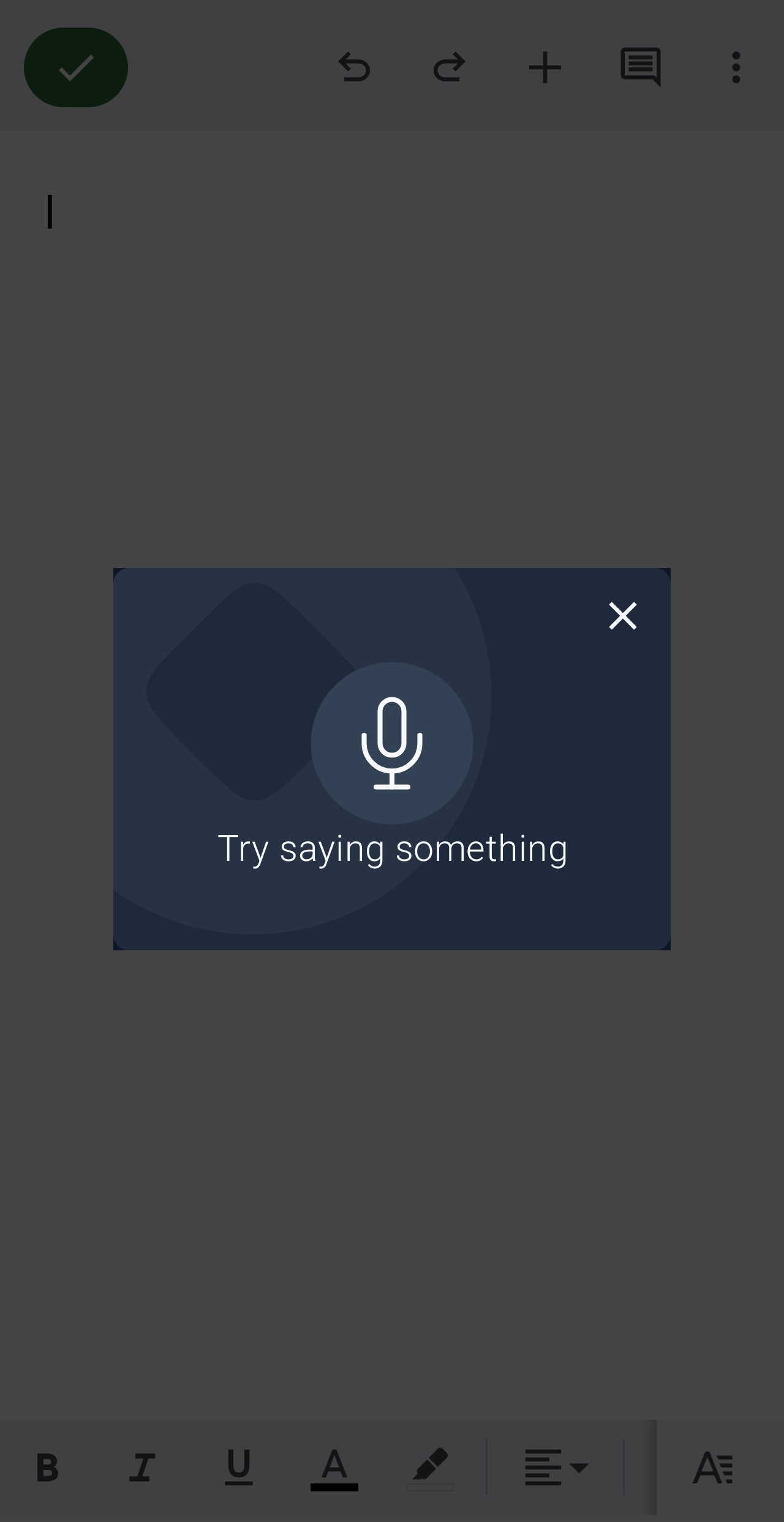
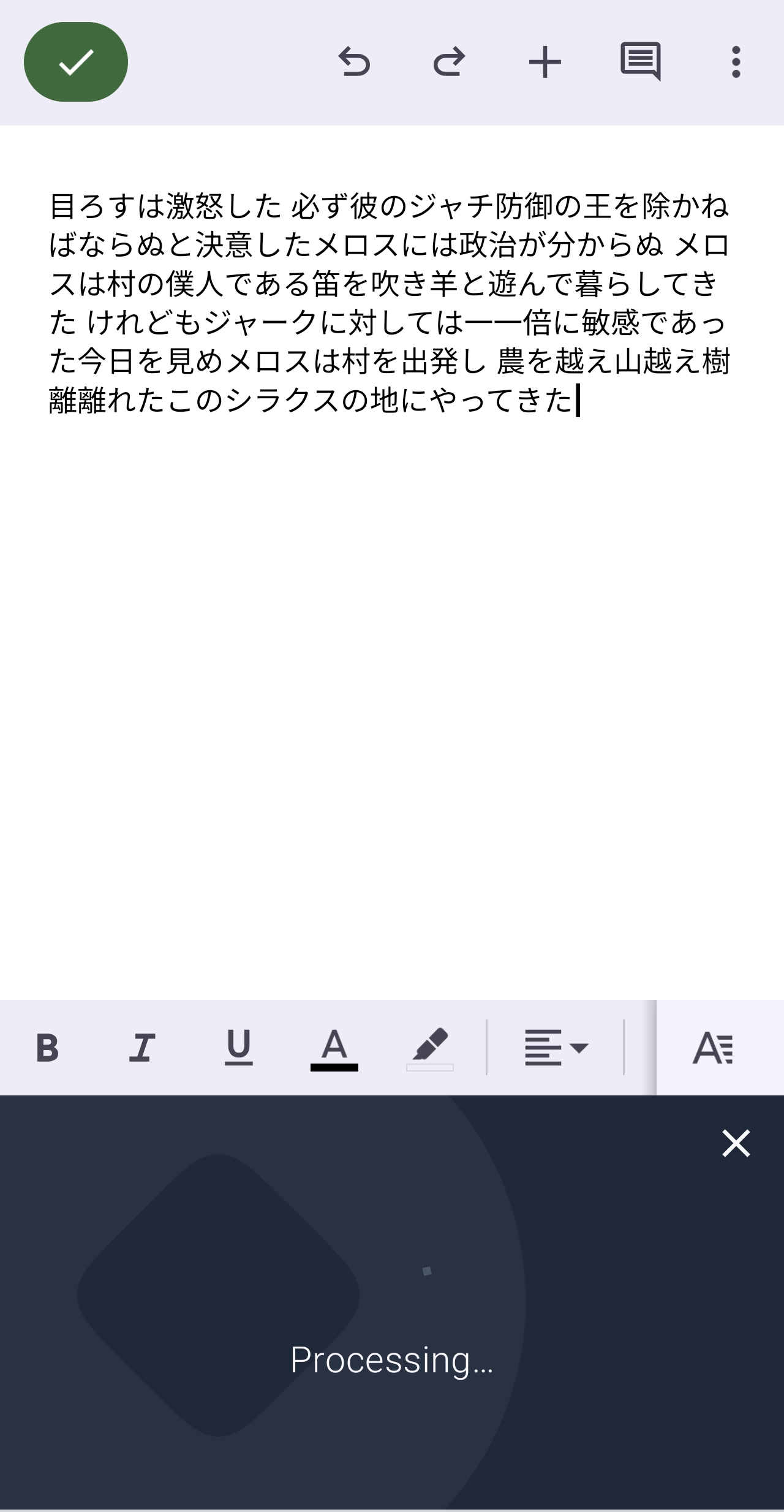
First, I'll read the beginning of '
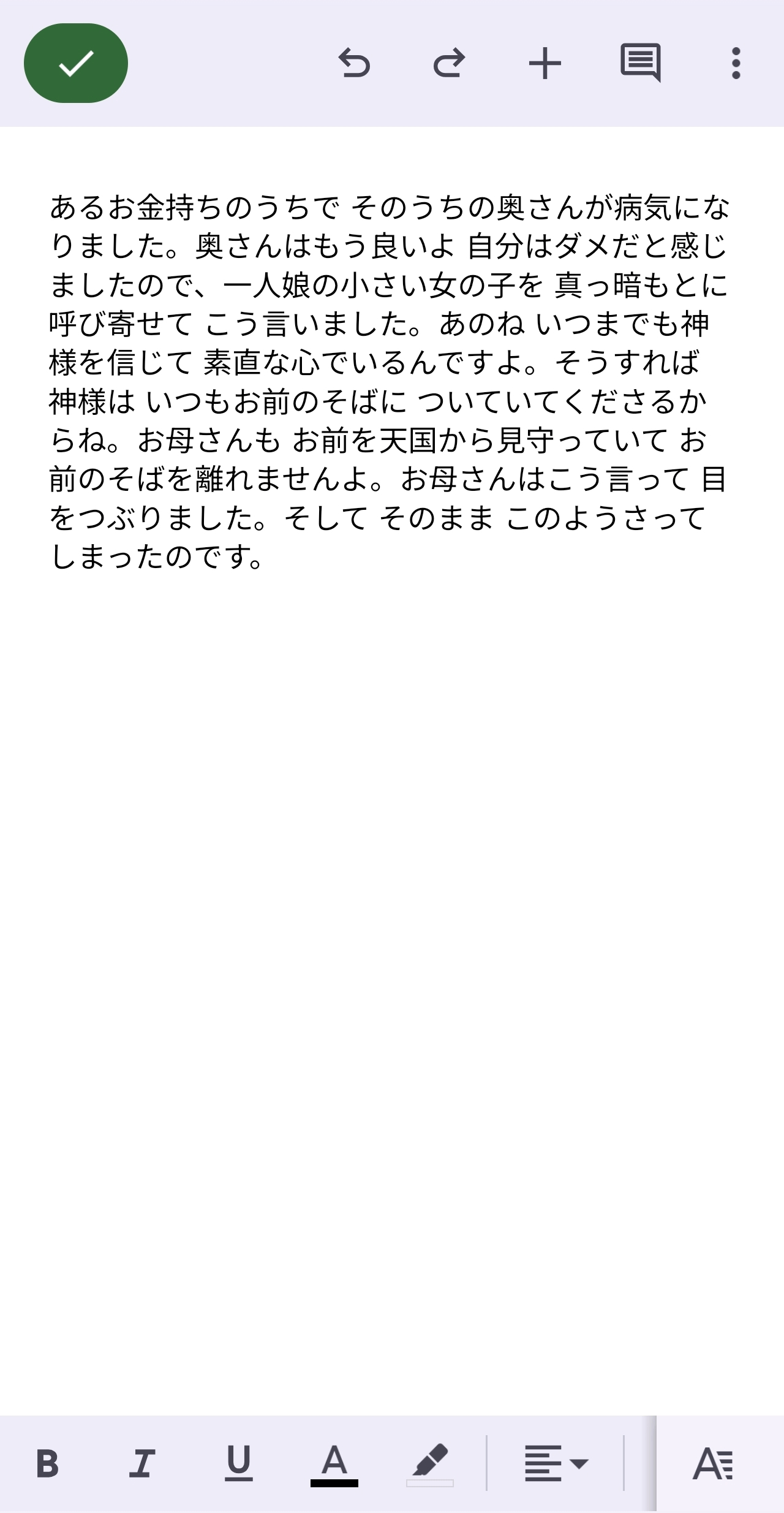
Next up is the Brothers Grimm fairy tale '
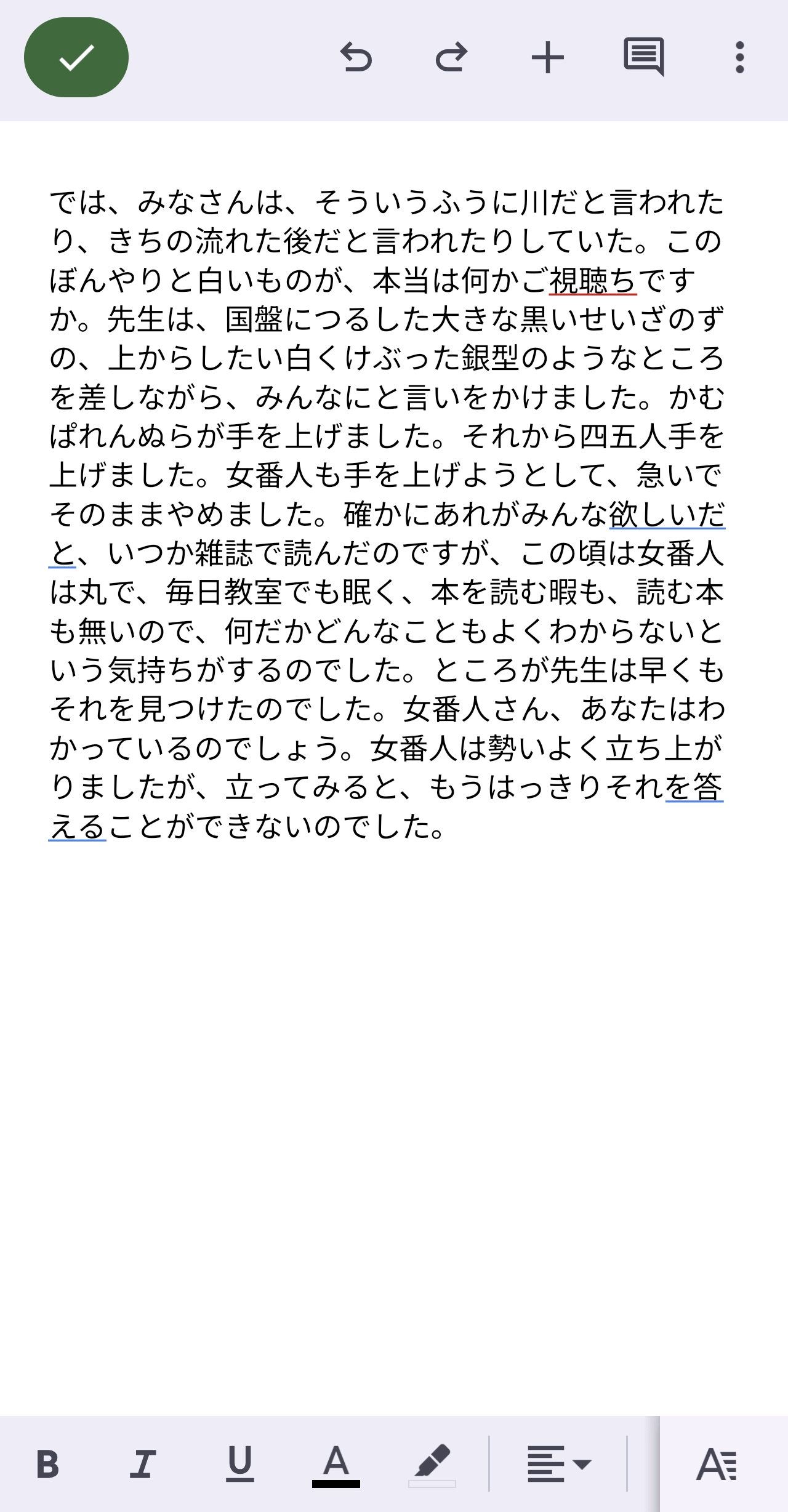
Next, I'll try 'Night
Considering the possibility that the conversion might struggle with older writing styles, we also tried it with
◆Summary
After trying voice input with several sentences, I found that while there were a fair number of word-level interpretation and conversion errors, the sentence structure was preserved, making corrections relatively easy. The AI model has the potential to become significantly more powerful with updates, so I encourage anyone interested to give it a try.
Related Posts: