'ytdlp-interface' is an easy-to-use interface for yt-dlp, which allows you to download videos and music from YouTube and other sources for free. It is open source and available without ads or user registration.
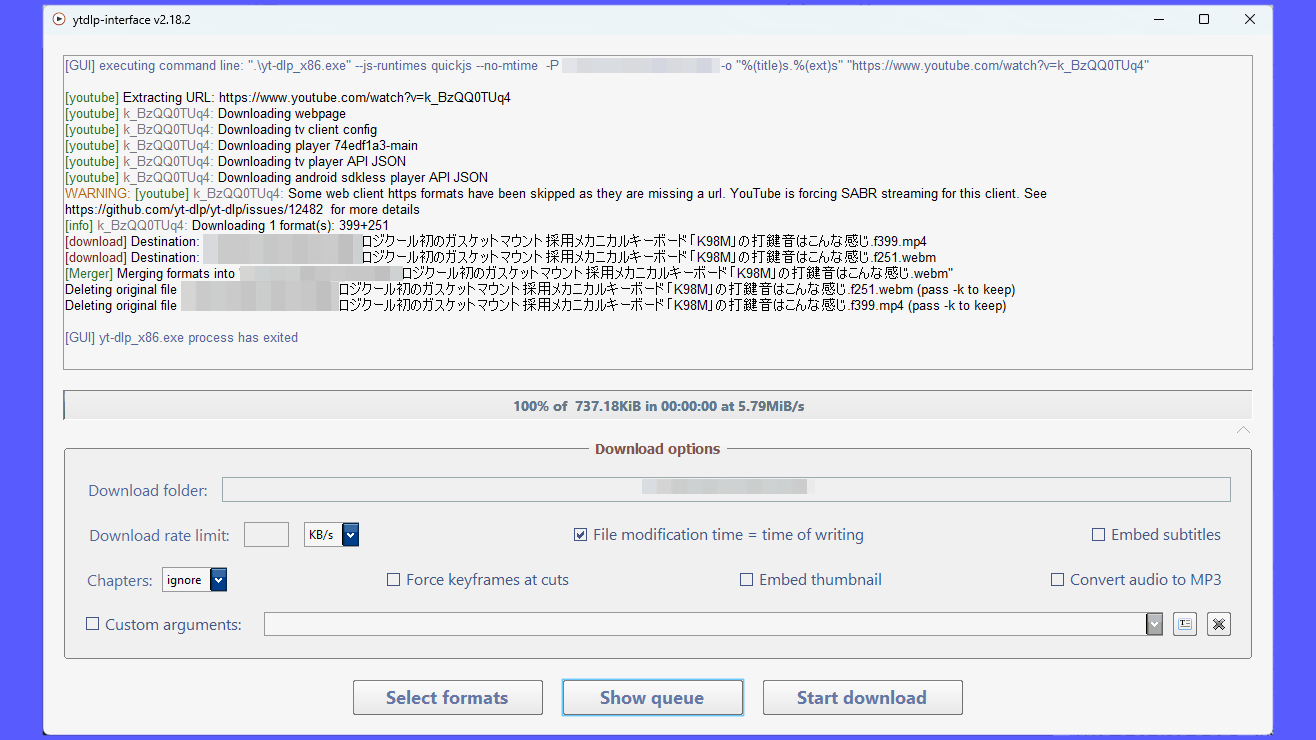
' ytdlp-interface ,' a graphical interface for Windows of '
ErrorFlynn/ytdlp-interface: Windows graphical interface for yt-dlp, designed as a simple YouTube downloader
https://github.com/ErrorFlynn/ytdlp-interface
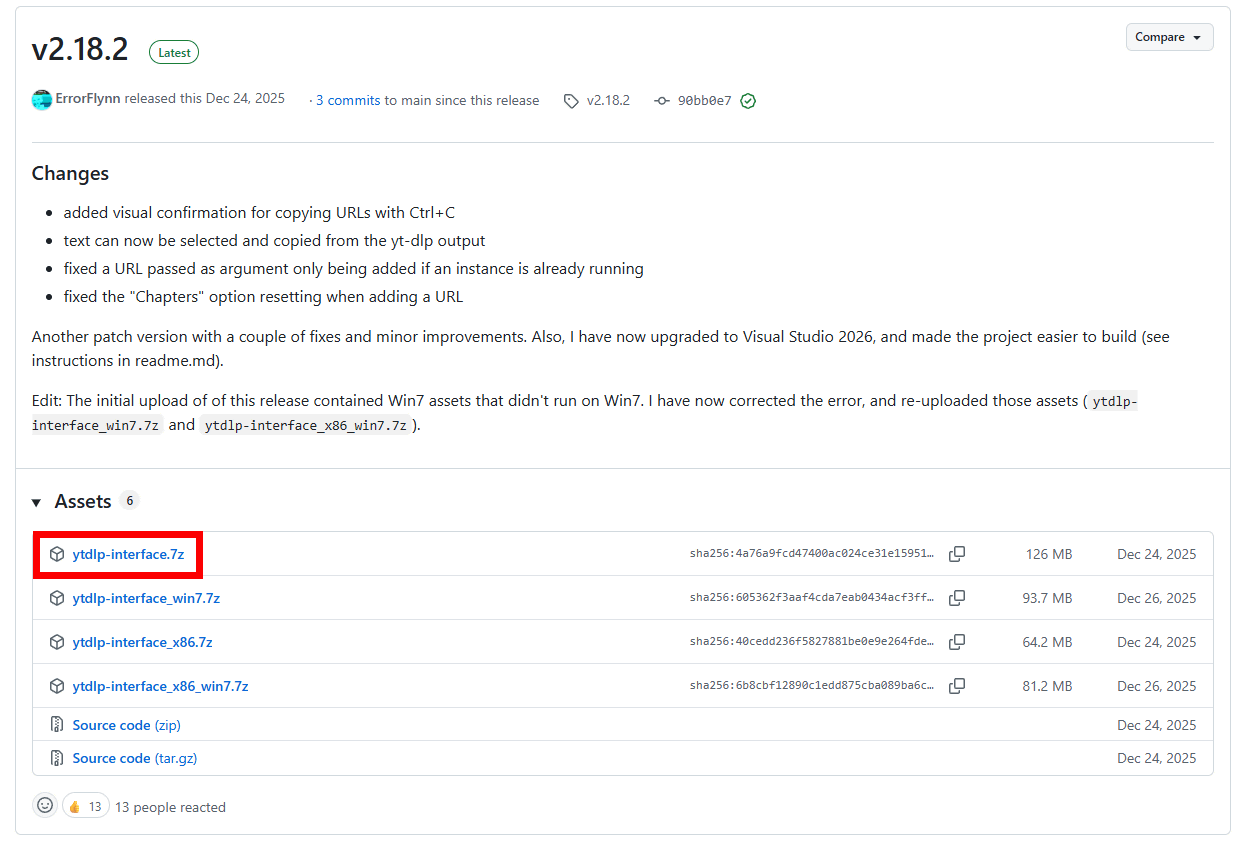
To download ytdlp-interface, go to the release page . As of the time of writing, the latest version is v2.18.2. This time, we will install the 64-bit version on a Windows 11 PC, so click on 'ytdlp-interface.7z' to download it. The executable file is compressed in 7z format, and the file size is approximately 126MB.
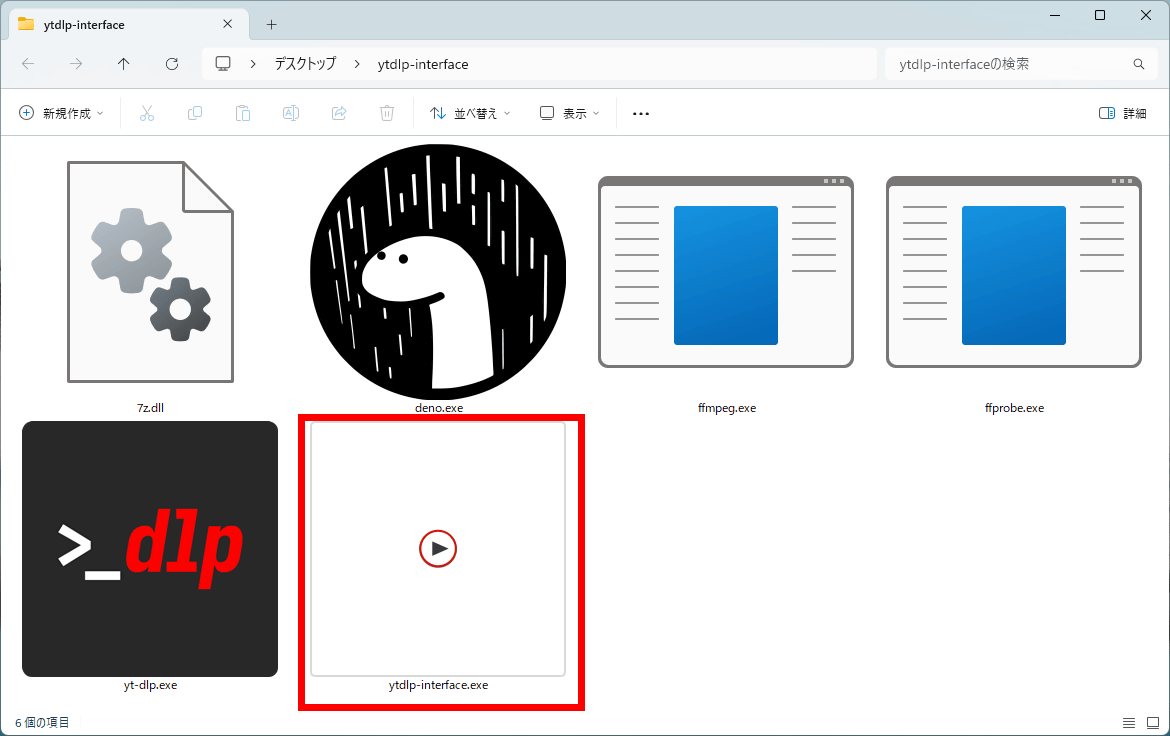
Unzip the downloaded 7z file using Windows' standard features or a tool like
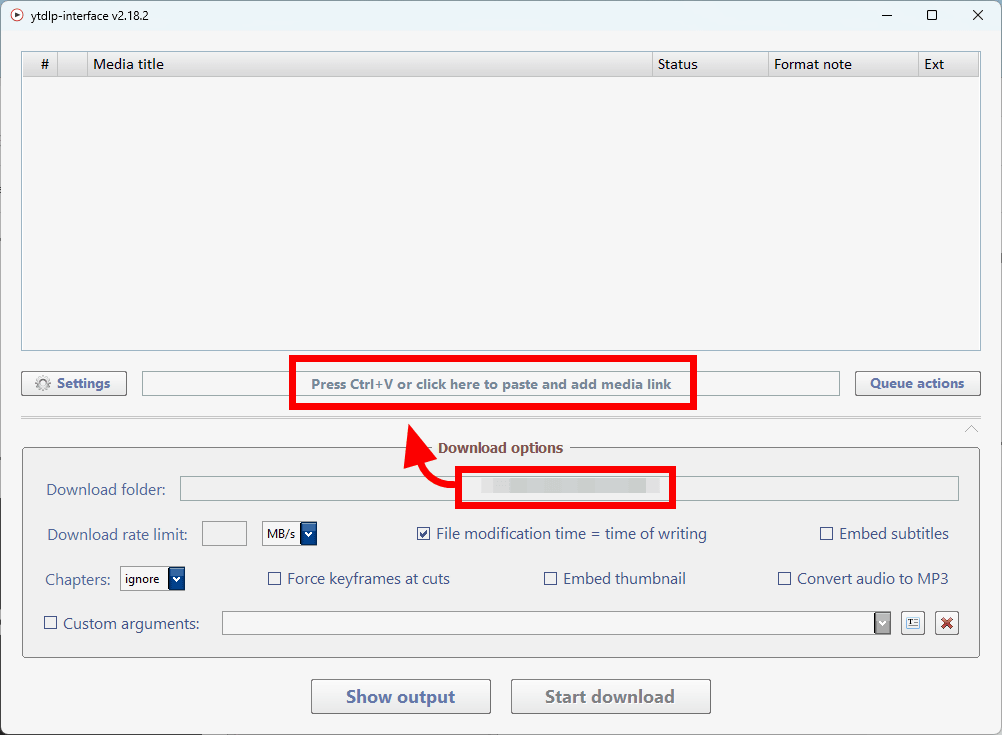
The UI looks like this. Simply specify the download location for videos and audio files in 'Download folder,' and copy the URL of the media (such as YouTube) into the input field in the center. Clicking while copying will automatically paste it and add it to the download queue.
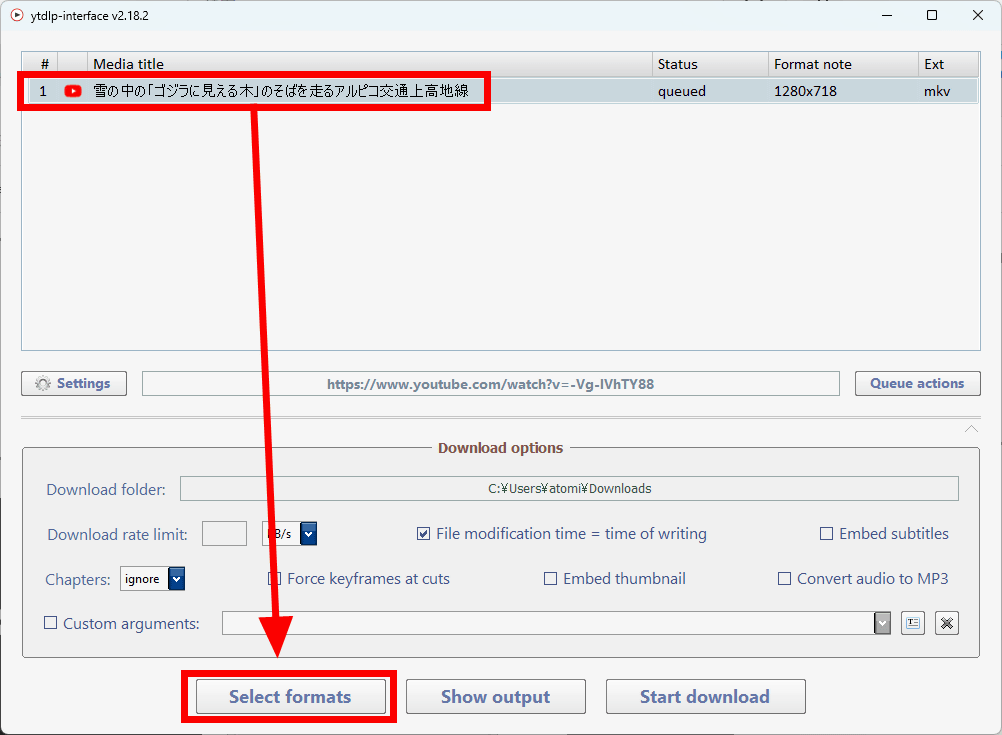
Once added to the download queue, it will appear in the queue list at the top. Click on the media displayed in the queue list and then click 'Select formats' to choose the media type for download.
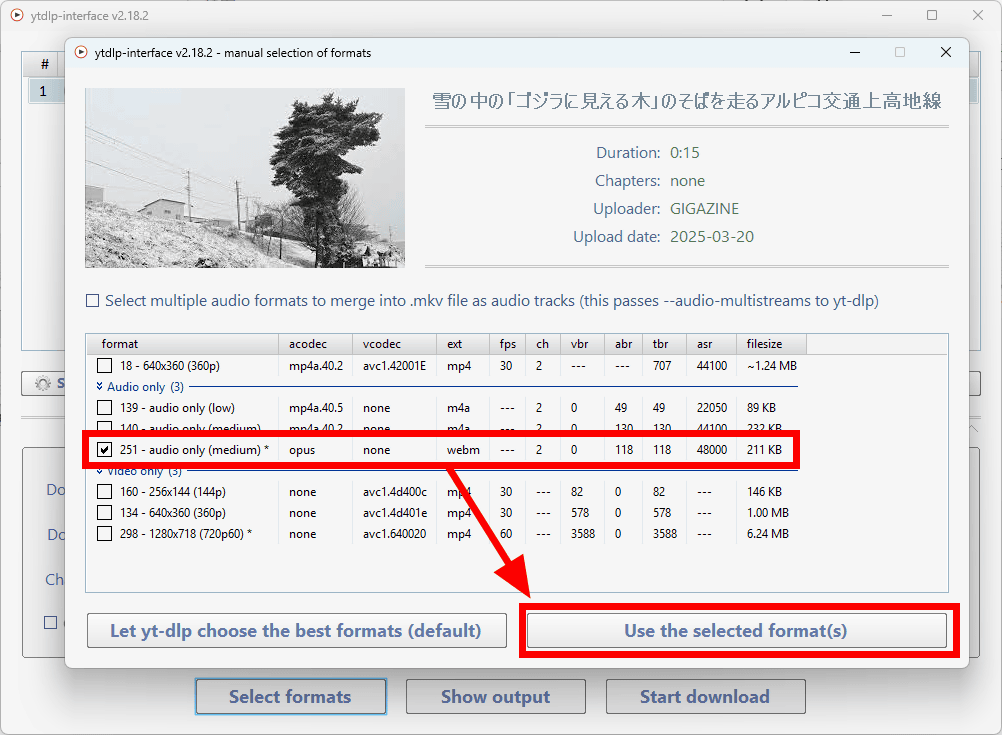
For example, with YouTube, in addition to downloading the original video, you can choose to download only the audio or only the video. Simply check the checkbox to the left of the option and click 'Use the selected format(s)'. You can select multiple options.
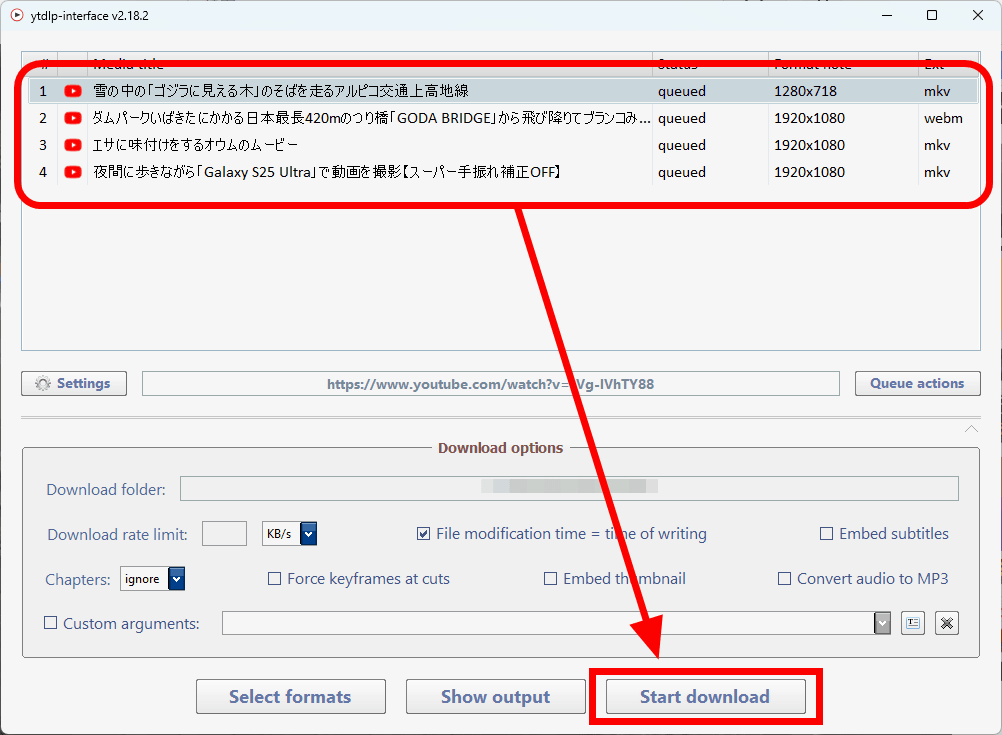
Multiple media files can be registered in the queue list. Clicking 'Start download' will download them to the specified folder.
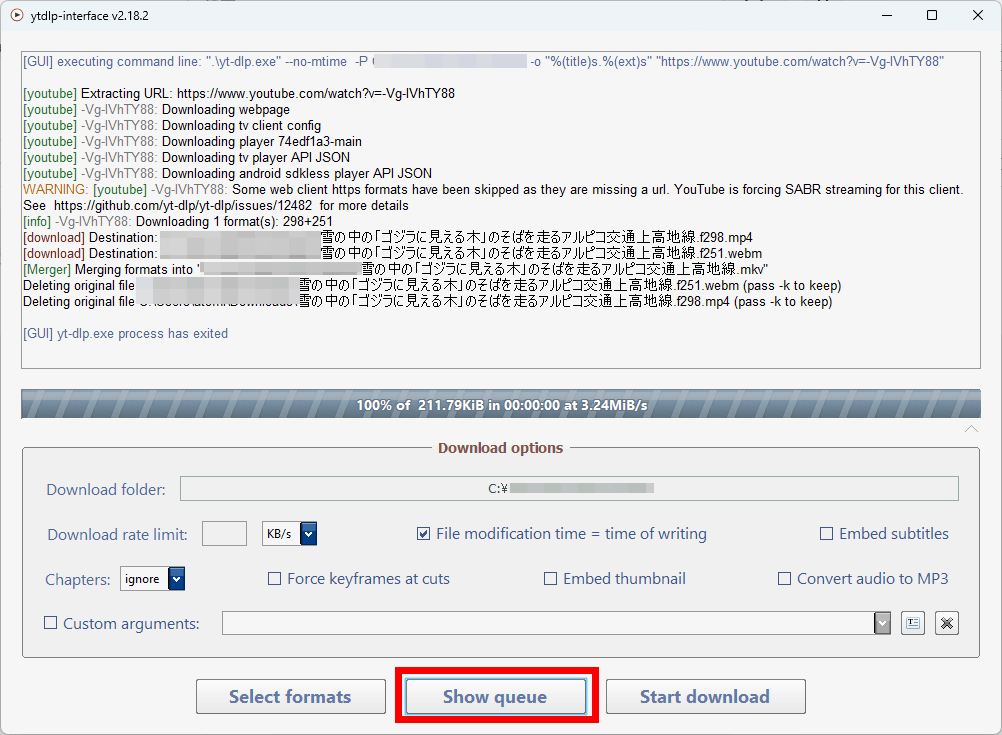
Clicking 'Show queue' allows you to view the processing steps.
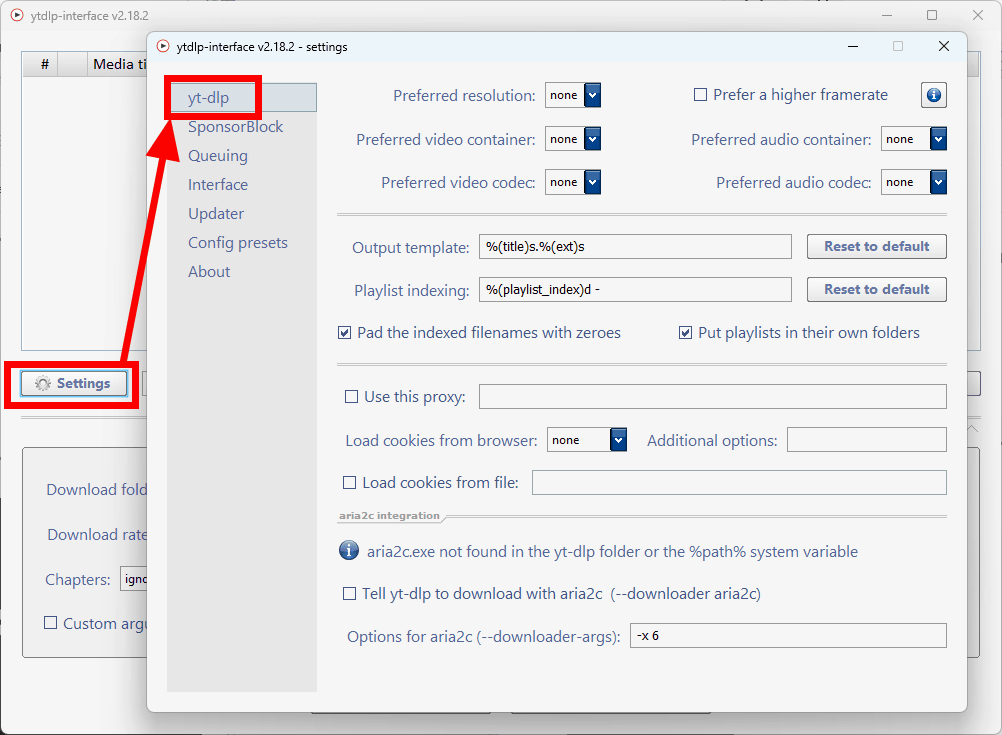
Note that you can configure yt-dlp itself from the 'yt-dlp' tab in the settings screen that appears when you click 'Setting'.
Related Posts: