ComfyUI's generative AI tool introduces official feature 'App Mode' to streamline and simplify complex UIs
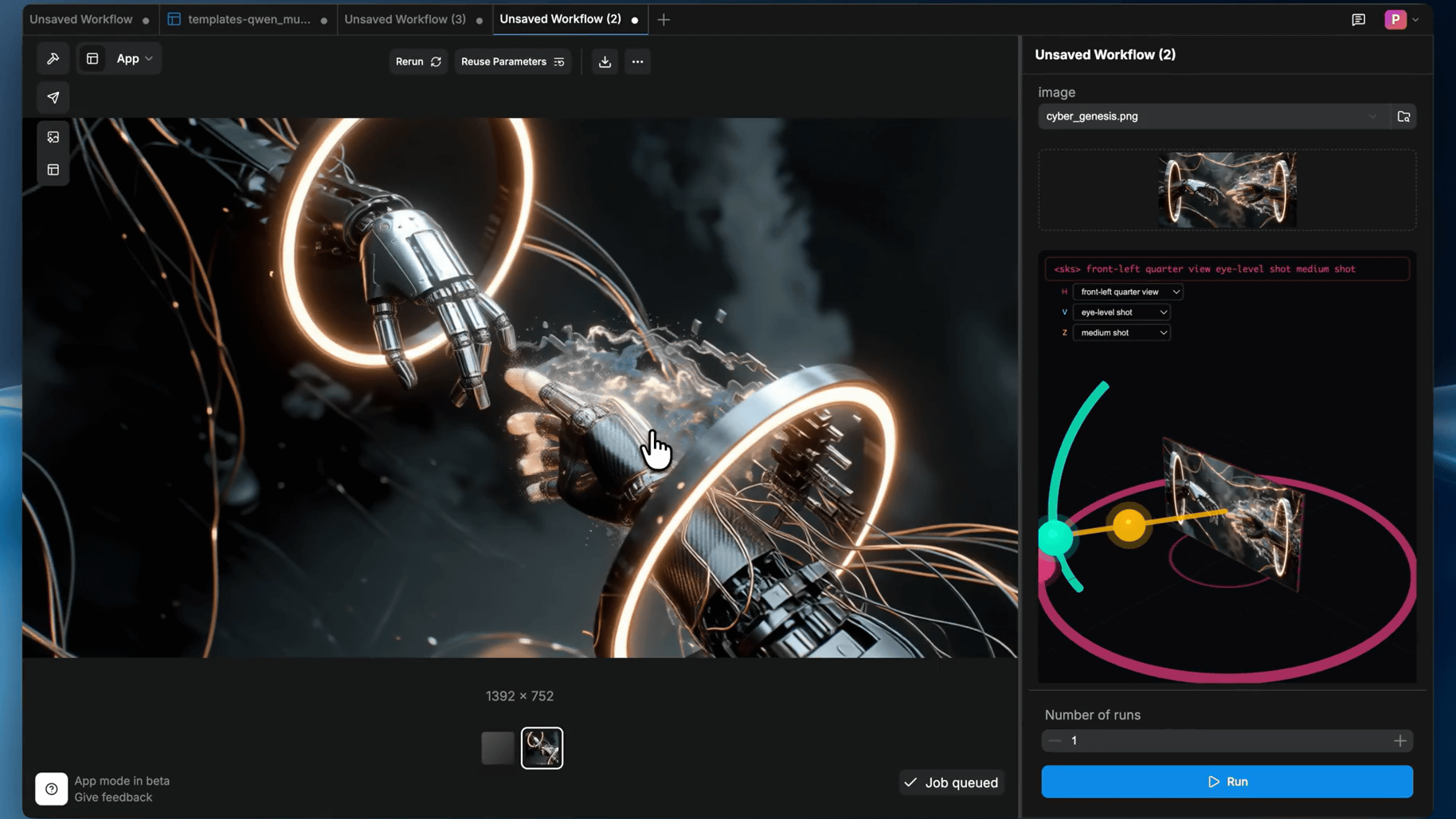
ComfyUI is an app that can run various image generation and video generation AI locally. However, despite its name 'Comfy UI,' it is notorious for being difficult for beginners to understand. ComfyUI now has a new feature called ' App Mode,' which converts workflows built by combining nodes into an easy-to-understand UI.
From Workflow to App: Introducing App Mode, App Builder, and ComfyHub
ComfyUI is an AI execution app that builds 'workflows' by combining nodes with individual functions, such as a 'node that loads an AI model,' a 'node that converts images for humans into images for AI,' and a 'node that saves images.' Workflows can be exported in JSON format, making them easy to share with others. However, the flexibility of the node format can make it difficult to understand.
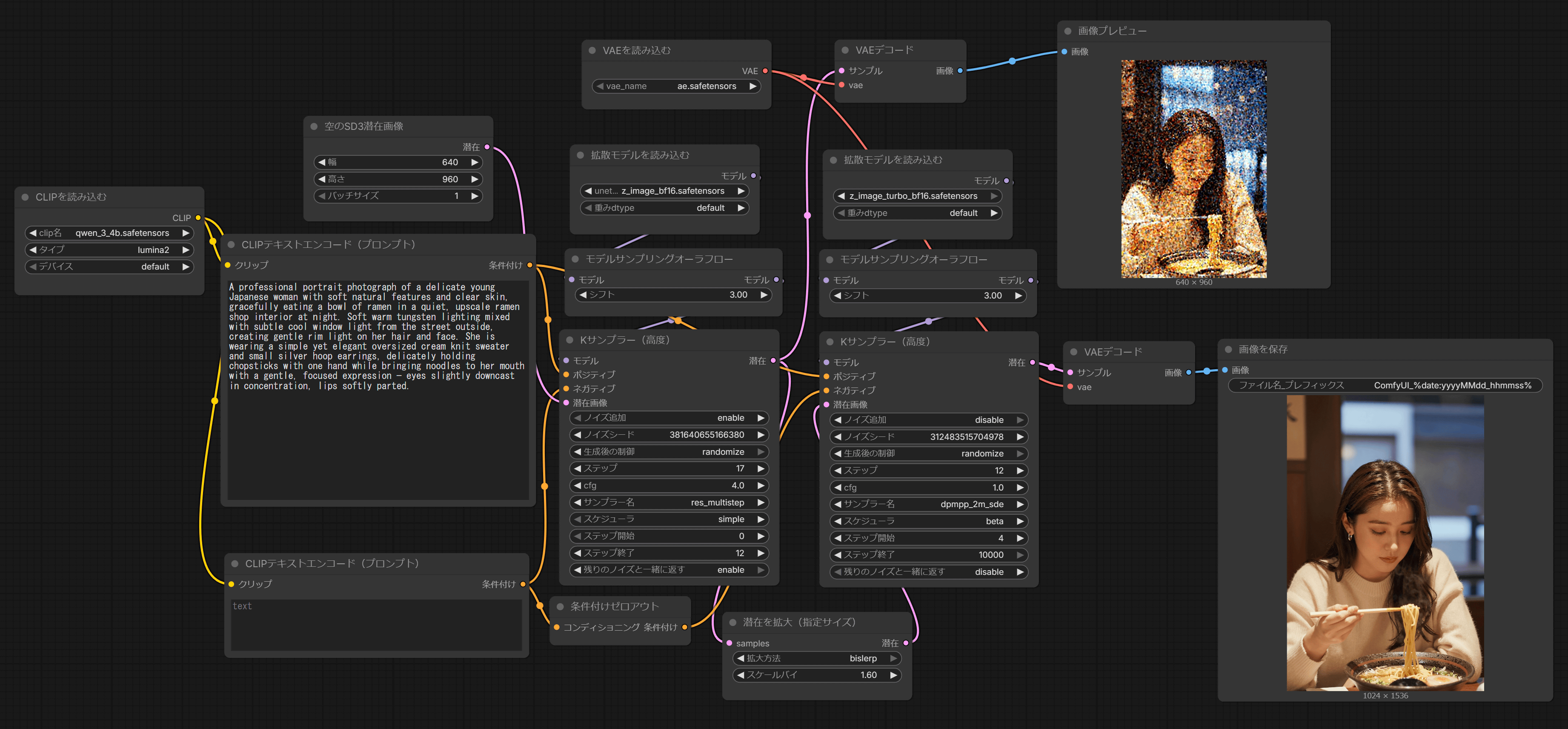
The following is a workflow that aims to achieve both diversity and speed in the generated images: 'The first half of the image generation process is performed using Z-Image-Base, and the latent image is enlarged and passed to another model, Z-Image-Turbo, for the second half.' While those familiar with ComfyUI can customize the workflow to their liking by doing things like 'swap the first and second half models' or 'add your favorite LoRA,' beginners can be confused by things like 'there are too many nodes,' 'there are two K-Sampler nodes, which is confusing,' 'I don't know which values to tweak,' and 'what exactly is a latent image?' Furthermore, while there are tips for node placement, such as 'arranging nodes from left to right in the order of processing makes it easier to understand,' there are no clear rules, so even workflows with the same function can be confusing, with different users arranging nodes differently.
ComfyUI has a feature called 'Subgraph' that combines multiple nodes into one, and the above workflow can be simplified using Subgraph as shown below. However, even using Subgraph still leaves the problem of 'wasted white space on the screen.' 'App Mode' is a feature that solves this problem and allows you to create an easy-to-understand UI.
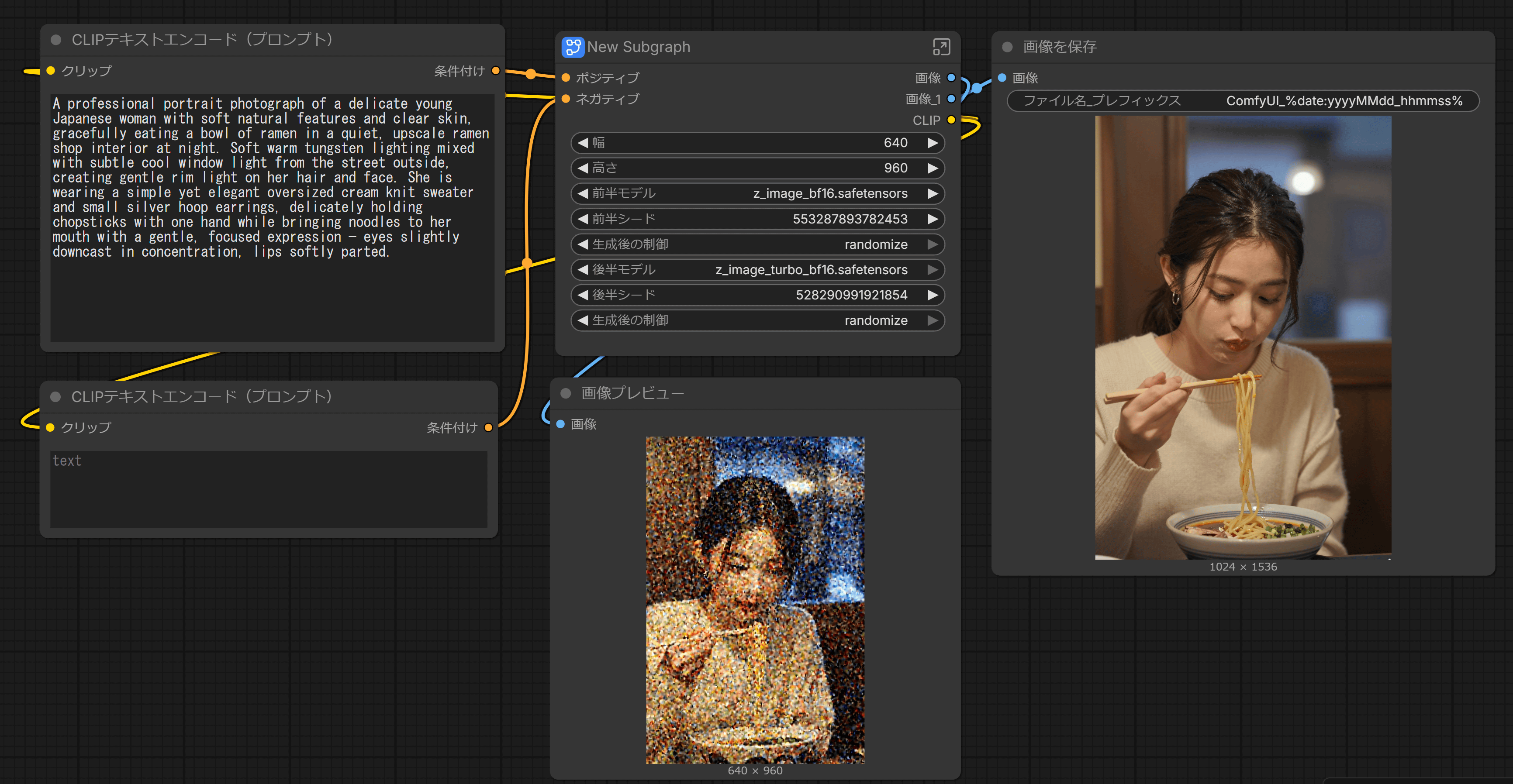
Here's an example of the app mode: First, build a complex workflow like this:
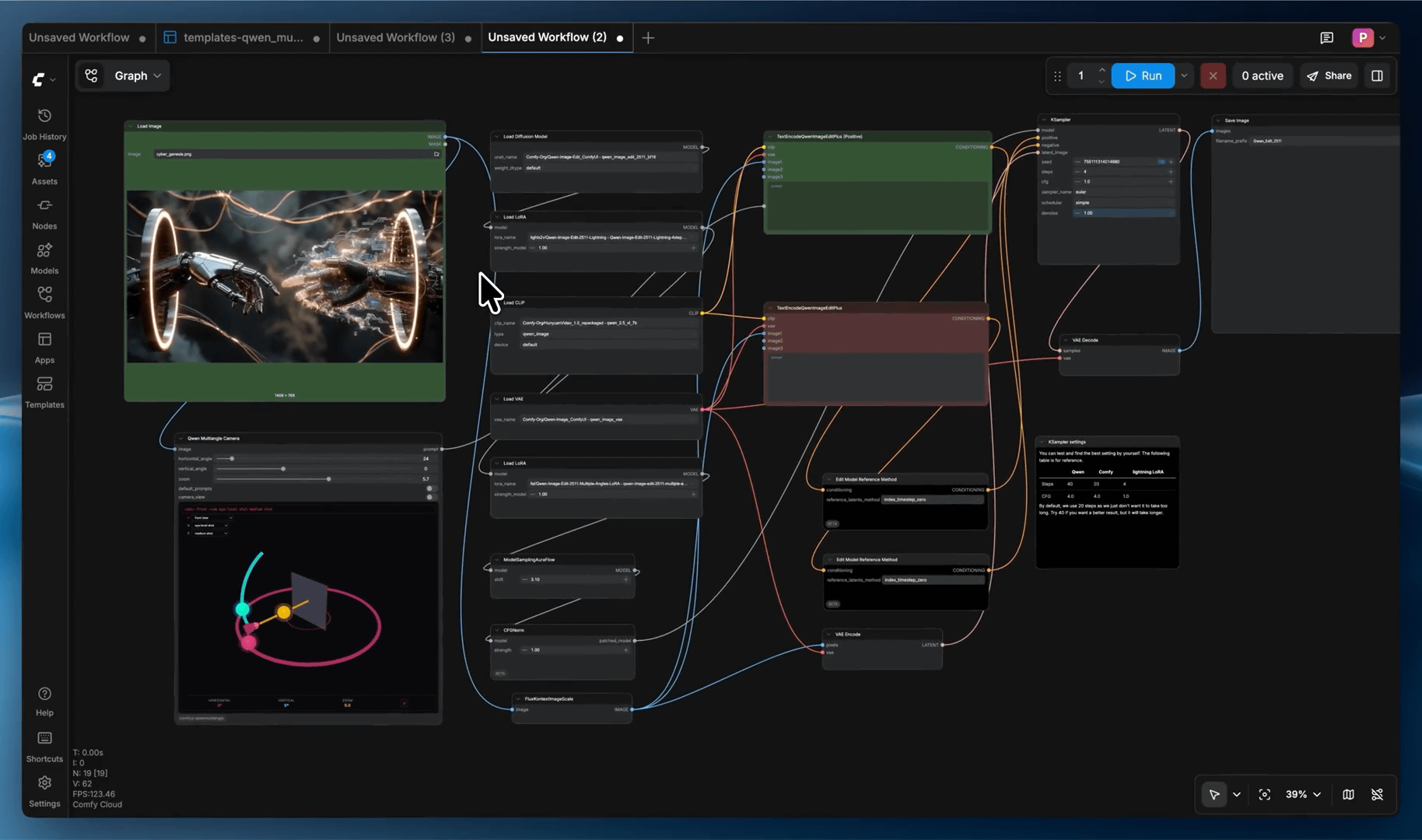
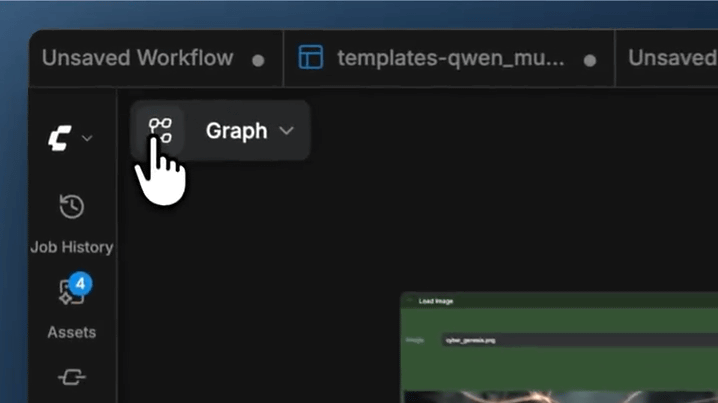
Click the button labeled 'Graph' in the upper left corner of the screen.
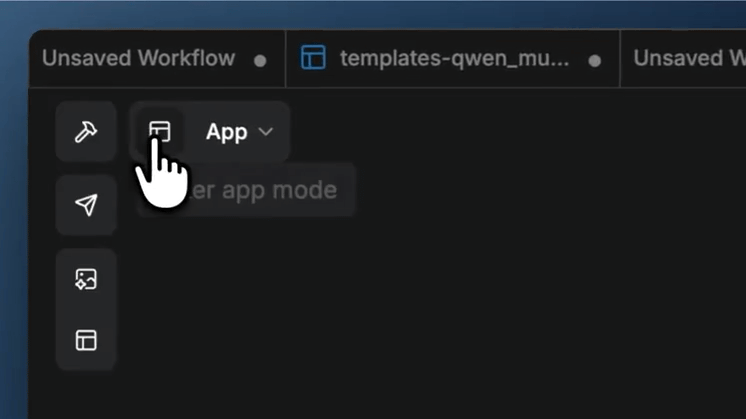
Switched to App Mode.
The overall screen looks like this: A large area on the left side displays the generated results, and various settings are listed on the right side.
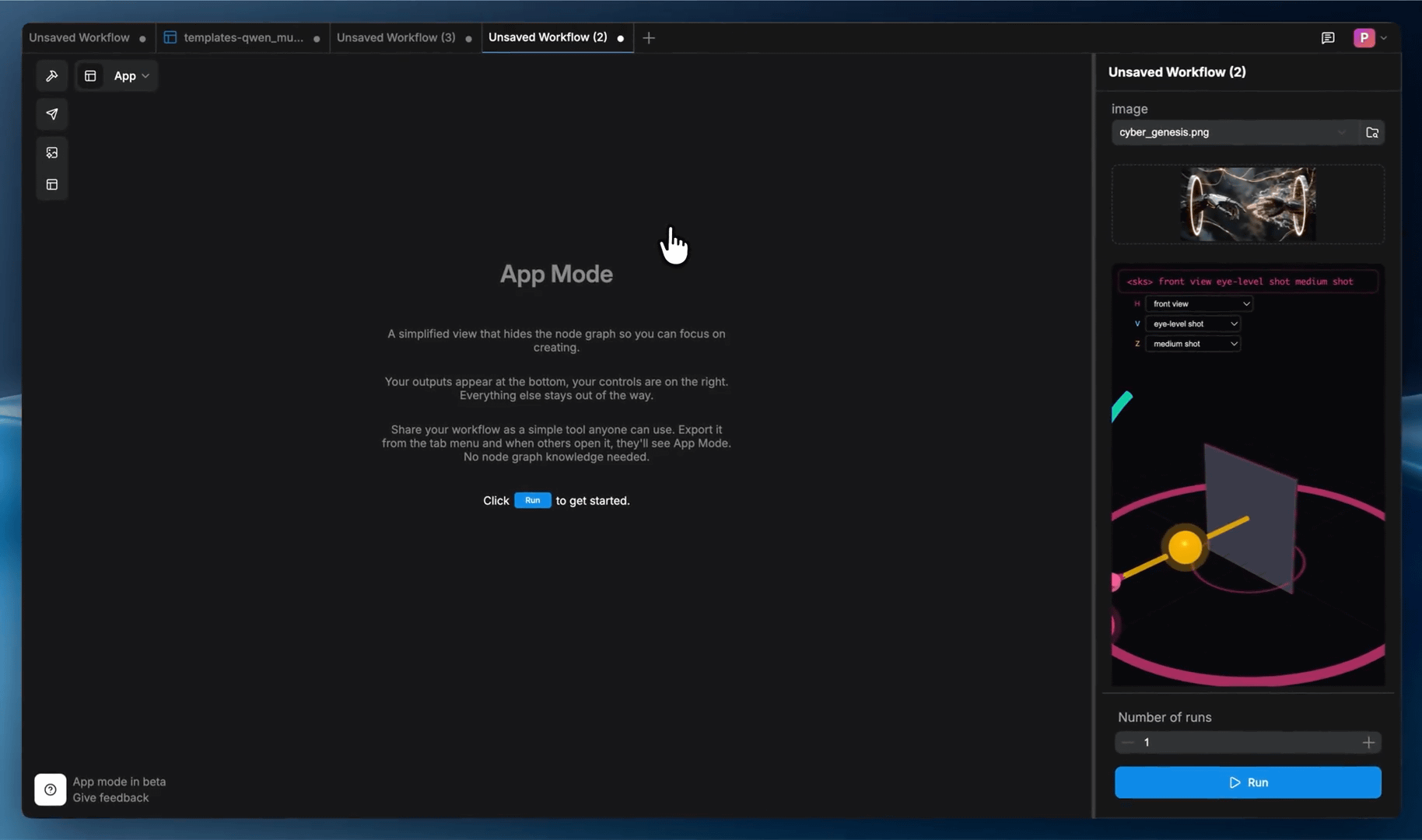
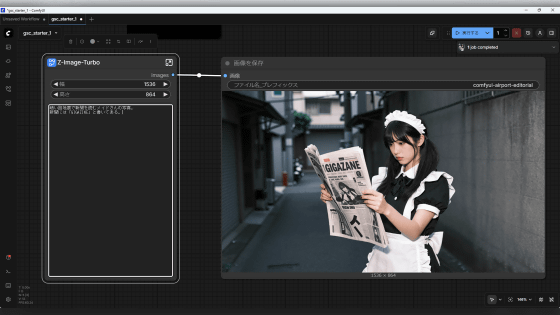
The generated image looks like this. It is much easier to understand than the node-based UI.
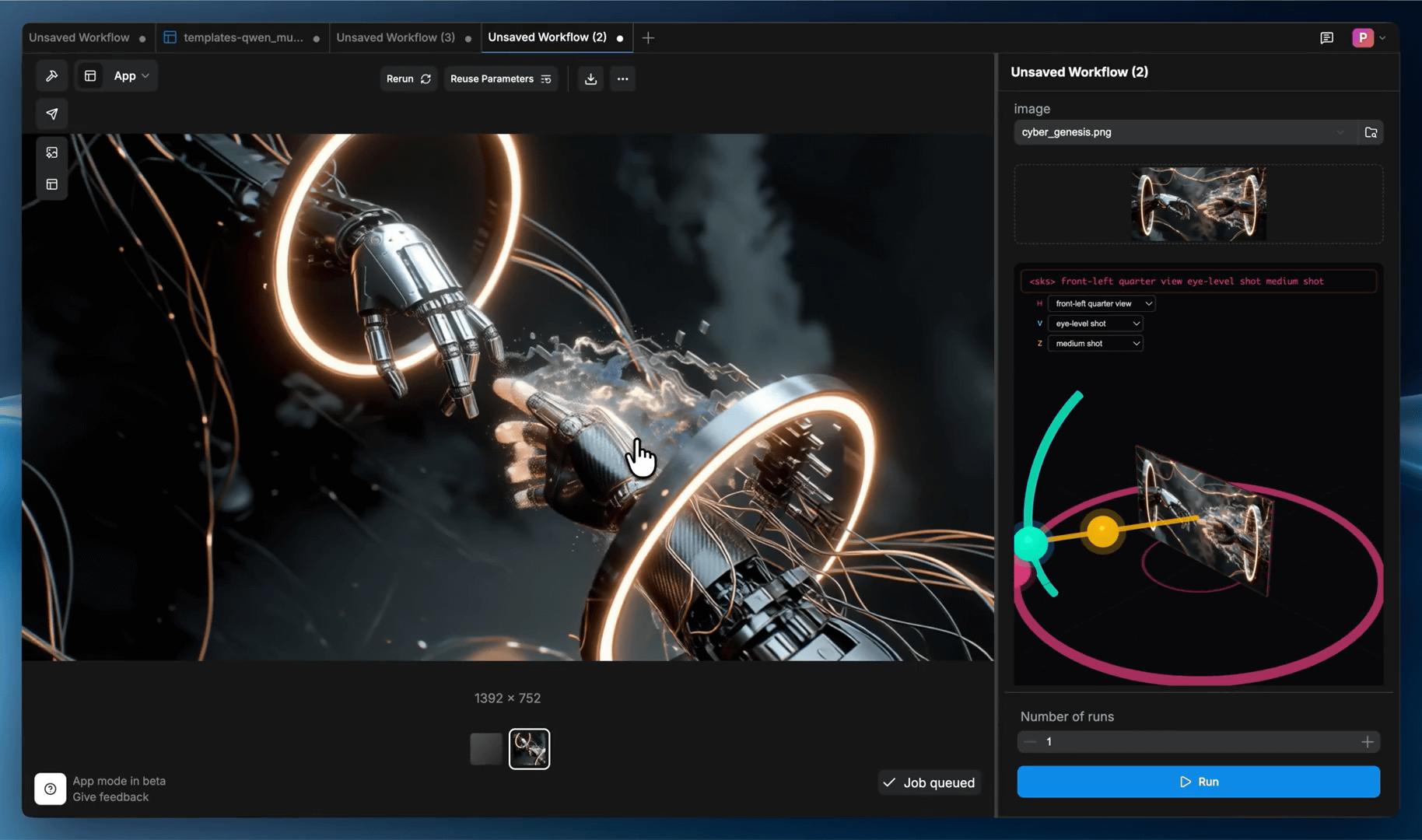
Users can freely customize the layout of setting items.
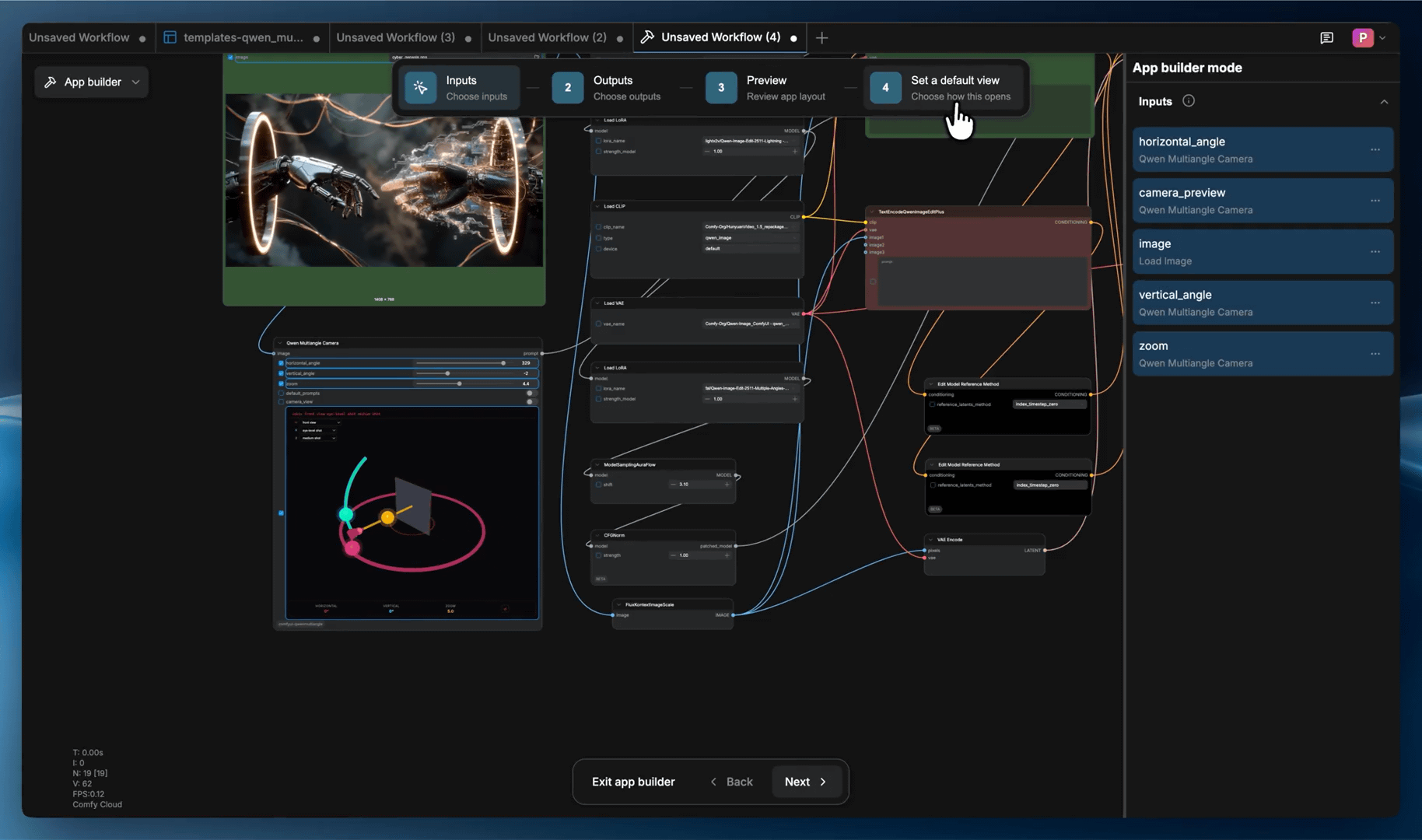
You can also generate a shareable link for your app. Clicking the link will open the app on ComfyUI Cloud, a cloud service, and you can create images and videos without installing anything.
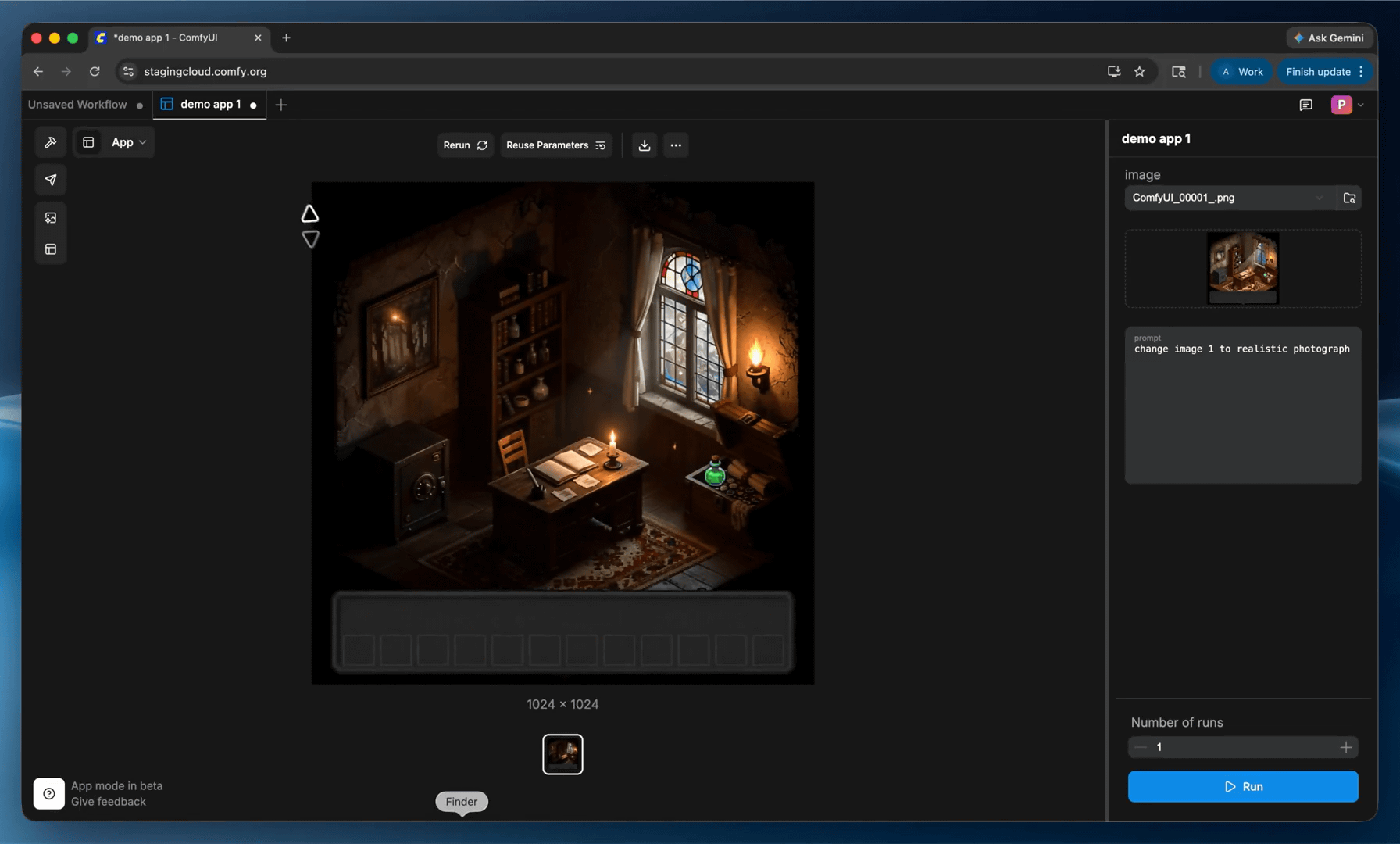
App Mode is already available in the ComfyUI repository, and users of the manually installed version can update to the latest version. At the time of writing, the update has not yet been reflected in the portable or desktop versions, but it should be reflected within the next few days.
The installation procedure for the desktop version of ComfyUI is explained in detail in the article below.
Summary of installation steps for 'ComfyUI' that allows you to easily run image generation AI on your PC & steps to generate the first image - GIGAZINE
At the same time as App Mode, ComfyHub, a workflow sharing site, was also released. ComfyHub is available as a preview version, and contains an easy-to-understand summary of workflows carefully selected by the development team.
ComfyUI Workflows - Free AI Generation Workflows
https://comfy.org/workflows

Related Posts: