How to view folder size in Windows Explorer
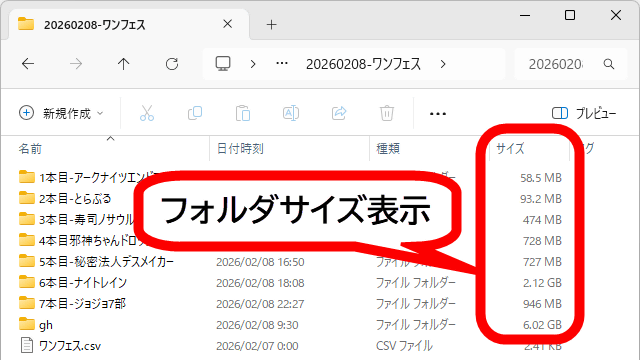
While the detailed view in Windows Explorer can display file size and creation date and time, it cannot display folder size. I learned that by combining the Windows custom app 'Windhawk' and the fast file search app 'Everything,' it is possible to display folder size, so I have compiled the installation instructions and setup instructions for each app.
Better file sizes in Explorer details - Windhawk
·table of contents
◆1: Check what you want to do
◆2: Installing Everything
◆3: Setting up Everything
◆4: Installing Windhawk
◆5: Installing and configuring Windhawk mods
◆6: Result
◆1: Check what you want to do
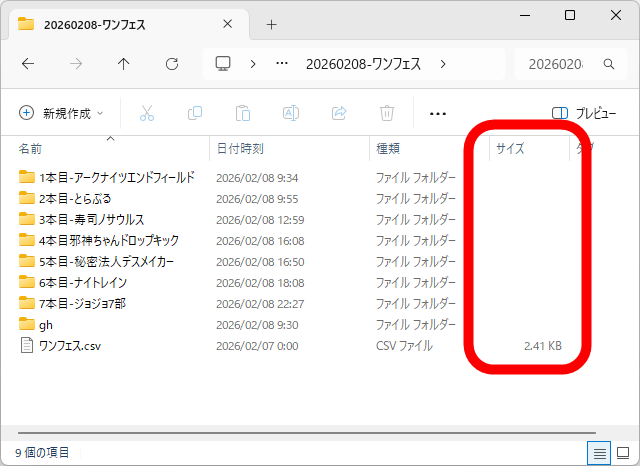
The detailed view in Explorer is shown below. The file size is displayed, but the folder size is not.
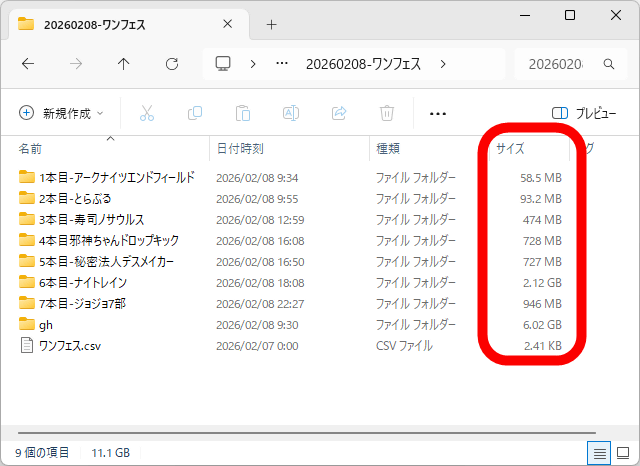
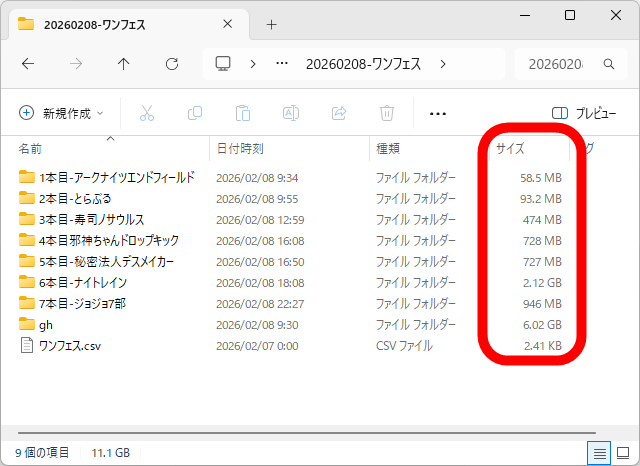
If you follow the instructions in this article, you will be able to display the folder size as shown below.
◆2: Installing Everything
To display folder sizes in File Explorer, you need to install the file search app Everything and configure it to retrieve folder sizes, and then install the Windows custom app Windhawk and add a folder size display mod. So, first, install Everything. If you already have Everything installed, proceed to
First, click the link below to access the Everything distribution page.
Downloads - voidtools
https://www.voidtools.com/downloads/
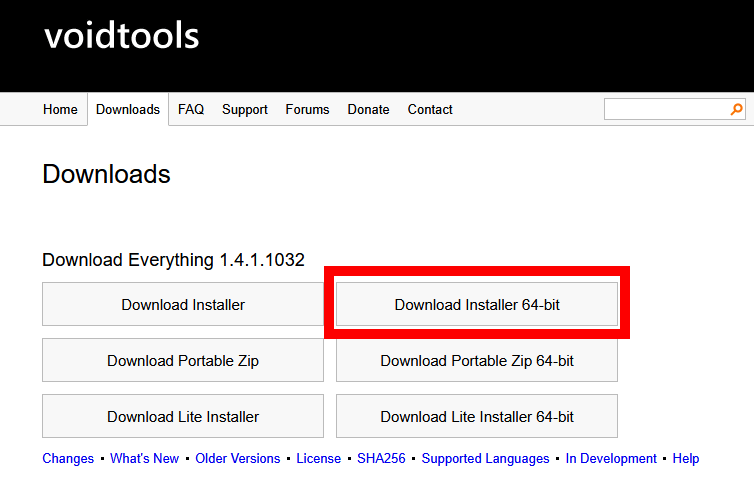
Click 'Download Installer 64-bit' to download the installer.
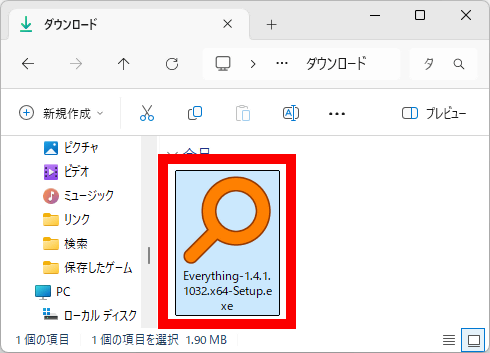
Once the download is complete, double-click the installer to launch it.
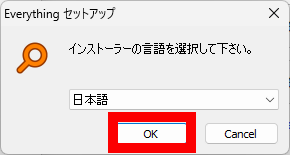
When the language selection screen appears, select Japanese and click 'OK.'
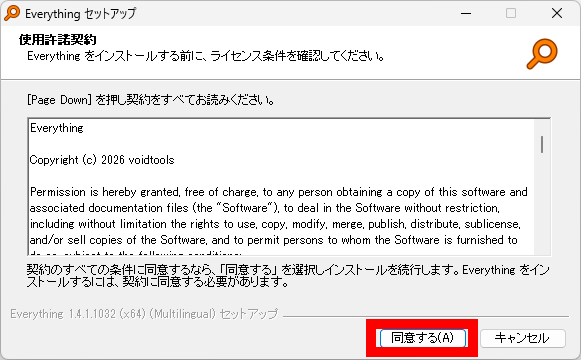
Read the license agreement carefully and then click 'Agree.'
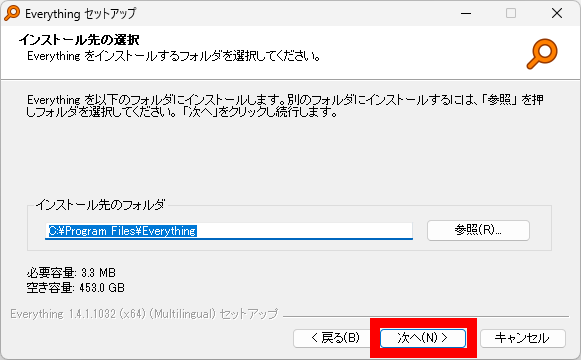
When the installation destination selection screen appears, click 'Next' without changing anything.
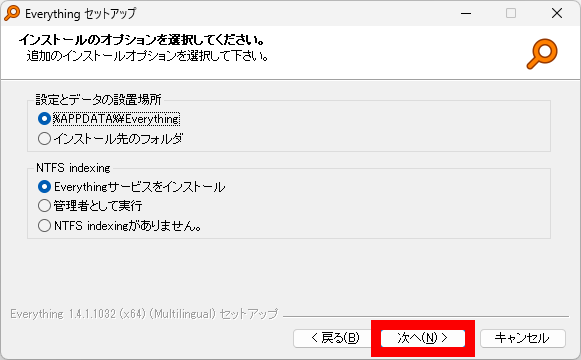
Leave the option selection screen in its initial state and click 'Next'.
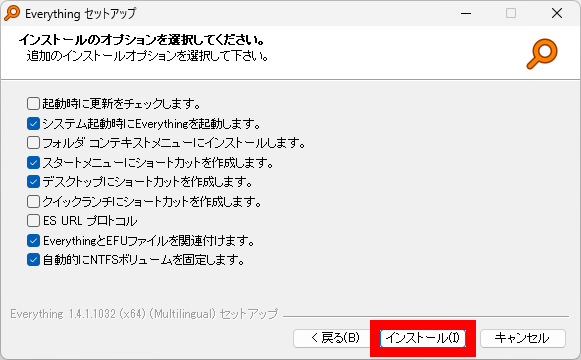
Click 'Install'. You can change the options to your liking, but since you need to start Everything to display the folder size, we recommend leaving 'Start Everything at system startup' checked.
When the installation is complete, click 'Finish.'
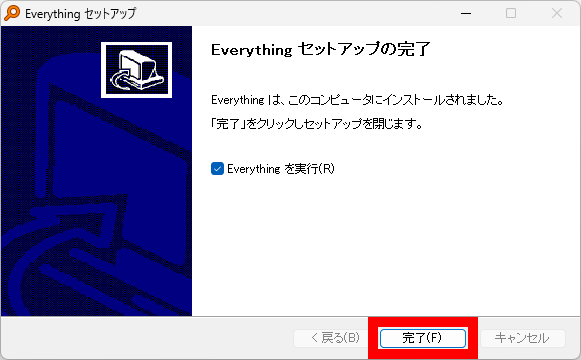
Everything will start automatically and indexing will begin, so just wait a few seconds.
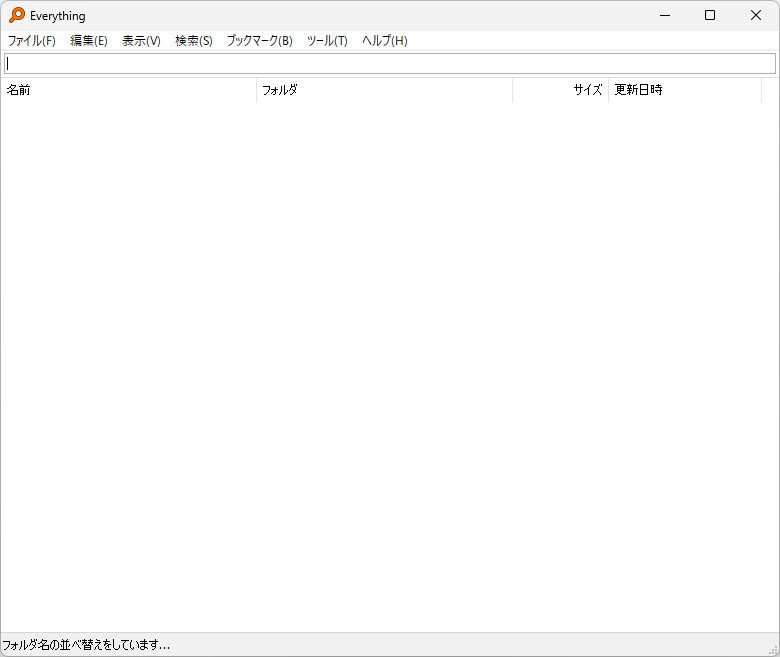
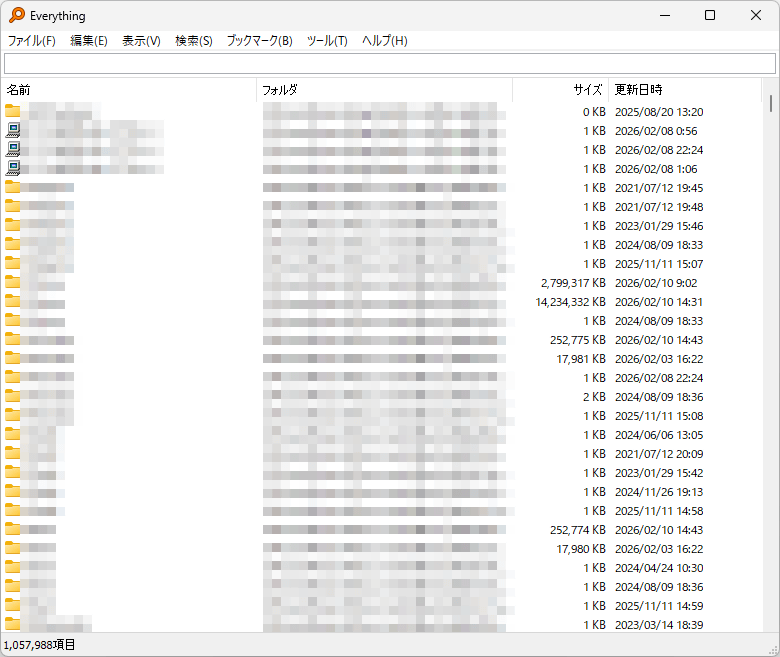
It's OK if all the files and folders are displayed.
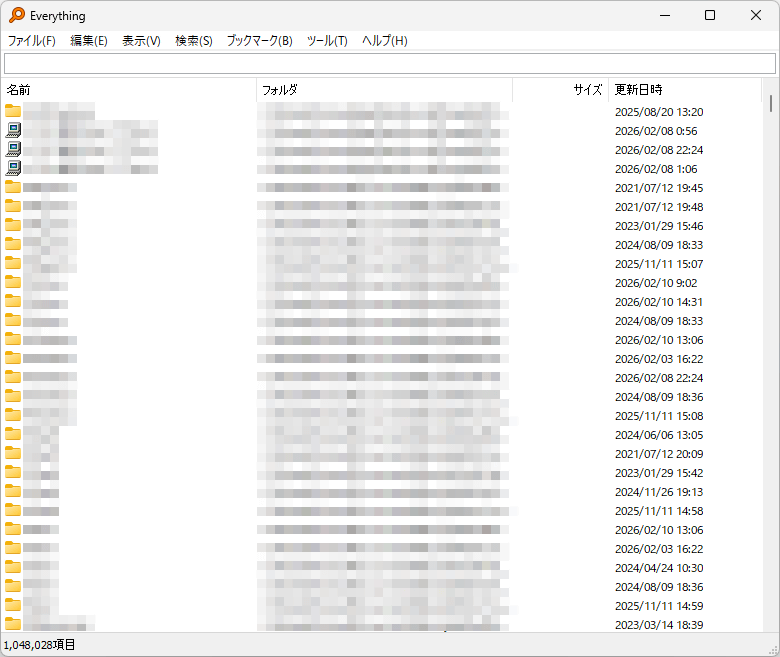
◆3: Setting up everything
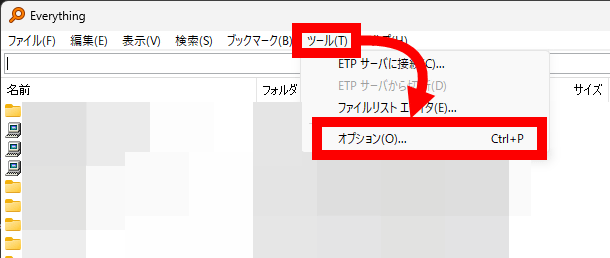
Change the settings to get the folder size. First, click 'Options' in 'Tools.'
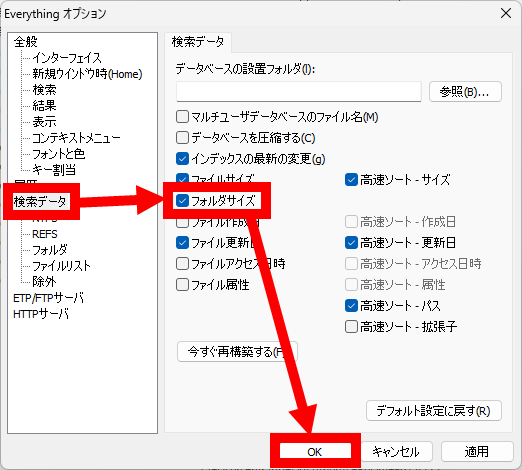
Click 'Search Data', then check 'Folder Size' and click 'OK'.
Once the folder size is displayed in the 'Size' column, the setting of Everything is complete. Everything will continue to run in the background, so you can close the window.
◆4: Installing Windhawk
Next, install Windhawk, an app that lets you customize Windows by combining custom features called 'Mods.'
First, click the link below to go to the official Windhawk page.
Windhawk
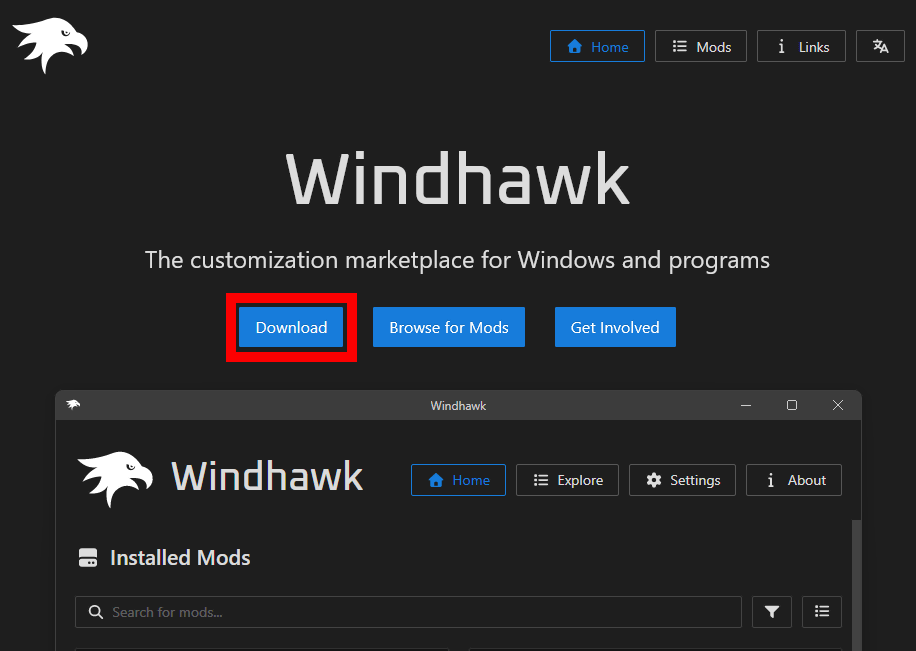
Once you open the official page, click 'Download' at the top of the screen to download the installer.
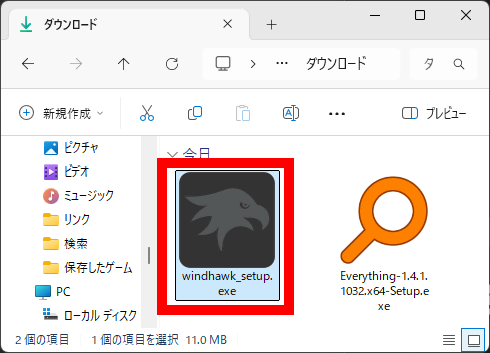
Once the download is complete, double-click the installer to launch it.
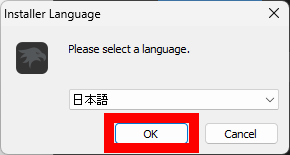
When the language selection screen appears, select Japanese and click 'OK.'
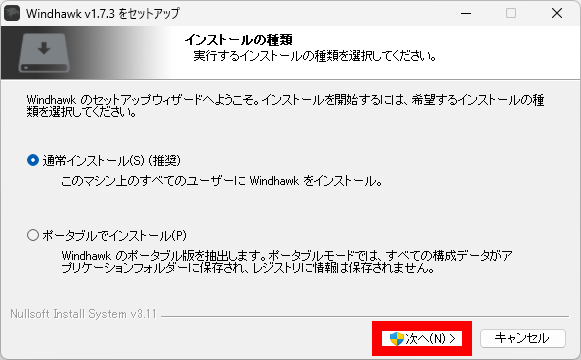
When the screen for selecting the installation type appears, leave the default setting of 'Normal Installation' and click 'Next'.
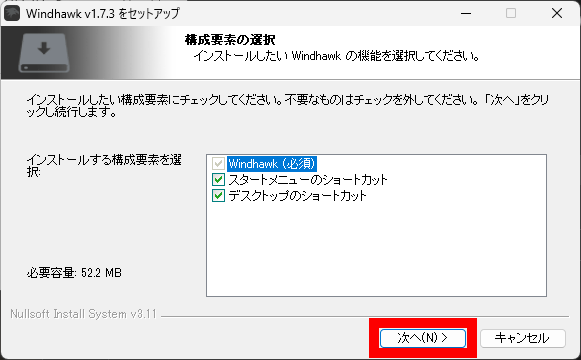
When the component selection screen appears, click 'Next' without changing anything.
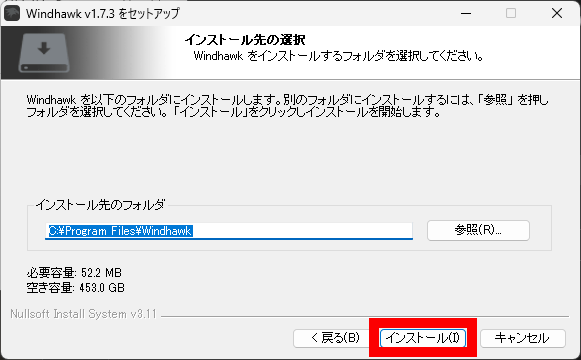
Click 'Install'.
When the installation is complete, click 'Finish.'
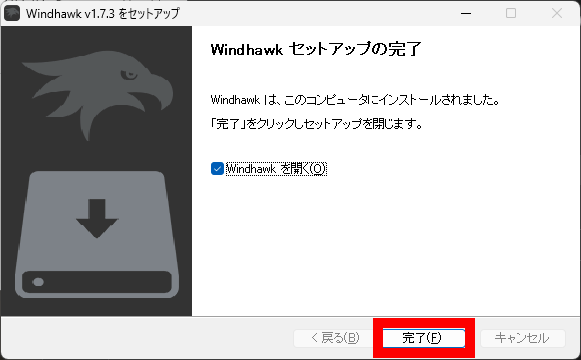
Once Windhawk starts, proceed to install the mod.
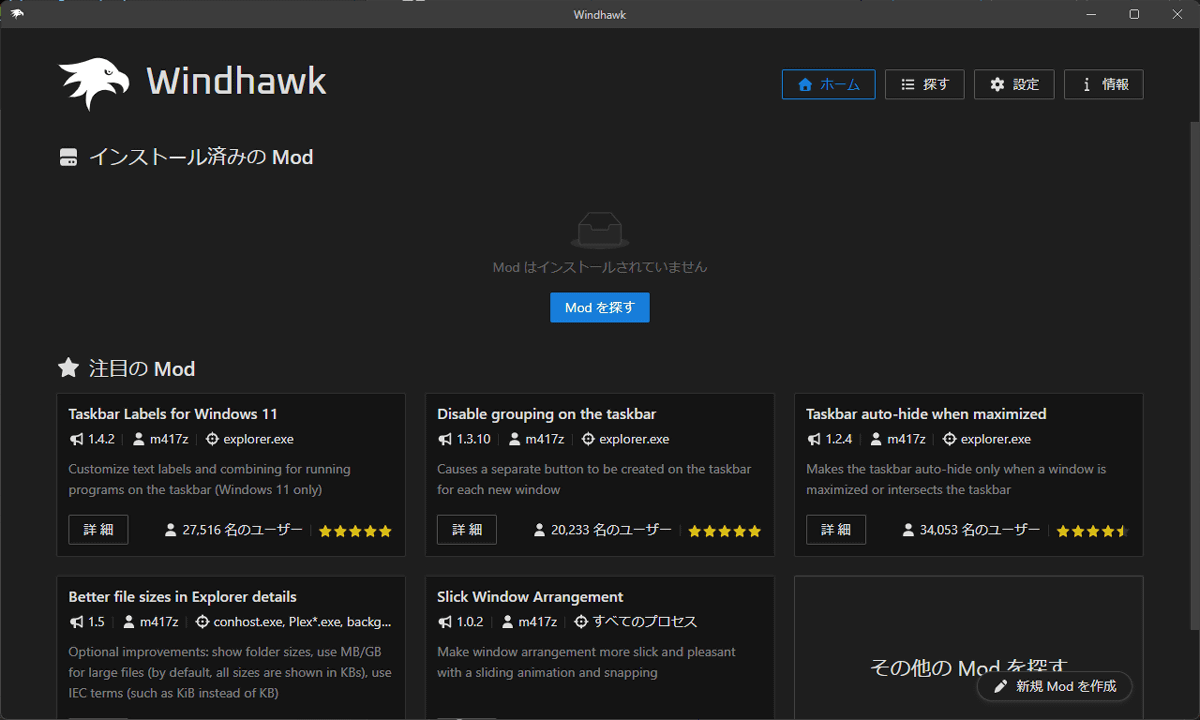
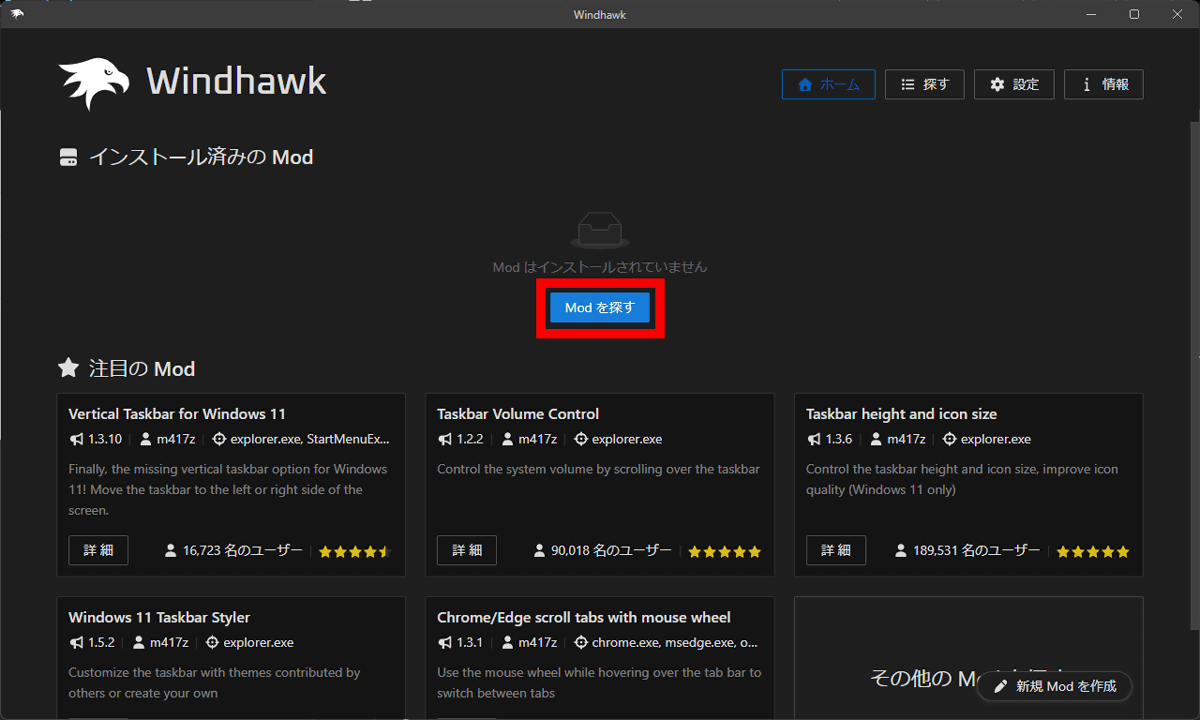
◆5: Installing and configuring Windhawk mods
Click 'Find Mods' at the top of the Windhawk screen.
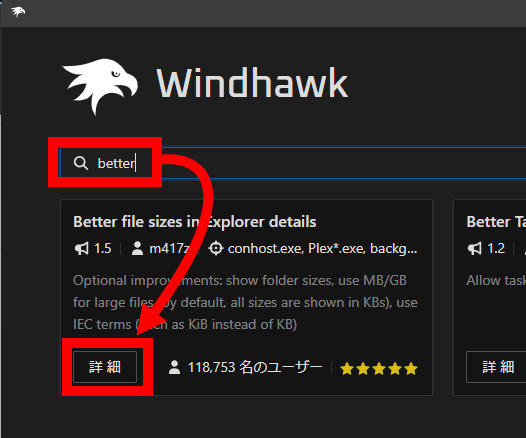
Enter 'better' or something similar in the search bar, search for the mod 'Better file sizes in Explorer details,' and then click 'Details.'
Click 'Install'.
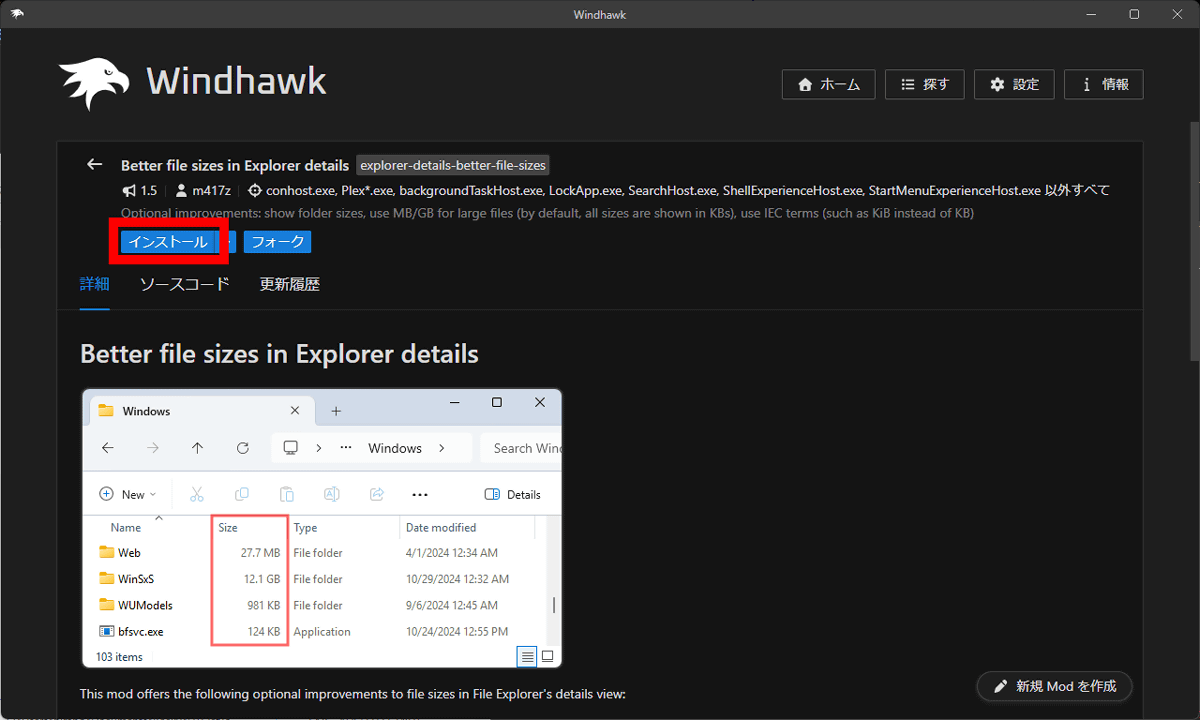
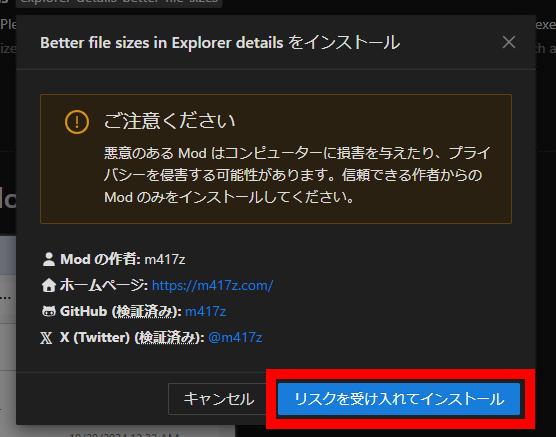
A warning about the risks of the mod will appear, so click 'Accept the risk and install'.
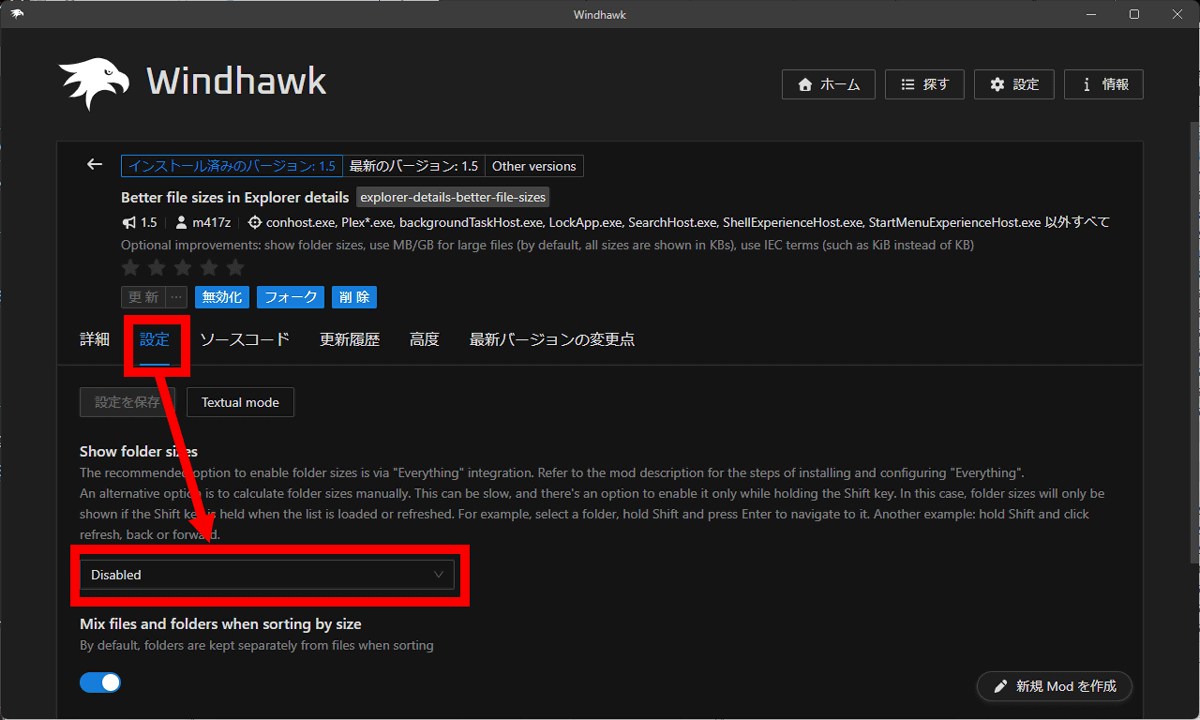
Click 'Settings' and then click 'Disabled.'
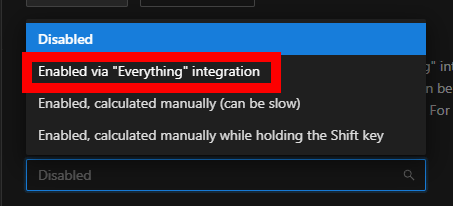
Click “Enabled via 'Everything' integration”.
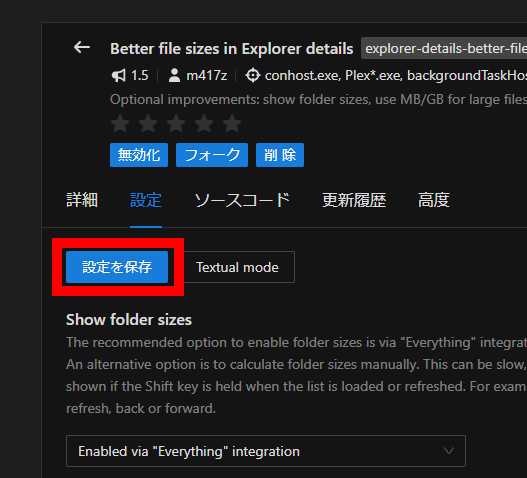
Click 'Save Settings' and you're all set.
◆6: Result
If you open Explorer and switch to detailed view, the folder size will also be displayed in the size column. If Explorer was open before the setting, please reopen Explorer or click the refresh button.
In addition to the mods used in this article, Windhawk allows you to install a wide variety of mods, such as a mod that lets you change the volume by simply rotating the mouse wheel on the taskbar, a mod that moves the Windows 11 taskbar to the top of the screen, a mod that displays the Windows 11 taskbar vertically on the right or left side of the screen, and a mod that makes window corners right-angled . A list of mods can be found at the link below. However, please be sure to check the source code as there is a possibility that malicious mods may exist.
Mods - Windhawk
https://windhawk.net/mods
Related Posts: