Session, an open-source encrypted messaging app
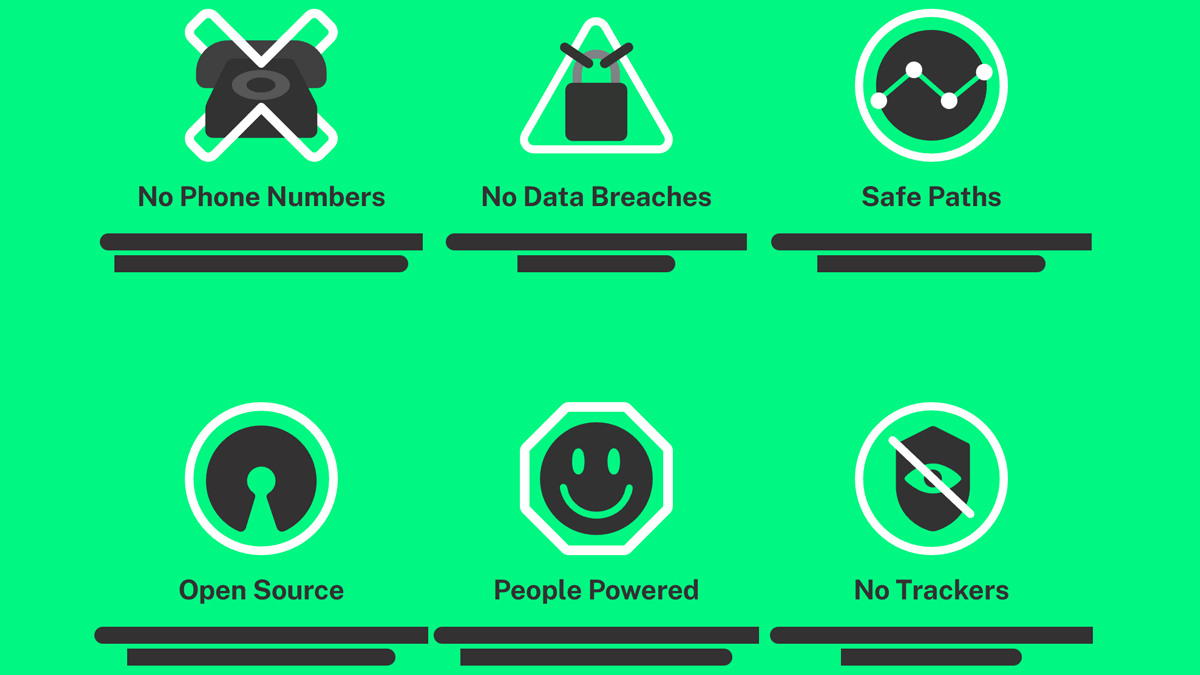
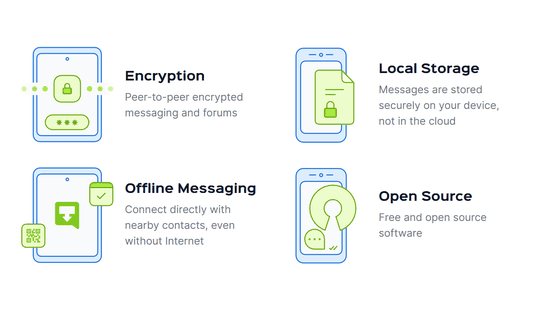
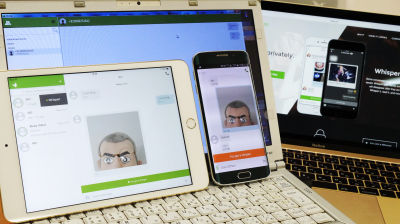
Messaging apps are convenient because they allow you to easily send messages to others, but many of them store metadata on the server, such as who spoke to whom and when, which poses a risk for those who value privacy.To eliminate the risk of private data leaks, there is an open-source encrypted messaging app called ' Session ' that can hide the communication route itself without requiring you to register personal data.
Session
◆Features of the Session
・There is no need to register a phone number or email address; a 66-digit random string is used as the account ID.
・Data stored on the device is also encrypted
・Encryption at every stage from sending to receiving using
- The distributed network does not go through a central server, and by using onion routing , it is impossible to know who is sending the data to whom.
The code is open source and has been audited by the French cybersecurity company Quarkslab , which has confirmed that it has no security holes.
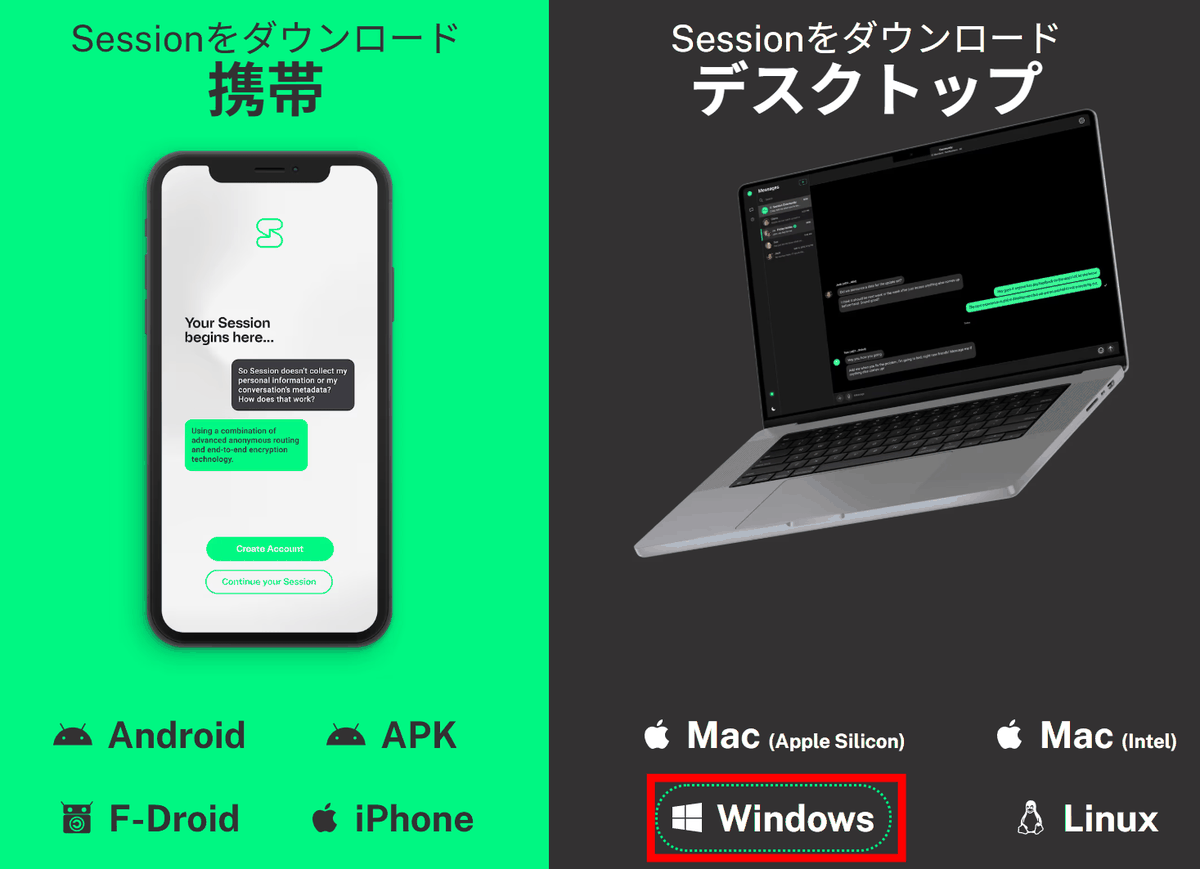
・Multi-platform support: Available for Windows, macOS, Linux, iOS, and Android
- Simple functions such as sending text and small files
- Full encryption causes delays, making it unsuitable for real-time conversations
◆Install Session on Windows
Visit the download page and download the installer for Windows.
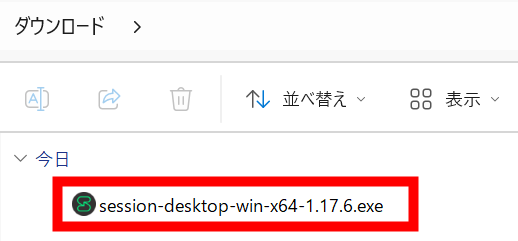
Double-click the downloaded file to run it.
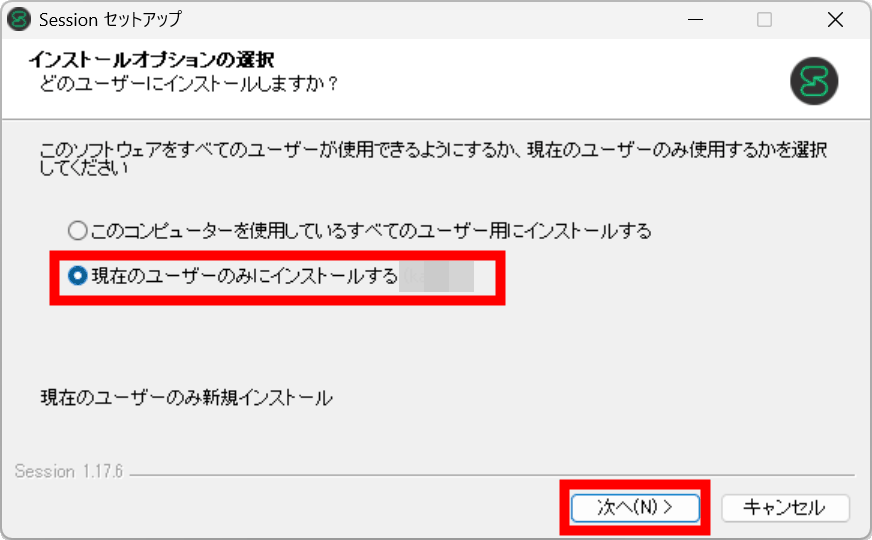
Select the installation target and click 'Next'.
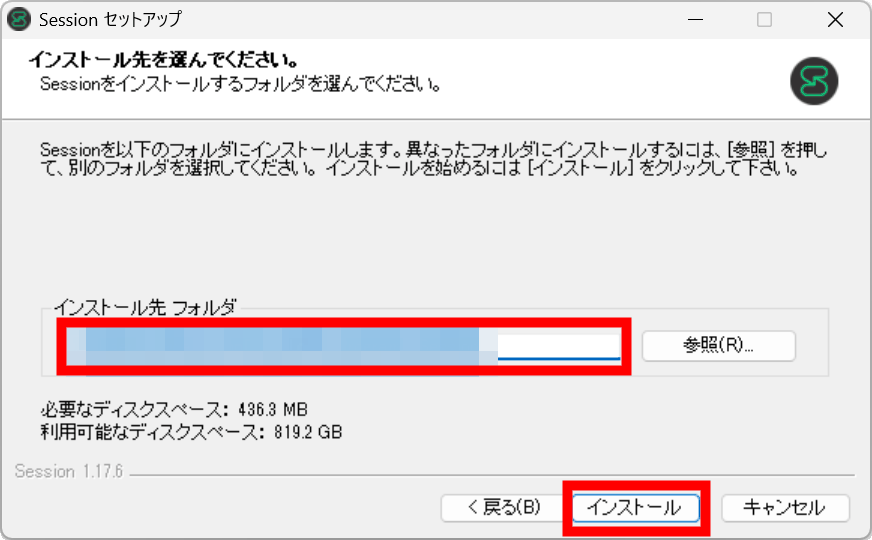
Select the installation location and click 'Install.'
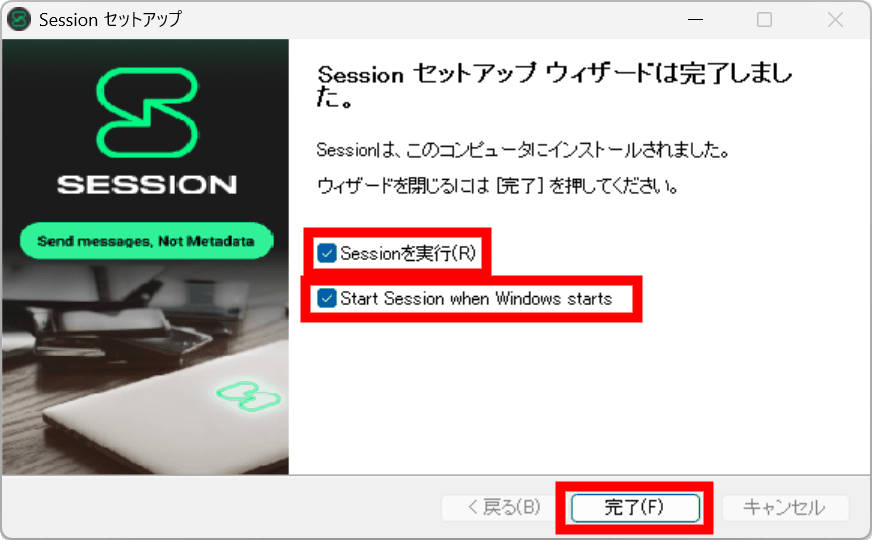
Select the check boxes for 'Run immediately after installation' and 'Automatically launch Session when Windows starts' and click 'Finish'.
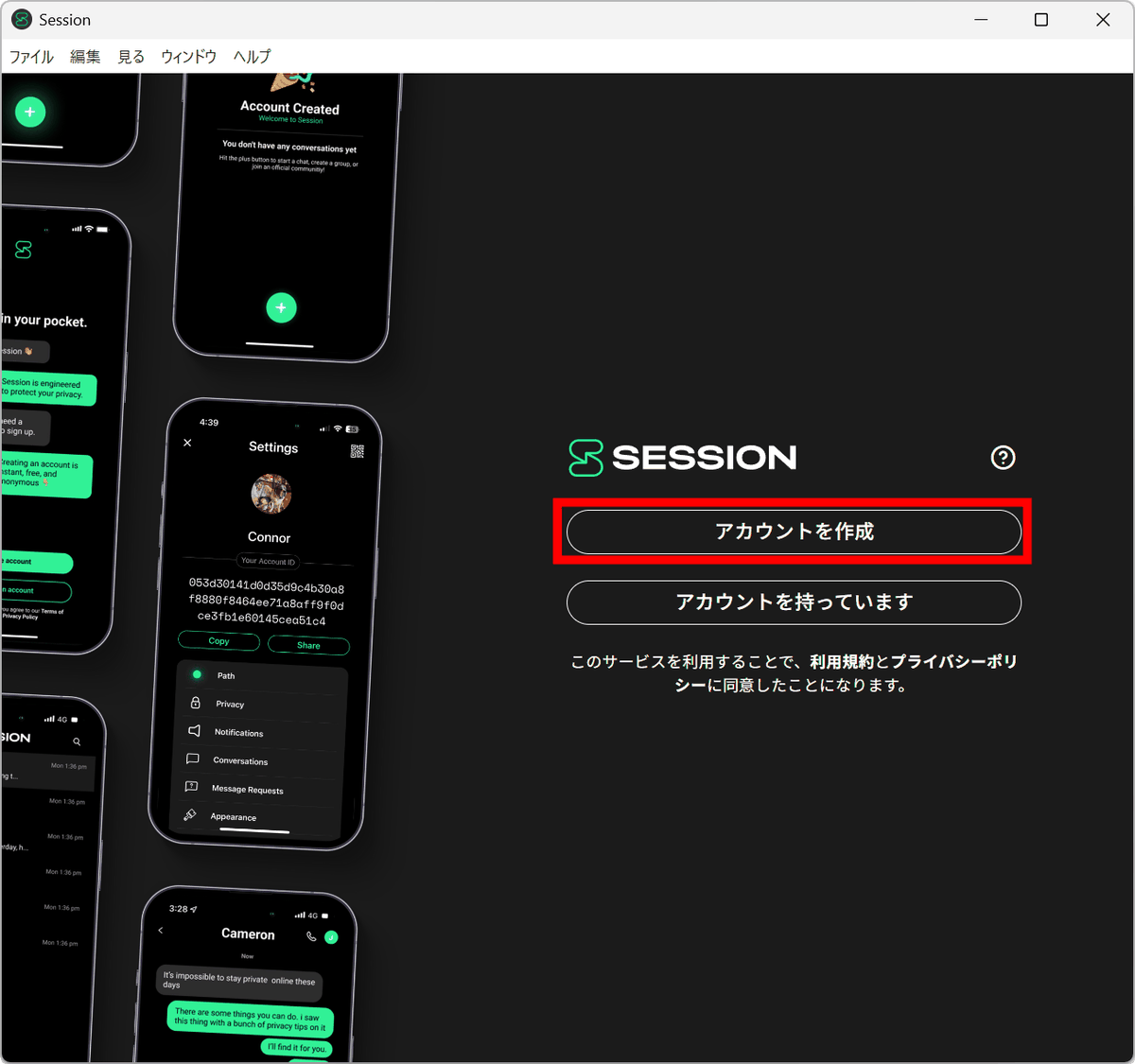
Click 'Create an account' from the Session screen that opens.
Enter a display name and click 'Continue.'
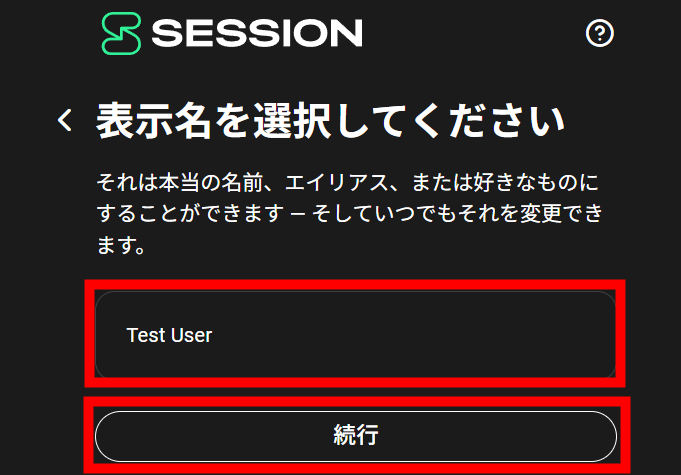
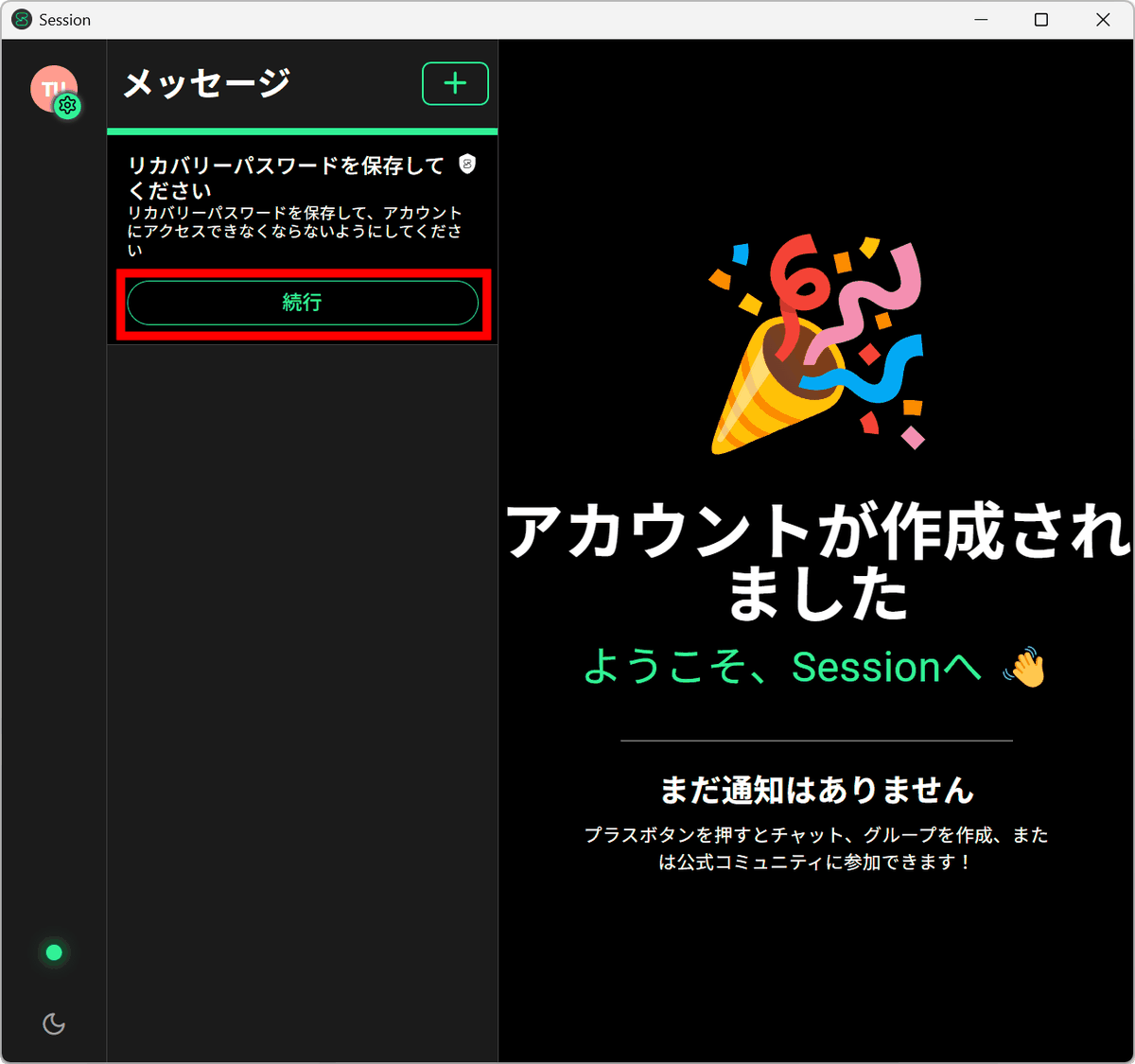
When the initial screen appears, click 'Continue' to obtain the 'Recovery Password'.
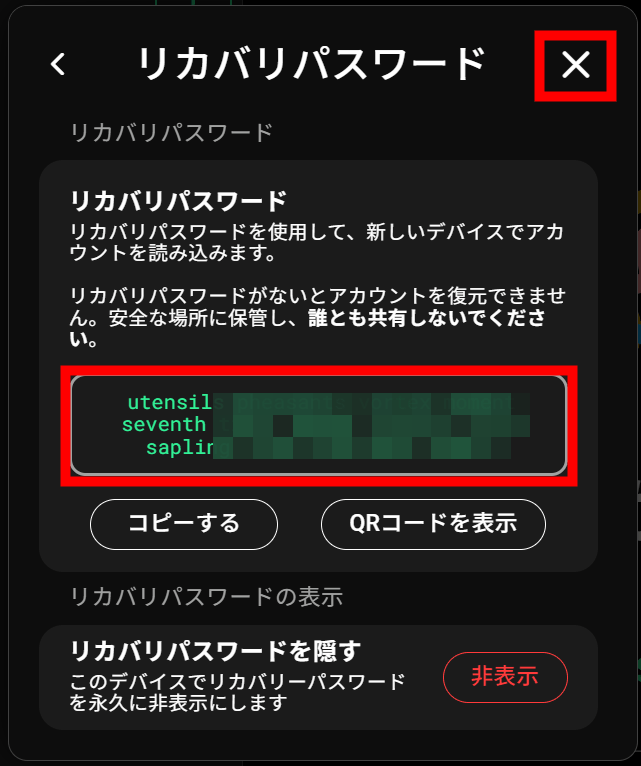
The recovery password will be required when re-registering your account ID on another device. Save it and click 'X'.
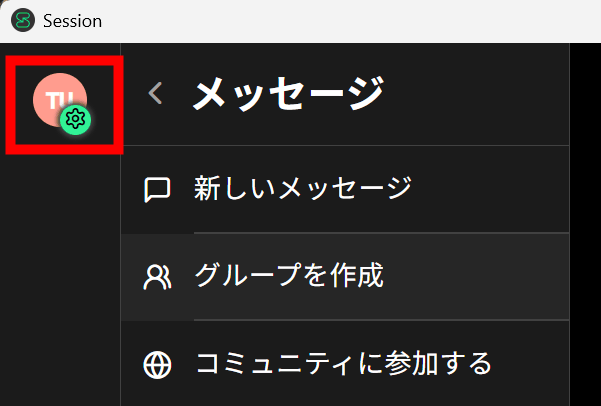
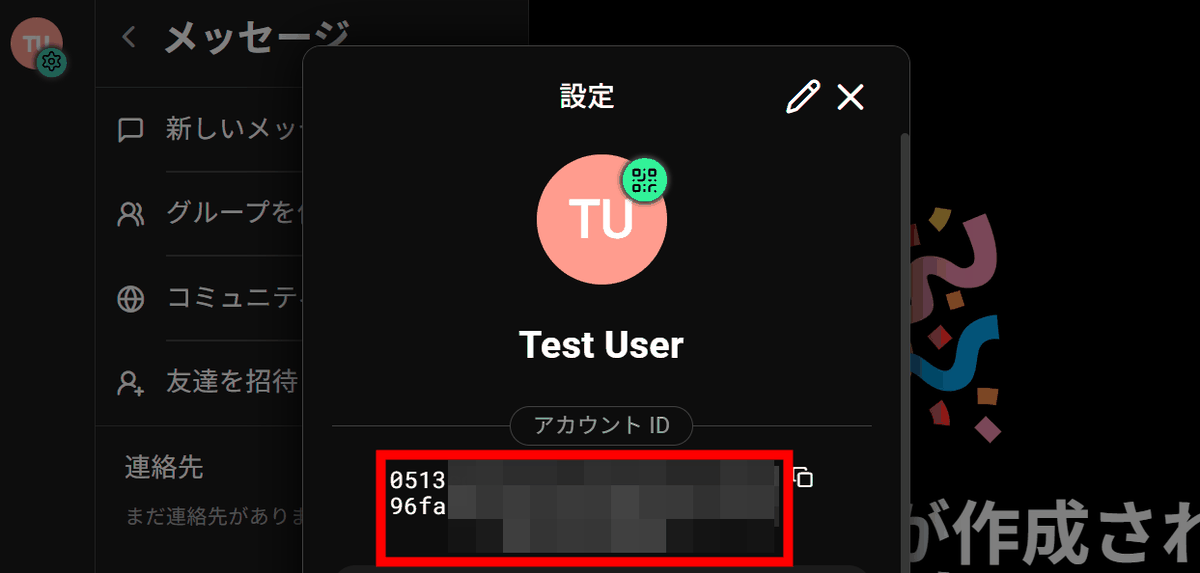
To check your account ID, click the gear icon in the upper left.
Your account ID will be displayed.
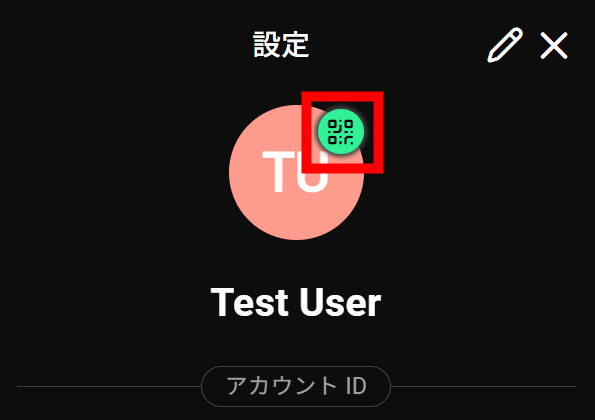
Click on the 'QR code' badge in the top right corner of your account icon...
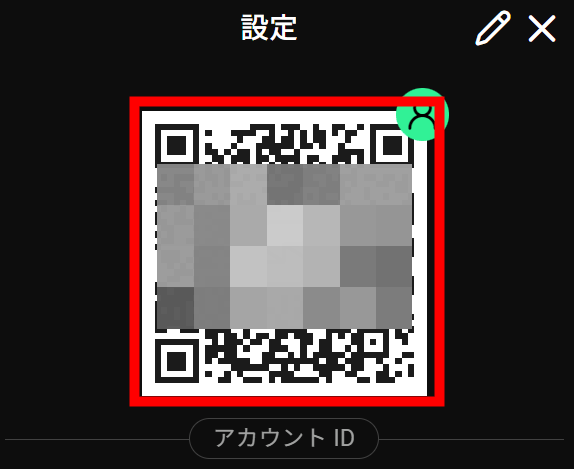
The QR code for your account ID will be displayed.
◆Install Session on iOS
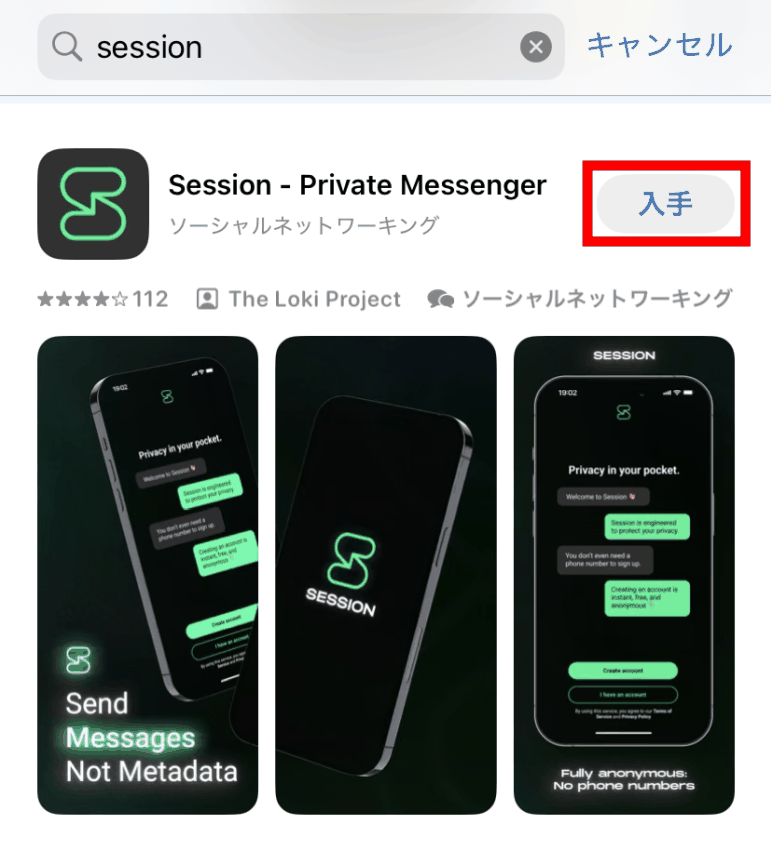
Search for 'Session' in the iOS App Store and tap 'Get.'
A confirmation dialog for installation will appear, so tap 'Install'.
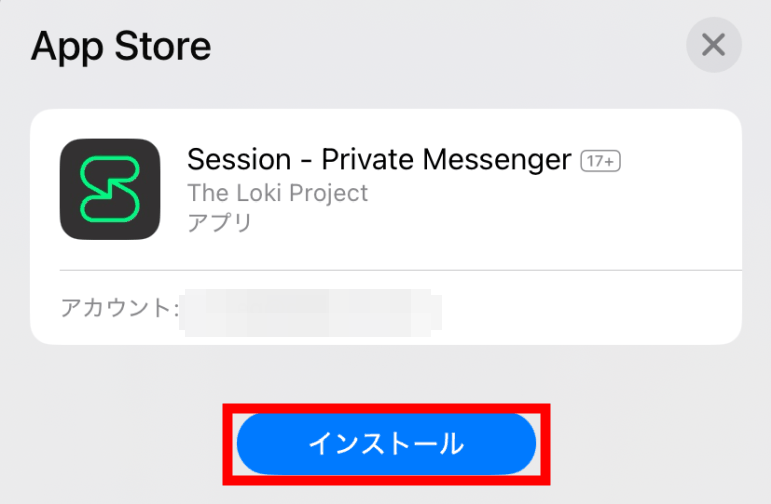
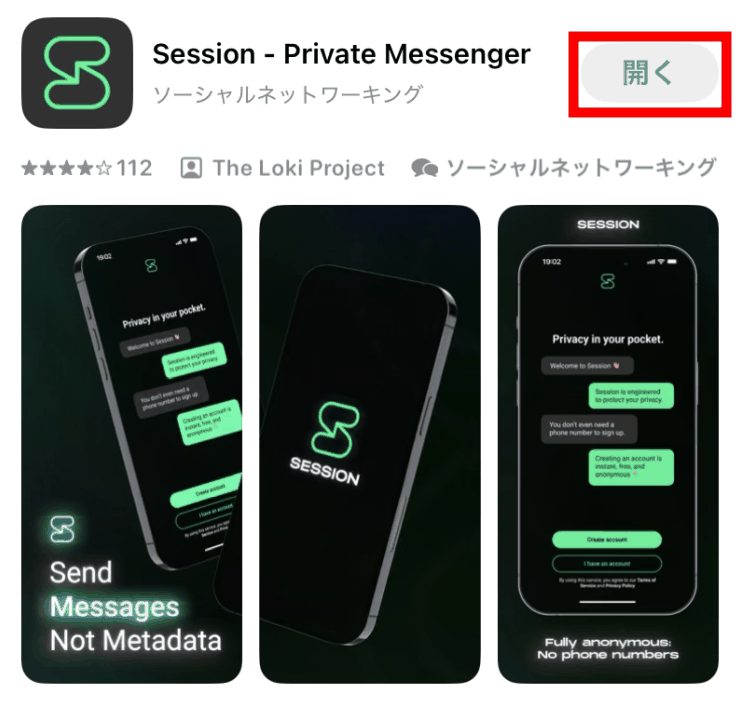
Once the installation is complete, tap 'Open.'
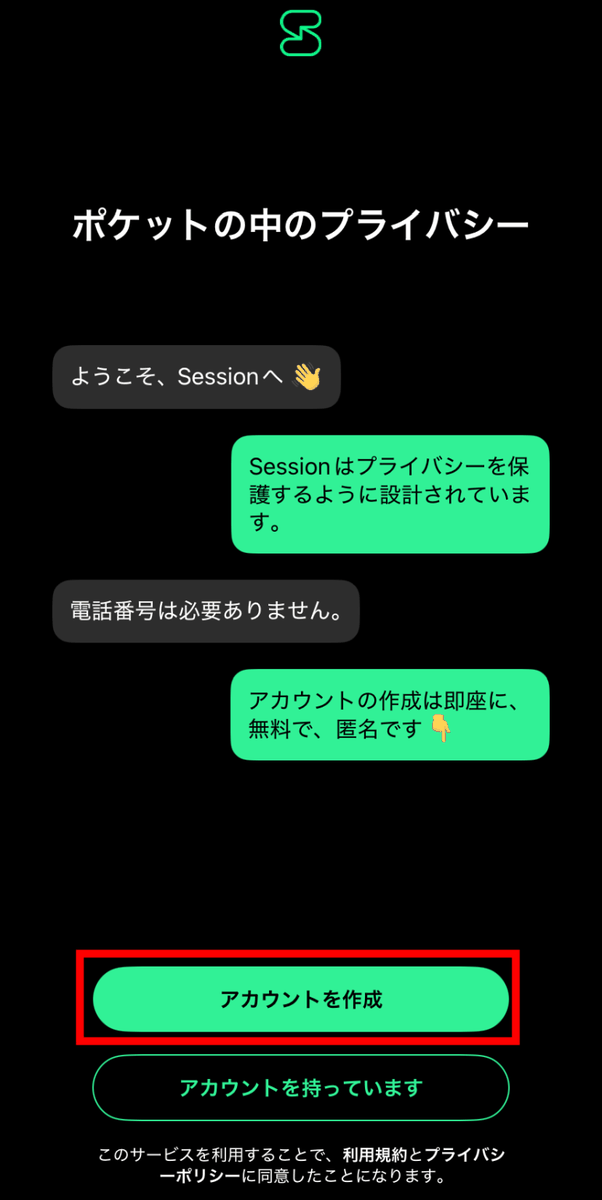
Once Session launches, tap 'Create an account.'
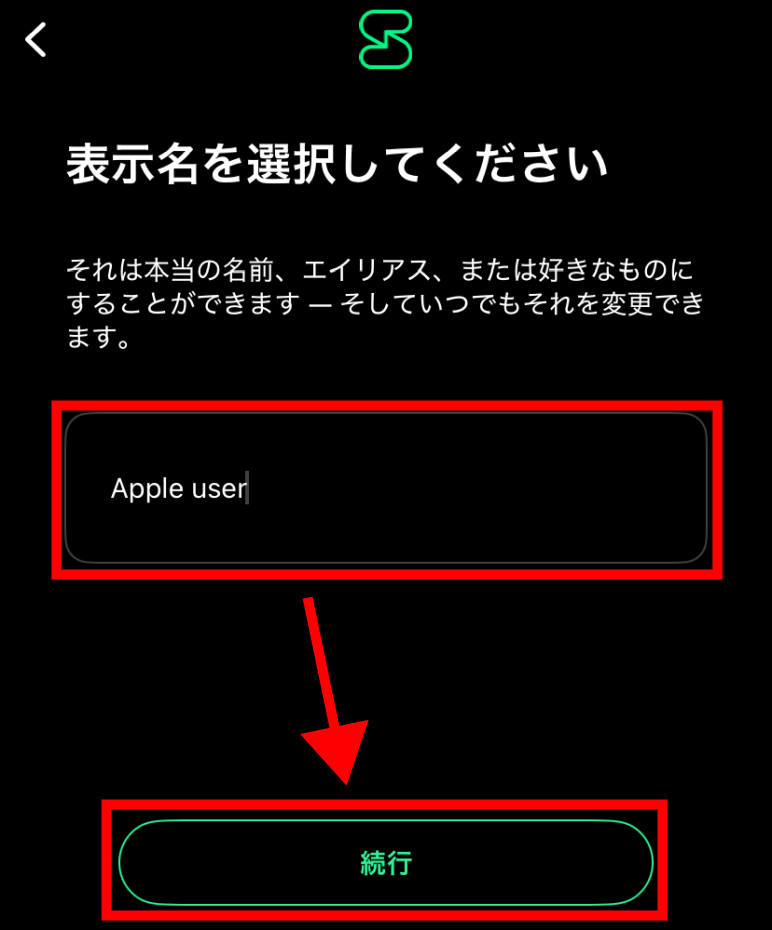
Enter a display name and tap 'Continue.'
Select a notification method and tap 'Continue.'
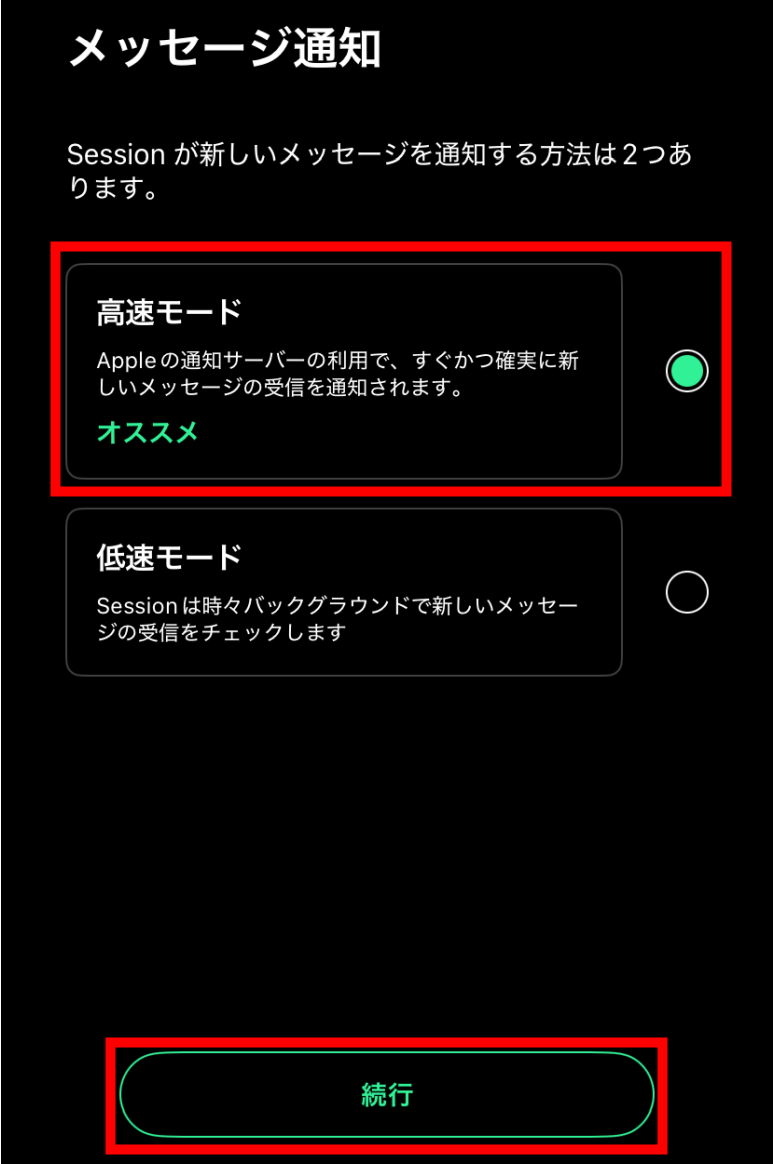
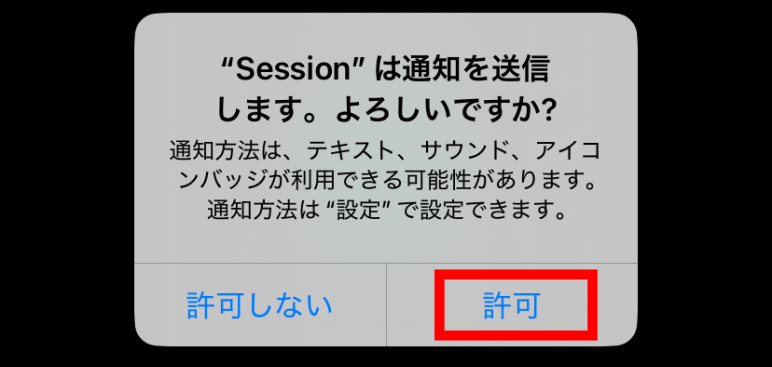
A notification permission dialog will appear, so tap 'Allow'.
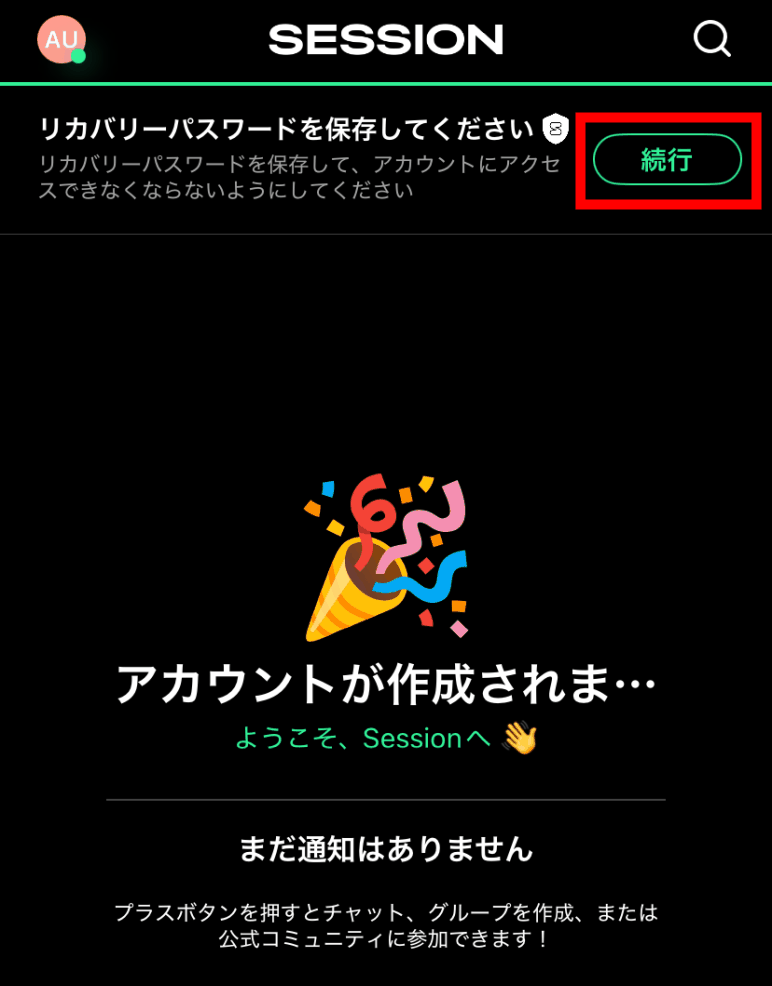
Tap 'Continue' to retrieve the recovery password.
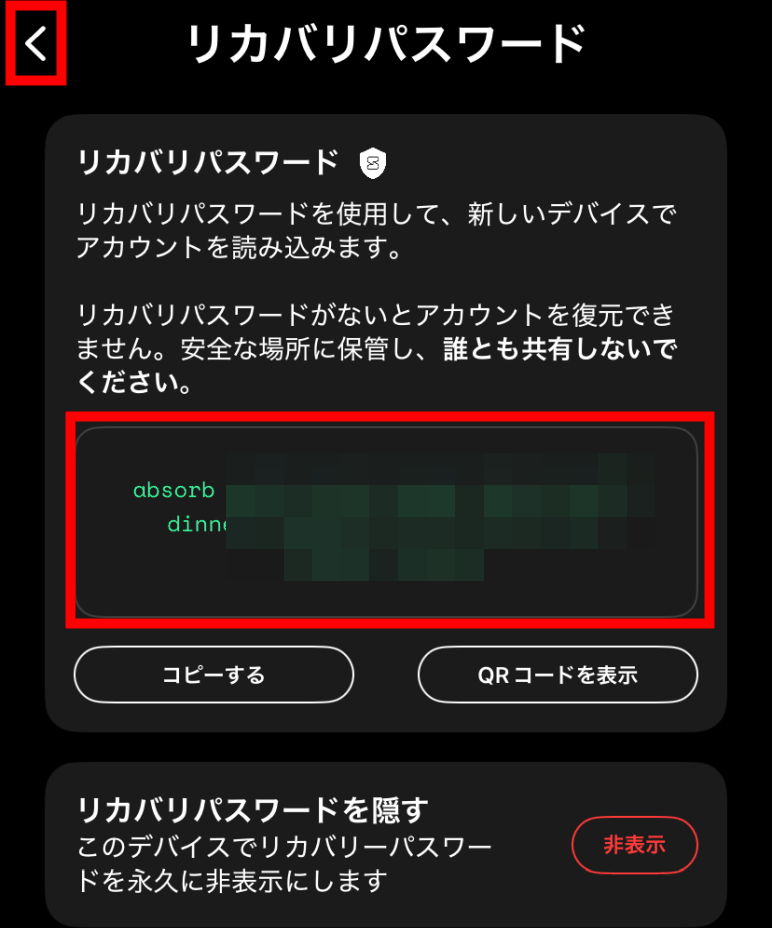
Save the recovery password and tap the 'Back' icon.
Tap the '+ icon' at the bottom of the screen.
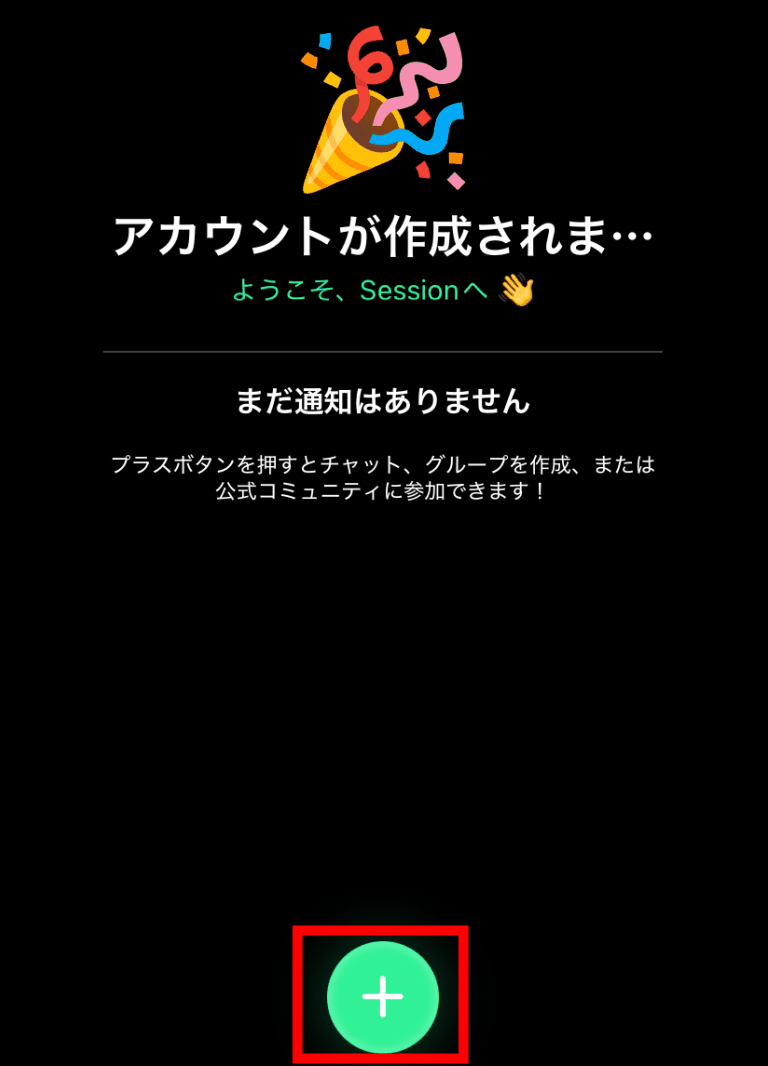
Your account ID can be displayed as a QR code.
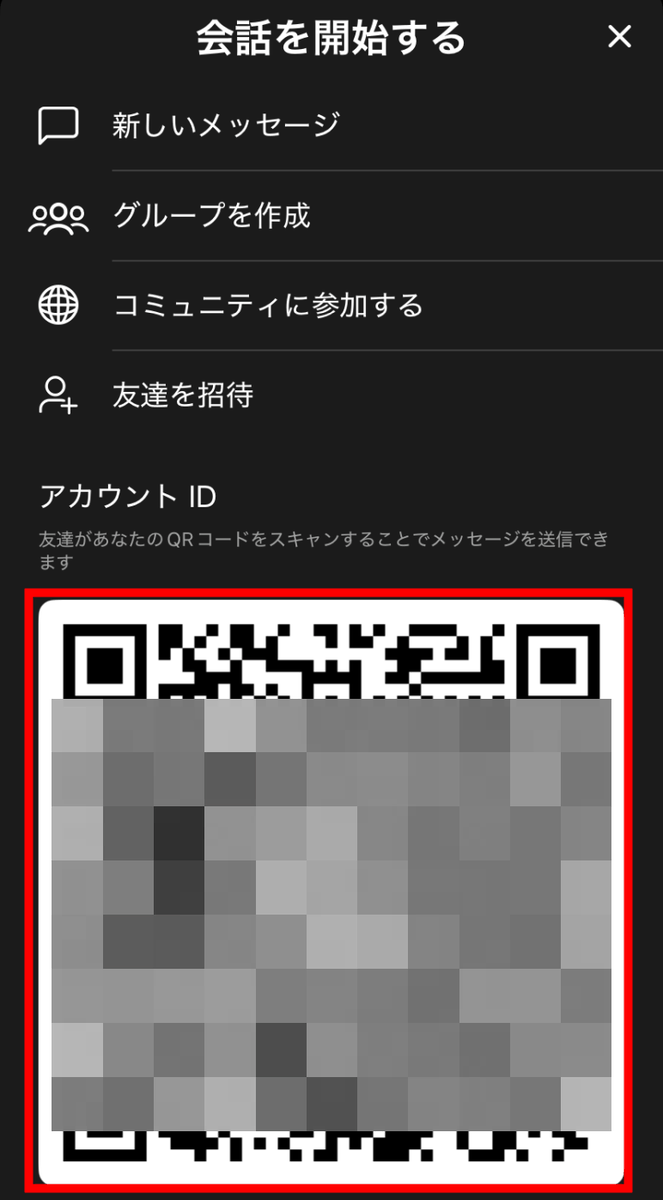
◆Install Session on Android
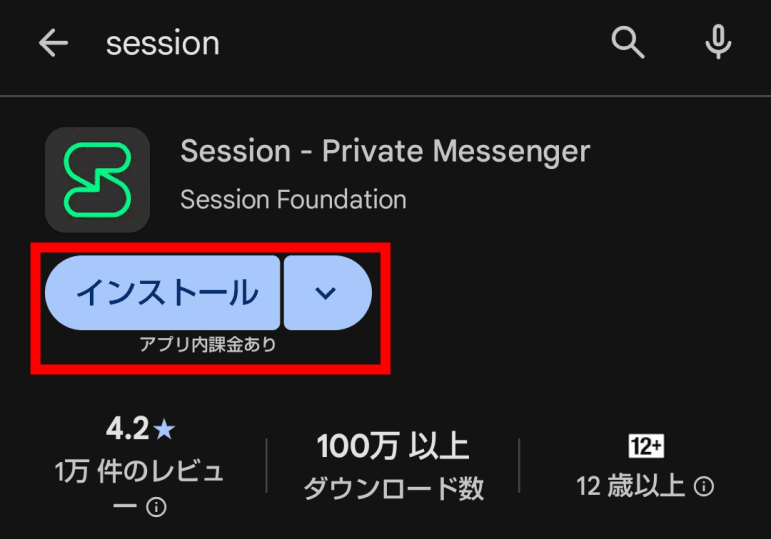
Search for 'Session' in the Google Play Store and tap 'Install.'
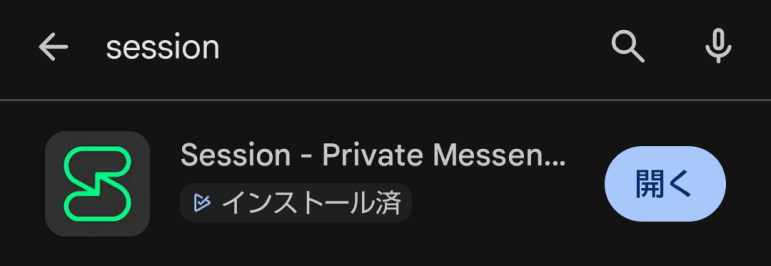
Once the installation is complete, tap 'Open.'
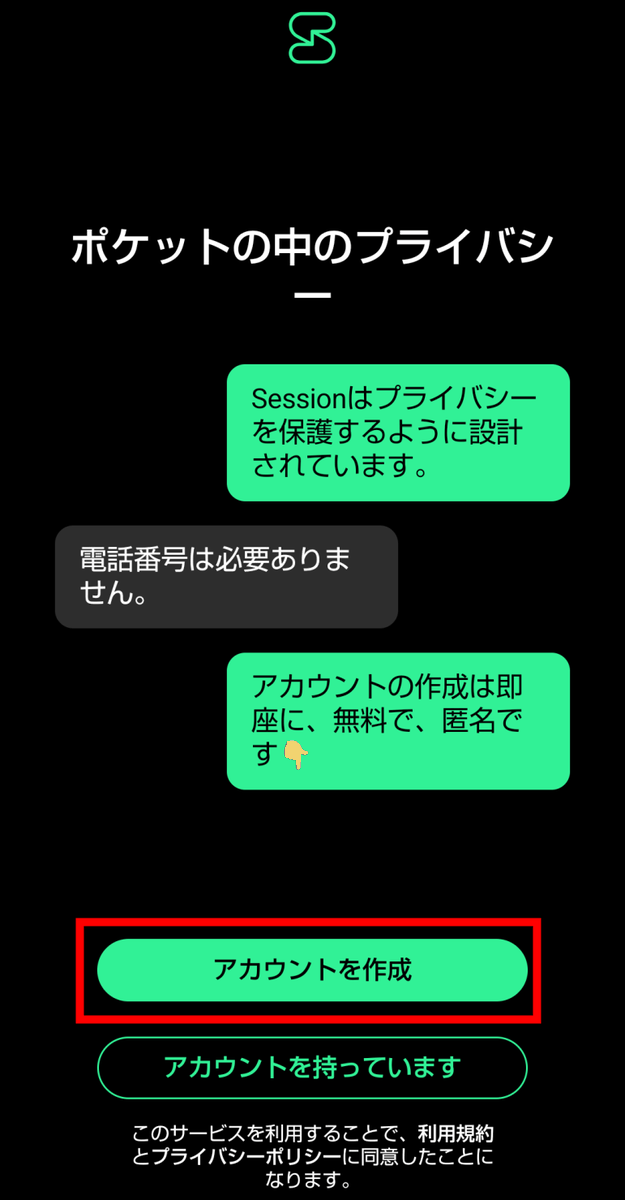
From the initial screen, tap 'Create an account.'
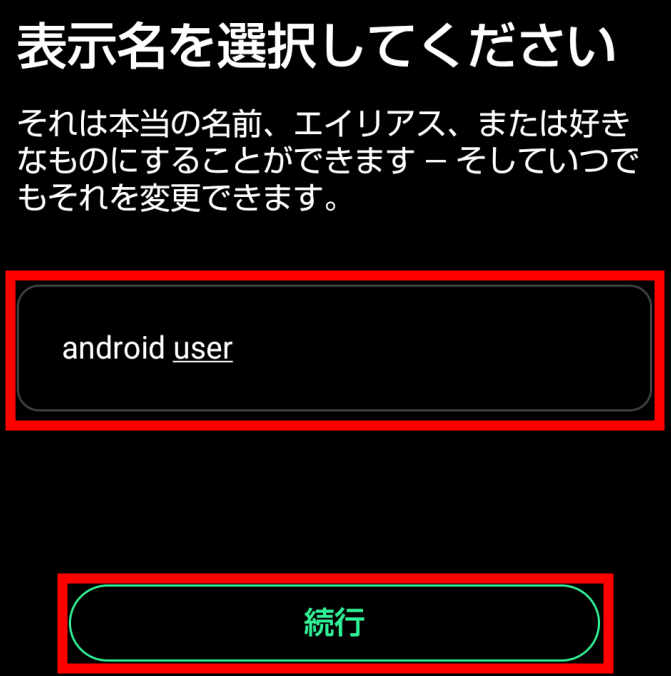
Enter a display name and tap 'Continue.'
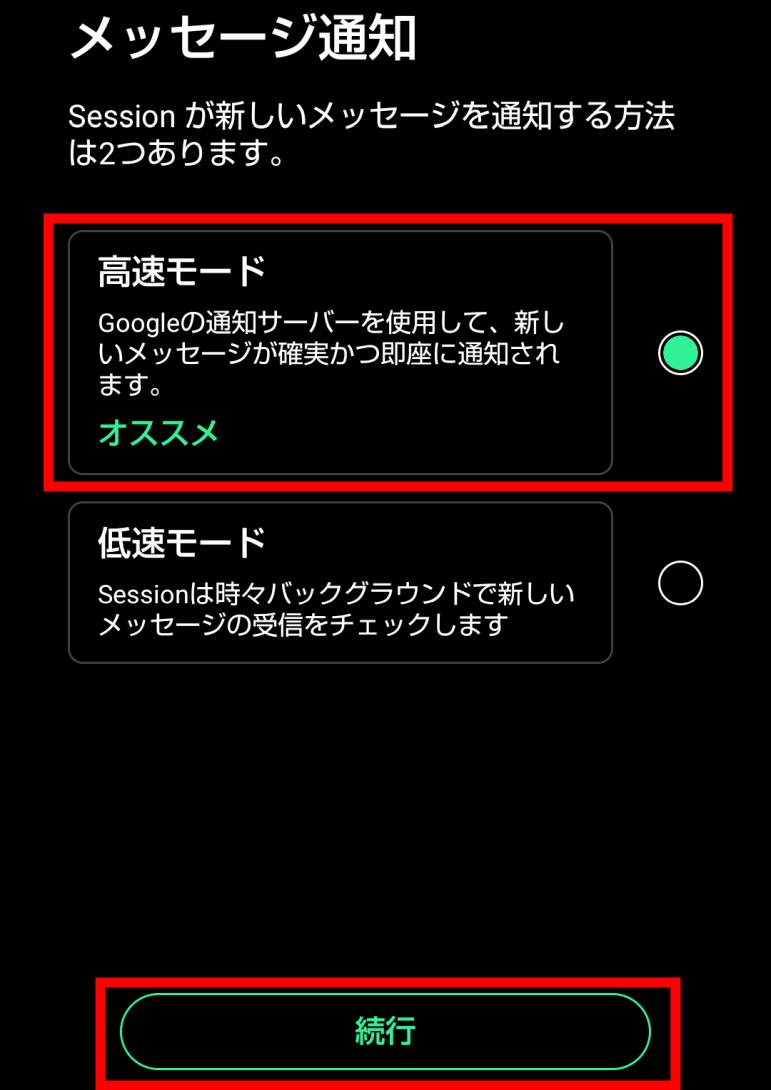
Select a notification method and tap 'Continue.'
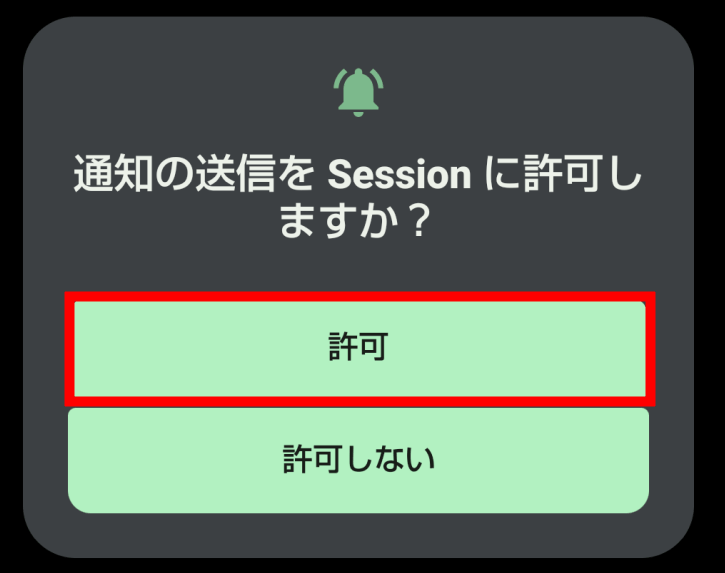
A notification permission dialog will appear, so tap 'Allow'.
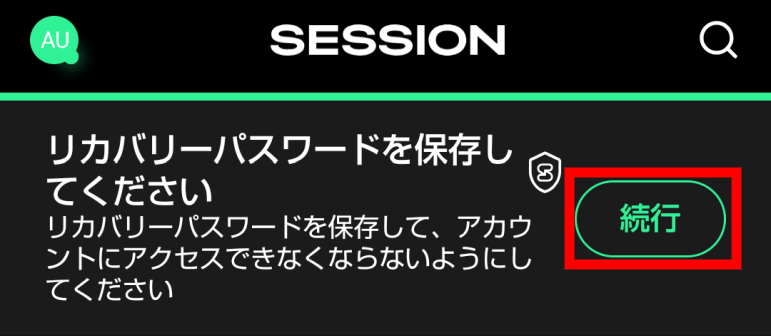
Tap 'Continue' to retrieve the recovery password.
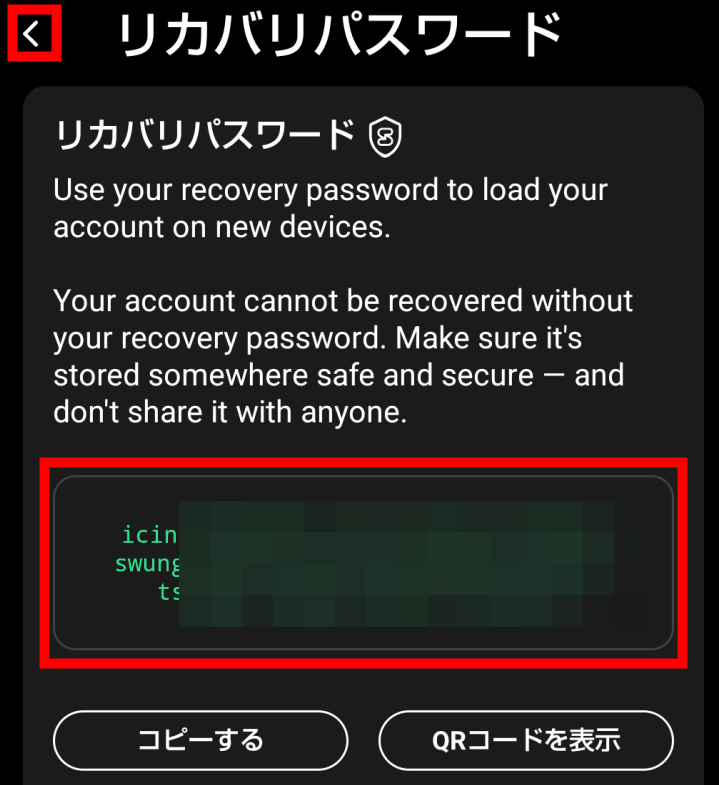
Save the recovery password and tap the 'Back' icon.
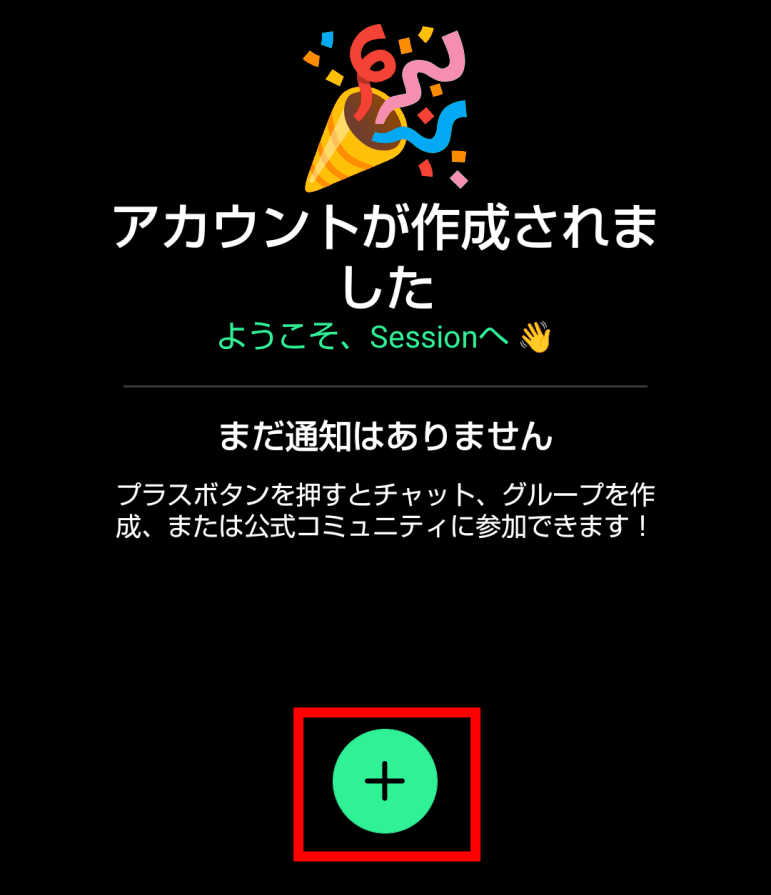
Tap the '+ icon' at the bottom of the screen.
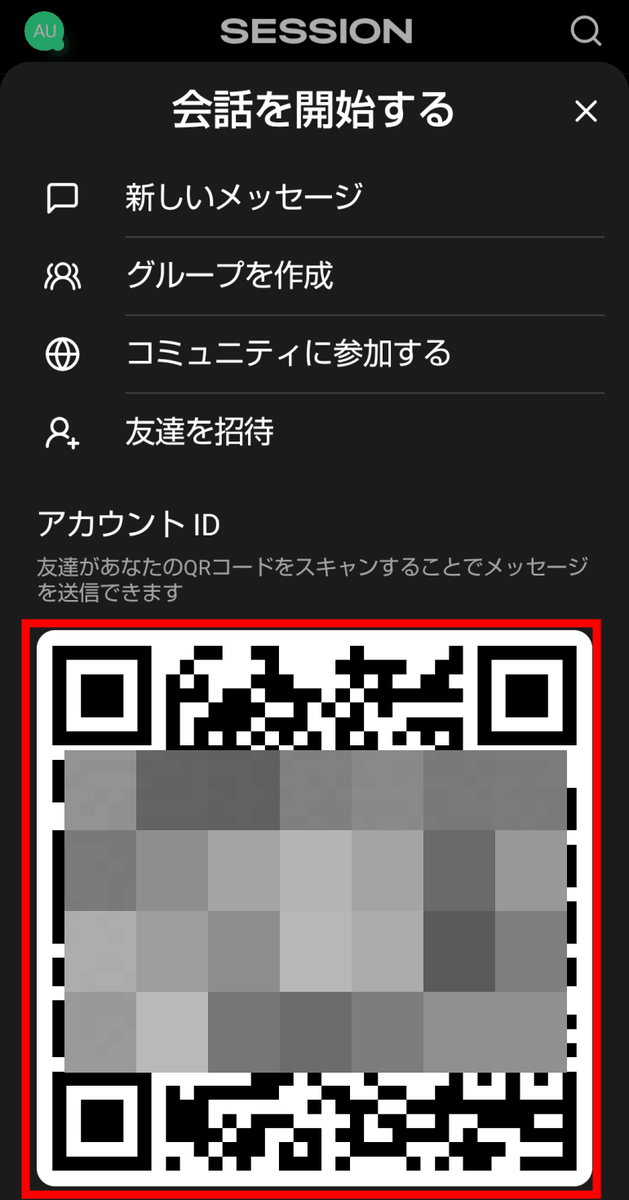
Your account ID can be displayed as a QR code.
◆Basic usage of Session
In Session, tap New Message to register the recipient's account ID.
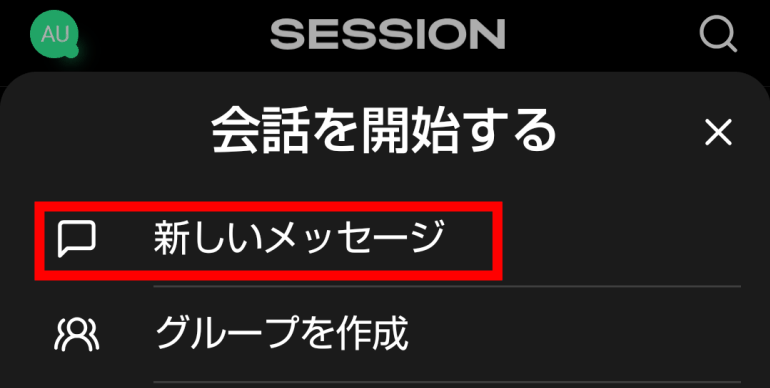
Tap 'Scan QR code' and then tap 'Allow camera access.'
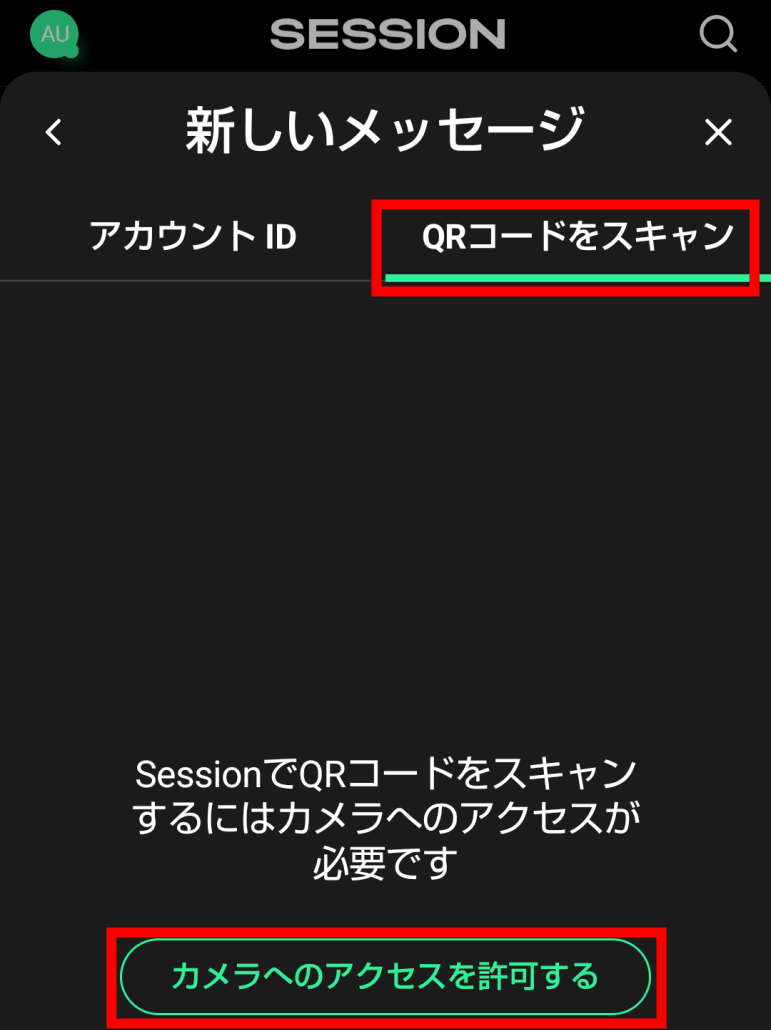
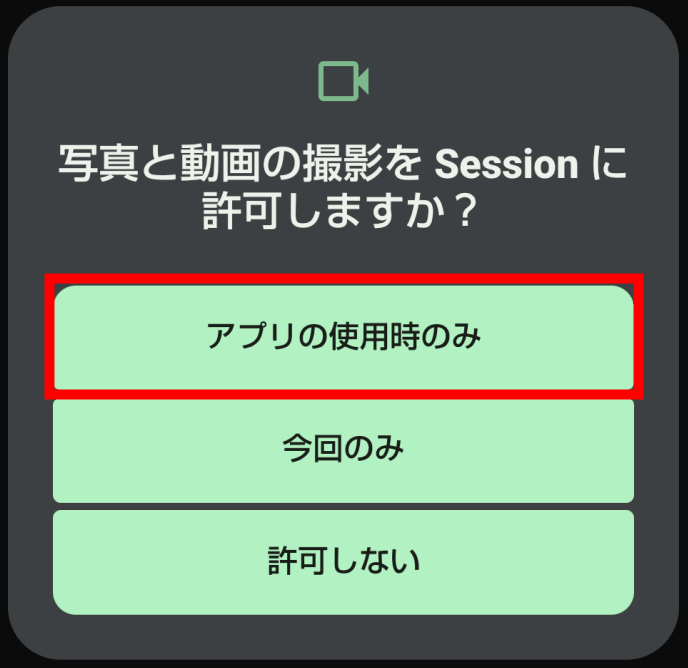
You will be asked for camera permission, so allow it.
When you scan the QR code with your camera, you will immediately be taken to the message screen.
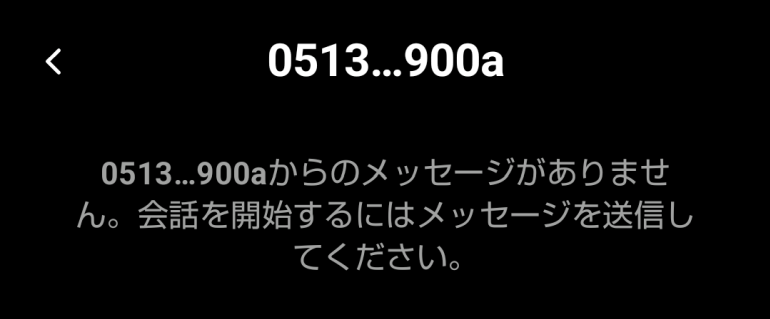
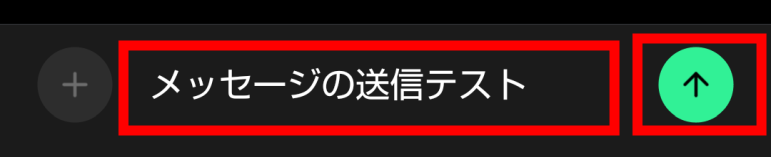
Enter your message in the send form at the bottom of the screen and tap the send icon to send the message.
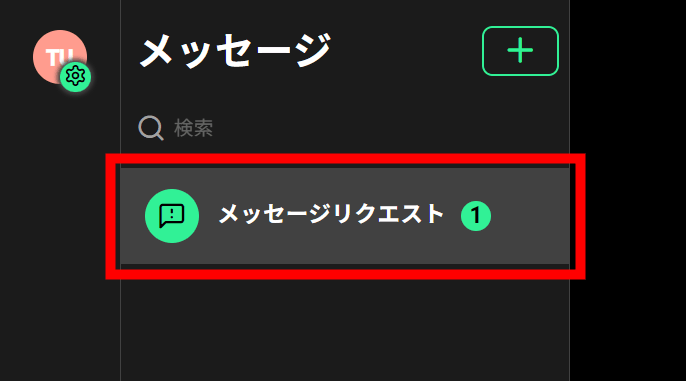
A 'Message Request' notification will appear in the recipient's desktop app, so click on the notification.
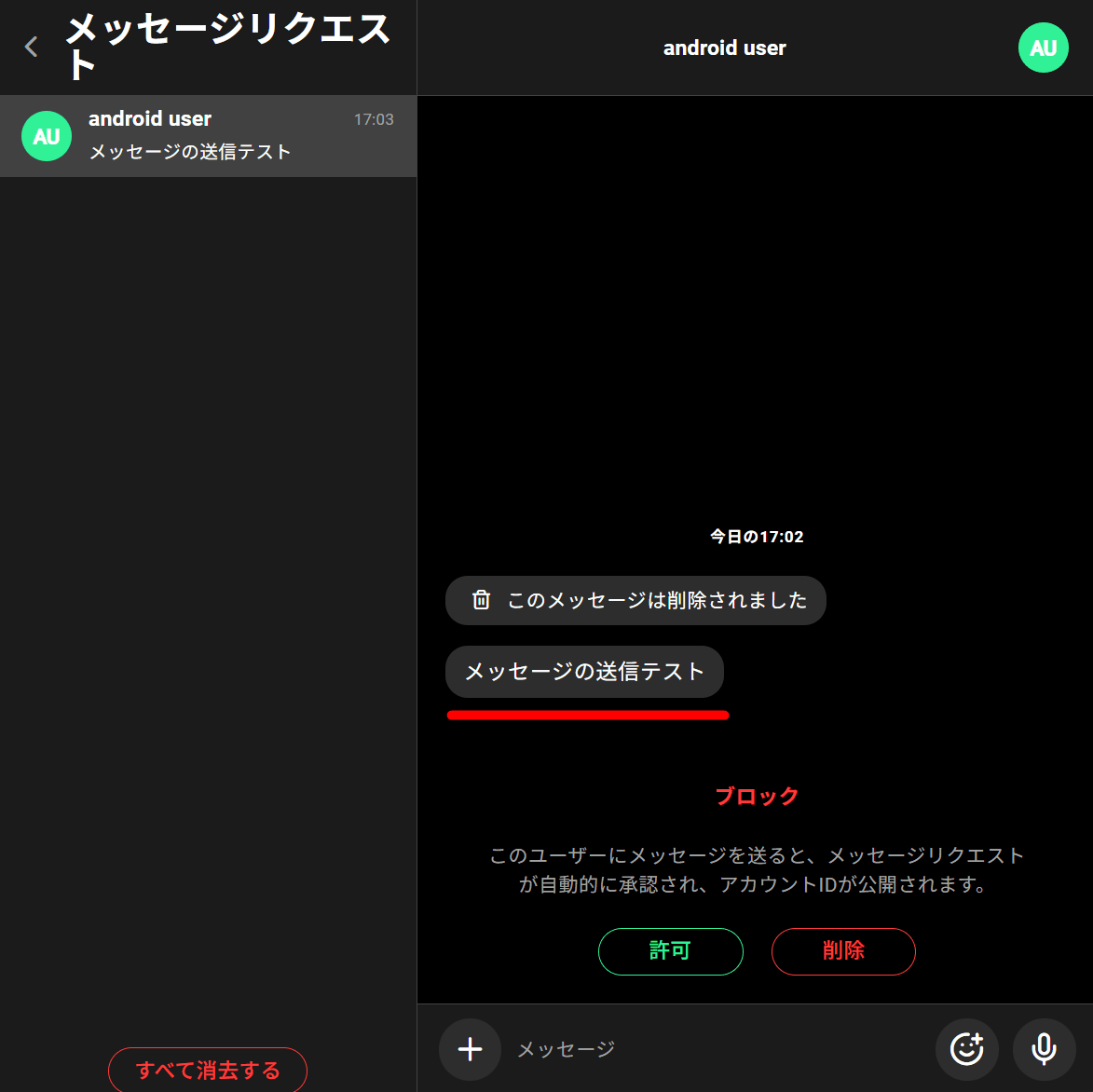
A message was displayed.
◆Check the transmission route
You can check the route your message will take by clicking the green status icon in the app. You can see which countries your message will pass through before reaching the recipient.
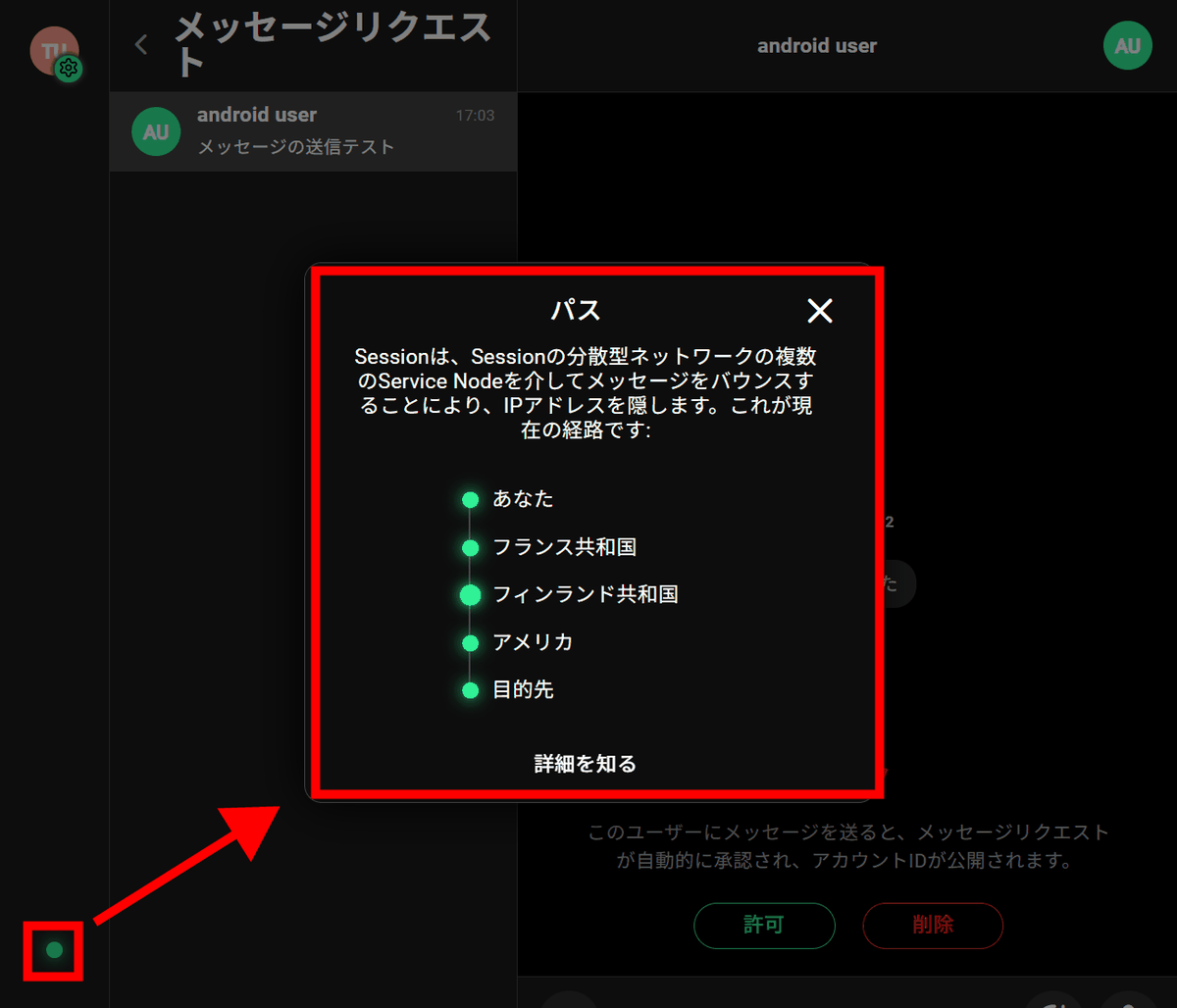
These three intermediate points are relay nodes that keep communications anonymous, and each node is designed so that the source and destination of the message cannot be determined simultaneously, making it impossible to know who sent the message to whom.
Related Posts: