Dangerzone: Convert potentially dangerous PDF files and images into safe PDF files for free
PDF files are not simply documents of text and images; they contain complex structures such as embedded media, compressed data, and JavaScript. Therefore, if you open a PDF file obtained from an unknown source, the script may be executed and malware may be executed. Dangerzone is an application that can 'sanitize' potentially dangerous PDF files before opening them, removing any parts of the original file that may contain malicious structures and returning a PDF file that looks the same.
Dangerzone: Convert potentially dangerous documents into safe PDFs
Dangerzone accepts untrusted PDF files, displays them in a secure sandbox, and then reconstructs them into a new PDF by rendering the content pixel by pixel. Because it only copies and recreates the visual appearance of the document, even if it contains malware, the contents are safely viewed in a corrupted state. In addition to PDF files, Dangerzone can also convert and open various other document types, including Microsoft Office or LibreOffice documents and images, into secure PDFs.
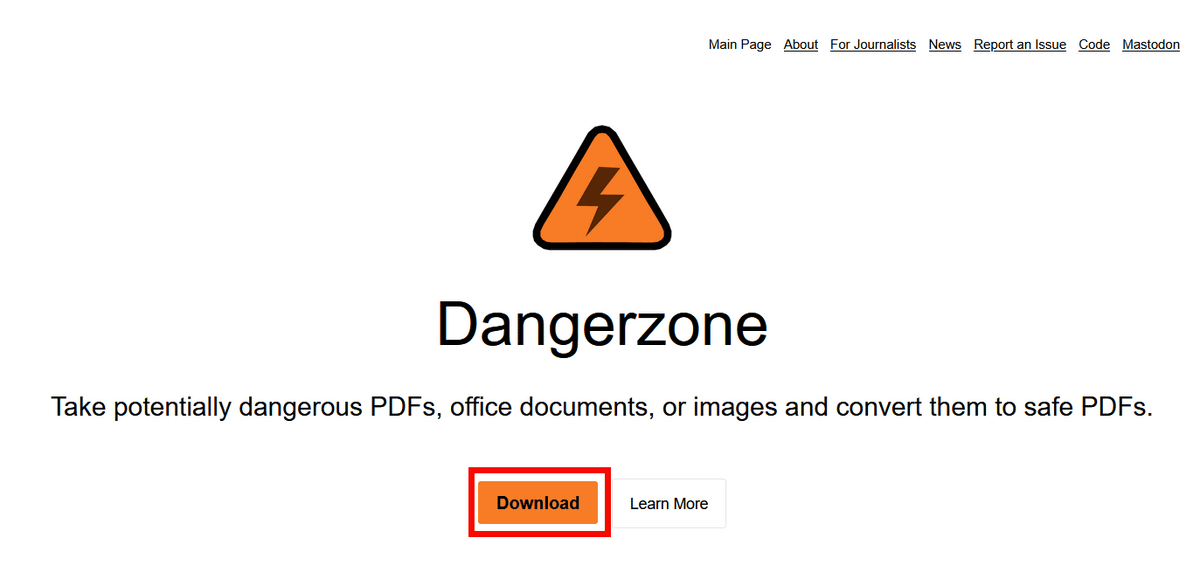
To use Dangerzone, first download it to your PC. Access the distribution site and click 'Download.'
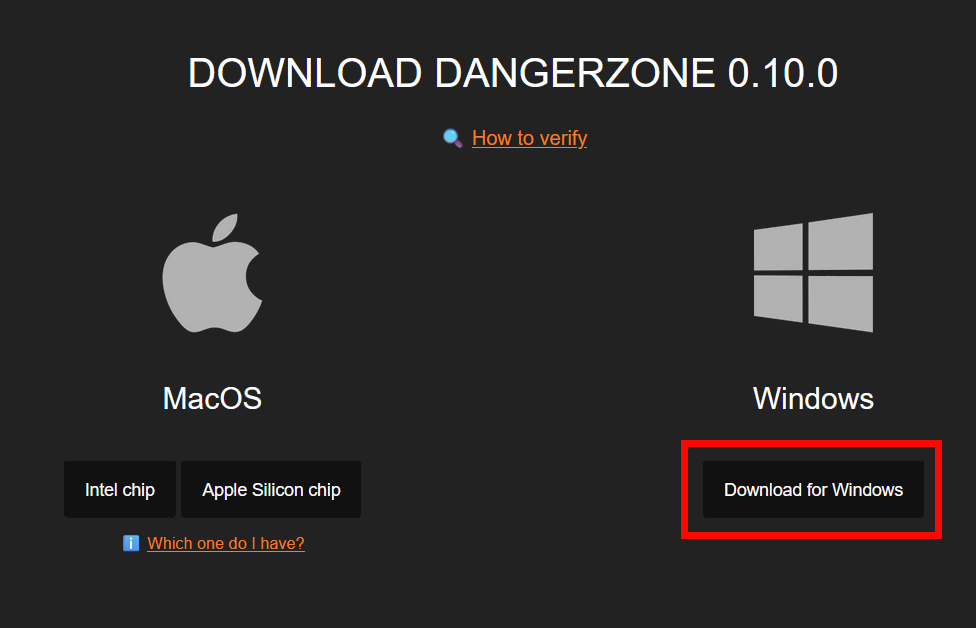
Dangerzone is available for both MacOS and Windows. Since we'll be using Windows, click 'Download for Windows' to begin the download. The Windows installer for Dangerzone is approximately 1.1GB.
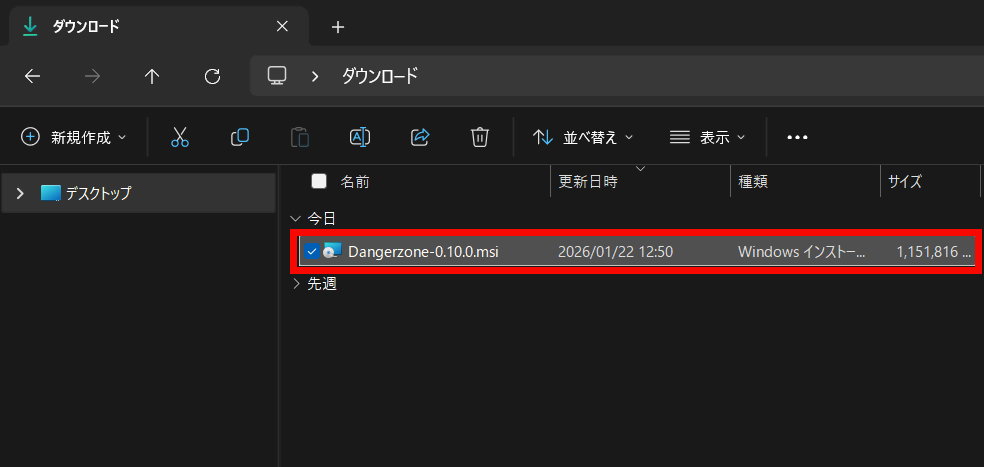
Once the download is complete, double-click the installer to launch it.
Click “Next”.
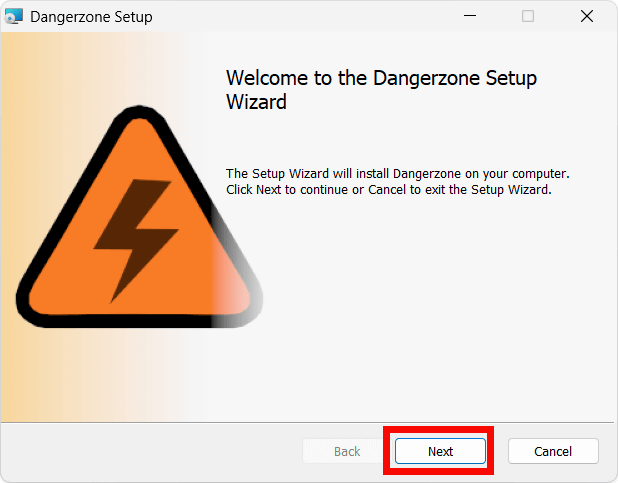
Check the box and agree to the terms and click 'Next.'
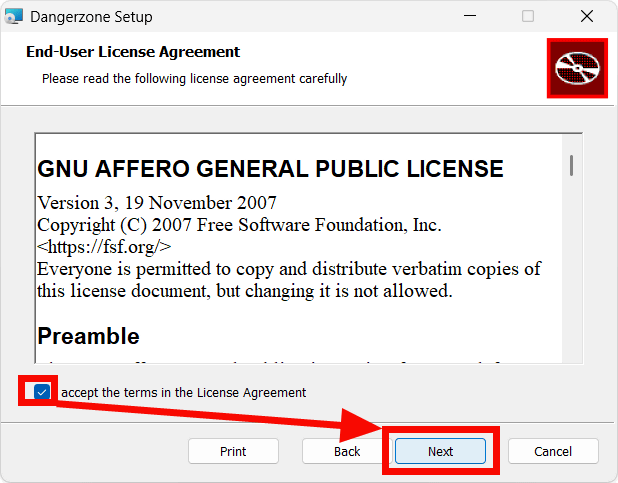
Click “Next”.
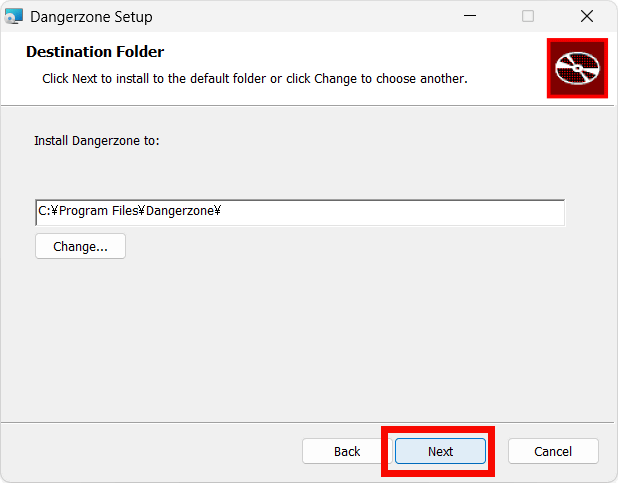
Click 'Install' to begin the installation.
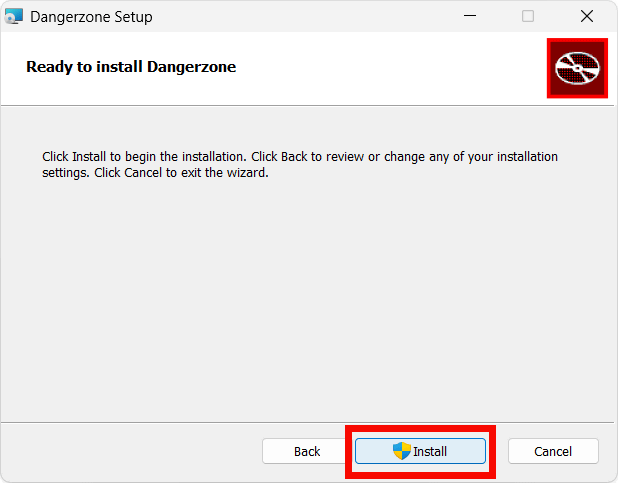
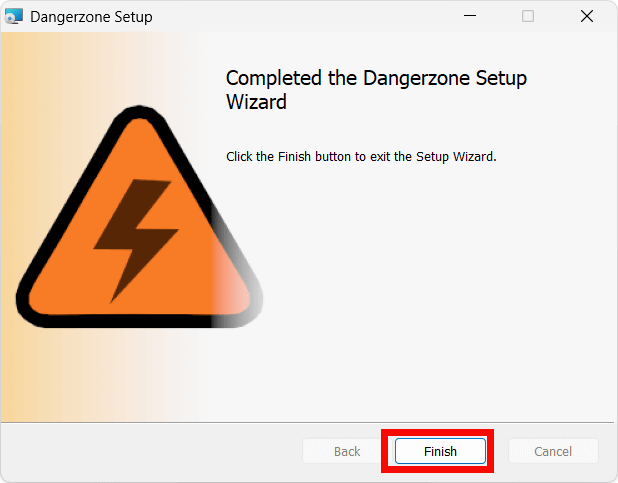
When the installation is complete, click 'Finish'.
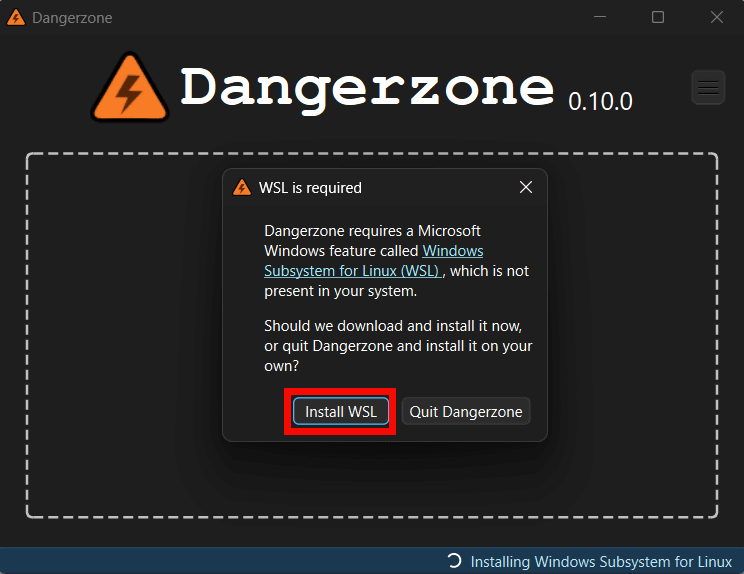
When I launched Dangerzone, I was prompted to install the Windows Subsystem for Linux (WSL). Click 'Install WSL.'
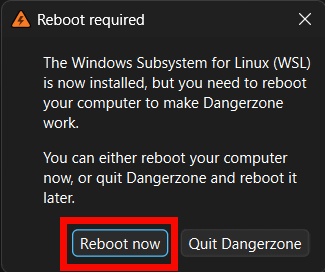
Once the WSL installation is complete, click 'Reboot now' to restart your PC.
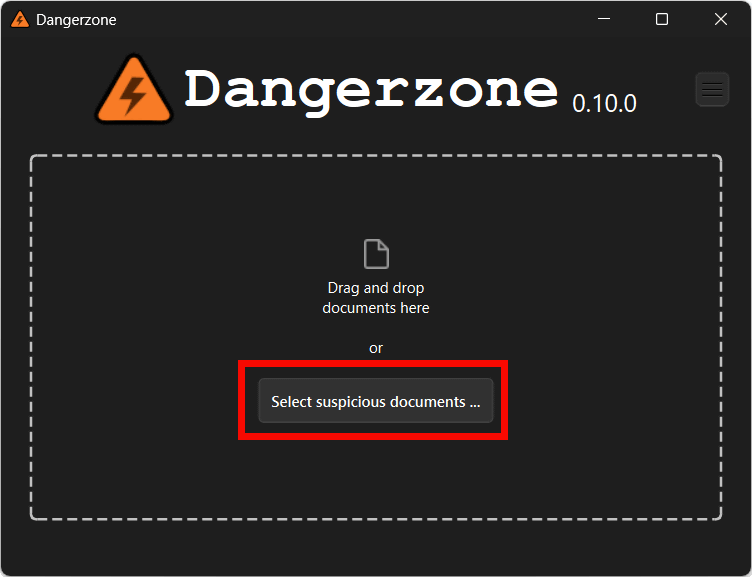
Once you launch Dangerzone again, drag and drop the PDF you want to sanitize or click 'Select suspicious documents...'.
Select the PDF file and click 'Open.'

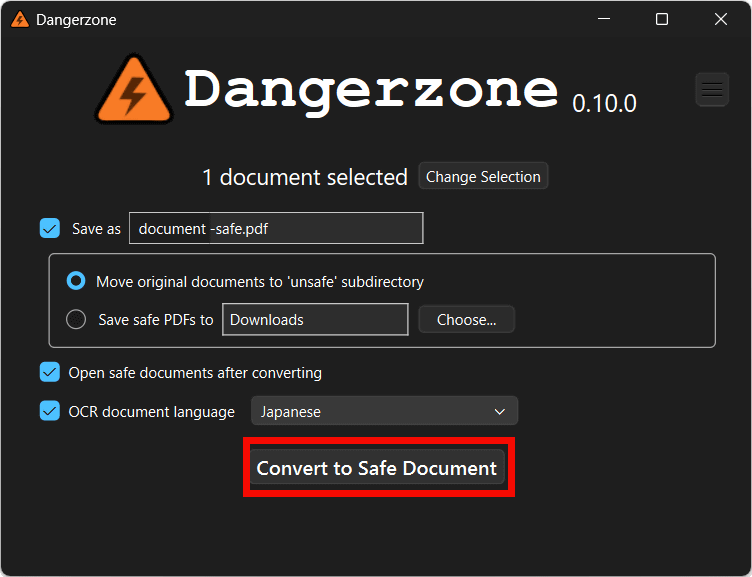
On the settings screen, select 'Japanese' from the 'OCR document language' pull-down menu. Vertical Japanese writing is also supported.

Click 'Convert to Safe Document' to start the conversion.
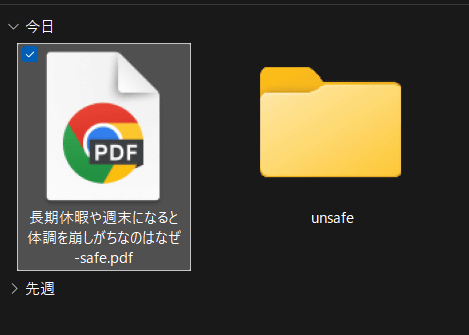
A sanitized file with '-safe' at the end has been added to the location of the PDF file. The original PDF file is in a folder called 'unsafe.'
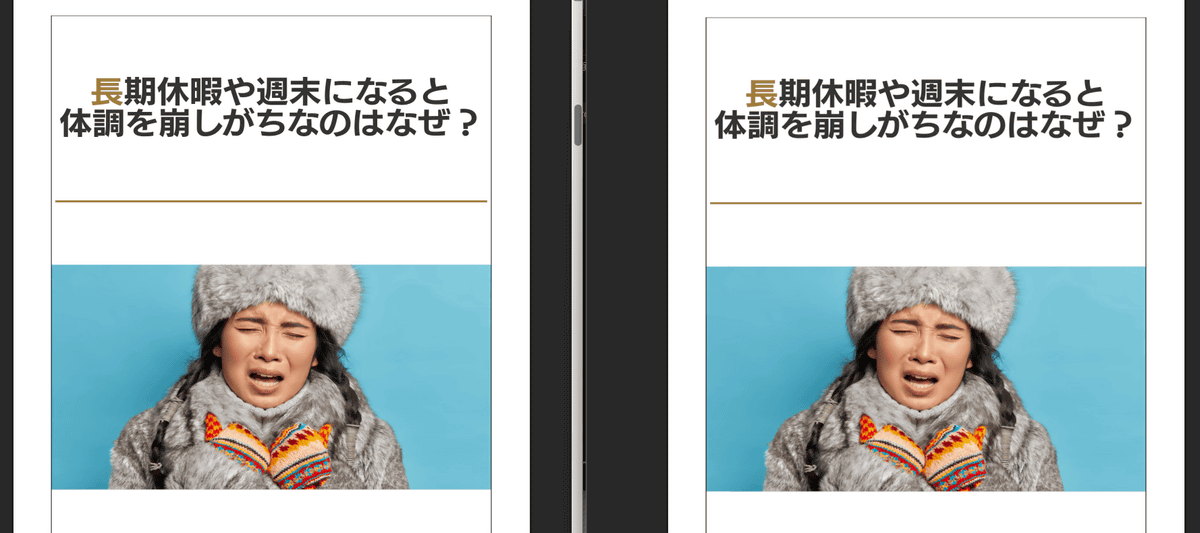
For comparison, I opened the original PDF file (left) and the sanitized PDF file (right) side by side. This PDF file is a PDF file of a GIGAZINE article, and the following cover page looks the same on both sides.
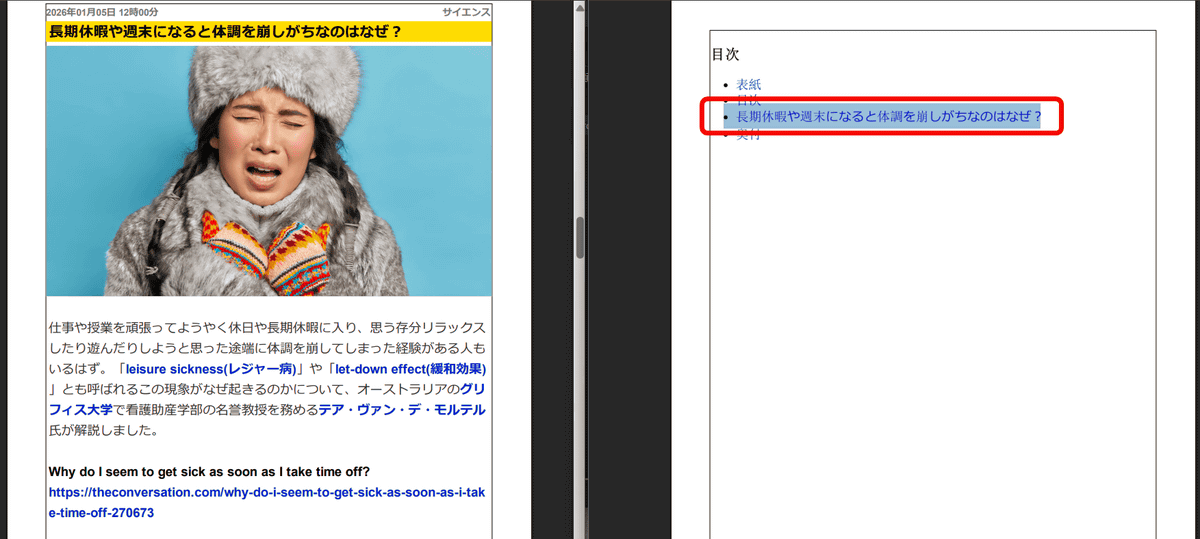
On the other hand, the following table of contents makes a big difference. Both files have a black 'Table of Contents' and the table of contents in blue. Click on the question 'Why do I tend to get sick on long holidays and weekends?' in both files.

The original PDF file (left) jumps to the first page of the main text, while the sanitized PDF (right) selects the text. The PDF file used this time has embedded links in some of the text, and clicking the text would jump to a specific page in the PDF or open an external page. However, since the embedded links are removed during sanitization and only the appearance is preserved, clicking the same text in the sanitized file does not produce any response.
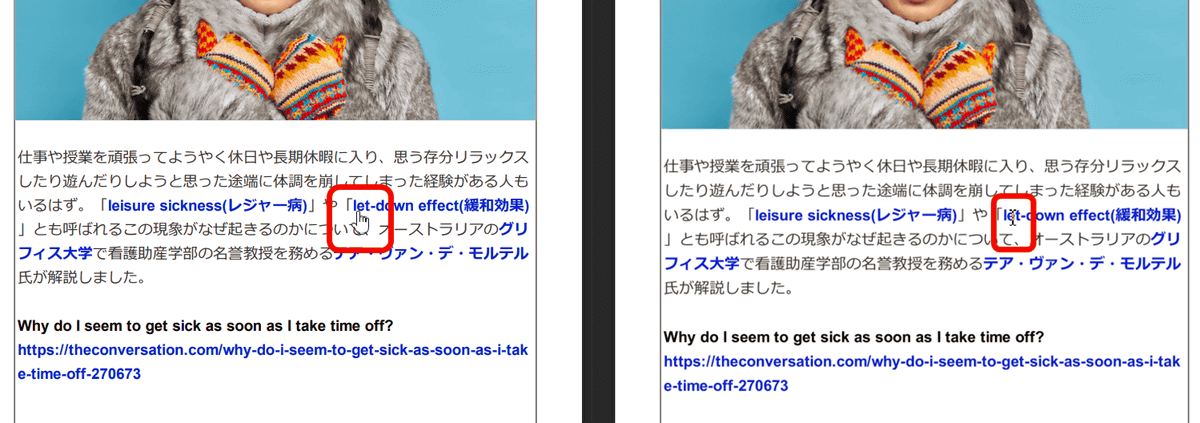
The same goes for embedded external links: they're clickable in the original file (left), but in the sanitized file (right), they're just a text selection cursor, making the links unclickable. Even if the PDF comes from an untrusted source, all embedded links and JavaScript have been removed, leaving only the appearance of the copy, making it safe to read.
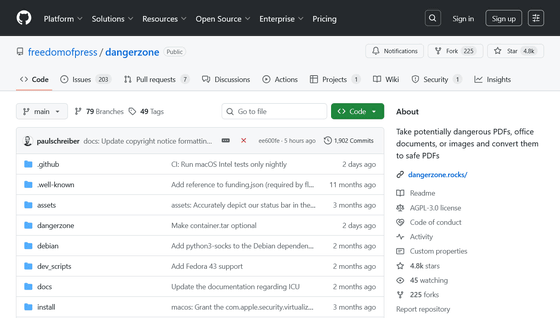
Dangerzone is open source software and you can find more information about it on GitHub.
GitHub - freedomofpress/dangerzone: Take potentially dangerous PDFs, office documents, or images and convert them to safe PDFs
https://github.com/freedomofpress/dangerzone
Related Posts: