'Desktop Mode' is a free plugin that makes the WordPress admin screen look like a desktop OS, and it can also be integrated with AI.
When performing multiple tasks within
Desktop Mode – WordPress plugin | WordPress.org
https://wordpress.org/plugins/desktop-mode/
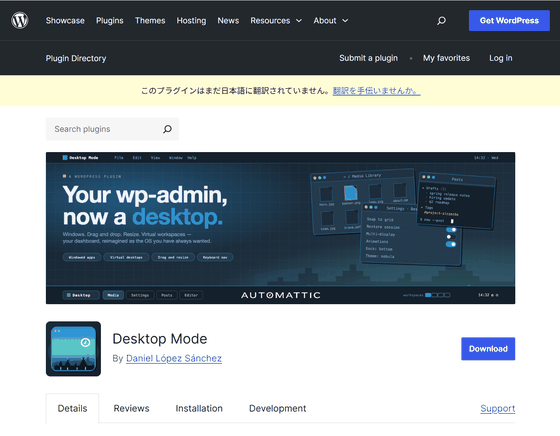
WordPress/desktop-mode: Desktop Mode is a WordPress plugin that turns /wp-admin into a desktop-style interface with movable windows and a dock menu. It's opt-in per user, doesn't change core, and fully reverts on deactivation.
◆Desktop Mode Features
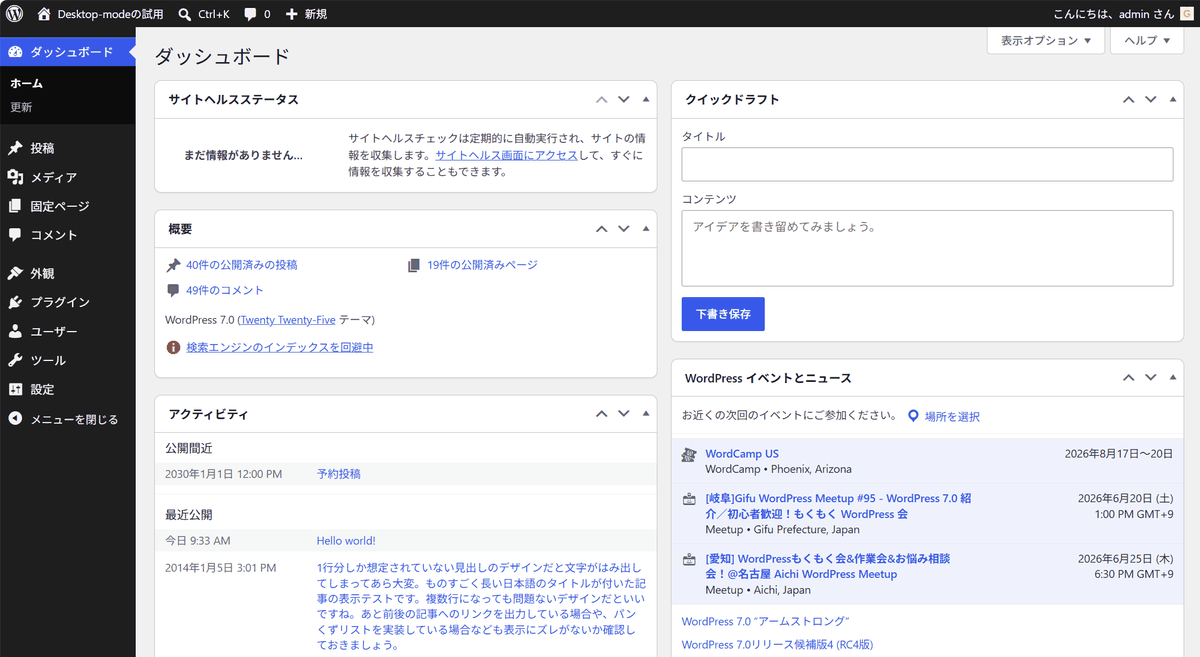
The standard WordPress administration screen looks like the image below.
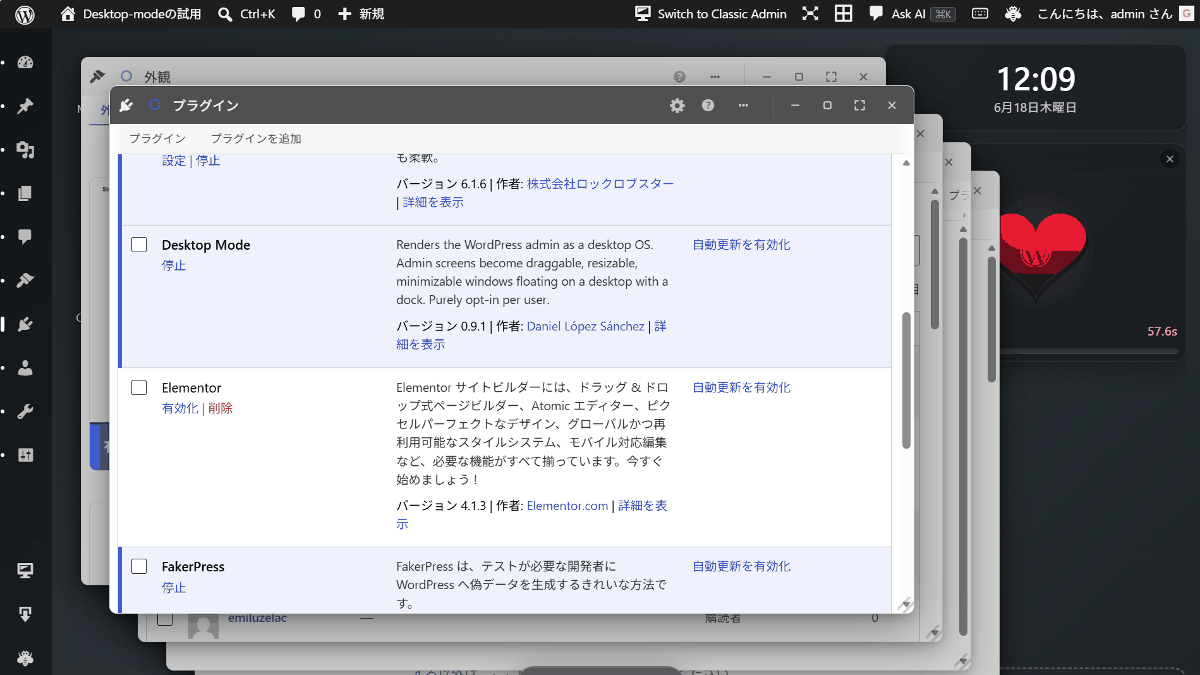
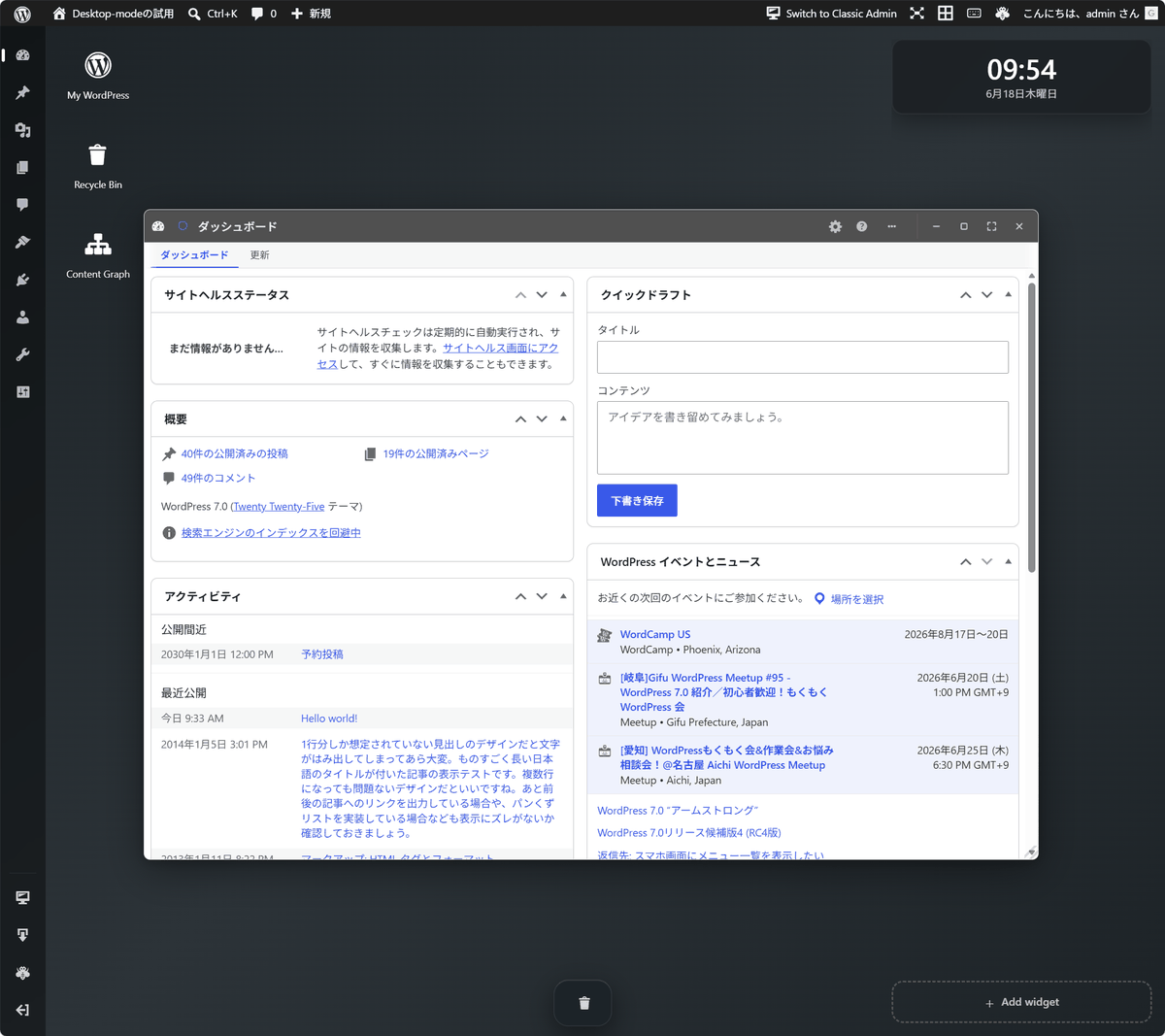
Installing the Desktop Mode plugin will cause each function to be displayed in a separate window, as shown in the image below, giving it a desktop-like appearance.
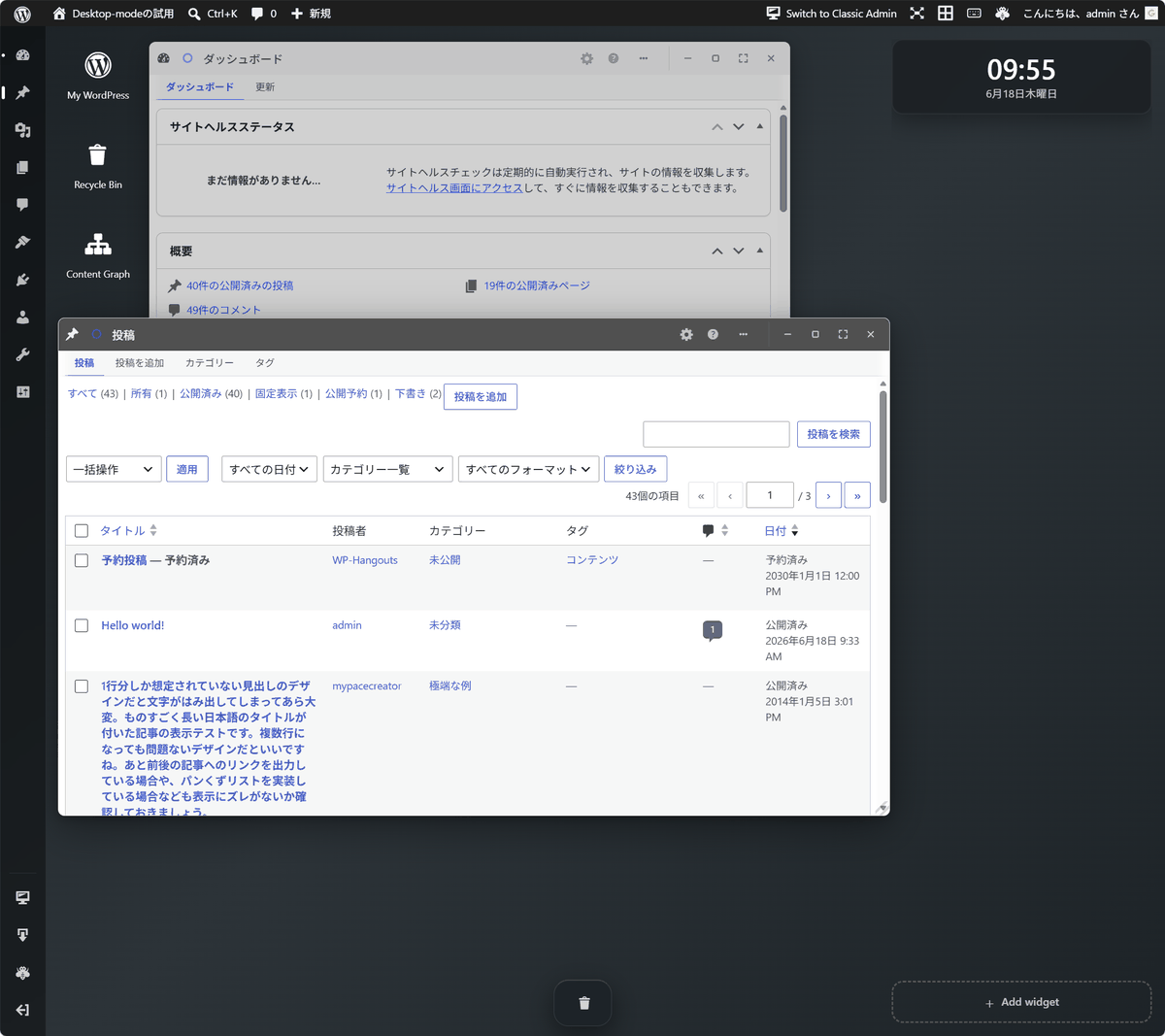
The UI for the functions displayed within the window will be the same as the previous administration screen.
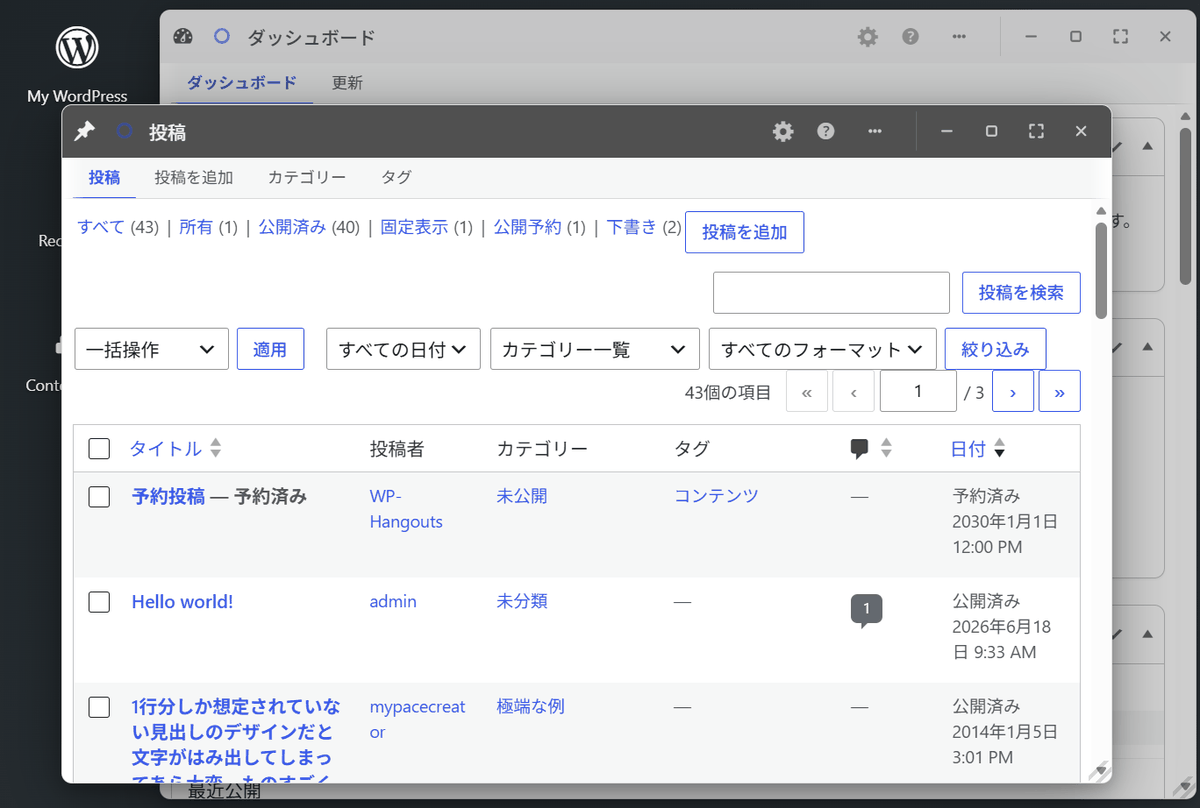
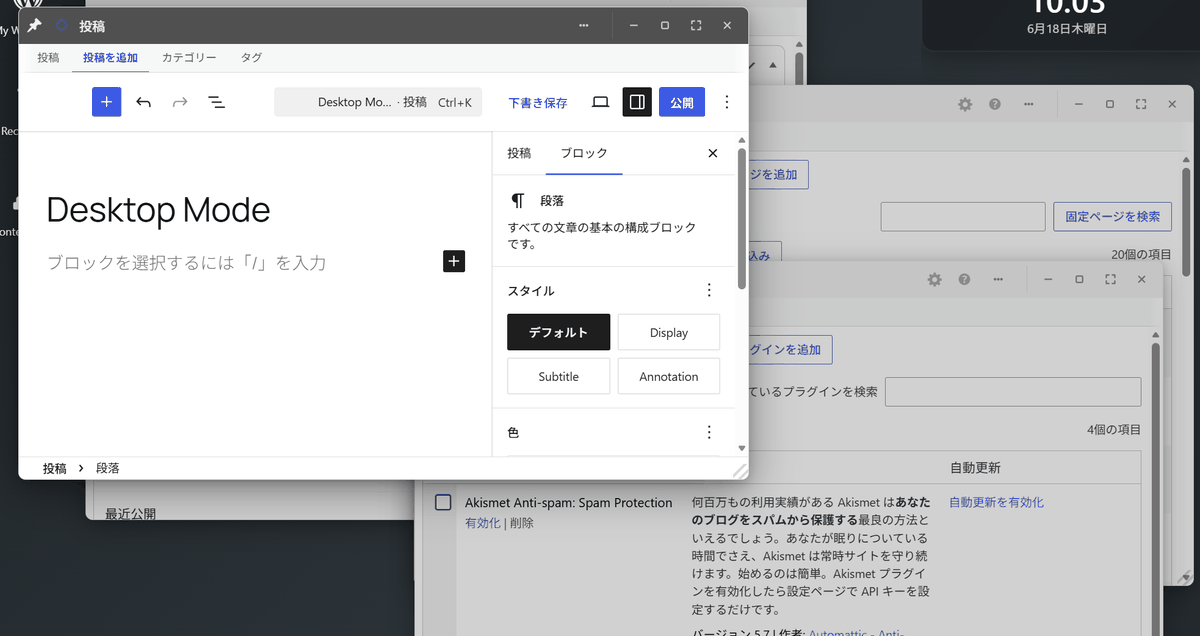
Opening multiple windows for each function allows you to see the settings for each function at a glance, and there are many advantages, such as not losing any input you've made while switching between functions.
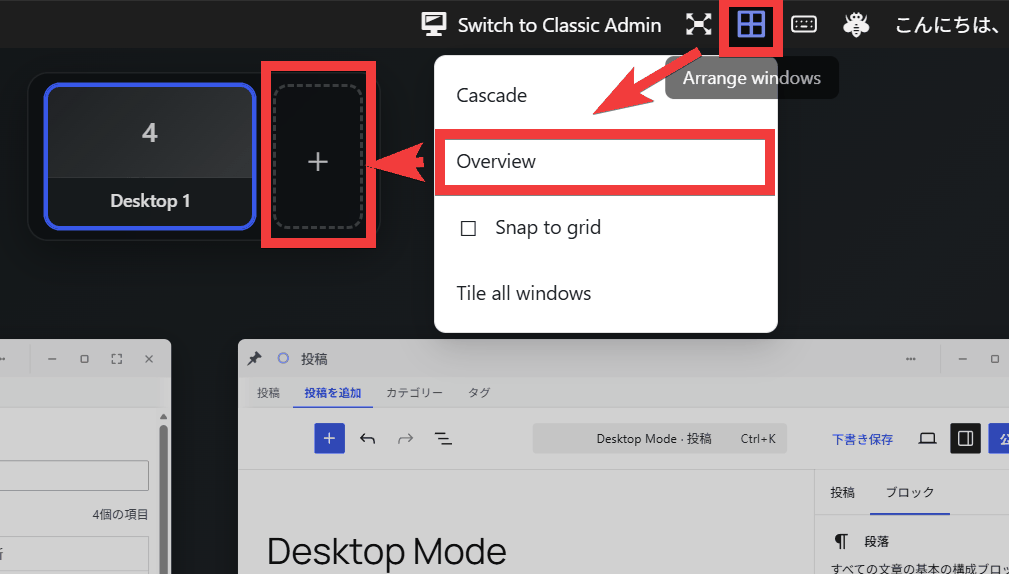
The virtual desktop feature allows you to switch between multiple desktops and create desktops with windows arranged according to your workflow. To create one, click the 'Arrange windows' icon in the top menu, then click 'Overview' to display the window list, and then click the '+' at the top of the list.
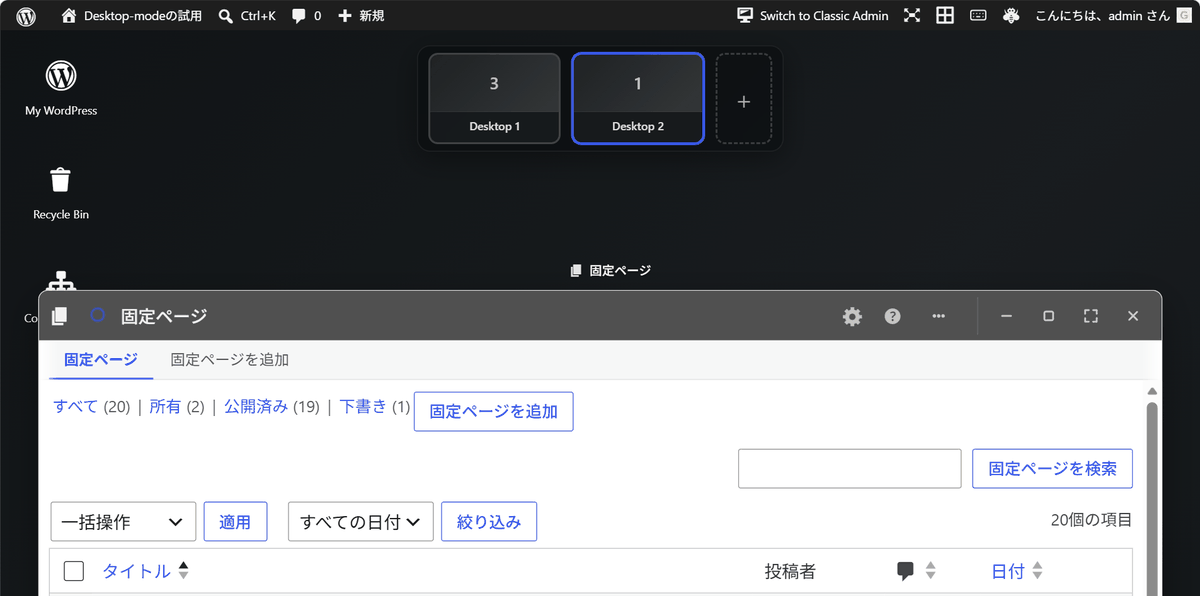
A new desktop will be created.
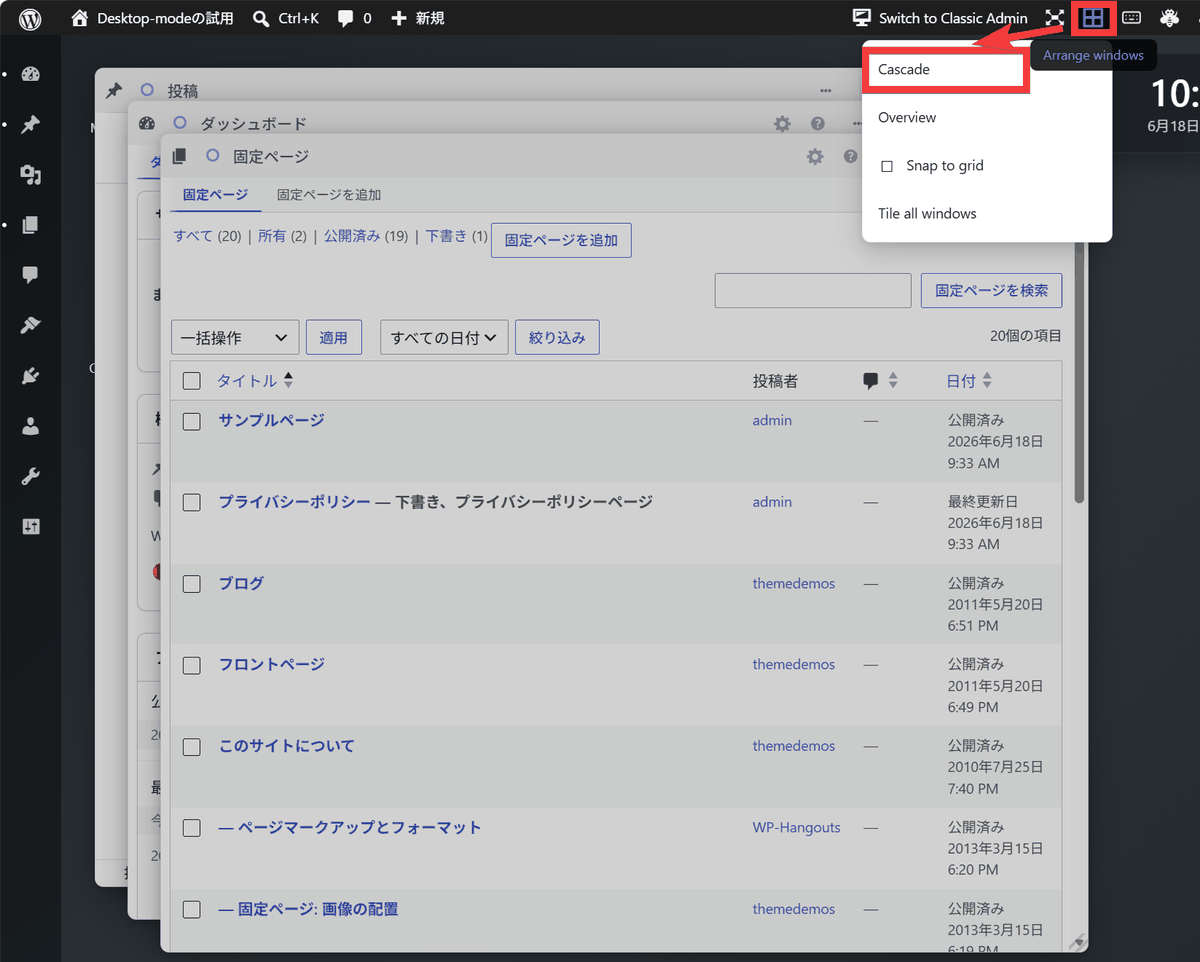
There are also multiple sorting functions; after clicking the 'Arrange windows' icon, selecting 'Cascade' will display the windows overlapping with a slight offset.
Selecting 'Tile all windows' will rearrange and display the windows in a tiled layout.
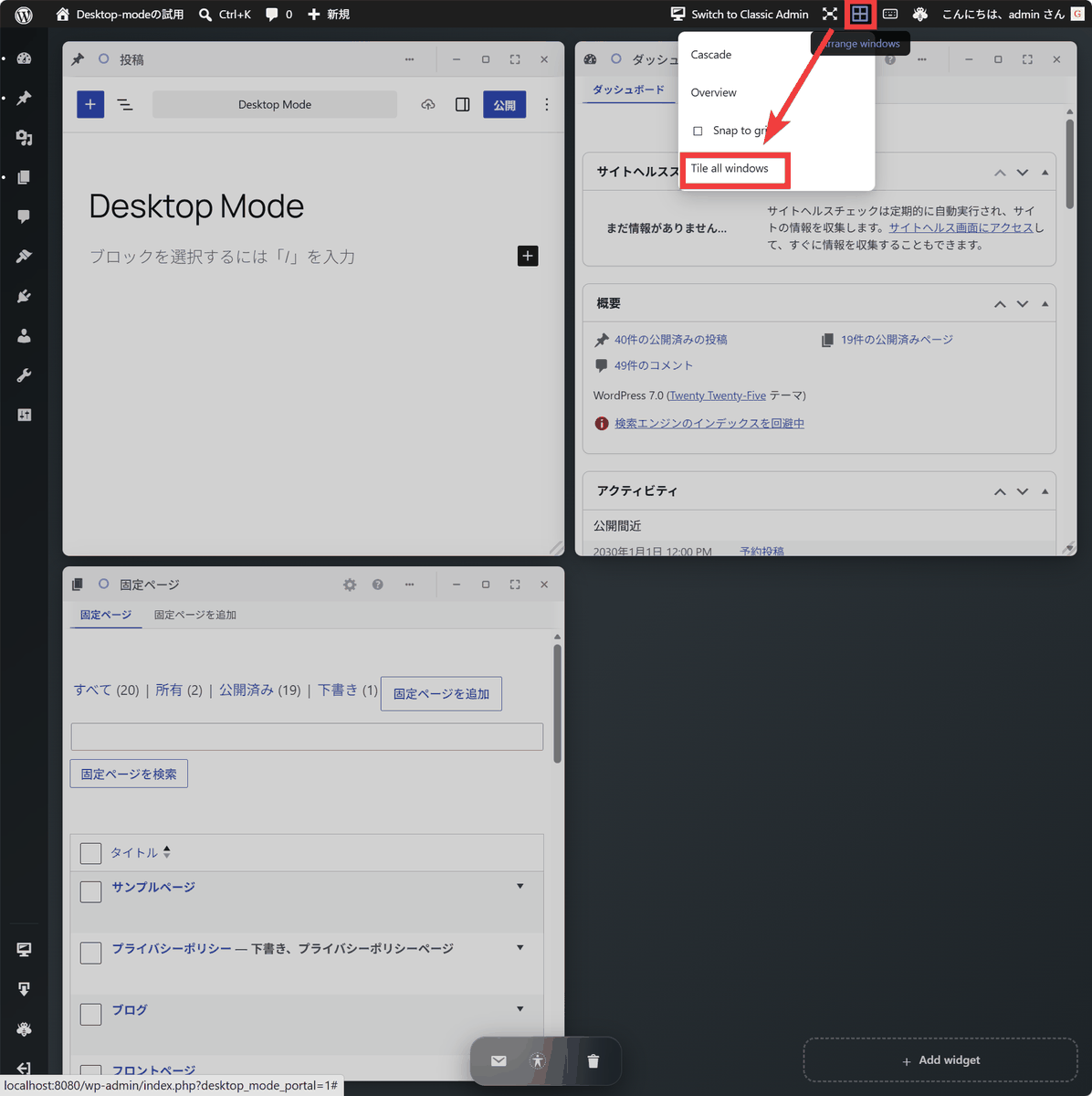
In addition to the separate windows for each function, you can add widgets. Click 'Add widget' in the bottom right corner, then click 'Clock'...
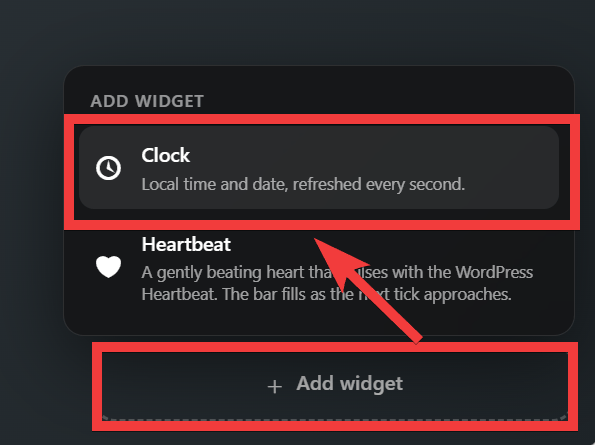
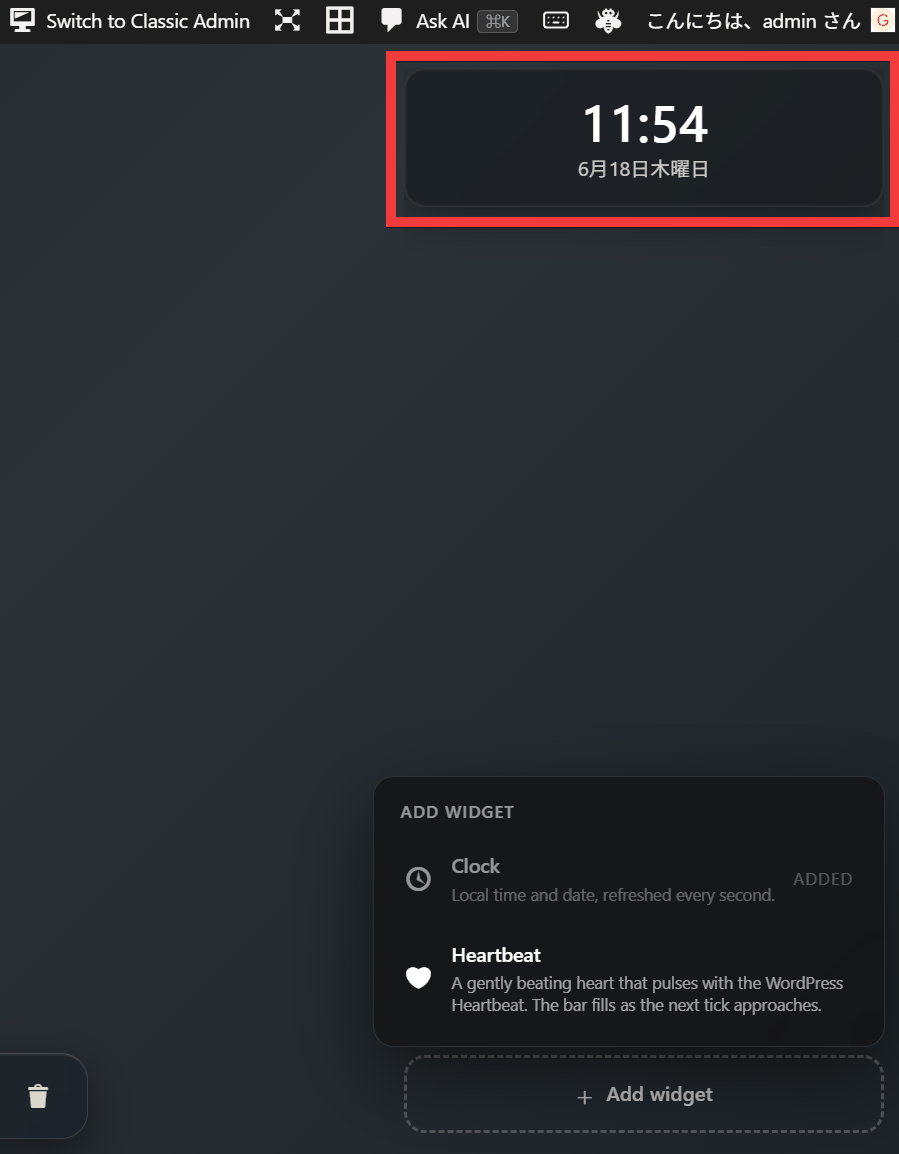
A clock has been added to your desktop.
◆AI Copilot
By setting up
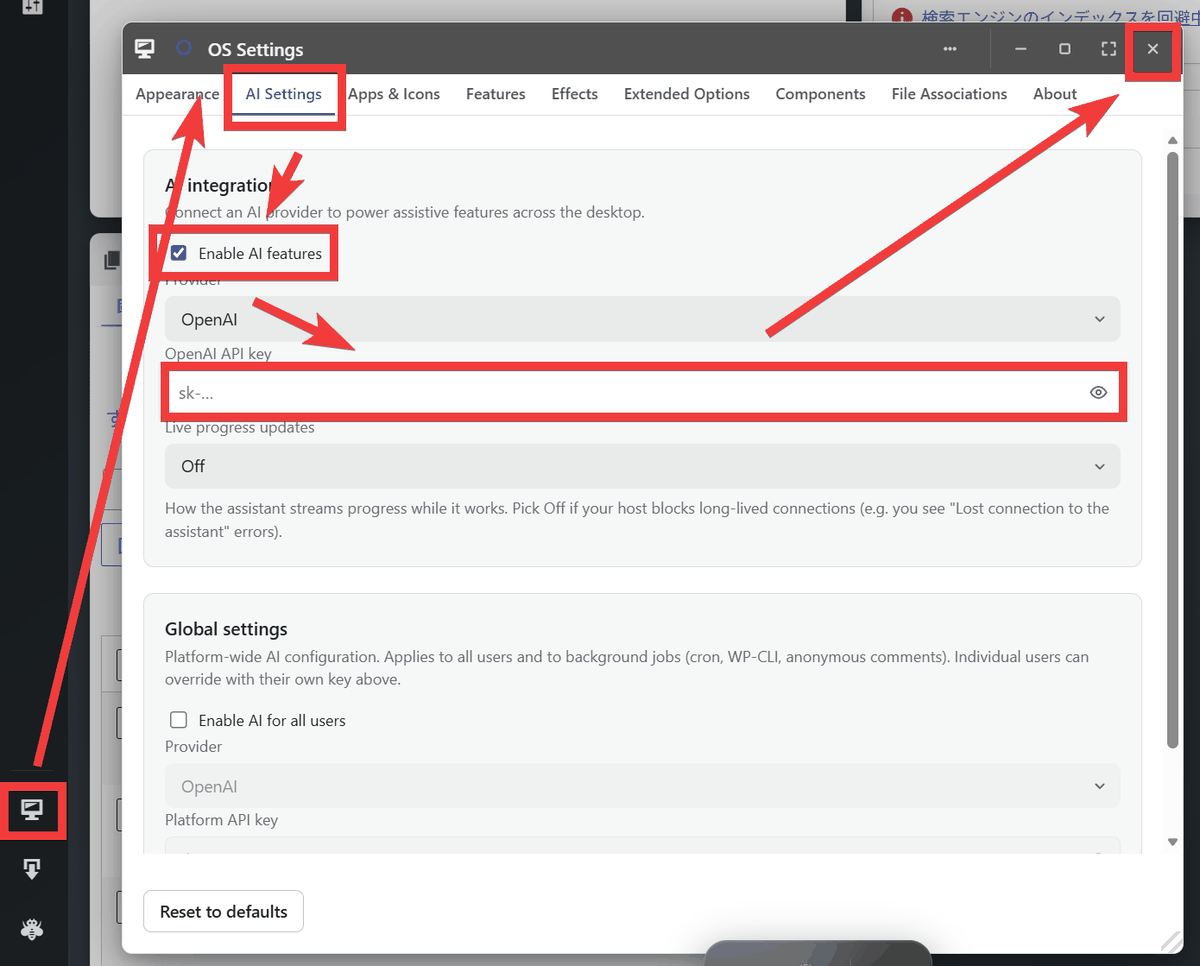
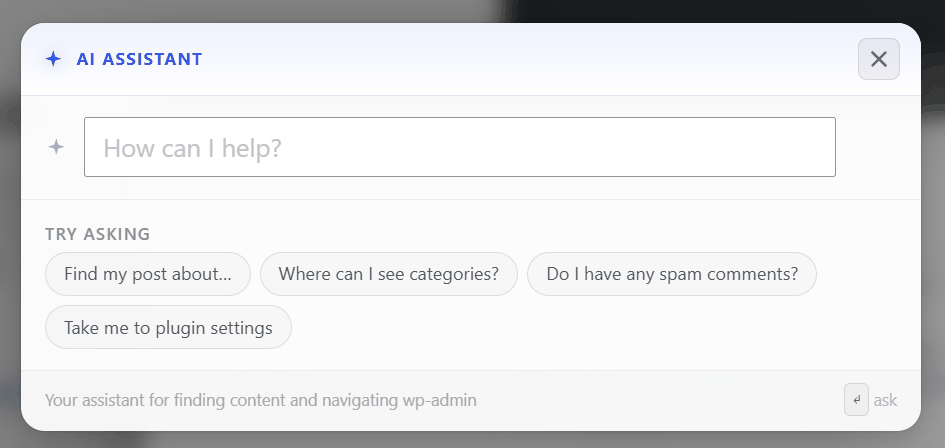
Press 'Ctrl+K' on your desktop to open the 'AI ASSISTANT' window, then enter your questions in the text form and submit it.
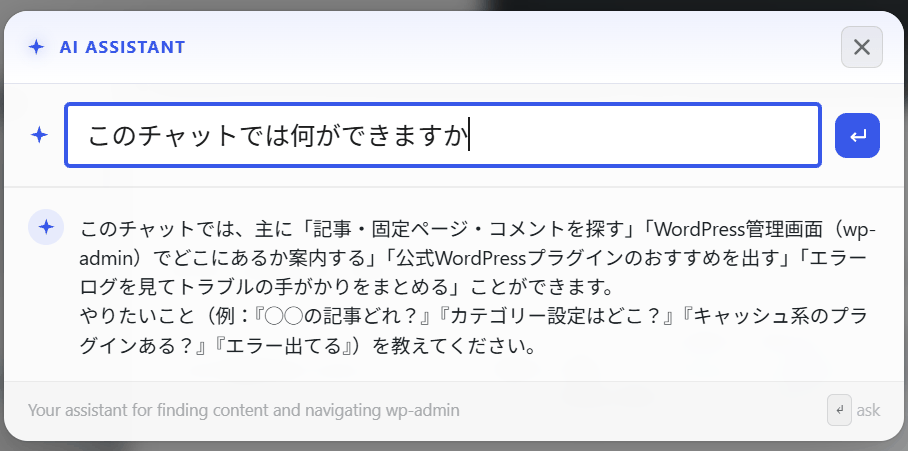
When I typed 'What can I do in this chat?', I received responses indicating available functions such as 'Search for articles, pages, and comments,' 'Guide you to where they are in the WordPress admin screen,' and 'Recommend official WordPress plugins.'
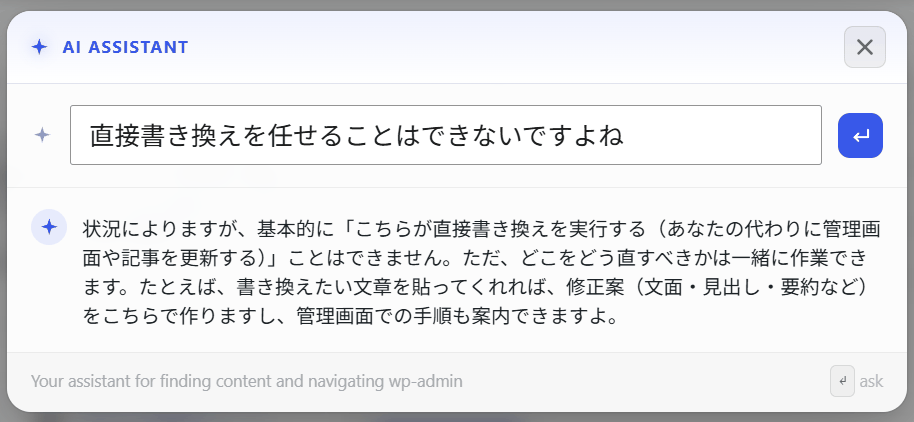
AI Copilot is primarily used for searching and summarizing data such as log statistics, and it cannot directly perform tasks such as installing plugins or rewriting source code.
◆ API for developers
The following extensions are possible by adding code to the plugin or theme:
- Add custom shortcuts to the desktop
- Added a custom menu to the leftmost Dock.
- Register the plugin-specific screen as a window.
- Added custom commands to the Cmd+K command palette.
- Add a custom settings tab
- Register your own AI tools and AI providers for AI Copilot
- Hook events such as window creation, focus, movement, and closing.
- Register wallpapers and widgets to expand the workspace in the admin panel.
◆How to install Desktop Mode
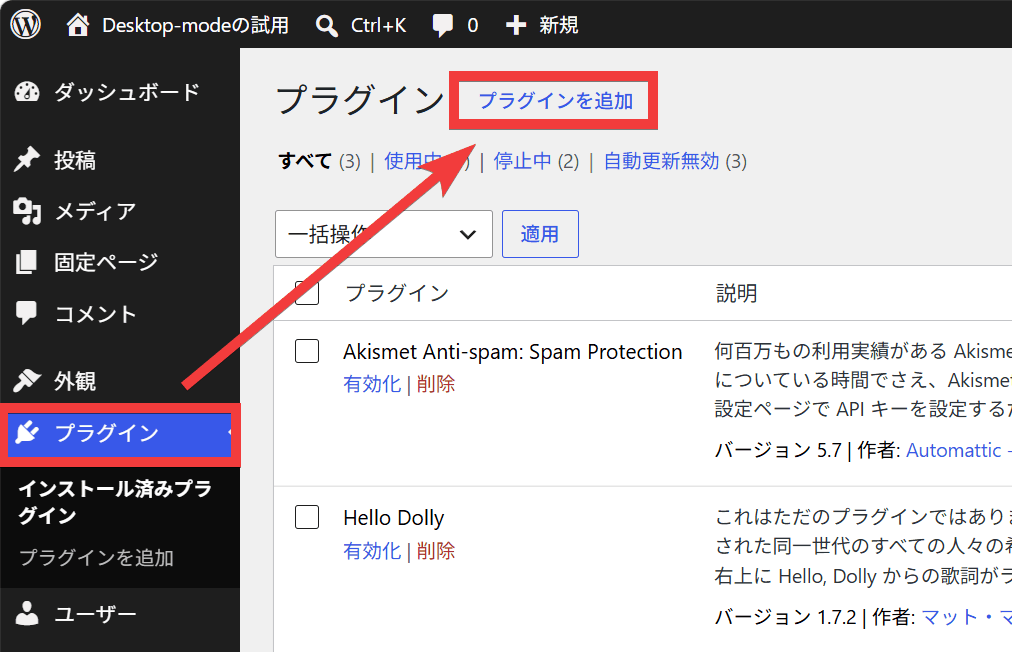
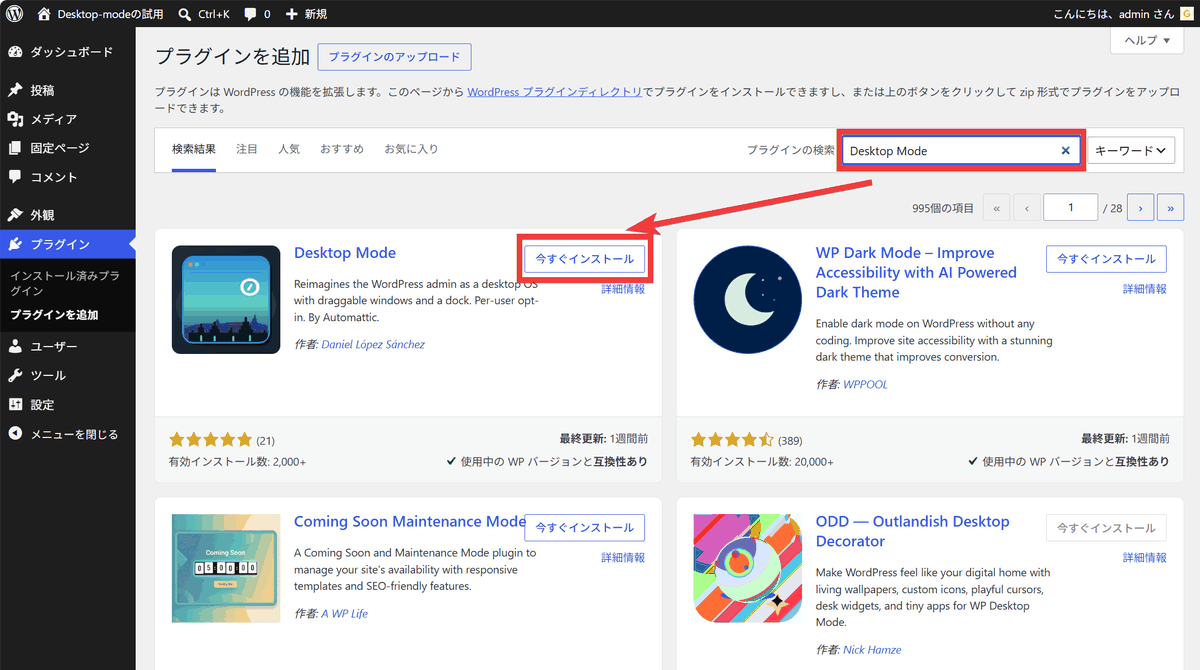
From the WordPress admin panel's side menu, click 'Plugins,' then click the 'Add Plugin' link.
Enter 'Desktop Mode' in the 'Search Plugins' input field and search. Desktop Mode will appear in the list, so click 'Install Now'.
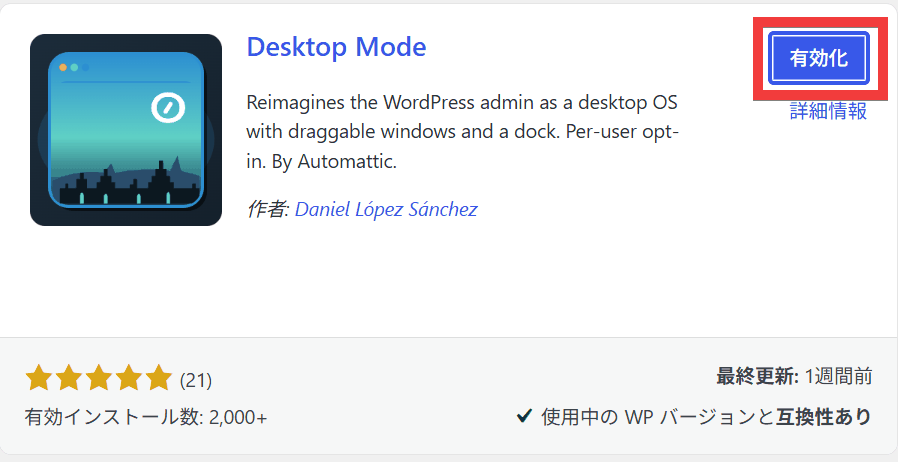
Once the installation is complete, click 'Activate'.
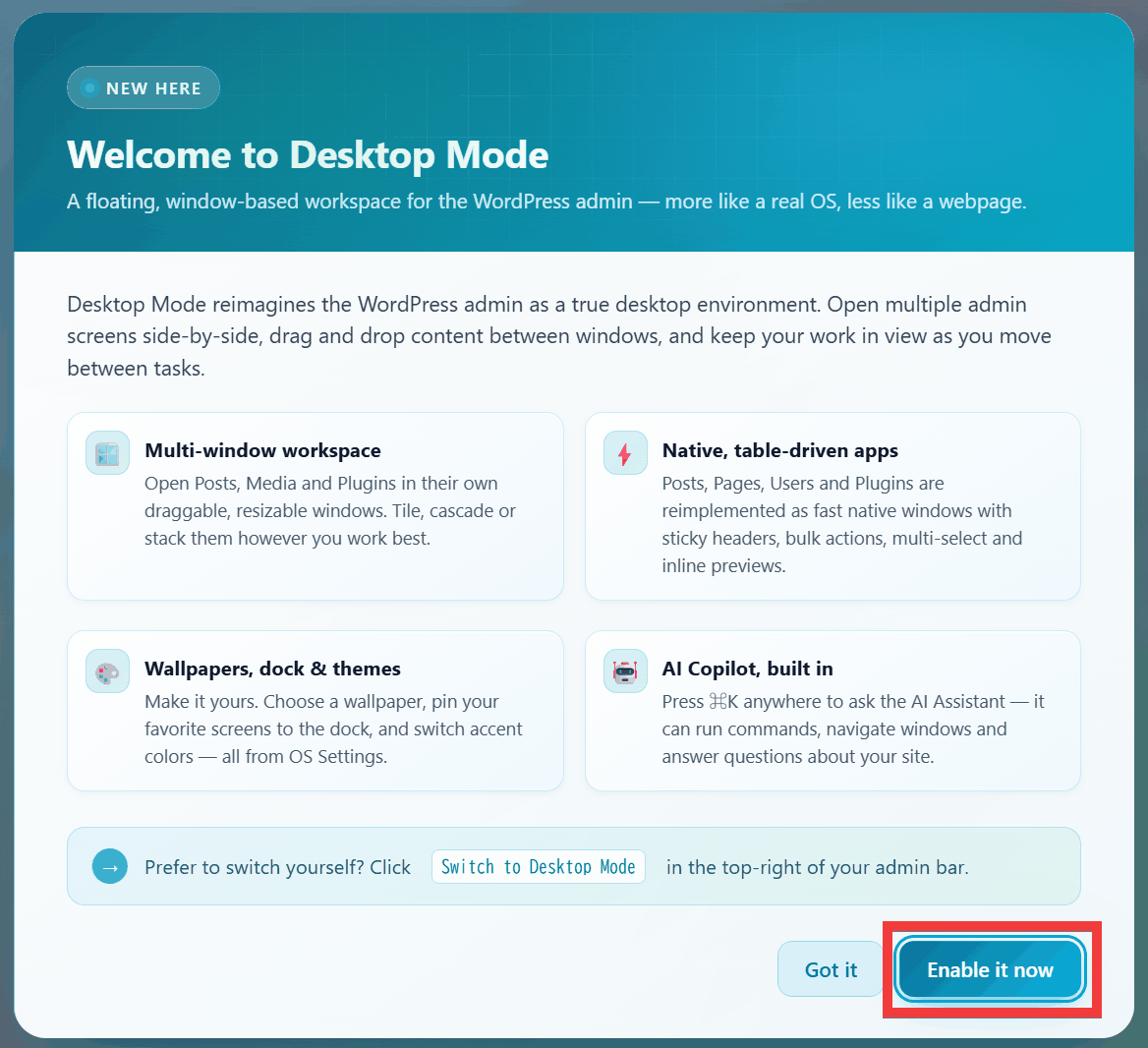
A Welcome dialog will appear, so click 'Enable it now'.
The installation is complete when you see the desktop screen.
Related Posts: