How to use 'Irodori-TTS,' a local AI that lets you make your favorite lines spoken in your favorite voice. It's Japanese-focused and runs locally, so you can generate unlimited text.
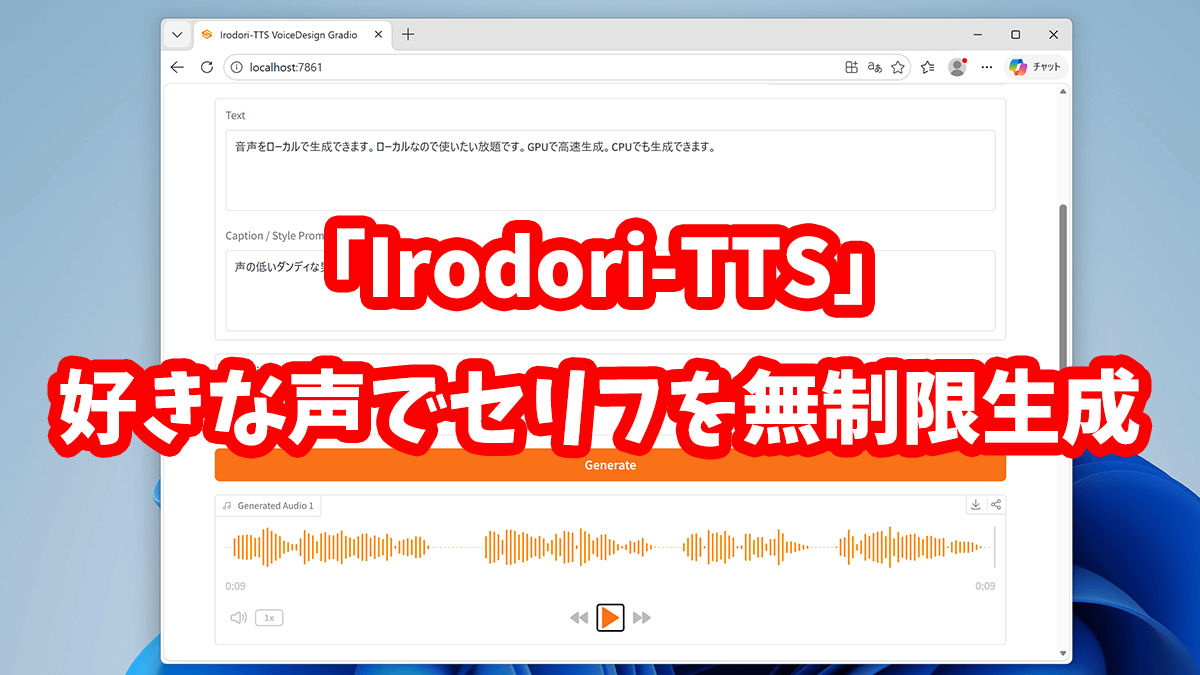
' Irodori-TTS ' is a Japanese-specific speech synthesis AI model (TTS model) developed by
GitHub - Aratako/Irodori-TTS: A Flow Matching-based Text-to-Speech Model with Emoji-driven Style Control · GitHub
https://github.com/Aratako/Irodori-TTS
Aratako/Irodori-TTS-500M-v2 · Hugging Face
https://huggingface.co/Aratako/Irodori-TTS-500M-v2
·table of contents
◆1: Installing Irodori-TTS
◆2: Voice generation with Irodori-TTS [Startup & First Generation]
◆3: Voice generation with Irodori-TTS [Specify voice using reference audio]
◆4: Voice generation with Irodori-TTS [Specify emotions with emojis]
◆5: Voice generation with Irodori-TTS [Specify voice in the description]
◆1: Installing Irodori-TTS
Before installing Irodori-TTS, you need to install the programming language ' Python ,' the Python package management tool ' uv ,' and the version control system ' Git .' Python can be downloaded and installed from the official website . Git and uv can be installed using the standard Windows command 'winget.'
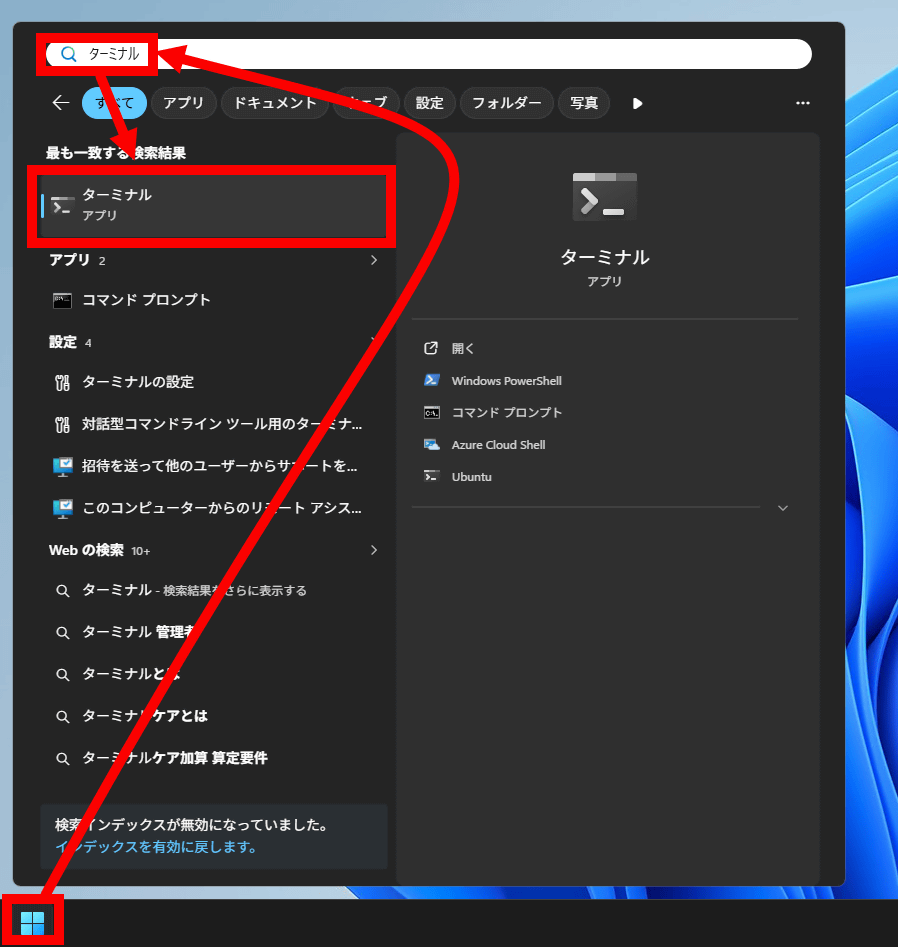
The procedure for installing Git and uv using winget is as follows: First, find and launch Terminal from the Start menu.
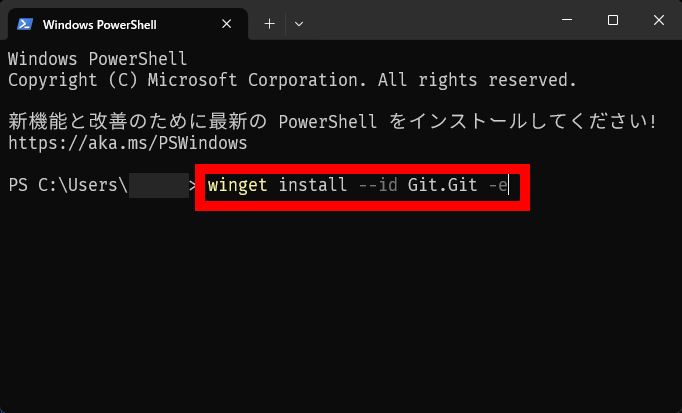
Type ' winget install --id Git.Git -e ' and press Enter.
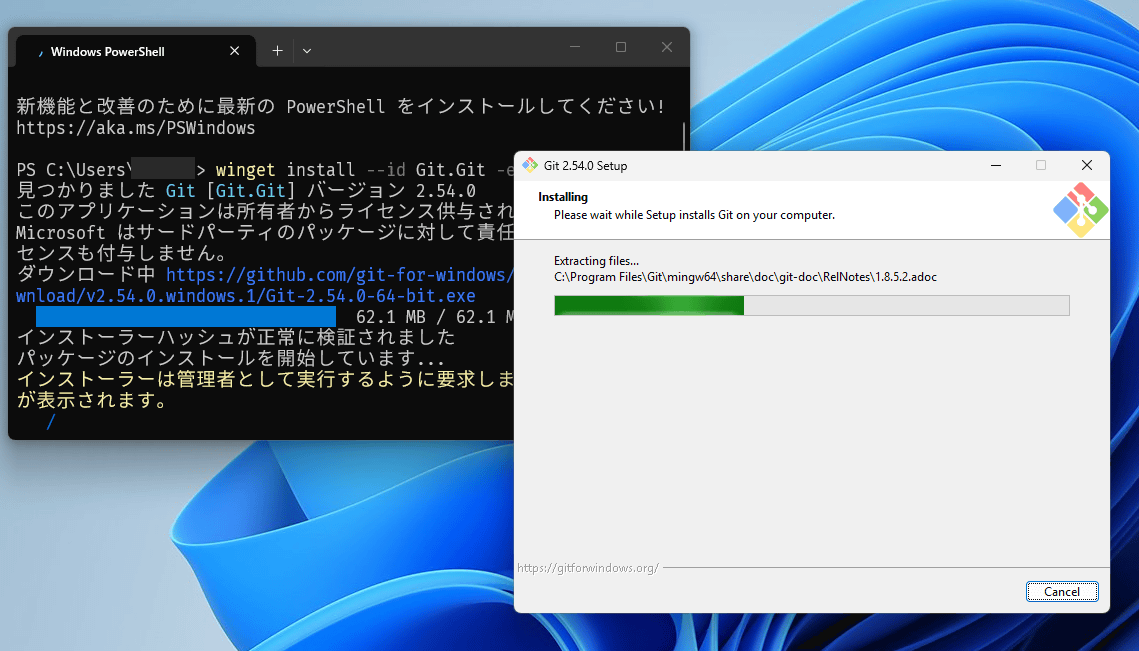
The Git installation will proceed automatically, so please wait a while.
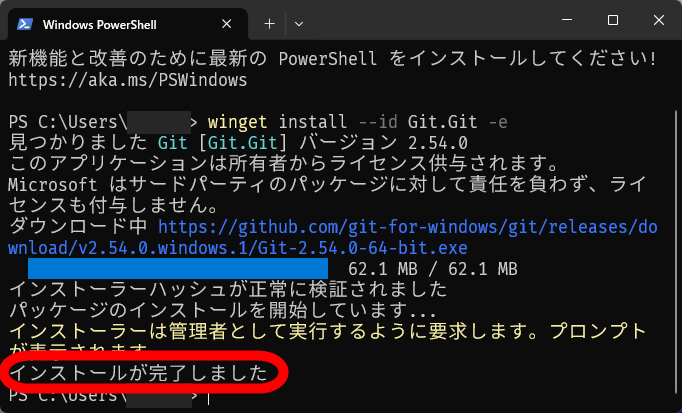
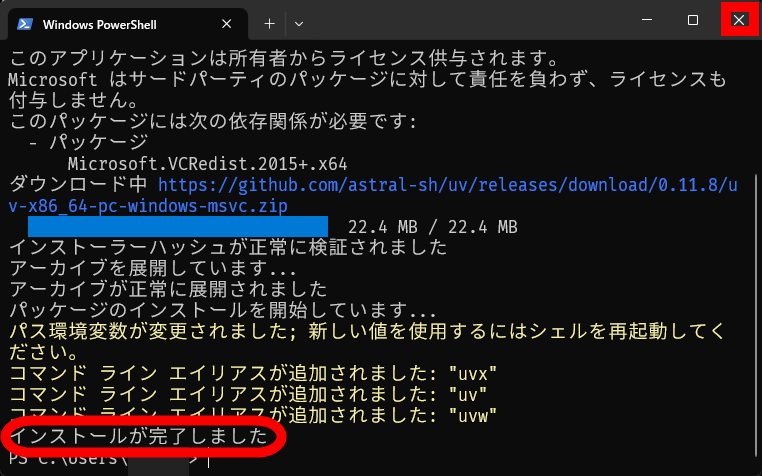
If you see the message 'Installation complete,' then it's OK.
Next, type ' winget install --id=astral-sh.uv -e ' and press Enter.
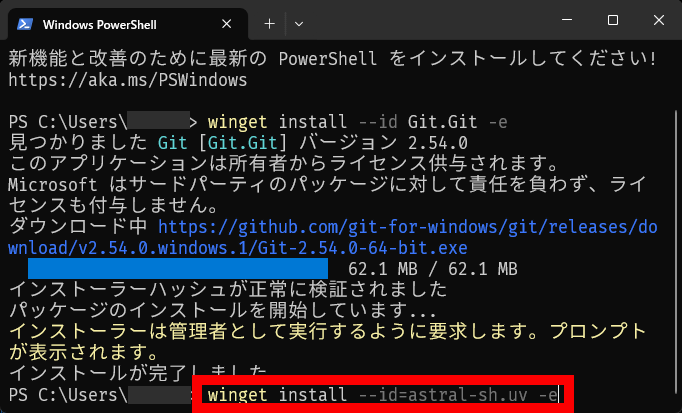
Once you see the message 'Installation complete,' the necessary software is ready. Click the × button to close the terminal.
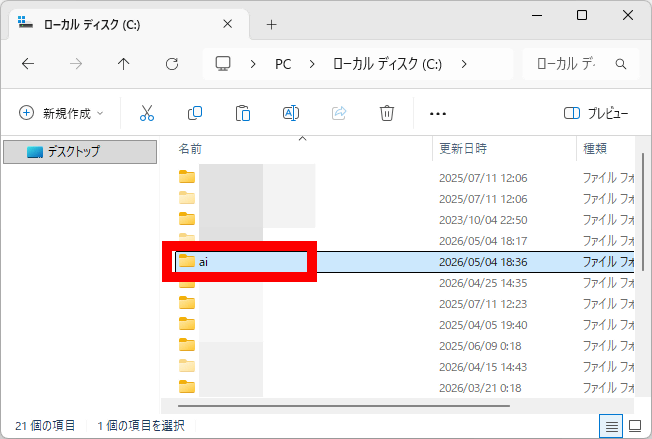
Next, we'll create a folder to install Irodori-TTS. In this case, we created a folder named 'ai' directly under the C drive.
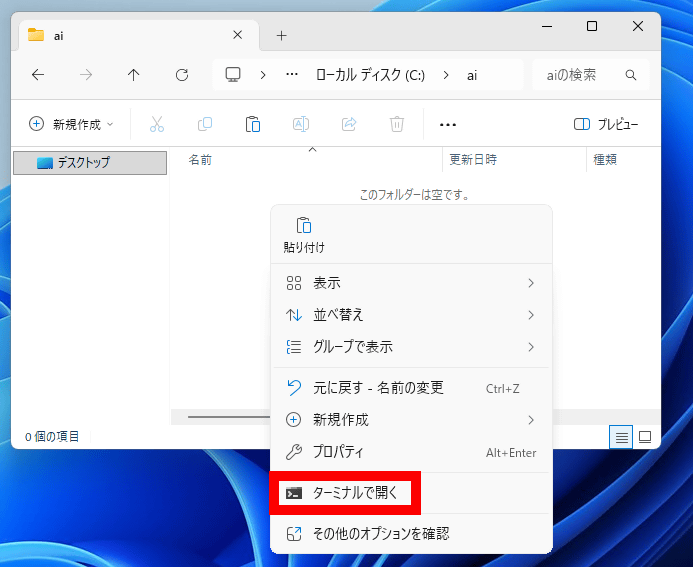
Open the folder you created, right-click in an empty area, and click 'Open in Terminal'.
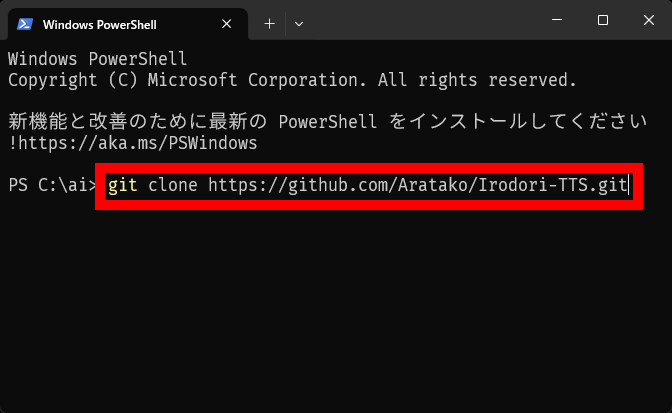
Once the terminal opens, type ' git clone https://github.com/Aratako/Irodori-TTS.git ' and press Enter.
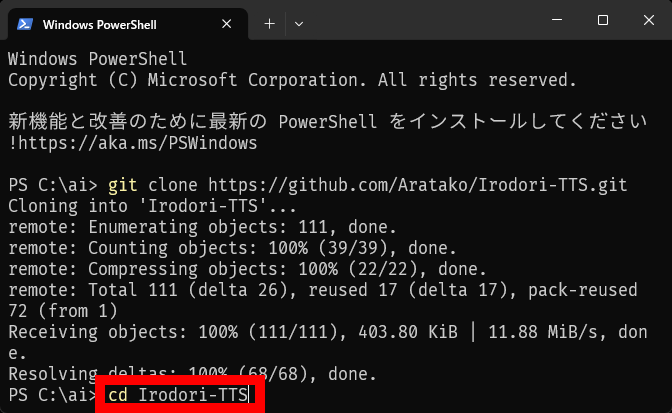
Type ' cd Irodori-TTS ' and press Enter.
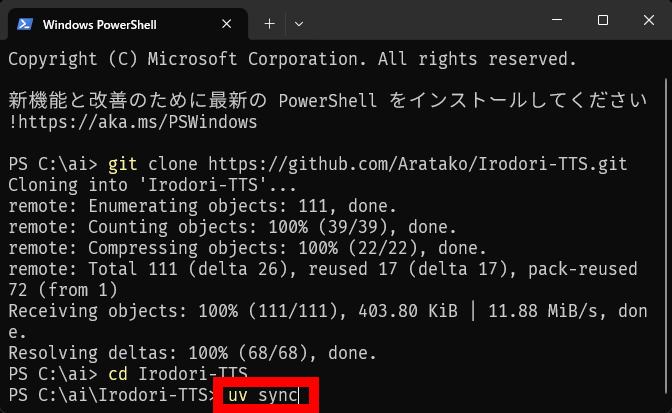
Type ' uv sync ' and press Enter.
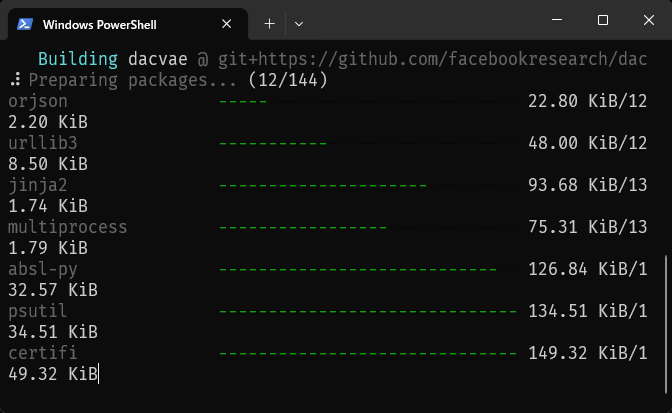
The necessary packages will begin installing, so please wait a moment.
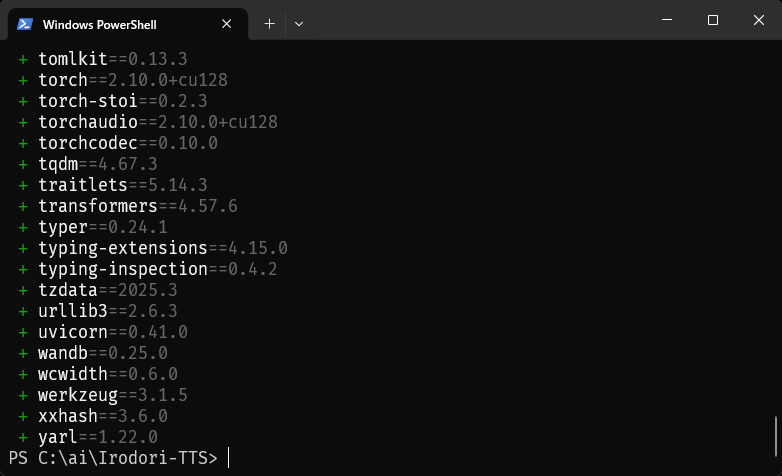
If 'C:\ai\Irodori-TTS' is displayed at the bottom, the installation of Irodori-TTS is complete.
◆2: Voice generation with Irodori-TTS [Startup & First Generation]
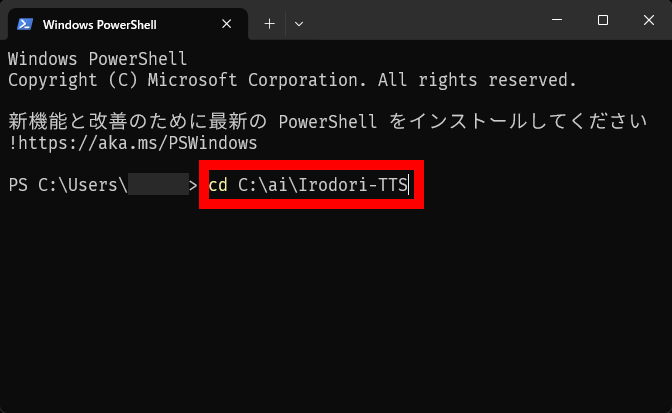
To use Irodori-TTS, first open Terminal and type ' cd C:\ai\Irodori-TTS ' and press Enter.
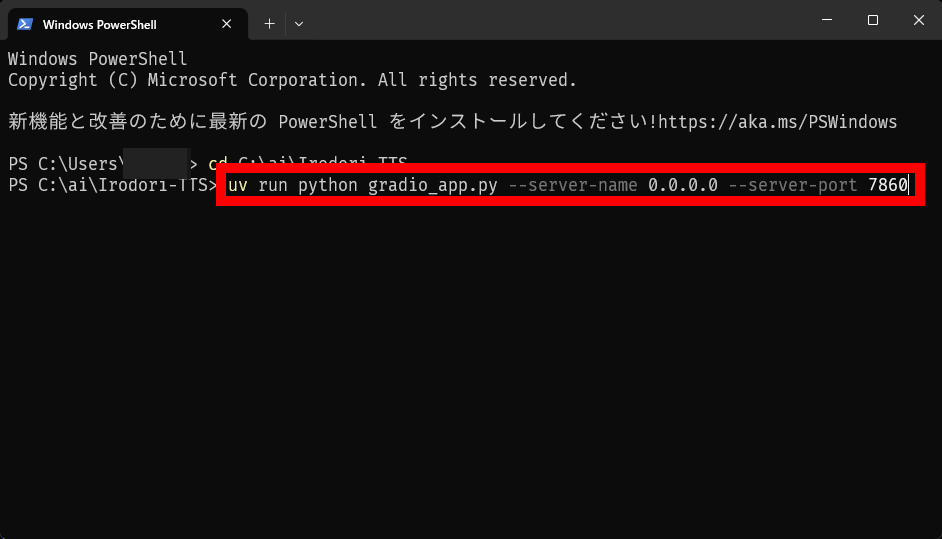
Next, type ' uv run python gradio_app.py --server-name 0.0.0.0 --server-port 7860 ' and press Enter.
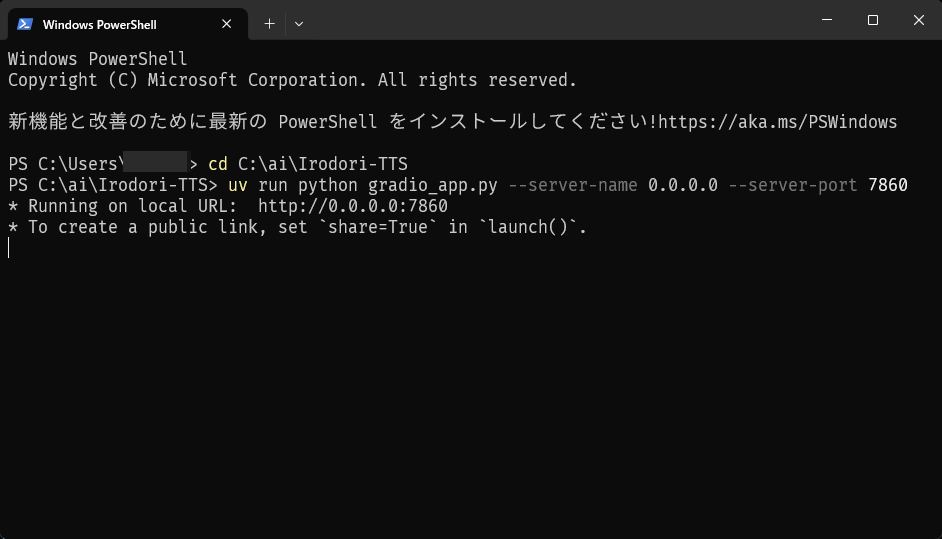
If you see 'Running on local URL: http://0.0.0.0:7860', then it's OK.
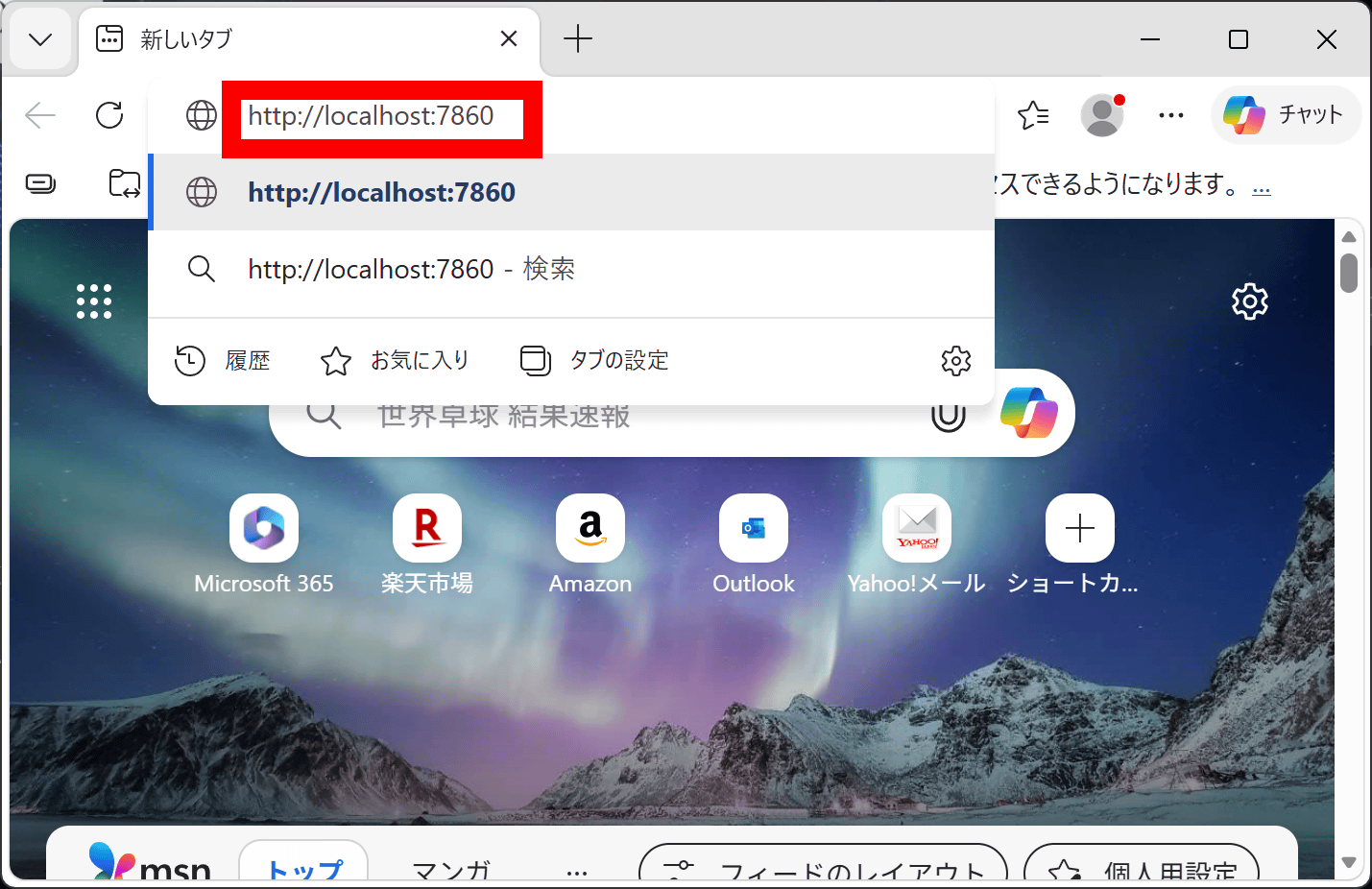
Launch a browser such as Edge or Firefox and access '
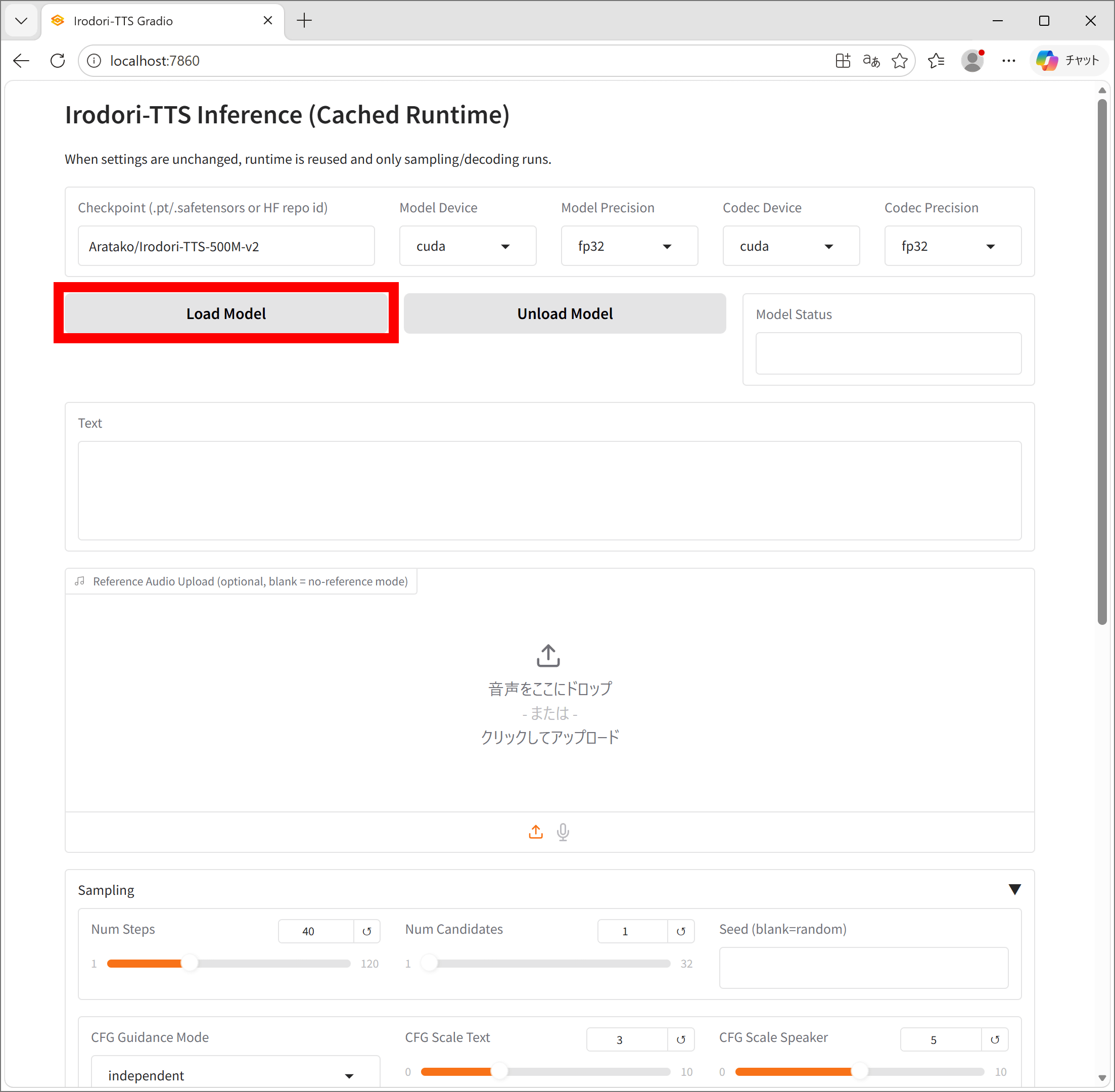
This is the Irodori-TTS web UI. Click 'Load Model' to load the TTS model.
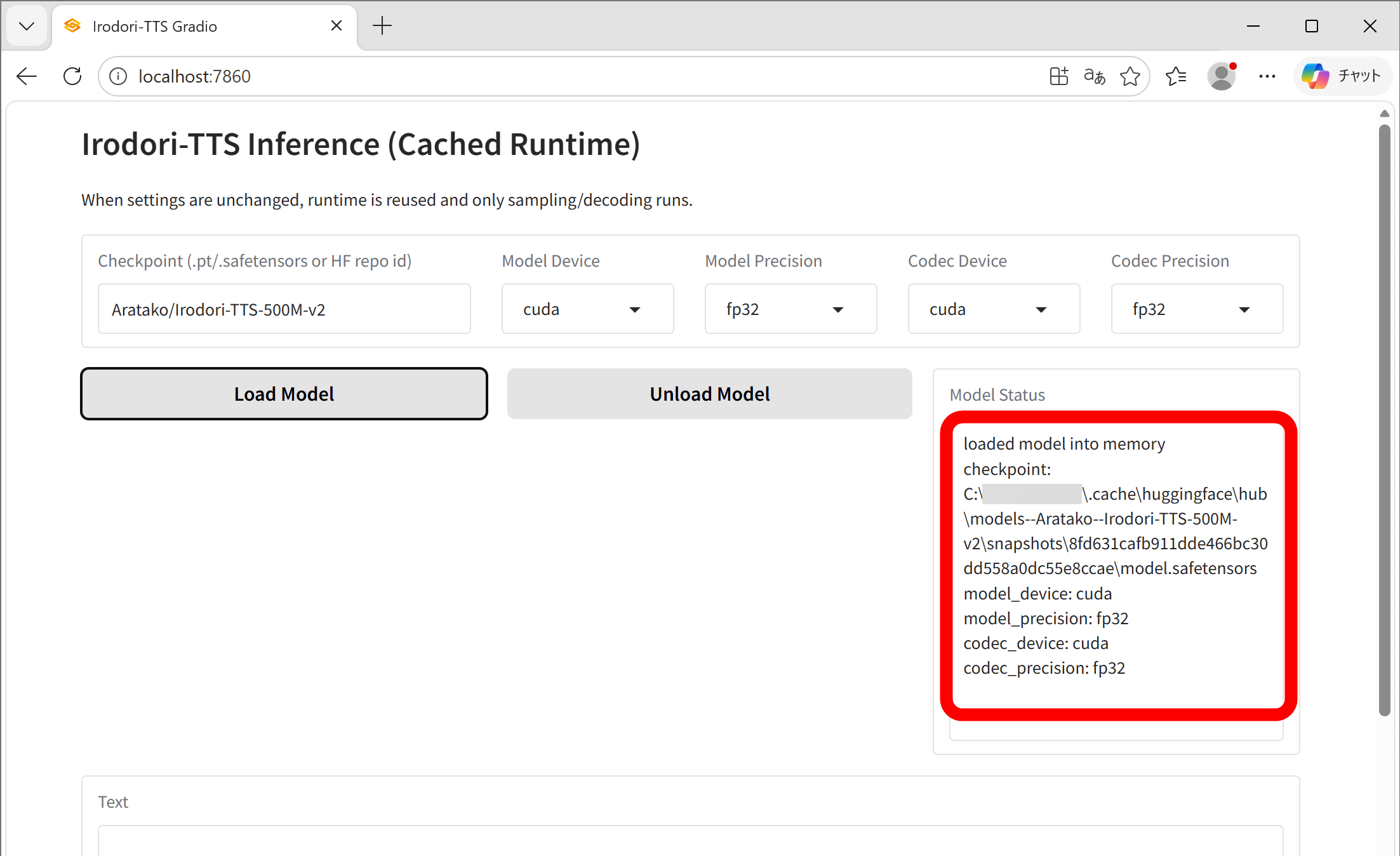
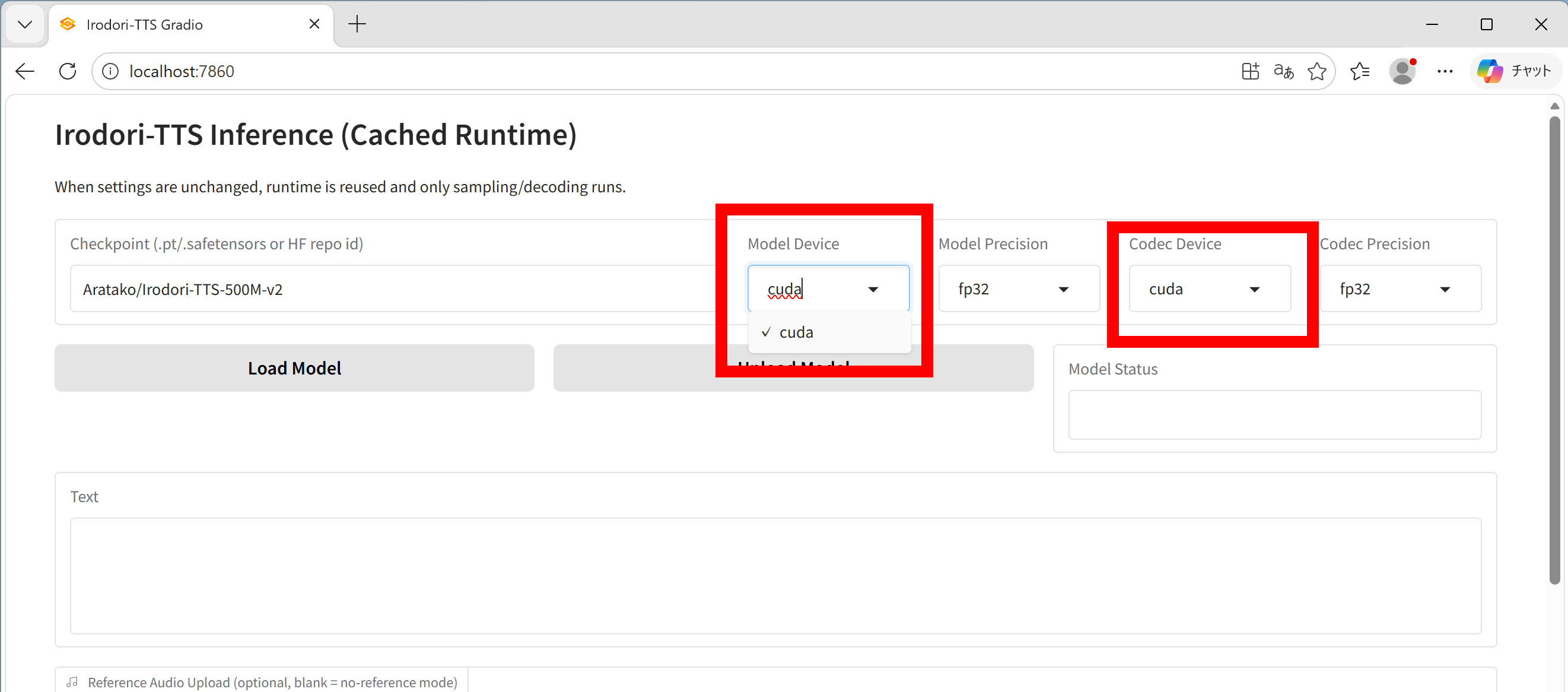
The model loading is complete when you see 'loaded model into memory'. The first time you load the model, it will take some time because it needs to be downloaded, but from the second time onwards, it will load quickly as it will use a model saved locally. Note that at the time of writing this article, the system uses '
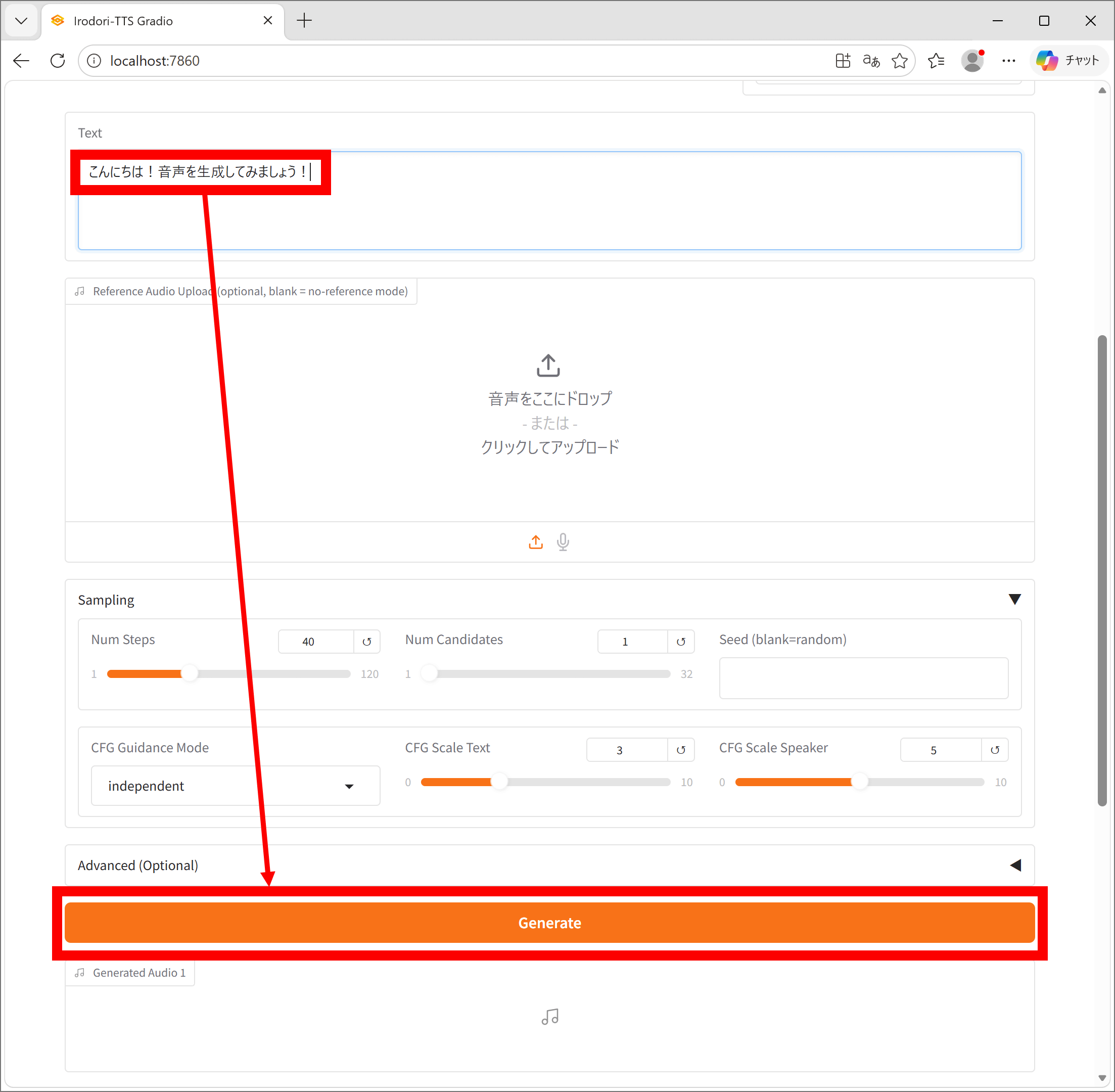
Enter the dialogue in the 'Text' field and click 'Generate'.
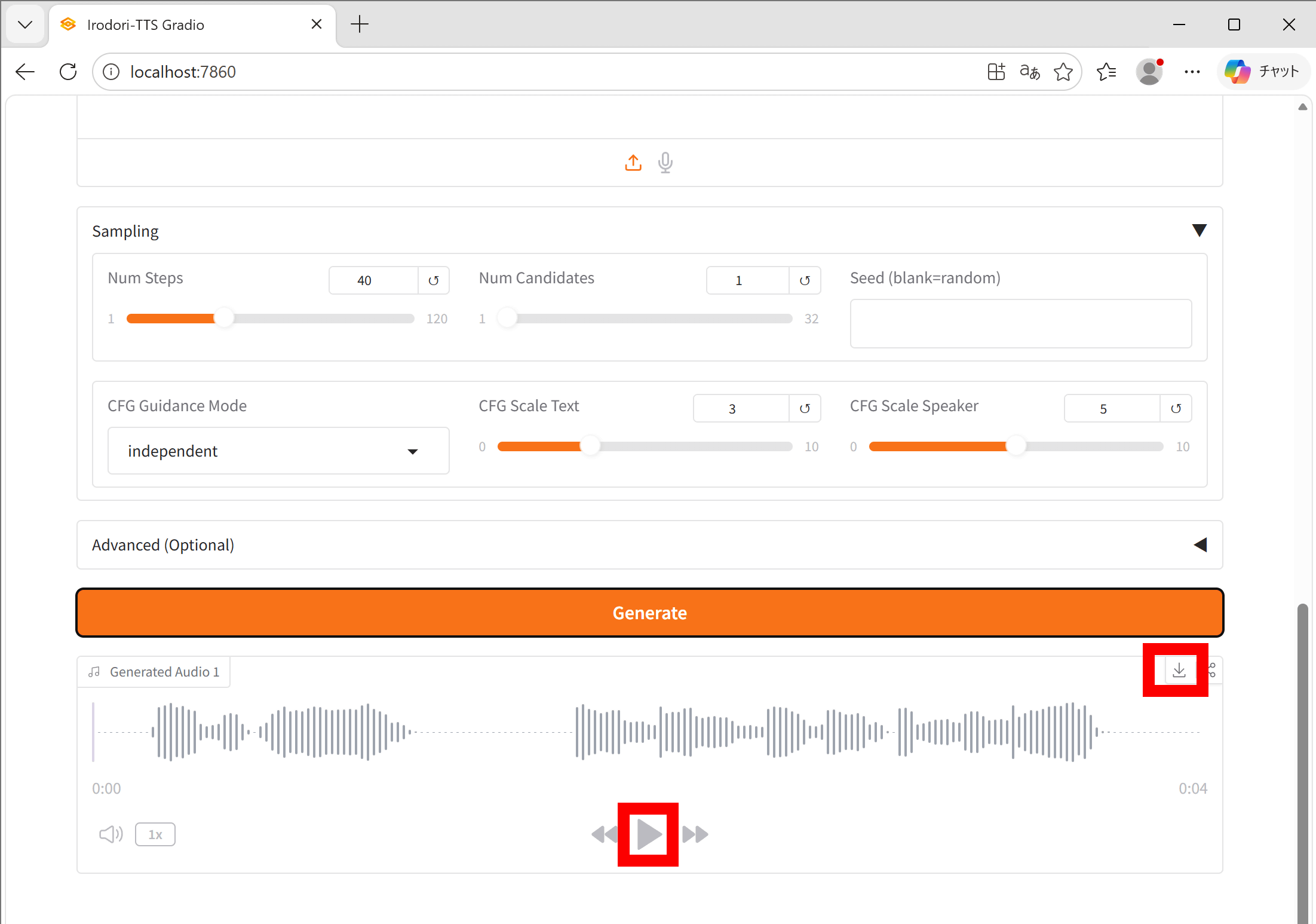
Once generation is complete, an audio playback screen will appear below 'Generate'. Click the play button to start playback. Click the download button in the upper right corner to download.
I recorded the process of actually generating dialogue. You can see that it can generate quite high-quality audio.
Irodori-TTS can be processed on the GPU using CUDA, as well as on the CPU. On a PC equipped with an NVIDIA GeForce RTX 5070 Ti and an AMD Ryzen 7 9700X, a 5-second video could be output in approximately 3 seconds when generated on the GPU, and approximately 90 seconds when generated on the CPU.
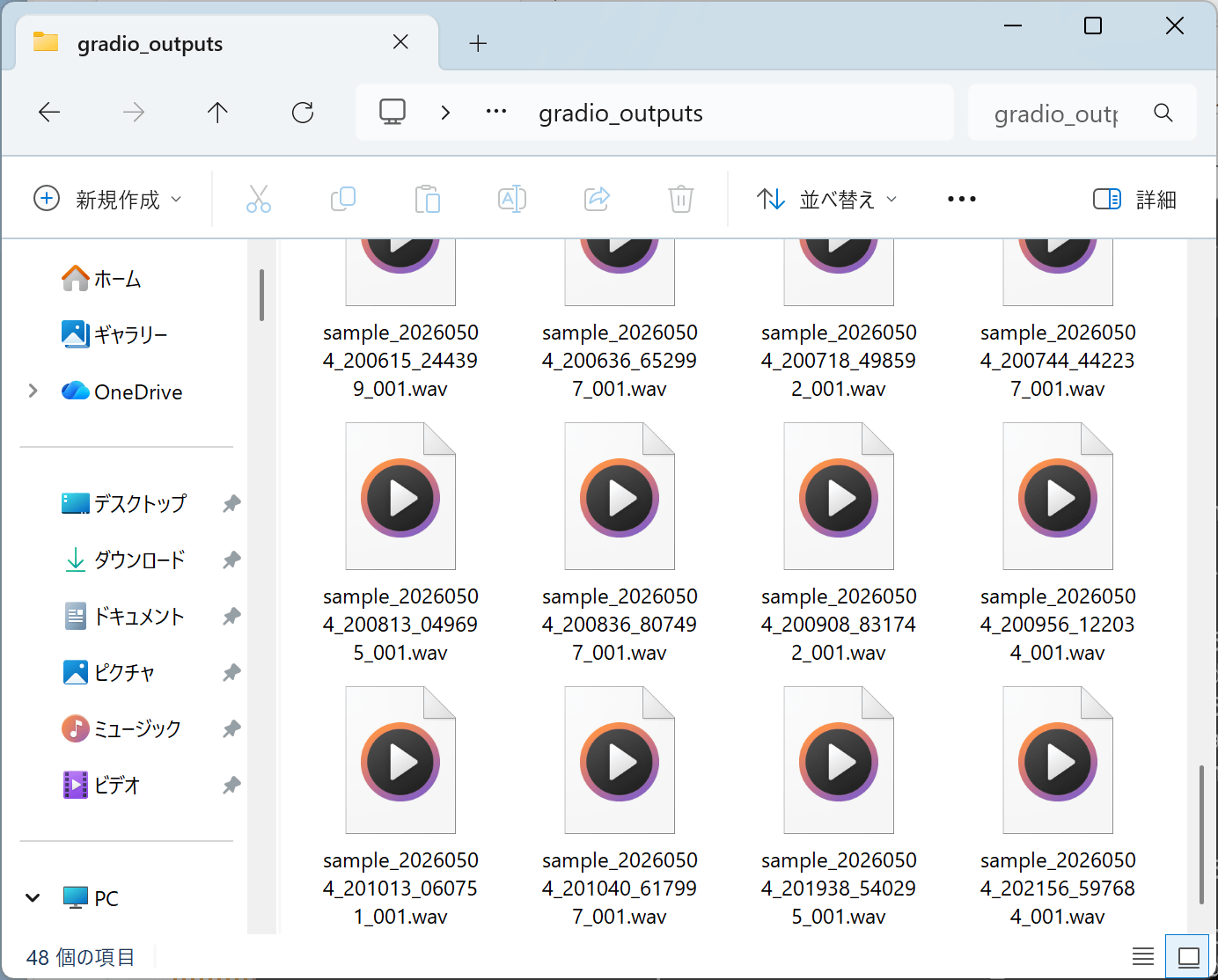
The generated audio can be saved using the download button, and is also automatically saved to 'C:\ai\Irodori-TTS\gradio_outputs\'.
◆3: Voice generation with Irodori-TTS [Specify voice using reference audio]
Irodori-TTS allows you to generate audio with the same voice as a reference audio by specifying the reference audio. To specify a reference audio, simply drag and drop the audio file into the 'Reference Audio Upload' field.
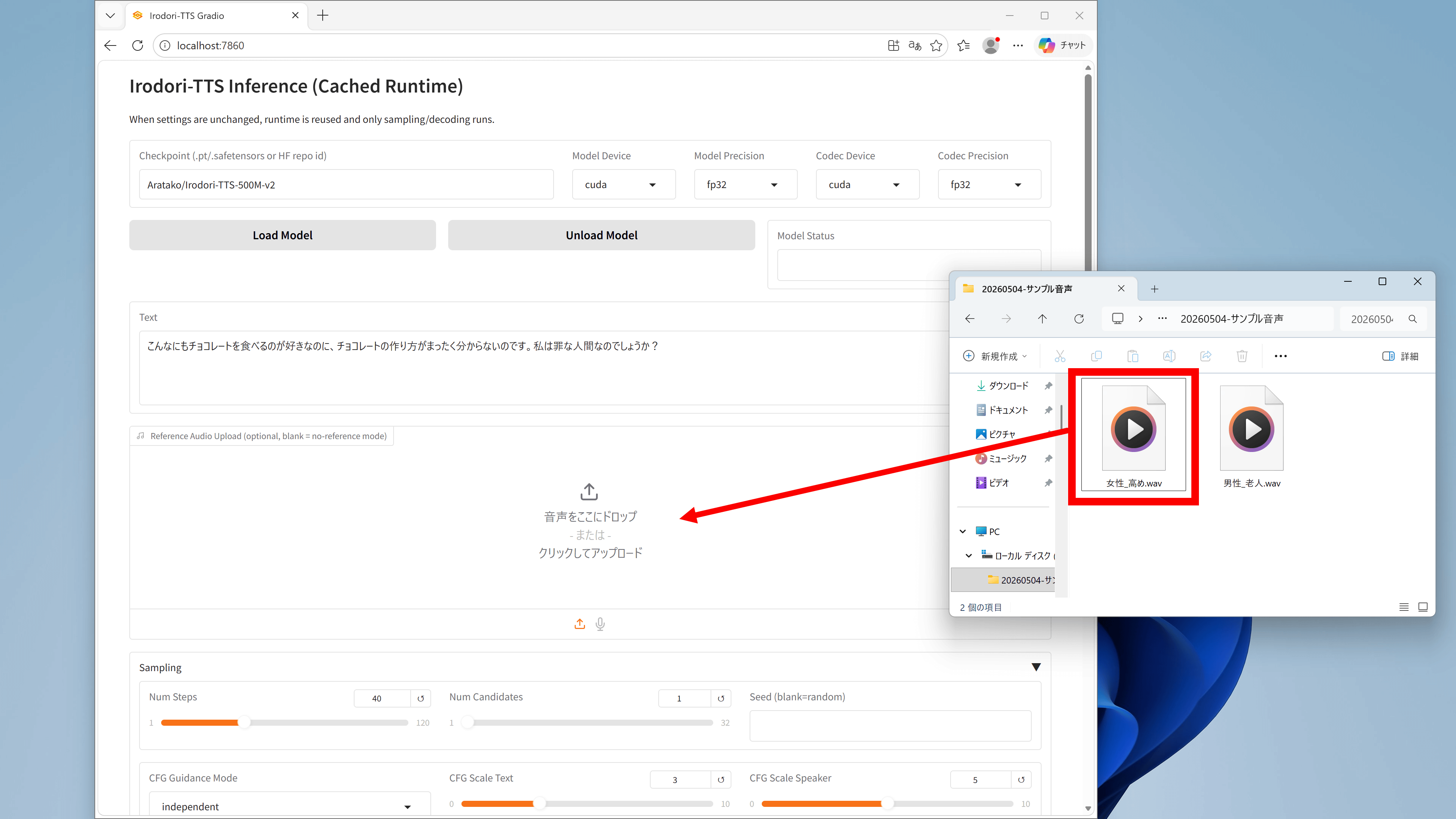
I tried generating the same line in both a 'high-pitched female voice' and an 'old man's voice.' I was able to reproduce the reference audio while generating the specified line.
◆4: Voice generation with Irodori-TTS [Specify emotions with emojis]
You can also specify emotions by mixing emojis into the dialogue text. The available emojis are listed below. It's convenient to save them somewhere so you can copy and paste them.
| emoji | Emotions and Style |
|---|---|
| 👂 | Whispering, sound in the ear |
| 😮💨 | Sighs, breaths, sleep sounds |
| ⏸️ | silence |
| 🤭 | Laughter (giggling, chuckling, etc.) |
| 🥵 | Gasps, moans, groans |
| 📢 | Echo, reverb |
| 😏 | In a teasing, affectionate way |
| 🥺 | With a trembling voice, and sounding unsure of herself |
| 🌬️ | Shortness of breath, heavy breathing, breathing sounds |
| 😮 | Breathtaking |
| 👅 | Licking sounds, chewing sounds, water sounds |
| 💋 | Lip noise |
| 🫶 | gently |
| 😭 | Sobs, crying, sadness |
| 😱 | Screams, screams, shrieks |
| 😪 | Sleepy, listless |
| ⏩ | Speaking quickly, rattling off rapidly, in a hurry |
| 📞 | Sound like it's coming through a phone or speaker. |
| 🐢 | slowly |
| 🥤 | The sound of swallowing saliva |
| 🤧 | Coughing, sniffing, sneezing, clearing throat |
| 😒 | Clicking your tongue |
| 😰 | Panic, agitation, nervousness, stuttering |
| 😆 | With joy |
| 😠 | Angry, dissatisfied, sulking |
| 😲 | Surprise, admiration |
| 🥱 | yawn |
| 😖 | In pain |
| 😟 | Looking worried |
| 🫣 | Shyly, bashfully |
| 🙄 | astonished |
| 😊 | Cheerfully, happily |
| 👌 | Nodding and agreement sounds |
| 🙏 | Like pleading |
| 🥴 | Drunk |
| 🎵 | humming |
| 🤐 | With my mouth covered |
| 😌 | With relief and satisfaction |
| 🤔 | Questions |
I tried controlling emotions by adding different emojis to the same lines of dialogue. In addition to basic emotions like crying and anger, it supports a variety of expressions such as 'over the phone,' 'gasping,' 'humming,' and 'clicking your tongue.'
Generate dialogue using the local speech synthesis AI 'Irodori-TTS' [Specify emotions with emojis] - YouTube
◆5: Voice generation with Irodori-TTS [Specify voice in the description]
A VoiceDesign version is also available, where you specify the voice using a descriptive text instead of a reference voice. To run the VoiceDesign version of Irodori-TTS, execute the following commands one line at a time and access ' http://localhost:7861 '.
[code]cd C:\ai\Irodori-TTS
uv run python gradio_app_voicedesign.py --server-name 0.0.0.0 --server-port 7861[/code]
You can generate audio by entering the dialogue in the 'Text' field and a description of the voice in the 'Caption' field, then clicking 'Generate'.
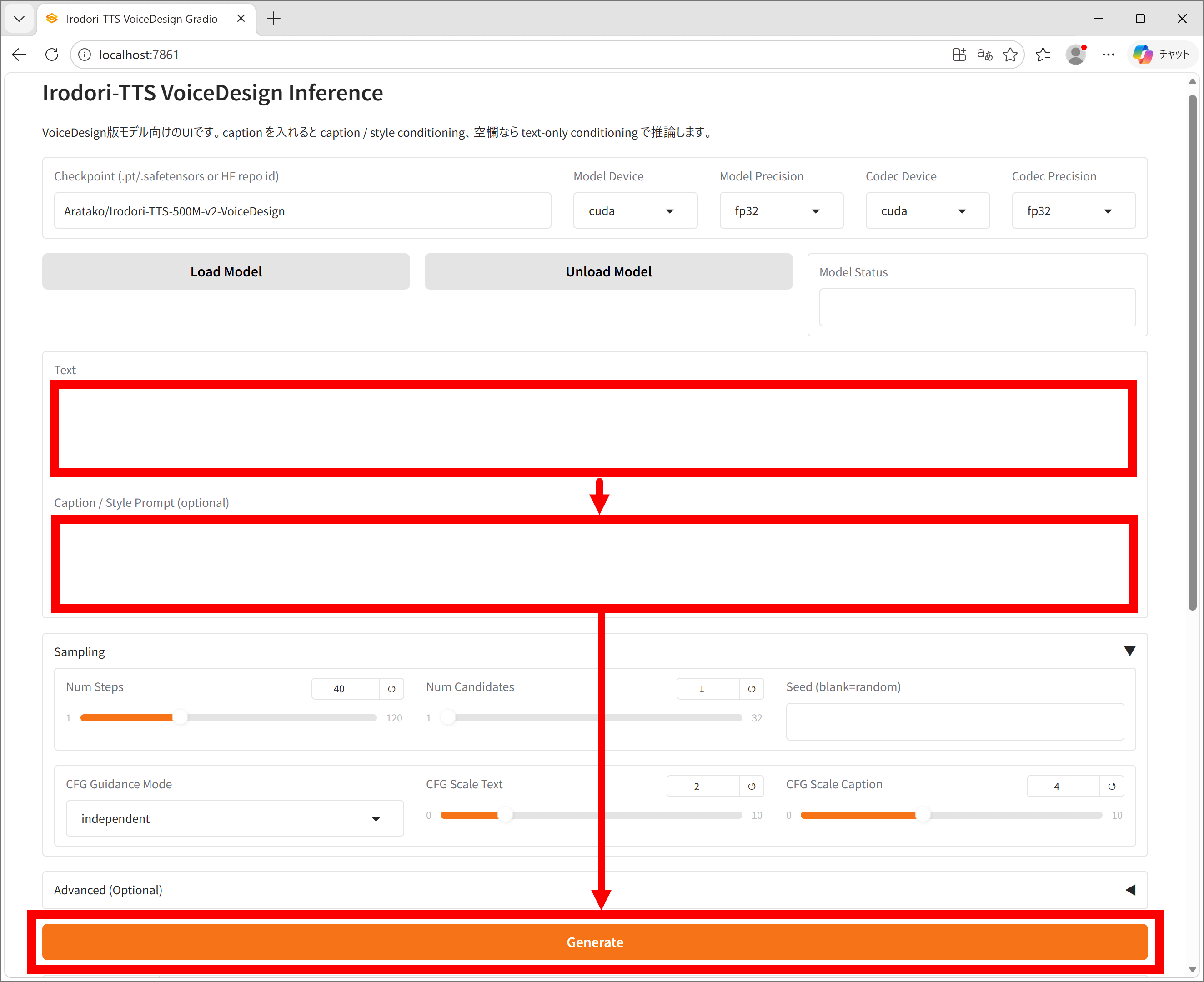
I tried generating the same lines with different voices. I was able to reproduce gender, age, and the presence or absence of echo as instructed.
Generate dialogue using the local speech synthesis AI 'Irodori-TTS' [Specify voice tone in the description] - YouTube
Irodori-TTS can be executed not only via the web UI but also via command line. Detailed specifications are summarized on the following page.
GitHub - Aratako/Irodori-TTS: A Flow Matching-based Text-to-Speech Model with Emoji-driven Style Control · GitHub
https://github.com/Aratako/Irodori-TTS
Related Posts: