I tried out the 'SanDisk Phone Drive USB-C compatible' USB flash drive that plugs directly into an iPhone.
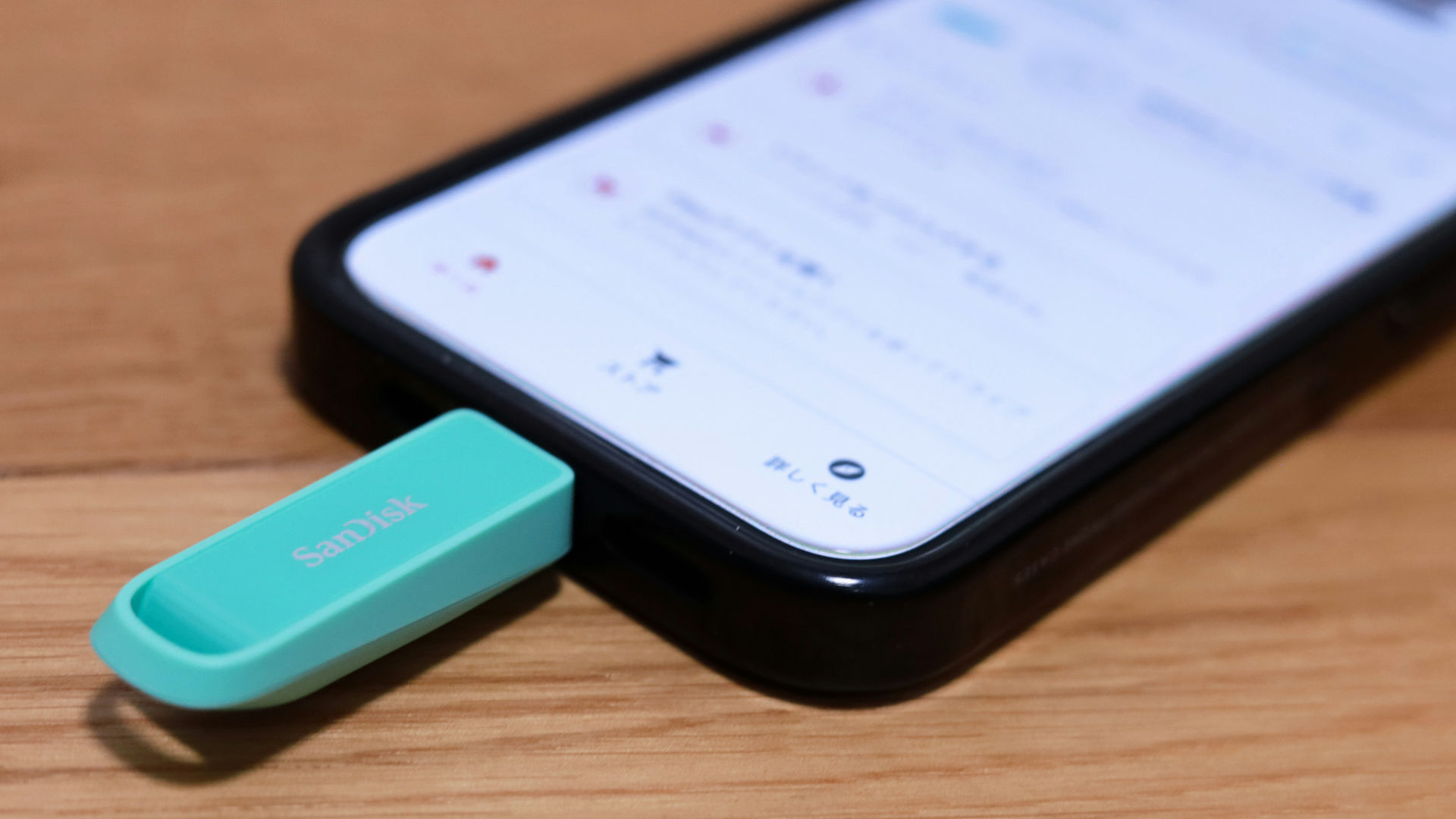
The SanDisk Phone Drive USB-C compatible USB flash drive, which plugs directly into a USB-C port, looks like it could be a lifesaver for smartphones that often run out of storage space. It's useful for transferring data between smartphones and PCs, storing photos and videos on your phone, and even backing up photos, videos, and contacts.
256 GB Arctic White SanDisk Phone Drive USB-C™ Compatible | SanDisk
This is what the packaging for the 'SanDisk Phone Drive USB-C compatible' looks like. It comes in four colors: Arctic White, Maritime Blue, Seastar Pink, and Seafoam Green, and five capacities: 64GB, 128GB, 256GB, 512GB, and 1TB. This time, I'll be using the 256GB Seafoam Green version.
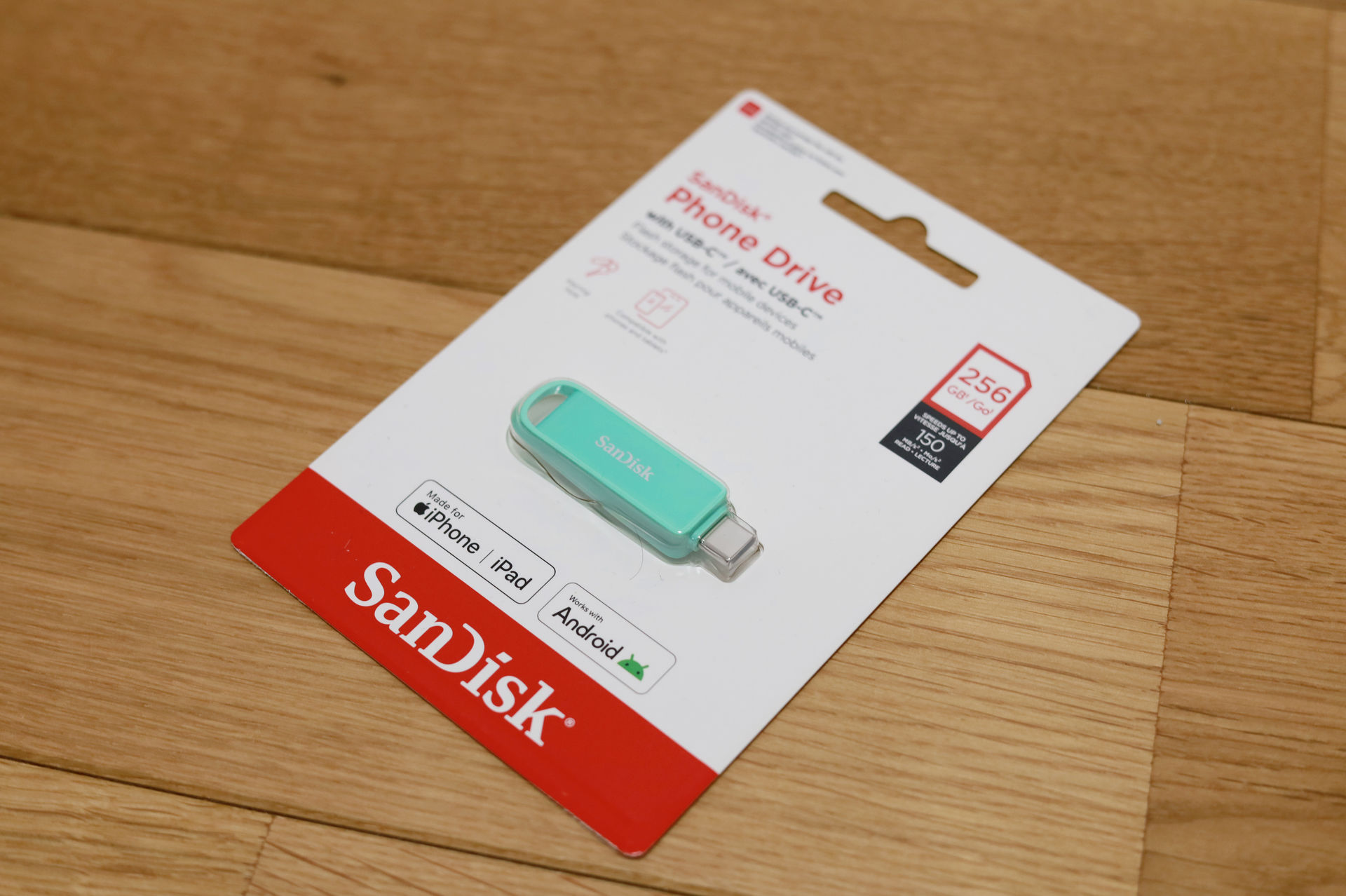
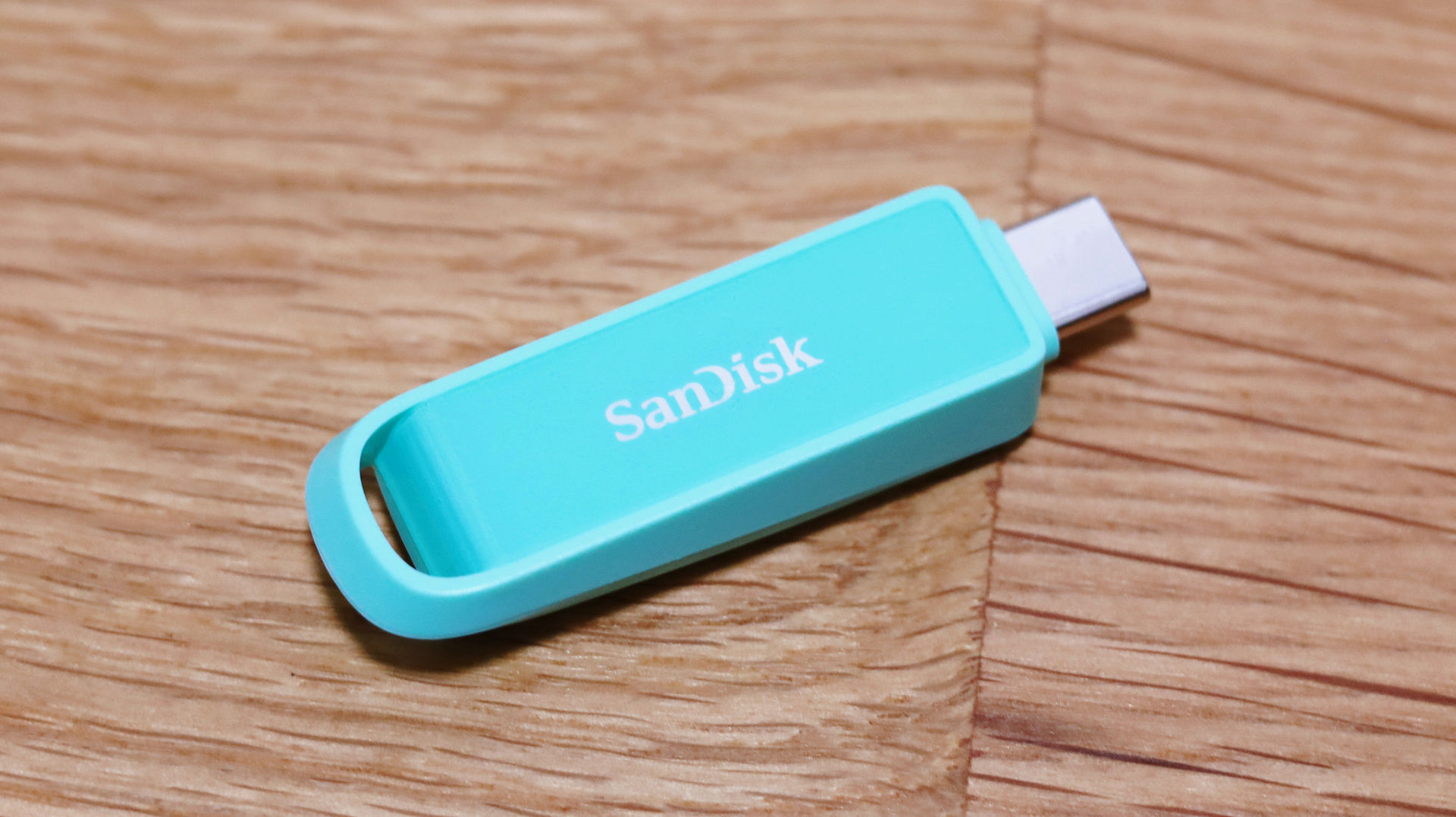
The device itself is very compact, as you can see. It's about the same size as a typical USB flash drive.
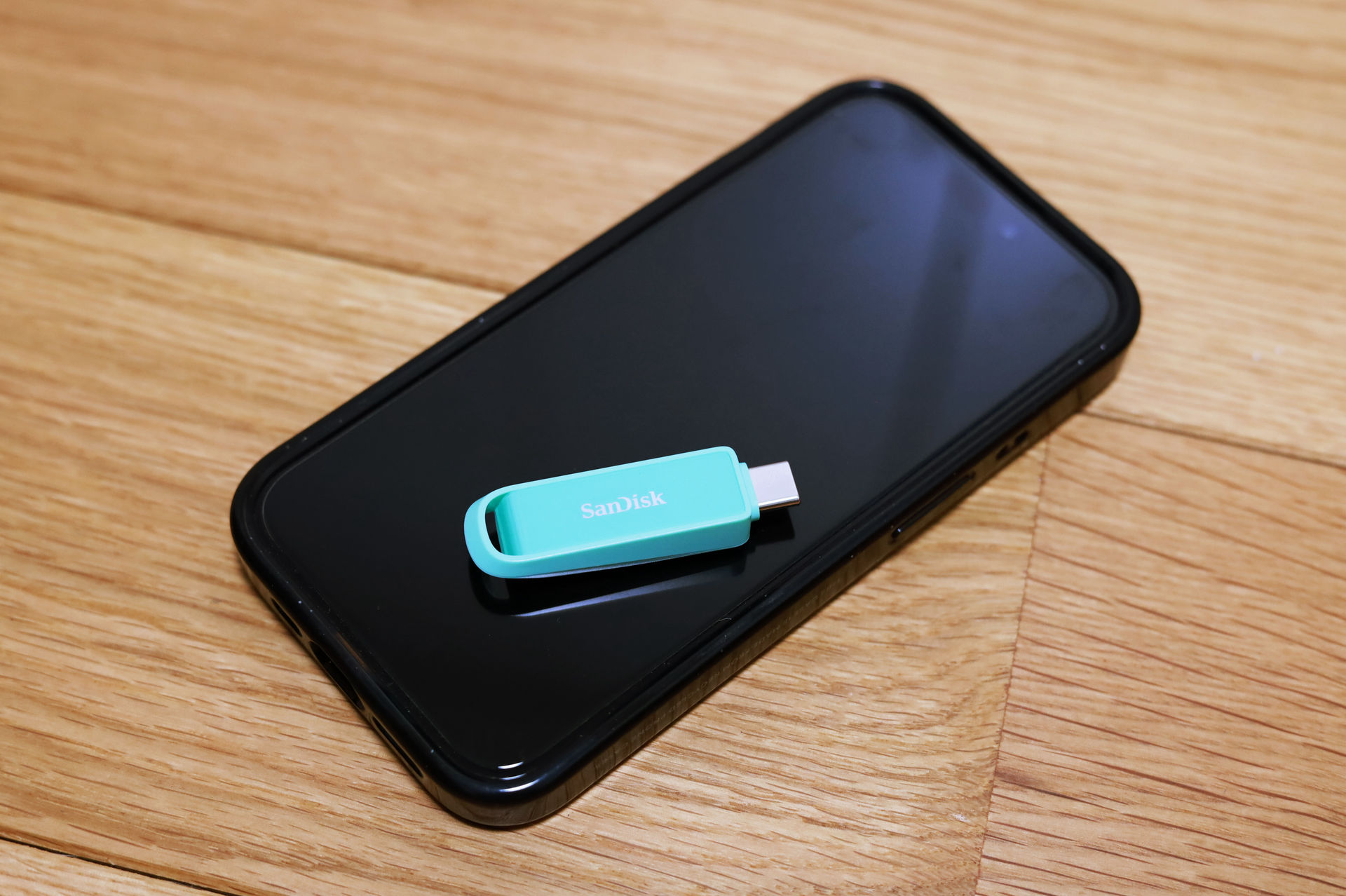
Here's what it looks like next to an iPhone.
The back side has a slide like this.
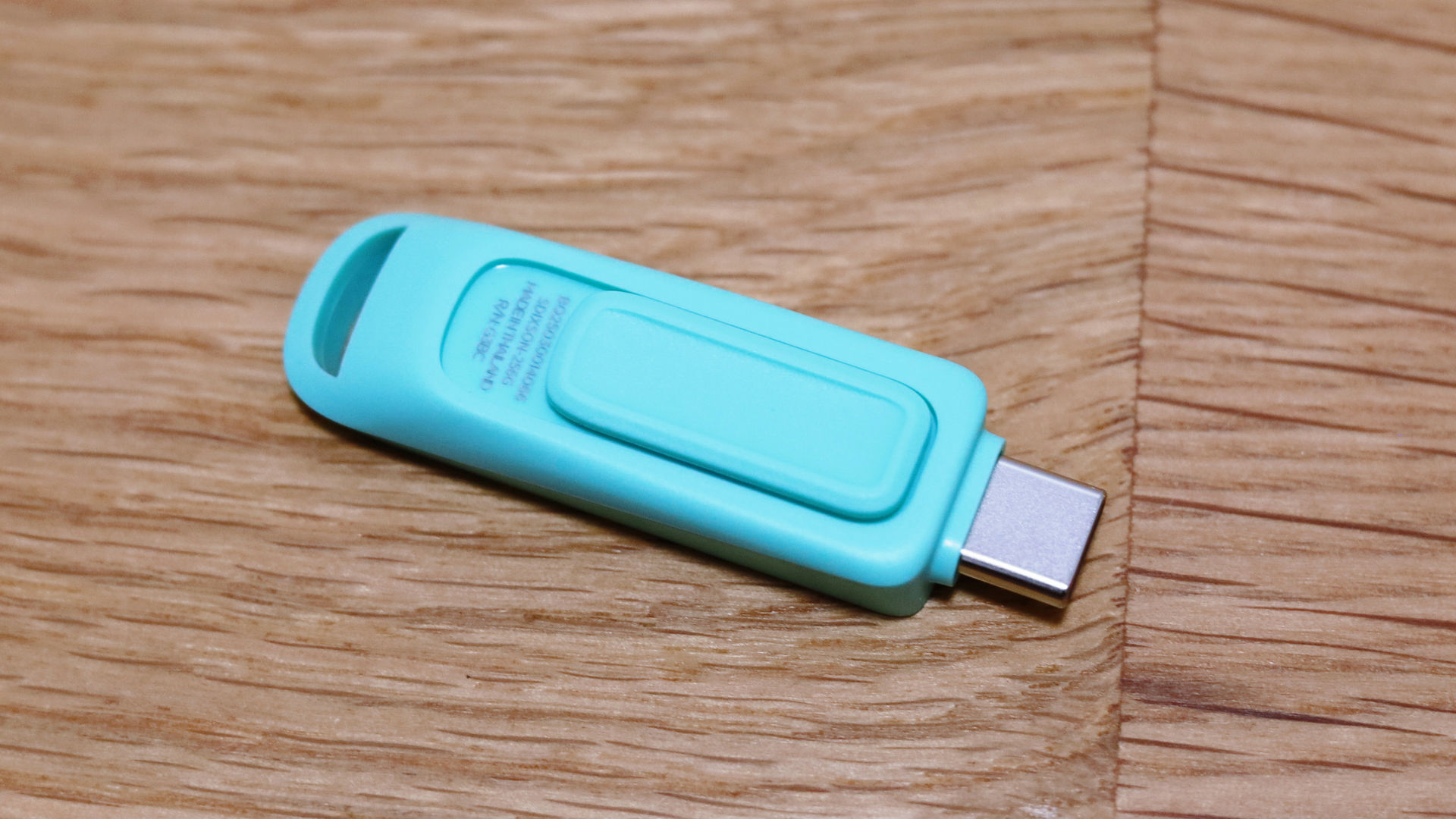
Moving this slide allows you to retract the plug.
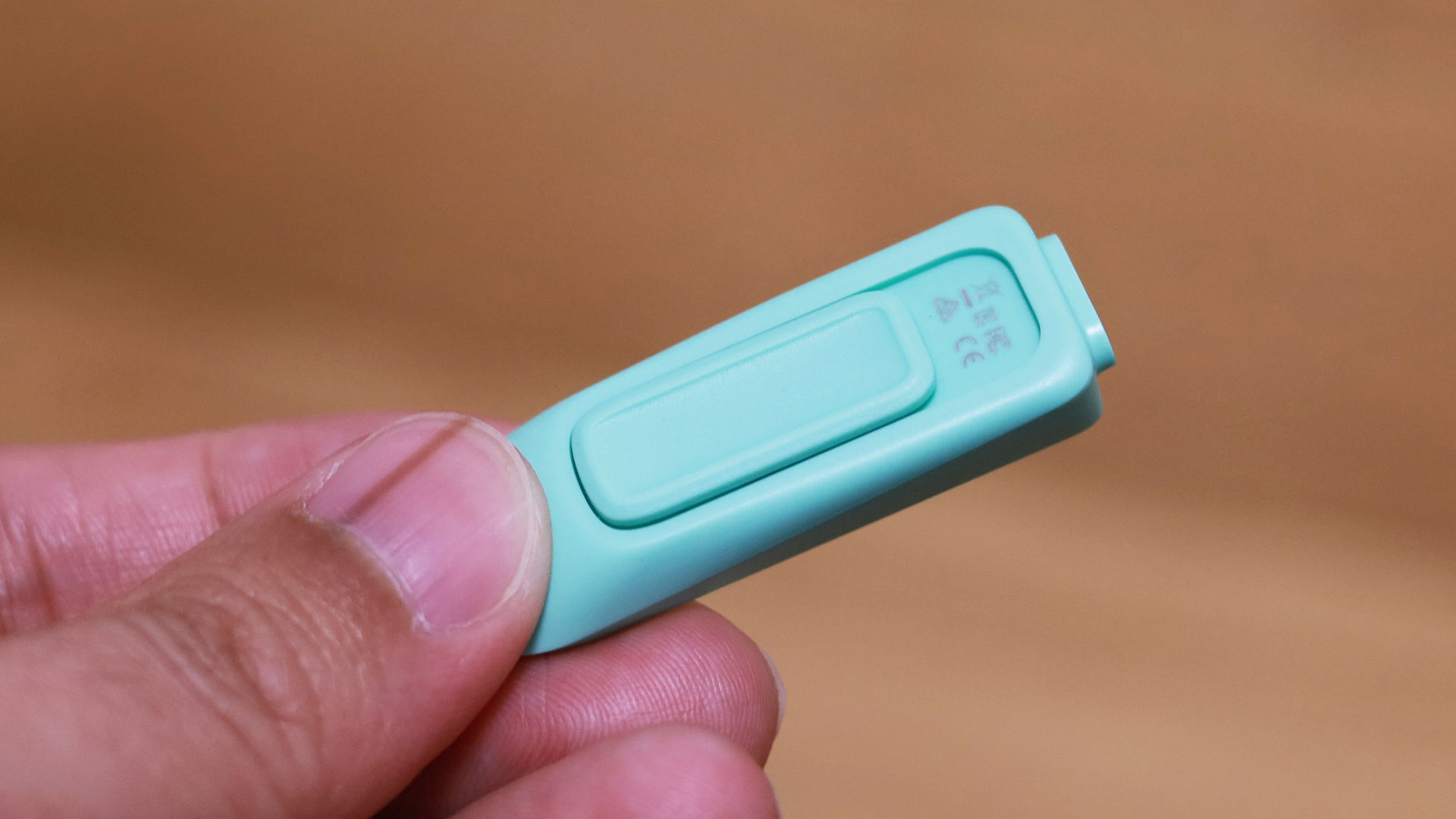
The plug part is completely retracted like this.
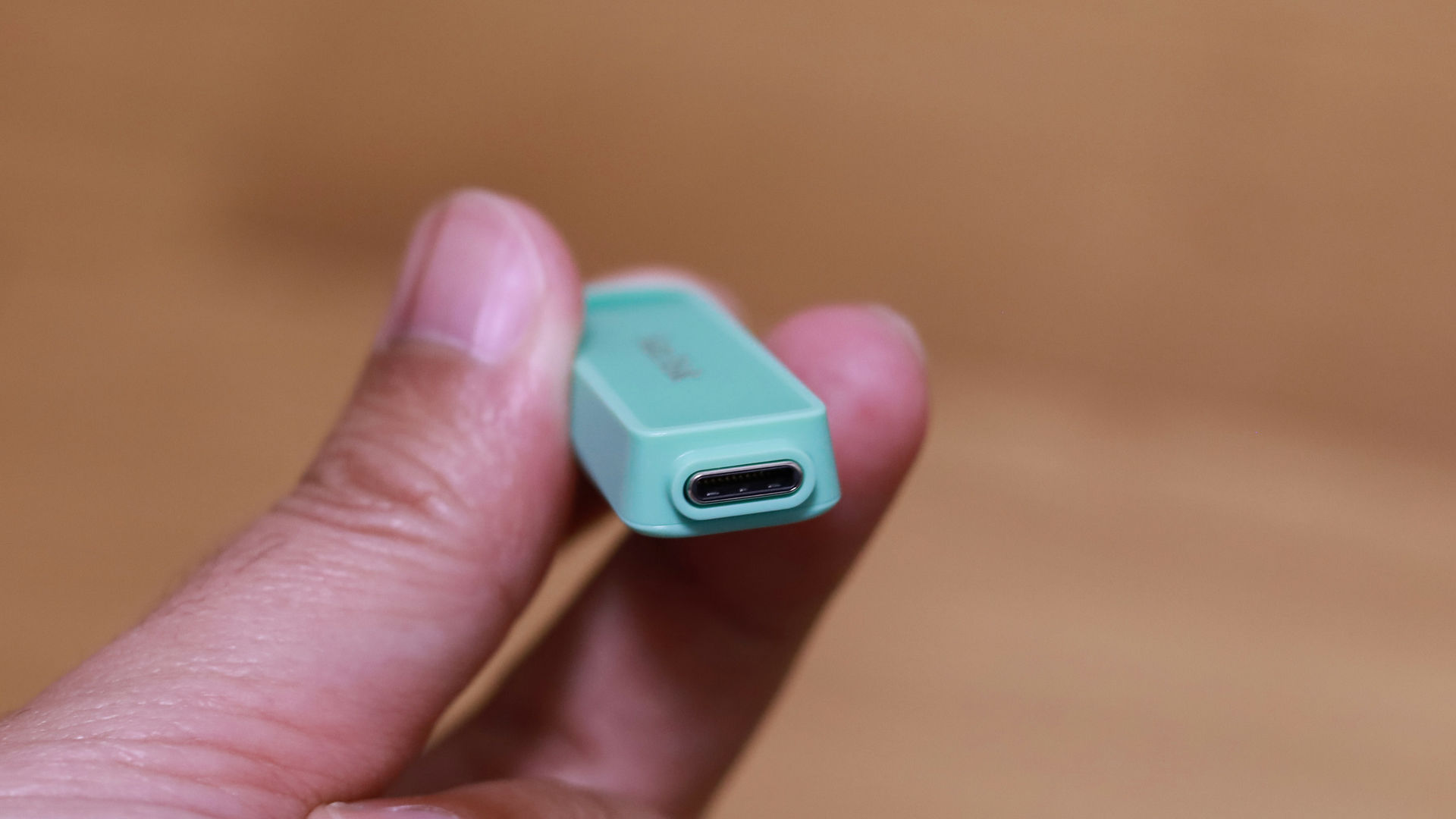
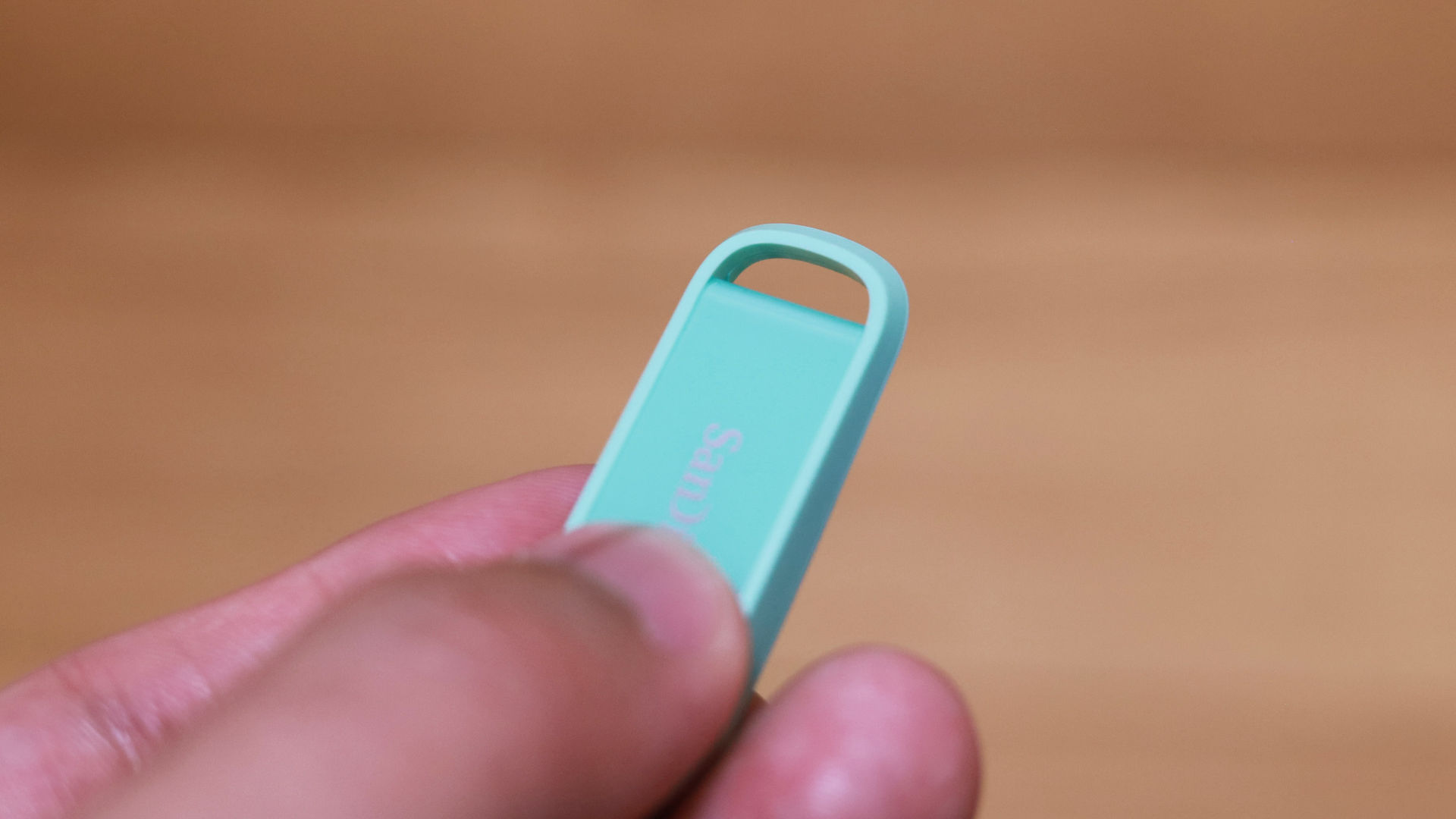
There was a hole on the opposite side of the plug where you could attach a strap or something similar.
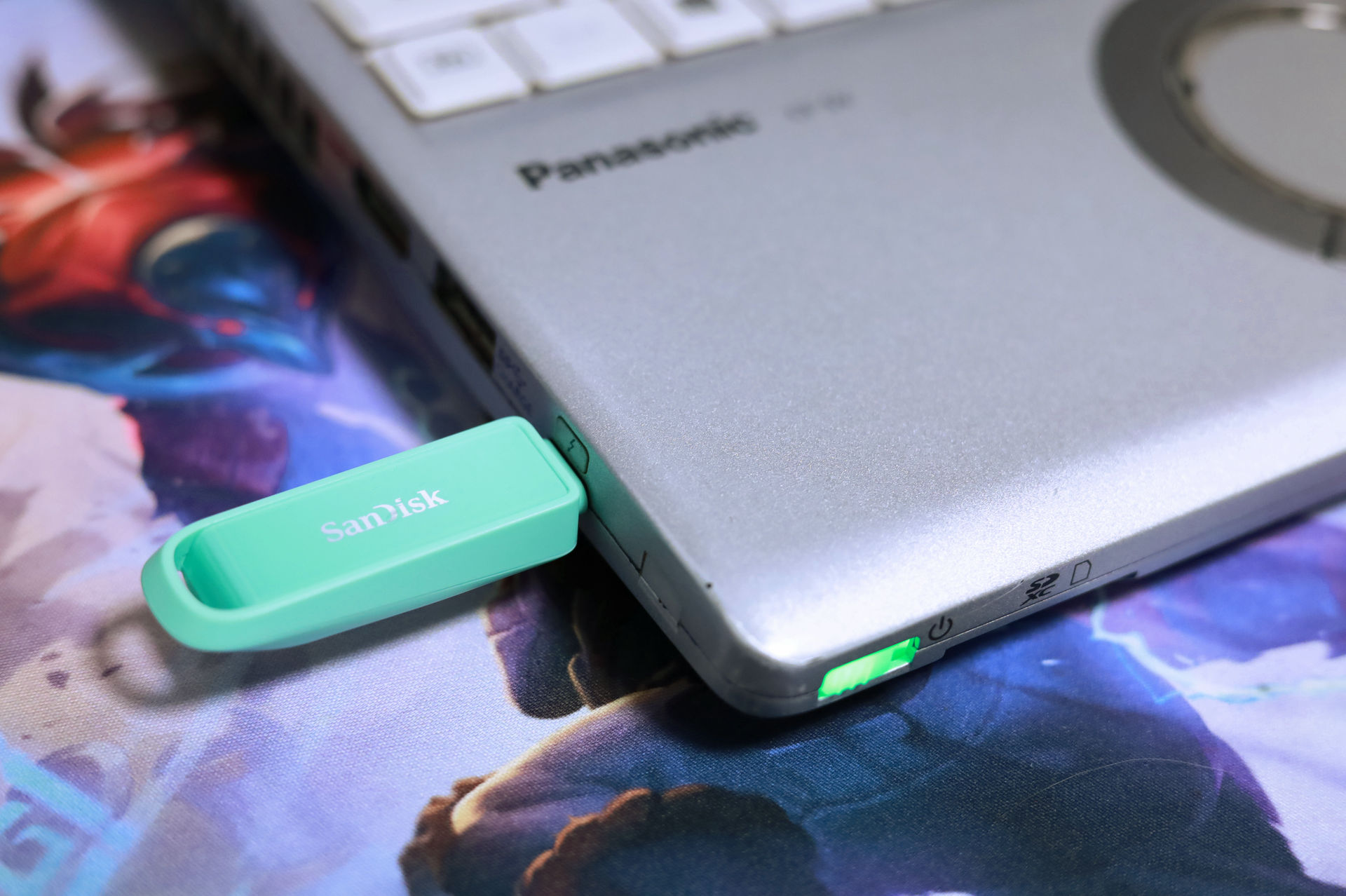
It can also be plugged into a PC's USB-C port and used as a regular USB flash drive.
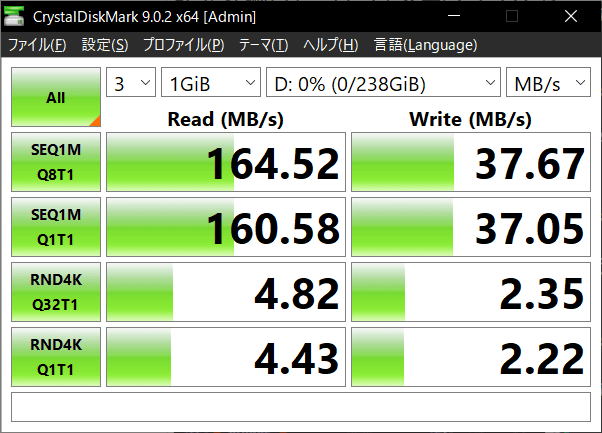
Therefore, I used the benchmark software ' CrystalDiskMark ' to measure the data transfer speed, and the sequential read speed was approximately 160 MB/s, the sequential write speed was approximately 38 MB/s, the random read speed was approximately 4.8 MB/s, and the random write speed was approximately 2.4 MB/s.
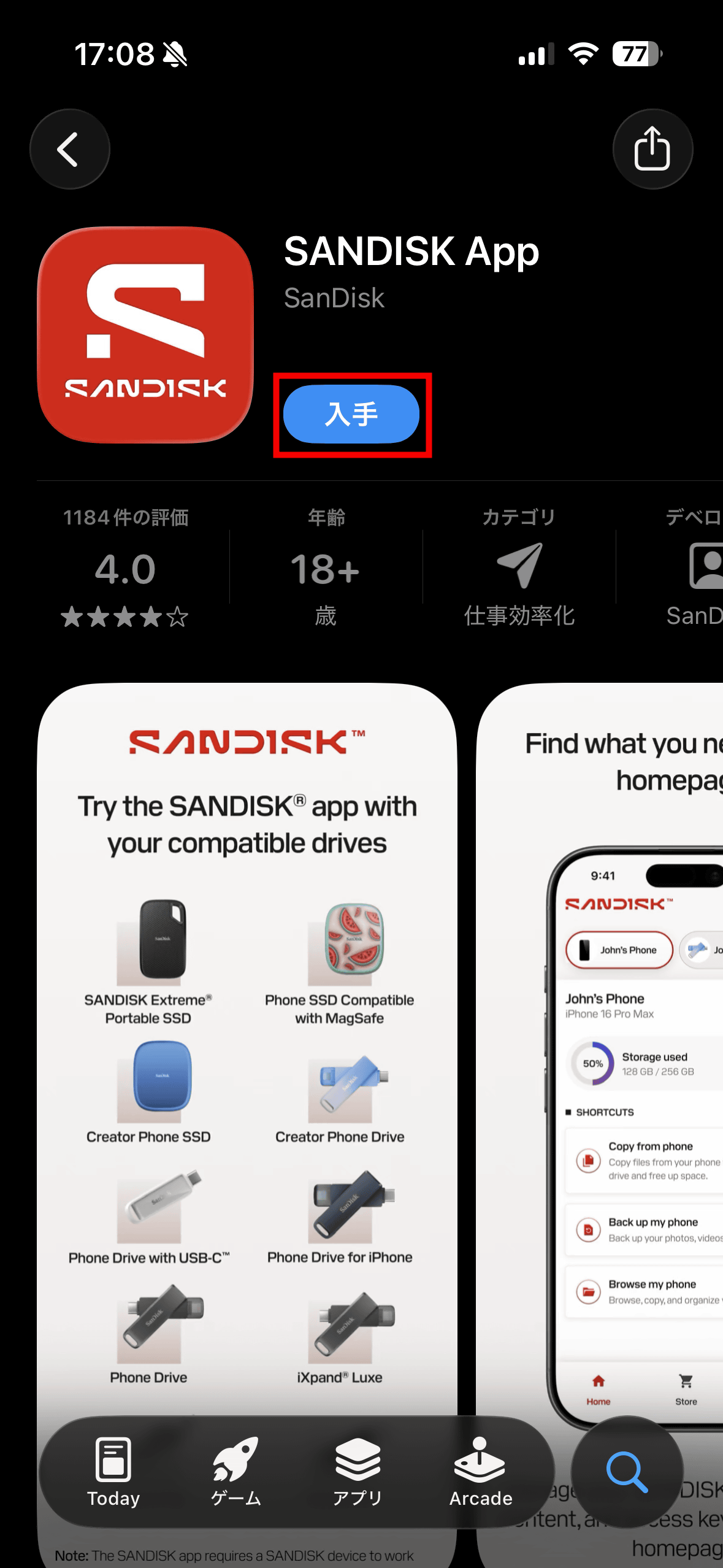
Furthermore, by installing a dedicated app, you can also access your smartphone's data. The dedicated app is available on the App Store and Google Play, but since I'm using it with an iPhone, I installed the app from the App Store.
SANDISK App - App Store
SANDISK - Apps on Google Play
https://play.google.com/store/apps/details?id=com.sandisk.smz2
Go to the App Store distribution page and tap 'Get'.
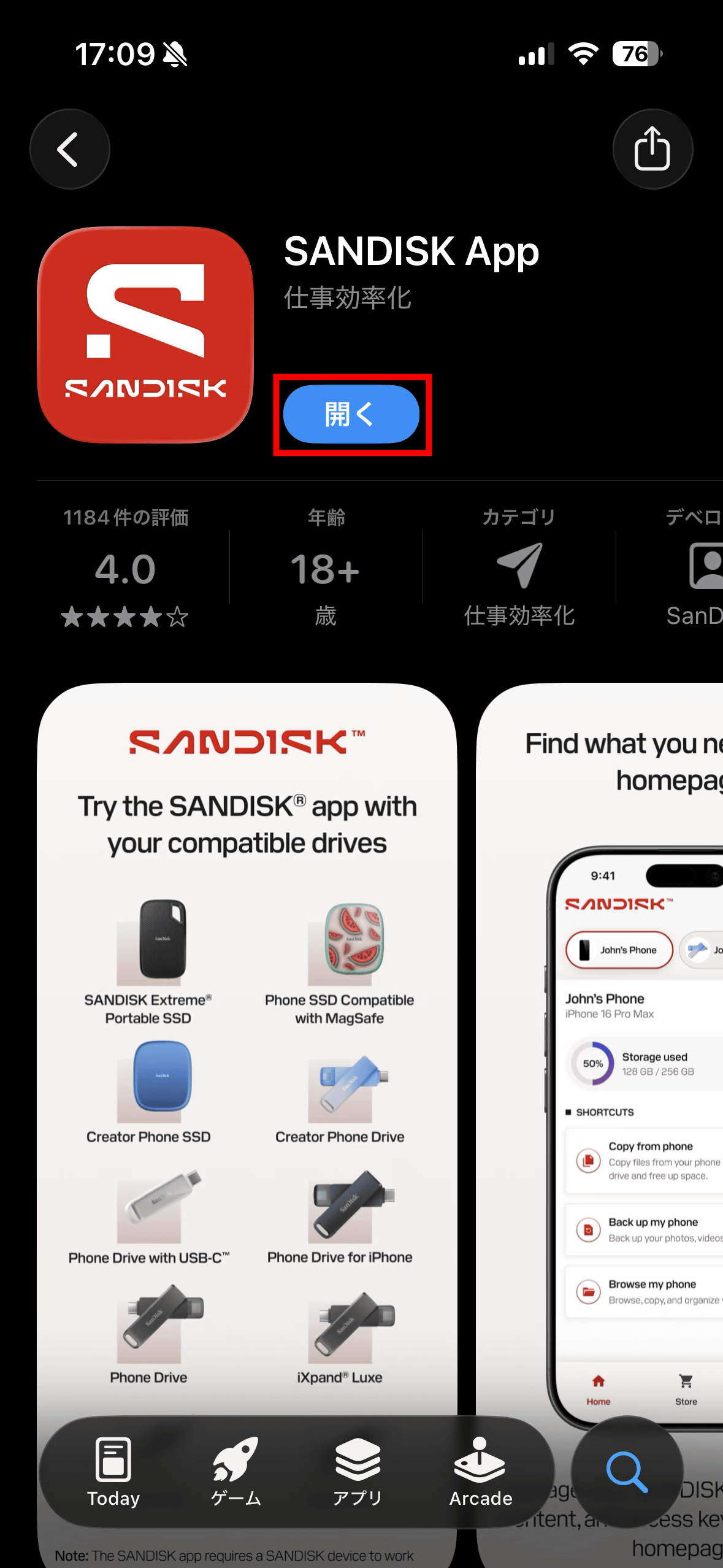
Once the app installation is complete, tap 'Open'.
Tap 'Next'.
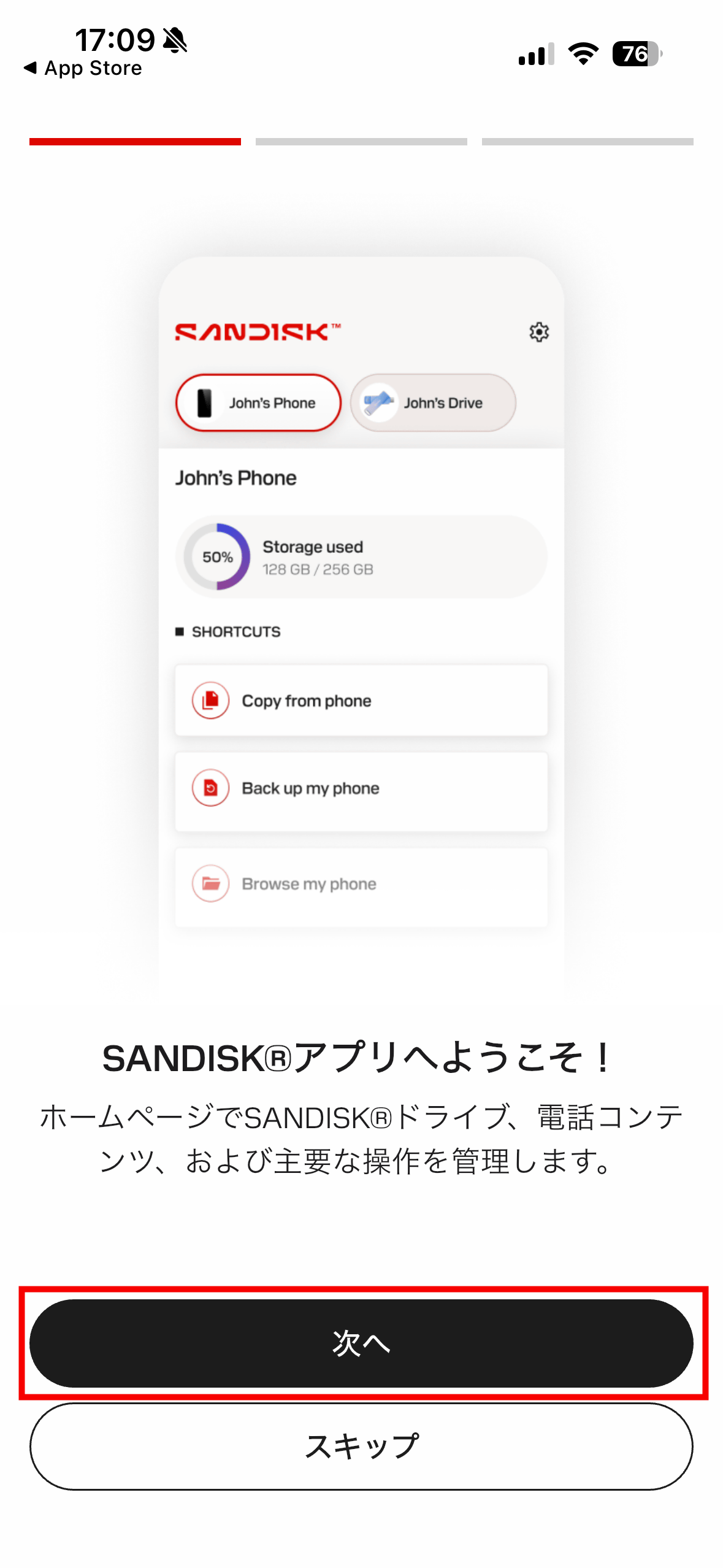
Tap 'Next'.
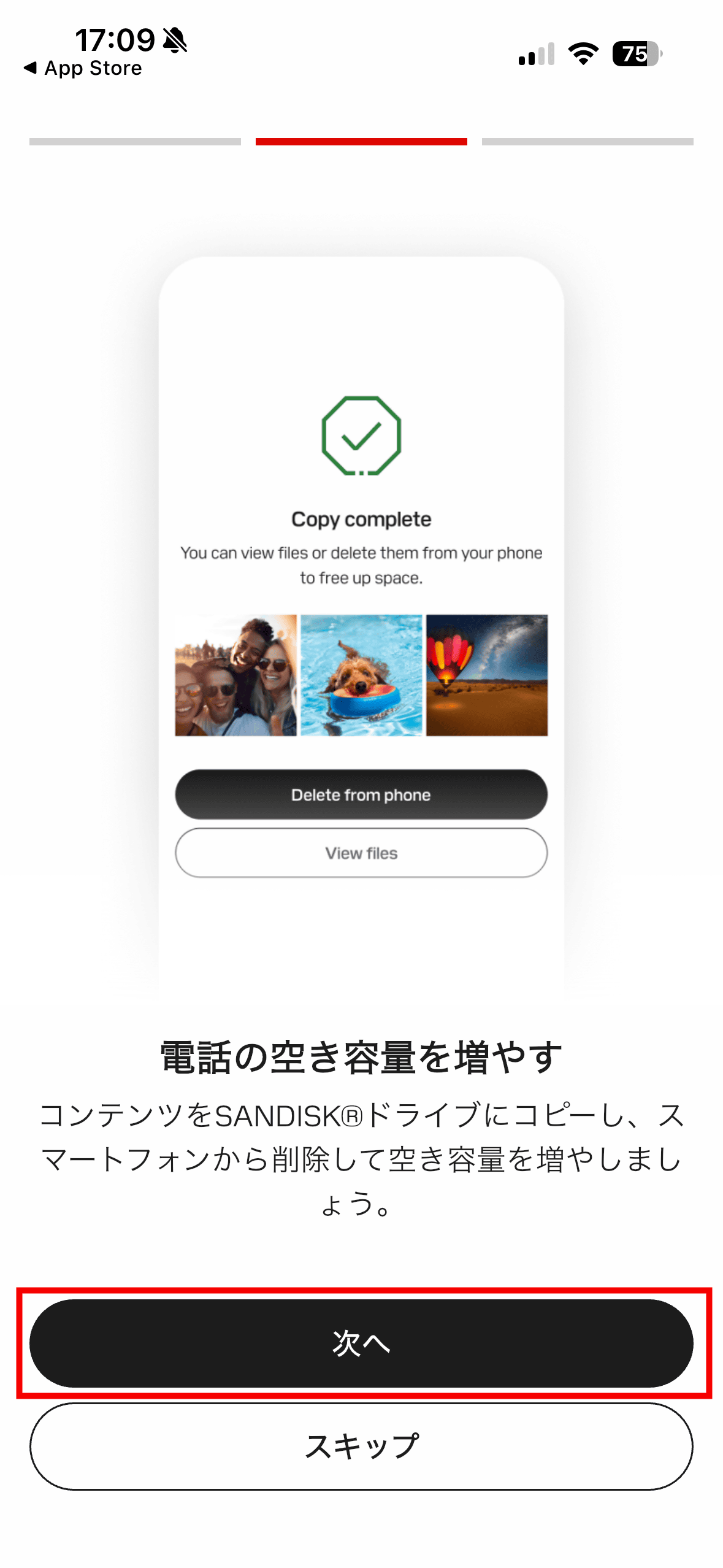
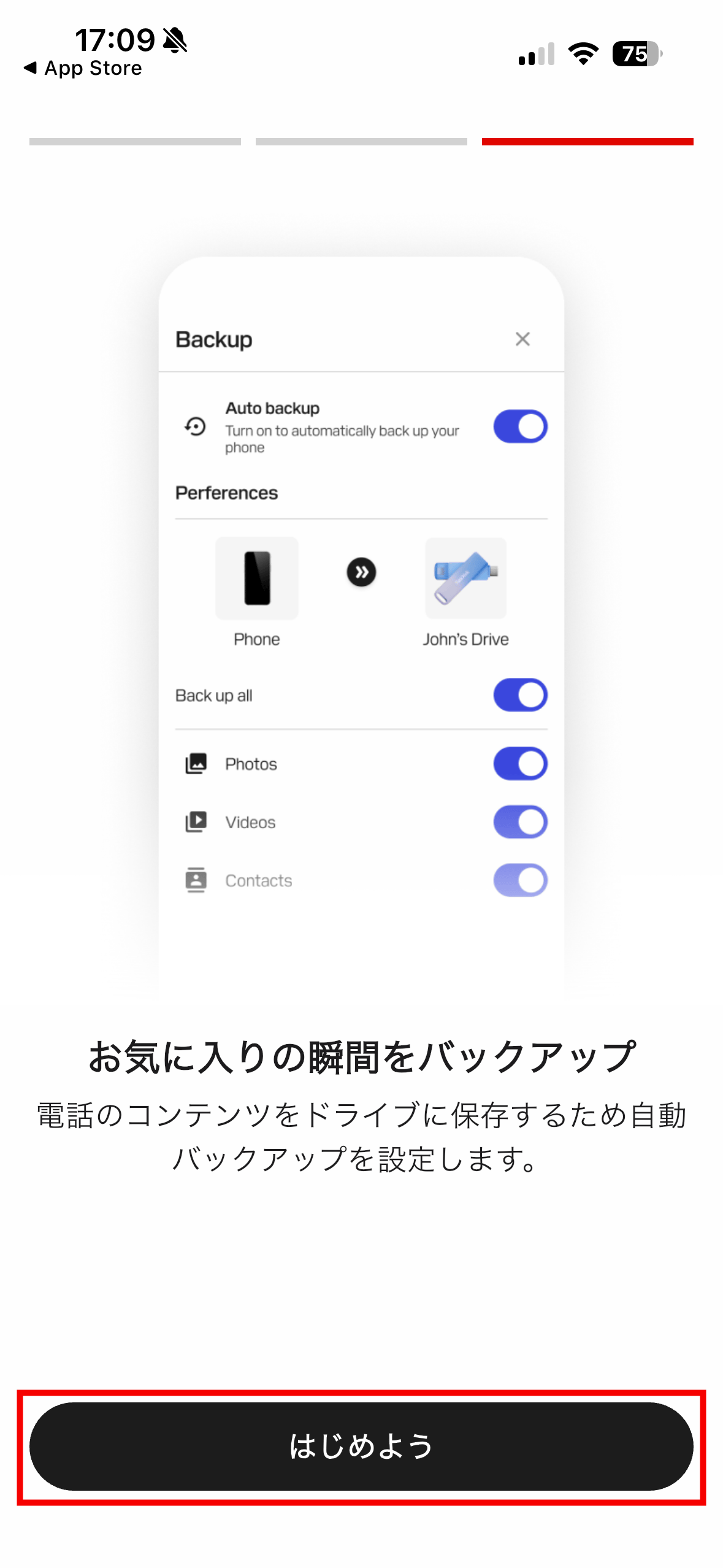
Tap 'Let's get started'.
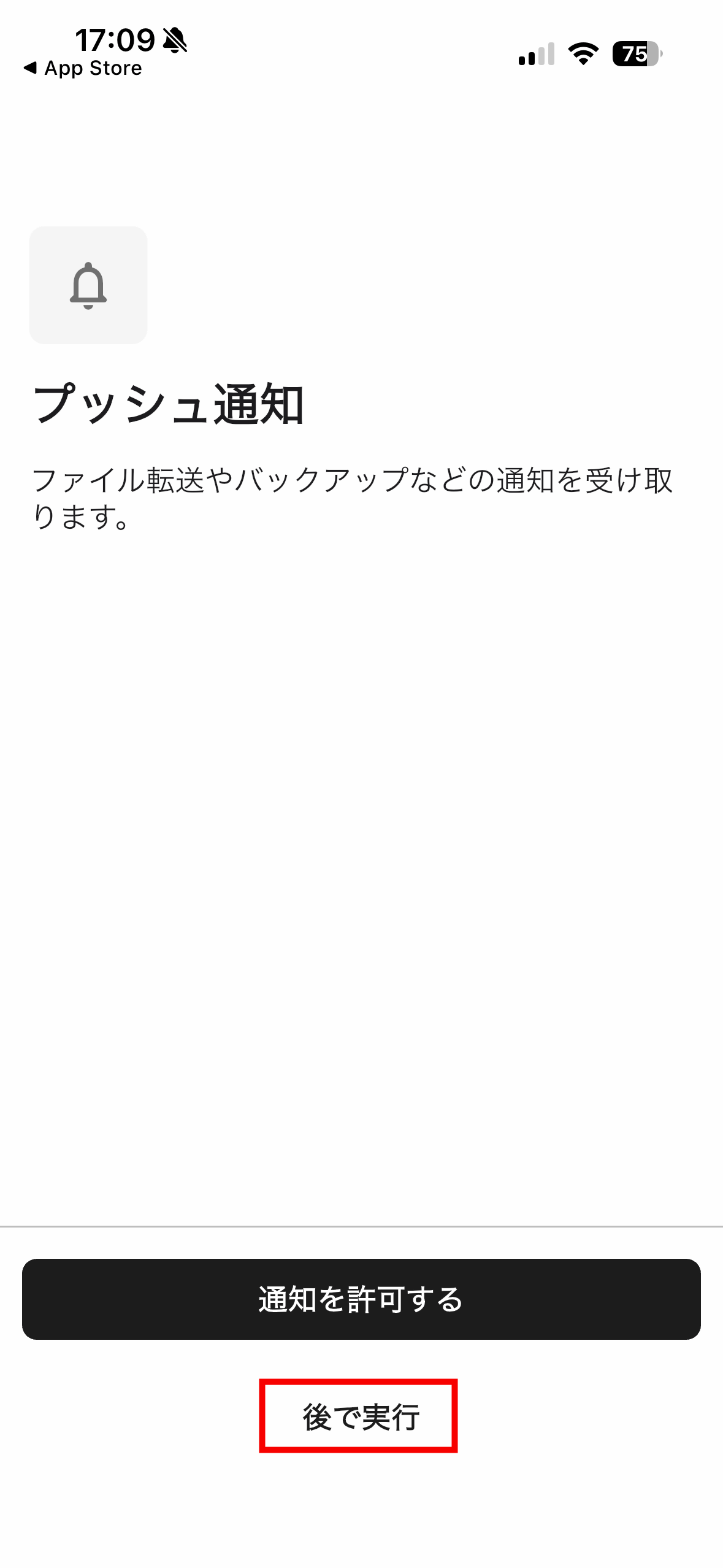
The first time you launch the app, you will be asked for permission to set up notifications. Tap 'Do later'.
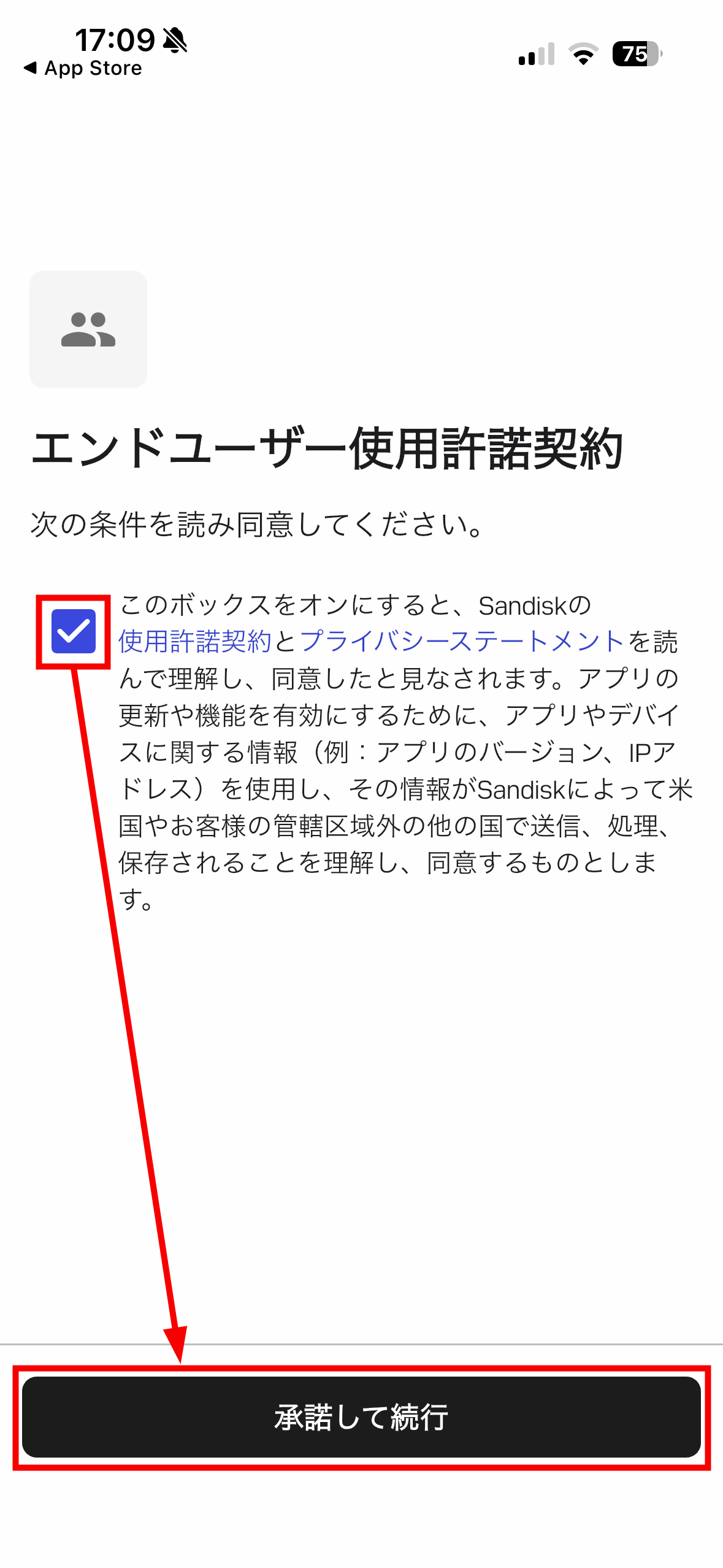
You will be asked to agree to the End User License Agreement, so read the license agreement and privacy statement, then tap the check button and tap 'Accept and Continue'.
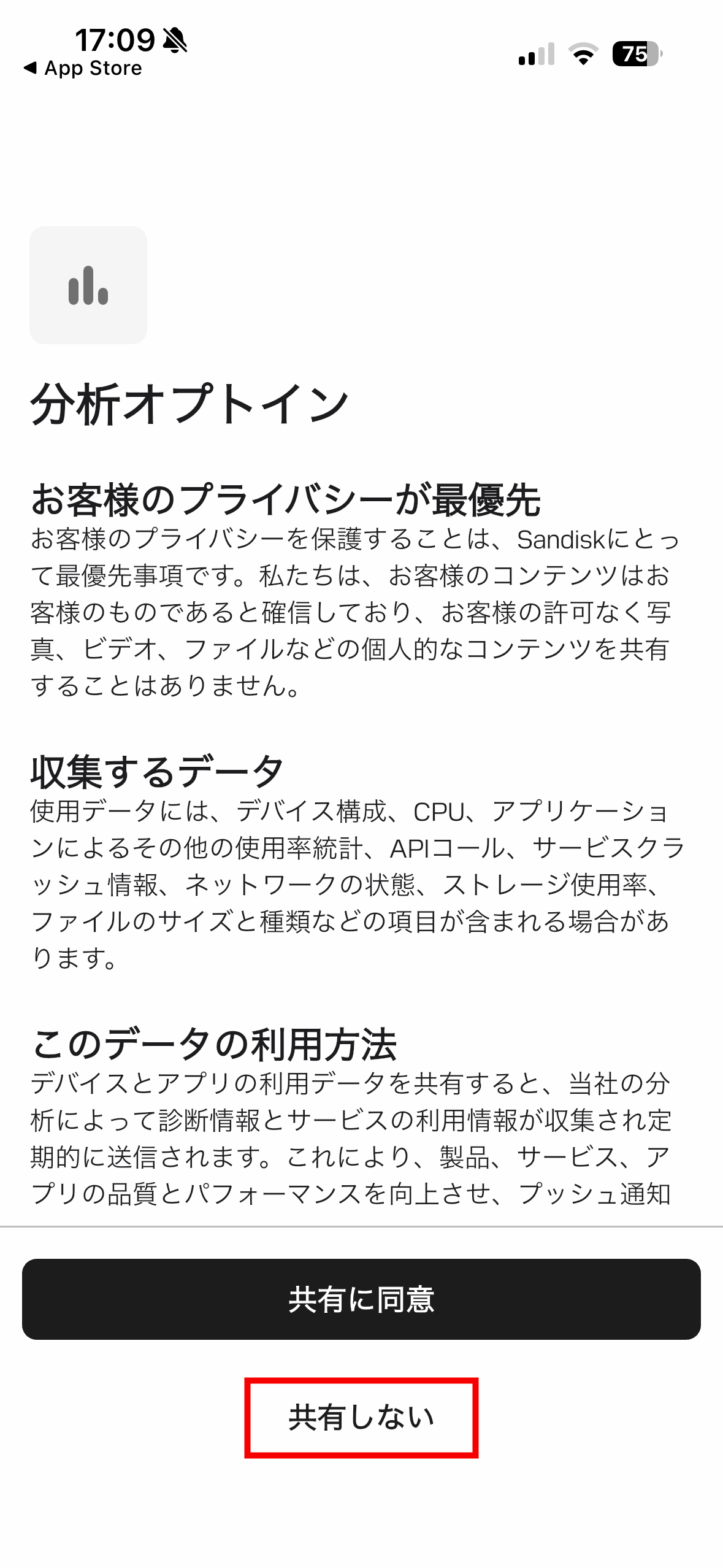
You will be asked for your consent regarding data sharing. Tap 'Do not share'.
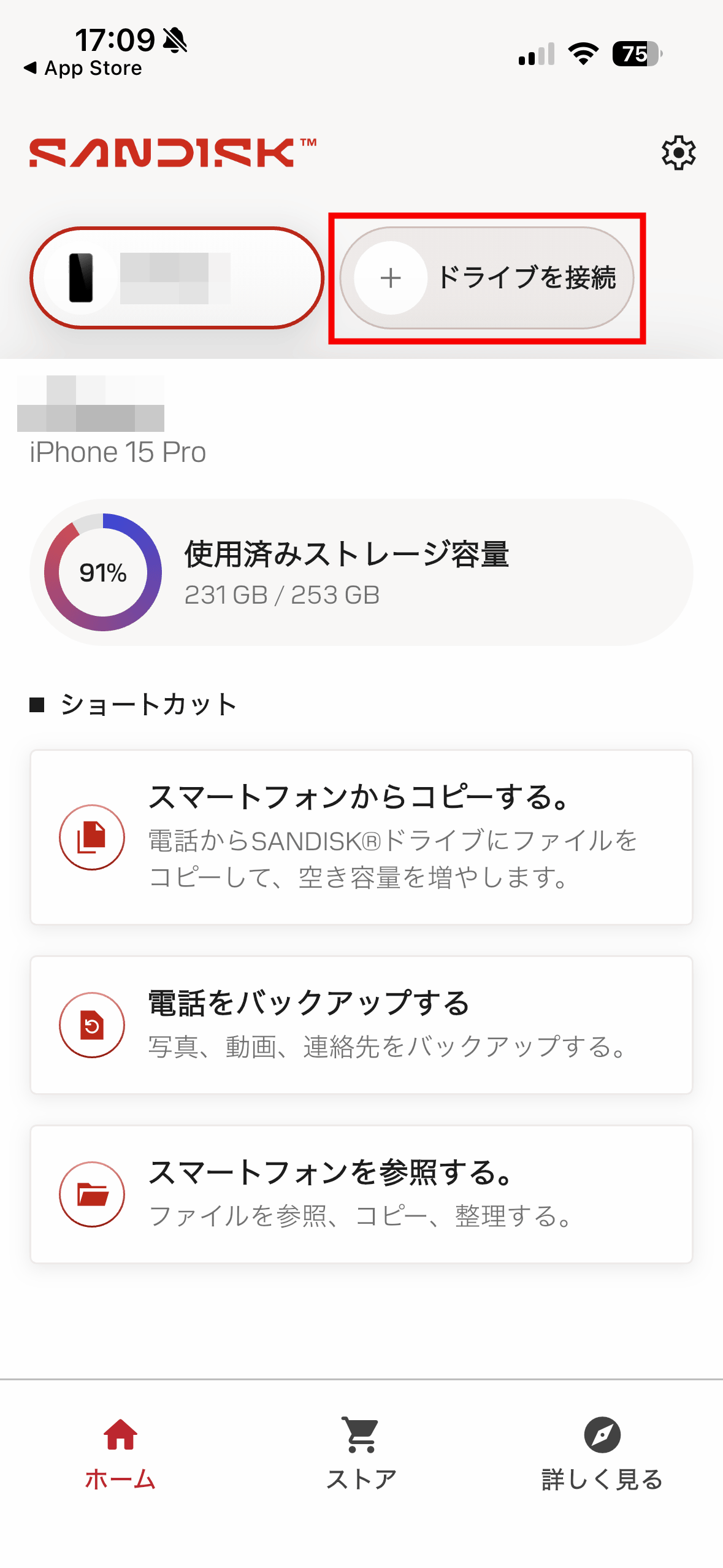
This completes the initial tutorial and setup. To use the 'SanDisk Phone Drive USB-C compatible,' tap 'Connect Drive.'
Insert the 'SanDisk Phone Drive USB-C compatible' into your iPhone.
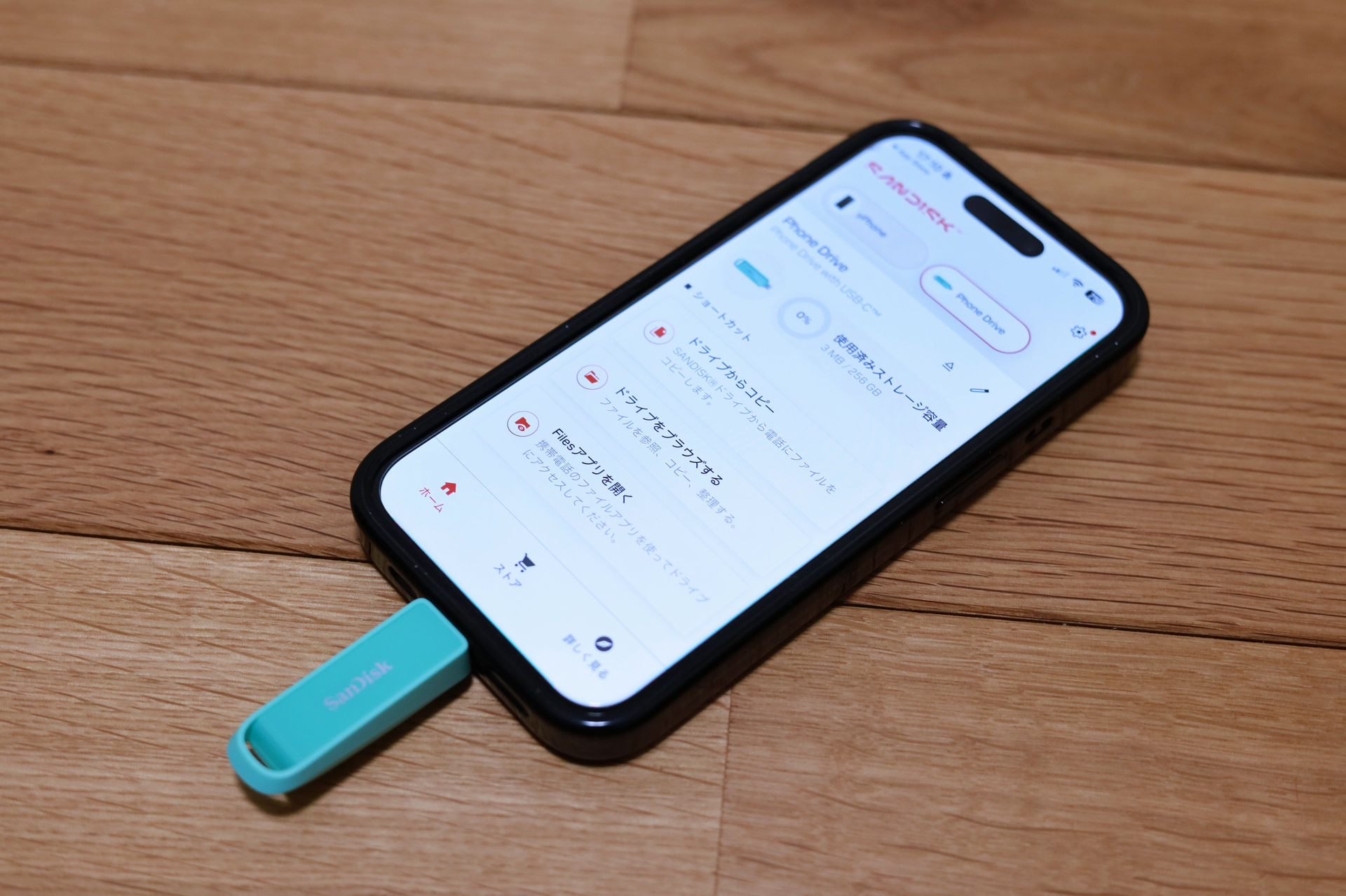
If 'SanDisk Phone Drive USB-C compatible' is displayed in the red-bordered area, the connection is complete.
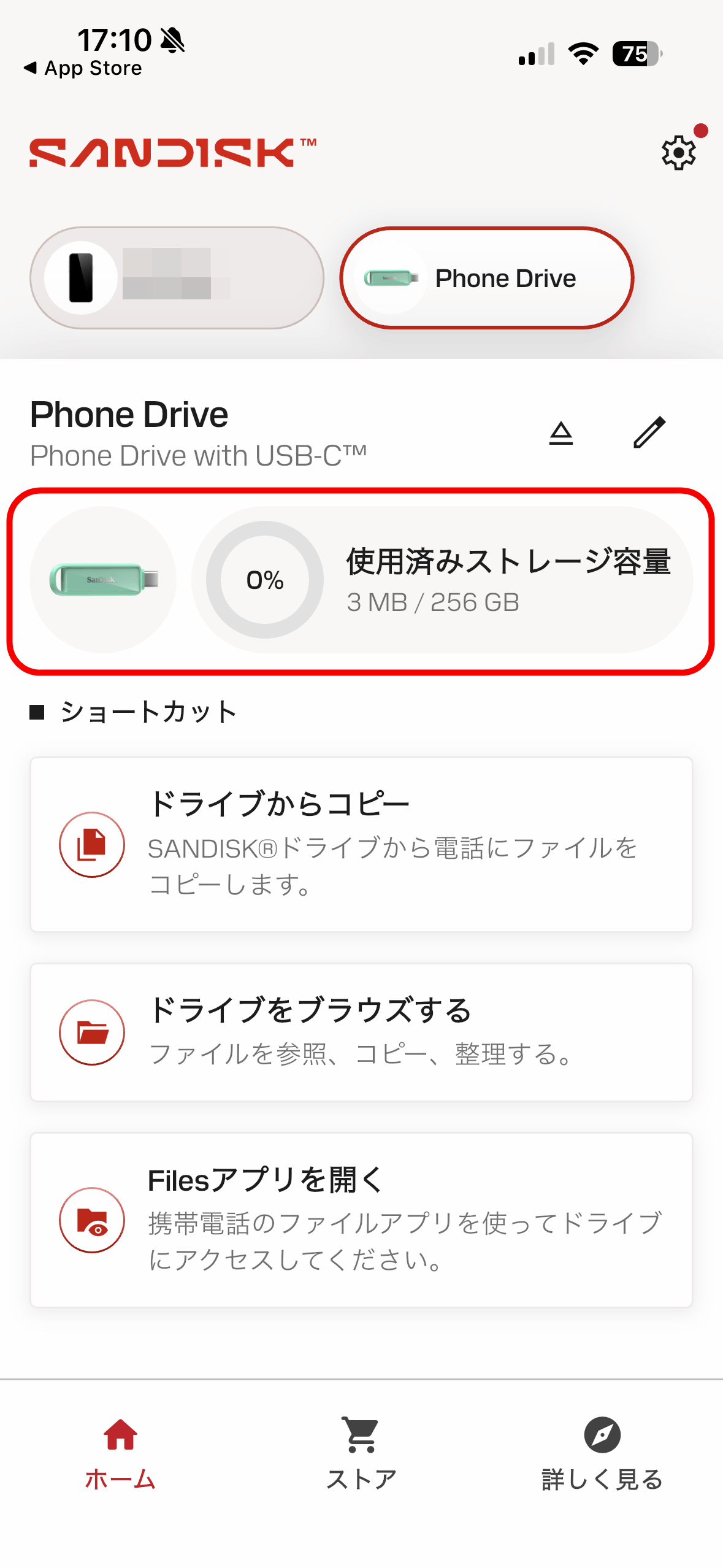
To transfer data from your iPhone to the SanDisk Phone Drive USB-C compatible, tap the iPhone icon at the top of the screen and select either 'Copy from smartphone' or 'Back up phone.' The backup option copies all contacts, photos, and videos stored on your device, so if you want to select which files to copy, you need to tap 'Copy from smartphone.'
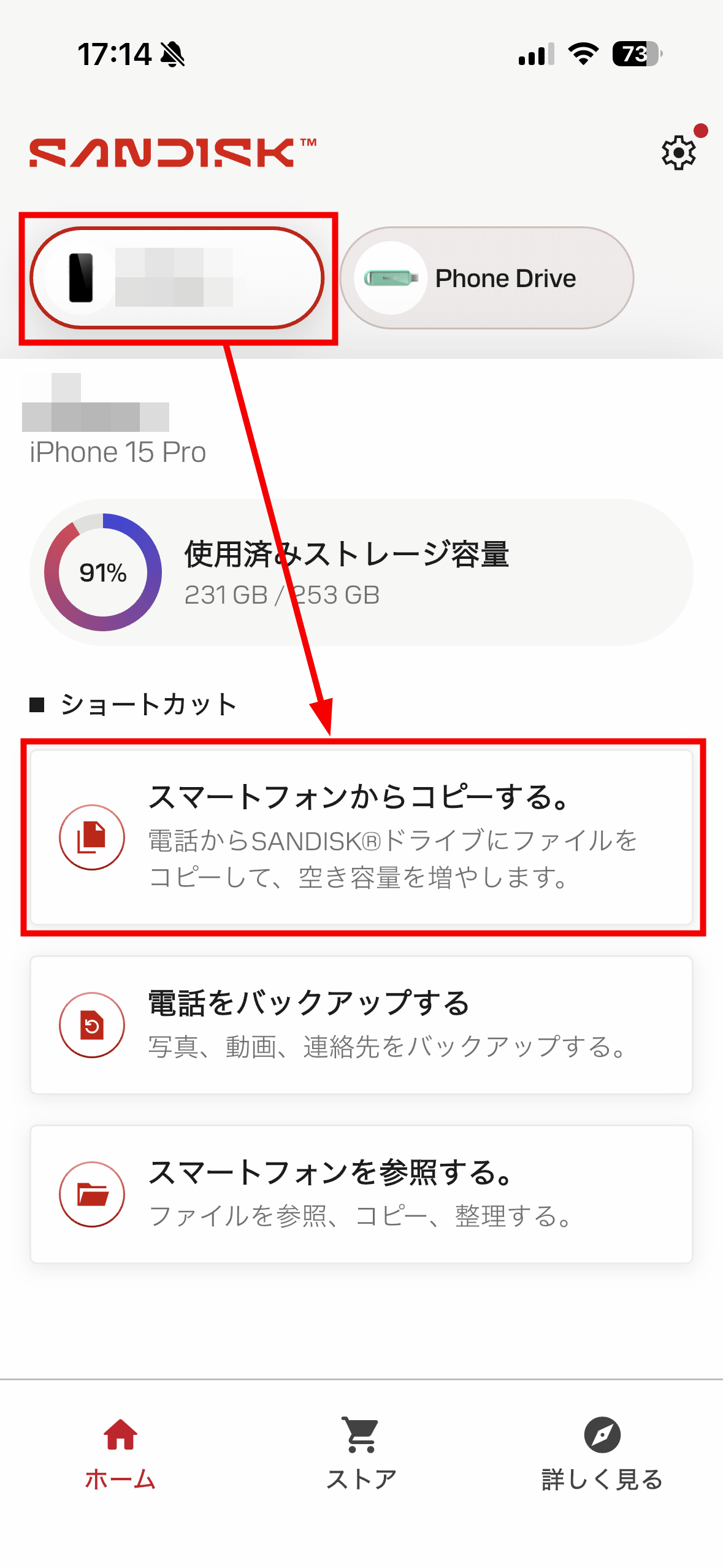
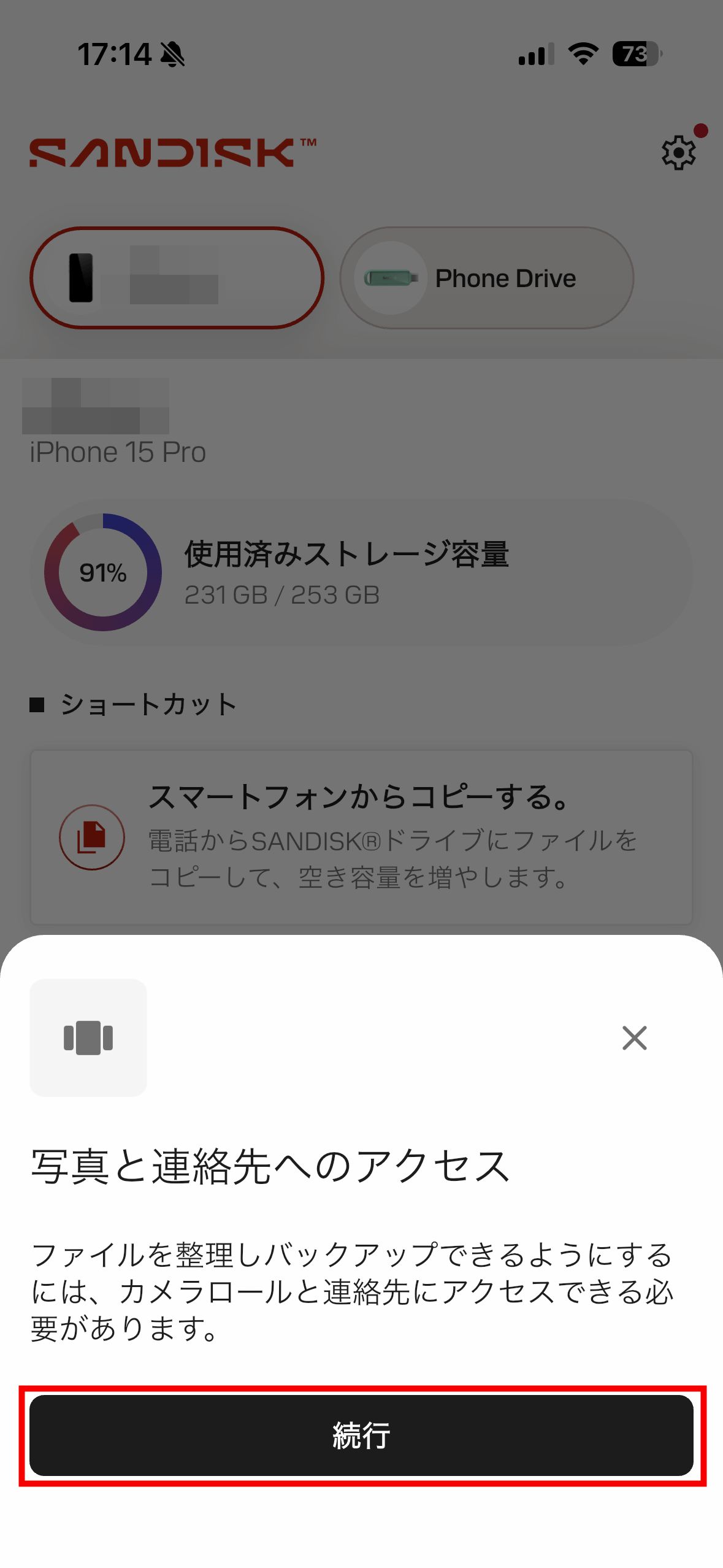
Tap 'Continue'.
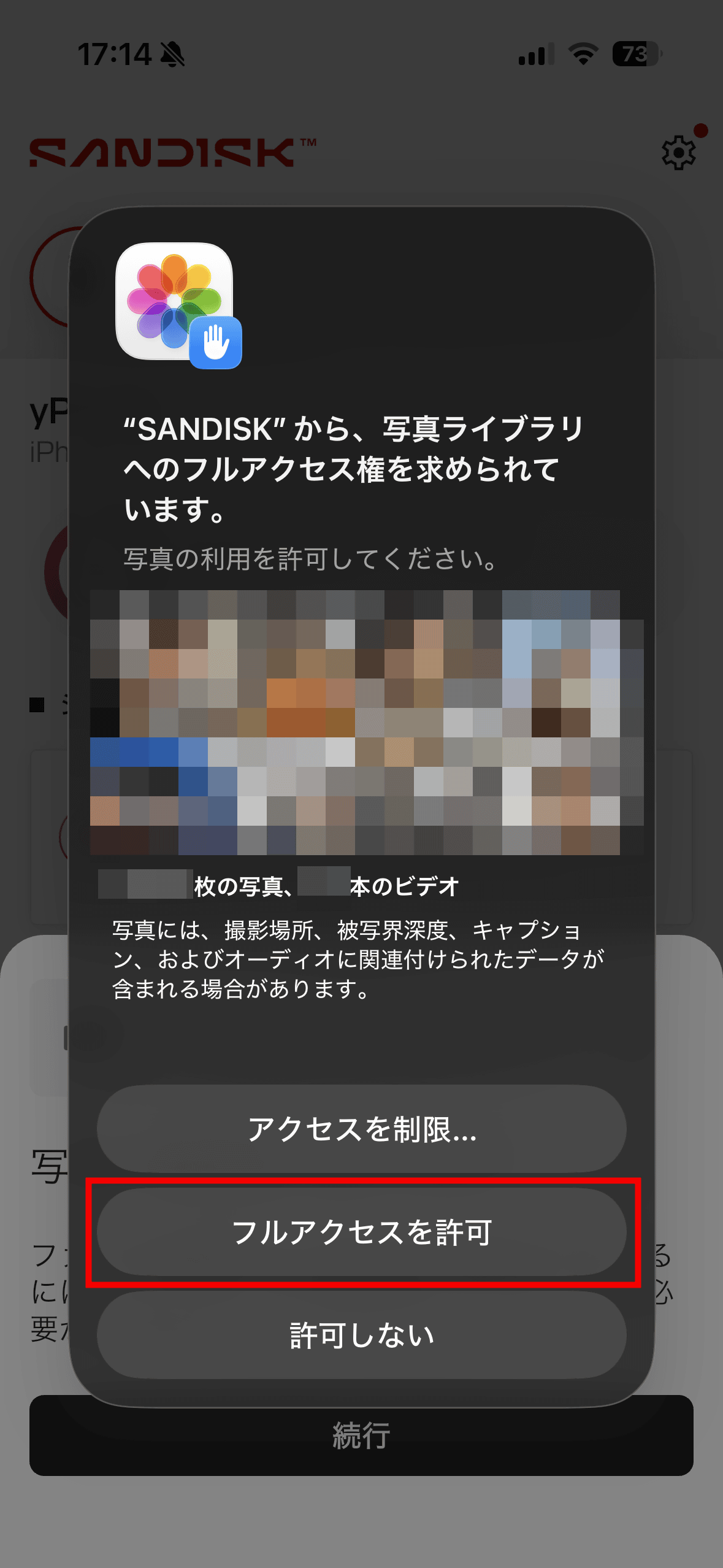
Tap 'Allow full access'.
Tap 'Continue'.
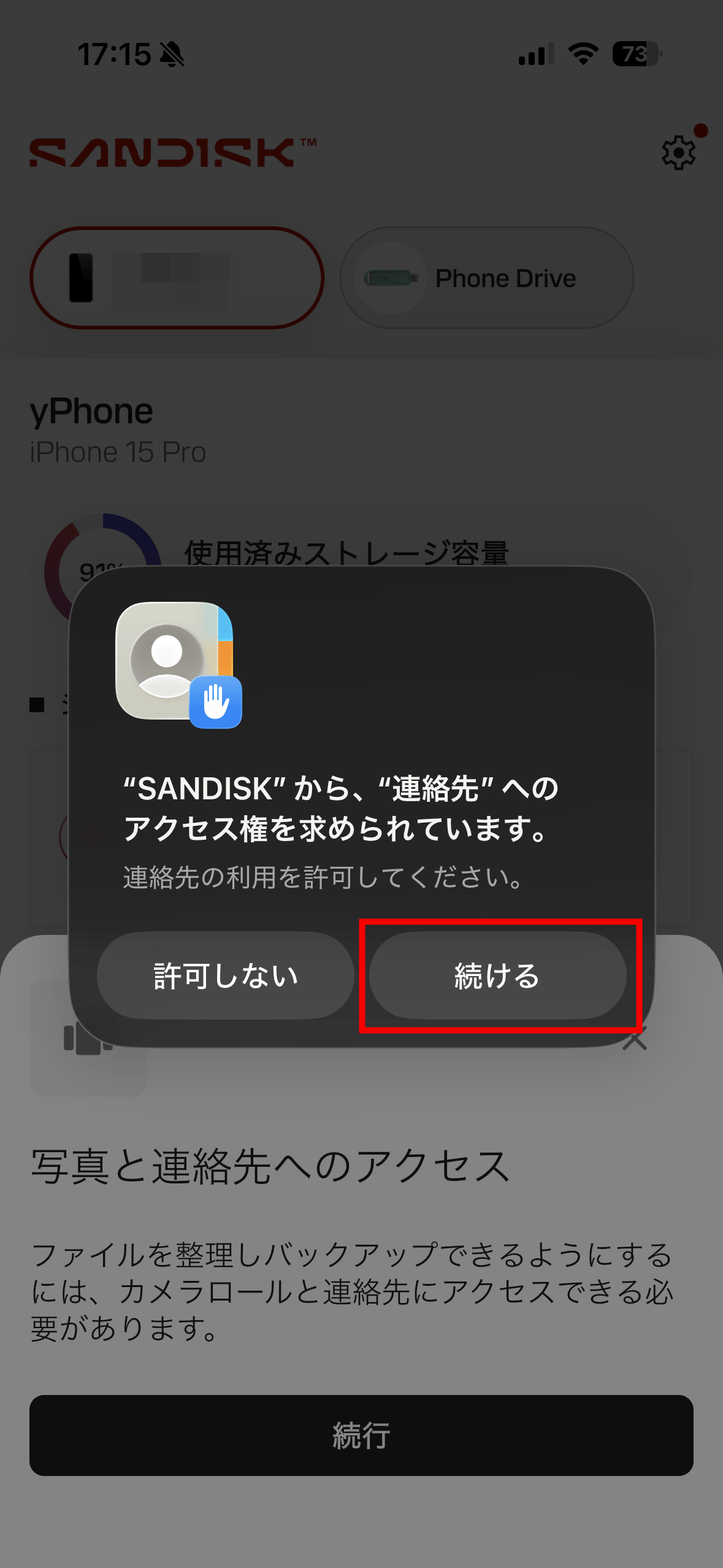
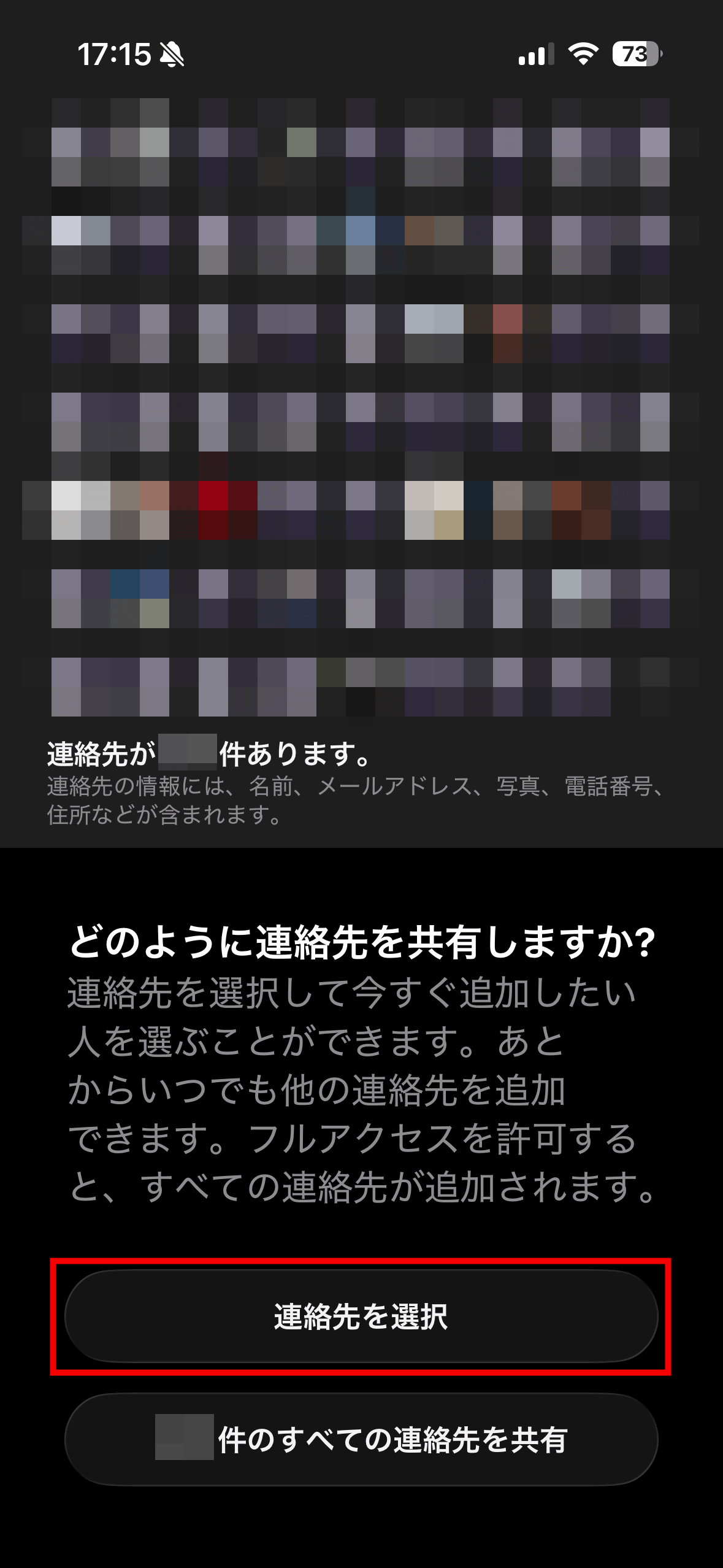
You will be asked to share your contacts, so tap 'Select Contacts'.
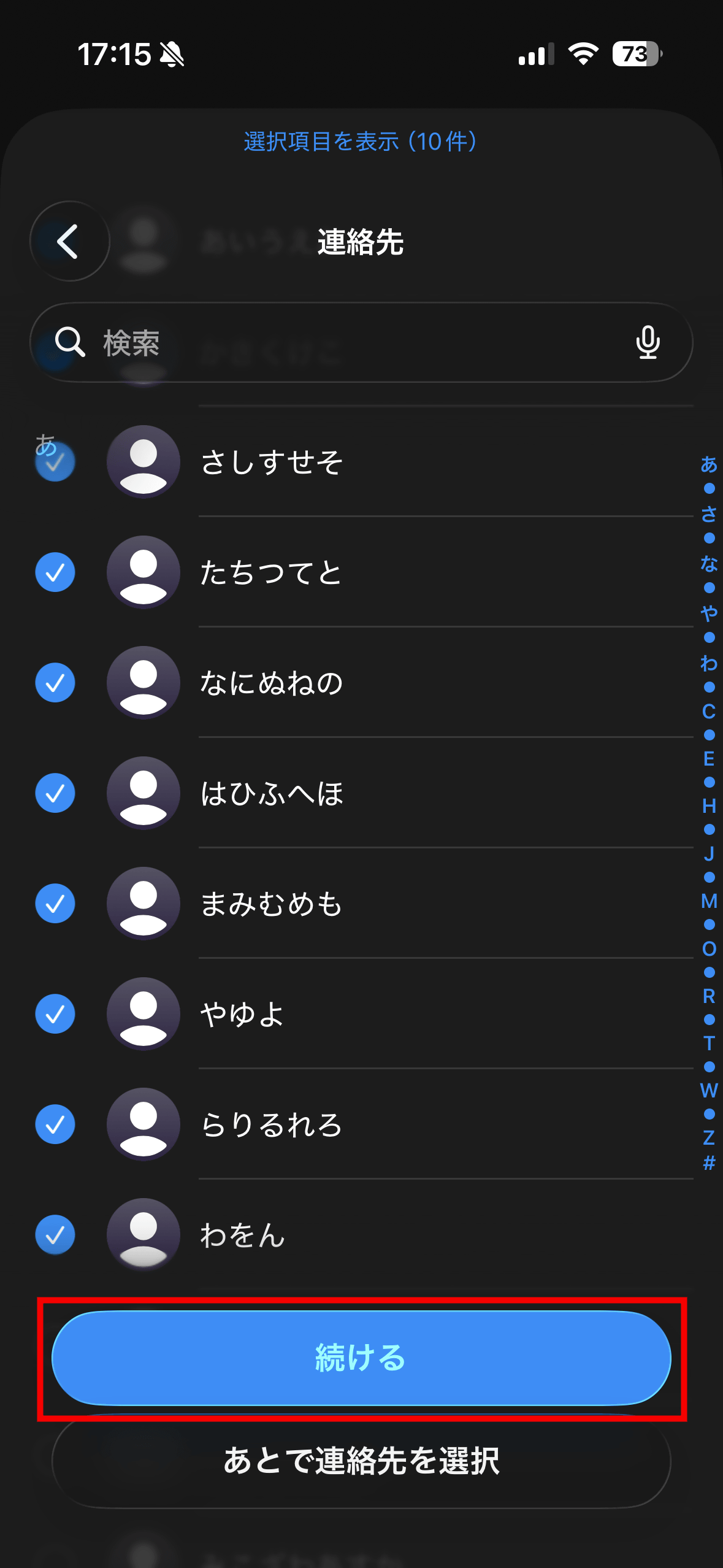
Select the contacts you want to copy to the 'SanDisk Phone Drive USB-C compatible' and tap 'Continue'.
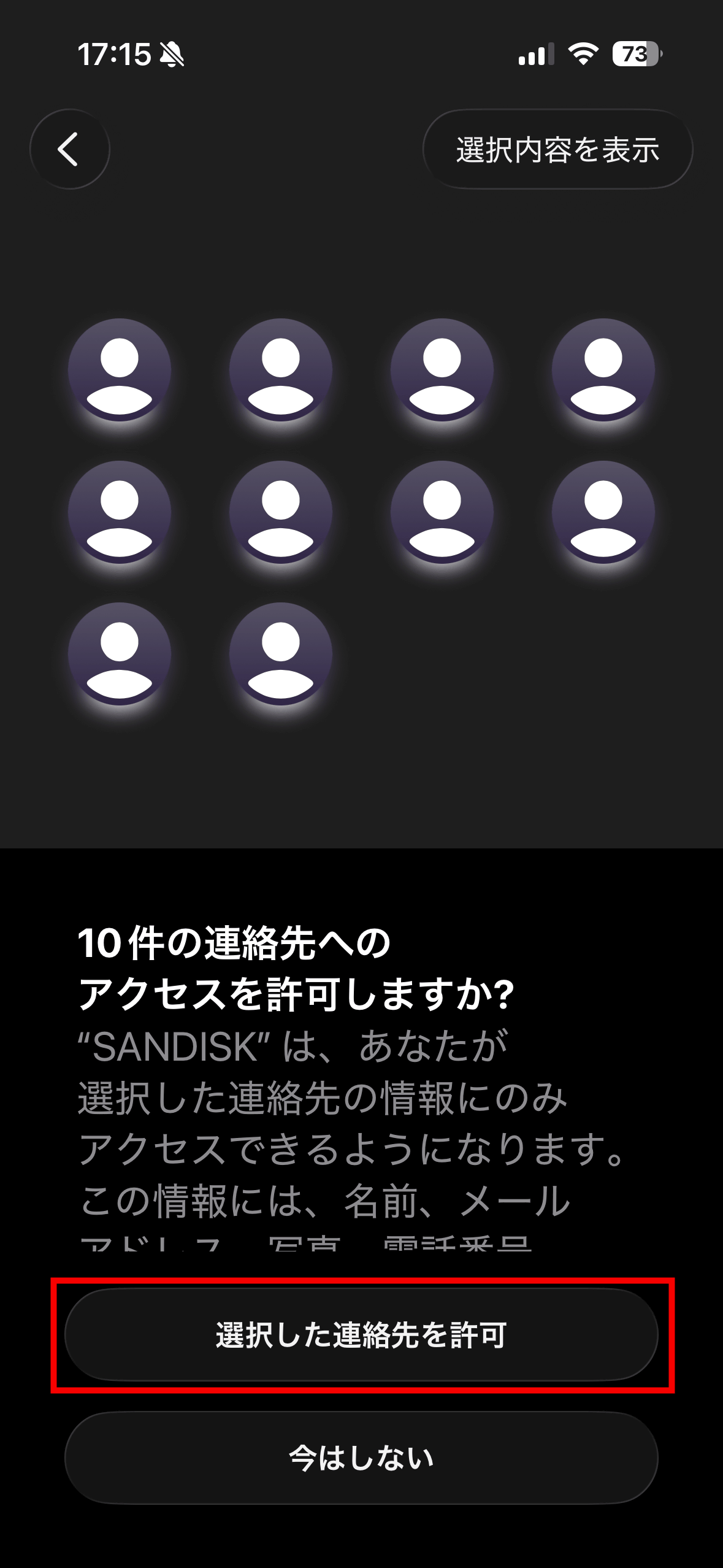
Tap 'Allow selected contacts.' Note that even when backing up your contacts, only the 'selected contacts' will be copied.
To copy photos or videos, tap 'Gallery'.
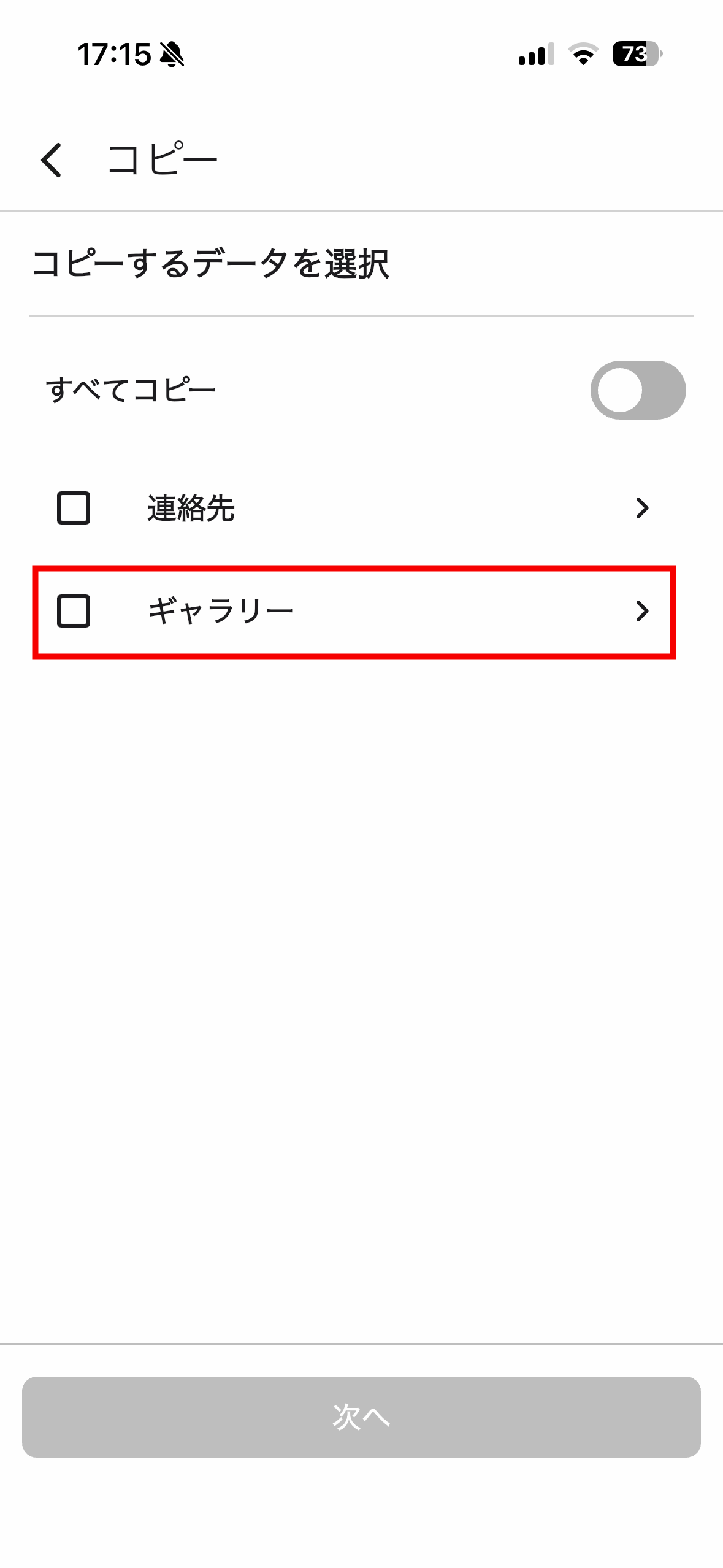
This will display the data within your Photos app. Tapping 'Gallery' will allow you to view all your photos and videos. Other options displayed are albums, allowing you to search for specific files within those albums.
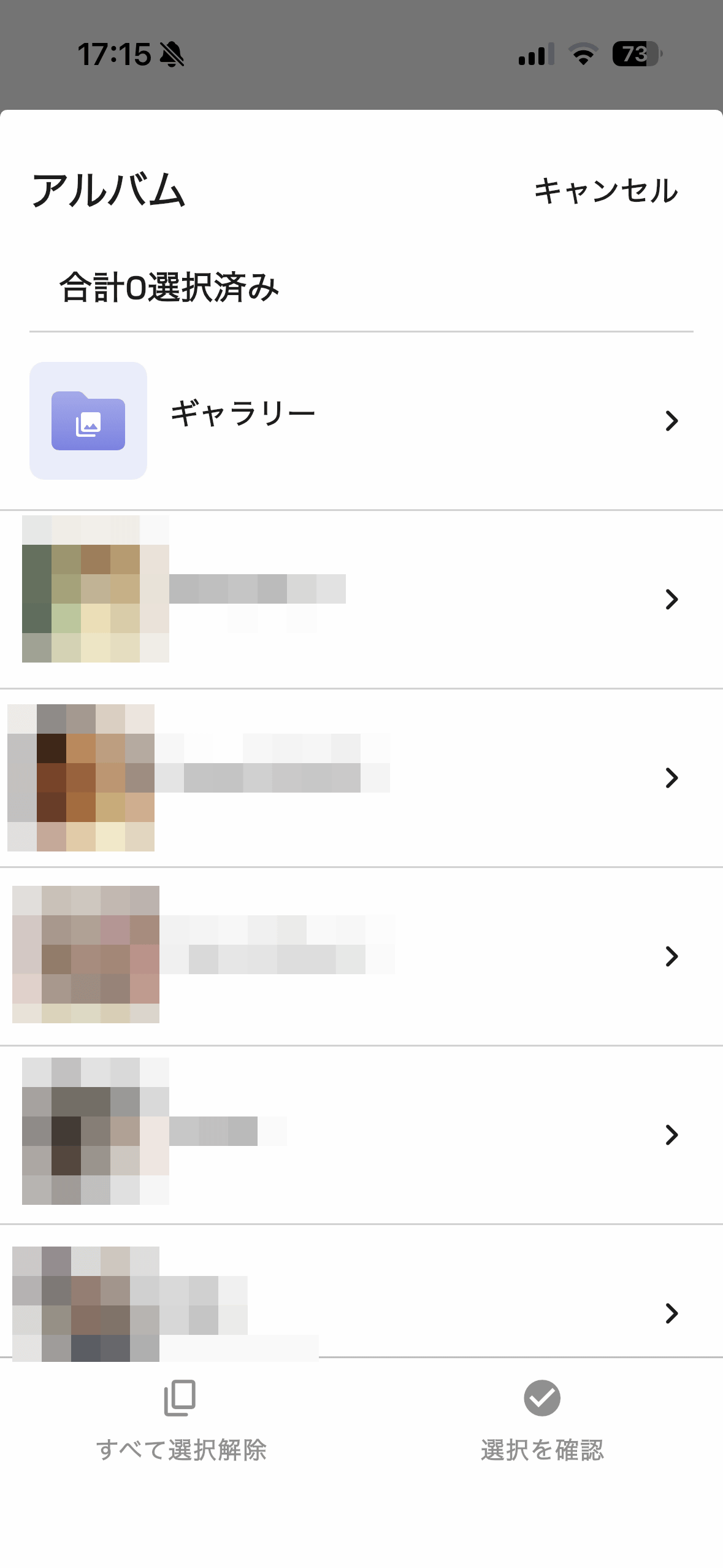
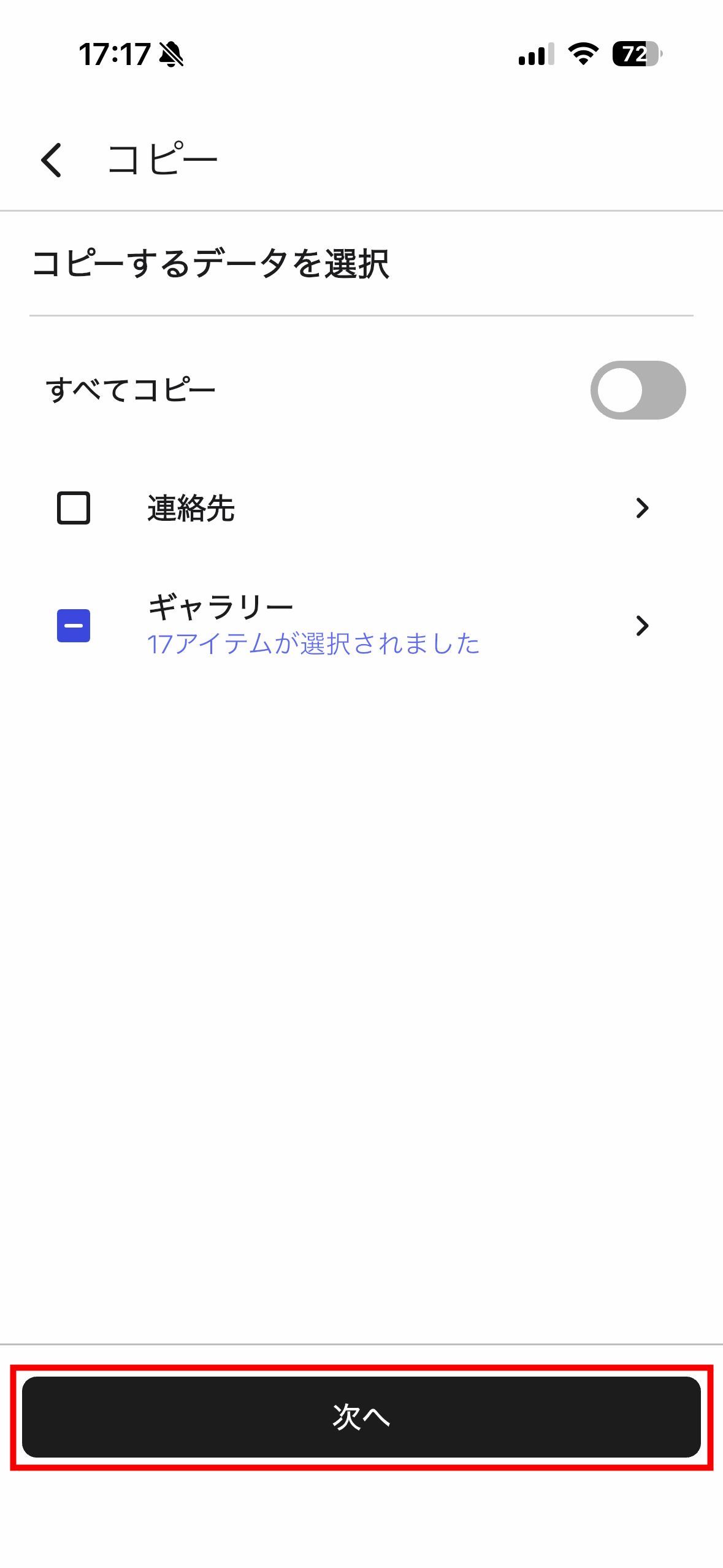
After selecting the photos and videos you want to copy, tap 'Next'.
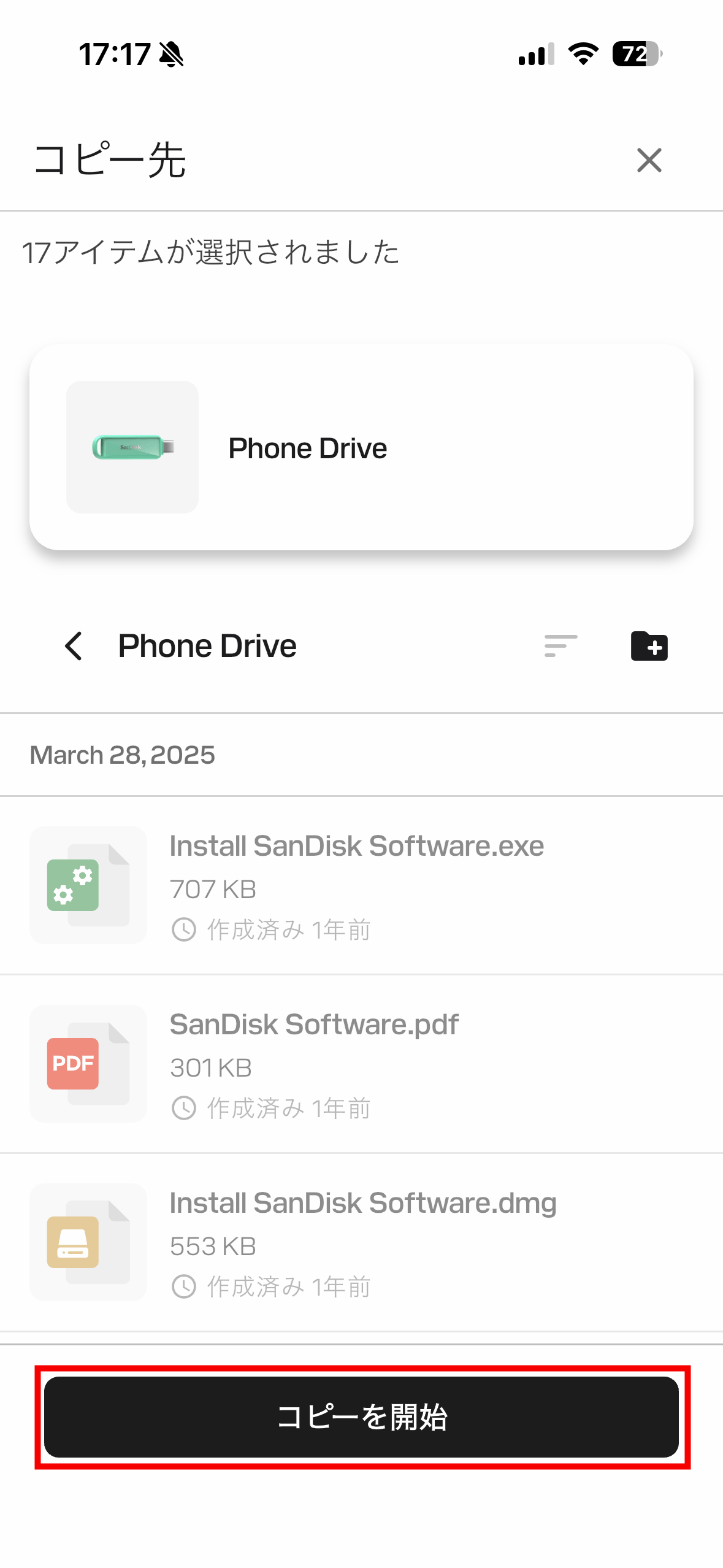
Tap 'Start Copying'.
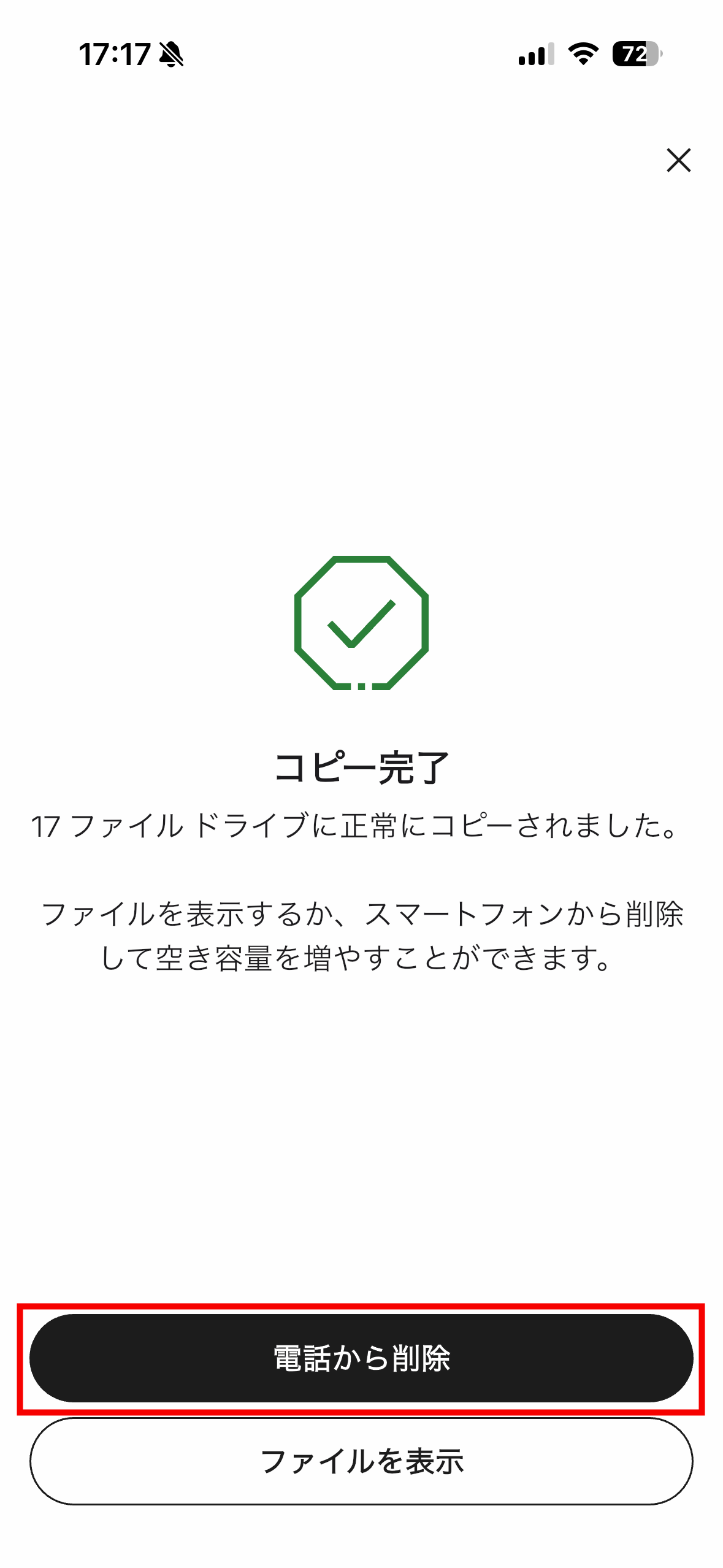
Once the copying is complete, you can choose between 'Delete from phone' and 'View file'. If you don't want to delete the copied file, simply press the × button in the upper right corner of the screen. This time, let's tap 'Delete from phone'.
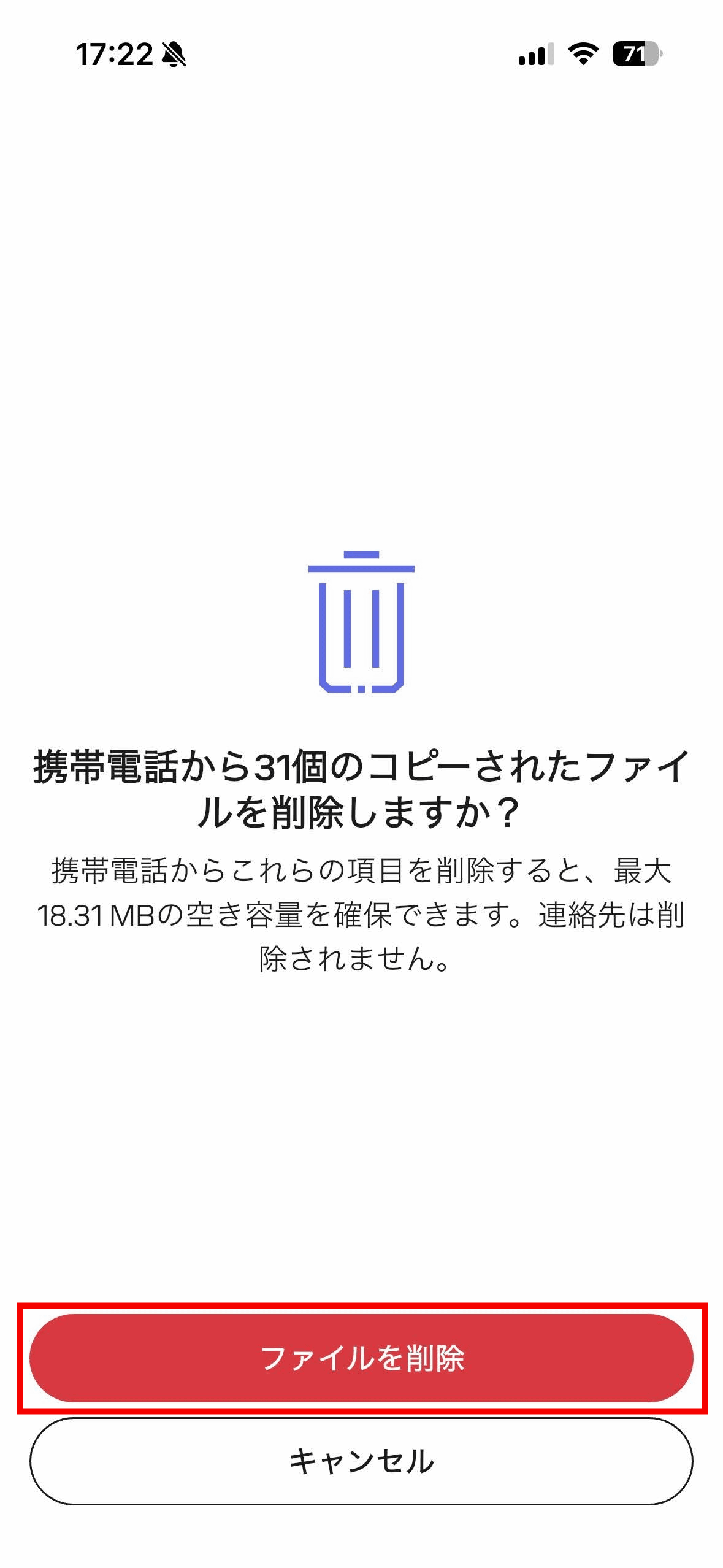
Tap 'Delete file'.
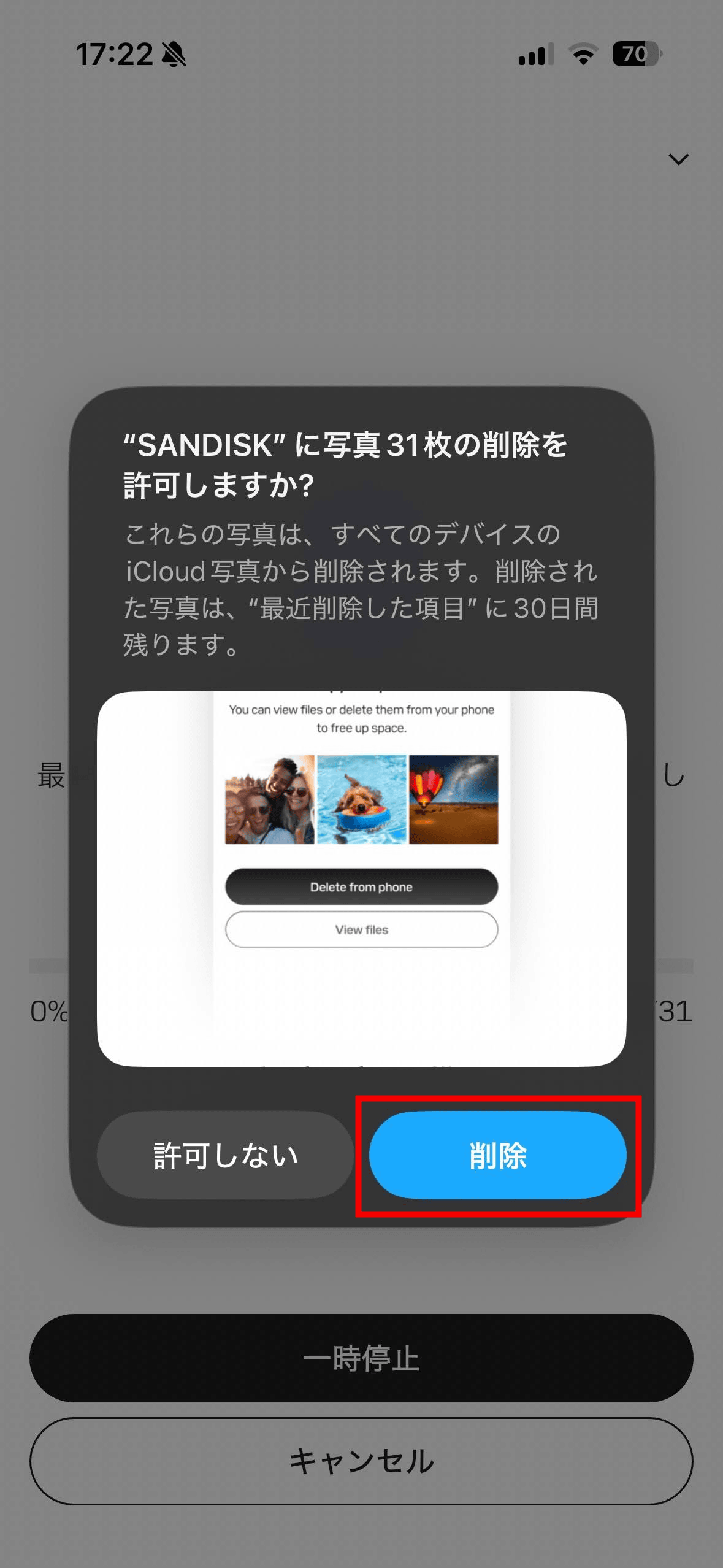
Tap 'Delete'.
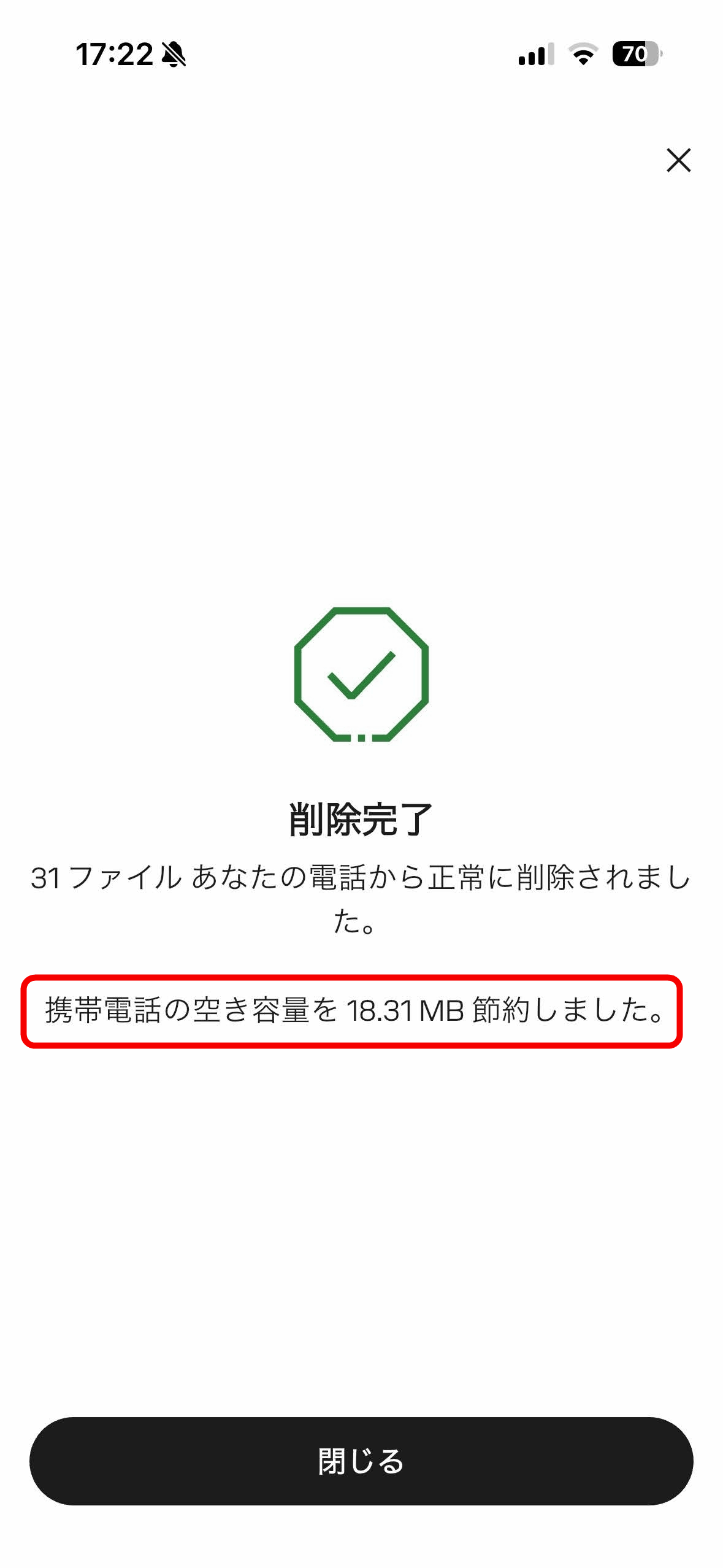
This will then show you how much storage space has been freed up on your iPhone by deleting the files.
Data copied to the 'SanDisk Phone Drive USB-C compatible' can be checked by tapping 'Browse the drive'.
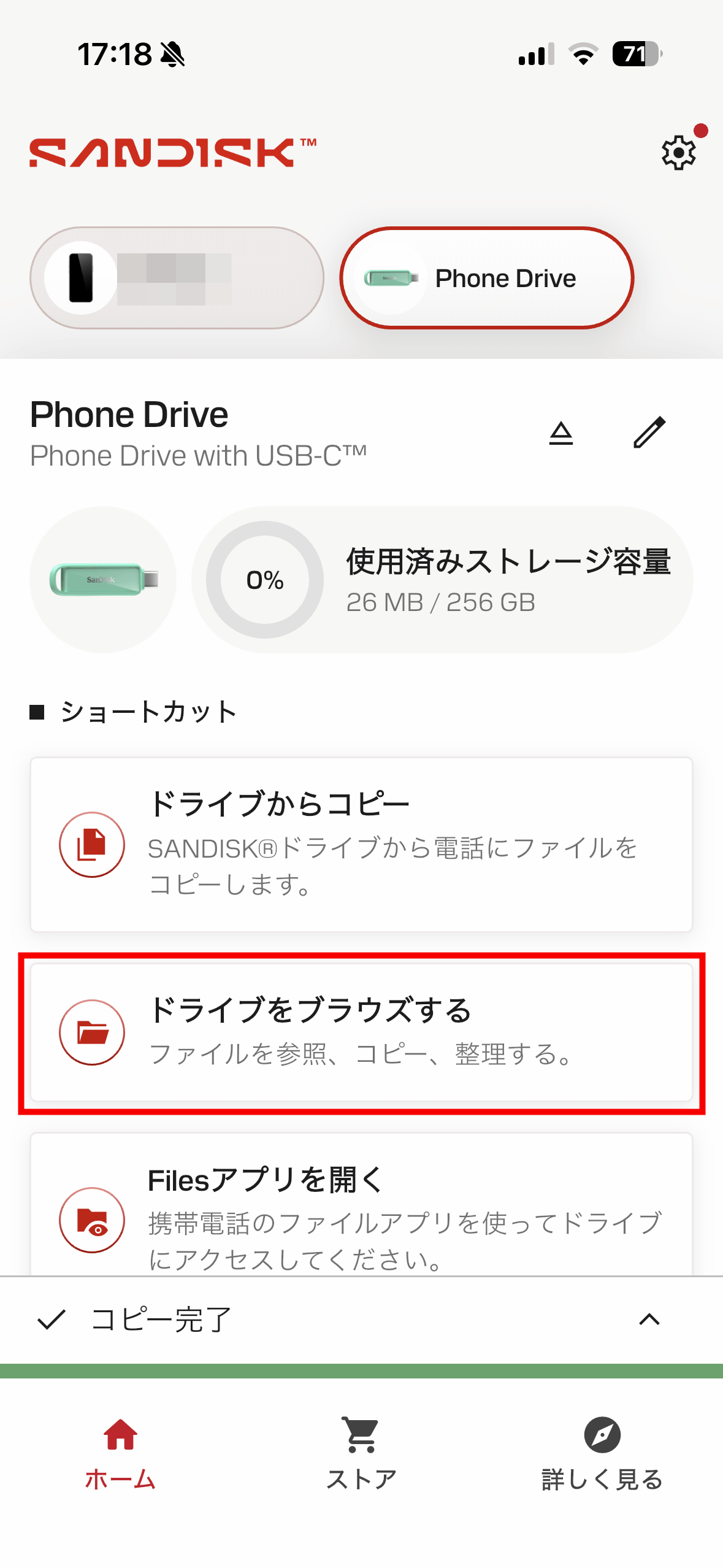
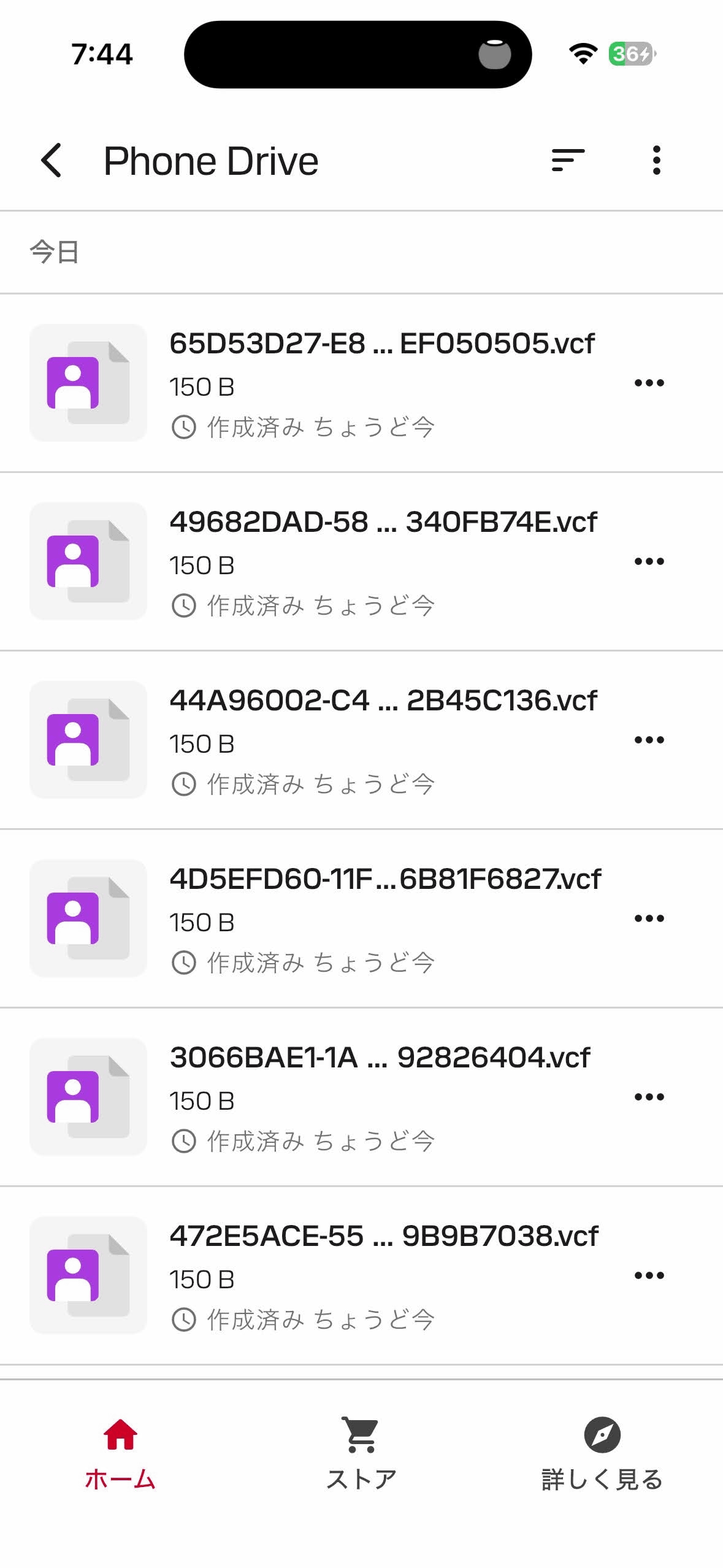
For photos and videos, the file name and file size will be displayed.

When you copy contacts, the contact data is saved as
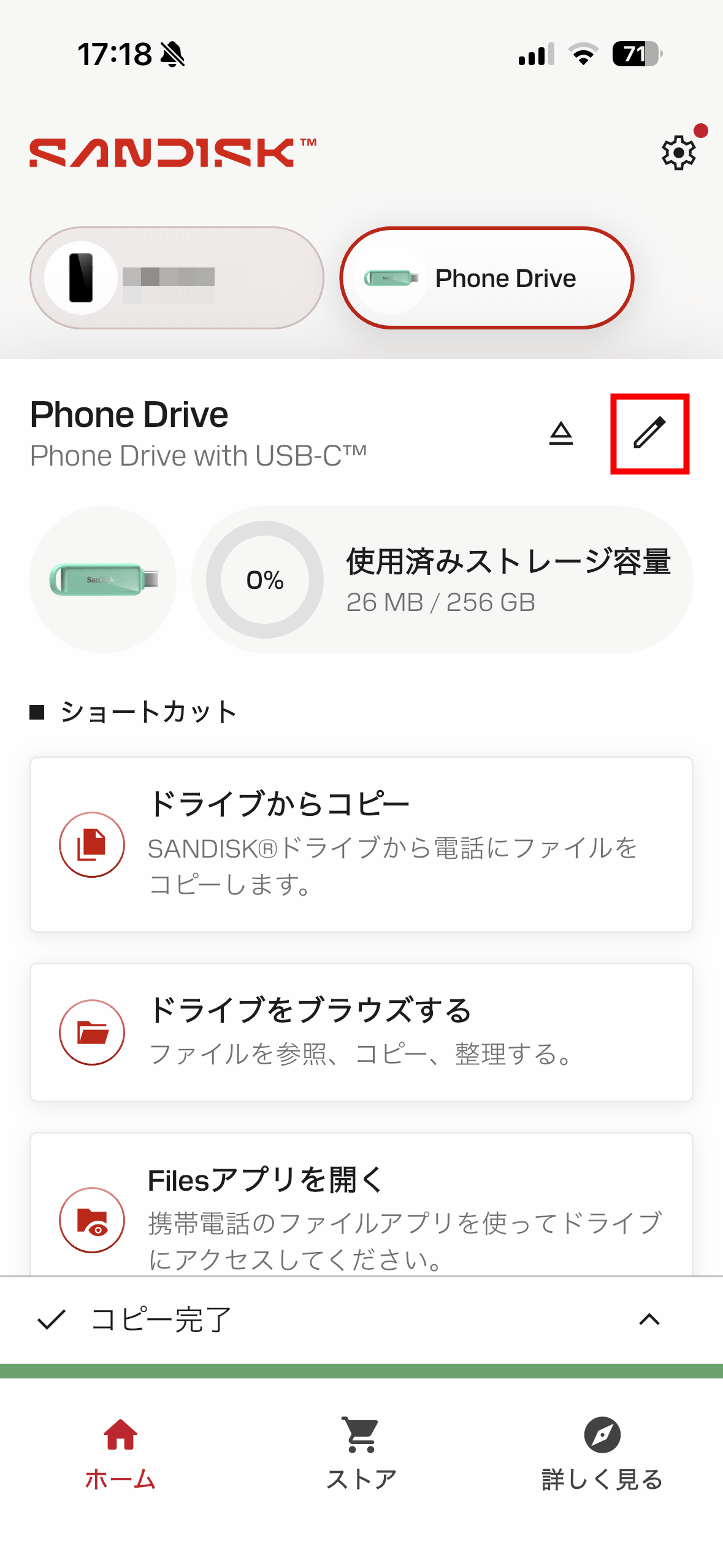
Tap the pen icon.
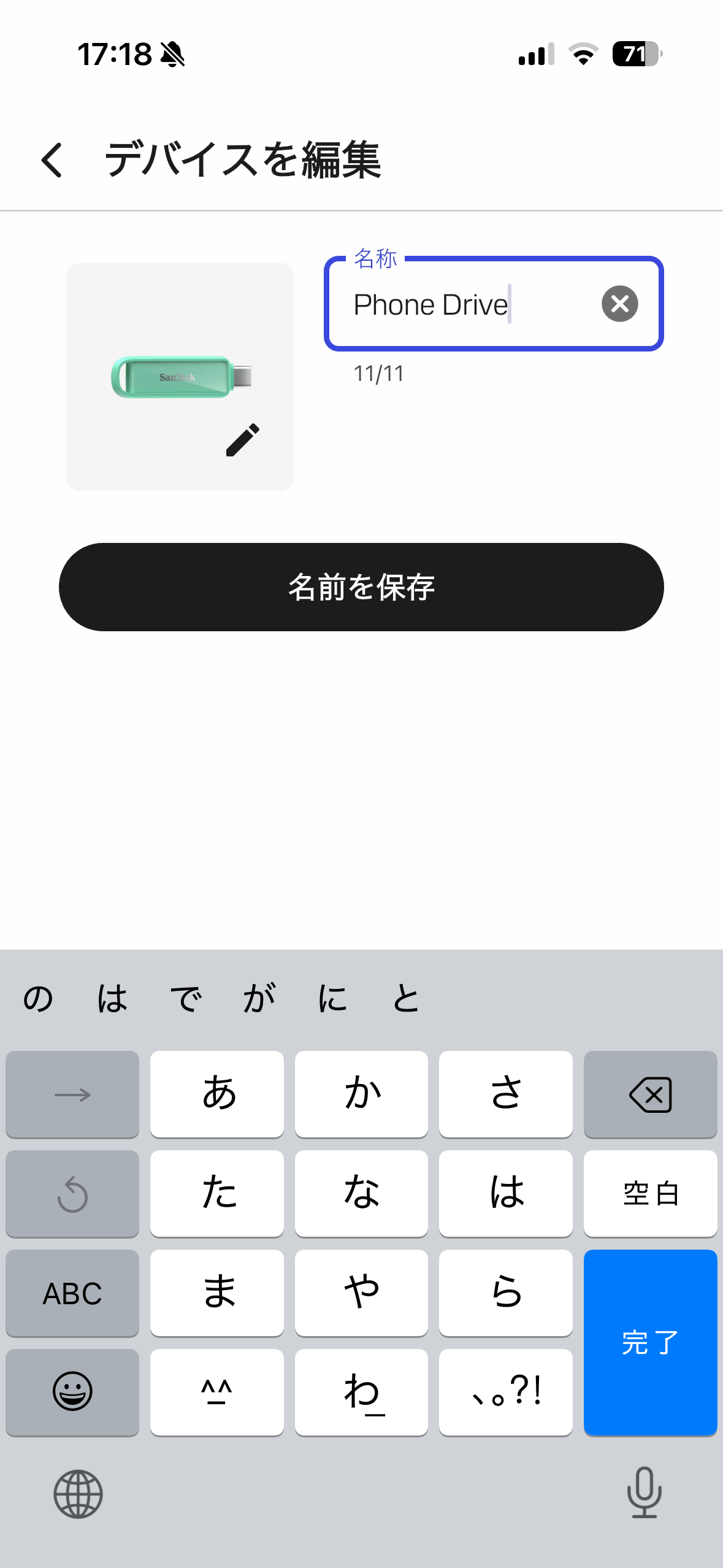
This allows you to change the name of the product from 'SanDisk Phone Drive USB-C compatible'.
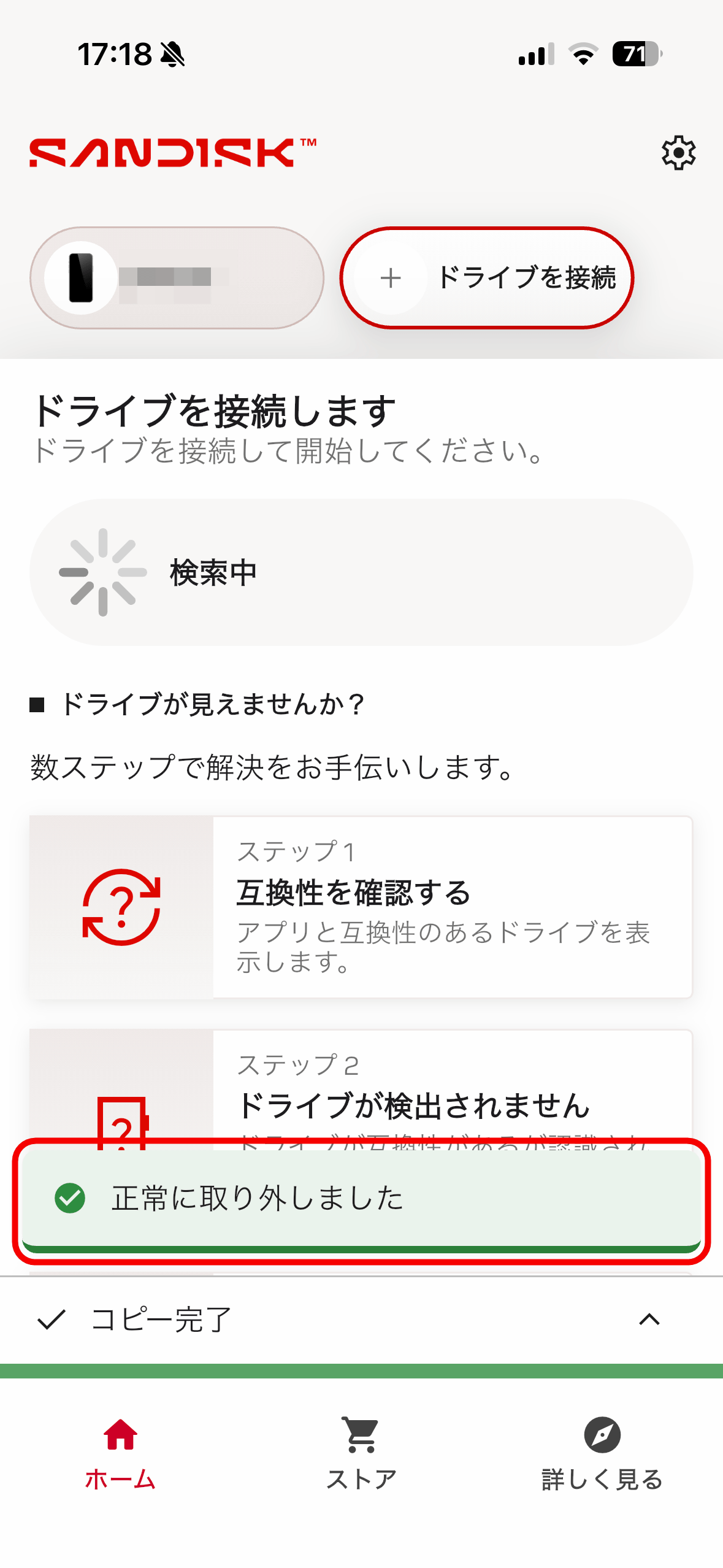
Tap the triangular icon next to the name 'SanDisk Phone Drive USB-C compatible'.
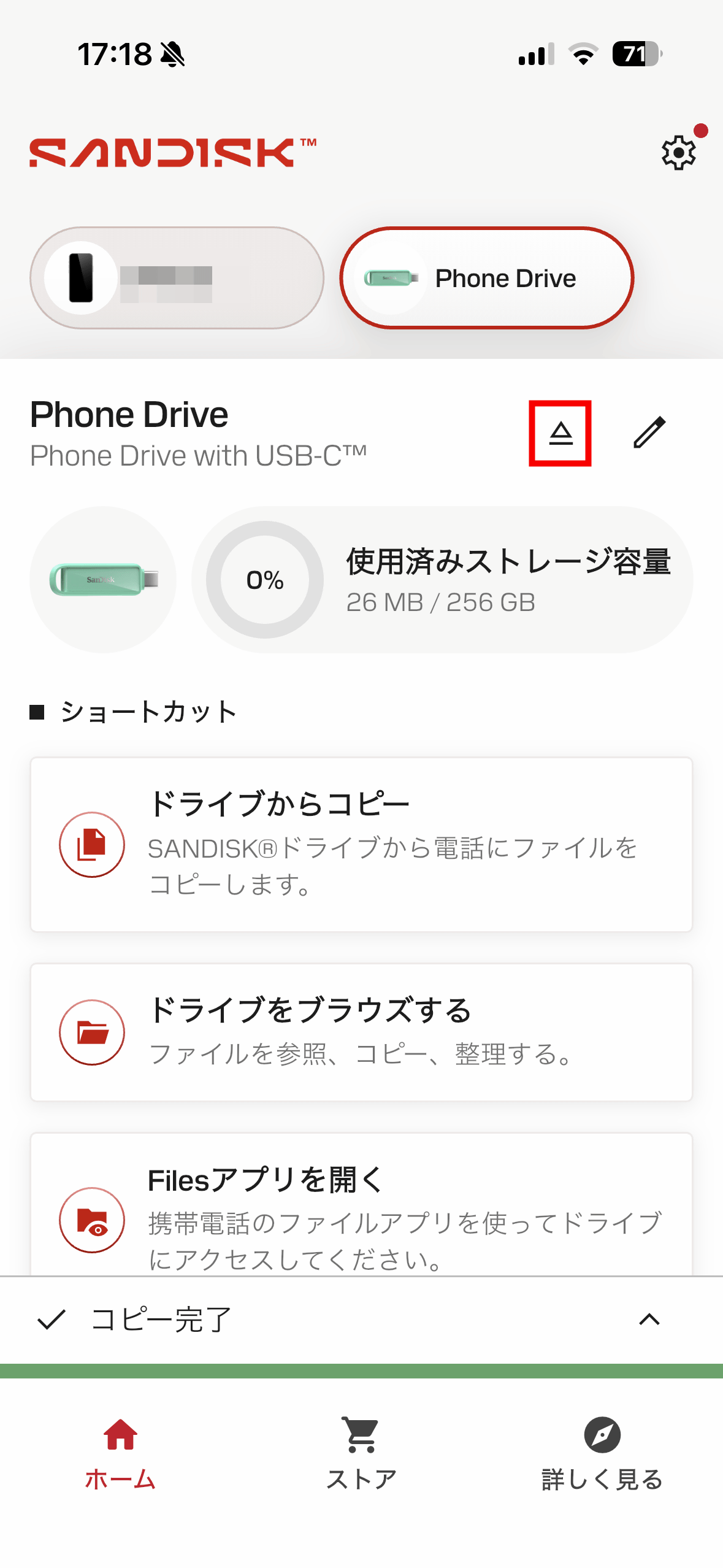
Then you can successfully remove the 'SanDisk Phone Drive USB-C compatible' from your iPhone.
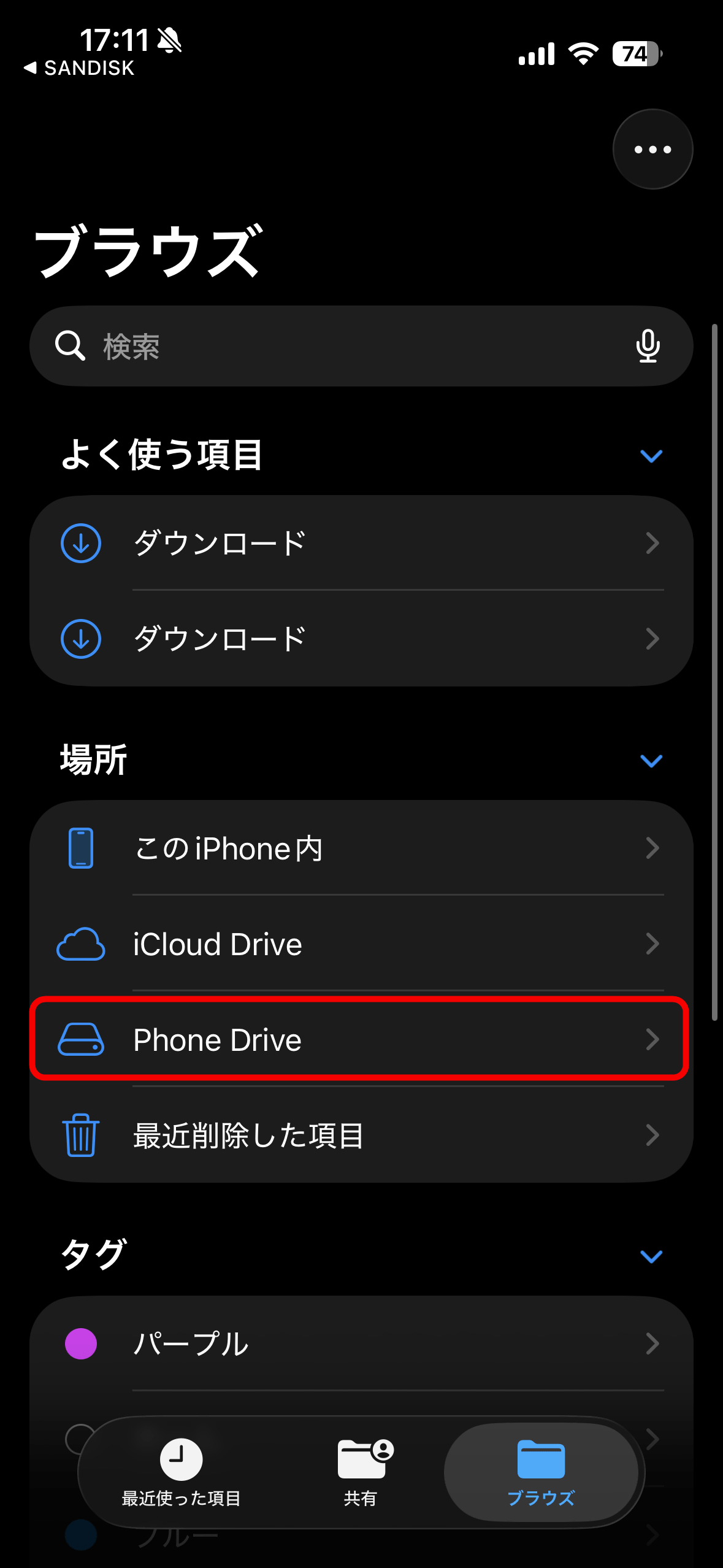
Furthermore, when you connect the 'SanDisk Phone Drive USB-C Compatible' to your iPhone and open the '
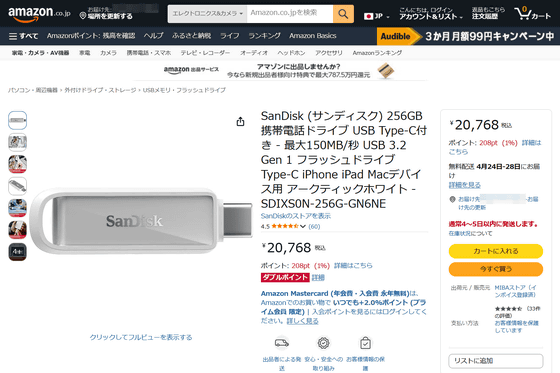
The 'SanDisk Phone Drive USB-C compatible' is also available on Amazon.co.jp, with the 256GB model priced at ¥20,768 (tax included).
Amazon.co.jp: SanDisk 256GB Mobile Phone Drive with USB Type-C - Up to 150MB/s USB 3.2 Gen 1 Flash Drive Type-C for iPhone, iPad, Mac Devices, Arctic White - SDIXS0N-256G-GN6NE : Computers & Peripherals
Related Posts:
in Hardware, Software, Smartphone, Review, Posted by logu_ii