'Shortkeys' allows you to set shortcut keys for all browser operations.

While PC users, especially beginners, tend to rely on pointing devices like the mouse for GUI operations of the OS and applications, they tend to use keyboard shortcuts more frequently once they become more familiar with the operation. On the other hand, browsers, which have many graphical elements, don't seem to have many shortcut keys, and even highly skilled users often rely primarily on mouse operation. Since using the mouse inevitably takes time because your hands are off the keyboard, I tried using the 'Shortkeys' extension to set shortcut keys for all browser operations.
crittermike/shortkeys: A browser extension for custom keyboard shortcuts
◆Features
According to the official GitHub repository, the features of Shortkeys are as follows:
• Built-in actions : Over 125 actions across 11 categories (scrolling, tab operation, navigation, video playback control, search, bookmarks, window, zoom, page tools, page scripts, etc.)
• Command Palette : Click an icon, set a shortcut, search, and perform the desired action.
• Nine carefully selected shortcut packs : Install Vim, Emacs, YouTube, Productivity, Developer, Reading, Tab Manager, Keyboard Power, and Media Controls with one click.
• Cloud synchronization : Synchronization function • Automatic local fallback function when capacity limit is exceeded
- Groups : Organize shortcuts into collapsible, renaming sections, and enable/disable them all at once.
- Macro linking : Links multiple actions into a single shortcut.
• Site filtering : Allow/deny settings for all sites for each shortcut.
- Live Reload : Shortcuts instantly refresh all tabs (no page reload required).
• Shareable links : Generate URLs that can be shared for shortcuts and groups.
• Shortcut Recorder : Supports multiple key sequences
- Conflict detection : Platform-aware warnings about conflicts in browser default settings.
- Dark Mode : Follows System Preferences
- Importing user scripts : Supports Greasyfork and OpenUserJS.
• Guided installation : Wizard for new users
- Undo/Redo : This can be done on the settings page.
◆ Introduction
You can install it from the following browser stores.
Chrome
Firefox
・Edge : https://microsoftedge.microsoft.com/addons/detail/shortkeys/
Opera
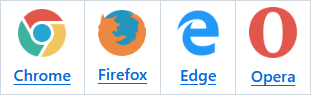
However, at the time of writing this article, the Edge store showed 'Status Code: 404; Not Found,' and Firefox displayed a warning during installation saying 'Extension is corrupted,' interrupting the process (although installation from GitHub was possible). Therefore, we will proceed with installation on Chrome. Click the link to go to the store and click the 'Add to Chrome' button.
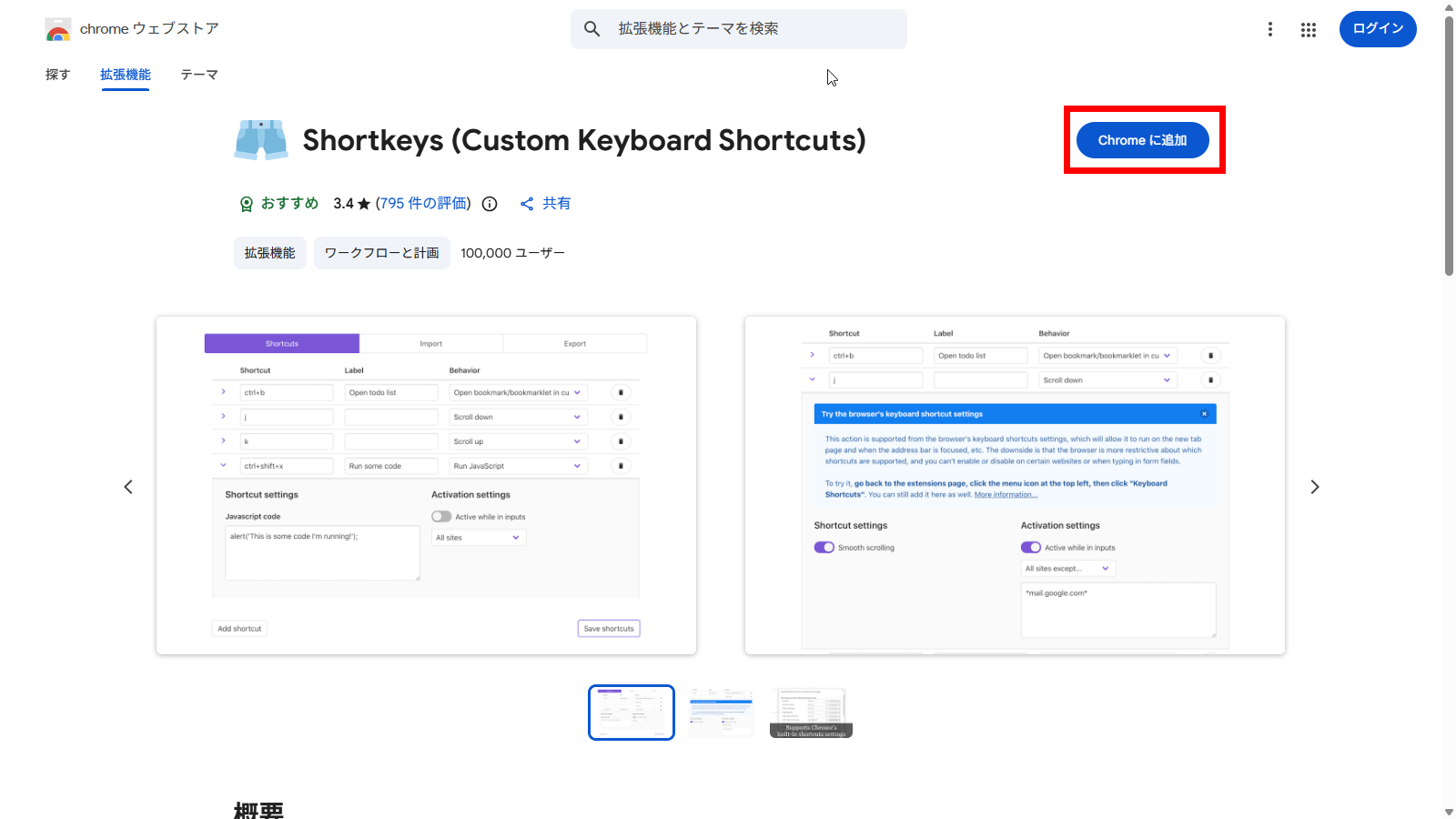
A pop-up will appear asking, 'Do you want to install Shortkeys?'. Check the permissions just to be sure, then click the 'Add extension' button.
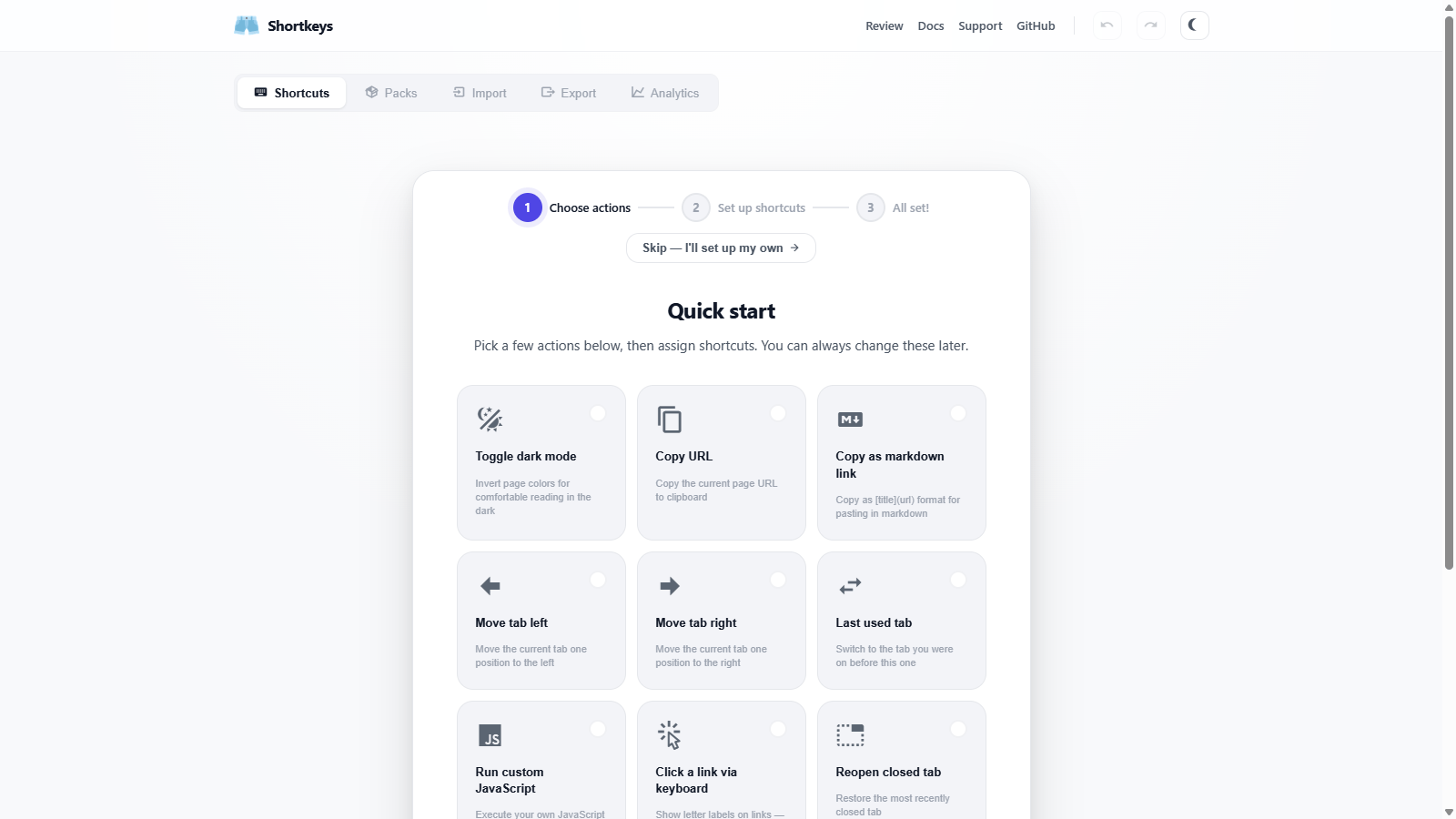
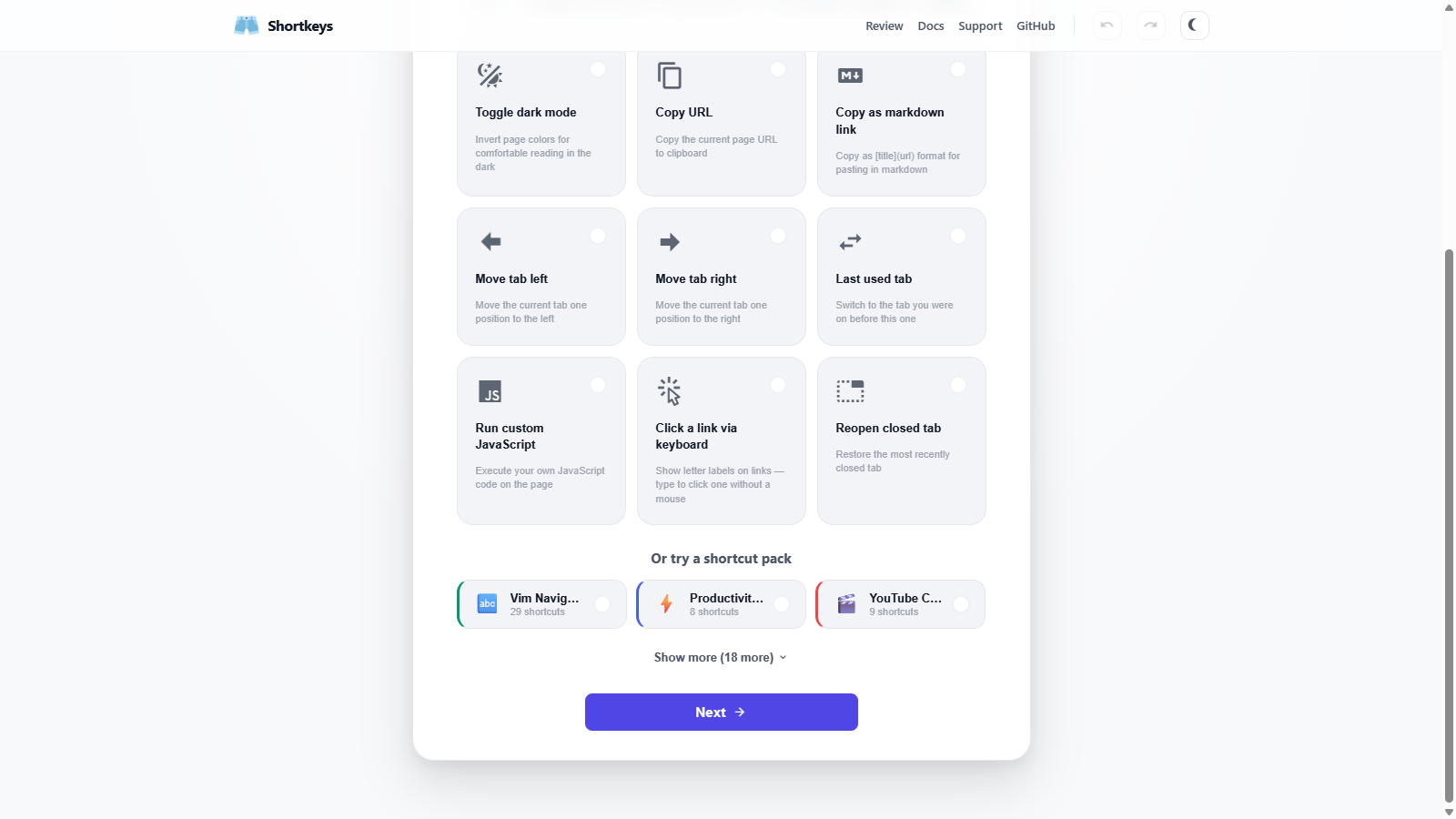
Once the installation was complete, a quick start screen for new users appeared.
◆ Registering shortcut keys
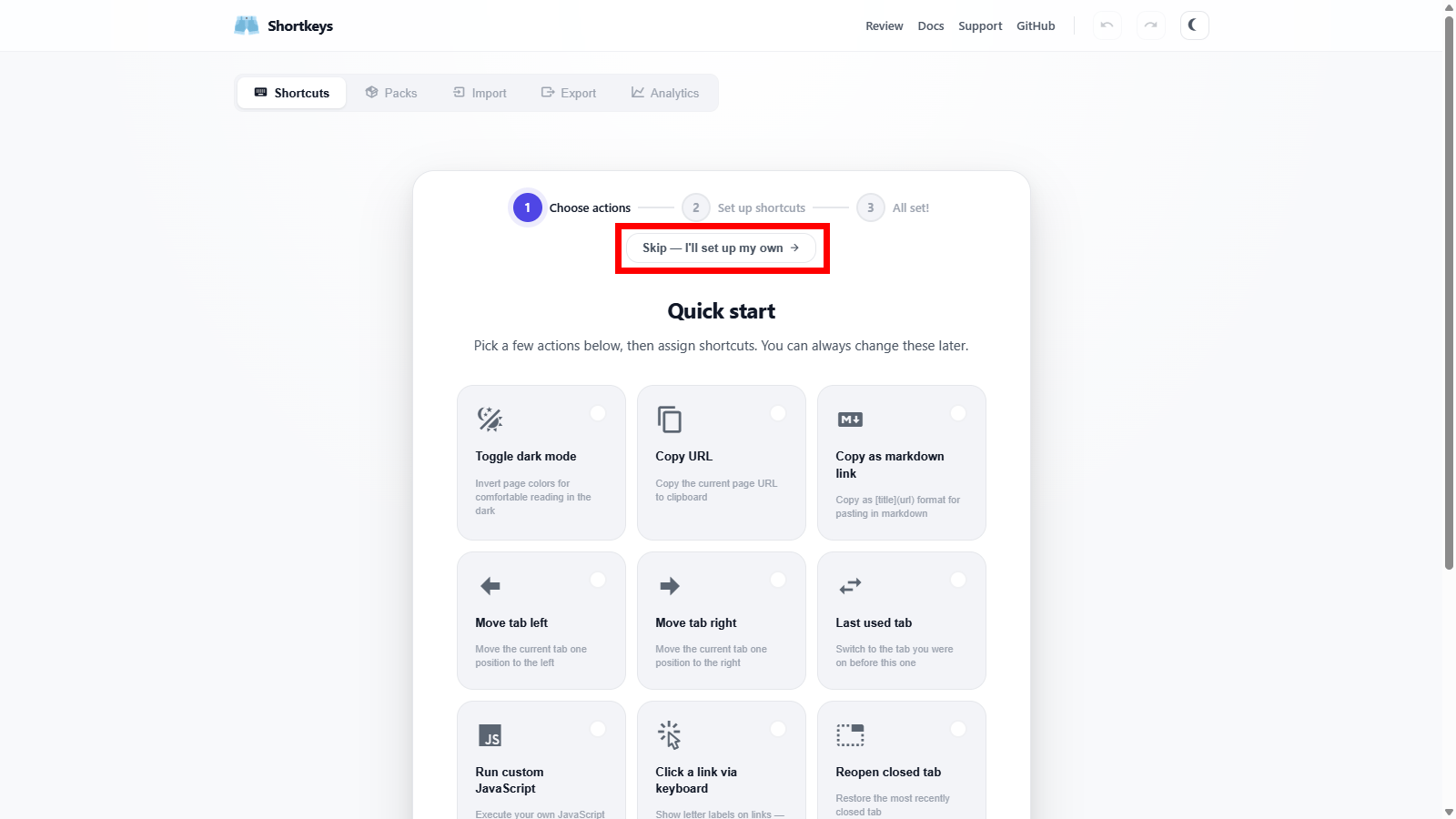
To create your first shortcut key, follow the standard procedure for future reference. Click the 'Skip - I'll set up my own' button at the top of the screen.
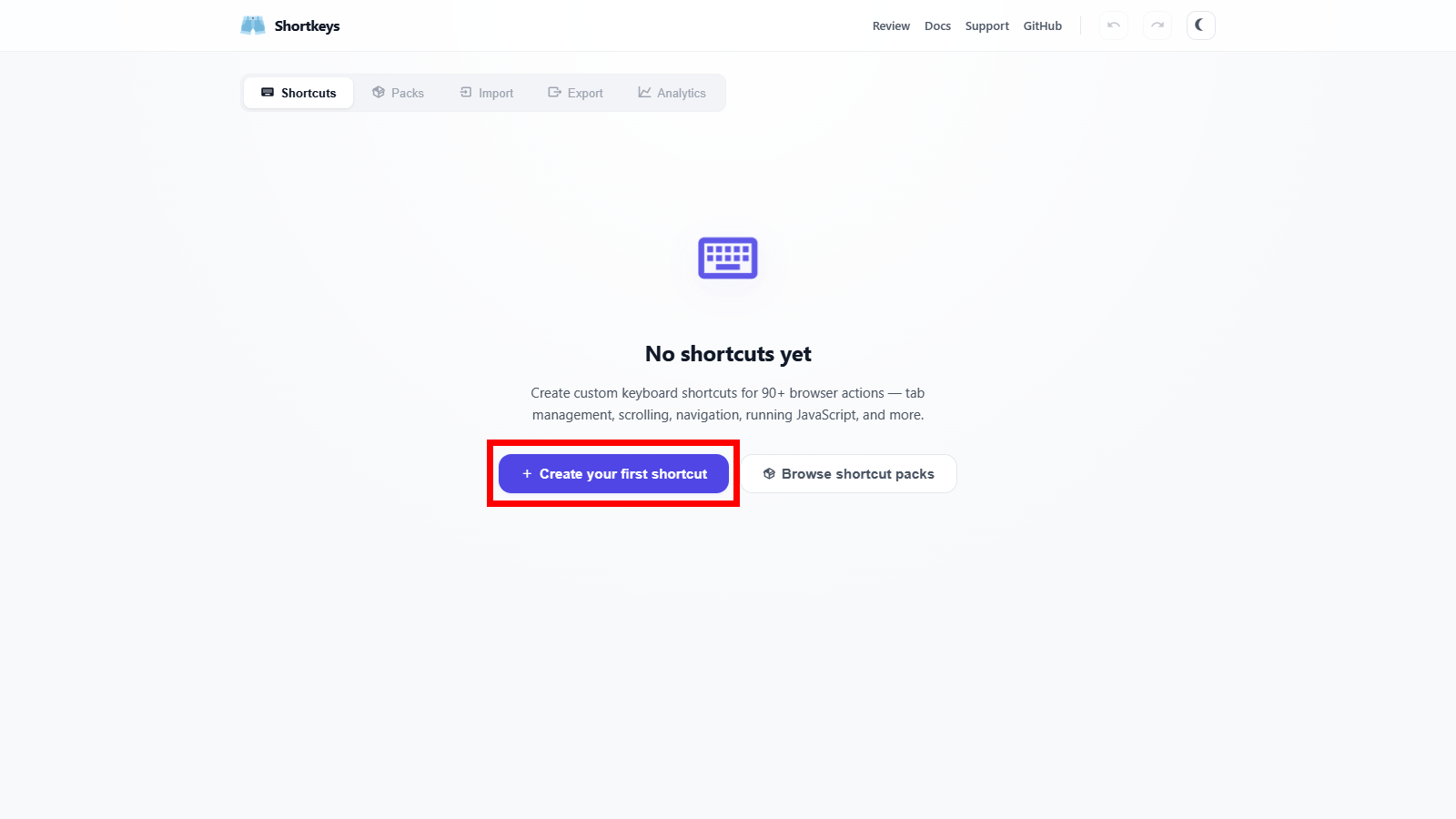
You will be taken to the 'No shortcuts yet' screen, so click the 'Create your first shortcut' button.
In 'SHORTCUT,' specify the shortcut key you want to assign, and in 'BEHAVIOR,' select the behavior when you press the shortcut key from the dropdown menu.
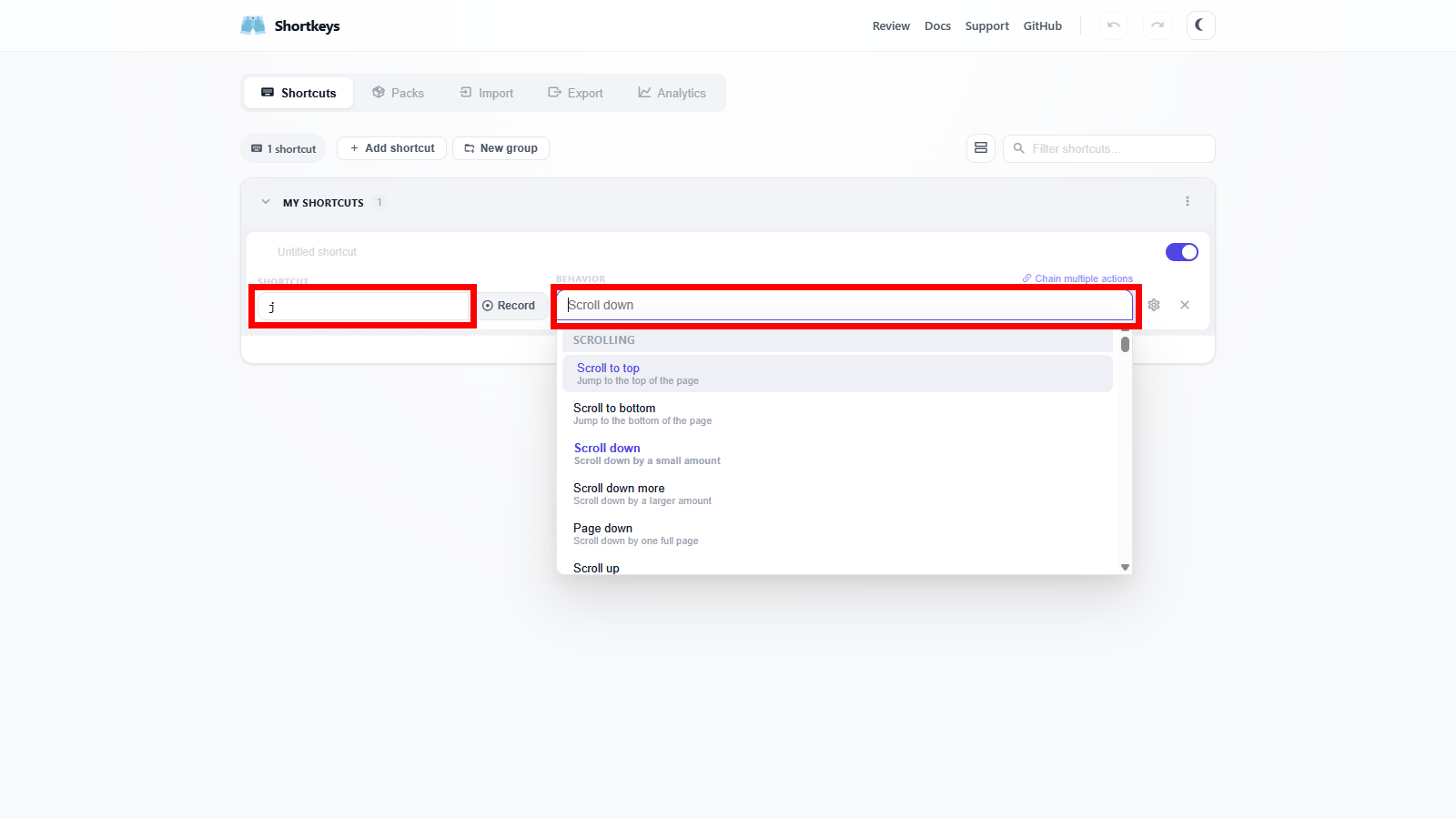
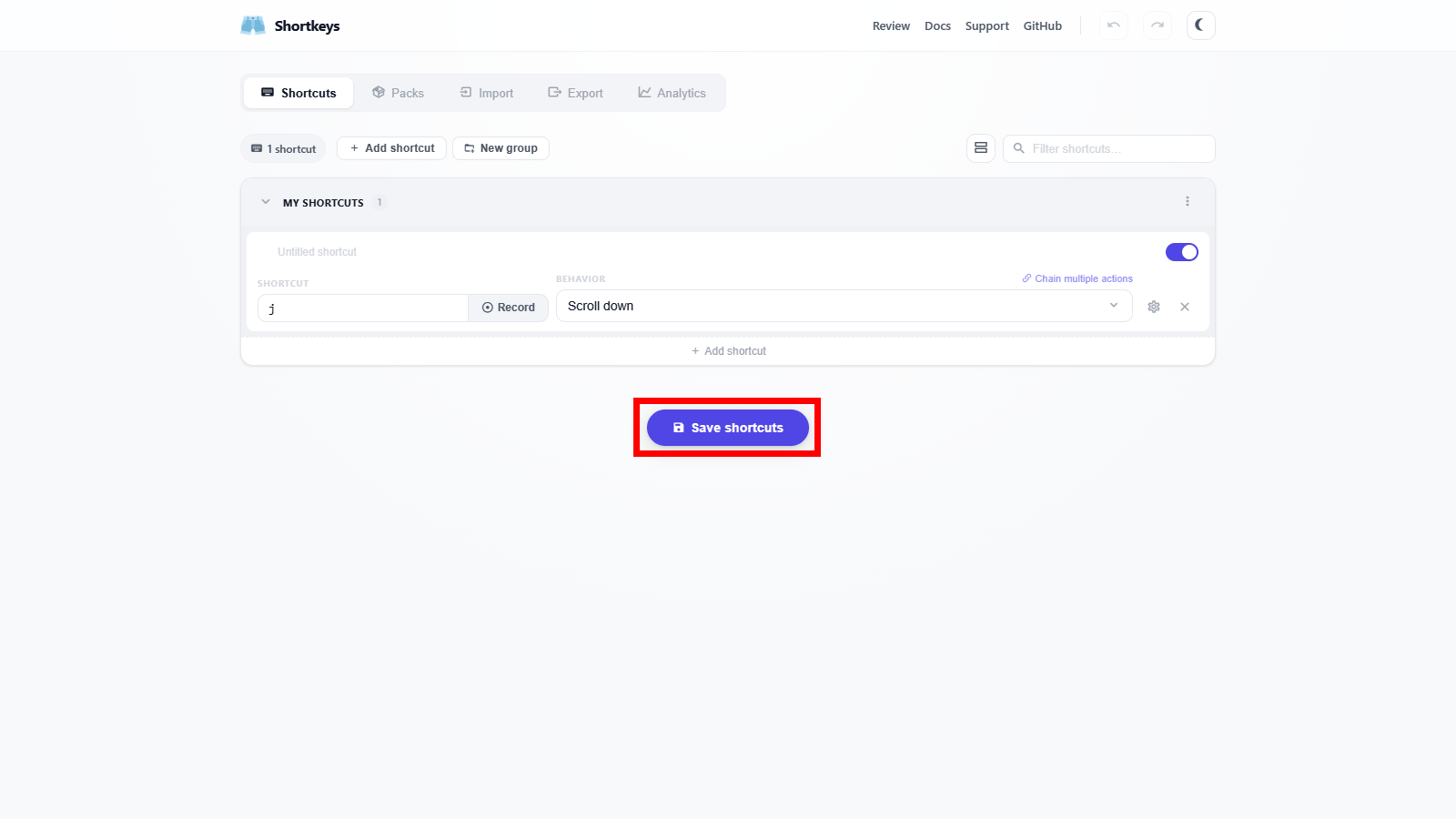
Click the 'Save shortcuts' button to register the shortcut you created.
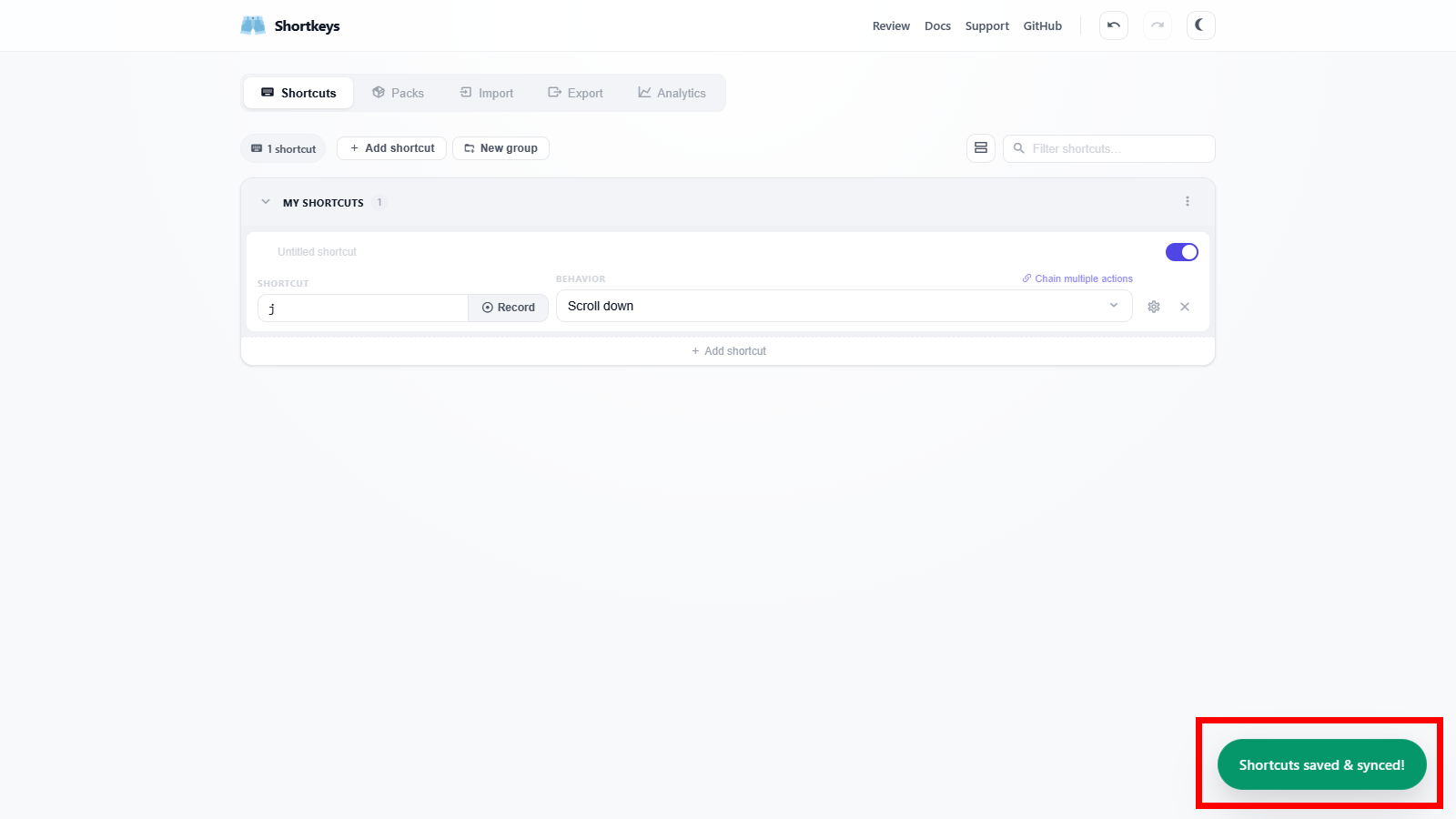
Once registration is complete, 'Shortcuts saved & Synced!' will briefly appear in the lower right corner of the screen.
I tried assigning
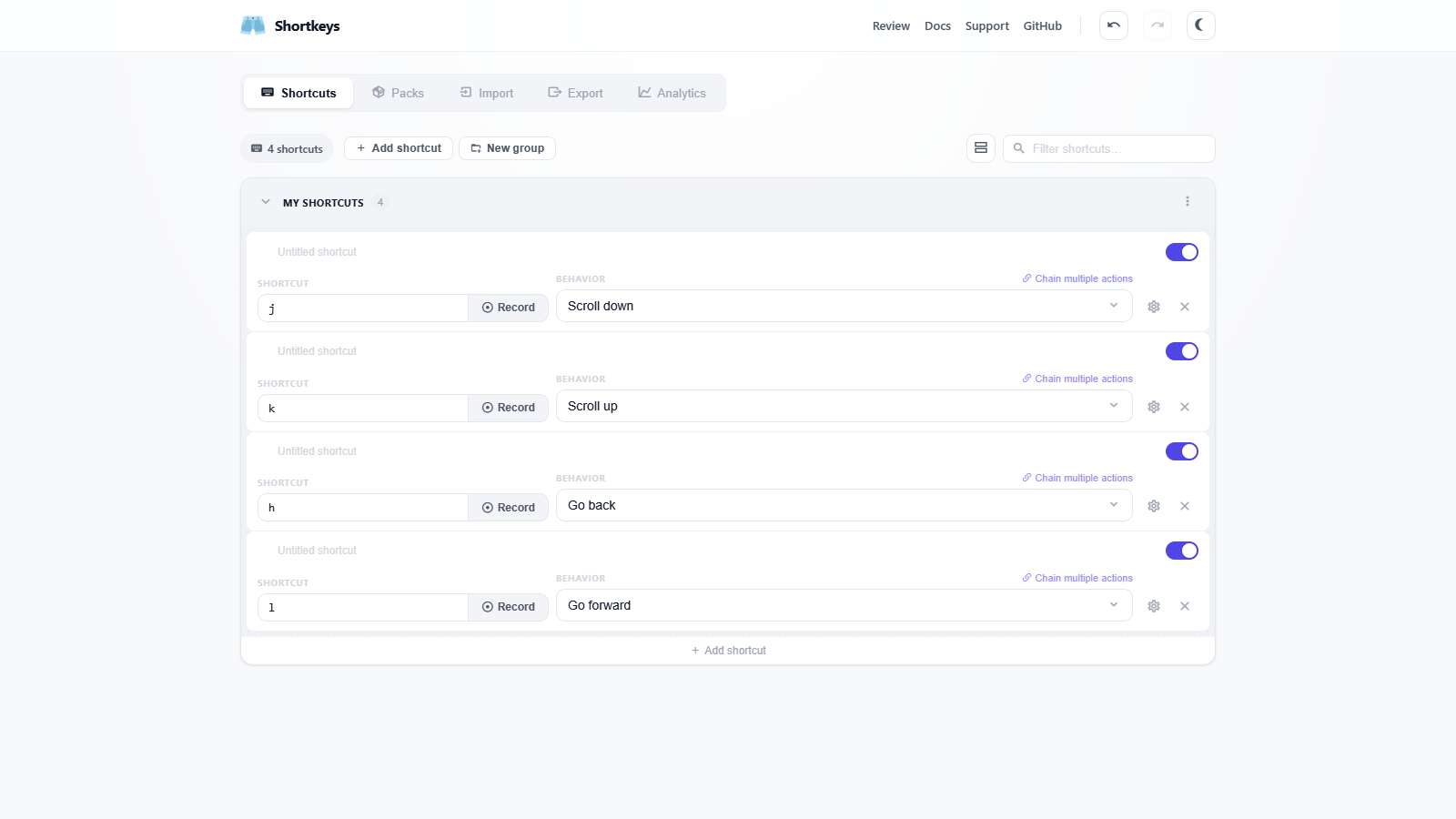
◆ Applying the shortcut pack
'Shortcut Packs' are a feature that allows you to apply shortcut key settings all at once. For example, if you want to set Vim-like shortcut keys in various places, it's very convenient because you don't have to specify a huge number of shortcut key settings each time. To apply a shortcut pack, click 'Packs' in the menu at the top of the screen.
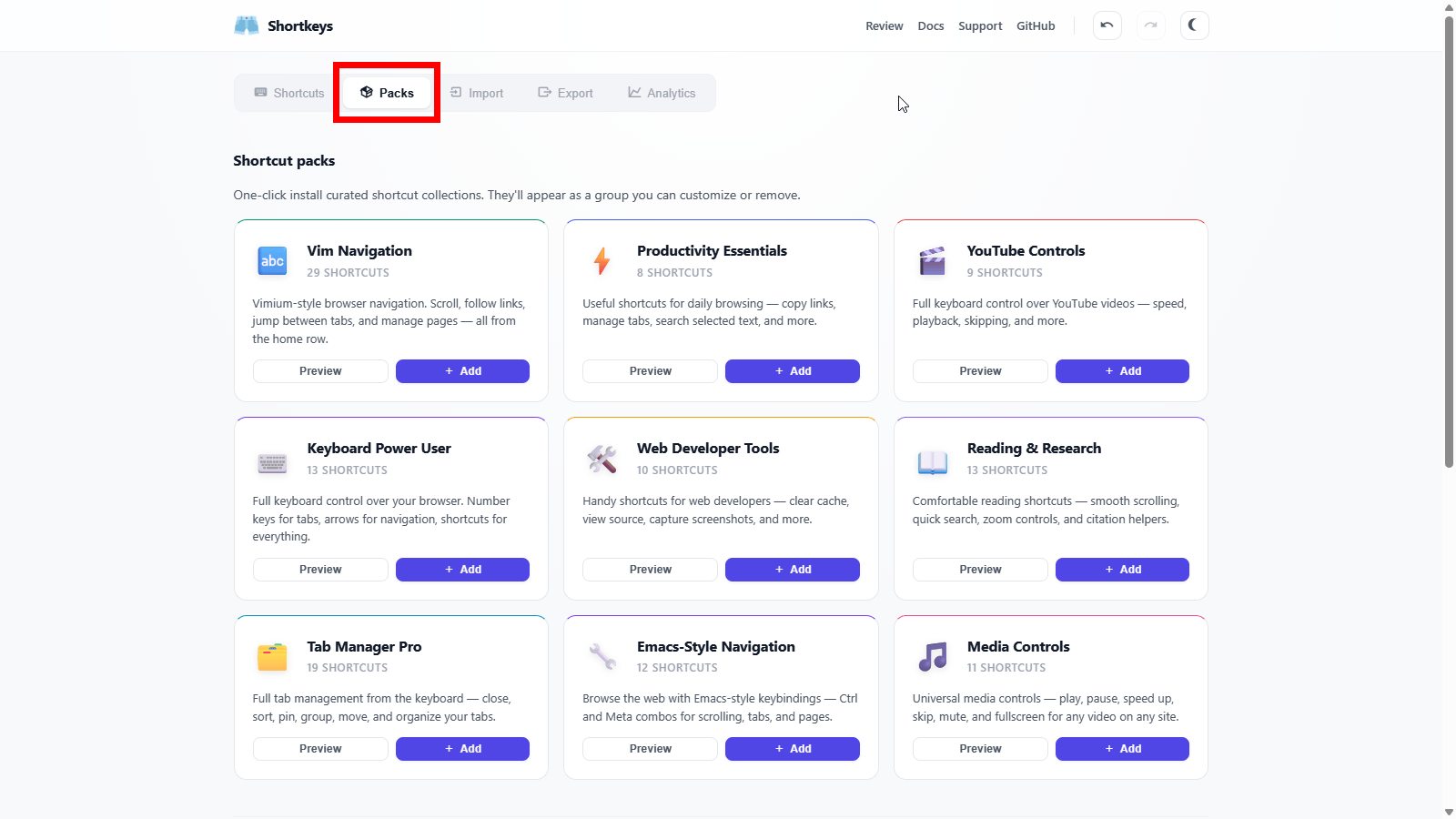
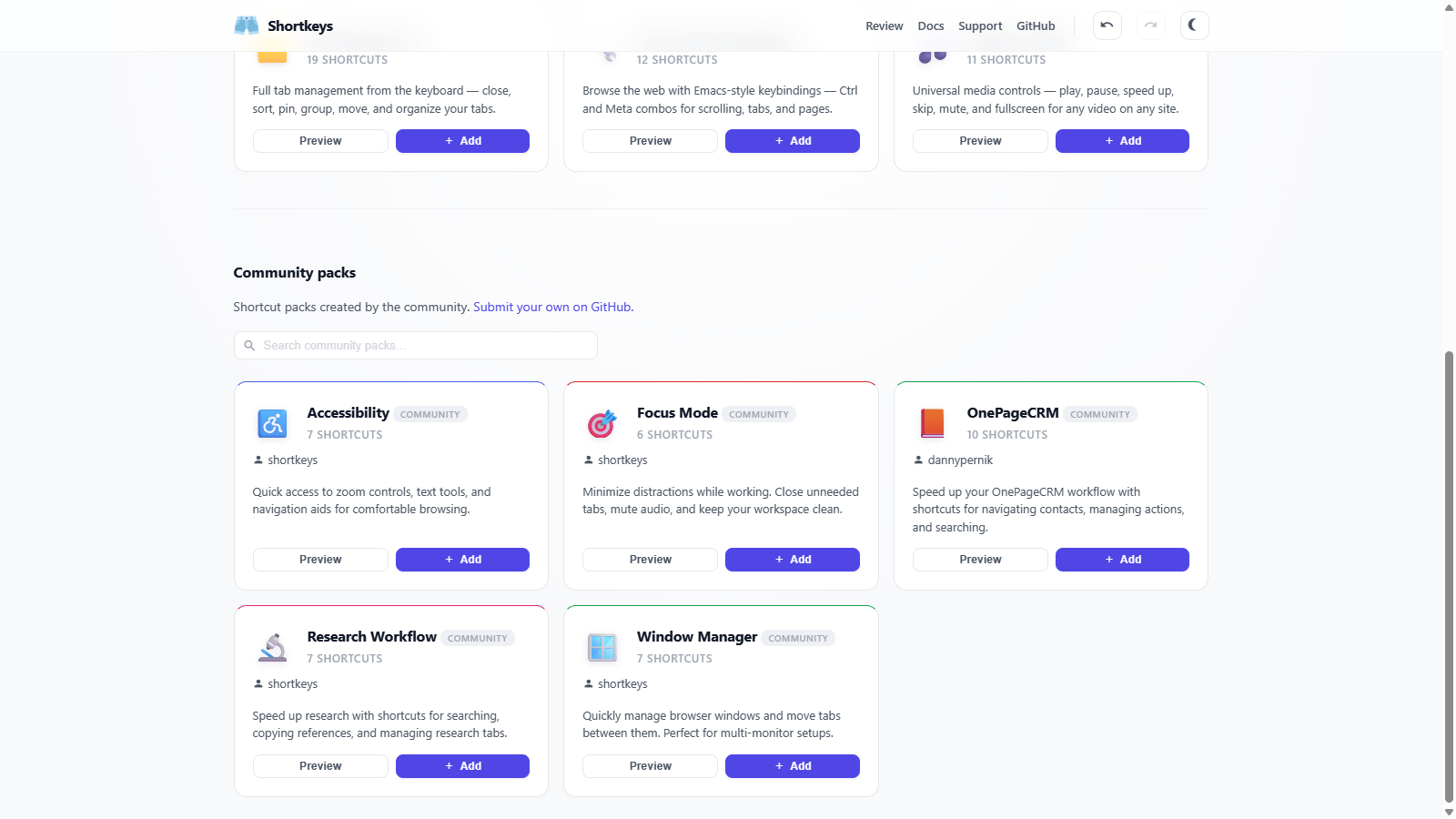
If you scroll down the screen, you'll find a section called 'Community packs,' where you'll see shortcut packs created by other users and shared with the community.
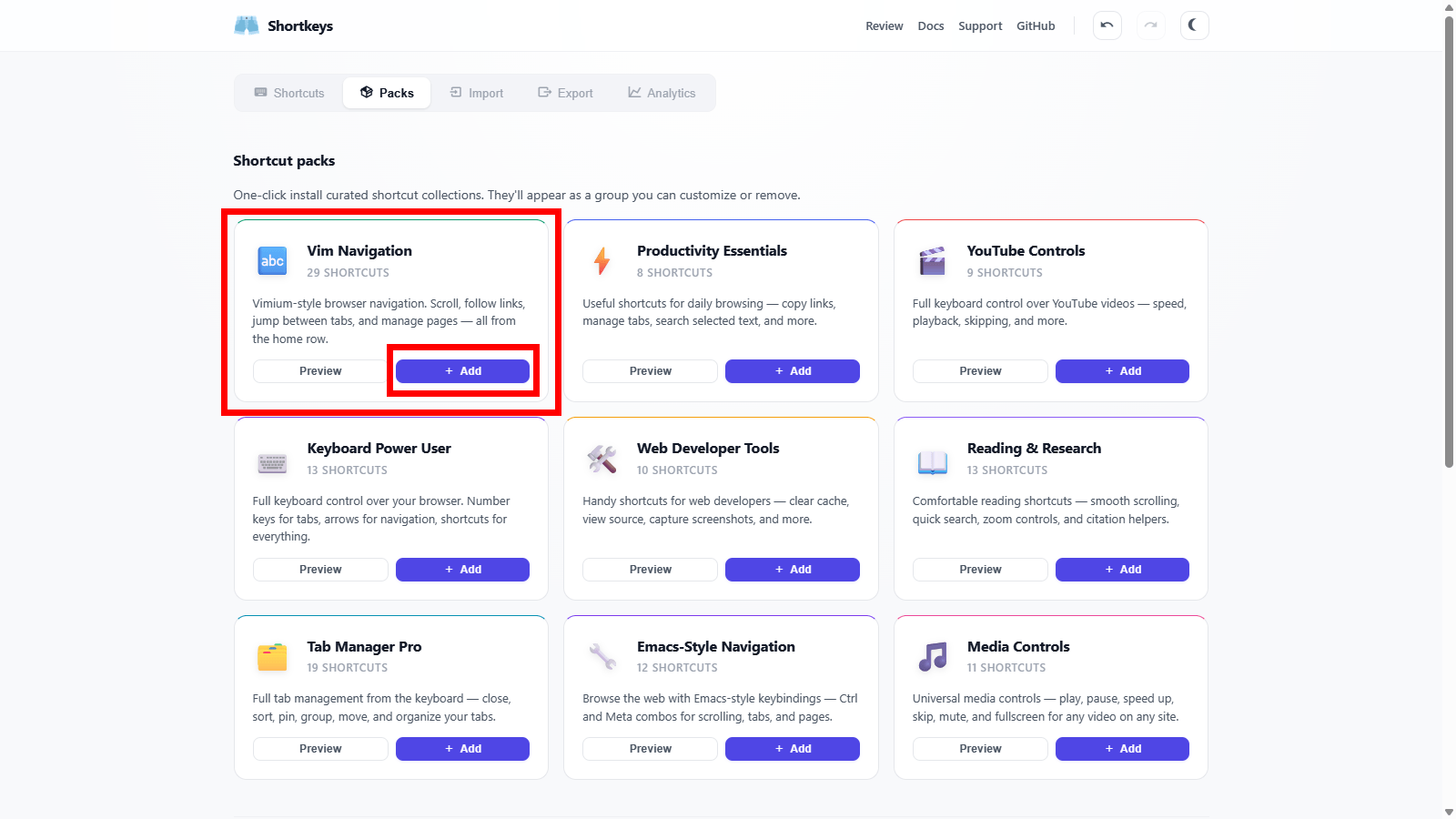
The Vim shortcut pack is at the very top, so click the 'Add' button.
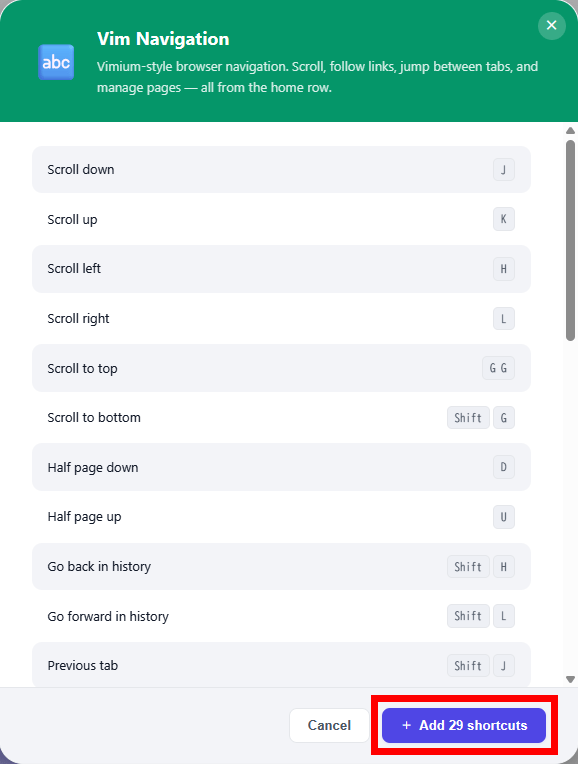
A pop-up will appear showing a list of shortcut keys registered in the shortcut pack, so click 'Add [number of shortcut keys to assign] shortcuts'.
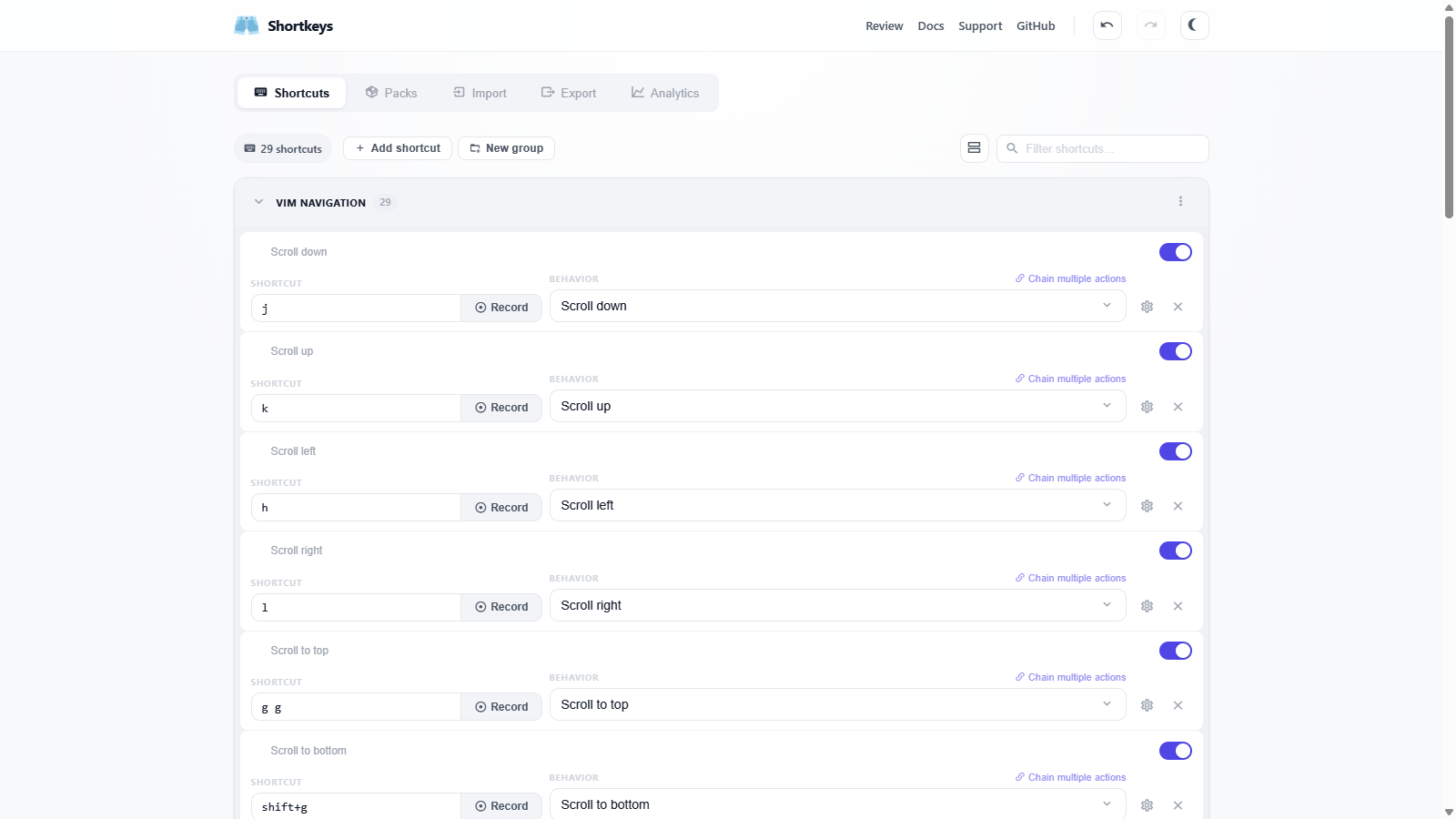
Returning to the 'Shortcuts' screen, I found that 29 shortcuts were registered at the time of writing this article. Registering that many shortcuts would be a lot of work, so this is incredibly helpful.
◆Export/Import
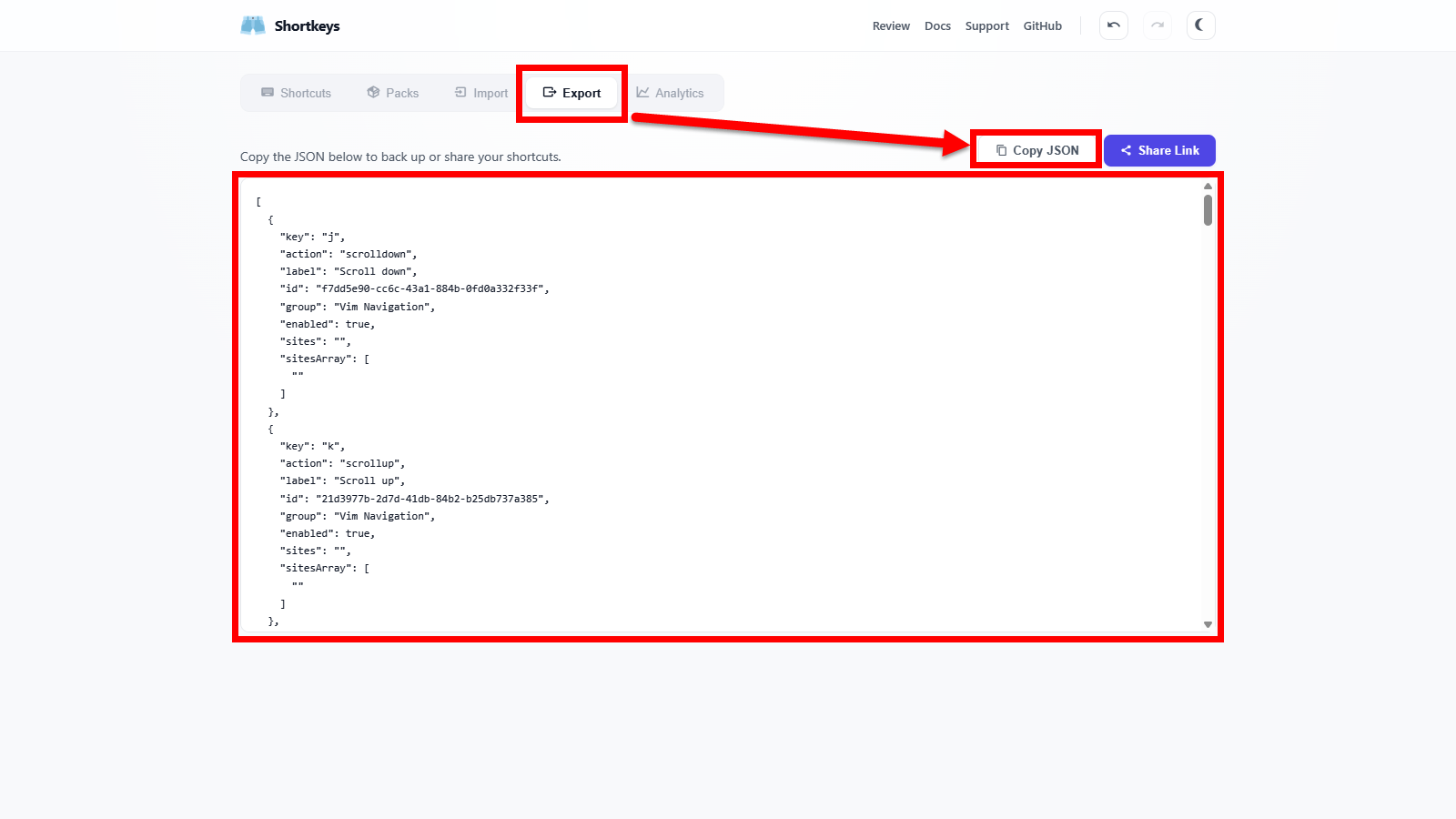
Clicking 'Export' from the menu at the top of the screen will take you to the screen where you can export your registered shortcuts. The export JSON file is displayed in the center of the screen, and clicking the 'Copy JSON' button will copy it to your clipboard.
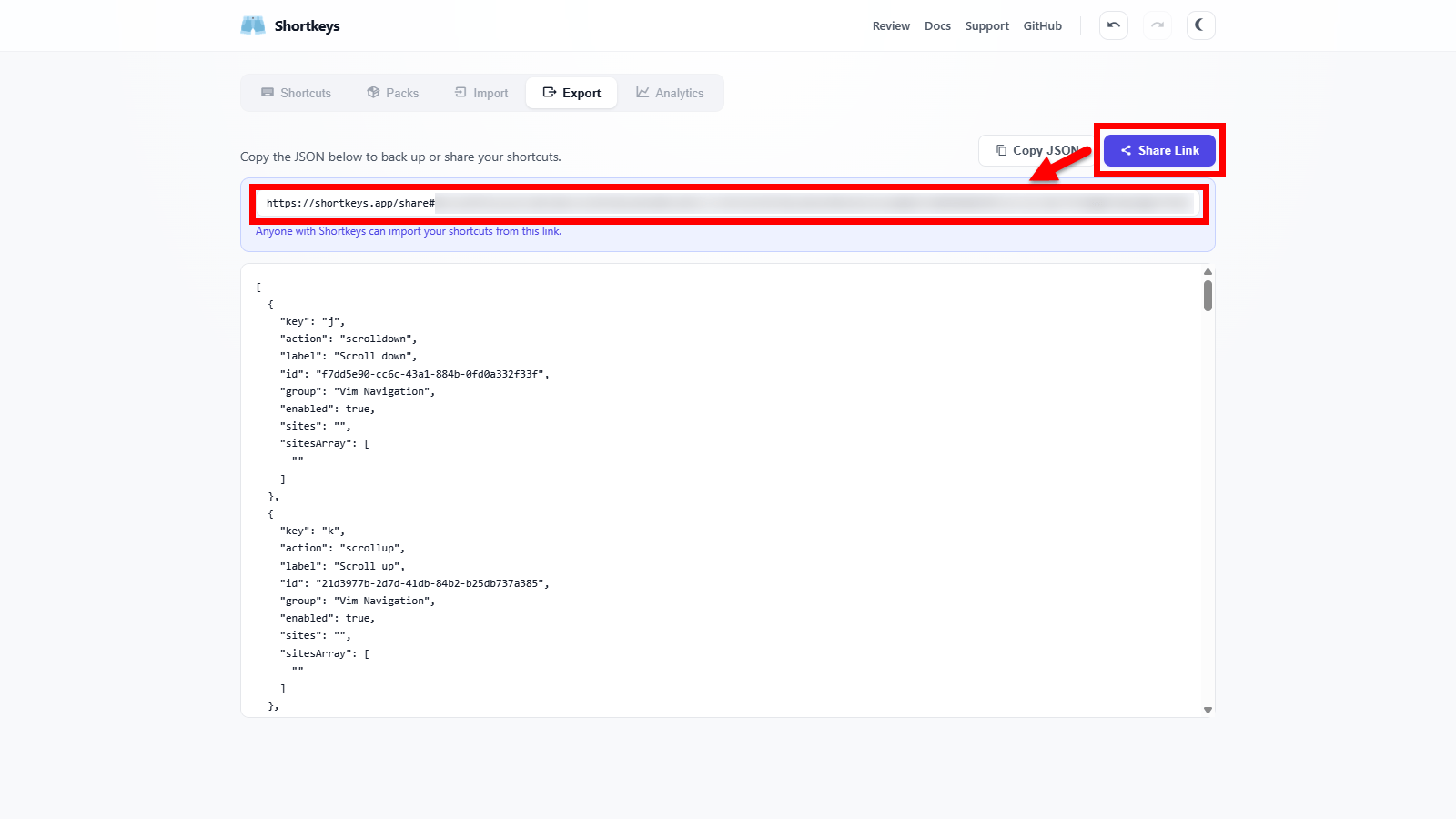
If you want to share the shortcut with others, press the 'Share link' button to display a sharing URL, which you can then freely distribute.
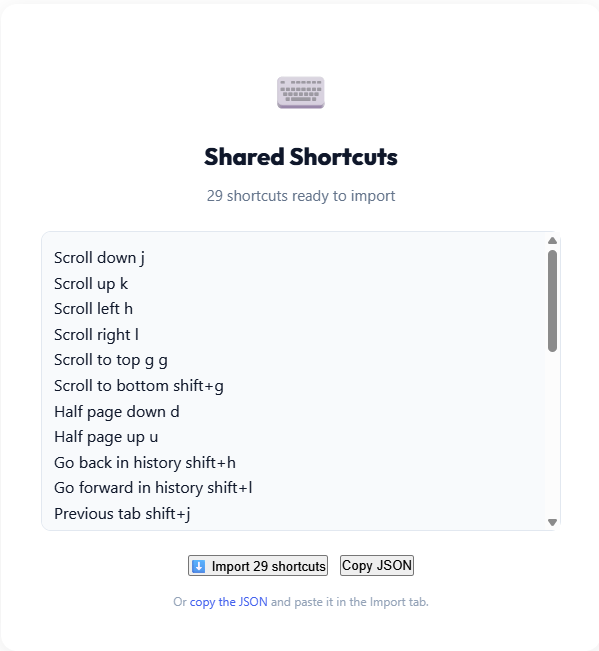
When you open the share URL in another browser where you want to import the files, a list of shortcuts will appear. You can choose to either click the 'Import shortcuts' button to import directly, or click the 'Copy JSON' button to copy the JSON file for import to your clipboard.
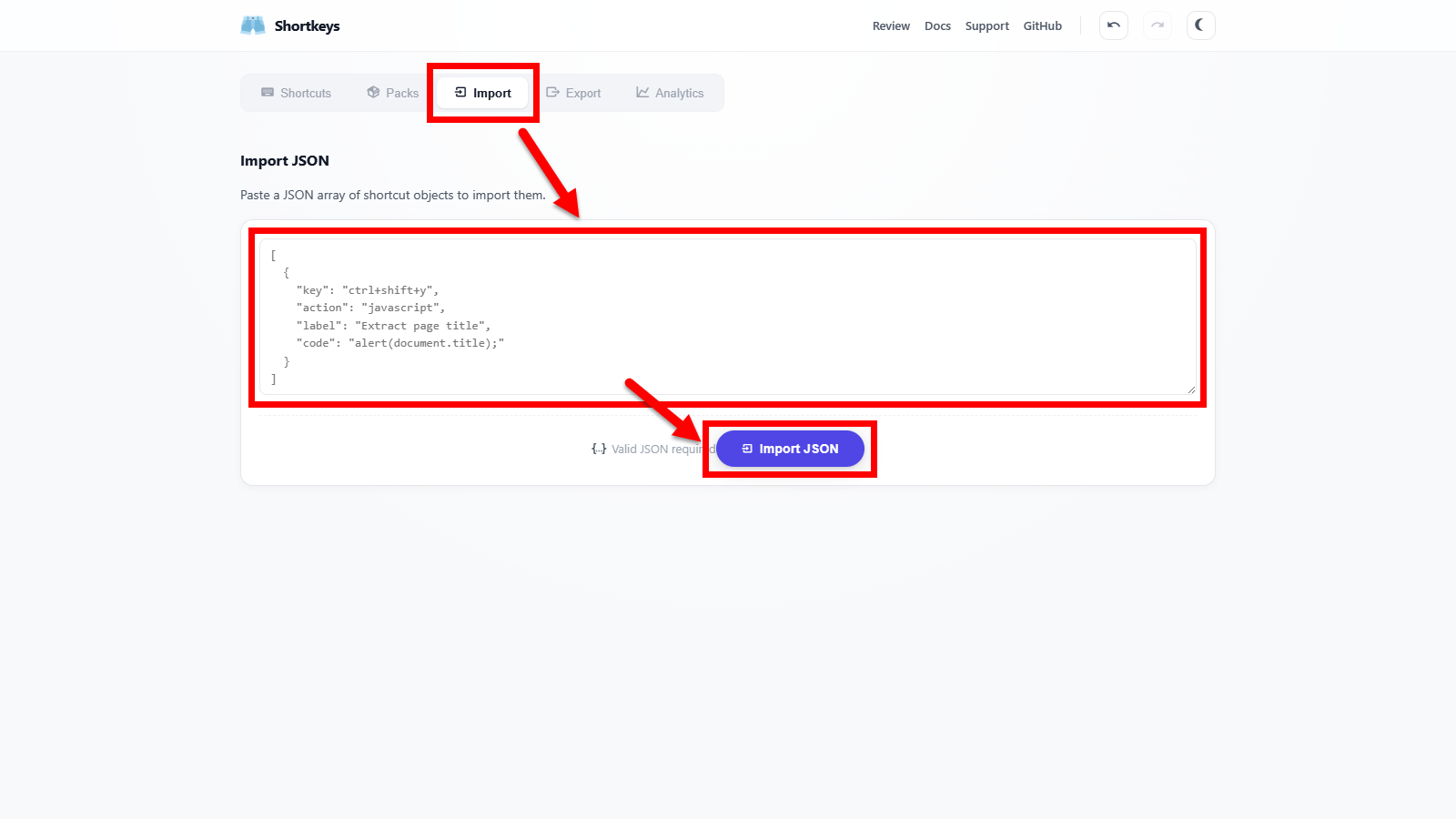
Clicking 'Import' from the menu at the top of the screen will take you to the import screen. If you have copied the import JSON file, paste it into the text box in the center of the screen and click the 'Import JSON' button to import it.
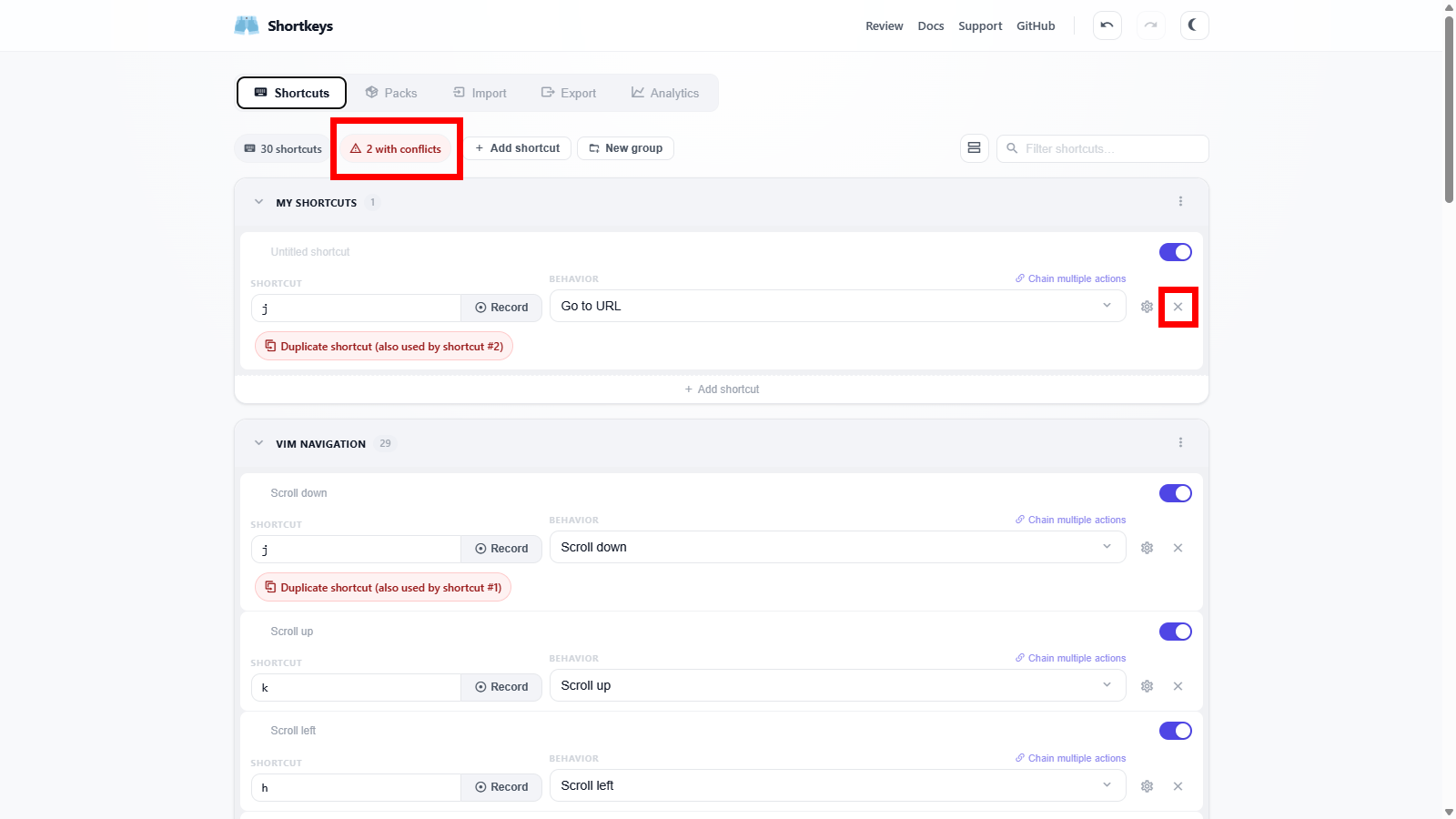
If shortcuts are duplicated after importing, no specific warning will be displayed, but the 'Shortcuts' screen will show '[Number of duplicate shortcuts] with conflicts'. Since neither shortcut can be used while they are duplicated, you need to delete one of the shortcuts to resolve the conflict.
◆Shortcut usage statistics
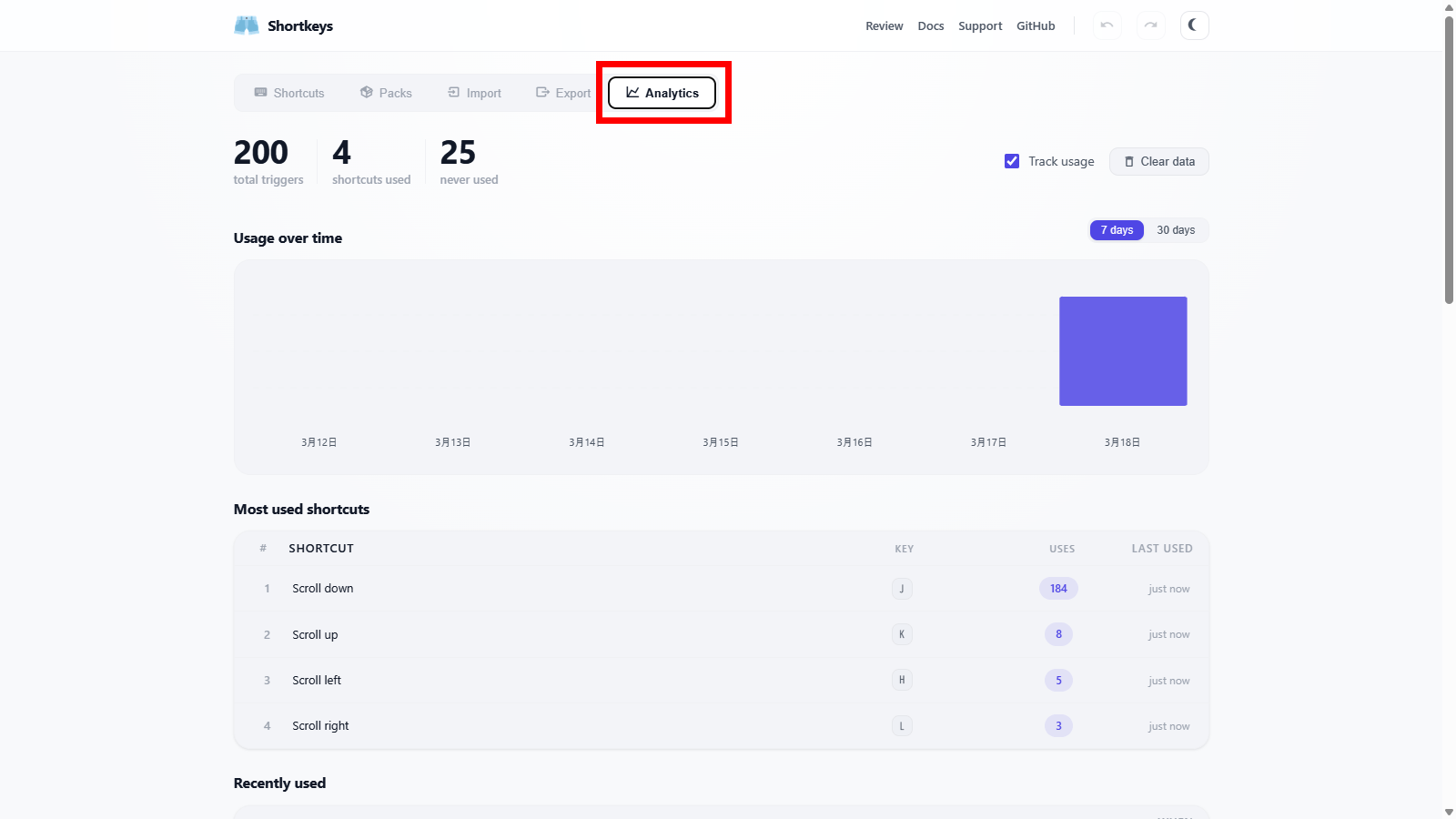
Clicking 'Analytics' in the menu at the top of the screen will display a screen that shows statistics on how often you've used shortcuts. You can use this to find shortcuts you're not using and reassign them to other functions.
◆Summary
Shortkeys is an extremely useful extension that, once mastered, allows you to control your browser as if it were an extension of your own limbs. At the time of writing this article, its compatibility with certain browsers is limited, but it can be installed on a wide variety of browsers, so if you find it frustrating to reach for the mouse when using your browser, it's definitely worth considering installing it.
Related Posts: