Summary of how to use the benchmark tool 'Puget Bench 2.0' that can automatically operate 'Premiere Pro' and 'DaVinci Resolve' to measure PC performance
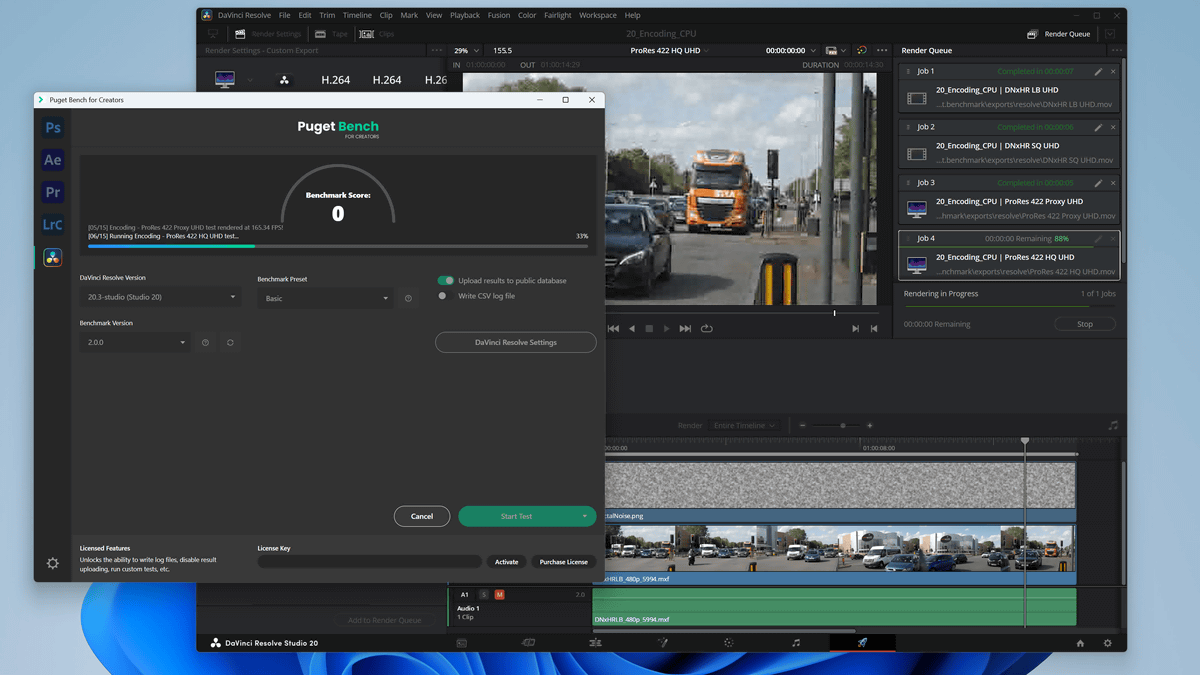
'Puget Bench' is a benchmark tool for Windows and macOS that automatically runs creative applications such as Photoshop, Premiere Pro, and DaVinci Resolve to measure PC performance. On February 6, 2026, Puget Bench 2.0, which updated the test content for Premiere Pro and DaVinci Resolve, was released, so I tried using it.
Puget Bench 2.0 for Premiere Pro and DaVinci Resolve Released! | Puget Systems
Puget Bench 2.0 supports Premiere Pro and DaVinci Resolve, and requires that each app be installed on your PC separately from the benchmark tool. In the case of DaVinci Resolve, it supports both the free version and the paid version, DaVinci Resolve Studio. However, some tests in DaVinci Resolve have limitations, so this time we will run the tests using DaVinci Resolve Studio already installed on your PC.
First, to install Puget Bench, go to the link below.
Puget Bench for Creators | Puget Systems
https://www.pugetsystems.com/pugetbench/creators/
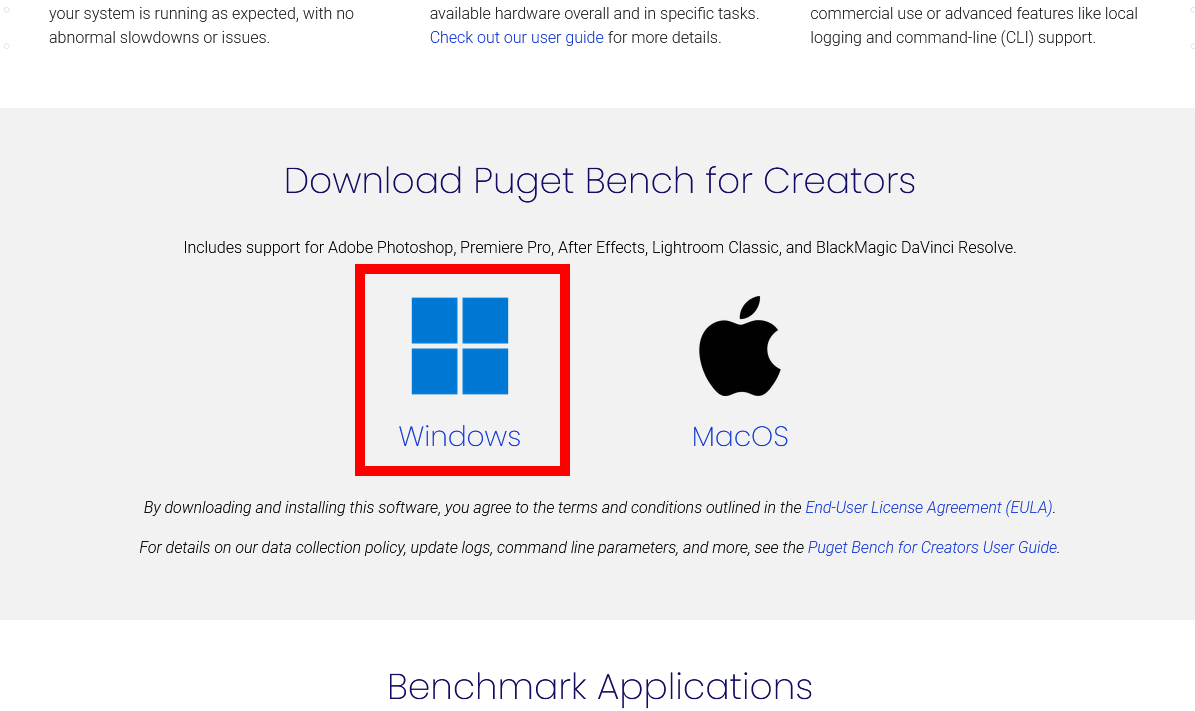
Scroll down.
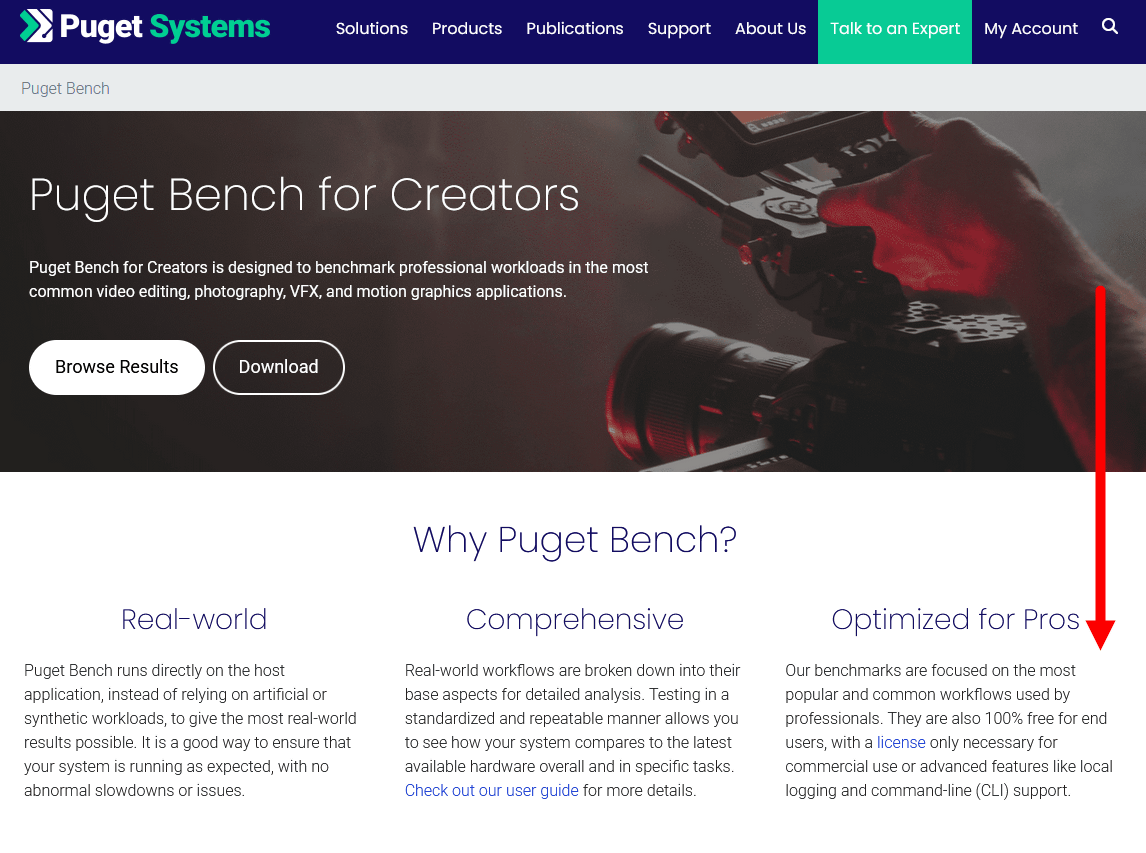
Click 'Windows'.
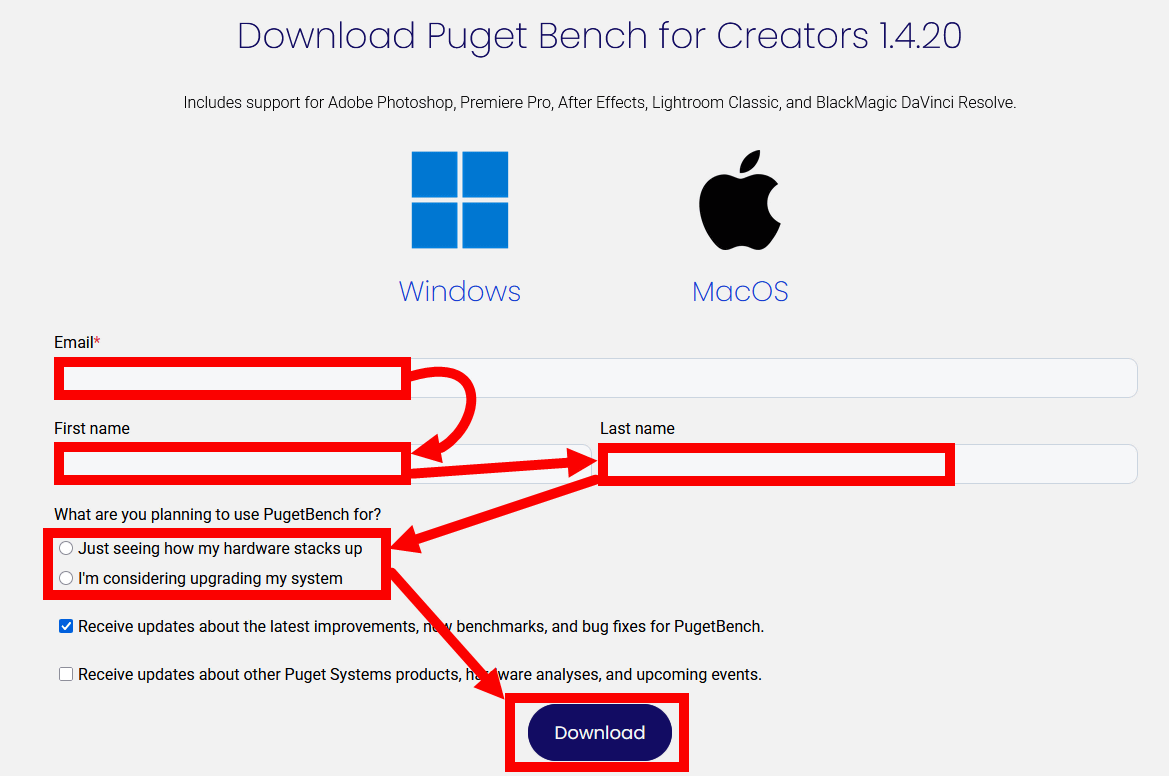
Enter your email address, first name, and last name, then select the purpose and click 'Download.'
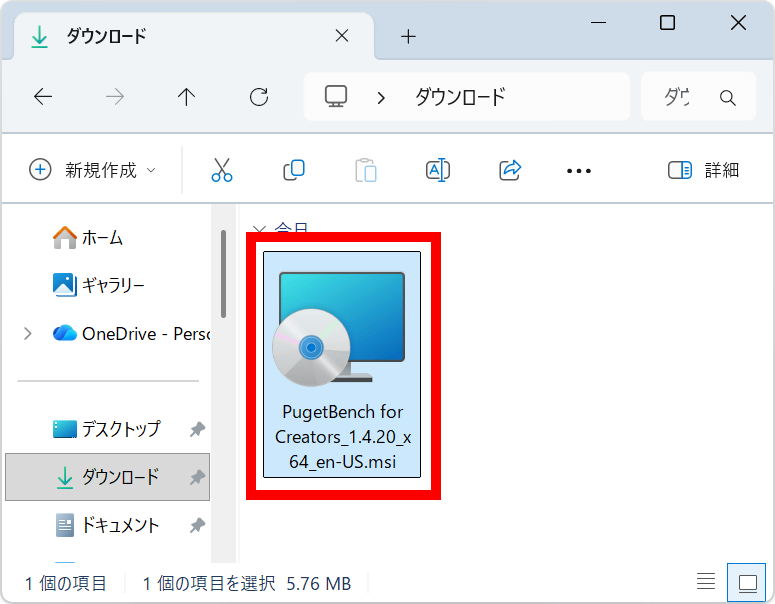
Once the installer has finished downloading, double-click it to run it. The installer filename has '1.4.20' in it, which is the version number of the Puget Bench launcher. This is how you can run Puget Bench 2.0 from the launcher.
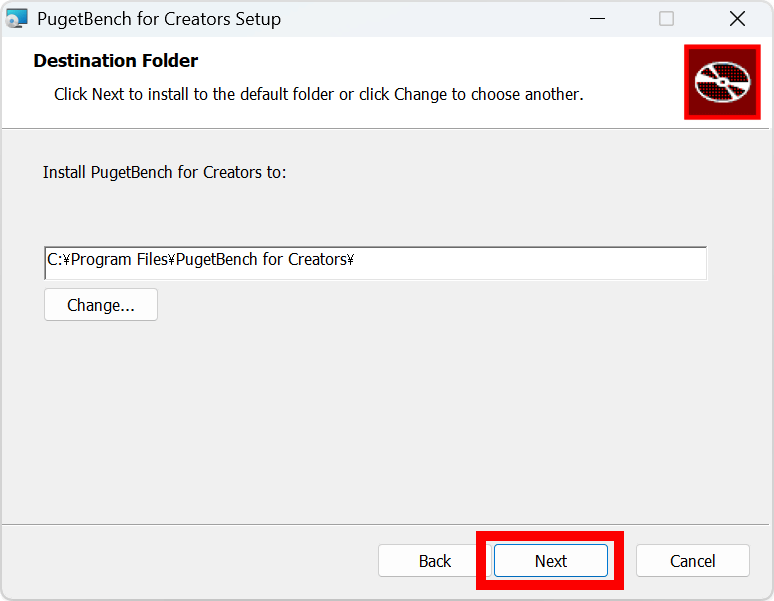
Click “Next”.
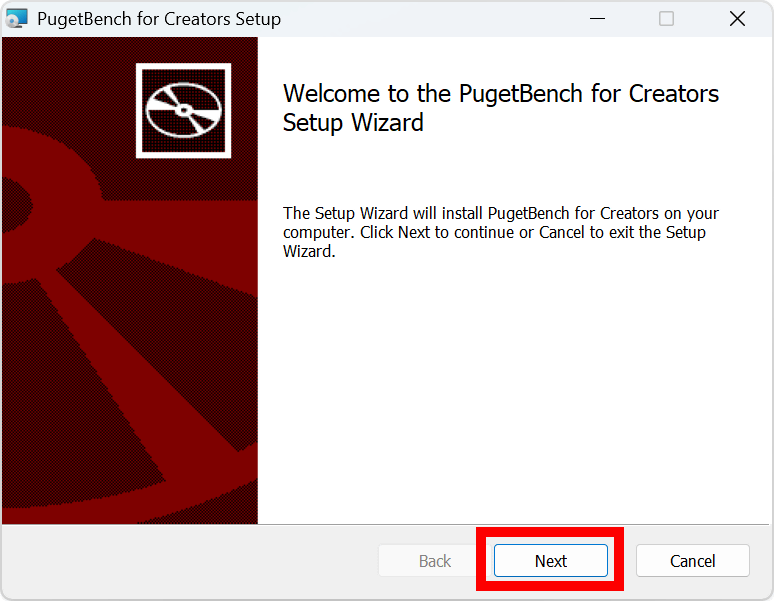
Click “Next”.
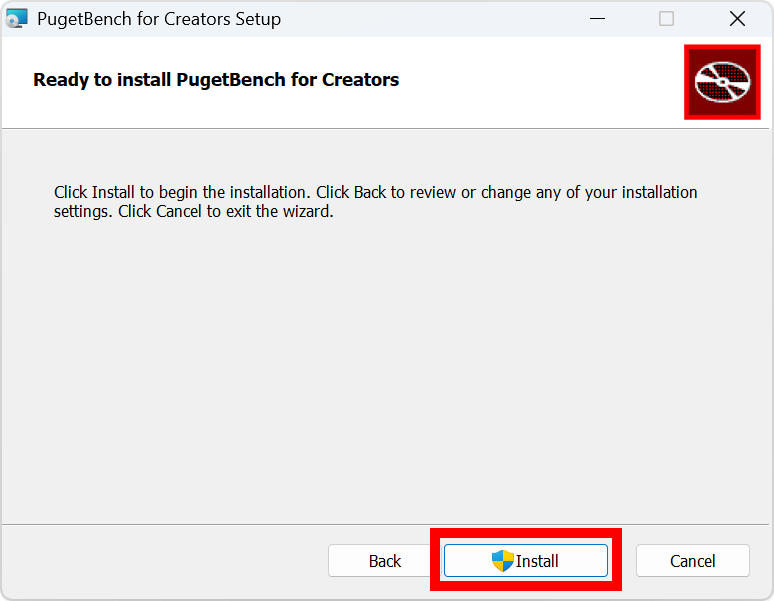
Click “Install”.
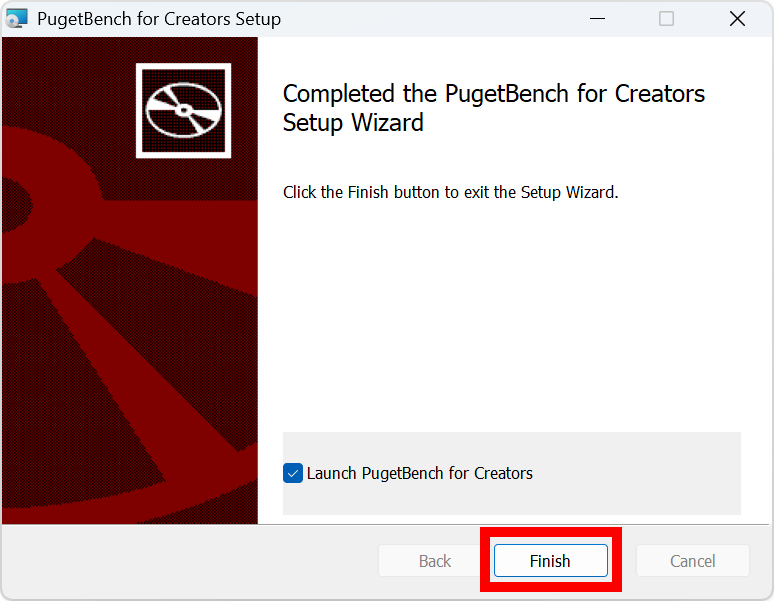
Click “Finish”.
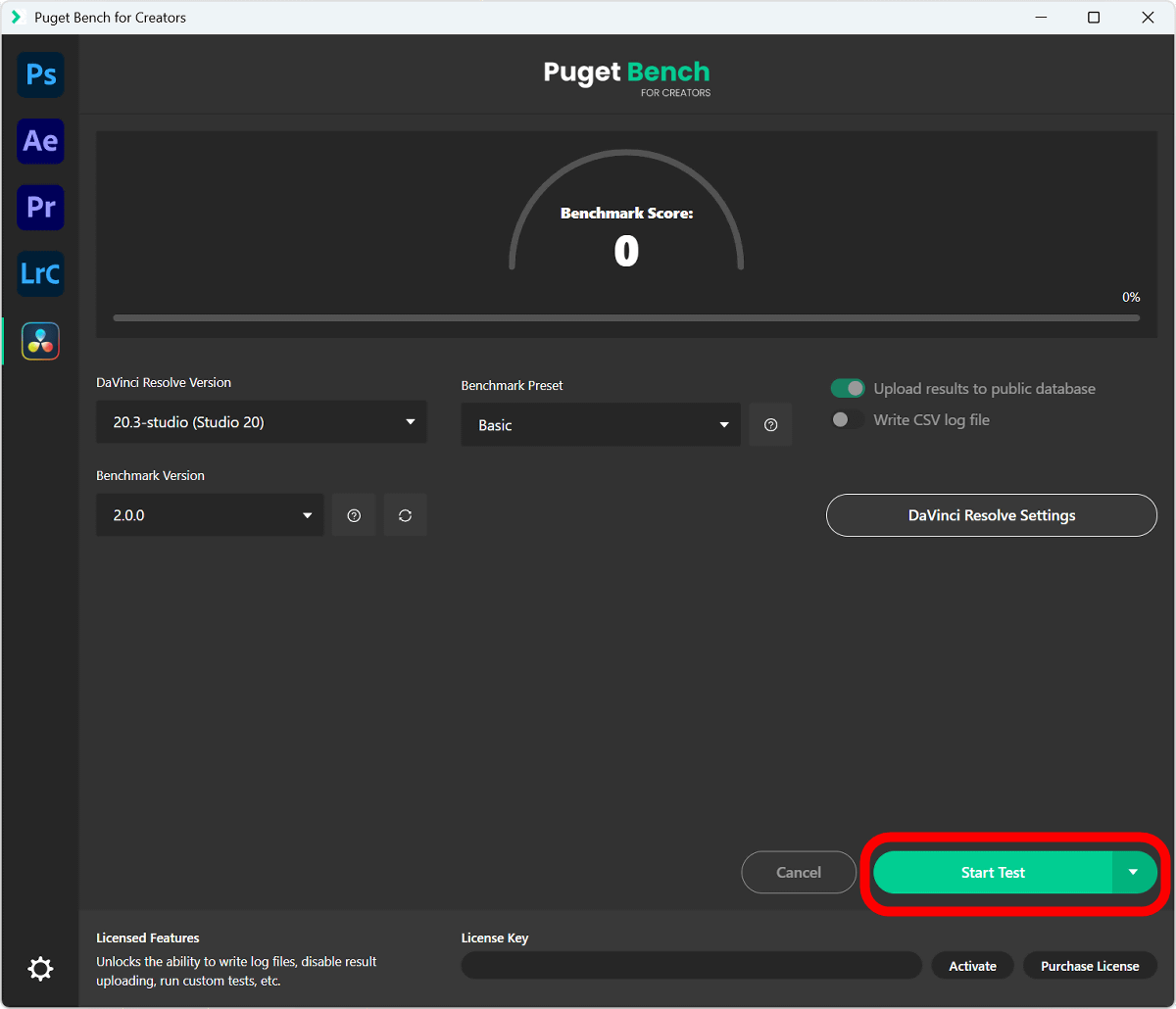
Once the Puget Bench launcher is launched, click the DaVinci Resolve Studio button in the left sidebar, then click “Download Assets” to download the necessary files.
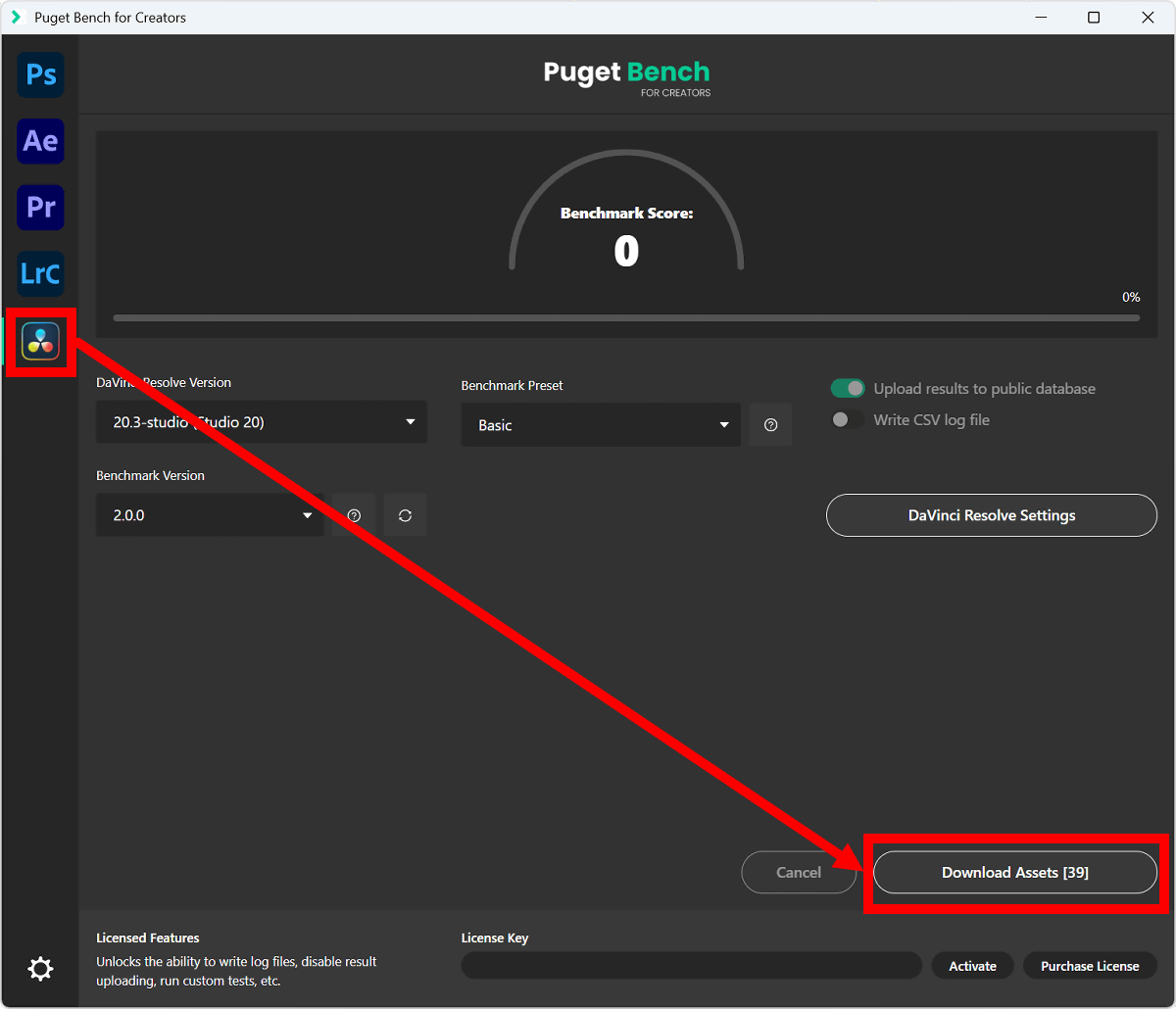
Once the Download button changes to a green 'Start Test' button, you're ready to go.
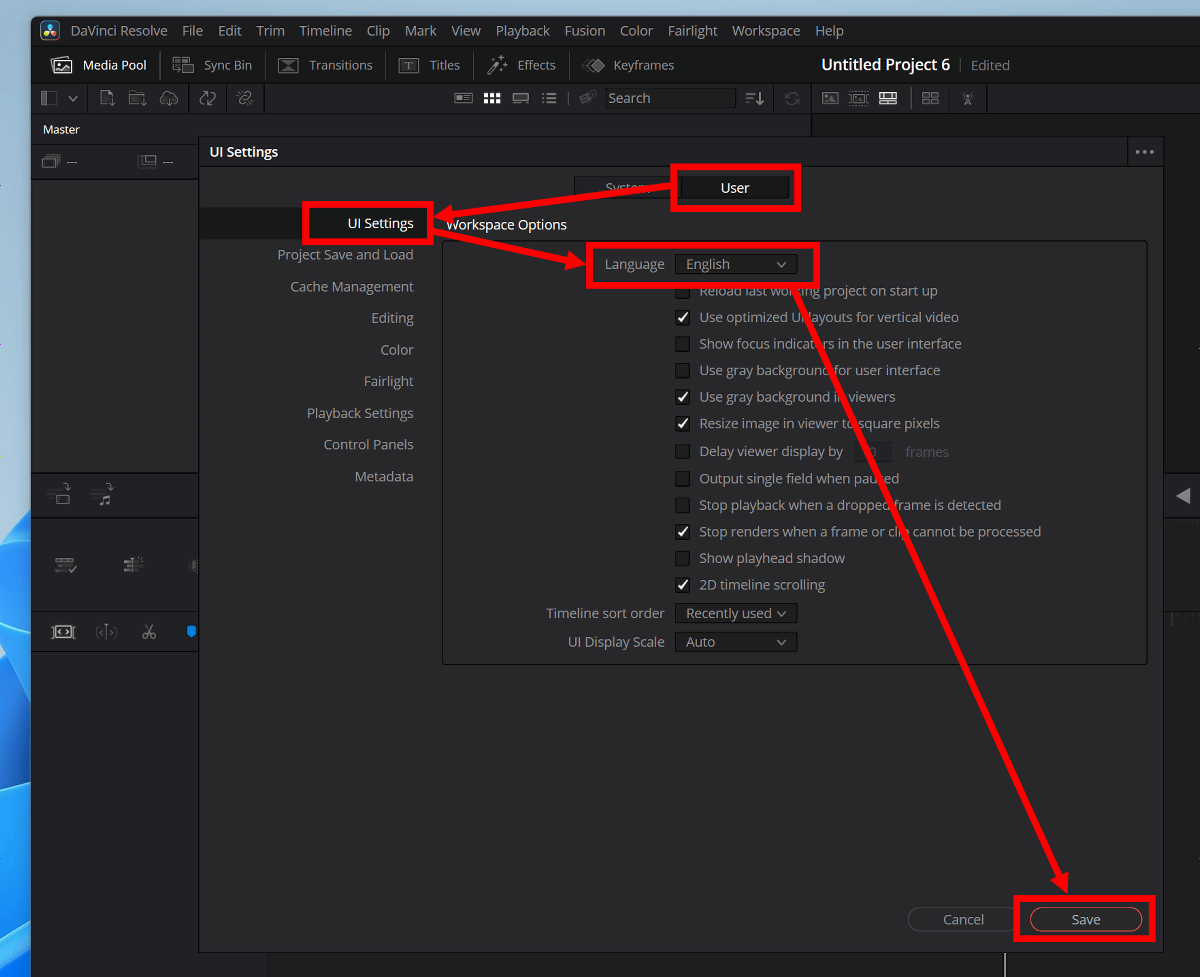
Now, launch DaVinci Resolve Studio and change the language setting to English. In the settings screen, click 'User' → 'UI Settings,' change the language to 'English,' and click 'Save.' After changing the settings, close DaVinci Resolve Studio. Please note that running the benchmark in Japanese will fail.
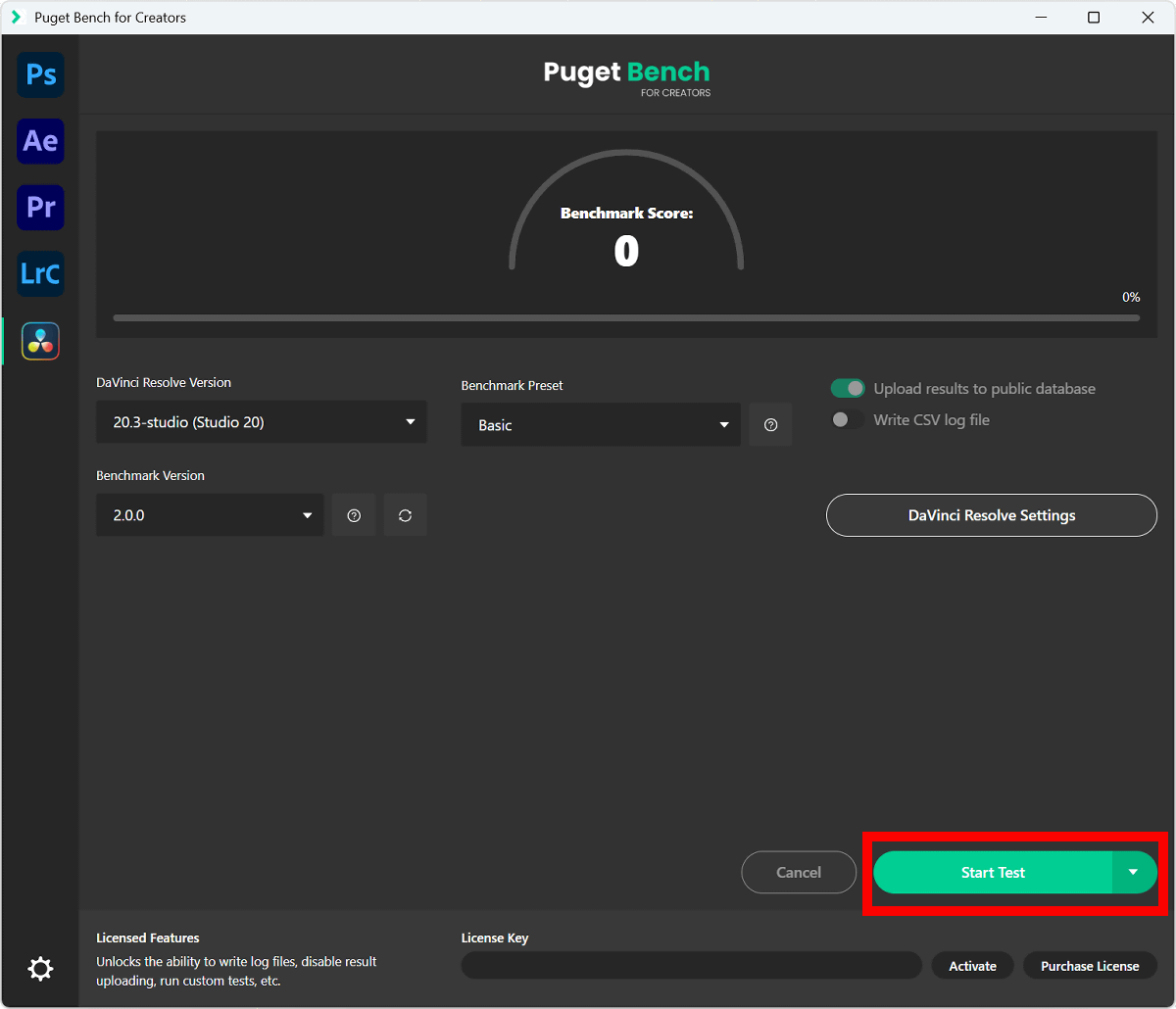
Once you have completed the language settings, click 'Start Test'.
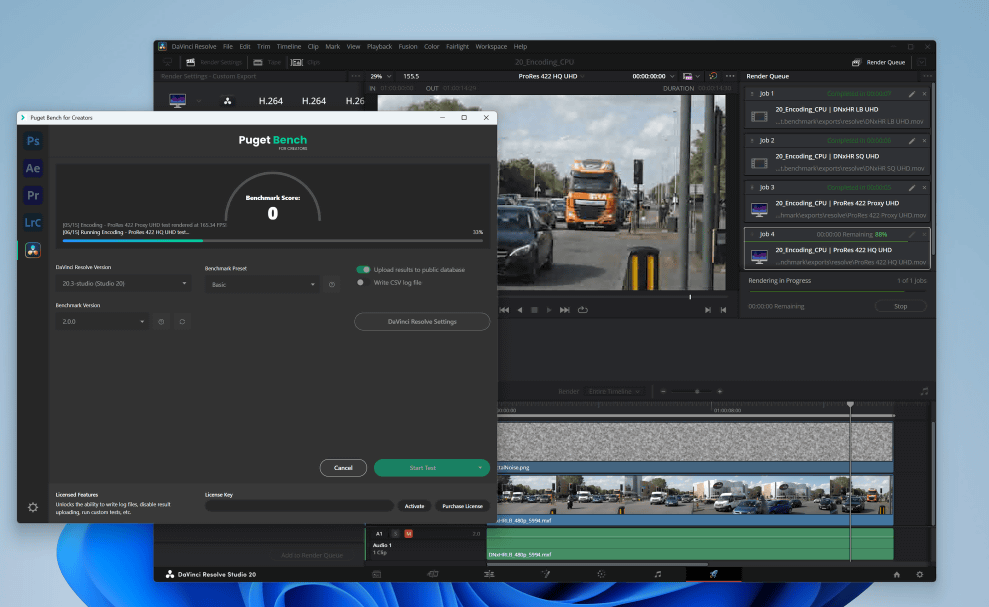
DaVinci Resolve Studio will start automatically and the encoding process will be performed automatically.
After a few minutes, your benchmark score will be displayed and your browser will launch to a web page where you can view the results in detail.
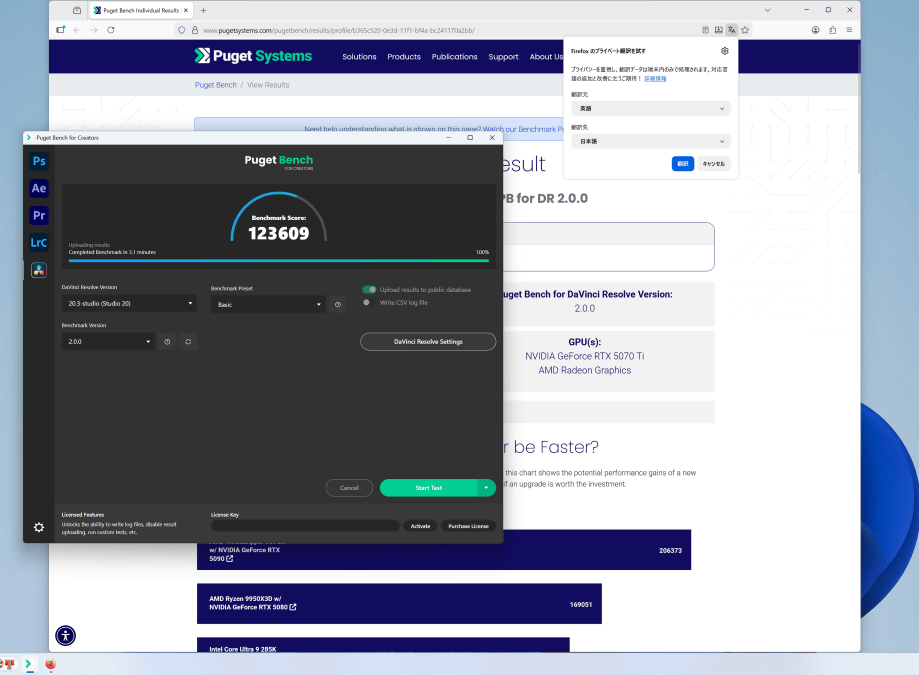
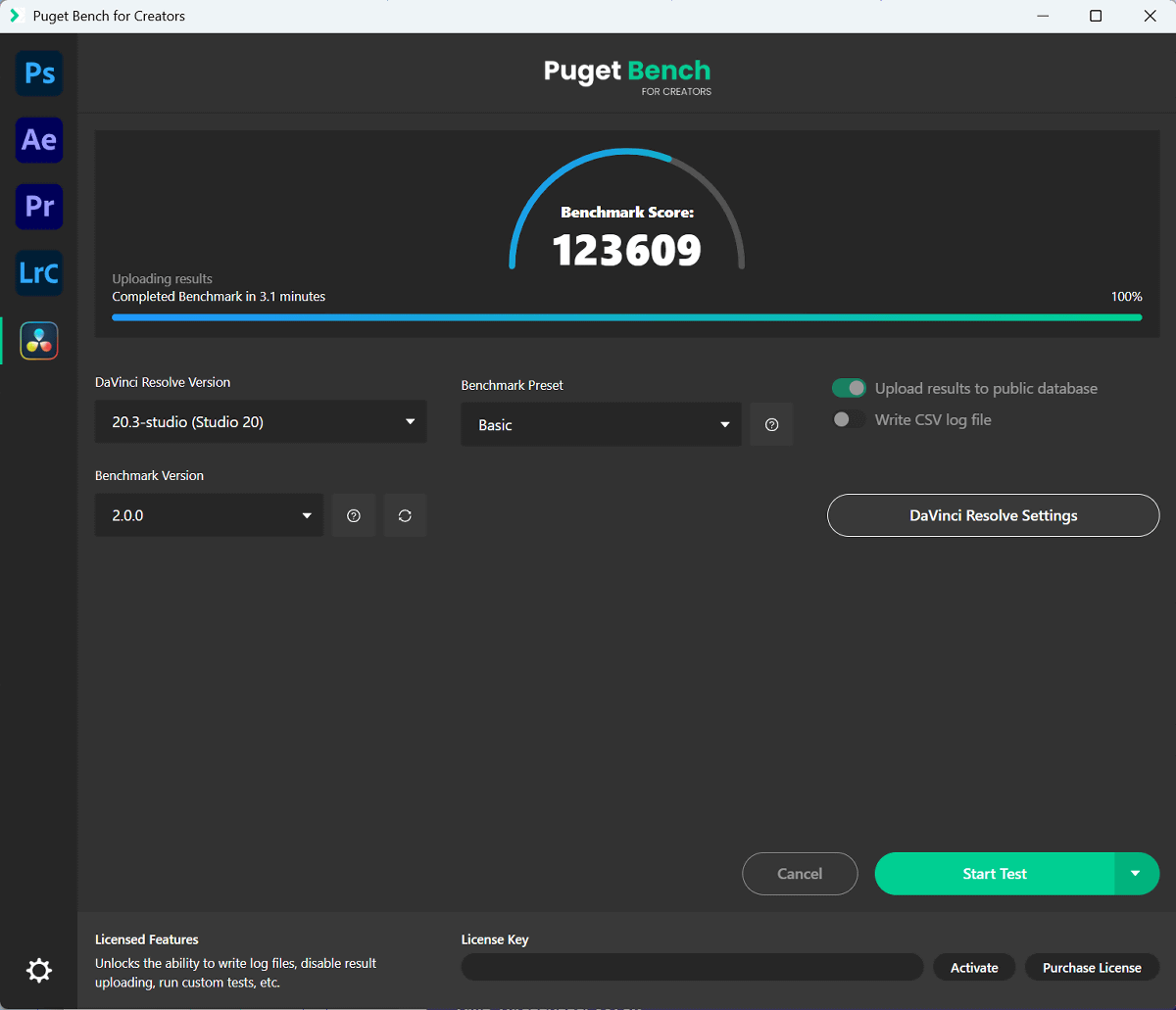
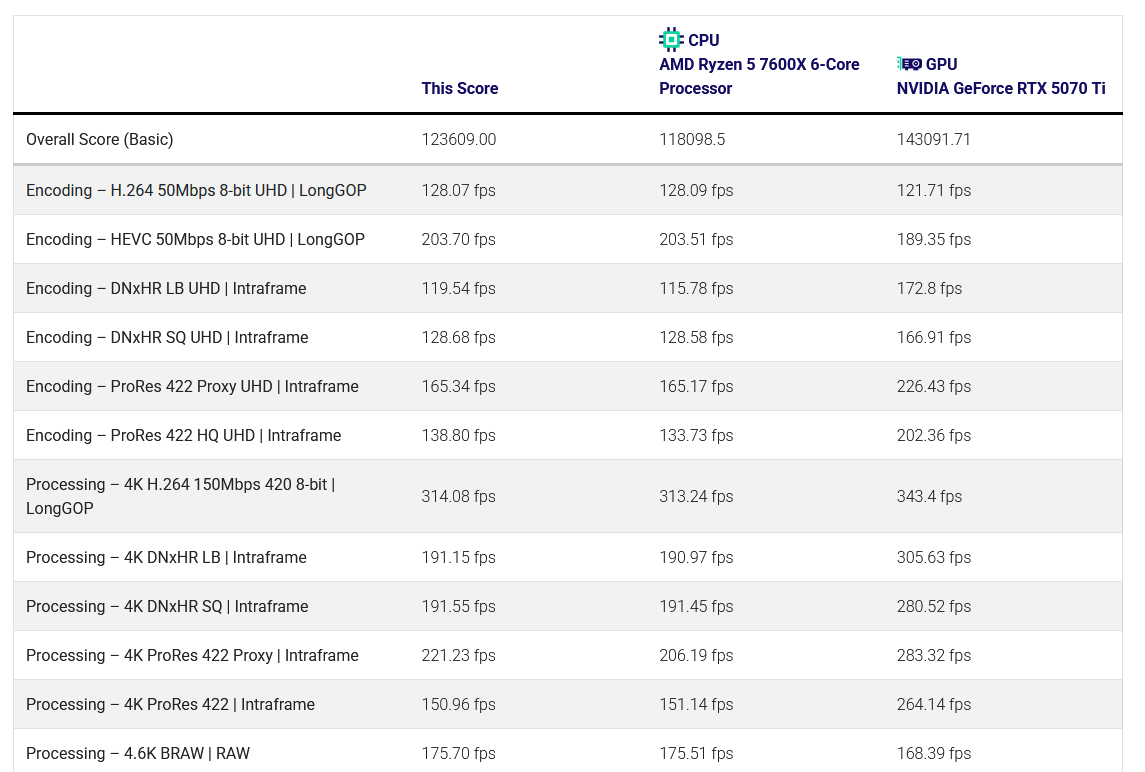
For a PC equipped with an AMD Ryzen 5 7600X and an NVIDIA GeForce RTX 5070 Ti, the score was 123,609.
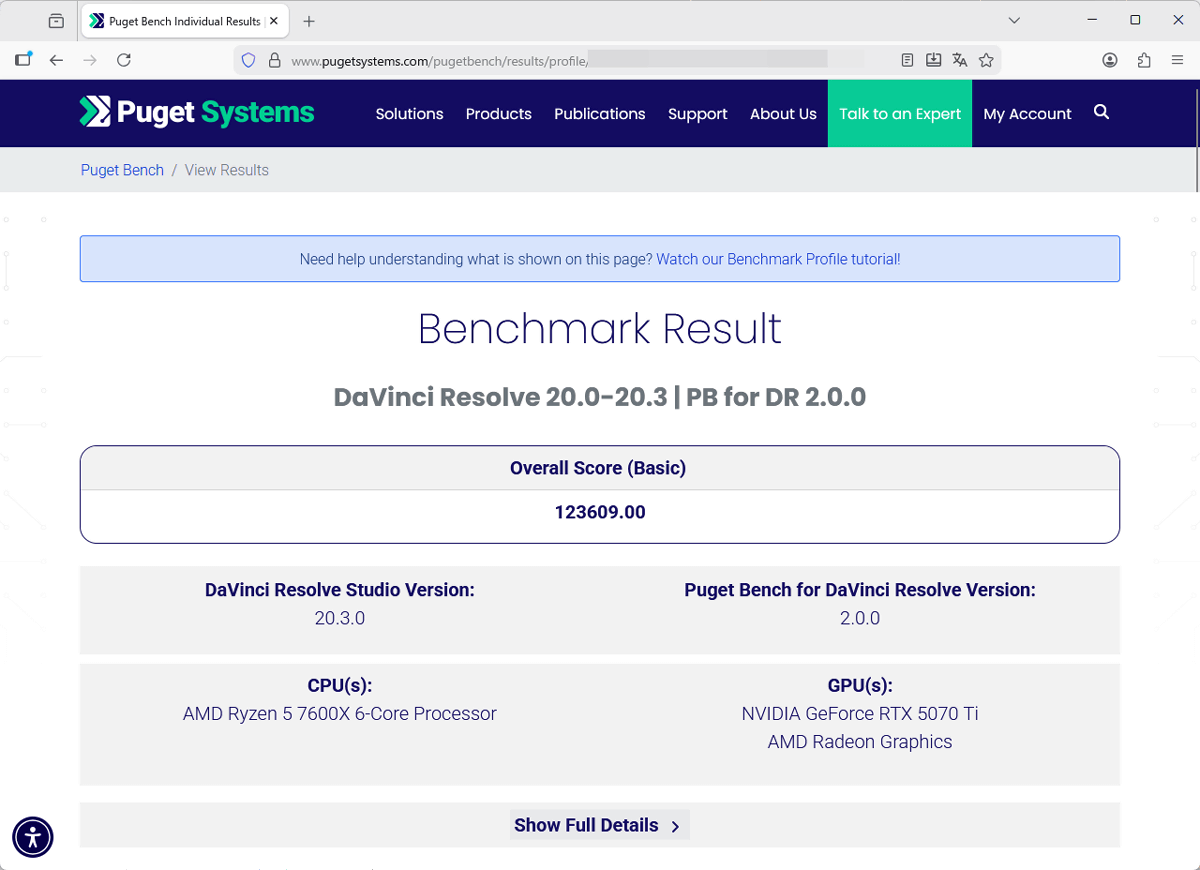
On the web page, you can check not only the score but also the DaVinci Resolve Studio version, Puget Bench version, CPU name, and GPU name.
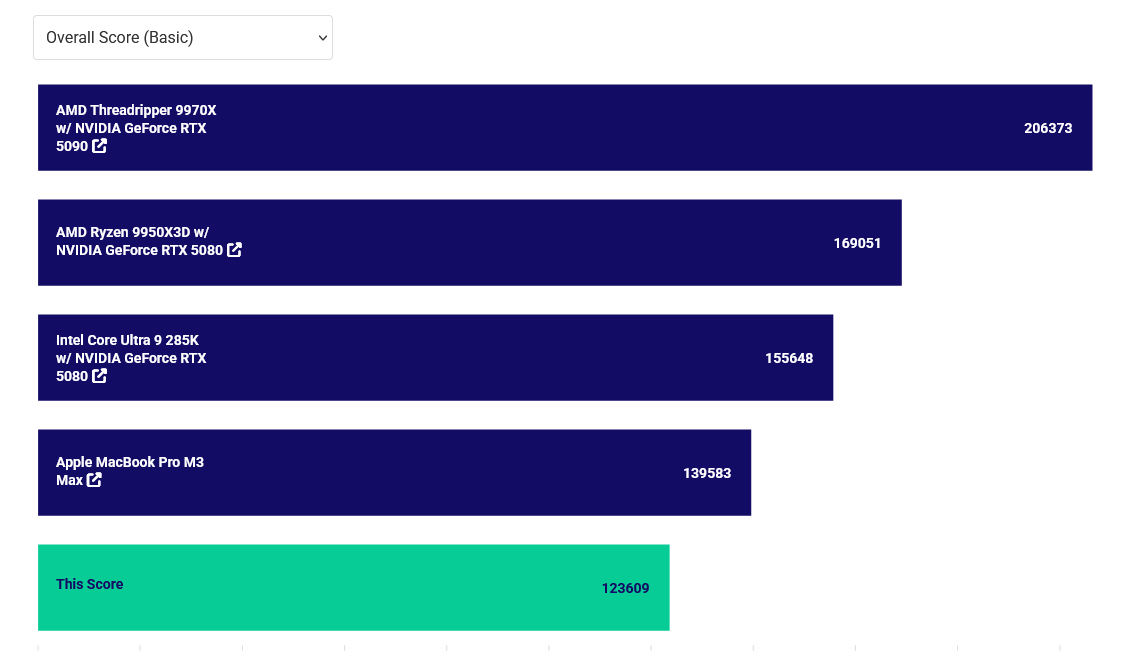
Scroll down to compare your score with other PC configurations.
In addition, scores for each operation are displayed. If you record the URL or add it to your favorites, you can check the benchmark results at any time.
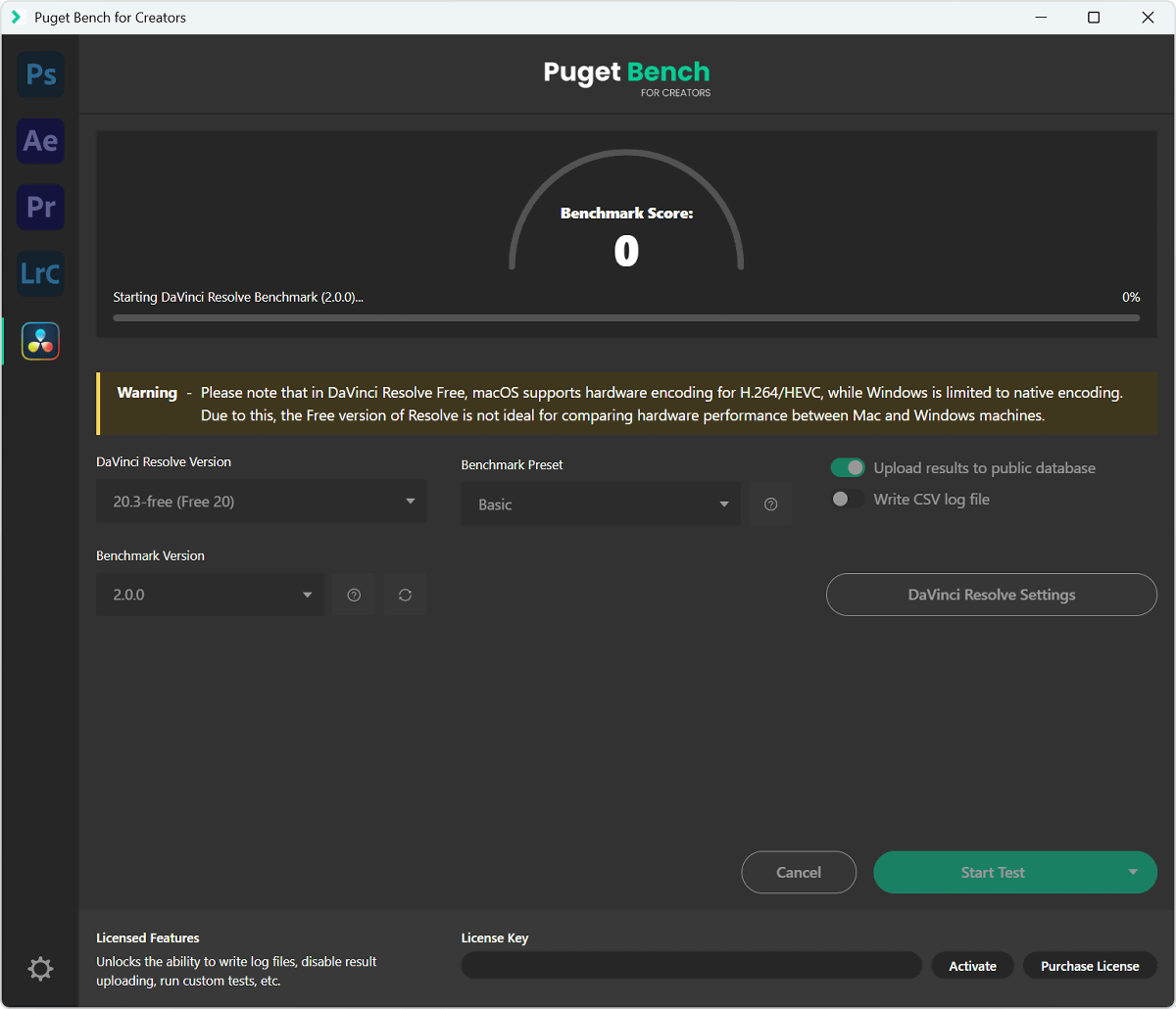
Please note that the free version of DaVinci Resolve has limited codecs that can be used for encoding, making it difficult to compare scores between different PCs.
Related Posts: